```
#### 重要信息
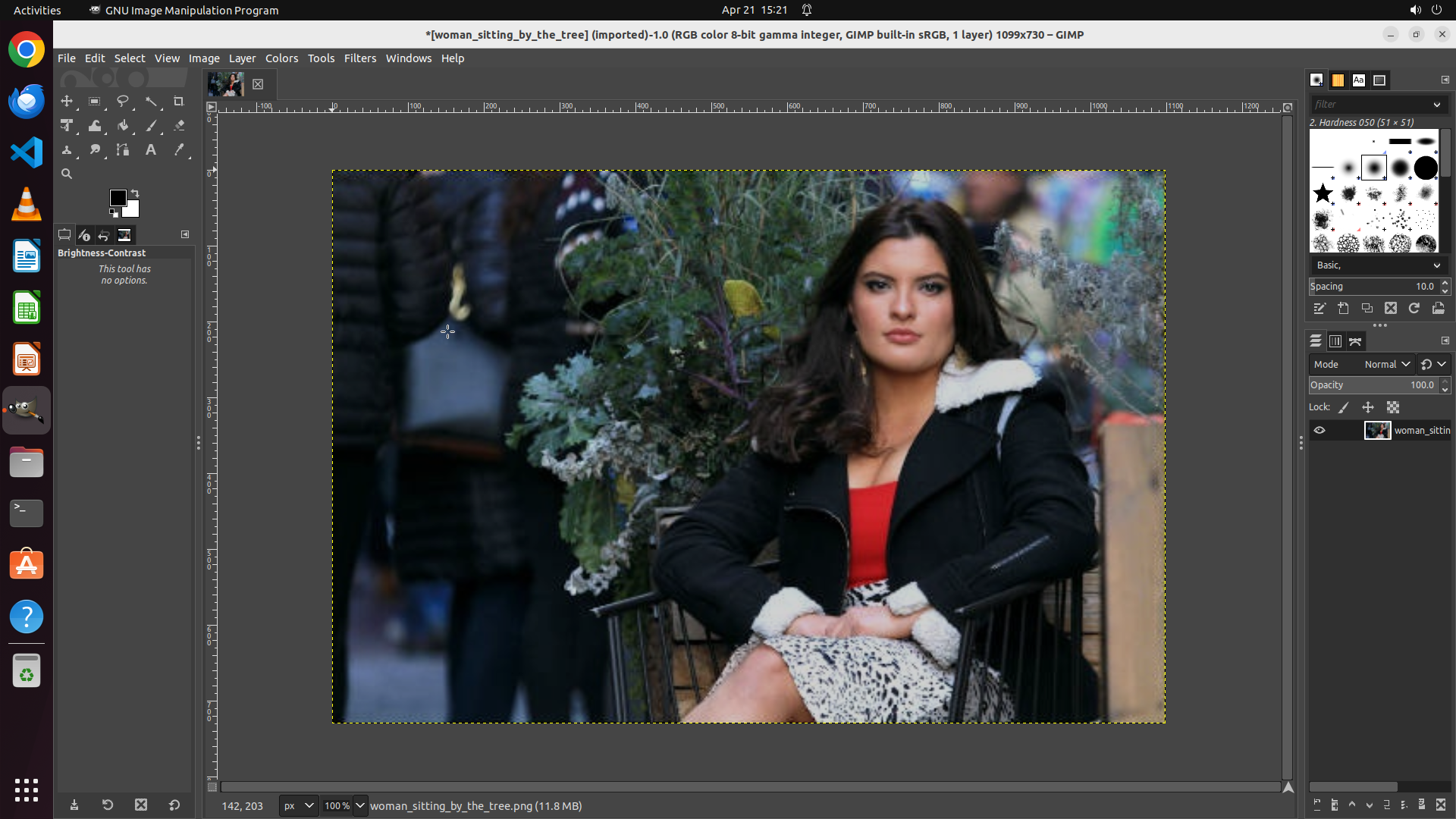
- GIMP is already open with an image loaded: "woman_sitting_by_the_tree" (1099x730 pixels)
- The menu bar is visible at the top with options: File, Edit, Select, View, Image, Layer, Colors, Tools, Filters, Windows, Help
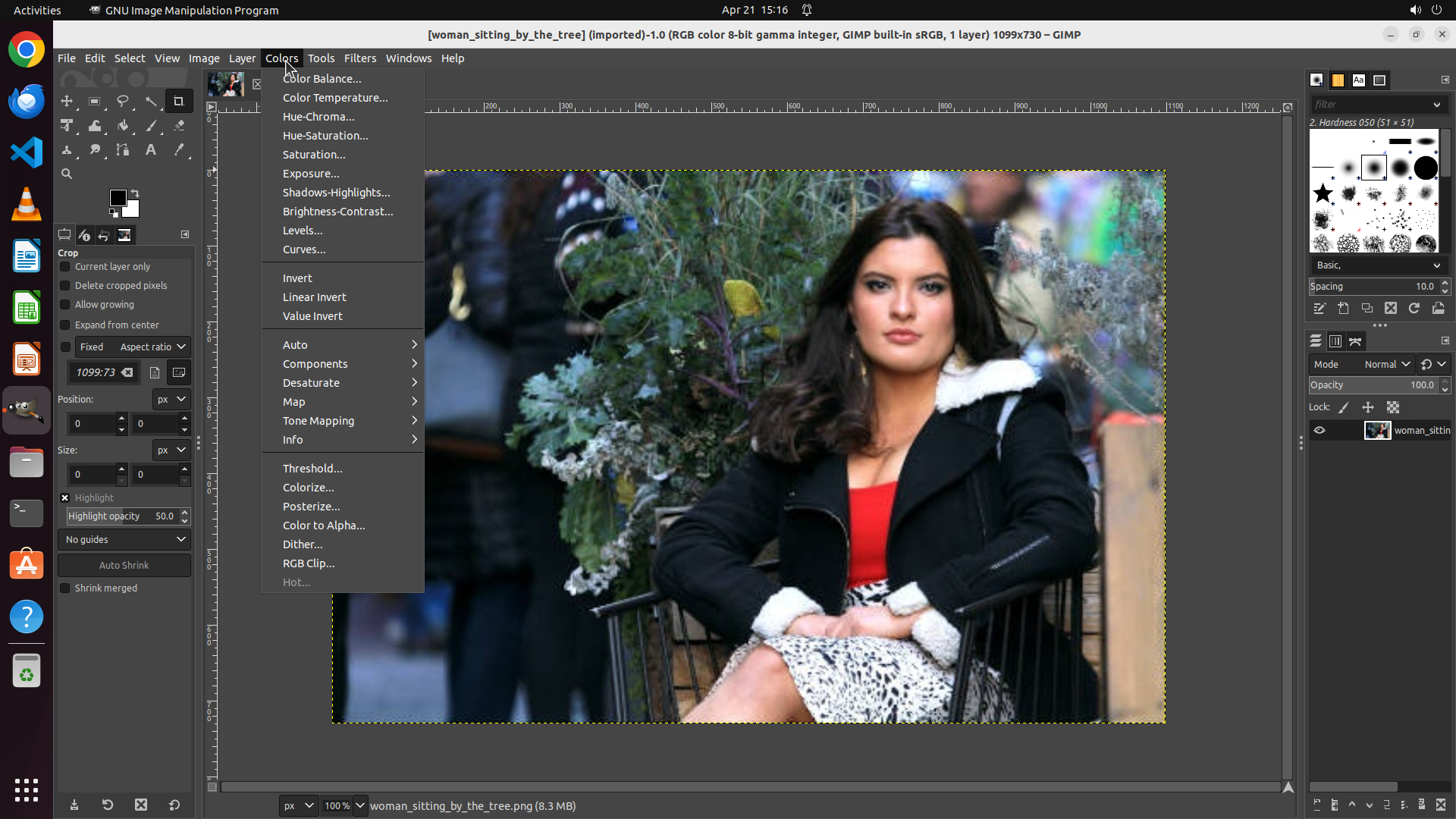
- The Colors menu is where brightness adjustment options are typically located in GIMP
- No dialogs are currently open
#### 情况分析与思考过程
The task is to tone down the brightness of the photo. GIMP is already open with the image loaded, which is good. According to the strategy tree, I need to:
1. First, open the brightness adjustment dialog by clicking on Colors menu
2. Then select Brightness-Contrast option
3. Adjust the brightness slider to reduce brightness
4. Apply the changes
5. Save the file
The logical next action is to click on the "Colors" menu in the menu bar to access the brightness adjustment options. This will open a dropdown menu where I can select Brightness-Contrast or similar options.
```
Step 2: CLICK (445, 276)
```
#### 重要信息
- The Colors menu dropdown is now open and visible
- I can see "Brightness-Contrast..." option in the menu list
- The image "woman_sitting_by_the_tree" is loaded and displayed in the canvas
- No dialogs are currently open - just the Colors menu dropdown
#### 情况分析与思考过程
The previous action successfully opened the Colors menu. Now I can see all the color adjustment options available. According to the strategy tree, the next step is to select "Brightness-Contrast" from the dropdown menu.
I can see "Brightness-Contrast..." listed in the menu. This is the standard tool in GIMP for adjusting brightness. Clicking on it will open a dialog with sliders to adjust brightness and contrast values.
The logical next action is to click on "Brightness-Contrast..." in the Colors dropdown menu to open the brightness adjustment dialog.
```
Step 3: MOVE_TO (449, 265)
```
#### 重要信息
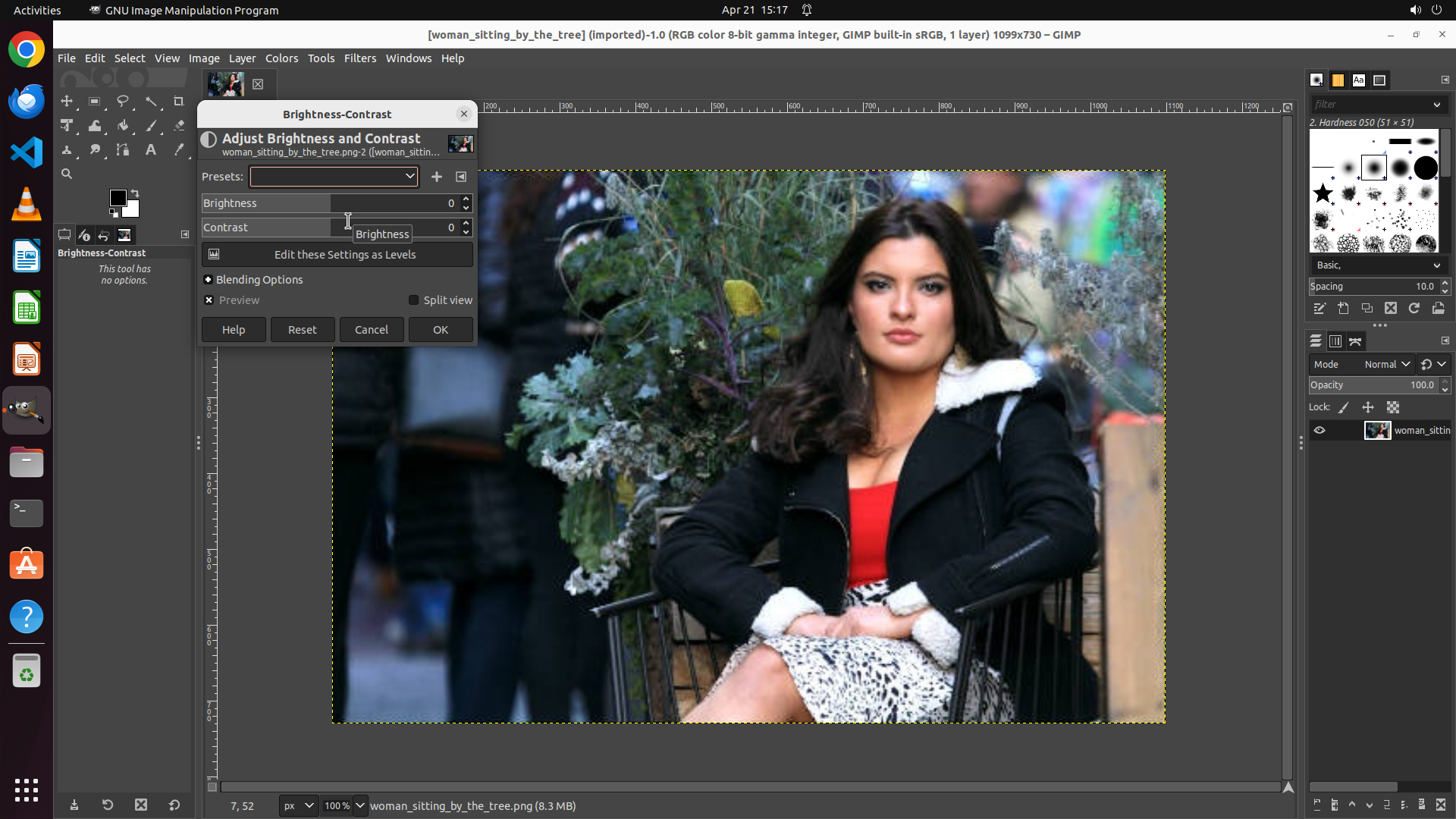
- The Brightness-Contrast dialog is now open and visible
- Both Brightness and Contrast sliders are currently set to 0
- The Brightness slider is the first slider in the dialog
- The Preview checkbox is checked, so changes will be visible in real-time
- The image "woman_sitting_by_the_tree" is displayed in the background canvas
#### 情况分析与思考过程
The previous action successfully opened the Brightness-Contrast dialog. Now I need to reduce the brightness by dragging the Brightness slider to the left to set it to a negative value.
Looking at the dialog:
- The Brightness slider handle is currently at position 0
- I need to drag it leftward to decrease the brightness
- A reasonable adjustment would be to drag it to around -30 to -50 to noticeably tone down the brightness
The logical next action is to drag the Brightness slider handle from its current position to the left. This will set a negative brightness value and darken the image as requested. After dragging, I should see the image preview update to show a darker version.
```
Step 3: DRAG_TO (374, 265)
```
#### 重要信息
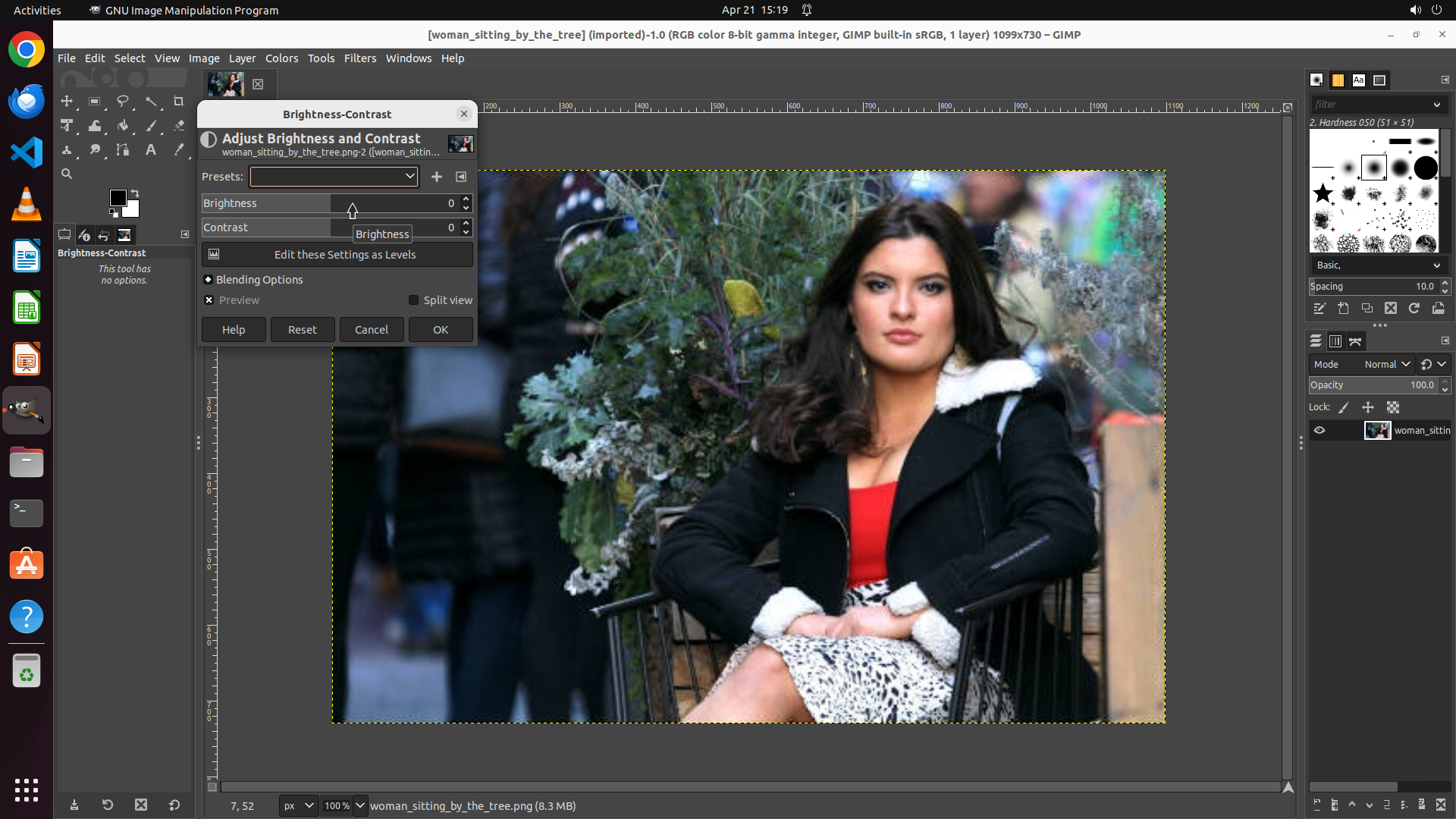
- The Brightness-Contrast dialog is now open and visible
- Both Brightness and Contrast sliders are currently set to 0
- The Brightness slider is the first slider in the dialog
- The Preview checkbox is checked, so changes will be visible in real-time
- The image "woman_sitting_by_the_tree" is displayed in the background canvas
#### 情况分析与思考过程
The previous action successfully opened the Brightness-Contrast dialog. Now I need to reduce the brightness by dragging the Brightness slider to the left to set it to a negative value.
Looking at the dialog:
- The Brightness slider handle is currently at position 0
- I need to drag it leftward to decrease the brightness
- A reasonable adjustment would be to drag it to around -30 to -50 to noticeably tone down the brightness
The logical next action is to drag the Brightness slider handle from its current position to the left. This will set a negative brightness value and darken the image as requested. After dragging, I should see the image preview update to show a darker version.
```
Step 4: CLICK (580, 427)
```
#### 重要信息
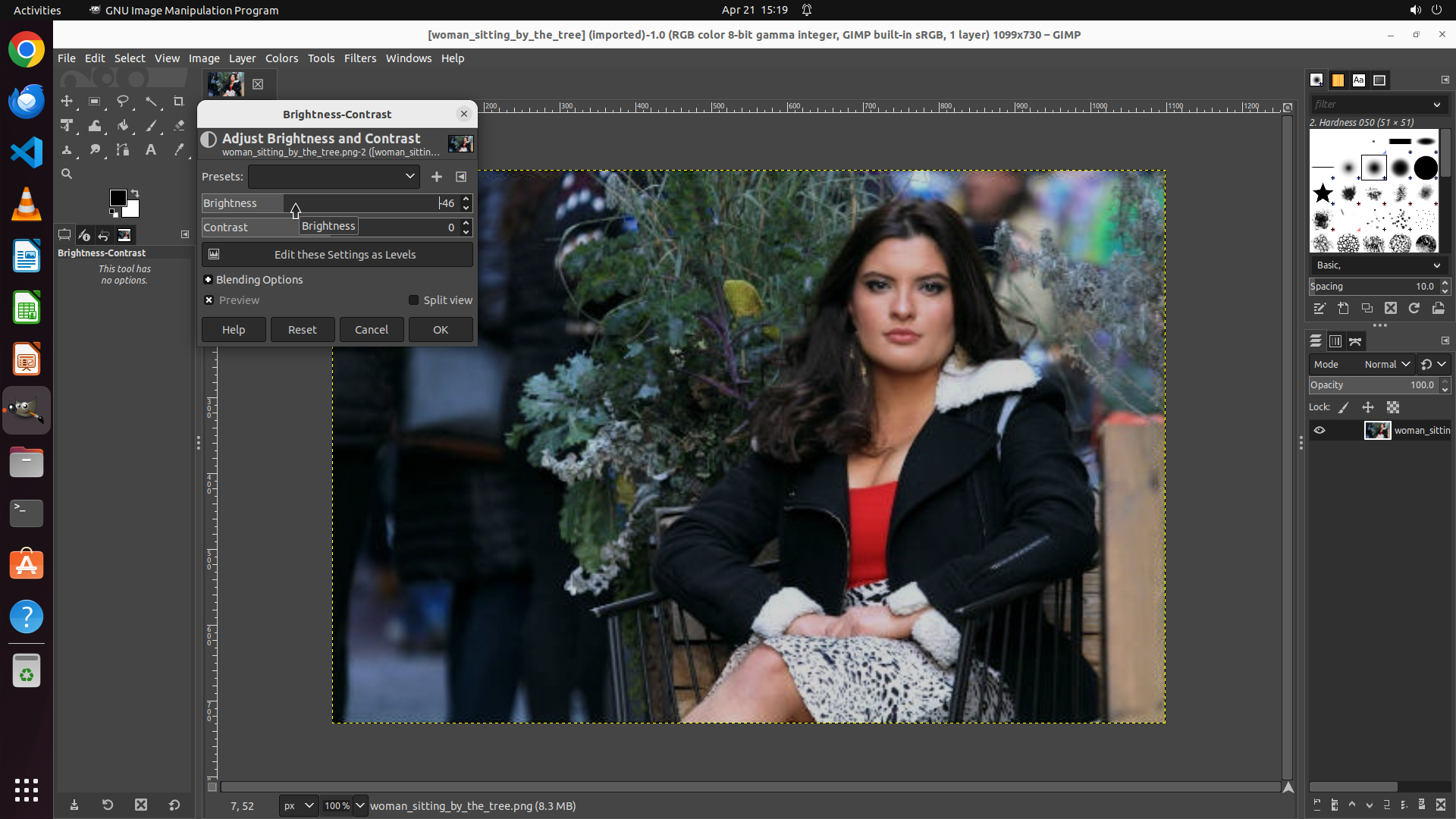
- The Brightness-Contrast dialog is open with Brightness set to -46
- The image preview shows a noticeably darker version compared to the original
- The Contrast value remains at 0
- The OK button is visible at the bottom right of the dialog
- The Cancel and Reset buttons are also available
#### 情况分析与思考过程
The previous action successfully adjusted the Brightness slider to -46, which has noticeably toned down the brightness of the photo. The image in the background appears darker than the original state.
Now I need to apply these changes by clicking the OK button. This will close the dialog and apply the brightness adjustment permanently to the image. After that, I'll need to save the modified image to complete the task.
The logical next action is to click the OK button to apply the brightness adjustment. This aligns with step 3.1 in the strategy tree.
```
I'll now apply the brightness adjustment by clicking OK and update the strategy tree to reflect the progress.
Step 5: CLICK (84, 75)
```
#### 重要信息
- The Brightness-Contrast dialog has been closed after clicking OK
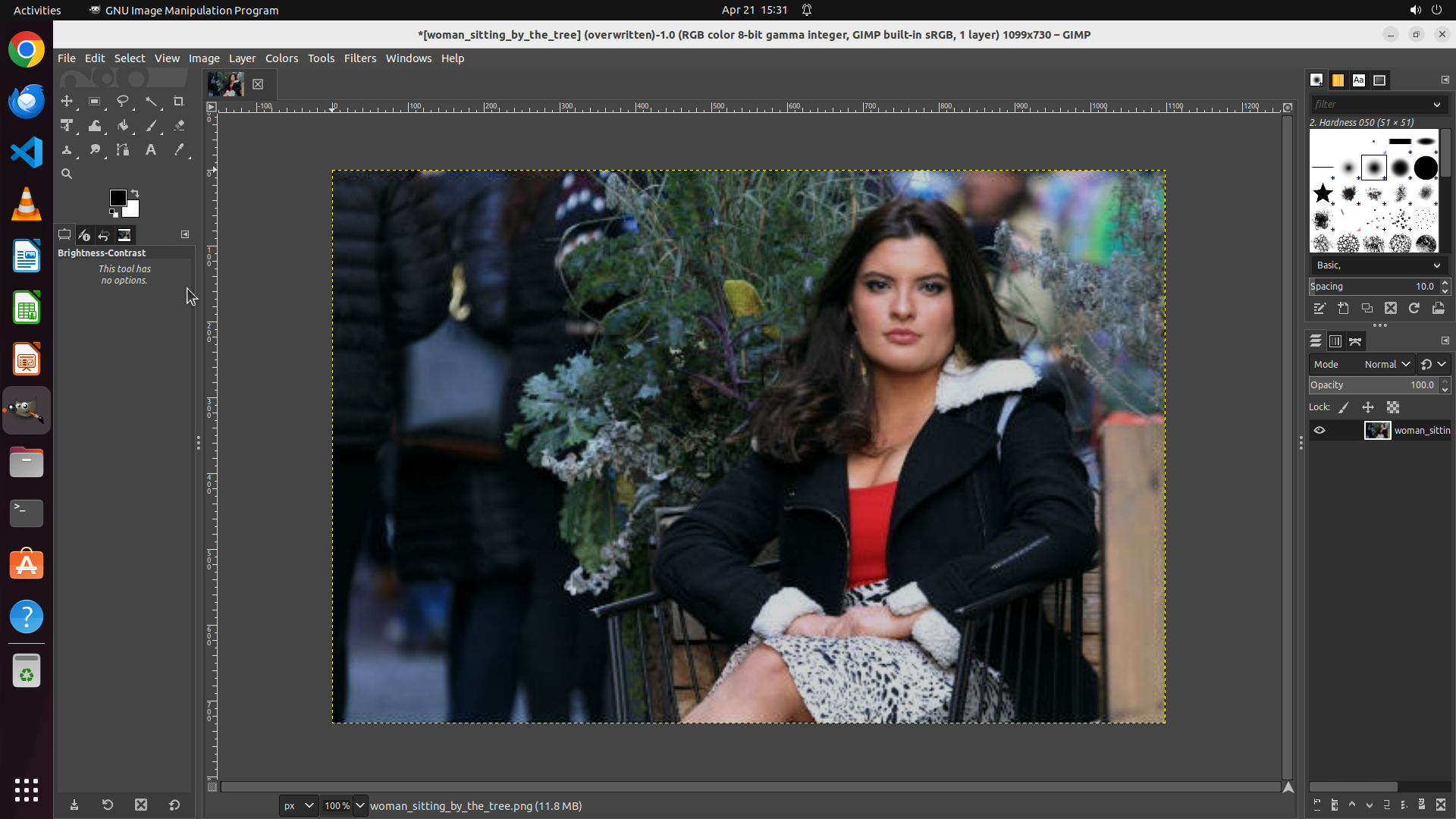
- The image title bar now shows an asterisk (*[woman_sitting_by_the_tree]) indicating unsaved changes
- The photo appears noticeably darker compared to the original - the brightness adjustment has been successfully applied
- The left panel shows "Brightness-Contrast" tool is selected but shows "This tool has no options"
- The image is ready to be saved
#### 情况分析与思考过程
The previous action successfully applied the brightness adjustment by clicking the OK button. The dialog has closed and the image now appears darker, which is exactly what was requested. The asterisk in the title bar confirms that changes have been made but not yet saved.
According to the strategy tree, I've completed steps 1-3:
1. ✓ Opened the Colors menu
2. ✓ Selected Brightness-Contrast
3. ✓ Reduced brightness and applied changes
Now I need to complete step 4: Save the modified image. In GIMP, I should use File > Export As or File > Overwrite to save the changes. I'll click on the File menu to access the save options.
```
The brightness adjustment has been successfully applied to the photo. Now I need to save the modified image. Let me click on the File menu to access the export/save options.
Step 6: CLICK (242, 375)
```
#### 重要信息
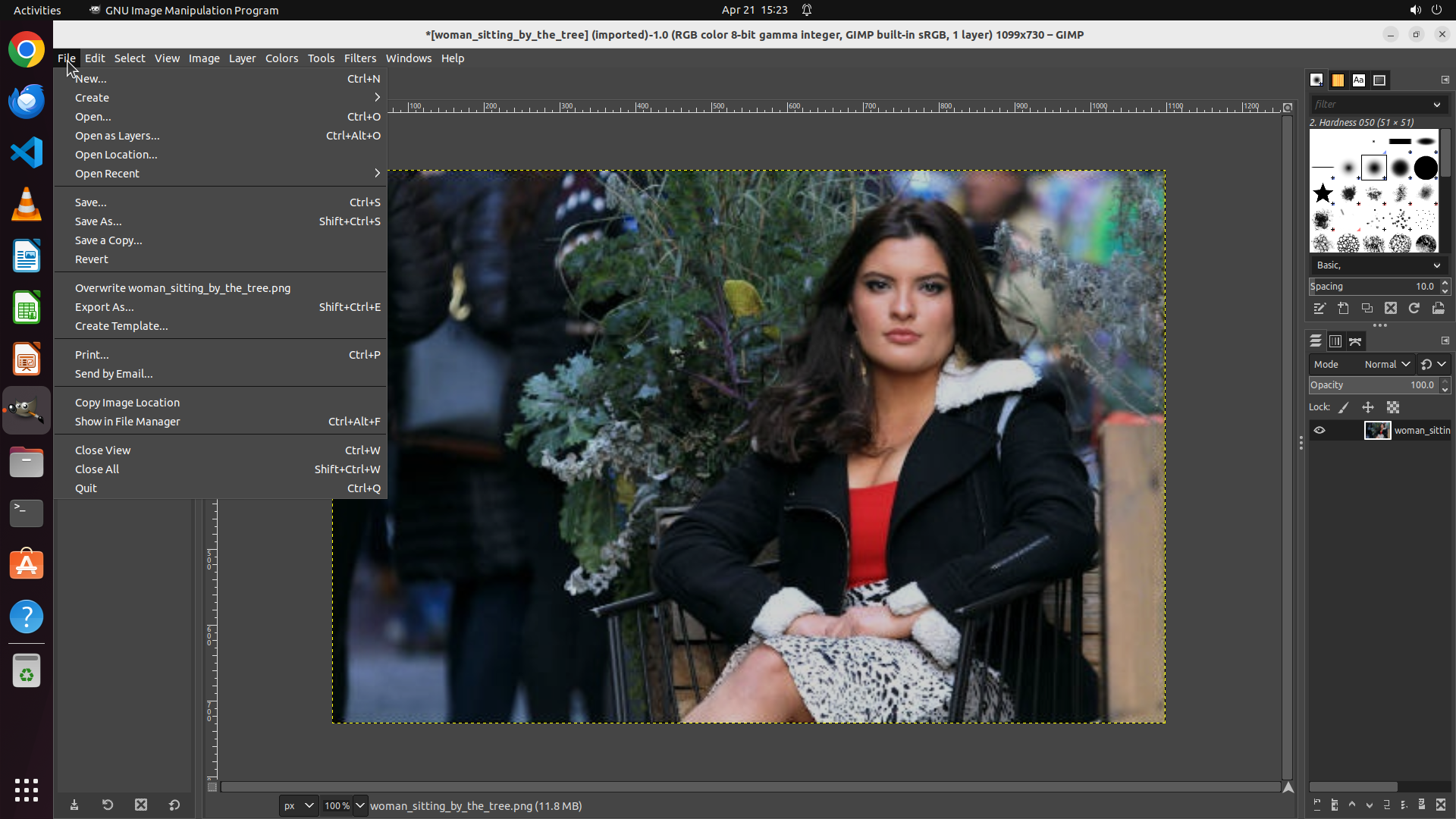
- The File menu is now open with various save options visible
- I can see "Overwrite woman_sitting_by_the_tree.png" option in the menu
- The image title bar shows "*[woman_sitting_by_the_tree]" indicating unsaved changes
- The photo appears noticeably darker than the original - brightness adjustment has been applied
- The image is ready to be saved
#### 情况分析与思考过程
The previous action successfully opened the File menu. Now I can see the save options available. The most direct way to save the changes is to use "Overwrite woman_sitting_by_the_tree.png" which will save the modified image back to the original file.
According to the strategy tree, I'm at step 4: Save the modified image. I should click on "Overwrite woman_sitting_by_the_tree.png" to save the changes. This will complete the task of toning down the brightness of the photo.
After clicking this option, GIMP should save the file and the asterisk in the title bar should disappear, indicating the changes have been saved.
```
I can see the File menu is open and the "Overwrite woman_sitting_by_the_tree.png" option is available. Let me click on it to save the modified image.
Step 7: WAIT
```
#### 重要信息
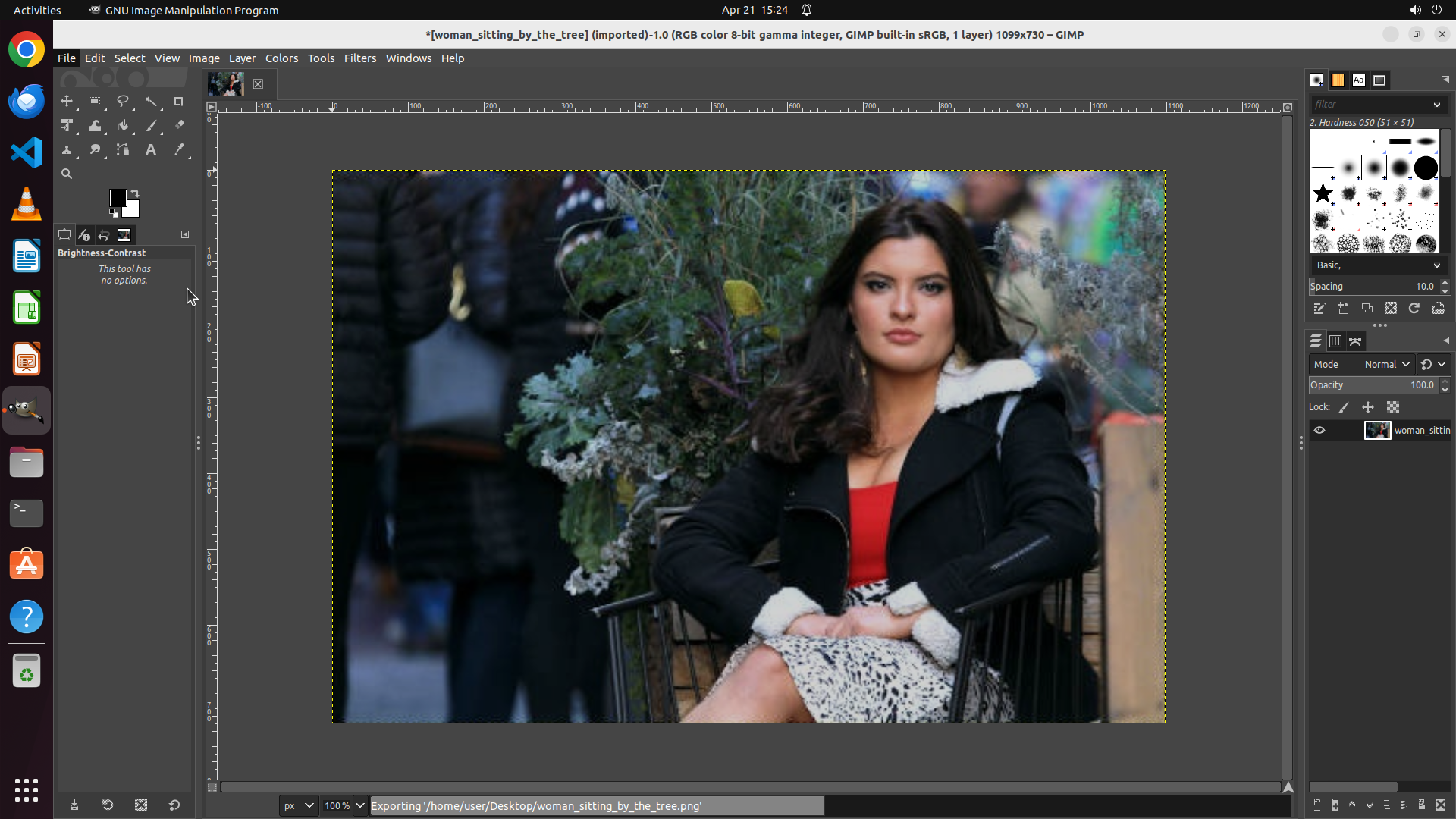
- The status bar at the bottom shows "Exporting '/home/user/Desktop/woman_sitting_by_the_tree.png'" indicating the save operation is in progress
- The image title bar still shows "*[woman_sitting_by_the_tree]" with an asterisk, though this may disappear once export completes
- The photo appears noticeably darker than the original - brightness adjustment has been successfully applied
- The File menu is no longer open, indicating the overwrite action was triggered
- The Brightness-Contrast tool panel on the left shows "This tool has no options"
#### 情况分析与思考过程
The previous action clicked on "Overwrite woman_sitting_by_the_tree.png" from the File menu. The current screenshot shows that GIMP is actively exporting the file as indicated by the status message at the bottom of the screen.
Looking at the progress:
1. ✓ Opened brightness adjustment dialog (Colors > Brightness-Contrast)
2. ✓ Reduced brightness to -46 (noticeably darker image)
3. ✓ Applied the brightness adjustment by clicking OK
4. ✓ Initiated save by clicking "Overwrite woman_sitting_by_the_tree.png"
5. → Export is currently in progress
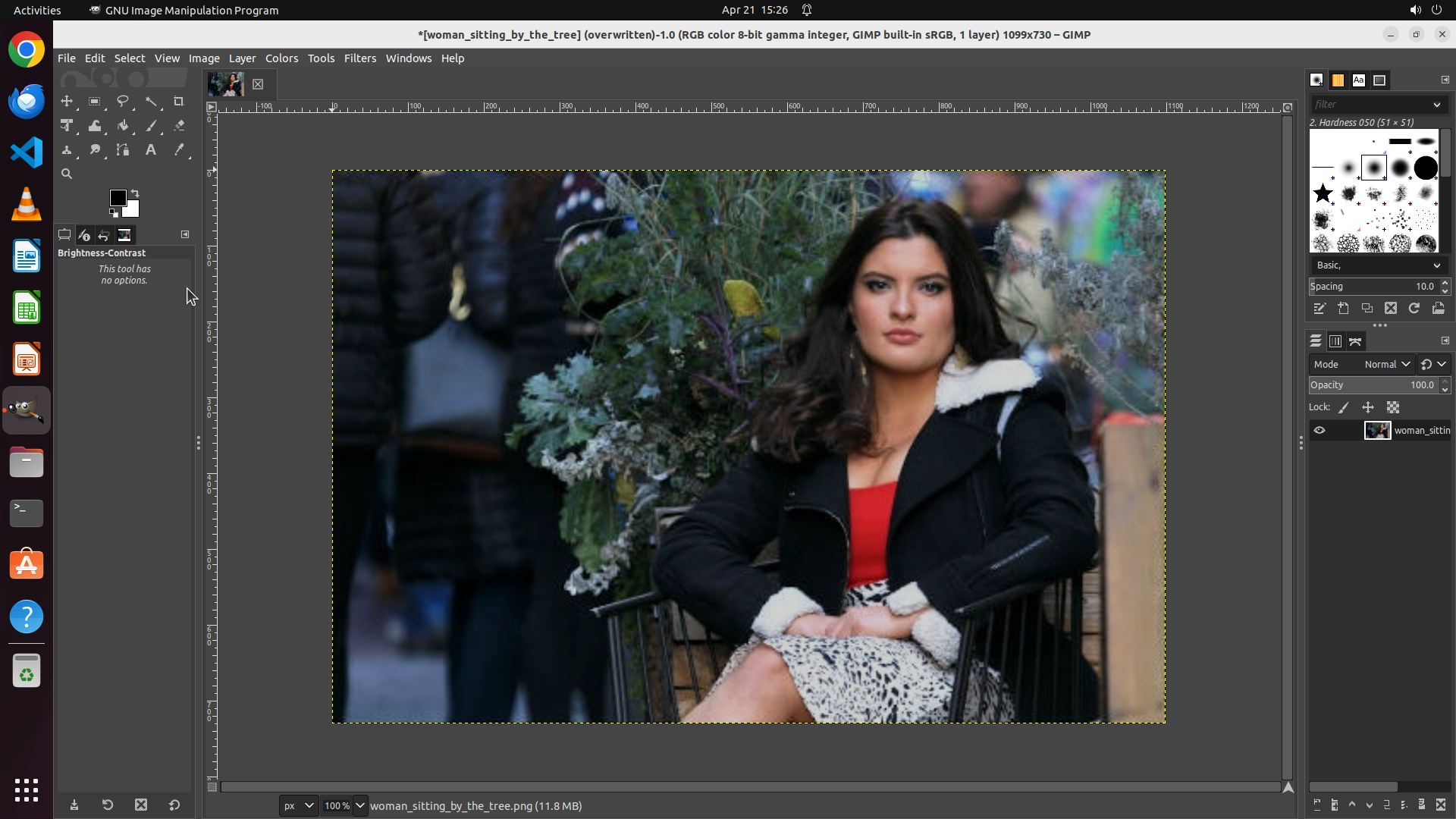
The task is essentially complete. The brightness has been toned down as requested, and the file is being saved. I should wait a moment for the export to complete and then verify the task is finished. The asterisk in the title bar should disappear once the save is complete.
Let me wait briefly for the export to finish and then take a final screenshot to confirm the task is complete.
```