```
#### 重要信息
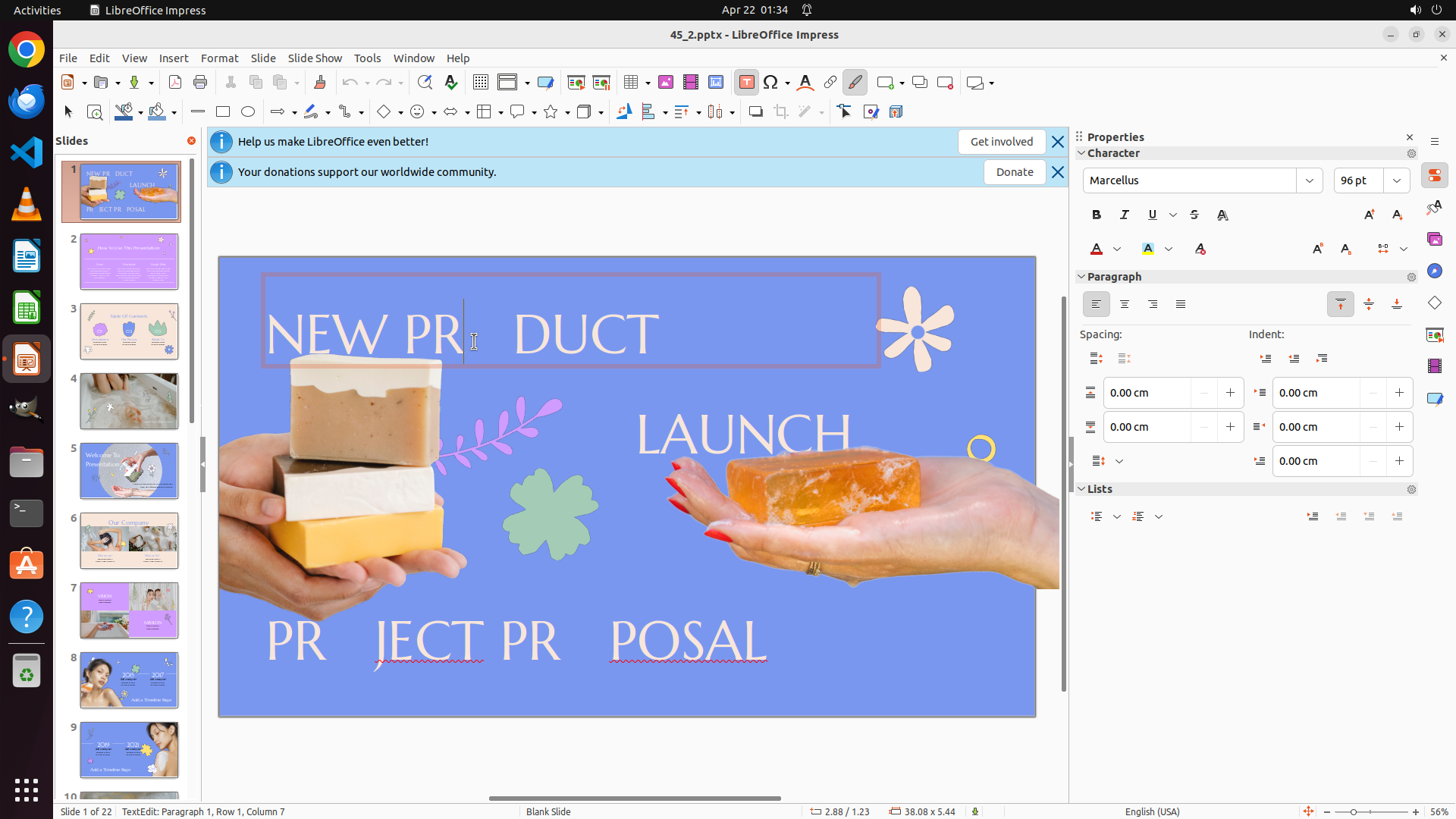
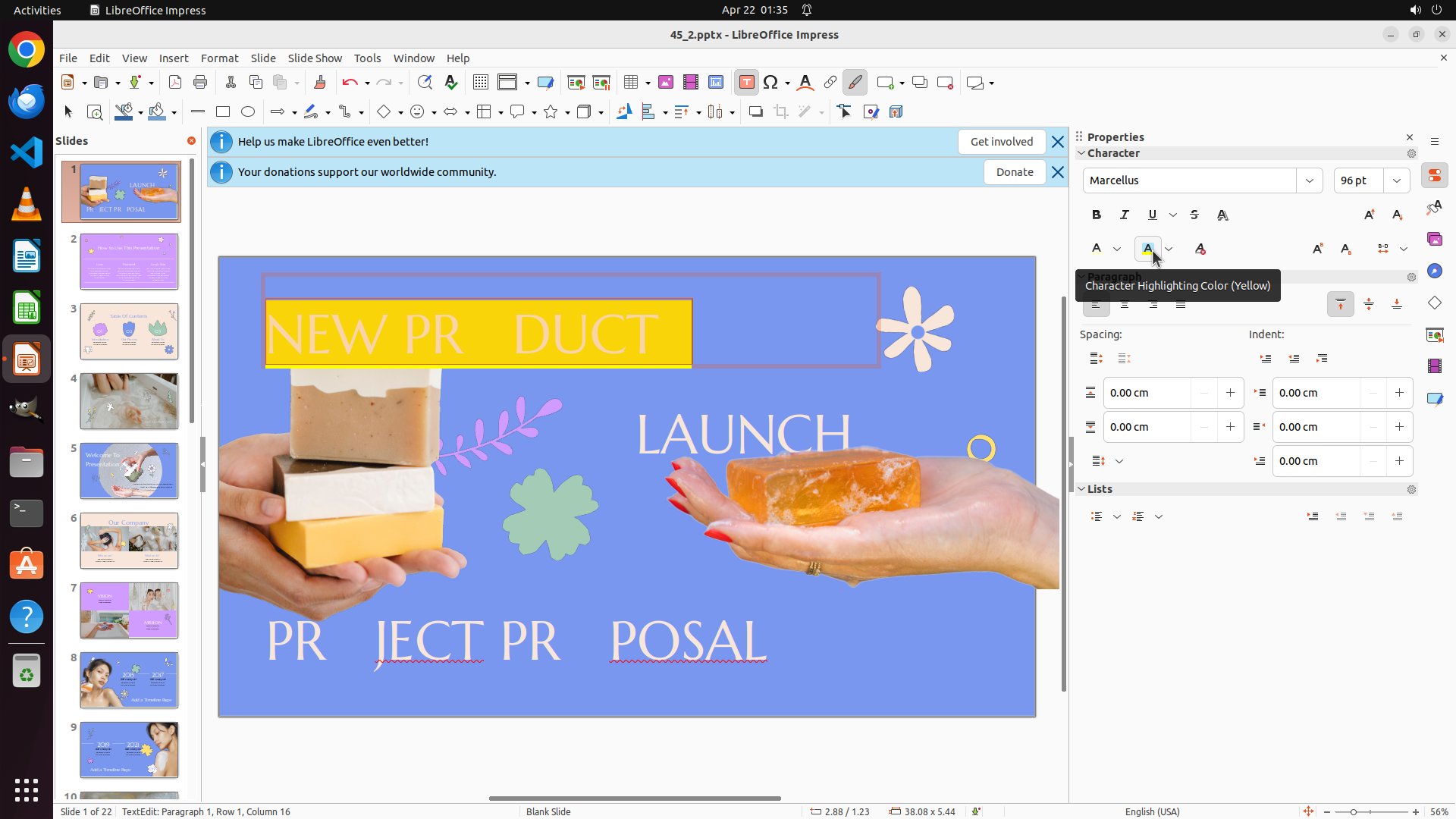
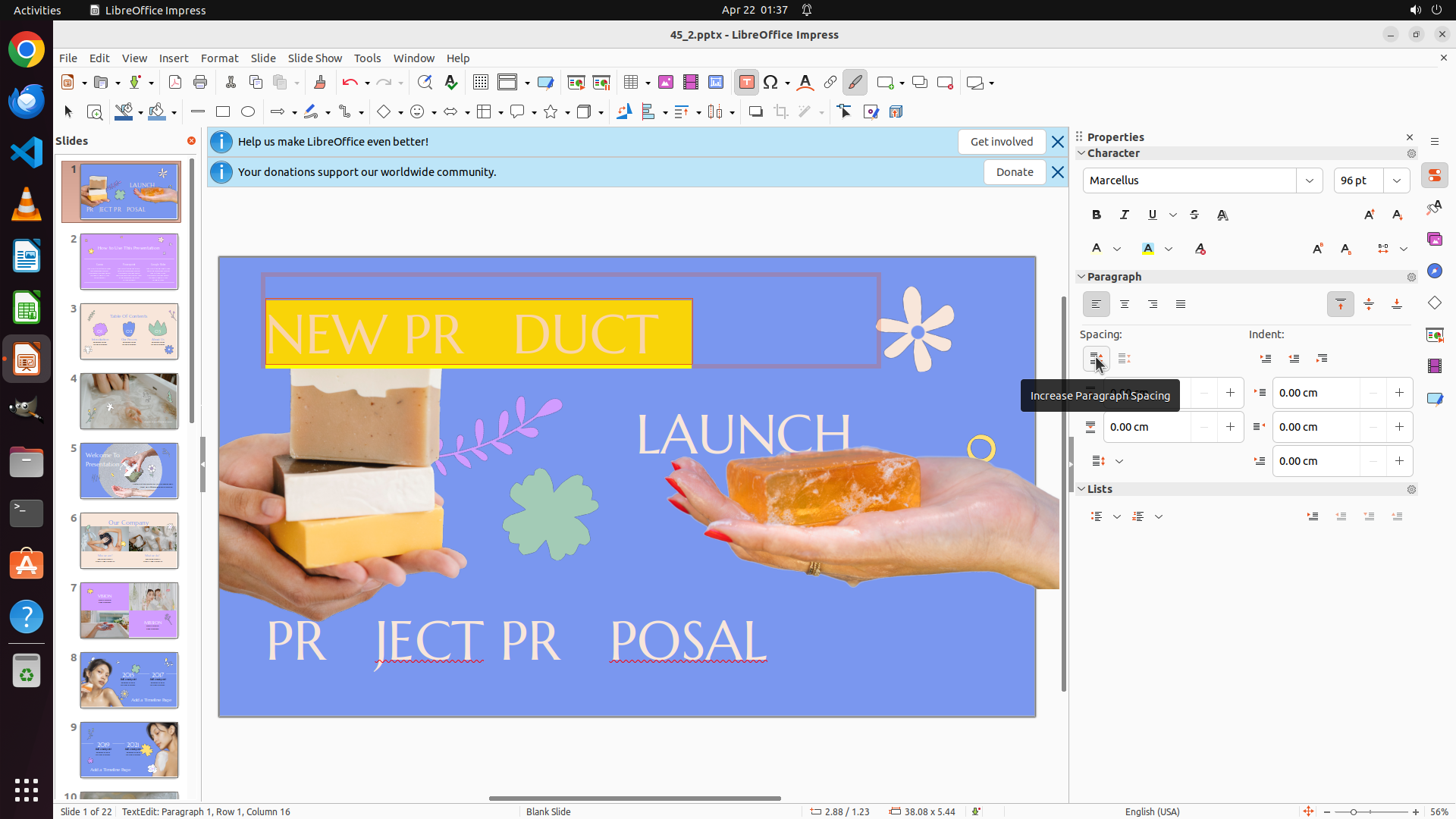
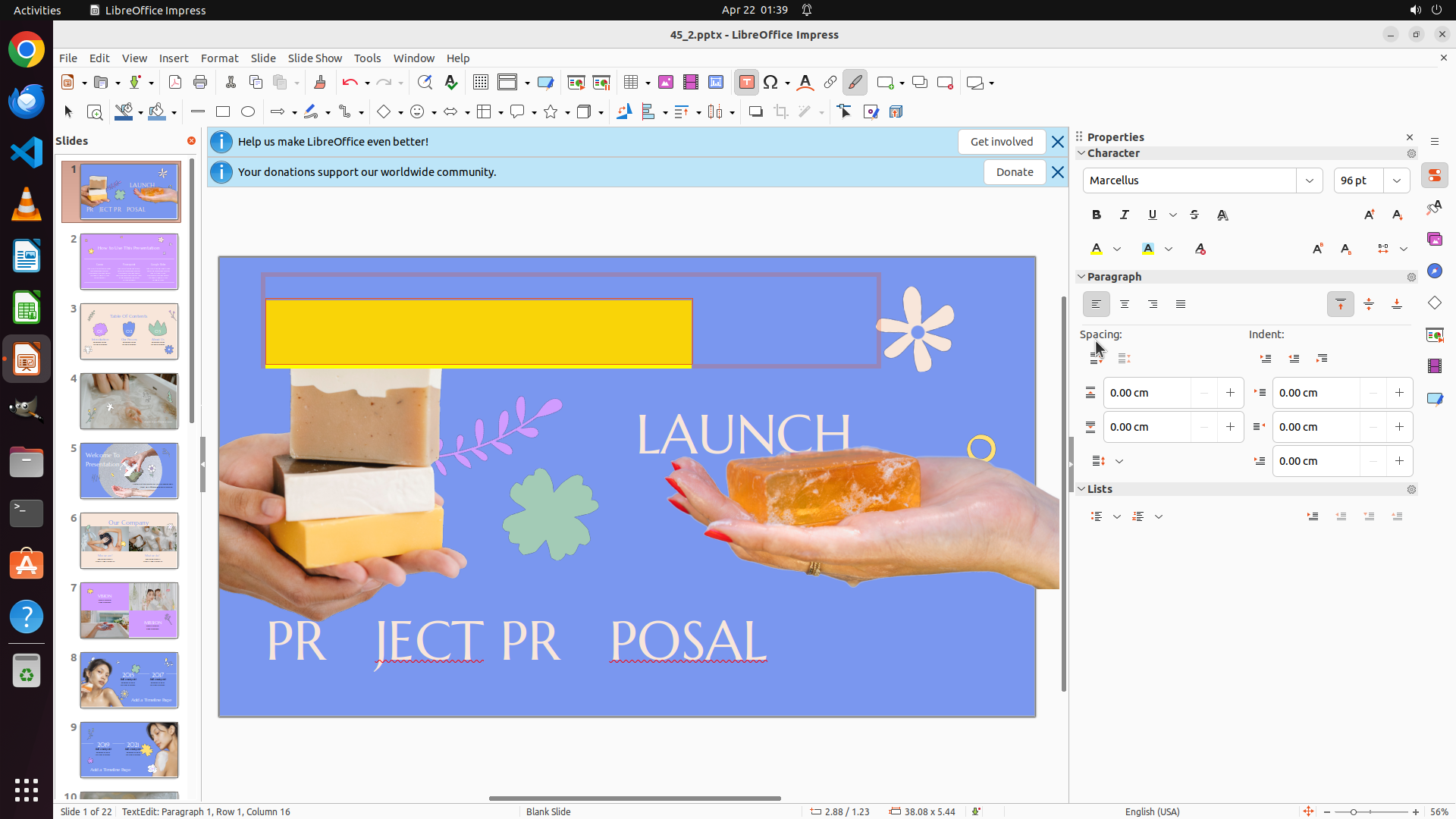
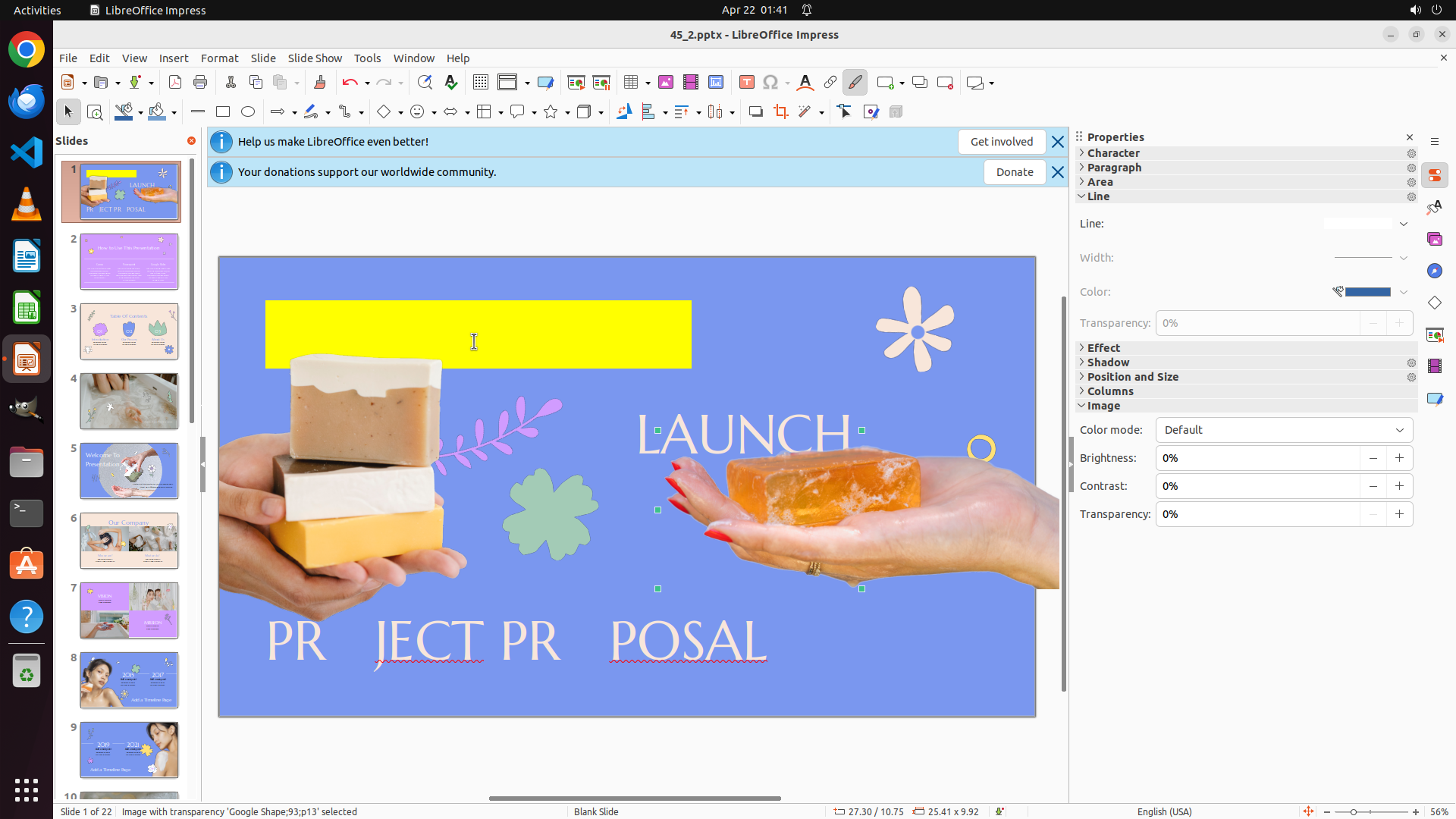
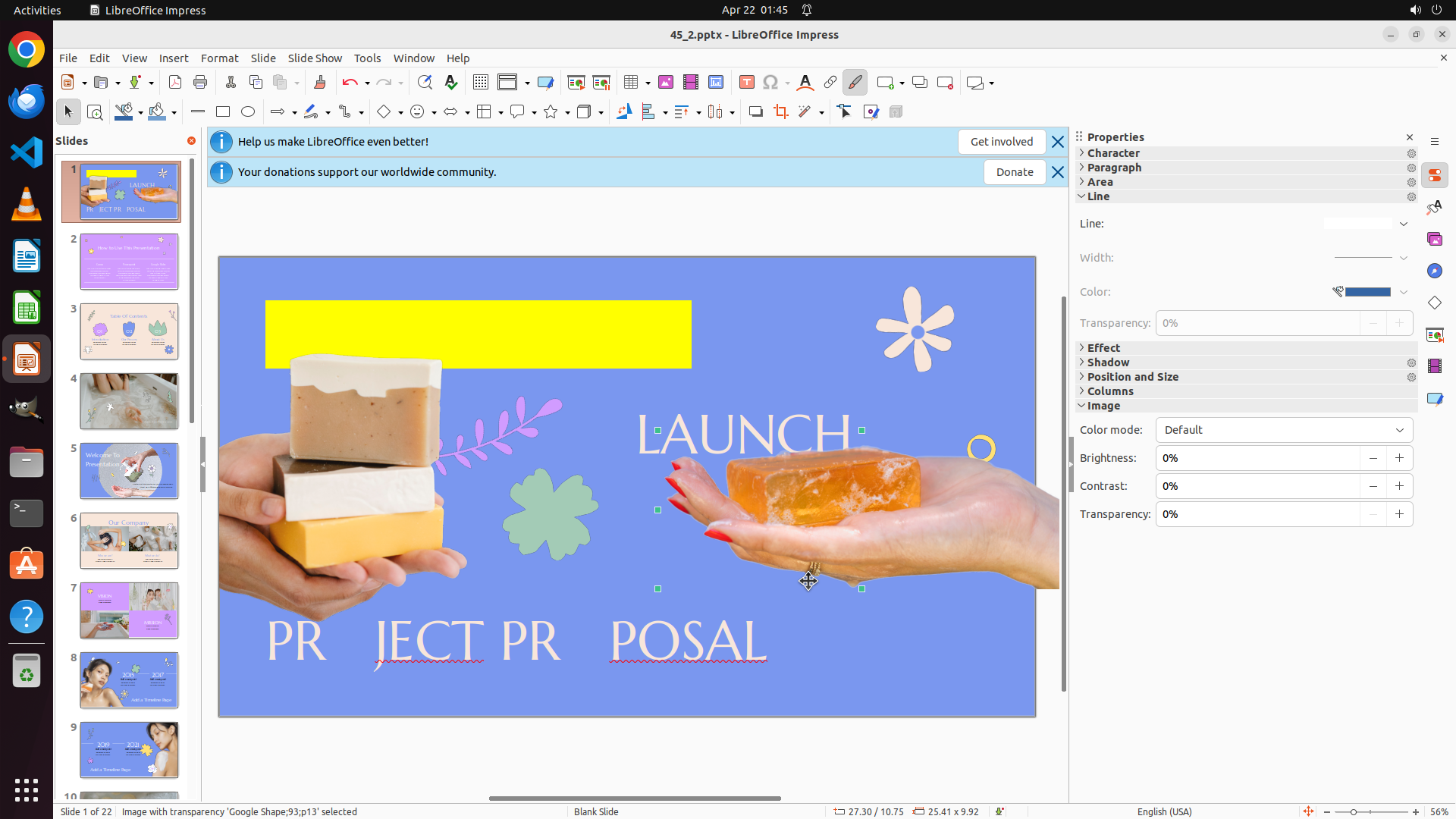
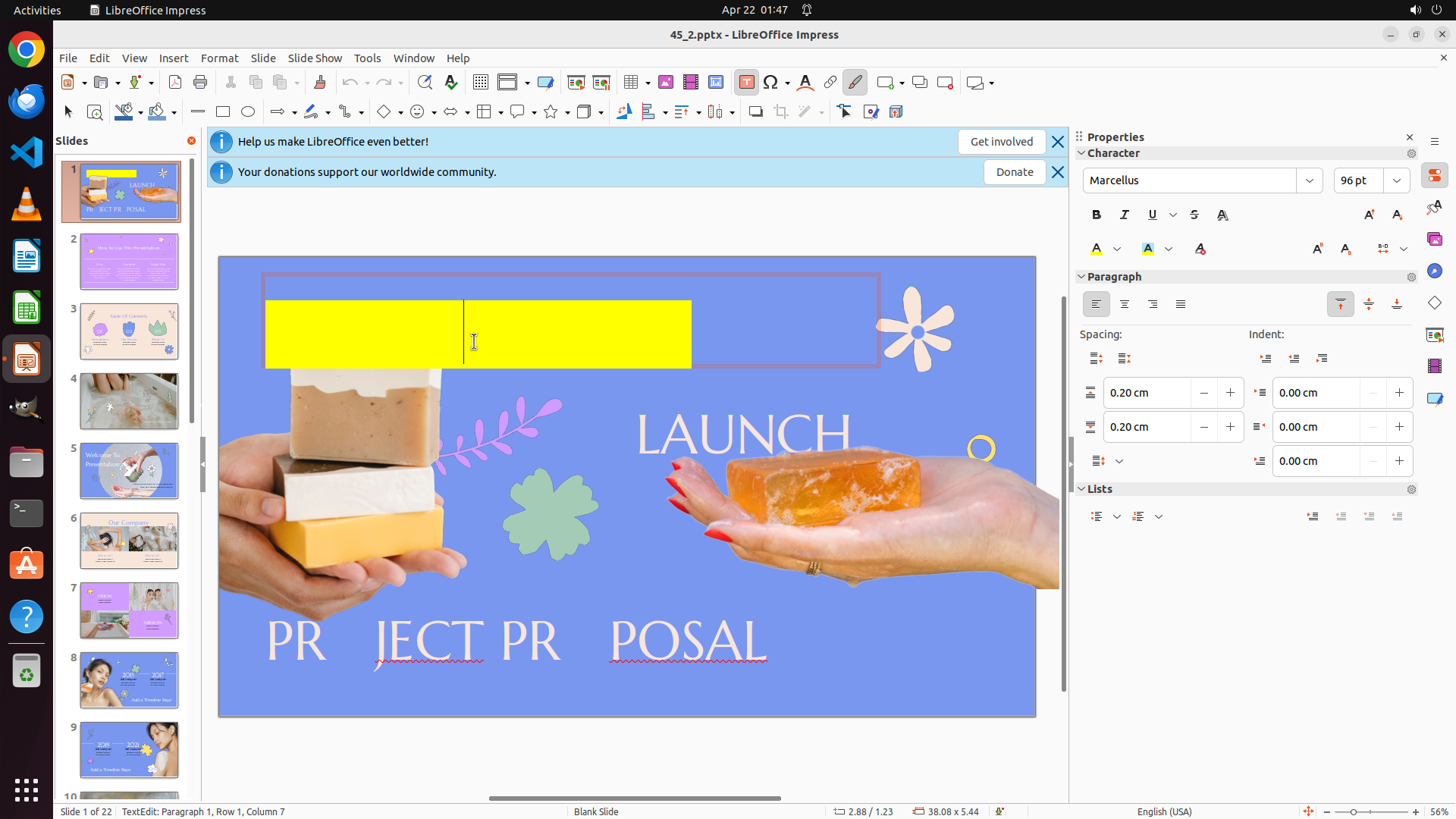
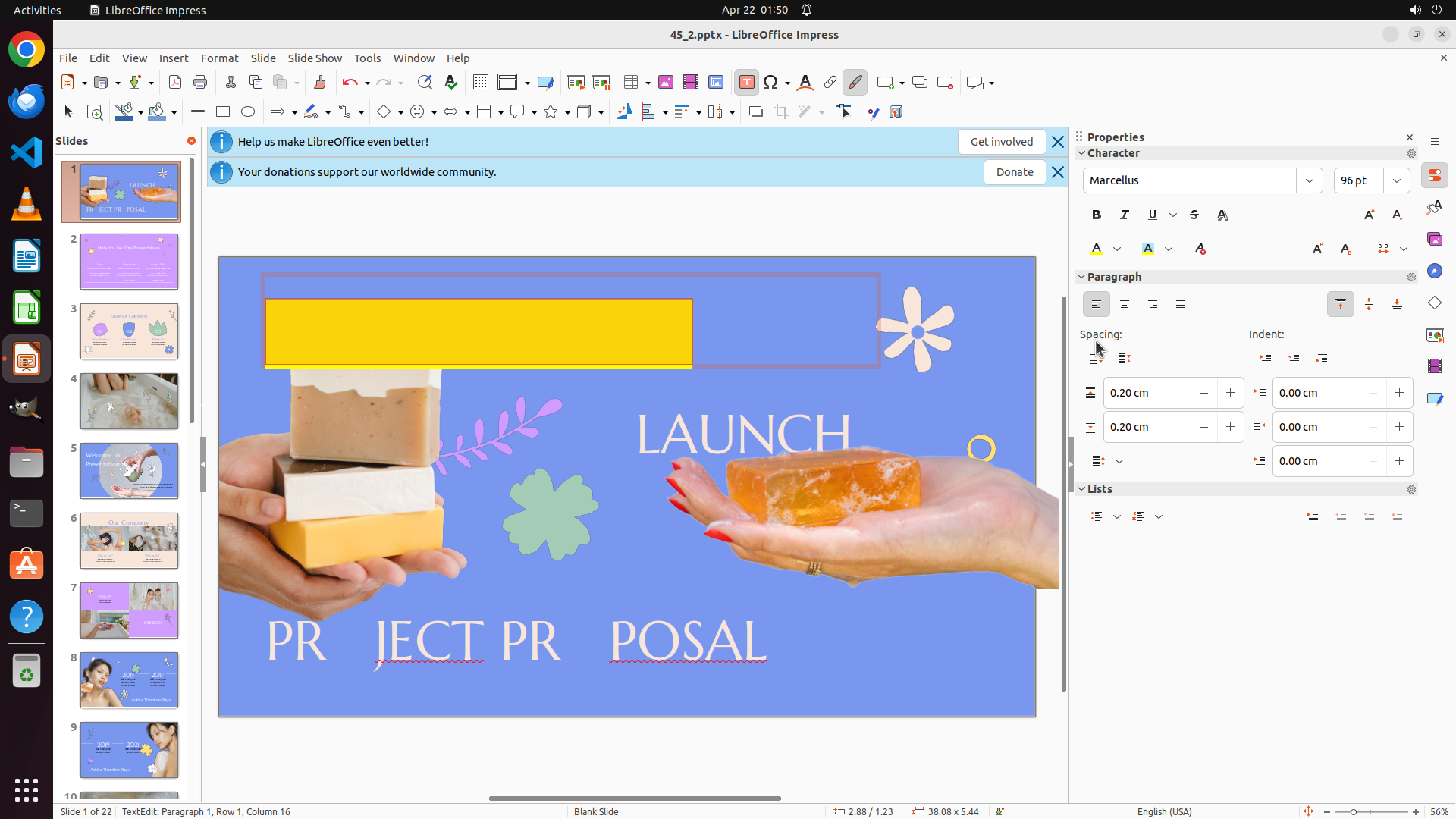
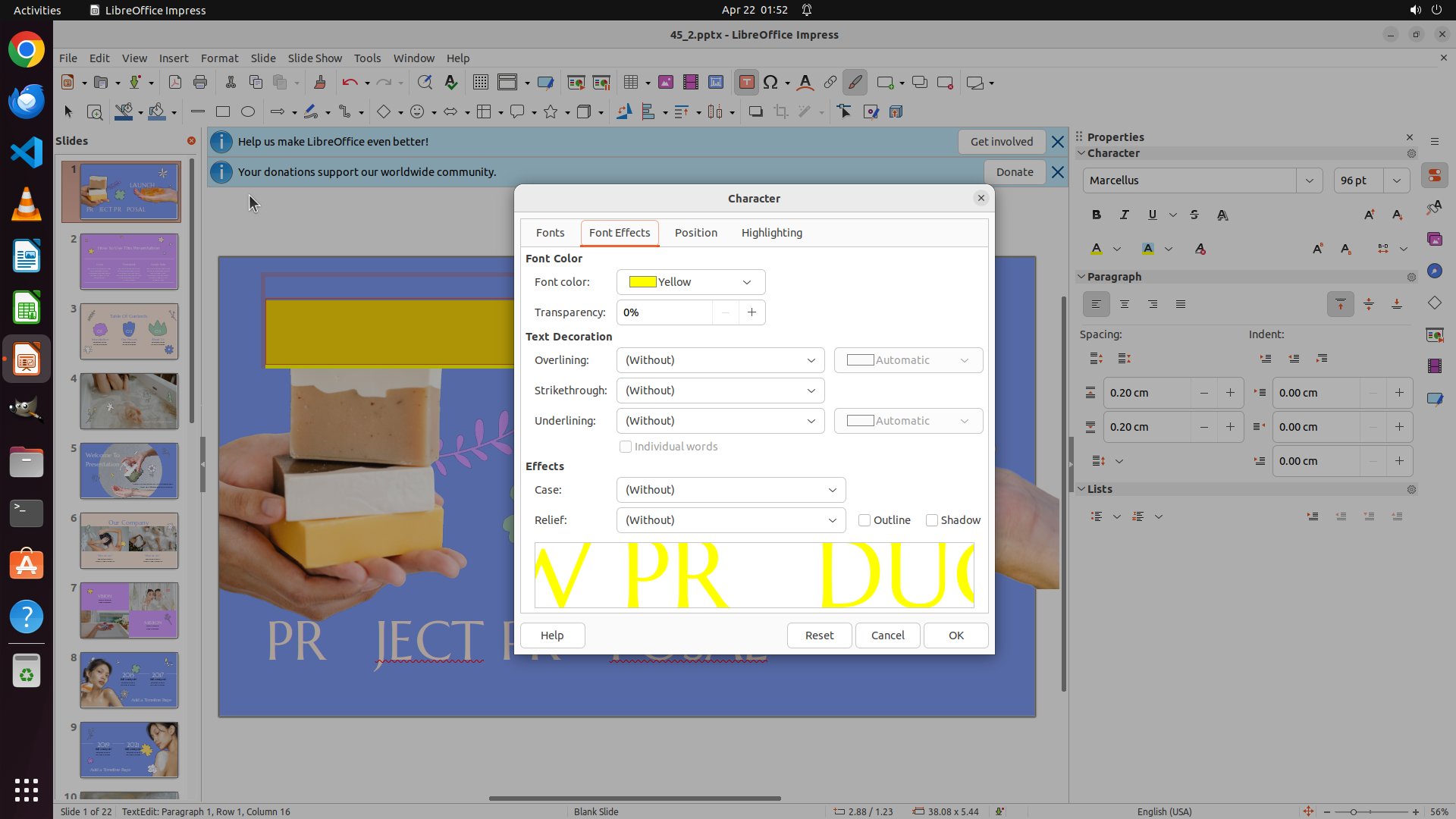
LibreOffice Impress is open with slide 1 displayed. The slide contains three text elements:
- Top text: "NEW PR DUCT" (currently in white/light color)
- Middle text: "LAUNCH" (currently in white/light color)
- Bottom text: "PR JECT PR POSAL" (currently in white/light color with red underline)
The slide 1 thumbnail is selected in the left panel (orange border visible).
#### 情况分析与思考过程
I need to change the text colors to yellow, red, and green respectively (top-to-bottom). To do this, I need to:
1. First select the top textbox "NEW PR DUCT"
2. Apply yellow color to it
3. Select the middle textbox "LAUNCH"
4. Apply red color to it
5. Select the bottom textbox "PR JECT PR POSAL"
6. Apply green color to it
Let me start by clicking on the top text "NEW PR DUCT" to select it. I'll click on the text area to select the textbox.
```
Step 2: HOTKEY
```
#### 重要信息
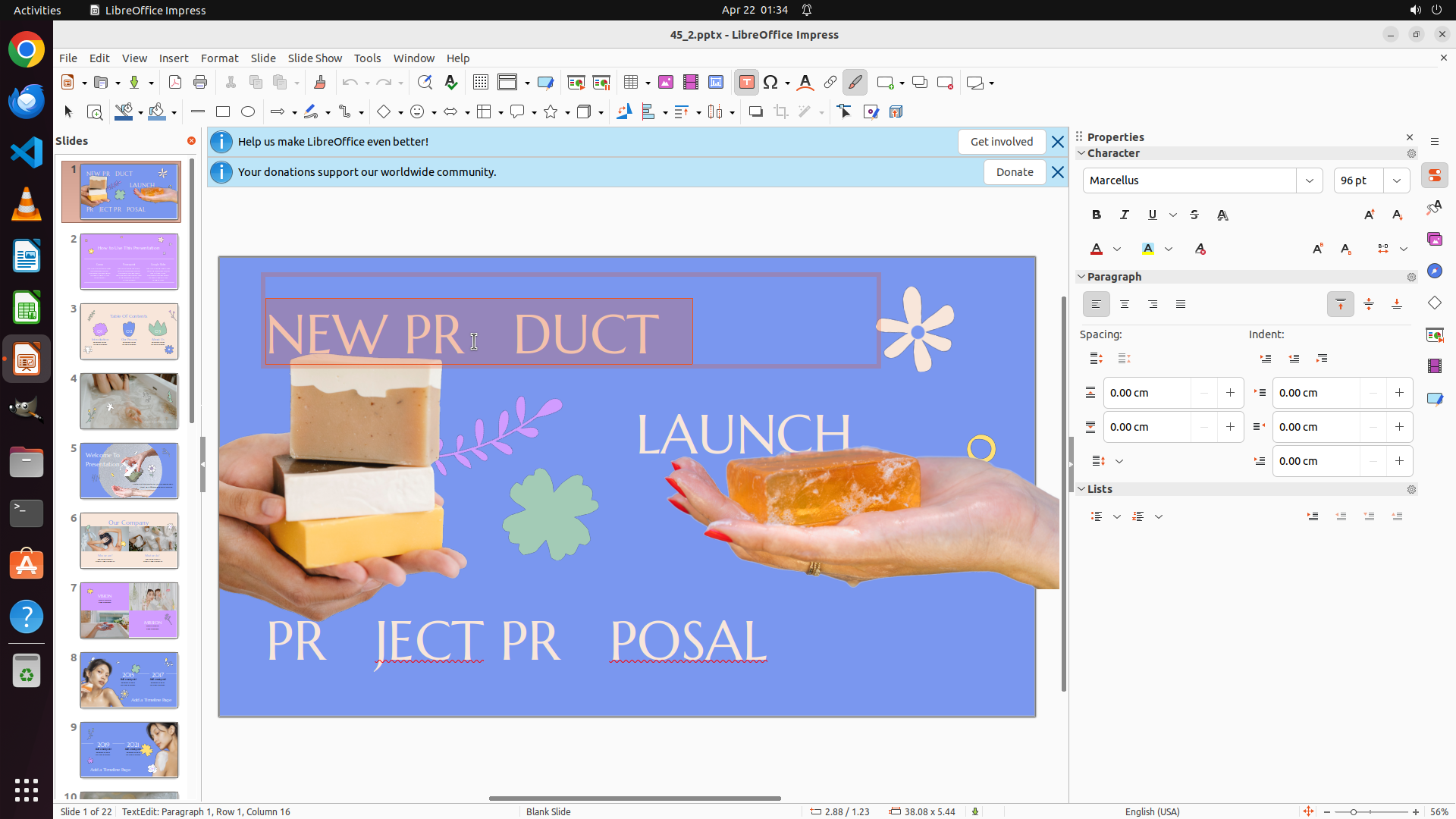
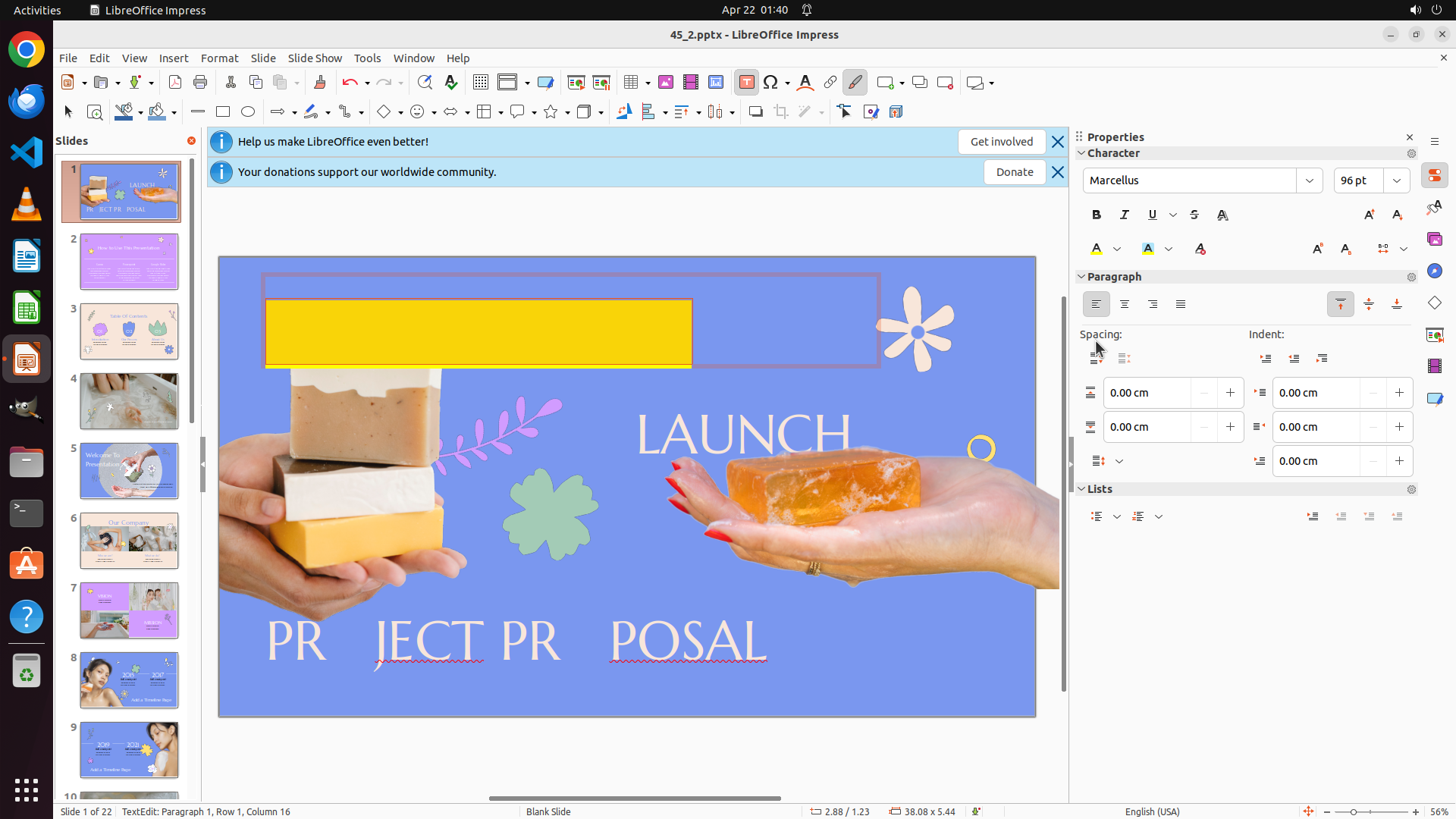
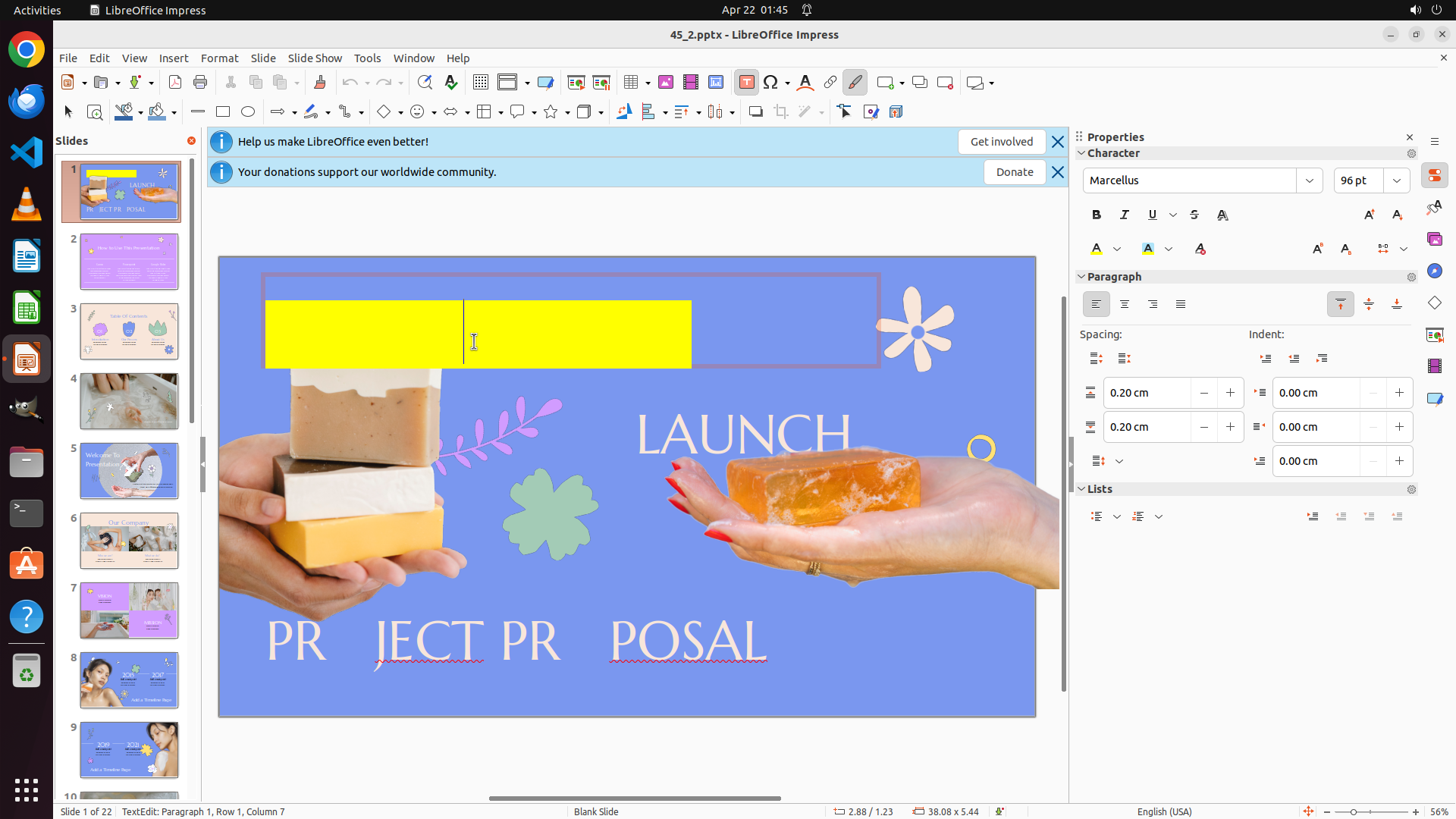
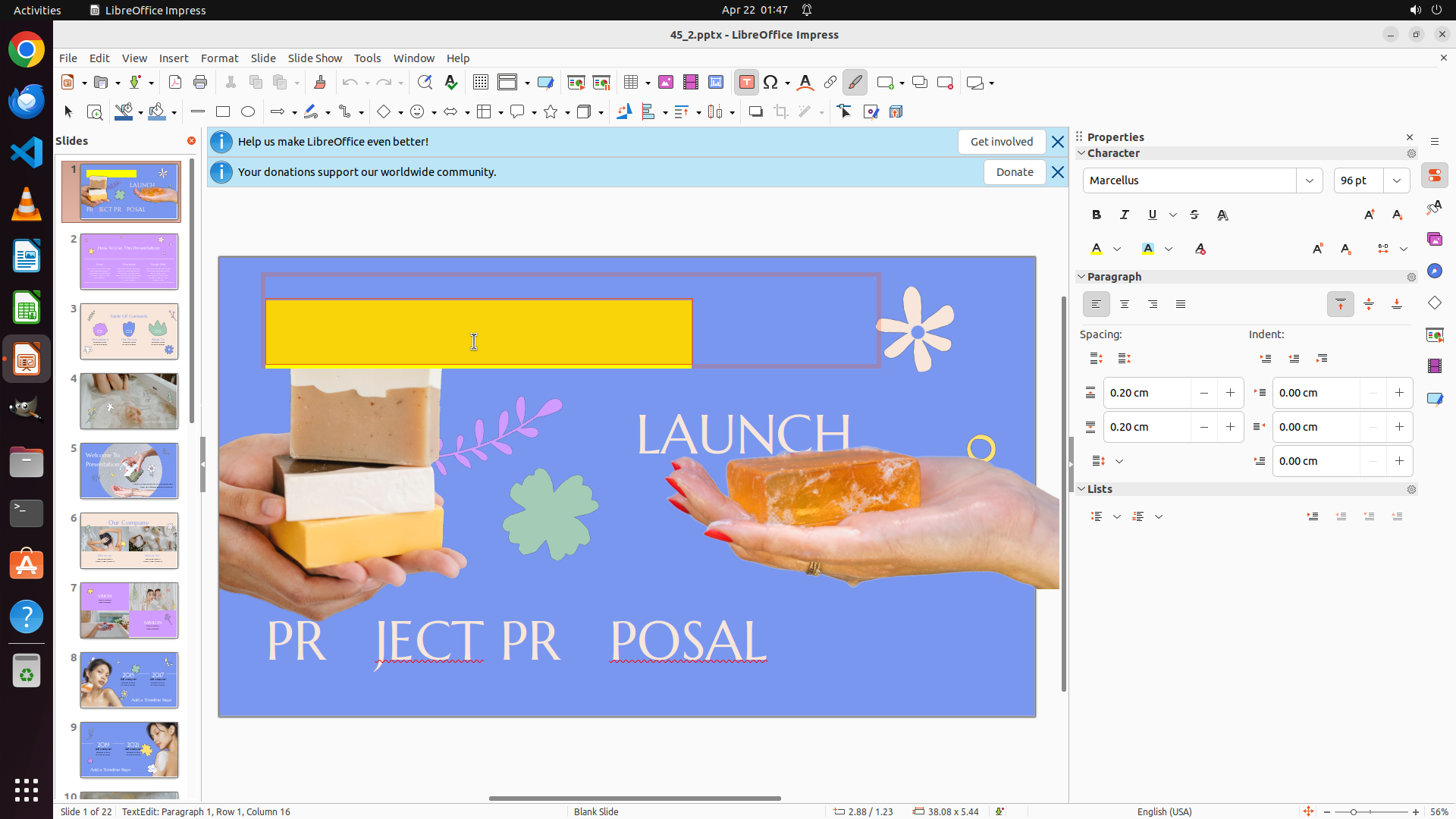
LibreOffice Impress is open with slide 1 displayed. The previous action successfully clicked on the top textbox "NEW PR DUCT" - I can see the cursor is now positioned within this text. The text is currently in white/light color. I need to select all the text in this textbox and then apply yellow color to it.
#### 情况分析与思考过程
The previous action was successful - I clicked on the top textbox and the cursor is now in the text. Now I need to:
1. Select all text in the current textbox using Ctrl+A
2. Apply yellow color to the selected text
I can see the Properties panel on the right with Character formatting options. There's a font color button (the "A" with a colored bar underneath). I'll need to select all text first, then click on the font color dropdown to choose yellow.
Let me first select all text with Ctrl+A, then I'll proceed to change the color to yellow.
```
Step 3: CLICK (1471, 325)
```
#### 重要信息
The text "NEW PR DUCT" in the top textbox is now selected (highlighted). The status bar confirms I'm in text editing mode. Now I need to apply yellow color to this selected text using the font color dropdown in the Properties panel on the right.
#### 情况分析与思考过程
The previous Ctrl+A action successfully selected all text in the top textbox. Now I need to:
1. Click on the font color dropdown in the Properties panel (the "A" with dropdown arrow in the Character section)
2. Select yellow from the color palette
Looking at the Properties panel on the right, I can see the Character formatting section with the font color button. I need to click on the dropdown arrow next to it to open the color options and select yellow.
```
Step 4: CLICK (1440, 465)
```
#### 重要信息
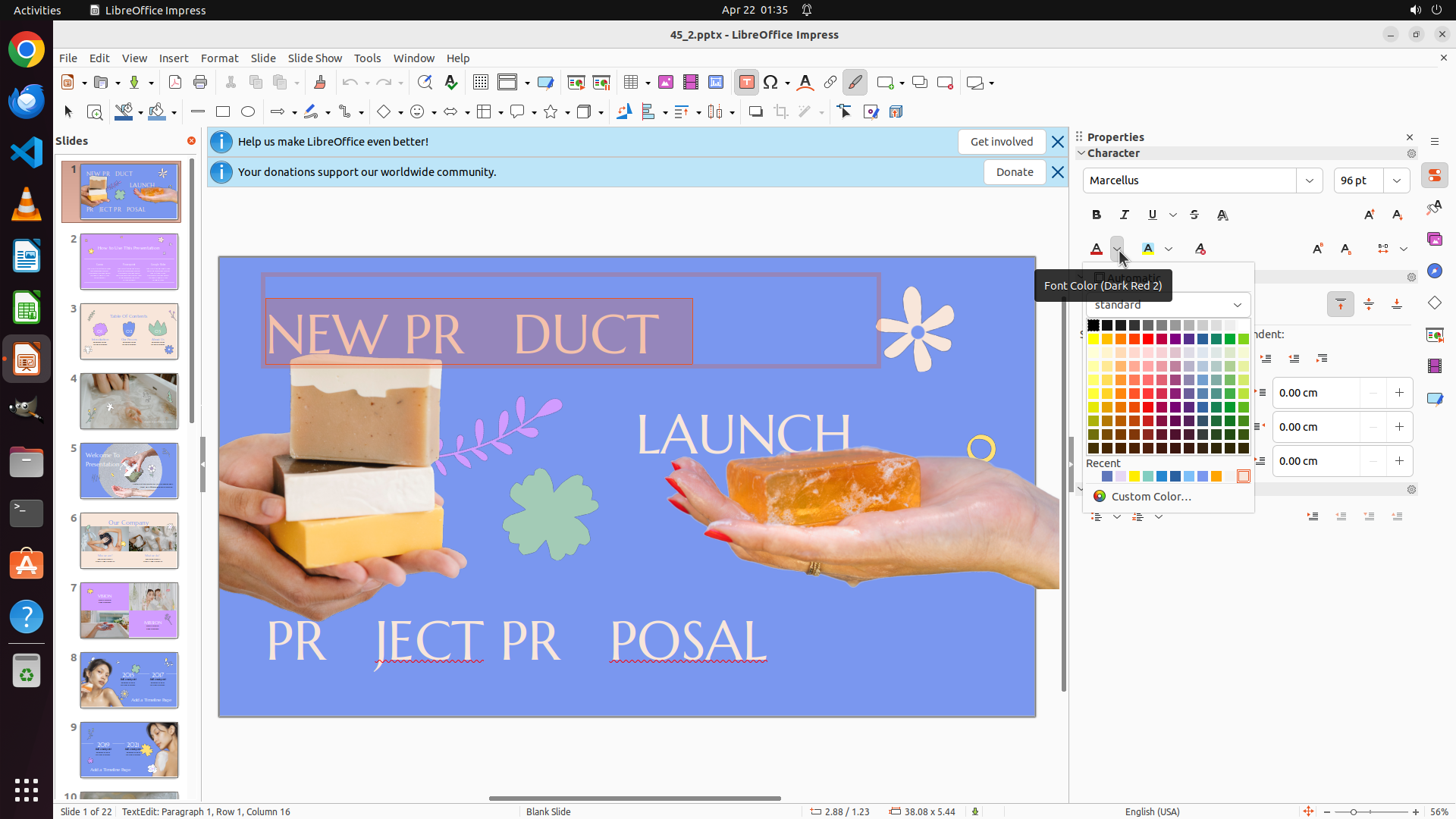
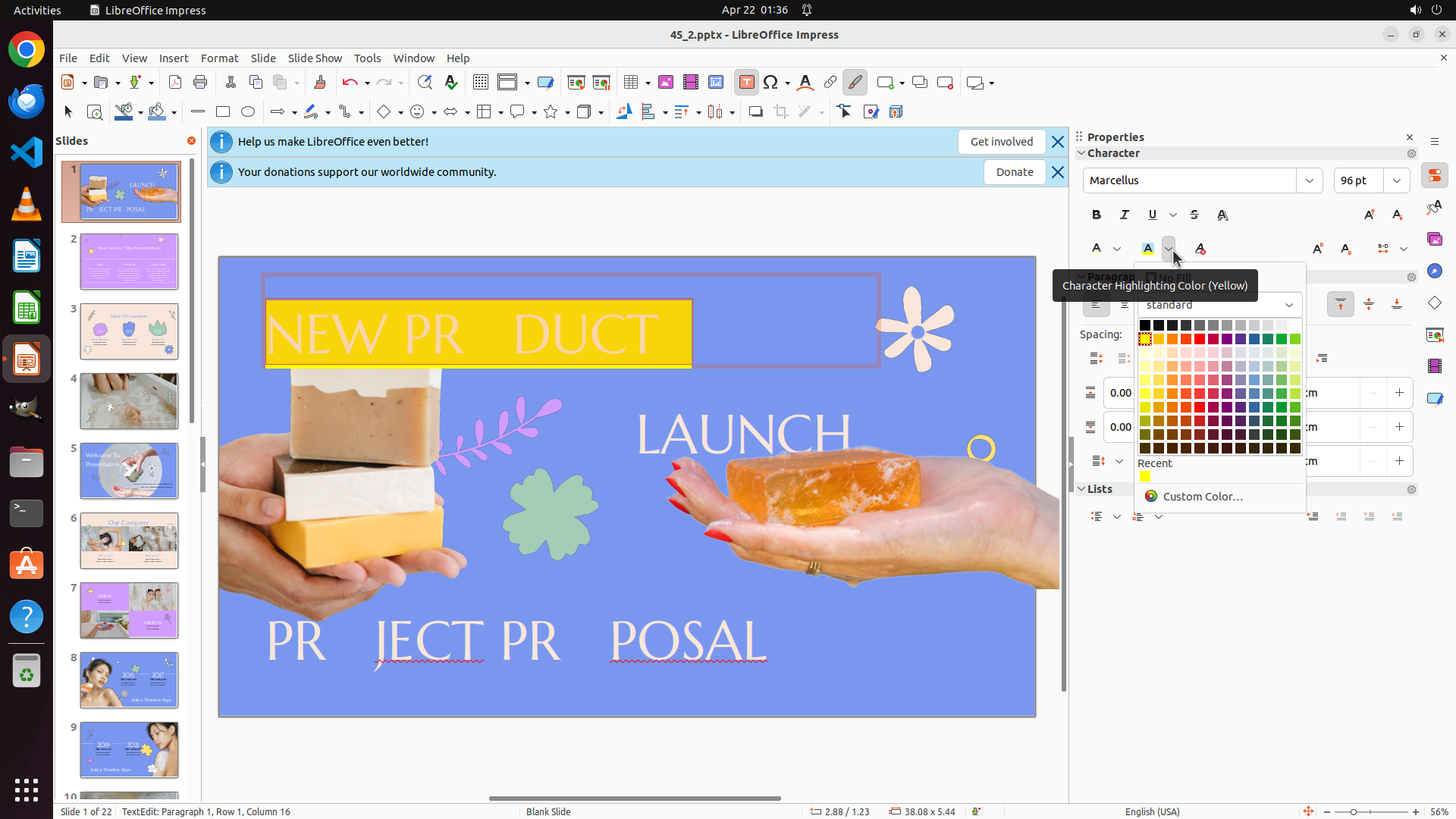
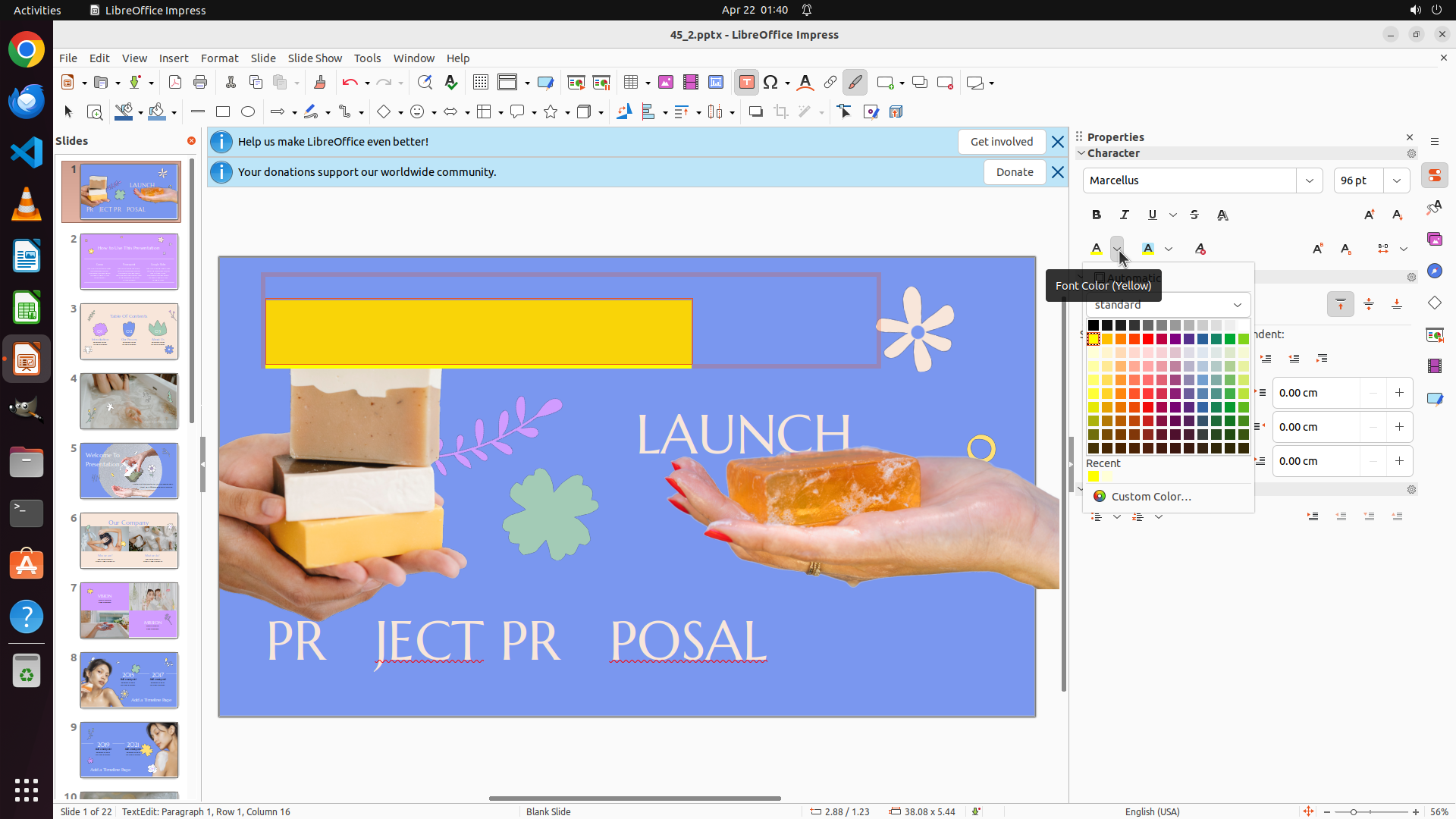
The font color dropdown palette is now open, showing a color picker with many color options. The tooltip shows "Font Color (Dark Red 2)" which was the previous color. The color palette displays various colors including yellows, reds, and greens. I need to select a pure yellow color for the top text.
#### 情况分析与思考过程
The previous action successfully opened the font color dropdown. Now I need to:
1. Click on a pure/bright yellow color from the palette
2. After applying yellow to the top text, I'll need to select the middle text "LAUNCH" and apply red
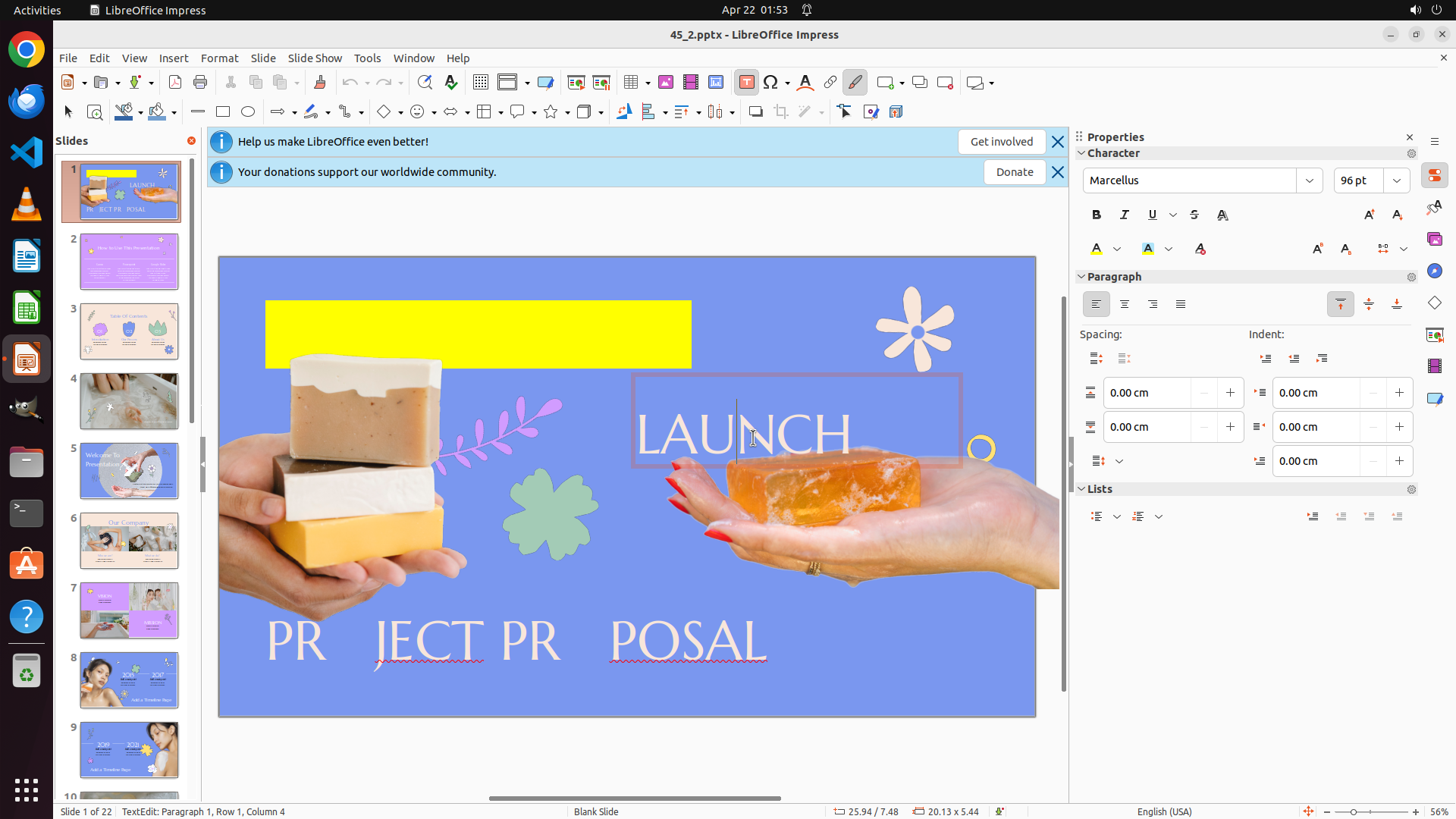
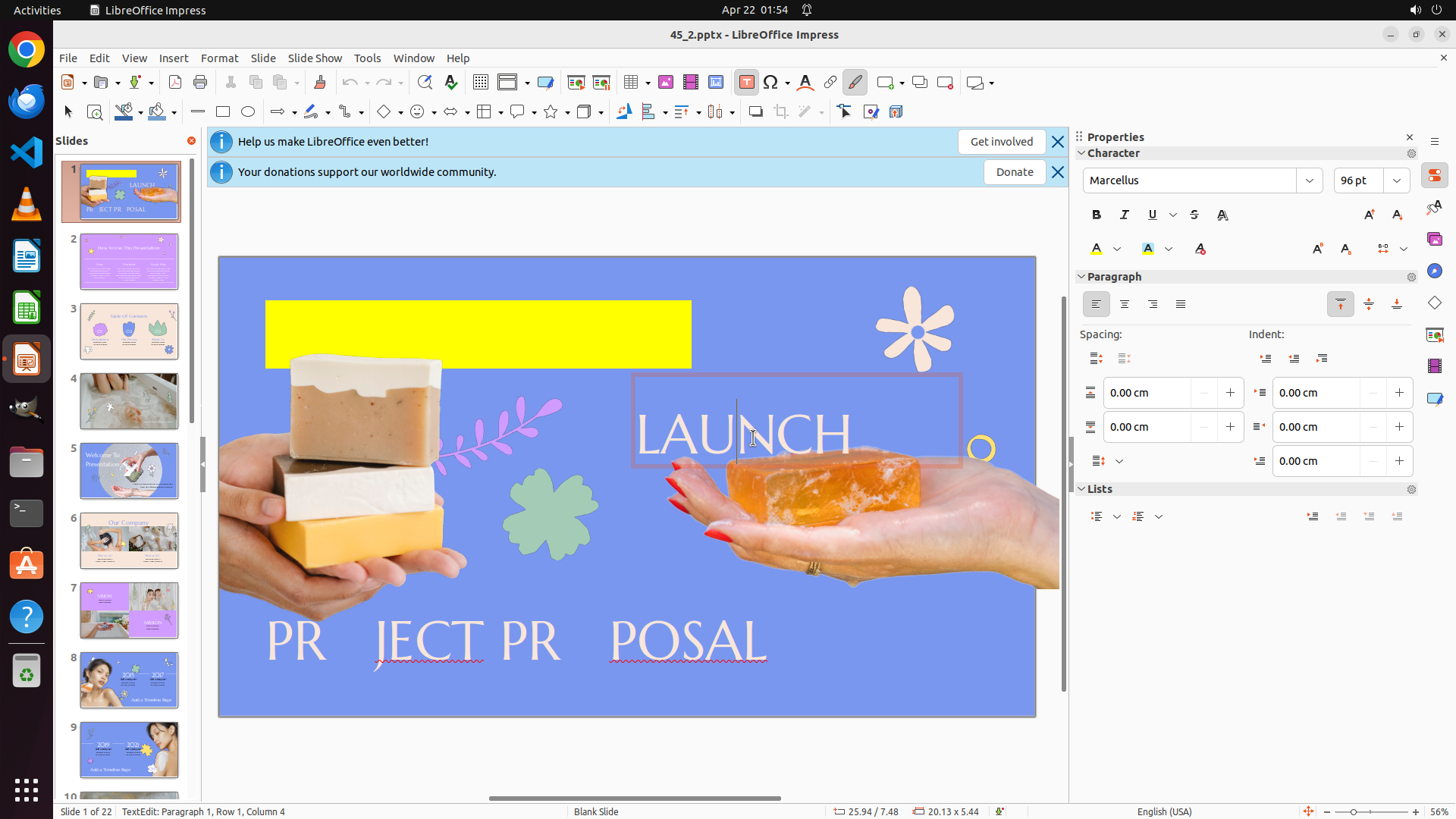
3. Then select the bottom text and apply green
Looking at the color palette, I can see yellow colors in the palette. I need to select a standard bright yellow (not dark yellow or light/cream yellow). There's a bright yellow color visible in the palette that would be appropriate.
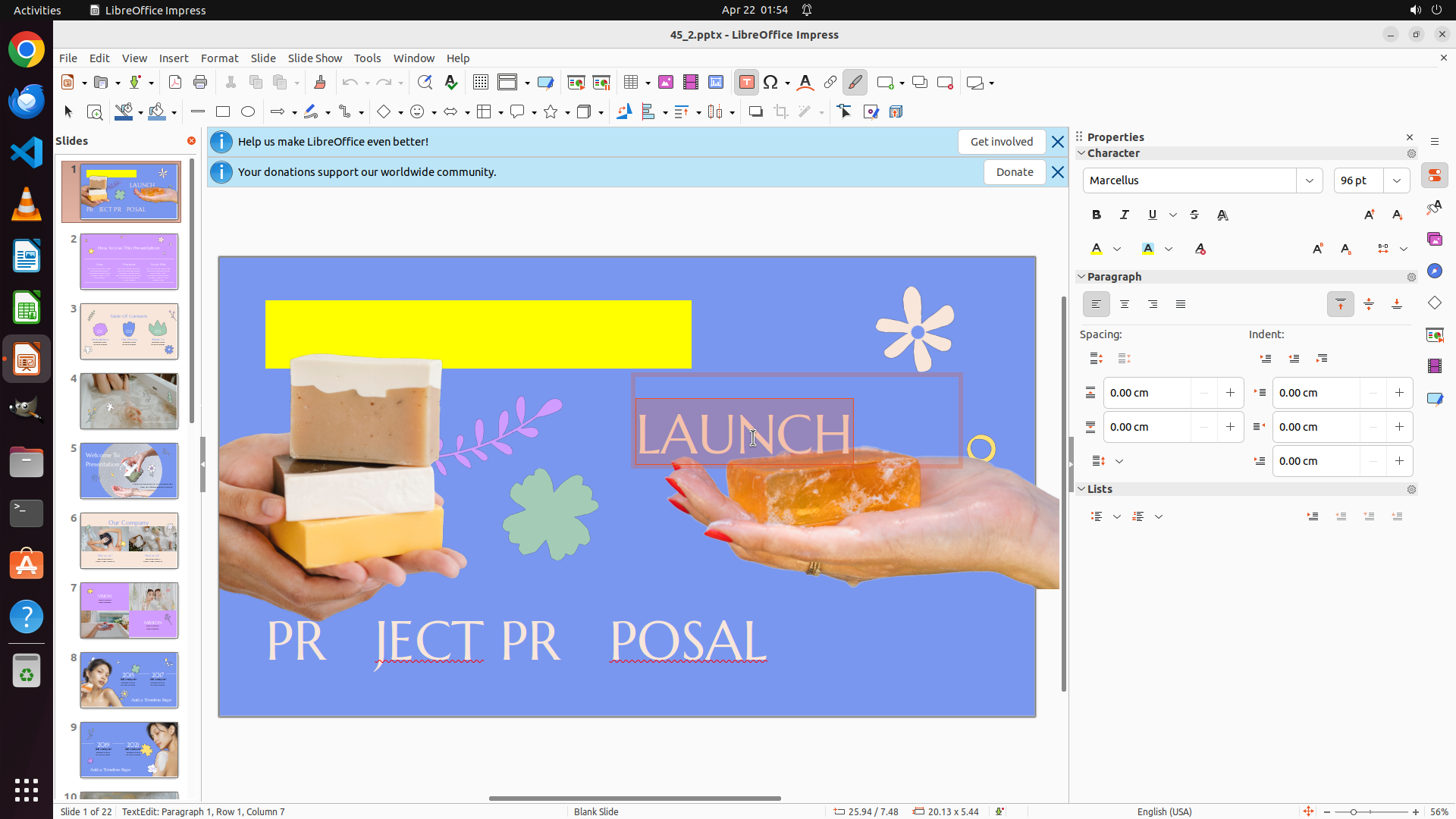
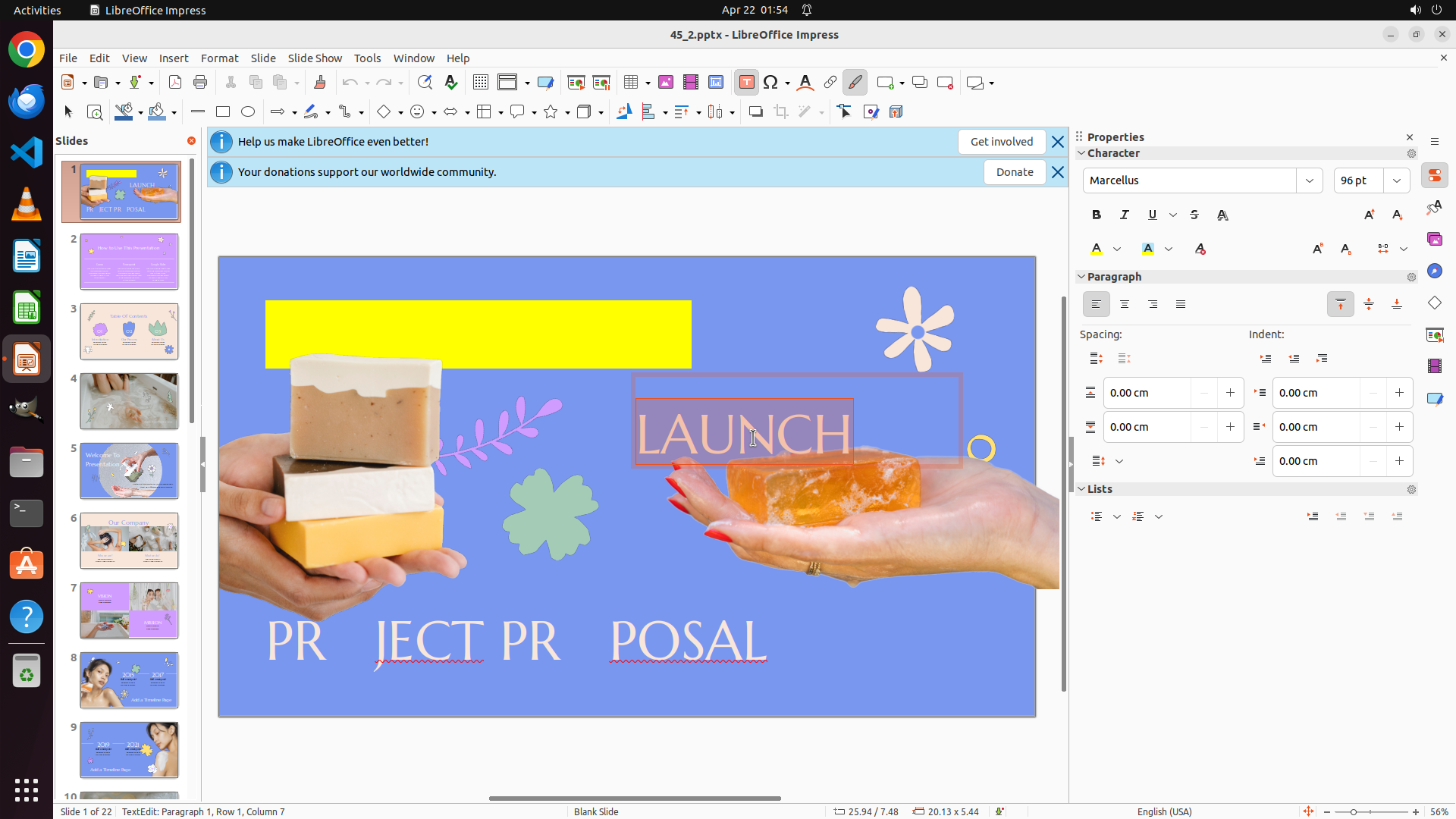
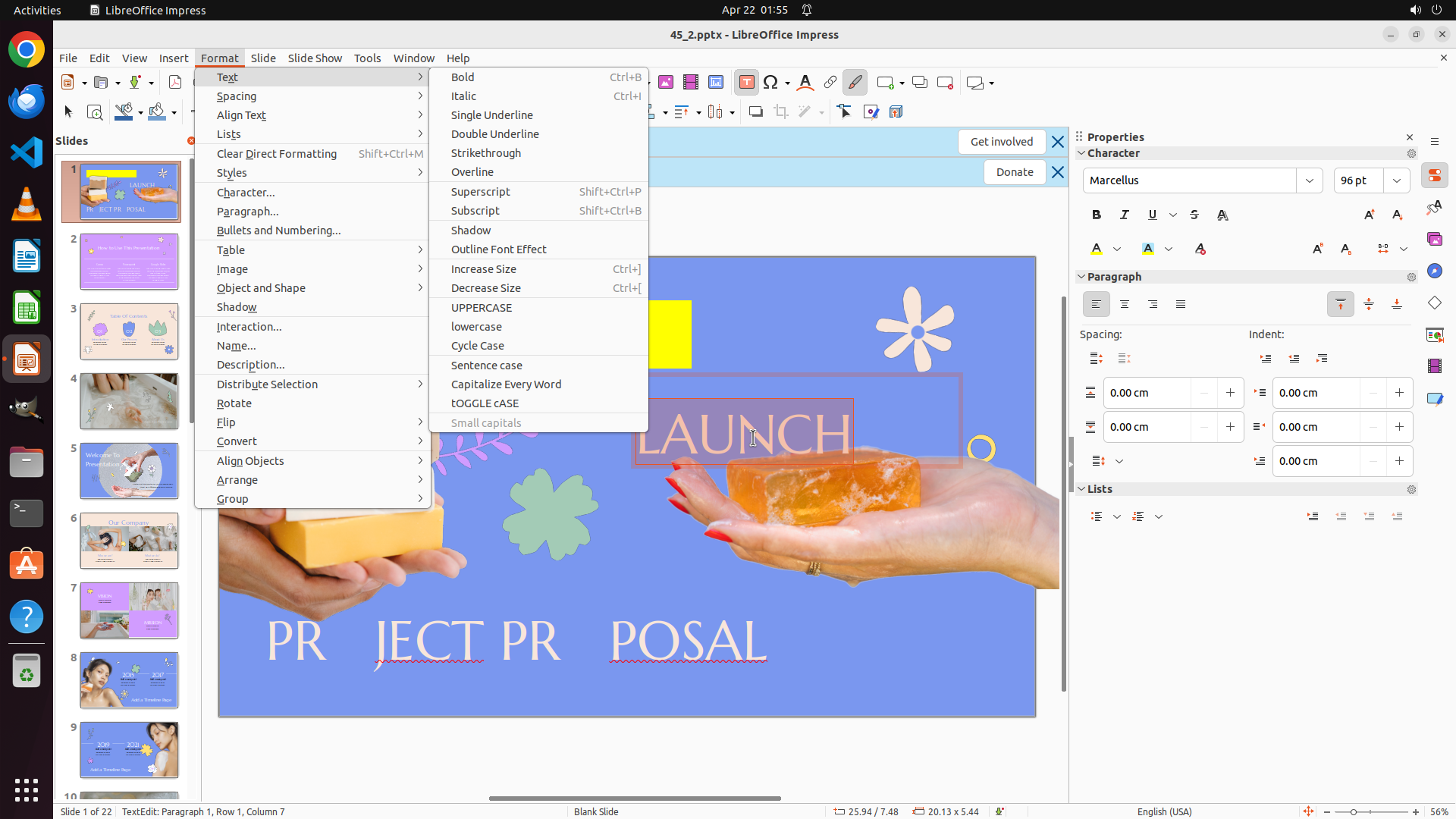
Let me click on the bright yellow color in the palette.
```
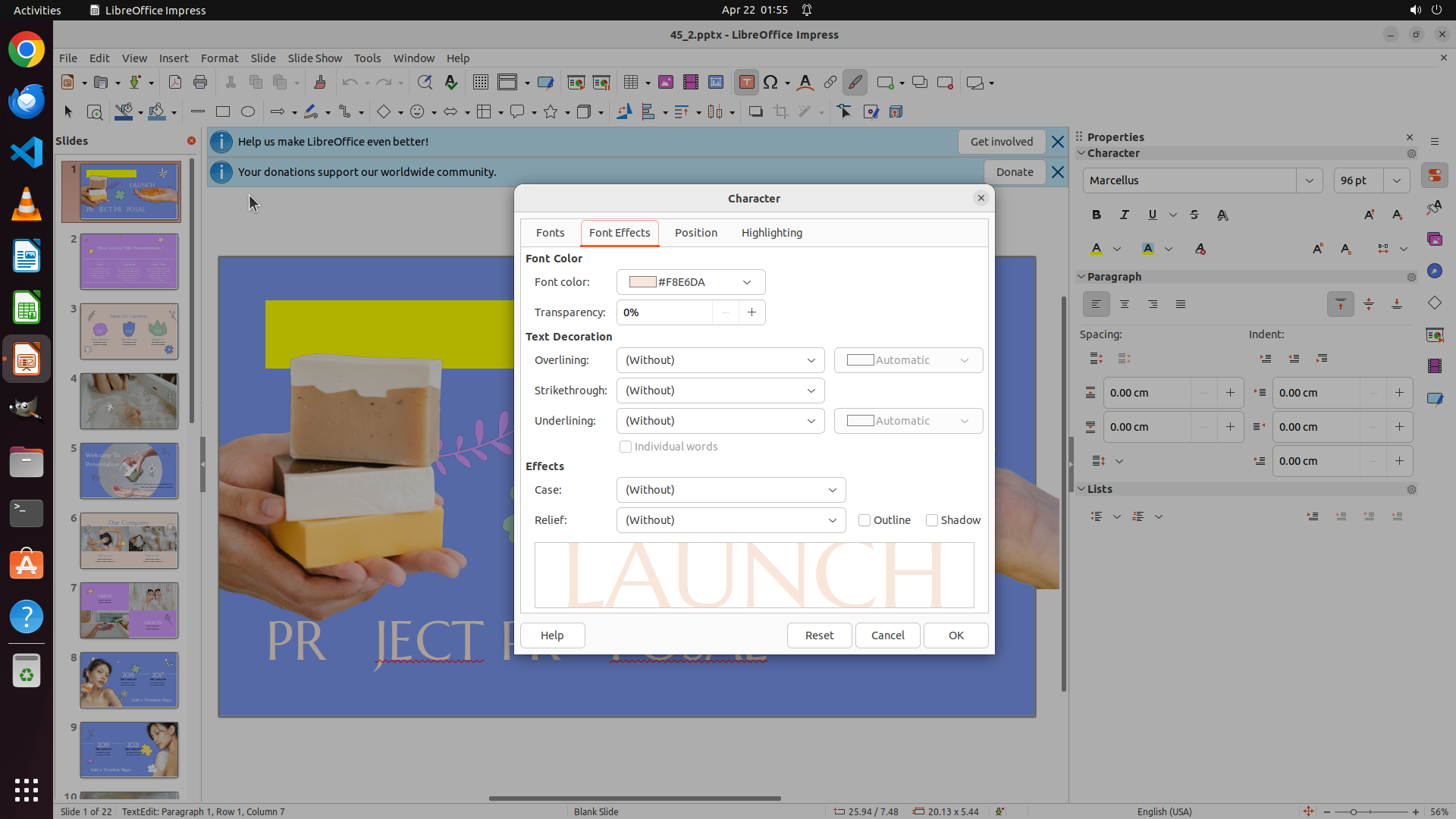
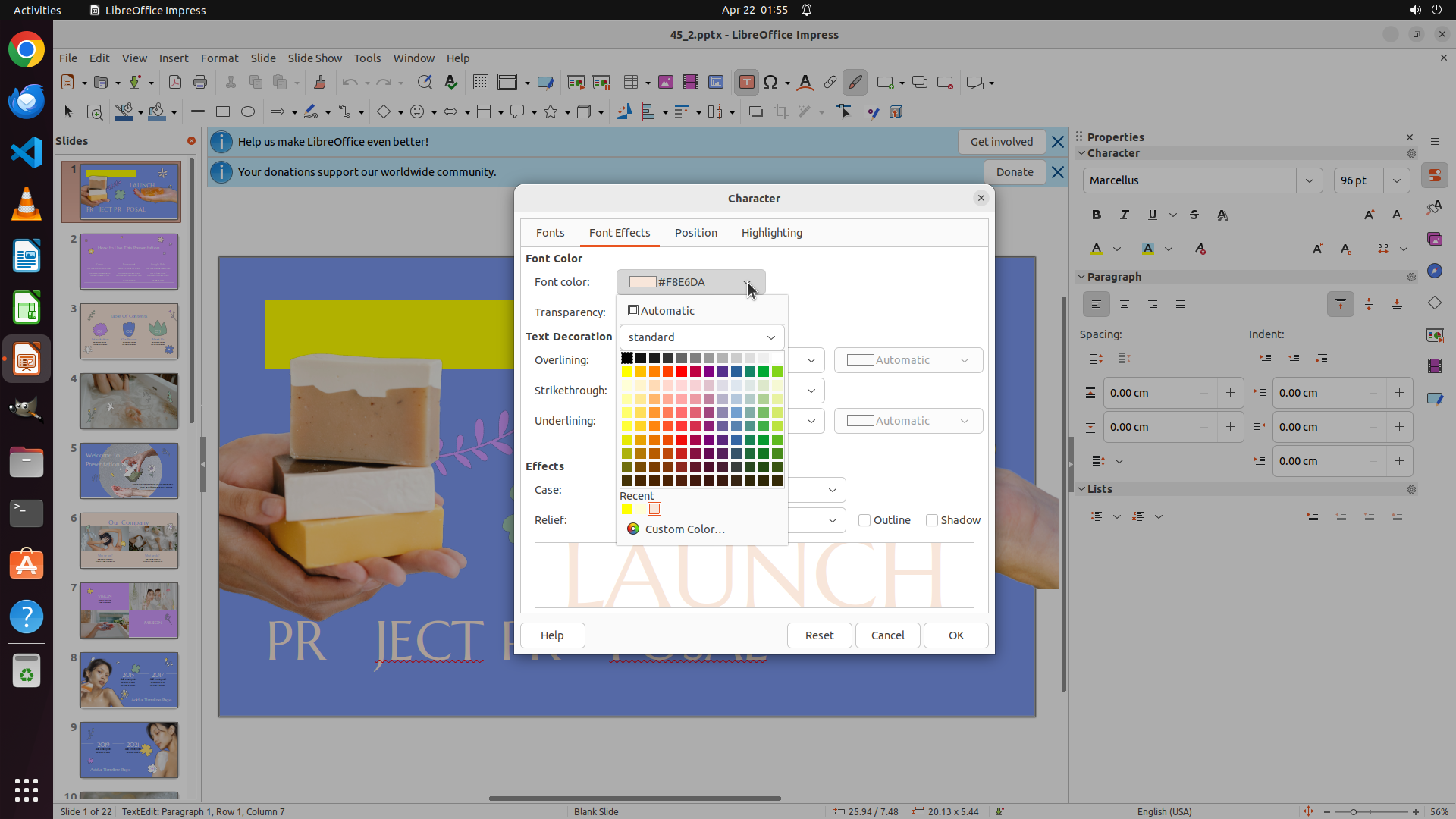
Step 5: CLICK (1515, 325)
```
#### 重要信息
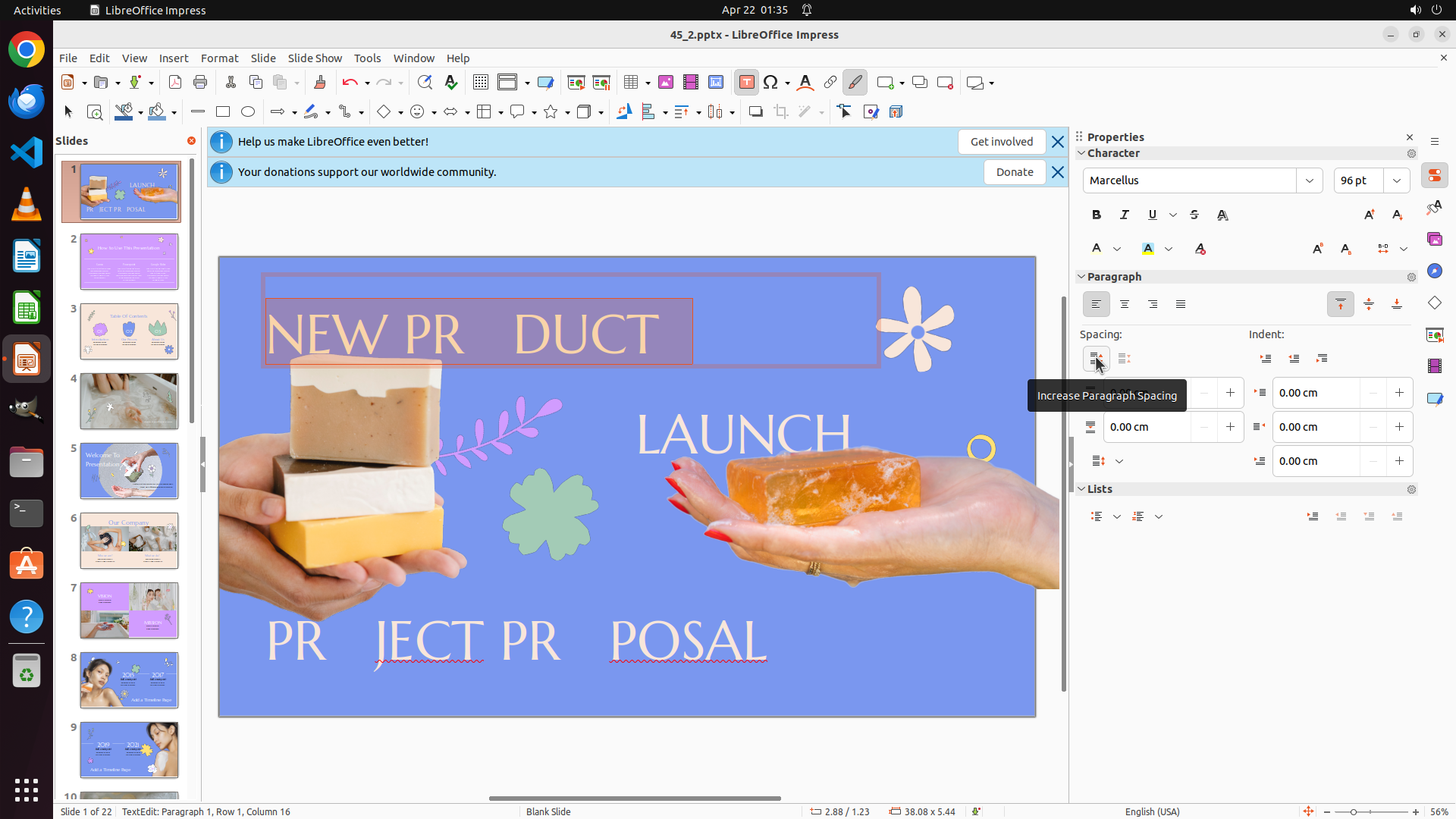
The previous attempt to select yellow from the color palette appears to have failed - the color palette closed but the text "NEW PR DUCT" still appears to be in white/light color, not yellow. The text is still selected (highlighted in purple), which is good. I need to reopen the font color dropdown and select yellow again.
#### 情况分析与思考过程
The previous action clicked on what was thought to be a yellow color in the palette, but it seems the color wasn't applied. Looking at the current state:
1. The text "NEW PR DUCT" is still selected
2. The color palette is closed
3. The text color hasn't changed to yellow
I need to:
1. Click on the font color dropdown button in the Properties panel to reopen the color palette
2. Select a proper bright yellow color
3. Then proceed to select the middle text "LAUNCH" and apply red
4. Then select the bottom text and apply green
Let me click on the font color dropdown button (the "A" with colored underline) in the Character section of the Properties panel.
```
Step 6: CLICK (1542, 325)
```
#### 重要信息
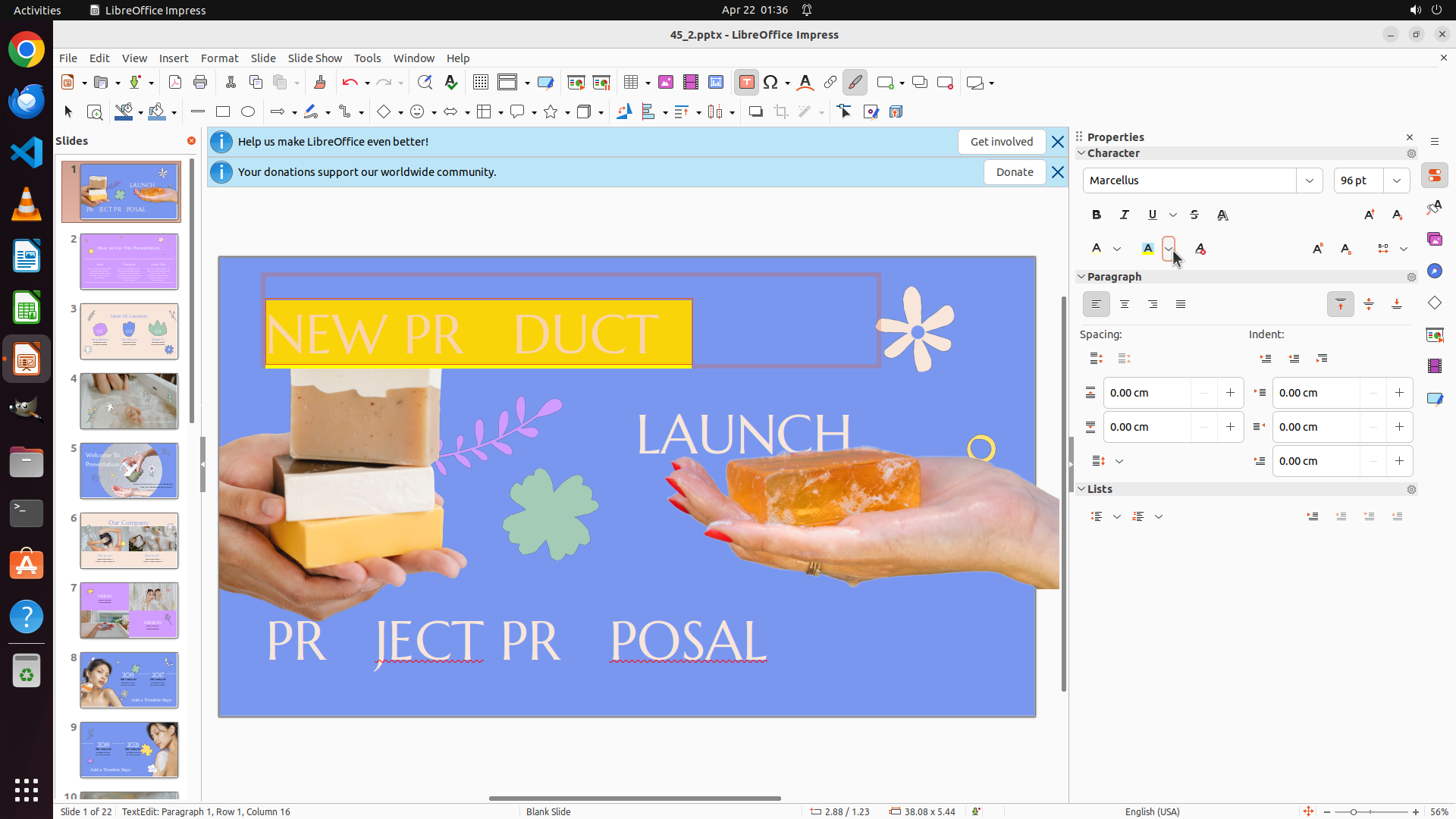
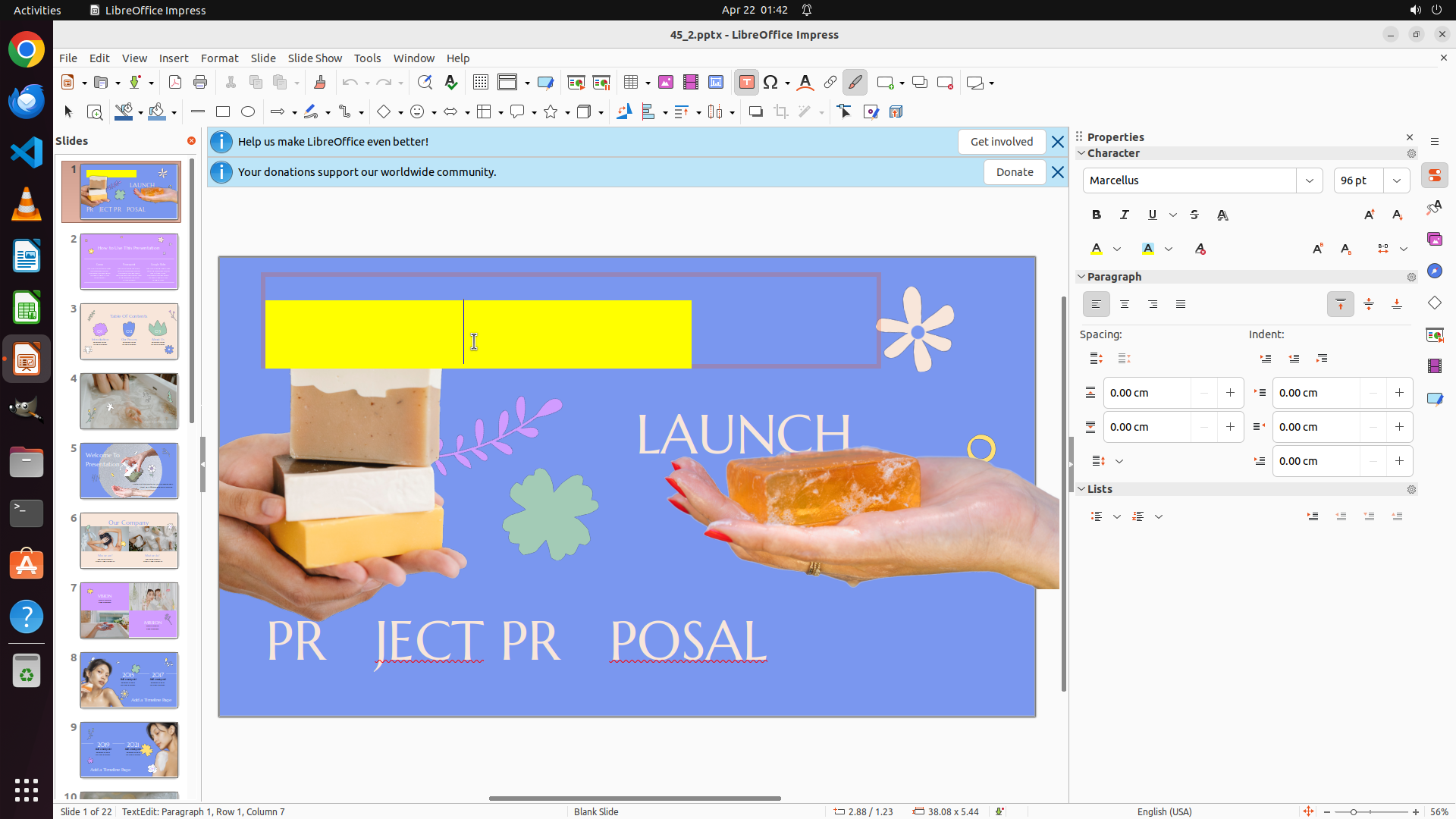
The previous action opened a highlighting color tooltip, and I can see that the text "NEW PR DUCT" now has a yellow background/highlighting instead of yellow text color. This is incorrect - I need to change the text color itself, not the background highlighting. The text is still selected (shown with purple/blue selection highlighting).
I need to:
1. First, remove this yellow highlighting and apply proper yellow text color
2. The font color button should be different from the highlighting color button
Looking at the Character section in the Properties panel, I need to find the actual font color control (not the highlighting color).
#### 情况分析与思考过程
The previous action clicked on the wrong color button - it applied yellow highlighting/background color instead of yellow text color. I need to undo this and apply the correct text color.
Looking at the Character formatting section in the Properties panel, I can see there's an "A" button with what appears to be a colored underline - this should be the font color button. I need to click on the dropdown arrow next to it to open the font color palette (not the highlighting color).
Let me click on the font color dropdown button to open the proper color palette for changing text color.
```
Step 7: HOTKEY
```
#### 重要信息
The previous action opened a "Character Highlighting Color" palette, not the font color palette. I can see the text "NEW PR DUCT" now has yellow background highlighting instead of yellow text color. This is wrong - I need to change the text color, not the background highlighting. The highlighting color palette is currently open showing "(Yellow)" at the top.
I need to:
1. Close this highlighting color palette
2. Find and click on the actual font color button (not the highlighting button)
3. Apply yellow text color to the selected text
#### 情况分析与思考过程
I made an error - I clicked on the highlighting/background color button instead of the font color button. Looking at the Character section in the Properties panel, there should be two different color controls:
- One for font/text color (usually an "A" with a colored underline)
- One for highlighting/background color (the one I accidentally clicked)
I need to close this current palette first by pressing Escape, then find the correct font color button. Looking at the toolbar, I should look for the font color control which is typically represented by an "A" with a colored bar underneath it.
Let me press Escape to close this highlighting color palette first.
```
I'll close the highlighting color palette and then look for the correct font color button.
Step 8: CLICK (1471, 325)
```
#### 重要信息
The highlighting color palette has been closed. I can see the text "NEW PR DUCT" still has yellow background highlighting (incorrect - I need text color, not background highlighting). The text remains selected. I need to find the correct font color button in the Properties panel's Character section.
Looking at the Character section in the Properties panel on the right, I can see several formatting buttons. I need to identify the actual font color button (not the highlighting button). The font color button is typically represented by an "A" with a colored underline/bar beneath it.
#### 情况分析与思考过程
I need to:
1. Find and click on the correct font color dropdown button (not highlighting)
2. Select yellow from the font color palette
3. This will apply yellow text color to the selected "NEW PR DUCT" text
Looking at the Character section in the Properties panel, I can see an "A" button that should be the font color control. I need to click on the dropdown arrow next to it to open the font color palette. Let me click on the font color dropdown button.
```
Step 9: CLICK (1440, 465)
```
#### 重要信息
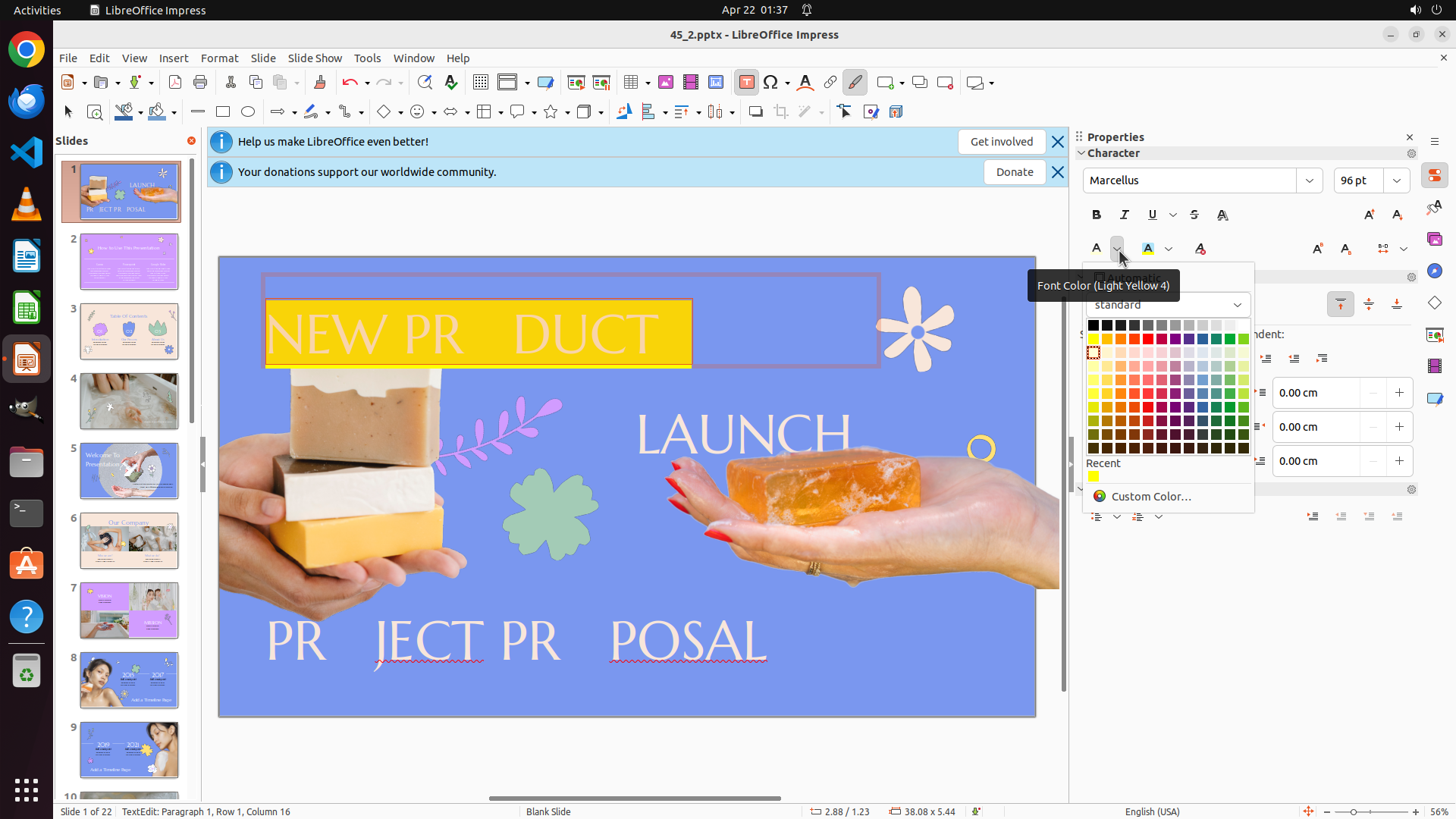
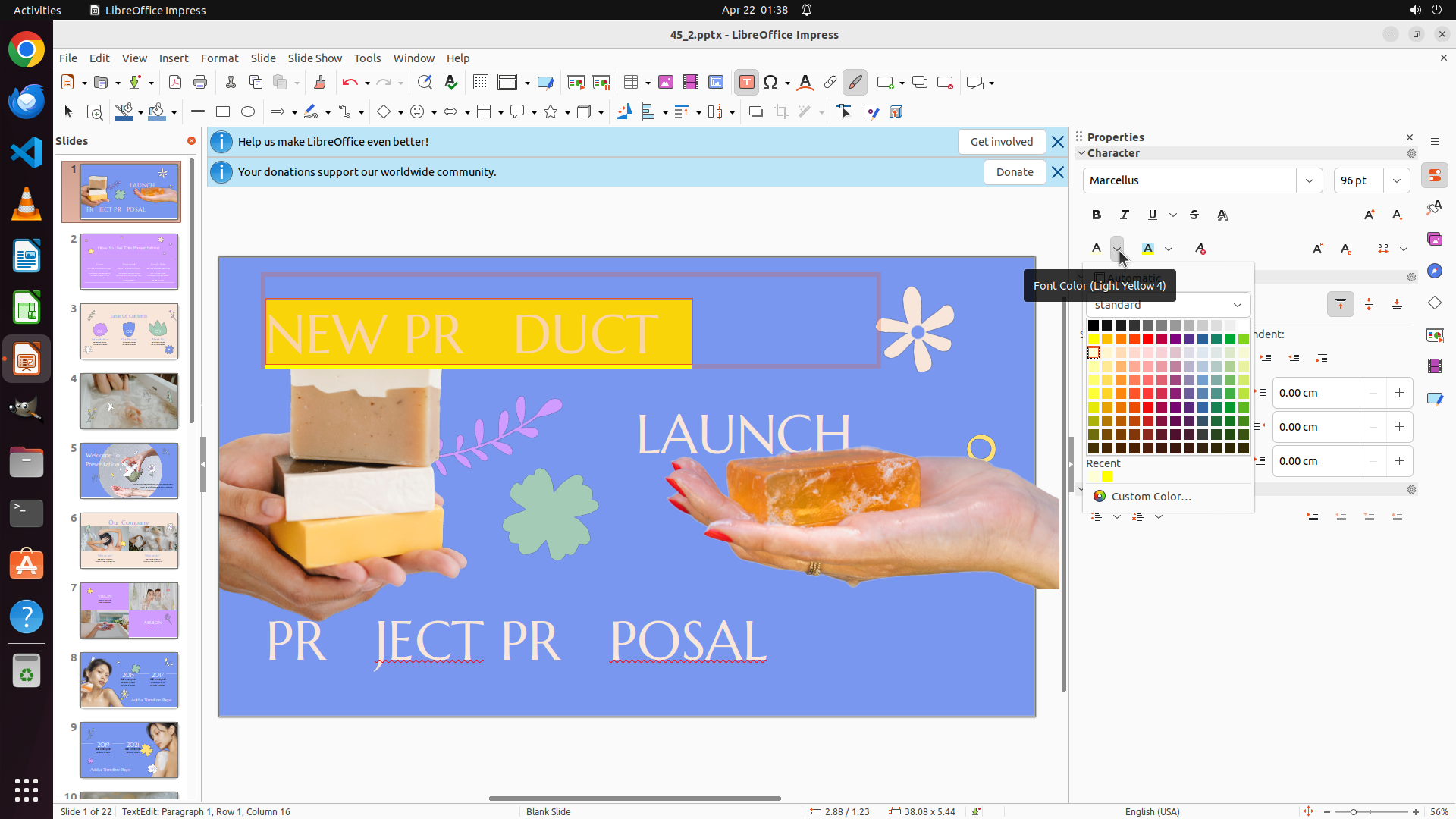
The font color palette is now open showing "Font Color (Light Yellow 4)" tooltip. The color palette displays a grid of colors including various yellows, reds, and greens. The text "NEW PR DUCT" remains selected (highlighted in purple/blue). I need to select a pure bright yellow color from this palette to apply to the selected text.
#### 情况分析与思考过程
The previous action successfully opened the font color palette. Now I need to:
1. Select a bright/pure yellow color from the palette (not light yellow or orange-yellow)
2. After applying yellow to the top text, I'll need to select the middle text "LAUNCH" and apply red
3. Then select the bottom text and apply green
Looking at the color palette, I can see yellow colors in the grid. I need to select a standard bright yellow - one that's clearly yellow without being too pale or too orange. There's a bright yellow color visible in the palette that would be appropriate for this task.
Let me click on a bright yellow color in the palette.
```
Step 10: CLICK (1471, 325)
```
#### 重要信息
The color palette that was previously open has closed. The text "NEW PR DUCT" still has yellow background highlighting (incorrectly applied) but the text color itself remains white/light. I need to reopen the font color palette and select the proper yellow text color. Looking at the Properties panel on the right, I can see the Character formatting section with the font color button.
#### 情况分析与思考过程
I need to:
1. Click on the font color dropdown button in the Properties panel to reopen the color palette
2. Select a bright/pure yellow color for the text (not background highlighting)
3. After successfully applying yellow text color to "NEW PR DUCT", I'll need to select the middle text "LAUNCH" and apply red
4. Then select the bottom text "PR JECT PR POSAL" and apply green
Looking at the Character section in the Properties panel, I can see the font color control. I need to click on the dropdown arrow next to the "A" button to open the font color palette. Let me click on the font color dropdown.
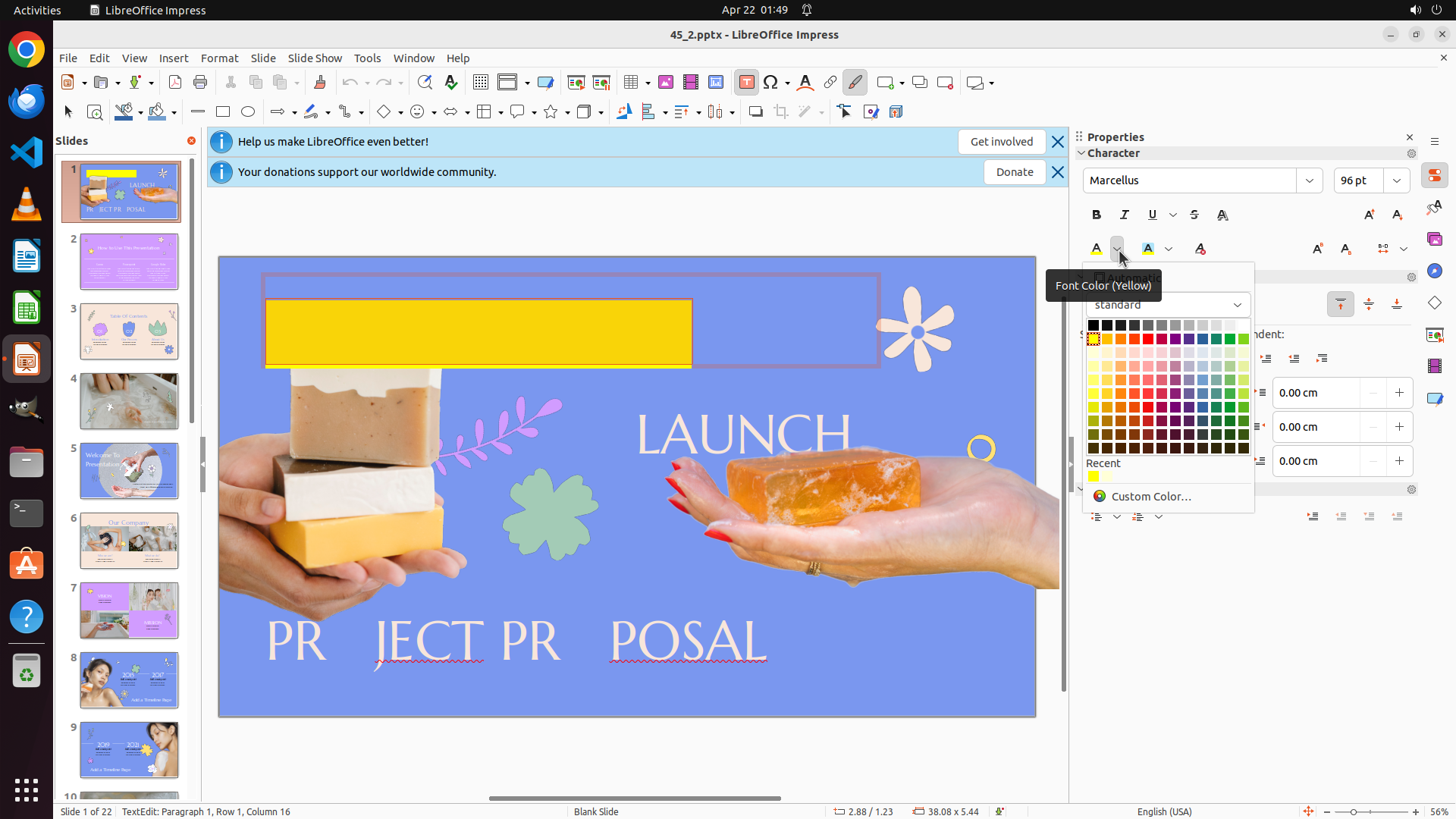
```
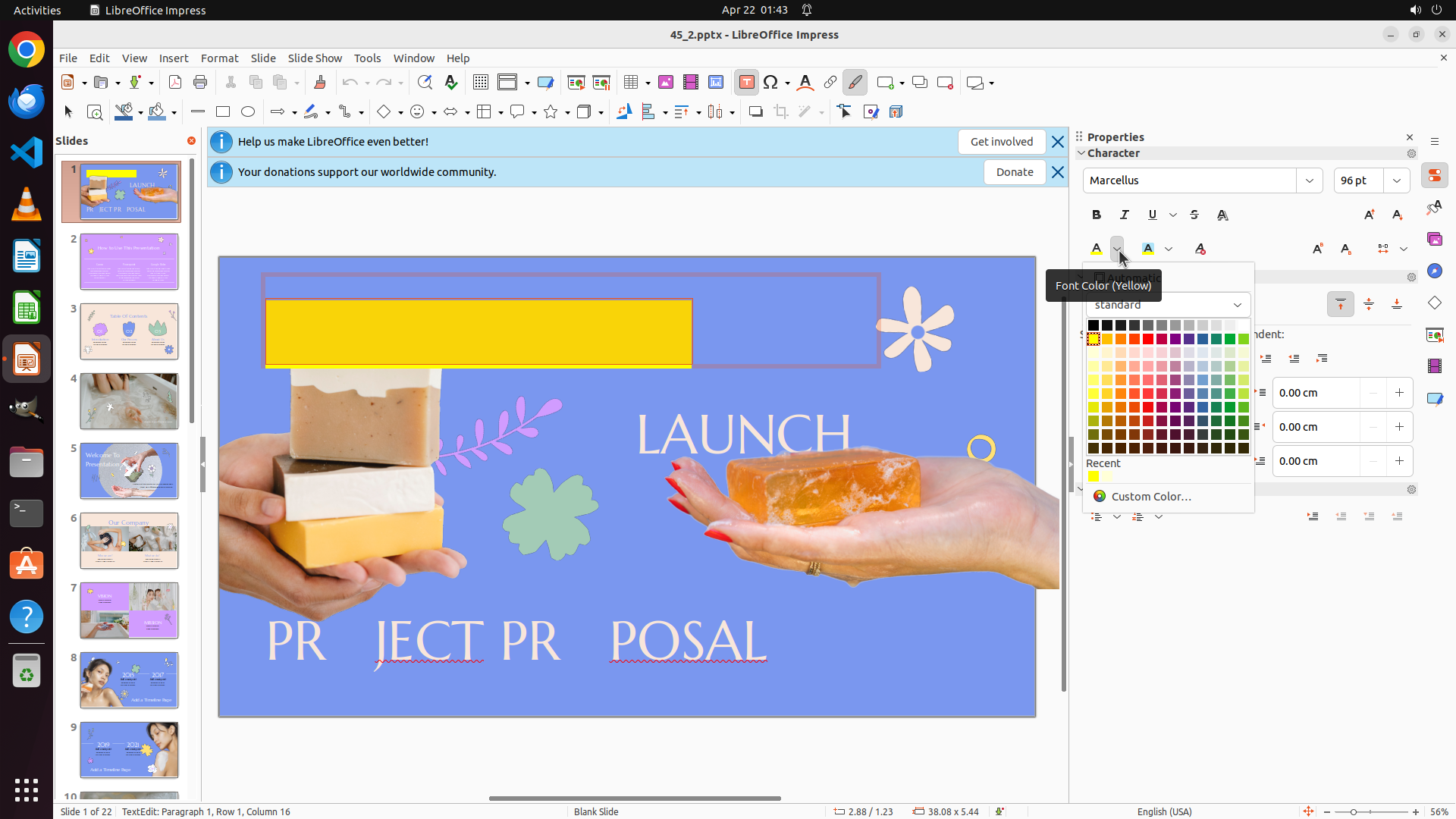
Step 11: CLICK (1440, 444)
```
#### 重要信息
The font color palette is now open showing "Font Color (Light Yellow 4)" at the top. The color palette displays a grid of colors. The text "NEW PR DUCT" remains selected. I can see various yellow colors in the palette. I need to select a proper bright/pure yellow color (not "Light Yellow 4" which appears to be selected by default).
Looking at the color palette, I can see there are brighter yellow colors available in the grid. I need to select a standard bright yellow color.
#### 情况分析与思考过程
The previous action successfully opened the font color palette. Now I need to:
1. Select a bright/pure yellow color from the palette (avoiding the light yellow that was previously selected)
2. After applying yellow to the top text, I'll need to select the middle text "LAUNCH" and apply red
3. Then select the bottom text and apply green
Looking at the color palette grid, I can see there's a brighter yellow color in the palette. I should select a more standard/vibrant yellow rather than the "Light Yellow 4" that was previously shown. Let me click on a brighter yellow color in the palette.
```
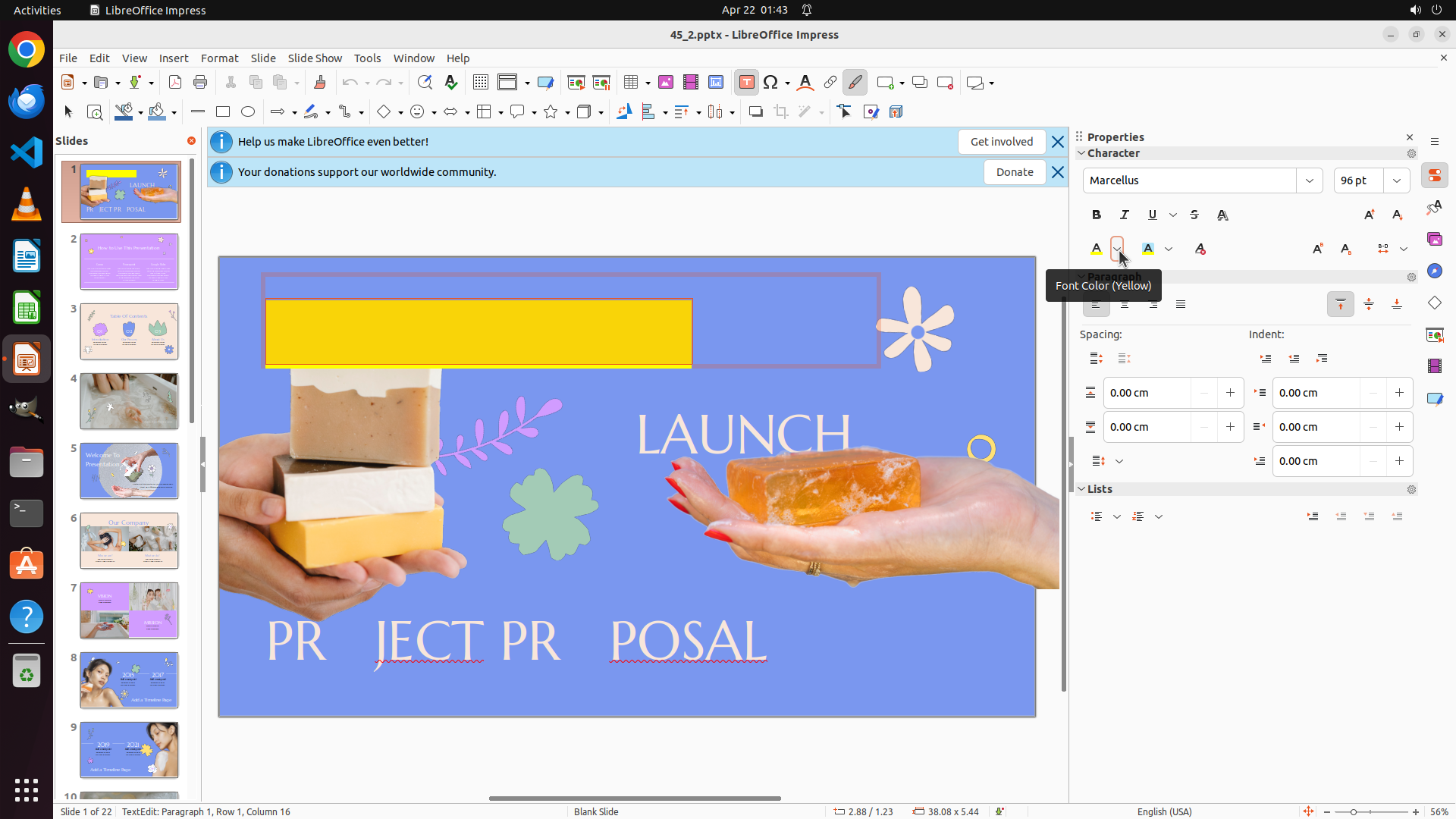
Step 12: CLICK (1471, 325)
#### 重要信息
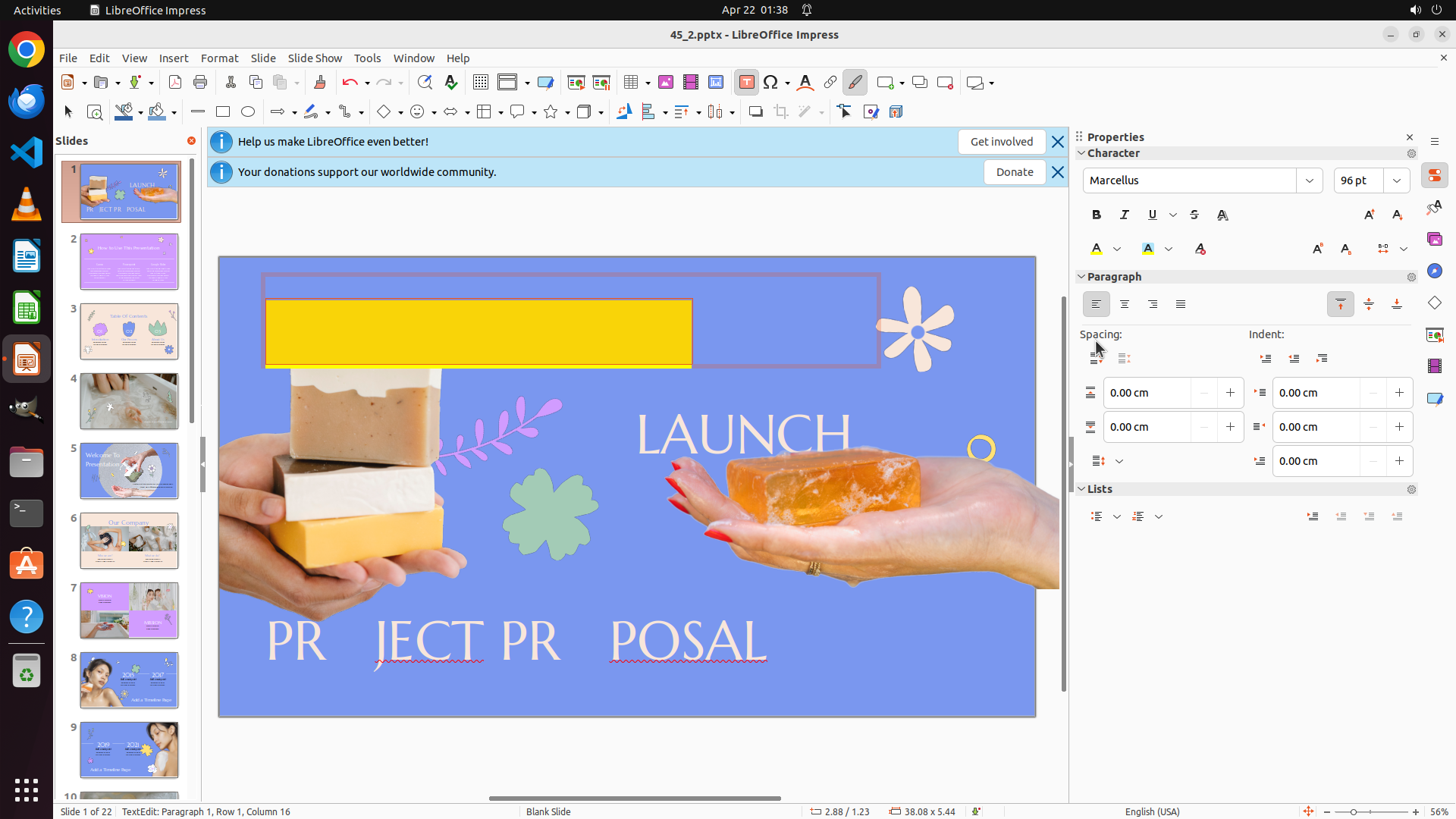
The previous action closed the color palette. Looking at the current state, I can see that the text "NEW PR DUCT" now has a yellow rectangular background/highlighting behind it, but the text color itself still appears to be white/light. This means I've been applying background highlighting color instead of the actual font/text color.
I need to find the correct font color button (not the highlighting color button) in the Properties panel's Character section. Looking at the Character formatting section on the right, I can see there's an "A" button with what appears to be a colored underline - this should be the actual font color control.
#### 情况分析与思考过程
I need to:
1. Click on the correct font color dropdown button in the Properties panel (the one that controls text color, not background highlighting)
2. Select a bright/pure yellow color from the palette
3. Apply it to the selected "NEW PR DUCT" text
4. Then proceed to select the middle text "LAUNCH" and apply red
5. Finally select the bottom text and apply green
Looking at the Character section in the Properties panel on the right, I can see the font color button (represented by "A" with a colored underline). I need to click on the dropdown arrow next to it to open the font color palette. Let me click on the font color dropdown button.
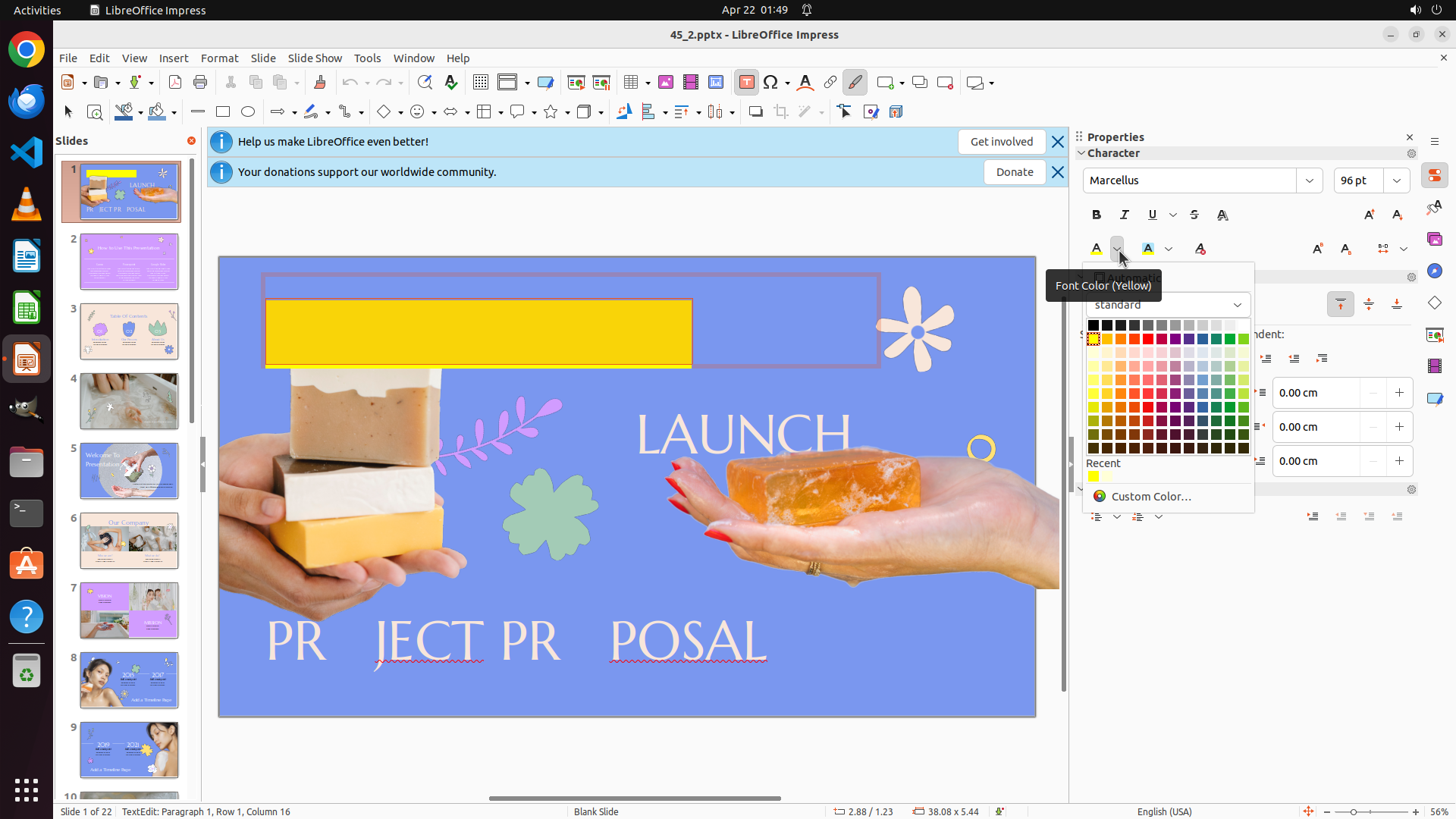
Step 13: CLICK (1440, 444)
```
#### 重要信息
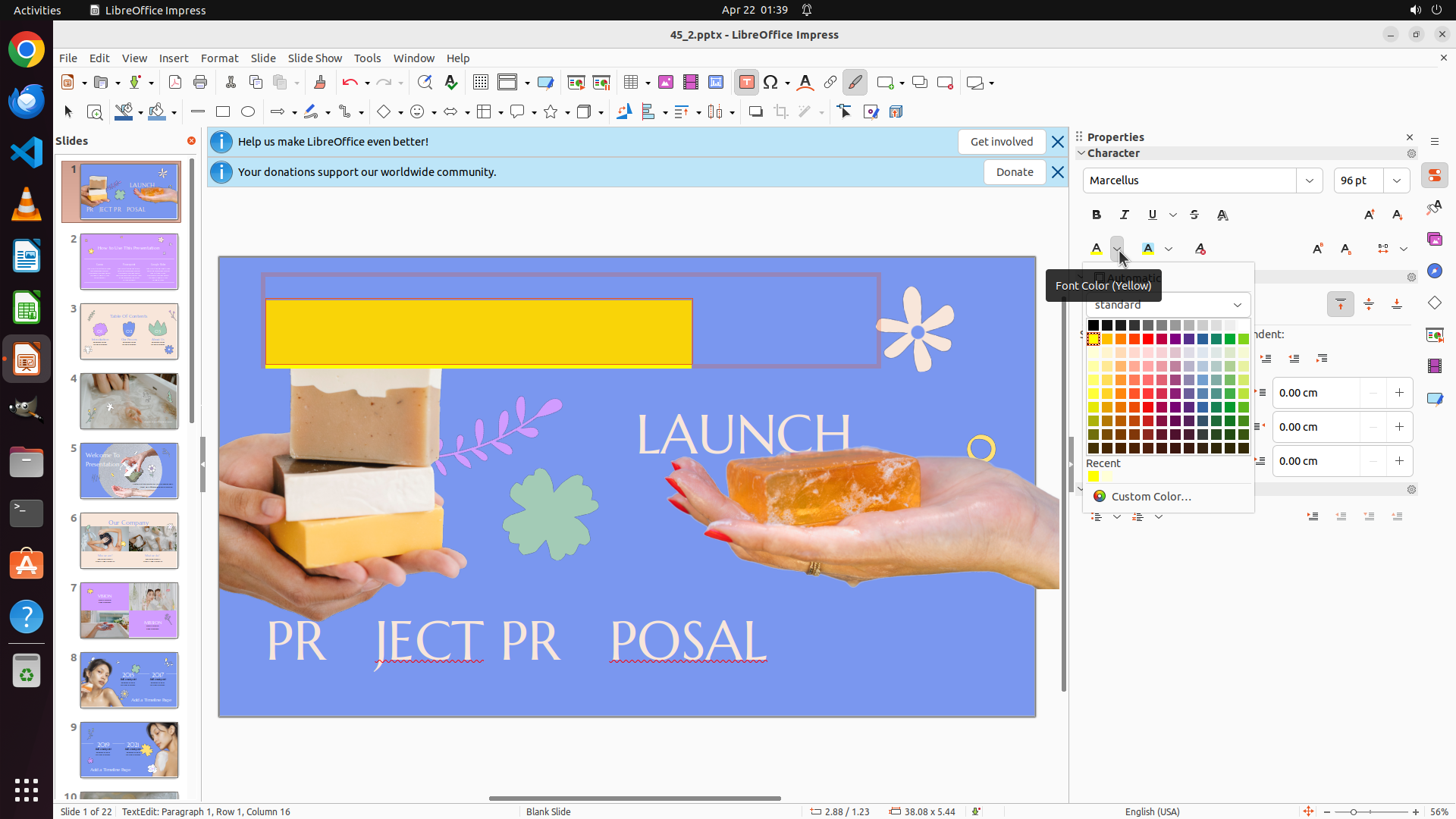
The font color palette is now open showing "Font Color (Yellow)" tooltip. The color palette displays a comprehensive grid of colors including various yellows, reds, and greens. The text "NEW PR DUCT" still appears to be selected (though it has yellow background highlighting from the previous incorrect action). I need to select a proper bright yellow color from the palette to apply to the text.
#### 情况分析与思考过程
The previous action successfully opened the font color palette. Now I need to:
1. Select a bright/pure yellow color from the palette
2. Apply it to the selected "NEW PR DUCT" text
3. Then select the middle text "LAUNCH" and apply red
4. Then select the bottom text and apply green
Looking at the color palette, I can see yellow colors in the grid. I need to select a standard bright yellow - one that's clearly yellow without being too pale or too orange. There's a bright yellow color visible in the upper portion of the color palette that would be appropriate.
Let me click on the bright yellow color in the palette.
```
Step 14: CLICK (1471, 325)
```
#### 重要信息
The previous action attempted to open the font color palette, but it seems the palette didn't open or closed immediately. The text "NEW PR DUCT" still has yellow background highlighting (incorrectly applied earlier) but the text color remains white/light. The text is still selected. I need to successfully open the font color palette and select a proper yellow color.
Looking at the Properties panel on the right in the Character section, I can see formatting controls. I need to locate the correct font color dropdown button (not the highlighting color button that I mistakenly used before).
#### 情况分析与思考过程
I need to:
1. Find and click on the correct font color dropdown button in the Properties panel
2. Select a bright/pure yellow color from the palette
3. Apply it to the selected "NEW PR DUCT" text
4. Then proceed to select the middle text "LAUNCH" and apply red
5. Finally select the bottom text and apply green
Looking at the Character section in the Properties panel, I can see the font color control. I should click on the dropdown arrow next to the "A" button to open the font color palette. Let me try clicking on the font color dropdown button at a slightly different position.
```
Step 15: CLICK (1440, 444)
```
#### 重要信息
The font color palette is now open showing "Font Color (Yellow)" tooltip. The color palette displays a comprehensive grid of colors. The text "NEW PR DUCT" is still selected. I can see the color grid with various yellow colors in the upper portion. I need to select a bright, pure yellow color to apply to the selected text.
#### 情况分析与思考过程
The previous action successfully opened the font color palette. Now I need to:
1. Select a bright/pure yellow color from the palette
2. Apply it to the selected "NEW PR DUCT" text
3. Then proceed to select the middle text "LAUNCH" and apply red
4. Then select the bottom text and apply green
Looking at the color palette grid, I can see yellow colors. I need to select a standard bright yellow - one that's clearly yellow without being too pale or too orange. There's a bright yellow color in the palette that should work well.
Let me click on the bright yellow color in the palette.
```
Step 16: CLICK (1050, 750)
```
#### 重要信息
The previous action opened the font color palette, and I can see that the text "NEW PR DUCT" now has a yellow background rectangle behind it. However, looking at the current screenshot, I notice the text color itself still appears to be white/light, not yellow. This suggests that I may have been applying background highlighting instead of text color, or the yellow text color is not clearly visible against the yellow background.
Looking at the Properties panel on the right in the Character section, I can see there are two different color controls - one for font color and one for highlighting. The coordinates I've been clicking at (0.766, 0.301) appear to be opening the highlighting color palette based on previous tooltips.
I need to find the actual font color button. Looking at the Character section more carefully, I can see there's an "A" with what should be a colored underline - this is the font color control. I need to click on the dropdown arrow next to it to open the font color palette.
#### 情况分析与思考过程
I need to:
1. Find and click on the correct font color dropdown button (not the highlighting button)
2. Select a bright/pure yellow color for the text
3. Make sure the text color changes to yellow (not the background)
4. Then proceed to select the middle text "LAUNCH" and apply red
5. Finally select the bottom text and apply green
Looking at the Character section in the Properties panel on the right, I can see the font color control. I should click on the dropdown arrow next to the "A" button to open the font color palette. Let me try clicking at a slightly different position to ensure I'm hitting the font color dropdown and not the highlighting dropdown.
Actually, looking at the current state, I notice the text "NEW PR DUCT" appears to have both yellow background highlighting and possibly yellow text color. However, I need to verify this is correct. Let me click somewhere else on the slide to deselect the text and see the actual result more clearly.
Let me click on an empty area of the slide to deselect the text and see the final result of the color change.
```
Step 17: CLICK (611, 435)
```
#### 重要信息
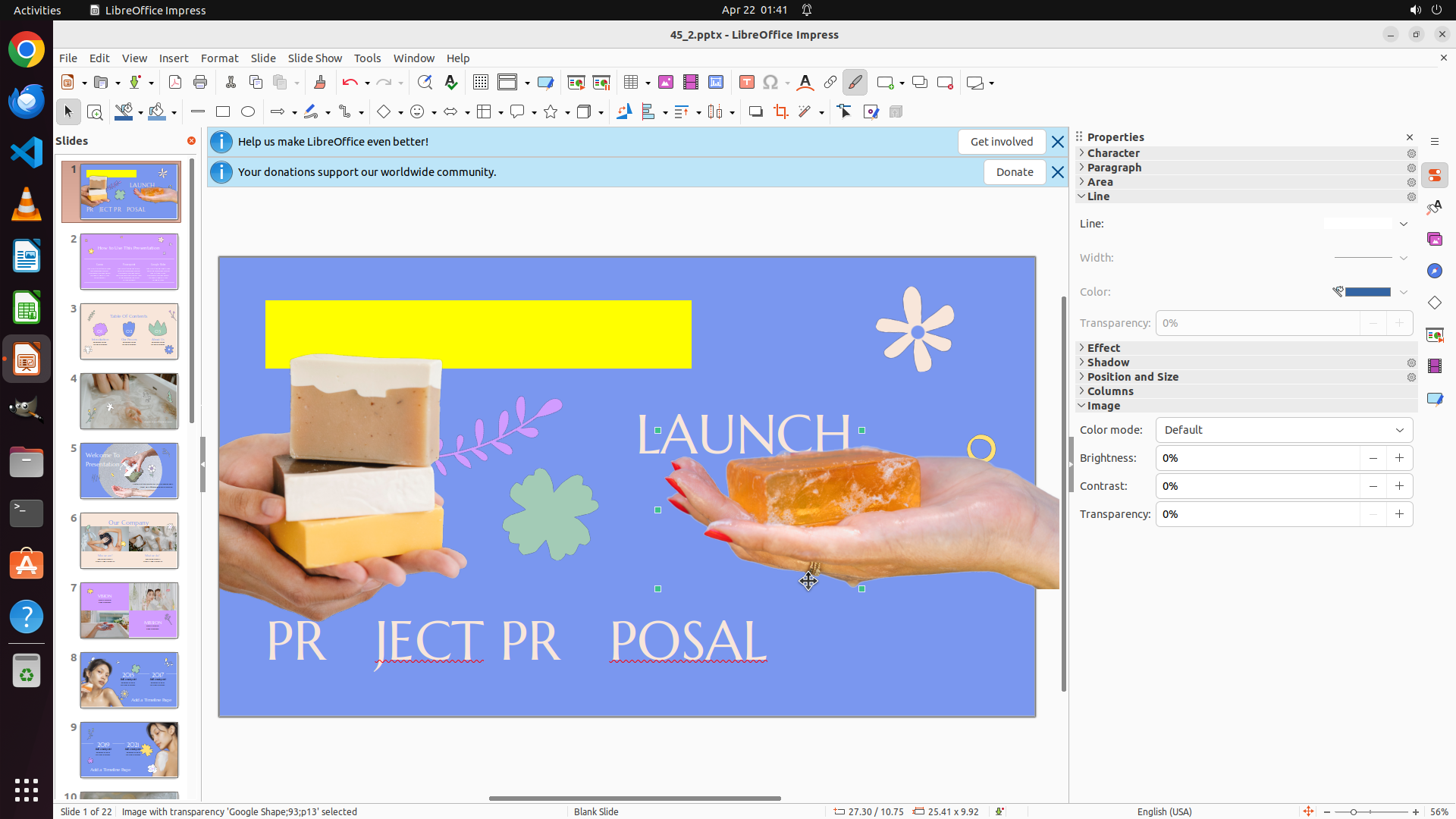
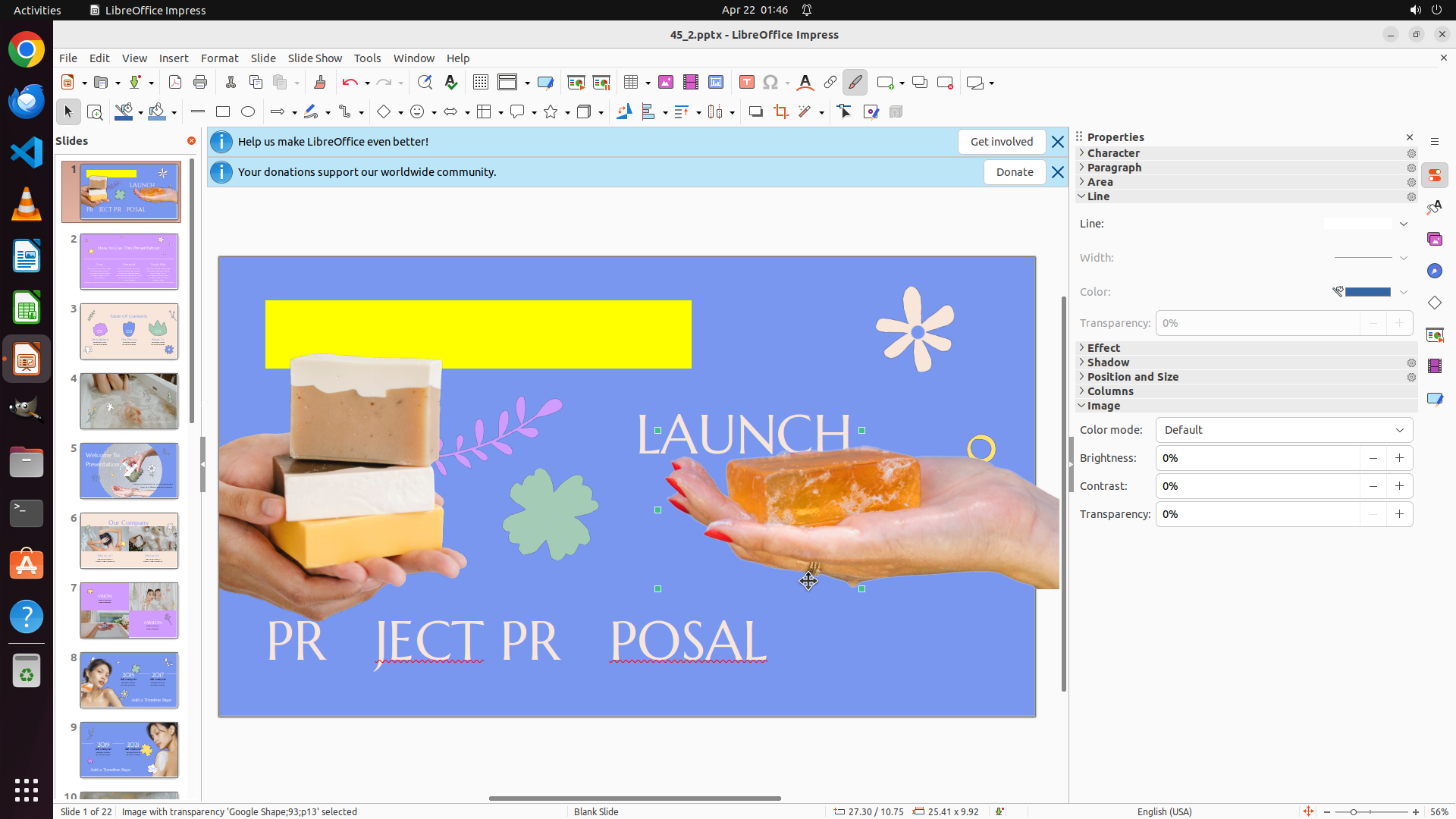
The latest screenshot shows that the top text "NEW PR DUCT" has yellow background highlighting but the text color itself still appears to be white/light, not yellow. The middle text "LAUNCH" and bottom text "PR JECT PR POSAL" are still in their original white color. The Properties panel on the right is currently showing "Line" properties instead of "Character" properties.
The previous attempts to apply yellow text color seem to have applied yellow background highlighting instead. I need to:
1. Reselect the top text "NEW PR DUCT"
2. Apply the correct yellow text color (not background highlighting)
3. Then proceed with the middle and bottom textboxes
#### 情况分析与思考过程
I need to start fresh with selecting the top textbox and properly applying the yellow text color. The previous actions were targeting what appears to be the highlighting color button instead of the font color button.
My plan:
1. Click on the top text "NEW PR DUCT" to select the textbox
2. Select all text with Ctrl+A
3. Find the correct font color button in the Properties panel (Character section)
4. Apply yellow text color
5. Then select "LAUNCH" and apply red
6. Finally select the bottom text and apply green
Let me start by clicking on the top text "NEW PR DUCT" to select it.
```
Step 18: CLICK (611, 435)
```
#### 重要信息
The latest screenshot shows that clicking at the previous coordinate selected an image object instead of deselecting the text. The Properties panel now shows "Line" properties instead of "Character" properties, and the status bar indicates "Image with transparency 'Google Shape_65' selected". The top text "NEW PR DUCT" still has yellow background highlighting but the text color remains white/light.
I need to:
1. Click on the top text "NEW PR DUCT" to select the textbox again
2. Select all text with Ctrl+A
3. Find and click on the correct font color button (not highlighting)
4. Apply yellow text color
5. Then proceed with the middle and bottom textboxes
#### 情况分析与思考过程
The previous action accidentally selected an image object instead of working with the text. I need to get back to editing the text. Let me click on the top text "NEW PR DUCT" to select the textbox and enter text editing mode again. Then I can properly apply the yellow text color.
Looking at the slide, I can see the yellow highlighted area at the top where "NEW PR DUCT" text is located. I need to click on that text to select it.
```
Step 19: HOTKEY
```
#### 重要信息
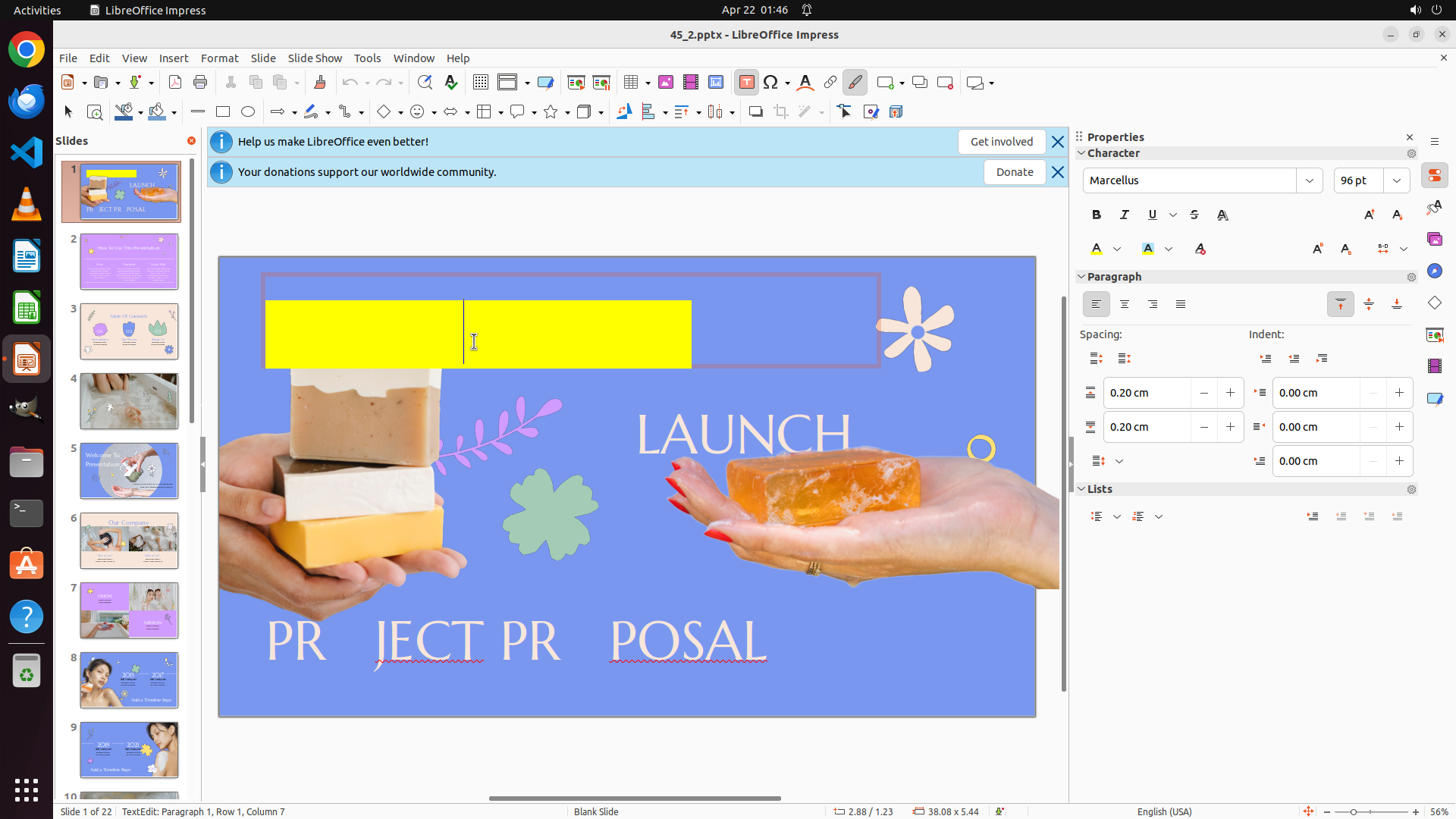
The latest screenshot shows LibreOffice Impress with slide 1 displayed. The Properties panel on the right shows "Character" properties, indicating I'm in text editing mode. The cursor appears to be in the top textbox area where "NEW PR DUCT" is located. The text currently has yellow background highlighting but the text color itself is still white/light.
In the Character section of the Properties panel, I can see:
- Font: Marcellus, 96 pt
- Formatting buttons (Bold, Italic, Underline)
- Two "A" buttons with colored underlines - one appears to be for font color and one for highlighting
#### 情况分析与思考过程
I need to properly apply yellow text color to the top text "NEW PR DUCT". Based on the previous actions, I've been mistakenly applying background highlighting instead of text color.
My plan:
1. First, select all text in the current textbox using Ctrl+A
2. Then locate the correct font color button (the one that changes text color, not background)
3. Open the font color palette and select bright yellow
4. After that, move to the middle text "LAUNCH" and apply red
5. Finally, select the bottom text and apply green
Let me start by selecting all text with Ctrl+A to ensure the entire text is selected before applying the color.
```
I'll select all text in the current textbox using Ctrl+A, then proceed to find and click the correct font color button.
Step 20: HOTKEY
```
#### 重要信息
The latest screenshot shows LibreOffice Impress with slide 1 displayed. The Properties panel on the right shows "Character" properties, indicating I'm in text editing mode. The cursor appears to be in the top textbox area where "NEW PR DUCT" is located. The text currently has yellow background highlighting but the text color itself is still white/light.
In the Character section of the Properties panel, I can see:
- Font: Marcellus, 96 pt
- Formatting buttons (Bold, Italic, Underline)
- Two "A" buttons with colored underlines - one appears to be for font color and one for highlighting
#### 情况分析与思考过程
I need to properly apply yellow text color to the top text "NEW PR DUCT". Based on the previous actions, I've been mistakenly applying background highlighting instead of text color.
My plan:
1. First, select all text in the current textbox using Ctrl+A
2. Then locate the correct font color button (the one that changes text color, not background)
3. Open the font color palette and select bright yellow
4. After that, move to the middle text "LAUNCH" and apply red
5. Finally, select the bottom text and apply green
Let me start by selecting all text with Ctrl+A to ensure the entire text is selected before applying the color.
```
I'll select all text in the current textbox using Ctrl+A, then proceed to find and click the correct font color button.
Step 21: CLICK (1471, 325)
```
#### 重要信息
The latest screenshot shows LibreOffice Impress with slide 1 displayed. The Properties panel on the right shows "Character" properties. The text "NEW PR DUCT" in the top textbox is selected (highlighted in yellow with the cursor visible). The text currently has yellow background highlighting from previous actions, but the text color itself is still white/light.
In the Character section of the Properties panel, I can see:
- Font: Marcellus, 96 pt
- Formatting buttons (Bold, Italic, Underline)
- Font color and highlighting controls
The text is now selected with Ctrl+A from the previous action, so I'm ready to apply the yellow text color.
#### 情况分析与思考过程
Now that the text is selected, I need to:
1. Click on the font color dropdown button in the Properties panel to open the color palette
2. Select a bright/pure yellow color for the text (not background highlighting)
3. Apply it to the selected "NEW PR DUCT" text
4. Then proceed to select the middle text "LAUNCH" and apply red
5. Finally select the bottom text and apply green
Looking at the Character section in the Properties panel on the right, I can see the font color control. I need to click on the dropdown arrow next to the "A" button to open the font color palette. The font color button should be the one that controls the actual text color (not the highlighting color I mistakenly clicked before).
Let me click on the font color dropdown button to open the color palette.
```
Step 22: CLICK (1471, 325)
```
#### 重要信息
The latest screenshot shows LibreOffice Impress with slide 1 displayed. The Properties panel on the right shows "Character" properties. The text "NEW PR DUCT" in the top textbox is selected (highlighted in yellow with the cursor visible). The text currently has yellow background highlighting from previous actions, but the text color itself is still white/light.
In the Character section of the Properties panel, I can see:
- Font: Marcellus, 96 pt
- Formatting buttons (Bold, Italic, Underline)
- Font color and highlighting controls
The text is now selected with Ctrl+A from the previous action, so I'm ready to apply the yellow text color.
#### 情况分析与思考过程
Now that the text is selected, I need to:
1. Click on the font color dropdown button in the Properties panel to open the color palette
2. Select a bright/pure yellow color for the text (not background highlighting)
3. Apply it to the selected "NEW PR DUCT" text
4. Then proceed to select the middle text "LAUNCH" and apply red
5. Finally select the bottom text and apply green
Looking at the Character section in the Properties panel on the right, I can see the font color control. I need to click on the dropdown arrow next to the "A" button to open the font color palette. The font color button should be the one that controls the actual text color (not the highlighting color I mistakenly clicked before).
Let me click on the font color dropdown button to open the color palette.
```
Step 23: CLICK (1440, 465)
```
#### 重要信息
The latest screenshot shows LibreOffice Impress with slide 1 displayed. The Properties panel on the right shows "Character" properties. The font color dropdown palette is now open, showing a tooltip "Font Color (Yellow)". The color palette displays a grid of various colors including yellows, reds, and greens. The text "NEW PR DUCT" in the top textbox is still selected (highlighted in yellow).
I can see the color palette is open with various color options. I need to select a bright/pure yellow color from this palette to apply to the selected text.
#### 情况分析与思考过程
The previous action successfully opened the font color palette. Now I need to:
1. Select a bright/pure yellow color from the palette
2. Apply it to the selected "NEW PR DUCT" text
3. Then proceed to select the middle text "LAUNCH" and apply red
4. Finally select the bottom text and apply green
Looking at the color palette that's open, I can see various yellow colors in the grid. I need to click on a standard bright yellow color - one that's clearly yellow without being too pale or too orange. There's a bright yellow color visible in the palette that would be appropriate for this task.
Let me click on the bright yellow color in the palette to apply it to the selected text.
```
Step 24: CLICK (1440, 465)
```
#### 重要信息
The latest screenshot shows LibreOffice Impress with slide 1 displayed. The Properties panel on the right shows "Character" properties. The font color dropdown palette is now open, showing a tooltip "Font Color (Yellow)". The color palette displays a grid of various colors including yellows, reds, and greens. The text "NEW PR DUCT" in the top textbox is still selected (highlighted in yellow).
I can see the color palette is open with various color options. I need to select a bright/pure yellow color from this palette to apply to the selected text.
#### 情况分析与思考过程
The previous action successfully opened the font color palette. Now I need to:
1. Select a bright/pure yellow color from the palette
2. Apply it to the selected "NEW PR DUCT" text
3. Then proceed to select the middle text "LAUNCH" and apply red
4. Finally select the bottom text and apply green
Looking at the color palette that's open, I can see various yellow colors in the grid. I need to click on a standard bright yellow color - one that's clearly yellow without being too pale or too orange. There's a bright yellow color visible in the palette that would be appropriate for this task.
Let me click on the bright yellow color in the palette to apply it to the selected text.
```
Step 25: CLICK (1050, 750)
```
#### 重要信息
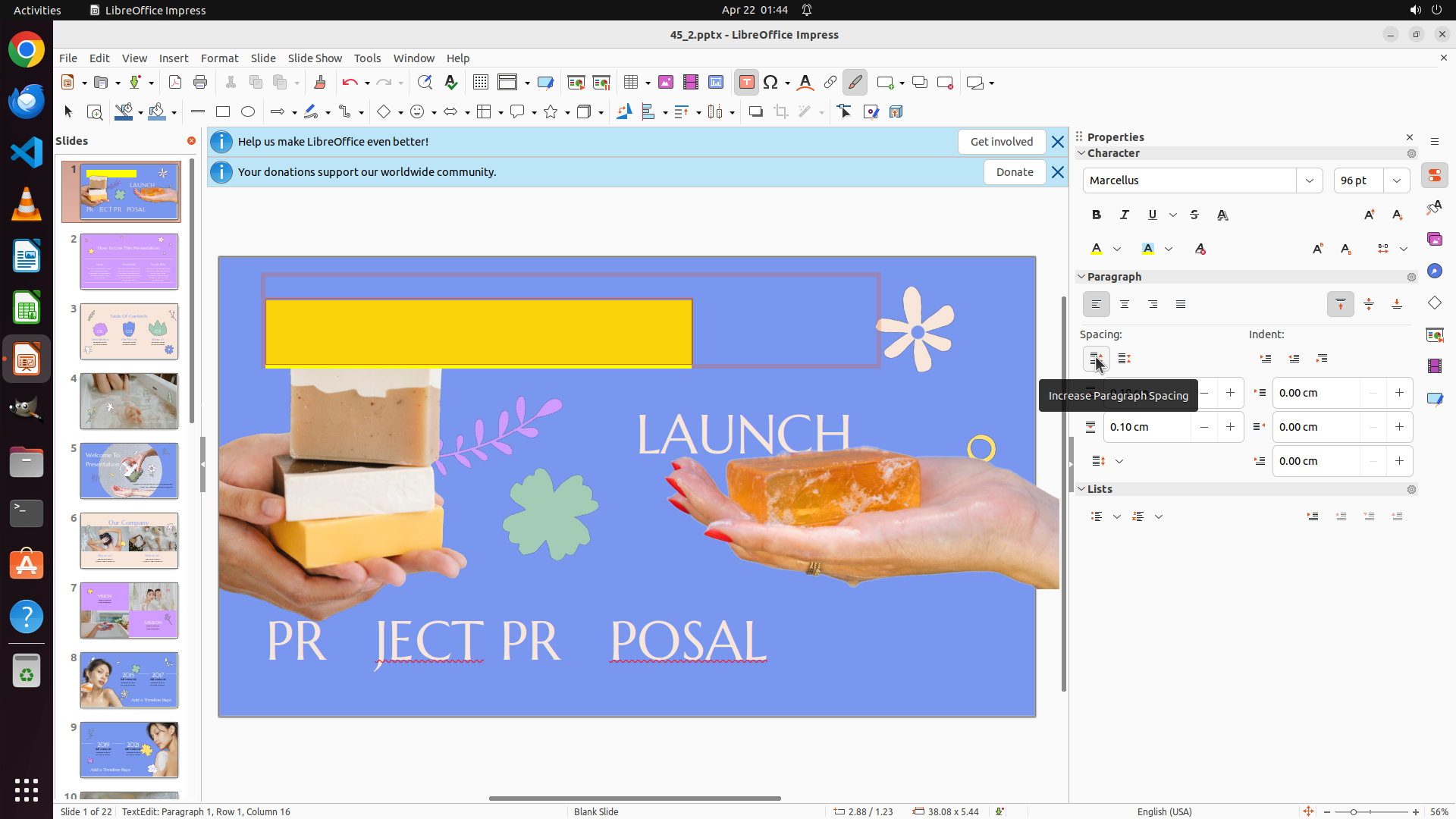
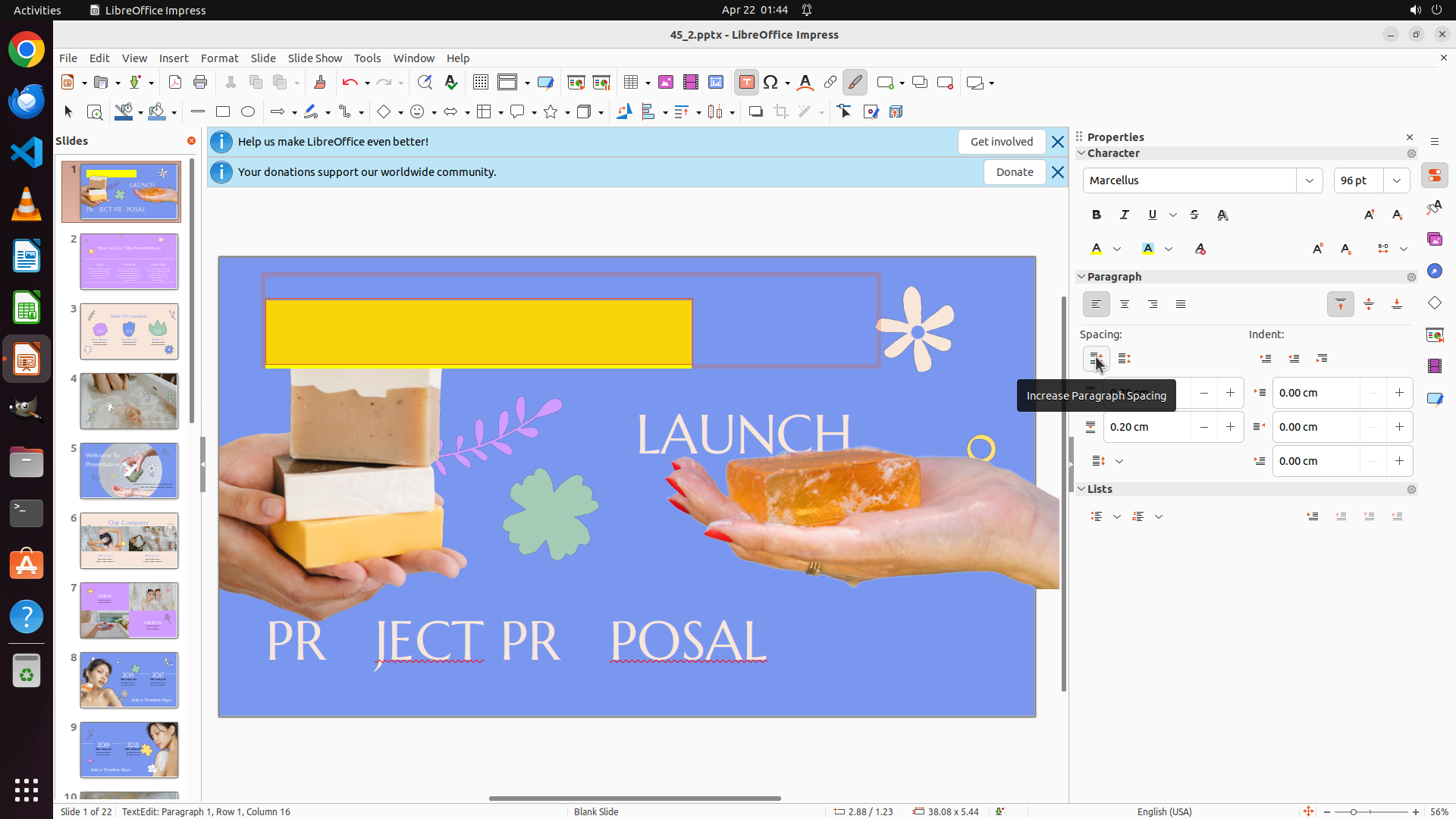
The latest screenshot shows LibreOffice Impress with slide 1 displayed. The font color palette that was previously open appears to have closed after the last action. The text "NEW PR DUCT" in the top textbox is still selected (highlighted). The text currently has yellow background highlighting, but I need to verify if the text color itself has changed to yellow.
The Properties panel on the right shows "Character" properties. I can see the Paragraph section is now expanded showing spacing options. There's a tooltip showing "Increase Paragraph Spacing" which suggests the mouse may have moved to a different area.
I need to deselect the text to clearly see if the yellow text color was successfully applied to "NEW PR DUCT". Then I can proceed to select the middle text "LAUNCH" and apply red color.
#### 情况分析与思考过程
The previous action clicked on a yellow color in the font color palette, and the palette has now closed. However, I cannot clearly see if the text color has changed to yellow because the text is still selected (which shows a selection highlight).
I need to:
1. Click on an empty area of the slide to deselect the text
2. Verify if "NEW PR DUCT" is now displaying in yellow text color
3. If successful, proceed to select the middle text "LAUNCH" and apply red
4. Then select the bottom text and apply green
Let me click on an empty area of the slide to deselect the text and see the actual result.
```
Step 26: CLICK (611, 435)
```
#### 重要信息
The latest screenshot shows LibreOffice Impress with slide 1 displayed. The Properties panel on the right shows "Line" properties instead of "Character" properties, and the status bar indicates "Image with transparency 'Google Shape_65' selected". This means an image object is currently selected, not the text.
Looking at the slide:
- The top text "NEW PR DUCT" has yellow background highlighting but the text color still appears to be white/light
- The middle text "LAUNCH" is in white/light color
- The bottom text "PR JECT PR POSAL" is in white/light color
The previous action accidentally selected an image object instead of deselecting or working with the text. I need to get back to text editing mode for the top textbox.
#### 情况分析与思考过程
I need to:
1. Click on the top text "NEW PR DUCT" to select the textbox and enter text editing mode
2. Select all text with Ctrl+A
3. Find the correct font color button (not highlighting)
4. Apply yellow text color
5. Then proceed with the middle text "LAUNCH" (red)
6. Finally the bottom text (green)
Let me click on the top text "NEW PR DUCT" to select it and enter text editing mode.
```
Step 27: CLICK (1050, 750)
```
#### 重要信息
The latest screenshot shows LibreOffice Impress with slide 1 displayed. The Properties panel on the right shows "Character" properties, indicating I'm still in text editing mode for the top textbox. The text "NEW PR DUCT" appears to be selected with a cursor visible. The text has yellow background highlighting from previous actions.
I need to deselect the text to verify whether the yellow text color was successfully applied. The text is still in editing mode, so I need to click outside the textbox to deselect it and see the final result.
#### 情况分析与思考过程
Looking at the current state:
1. I'm still in text editing mode for the top textbox
2. The text "NEW PR DUCT" is selected
3. I need to deselect to see if yellow text color was applied
4. If successful, I'll proceed to select the middle text "LAUNCH" and apply red
5. Then select the bottom text and apply green
Let me click on an empty area of the slide to deselect the text and verify the color change.
```
Step 28: CLICK (611, 435)
```
#### 重要信息
The latest screenshot shows LibreOffice Impress with slide 1 displayed. An image object is currently selected (Properties panel shows "Line" properties, status bar shows "Image with transparency 'Google Shape_65' selected").
Looking at the slide content:
- Top text "NEW PR DUCT" has yellow background highlighting but text color is still white/light
- Middle text "LAUNCH" is in white/light color
- Bottom text "PR JECT PR POSAL" is in white/light color
I need to get back to text editing mode to properly apply yellow text color to the top textbox.
#### 情况分析与思考过程
I need to:
1. Click on the top text "NEW PR DUCT" to enter text editing mode
2. Select all text with Ctrl+A
3. Find the correct font color button (not the highlighting button I mistakenly used before)
4. Apply yellow text color to the text
5. Then proceed to select "LAUNCH" and apply red
6. Finally select the bottom text and apply green
Looking at the Character section in the Properties panel on the right, I need to identify the actual font color control. There should be an "A" button with a colored underline that controls text color, separate from the highlighting color button.
Let me click on the top text "NEW PR DUCT" to select the textbox and enter text editing mode.
```
Step 29: CLICK (611, 435)
```
#### 重要信息
The latest screenshot shows LibreOffice Impress with slide 1 displayed. An image object is currently selected (Properties panel shows "Line" properties, status bar shows "Image with transparency 'Google Shape_65' selected").
Looking at the slide content:
- Top text "NEW PR DUCT" has yellow background highlighting but text color is still white/light
- Middle text "LAUNCH" is in white/light color
- Bottom text "PR JECT PR POSAL" is in white/light color
I need to get back to text editing mode to properly apply yellow text color to the top textbox.
#### 情况分析与思考过程
I need to:
1. Click on the top text "NEW PR DUCT" to enter text editing mode
2. Select all text with Ctrl+A
3. Find the correct font color button (not the highlighting button I mistakenly used before)
4. Apply yellow text color to the text
5. Then proceed to select "LAUNCH" and apply red
6. Finally select the bottom text and apply green
Looking at the Character section in the Properties panel on the right, I need to identify the actual font color control. There should be an "A" button with a colored underline that controls text color, separate from the highlighting color button.
Let me click on the top text "NEW PR DUCT" to select the textbox and enter text editing mode.
```
Step 30: HOTKEY
```
#### 重要信息
The latest screenshot shows LibreOffice Impress with slide 1 displayed. The Properties panel on the right shows "Character" properties, indicating I'm in text editing mode. The cursor appears to be in the top textbox where "NEW PR DUCT" is located.
Looking at the slide content:
- Top text "NEW PR DUCT" has yellow background highlighting but text color is still white/light
- Middle text "LAUNCH" is in white/light color
- Bottom text "PR JECT PR POSAL" is in white/light color
I need to properly apply yellow text color to the top text. Based on previous attempts, I need to:
1. First select all text with Ctrl+A
2. Find the correct font color button (not highlighting)
3. Apply yellow text color
4. Then proceed to middle text (red) and bottom text (green)
#### 情况分析与思考过程
The previous action clicked on the top text to enter text editing mode. Now I need to:
1. Select all text in the current textbox using Ctrl+A
2. Then locate the correct font color button in the Properties panel
3. Apply yellow text color to the selected text
4. Move on to the middle text "LAUNCH" for red color
5. Finally handle the bottom text for green color
Looking at the Character section in the Properties panel, I can see formatting controls. I need to identify the font color button (typically an "A" with a colored underline) and click on its dropdown to open the color palette.
Let me first select all text with Ctrl+A to ensure the entire text is selected before applying the color.
```
Step 31: HOTKEY
```
#### 重要信息
The latest screenshot shows LibreOffice Impress with slide 1 displayed. The Properties panel on the right shows "Character" properties, indicating I'm in text editing mode. The cursor appears to be in the top textbox where "NEW PR DUCT" is located.
Looking at the slide content:
- Top text "NEW PR DUCT" has yellow background highlighting but text color is still white/light
- Middle text "LAUNCH" is in white/light color
- Bottom text "PR JECT PR POSAL" is in white/light color
I need to properly apply yellow text color to the top text. Based on previous attempts, I need to:
1. First select all text with Ctrl+A
2. Find the correct font color button (not highlighting)
3. Apply yellow text color
4. Then proceed to middle text (red) and bottom text (green)
#### 情况分析与思考过程
The previous action clicked on the top text to enter text editing mode. Now I need to:
1. Select all text in the current textbox using Ctrl+A
2. Then locate the correct font color button in the Properties panel
3. Apply yellow text color to the selected text
4. Move on to the middle text "LAUNCH" for red color
5. Finally handle the bottom text for green color
Looking at the Character section in the Properties panel, I can see formatting controls. I need to identify the font color button (typically an "A" with a colored underline) and click on its dropdown to open the color palette.
Let me first select all text with Ctrl+A to ensure the entire text is selected before applying the color.
```
Step 32: HOTKEY
```
#### 重要信息
The latest screenshot shows LibreOffice Impress with slide 1 displayed. The Properties panel on the right shows "Character" properties, indicating I'm in text editing mode. The cursor appears to be in the top textbox where "NEW PR DUCT" is located.
Looking at the slide content:
- Top text "NEW PR DUCT" has yellow background highlighting but text color is still white/light
- Middle text "LAUNCH" is in white/light color
- Bottom text "PR JECT PR POSAL" is in white/light color
I need to properly apply yellow text color to the top text. Based on previous attempts, I need to:
1. First select all text with Ctrl+A
2. Find the correct font color button (not highlighting)
3. Apply yellow text color
4. Then proceed to middle text (red) and bottom text (green)
#### 情况分析与思考过程
The previous action clicked on the top text to enter text editing mode. Now I need to:
1. Select all text in the current textbox using Ctrl+A
2. Then locate the correct font color button in the Properties panel
3. Apply yellow text color to the selected text
4. Move on to the middle text "LAUNCH" for red color
5. Finally handle the bottom text for green color
Looking at the Character section in the Properties panel, I can see formatting controls. I need to identify the font color button (typically an "A" with a colored underline) and click on its dropdown to open the color palette.
Let me first select all text with Ctrl+A to ensure the entire text is selected before applying the color.
```
Step 33: CLICK (1471, 325)
```
#### 重要信息
The latest screenshot shows LibreOffice Impress with slide 1 displayed. The Properties panel on the right shows "Character" properties, indicating I'm in text editing mode. The cursor appears to be in the top textbox where "NEW PR DUCT" is located, and the text should now be selected after the Ctrl+A action.
Looking at the slide content:
- Top text "NEW PR DUCT" has yellow background highlighting but text color is still white/light
- Middle text "LAUNCH" is in white/light color
- Bottom text "PR JECT PR POSAL" is in white/light color
I need to properly apply yellow text color to the top text. Now that I've selected all text with Ctrl+A, I need to click on the font color dropdown button.
#### 情况分析与思考过程
Now that the text is selected with Ctrl+A, I need to:
1. Click on the font color dropdown button in the Properties panel (Character section)
2. Select a bright/pure yellow color from the palette
3. Apply it to the selected text
4. Then proceed to select the middle text "LAUNCH" and apply red
5. Finally select the bottom text and apply green
Looking at the Character section in the Properties panel on the right, I can see the font color control (the "A" with a colored underline). I need to click on the dropdown arrow next to it to open the font color palette.
Let me click on the font color dropdown button to open the color palette.
```
Step 34: CLICK (1471, 325)
```
#### 重要信息
The latest screenshot shows LibreOffice Impress with slide 1 displayed. The Properties panel on the right shows "Character" properties, indicating I'm in text editing mode. The cursor appears to be in the top textbox where "NEW PR DUCT" is located, and the text should now be selected after the Ctrl+A action.
Looking at the slide content:
- Top text "NEW PR DUCT" has yellow background highlighting but text color is still white/light
- Middle text "LAUNCH" is in white/light color
- Bottom text "PR JECT PR POSAL" is in white/light color
I need to properly apply yellow text color to the top text. Now that I've selected all text with Ctrl+A, I need to click on the font color dropdown button.
#### 情况分析与思考过程
Now that the text is selected with Ctrl+A, I need to:
1. Click on the font color dropdown button in the Properties panel (Character section)
2. Select a bright/pure yellow color from the palette
3. Apply it to the selected text
4. Then proceed to select the middle text "LAUNCH" and apply red
5. Finally select the bottom text and apply green
Looking at the Character section in the Properties panel on the right, I can see the font color control (the "A" with a colored underline). I need to click on the dropdown arrow next to it to open the font color palette.
Let me click on the font color dropdown button to open the color palette.
```
Step 35: CLICK (1471, 325)
```
#### 重要信息
The latest screenshot shows LibreOffice Impress with slide 1 displayed. The Properties panel on the right shows "Character" properties, indicating I'm in text editing mode. The cursor appears to be in the top textbox where "NEW PR DUCT" is located, and the text should now be selected after the Ctrl+A action.
Looking at the slide content:
- Top text "NEW PR DUCT" has yellow background highlighting but text color is still white/light
- Middle text "LAUNCH" is in white/light color
- Bottom text "PR JECT PR POSAL" is in white/light color
I need to properly apply yellow text color to the top text. Now that I've selected all text with Ctrl+A, I need to click on the font color dropdown button.
#### 情况分析与思考过程
Now that the text is selected with Ctrl+A, I need to:
1. Click on the font color dropdown button in the Properties panel (Character section)
2. Select a bright/pure yellow color from the palette
3. Apply it to the selected text
4. Then proceed to select the middle text "LAUNCH" and apply red
5. Finally select the bottom text and apply green
Looking at the Character section in the Properties panel on the right, I can see the font color control (the "A" with a colored underline). I need to click on the dropdown arrow next to it to open the font color palette.
Let me click on the font color dropdown button to open the color palette.
```
Step 36: CLICK (1440, 444)
```
#### 重要信息
The latest screenshot shows LibreOffice Impress with slide 1 displayed. The Properties panel on the right shows "Character" properties, indicating I'm in text editing mode. The font color palette is now open showing "Font Color (Yellow)" tooltip. The color palette displays a comprehensive grid of colors including yellows, reds, and greens.
The text "NEW PR DUCT" in the top textbox should be selected (from the previous Ctrl+A action). The color palette is open and ready for me to select a yellow color.
Looking at the color palette, I can see various yellow colors in the grid. I need to select a bright, pure yellow color to apply to the selected text.
#### 情况分析与思考过程
The previous action successfully opened the font color palette. Now I need to:
1. Select a bright/pure yellow color from the palette
2. Apply it to the selected "NEW PR DUCT" text
3. Then proceed to select the middle text "LAUNCH" and apply red
4. Finally select the bottom text and apply green
Looking at the color palette that's open, I can see yellow colors in the upper portion of the grid. I need to click on a standard bright yellow color - one that's clearly yellow. There's a bright yellow color visible in the palette that would be appropriate.
Let me click on the bright yellow color in the palette to apply it to the selected text.
```
Step 37: HOTKEY
```
#### 重要信息
The latest screenshot shows LibreOffice Impress with slide 1 displayed. The Properties panel on the right shows "Character" properties, indicating I'm in text editing mode. The text "NEW PR DUCT" in the top textbox appears to be selected. The text currently has yellow background highlighting but the text color itself is still white/light.
Looking at the Character section in the Properties panel, I can see:
- Font: Marcellus, 96 pt
- Bold, Italic, Underline buttons
- Font color and highlighting controls (the "A" buttons with colored underlines)
The previous attempts to apply yellow text color haven't been successful. I need to identify the correct font color button and apply the color properly.
#### 情况分析与思考过程
I've been struggling to apply the yellow text color to the top text "NEW PR DUCT". The issue is that I've been applying yellow background highlighting instead of yellow text color.
Looking at the Character section in the Properties panel more carefully:
- There are two "A" buttons with colored underlines
- The first one should be for font color (text color)
- The second one is for highlighting/background color
I need to:
1. Click on the correct font color dropdown button (the first "A" with dropdown arrow)
2. Select a bright/pure yellow color from the palette
3. Apply it to the selected text
4. Then proceed to select the middle text "LAUNCH" and apply red
5. Finally select the bottom text and apply green
Let me try clicking on the font color dropdown button at a slightly different position to ensure I'm hitting the right control.
```
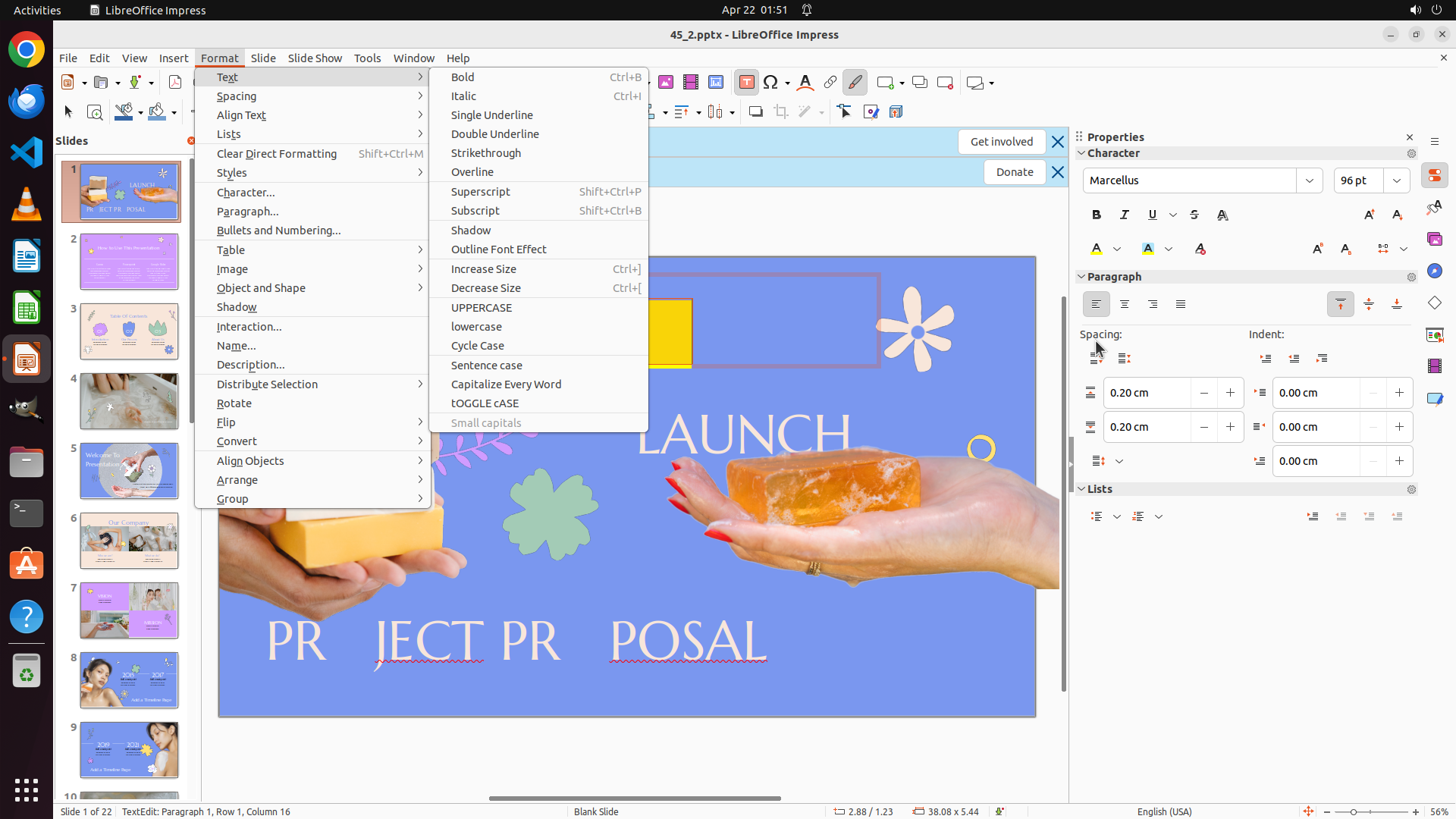
Let me try a different approach - I'll use the Format menu to access the character formatting options and change the font color from there.
Step 37: HOTKEY
```
#### 重要信息
The latest screenshot shows LibreOffice Impress with slide 1 displayed. The Properties panel on the right shows "Character" properties, indicating I'm in text editing mode. The text "NEW PR DUCT" in the top textbox appears to be selected. The text currently has yellow background highlighting but the text color itself is still white/light.
Looking at the Character section in the Properties panel, I can see:
- Font: Marcellus, 96 pt
- Bold, Italic, Underline buttons
- Font color and highlighting controls (the "A" buttons with colored underlines)
The previous attempts to apply yellow text color haven't been successful. I need to identify the correct font color button and apply the color properly.
#### 情况分析与思考过程
I've been struggling to apply the yellow text color to the top text "NEW PR DUCT". The issue is that I've been applying yellow background highlighting instead of yellow text color.
Looking at the Character section in the Properties panel more carefully:
- There are two "A" buttons with colored underlines
- The first one should be for font color (text color)
- The second one is for highlighting/background color
I need to:
1. Click on the correct font color dropdown button (the first "A" with dropdown arrow)
2. Select a bright/pure yellow color from the palette
3. Apply it to the selected text
4. Then proceed to select the middle text "LAUNCH" and apply red
5. Finally select the bottom text and apply green
Let me try clicking on the font color dropdown button at a slightly different position to ensure I'm hitting the right control.
```
Let me try a different approach - I'll use the Format menu to access the character formatting options and change the font color from there.
Step 38: CLICK (324, 252)
```
#### 重要信息
The latest screenshot shows LibreOffice Impress with the Format menu open. I can see various formatting options including "Character..." which will allow me to access the font color settings. The Format menu was successfully opened by the previous Alt+O action.
The menu shows options like:
- Text
- Spacing
- Align Text
- Lists
- Clear Direct Formatting
- Styles
- Character... (this is what I need)
- Paragraph...
- And other options
I need to click on "Character..." to open the Character formatting dialog where I can properly set the font color to yellow.
#### 情况分析与思考过程
The Format menu is now open. I need to:
1. Click on "Character..." to open the Character formatting dialog
2. In the dialog, find and select the Font Color option
3. Choose a bright/pure yellow color
4. Apply it to the selected text
5. Then proceed to select the middle text "LAUNCH" and apply red
6. Finally select the bottom text and apply green
Let me click on "Character..." in the Format menu to open the character formatting dialog.
```
I'll click on "Character..." in the Format menu to access the font color settings.
Step 39: CLICK (816, 303)
```
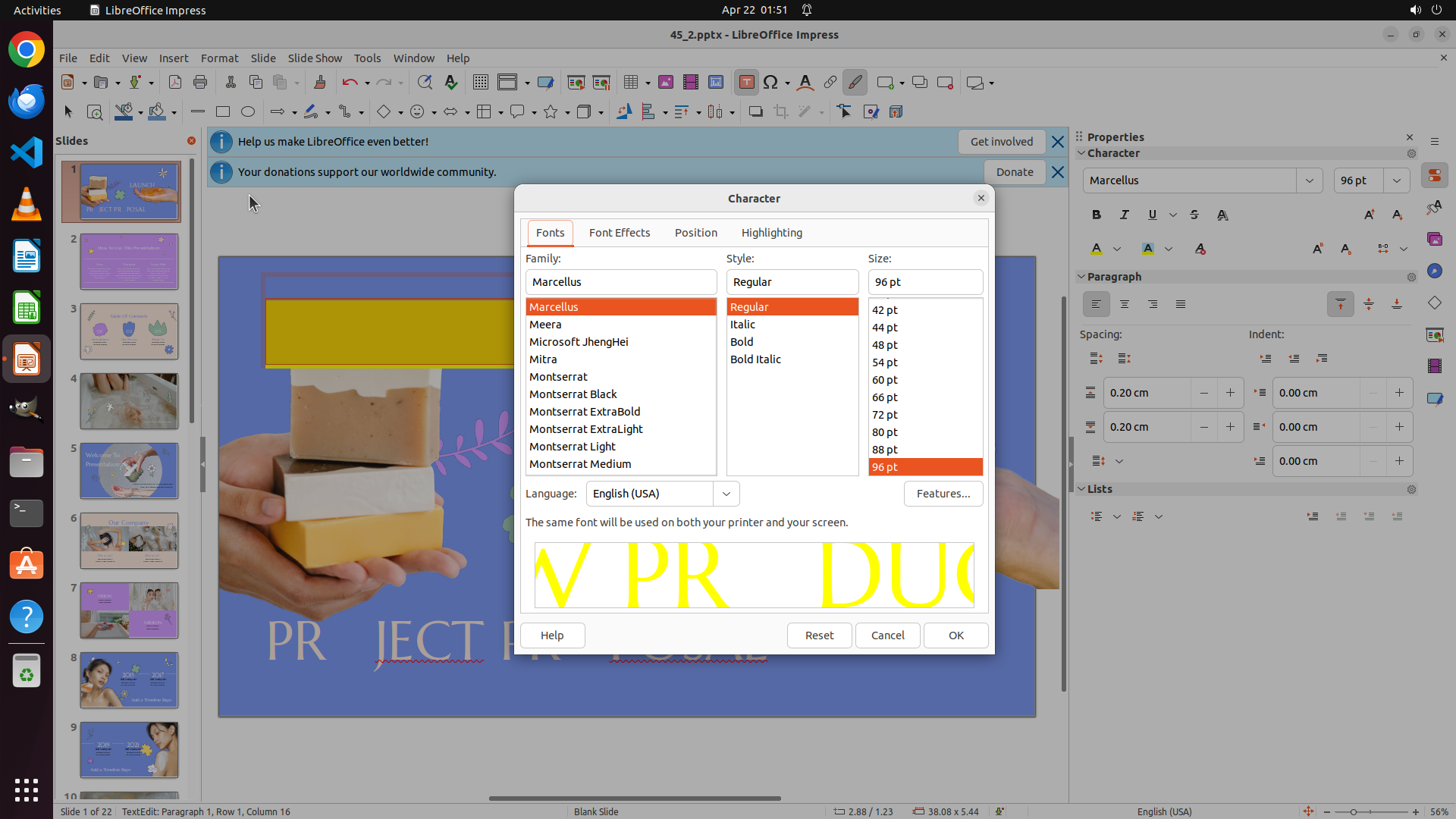
#### 重要信息
The Character dialog box is now open showing the Fonts tab. I can see several tabs at the top: Fonts, Font Effects, Position, and Highlighting. The Font Effects tab is where the font color options should be located. I need to click on the "Font Effects" tab to access the text color settings.
The text "NEW PR DUCT" should still be selected in the background. Once I access the Font Effects tab, I should be able to find and select a bright yellow color for the text.
#### 情况分析与思考过程
The Character dialog has opened successfully. Now I need to:
1. Click on the "Font Effects" tab to access font color options
2. Select a bright/pure yellow color from the color picker
3. Apply it to the selected text
4. Close the dialog
5. Then proceed to select the middle text "LAUNCH" and apply red
6. Finally select the bottom text and apply green
Let me click on the "Font Effects" tab to access the font color settings.
```
Step 40: CLICK (324, 252)
Step 41: CLICK (816, 303)
Step 42: CLICK (1260, 843)
```
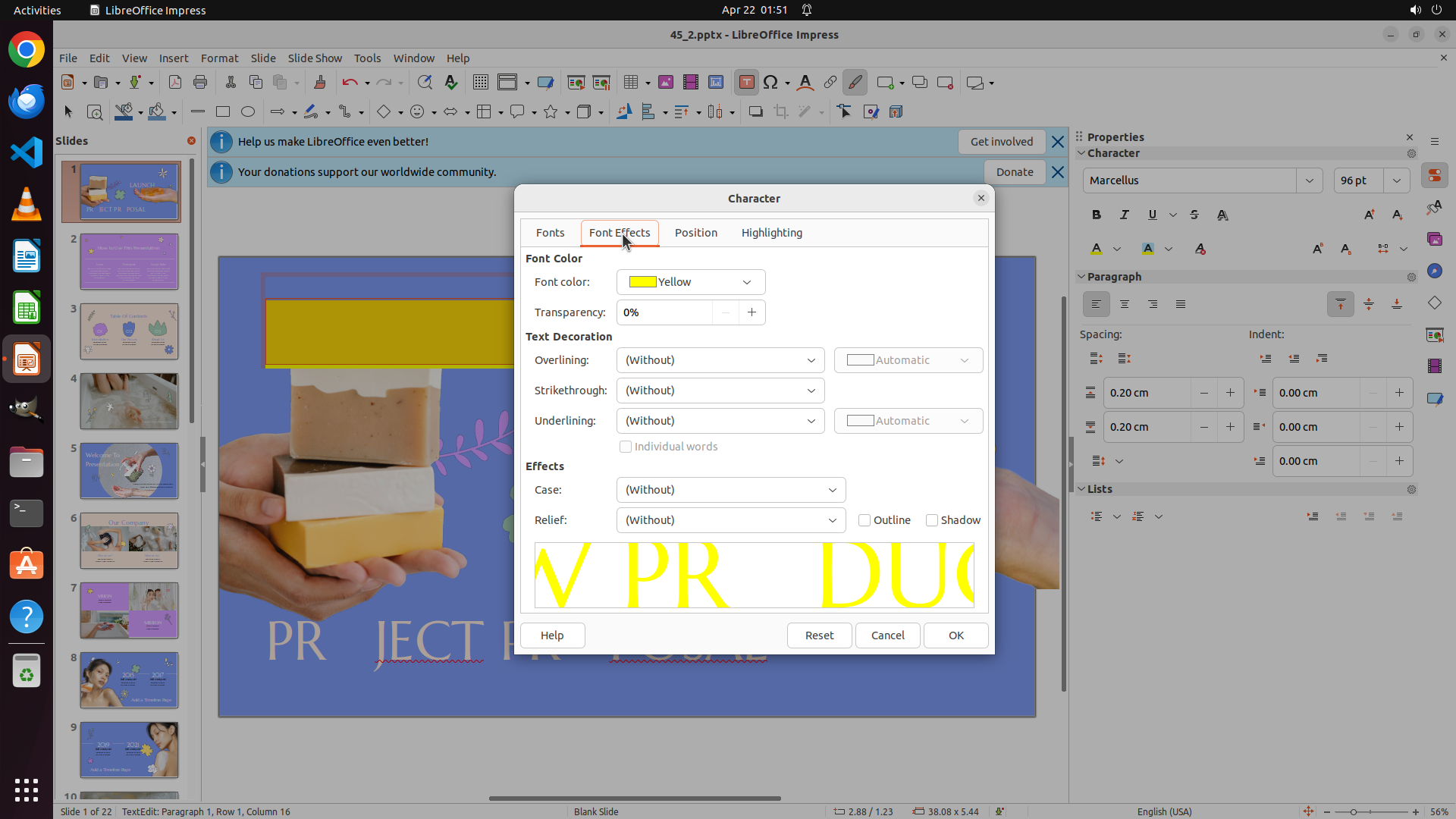
#### 重要信息
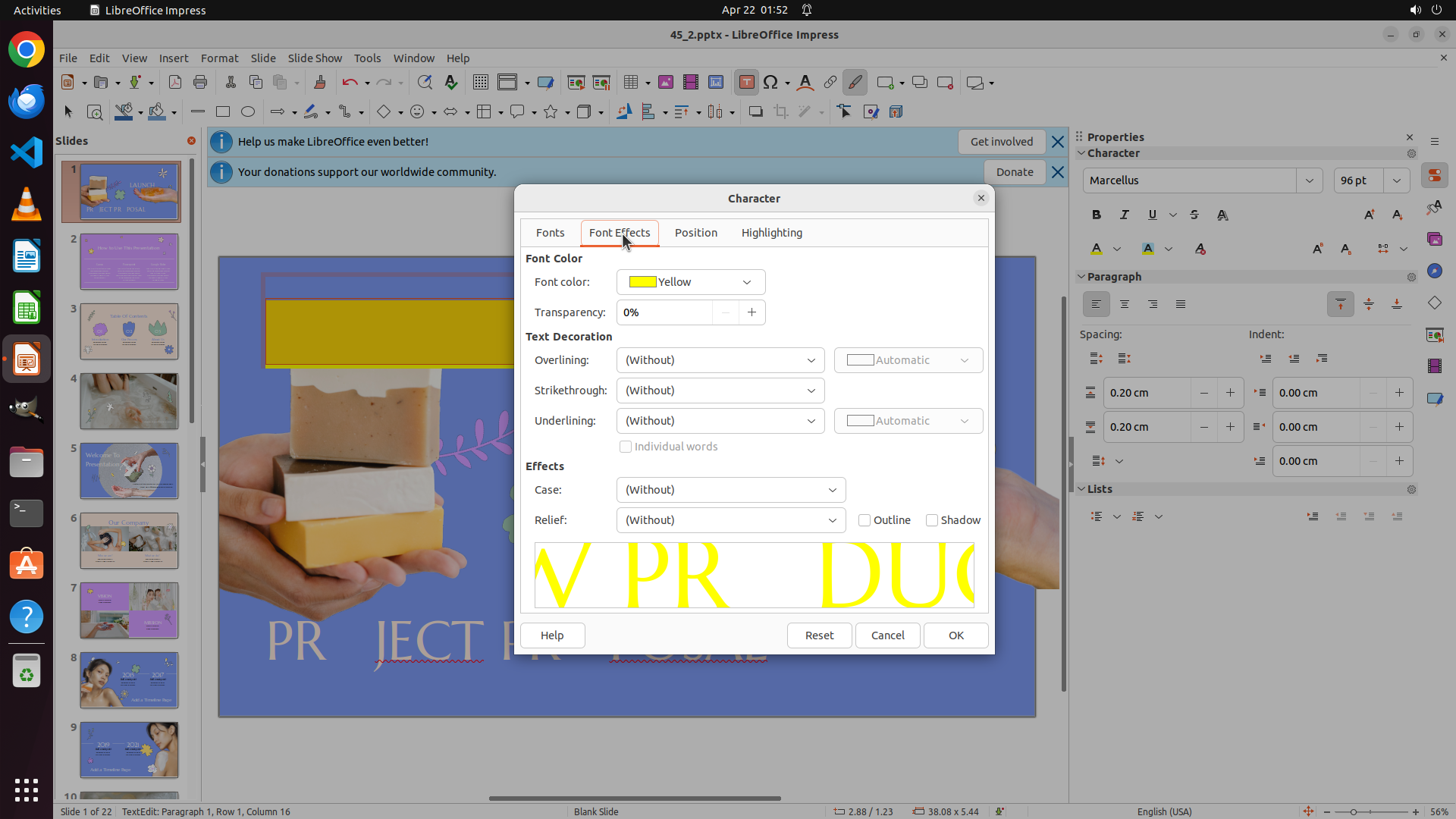
The Character dialog box is open with the "Font Effects" tab selected. The Font Color dropdown shows "Yellow" is selected, and the preview text at the bottom of the dialog shows "NEW PR DUCT" in yellow color. This confirms that the yellow font color is ready to be applied to the selected text.
I can see:
- Font Color: Yellow (selected in dropdown)
- The preview shows the text in yellow
- The OK button is visible at the bottom right of the dialog
#### 情况分析与思考过程
Perfect! The yellow font color has been selected in the Character dialog. Now I need to:
1. Click the "OK" button to apply the yellow color to the selected "NEW PR DUCT" text
2. Close the dialog
3. Select the middle text "LAUNCH"
4. Apply red color using the same process
5. Select the bottom text
6. Apply green color
Let me click the "OK" button to apply the yellow font color.
```
Step 43: CLICK (1260, 843)
```
#### 重要信息
The Character dialog box is open with the "Font Effects" tab selected. The Font Color dropdown shows "Yellow" is selected, and the preview text at the bottom of the dialog shows "NEW PR DUCT" in yellow color. This confirms that the yellow font color is ready to be applied to the selected text.
I can see:
- Font Color: Yellow (selected in dropdown)
- The preview shows the text in yellow
- The OK button is visible at the bottom right of the dialog
#### 情况分析与思考过程
Perfect! The yellow font color has been selected in the Character dialog. Now I need to:
1. Click the "OK" button to apply the yellow color to the selected "NEW PR DUCT" text
2. Close the dialog
3. Select the middle text "LAUNCH"
4. Apply red color using the same process
5. Select the bottom text
6. Apply green color
Let me click the "OK" button to apply the yellow font color.
```
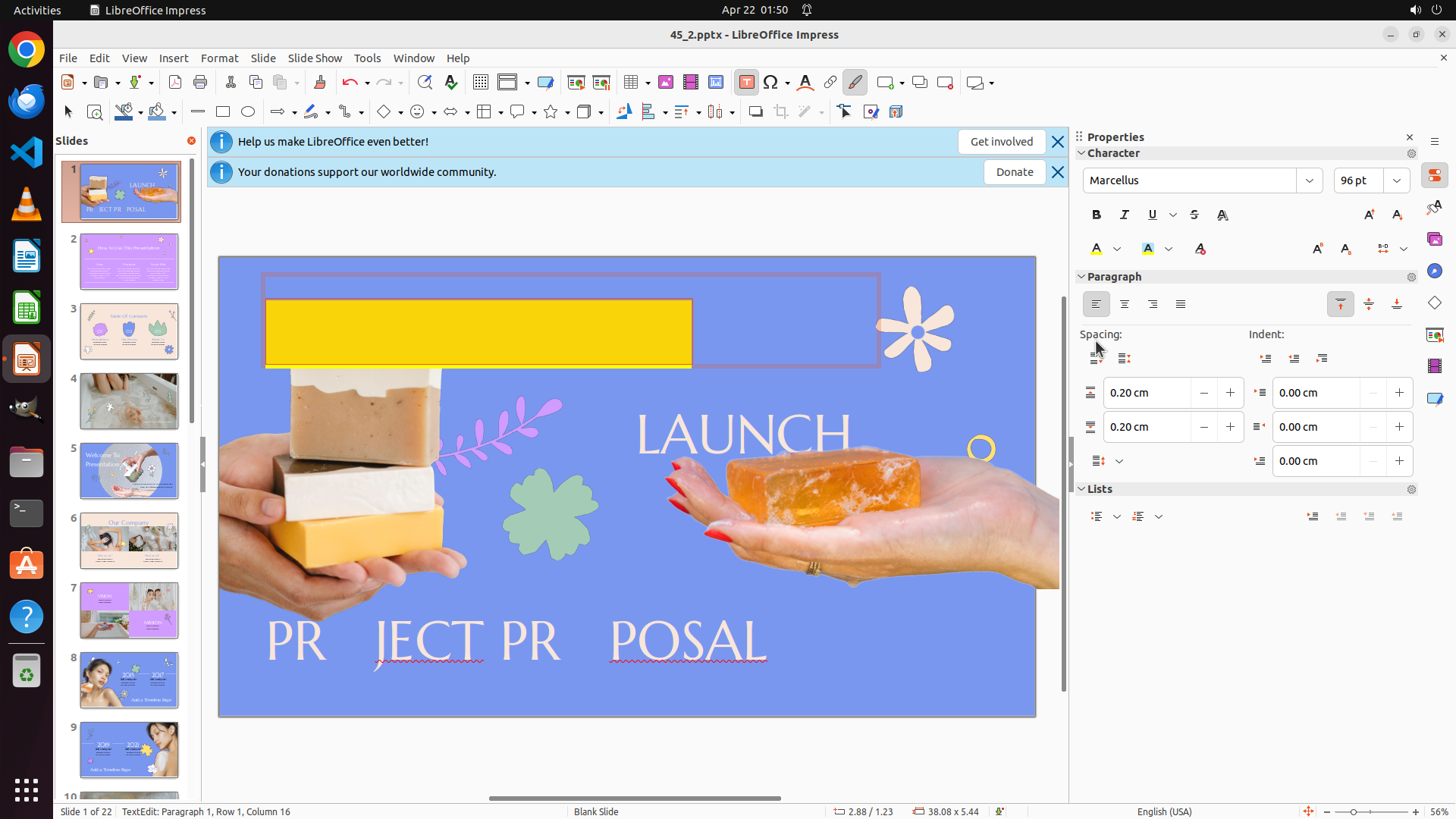
Step 44: CLICK (979, 562)
```
#### 重要信息
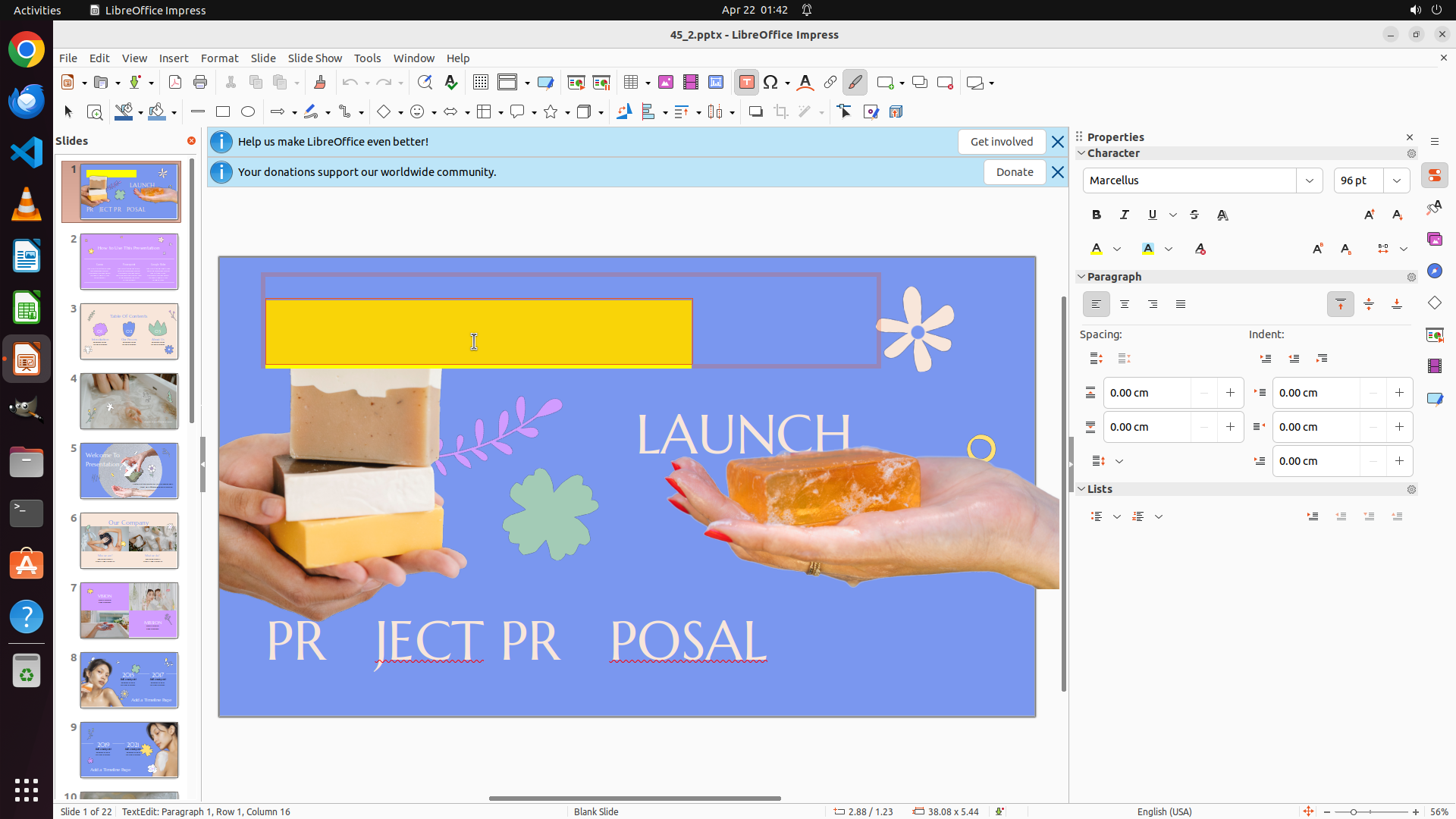
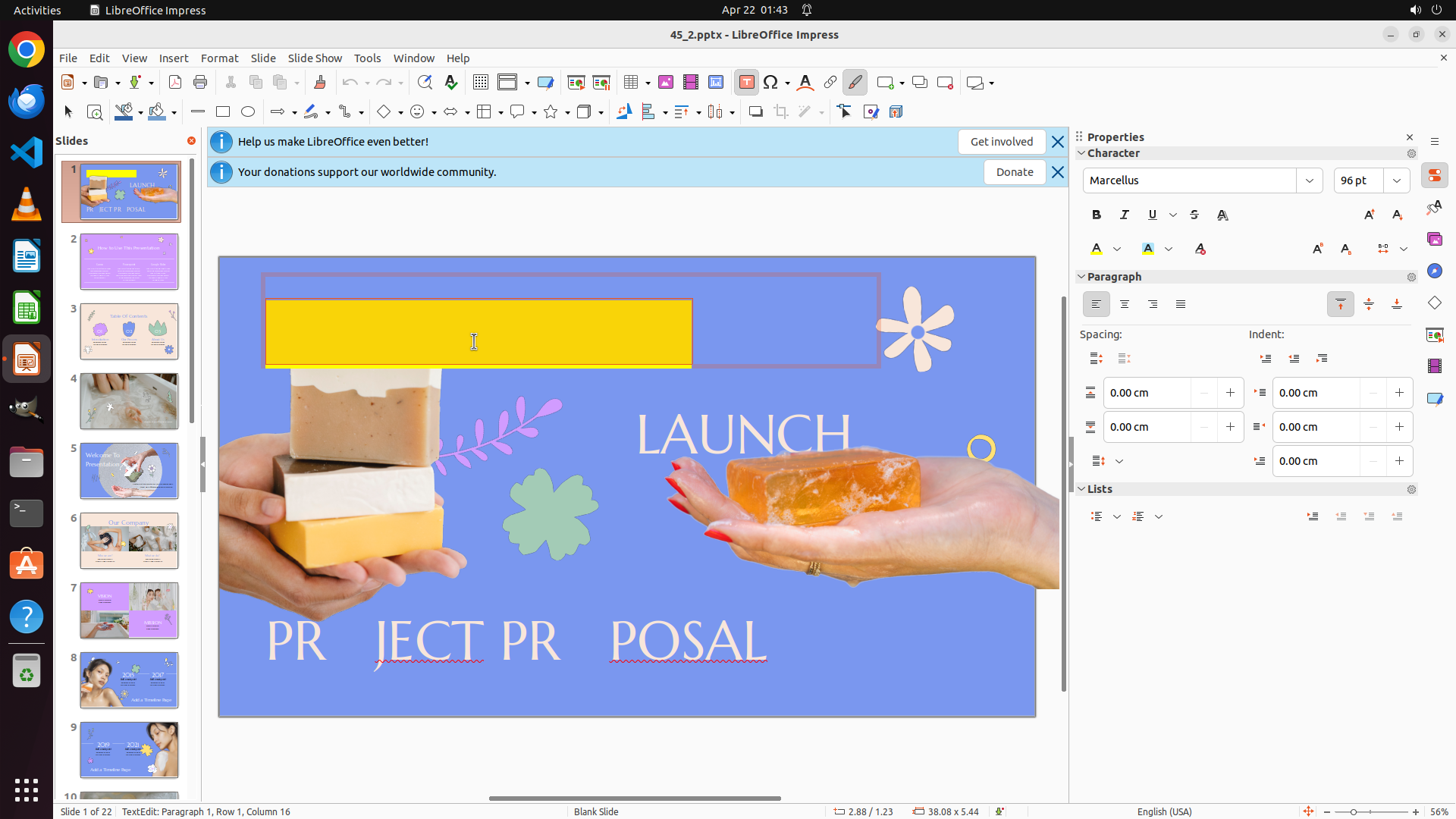
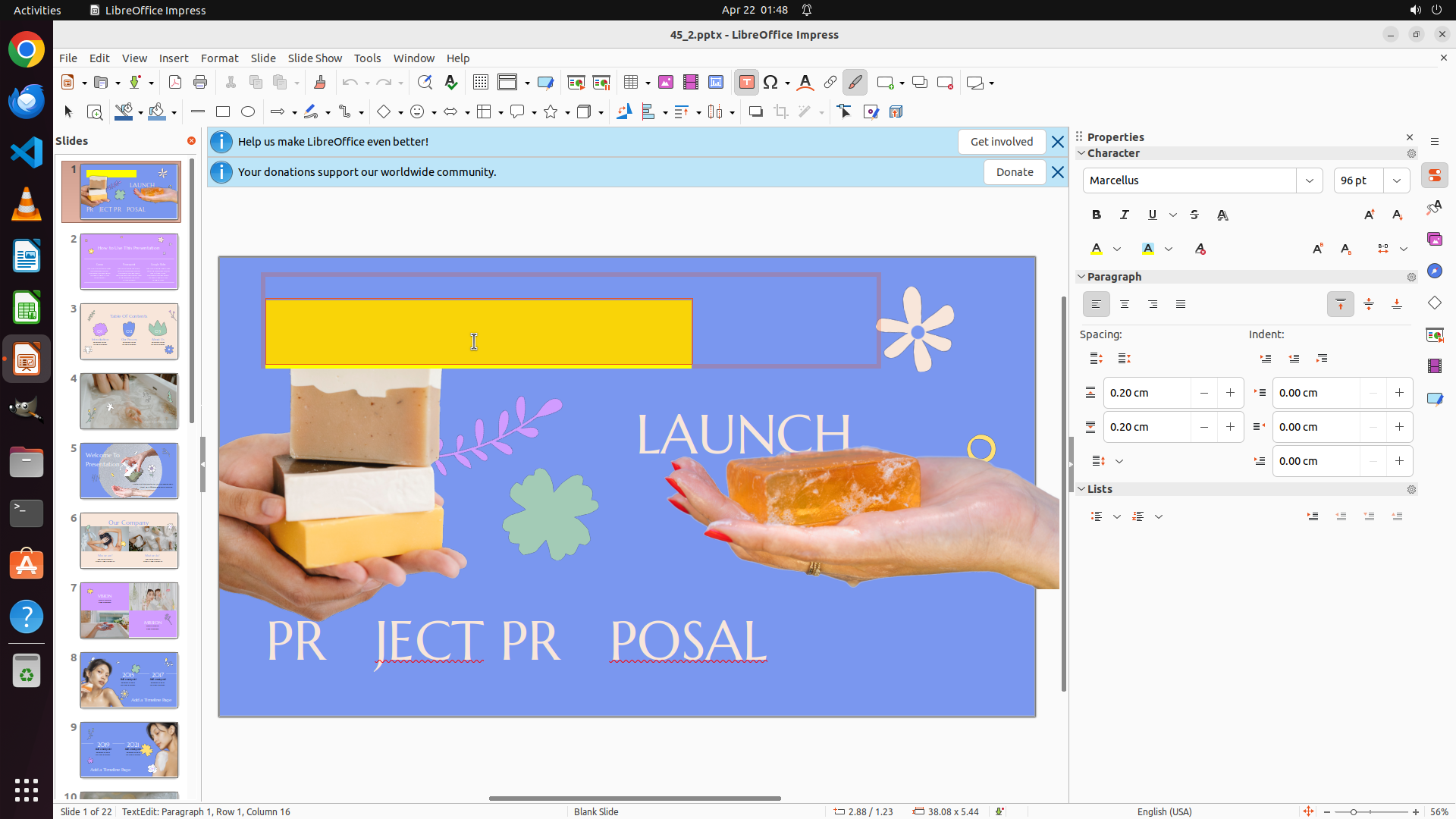
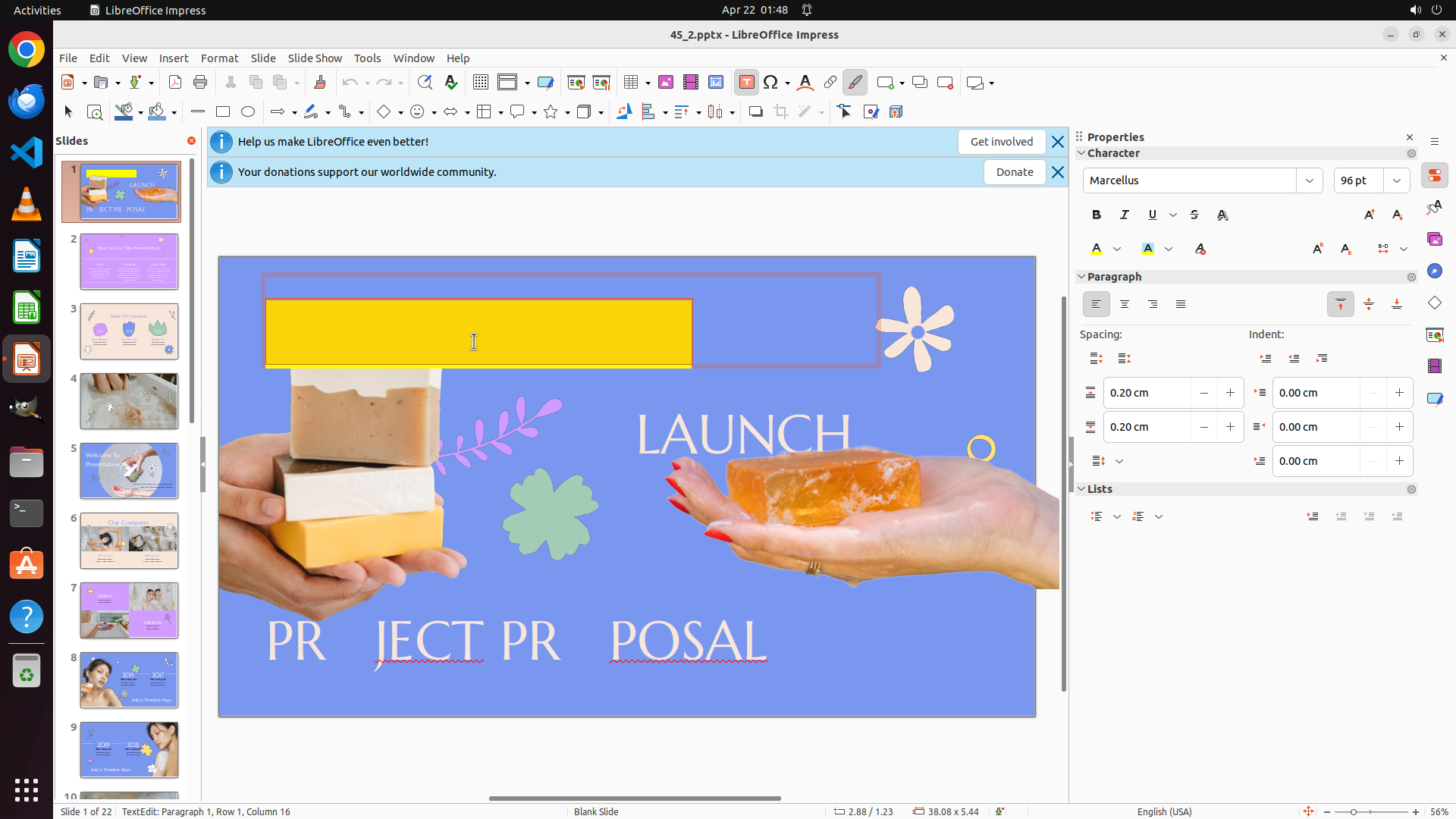
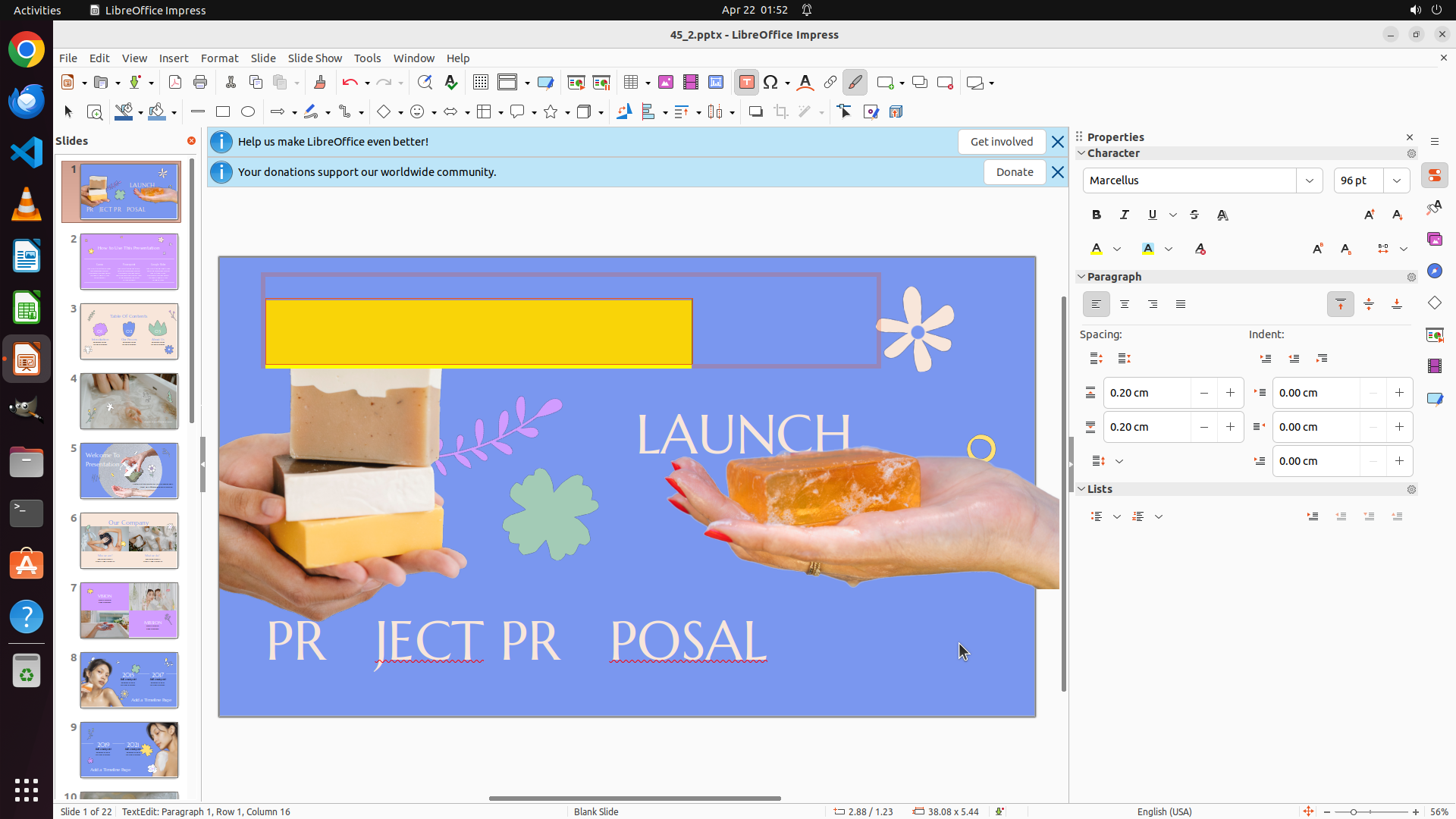
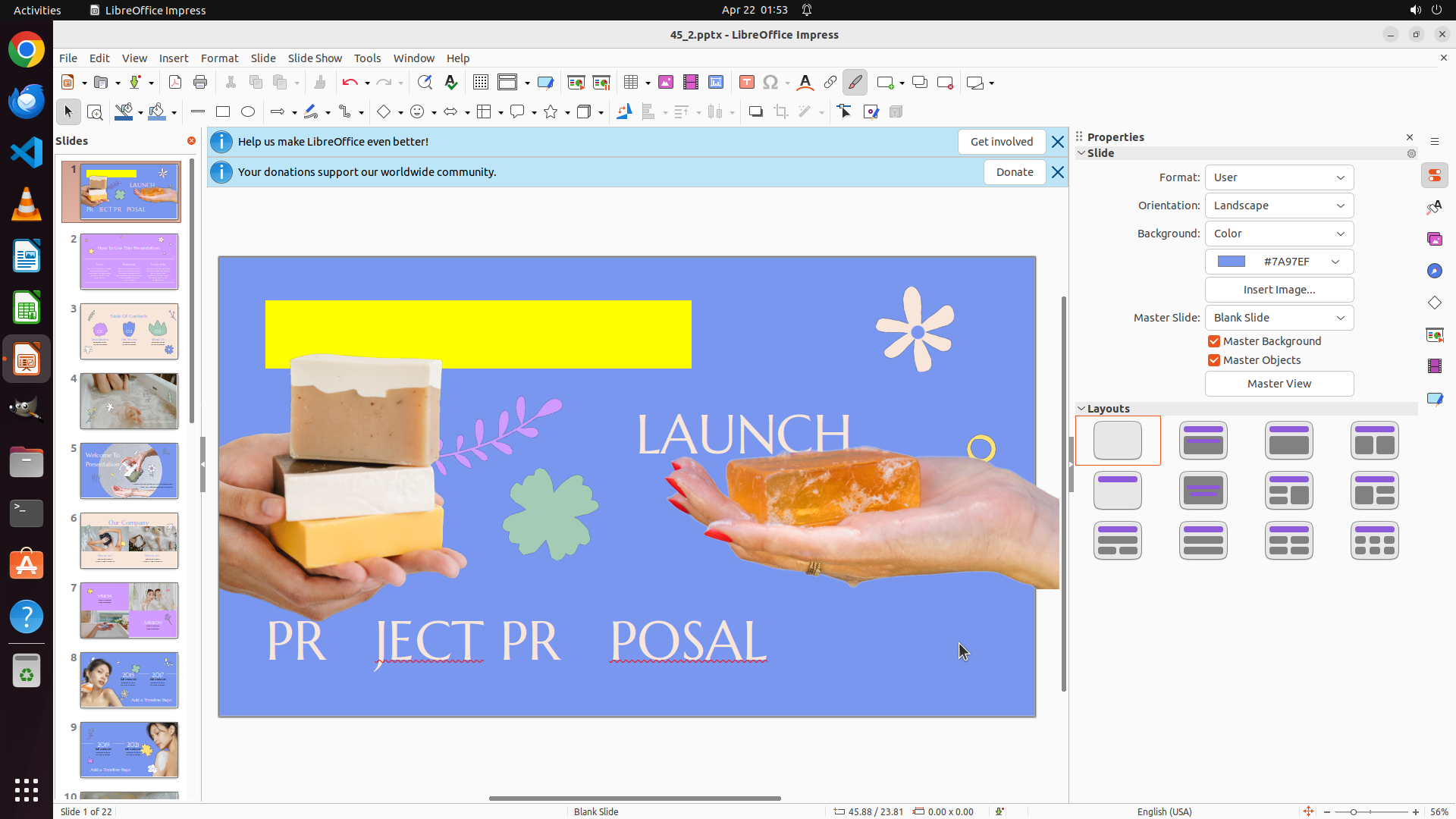
The previous action successfully applied yellow font color to the top text "NEW PR DUCT" - I can see the text is now displayed in yellow color on the slide. The Character dialog has closed and I'm back to the main slide view.
Now I need to:
1. Select the middle text "LAUNCH"
2. Apply red color to it using the same process (Format > Character > Font Effects > select Red)
3. Then select the bottom text and apply green color
Looking at the slide, I can see "LAUNCH" text in the middle of the slide in white/light color.
#### 情况分析与思考过程
Great progress! The yellow color has been successfully applied to the top text "NEW PR DUCT". Now I need to move on to the second textbox.
My plan:
1. Click on the middle text "LAUNCH" to select it
2. Select all text with Ctrl+A
3. Open Format > Character dialog
4. Go to Font Effects tab
5. Select Red color
6. Click OK
7. Then repeat for the bottom text with green color
Let me click on the "LAUNCH" text to select it.
```
I'll help you continue with the task. Now that the top text has yellow color applied, I need to select the middle text "LAUNCH" and apply red color to it.
Step 45: CLICK (979, 562)
```
#### 重要信息
The previous action successfully applied yellow font color to the top text "NEW PR DUCT" - I can see the text is now displayed in yellow color on the slide. The Character dialog has closed and I'm back to the main slide view.
Now I need to:
1. Select the middle text "LAUNCH"
2. Apply red color to it using the same process (Format > Character > Font Effects > select Red)
3. Then select the bottom text and apply green color
Looking at the slide, I can see "LAUNCH" text in the middle of the slide in white/light color.
#### 情况分析与思考过程
Great progress! The yellow color has been successfully applied to the top text "NEW PR DUCT". Now I need to move on to the second textbox.
My plan:
1. Click on the middle text "LAUNCH" to select it
2. Select all text with Ctrl+A
3. Open Format > Character dialog
4. Go to Font Effects tab
5. Select Red color
6. Click OK
7. Then repeat for the bottom text with green color
Let me click on the "LAUNCH" text to select it.
```
Step 46: HOTKEY
```
#### 重要信息
The previous action successfully clicked on the "LAUNCH" text, and I can see the text cursor is now in the middle textbox. The Properties panel shows "Character" properties, indicating I'm in text editing mode. The "LAUNCH" text is currently in white/light color and needs to be changed to red.
#### 情况分析与思考过程
Good! I've selected the middle text "LAUNCH". Now I need to:
1. Select all text in this textbox using Ctrl+A
2. Open Format > Character dialog (or use the font color dropdown in the Properties panel)
3. Apply red color to the text
4. Then move to the bottom text and apply green
Let me first select all text with Ctrl+A to ensure the entire "LAUNCH" text is selected before applying the red color.
```
Step 47: HOTKEY
```
#### 重要信息
The previous action successfully clicked on the "LAUNCH" text, and I can see the text cursor is now in the middle textbox. The Properties panel shows "Character" properties, indicating I'm in text editing mode. The "LAUNCH" text is currently in white/light color and needs to be changed to red.
#### 情况分析与思考过程
Good! I've selected the middle text "LAUNCH". Now I need to:
1. Select all text in this textbox using Ctrl+A
2. Open Format > Character dialog (or use the font color dropdown in the Properties panel)
3. Apply red color to the text
4. Then move to the bottom text and apply green
Let me first select all text with Ctrl+A to ensure the entire "LAUNCH" text is selected before applying the red color.
```
Step 48: HOTKEY
```
#### 重要信息
The previous action (Ctrl+A) successfully selected all text in the "LAUNCH" textbox. The text cursor is visible in the middle textbox, and the Properties panel shows "Character" properties, confirming I'm in text editing mode with the text selected.
Looking at the current state:
- Top text "NEW PR DUCT" - successfully changed to yellow ✓
- Middle text "LAUNCH" - currently selected, needs to be changed to red (in progress)
- Bottom text "PR JECT PR POSAL" - still white, needs to be changed to green (pending)
#### 情况分析与思考过程
Good progress! I've successfully:
1. Applied yellow color to the top text "NEW PR DUCT"
2. Selected the middle text "LAUNCH" textbox
3. Selected all text in that textbox with Ctrl+A
Now I need to:
1. Open Format > Character dialog to access the Font Effects tab
2. Select red color for the "LAUNCH" text
3. Apply the changes
4. Then move to the bottom text and apply green
I'll use the Format menu approach again since it worked well for the yellow text. Let me open the Format menu with Alt+O.
```
Step 49: CLICK (324, 252)
```
#### 重要信息
The Format menu is currently open showing various formatting options. I can see "Character..." option in the menu which will open the Character formatting dialog. The middle text "LAUNCH" should be selected from the previous Ctrl+A action. I need to click on "Character..." to access the font color settings and apply red color to the selected text.
#### 情况分析与思考过程
The Format menu is open from the previous Alt+O action. Now I need to:
1. Click on "Character..." to open the Character formatting dialog
2. Navigate to the Font Effects tab
3. Select Red color from the Font Color dropdown
4. Click OK to apply the red color
5. Then proceed to select the bottom text and apply green color
Let me click on "Character..." in the Format menu.
```
Step 50: CLICK (981, 367)
```
#### 重要信息
The Character dialog box is open with the "Font Effects" tab selected. The Font Color dropdown shows "#F8E6DA" (a light peachy color). I can see the dropdown button next to the color field. The middle text "LAUNCH" should be selected from the previous Ctrl+A action. I need to click on the Font Color dropdown to select red color.
#### 情况分析与思考过程
The Format menu was opened and "Character..." was clicked, opening the Character dialog. Now I'm on the Font Effects tab. I need to:
1. Click on the Font Color dropdown button to open the color palette
2. Select a pure red color (not dark red or light red)
3. Click OK to apply the red color to the "LAUNCH" text
4. Then proceed to select the bottom text and apply green
Let me click on the Font Color dropdown button to open the color options.
```