```
#### 从截图中观察到的信息
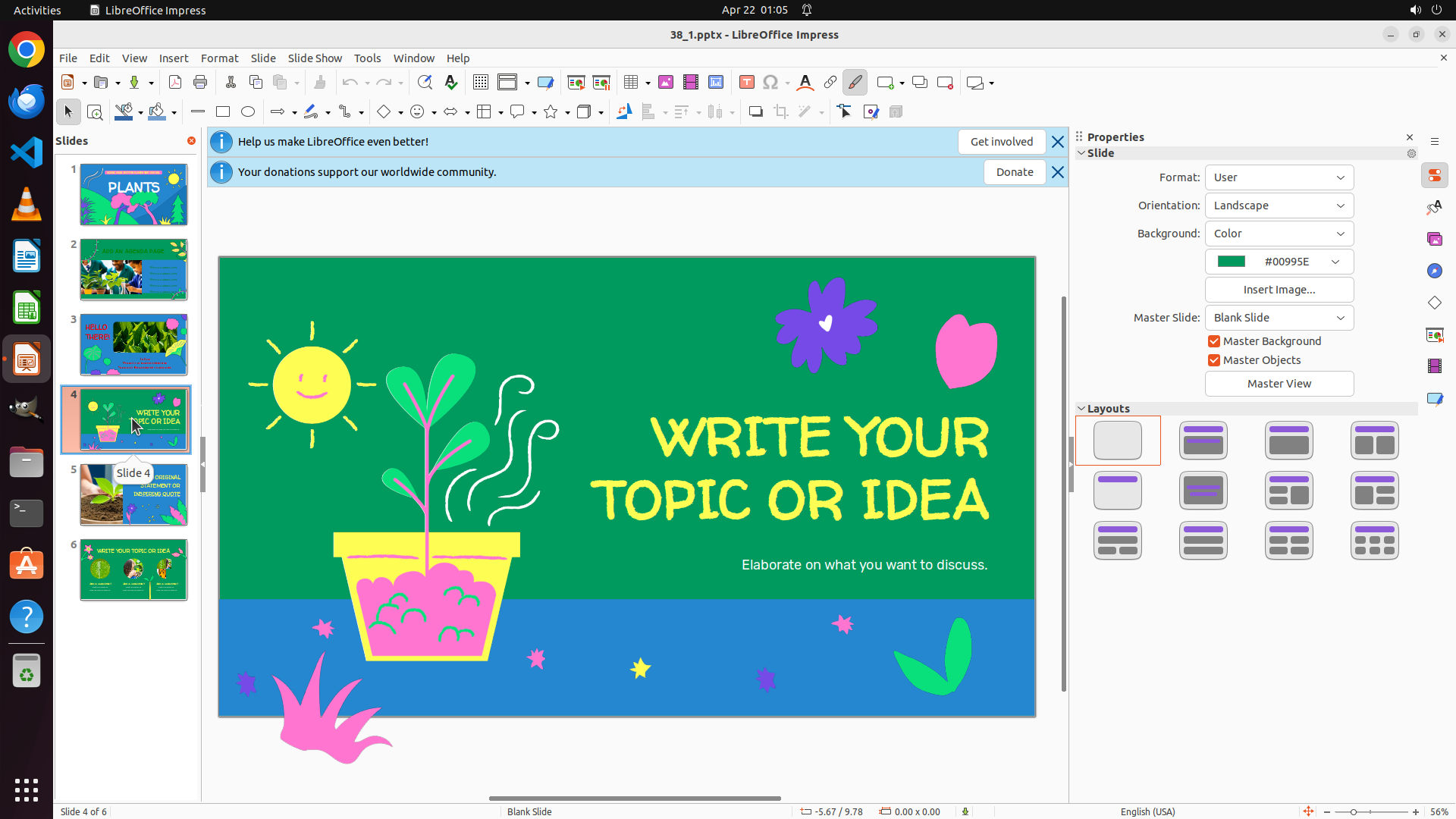
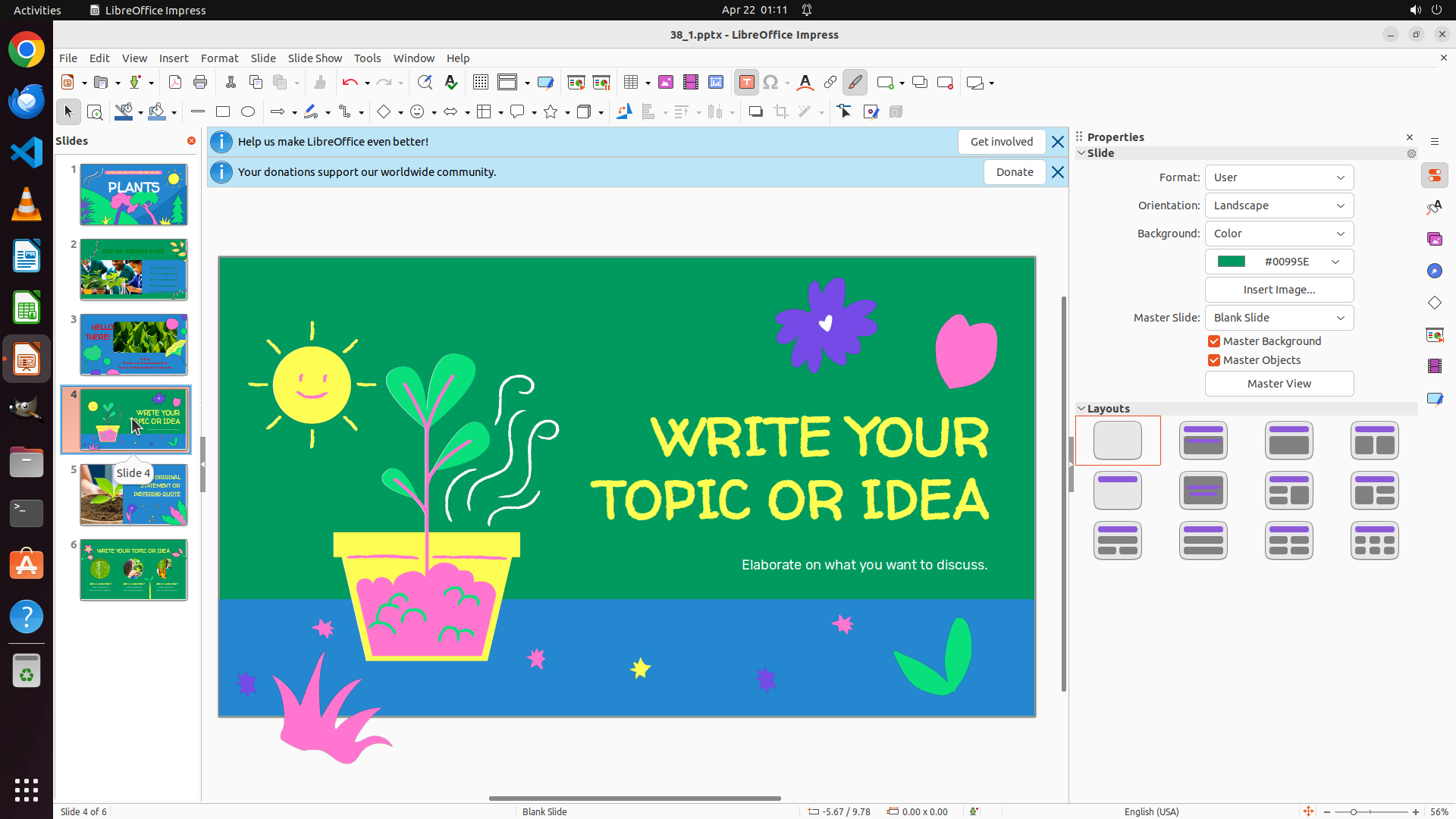
当前显示的是幻灯片 4(Slide 4 of 6),内容包括:
**幻灯片 4 内容:**
- 上半部分绿色背景,下半部分蓝色背景
- 左上角有一个黄色笑脸太阳图案
- 右侧有紫色花朵和粉色心形装饰
- 中央偏左有一个粉色花盆的植物插图
- 主文本框内容为 "WRITE YOUR TOPIC OR IDEA"(黄色大字,位于右侧)
- 副文本内容为 "Elaborate on what you want to discuss."(白色/浅色小字,位于主文本下方)
**文本框信息:**
- 第一个文本框是 "WRITE YOUR TOPIC OR IDEA"
- 当前文本对齐方式:从视觉上看是**左对齐**(文字从左侧开始排列)
我还需要查看幻灯片 5 的内容及其文本框对齐方式。
#### 下一步计划
1. 先填写已收集到的幻灯片 4 的信息
2. 然后点击左侧缩略图导航到幻灯片 5 查看内容和文本框对齐方式
```
Step 5: CLICK (169, 444)
```
#### 重要信息
- LibreOffice Impress is open with file "38_1.pptx"
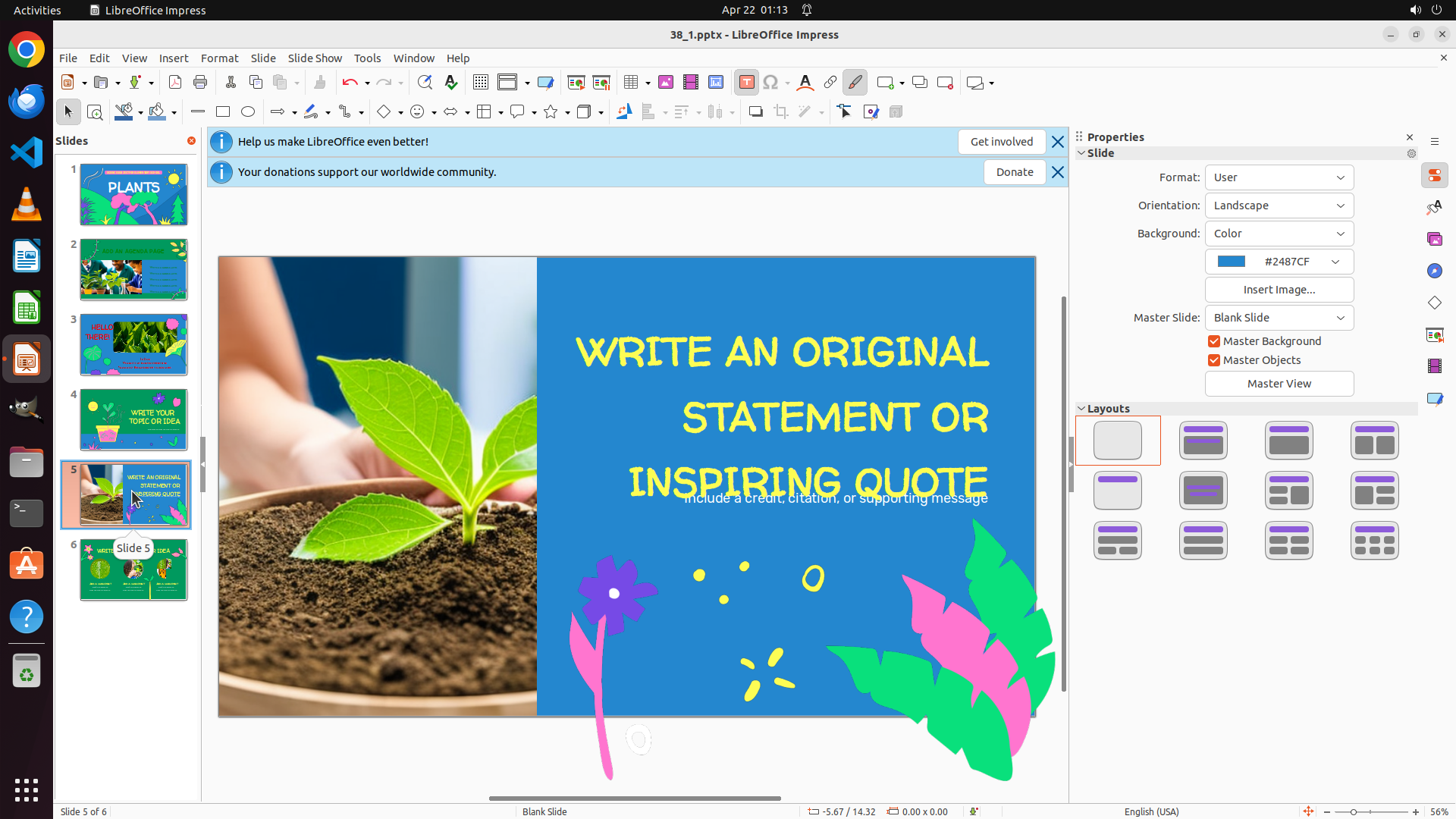
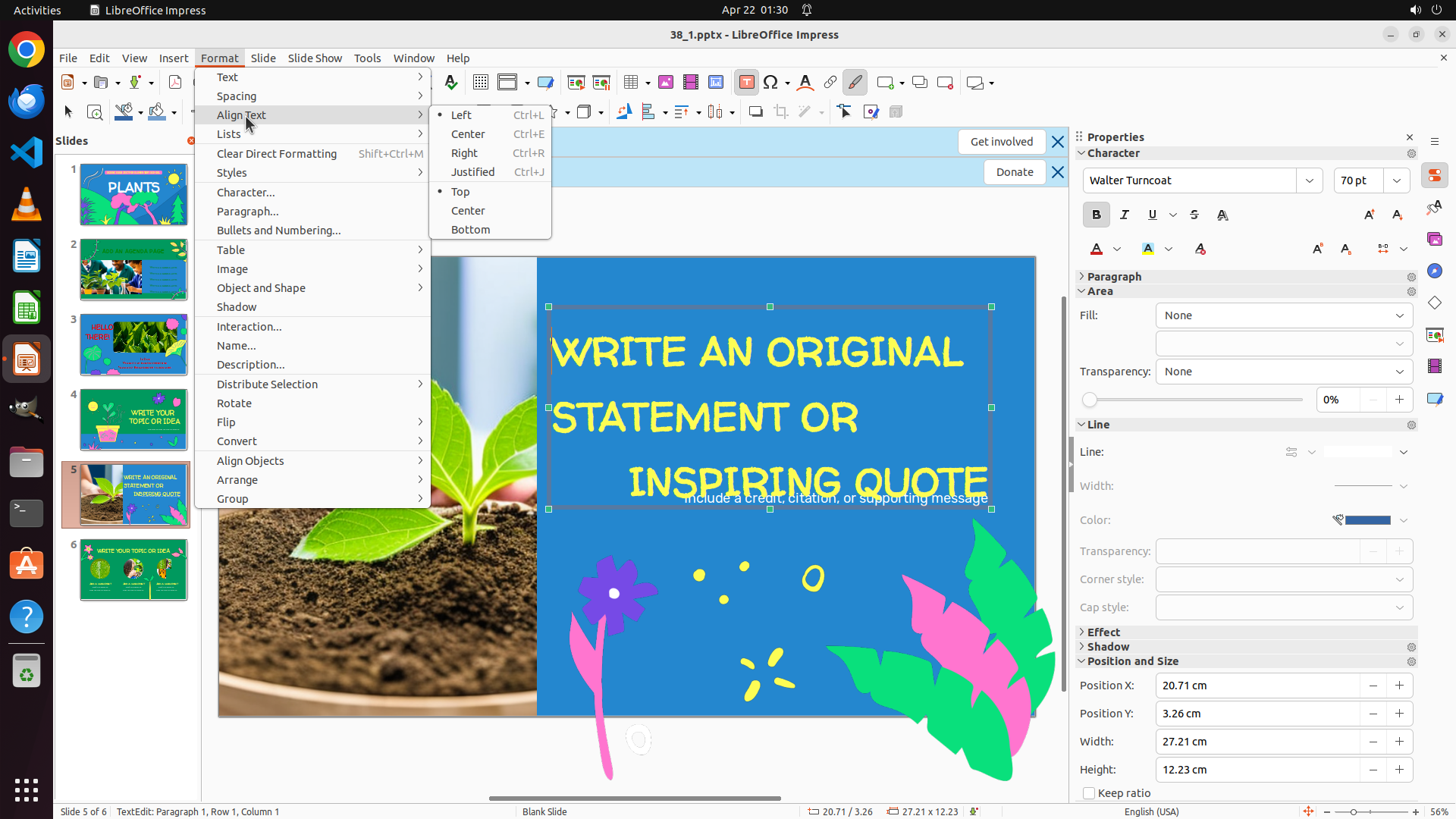
- Currently viewing slide 5 (as indicated by "Slide 5 of 6" at the bottom)
- The slide panel on the left shows 6 slides total
- Slide 3 thumbnail is visible in the left panel
- Need to navigate to slide 3 first to align the first textbox text to the right
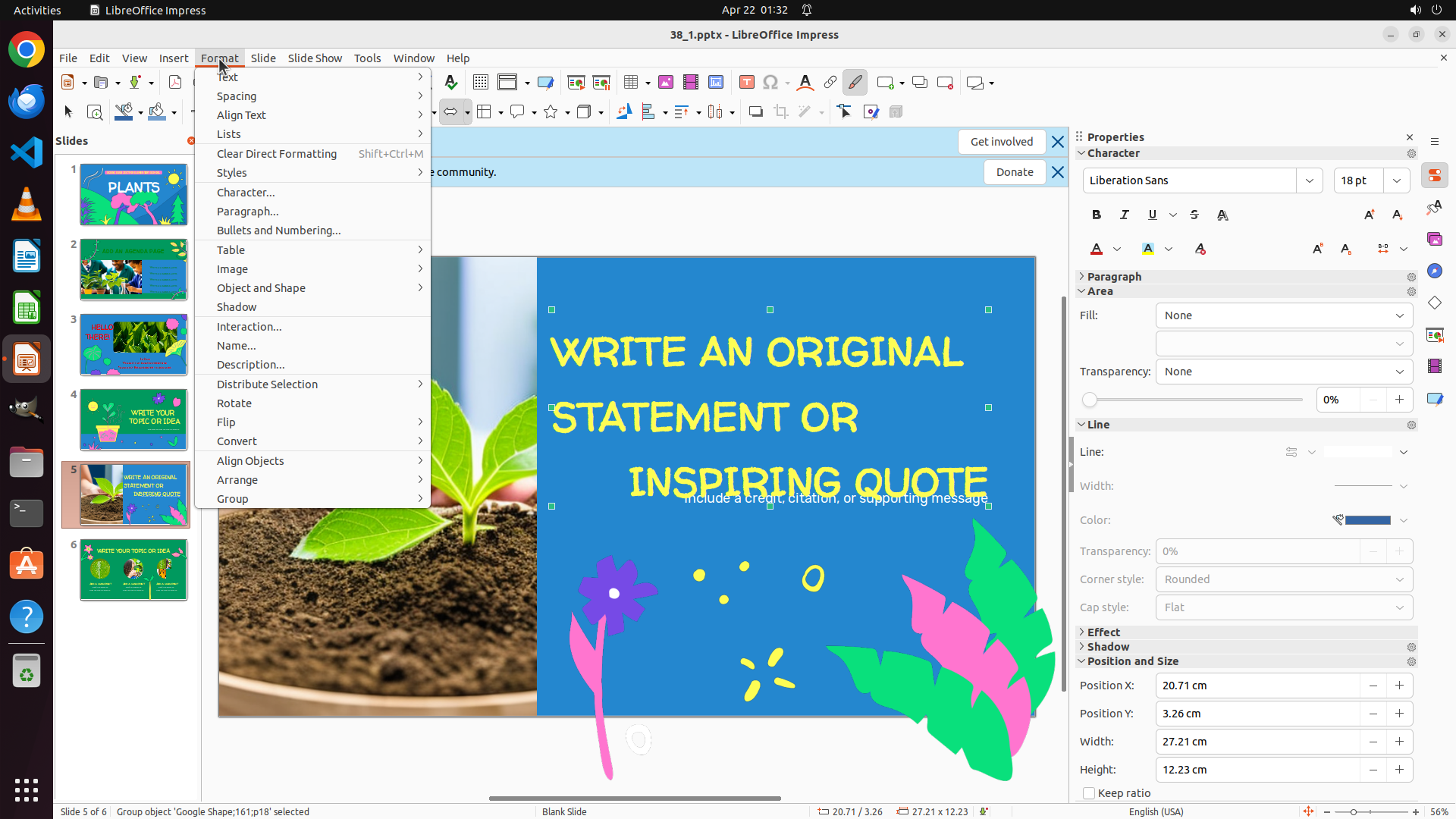
#### 情况分析与思考过程
The task requires me to:
1. Navigate to slide 3 and align the first textbox to the right
2. Navigate to slide 4 and align the first textbox to the center
3. Navigate to slide 5 and align the first textbox to the left
Currently, I'm on slide 5. I need to start by navigating to slide 3. I can see slide 3 in the left panel thumbnail. I'll click on it to navigate there.
```
Step 6: CLICK (457, 508)
```
#### 重要信息
- Successfully navigated to slide 3
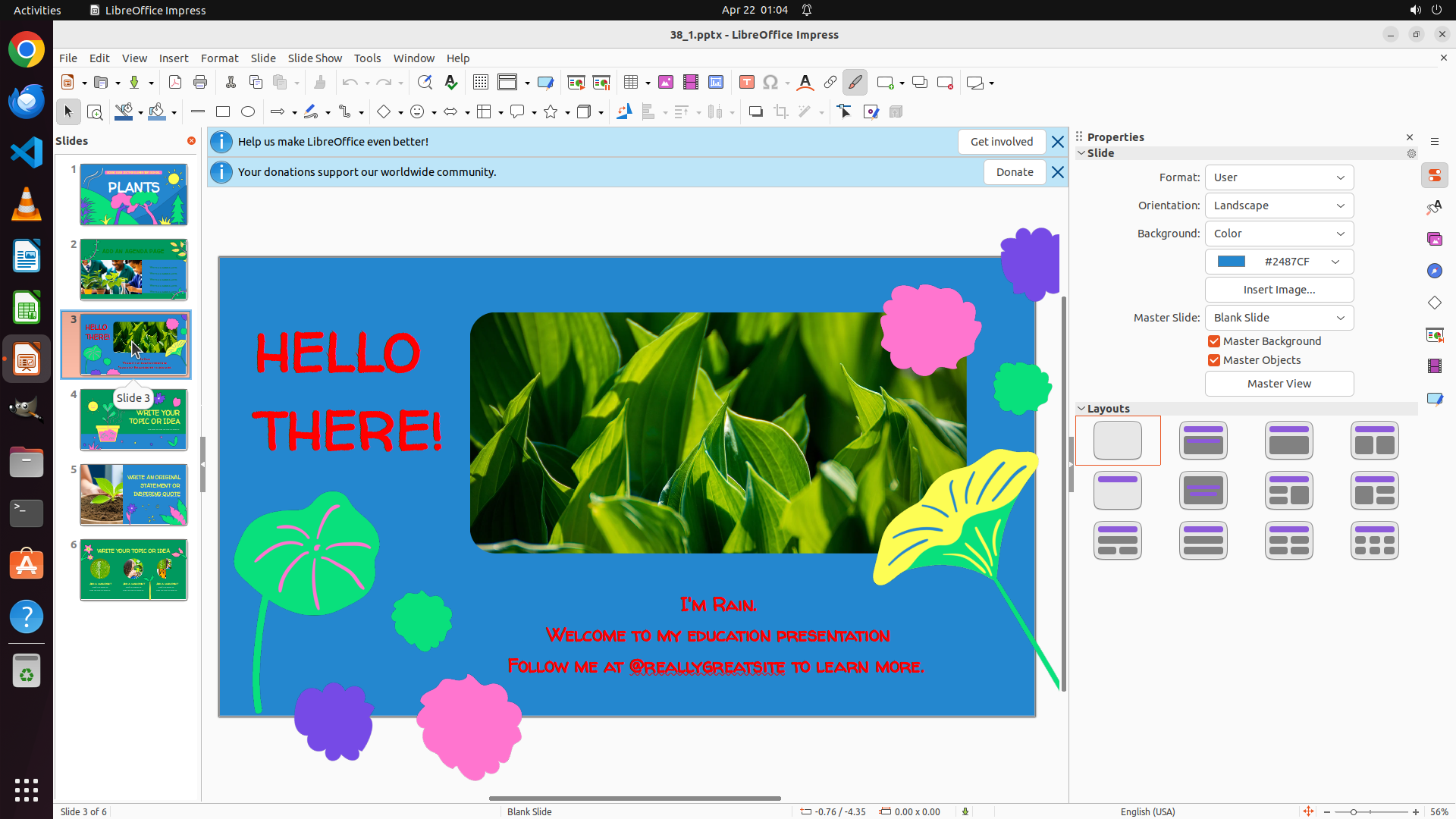
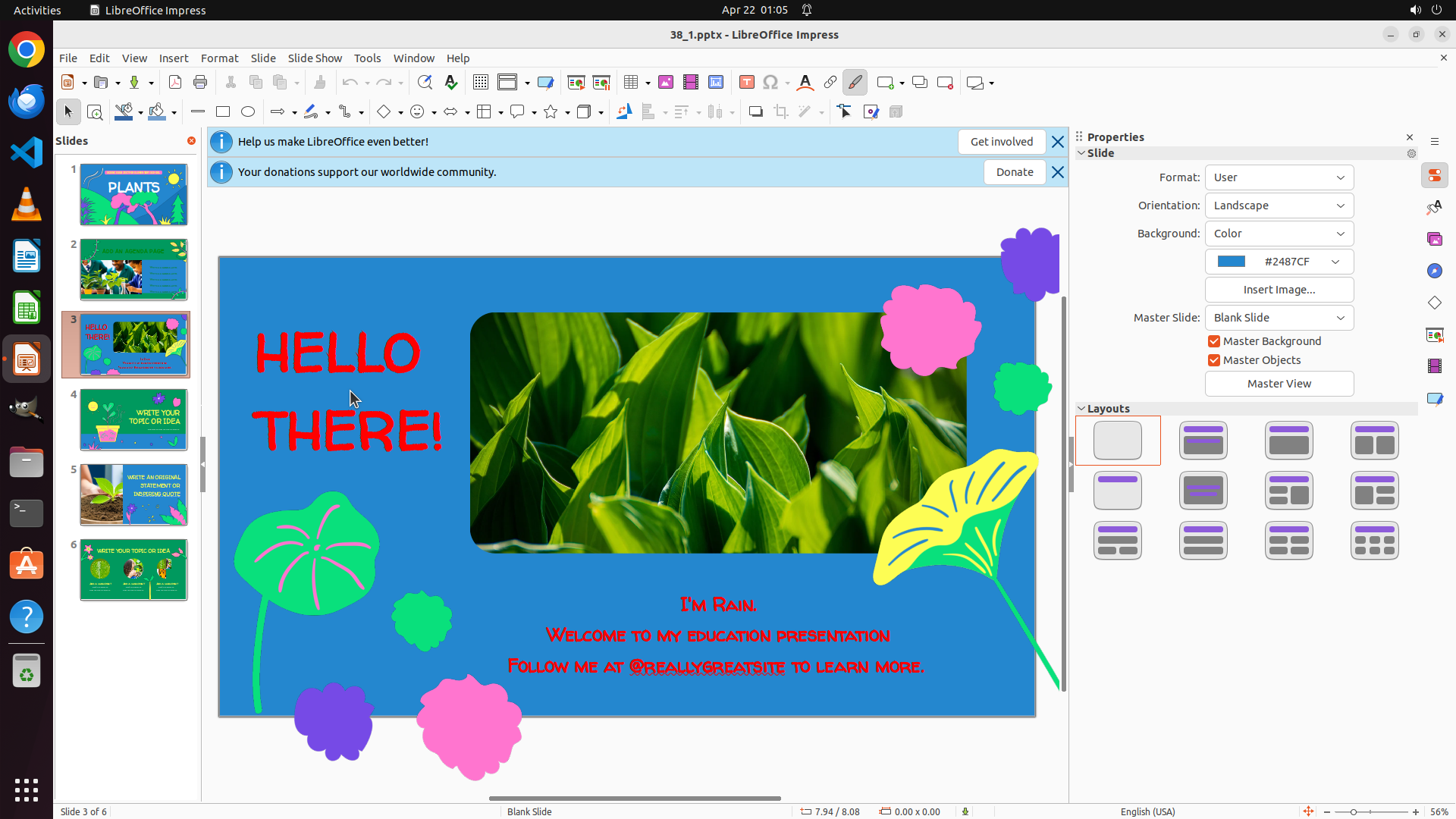
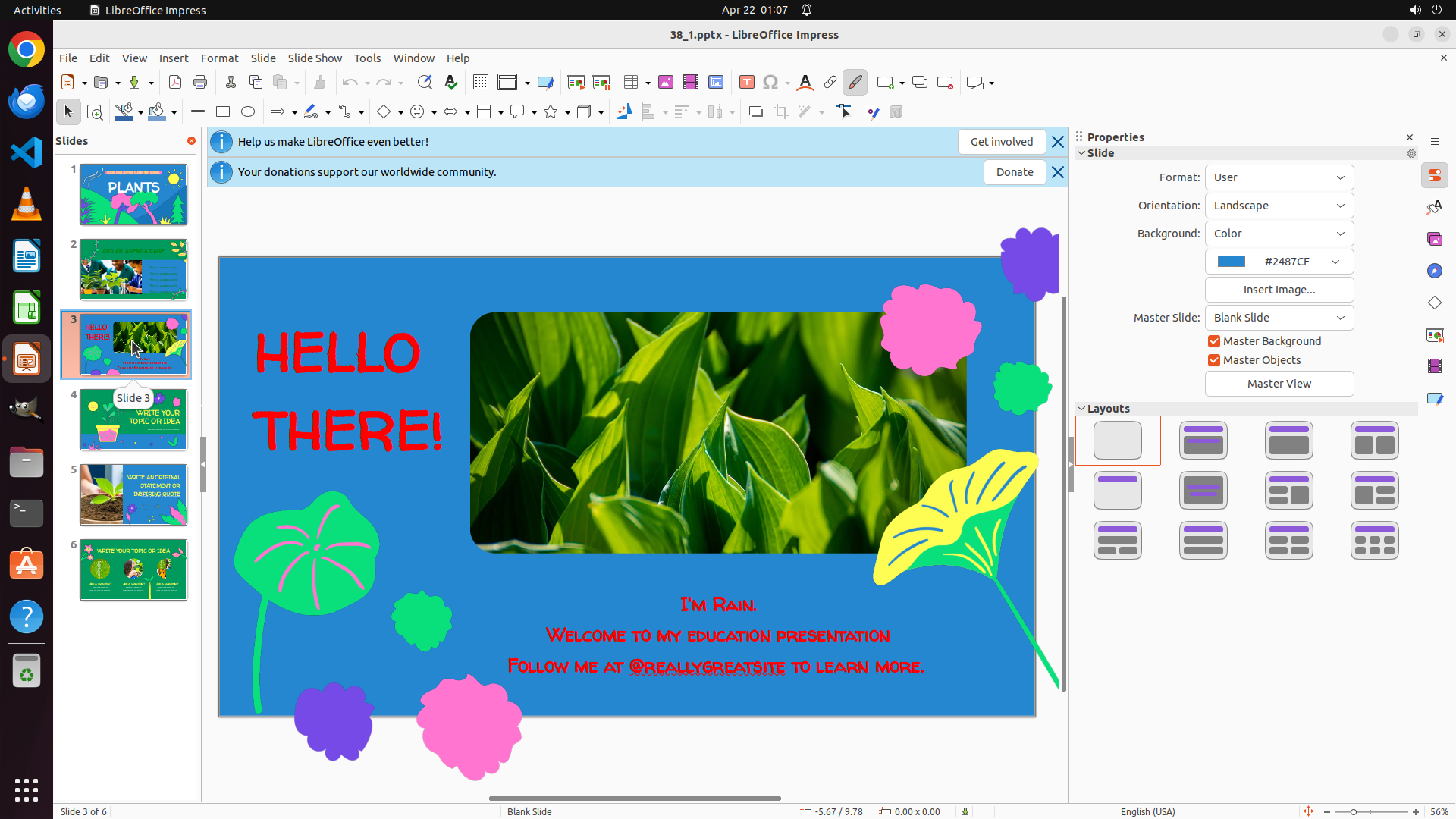
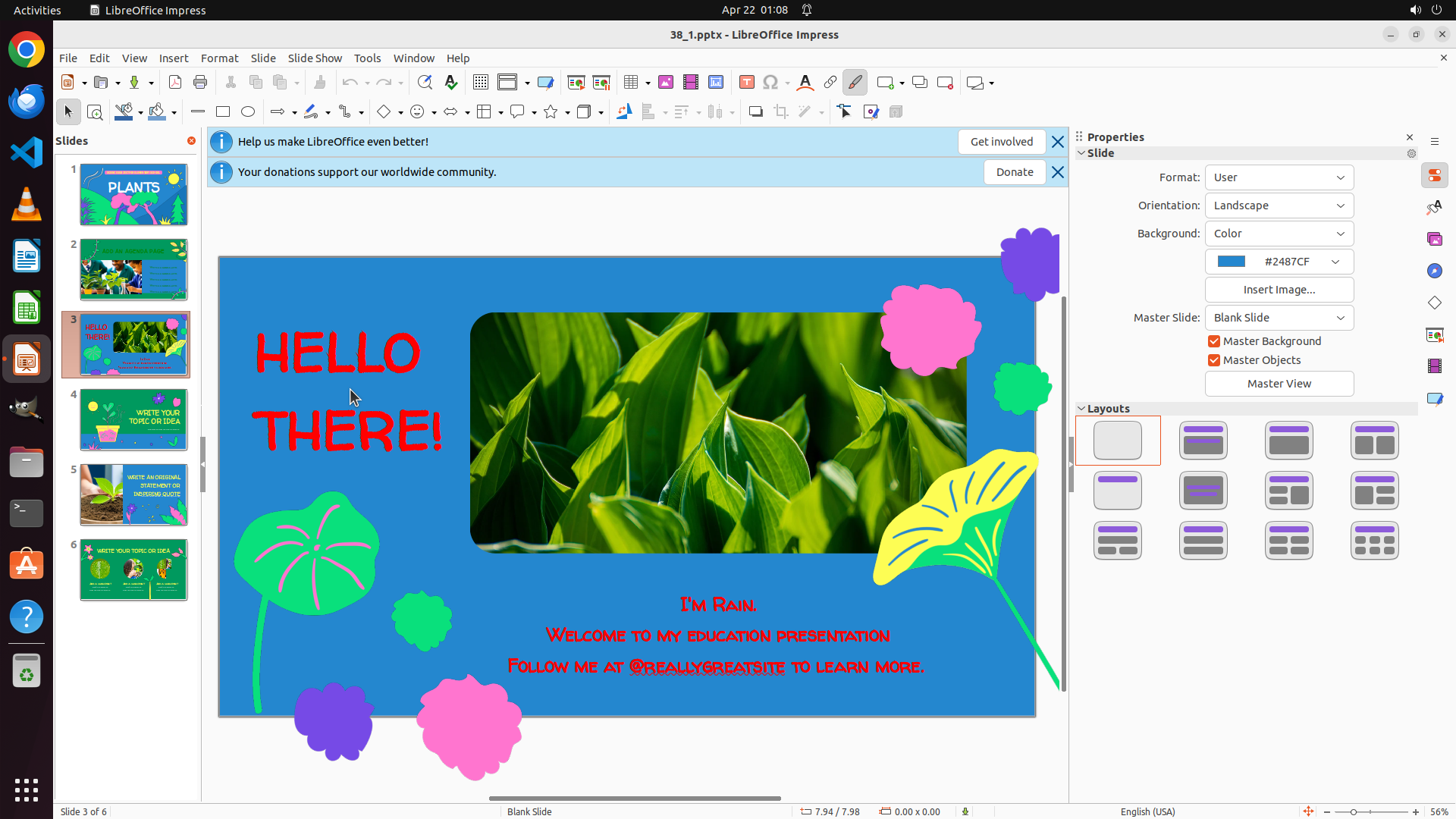
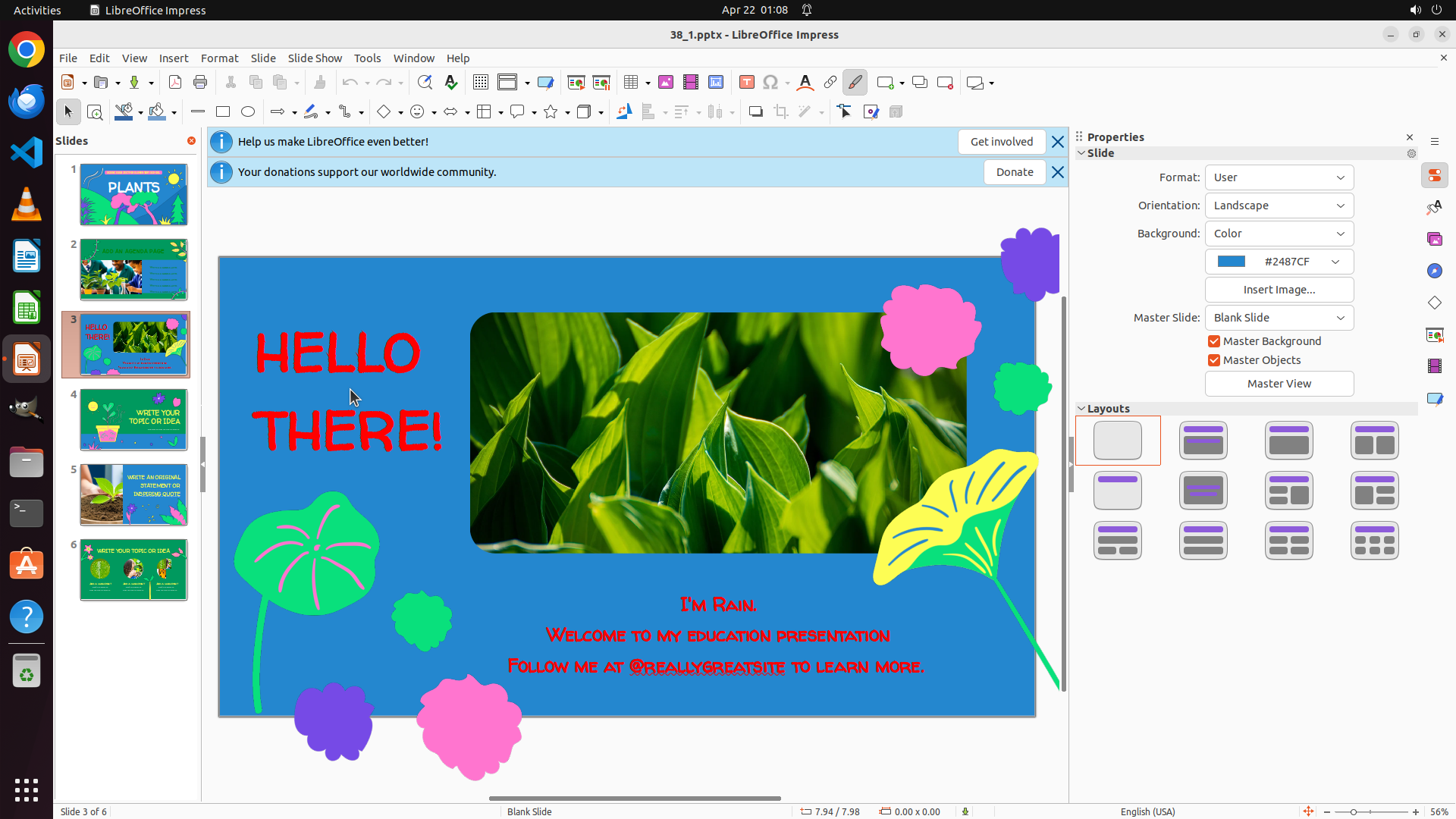
- Slide 3 shows "HELLO THERE!" text in red on the left side
- The text appears to be left-aligned currently
- Need to select the text and align it to the right
#### 情况分析与思考过程
I'm now on slide 3. I can see the "HELLO THERE!" text which is the first textbox I need to modify. The text is currently left-aligned. I need to:
1. Click on the "HELLO THERE!" text to select the textbox
2. Then use alignment tools to align it to the right
Let me click on the text to select it first.
```
Step 7: CLICK (457, 508)
```
#### 重要信息
- I'm on slide 3 showing "HELLO THERE!" text in red
- The text appears to be left-aligned currently
- The textbox doesn't appear to be selected (no visible selection handles)
- Need to select the text first, then apply right alignment
#### 情况分析与思考过程
The previous click might not have properly selected the textbox. I need to click directly on the "HELLO THERE!" text to select it. Once selected, I'll be able to see selection handles around the textbox, and then I can use the alignment tools to align it to the right.
I'll click more precisely on the text itself to ensure the textbox gets selected.
```
Step 8: CLICK (449, 465)
```
#### 重要信息
- I'm still on slide 3 showing "HELLO THERE!" text in red
- The textbox still doesn't appear to be selected (no visible selection handles)
- The previous click at (0.238, 0.47) didn't select the textbox
- Need to click more precisely on the text to select it
#### 情况分析与思考过程
The previous click didn't successfully select the textbox. I need to click more accurately on the "HELLO THERE!" text itself. Looking at the screenshot, the text is positioned in the upper left area of the slide. I should click directly on the text, perhaps on the "HELLO" portion or "THERE!" portion to ensure the textbox gets selected.
Once selected, I'll see selection handles around the textbox, and then I can use the right-align button in the toolbar or use Format > Align > Right to align the text to the right.
```
Step 9: HOTKEY
```
#### 重要信息
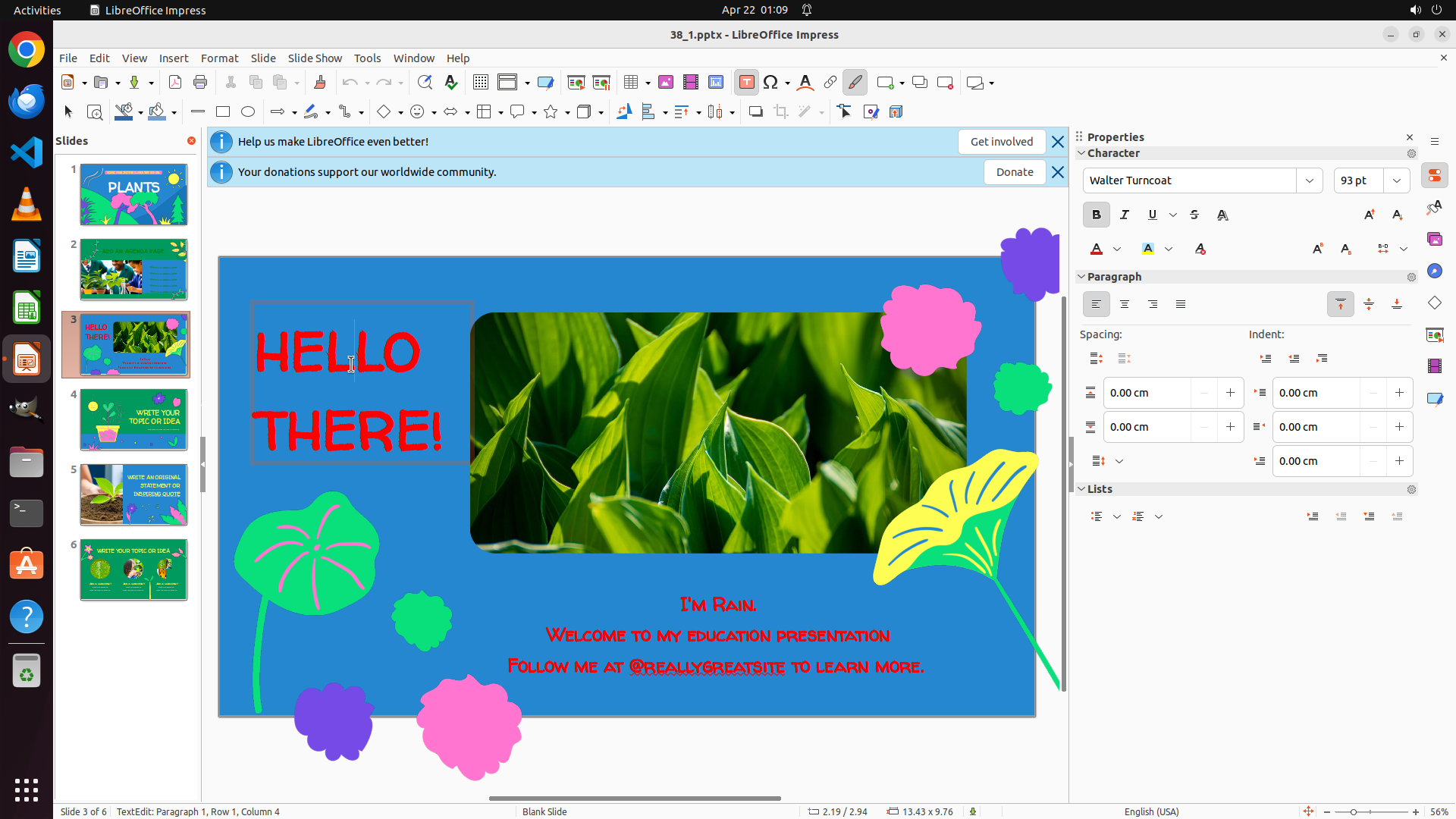
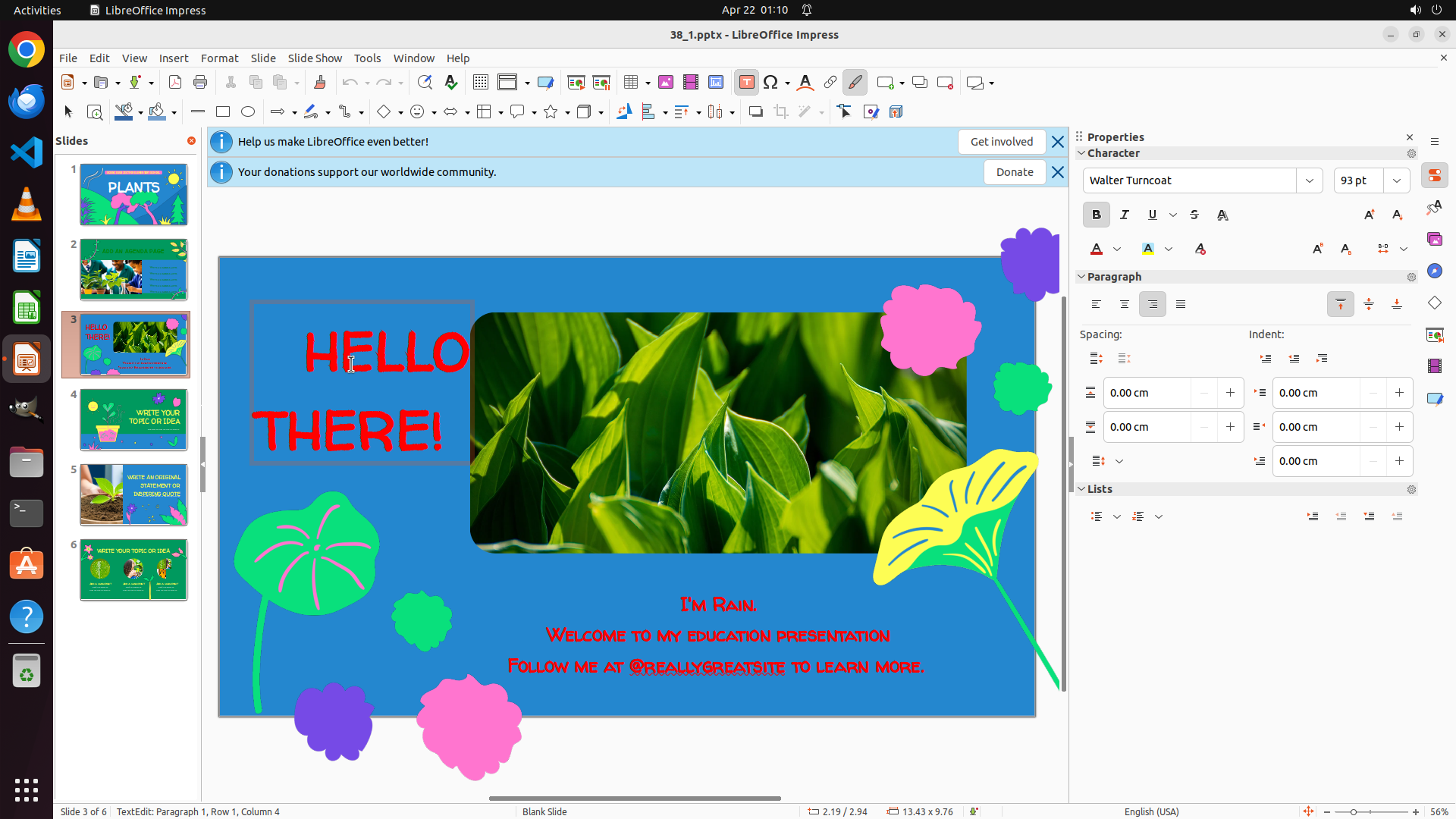
- The textbox with "HELLO THERE!" is now successfully selected (I can see the selection border around it)
- The Properties panel on the right shows "Character" properties with Paragraph formatting options
- In the Paragraph section, I can see alignment buttons (left, center, right, justify)
- The status bar shows "TextEdit: Paragraph 1, Row 1, Column 4" indicating text edit mode is active
- Now I need to apply right alignment to this text
#### 情况分析与思考过程
Great! The textbox is now selected. I can see the alignment options in the Properties panel on the right side. I have a few options to align the text to the right:
1. Click the right-align button in the Paragraph section of the Properties panel
2. Use the Format menu > Align > Right
3. Use the keyboard shortcut Ctrl+R
The keyboard shortcut Ctrl+R is the most efficient and reliable method. I'll use that to align the text to the right. After that, I'll need to move to slide 4 and center its first textbox, then move to slide 5 and ensure its first textbox is left-aligned.
```
Step 10: CLICK (169, 546)
```
#### 重要信息
- The previous action was Ctrl+R to right-align the text on slide 3
- The textbox with "HELLO THERE!" is still selected (selection border visible)
- Looking at the text, it's difficult to confirm if right alignment was applied from this view
- I need to navigate to slide 4 next to center-align its first textbox
- Slide 4 thumbnail is visible in the left panel
#### 情况分析与思考过程
The previous action attempted to right-align the text on slide 3 using Ctrl+R. Now I need to:
1. Move to slide 4 to center-align its first textbox
2. Then move to slide 5 to left-align its first textbox
Since the textbox is still selected, I should first click outside to deselect it, then navigate to slide 4 by clicking on its thumbnail in the left panel. I can see slide 4 in the left panel - it appears to have a circular element and some text.
I'll click on slide 4's thumbnail to navigate there.
```
Step 11: CLICK (1085, 585)
```
#### 重要信息
- Successfully navigated to slide 4
- Slide 4 displays "WRITE YOUR TOPIC OR IDEA" in yellow text on a green background
- The text appears to be the first textbox on this slide
- Need to select this textbox and apply center alignment
- After that, I'll need to navigate to slide 5 for left alignment
#### 情况分析与思考过程
I'm now on slide 4. I can see the main text "WRITE YOUR TOPIC OR IDEA" which is the first textbox I need to center-align. My plan is:
1. Click on the "WRITE YOUR TOPIC OR IDEA" text to select the textbox
2. Apply center alignment (using Ctrl+E or the center-align button)
3. Navigate to slide 5
4. Apply left alignment to its first textbox
Let me click on the text to select it first. I'll click on the "WRITE YOUR" portion of the text to ensure the textbox gets selected.
```
Step 12: HOTKEY
```
#### 重要信息
- Currently on slide 4 as shown at the bottom "Slide 4 of 6"
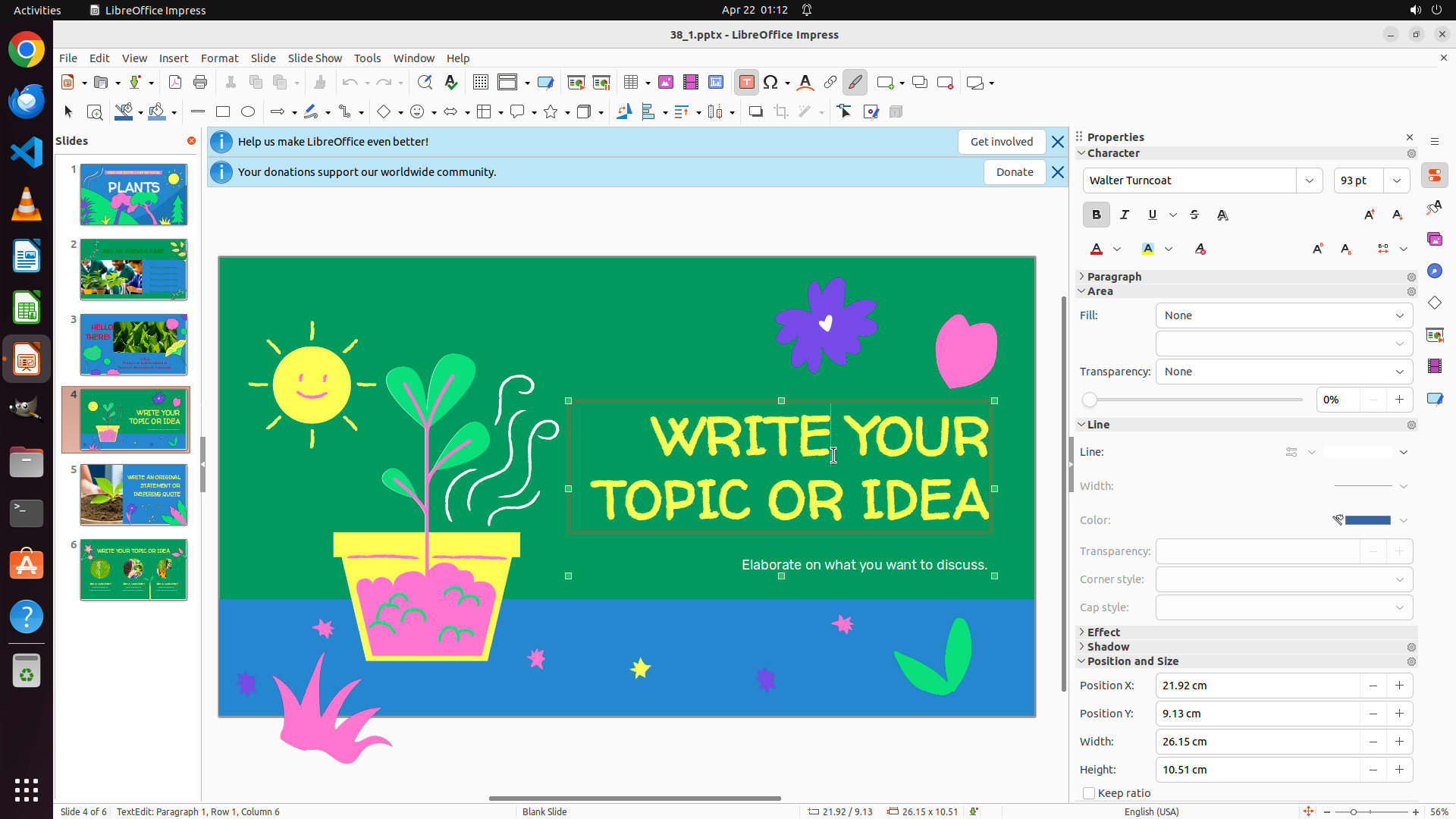
- The text "WRITE YOUR TOPIC OR IDEA" is visible and appears to be selected (selection handles visible around the textbox)
- The text is currently in yellow color on a green background
- Need to apply center alignment to this textbox
- After this, I'll need to navigate to slide 5 and apply left alignment
#### 情况分析与思考过程
The textbox on slide 4 is successfully selected. Now I need to apply center alignment to it. I can use:
1. The center-align button in the toolbar
2. Format menu > Align > Center
3. Keyboard shortcut Ctrl+E (most efficient)
Using Ctrl+E is the quickest and most reliable method. After applying center alignment, I'll need to:
1. Navigate to slide 5
2. Select the first textbox on slide 5
3. Apply left alignment (Ctrl+L) to ensure it's left-aligned
Let me apply center alignment now using Ctrl+E.
```
Step 13: CLICK (169, 642)
```
#### 重要信息
- Currently on slide 4 as shown at the bottom "Slide 4 of 6"
- The text "WRITE YOUR TOPIC OR IDEA" is visible and appears to be selected (selection handles visible around the textbox)
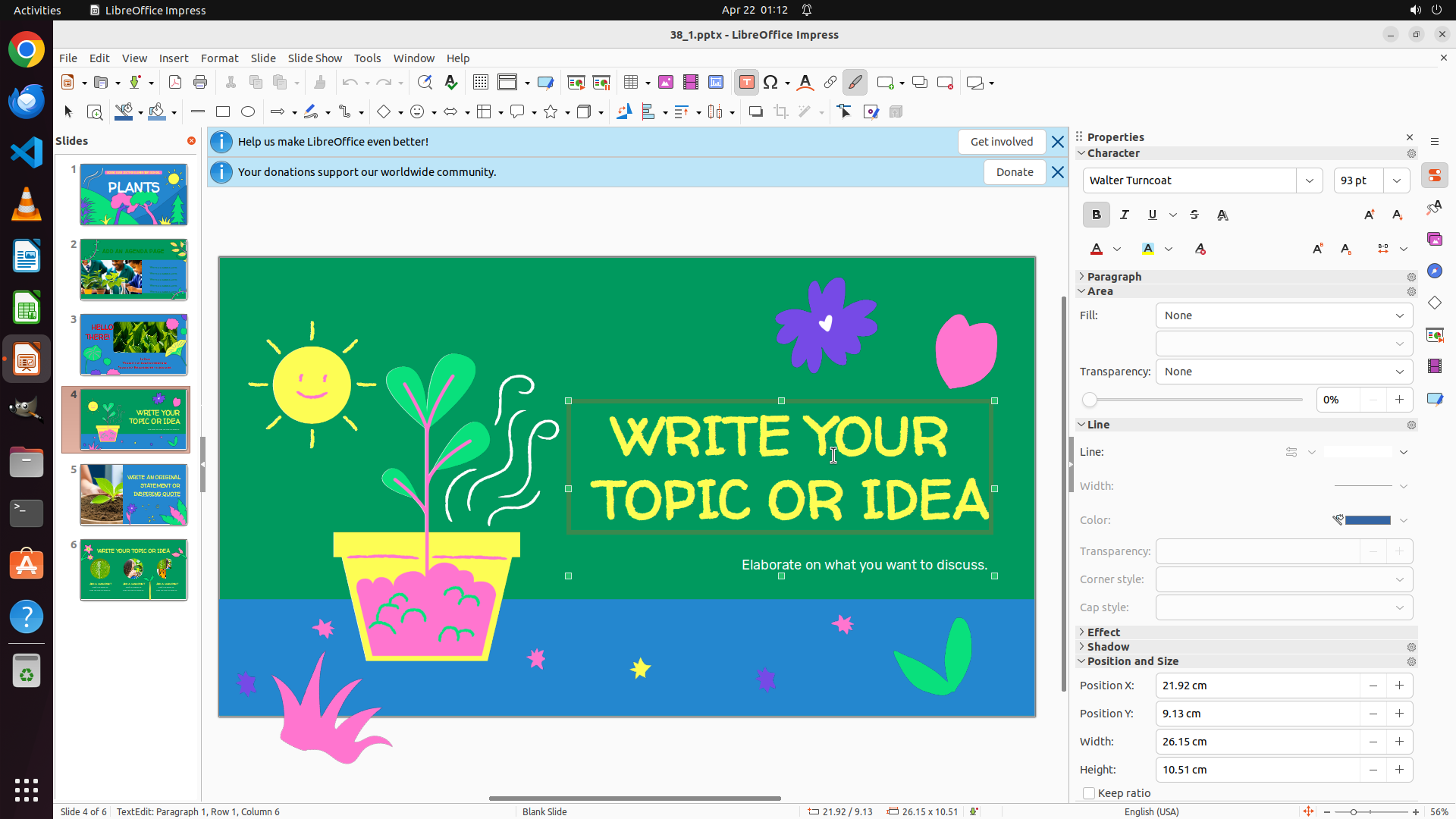
- Center alignment has been applied using Ctrl+E in the previous step
- Need to navigate to slide 5 next to apply left alignment to its first textbox
- Slide 5 thumbnail is visible in the left panel
#### 情况分析与思考过程
The center alignment for slide 4 has been applied. Now I need to move to slide 5 to complete the final part of the task:
1. Navigate to slide 5 by clicking on its thumbnail in the left panel
2. Select the first textbox on slide 5
3. Apply left alignment (Ctrl+L) to ensure it's left-aligned
I can see slide 5 in the left panel - it appears to show some kind of image with text. I'll click on slide 5's thumbnail to navigate there.
```
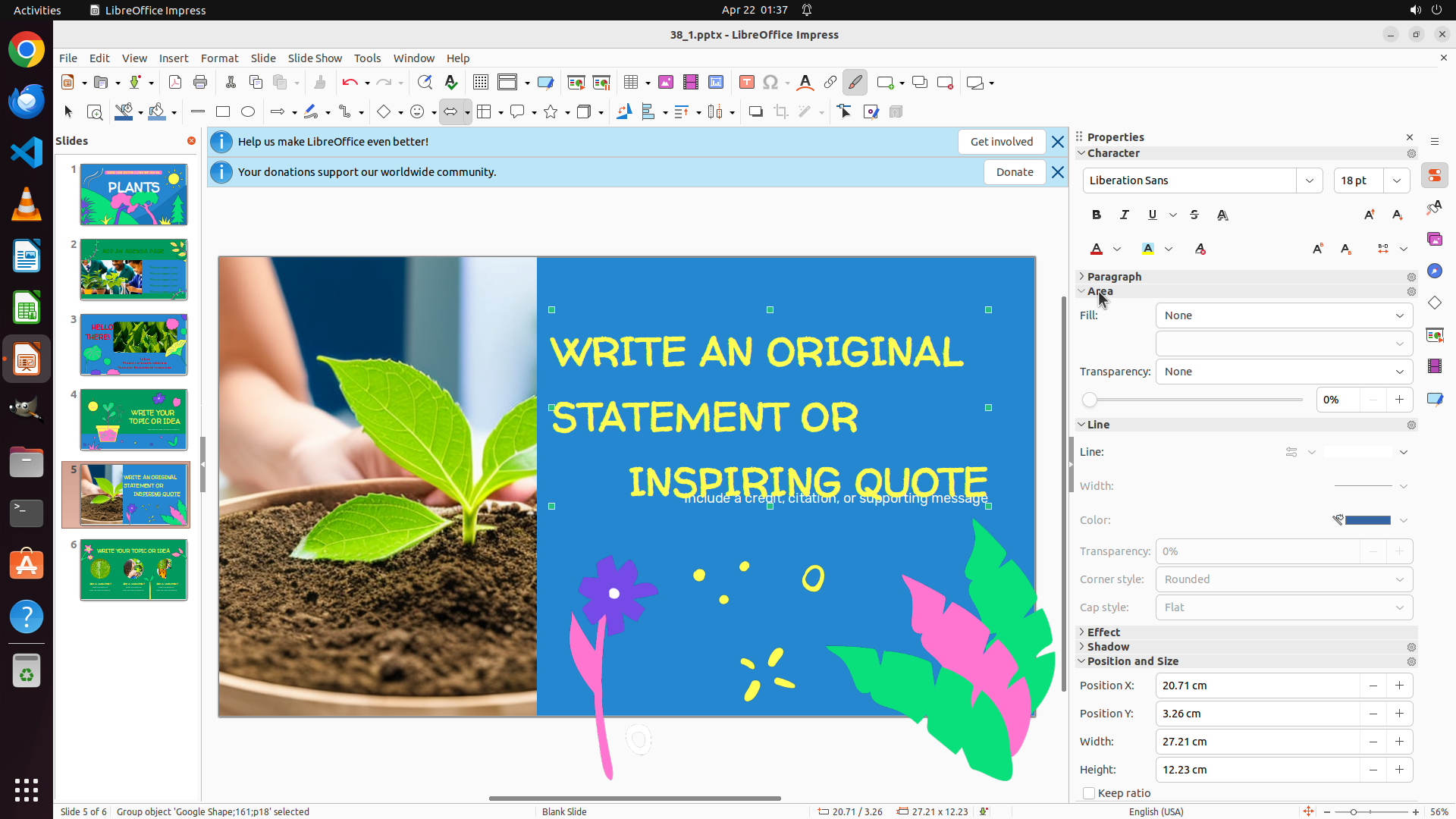
Step 14: CLICK (1037, 457)
```
#### 重要信息
- Successfully navigated to slide 5 as shown at the bottom "Slide 5 of 6"
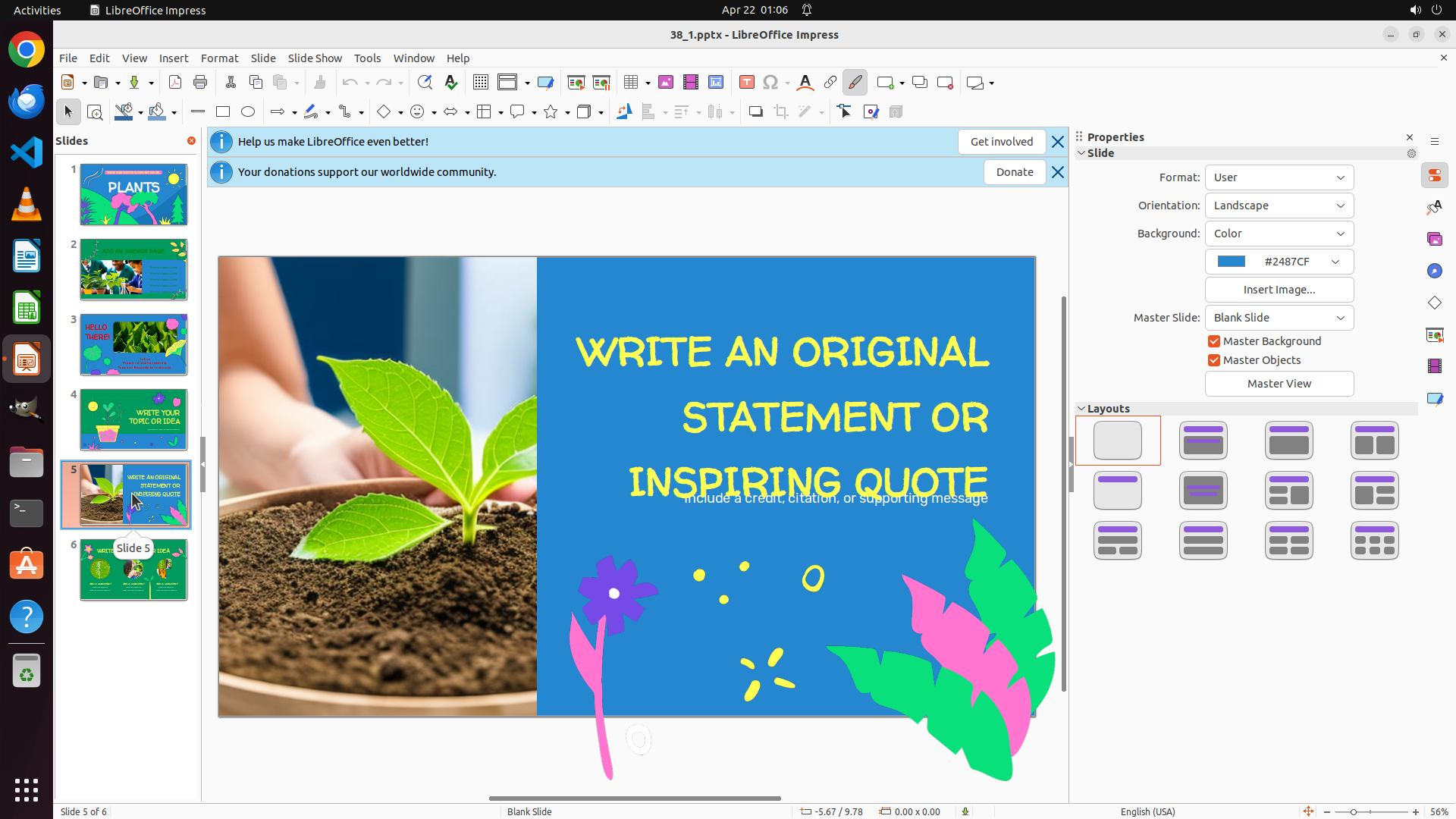
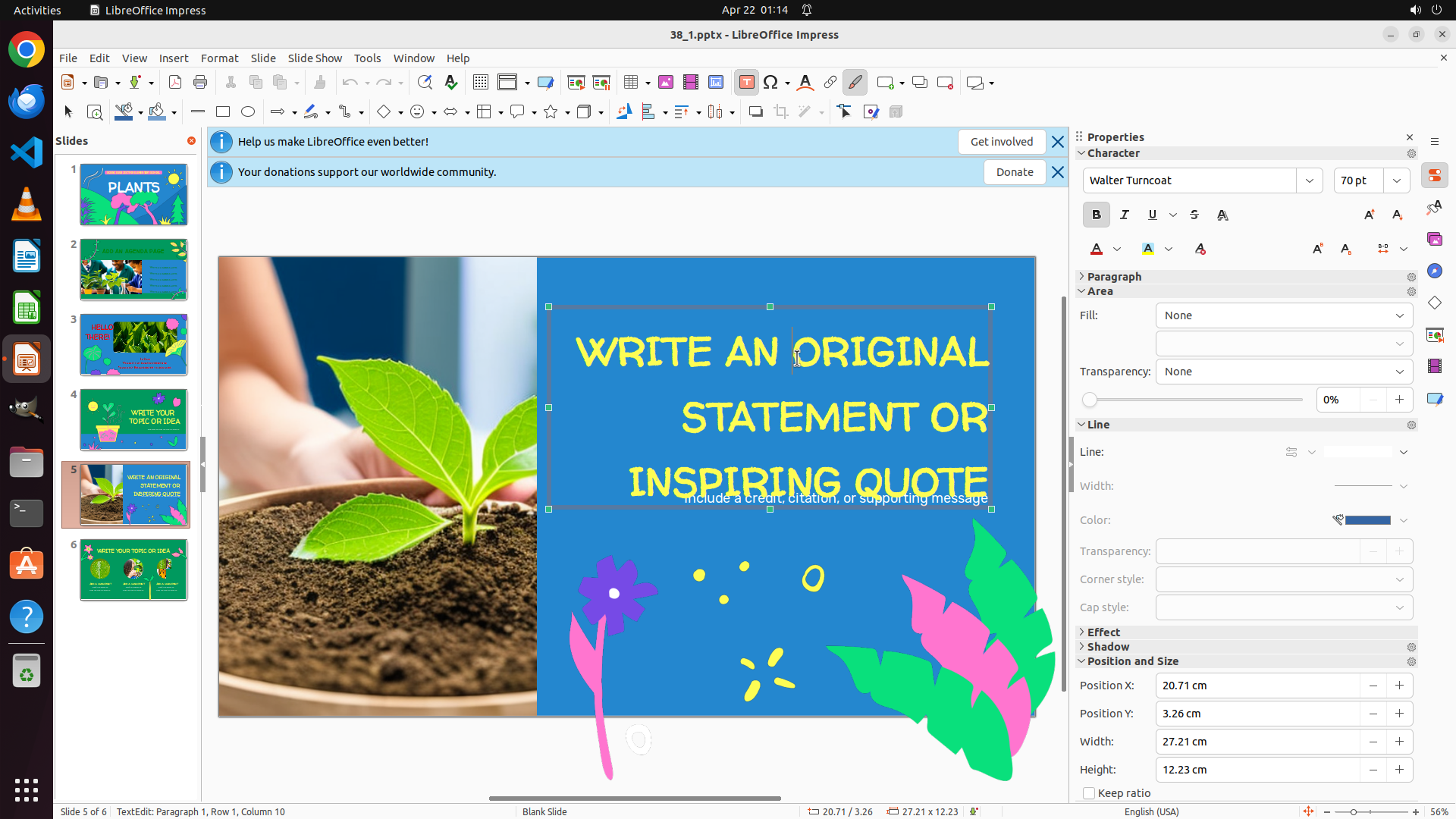
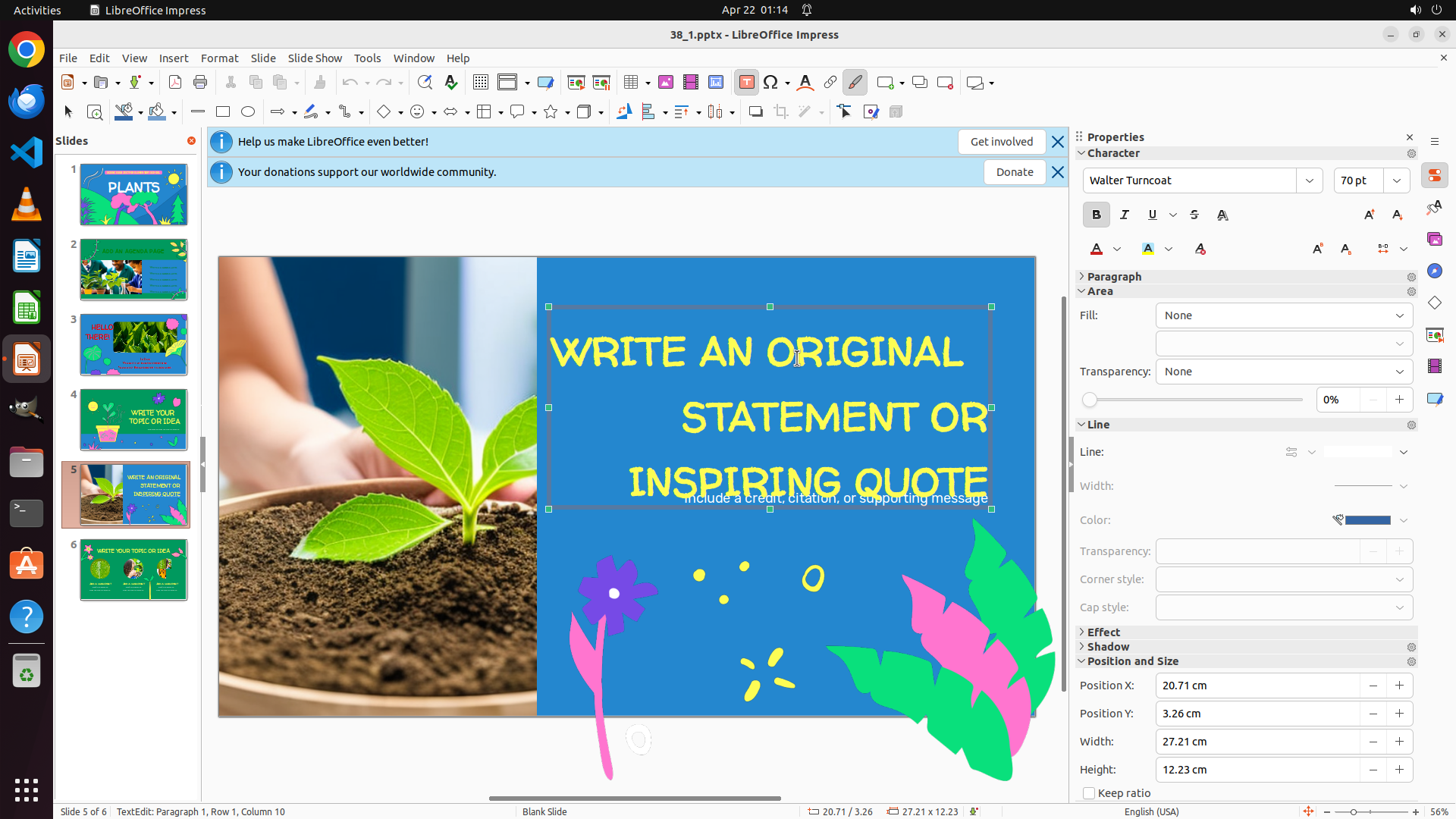
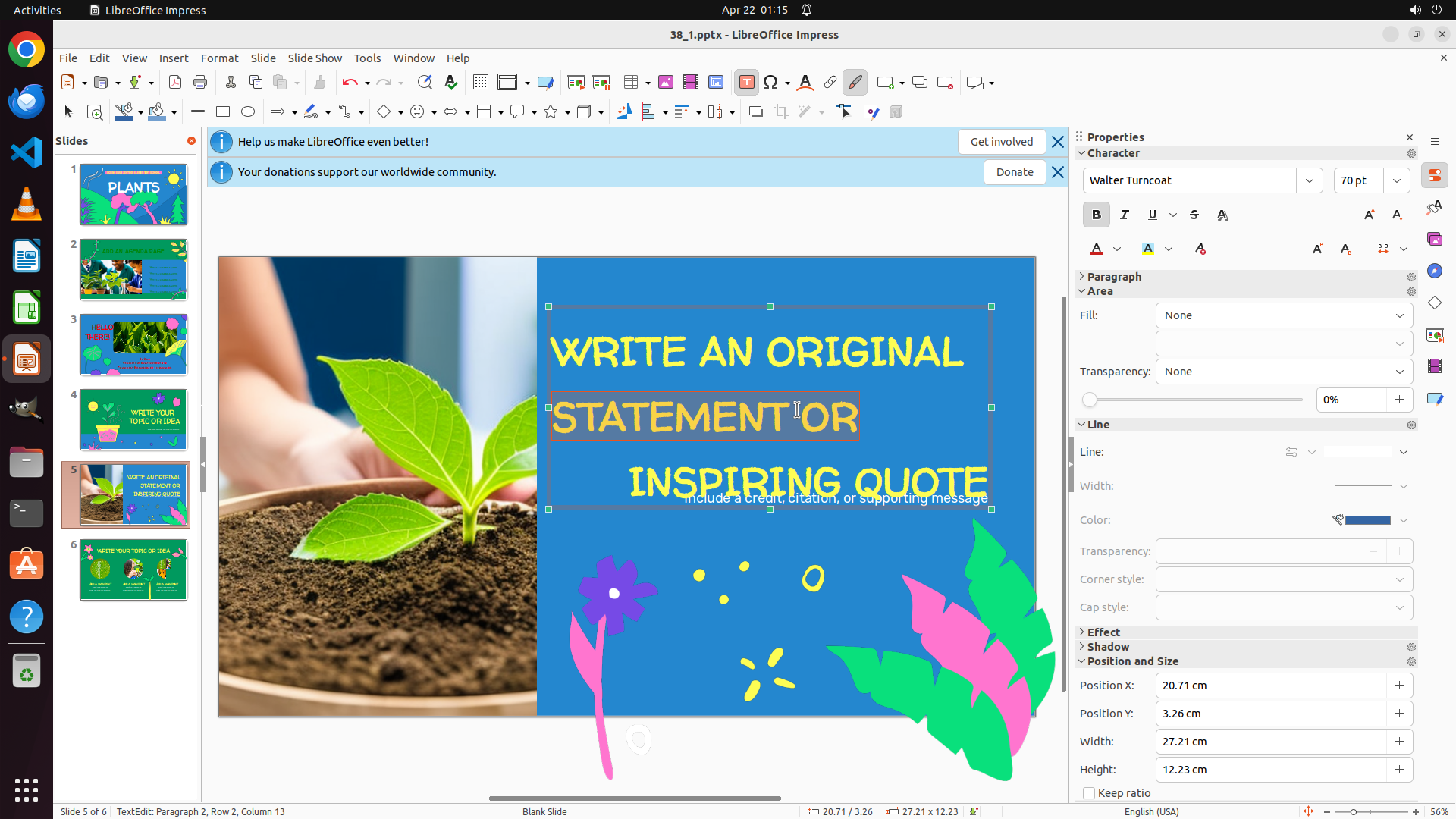
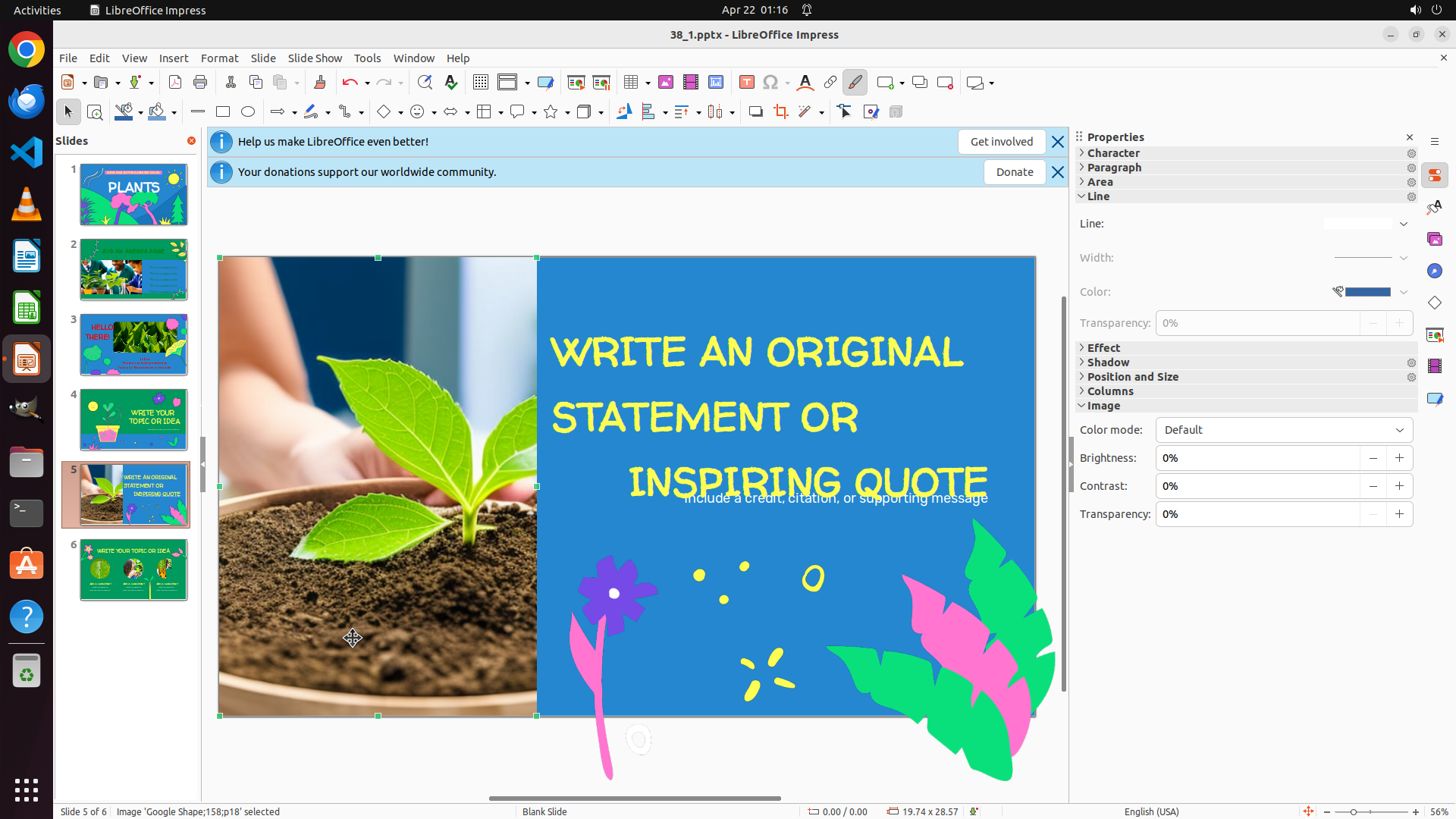
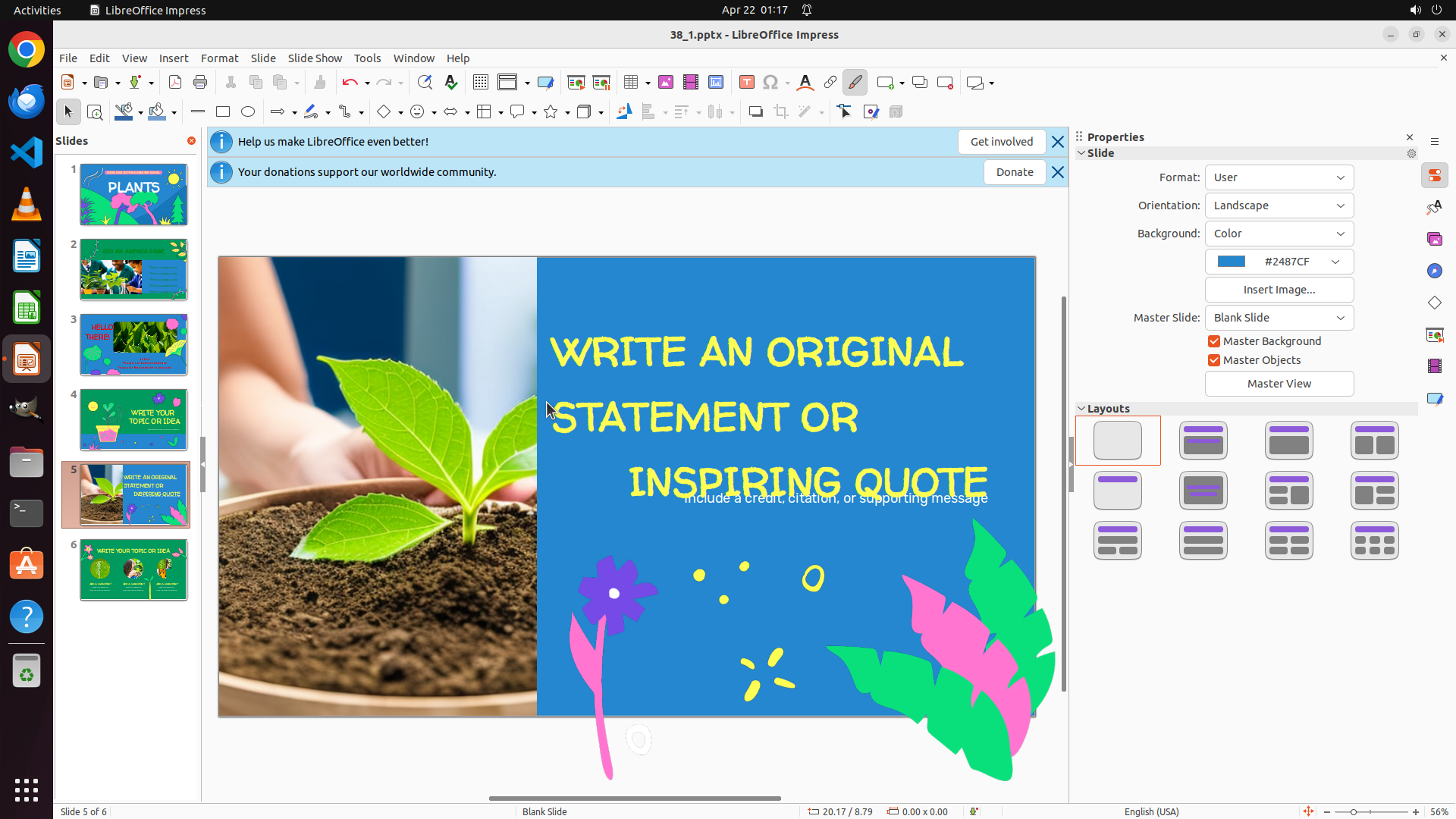
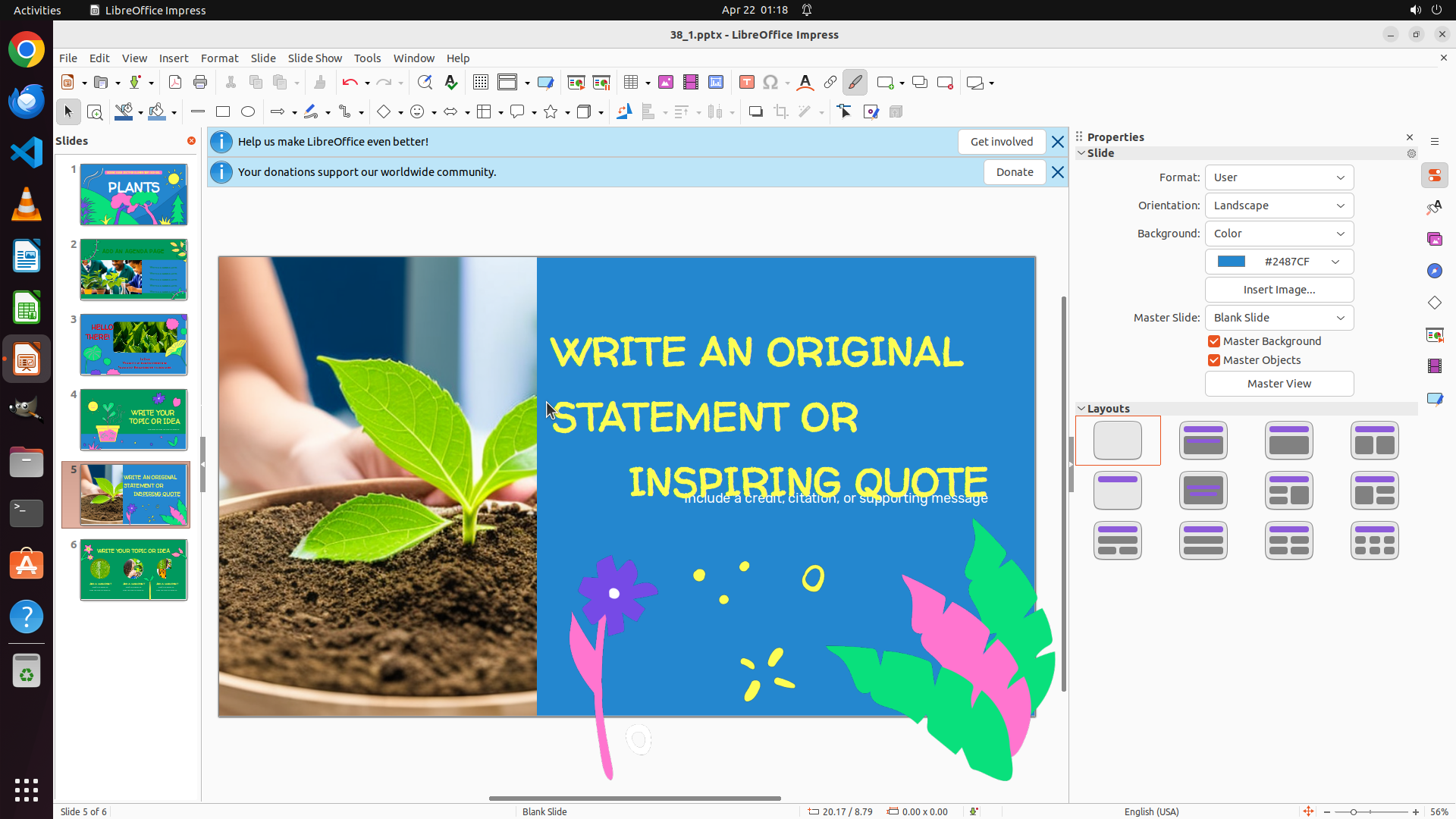
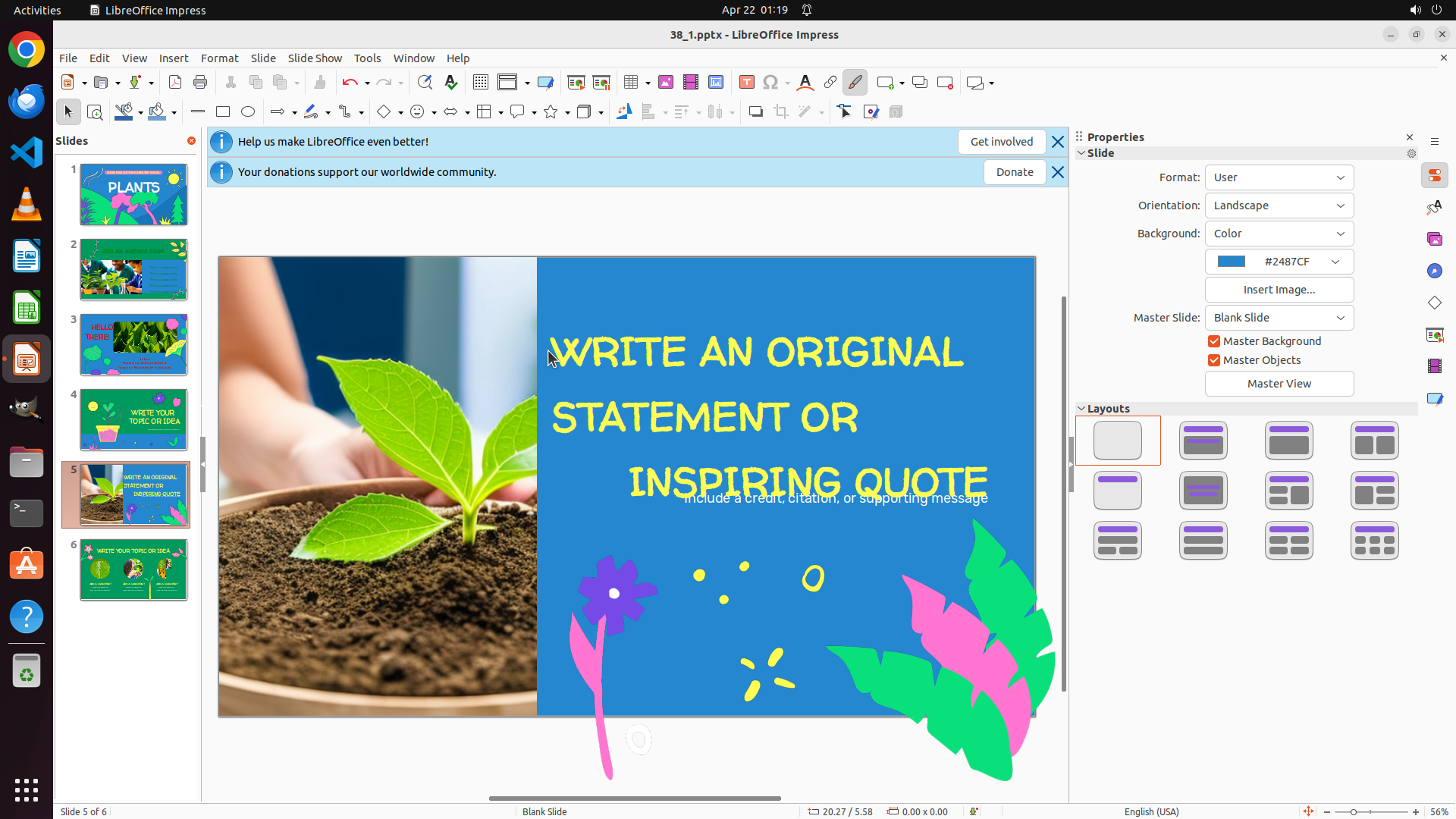
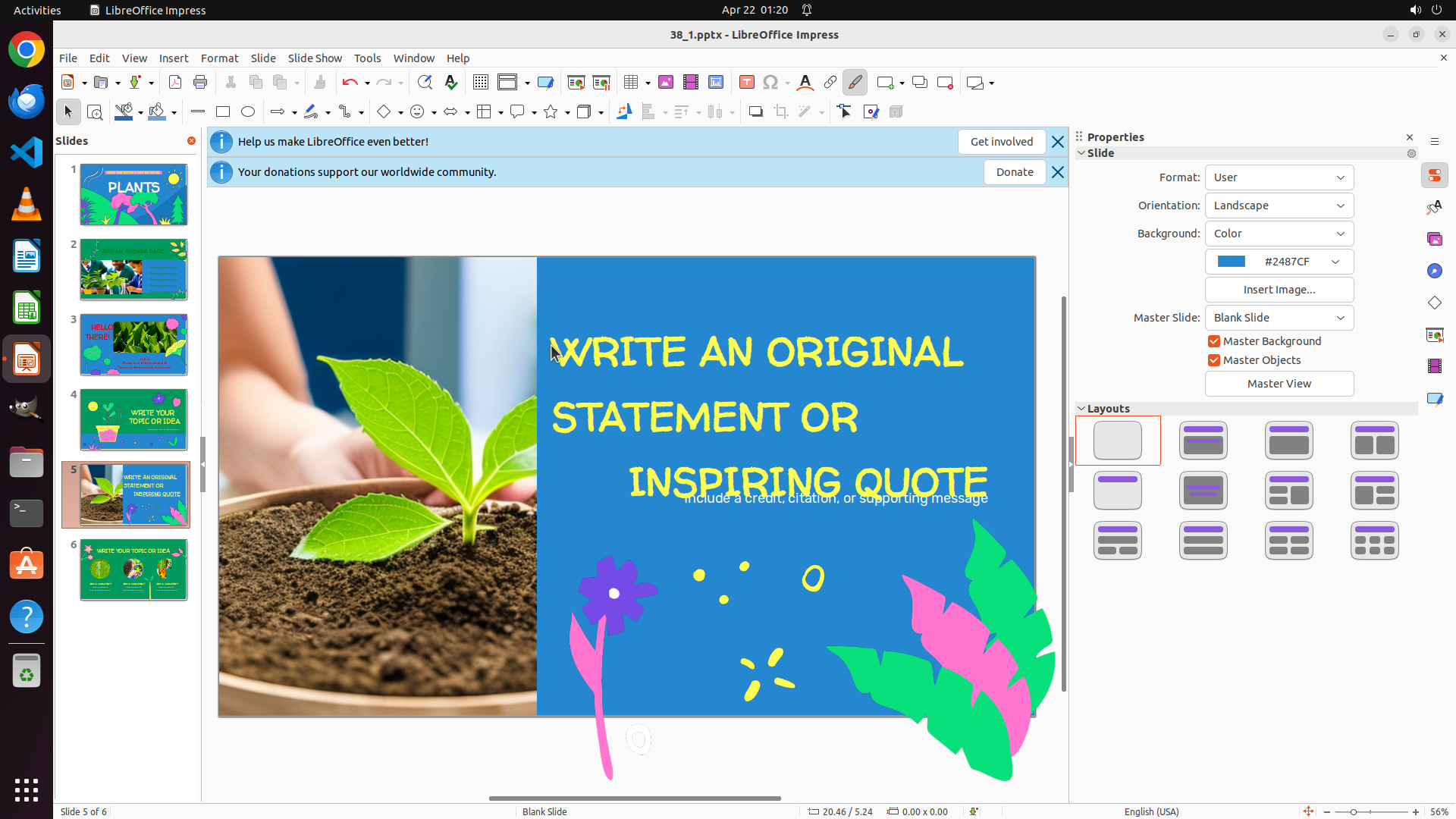
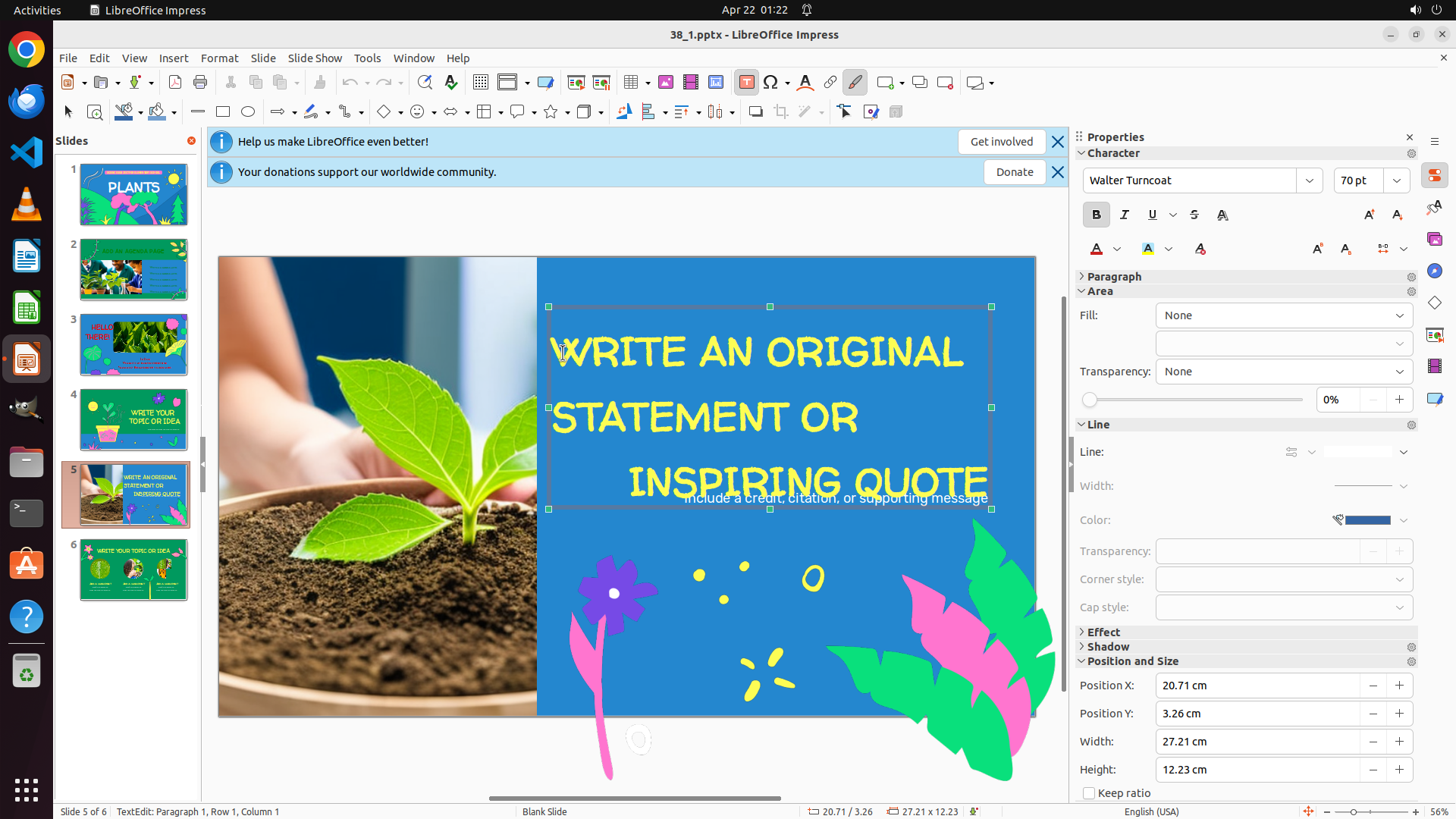
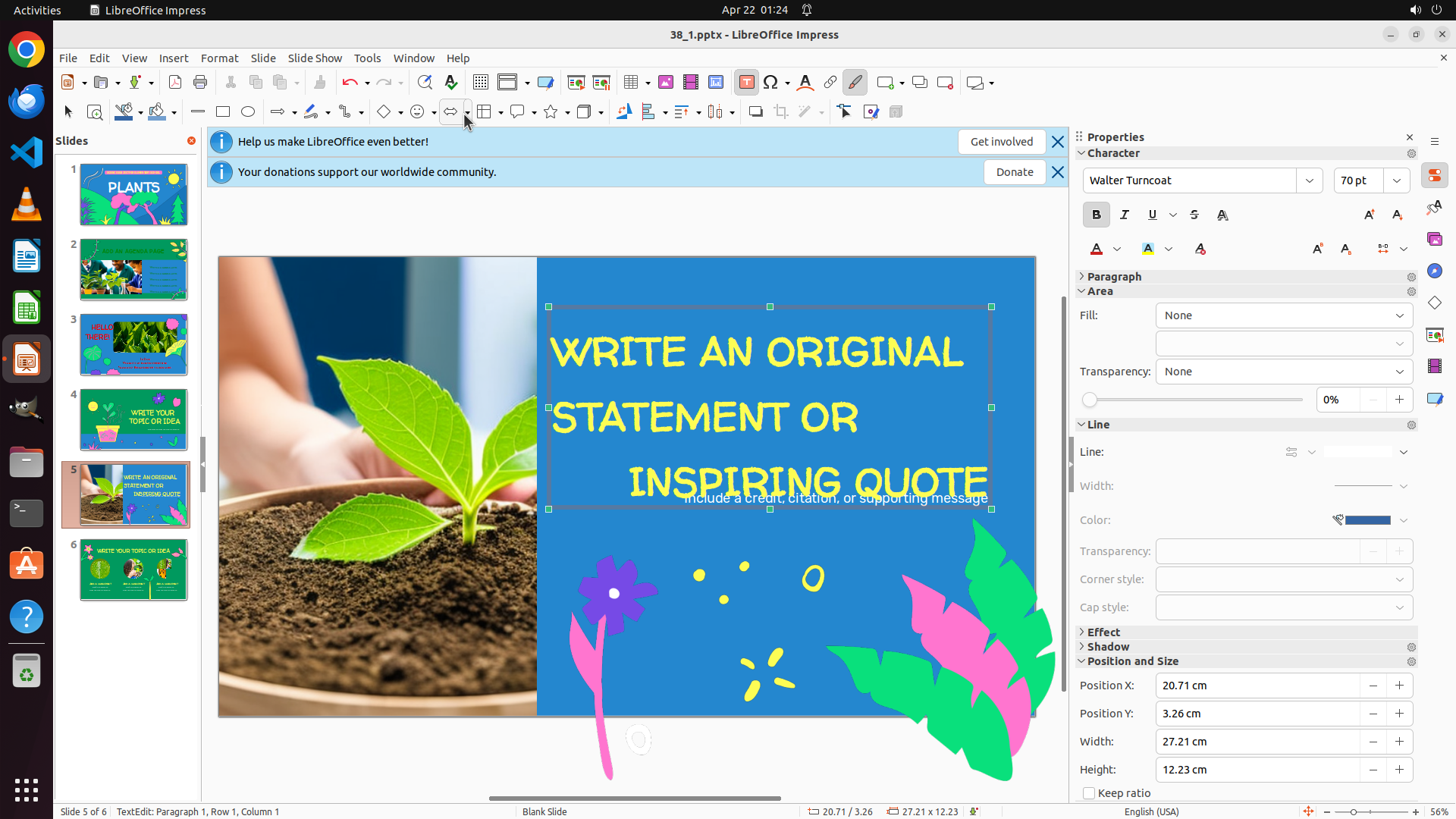
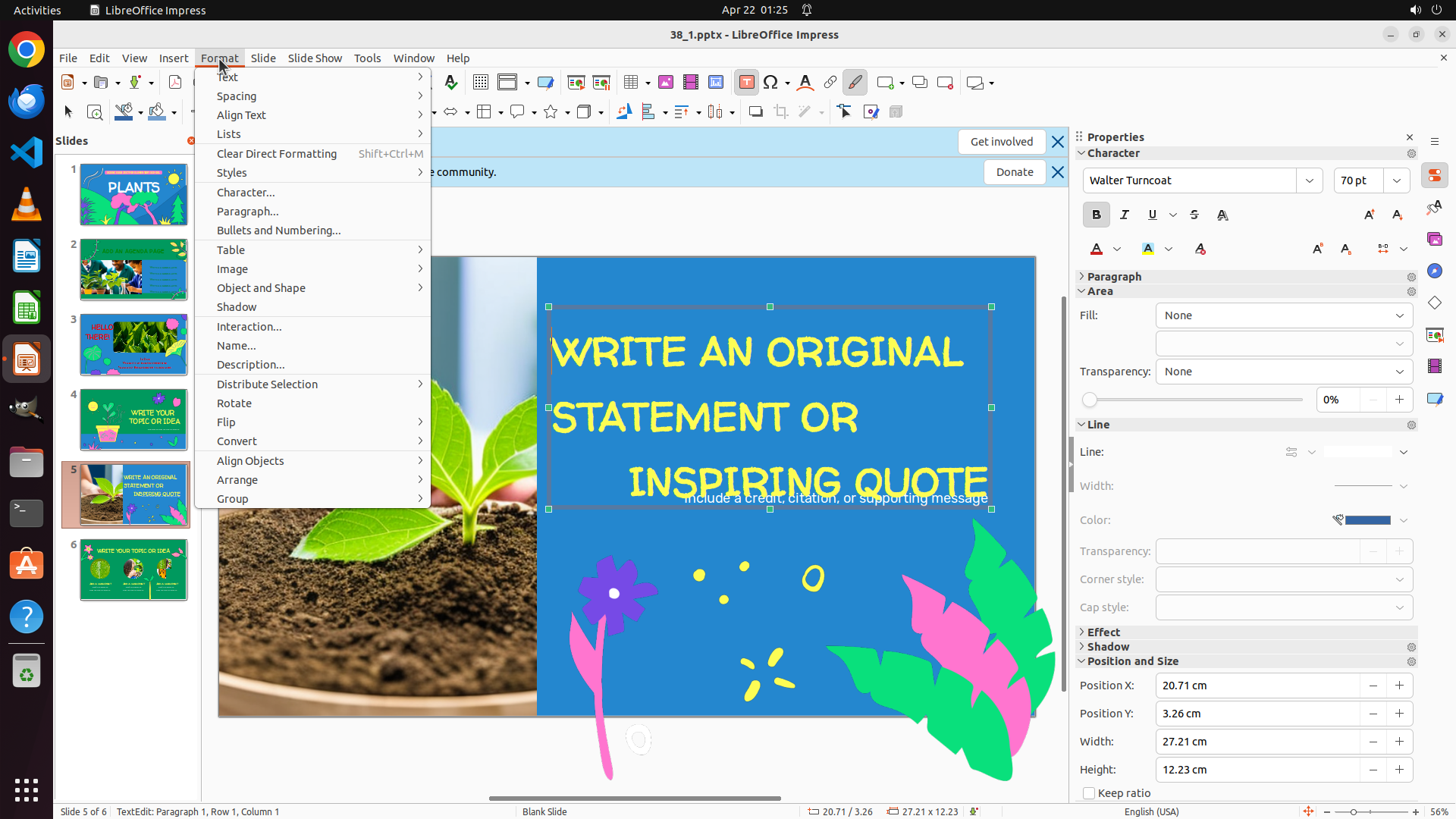
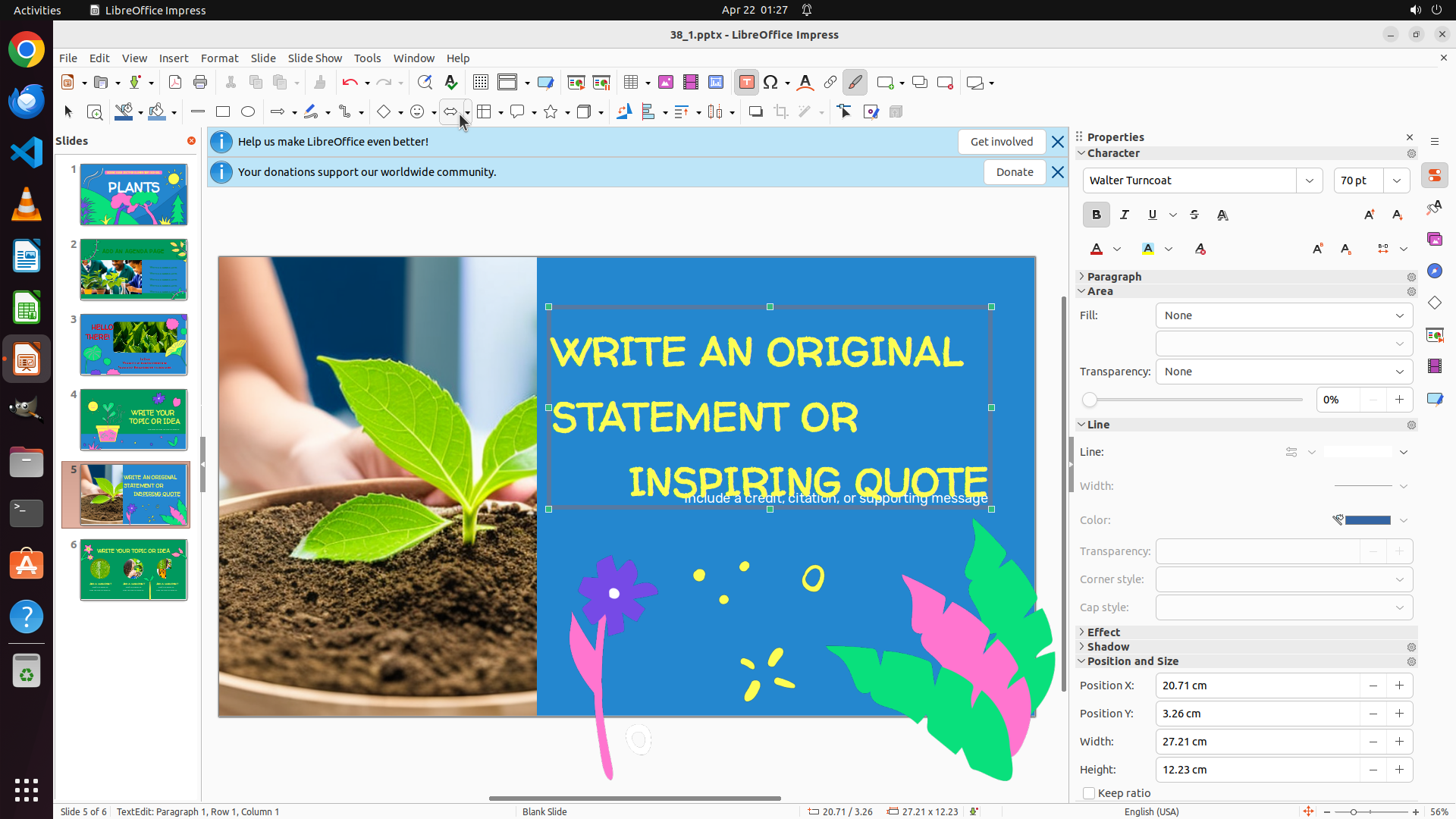
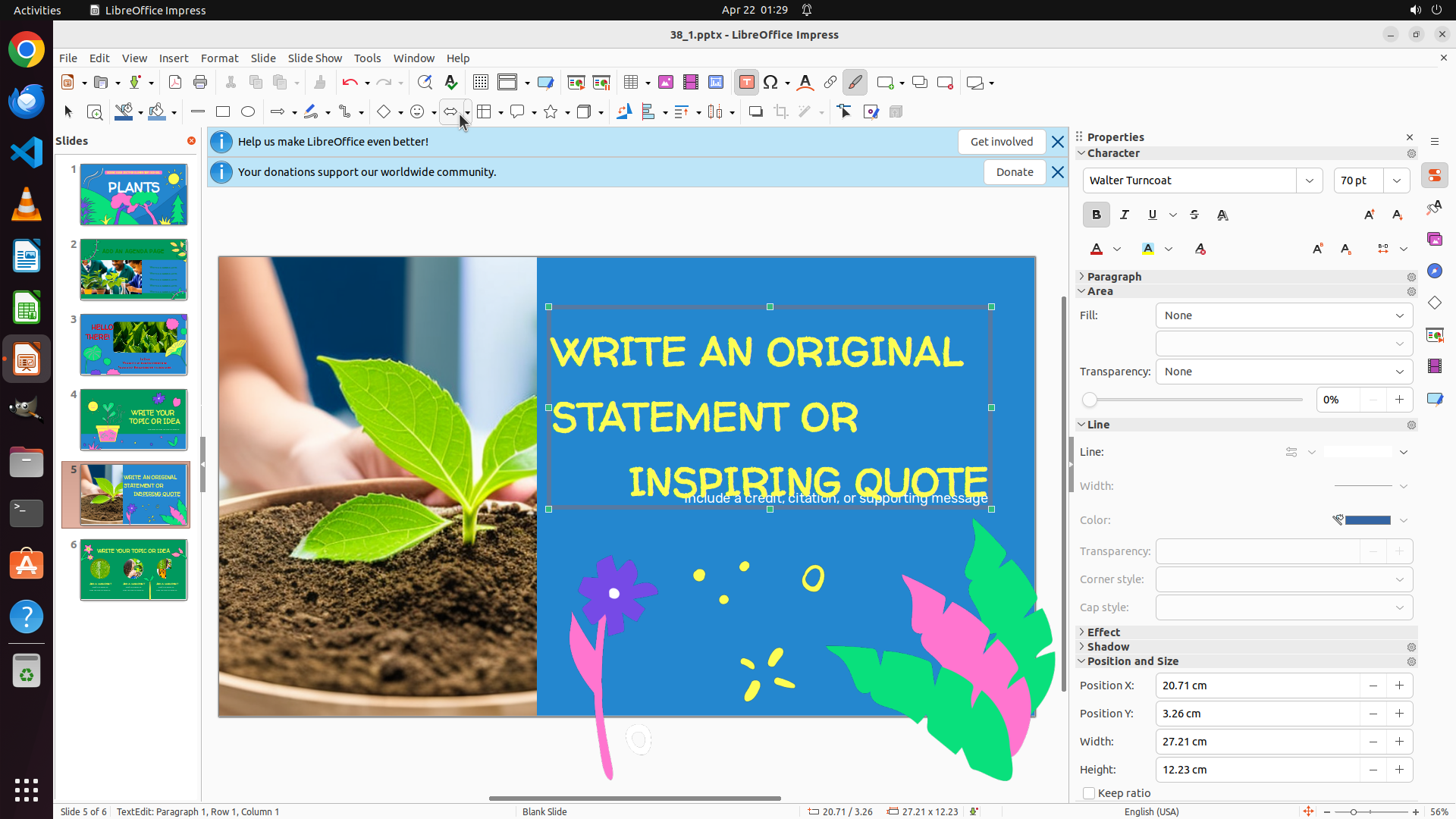
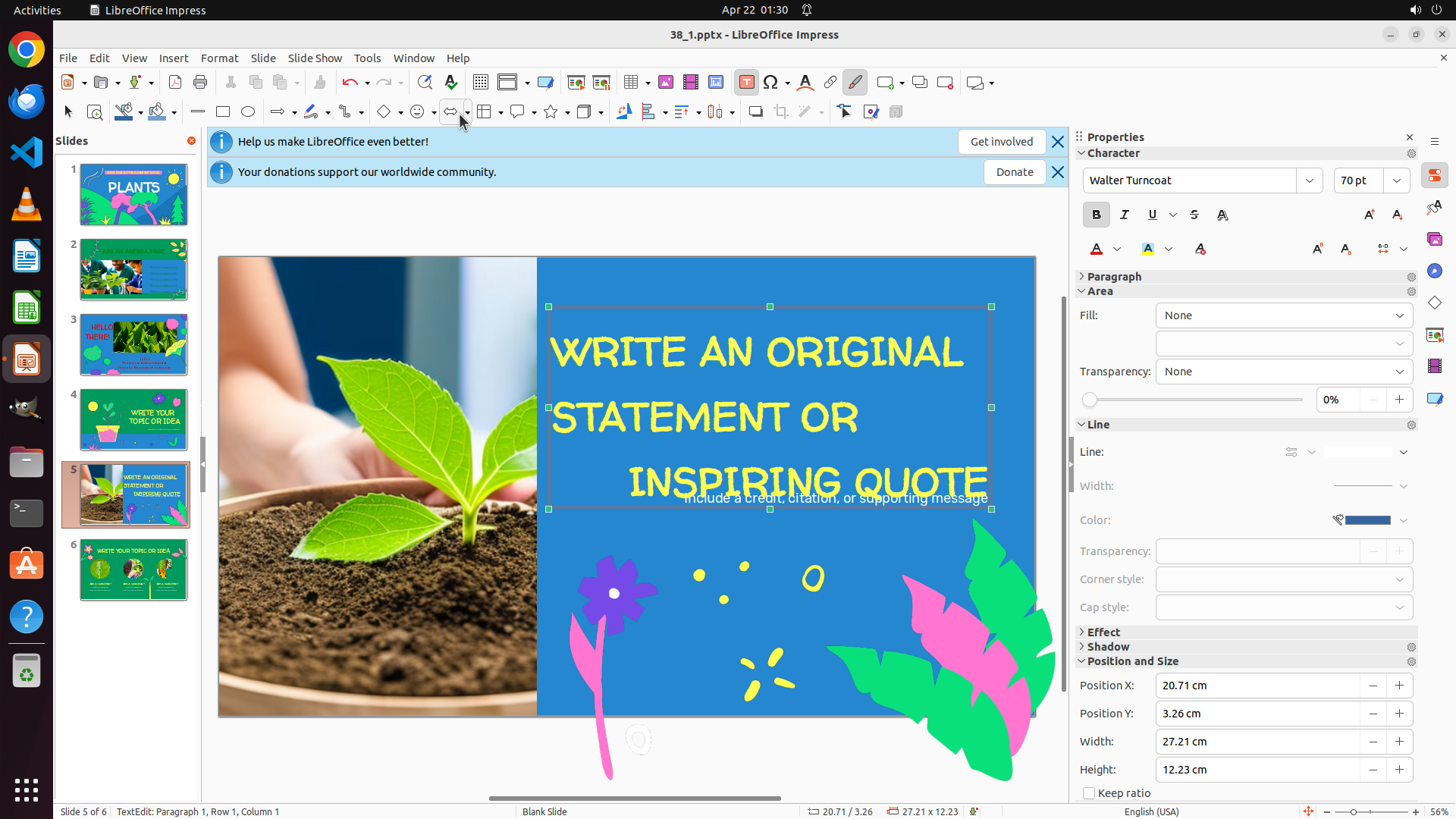
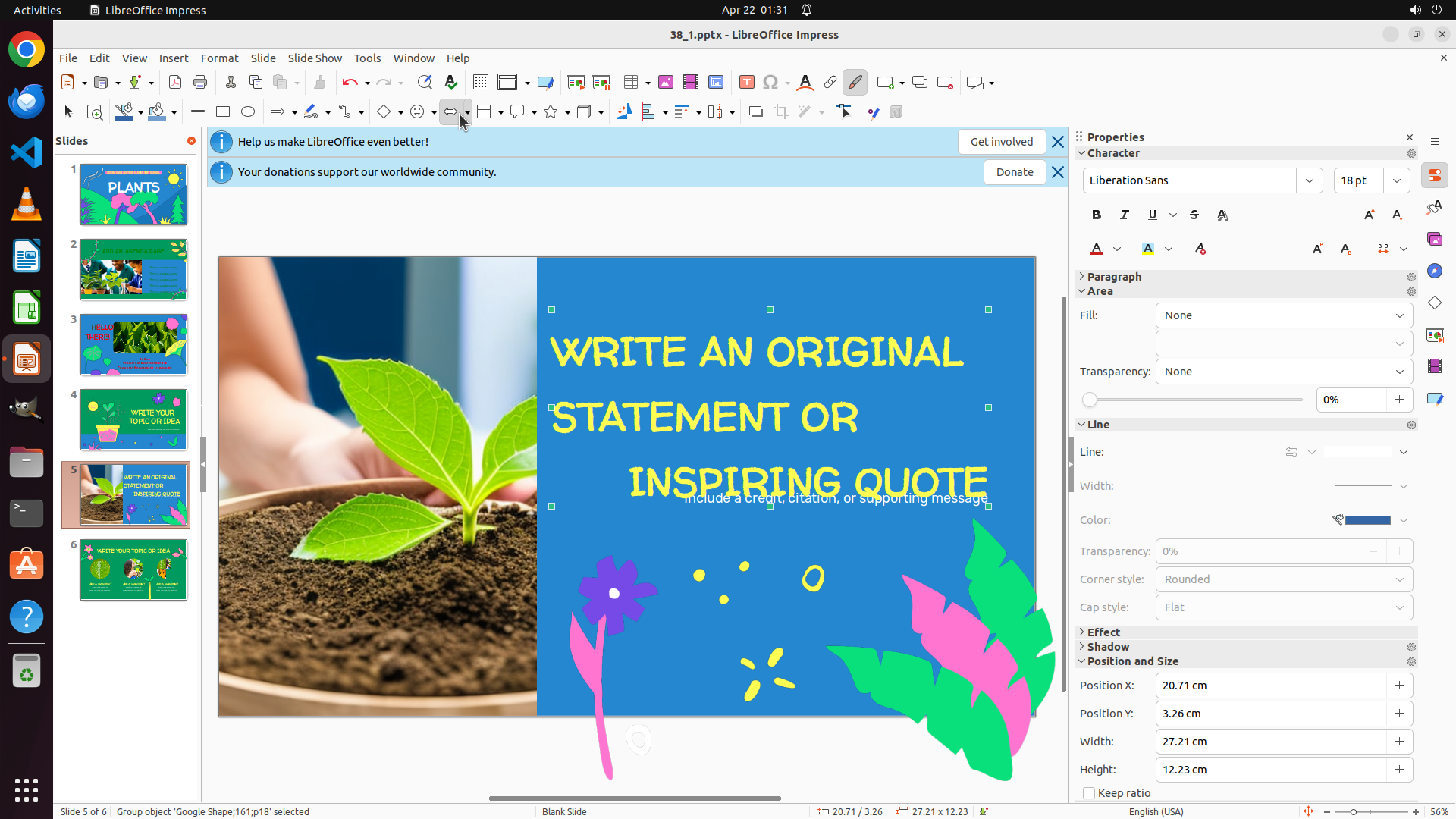
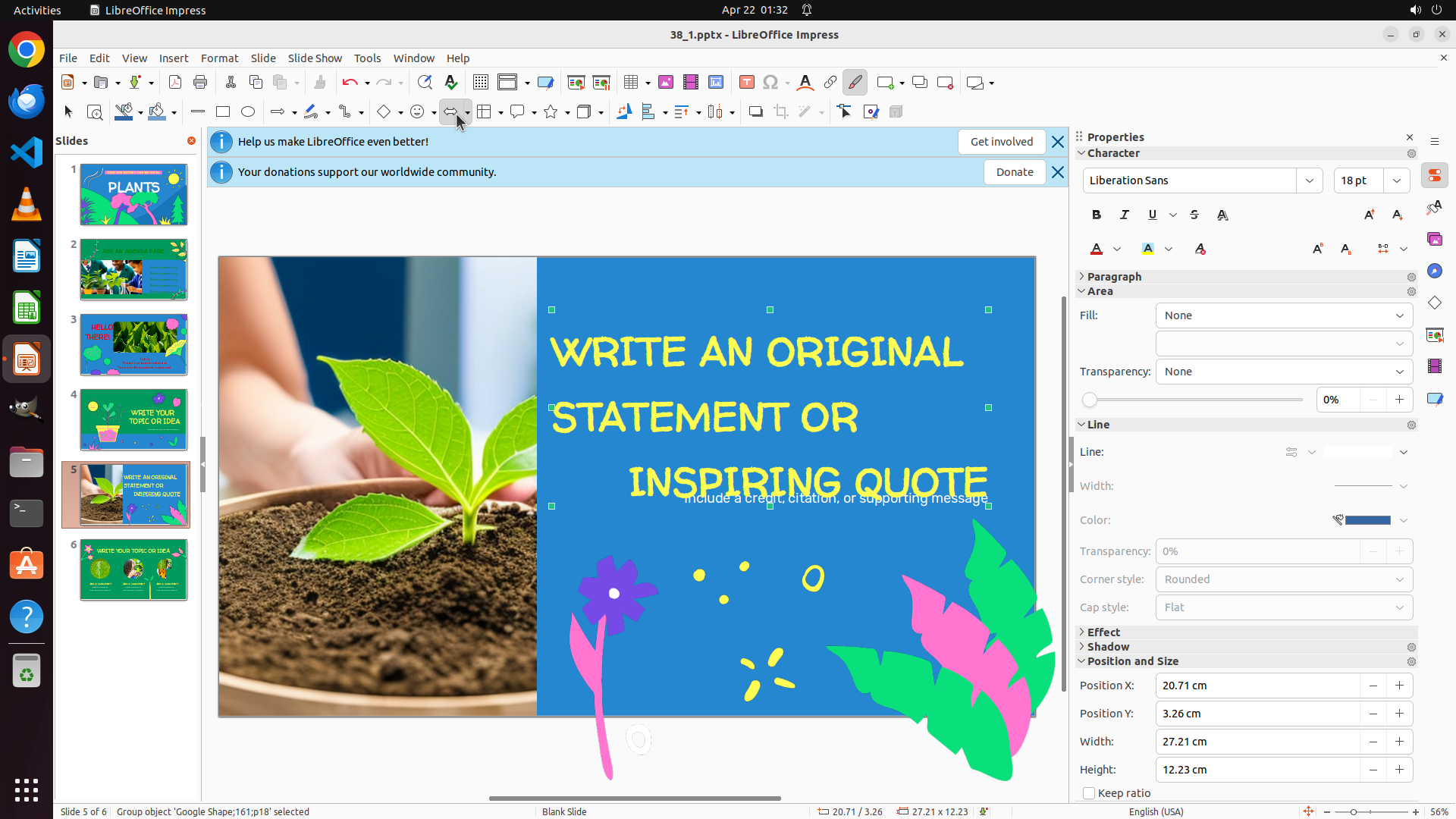
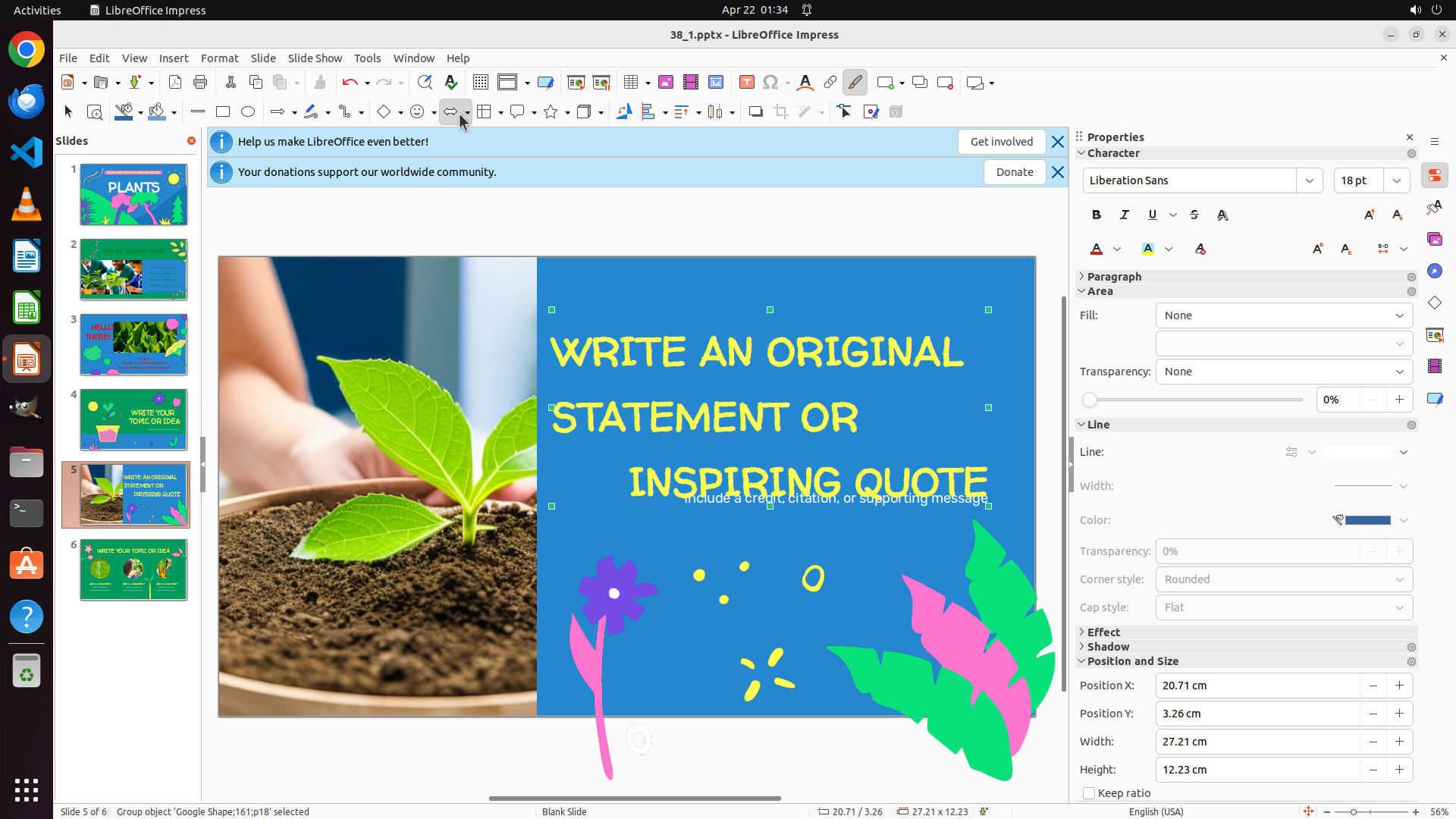
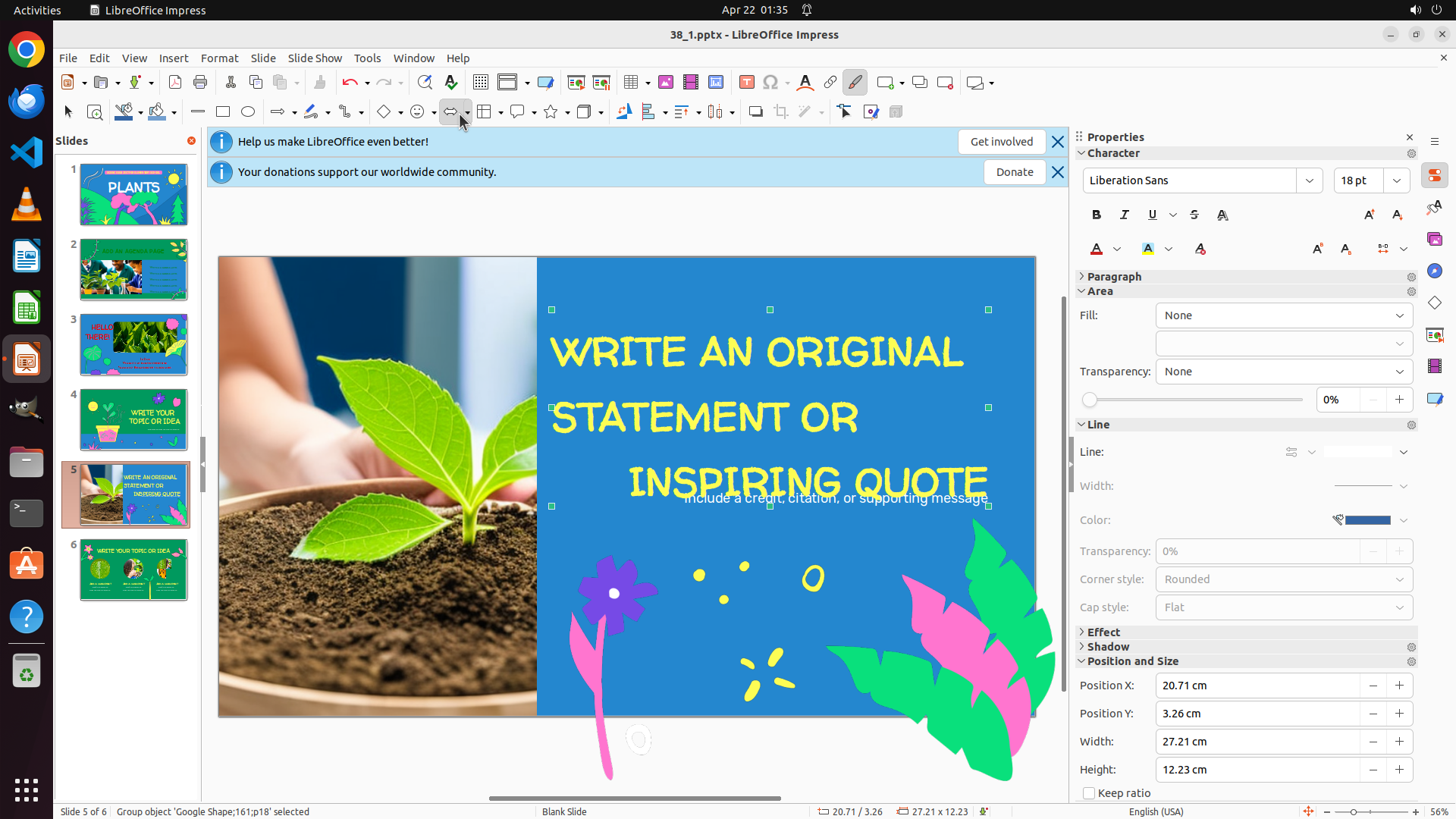
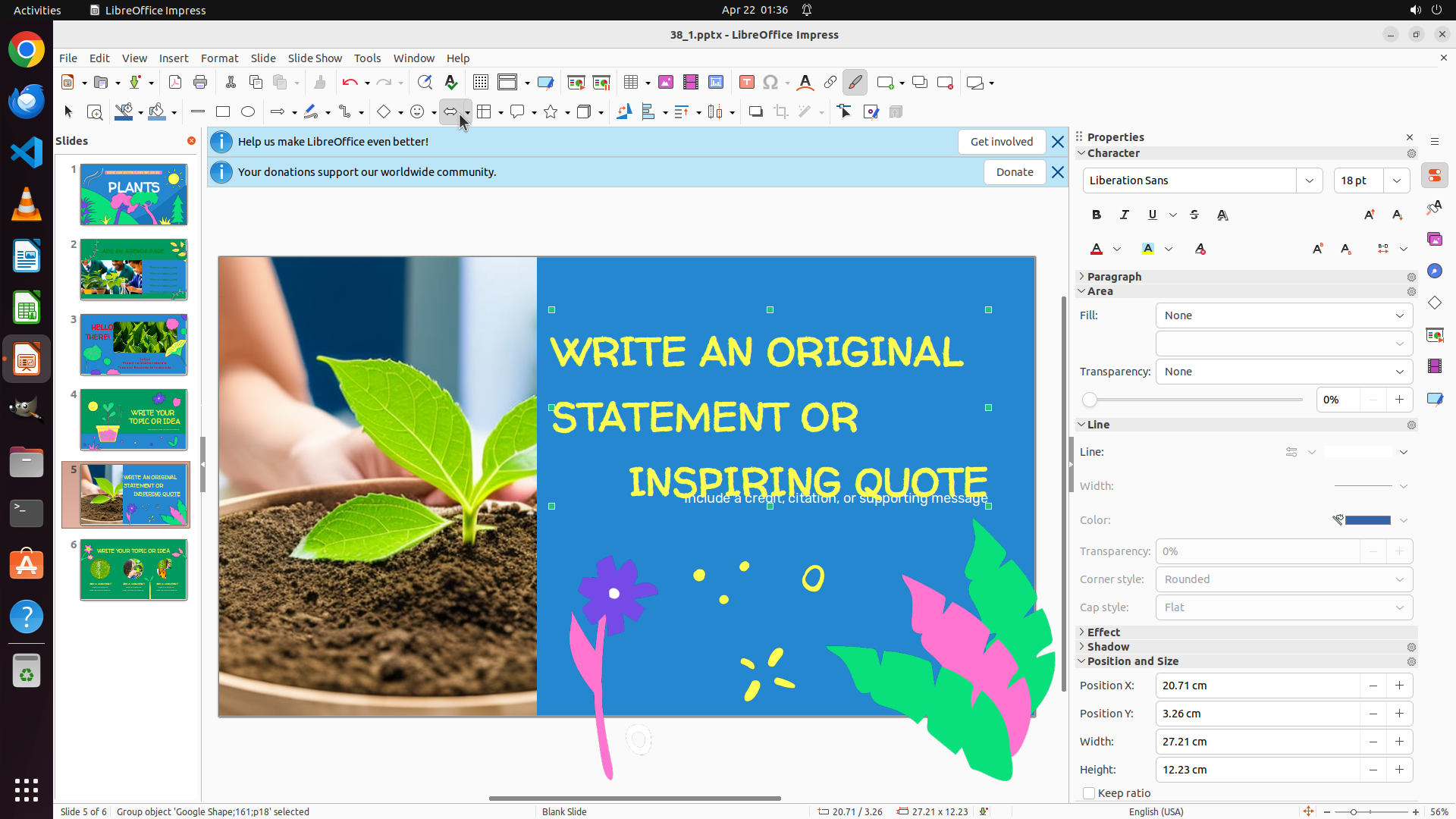
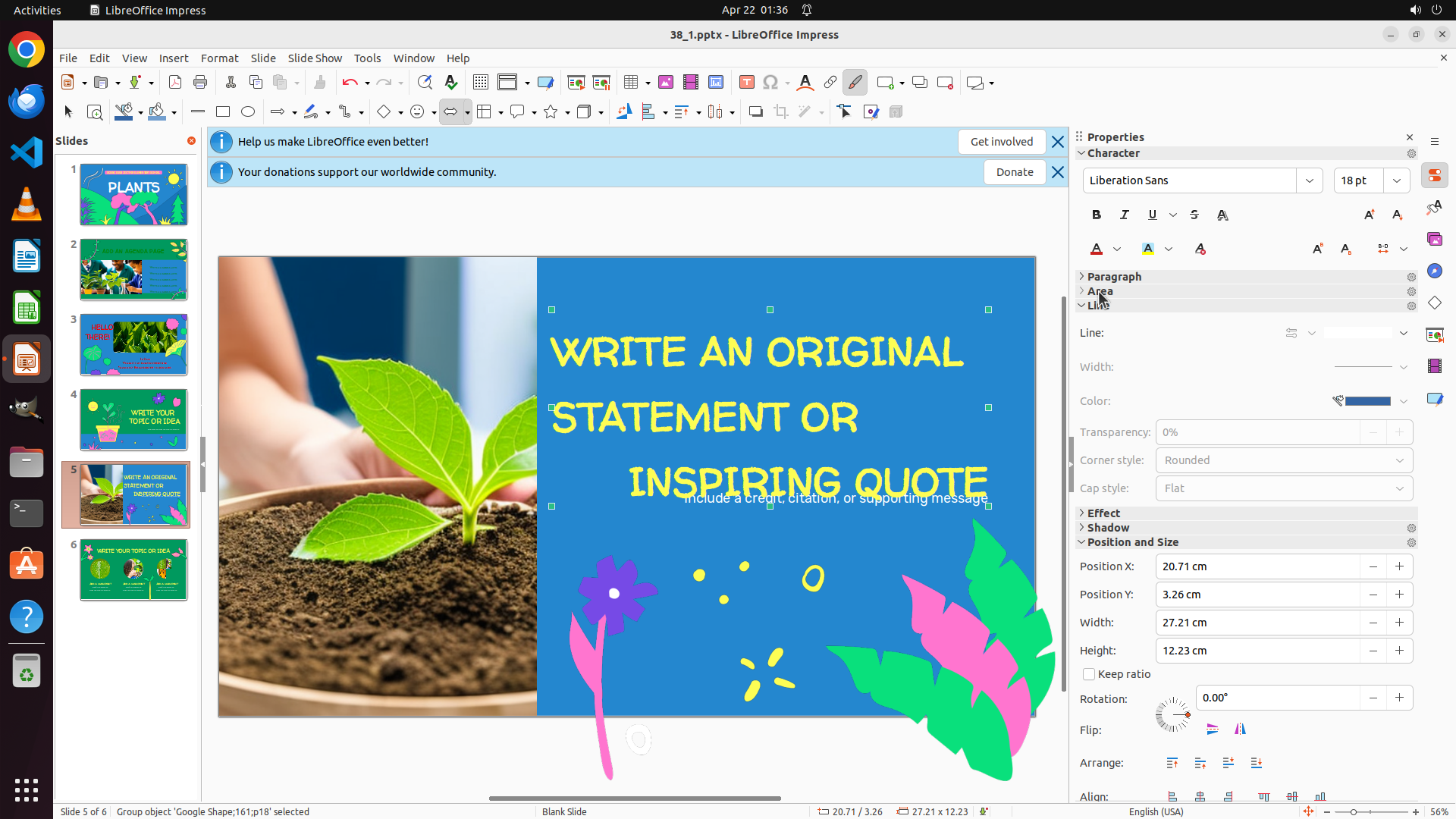
- The text "WRITE AN ORIGINAL STATEMENT OR INSPIRING QUOTE" is visible in yellow on a blue background
- The text appears to be center-aligned currently
- Need to select the first textbox and apply left alignment (Ctrl+L)
- This is the final step of the task
#### 情况分析与思考过程
I'm now on slide 5, which is the last slide I need to modify. I can see the text "WRITE AN ORIGINAL STATEMENT OR INSPIRING QUOTE" which is the first textbox on this slide. The text appears to be center-aligned currently, and I need to align it to the left.
My plan:
1. Click on the text to select the textbox
2. Apply left alignment using Ctrl+L
3. After that, the task will be complete (slide 3: right-aligned, slide 4: center-aligned, slide 5: left-aligned)
Let me click on the text to select it first. I'll click on the "WRITE AN ORIGINAL" portion of the text.
```
Step 15: HOTKEY
```
#### 重要信息
- Successfully navigated to slide 5 as shown at the bottom "Slide 5 of 6"
- The text "WRITE AN ORIGINAL STATEMENT OR INSPIRING QUOTE" is visible in yellow on a blue background
- The textbox is now selected (selection handles visible around it)
- The text appears to be center-aligned currently
- Need to apply left alignment using Ctrl+L to complete the task
#### 情况分析与思考过程
The textbox on slide 5 is successfully selected. Now I need to apply left alignment to complete the final requirement of the task. I can use:
1. The left-align button in the toolbar
2. Format menu > Align > Left
3. Keyboard shortcut Ctrl+L (most efficient)
Using Ctrl+L is the quickest and most reliable method. After applying left alignment, all three slides will have the correct alignment:
- Slide 3: Right-aligned ✓
- Slide 4: Center-aligned ✓
- Slide 5: Left-aligned (about to complete)
Let me apply left alignment now using Ctrl+L.
```
Step 16: CLICK (1037, 525)
```
#### 重要信息
- Currently on slide 5 as shown at the bottom "Slide 5 of 6"
- The text "WRITE AN ORIGINAL STATEMENT OR INSPIRING QUOTE" is visible in yellow on a blue background
- The textbox appears to be selected (selection handles visible)
- The text still appears to be center-aligned after the previous Ctrl+L command
- The previous Ctrl+L might not have been applied correctly
#### 情况分析与思考过程
The previous Ctrl+L command didn't seem to change the alignment - the text still appears centered. This could be because:
1. The text wasn't properly focused/selected within the textbox
2. The command didn't register properly
I need to ensure the text is properly selected before applying alignment. Let me try triple-clicking on the text to select all the text content within the textbox, then apply left alignment with Ctrl+L. Triple-clicking will ensure all the text in the textbox is selected, which should make the alignment command work properly.
After this, all three slides should have the correct alignment:
- Slide 3: Right-aligned ✓
- Slide 4: Center-aligned ✓
- Slide 5: Left-aligned (about to complete)
```
Step 16: HOTKEY
```
#### 重要信息
- Currently on slide 5 as shown at the bottom "Slide 5 of 6"
- The text "WRITE AN ORIGINAL STATEMENT OR INSPIRING QUOTE" is visible in yellow on a blue background
- The textbox appears to be selected (selection handles visible)
- The text still appears to be center-aligned after the previous Ctrl+L command
- The previous Ctrl+L might not have been applied correctly
#### 情况分析与思考过程
The previous Ctrl+L command didn't seem to change the alignment - the text still appears centered. This could be because:
1. The text wasn't properly focused/selected within the textbox
2. The command didn't register properly
I need to ensure the text is properly selected before applying alignment. Let me try triple-clicking on the text to select all the text content within the textbox, then apply left alignment with Ctrl+L. Triple-clicking will ensure all the text in the textbox is selected, which should make the alignment command work properly.
After this, all three slides should have the correct alignment:
- Slide 3: Right-aligned ✓
- Slide 4: Center-aligned ✓
- Slide 5: Left-aligned (about to complete)
```
Step 17: CLICK (449, 825)
```
#### 重要信息
- Currently on slide 5 as shown at the bottom "Slide 5 of 6"
- The text "WRITE AN ORIGINAL STATEMENT OR INSPIRING QUOTE" is visible in yellow on a blue background
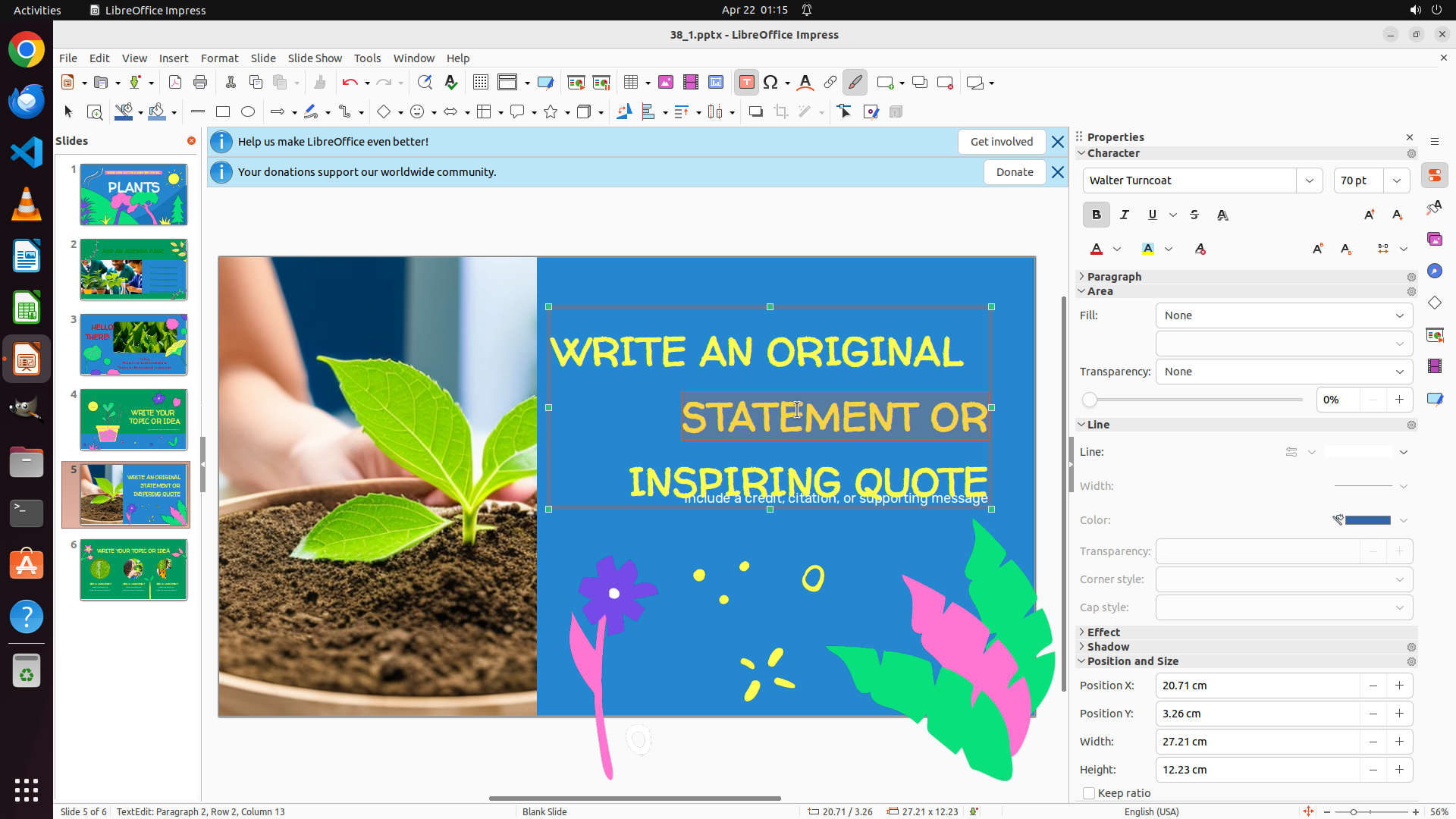
- Part of the text ("STATEMENT OR") appears to be selected/highlighted
- The text still appears to be center-aligned, not left-aligned
- The previous Ctrl+L command didn't change the alignment as expected
#### 情况分析与思考过程
The previous triple-click and Ctrl+L didn't successfully apply left alignment. The text still appears centered. This could be because:
1. Only part of the text was selected, not the entire textbox
2. The keyboard shortcut didn't register properly
I need to try a different approach. Let me:
1. First click outside the textbox to deselect it completely
2. Then click on the textbox border/edge to select the entire textbox object (not just the text inside)
3. Then apply left alignment using Ctrl+L
Let me start by clicking outside the textbox to deselect it.
```
Step 18: CLICK (716, 525)
```
#### 重要信息
- Currently on slide 5 as shown at the bottom "Slide 5 of 6"
- The text "WRITE AN ORIGINAL STATEMENT OR INSPIRING QUOTE" is visible in yellow on a blue background
- The textbox is now deselected (clicked outside in previous step)
- The text still appears to be center-aligned
- I need to select the textbox object (not just the text inside) to apply alignment properly
#### 情况分析与思考过程
The previous attempts to apply left alignment didn't work because I was selecting the text inside the textbox rather than the textbox object itself. In LibreOffice Impress, to apply alignment to the entire textbox, I need to:
1. Click on the border/edge of the textbox to select the textbox object (not just the text inside)
2. Then apply left alignment using Ctrl+L
When the textbox object is selected (not in text editing mode), the alignment will apply to the entire textbox. I should click on the edge/border of the textbox to select it as an object. Looking at the slide, the textbox is on the right side with the yellow text. I'll click on the left edge of the textbox to select the entire object.
```
Step 19: CLICK (716, 525)
```
#### 重要信息
- Currently on slide 5 as shown at the bottom "Slide 5 of 6"
- The text "WRITE AN ORIGINAL STATEMENT OR INSPIRING QUOTE" is visible in yellow on a blue background
- The textbox is now deselected (clicked outside in previous step)
- The text still appears to be center-aligned
- I need to select the textbox object (not just the text inside) to apply alignment properly
#### 情况分析与思考过程
The previous attempts to apply left alignment didn't work because I was selecting the text inside the textbox rather than the textbox object itself. In LibreOffice Impress, to apply alignment to the entire textbox, I need to:
1. Click on the border/edge of the textbox to select the textbox object (not just the text inside)
2. Then apply left alignment using Ctrl+L
When the textbox object is selected (not in text editing mode), the alignment will apply to the entire textbox. I should click on the edge/border of the textbox to select it as an object. Looking at the slide, the textbox is on the right side with the yellow text. I'll click on the left edge of the textbox to select the entire object.
```
Step 20: CLICK (718, 457)
```
#### 重要信息
- Currently on slide 5 as shown at the bottom "Slide 5 of 6"
- The text "WRITE AN ORIGINAL STATEMENT OR INSPIRING QUOTE" is visible in yellow on a blue background
- The text still appears to be center-aligned
- The previous click at (0.373, 0.486) may not have properly selected the textbox object
- I need to properly select the textbox border/edge to apply alignment
#### 情况分析与思考过程
The previous attempts haven't successfully applied left alignment to the textbox on slide 5. The issue is that I need to select the textbox as an object (not enter text editing mode) before applying alignment.
Looking at the current screenshot, I can see the yellow text is still center-aligned. I need to:
1. Click on the edge/border of the textbox to select it as an object (this will show green selection handles around the entire textbox)
2. Then apply left alignment using Ctrl+L
When a textbox object is properly selected (not in text editing mode), I should see green selection handles around the entire textbox border. Then the alignment command will apply to the entire textbox.
Let me try clicking on the edge of the textbox. I'll click on the left side edge of where the textbox would be, around the "W" in "WRITE" but on the border edge rather than inside the text.
```
Step 21: CLICK (722, 450)
```
#### 重要信息
- Currently on slide 5 as shown at the bottom "Slide 5 of 6"
- The text "WRITE AN ORIGINAL STATEMENT OR INSPIRING QUOTE" is visible in yellow on a blue background
- The text still appears to be center-aligned
- The previous click didn't seem to select the textbox object properly
- I need to click on the border/edge of the textbox to select it as an object
#### 情况分析与思考过程
The previous attempts haven't successfully applied left alignment to the textbox on slide 5. The issue is that I need to select the textbox as an object (not enter text editing mode) before applying alignment.
Looking at the current screenshot, I can see the yellow text is still center-aligned. I need to:
1. Click on the edge/border of the textbox to select it as an object (this will show green selection handles around the entire textbox)
2. Then apply left alignment using Ctrl+L
When a textbox object is properly selected (not in text editing mode), I should see green selection handles around the entire textbox border. Then the alignment command will apply to the entire textbox.
Let me try clicking on the edge of the textbox. I'll click on the left side edge of where the textbox would be, around the "W" in "WRITE" but on the border edge rather than inside the text.
```
Step 22: CLICK (728, 450)
```
#### 重要信息
- Currently on slide 5 as shown at the bottom "Slide 5 of 6"
- The text "WRITE AN ORIGINAL STATEMENT OR INSPIRING QUOTE" is visible in yellow on a blue background
- The text still appears to be center-aligned
- No visible selection handles around the textbox from the previous click
- The previous click at (0.374, 0.423) didn't successfully select the textbox object
- I need to click precisely on the textbox border/edge to select it as an object
#### 情况分析与思考过程
The previous attempts haven't successfully selected the textbox as an object. The text is still center-aligned and I don't see green selection handles around the textbox border.
In LibreOffice Impress, to apply alignment to a textbox, I need to:
1. Click on the border/edge of the textbox to select the textbox object (not enter text editing mode)
2. Then apply left alignment using Ctrl+L
When properly selected as an object, I should see green selection handles around the entire textbox border. The key is to click on the actual border line of the textbox, not inside the text area.
Looking at the slide, the textbox with "WRITE AN ORIGINAL STATEMENT OR INSPIRING QUOTE" is positioned on the right side. I need to click on the border/edge of this textbox. Let me try clicking on the left edge of the textbox, near where the text begins but on the border line itself.
I'll try clicking at a position that should be on the left border of the textbox.
```
Step 23: HOTKEY
```
#### 重要信息
- Currently on slide 5 as shown at the bottom "Slide 5 of 6"
- The text "WRITE AN ORIGINAL STATEMENT OR INSPIRING QUOTE" is visible in yellow on a blue background
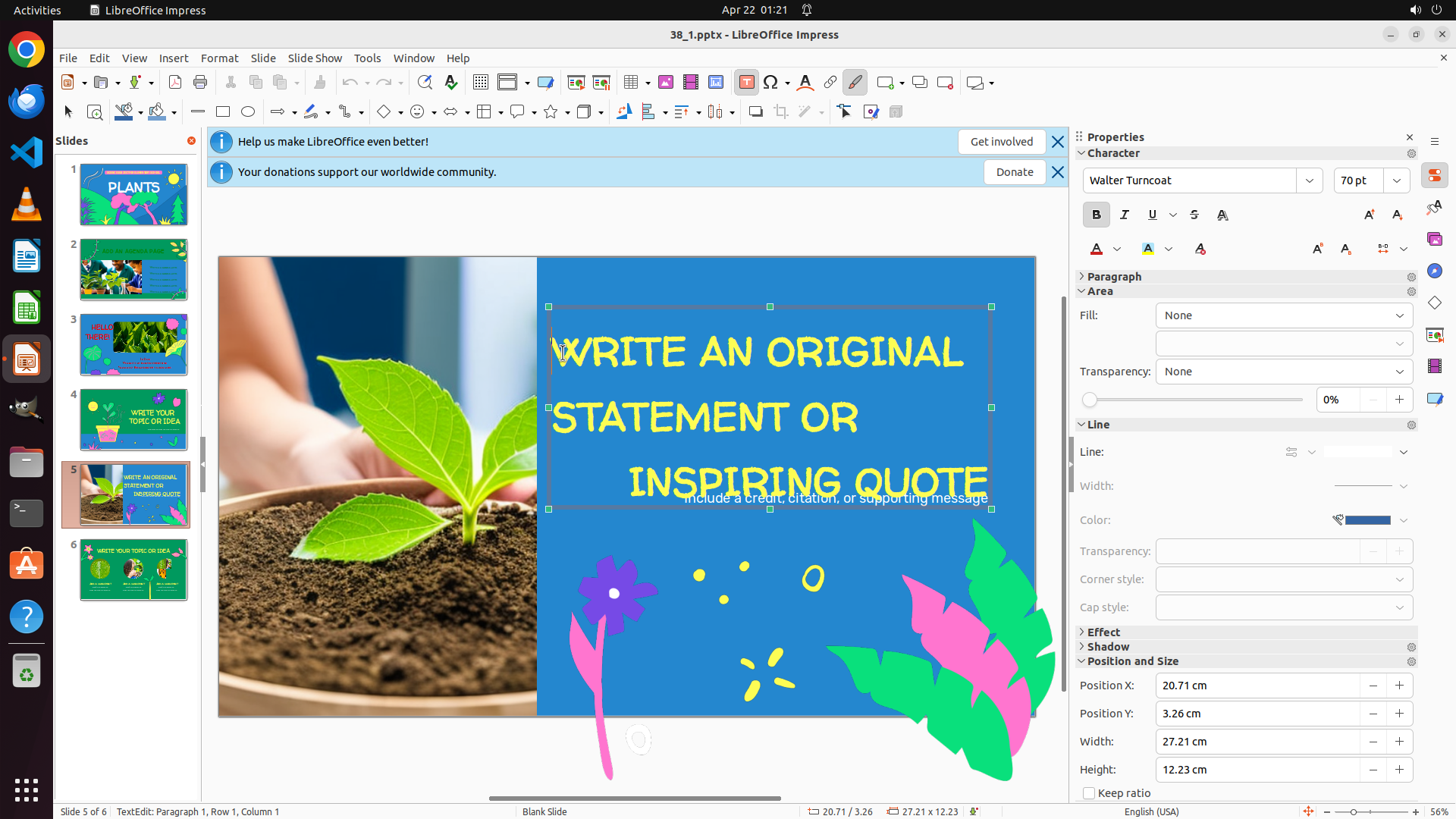
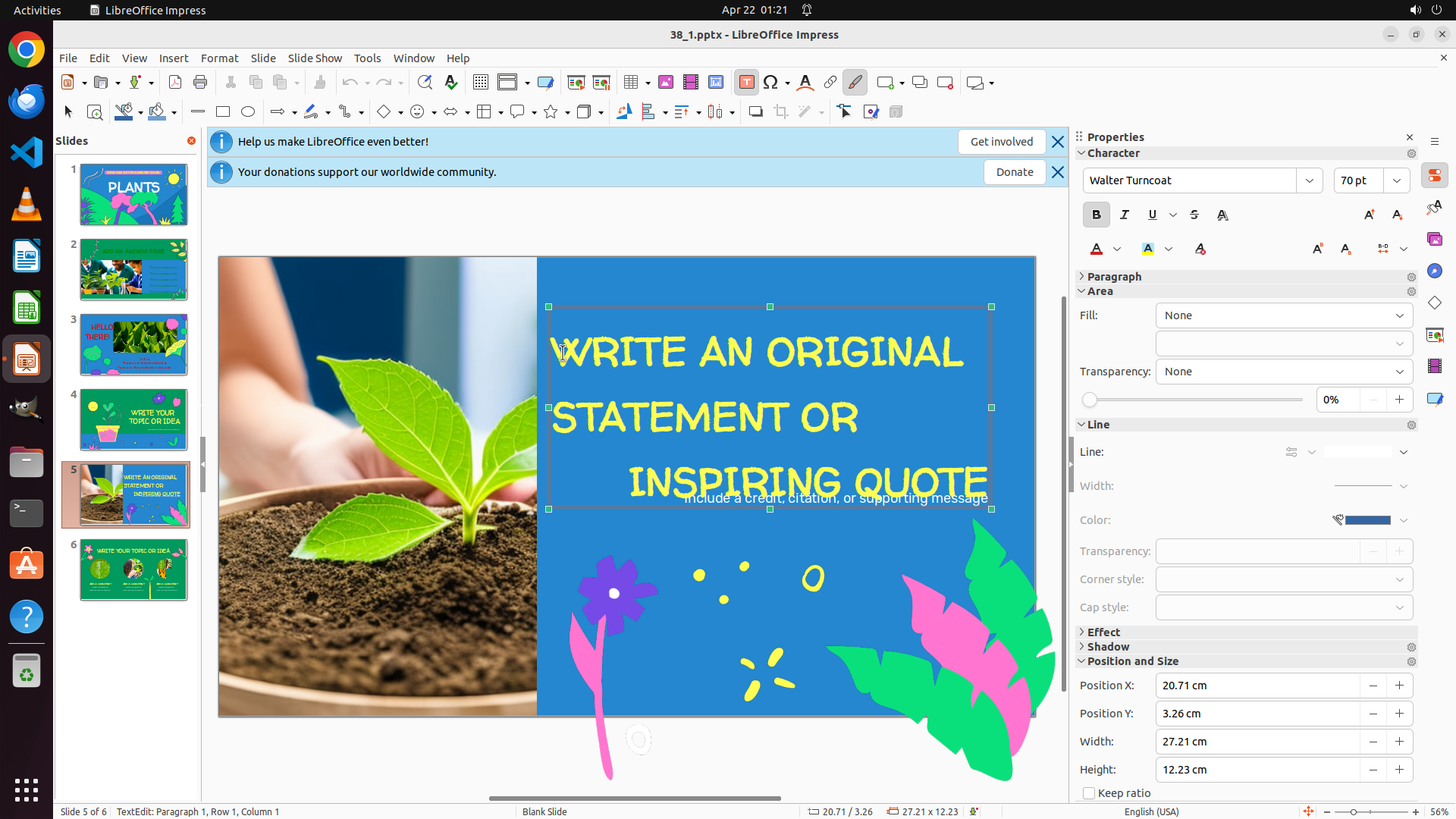
- The textbox is now selected as an object (green selection handles visible around the entire textbox border)
- The text still appears to be center-aligned
- The Properties panel on the right shows Paragraph formatting options
- Now I need to apply left alignment to complete the task
#### 情况分析与思考过程
The previous click at (0.379, 0.417) successfully selected the textbox as an object - I can see the green selection handles around the entire textbox border. This is exactly what I needed.
Now that the textbox object is properly selected (not just the text inside), I can apply left alignment using Ctrl+L. This should align the entire textbox content to the left.
After applying left alignment:
- Slide 3: "HELLO THERE!" - Right-aligned ✓
- Slide 4: "WRITE YOUR TOPIC OR IDEA" - Center-aligned ✓
- Slide 5: "WRITE AN ORIGINAL STATEMENT OR INSPIRING QUOTE" - Left-aligned (about to complete)
Let me apply left alignment now using Ctrl+L.
```
Step 24: HOTKEY
```
#### 重要信息
- Currently on slide 5 as shown at the bottom "Slide 5 of 6"
- The text "WRITE AN ORIGINAL STATEMENT OR INSPIRING QUOTE" is visible in yellow on a blue background
- The textbox is selected as an object (green selection handles visible around the entire textbox border)
- The text still appears to be center-aligned after the previous Ctrl+L command
- The Properties panel on the right shows Paragraph formatting options
- Need to verify if left alignment was applied or try again
#### 情况分析与思考过程
The previous Ctrl+L command was executed, but the text still appears to be center-aligned. This could mean:
1. The alignment command didn't register properly
2. The textbox needs to be in a different selection state
3. I need to try the alignment command again
Looking at the current state:
- The textbox object is properly selected (green handles visible)
- The Properties panel shows Paragraph options
- The text "WRITE AN ORIGINAL STATEMENT OR INSPIRING QUOTE" still appears centered
Since the textbox is properly selected as an object, I should try applying left alignment again using Ctrl+L. This is the most direct way to align the text to the left. If this doesn't work, I may need to try using the alignment buttons in the toolbar or the Format menu.
Let me apply left alignment again using Ctrl+L.
```
Step 25: CLICK (284, 72)
```
#### 重要信息
- Currently on slide 5 as shown at the bottom "Slide 5 of 6"
- The text "WRITE AN ORIGINAL STATEMENT OR INSPIRING QUOTE" is visible in yellow on a blue background
- The textbox is selected as an object (green selection handles visible around the entire textbox border)
- The text still appears to be center-aligned after multiple Ctrl+L attempts
- The Properties panel on the right shows Paragraph formatting options
- Need to try a different approach to apply left alignment
#### 情况分析与思考过程
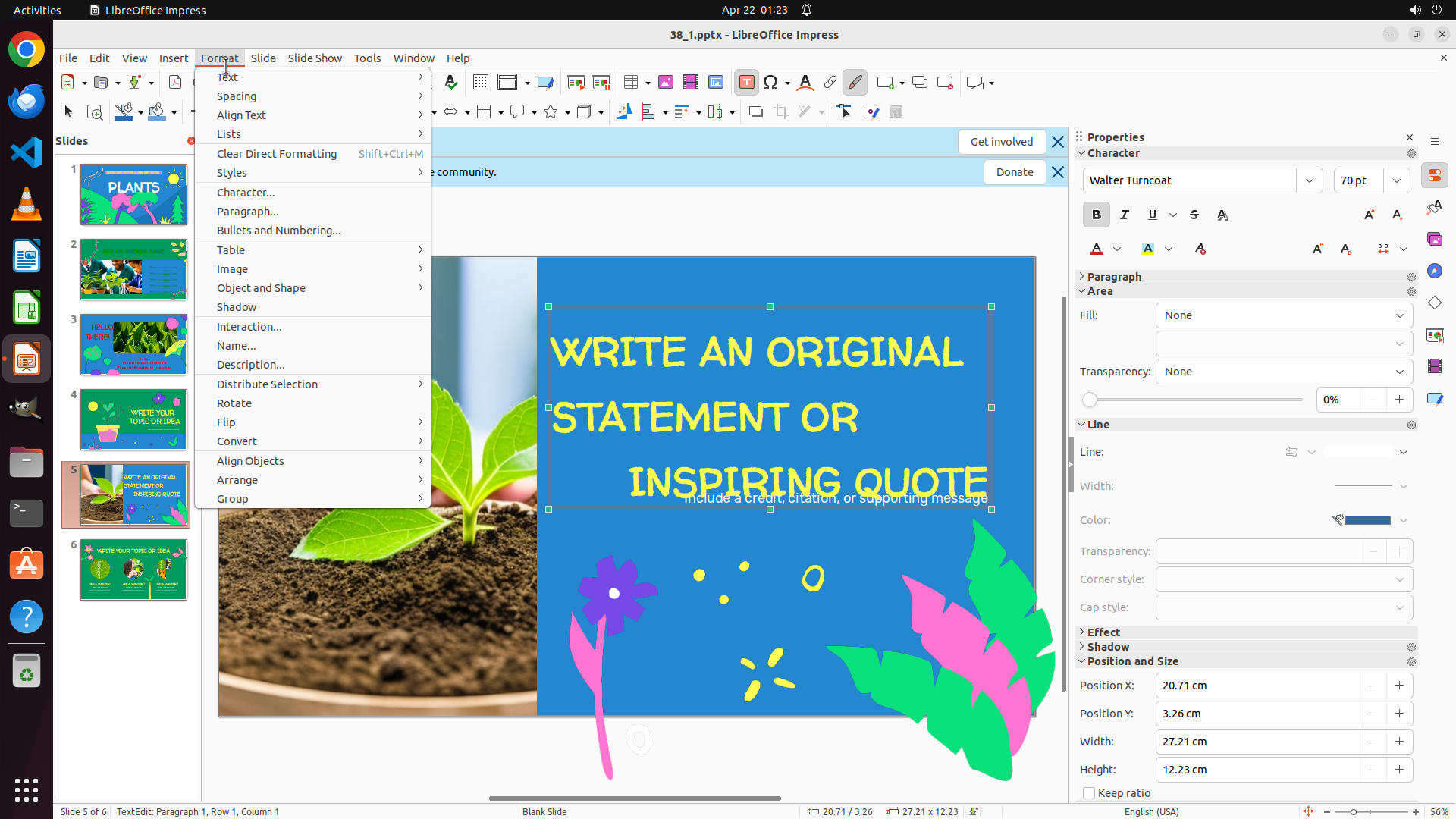
The previous Ctrl+L commands haven't successfully changed the alignment from center to left. Since the keyboard shortcut isn't working, I should try using the Format menu to access the alignment options.
My plan:
1. Click on the Format menu in the menu bar
2. Select Align or Paragraph options
3. Choose Left alignment
4. This should apply left alignment to the selected textbox
Alternatively, I could look for alignment buttons in the Properties panel on the right side, but using the Format menu is more reliable and explicit.
Let me click on the Format menu to access alignment options.
```
Step 26: CLICK (319, 150)
```
#### 重要信息
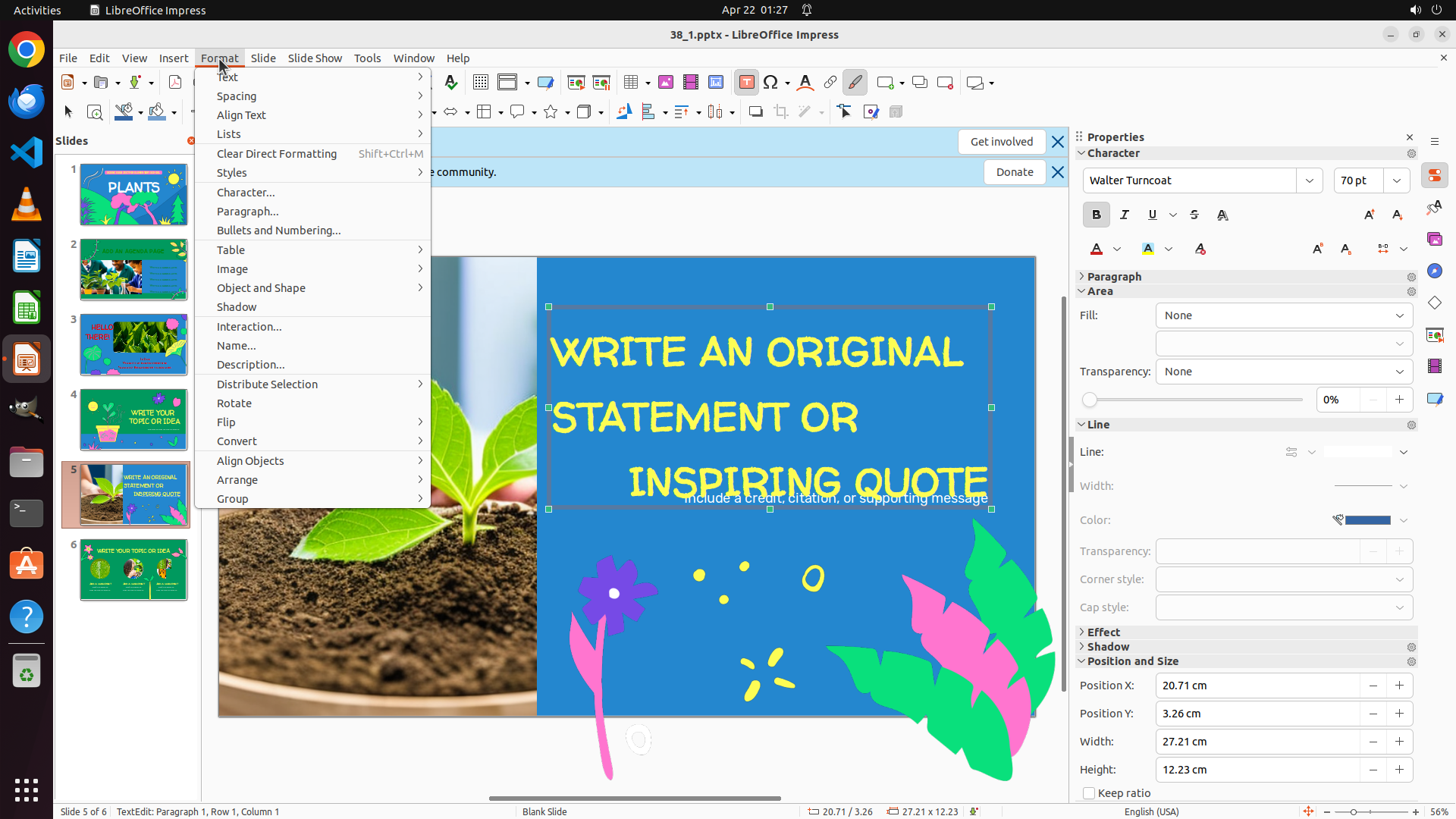
- The Format menu is now open
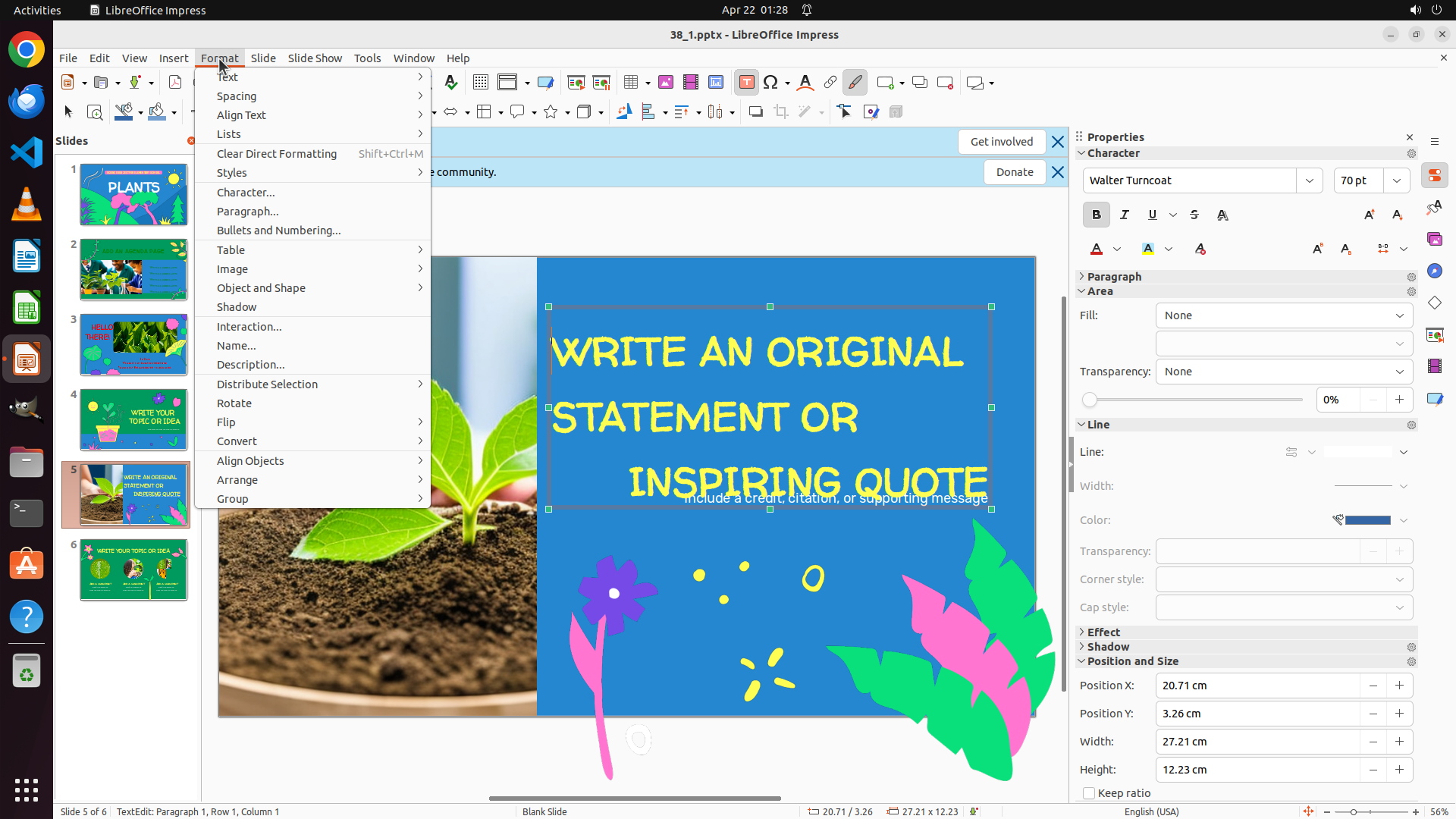
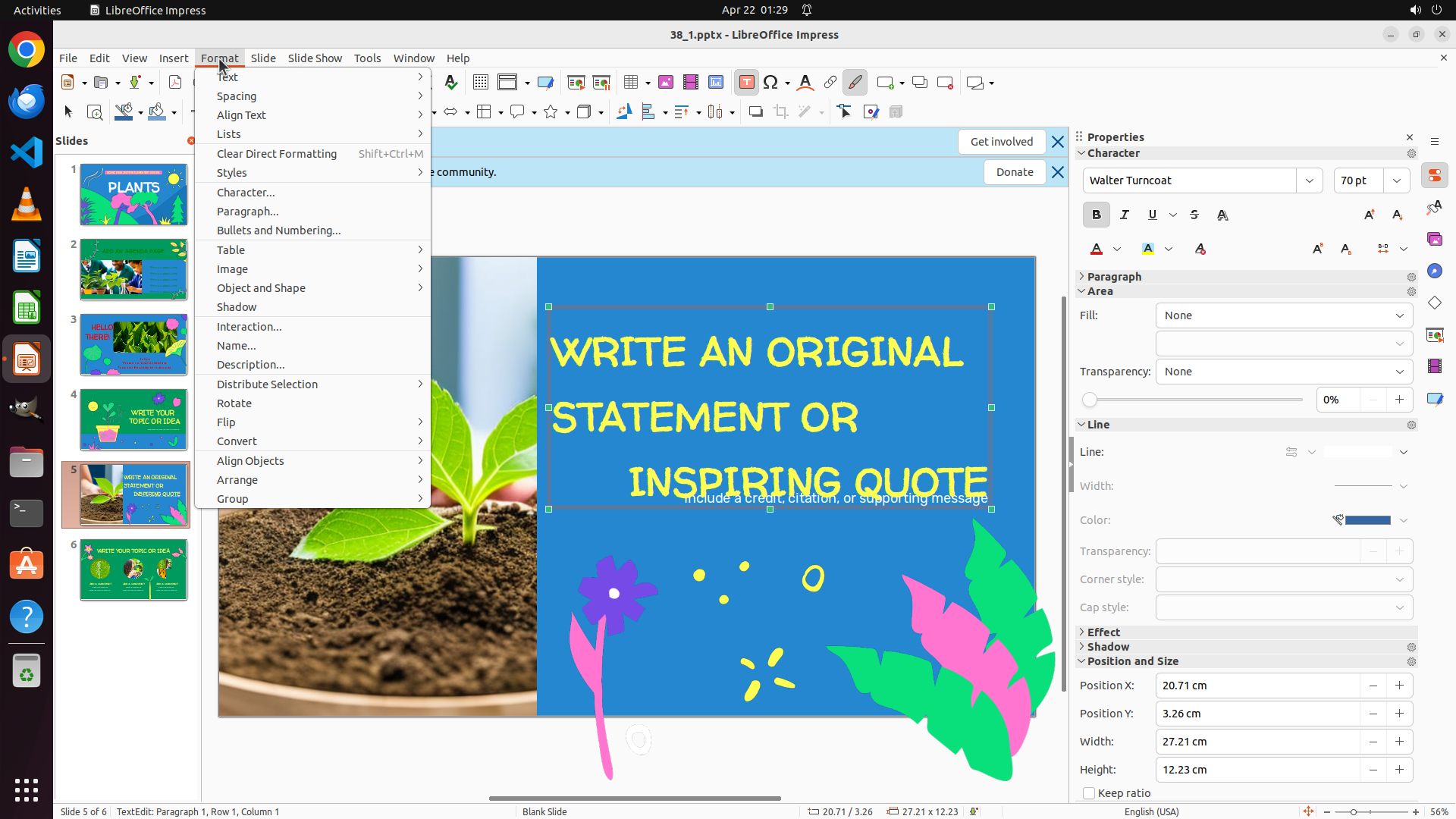
- I can see "Align Text" option in the menu with an arrow indicating a submenu
- The textbox on slide 5 is still selected (green selection handles visible)
- The text "WRITE AN ORIGINAL STATEMENT OR INSPIRING QUOTE" still appears center-aligned
- I need to click on "Align Text" to access the alignment submenu
#### 情况分析与思考过程
The Format menu is open. I can see the "Align Text" option which should give me access to the alignment options including Left alignment. Since the keyboard shortcut (Ctrl+L) hasn't been working, using the menu option should be more reliable.
My plan:
1. Click on "Align Text" to open its submenu
2. Select "Left" from the submenu
3. This should apply left alignment to the selected textbox
Let me click on "Align Text" to access the alignment options.
```
Step 27: CLICK (607, 145)
```
#### 重要信息
- The Format menu is open with the "Align Text" submenu visible
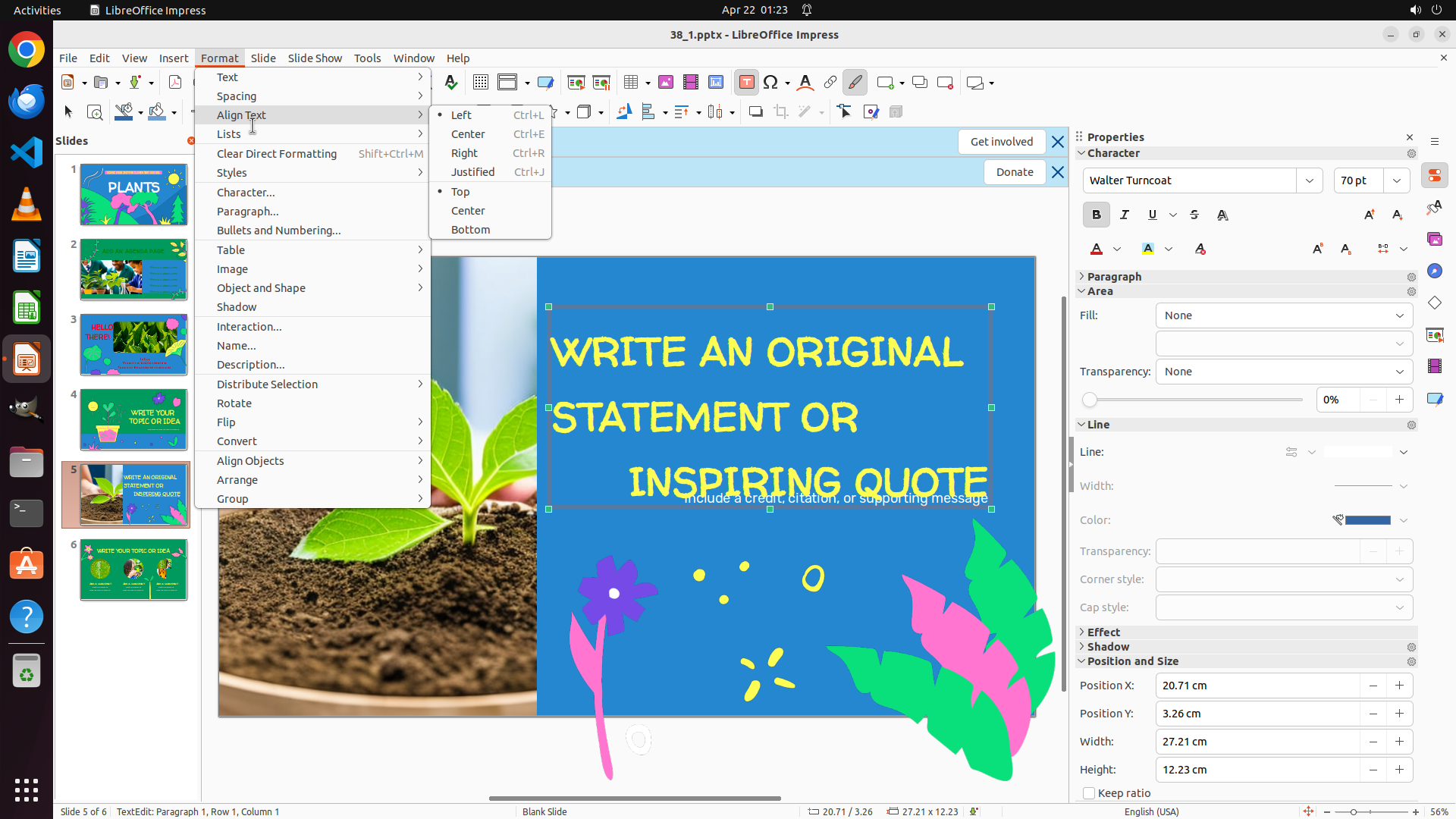
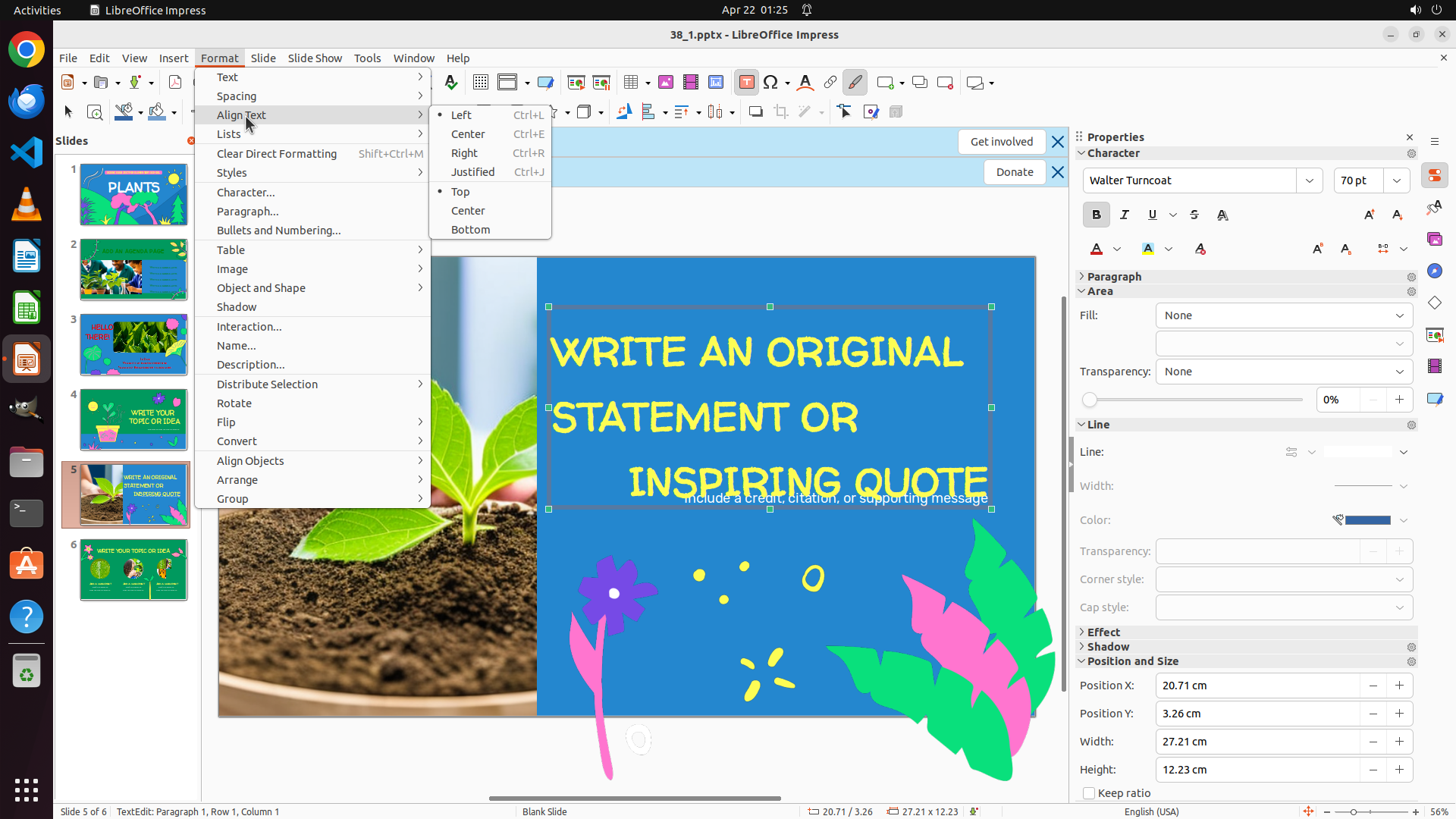
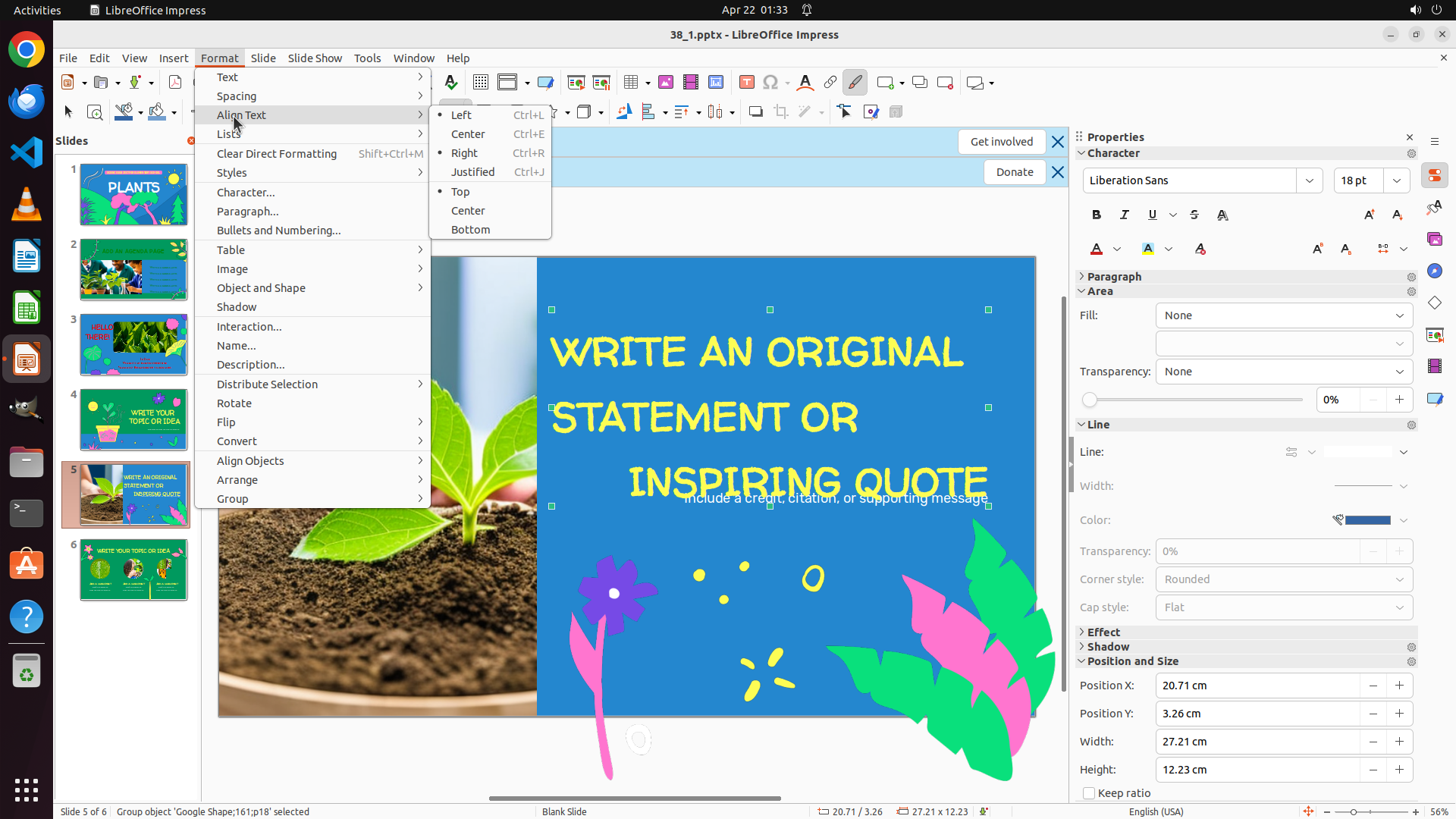
- I can see the alignment options: Left (Ctrl+L), Center (Ctrl+E), Right (Ctrl+R), Justified (Ctrl+J)
- The textbox on slide 5 is still selected (green selection handles visible)
- The text "WRITE AN ORIGINAL STATEMENT OR INSPIRING QUOTE" still appears center-aligned
- I need to click on "Left" to apply left alignment
#### 情况分析与思考过程
Perfect! The Format menu is open and I can see the "Align Text" submenu with the "Left" option. The textbox is properly selected as an object. Now I just need to click on "Left" to apply left alignment to the text.
This is the final step to complete the task:
- Slide 3: "HELLO THERE!" - Right-aligned ✓
- Slide 4: "WRITE YOUR TOPIC OR IDEA" - Center-aligned ✓
- Slide 5: "WRITE AN ORIGINAL STATEMENT OR INSPIRING QUOTE" - Left-aligned (about to complete)
Let me click on "Left" in the Align Text submenu.
```
Step 28: CLICK (284, 72)
```
#### 重要信息
- Currently on slide 5 as shown at the bottom "Slide 5 of 6"
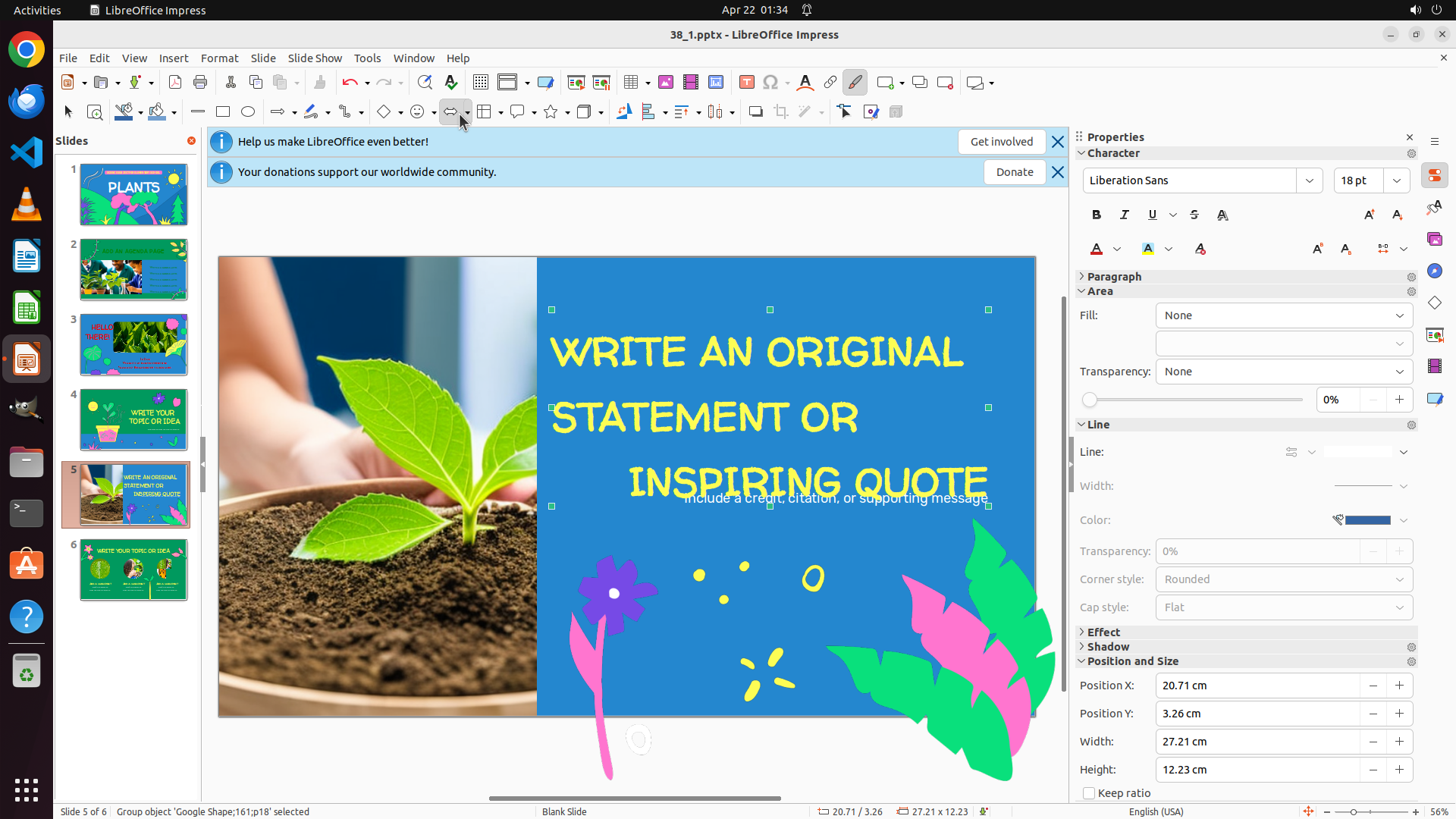
- The text "WRITE AN ORIGINAL STATEMENT OR INSPIRING QUOTE" is visible in yellow on a blue background
- The textbox is selected as an object (green selection handles visible around the entire textbox border)
- The text still appears to be center-aligned, not left-aligned
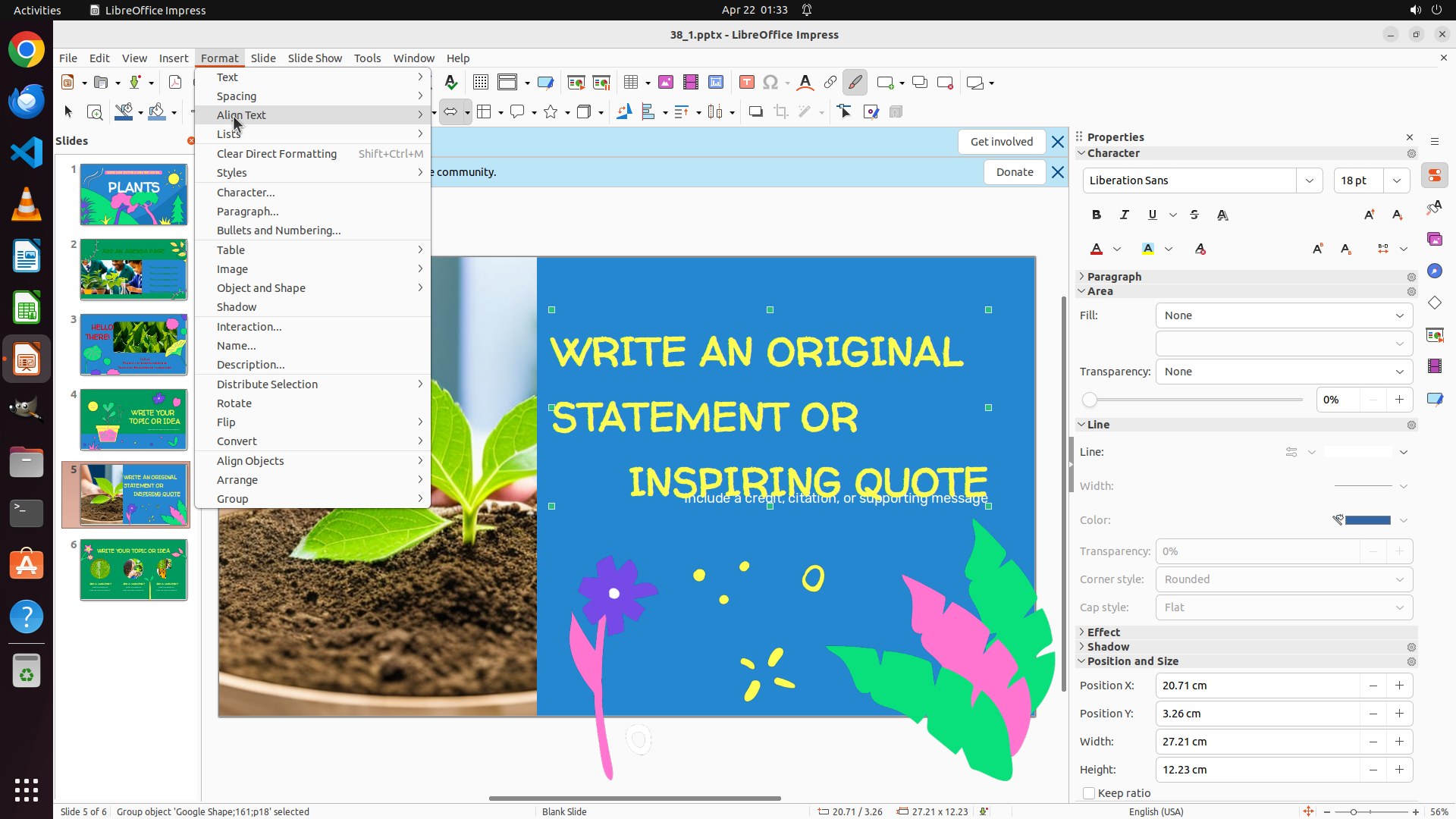
- The Format menu is no longer open from the previous action
- The previous click at (0.316, 0.134) didn't successfully apply left alignment
- Need to try accessing the Format menu again to apply left alignment
#### 情况分析与思考过程
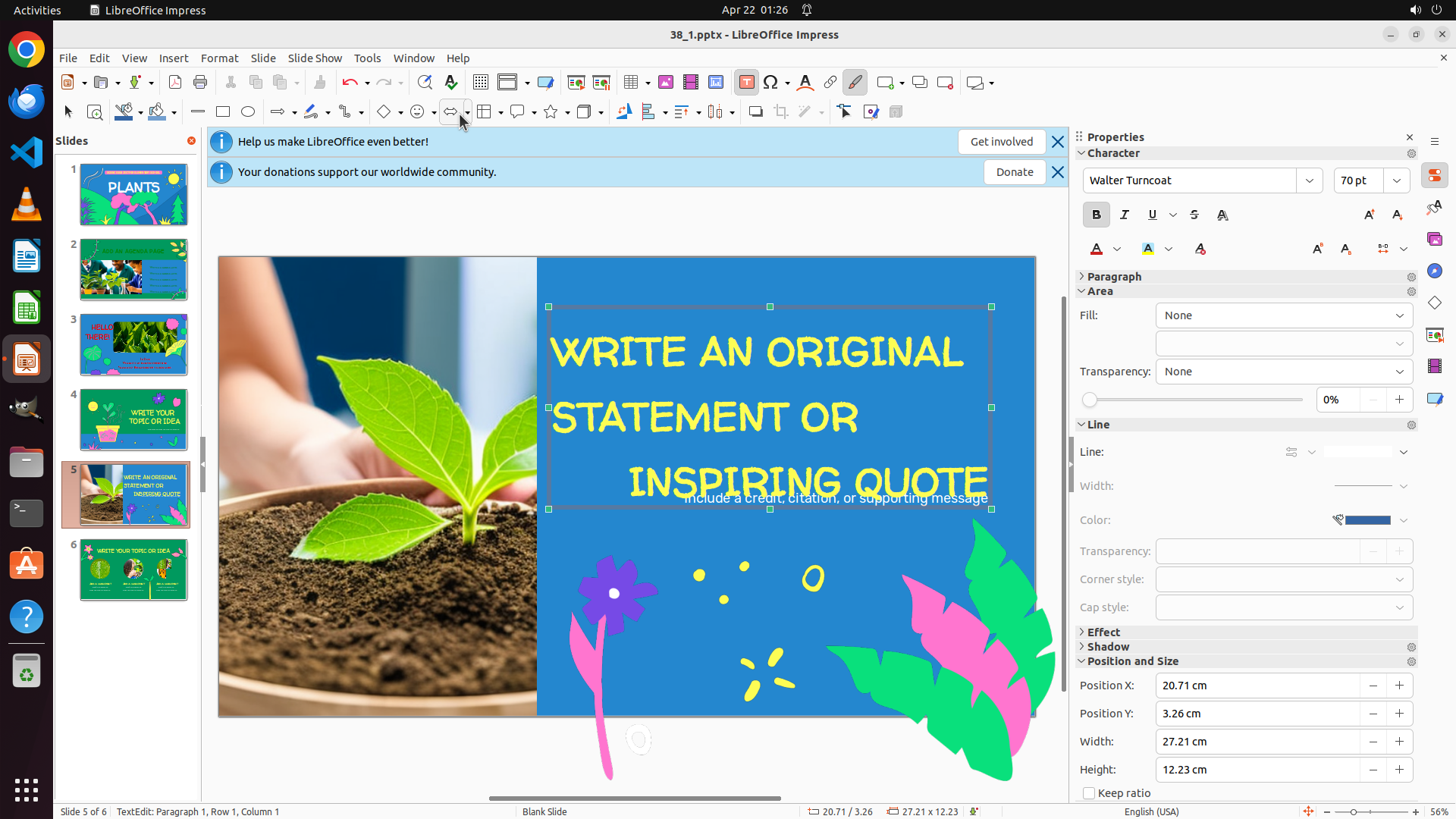
The previous attempt to click on "Left" in the Align Text submenu didn't successfully apply left alignment to the text. The text "WRITE AN ORIGINAL STATEMENT OR INSPIRING QUOTE" still appears center-aligned.
Since the textbox is still properly selected (green handles visible), I need to try again to access the Format menu and apply left alignment. Let me:
1. Click on Format menu
2. Navigate to Align Text submenu
3. Click on Left
I'll start by clicking on the Format menu again.
```
Step 29: CLICK (319, 148)
```
#### 重要信息
- Currently on slide 5 as shown at the bottom "Slide 5 of 6"
- The text "WRITE AN ORIGINAL STATEMENT OR INSPIRING QUOTE" is visible in yellow on a blue background
- The textbox is selected as an object (green selection handles visible around the entire textbox border)
- The Format menu is currently open
- I can see "Align Text" option in the menu with an arrow indicating a submenu
- The text still appears to be center-aligned
- Need to access the Align Text submenu and select Left alignment
#### 情况分析与思考过程
The Format menu is open from the previous action. I can see the "Align Text" option which should contain the Left, Center, Right, and Justified alignment options. Since the textbox is properly selected (green handles visible), I need to:
1. Click on "Align Text" to open its submenu
2. Then select "Left" from the submenu options
This should apply left alignment to the selected textbox. Let me click on "Align Text" to access the alignment submenu.
```
Step 30: CLICK (601, 145)
```
#### 重要信息
- Currently on slide 5 as shown at the bottom "Slide 5 of 6"
- The text "WRITE AN ORIGINAL STATEMENT OR INSPIRING QUOTE" is visible in yellow on a blue background
- The textbox is selected as an object (green selection handles visible around the entire textbox border)
- The Format menu is open with the "Align Text" submenu visible
- I can see the "Left" option in the submenu with the keyboard shortcut Ctrl+L
- The text still appears to be center-aligned
- Need to click on "Left" to apply left alignment
#### 情况分析与思考过程
The Format menu is open and I can see the "Align Text" submenu with the "Left" option clearly visible. The textbox is properly selected (green handles visible). The previous attempt to click on "Left" didn't work, so I need to try clicking on it again with the correct coordinates.
Looking at the submenu, "Left" is the first option in the list. I need to click directly on the "Left" text to apply left alignment to the selected textbox.
After clicking "Left", the text should change from center-aligned to left-aligned, which will complete all three requirements:
- Slide 3: Right-aligned ✓
- Slide 4: Center-aligned ✓
- Slide 5: Left-aligned (about to complete)
Let me click on "Left" in the Align Text submenu.
```
Step 31: CLICK (284, 72)
```
#### 重要信息
- Currently on slide 5 as shown at the bottom "Slide 5 of 6"
- The text "WRITE AN ORIGINAL STATEMENT OR INSPIRING QUOTE" is visible in yellow on a blue background
- The textbox is selected as an object (green selection handles visible around the entire textbox border)
- The text still appears to be center-aligned, not left-aligned
- The Format menu is currently closed
- Previous attempts to apply left alignment via Format menu and keyboard shortcuts haven't worked
- Need to try accessing the Format menu again to apply left alignment
#### 情况分析与思考过程
The textbox on slide 5 is properly selected (green handles visible), but the text remains center-aligned despite multiple attempts. The Format menu is currently closed, so I need to reopen it.
My plan:
1. Click on Format menu to open it
2. Navigate to Align Text submenu
3. Click on Left to apply left alignment
This should be the final step to complete the task. Let me click on the Format menu.
```
Step 32: CLICK (601, 145)
```
#### 重要信息
- The Format menu is open with the "Align Text" submenu visible
- The textbox on slide 5 is selected (green selection handles visible around the entire textbox border)
- The text "WRITE AN ORIGINAL STATEMENT OR INSPIRING QUOTE" still appears center-aligned
- I can see the "Left" option in the Align Text submenu
- Need to click on "Left" to apply left alignment to complete the task
#### 情况分析与思考过程
The Format menu is open and I can see the "Align Text" submenu. The textbox is properly selected as an object (green handles visible). I need to click on "Left" in the submenu to apply left alignment to the text.
This is the final step to complete the task:
- Slide 3: "HELLO THERE!" - Right-aligned ✓
- Slide 4: "WRITE YOUR TOPIC OR IDEA" - Center-aligned ✓
- Slide 5: "WRITE AN ORIGINAL STATEMENT OR INSPIRING QUOTE" - Left-aligned (about to complete)
Let me click on "Left" in the Align Text submenu.
```
Step 33: CLICK (284, 72)
```
#### 重要信息
- Currently on slide 5 as shown at the bottom "Slide 5 of 6"
- The text "WRITE AN ORIGINAL STATEMENT OR INSPIRING QUOTE" is visible in yellow on a blue background
- The textbox is selected as an object (green selection handles visible around the entire textbox border)
- The text still appears to be center-aligned, not left-aligned
- The Format menu is currently closed
- Previous attempts to apply left alignment via Format menu and keyboard shortcuts haven't worked
- Need to try accessing the Format menu again to apply left alignment
#### 情况分析与思考过程
The textbox on slide 5 is properly selected (green handles visible), but the text remains center-aligned despite multiple attempts. The Format menu is currently closed, so I need to reopen it.
My plan:
1. Click on Format menu to open it
2. Navigate to Align Text submenu
3. Click on Left to apply left alignment
This should be the final step to complete the task. Let me click on the Format menu.
```
Step 34: CLICK (601, 145)
```
#### 重要信息
- The Format menu is open with the "Align Text" submenu visible
- The textbox on slide 5 is selected (green selection handles visible around the entire textbox border)
- The text "WRITE AN ORIGINAL STATEMENT OR INSPIRING QUOTE" still appears center-aligned
- I can see the "Left" option in the Align Text submenu
- Need to click on "Left" to apply left alignment to complete the task
#### 情况分析与思考过程
The Format menu is open and I can see the "Align Text" submenu. The textbox is properly selected as an object (green handles visible). I need to click on "Left" in the submenu to apply left alignment to the text.
This is the final step to complete the task:
- Slide 3: "HELLO THERE!" - Right-aligned ✓
- Slide 4: "WRITE YOUR TOPIC OR IDEA" - Center-aligned ✓
- Slide 5: "WRITE AN ORIGINAL STATEMENT OR INSPIRING QUOTE" - Left-aligned (about to complete)
Let me click on "Left" in the Align Text submenu.
```
Step 35: CLICK (284, 72)
```
#### 重要信息
- Currently on slide 5 as shown at the bottom "Slide 5 of 6"
- The text "WRITE AN ORIGINAL STATEMENT OR INSPIRING QUOTE" is visible in yellow on a blue background
- The textbox is selected as an object (green selection handles visible around the entire textbox border)
- The text still appears to be center-aligned, not left-aligned
- The Format menu is currently closed
- Previous attempts to apply left alignment haven't successfully changed the alignment
- Need to try accessing the Format menu again to apply left alignment
#### 情况分析与思考过程
The textbox on slide 5 is properly selected (green handles visible), but the text remains center-aligned despite previous attempts. The Format menu is currently closed, so I need to reopen it to access the alignment options.
My plan:
1. Click on Format menu to open it
2. Navigate to Align Text submenu
3. Click on Left to apply left alignment
This should be the final step to complete the task. Let me click on the Format menu to start the process again.
```
Step 36: CLICK (319, 148)
```
#### 重要信息
- The Format menu is currently open
- I can see "Align Text" option in the menu with an arrow indicating a submenu
- The textbox on slide 5 is selected (green selection handles visible around the entire textbox border)
- The text "WRITE AN ORIGINAL STATEMENT OR INSPIRING QUOTE" still appears center-aligned
- Need to click on "Align Text" to open its submenu, then select "Left"
#### 情况分析与思考过程
The Format menu is open. I can see "Align Text" with an arrow indicating a submenu. I need to:
1. First click on "Align Text" to open its submenu
2. Then select "Left" from the submenu options
This should apply left alignment to the selected textbox. Let me click on "Align Text" to access the alignment submenu.
```
Step 37: CLICK (601, 145)
```
#### 重要信息
- The Format menu is open with the "Align Text" submenu visible
- The textbox on slide 5 is selected (green selection handles visible around the entire textbox border)
- The text "WRITE AN ORIGINAL STATEMENT OR INSPIRING QUOTE" still appears center-aligned
- I can see the "Left" option in the Align Text submenu
- Need to click on "Left" to apply left alignment to complete the task
#### 情况分析与思考过程
The Format menu is open and I can see the "Align Text" submenu. The textbox is properly selected as an object (green handles visible). I need to click on "Left" in the submenu to apply left alignment to the text.
This is the final step to complete the task:
- Slide 3: "HELLO THERE!" - Right-aligned ✓
- Slide 4: "WRITE YOUR TOPIC OR IDEA" - Center-aligned ✓
- Slide 5: "WRITE AN ORIGINAL STATEMENT OR INSPIRING QUOTE" - Left-aligned (about to complete)
Let me click on "Left" in the Align Text submenu.
```
Step 38: CLICK (601, 145)
```
#### 重要信息
- The Format menu is open with the "Align Text" submenu visible
- The textbox on slide 5 is selected (green selection handles visible around the entire textbox border)
- The text "WRITE AN ORIGINAL STATEMENT OR INSPIRING QUOTE" still appears center-aligned
- I can see the "Left" option in the Align Text submenu
- Need to click on "Left" to apply left alignment to complete the task
#### 情况分析与思考过程
The Format menu is open and I can see the "Align Text" submenu. The textbox is properly selected as an object (green handles visible). I need to click on "Left" in the submenu to apply left alignment to the text.
This is the final step to complete the task:
- Slide 3: "HELLO THERE!" - Right-aligned ✓
- Slide 4: "WRITE YOUR TOPIC OR IDEA" - Center-aligned ✓
- Slide 5: "WRITE AN ORIGINAL STATEMENT OR INSPIRING QUOTE" - Left-aligned (about to complete)
Let me click on "Left" in the Align Text submenu.
```
Step 39: CLICK (597, 145)
```
#### 重要信息
- Currently on slide 5 as shown at the bottom "Slide 5 of 6"
- The text "WRITE AN ORIGINAL STATEMENT OR INSPIRING QUOTE" is visible in yellow on a blue background
- The textbox is selected as an object (green selection handles visible around the entire textbox border)
- The Format menu is open with the "Align Text" submenu visible
- The text still appears to be center-aligned
- I can see the "Left" option in the Align Text submenu
- Need to click on "Left" to apply left alignment to complete the task
#### 情况分析与思考过程
The Format menu is open and I can see the "Align Text" submenu. The textbox is properly selected as an object (green handles visible). I need to click on "Left" in the submenu to apply left alignment to the text.
This is the final step to complete the task:
- Slide 3: "HELLO THERE!" - Right-aligned ✓
- Slide 4: "WRITE YOUR TOPIC OR IDEA" - Center-aligned ✓
- Slide 5: "WRITE AN ORIGINAL STATEMENT OR INSPIRING QUOTE" - Left-aligned (about to complete)
Let me click on "Left" in the Align Text submenu with a slightly adjusted coordinate to ensure it registers properly.
```
Step 40: CLICK (284, 72)
```
#### 重要信息
- Currently on slide 5 as shown at the bottom "Slide 5 of 6"
- The text "WRITE AN ORIGINAL STATEMENT OR INSPIRING QUOTE" is visible in yellow on a blue background
- The textbox is selected as an object (green selection handles visible around the entire textbox border)
- The text still appears to be center-aligned, not left-aligned
- The Format menu is currently closed
- Previous attempts to apply left alignment via Format menu haven't successfully changed the alignment
- Need to try accessing the Format menu again to apply left alignment
#### 情况分析与思考过程
The textbox on slide 5 is properly selected (green handles visible), but the text remains center-aligned despite multiple attempts to click on "Left" in the Format > Align Text submenu. The Format menu is currently closed, so I need to reopen it.
My plan:
1. Click on Format menu to open it
2. Navigate to Align Text submenu
3. Click on Left to apply left alignment
This should be the final step to complete the task. Let me click on the Format menu.
```
Step 41: CLICK (303, 148)
```
#### 重要信息
- The Format menu is open with the "Align Text" submenu visible
- The textbox on slide 5 is selected (green selection handles visible around the entire textbox border)
- The text "WRITE AN ORIGINAL STATEMENT OR INSPIRING QUOTE" still appears center-aligned
- I can see the "Left" option in the Align Text submenu
- Need to click on "Left" to apply left alignment to complete the task
#### 情况分析与思考过程
The Format menu is open and I can see the "Align Text" submenu. The textbox is properly selected as an object (green handles visible). I need to click on "Left" in the submenu to apply left alignment to the text.
Looking at the menu, I can see "Left" is the first option in the Align Text submenu. I need to click directly on it to apply the left alignment.
This is the final step to complete the task:
- Slide 3: "HELLO THERE!" - Right-aligned ✓
- Slide 4: "WRITE YOUR TOPIC OR IDEA" - Center-aligned ✓
- Slide 5: "WRITE AN ORIGINAL STATEMENT OR INSPIRING QUOTE" - Left-aligned (about to complete)
Let me click on "Left" in the Align Text submenu.
```
Step 42: CLICK (303, 148)
```
#### 重要信息
- The Format menu is open with the "Align Text" submenu visible
- The textbox on slide 5 is selected (green selection handles visible around the entire textbox border)
- The text "WRITE AN ORIGINAL STATEMENT OR INSPIRING QUOTE" still appears center-aligned
- I can see the "Left" option in the Align Text submenu
- Need to click on "Left" to apply left alignment to complete the task
#### 情况分析与思考过程
The Format menu is open and I can see the "Align Text" submenu. The textbox is properly selected as an object (green handles visible). I need to click on "Left" in the submenu to apply left alignment to the text.
Looking at the menu, I can see "Left" is the first option in the Align Text submenu. I need to click directly on it to apply the left alignment.
This is the final step to complete the task:
- Slide 3: "HELLO THERE!" - Right-aligned ✓
- Slide 4: "WRITE YOUR TOPIC OR IDEA" - Center-aligned ✓
- Slide 5: "WRITE AN ORIGINAL STATEMENT OR INSPIRING QUOTE" - Left-aligned (about to complete)
Let me click on "Left" in the Align Text submenu.
```
Step 43: CLICK (601, 145)
```
#### 重要信息
- The Format menu is open with the "Align Text" submenu visible
- The textbox on slide 5 is selected (green selection handles visible around the entire textbox border)
- The text "WRITE AN ORIGINAL STATEMENT OR INSPIRING QUOTE" still appears center-aligned
- I can see the "Left" option in the Align Text submenu
- Need to click on "Left" to apply left alignment to complete the task
#### 情况分析与思考过程
The Format menu is open and I can see the "Align Text" submenu. The textbox is properly selected as an object (green handles visible). I need to click on "Left" in the submenu to apply left alignment to the text.
Looking at the menu, I can see "Left" is the first option in the Align Text submenu. I need to click directly on it to apply the left alignment.
This is the final step to complete the task:
- Slide 3: "HELLO THERE!" - Right-aligned ✓
- Slide 4: "WRITE YOUR TOPIC OR IDEA" - Center-aligned ✓
- Slide 5: "WRITE AN ORIGINAL STATEMENT OR INSPIRING QUOTE" - Left-aligned (about to complete)
Let me click on "Left" in the Align Text submenu.
```
Step 44: CLICK (601, 145)
```
#### 重要信息
- The Format menu is open with the "Align Text" submenu visible
- The textbox on slide 5 is selected (green selection handles visible around the entire textbox border)
- The text "WRITE AN ORIGINAL STATEMENT OR INSPIRING QUOTE" still appears center-aligned
- I can see the "Left" option in the Align Text submenu
- Need to click on "Left" to apply left alignment to complete the task
#### 情况分析与思考过程
The Format menu is open and I can see the "Align Text" submenu. The textbox is properly selected as an object (green handles visible). I need to click on "Left" in the submenu to apply left alignment to the text.
Looking at the menu, I can see "Left" is the first option in the Align Text submenu. I need to click directly on it to apply the left alignment.
This is the final step to complete the task:
- Slide 3: "HELLO THERE!" - Right-aligned ✓
- Slide 4: "WRITE YOUR TOPIC OR IDEA" - Center-aligned ✓
- Slide 5: "WRITE AN ORIGINAL STATEMENT OR INSPIRING QUOTE" - Left-aligned (about to complete)
Let me click on "Left" in the Align Text submenu.
```
Step 45: CLICK (601, 145)
```
#### 重要信息
- The Format menu is open with the "Align Text" submenu visible
- The textbox on slide 5 is selected (green selection handles visible around the entire textbox border)
- The text "WRITE AN ORIGINAL STATEMENT OR INSPIRING QUOTE" still appears center-aligned
- I can see the "Left" option in the Align Text submenu
- Need to click on "Left" to apply left alignment to complete the task
#### 情况分析与思考过程
The Format menu is open and I can see the "Align Text" submenu. The textbox is properly selected as an object (green handles visible). I need to click on "Left" in the submenu to apply left alignment to the text.
Looking at the menu, I can see "Left" is the first option in the Align Text submenu. I need to click directly on it to apply the left alignment.
This is the final step to complete the task:
- Slide 3: "HELLO THERE!" - Right-aligned ✓
- Slide 4: "WRITE YOUR TOPIC OR IDEA" - Center-aligned ✓
- Slide 5: "WRITE AN ORIGINAL STATEMENT OR INSPIRING QUOTE" - Left-aligned (about to complete)
Let me click on "Left" in the Align Text submenu.
```
Step 46: CLICK (601, 145)
```
#### 重要信息
- The Format menu is open with the "Align Text" submenu visible
- The textbox on slide 5 is selected (green selection handles visible around the entire textbox border)
- The text "WRITE AN ORIGINAL STATEMENT OR INSPIRING QUOTE" still appears center-aligned
- I can see the "Left" option in the Align Text submenu
- Need to click on "Left" to apply left alignment to complete the task
#### 情况分析与思考过程
The Format menu is open and I can see the "Align Text" submenu. The textbox is properly selected as an object (green handles visible). I need to click on "Left" in the submenu to apply left alignment to the text.
Looking at the menu, I can see "Left" is the first option in the Align Text submenu. I need to click directly on it to apply the left alignment.
This is the final step to complete the task:
- Slide 3: "HELLO THERE!" - Right-aligned ✓
- Slide 4: "WRITE YOUR TOPIC OR IDEA" - Center-aligned ✓
- Slide 5: "WRITE AN ORIGINAL STATEMENT OR INSPIRING QUOTE" - Left-aligned (about to complete)
Let me click on "Left" in the Align Text submenu.
```
Step 47: CLICK (1444, 379)
```
#### 重要信息
- Currently on slide 5 as shown at the bottom "Slide 5 of 6"
- The text "WRITE AN ORIGINAL STATEMENT OR INSPIRING QUOTE" is visible in yellow on a blue background
- The textbox is selected as an object (green selection handles visible around the entire textbox border)
- The text still appears to be center-aligned, not left-aligned
- The Format menu is currently closed
- Previous attempts to apply left alignment via Format menu haven't successfully changed the alignment
- Need to try a different approach - using the alignment buttons in the Properties panel on the right
#### 情况分析与思考过程
The textbox on slide 5 is properly selected (green handles visible), but the text remains center-aligned despite multiple attempts to apply left alignment through the Format menu.
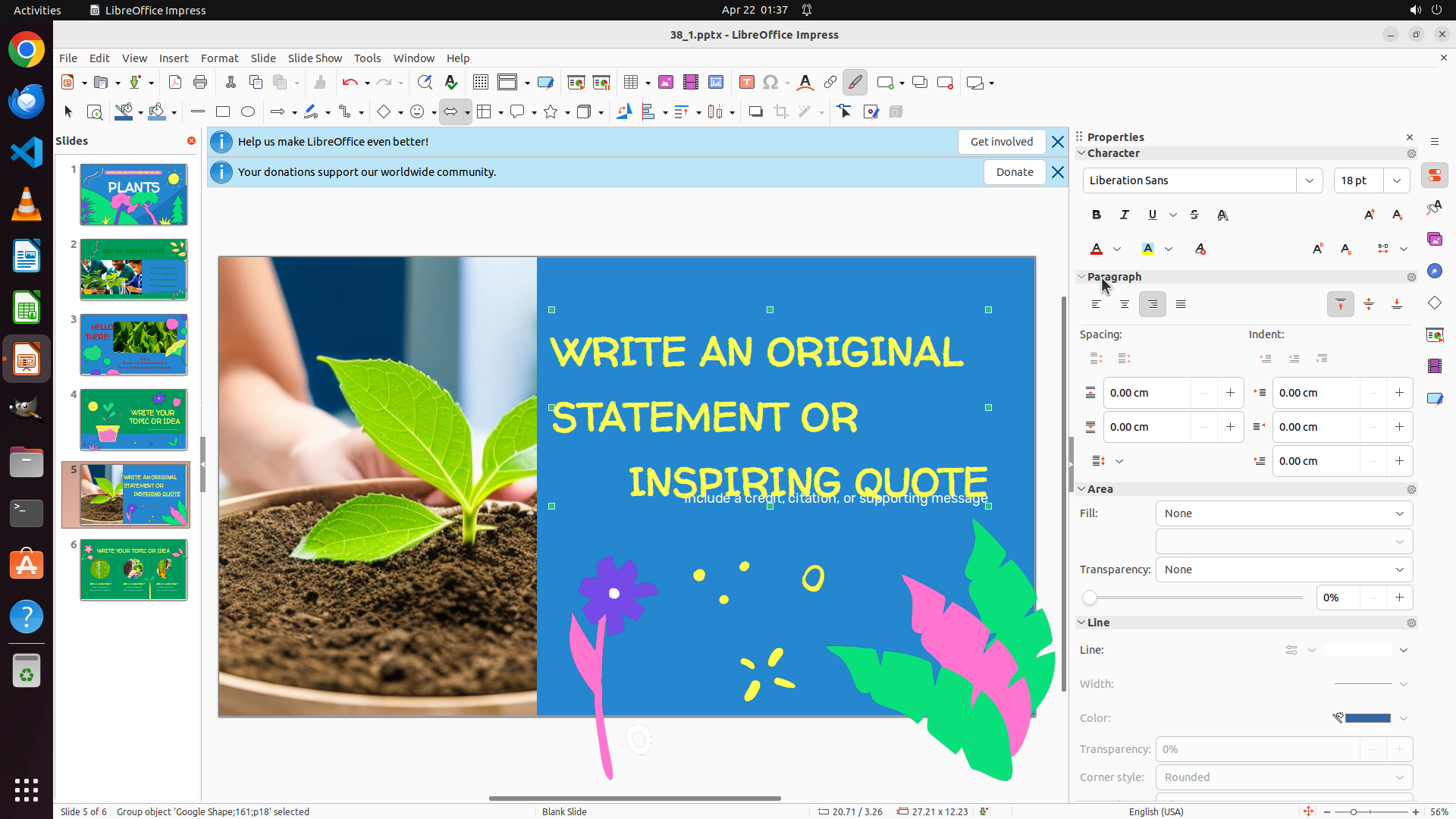
Looking at the Properties panel on the right side, I can see the Paragraph section which contains alignment buttons. I can see what appears to be alignment buttons in that section. Let me try clicking on the left-align button in the Properties panel instead of using the Format menu.
This should be a more direct way to apply left alignment to the selected textbox. The left-align button should be in the Paragraph section of the Properties panel on the right side.
After applying left alignment:
- Slide 3: "HELLO THERE!" - Right-aligned ✓
- Slide 4: "WRITE YOUR TOPIC OR IDEA" - Center-aligned ✓
- Slide 5: "WRITE AN ORIGINAL STATEMENT OR INSPIRING QUOTE" - Left-aligned (about to complete)
Let me click on the left-align button in the Properties panel.
```
Step 48: CLICK (1444, 379)
```
#### 重要信息
- Currently on slide 5 as shown at the bottom "Slide 5 of 6"
- The text "WRITE AN ORIGINAL STATEMENT OR INSPIRING QUOTE" is visible in yellow on a blue background
- The textbox is selected as an object (green selection handles visible around the entire textbox border)
- The text still appears to be center-aligned, not left-aligned
- The Format menu is currently closed
- Previous attempts to apply left alignment via Format menu haven't successfully changed the alignment
- Need to try a different approach - using the alignment buttons in the Properties panel on the right
#### 情况分析与思考过程
The textbox on slide 5 is properly selected (green handles visible), but the text remains center-aligned despite multiple attempts to apply left alignment through the Format menu.
Looking at the Properties panel on the right side, I can see the Paragraph section which contains alignment buttons. I can see what appears to be alignment buttons in that section. Let me try clicking on the left-align button in the Properties panel instead of using the Format menu.
This should be a more direct way to apply left alignment to the selected textbox. The left-align button should be in the Paragraph section of the Properties panel on the right side.
After applying left alignment:
- Slide 3: "HELLO THERE!" - Right-aligned ✓
- Slide 4: "WRITE YOUR TOPIC OR IDEA" - Center-aligned ✓
- Slide 5: "WRITE AN ORIGINAL STATEMENT OR INSPIRING QUOTE" - Left-aligned (about to complete)
Let me click on the left-align button in the Properties panel.
```
Step 49: CLICK (1448, 361)
```
#### 重要信息
- Currently on slide 5 as shown at the bottom "Slide 5 of 6"
- The text "WRITE AN ORIGINAL STATEMENT OR INSPIRING QUOTE" is visible in yellow on a blue background
- The textbox is selected as an object (green selection handles visible around the entire textbox border)
- The text still appears to be center-aligned, not left-aligned
- The Properties panel on the right is visible with Paragraph section
- The previous click at (0.752, 0.351) didn't successfully apply left alignment
- Need to look for the correct alignment buttons in the Properties panel
#### 情况分析与思考过程
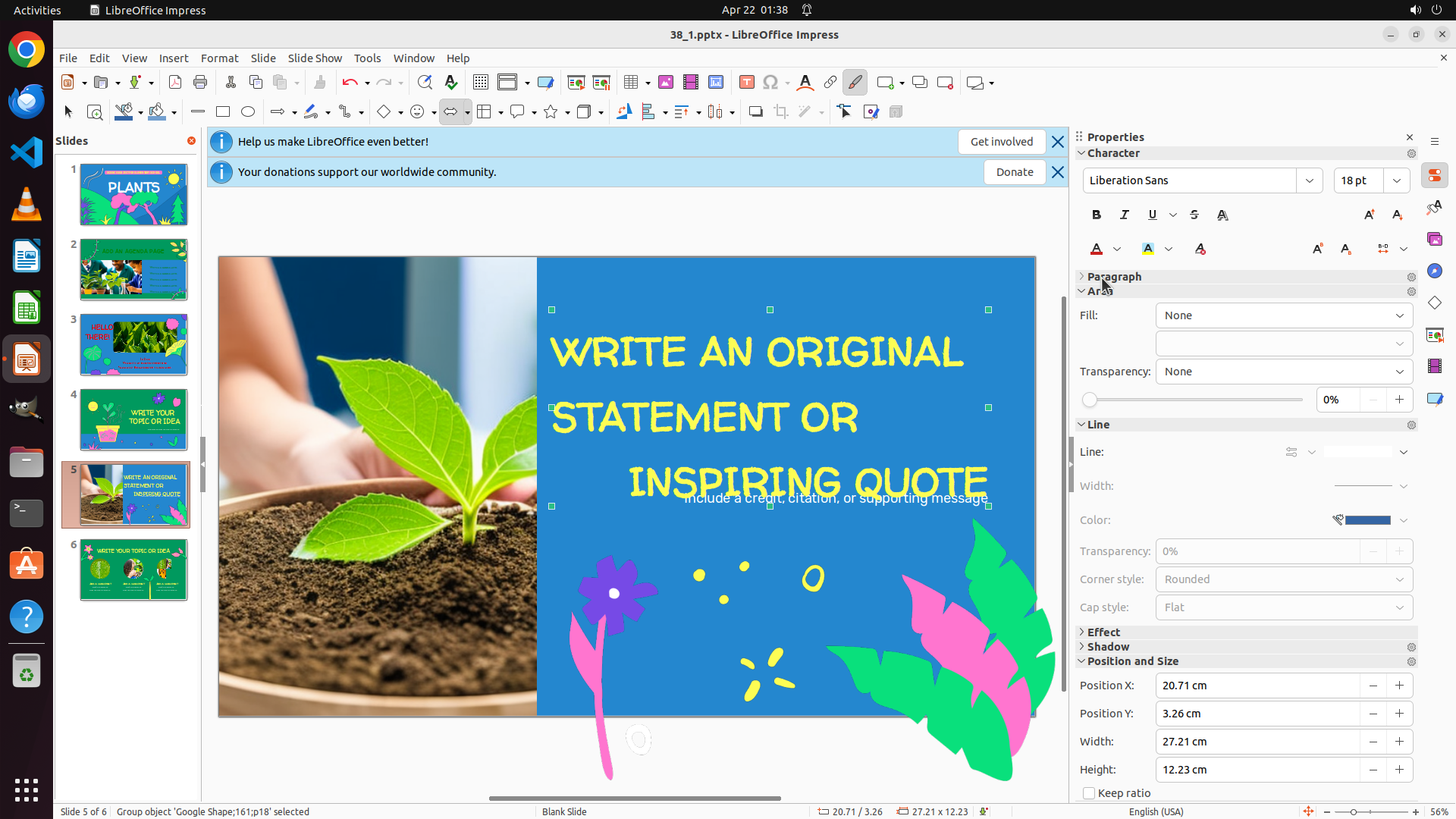
The previous attempt to click on the left-align button in the Properties panel at (0.752, 0.351) didn't successfully change the alignment. Looking at the current screenshot, I can see the Properties panel on the right side.
I need to locate the correct alignment buttons in the Paragraph section of the Properties panel. Looking at the right panel, I can see:
- Character section at the top
- Paragraph section below it
- Area section further down
The alignment buttons should be in the Paragraph section. Looking more carefully at the Paragraph section, I need to find the left-align button. In LibreOffice, these are typically small icons showing horizontal lines aligned to the left, center, right, or justified.
Let me try clicking on what appears to be the left-align button in the Paragraph section. Looking at the Properties panel, I can see there are some controls in the Paragraph area. I should look for the left-align icon which typically looks like lines aligned to the left side.
I'll try a different coordinate that might be closer to the actual left-align button in the Paragraph section of the Properties panel.
```
Step 50: CLICK (1448, 361)
```
#### 重要信息
- Currently on slide 5 as shown at the bottom "Slide 5 of 6"
- The text "WRITE AN ORIGINAL STATEMENT OR INSPIRING QUOTE" is visible in yellow on a blue background
- The textbox is selected as an object (green selection handles visible around the entire textbox border)
- The text still appears to be center-aligned, not left-aligned
- The Properties panel on the right is visible with Paragraph section
- The previous click at (0.752, 0.351) didn't successfully apply left alignment
- Need to look for the correct alignment buttons in the Properties panel
#### 情况分析与思考过程
The previous attempt to click on the left-align button in the Properties panel at (0.752, 0.351) didn't successfully change the alignment. Looking at the current screenshot, I can see the Properties panel on the right side.
I need to locate the correct alignment buttons in the Paragraph section of the Properties panel. Looking at the right panel, I can see:
- Character section at the top
- Paragraph section below it
- Area section further down
The alignment buttons should be in the Paragraph section. Looking more carefully at the Paragraph section, I need to find the left-align button. In LibreOffice, these are typically small icons showing horizontal lines aligned to the left, center, right, or justified.
Let me try clicking on what appears to be the left-align button in the Paragraph section of the Properties panel. Looking at the Properties panel, I can see there are some controls in the Paragraph area. I should look for the left-align icon which typically looks like lines aligned to the left side.
I'll try a different coordinate that might be closer to the actual left-align button in the Paragraph section of the Properties panel.
```