```
#### 重要信息
- LibreOffice Impress is open with presentation "13_0.pptx"
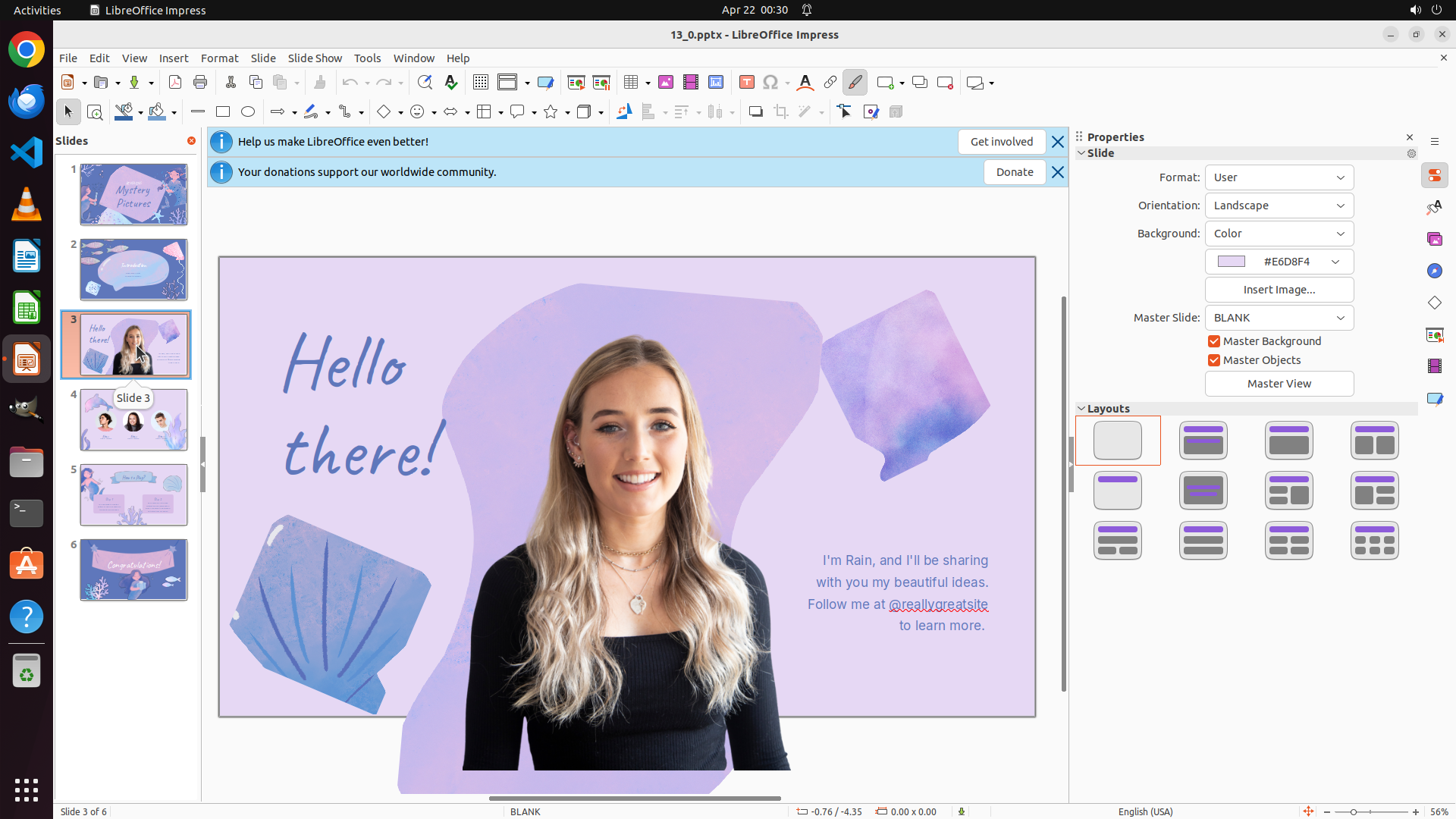
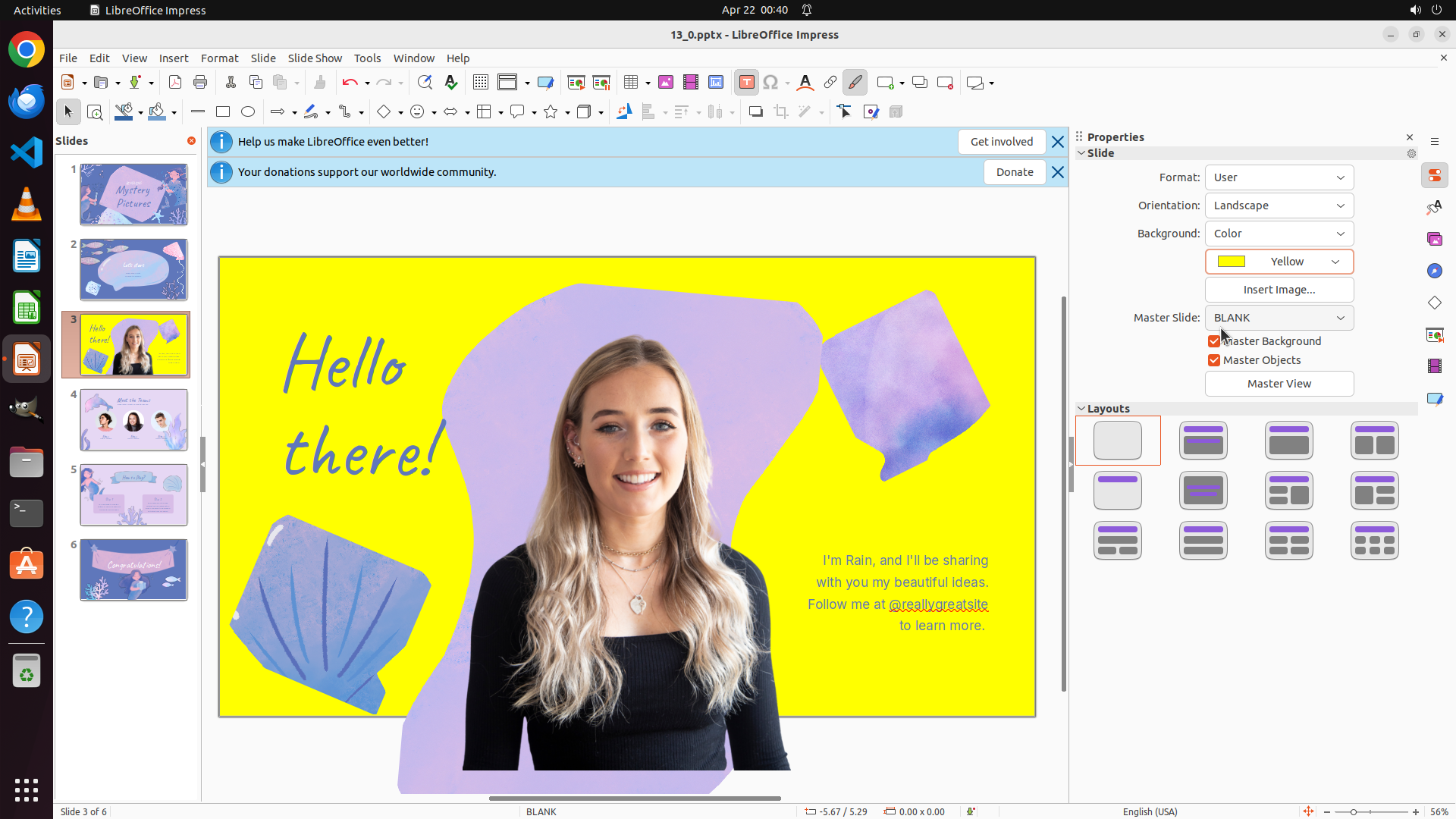
- Currently viewing slide 3 of 6, which shows a blonde woman photo
- The Properties panel on the right shows Background is set to "Color" with purple (#E6D8F4)
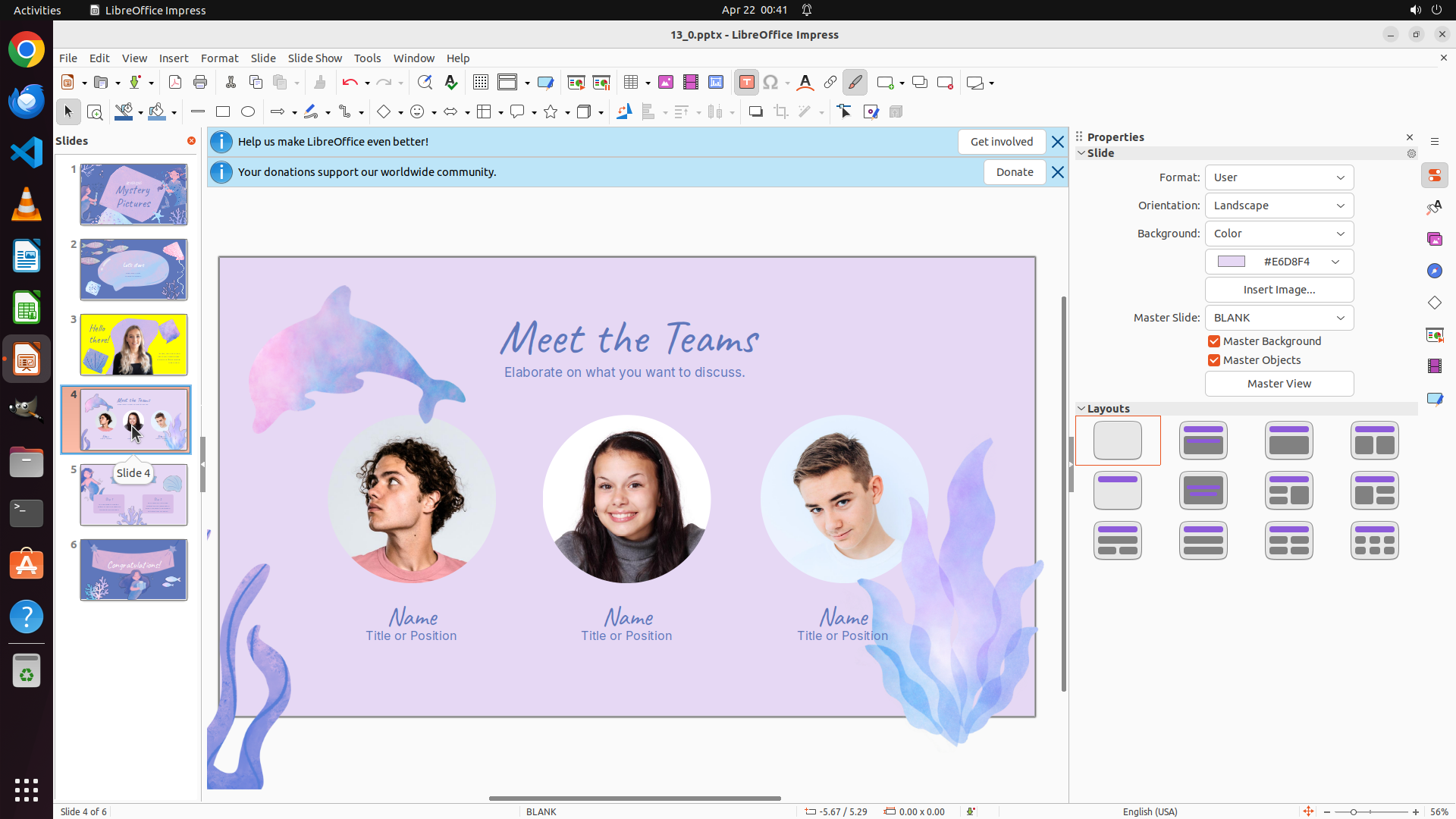
- Slide 4 thumbnail shows three circular photos of people
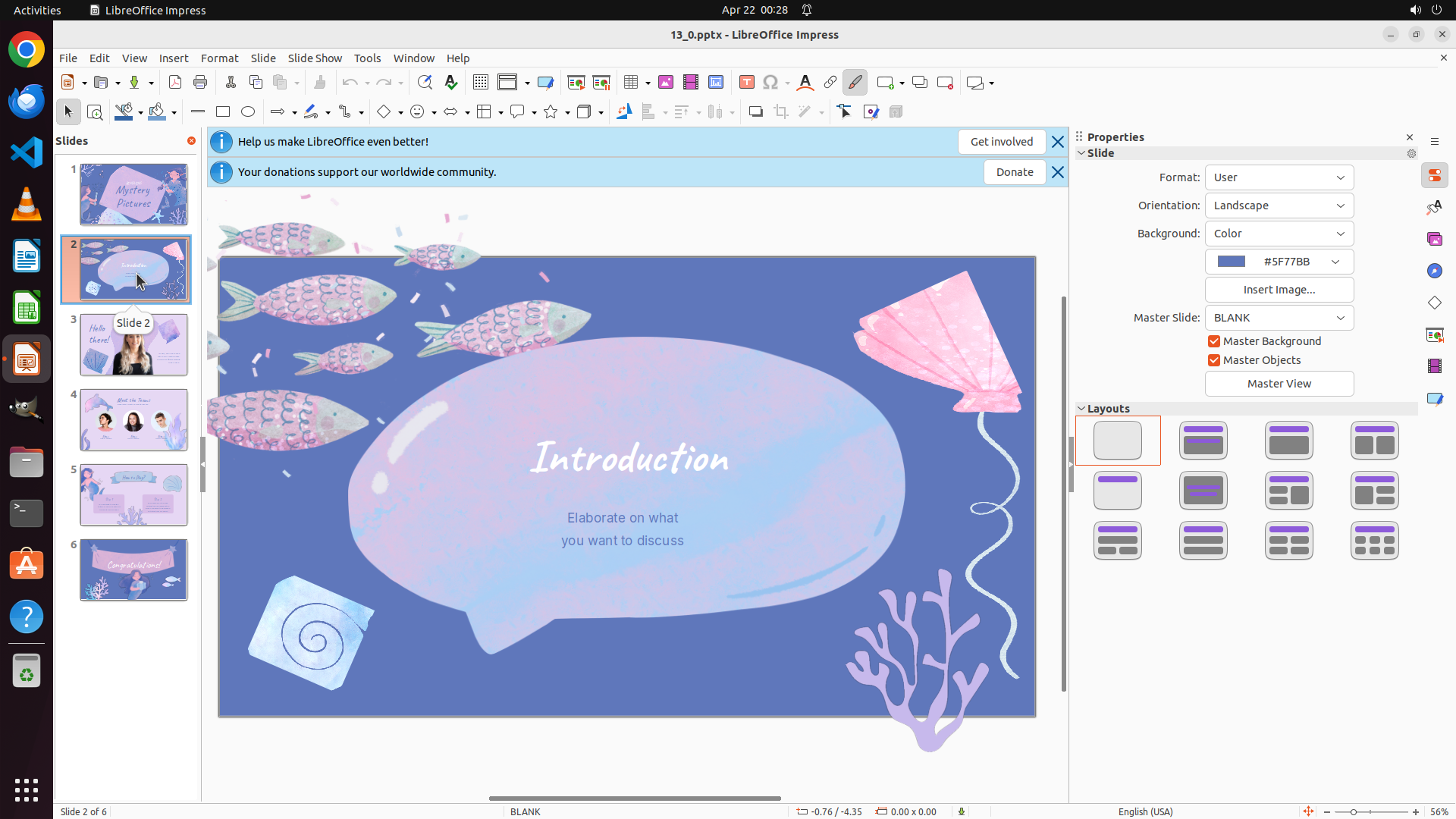
- Slide 2 thumbnail is visible in the left sidebar and needs its title changed to "Let's start"
- The task requires: 1) Change slide 2 title to "Let's start", 2) Set yellow background for slides with real people photos (slides 3 and 4)
#### 情况分析与思考过程
I need to complete two main tasks:
1. Change slide 2's title from "Introduction" to "Let's start"
2. Set yellow background for slides 3 and 4 (both contain photos of real people)
Looking at the current state, I'm on slide 3. I should start by navigating to slide 2 to change its title. I can see slide 2's thumbnail in the left sidebar. I'll click on it to navigate there first.
```
Step 4: CLICK (831, 600)
```
#### 重要信息
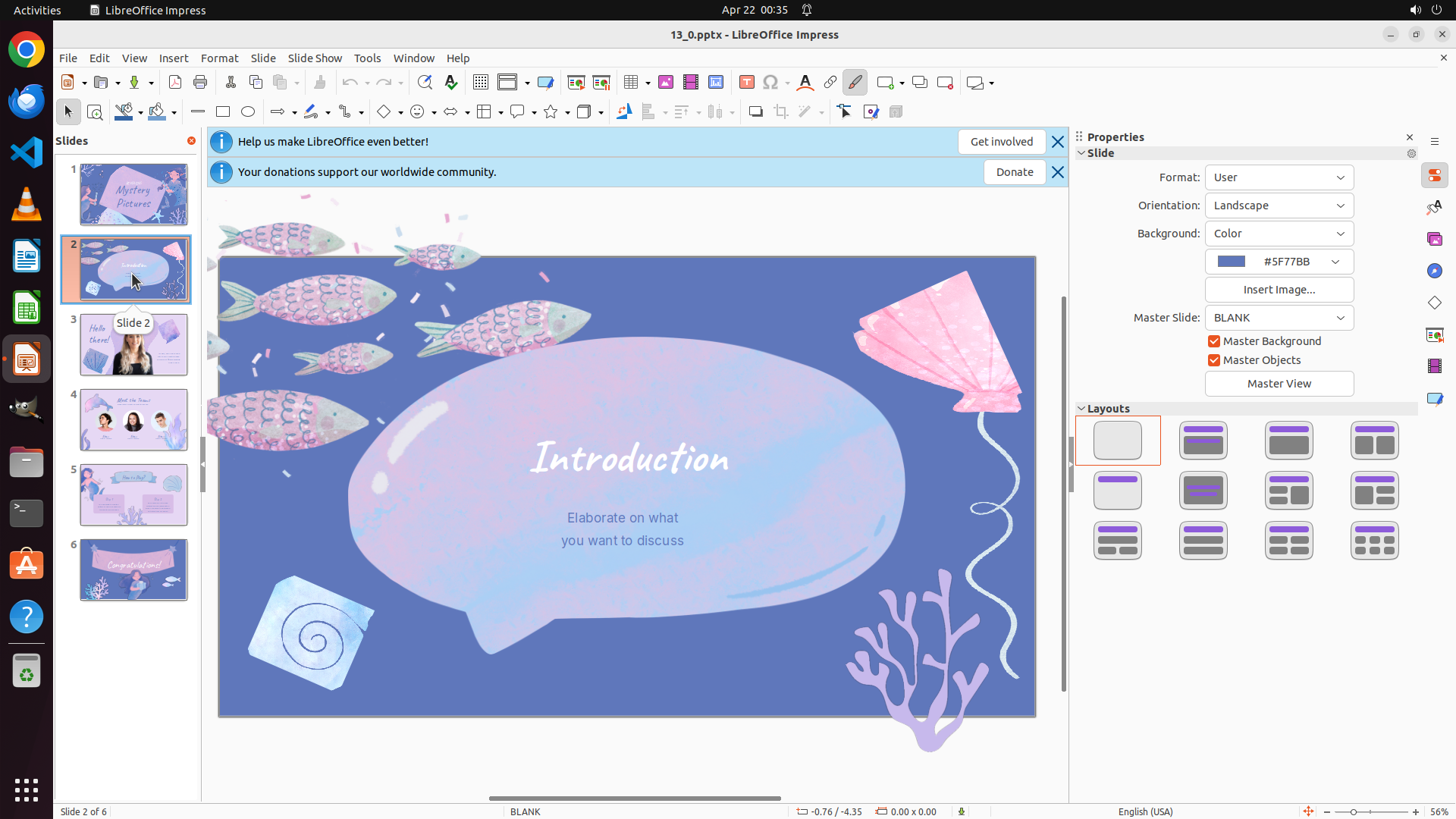
- Successfully navigated to slide 2
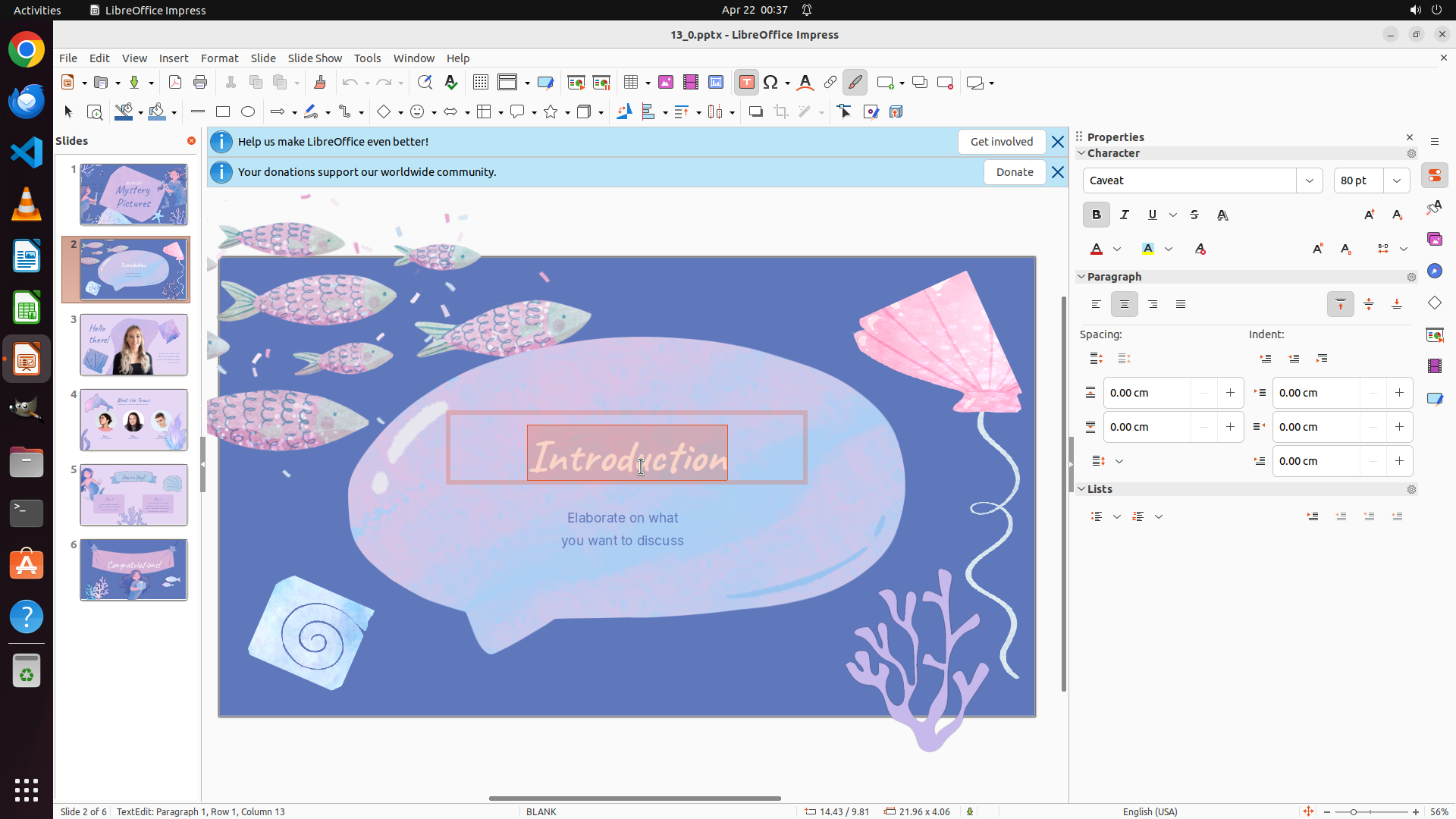
- Slide 2 is now displayed with title "Introduction" visible in the center
- The slide has a blue/purple background with fish illustrations
- Need to change the title from "Introduction" to "Let's start"
- After that, need to set yellow backgrounds for slides 3 and 4
#### 情况分析与思考过程
I'm now on slide 2 and can see the title "Introduction" that needs to be changed to "Let's start". To edit the title text:
1. I need to click on the title text to select the text box
2. Then select all the text and type the new title "Let's start"
The title "Introduction" is visible in the center of the slide. I'll click on it to select the text box for editing.
```
Step 5: HOTKEY
```
#### 重要信息
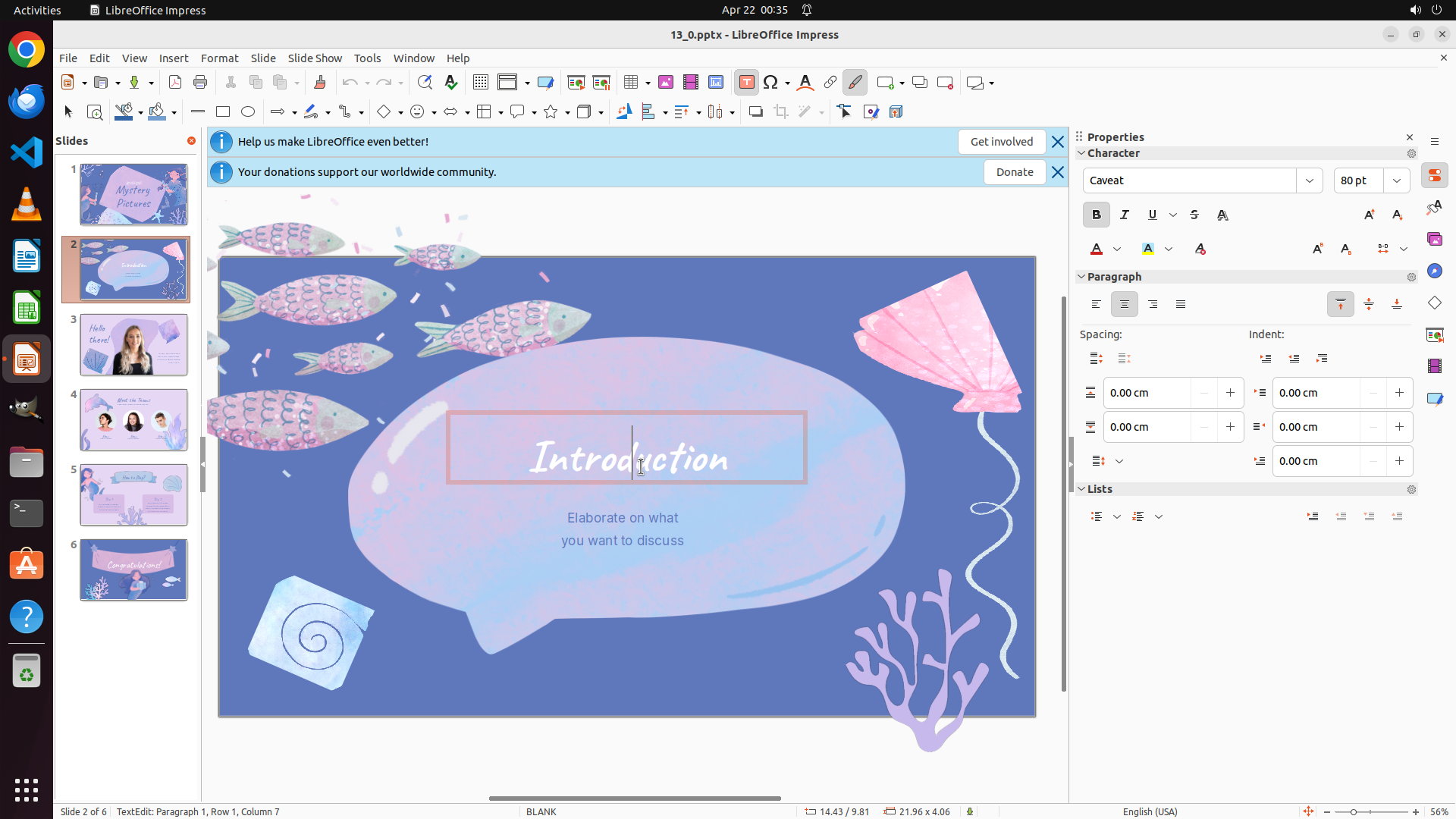
- The text box containing "Introduction" is now selected and active for editing
- The cursor is positioned in the text (status bar shows "TextEdit: Paragraph 1, Row 1, Column 7")
- The text box has an orange border indicating it's selected
- Need to select all text and replace it with "Let's start"
#### 情况分析与思考过程
The previous action successfully clicked on the title text box. Now I can see the cursor is in the text and the text box is active for editing. To change the title from "Introduction" to "Let's start":
1. First, I need to select all the current text using Ctrl+A
2. Then type "Let's start" to replace the selected text
This is a simple text replacement operation. After this is done, I'll need to move on to changing the background colors for slides 3 and 4.
```
Step 5: TYPING "Let's start"
```
#### 重要信息
- The text box containing "Introduction" is now selected and active for editing
- The cursor is positioned in the text (status bar shows "TextEdit: Paragraph 1, Row 1, Column 7")
- The text box has an orange border indicating it's selected
- Need to select all text and replace it with "Let's start"
#### 情况分析与思考过程
The previous action successfully clicked on the title text box. Now I can see the cursor is in the text and the text box is active for editing. To change the title from "Introduction" to "Let's start":
1. First, I need to select all the current text using Ctrl+A
2. Then type "Let's start" to replace the selected text
This is a simple text replacement operation. After this is done, I'll need to move on to changing the background colors for slides 3 and 4.
```
Step 6: CLICK (169, 451)
```
#### 重要信息
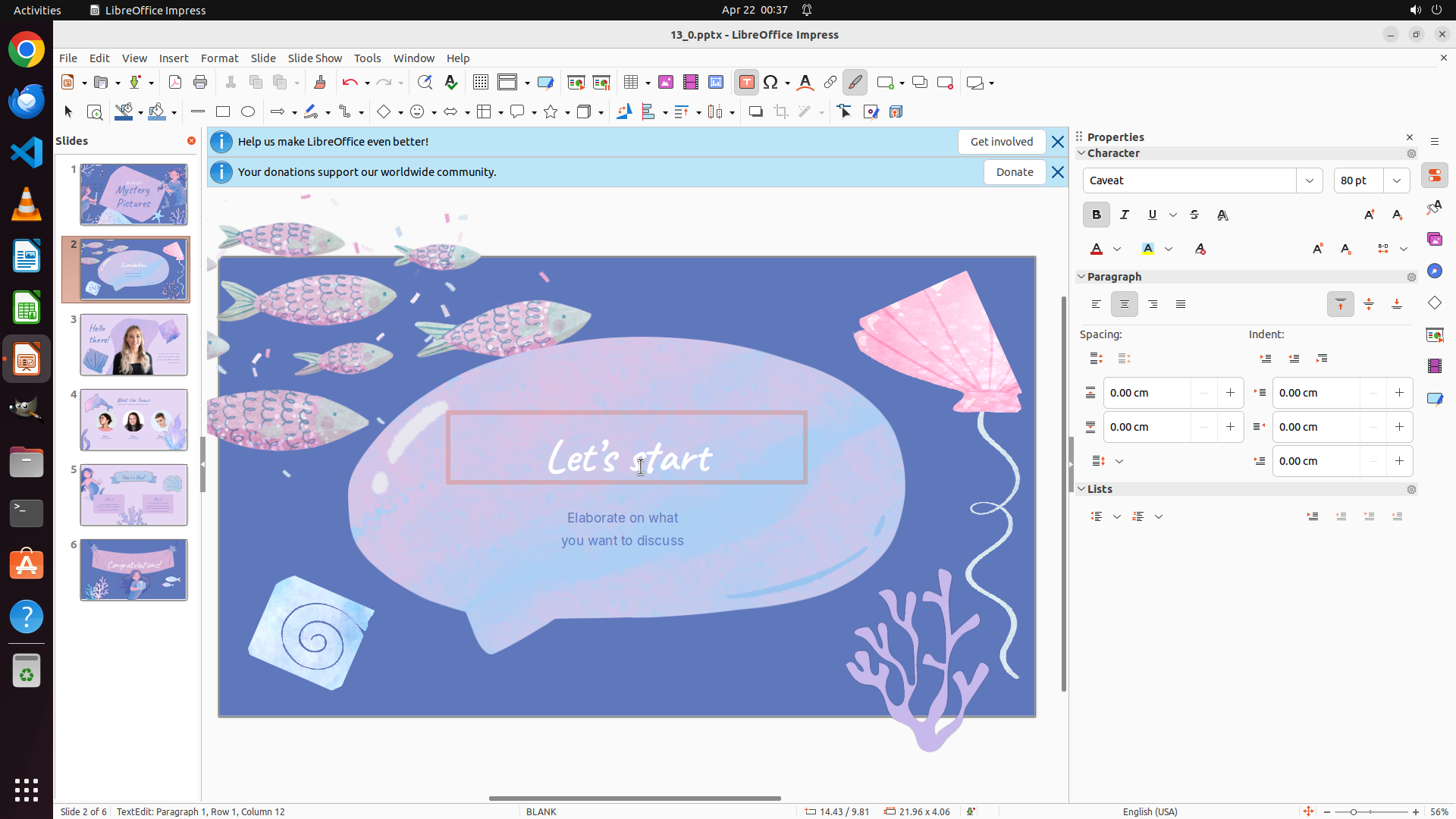
- The title on slide 2 has been successfully changed from "Introduction" to "Let's start"
- The text is now displaying "Let's start" in the main editing area
- Task 1 is complete
- Now I need to navigate to slide 3 to change its background to yellow
- Slide 3 thumbnail is visible in the left sidebar showing the blonde woman photo
#### 情况分析与思考过程
The title change for slide 2 is complete. Now I need to:
1. Update the strategy tree to mark task 1 as successful
2. Navigate to slide 3 by clicking its thumbnail
3. Change slide 3's background to yellow
4. Then do the same for slide 4
5. Save the presentation
I'll click on slide 3's thumbnail in the left sidebar to navigate there.
```
Step 7: CLICK (1761, 339)
```
#### 重要信息
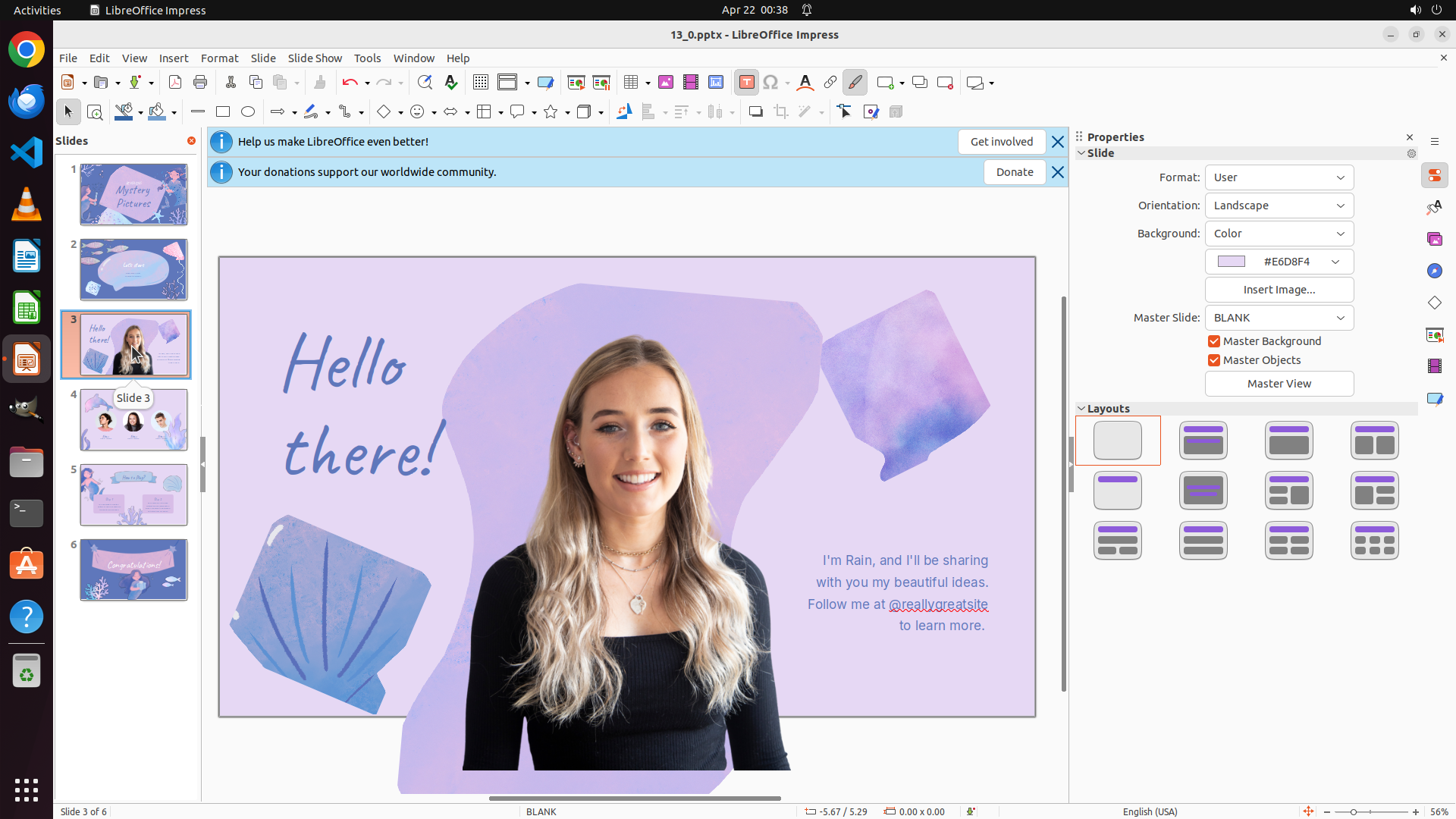
- Successfully navigated to slide 3 which shows the blonde woman photo
- The slide currently has a purple/blue background (#E6D8F4)
- The Properties panel on the right shows Background is set to "Color"
- There's a color selector showing #E6D8F4 with a dropdown button next to it
- Need to change this background color to yellow
#### 情况分析与思考过程
I'm now on slide 3 which contains the photo of a real person (blonde woman). The current background is purple (#E6D8F4) and needs to be changed to yellow.
Looking at the Properties panel on the right:
- Background is already set to "Color"
- The current color is #E6D8F4
- There's a dropdown button next to the color value
I need to click on the color dropdown to open the color picker and select yellow. After that, I'll navigate to slide 4 and do the same, then save the presentation.
Let me click on the dropdown button next to the color value in the Properties panel.
```
Step 8: CLICK (1605, 427)
```
#### 重要信息
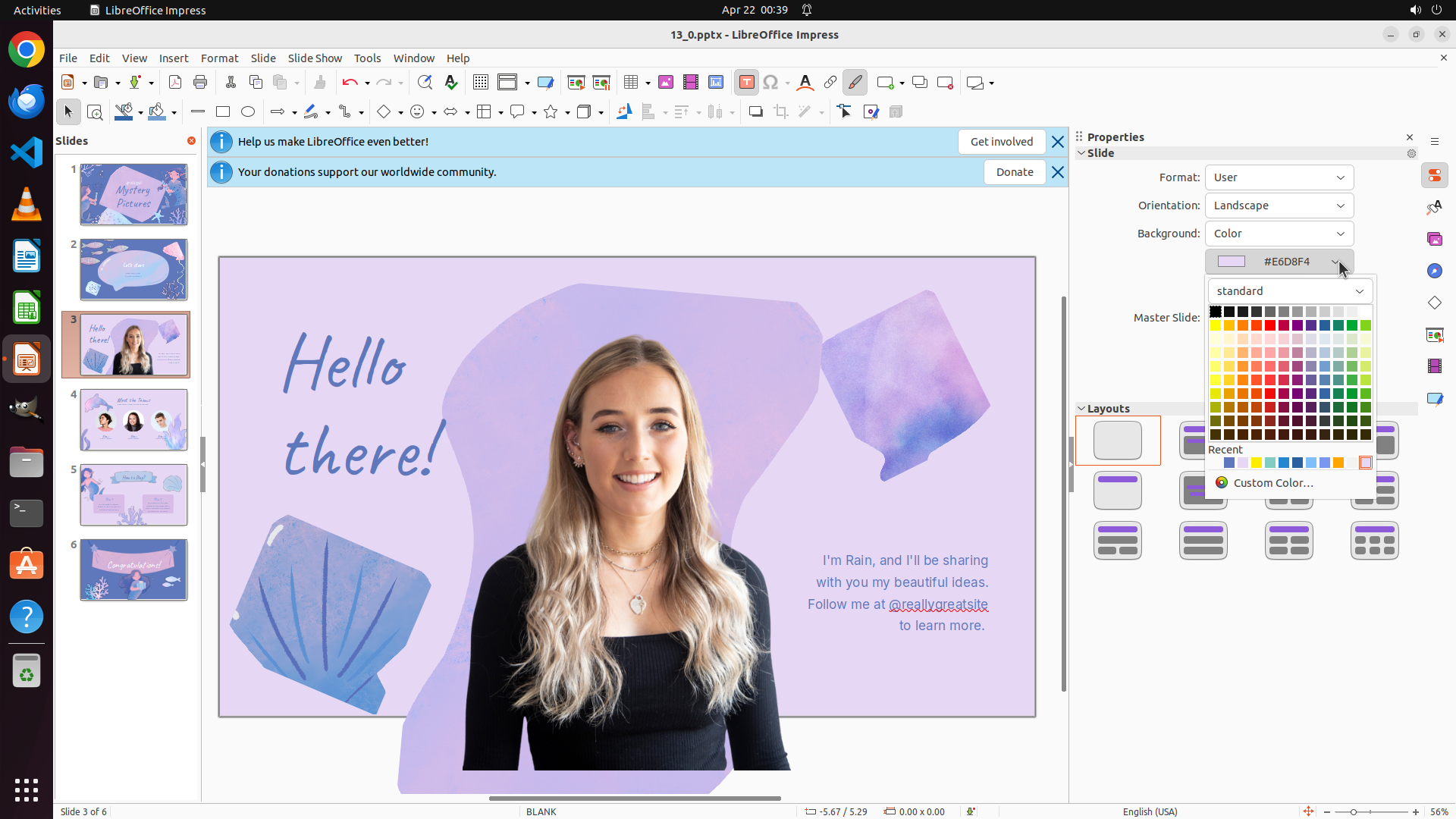
- The color picker dropdown has opened successfully
- A color palette is now displayed with many color options
- I can see yellow colors in the palette
- Need to select a yellow color for slide 3's background
#### 情况分析与思考过程
The color picker is now open. I can see the color palette with various colors including yellow options. I need to select a yellow color to change the background of slide 3.
Looking at the color palette, there are yellow colors visible in the upper-middle section. I'll select a bright yellow color.
After changing slide 3's background to yellow, I'll need to:
1. Navigate to slide 4
2. Change its background to yellow as well
3. Save the presentation
```
Step 9: CLICK (169, 556)
```
#### 重要信息
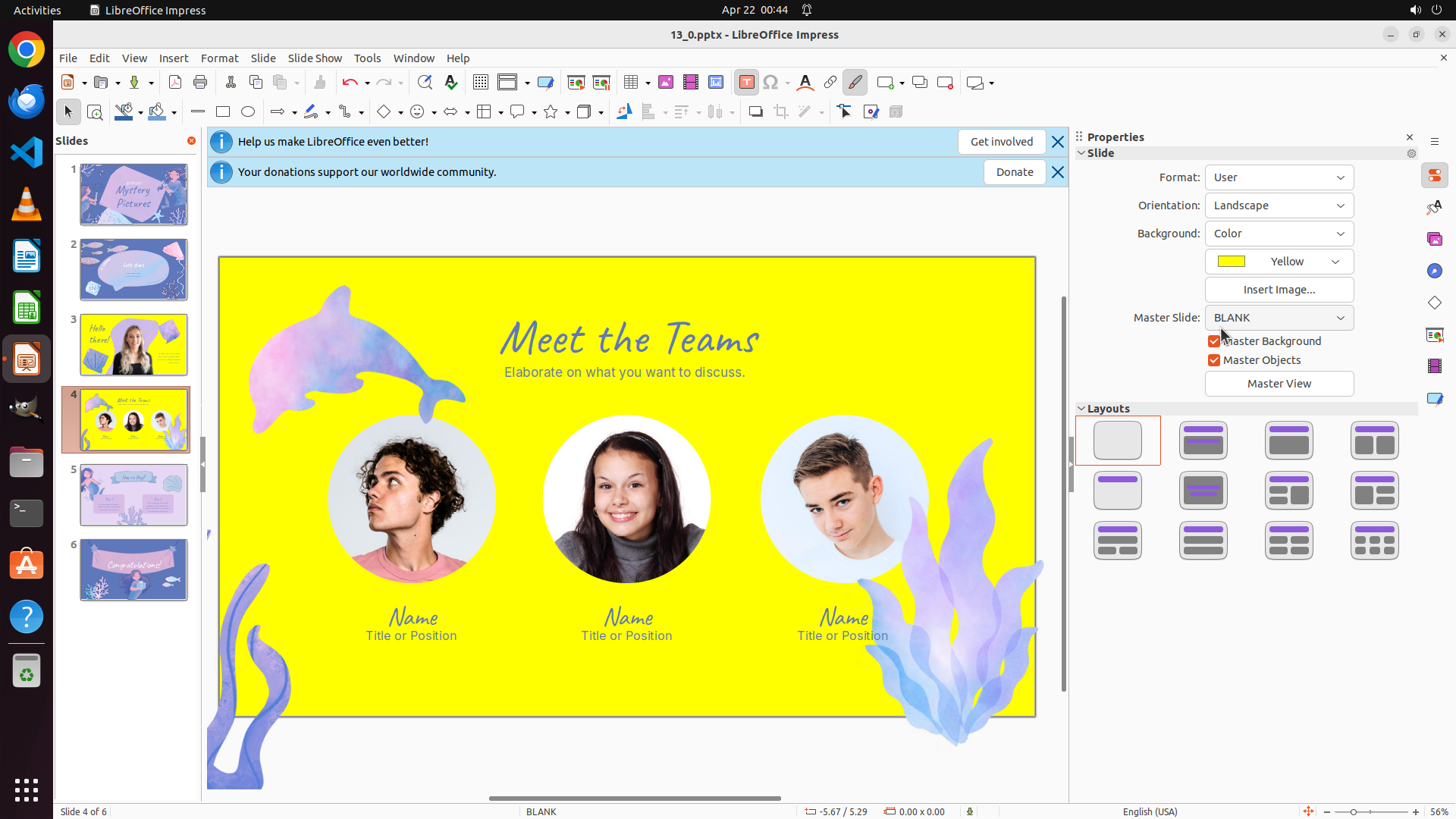
- Slide 3's background has been successfully changed to yellow
- The Properties panel confirms "Yellow" is now the selected background color
- Slide 3 thumbnail in the left sidebar shows the yellow background
- Now I need to navigate to slide 4 to change its background to yellow as well
- Slide 4 contains three circular photos of people
#### 情况分析与思考过程
Great progress! Slide 3's background is now yellow. I can see the change has been applied successfully both in the main editing area and in the thumbnail.
Next steps:
1. Navigate to slide 4 by clicking its thumbnail
2. Change slide 4's background to yellow (using the same process)
3. Save the presentation
I'll click on slide 4's thumbnail in the left sidebar to navigate there.
```
Step 10: CLICK (1761, 339)
```
#### 重要信息
- Successfully navigated to slide 4 which contains three circular photos of people
- The slide currently has a purple/blue background (#E6D8F4)
- The Properties panel on the right shows Background is set to "Color"
- There's a color selector showing #E6D8F4 with a dropdown button next to it
- Need to change this background color to yellow
#### 情况分析与思考过程
I'm now on slide 4 which contains photos of real people (three circular photos). The current background is purple (#E6D8F4) and needs to be changed to yellow.
Looking at the Properties panel on the right:
- Background is already set to "Color"
- The current color is #E6D8F4
- There's a dropdown button next to the color value
I need to click on the color dropdown to open the color picker and select yellow, similar to what I did for slide 3. After changing slide 4's background to yellow, I'll need to save the presentation to complete all tasks.
Let me click on the dropdown button next to the color value in the Properties panel.
```
Step 11: CLICK (1605, 427)
```
#### 重要信息
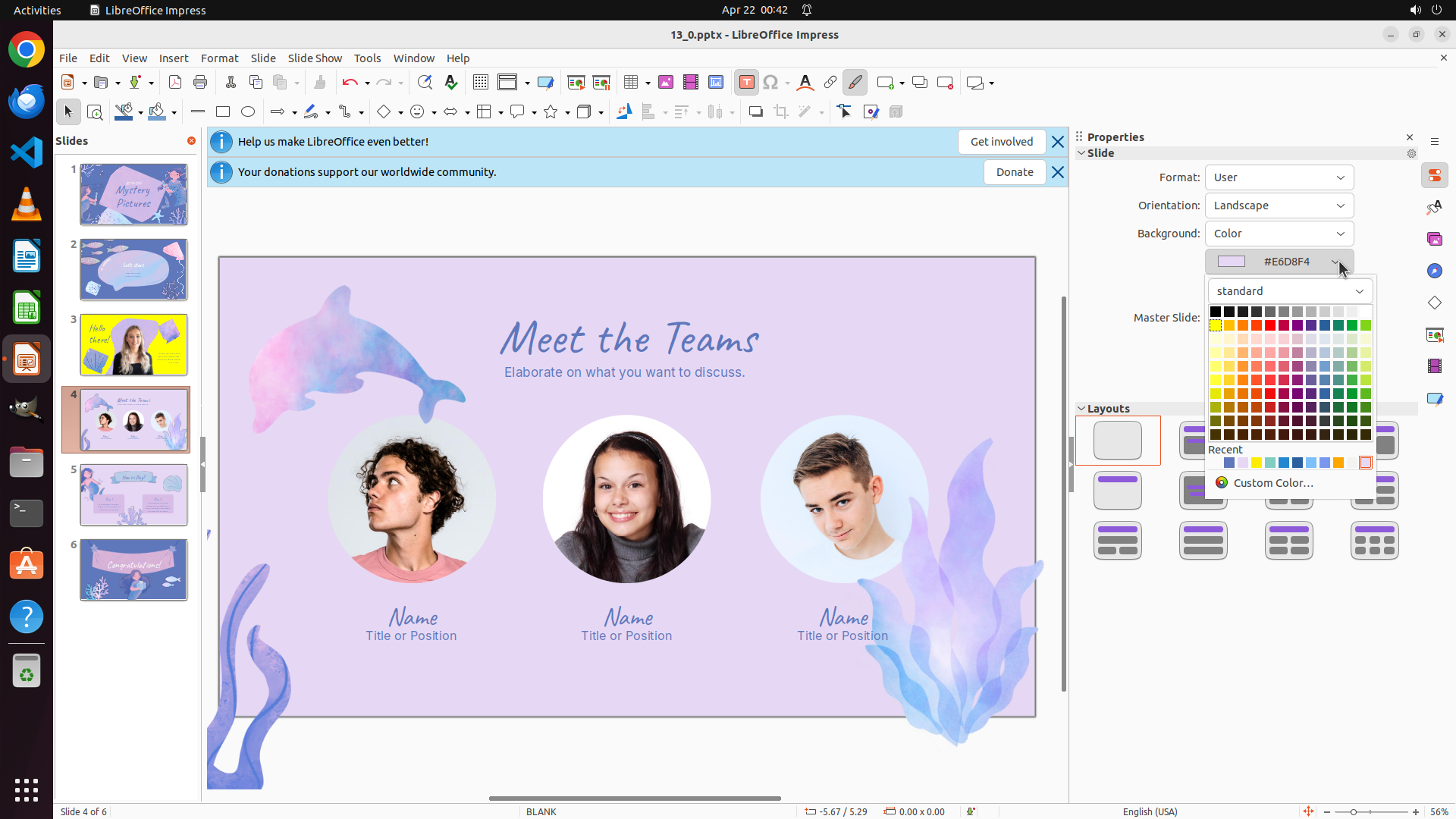
- The color picker dropdown has opened successfully for slide 4
- A color palette is displayed with many color options including yellow
- I can see yellow colors in the upper portion of the palette
- Need to select a yellow color to match slide 3's background
#### 情况分析与思考过程
The color picker is now open for slide 4. I can see the color palette with various colors. I need to select a yellow color similar to what was used for slide 3 to maintain consistency.
Looking at the color palette, there are yellow colors visible. I'll select a bright yellow color from the palette.
After changing slide 4's background to yellow, I'll need to save the presentation to complete all tasks.
```
Step 12: HOTKEY
```
#### 重要信息
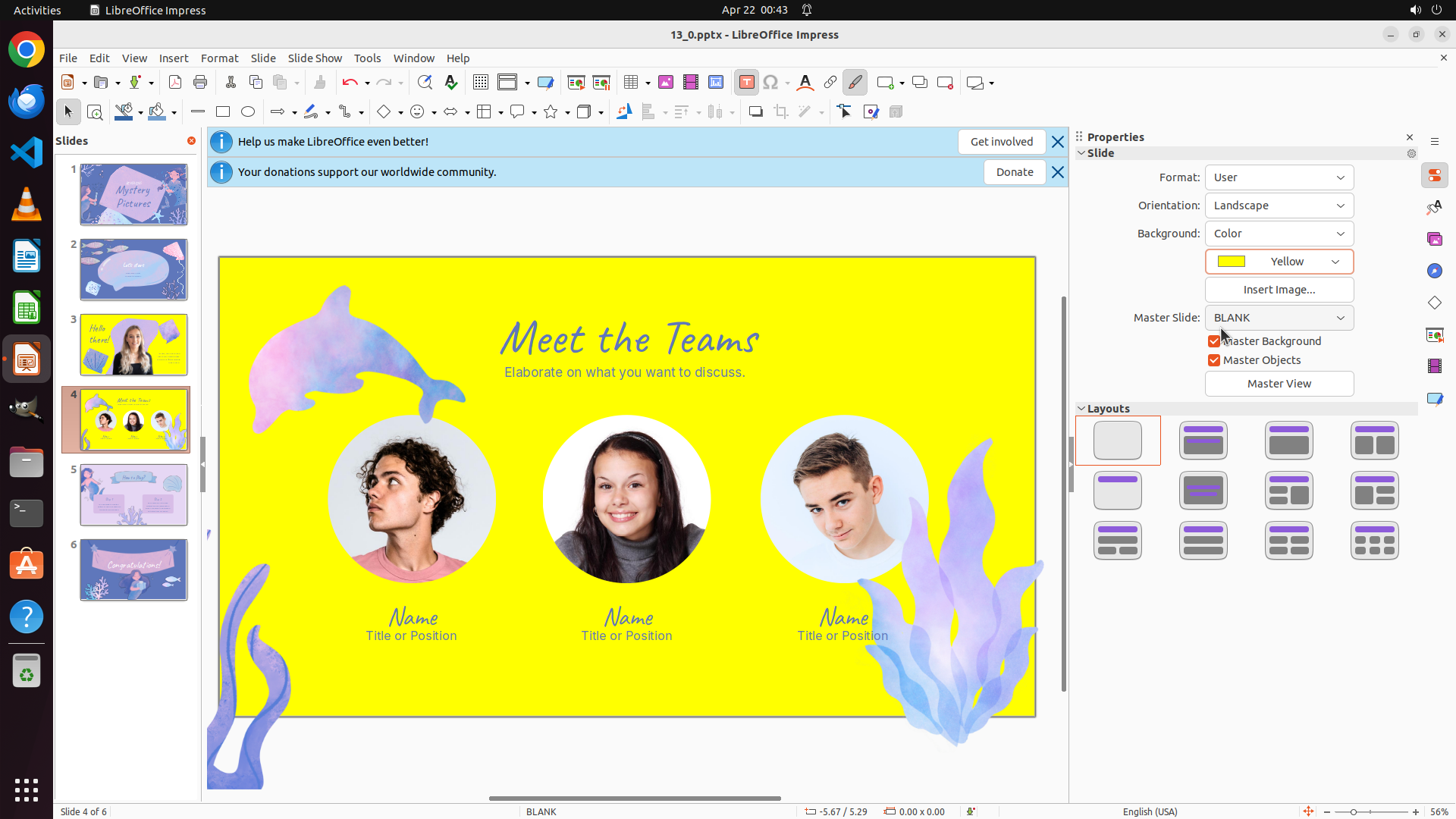
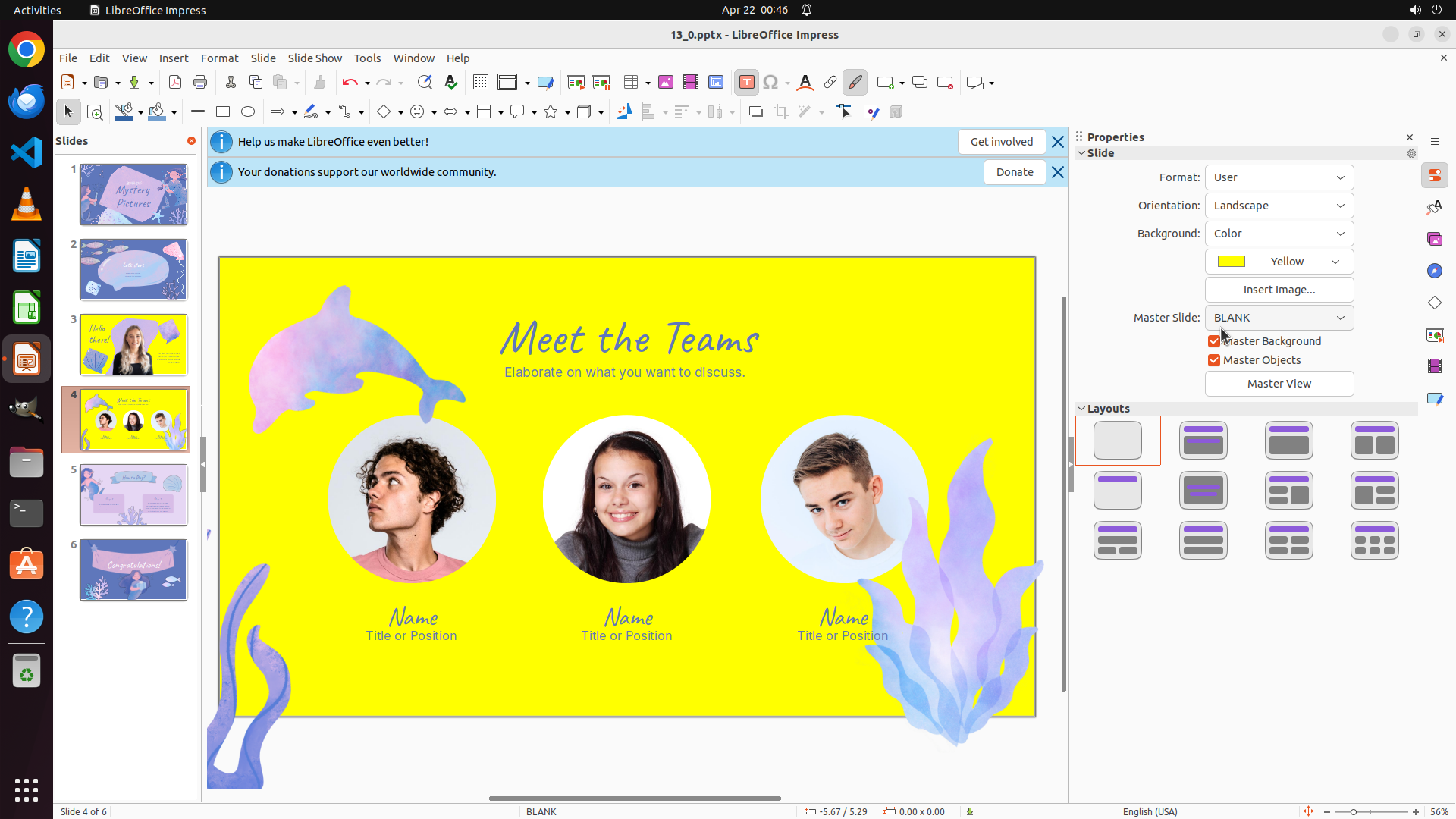
- Slide 4's background has been successfully changed to yellow
- The Properties panel confirms "Yellow" is now the selected background color for slide 4
- Slide 4 thumbnail in the left sidebar shows the yellow background behind the three circular people photos
- All required tasks have been completed:
- Slide 2 title changed to "Let's start" ✓
- Slide 3 background set to yellow (contains photo of blonde woman) ✓
- Slide 4 background set to yellow (contains three circular photos of people) ✓
- Now I need to save the presentation to preserve all changes
#### 情况分析与思考过程
All the required tasks have been completed successfully:
1. Changed slide 2's title from "Introduction" to "Let's start"
2. Set yellow background for slide 3 (contains photo of blonde woman)
3. Set yellow background for slide 4 (contains three circular photos of people)
The final step is to save the presentation to preserve all these changes. I'll use Ctrl+S to save the file. This will complete all tasks and ensure the changes are preserved.
```