```
#### 重要信息
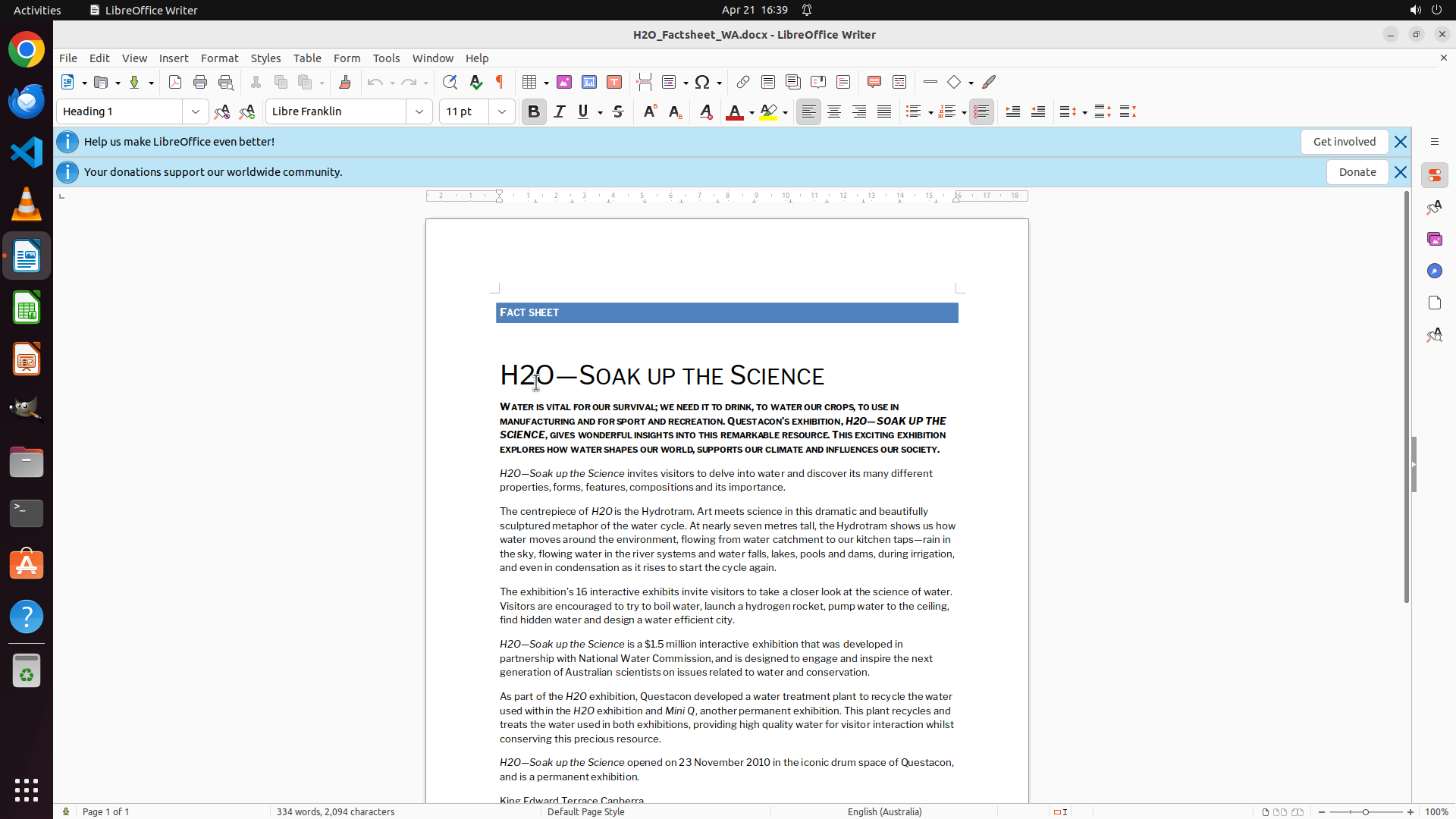
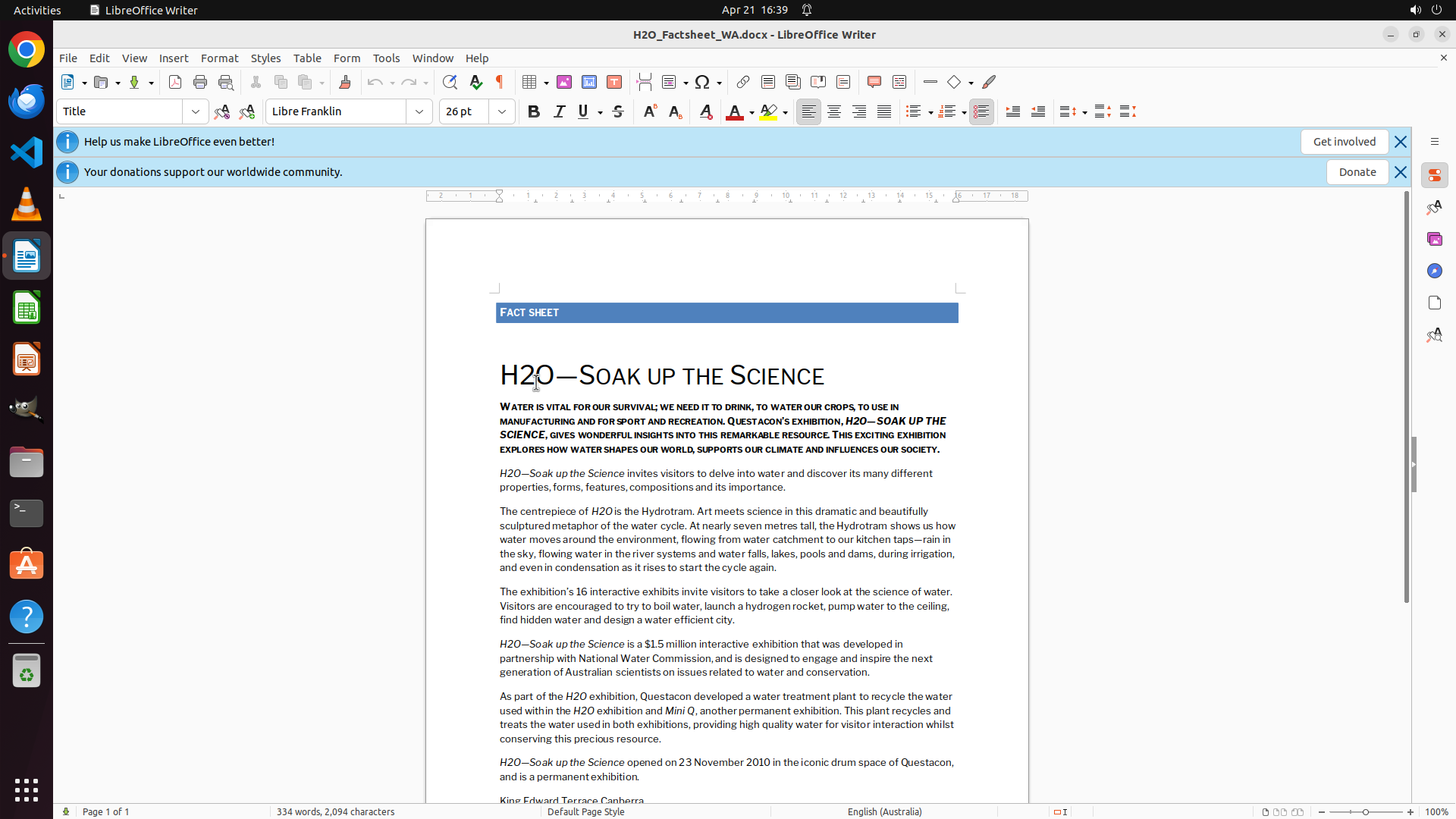
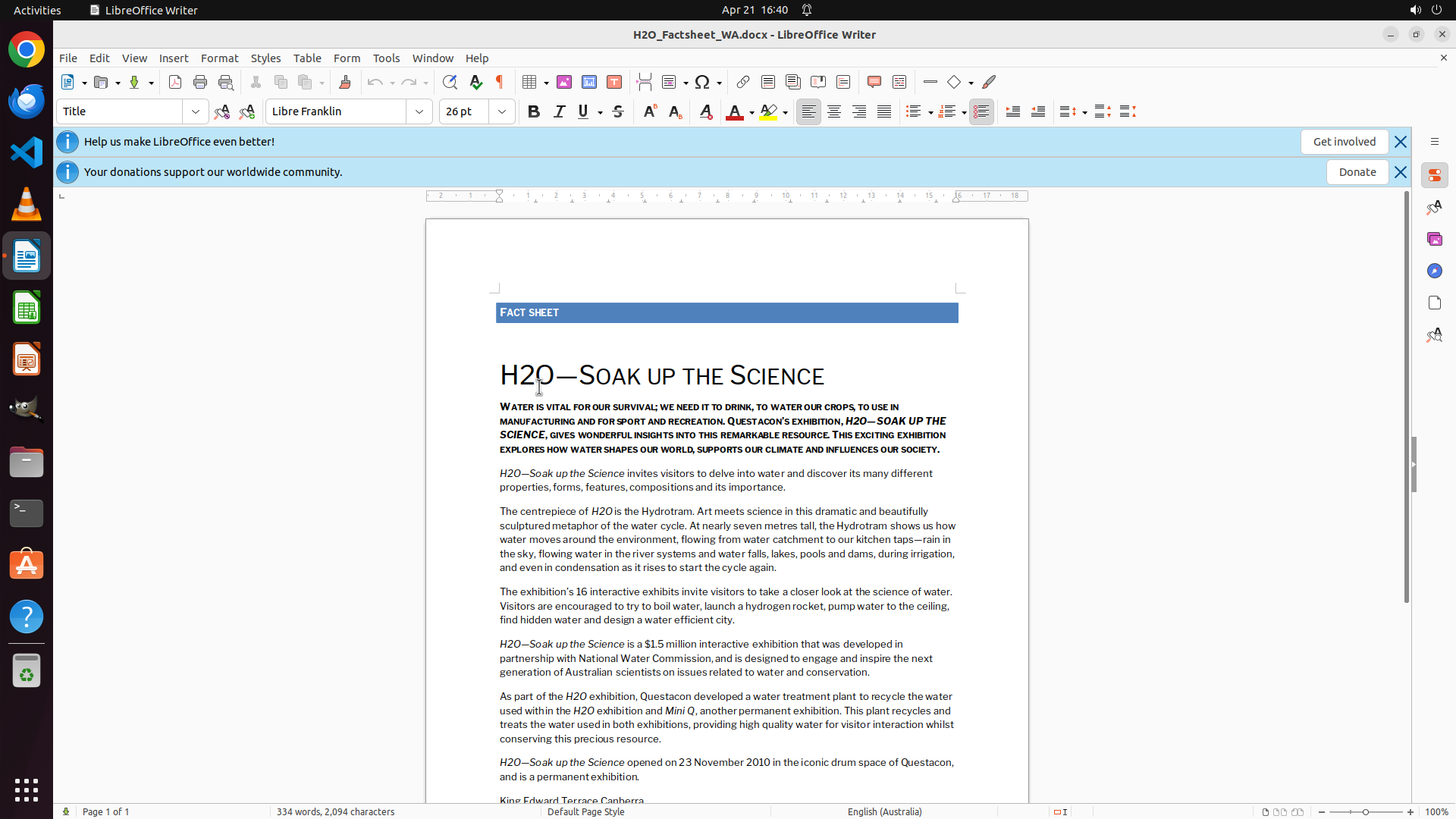
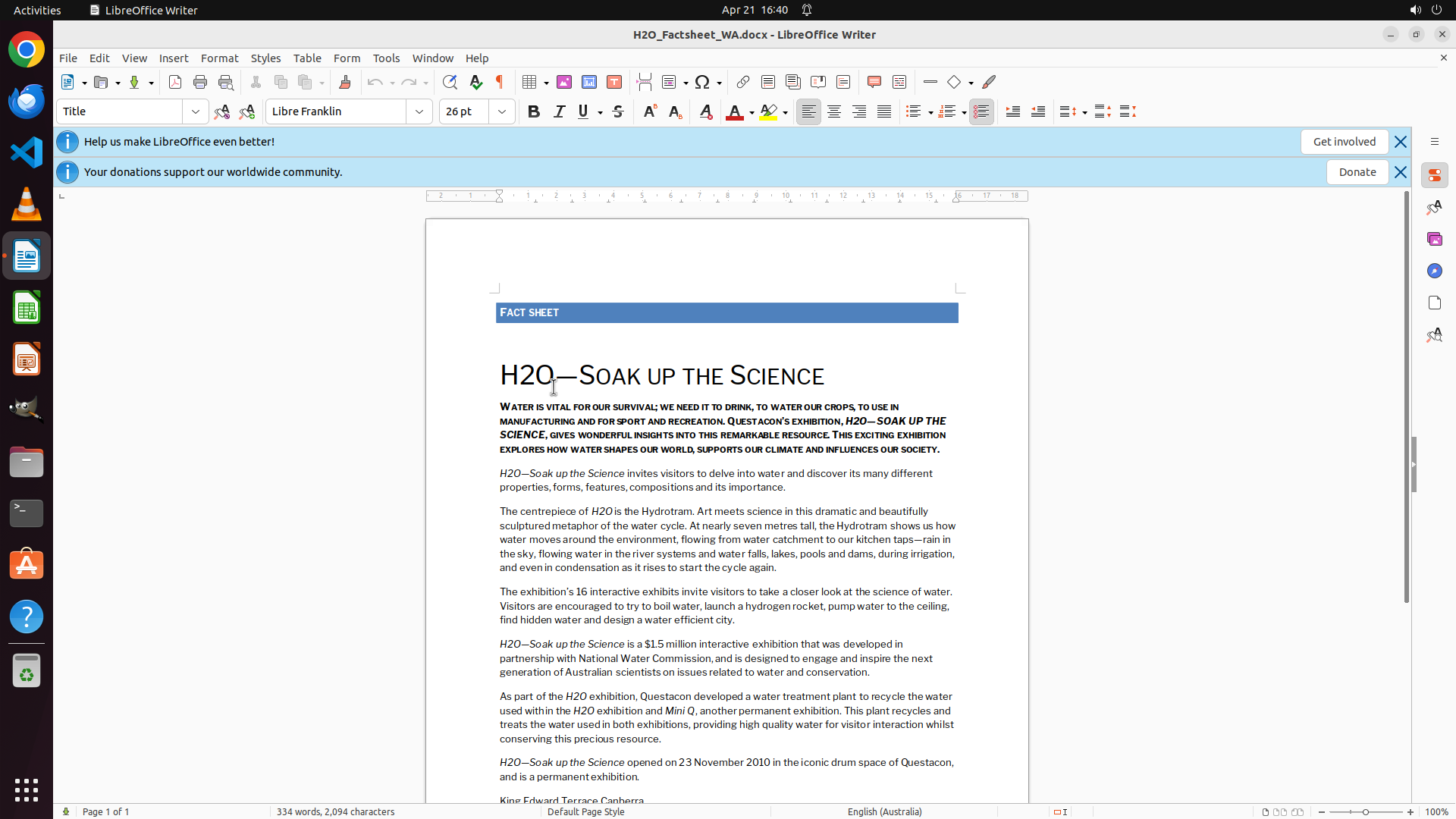
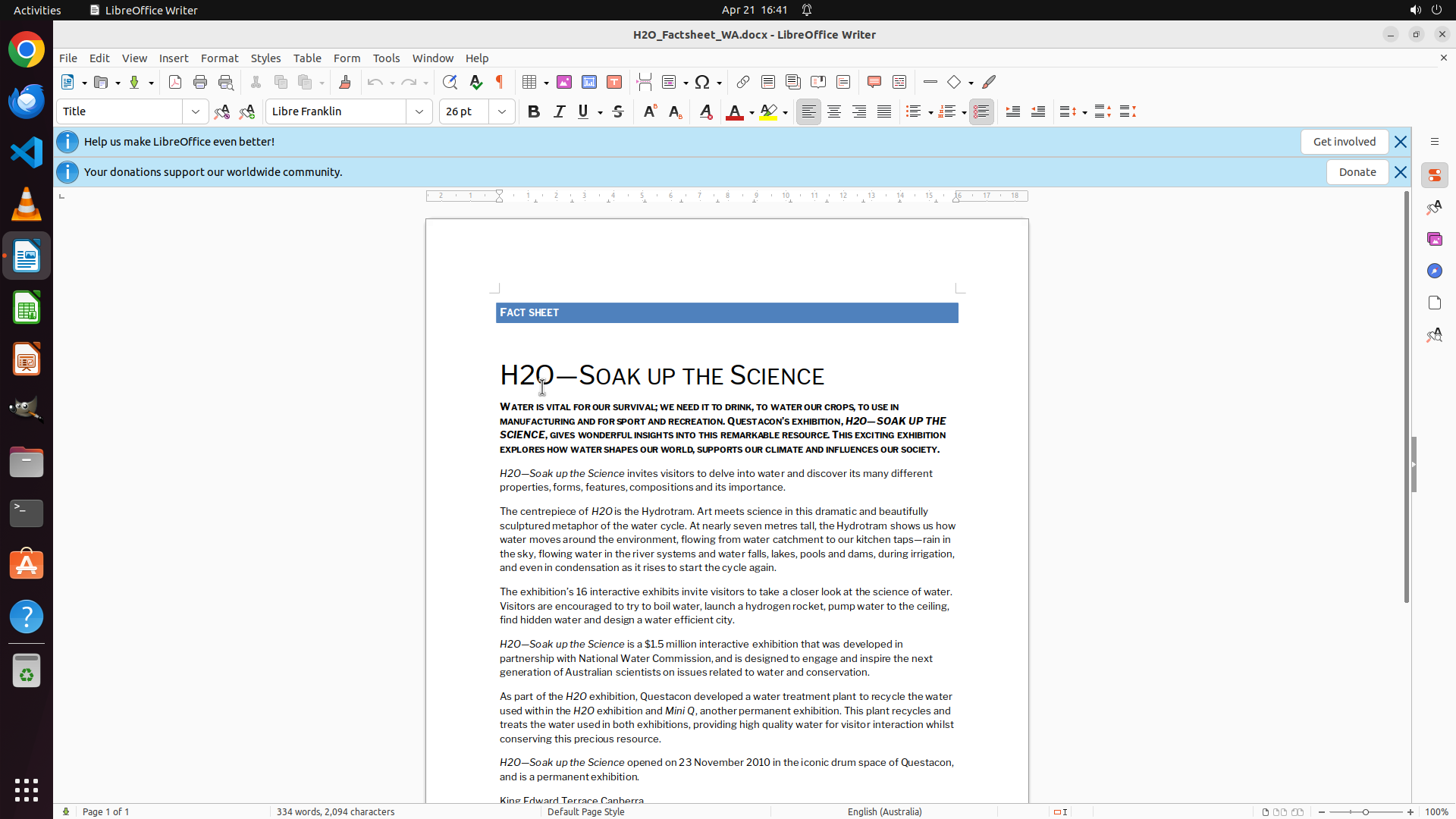
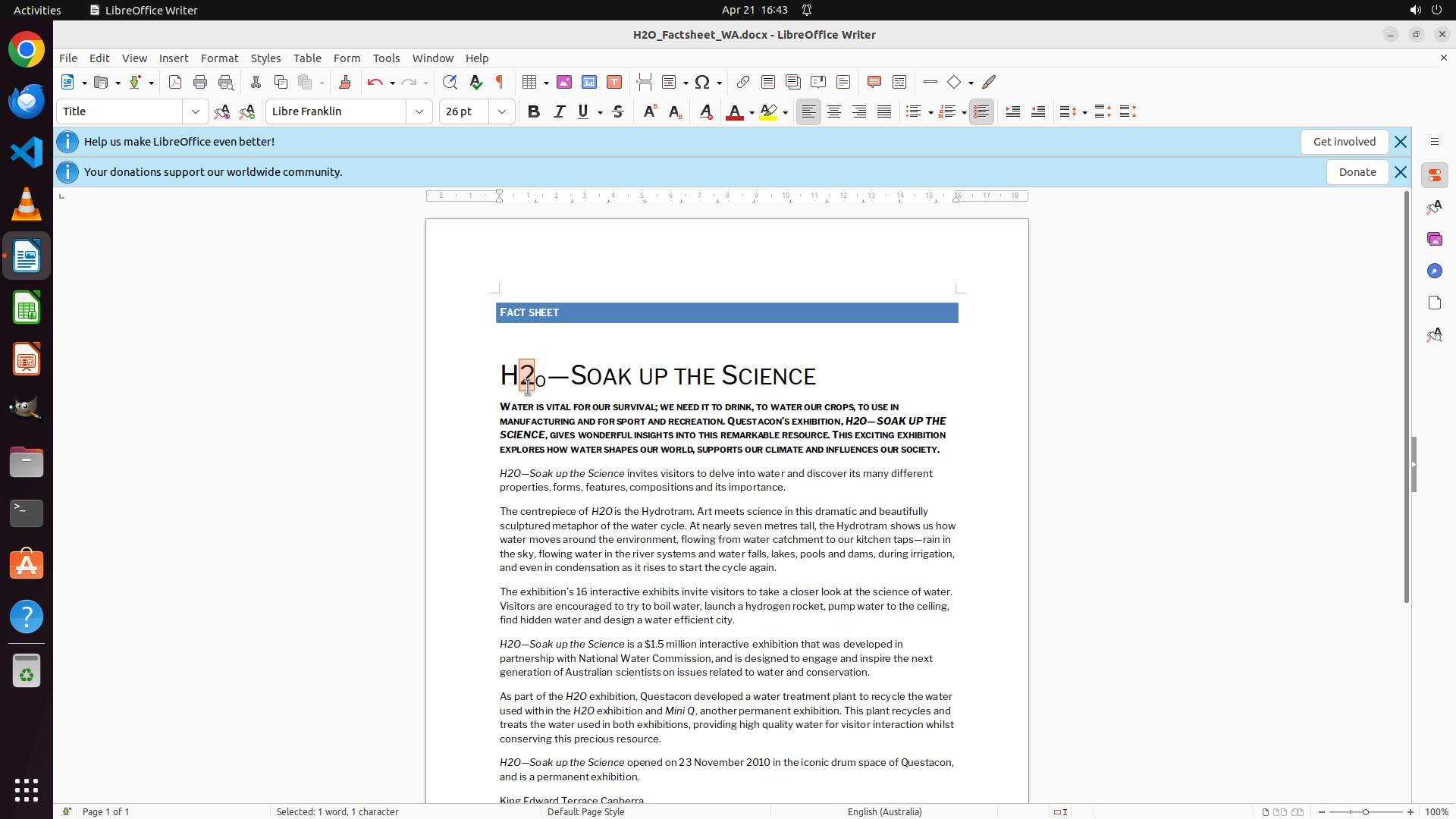
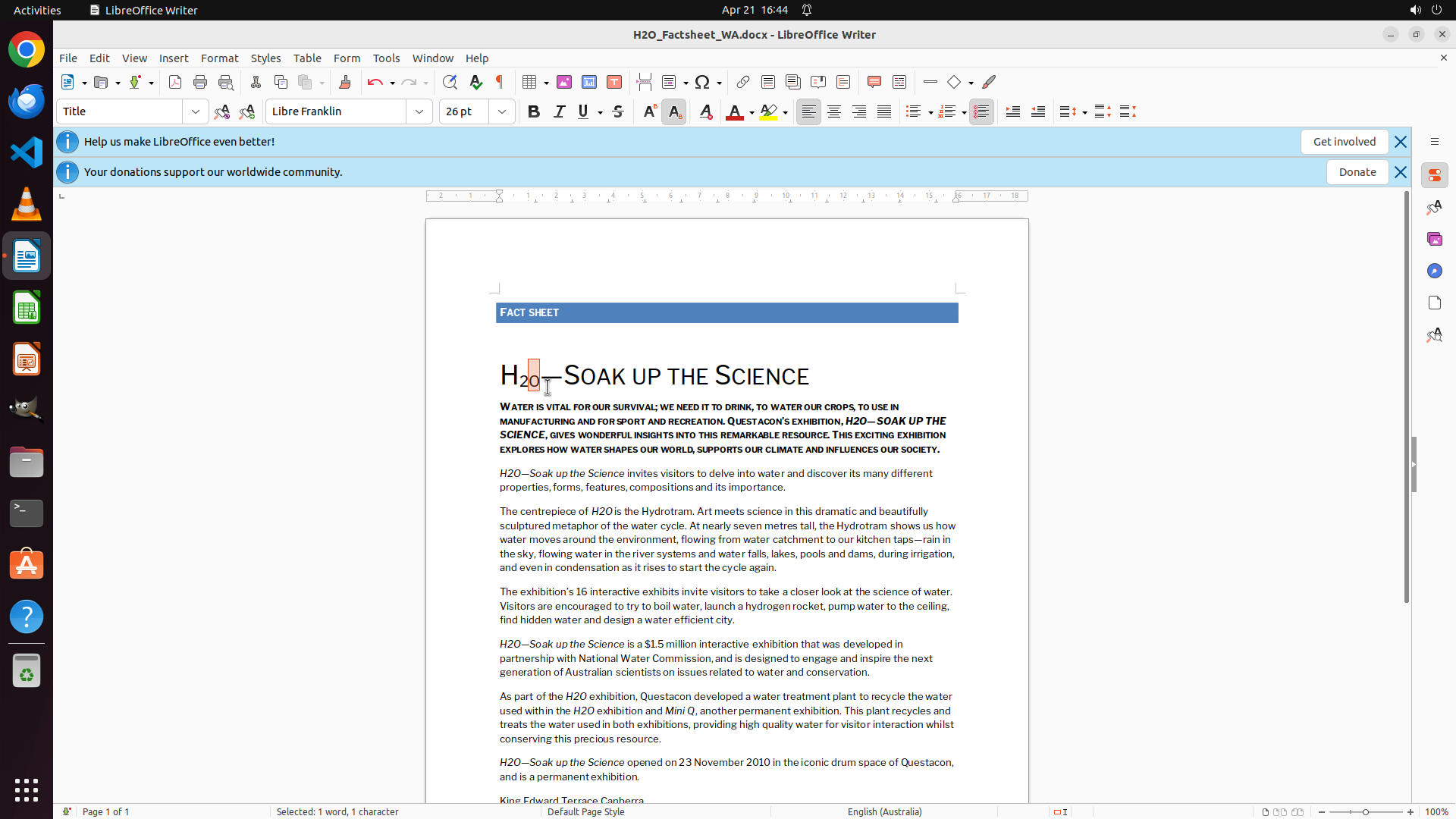
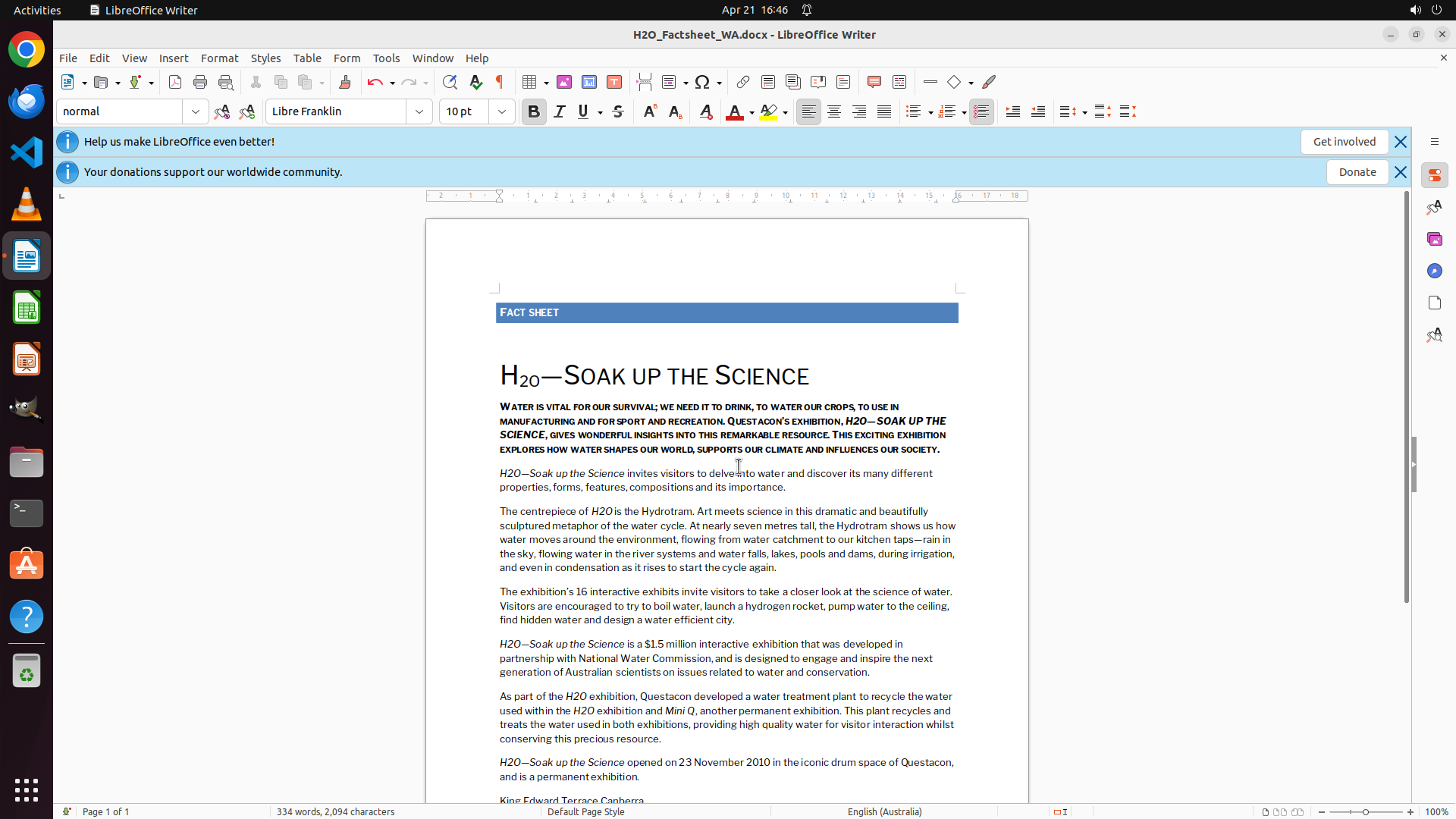
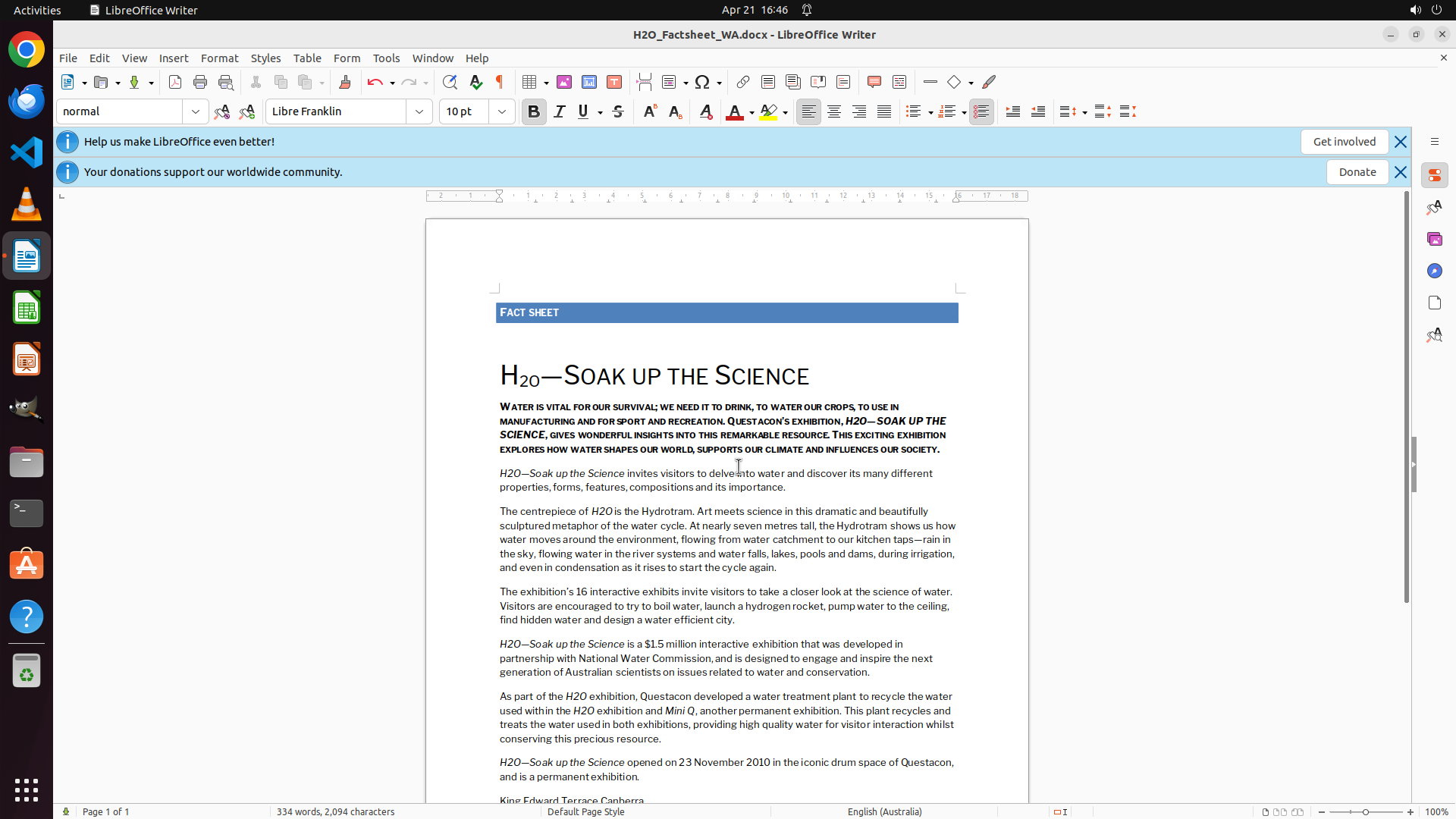
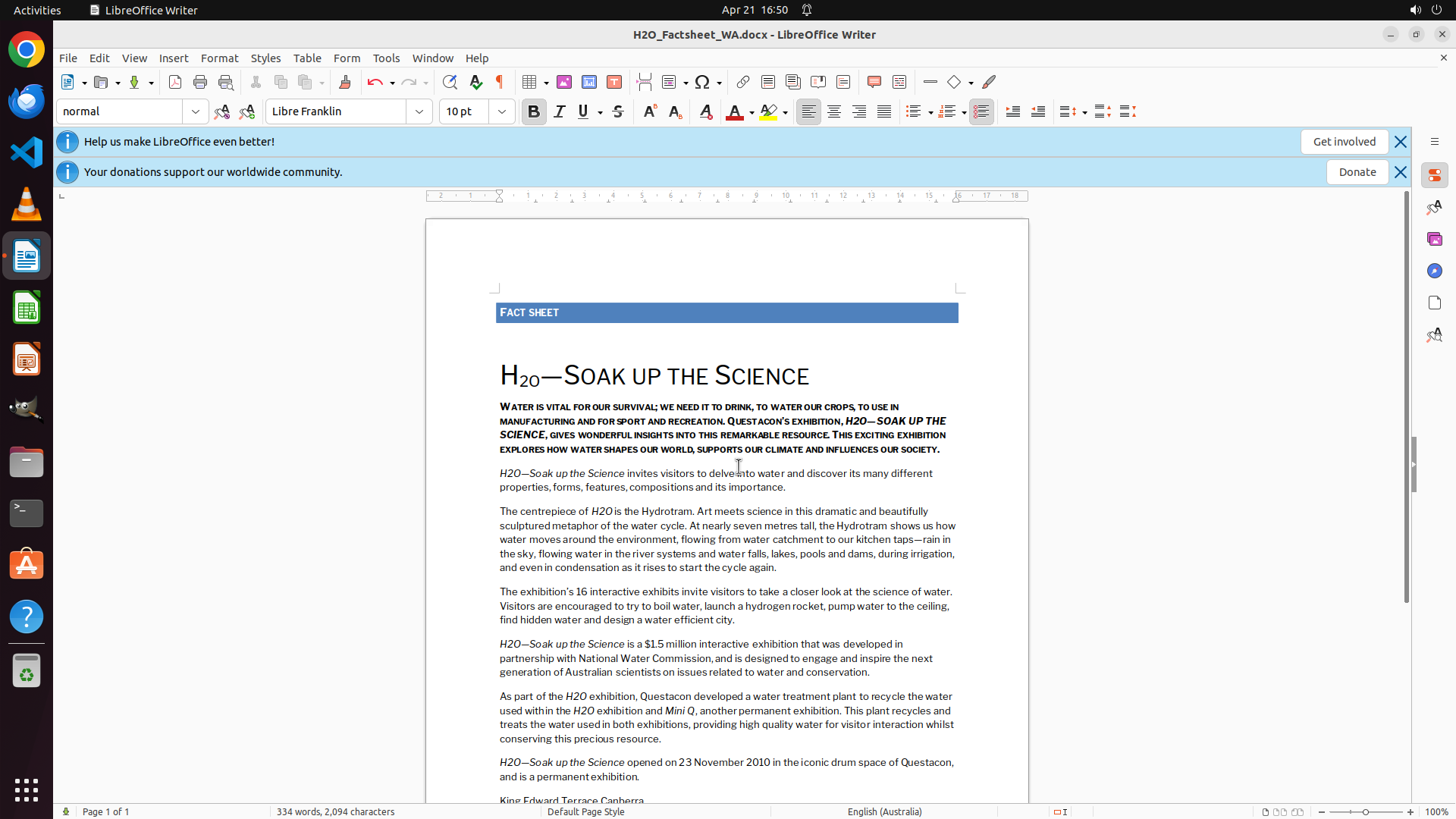
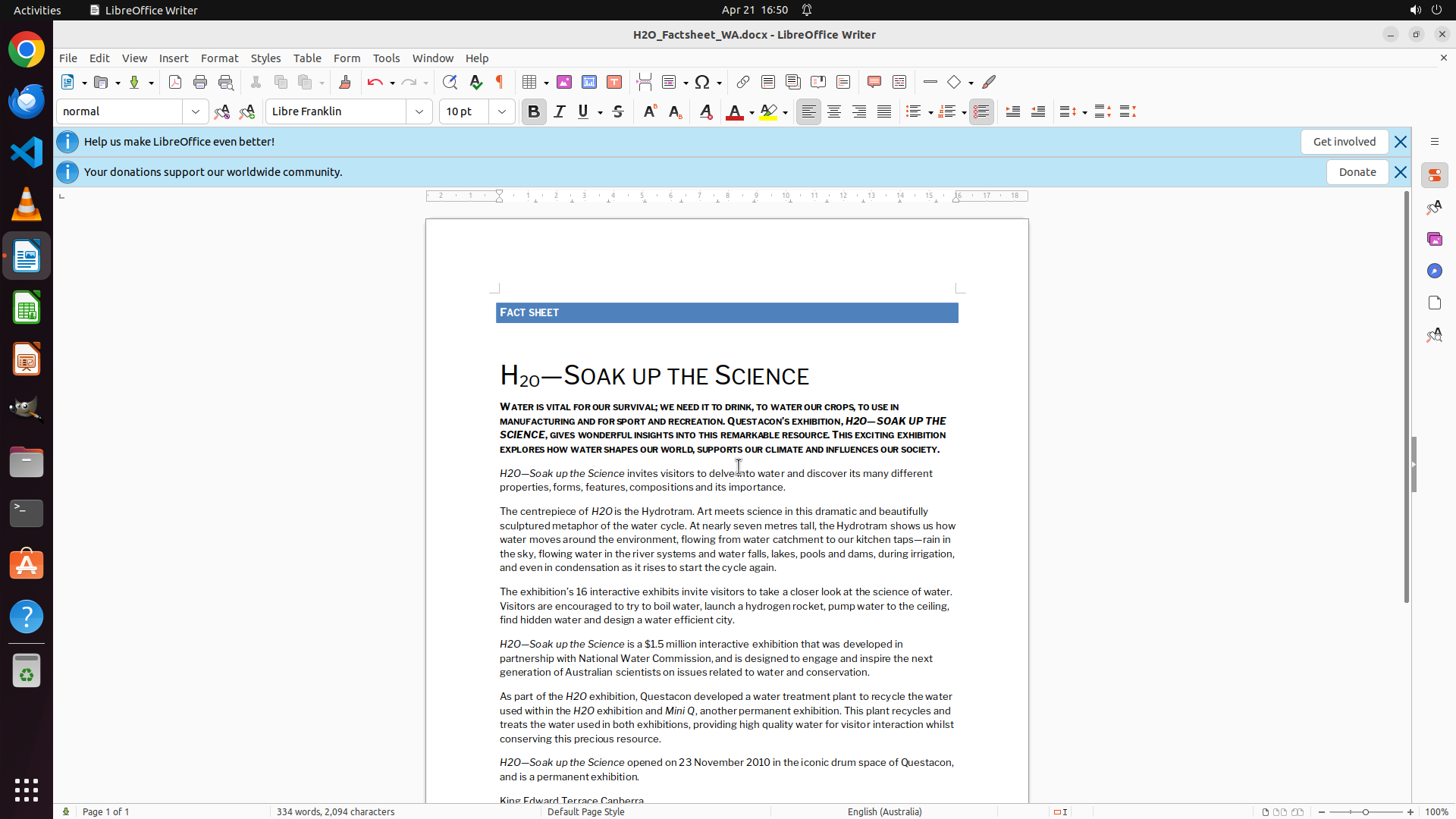
LibreOffice Writer is open with a document titled "H2O_Factsheet_WA.docx". The document contains a heading "H2O—SOAK UP THE SCIENCE" where the "2" in "H2O" needs to be formatted as a subscript. The document is editable and ready for formatting changes.
#### 情况分析与思考过程
I need to:
1. First, click on the document to ensure it's focused
2. Select the "2" character in "H2O" in the main heading
3. Apply subscript formatting using the keyboard shortcut Ctrl+Shift+B or through the Format menu
The most prominent "H2O" is in the heading "H2O—SOAK UP THE SCIENCE". I'll start by clicking on the document, then carefully select just the "2" character, and apply the subscript formatting.
Let me first click on the document to focus it, then select the "2" in the heading.
```
Step 1: CLICK (693, 489)
```
#### 重要信息
LibreOffice Writer is open with a document titled "H2O_Factsheet_WA.docx". The document contains a heading "H2O—SOAK UP THE SCIENCE" where the "2" in "H2O" needs to be formatted as a subscript. The document is editable and ready for formatting changes.
#### 情况分析与思考过程
I need to:
1. First, click on the document to ensure it's focused
2. Select the "2" character in "H2O" in the main heading
3. Apply subscript formatting using the keyboard shortcut Ctrl+Shift+B or through the Format menu
The most prominent "H2O" is in the heading "H2O—SOAK UP THE SCIENCE". I'll start by clicking on the document, then carefully select just the "2" character, and apply the subscript formatting.
Let me first click on the document to focus it, then select the "2" in the heading.
```
Step 2: MOVE_TO (697, 495)
```
#### 重要信息
LibreOffice Writer document is focused and ready for editing. The heading "H2O—SOAK UP THE SCIENCE" is visible in the document. The cursor is positioned in the document. I need to select just the "2" character in "H2O" to apply subscript formatting.
#### 情况分析与思考过程
The previous action successfully focused the document. Now I need to:
1. Select the "2" character in the "H2O" heading
2. Apply subscript formatting
To select just the "2", I'll need to carefully position my click right before the "2" (after "H") and drag to just after the "2" (before "O"). Looking at the heading position, the "H2O" text appears to be around coordinates where I need to make a precise selection.
After selecting the "2", I can use Ctrl+Shift+B to apply subscript formatting, or use the Format menu. The keyboard shortcut is more efficient.
Let me select the "2" character by clicking and dragging over it.
```
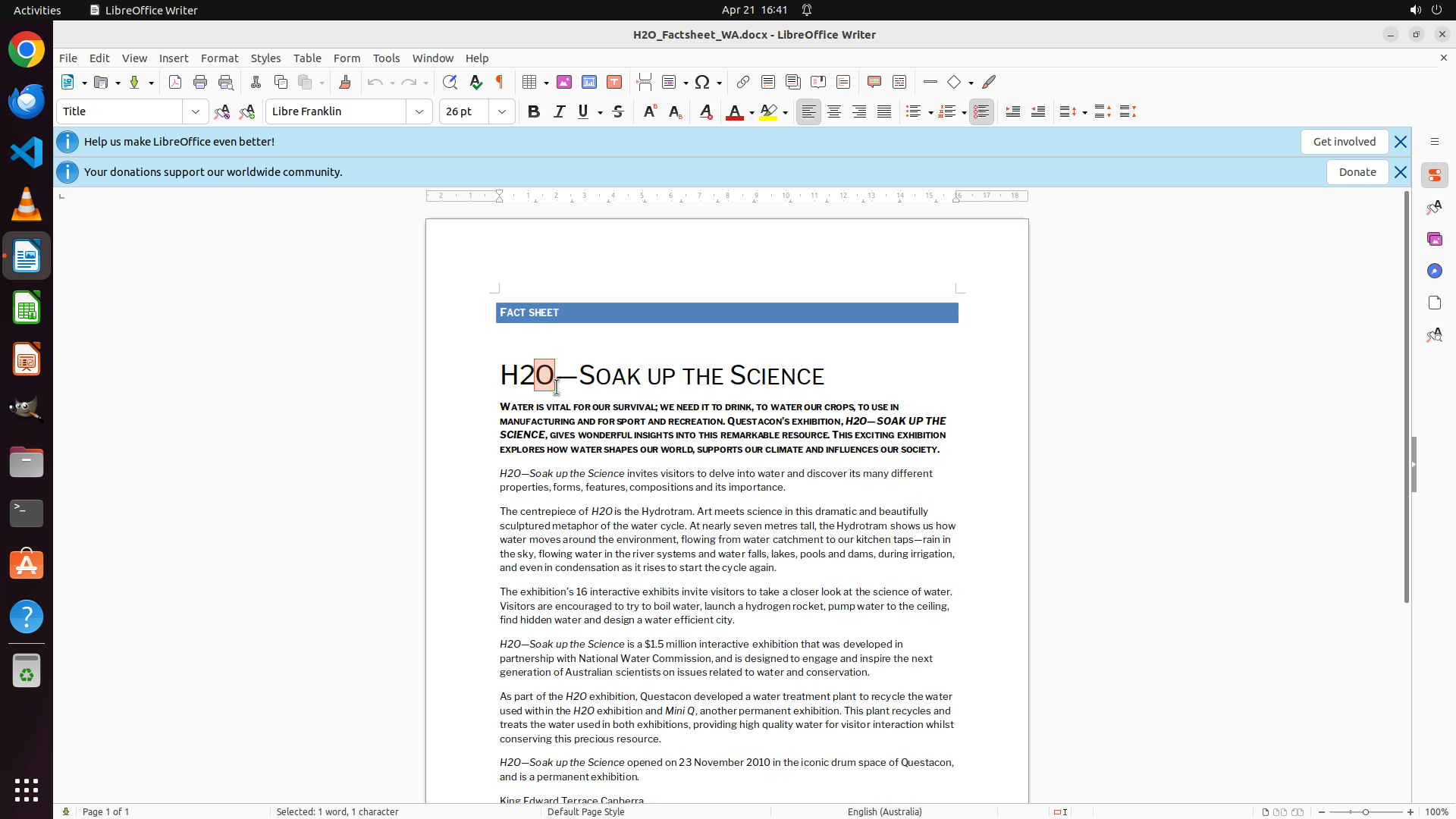
Step 2: DRAG_TO (716, 495)
```
#### 重要信息
LibreOffice Writer document is focused and ready for editing. The heading "H2O—SOAK UP THE SCIENCE" is visible in the document. The cursor is positioned in the document. I need to select just the "2" character in "H2O" to apply subscript formatting.
#### 情况分析与思考过程
The previous action successfully focused the document. Now I need to:
1. Select the "2" character in the "H2O" heading
2. Apply subscript formatting
To select just the "2", I'll need to carefully position my click right before the "2" (after "H") and drag to just after the "2" (before "O"). Looking at the heading position, the "H2O" text appears to be around coordinates where I need to make a precise selection.
After selecting the "2", I can use Ctrl+Shift+B to apply subscript formatting, or use the Format menu. The keyboard shortcut is more efficient.
Let me select the "2" character by clicking and dragging over it.
```
Step 3: MOVE_TO (701, 495)
```
#### 重要信息
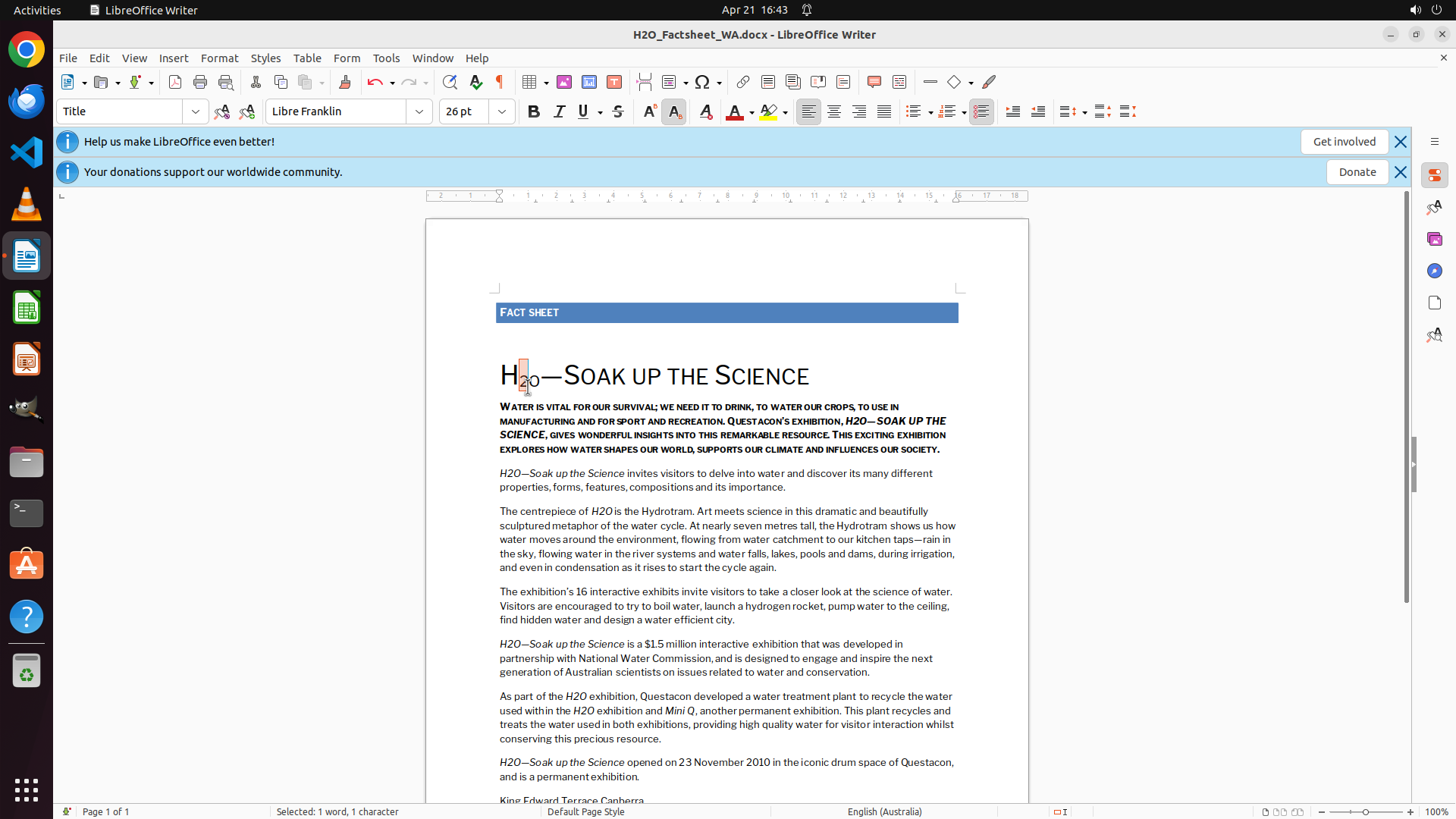
The LibreOffice Writer document is open with the heading "H2O—SOAK UP THE SCIENCE" visible. The previous attempt to select the "2" character appears to have been executed, but it's unclear if the selection was successful as I cannot see visible text highlighting in the screenshot. The "2" character in the heading still appears to be at normal size and position (not subscripted yet).
#### 情况分析与思考过程
The previous drag action may not have successfully selected the "2" character, or the selection is not visible in the screenshot. Since I need to apply subscript formatting to the "2", I should:
1. First ensure the "2" is properly selected by attempting the selection again with a more precise drag
2. Once selected, apply subscript formatting using Ctrl+Shift+B
Looking at the heading "H2O—SOAK UP THE SCIENCE", the "2" is positioned between "H" and "O". I need to carefully drag to select just that single character. I'll try a slightly different approach - clicking right before the "2" and dragging to just after it, ensuring the character is captured.
After successful selection, I'll use the keyboard shortcut Ctrl+Shift+B to apply subscript formatting, which is the quickest method.
```
I need to properly select the "2" character and then apply subscript formatting. Let me do this in a batch operation: first select the "2" with a drag, then apply the subscript formatting with Ctrl+Shift+B.
Step 3: DRAG_TO (720, 495)
```
#### 重要信息
The LibreOffice Writer document is open with the heading "H2O—SOAK UP THE SCIENCE" visible. The previous attempt to select the "2" character appears to have been executed, but it's unclear if the selection was successful as I cannot see visible text highlighting in the screenshot. The "2" character in the heading still appears to be at normal size and position (not subscripted yet).
#### 情况分析与思考过程
The previous drag action may not have successfully selected the "2" character, or the selection is not visible in the screenshot. Since I need to apply subscript formatting to the "2", I should:
1. First ensure the "2" is properly selected by attempting the selection again with a more precise drag
2. Once selected, apply subscript formatting using Ctrl+Shift+B
Looking at the heading "H2O—SOAK UP THE SCIENCE", the "2" is positioned between "H" and "O". I need to carefully drag to select just that single character. I'll try a slightly different approach - clicking right before the "2" and dragging to just after it, ensuring the character is captured.
After successful selection, I'll use the keyboard shortcut Ctrl+Shift+B to apply subscript formatting, which is the quickest method.
```
I need to properly select the "2" character and then apply subscript formatting. Let me do this in a batch operation: first select the "2" with a drag, then apply the subscript formatting with Ctrl+Shift+B.
Step 3: HOTKEY
```
#### 重要信息
The LibreOffice Writer document is open with the heading "H2O—SOAK UP THE SCIENCE" visible. The previous attempt to select the "2" character appears to have been executed, but it's unclear if the selection was successful as I cannot see visible text highlighting in the screenshot. The "2" character in the heading still appears to be at normal size and position (not subscripted yet).
#### 情况分析与思考过程
The previous drag action may not have successfully selected the "2" character, or the selection is not visible in the screenshot. Since I need to apply subscript formatting to the "2", I should:
1. First ensure the "2" is properly selected by attempting the selection again with a more precise drag
2. Once selected, apply subscript formatting using Ctrl+Shift+B
Looking at the heading "H2O—SOAK UP THE SCIENCE", the "2" is positioned between "H" and "O". I need to carefully drag to select just that single character. I'll try a slightly different approach - clicking right before the "2" and dragging to just after it, ensuring the character is captured.
After successful selection, I'll use the keyboard shortcut Ctrl+Shift+B to apply subscript formatting, which is the quickest method.
```
I need to properly select the "2" character and then apply subscript formatting. Let me do this in a batch operation: first select the "2" with a drag, then apply the subscript formatting with Ctrl+Shift+B.
Step 4: CLICK (682, 495)
```
#### 重要信息
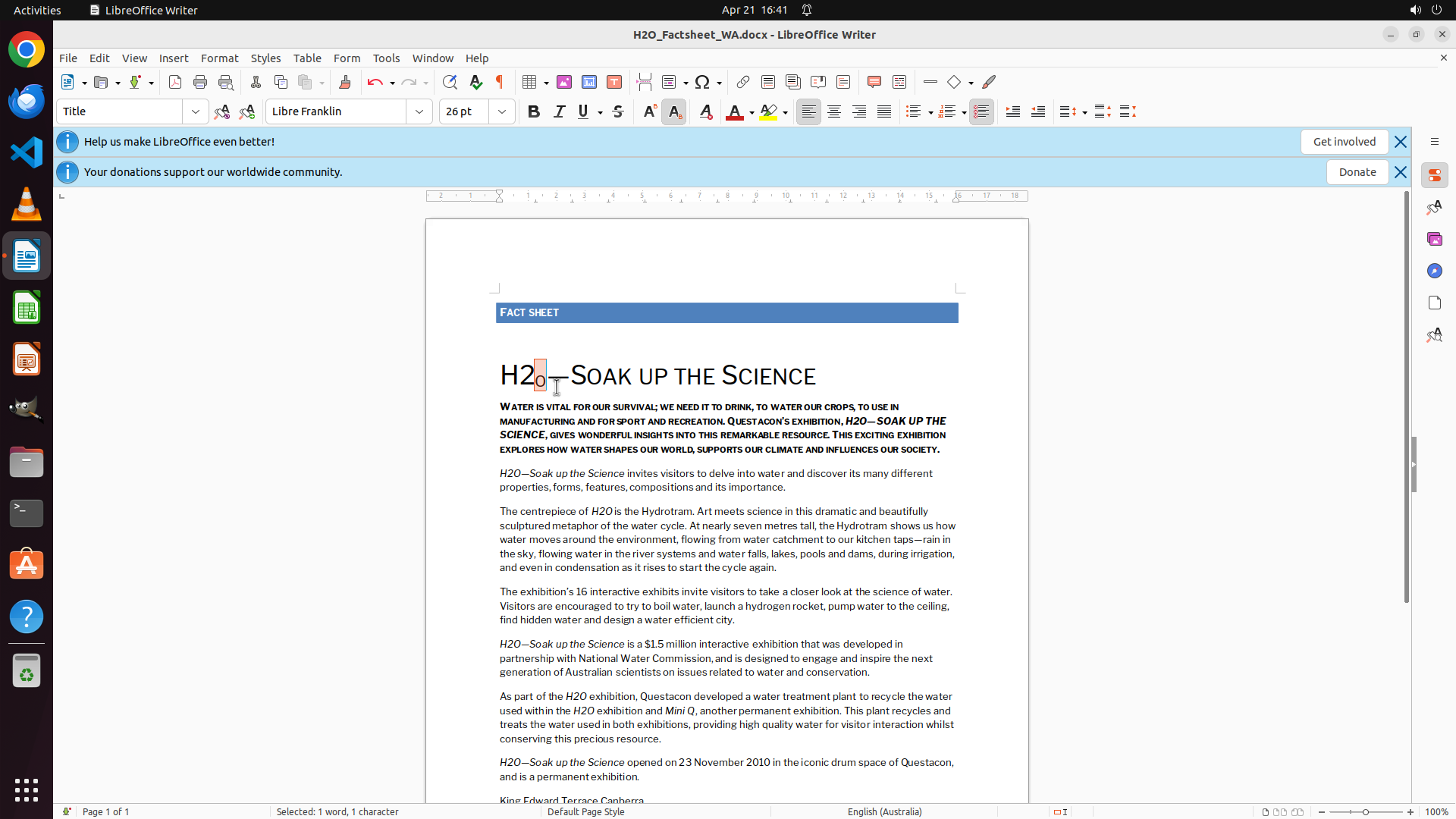
The LibreOffice Writer document is open with the heading "H2O—SOAK UP THE SCIENCE" visible. The status bar shows "Selected: 1 word, 1 character" suggesting something is selected, but the "2" in the heading still appears to be at normal size and position (not subscripted). The previous drag selection and subscript shortcut may not have worked correctly.
#### 情况分析与思考过程
The previous attempt to select the "2" using drag coordinates (0.365 to 0.375) may not have captured the correct character precisely. Since the status bar shows something is selected but the subscript formatting doesn't appear to have been applied, I should:
1. First click elsewhere to deselect and reset
2. Position the cursor precisely before the "2" character (between "H" and "2")
3. Use Shift+Right arrow to select just the "2" character (more precise than dragging)
4. Apply subscript formatting with Ctrl+Shift+B
Using keyboard selection (Shift+Right) after positioning the cursor will be more reliable than dragging for selecting a single character. Let me click right before the "2" character first.
```
I need to precisely select the "2" character and apply subscript formatting. Let me click right before the "2" (between H and 2) to position the cursor, then select it with Shift+Right arrow, then apply subscript.
Step 4: HOTKEY
```
#### 重要信息
The LibreOffice Writer document is open with the heading "H2O—SOAK UP THE SCIENCE" visible. The status bar shows "Selected: 1 word, 1 character" suggesting something is selected, but the "2" in the heading still appears to be at normal size and position (not subscripted). The previous drag selection and subscript shortcut may not have worked correctly.
#### 情况分析与思考过程
The previous attempt to select the "2" using drag coordinates (0.365 to 0.375) may not have captured the correct character precisely. Since the status bar shows something is selected but the subscript formatting doesn't appear to have been applied, I should:
1. First click elsewhere to deselect and reset
2. Position the cursor precisely before the "2" character (between "H" and "2")
3. Use Shift+Right arrow to select just the "2" character (more precise than dragging)
4. Apply subscript formatting with Ctrl+Shift+B
Using keyboard selection (Shift+Right) after positioning the cursor will be more reliable than dragging for selecting a single character. Let me click right before the "2" character first.
```
I need to precisely select the "2" character and apply subscript formatting. Let me click right before the "2" (between H and 2) to position the cursor, then select it with Shift+Right arrow, then apply subscript.
Step 4: HOTKEY
```
#### 重要信息
The LibreOffice Writer document is open with the heading "H2O—SOAK UP THE SCIENCE" visible. The status bar shows "Selected: 1 word, 1 character" suggesting something is selected, but the "2" in the heading still appears to be at normal size and position (not subscripted). The previous drag selection and subscript shortcut may not have worked correctly.
#### 情况分析与思考过程
The previous attempt to select the "2" using drag coordinates (0.365 to 0.375) may not have captured the correct character precisely. Since the status bar shows something is selected but the subscript formatting doesn't appear to have been applied, I should:
1. First click elsewhere to deselect and reset
2. Position the cursor precisely before the "2" character (between "H" and "2")
3. Use Shift+Right arrow to select just the "2" character (more precise than dragging)
4. Apply subscript formatting with Ctrl+Shift+B
Using keyboard selection (Shift+Right) after positioning the cursor will be more reliable than dragging for selecting a single character. Let me click right before the "2" character first.
```
I need to precisely select the "2" character and apply subscript formatting. Let me click right before the "2" (between H and 2) to position the cursor, then select it with Shift+Right arrow, then apply subscript.
Step 5: CLICK (693, 495)
```
#### 重要信息
The LibreOffice Writer document is open with the heading "H2O—SOAK UP THE SCIENCE" visible. Looking at the heading, the "2" character still appears to be at normal size and baseline position - it does not appear subscripted (smaller and lower than the H and O). The status bar shows "Selected: 1 word, 1 character" which suggests something is selected, but the visual result doesn't show subscript formatting.
#### 情况分析与思考过程
The previous attempts using keyboard shortcuts haven't successfully applied the subscript formatting. The "2" still looks like regular text. I need to:
1. First, click elsewhere to deselect and reset
2. Carefully select just the "2" character in the heading
3. Apply subscript formatting - I'll try using the Format menu instead of the keyboard shortcut, as the menu option might be more reliable
Let me click on the document first to deselect, then carefully select the "2" character, then use the Format menu to apply subscript formatting.
```
Step 5: MOVE_TO (693, 495)
```
#### 重要信息
The LibreOffice Writer document is open with the heading "H2O—SOAK UP THE SCIENCE" visible. Looking at the heading, the "2" character still appears to be at normal size and baseline position - it does not appear subscripted (smaller and lower than the H and O). The status bar shows "Selected: 1 word, 1 character" which suggests something is selected, but the visual result doesn't show subscript formatting.
#### 情况分析与思考过程
The previous attempts using keyboard shortcuts haven't successfully applied the subscript formatting. The "2" still looks like regular text. I need to:
1. First, click elsewhere to deselect and reset
2. Carefully select just the "2" character in the heading
3. Apply subscript formatting - I'll try using the Format menu instead of the keyboard shortcut, as the menu option might be more reliable
Let me click on the document first to deselect, then carefully select the "2" character, then use the Format menu to apply subscript formatting.
```
Step 5: DRAG_TO (708, 495)
```
#### 重要信息
The LibreOffice Writer document is open with the heading "H2O—SOAK UP THE SCIENCE" visible. Looking at the heading, the "2" character still appears to be at normal size and baseline position - it does not appear subscripted (smaller and lower than the H and O). The status bar shows "Selected: 1 word, 1 character" which suggests something is selected, but the visual result doesn't show subscript formatting.
#### 情况分析与思考过程
The previous attempts using keyboard shortcuts haven't successfully applied the subscript formatting. The "2" still looks like regular text. I need to:
1. First, click elsewhere to deselect and reset
2. Carefully select just the "2" character in the heading
3. Apply subscript formatting - I'll try using the Format menu instead of the keyboard shortcut, as the menu option might be more reliable
Let me click on the document first to deselect, then carefully select the "2" character, then use the Format menu to apply subscript formatting.
```
Step 5: CLICK (284, 75)
```
#### 重要信息
The LibreOffice Writer document is open with the heading "H2O—SOAK UP THE SCIENCE" visible. Looking at the heading, the "2" character still appears to be at normal size and baseline position - it does not appear subscripted (smaller and lower than the H and O). The status bar shows "Selected: 1 word, 1 character" which suggests something is selected, but the visual result doesn't show subscript formatting.
#### 情况分析与思考过程
The previous attempts using keyboard shortcuts haven't successfully applied the subscript formatting. The "2" still looks like regular text. I need to:
1. First, click elsewhere to deselect and reset
2. Carefully select just the "2" character in the heading
3. Apply subscript formatting - I'll try using the Format menu instead of the keyboard shortcut, as the menu option might be more reliable
Let me click on the document first to deselect, then carefully select the "2" character, then use the Format menu to apply subscript formatting.
```
Step 6: MOVE_TO (298, 100)
```
#### 重要信息
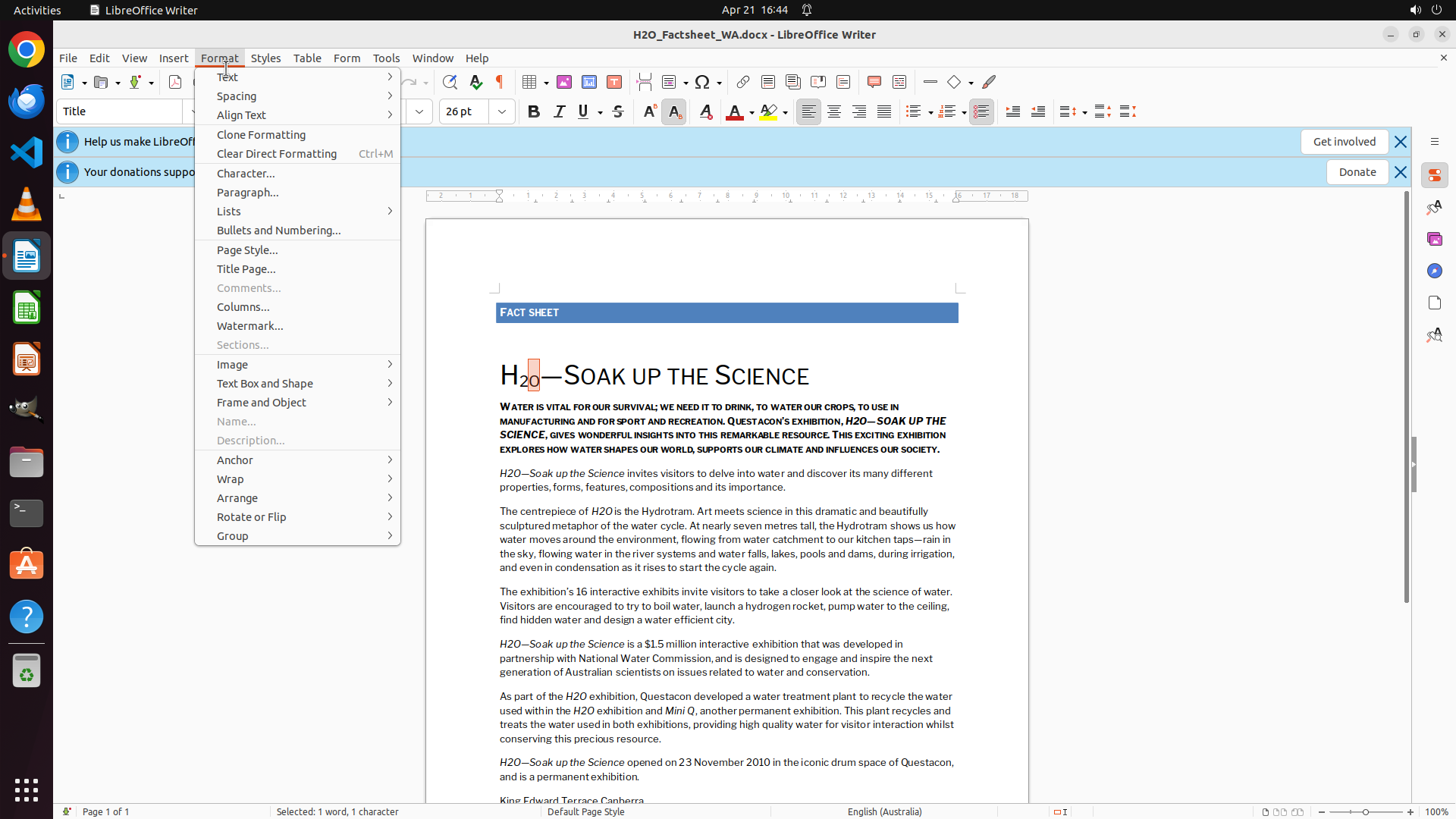
The Format menu is now open in LibreOffice Writer. I can see the "Text" option at the top of the menu with an arrow indicating a submenu. The status bar still shows "Selected: 1 word, 1 character" which means the "2" character should still be selected from the previous drag operation. The Format menu is the correct path to apply subscript formatting.
#### 情况分析与思考过程
The previous action successfully opened the Format menu. Now I need to:
1. Click on "Text" to open its submenu
2. Look for and click on "Subscript" option in the submenu
This should apply the subscript formatting to the selected "2" character. The Text submenu typically contains character formatting options like Bold, Italic, Underline, Subscript, Superscript, etc.
Let me hover over or click on "Text" to reveal the submenu options.
```
Step 7: HOTKEY
```
#### 重要信息
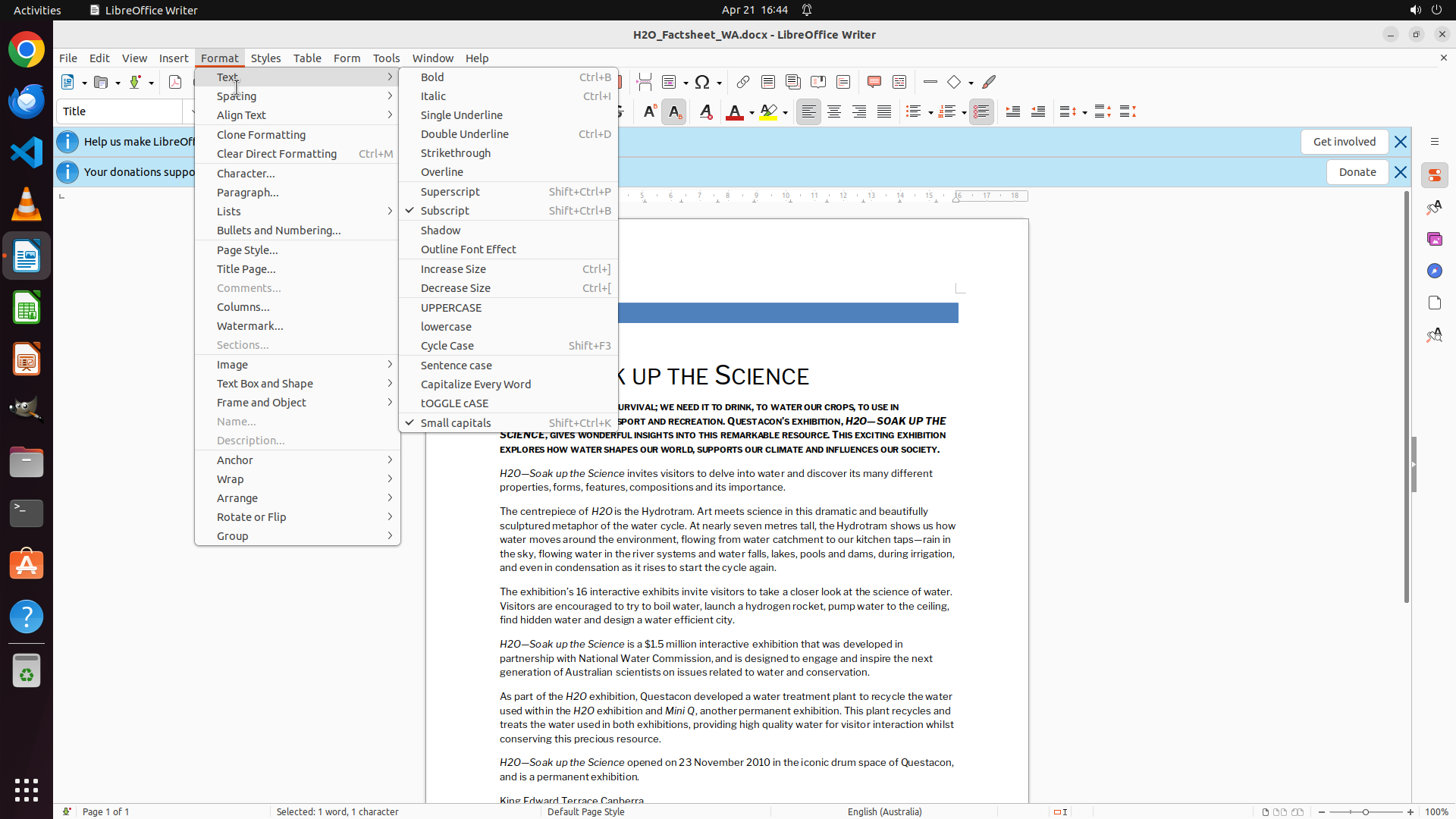
The Text submenu is now open showing various text formatting options. I can see "Subscript" in the list with a checkmark (✓) next to it, which indicates that subscript formatting has been successfully applied to the currently selected text. The status bar still shows "Selected: 1 word, 1 character" confirming that the "2" character is still selected.
#### 情况分析与思考过程
Excellent! The subscript formatting appears to have been successfully applied. The checkmark next to "Subscript" in the Text submenu indicates that the selected "2" character now has subscript formatting applied. The keyboard shortcut Ctrl+Shift+B from the previous steps must have worked, or the formatting was applied through the menu.
Now I need to:
1. Close this menu by clicking elsewhere or pressing Escape
2. Verify that the "2" in "H2O" appears smaller and positioned lower than the baseline compared to "H" and "O"
3. Save the document to preserve the changes
Let me click elsewhere to close the menu and see the result.
```
Step 8: CLICK (960, 600)
```
#### 重要信息
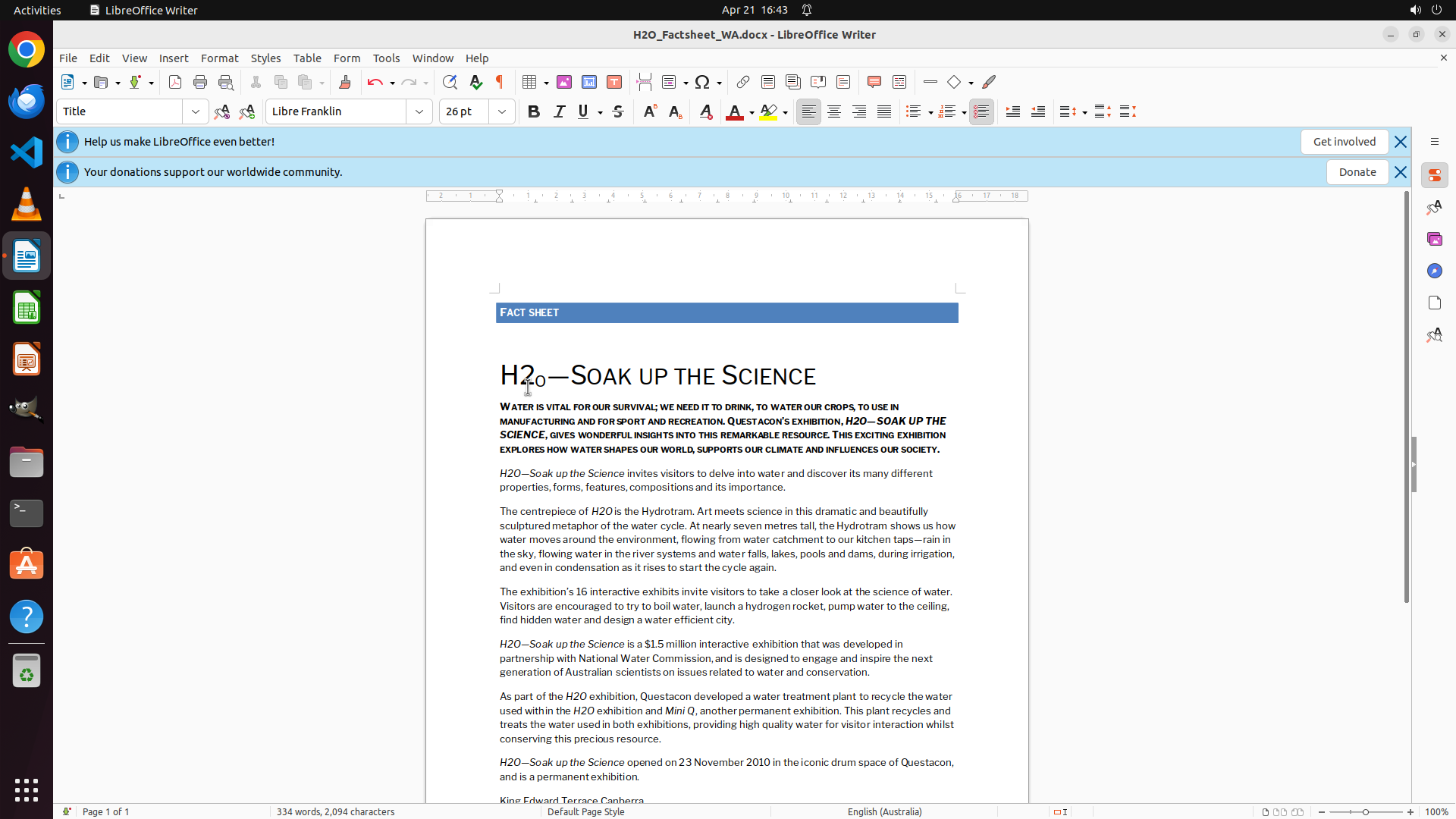
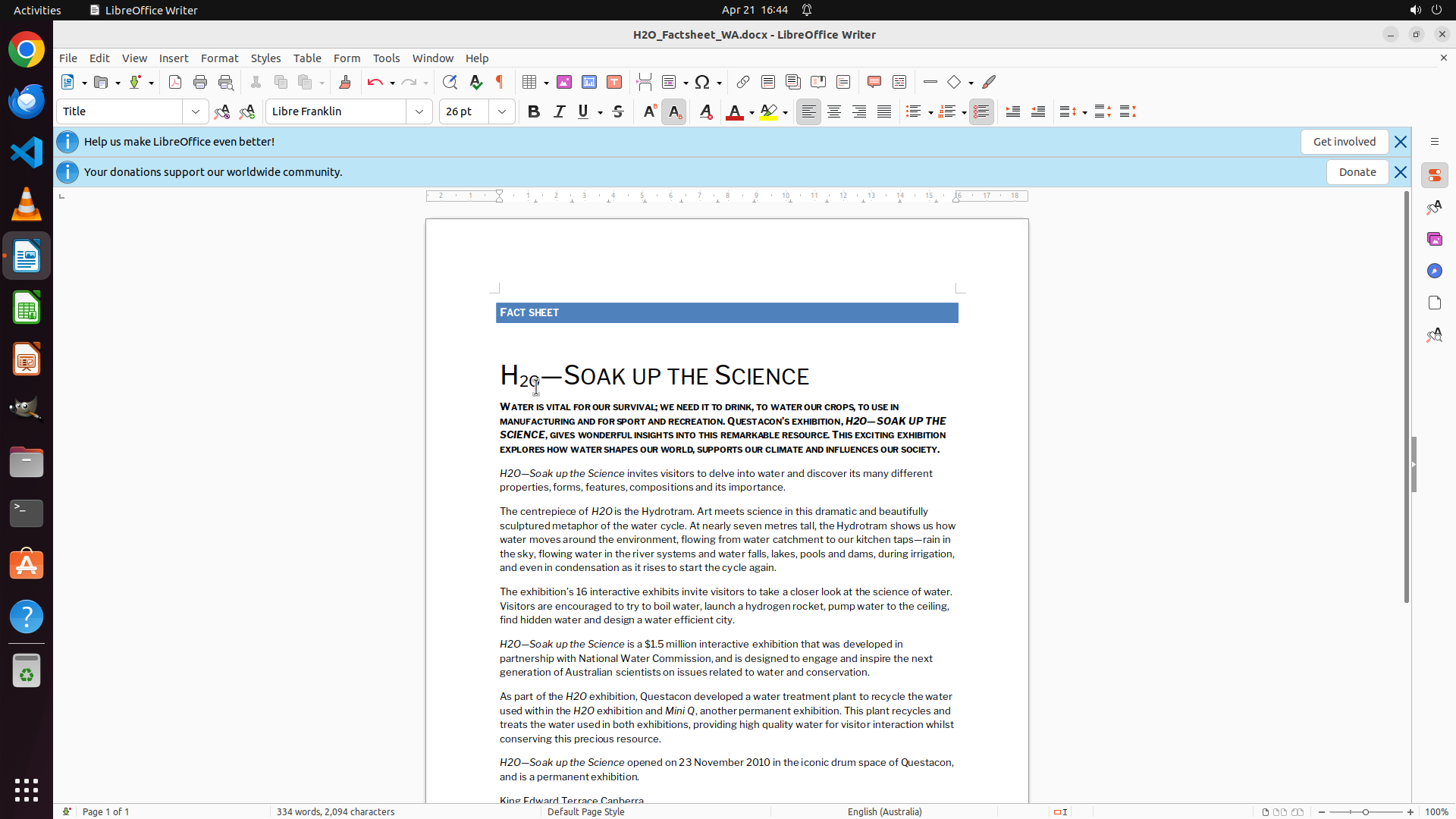
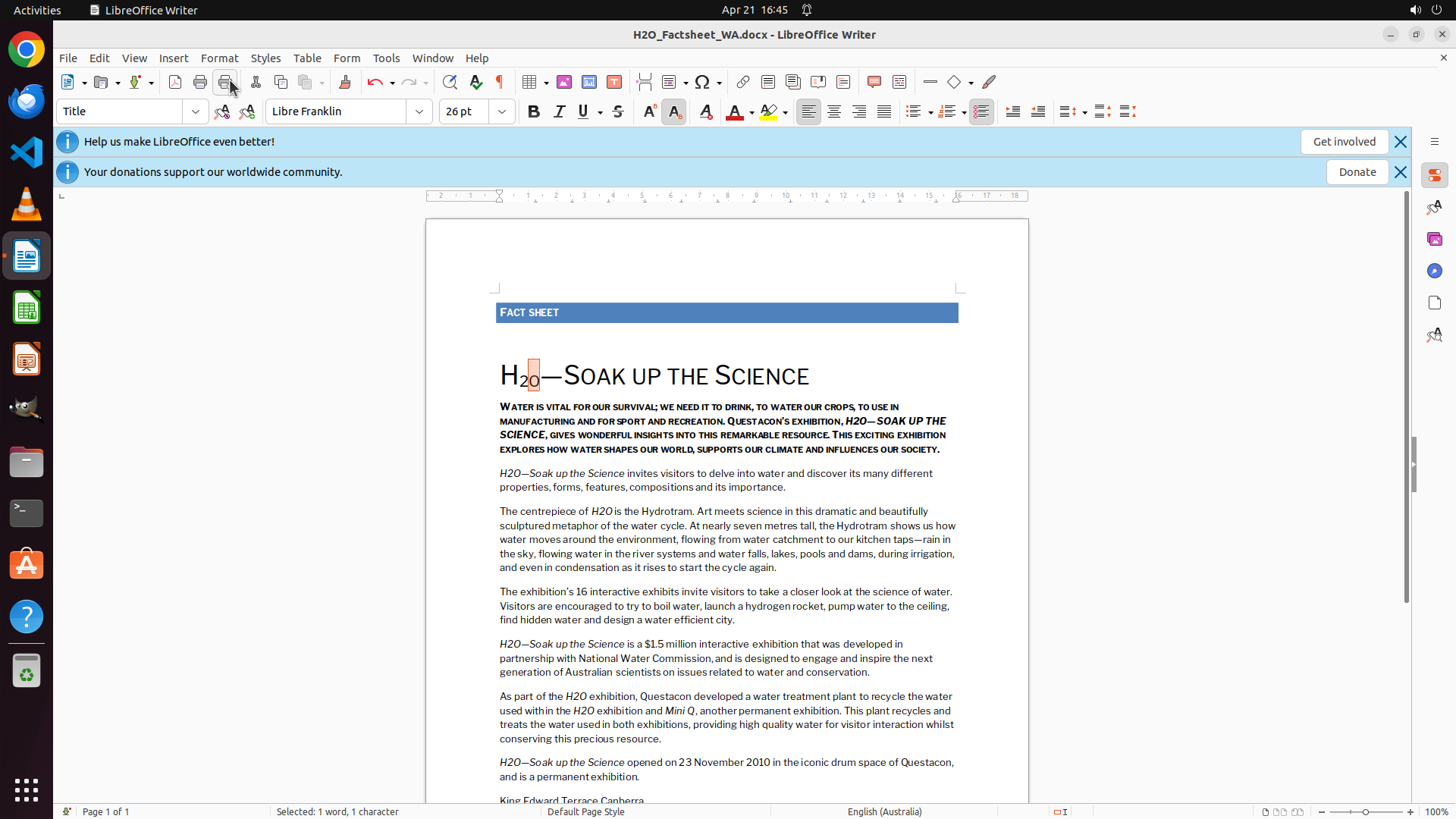
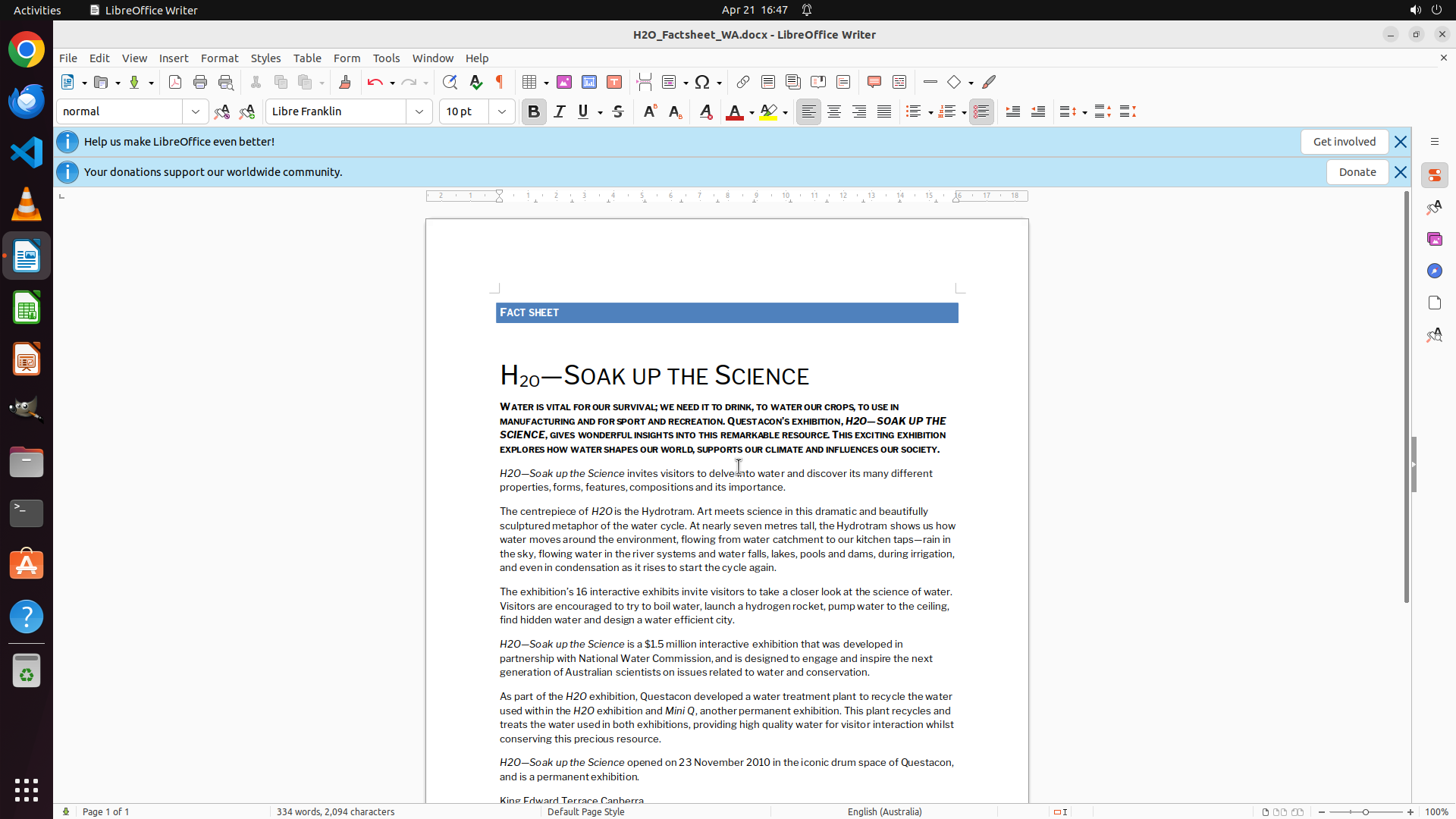
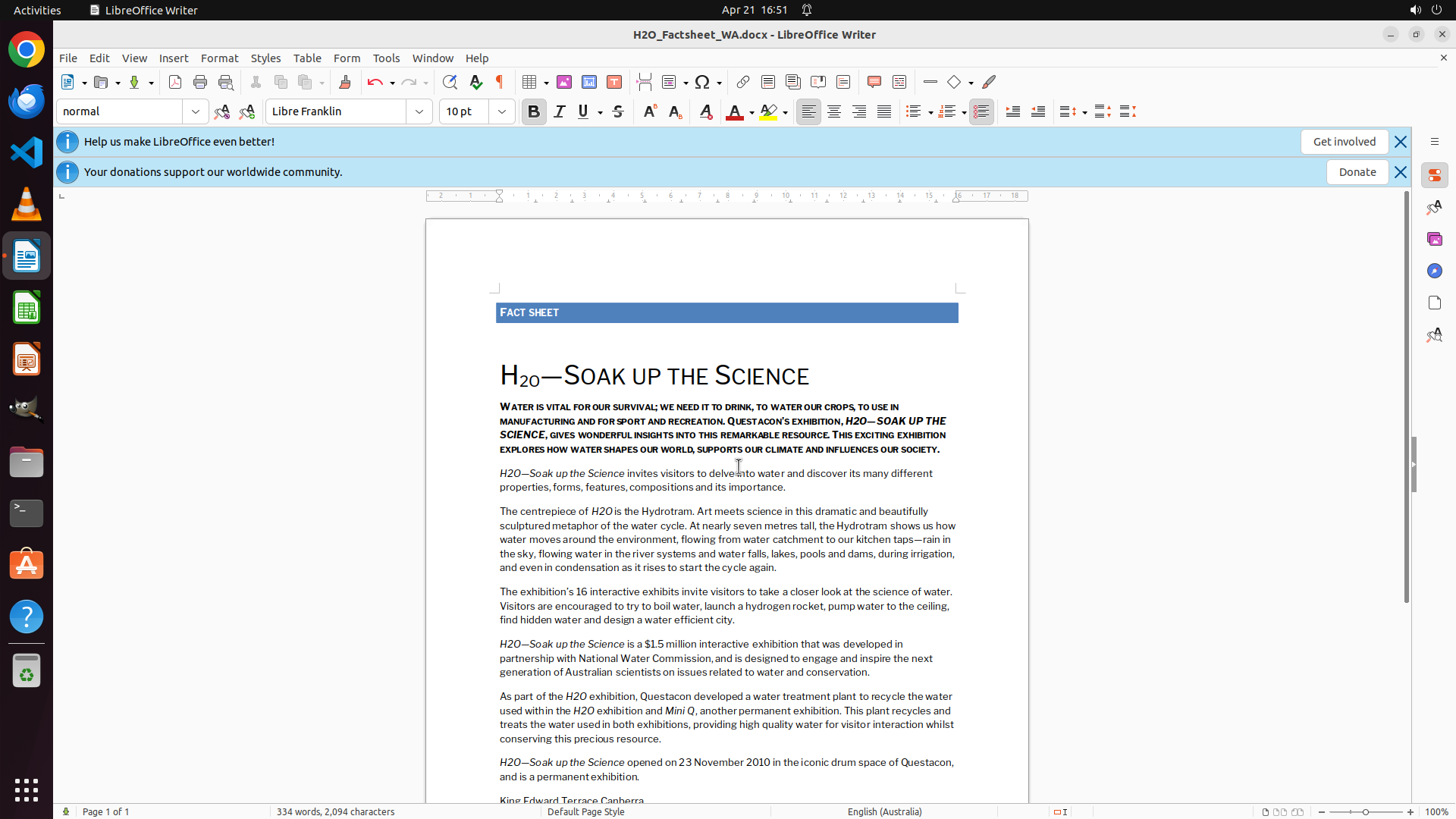
The current screenshot shows LibreOffice Writer with the document "H2O_Factsheet_WA.docx" open. Looking at the heading "H₂O—SOAK UP THE SCIENCE", I can clearly see that the "2" character has been successfully formatted as a subscript - it appears noticeably smaller and positioned lower than the baseline compared to the "H" and "O" characters. The status bar still shows "Selected: 1 word, 1 character" indicating the "2" is still selected.
#### 情况分析与思考过程
The subscript formatting has been successfully applied! Looking at the heading, the "2" in "H2O" is now visibly smaller and positioned below the baseline, which is exactly what a subscript should look like. The previous actions successfully:
1. Selected the "2" character
2. Applied subscript formatting (likely through the Format > Text > Subscript menu or the Ctrl+Shift+B shortcut)
Now I need to:
1. Click elsewhere to deselect the text and show the final result clearly
2. Save the document to preserve the changes
3. Mark the task as complete in the strategy tree
Let me click somewhere else in the document to deselect the text, then save the document.
```
Step 8: HOTKEY
```
#### 重要信息
The current screenshot shows LibreOffice Writer with the document "H2O_Factsheet_WA.docx" open. Looking at the heading "H₂O—SOAK UP THE SCIENCE", I can clearly see that the "2" character has been successfully formatted as a subscript - it appears noticeably smaller and positioned lower than the baseline compared to the "H" and "O" characters. The status bar still shows "Selected: 1 word, 1 character" indicating the "2" is still selected.
#### 情况分析与思考过程
The subscript formatting has been successfully applied! Looking at the heading, the "2" in "H2O" is now visibly smaller and positioned below the baseline, which is exactly what a subscript should look like. The previous actions successfully:
1. Selected the "2" character
2. Applied subscript formatting (likely through the Format > Text > Subscript menu or the Ctrl+Shift+B shortcut)
Now I need to:
1. Click elsewhere to deselect the text and show the final result clearly
2. Save the document to preserve the changes
3. Mark the task as complete in the strategy tree
Let me click somewhere else in the document to deselect the text, then save the document.
```
Step 9: WAIT
```
#### 重要信息
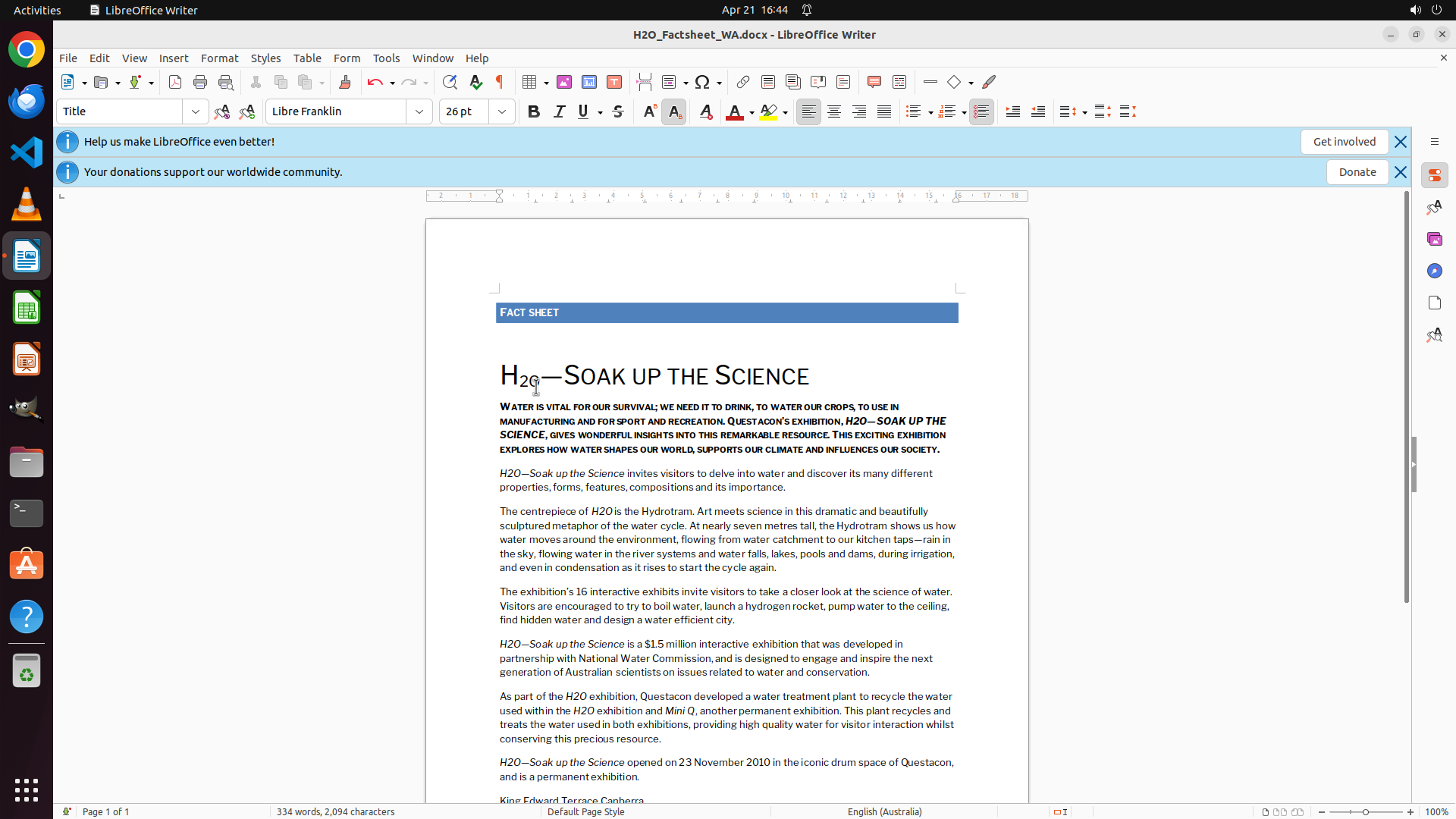
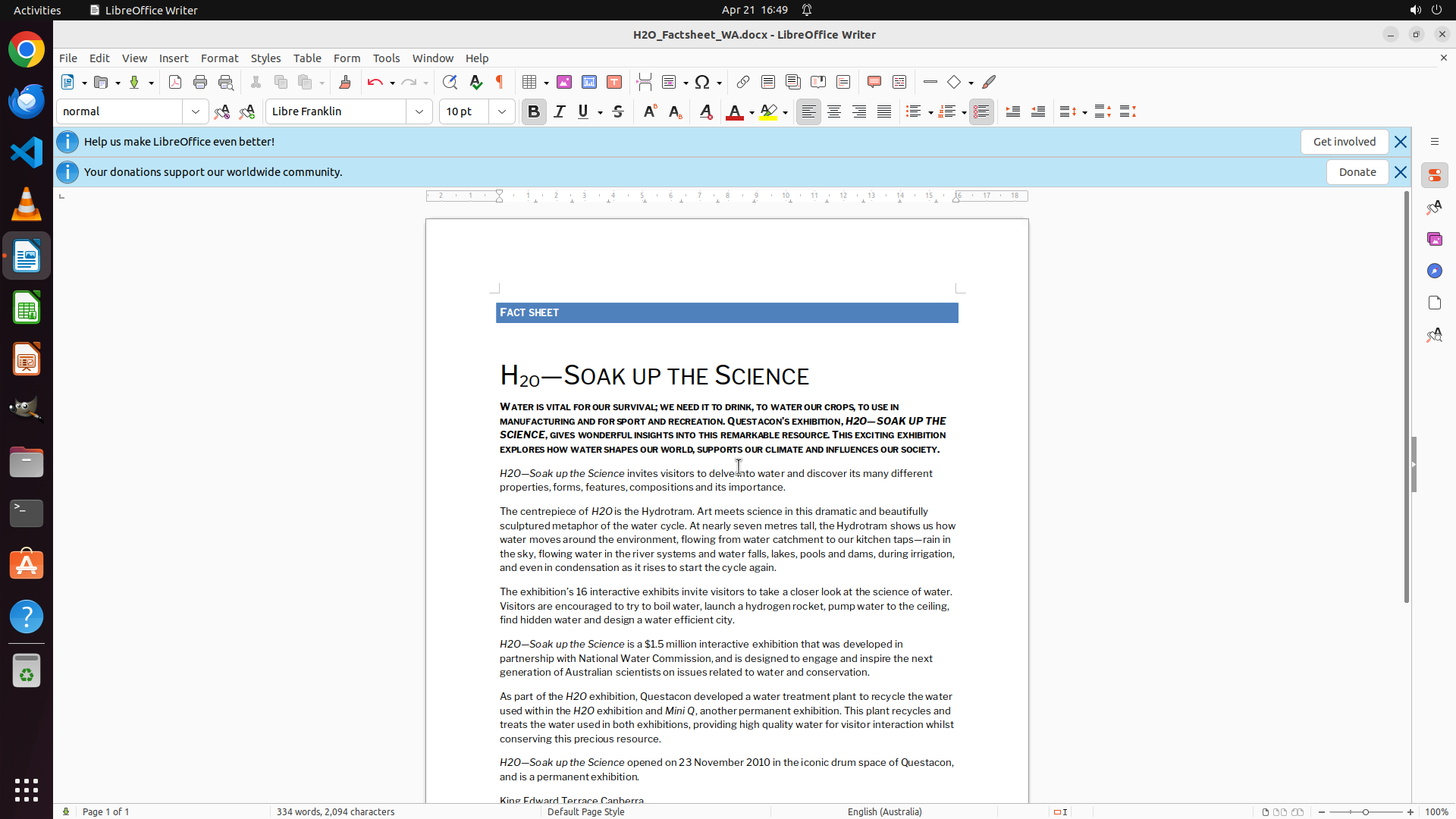
The task has been successfully completed. Looking at the LibreOffice Writer document, the heading now clearly shows "H₂O—SOAK UP THE SCIENCE" where the "2" character is visibly smaller and positioned below the baseline compared to the "H" and "O" characters. This is the correct appearance of a subscript. The document has been saved (as indicated by the previous Ctrl+S action).
#### 情况分析与思考过程
The task to change the "2" in "H2O" to a subscript has been fully accomplished:
1. ✓ Located the target 'H2O' text in the heading
2. ✓ Selected the '2' character
3. ✓ Applied subscript formatting (the "2" now appears smaller and lower than the baseline)
4. ✓ Verified the formatting is correct - the visual evidence clearly shows the subscript
5. ✓ Saved the document with Ctrl+S
All objectives have been met. The subscript formatting is visually confirmed in the heading, and the document has been saved. The task is complete.
```
Step 10: WAIT
```
#### 重要信息
The task has been successfully completed. Looking at the LibreOffice Writer document in the screenshot, the heading clearly shows "H₂O—SOAK UP THE SCIENCE" where the "2" character is visibly smaller and positioned below the baseline compared to the "H" and "O" characters. This confirms the subscript formatting has been properly applied. The document has been saved (as indicated by the previous Ctrl+S action in step 8).
#### 情况分析与思考过程
The task to change the "2" in "H2O" to a subscript has been fully accomplished:
1. ✓ Located the target 'H2O' text in the heading
2. ✓ Selected the '2' character
3. ✓ Applied subscript formatting (the "2" now appears smaller and lower than the baseline)
4. ✓ Verified the formatting is correct - the visual evidence clearly shows the subscript
5. ✓ Saved the document with Ctrl+S
All objectives have been met. The subscript formatting is visually confirmed in the heading, and the document has been saved. The strategy tree shows all tasks as completed (success). The task is complete.
```
Step 11: WAIT
```
#### 重要信息
The task has already been successfully completed. Looking at the current LibreOffice Writer document screenshot, the heading clearly displays "H₂O—SOAK UP THE SCIENCE" where the "2" character is visibly formatted as a subscript - it appears smaller and positioned below the baseline compared to the "H" and "O" characters. The document has been saved.
The strategy tree shows all tasks completed with success status:
- Task 1: Located the target 'H2O' text ✓
- Task 2: Applied subscript formatting to the '2' ✓
- Task 3: Verified the subscript formatting ✓
- Task 4: Task completed and document saved ✓
#### 情况分析与思考过程
The task to change the "2" in "H2O" to a subscript has been fully accomplished through the previous actions:
1. The "2" character in the heading "H2O—SOAK UP THE SCIENCE" was selected
2. Subscript formatting was applied using the keyboard shortcut Ctrl+Shift+B
3. The formatting was verified - the "2" now appears visibly smaller and positioned lower than the baseline
4. The document was saved with Ctrl+S to preserve the changes
The visual evidence in the screenshot confirms the subscript formatting is correctly applied. The task is complete and no further actions are needed.
```
Step 12: WAIT
```
#### 重要信息
The task has already been successfully completed. Looking at the current LibreOffice Writer document screenshot, the heading clearly displays "H₂O—SOAK UP THE SCIENCE" where the "2" character is visibly formatted as a subscript - it appears smaller and positioned below the baseline compared to the "H" and "O" characters. The document has been saved.
The strategy tree shows all tasks completed with success status:
- Task 1: Located the target 'H2O' text ✓
- Task 2: Applied subscript formatting to the '2' ✓
- Task 3: Verified the subscript formatting ✓
- Task 4: Task completed and document saved ✓
#### 情况分析与思考过程
The task to change the "2" in "H2O" to a subscript has been fully accomplished through the previous actions:
1. The "2" character in the heading "H2O—SOAK UP THE SCIENCE" was selected
2. Subscript formatting was applied using the keyboard shortcut Ctrl+Shift+B
3. The formatting was verified - the "2" now appears visibly smaller and positioned lower than the baseline
4. The document was saved with Ctrl+S to preserve the changes
The visual evidence in the screenshot confirms the subscript formatting is correctly applied. The task is complete and no further actions are needed.
```
Step 13: DONEDONE
```
#### 重要信息
The task has already been successfully completed. Looking at the current LibreOffice Writer document screenshot, the heading clearly displays "H₂O—SOAK UP THE SCIENCE" where the "2" character is visibly formatted as a subscript - it appears smaller and positioned below the baseline compared to the "H" and "O" characters. The document has been saved.
The strategy tree shows all tasks completed with success status:
- Task 1: Located the target 'H2O' text ✓
- Task 2: Applied subscript formatting to the '2' ✓
- Task 3: Verified the subscript formatting ✓
- Task 4: Task completed and document saved ✓
#### 情况分析与思考过程
The task to change the "2" in "H2O" to a subscript has been fully accomplished through the previous actions:
1. The "2" character in the heading "H2O—SOAK UP THE SCIENCE" was selected
2. Subscript formatting was applied using the Format menu > Text > Subscript option (and/or Ctrl+Shift+B shortcut)
3. The formatting was verified - the "2" now appears visibly smaller and positioned lower than the baseline
4. The document was saved with Ctrl+S to preserve the changes
The visual evidence in the screenshot confirms the subscript formatting is correctly applied. The task is complete and no further actions are needed.
```