```
#### 重要信息
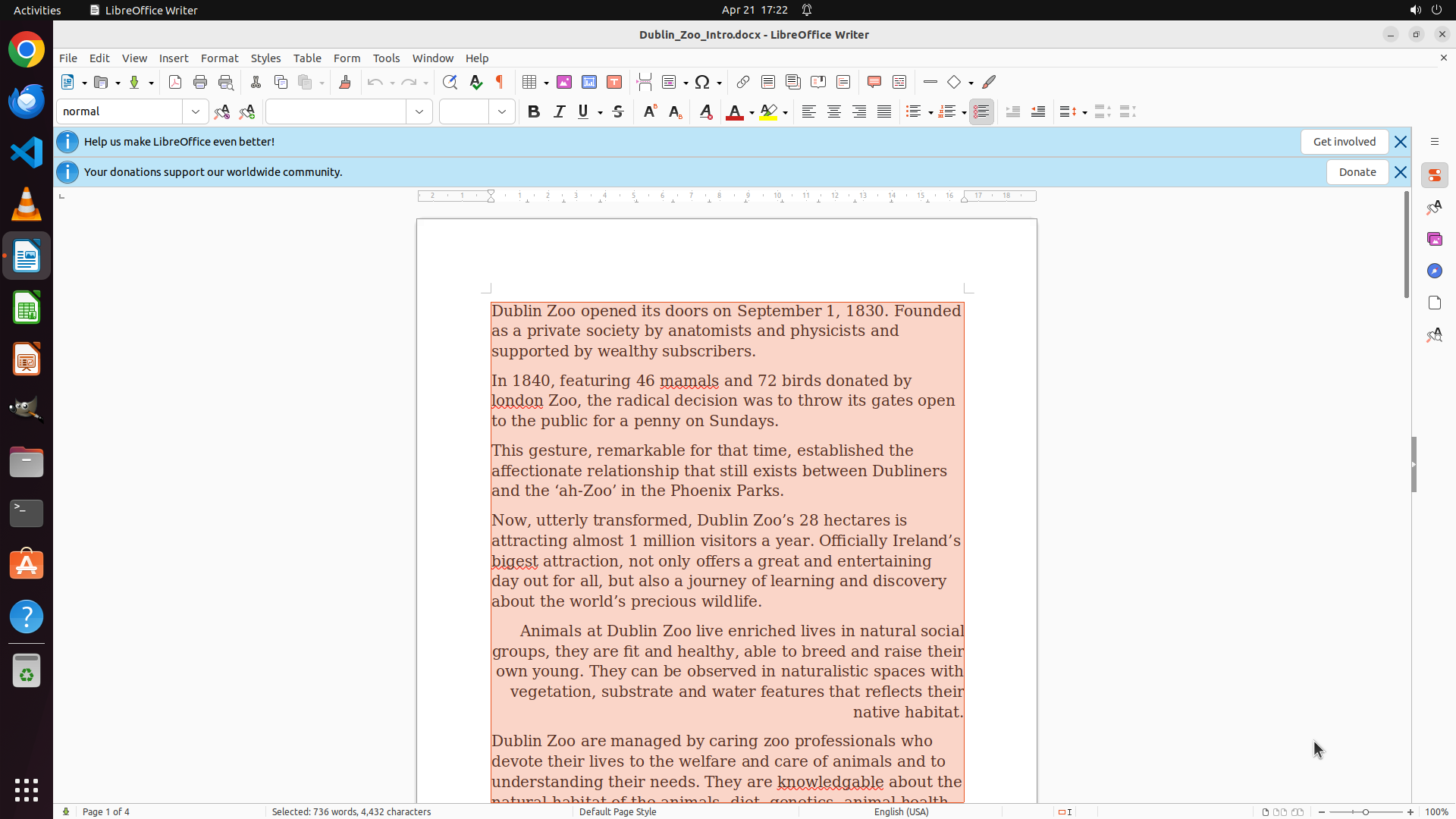
LibreOffice Writer is open with a document about Dublin Zoo. The current font is "Georgia" as shown in the font dropdown in the formatting toolbar. The document contains multiple paragraphs of text that need to be changed to Times New Roman font.
#### 情况分析与思考过程
To change the font throughout the entire document, I need to:
1. First select all text using Ctrl+A keyboard shortcut
2. Then click on the font dropdown (currently showing "Georgia")
3. Select "Times New Roman" from the font list
I'll start by selecting all text with Ctrl+A, which is the most efficient way to select the entire document content at once.
```
Step 2: CLICK (660, 145)
```
#### 重要信息
The previous action (Ctrl+A) successfully selected all text in the document. I can see:
- The text is highlighted in orange/peach color throughout the document
- The status bar at the bottom shows "Selected: 610 words, 4,432 characters"
- The font dropdown in the toolbar currently shows "Georgia"
#### 情况分析与思考过程
Step 1 (select all text) has been completed successfully. Now I need to proceed with Step 2: click on the font dropdown menu to open it. The font dropdown is visible in the toolbar showing "Georgia". Once I click on it, a dropdown list of available fonts should appear, and then I can select "Times New Roman" from that list.
The font dropdown appears to be located in the upper toolbar area. I should click on it to open the font selection menu.
```
Step 3: HOTKEY
```
#### 重要信息
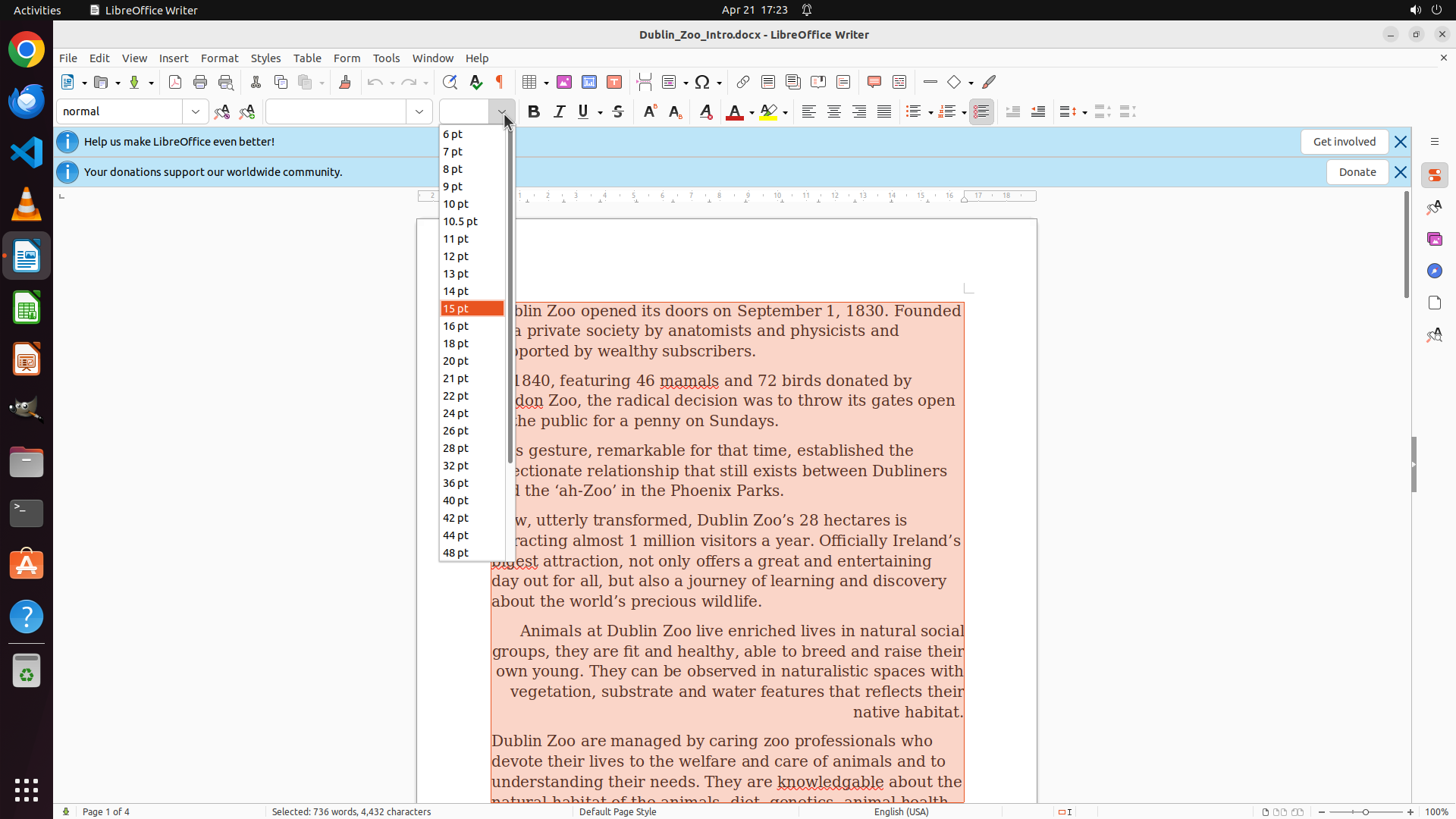
The previous action clicked on the wrong dropdown - it opened the font size dropdown (showing various point sizes like 6 pt, 7 pt, 8 pt, etc.) instead of the font family dropdown. I need to close this dropdown and click on the correct font family dropdown which should display "Georgia".
#### 情况分析与思考过程
I need to:
1. Close the current font size dropdown by pressing Escape
2. Find and click on the font family dropdown (which should be to the left of the font size dropdown and currently show "Georgia")
3. Then select "Times New Roman" from that list
Let me first close this incorrect dropdown.
```
Step 4: CLICK (553, 145)
```
#### 重要信息
The text in the document is still selected (highlighted in orange/peach color). The font size dropdown has been closed successfully. Now I need to click on the font family dropdown which should be to the left of where the font size dropdown was, and it should currently display "Georgia".
#### 情况分析与思考过程
Now that the incorrect dropdown is closed, I need to:
1. Click on the font family dropdown (showing "Georgia")
2. Select "Times New Roman" from the list
Looking at the toolbar, the font family dropdown should be located to the left of the font size field. I can see in the toolbar area there's a dropdown that should show the current font name. I'll click on it to open the font selection menu.
```
Step 5: MOVE_TO (555, 450)
```
#### 重要信息
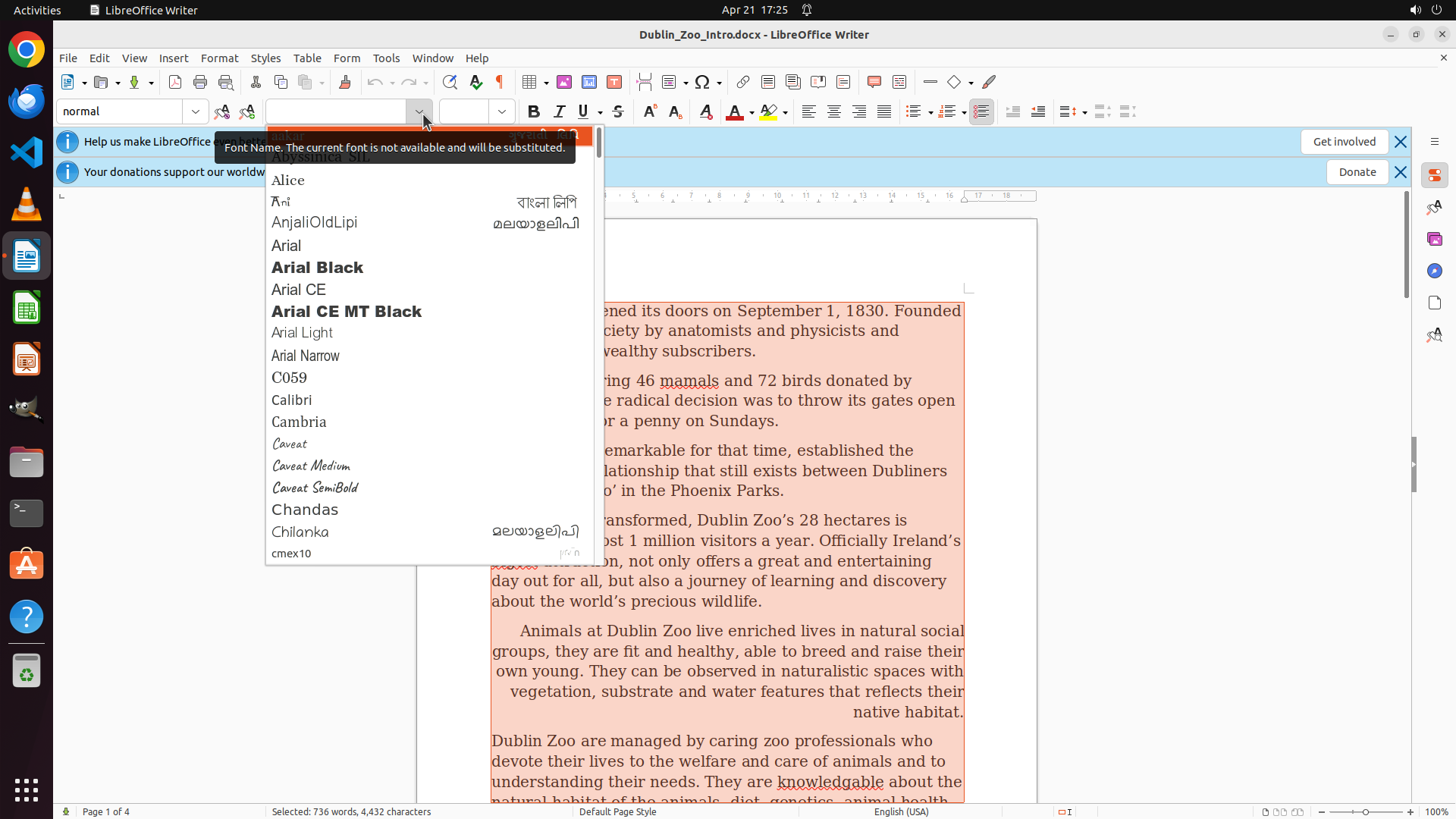
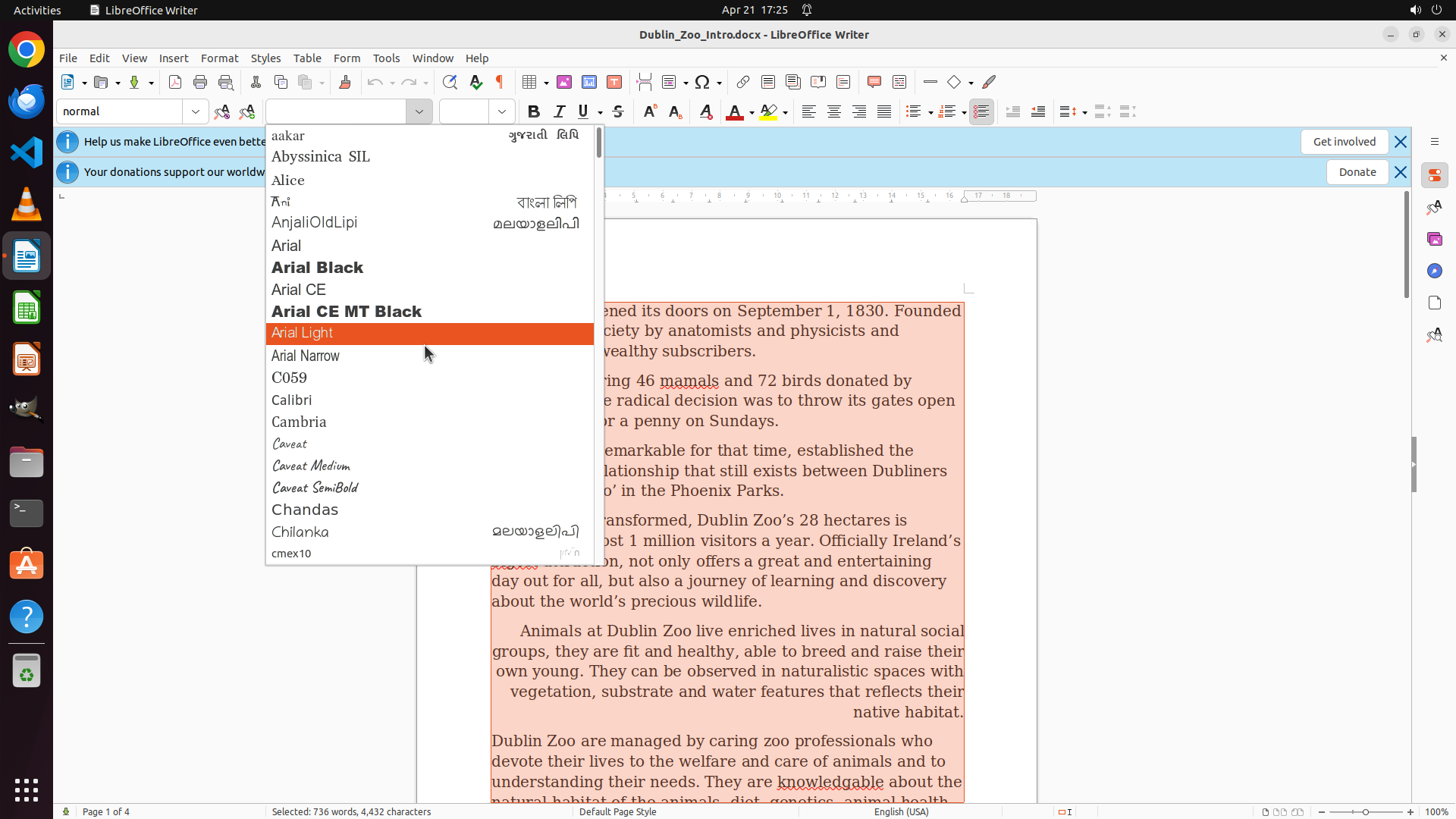
The font family dropdown menu has successfully opened, showing a list of available fonts. I can see fonts starting with letters A and C (Alice, AnjaliOldLipi, Arial variants, C059, Calibri, Cambria, Caveat variants, Chandas, Chilanka, cmex10). The text in the document remains selected (highlighted in orange/peach color).
#### 情况分析与思考过程
Since the font list is alphabetical and I can see fonts starting with 'A' and 'C', I need to scroll down significantly to reach "Times New Roman" which starts with 'T'. The list appears to be quite long, so I'll need to scroll down multiple times or use a larger scroll amount to reach the 'T' section where Times New Roman should be located.
I'll scroll down in the font dropdown menu to find Times New Roman.
```
Step 5: SCROLL
```
#### 重要信息
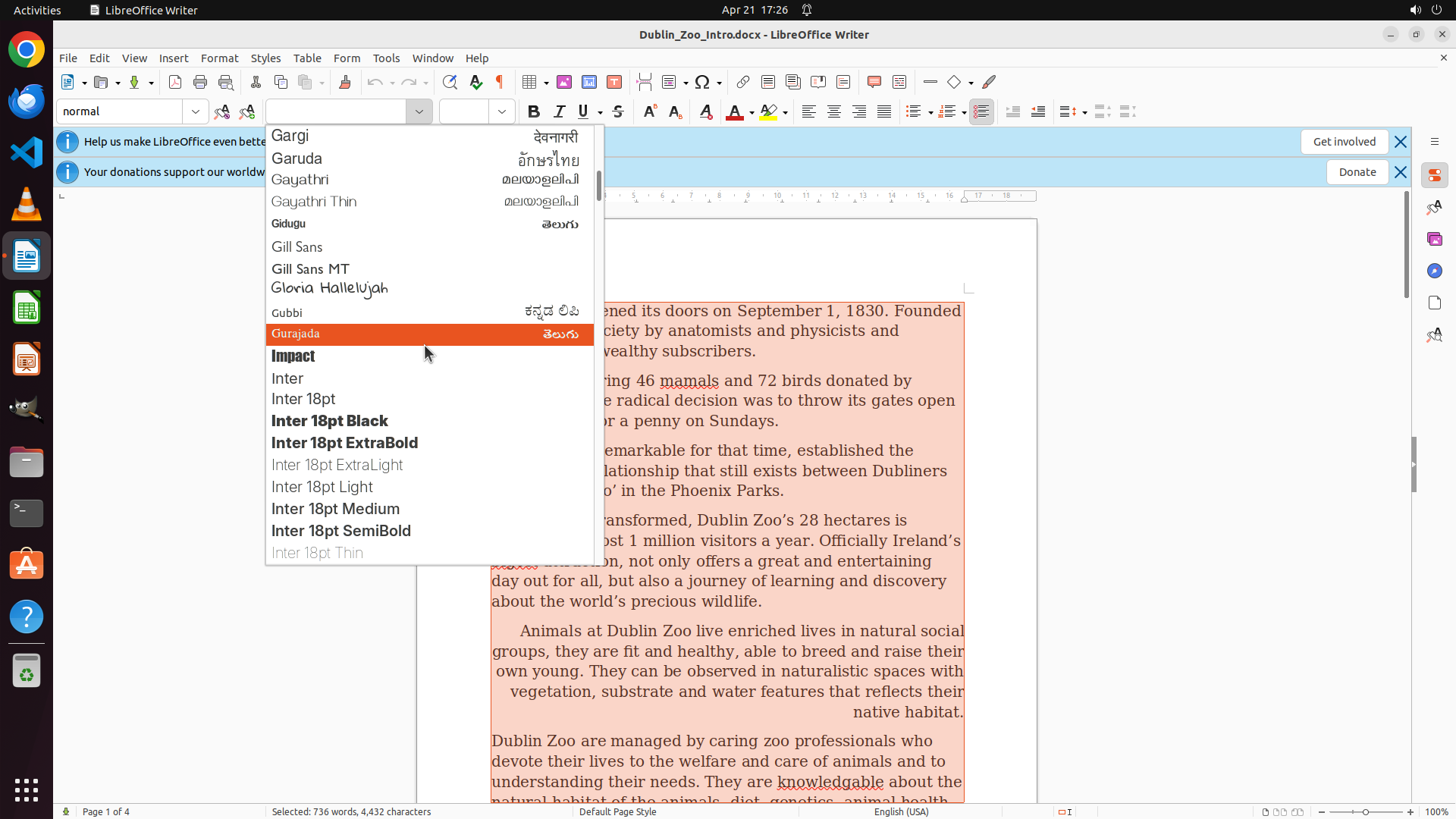
The font family dropdown menu has successfully opened, showing a list of available fonts. I can see fonts starting with letters A and C (Alice, AnjaliOldLipi, Arial variants, C059, Calibri, Cambria, Caveat variants, Chandas, Chilanka, cmex10). The text in the document remains selected (highlighted in orange/peach color).
#### 情况分析与思考过程
Since the font list is alphabetical and I can see fonts starting with 'A' and 'C', I need to scroll down significantly to reach "Times New Roman" which starts with 'T'. The list appears to be quite long, so I'll need to scroll down multiple times or use a larger scroll amount to reach the 'T' section where Times New Roman should be located.
I'll scroll down in the font dropdown menu to find Times New Roman.
```
Step 6: MOVE_TO (555, 450)
Step 6: SCROLL
Step 7: MOVE_TO (555, 450)
```
#### 重要信息
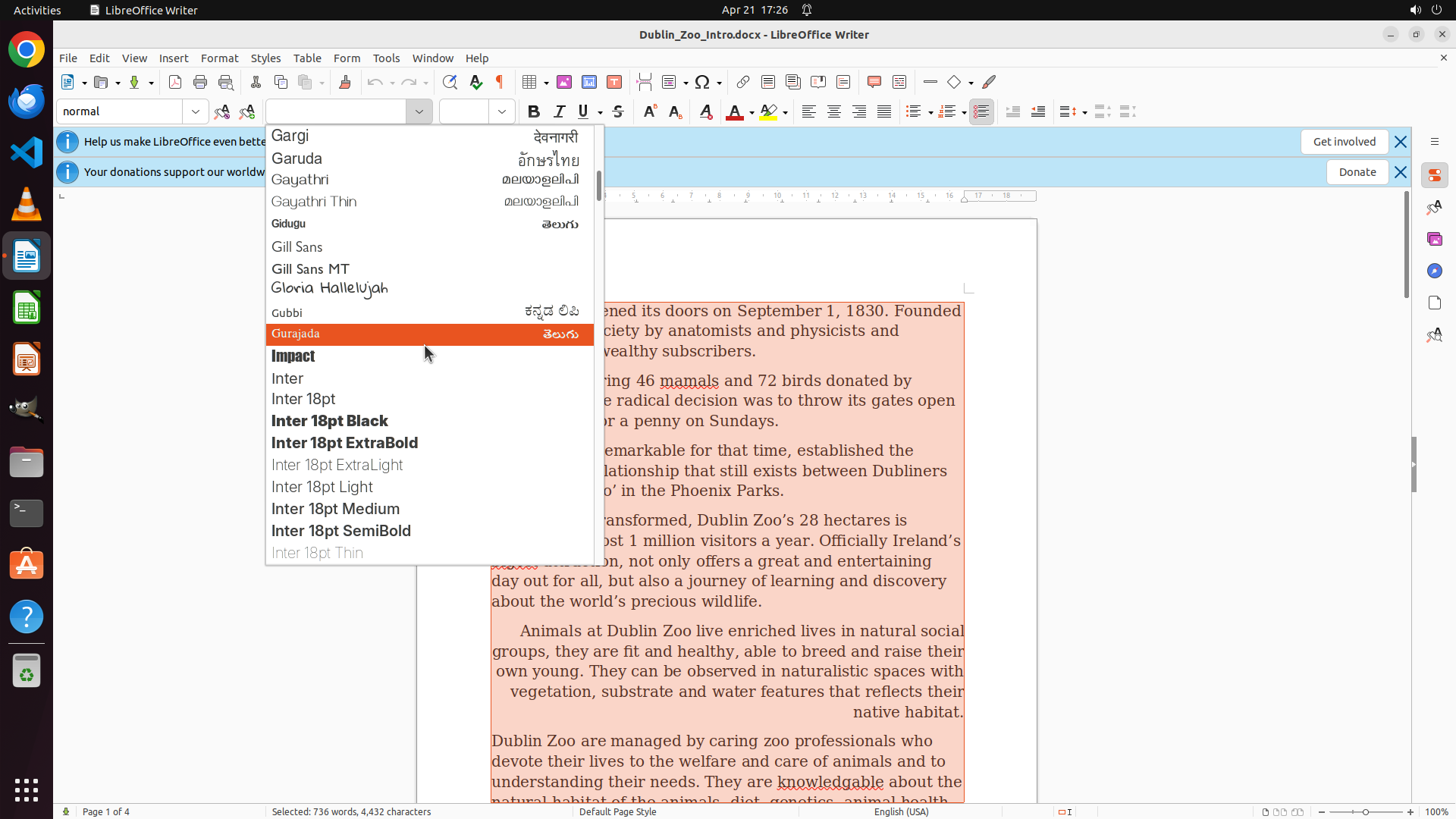
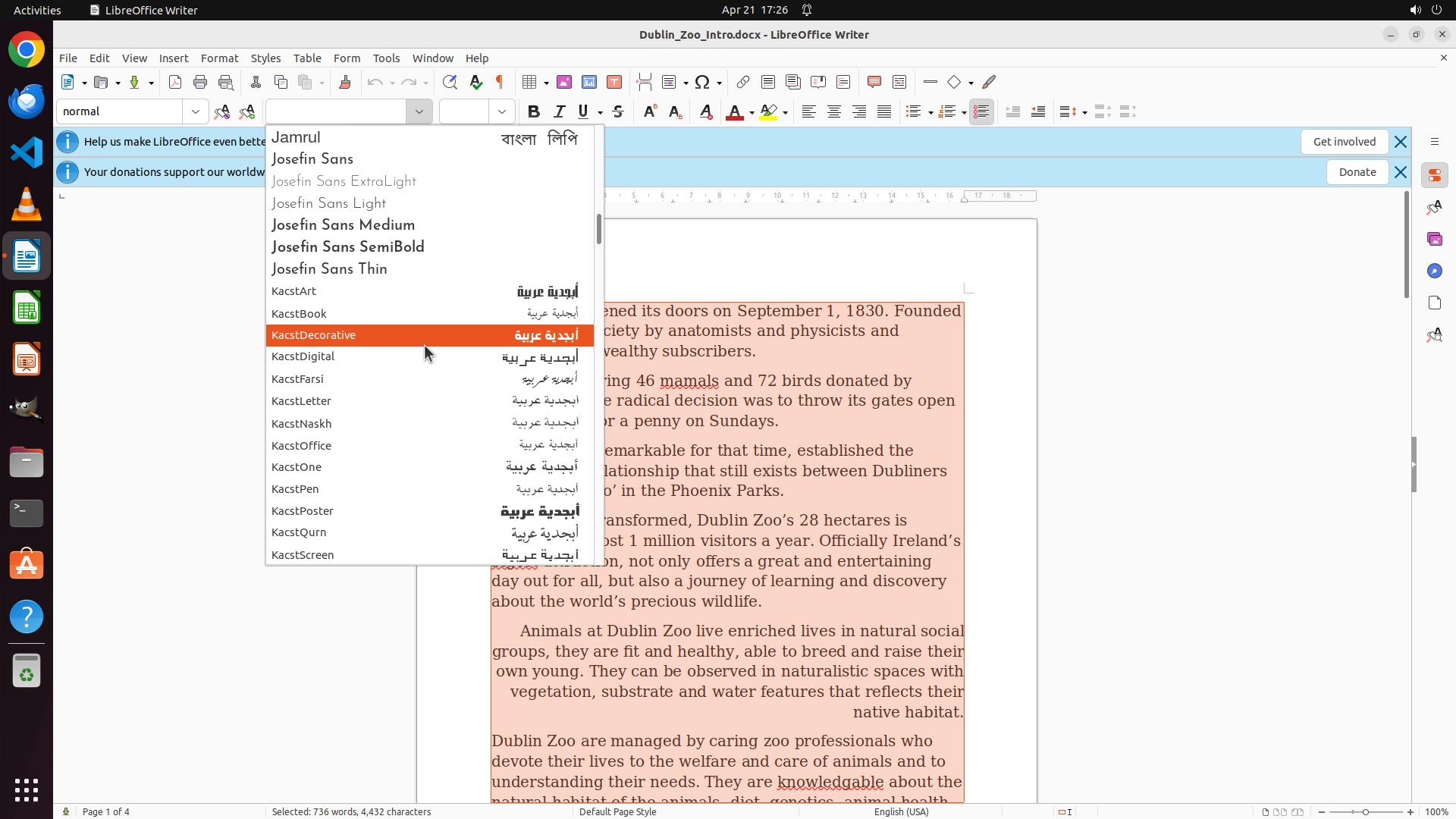
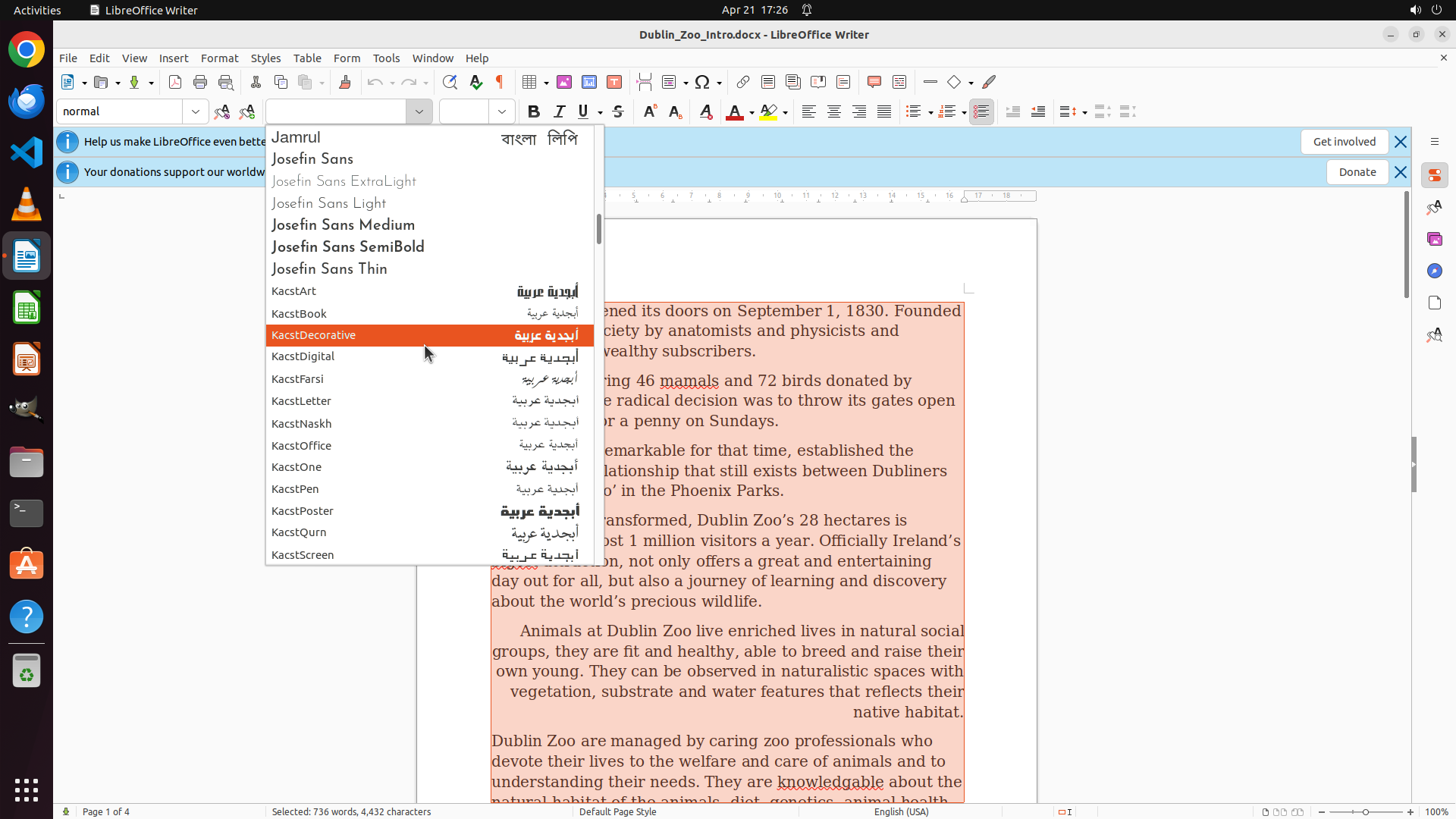
The font dropdown menu is open and currently showing fonts starting with letters J and K (Josefin Sans variants, Kacst variants). The text in the document remains selected (highlighted in orange/peach color). I need to continue scrolling down to reach fonts starting with 'T' where Times New Roman should be located.
#### 情况分析与思考过程
Since the font list is alphabetical and I'm currently viewing fonts starting with 'J' and 'K', I need to scroll down significantly more to reach the 'T' section where "Times New Roman" is located. The list appears to be quite long, so I'll continue scrolling down in the font dropdown menu.
The text is still selected, which is perfect - once I find and select Times New Roman, it will apply to all the selected text. I'll continue scrolling down to find Times New Roman.
```
Step 7: SCROLL
```
#### 重要信息
The font dropdown menu is open and currently showing fonts starting with letters J and K (Josefin Sans variants, Kacst variants). The text in the document remains selected (highlighted in orange/peach color). I need to continue scrolling down to reach fonts starting with 'T' where Times New Roman should be located.
#### 情况分析与思考过程
Since the font list is alphabetical and I'm currently viewing fonts starting with 'J' and 'K', I need to scroll down significantly more to reach the 'T' section where "Times New Roman" is located. The list appears to be quite long, so I'll continue scrolling down in the font dropdown menu.
The text is still selected, which is perfect - once I find and select Times New Roman, it will apply to all the selected text. I'll continue scrolling down to find Times New Roman.
```
Step 8: MOVE_TO (555, 450)
```
#### 重要信息
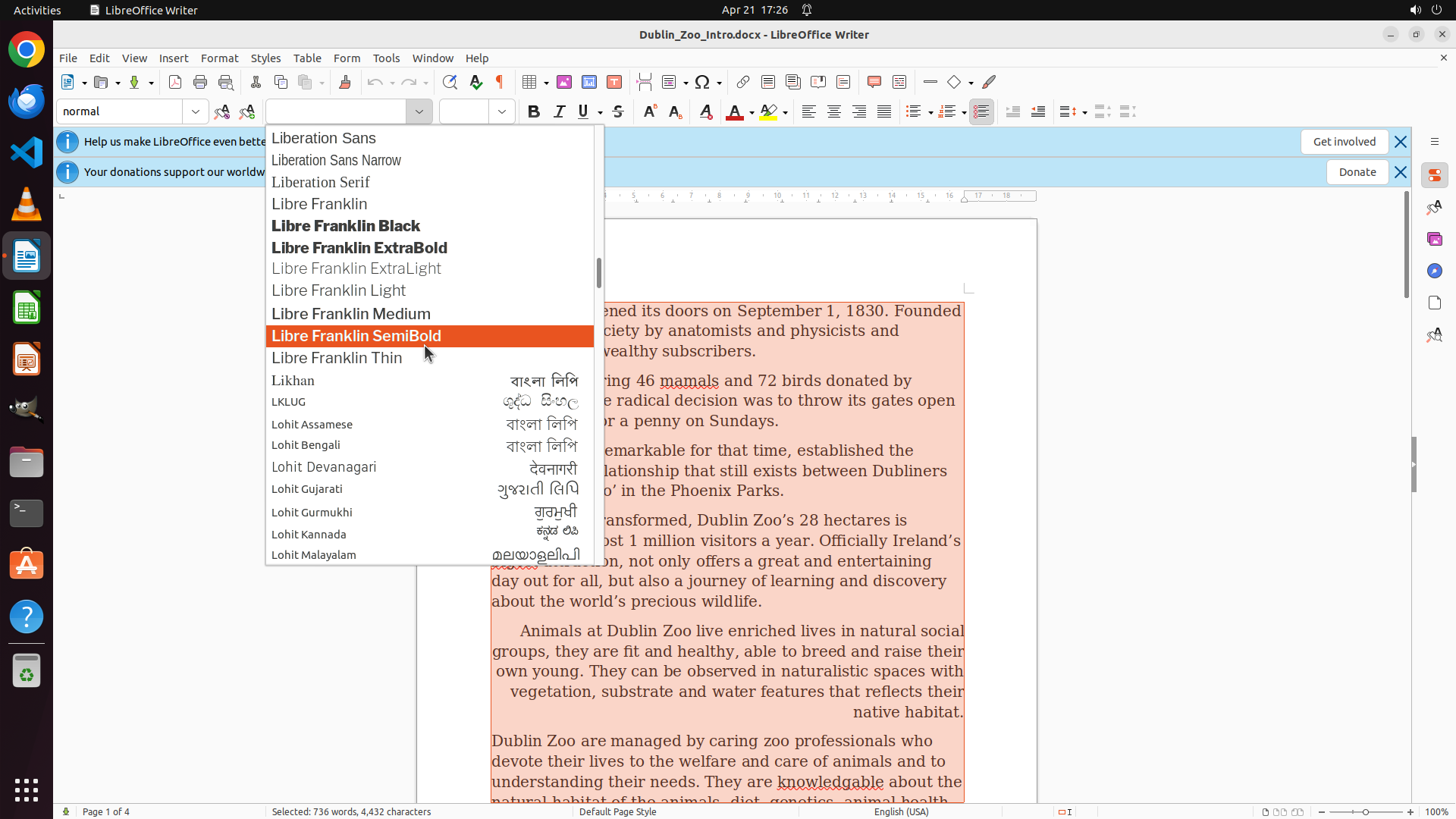
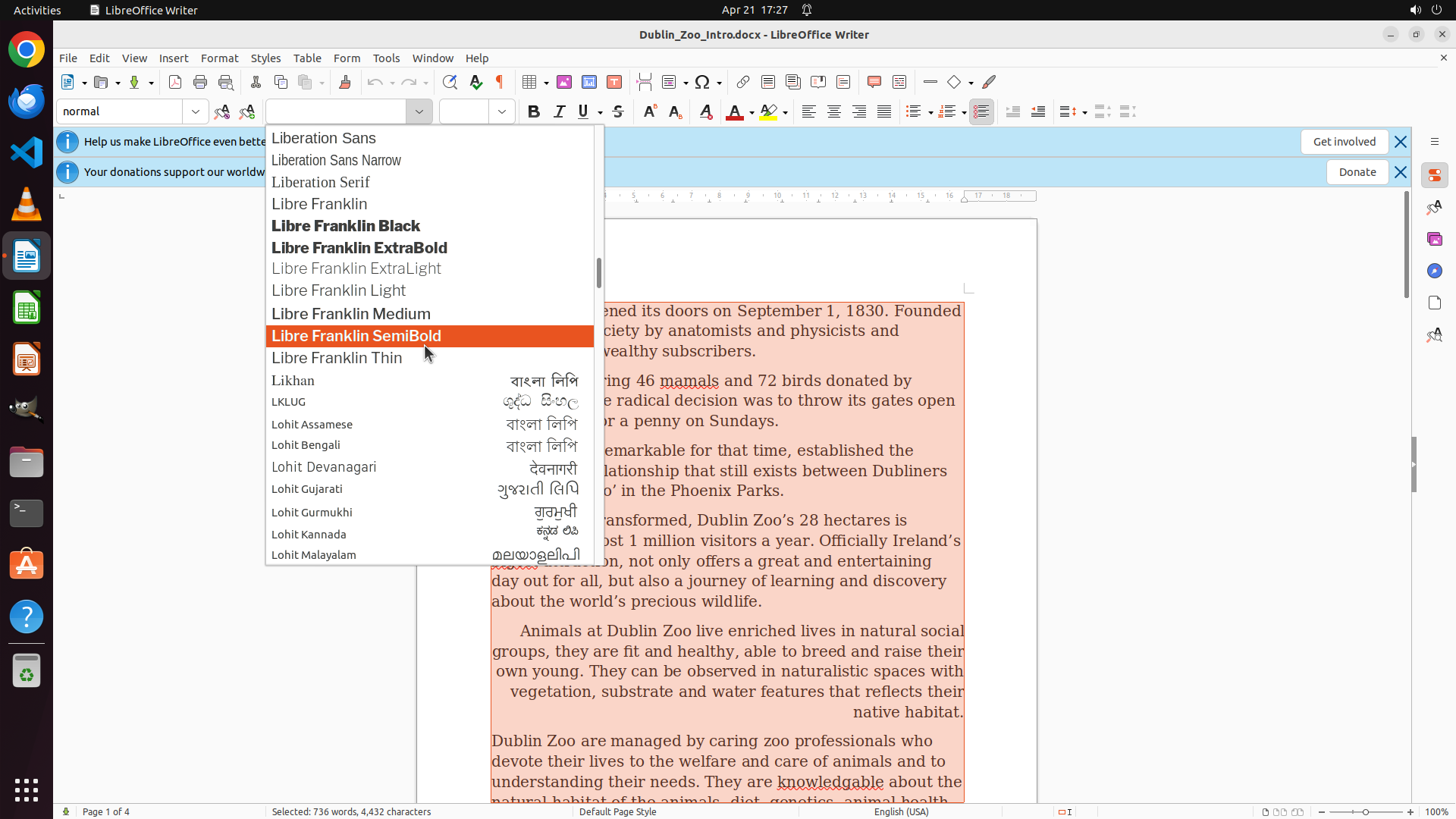
The font dropdown menu is still open and now showing fonts starting with letter 'L' (Liberation Sans, Libre Franklin variants, Likhan, LKLUG, Lohit variants in various scripts). The text in the document remains selected (highlighted in orange/peach color). I need to continue scrolling down to reach fonts starting with 'T' where Times New Roman should be located.
#### 情况分析与思考过程
I've made progress - moved from fonts starting with 'A'/'C' to fonts starting with 'L'. Since I need to reach 'T' for Times New Roman, I should continue scrolling down in the font dropdown menu. The alphabetical progression suggests I need to scroll through M, N, O, P, Q, R, S to reach T. I'll continue scrolling down.
```
Step 8: SCROLL
```
#### 重要信息
The font dropdown menu is still open and now showing fonts starting with letter 'L' (Liberation Sans, Libre Franklin variants, Likhan, LKLUG, Lohit variants in various scripts). The text in the document remains selected (highlighted in orange/peach color). I need to continue scrolling down to reach fonts starting with 'T' where Times New Roman should be located.
#### 情况分析与思考过程
I've made progress - moved from fonts starting with 'A'/'C' to fonts starting with 'L'. Since I need to reach 'T' for Times New Roman, I should continue scrolling down in the font dropdown menu. The alphabetical progression suggests I need to scroll through M, N, O, P, Q, R, S to reach T. I'll continue scrolling down.
```
Step 9: MOVE_TO (555, 450)
```
#### 重要信息
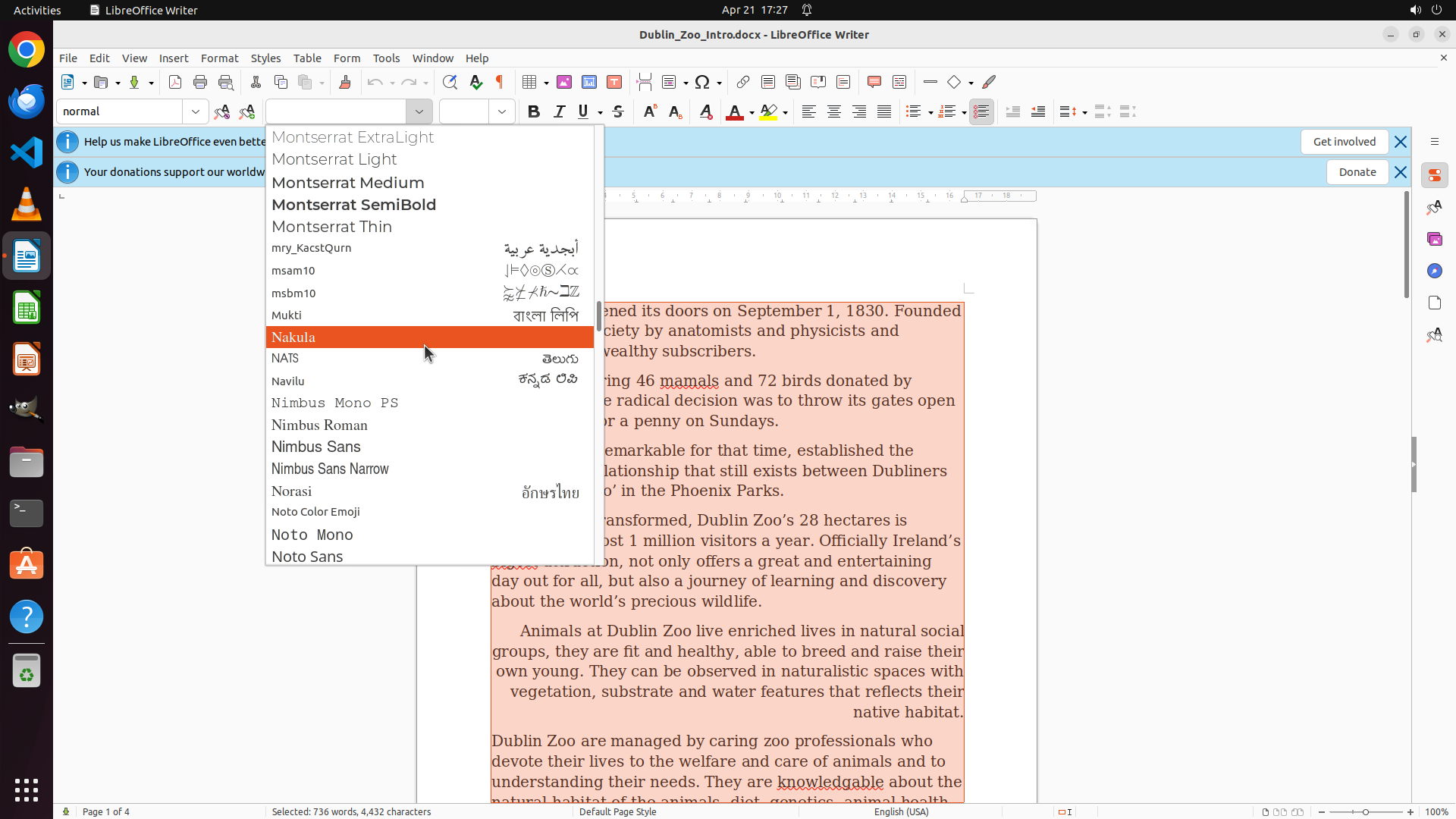
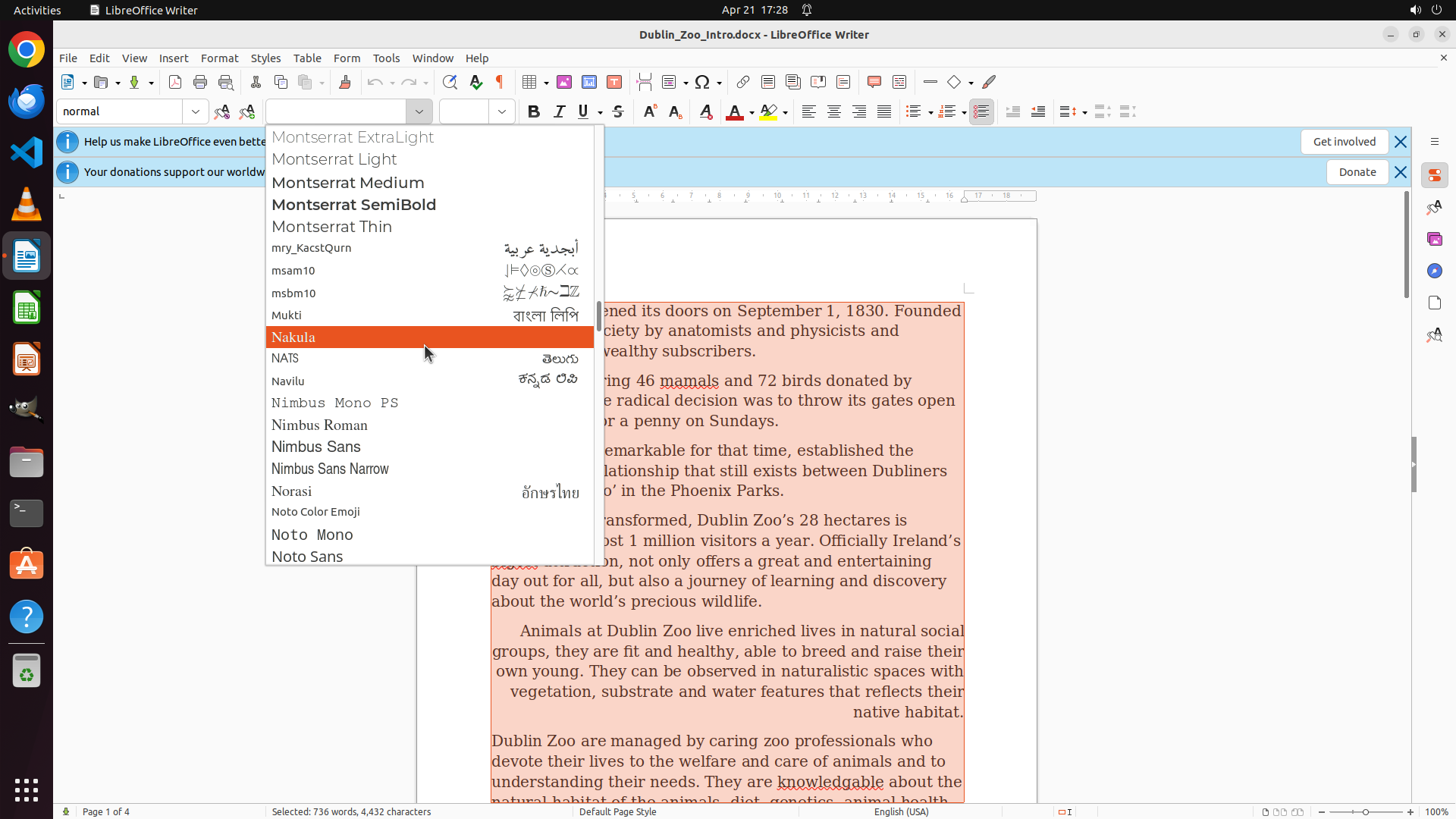
The font dropdown menu is open and currently showing fonts starting with letters 'M' and 'N' (Montserrat variants, Nakula, NATS, Navilu, Nimbus variants, Norasi, Noto variants). The text in the document remains selected (highlighted in orange/peach color). I need to continue scrolling down to reach fonts starting with 'T' where Times New Roman should be located.
#### 情况分析与思考过程
The alphabetical progression so far: started at A/C, then moved through J/K, then L, and now at M/N. I need to continue scrolling through O, P, Q, R, S to reach T where Times New Roman is located. Since I'm getting closer but still need to scroll more, I'll continue scrolling down in the font dropdown menu. The text remains selected, which is perfect - once I find Times New Roman, the font change will apply to all selected text immediately.
```
Step 9: SCROLL
```
#### 重要信息
The font dropdown menu is open and currently showing fonts starting with letters 'M' and 'N' (Montserrat variants, Nakula, NATS, Navilu, Nimbus variants, Norasi, Noto variants). The text in the document remains selected (highlighted in orange/peach color). I need to continue scrolling down to reach fonts starting with 'T' where Times New Roman should be located.
#### 情况分析与思考过程
The alphabetical progression so far: started at A/C, then moved through J/K, then L, and now at M/N. I need to continue scrolling through O, P, Q, R, S to reach T where Times New Roman is located. Since I'm getting closer but still need to scroll more, I'll continue scrolling down in the font dropdown menu. The text remains selected, which is perfect - once I find Times New Roman, the font change will apply to all selected text immediately.
```
Step 10: MOVE_TO (555, 450)
```
#### 重要信息
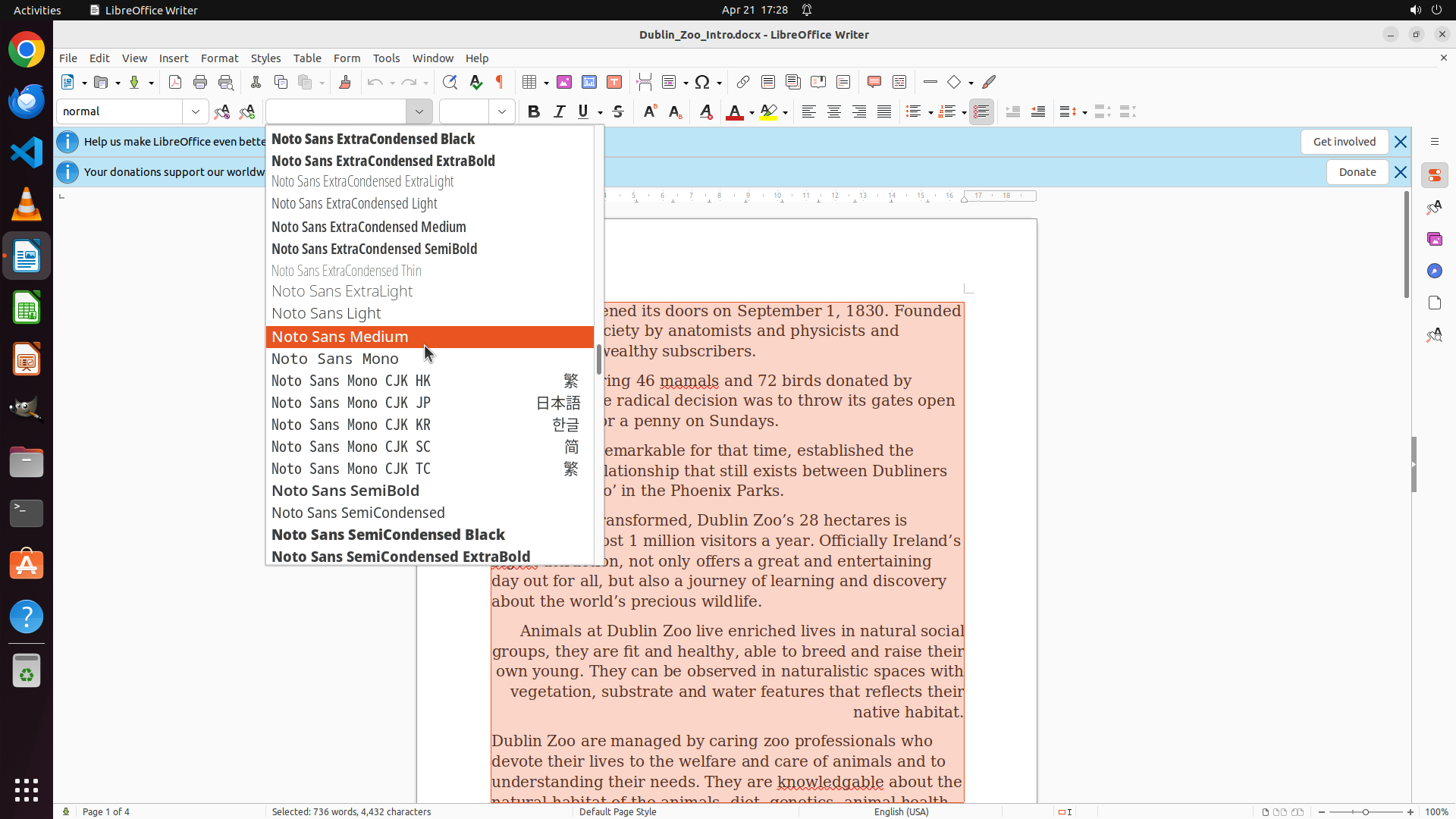
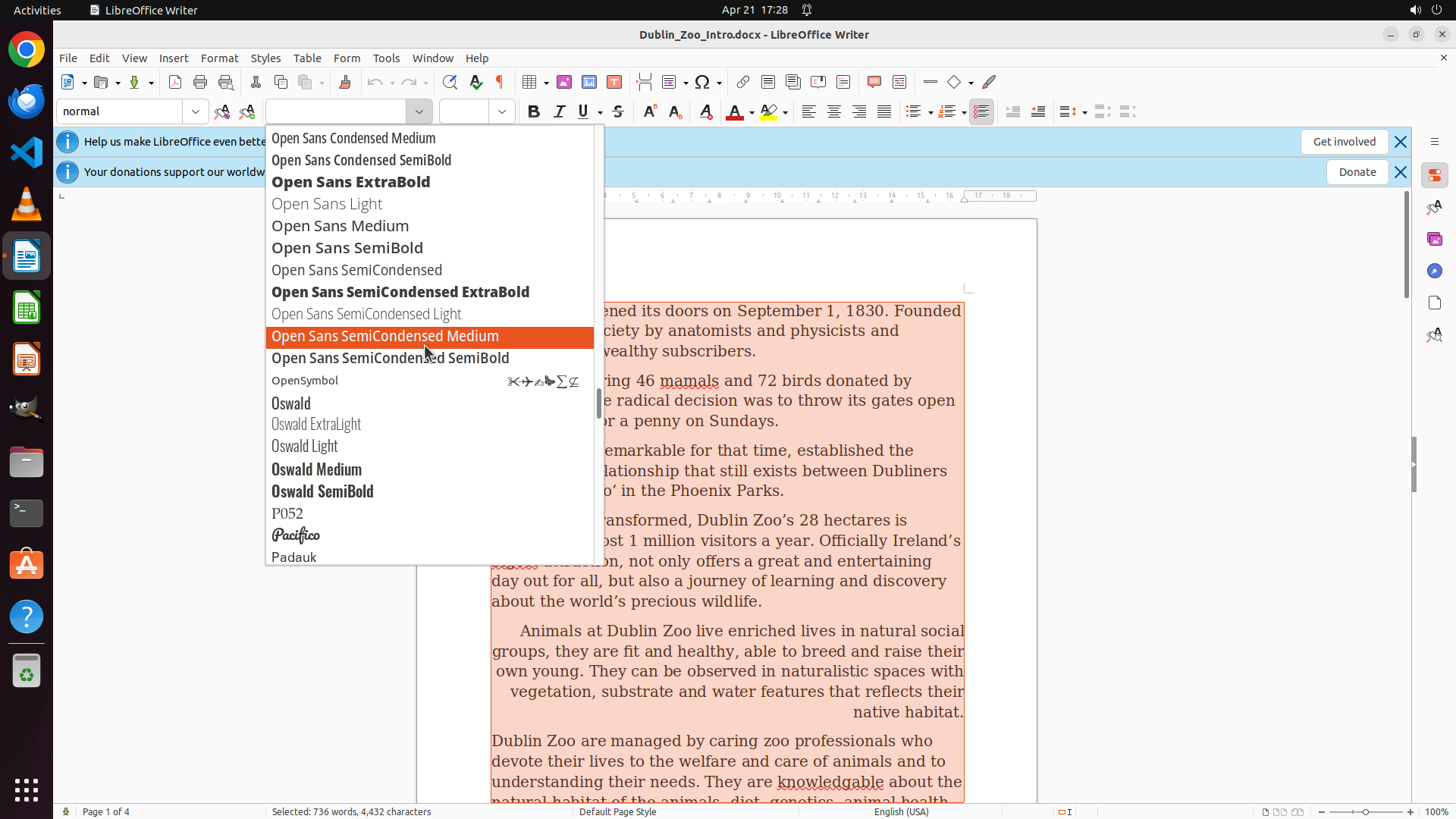
The font dropdown menu is now showing fonts starting with 'N' - specifically various "Noto Sans" font variants (Noto Sans ExtraCondensed Black, ExtraCondensed ExtraBold, ExtraCondensed ExtraLight, etc.). The text in the document remains selected (highlighted in orange/peach color). I need to continue scrolling down to reach fonts starting with 'T' where Times New Roman should be located.
#### 情况分析与思考过程
The alphabetical progression so far: A/C → J/K → L → M/N → now at N (Noto Sans variants). I need to continue scrolling through O, P, Q, R, S to reach T where Times New Roman is located. The Noto Sans font family has many variants, so I need to scroll past all of these to reach the 'T' section. I'll continue scrolling down in the font dropdown menu. The text remains selected, which is perfect - once I find Times New Roman, the font change will apply to all selected text immediately.
```
Step 10: SCROLL
```
#### 重要信息
The font dropdown menu is now showing fonts starting with 'N' - specifically various "Noto Sans" font variants (Noto Sans ExtraCondensed Black, ExtraCondensed ExtraBold, ExtraCondensed ExtraLight, etc.). The text in the document remains selected (highlighted in orange/peach color). I need to continue scrolling down to reach fonts starting with 'T' where Times New Roman should be located.
#### 情况分析与思考过程
The alphabetical progression so far: A/C → J/K → L → M/N → now at N (Noto Sans variants). I need to continue scrolling through O, P, Q, R, S to reach T where Times New Roman is located. The Noto Sans font family has many variants, so I need to scroll past all of these to reach the 'T' section. I'll continue scrolling down in the font dropdown menu. The text remains selected, which is perfect - once I find Times New Roman, the font change will apply to all selected text immediately.
```
Step 11: MOVE_TO (555, 450)
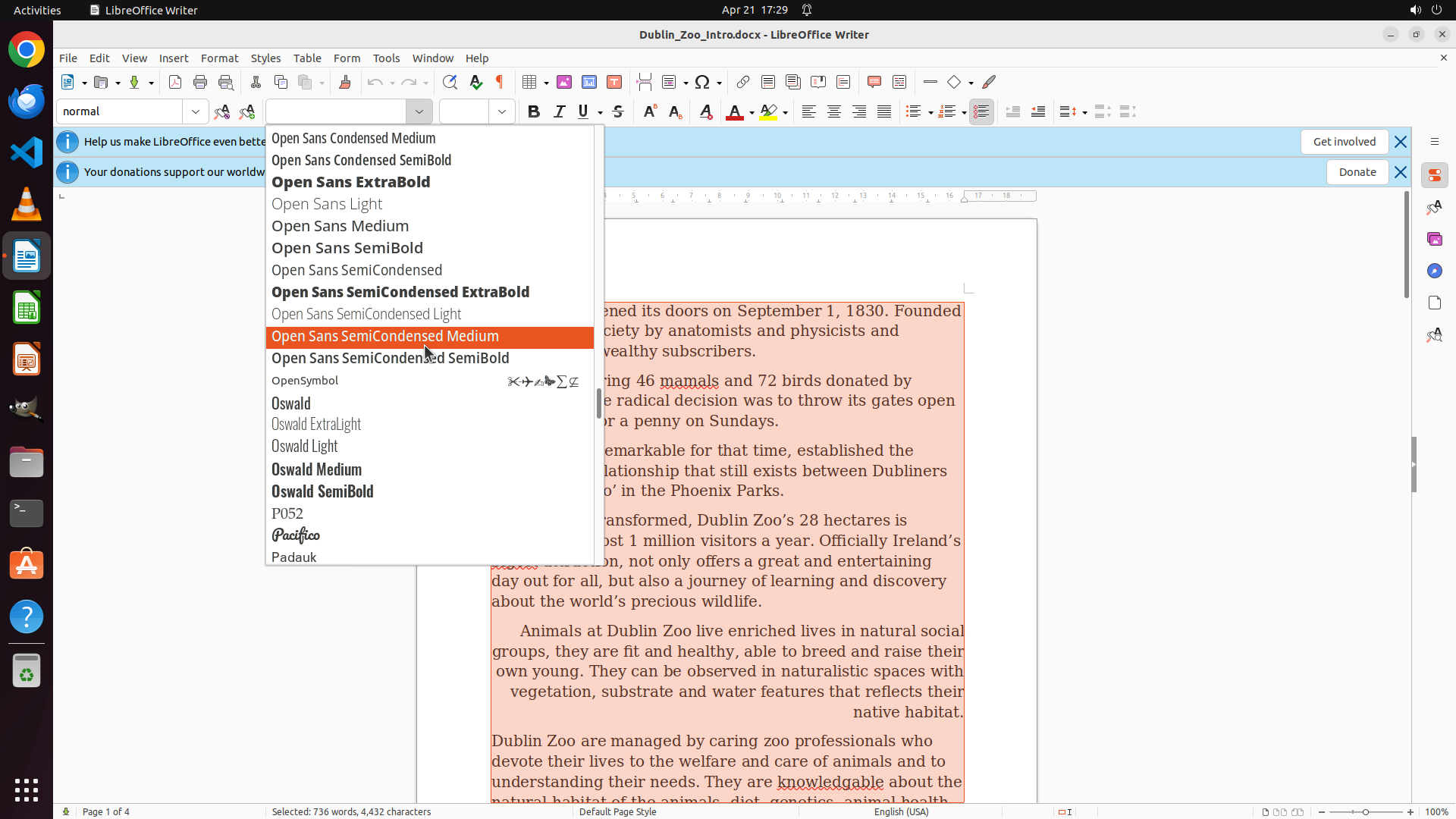
```
#### 重要信息
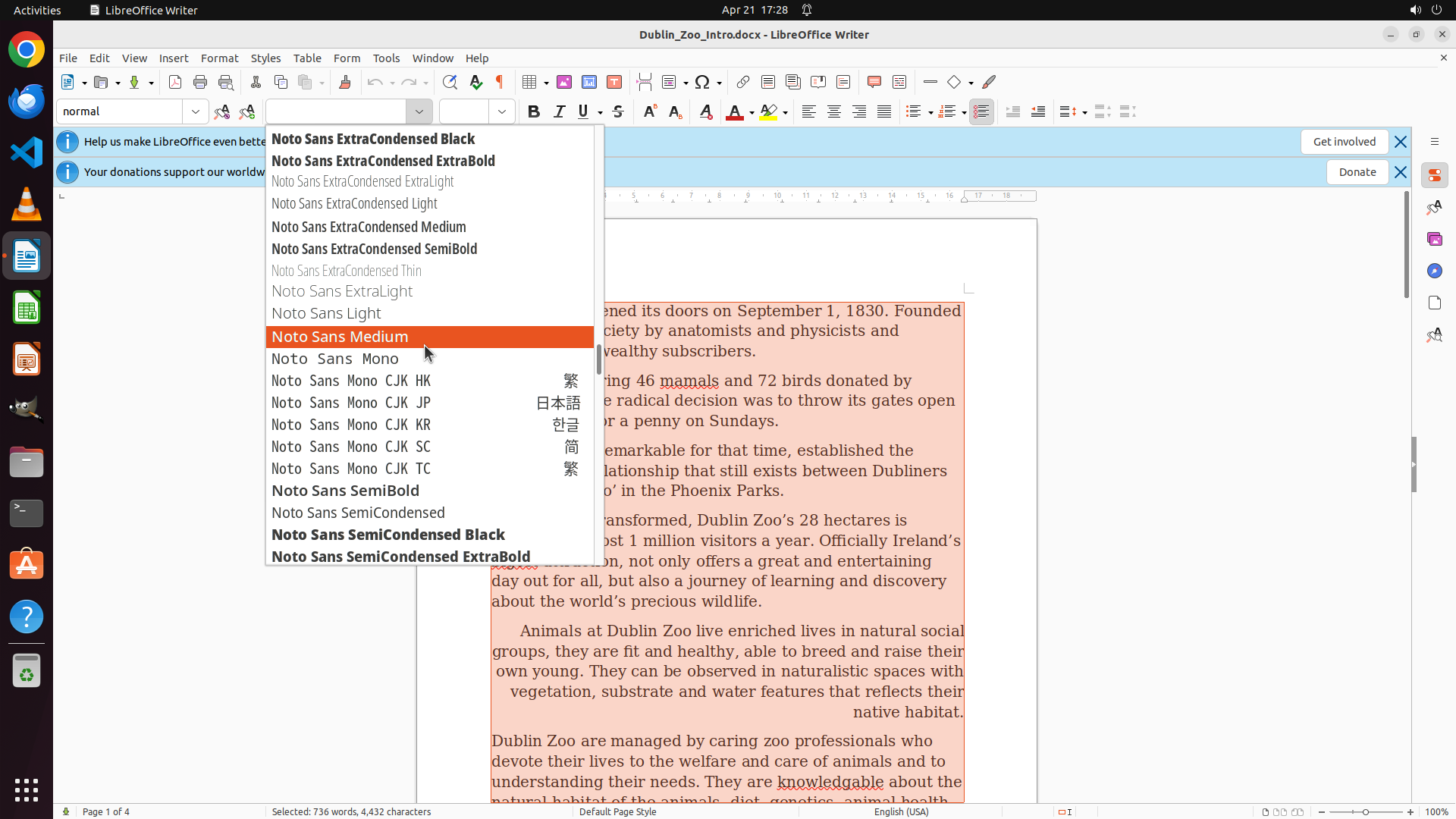
The font dropdown menu is open and currently showing fonts starting with letters 'O' and 'P' (Open Sans variants including Open Sans SemiCondensed Medium, Oswald variants, P052, Pacifico, Padauk). The text in the document remains selected (highlighted in orange/peach color). I need to continue scrolling down to reach fonts starting with 'T' where Times New Roman should be located.
#### 情况分析与思考过程
The alphabetical progression so far: A/C → J/K → L → M/N → now at O/P. I need to continue scrolling through Q, R, S to reach T where Times New Roman is located. The text remains selected, which is perfect - once I find Times New Roman, the font change will apply to all selected text immediately. I'll continue scrolling down in the font dropdown menu.
```
Step 11: SCROLL
```
#### 重要信息
The font dropdown menu is open and currently showing fonts starting with letters 'O' and 'P' (Open Sans variants including Open Sans SemiCondensed Medium, Oswald variants, P052, Pacifico, Padauk). The text in the document remains selected (highlighted in orange/peach color). I need to continue scrolling down to reach fonts starting with 'T' where Times New Roman should be located.
#### 情况分析与思考过程
The alphabetical progression so far: A/C → J/K → L → M/N → now at O/P. I need to continue scrolling through Q, R, S to reach T where Times New Roman is located. The text remains selected, which is perfect - once I find Times New Roman, the font change will apply to all selected text immediately. I'll continue scrolling down in the font dropdown menu.
```
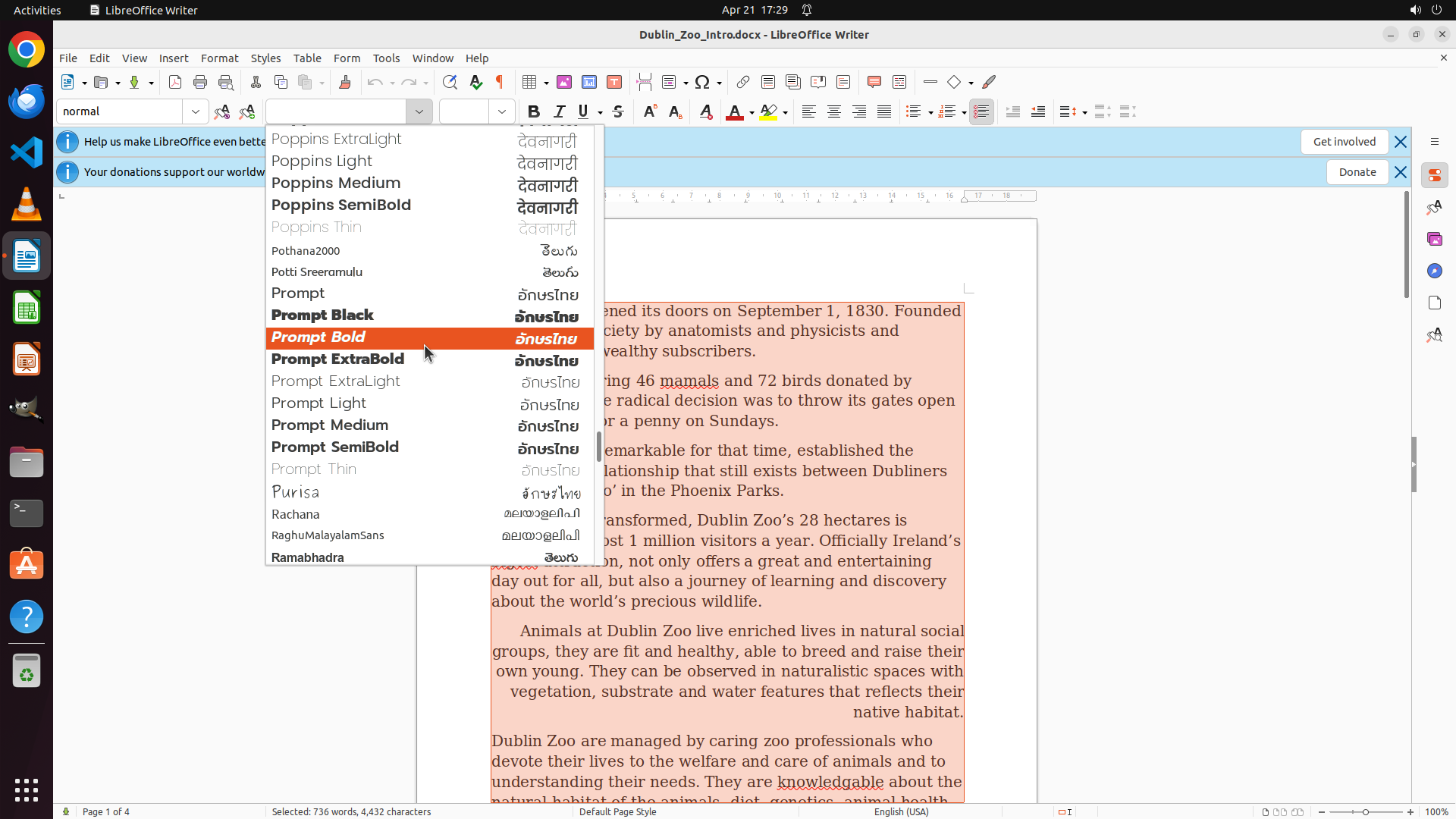
Step 12: MOVE_TO (555, 450)
```
#### 重要信息
The font dropdown menu is currently showing fonts starting with letter 'P' (Poppins variants - Poppins ExtraLight, Poppins Light, Poppins Medium, Poppins SemiBold, Poppins Thin, Pottha2000, Potti Sreeramulu, Prompt variants, Purisa, Rachana, RaghuMalayalamSans, Ramabhadra). The text in the document remains selected (highlighted in orange/peach color). I need to continue scrolling down to reach fonts starting with 'T' where Times New Roman should be located.
#### 情况分析与思考过程
The alphabetical progression so far: A/C → J/K → L → M/N → O/P → now at P (Poppins, Prompt, etc.). I need to continue scrolling through Q, R, S to reach T where Times New Roman is located. The text remains selected, which is perfect - once I find Times New Roman, the font change will apply to all selected text immediately. I'll continue scrolling down in the font dropdown menu.
```
I'll continue scrolling down in the font dropdown to reach the 'T' section where Times New Roman is located.
Step 12: SCROLL
```
#### 重要信息
The font dropdown menu is currently showing fonts starting with letter 'P' (Poppins variants - Poppins ExtraLight, Poppins Light, Poppins Medium, Poppins SemiBold, Poppins Thin, Pottha2000, Potti Sreeramulu, Prompt variants, Purisa, Rachana, RaghuMalayalamSans, Ramabhadra). The text in the document remains selected (highlighted in orange/peach color). I need to continue scrolling down to reach fonts starting with 'T' where Times New Roman should be located.
#### 情况分析与思考过程
The alphabetical progression so far: A/C → J/K → L → M/N → O/P → now at P (Poppins, Prompt, etc.). I need to continue scrolling through Q, R, S to reach T where Times New Roman is located. The text remains selected, which is perfect - once I find Times New Roman, the font change will apply to all selected text immediately. I'll continue scrolling down in the font dropdown menu.
```
I'll continue scrolling down in the font dropdown to reach the 'T' section where Times New Roman is located.
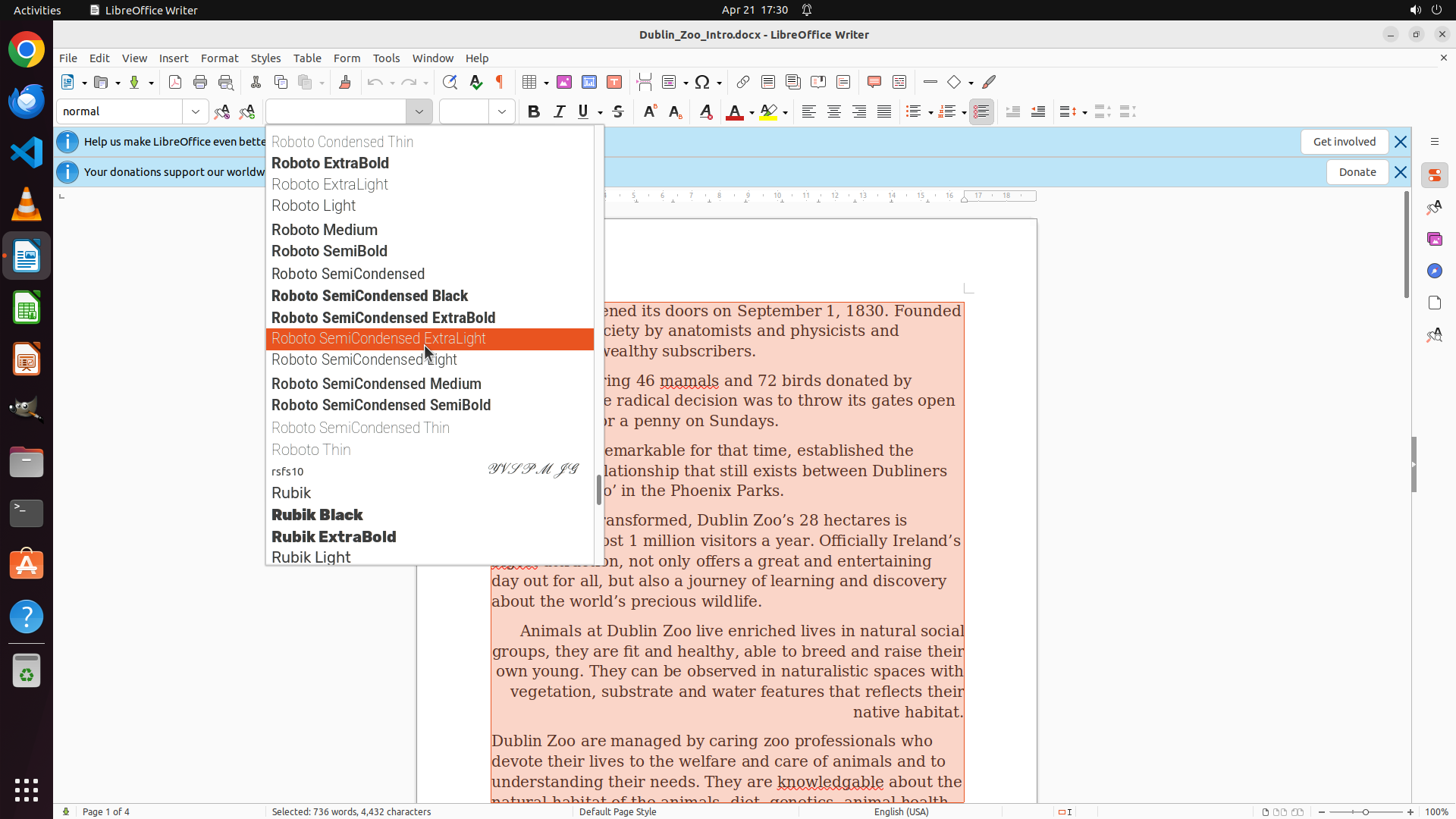
Step 13: MOVE_TO (555, 450)
```
#### 重要信息
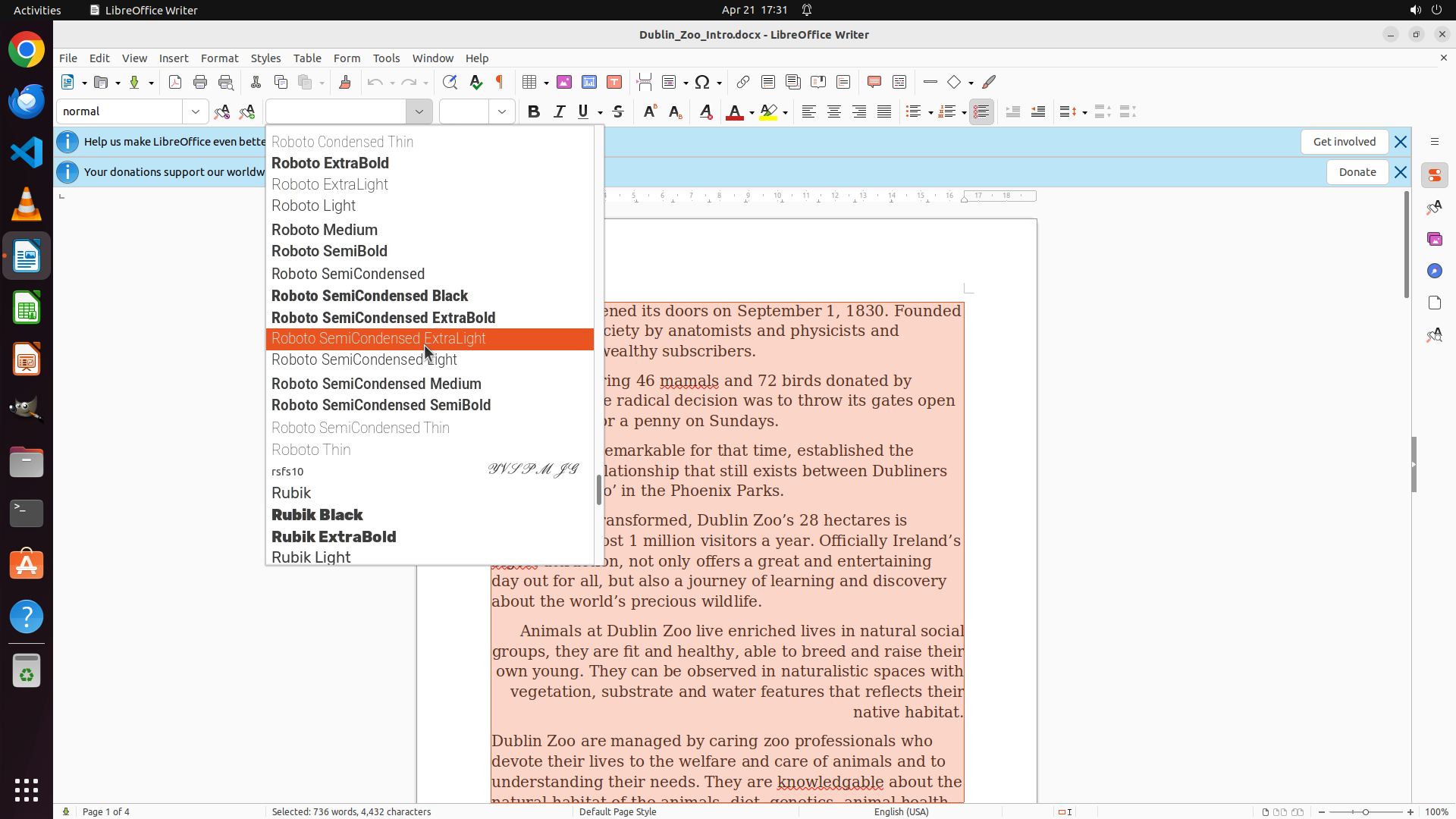
The font dropdown menu is now showing fonts starting with letter 'R' (Roboto variants - Roboto Condensed Thin, Roboto ExtraBold, Roboto ExtraLight, Roboto Light, Roboto Medium, Roboto SemiBold, Roboto SemiCondensed variants, Roboto Thin, and also rsfs10, Rubik variants including Rubik Black, Rubik ExtraBold, Rubik Light). The text in the document remains selected (highlighted in orange/peach color). I'm very close to reaching 'T' where Times New Roman should be located - just need to scroll past 'S' fonts.
#### 情况分析与思考过程
The alphabetical progression so far: A/C → J/K → L → M/N → O/P → now at R (Roboto, Rubik). I need to continue scrolling through S to reach T where Times New Roman is located. The text remains selected, which is perfect - once I find Times New Roman, the font change will apply to all selected text immediately. I'll continue scrolling down in the font dropdown menu.
```
Step 13: SCROLL
```
#### 重要信息
The font dropdown menu is now showing fonts starting with letter 'R' (Roboto variants - Roboto Condensed Thin, Roboto ExtraBold, Roboto ExtraLight, Roboto Light, Roboto Medium, Roboto SemiBold, Roboto SemiCondensed variants, Roboto Thin, and also rsfs10, Rubik variants including Rubik Black, Rubik ExtraBold, Rubik Light). The text in the document remains selected (highlighted in orange/peach color). I'm very close to reaching 'T' where Times New Roman should be located - just need to scroll past 'S' fonts.
#### 情况分析与思考过程
The alphabetical progression so far: A/C → J/K → L → M/N → O/P → now at R (Roboto, Rubik). I need to continue scrolling through S to reach T where Times New Roman is located. The text remains selected, which is perfect - once I find Times New Roman, the font change will apply to all selected text immediately. I'll continue scrolling down in the font dropdown menu.
```
Step 14: CLICK (434, 357)
```
#### 重要信息
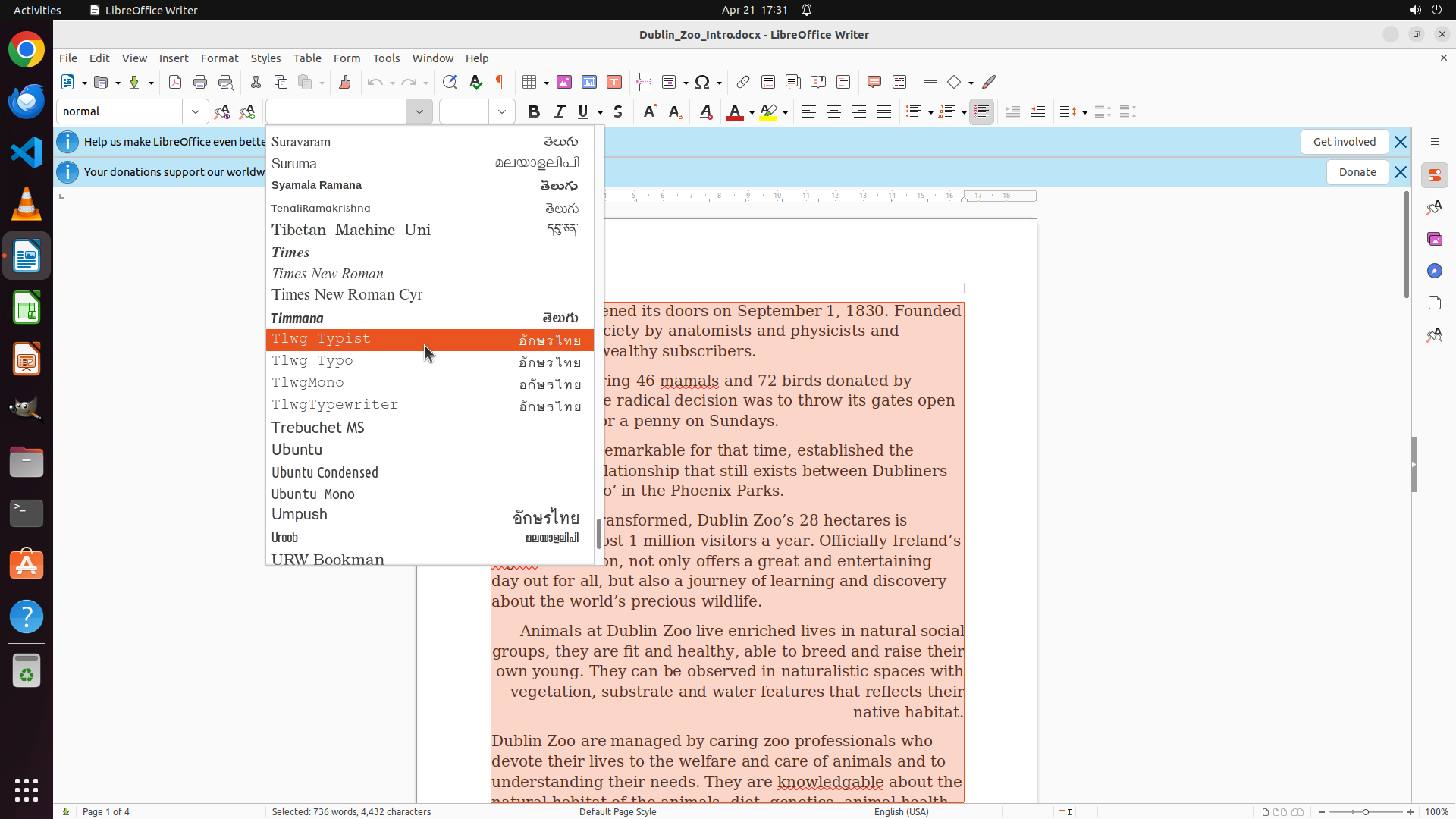
The font dropdown menu is now showing fonts starting with 'T', and I can clearly see "Times New Roman" in the list! It's positioned between "Times" and "Times New Roman Cyr". The text in the document remains selected (highlighted in orange/peach color), which is perfect. I have successfully navigated to the correct font in the alphabetical list.
#### 情况分析与思考过程
Perfect! After multiple scroll actions through the alphabetical font list (A/C → J/K → L → M/N → O/P → R → now at T), I have finally reached the 'T' section where "Times New Roman" is located. The font is now visible in the dropdown menu.
Now I need to:
1. Click on "Times New Roman" in the font dropdown list
2. This will apply the font change to all the selected text in the document
3. Then verify the change has been applied
Since the text is already selected and "Times New Roman" is visible in the dropdown, clicking on it will immediately change the font for all selected text. This is the final step to complete the font change task.
```
Step 15: CLICK (960, 525)
```
#### 重要信息
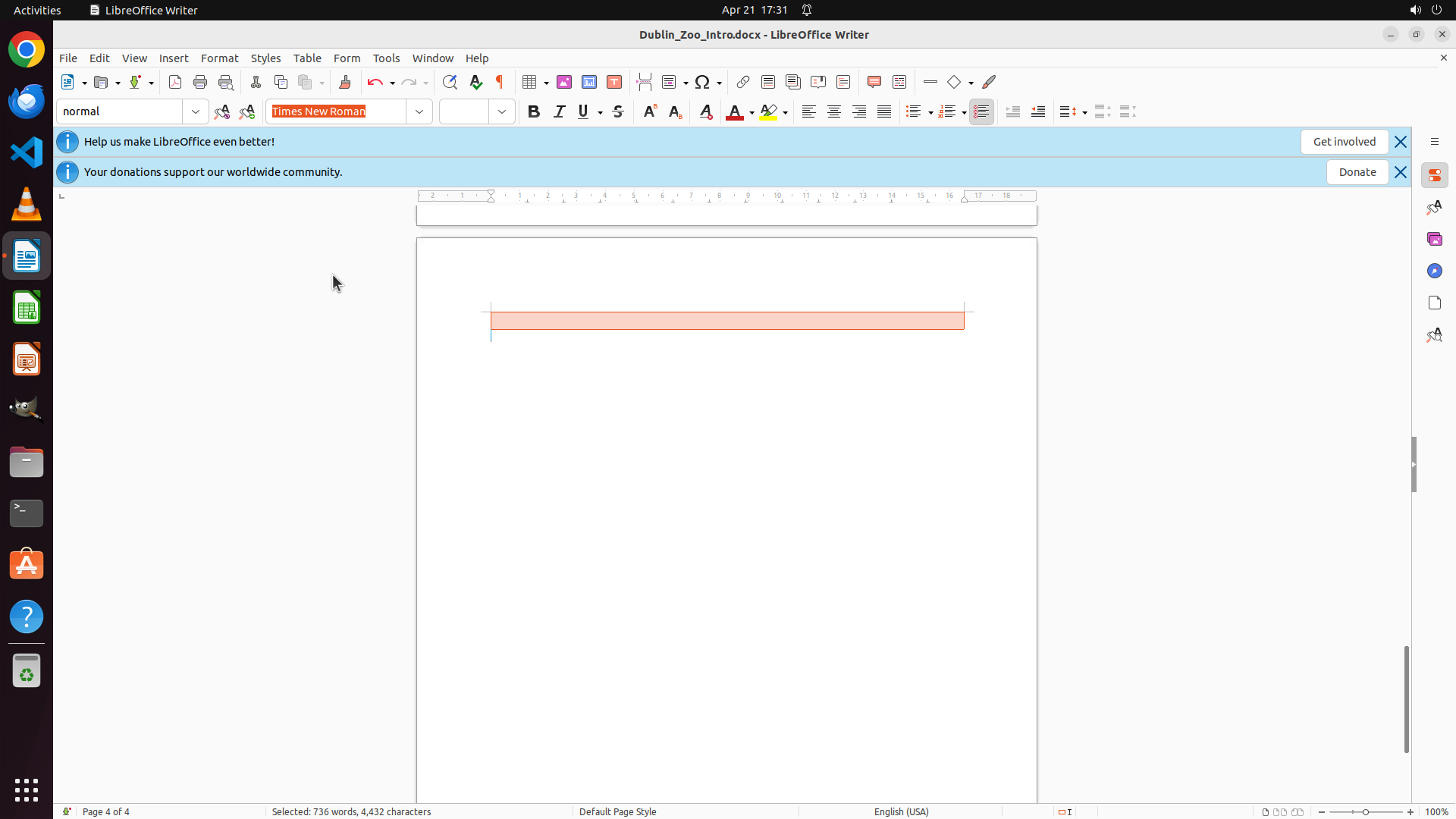
The font change appears to have been successfully applied! I can see:
- The font dropdown in the toolbar now displays "Times New Roman" (previously showed "Georgia")
- The text in the document remains selected (highlighted in orange/peach color)
- The status bar shows "Selected: 610 words, 4,432 characters" indicating all text is still selected
- The document is currently showing page 4 of 4
The font change task appears to be complete - "Times New Roman" is now shown in the font family dropdown, which means it has been applied to the selected text. Now I should click somewhere in the document to deselect the text and verify the change visually.
#### 情况分析与思考过程
The task has been completed successfully:
1. All text was selected using Ctrl+A (completed)
2. The font dropdown was opened (completed)
3. "Times New Roman" was selected from the font list (completed)
4. The font dropdown now shows "Times New Roman" instead of "Georgia" (completed)
Now I need to:
1. Click in the document to deselect the text and see the font change visually
2. Save the document to preserve the changes
Let me click somewhere in the document area to deselect the text and verify the font change has been applied.
```
I'll click in the document to deselect the text and verify the font change has been applied.
Step 16: HOTKEY
```
#### 重要信息
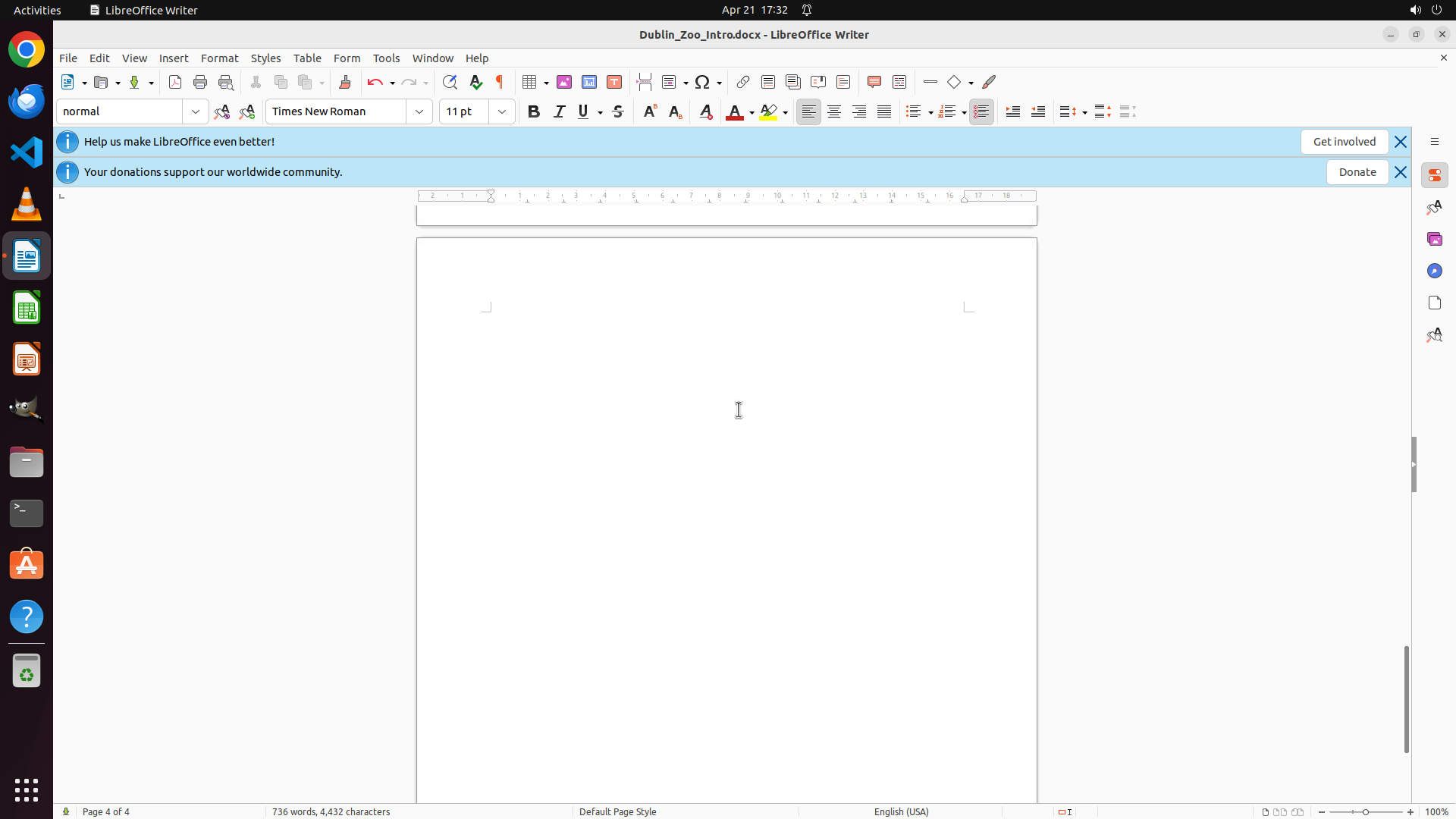
The previous action successfully deselected the text. I can now see:
- The font dropdown in the toolbar clearly shows "Times New Roman" (highlighted in orange box)
- The text is no longer selected (no orange/peach highlighting visible)
- The status bar now shows "736 words, 4,632 characters" instead of "Selected:..."
- The document is showing page 4 of 4, which appears mostly blank
The font change has been successfully applied! Now I should save the document to preserve the changes.
#### 情况分析与思考过程
The task has been completed successfully:
1. All text was selected using Ctrl+A ✓
2. The font dropdown was opened ✓
3. "Times New Roman" was selected from the font list ✓
4. The font dropdown now shows "Times New Roman" instead of "Georgia" ✓
5. The text has been deselected and the change is applied ✓
Now I need to save the document to preserve the changes. I'll use Ctrl+S to save the document. This is the final step to complete the task.
```
Step 17: MOVE_TO (960, 600)
```
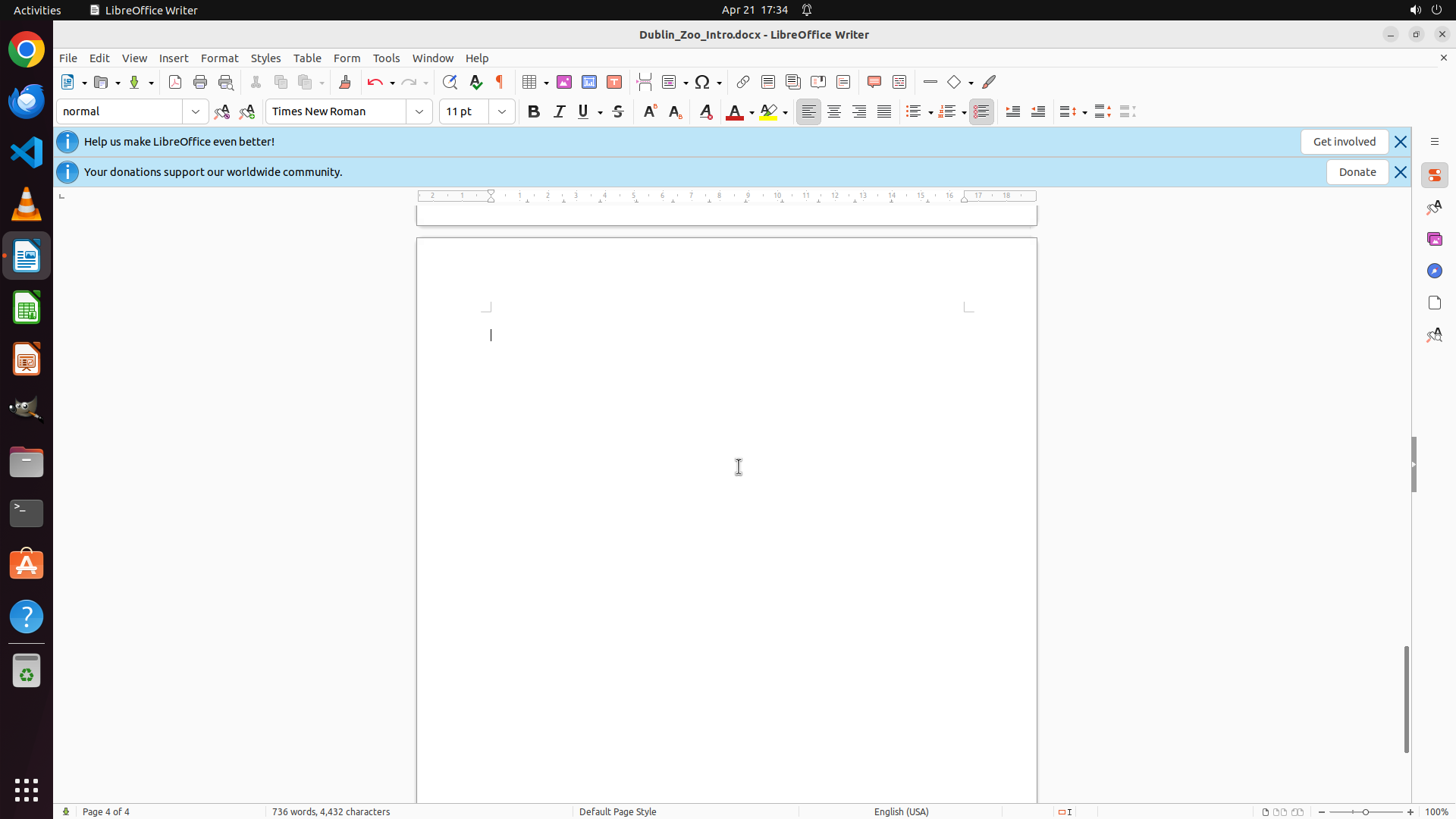
#### 重要信息
The document has been saved successfully. Looking at the current state:
- The font dropdown in the toolbar clearly shows "Times New Roman" (no longer showing "Georgia")
- The document is displaying page 4 of 4, which appears mostly blank
- The status bar shows "736 words, 4,632 characters" (not showing "Selected" anymore)
- The text is no longer highlighted/selected
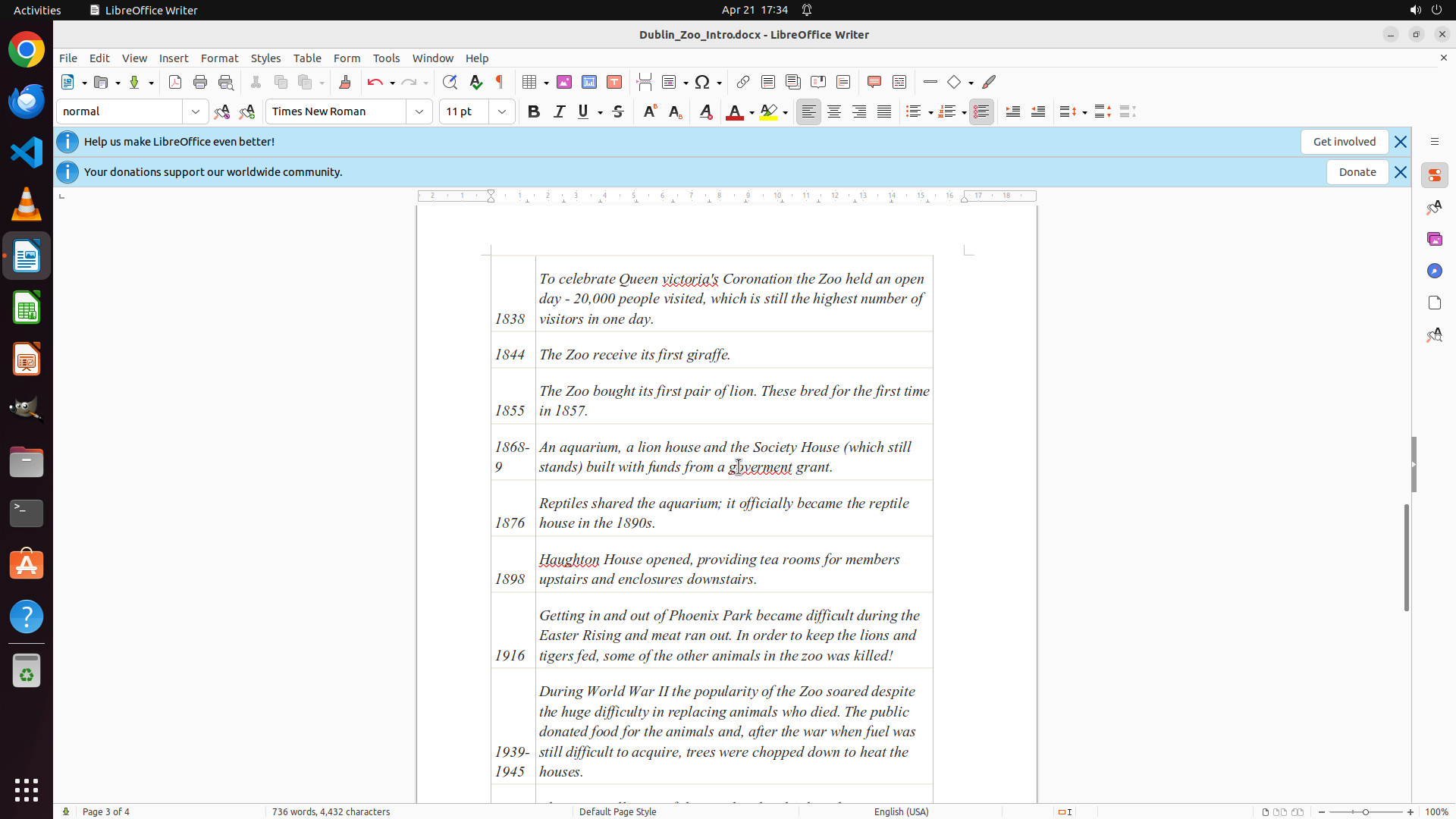
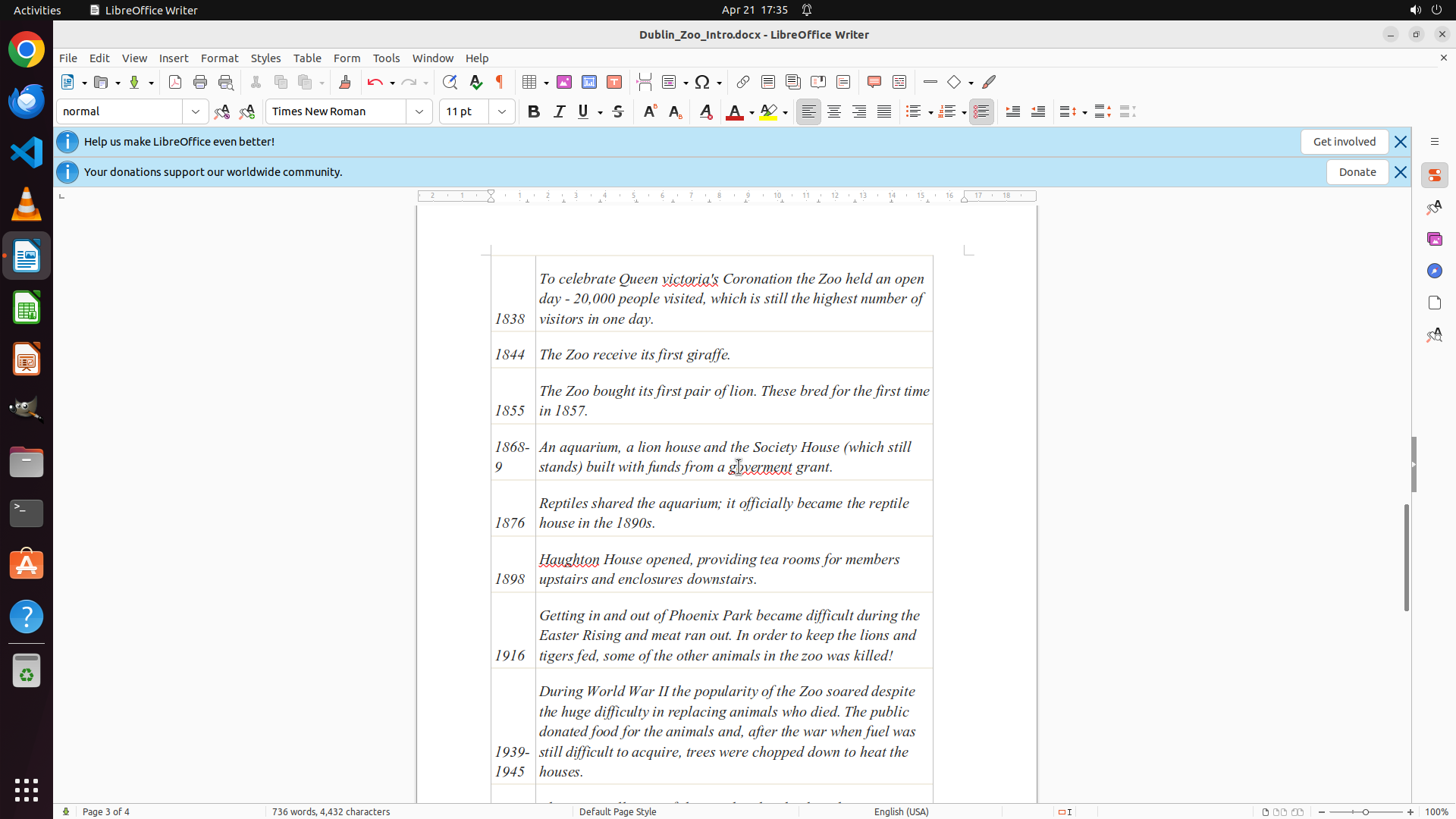
However, I'm currently viewing page 4 which appears to be mostly blank. To fully verify that the font change has been applied throughout the entire document, I should scroll up to view the actual text content on the earlier pages and confirm it appears in Times New Roman font.
#### 情况分析与思考过程
The main task (changing font to Times New Roman) appears to be complete based on:
1. The font dropdown showing "Times New Roman" ✓
2. The previous actions successfully selected all text and changed the font ✓
3. The document has been saved ✓
However, to fully satisfy the "verify" requirement and ensure the task is truly complete, I should:
1. Scroll up to view the actual text content in the document
2. Visually confirm the text is rendered in Times New Roman font (distinctive serif typeface)
3. Then mark the verification task as complete
I'll scroll up to see the document content and verify the font change is visible in the text itself.
```
Step 17: SCROLL
```
#### 重要信息
The document has been saved successfully. Looking at the current state:
- The font dropdown in the toolbar clearly shows "Times New Roman" (no longer showing "Georgia")
- The document is displaying page 4 of 4, which appears mostly blank
- The status bar shows "736 words, 4,632 characters" (not showing "Selected" anymore)
- The text is no longer highlighted/selected
However, I'm currently viewing page 4 which appears to be mostly blank. To fully verify that the font change has been applied throughout the entire document, I should scroll up to view the actual text content on the earlier pages and confirm it appears in Times New Roman font.
#### 情况分析与思考过程
The main task (changing font to Times New Roman) appears to be complete based on:
1. The font dropdown showing "Times New Roman" ✓
2. The previous actions successfully selected all text and changed the font ✓
3. The document has been saved ✓
However, to fully satisfy the "verify" requirement and ensure the task is truly complete, I should:
1. Scroll up to view the actual text content in the document
2. Visually confirm the text is rendered in Times New Roman font (distinctive serif typeface)
3. Then mark the verification task as complete
I'll scroll up to see the document content and verify the font change is visible in the text itself.
```