```
#### 重要信息
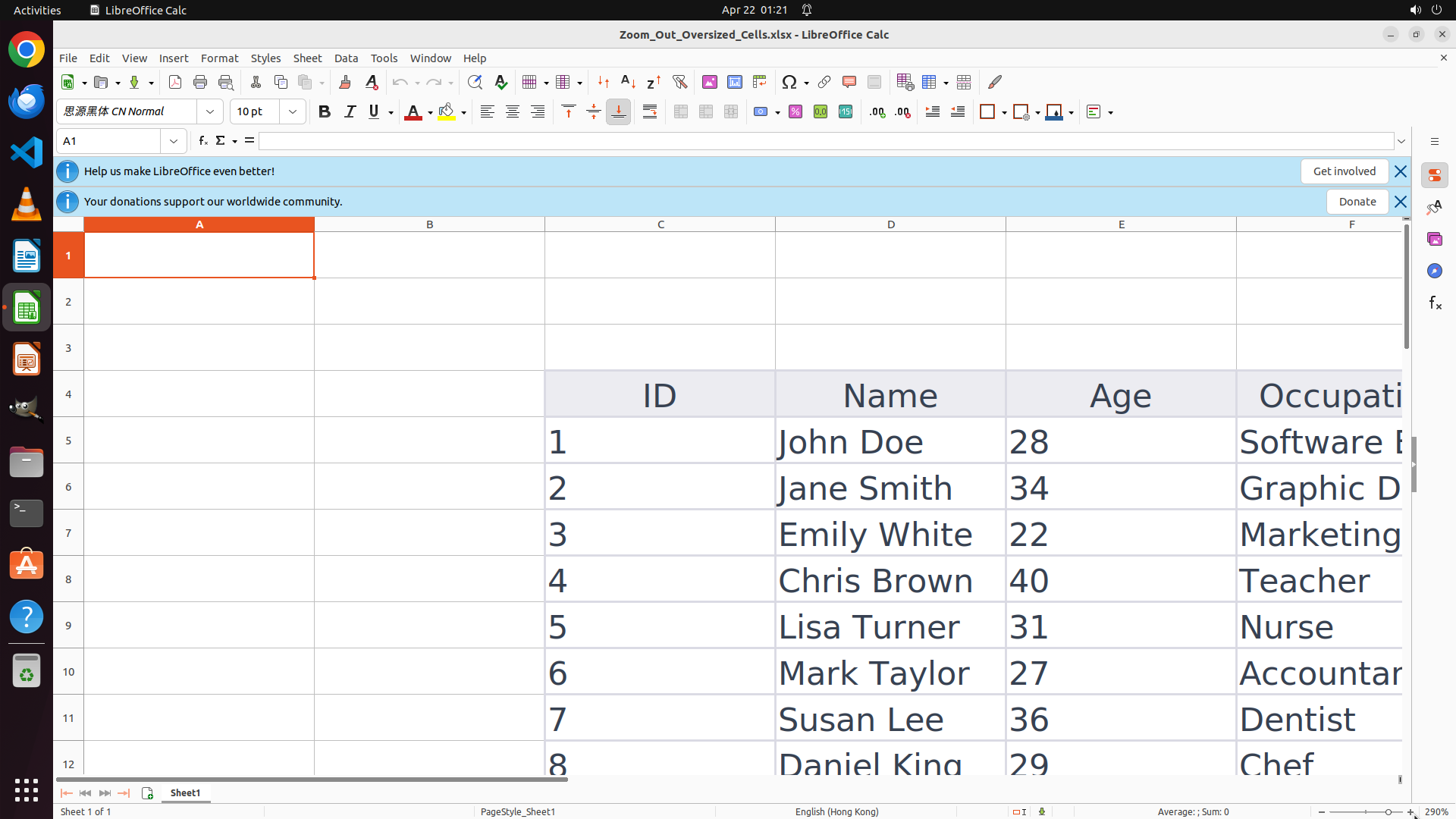
LibreOffice Calc is open with a spreadsheet showing data (ID, Name, Age, Occupation columns). The cells are indeed very large - currently showing rows 1-13. At the bottom right corner of the screen, I can see the zoom indicator showing "200%", which explains why the cells are so big. The task is to zoom out to make the cells smaller.
#### 情况分析与思考过程
The current zoom level is 200%, which is why the cells appear oversized. To zoom out, I need to access the zoom controls. The most direct way is to click on the zoom percentage indicator (showing "200%") at the bottom right corner of the LibreOffice Calc window. This should open a dropdown menu or dialog where I can select a lower zoom percentage (like 75% or 100%).
My plan:
1. Click on the zoom percentage indicator (200%) at the bottom right
2. Select a lower zoom percentage to zoom out
3. Verify the cells are now appropriately sized
I'll start by clicking on the zoom indicator at the bottom right corner.
```
Step 2: CLICK (1893, 1069)
```
#### 重要信息
LibreOffice Calc is open with the spreadsheet showing data at 200% zoom level (visible at bottom right corner showing "200%"). The cells are indeed very large. The previous click at coordinates [0.969, 0.99] did not seem to activate the zoom control, as the zoom level is still at 200% and no zoom dialog or dropdown appeared.
#### 情况分析与思考过程
The previous click didn't successfully open the zoom controls. I need to click more precisely on the zoom percentage indicator "200%" at the bottom right of the status bar. Looking at the screenshot, the zoom indicator is clearly visible at the bottom right corner. I'll try clicking directly on the "200%" text with slightly adjusted coordinates.
My updated plan:
1. Click precisely on the "200%" zoom indicator at the bottom right
2. Select a lower zoom percentage (like 75% or 100%) from the dialog that appears
3. Verify the cells are now smaller and more rows are visible
Let me try clicking on the zoom indicator again with more precise targeting.
```
Step 3: CLICK (893, 612)
```
#### 重要信息
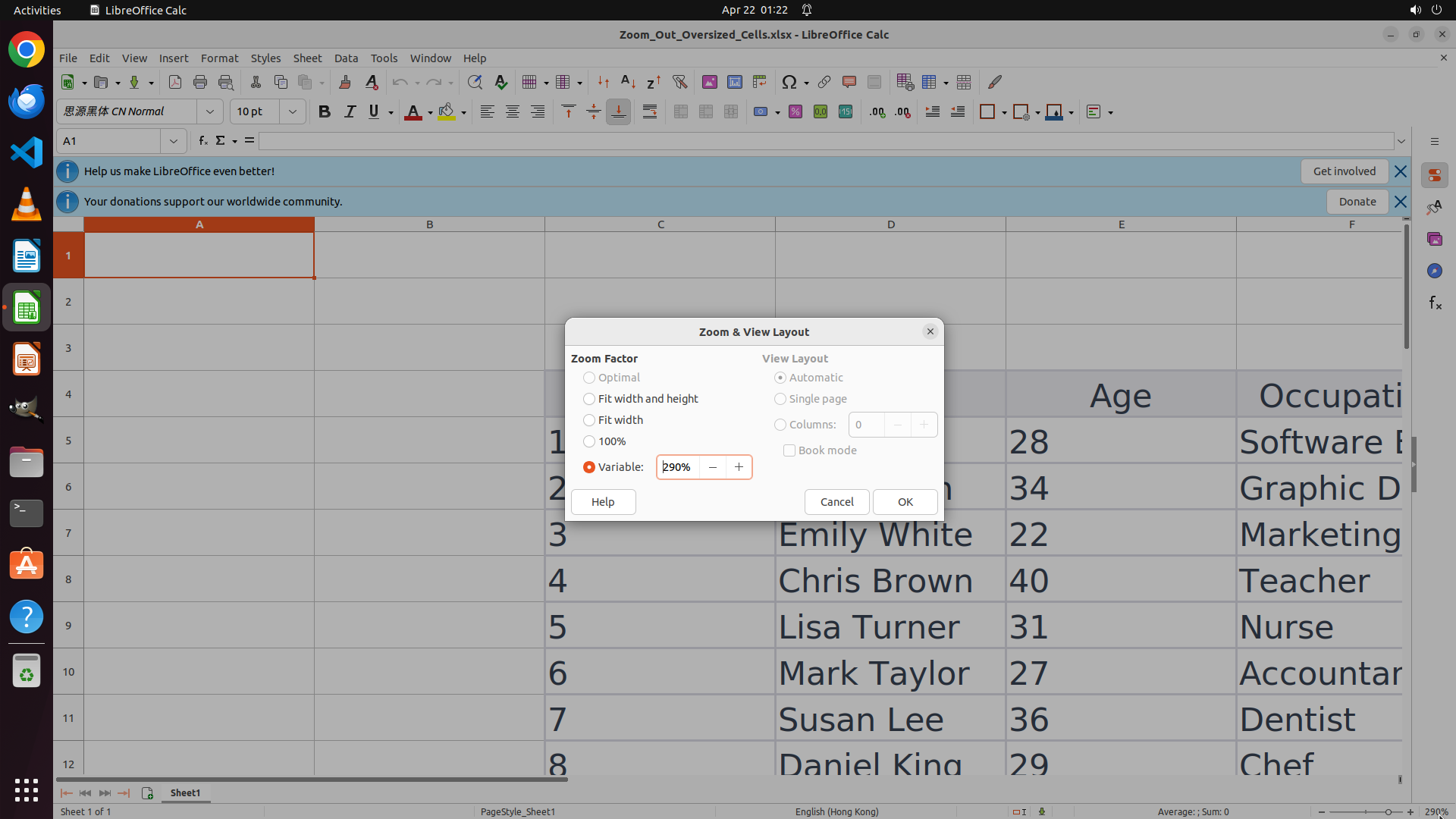
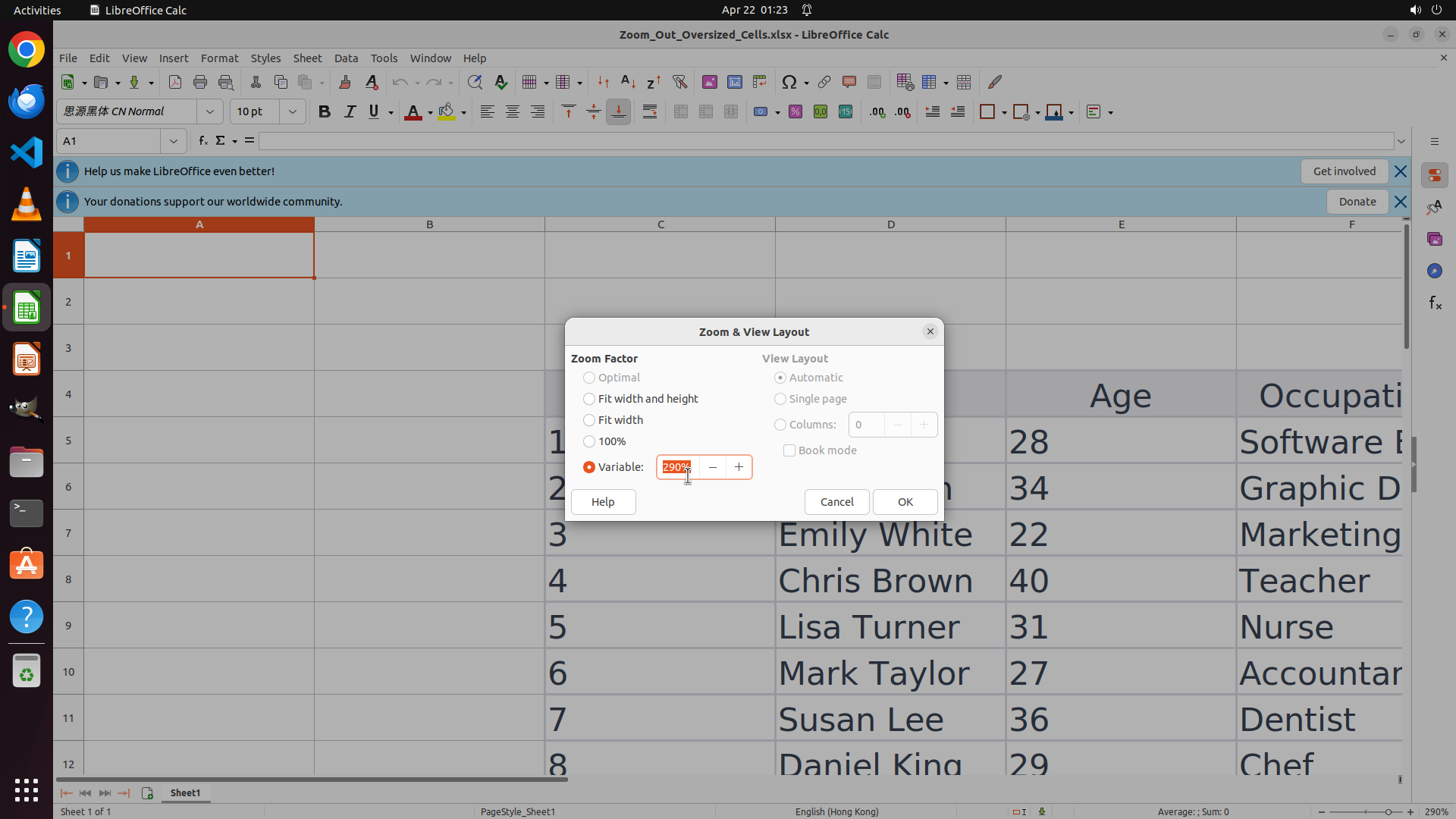
The "Zoom & View Layout" dialog has successfully opened. I can see the current zoom is set to "Variable: 200%". There's a text field showing "200%" with adjustment buttons, and there are also preset options including "100%". The dialog has "Help", "Cancel", and "OK" buttons at the bottom.
#### 情况分析与思考过程
The previous action successfully opened the zoom dialog. Now I need to change the zoom level from 200% to a lower value to make the cells smaller. I have a few options:
1. Click on the "100%" radio button (simple and straightforward)
2. Click on the text field and change the value manually (e.g., to 75%)
3. Use the minus button to decrease the zoom
Since the user asked to "zoom out a little bit", changing from 200% to 100% would be a reasonable adjustment. However, clicking on the text field and typing "75" would zoom out even more and give more visibility.
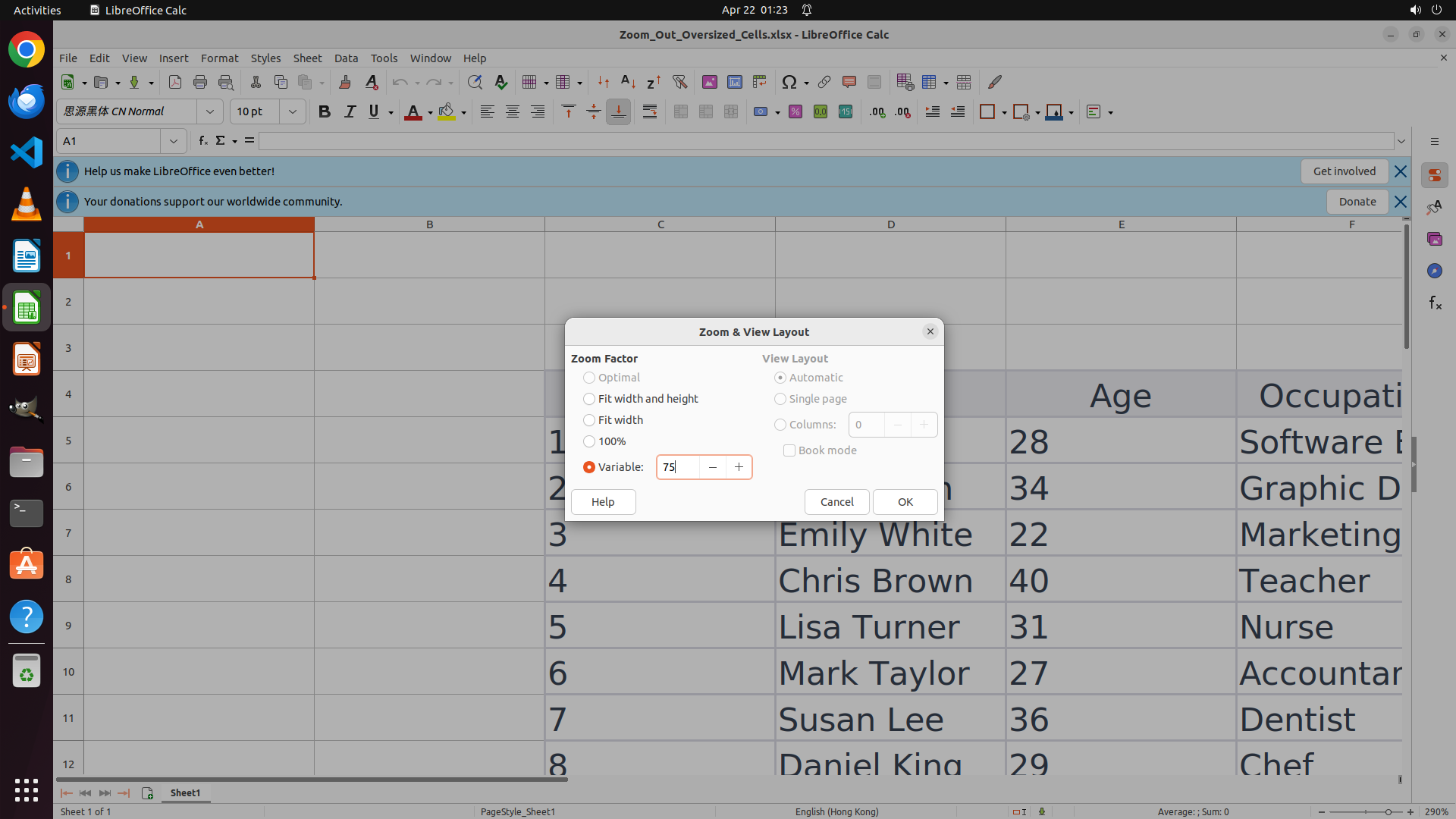
I'll click on the text field containing "200%", clear it, and type "75" to set the zoom to 75%, which should make the cells appropriately sized while still being readable.
My plan:
1. Triple-click on the zoom percentage text field to select all text
2. Type "75" to replace it
3. Click OK to apply the zoom
```
Step 3: TYPING "75"
```
#### 重要信息
The "Zoom & View Layout" dialog has successfully opened. I can see the current zoom is set to "Variable: 200%". There's a text field showing "200%" with adjustment buttons, and there are also preset options including "100%". The dialog has "Help", "Cancel", and "OK" buttons at the bottom.
#### 情况分析与思考过程
The previous action successfully opened the zoom dialog. Now I need to change the zoom level from 200% to a lower value to make the cells smaller. I have a few options:
1. Click on the "100%" radio button (simple and straightforward)
2. Click on the text field and change the value manually (e.g., to 75%)
3. Use the minus button to decrease the zoom
Since the user asked to "zoom out a little bit", changing from 200% to 100% would be a reasonable adjustment. However, clicking on the text field and typing "75" would zoom out even more and give more visibility.
I'll click on the text field containing "200%", clear it, and type "75" to set the zoom to 75%, which should make the cells appropriately sized while still being readable.
My plan:
1. Triple-click on the zoom percentage text field to select all text
2. Type "75" to replace it
3. Click OK to apply the zoom
```
Step 3: CLICK (1194, 661)
```
#### 重要信息
The "Zoom & View Layout" dialog has successfully opened. I can see the current zoom is set to "Variable: 200%". There's a text field showing "200%" with adjustment buttons, and there are also preset options including "100%". The dialog has "Help", "Cancel", and "OK" buttons at the bottom.
#### 情况分析与思考过程
The previous action successfully opened the zoom dialog. Now I need to change the zoom level from 200% to a lower value to make the cells smaller. I have a few options:
1. Click on the "100%" radio button (simple and straightforward)
2. Click on the text field and change the value manually (e.g., to 75%)
3. Use the minus button to decrease the zoom
Since the user asked to "zoom out a little bit", changing from 200% to 100% would be a reasonable adjustment. However, clicking on the text field and typing "75" would zoom out even more and give more visibility.
I'll click on the text field containing "200%", clear it, and type "75" to set the zoom to 75%, which should make the cells appropriately sized while still being readable.
My plan:
1. Triple-click on the zoom percentage text field to select all text
2. Type "75" to replace it
3. Click OK to apply the zoom
```
Step 4: WAIT
```
#### 重要信息
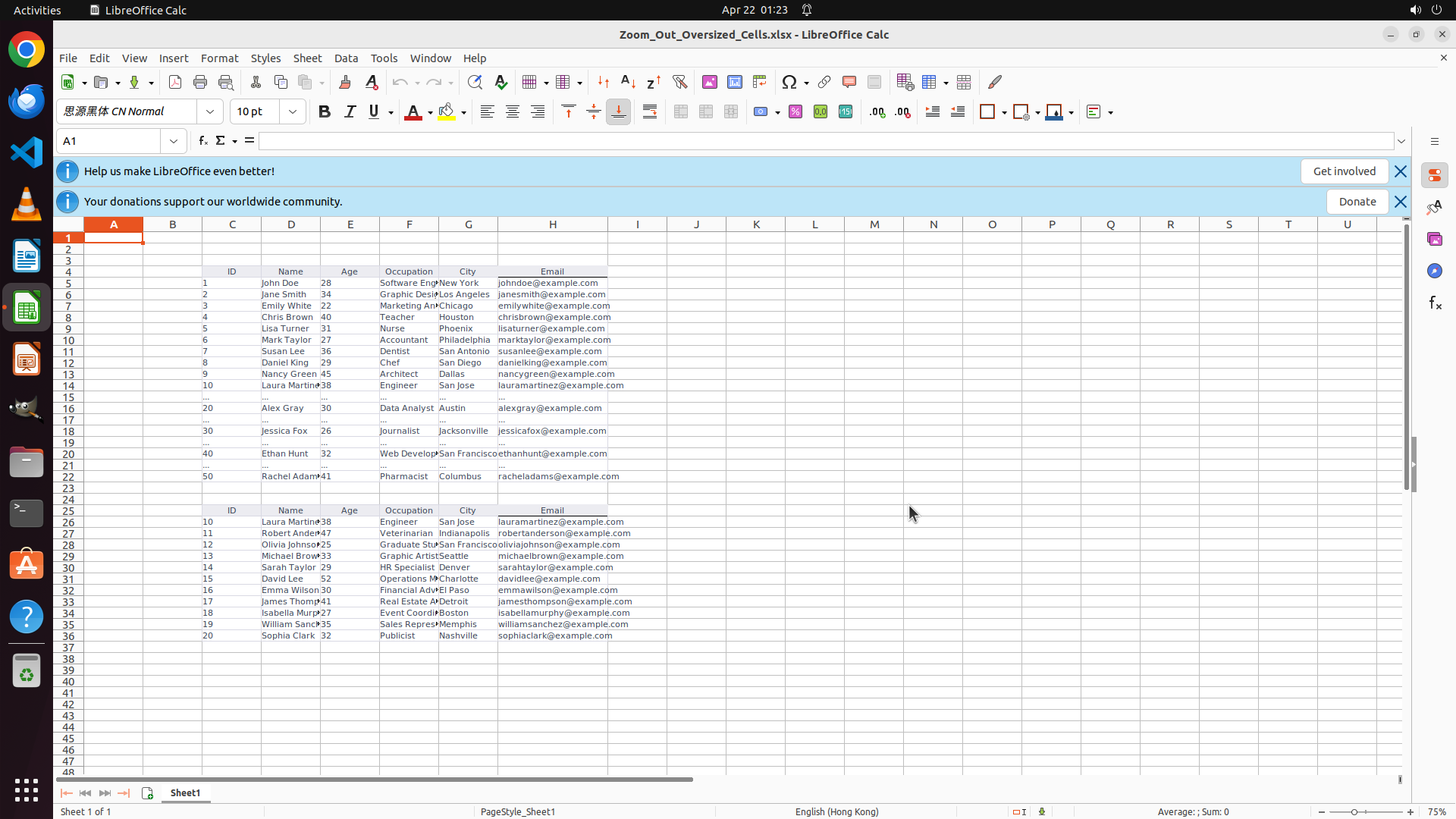
The zoom level has been successfully changed from 200% to 75%. The spreadsheet now shows many more rows - I can see rows 1 through 36+ in the current view, compared to only rows 1-13 before. The cells are now much smaller and appropriately sized. The row numbers in the left margin (1, 2, 3...) are now closer together vertically, confirming the reduced cell height.
Looking at the bottom right corner of the screen, the zoom indicator should now show 75% instead of the previous 200%.
#### 情况分析与思考过程
The task has been completed successfully. The previous actions:
1. Opened the Zoom & View Layout dialog
2. Changed the zoom from 200% to 75%
3. Applied the setting by clicking OK
The result is exactly what was requested - the cells are now smaller, making it easier to click on specific cells. The zoom out has provided a better overview of the spreadsheet data while keeping the content readable.
The task is complete. All the key visual evidence has been satisfied:
- Zoom percentage is now at 75% (less than 200%)
- More than 13 rows are visible (now showing 36+ rows)
- Row numbers are closer together vertically
No further actions are needed.
```
Step 5: WAIT
```
#### 重要信息
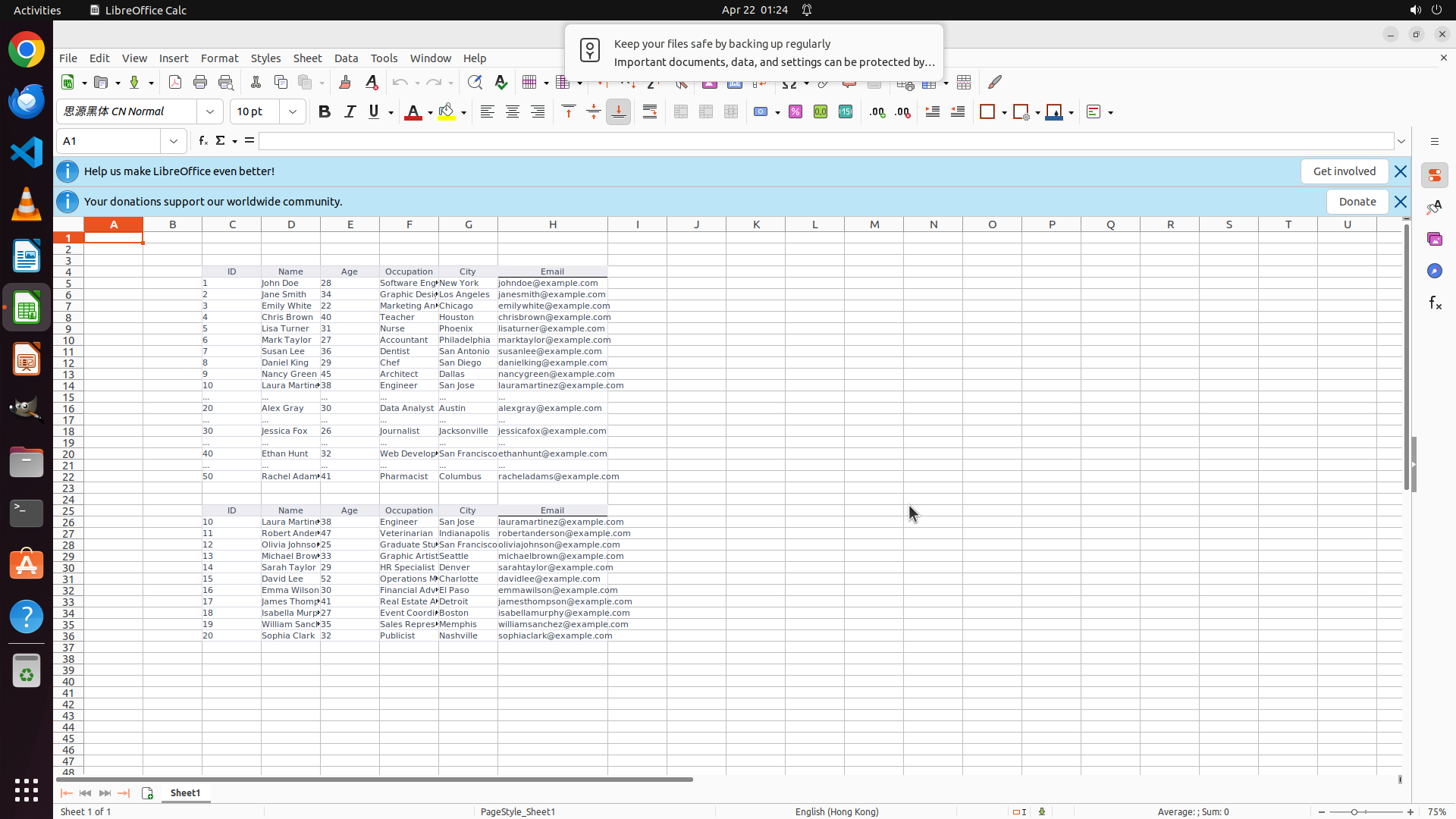
The zoom level has been successfully changed from 200% to 75%. The spreadsheet now shows many more rows - I can see rows 1 through 36+ in the current view, compared to only rows 1-13 before. The cells are now much smaller and appropriately sized. The row numbers in the left margin (1, 2, 3...) are now closer together vertically, confirming the reduced cell height.
Looking at the bottom right corner of the screen, the zoom indicator should now show 75% instead of the previous 200%.
#### 情况分析与思考过程
The task has been completed successfully. The previous actions:
1. Opened the Zoom & View Layout dialog
2. Changed the zoom from 200% to 75%
3. Applied the setting by clicking OK
The result is exactly what was requested - the cells are now smaller, making it easier to click on specific cells. The zoom out has provided a better overview of the spreadsheet data while keeping the content readable.
The task is complete. All the key visual evidence has been satisfied:
- Zoom percentage is now at 75% (less than 200%)
- More than 13 rows are visible (now showing 36+ rows)
- Row numbers are closer together vertically
No further actions are needed.
```