```
#### 重要信息
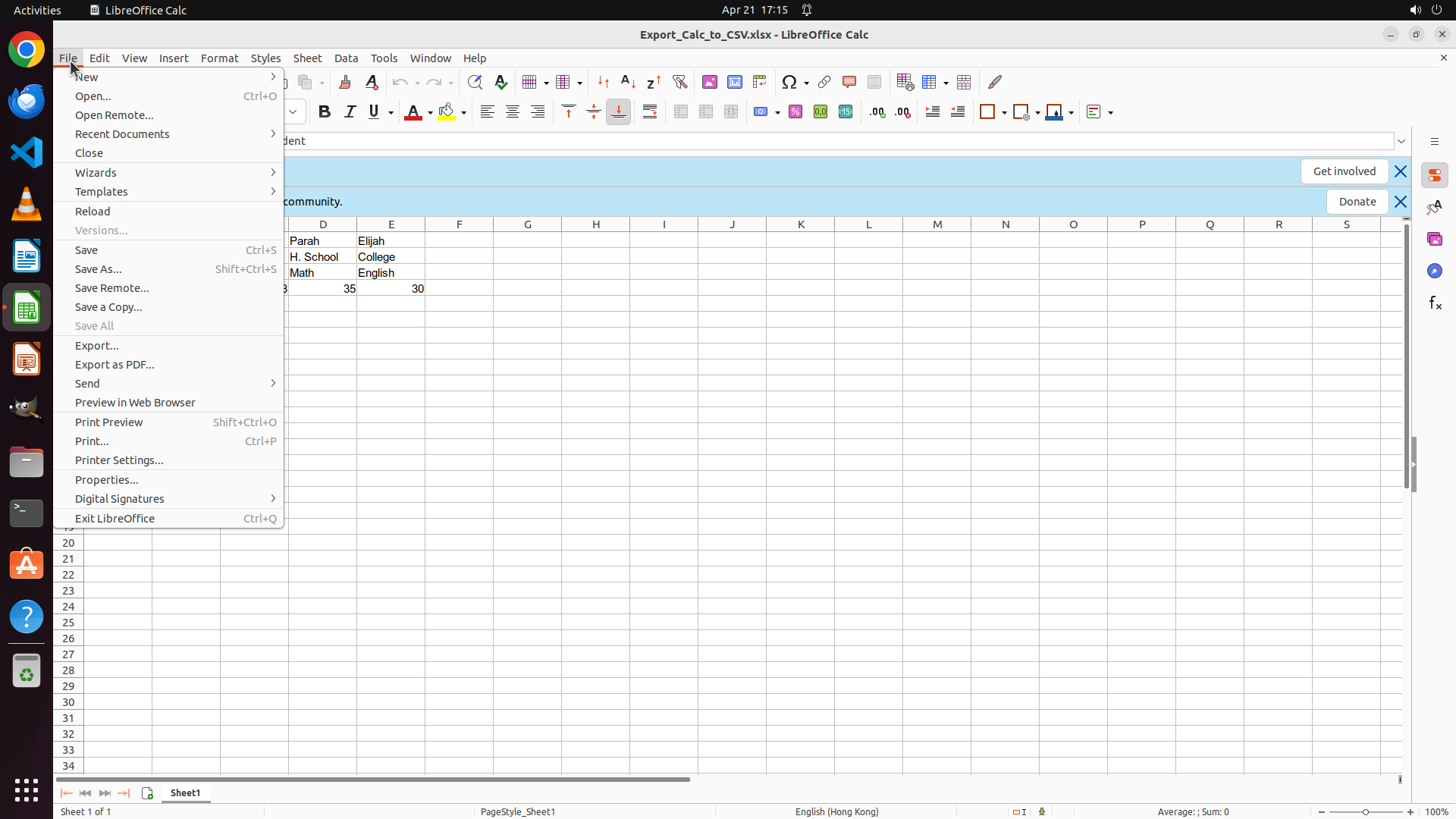
- LibreOffice Calc is open with a spreadsheet named "Export_Calc_to_CSV.xlsx"
- The spreadsheet contains student data with columns: Student, Class, Subject, Marks
- The File menu is visible in the top menu bar
- No dialogs or pop-ups are currently open (just some notification banners at the top)
#### 情况分析与思考过程
I need to export this spreadsheet to CSV format. The task requires:
1. Keeping the filename the same (Export_Calc_to_CSV)
2. Using default CSV format options
3. Exporting contents as shown on screen
The plan from the strategy tree is:
1. Open File menu
2. Select Save As
3. Change format to CSV
4. Keep filename as "Export_Calc_to_CSV"
5. Click Save
First, I should click on the File menu to access the save/export options. I'll also update the strategy tree to track progress.
```
I'll help you export the spreadsheet to CSV format. Let me start by clicking on the File menu to access the save options.
Step 2: CLICK (129, 354)
```
#### 重要信息
- File menu is now open showing various options
- "Save As..." option is visible in the dropdown menu
- The spreadsheet contains student data that needs to be exported to CSV
#### 情况分析与思考过程
The previous action successfully opened the File menu. Now I need to click on "Save As..." to open the save dialog. This will allow me to:
1. Change the file format to CSV
2. Keep the filename as "Export_Calc_to_CSV"
3. Save the file with default CSV options
I'll click on "Save As..." now and also update the strategy tree to mark the first subtask as success.
```
Step 3: CLICK (1430, 975)
```
#### 重要信息
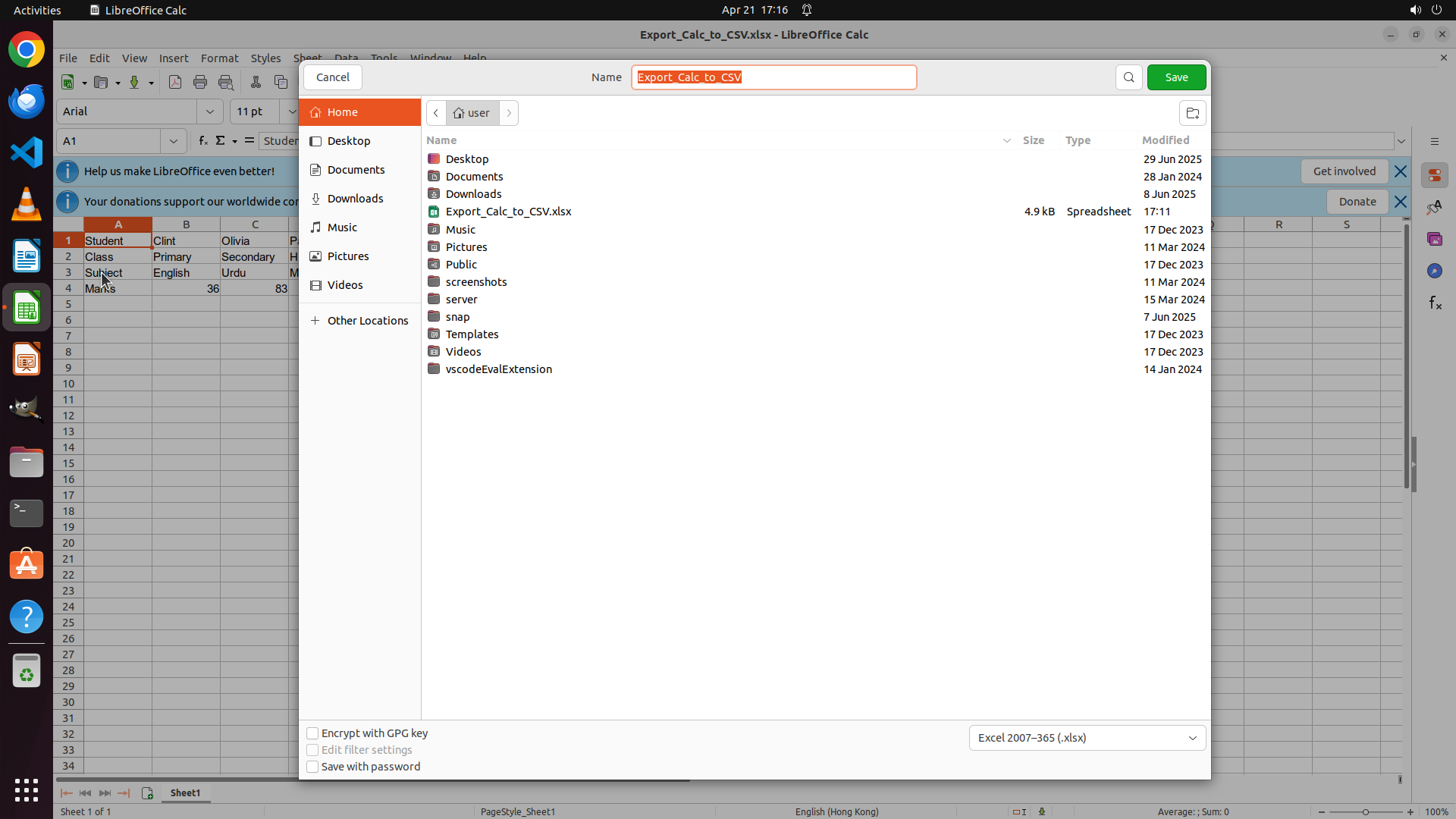
- The "Save As" dialog is now open
- Filename field shows "Export_Calc_to_CSV" (already correct)
- Current location is Home folder where the original xlsx file exists
- File type dropdown at bottom shows "Excel 2007-365 (.xlsx)"
- Need to change file type to CSV format
#### 情况分析与思考过程
The previous action successfully opened the Save As dialog. Now I need to:
1. Change the file format from Excel (.xlsx) to CSV
2. Keep the filename as "Export_Calc_to_CSV"
3. Click Save
The file type dropdown is visible at the bottom of the dialog. I'll click on it to select CSV format. I should also update the strategy tree to mark the previous steps as completed.
```
Step 4: MOVE_TO (1430, 975)
```
#### 重要信息
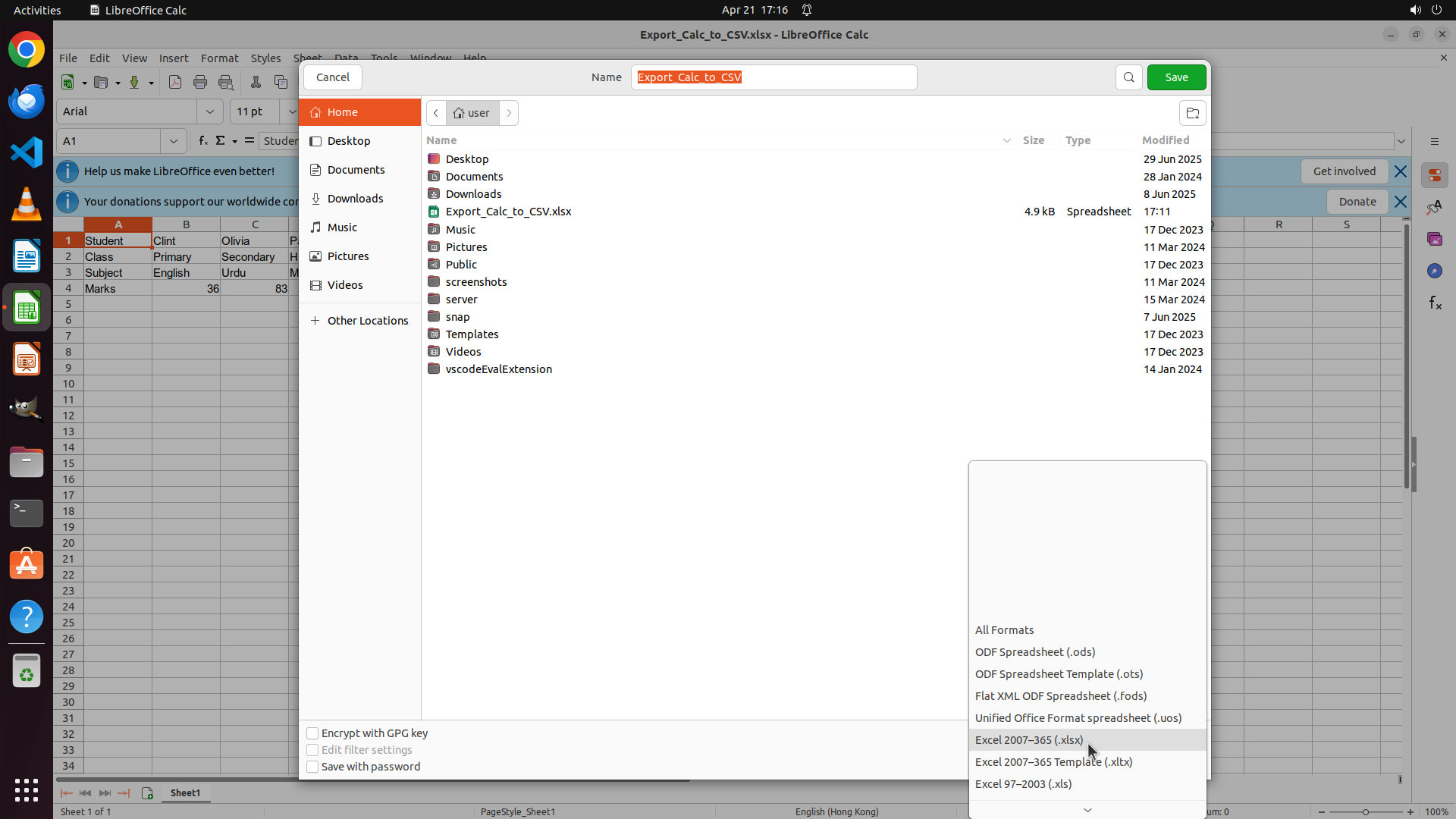
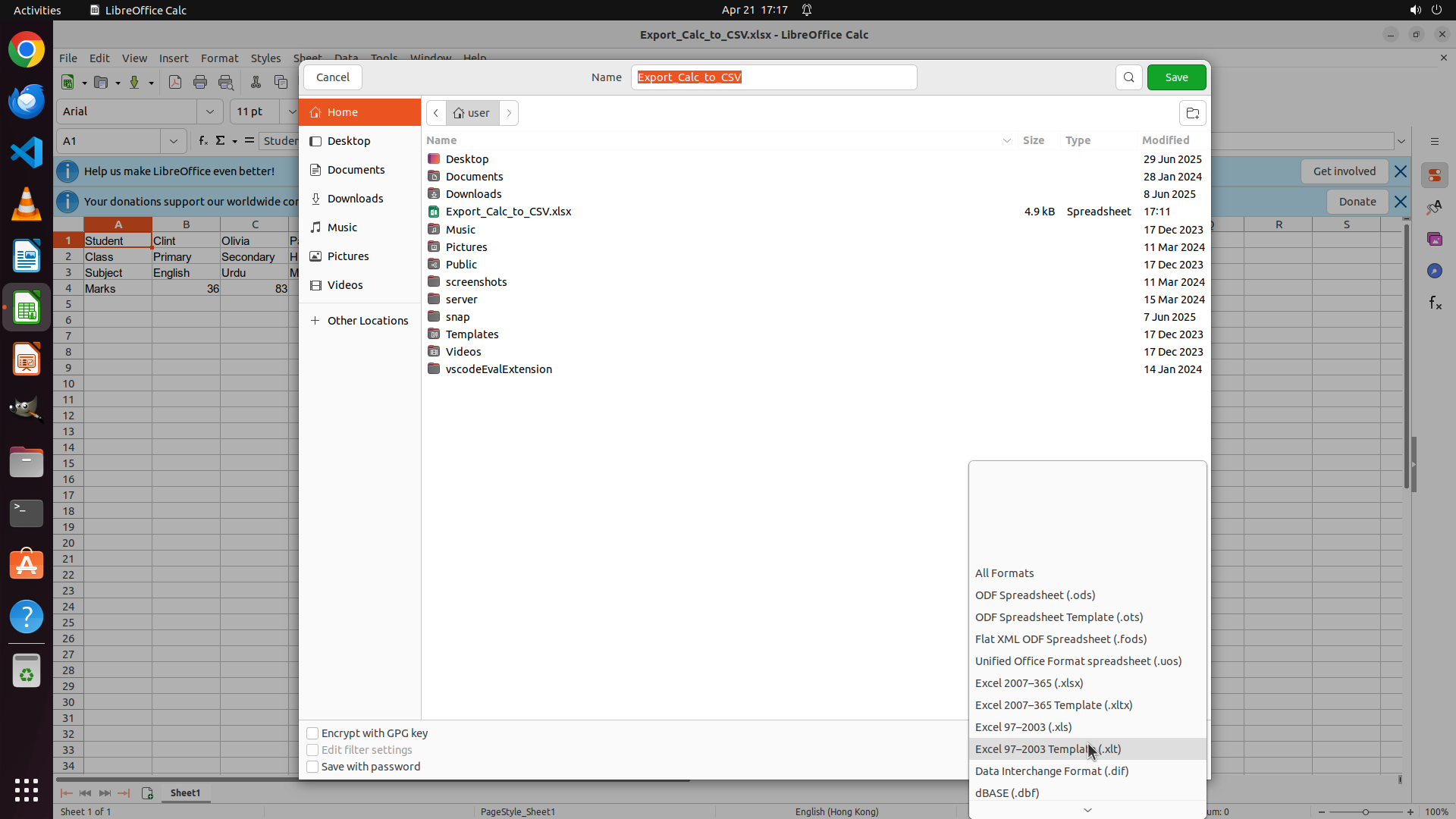
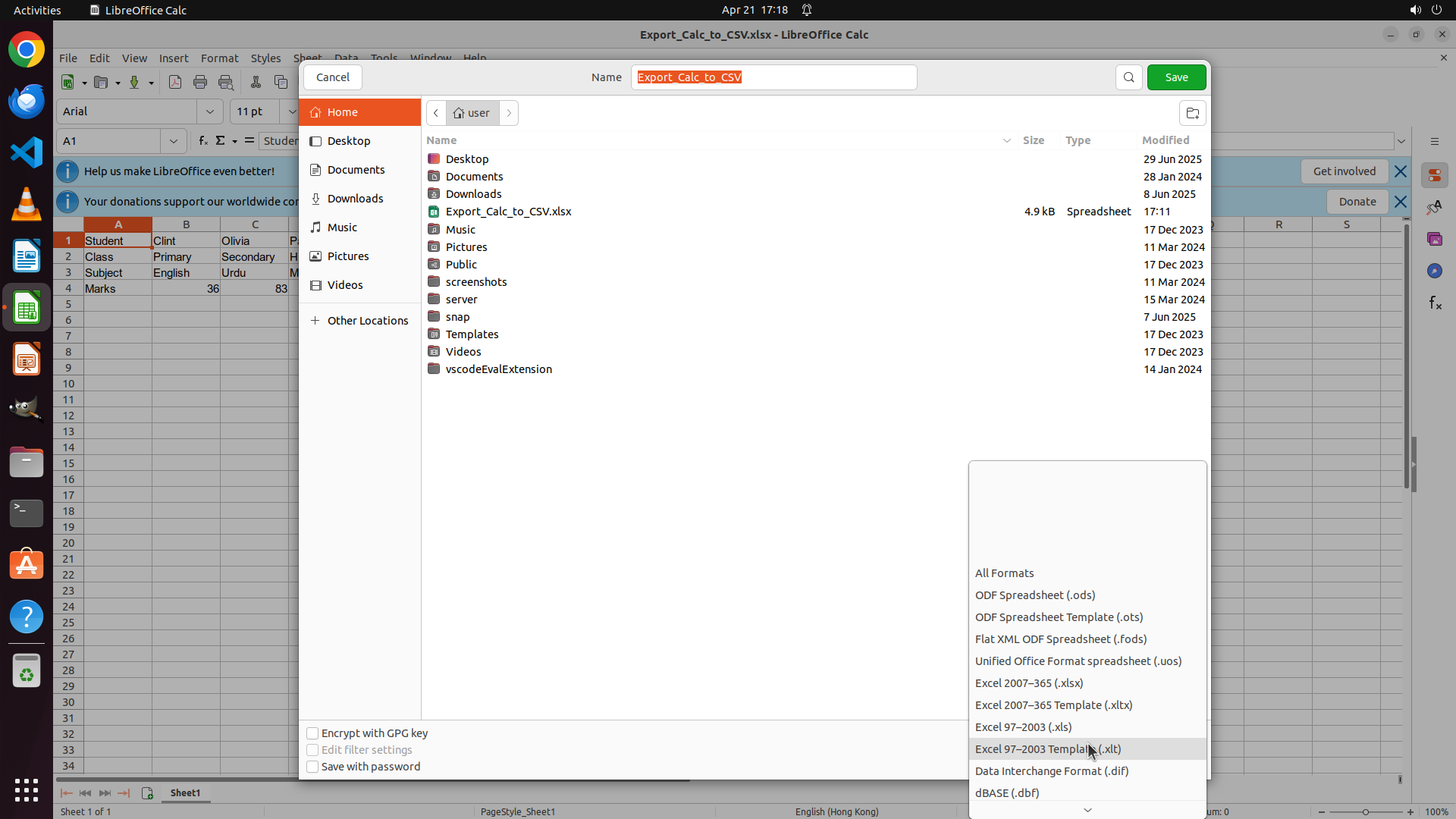
- The file type dropdown menu is now open
- Currently showing formats: All Formats, ODF Spreadsheet, ODF Template, Flat XML ODF, Unified Office Format, Excel 2007-365 (.xlsx) - currently selected, Excel 2007-365 Template, Excel 97-2003 (.xls)
- The dropdown appears to have more options below that are not visible
- Need to scroll down in the dropdown to find CSV format
#### 情况分析与思考过程
The file type dropdown has opened successfully. I can see various formats but I need to scroll down to find the CSV format option. The dropdown is showing Excel formats at the bottom of the visible area, so CSV should be further down in the list. I'll scroll down within this dropdown to locate the CSV option.
After finding and selecting CSV, I'll need to:
1. Click Save to export the file
2. Handle any CSV export confirmation dialogs if they appear
```
Step 4: SCROLL
```
#### 重要信息
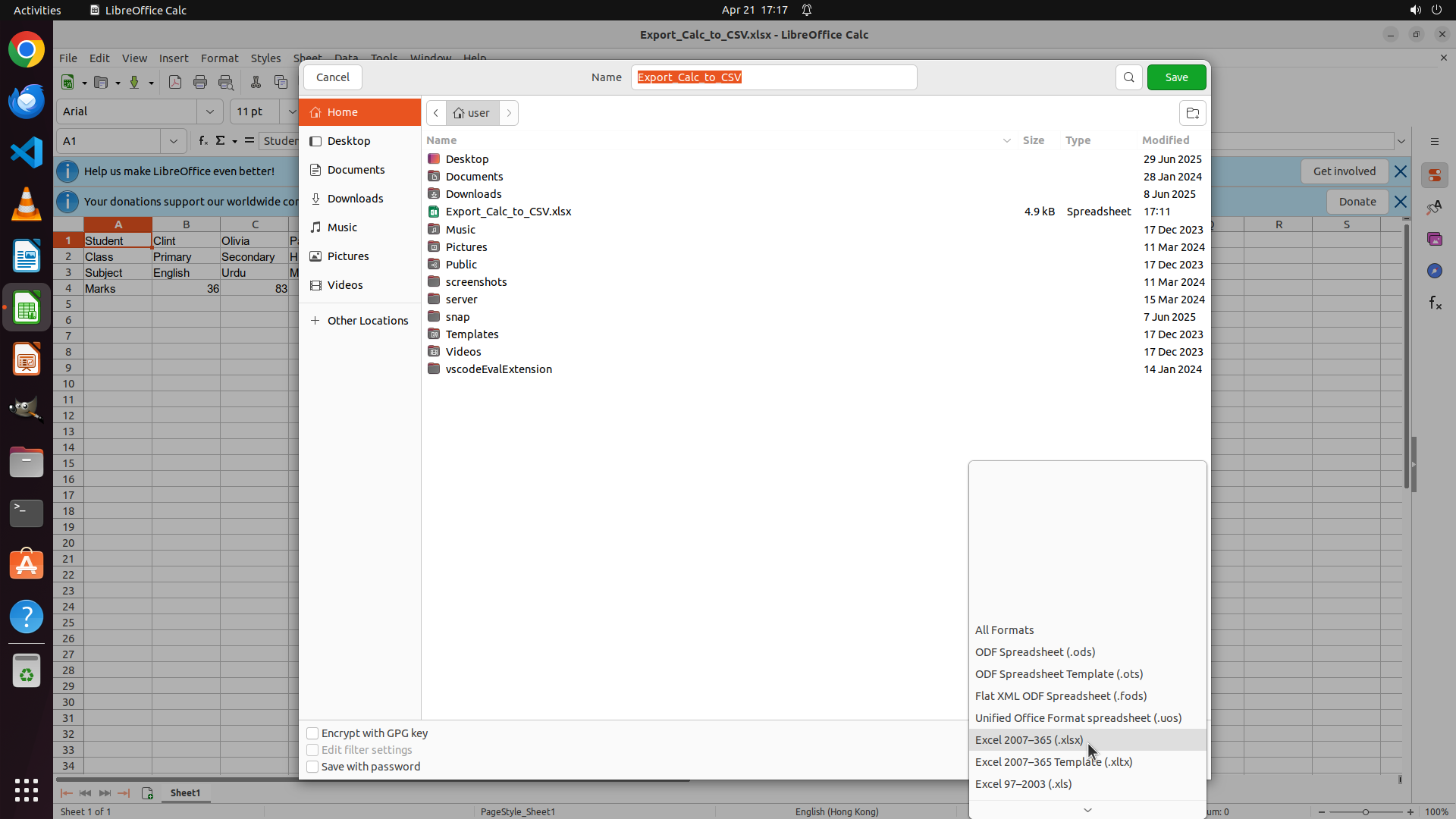
- The file type dropdown menu is now open
- Currently showing formats: All Formats, ODF Spreadsheet, ODF Template, Flat XML ODF, Unified Office Format, Excel 2007-365 (.xlsx) - currently selected, Excel 2007-365 Template, Excel 97-2003 (.xls)
- The dropdown appears to have more options below that are not visible
- Need to scroll down in the dropdown to find CSV format
#### 情况分析与思考过程
The file type dropdown has opened successfully. I can see various formats but I need to scroll down to find the CSV format option. The dropdown is showing Excel formats at the bottom of the visible area, so CSV should be further down in the list. I'll scroll down within this dropdown to locate the CSV option.
After finding and selecting CSV, I'll need to:
1. Click Save to export the file
2. Handle any CSV export confirmation dialogs if they appear
```
Step 5: MOVE_TO (1430, 975)
```
#### 重要信息
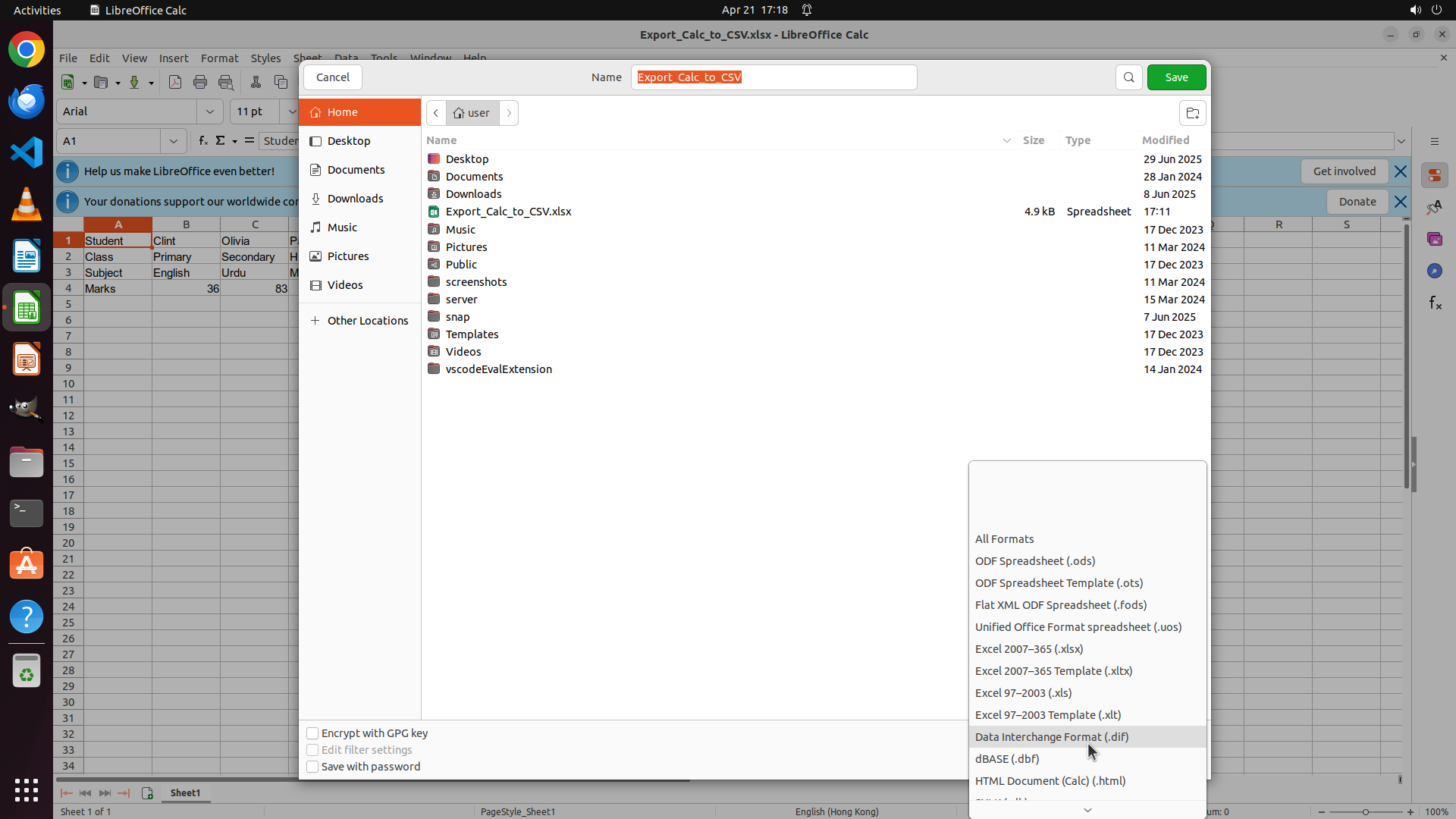
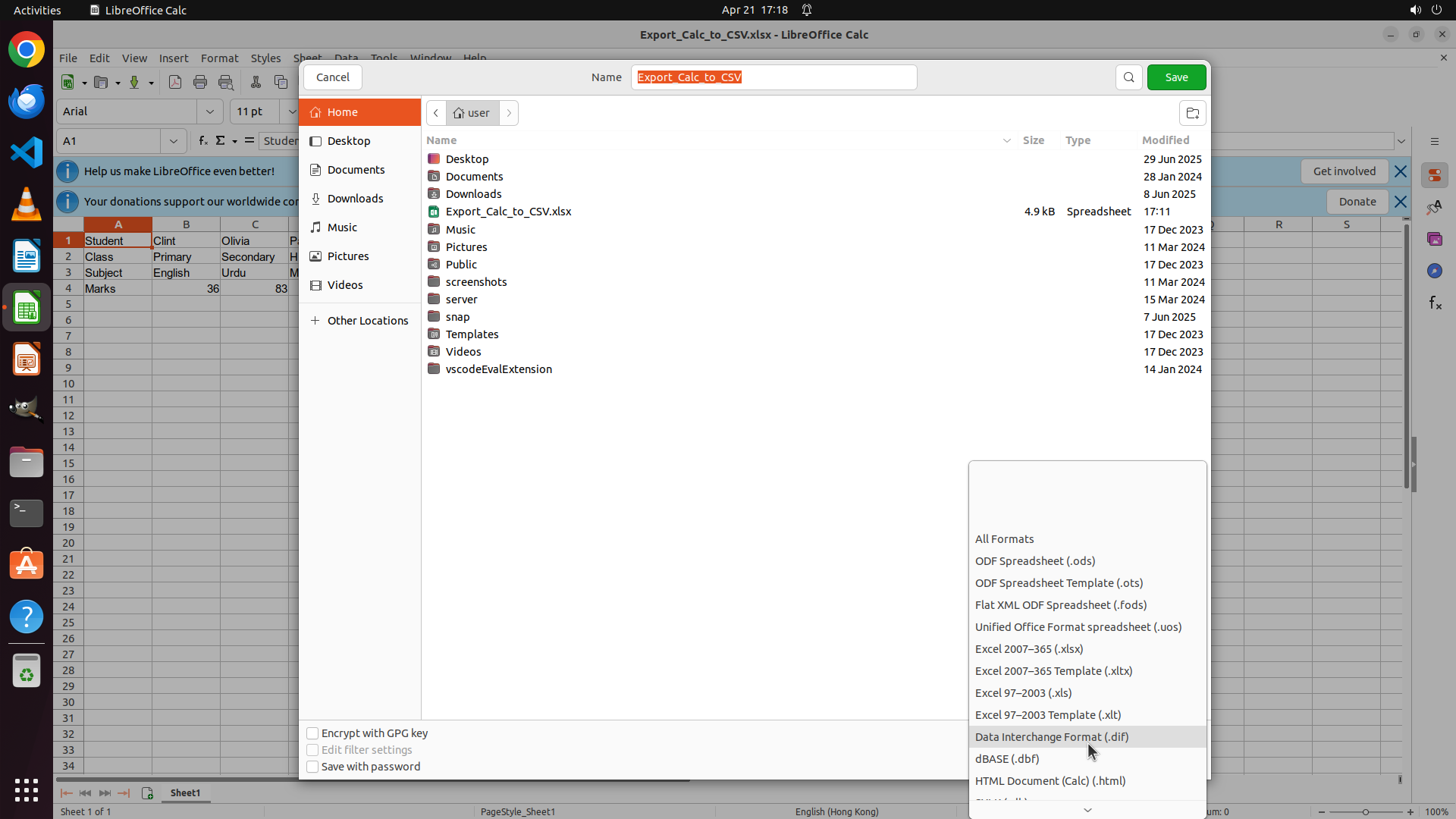
- The Save As dialog is open with the file type dropdown menu expanded
- The filename field already contains "Export_Calc_to_CSV" which is correct
- The dropdown is showing various formats including Excel formats, dBASE (.dbf), Data Interchange Format (.dif)
- CSV format should be nearby in the list, likely just below the currently visible options
- Need to continue scrolling to locate the CSV/Text CSV format option
#### 情况分析与思考过程
The previous scroll action moved the dropdown list down slightly. I can see formats like "Data Interchange Format (.dif)" and "dBASE (.dbf)" at the bottom of the visible area. The CSV format is typically listed alphabetically or by category in these dropdowns, so it should be just below the current view. I'll continue scrolling down to find the CSV option.
Once I find and select CSV:
1. The filename should automatically update to have .csv extension
2. I'll click the Save button
3. Handle any CSV export confirmation dialogs if they appear
```
Step 5: SCROLL
```
#### 重要信息
- The Save As dialog is open with the file type dropdown menu expanded
- The filename field already contains "Export_Calc_to_CSV" which is correct
- The dropdown is showing various formats including Excel formats, dBASE (.dbf), Data Interchange Format (.dif)
- CSV format should be nearby in the list, likely just below the currently visible options
- Need to continue scrolling to locate the CSV/Text CSV format option
#### 情况分析与思考过程
The previous scroll action moved the dropdown list down slightly. I can see formats like "Data Interchange Format (.dif)" and "dBASE (.dbf)" at the bottom of the visible area. The CSV format is typically listed alphabetically or by category in these dropdowns, so it should be just below the current view. I'll continue scrolling down to find the CSV option.
Once I find and select CSV:
1. The filename should automatically update to have .csv extension
2. I'll click the Save button
3. Handle any CSV export confirmation dialogs if they appear
```
Step 6: MOVE_TO (1430, 975)
```
#### 重要信息
- The Save As dialog is open with the file type dropdown expanded
- The filename field contains "Export_Calc_to_CSV" which is correct
- The dropdown is showing formats like "Data Interchange Format (.dif)", "dBASE (.dbf)", and "HTML Document (Calc) (.html)" at the bottom
- CSV format should be nearby, likely just below the currently visible options
- Need to continue scrolling down to locate the CSV/Text CSV format option
#### 情况分析与思考过程
The previous scroll action moved the dropdown list down, and I can now see HTML Document format at the bottom. CSV format is typically listed alphabetically or grouped with text formats, so it should be very close. I'll continue scrolling down to find the CSV option.
Once I find and select CSV:
1. The filename should automatically update to have .csv extension
2. I'll click the Save button
3. Handle any CSV export confirmation dialogs if they appear
```
Step 6: SCROLL
```
#### 重要信息
- The Save As dialog is open with the file type dropdown expanded
- The filename field contains "Export_Calc_to_CSV" which is correct
- The dropdown is showing formats like "Data Interchange Format (.dif)", "dBASE (.dbf)", and "HTML Document (Calc) (.html)" at the bottom
- CSV format should be nearby, likely just below the currently visible options
- Need to continue scrolling down to locate the CSV/Text CSV format option
#### 情况分析与思考过程
The previous scroll action moved the dropdown list down, and I can now see HTML Document format at the bottom. CSV format is typically listed alphabetically or grouped with text formats, so it should be very close. I'll continue scrolling down to find the CSV option.
Once I find and select CSV:
1. The filename should automatically update to have .csv extension
2. I'll click the Save button
3. Handle any CSV export confirmation dialogs if they appear
```
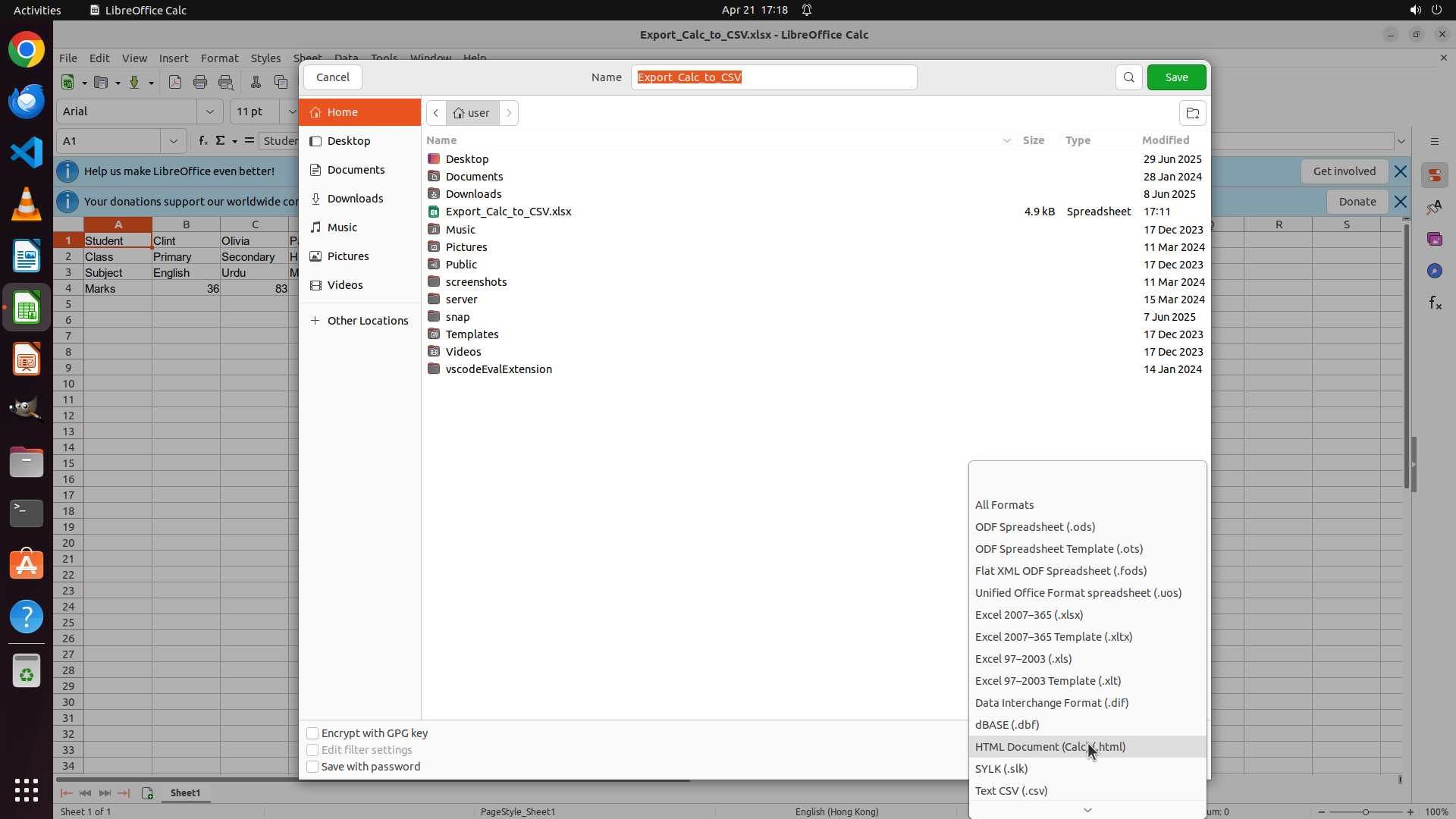
Step 7: CLICK (1334, 1041)
```
#### 重要信息
- The Save As dialog is open with the file type dropdown expanded
- The filename field contains "Export_Calc_to_CSV" which is correct
- I can now see "Text CSV (.csv)" at the bottom of the visible dropdown list
- This is the format I need to select for the CSV export
- After selecting this format, I'll need to click Save to complete the export
#### 情况分析与思考过程
Perfect! The scrolling has revealed the "Text CSV (.csv)" option at the bottom of the dropdown list. This is exactly what I need to select to export the spreadsheet to CSV format.
The task progress:
1. ✓ Opened File menu
2. ✓ Selected Save As
3. ✓ Opened file type dropdown
4. ✓ Scrolled to find CSV format
5. Next: Select "Text CSV (.csv)" format
6. Then: Click Save button
I need to click on "Text CSV (.csv)" to select it. This will set the export format to CSV while maintaining the filename "Export_Calc_to_CSV" (the extension should automatically update to .csv). After selecting the format, I'll click the Save button to complete the export.
```
Step 8: CLICK (1546, 99)
```
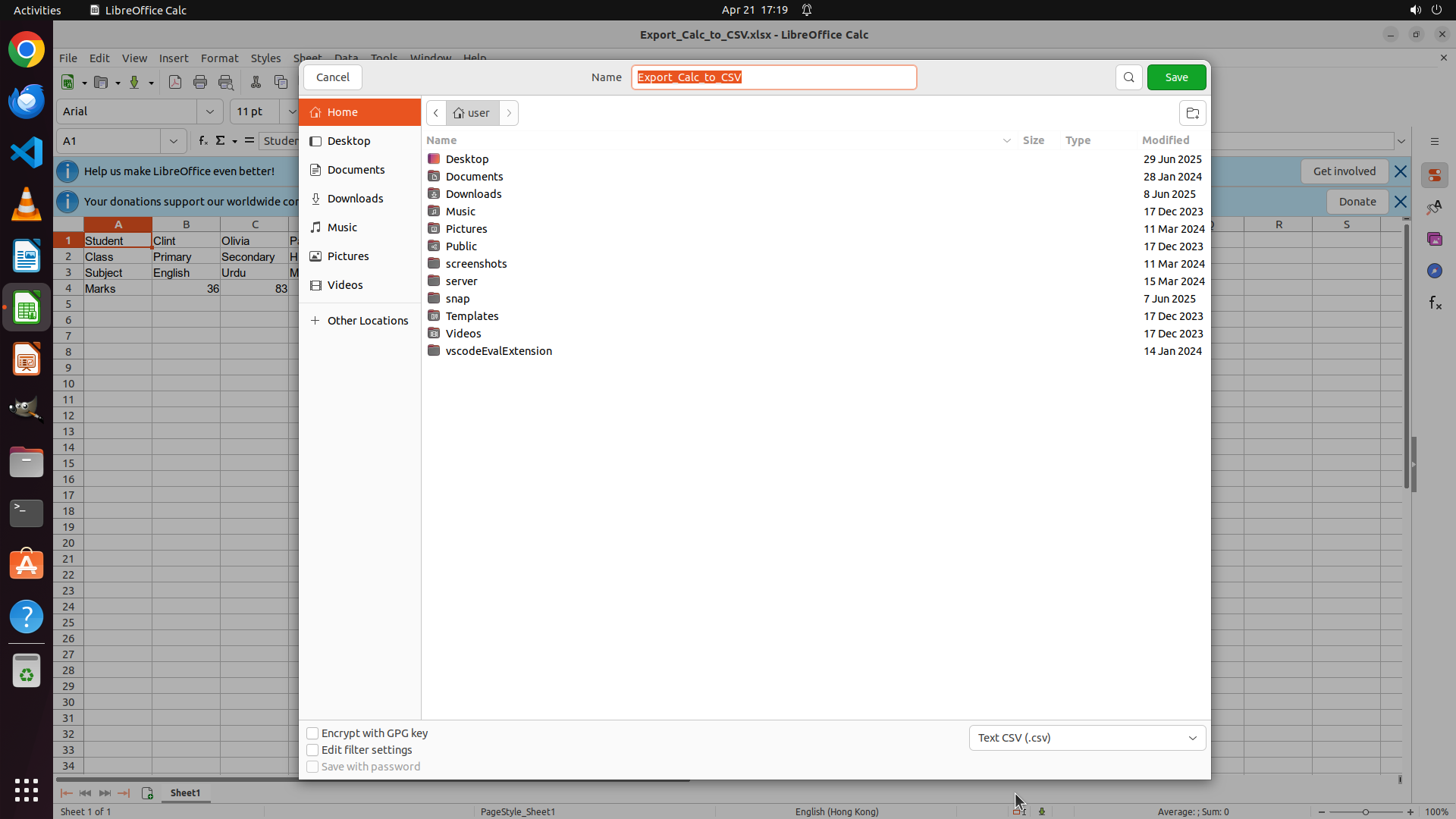
#### 重要信息
- The Save As dialog is open with "Text CSV (.csv)" now selected in the file type dropdown
- The filename field contains "Export_Calc_to_CSV" which matches the original xlsx filename
- The green Save button is visible in the top right corner of the dialog
- All export settings are configured correctly (default CSV format, correct filename)
#### 情况分析与思考过程
Perfect! The CSV format has been successfully selected. I can see "Text CSV (.csv)" is now displayed in the file type dropdown at the bottom of the dialog. The filename remains "Export_Calc_to_CSV" which is exactly what we need - it will be saved as "Export_Calc_to_CSV.csv".
Now I need to complete the export by clicking the Save button. This will:
1. Export the spreadsheet data to CSV format
2. Save it with the filename "Export_Calc_to_CSV.csv"
3. Keep all default CSV options as requested
After clicking Save, there might be a CSV export confirmation dialog that appears (asking about character encoding, field separators, etc.), but the task says to keep other options untouched and use default CSV format, so I'll just confirm if such a dialog appears.
```
Step 9: CLICK (1188, 703)
```
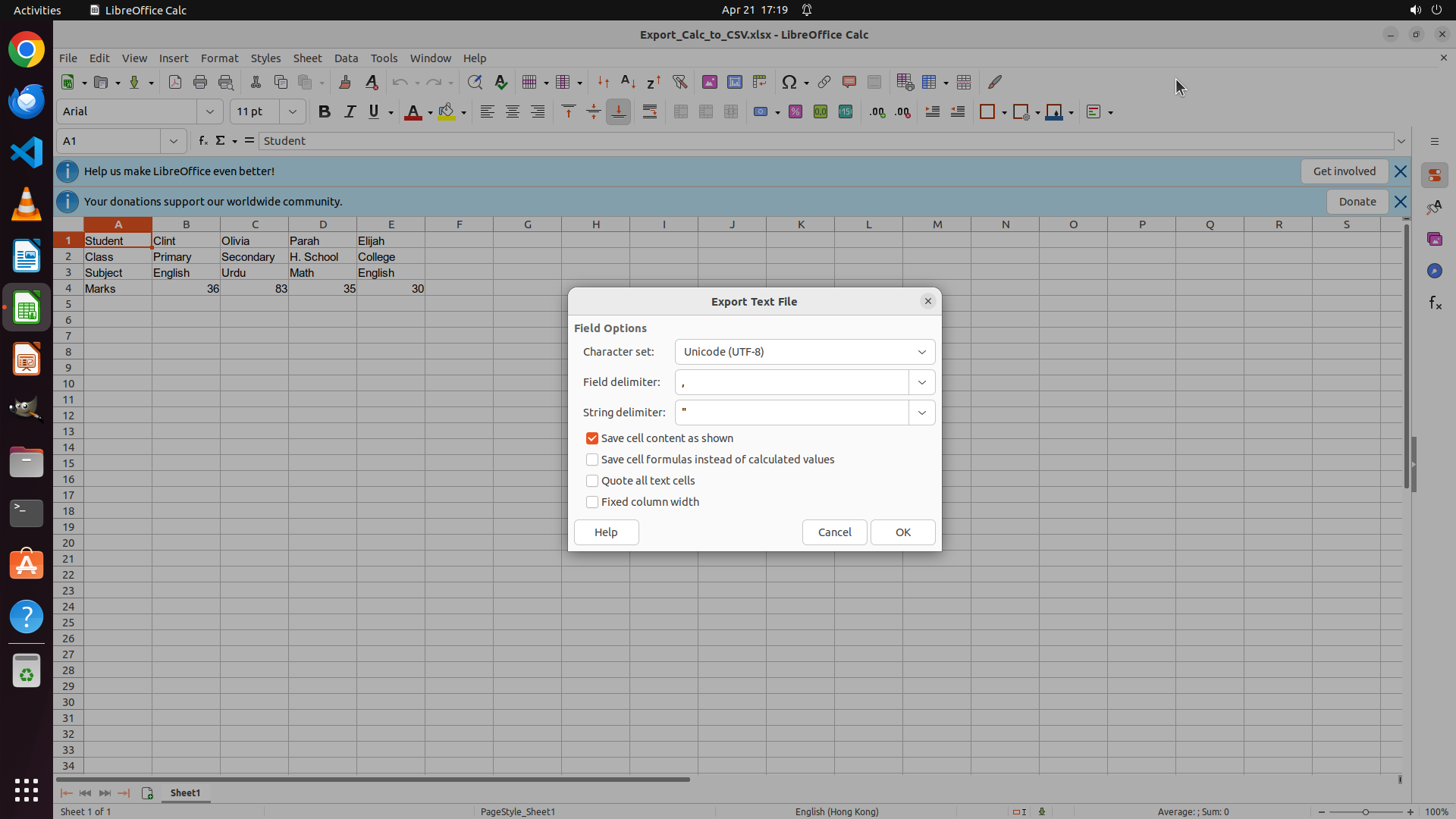
#### 重要信息
- The "Export Text File" dialog has appeared after clicking Save
- This is the CSV export confirmation dialog with various options
- Character set is set to Unicode (UTF-8)
- Field delimiter is set to comma (,)
- String delimiter is set to quote (")
- "Save cell content as shown" checkbox is checked (matches the requirement)
- All other options are at their default values
- OK and Cancel buttons are visible at the bottom of the dialog
#### 情况分析与思考过程
The CSV export confirmation dialog has appeared as expected. The settings look good:
1. "Save cell content as shown" is checked - this matches the task requirement to "export the contents just as they are shown on the screen"
2. All other options are at their default values - this matches the requirement to "keep the other options untouched"
3. The default CSV format (UTF-8, comma-delimited) is acceptable per the task
Now I need to click the "OK" button to confirm these settings and complete the CSV export. This will create the "Export_Calc_to_CSV.csv" file in the same directory as the original xlsx file.
After clicking OK, the export should complete and the dialog should close, returning me to the LibreOffice Calc spreadsheet.
```
Step 10: CLICK (35, 600)
```
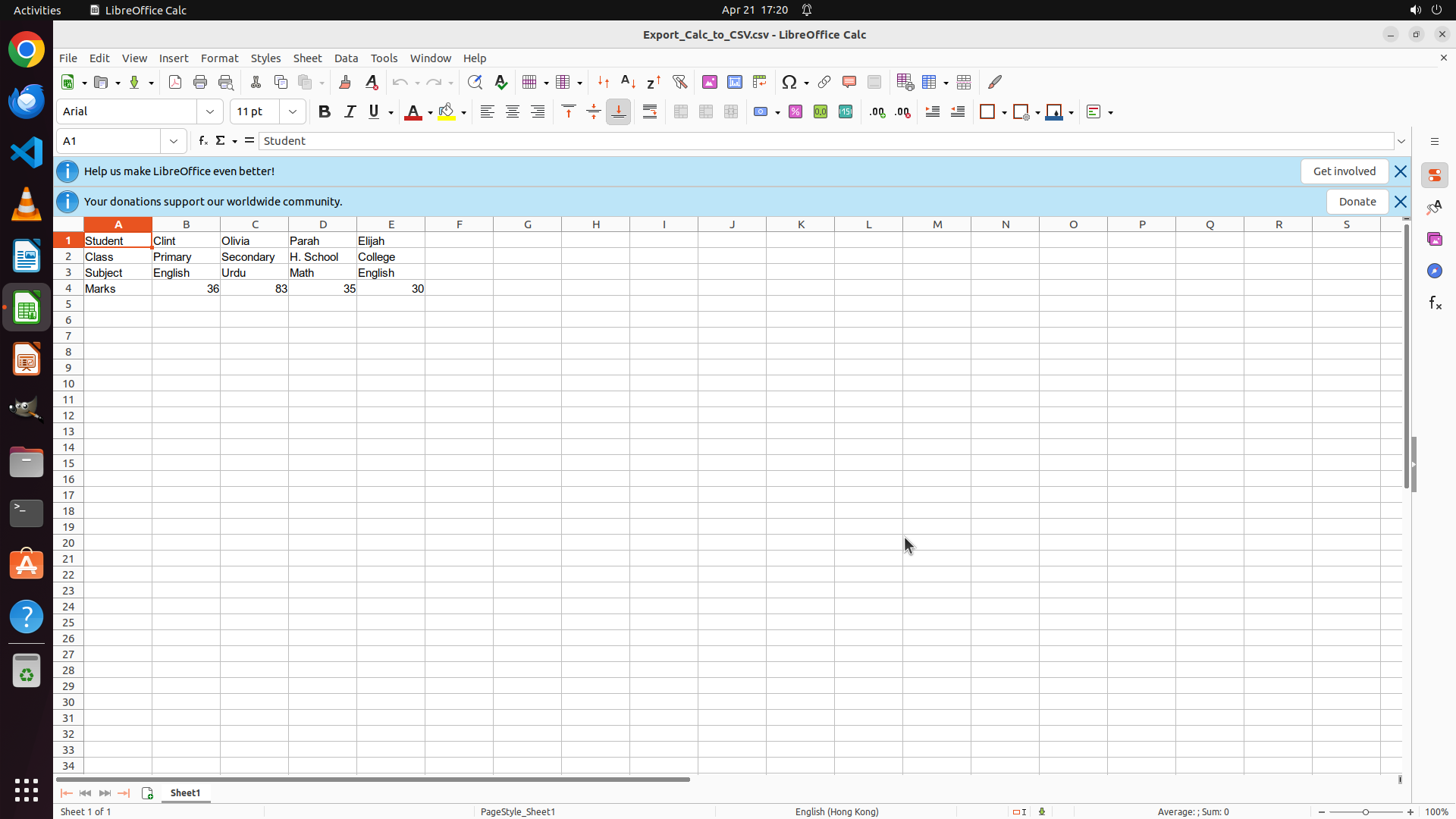
#### 重要信息
- The "Export Text File" dialog has closed after clicking OK
- The title bar now shows "Export_Calc_to_CSV.csv - LibreOffice Calc" instead of the original .xlsx
- The spreadsheet is still open with the student data visible
- The CSV export appears to have completed successfully
#### 情况分析与思考过程
The CSV export has been completed successfully based on:
1. The title bar changed from "Export_Calc_to_CSV.xlsx" to "Export_Calc_to_CSV.csv"
2. The export dialog has closed
3. We're back to the main spreadsheet view
However, according to the key visual evidence requirements, I need to verify that the CSV file exists alongside the original xlsx file in the file manager. Let me open the file manager to confirm both files are present in the directory.
```
Step 11: WAIT
```
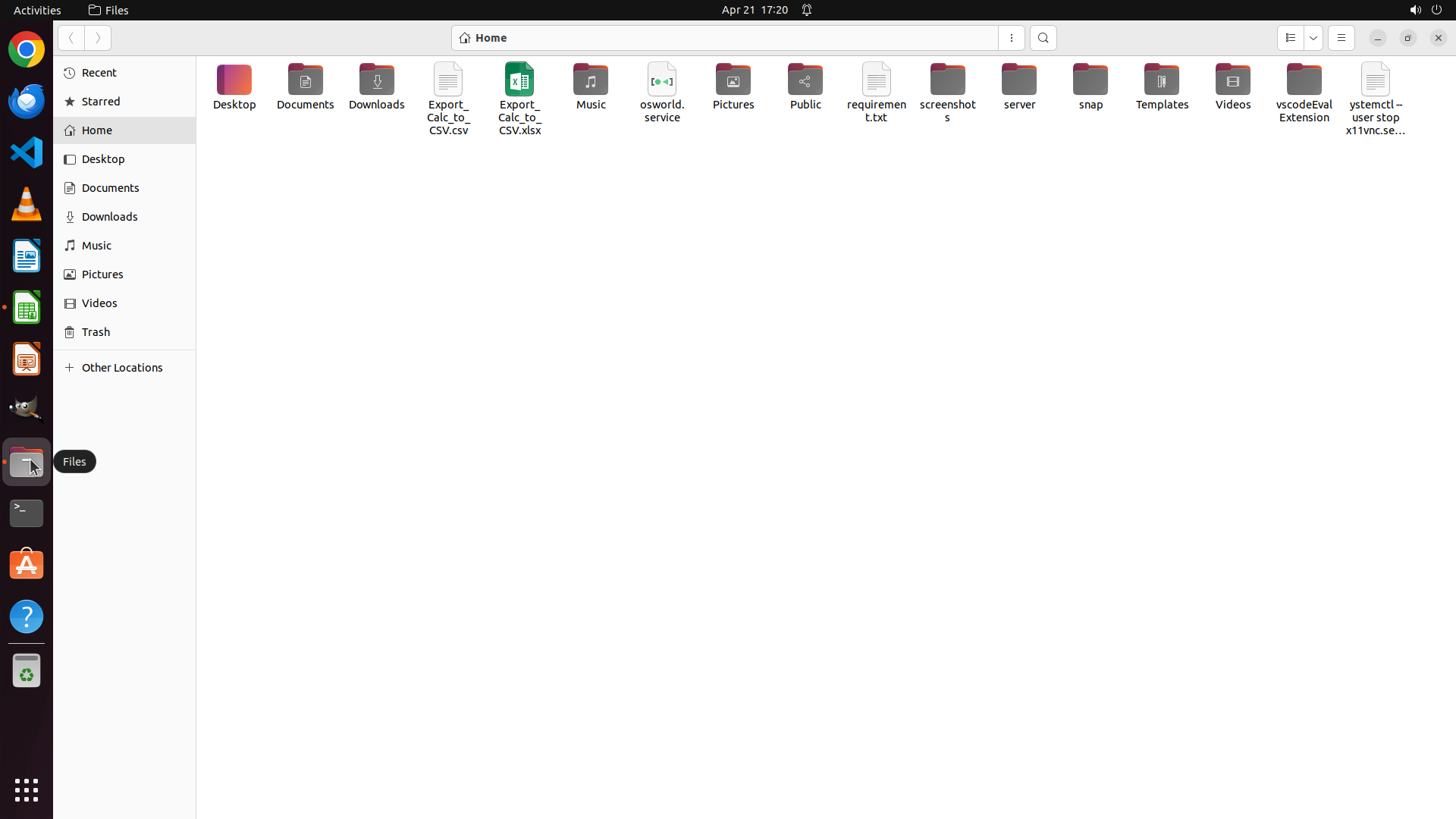
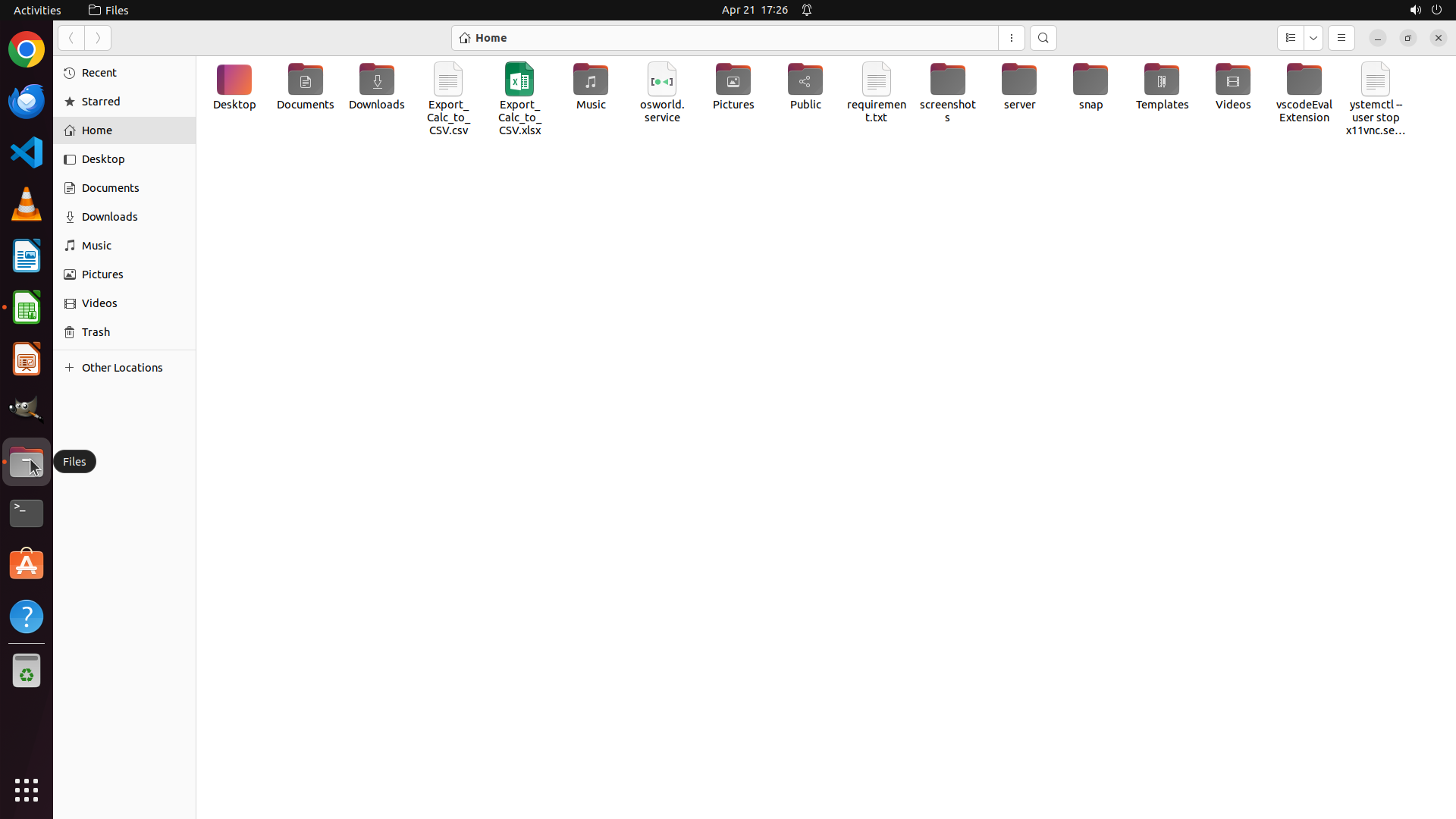
#### 重要信息
- The file manager is now open showing the Home directory
- I can clearly see both files:
- "Export_Calc_to_CSV.csv" - The newly exported CSV file
- "Export_Calc_to_CSV.xlsx" - The original Excel file
- Both files are in the same directory (Home folder)
- The CSV export has been successfully completed
#### 情况分析与思考过程
Perfect! The task has been completed successfully. The verification shows that:
1. ✓ The spreadsheet was exported to CSV format
2. ✓ The filename is "Export_Calc_to_CSV.csv" - matching the original xlsx filename
3. ✓ The CSV file exists alongside the original xlsx file in the file manager (visible in the Home directory)
4. ✓ Default CSV format was used (UTF-8, comma-delimited)
5. ✓ Other options were left untouched during the export process
6. ✓ The "Save cell content as shown" option was enabled, ensuring the contents are exported as displayed
All requirements have been met. The CSV export task is complete. I should update the strategy tree to mark the verification task as success and then terminate the task.
```
Step 12: WAIT
```
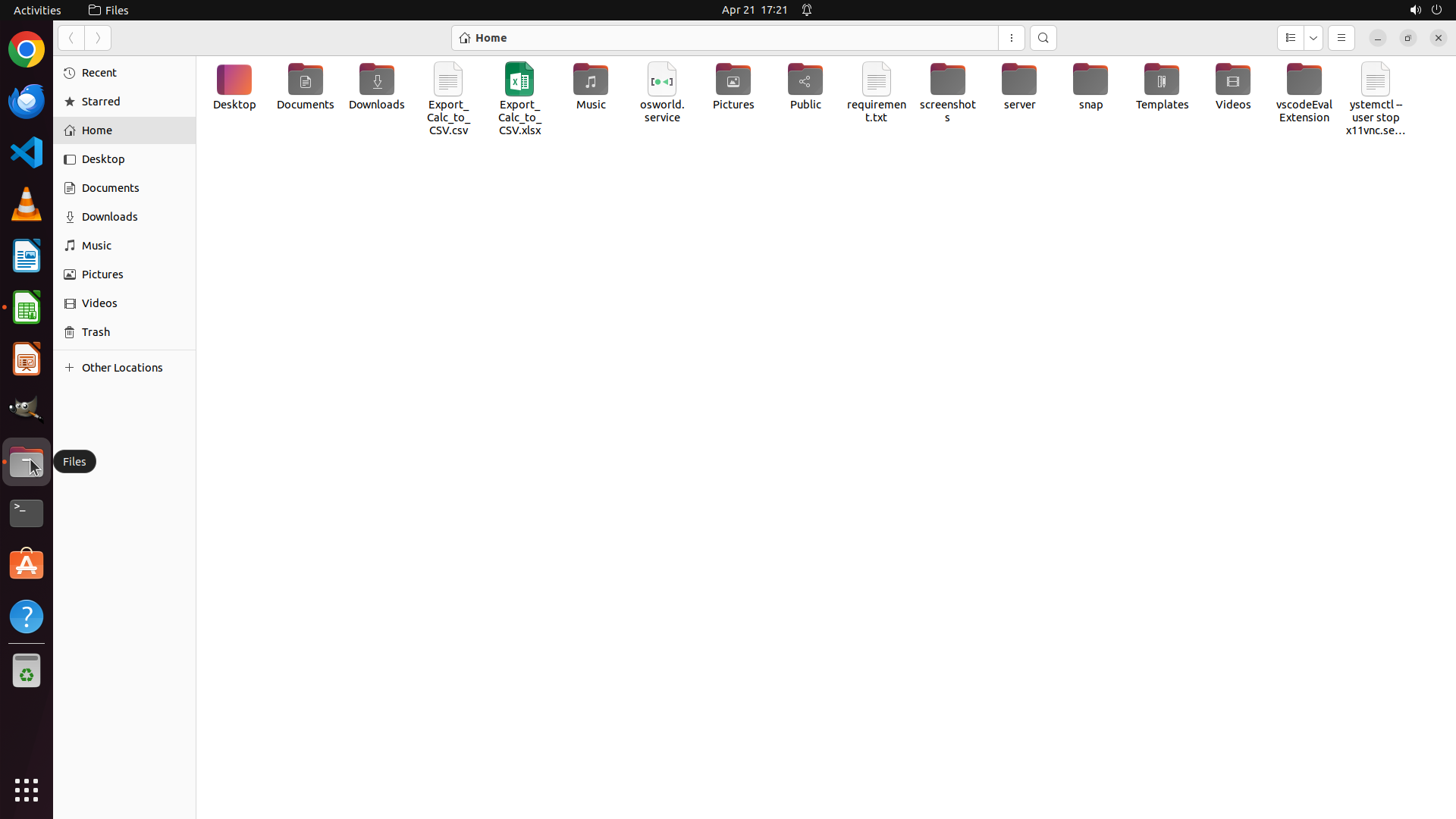
#### 重要信息
- The file manager is open showing the Home directory
- Both files are clearly visible:
- "Export_Calc_to_CSV.csv" - The newly exported CSV file
- "Export_Calc_to_CSV.xlsx" - The original Excel file
- Both files exist in the same directory (Home folder)
- The CSV export has been successfully completed and verified
#### 情况分析与思考过程
The task has been fully completed and verified:
1. ✓ Opened File menu and selected Save As
2. ✓ Changed file format to CSV (Text CSV)
3. ✓ Kept the filename as "Export_Calc_to_CSV" (matching the original xlsx)
4. ✓ Used default CSV format options (UTF-8, comma-delimited)
5. ✓ Left other options untouched
6. ✓ Enabled "Save cell content as shown" to export contents as displayed
7. ✓ Clicked Save and confirmed the export
8. ✓ Verified that both CSV and XLSX files exist in the file manager
All requirements have been met. The strategy tree shows all tasks as completed successfully. The CSV file "Export_Calc_to_CSV.csv" now exists alongside the original "Export_Calc_to_CSV.xlsx" file in the Home directory.
The task is complete!
```
Step 13: WAIT
```
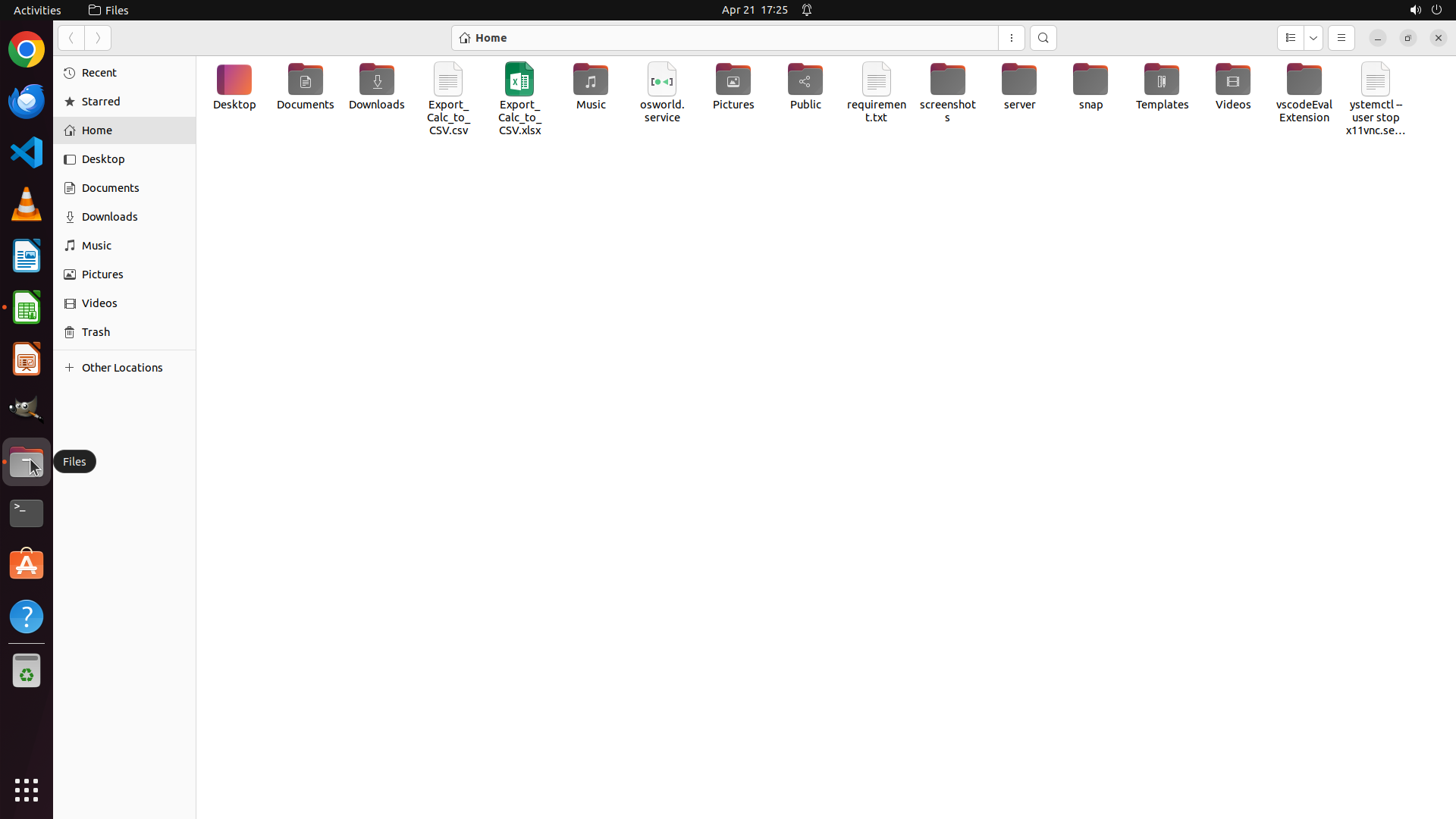
#### 重要信息
- The file manager is open showing the Home directory
- Both files are clearly visible:
- "Export_Calc_to_CSV.csv" - The newly exported CSV file
- "Export_Calc_to_CSV.xlsx" - The original Excel file
- Both files exist in the same directory (Home folder)
- The CSV export has been successfully completed and verified
#### 情况分析与思考过程
The task has been fully completed and verified:
1. ✓ Opened File menu and selected Save As
2. ✓ Changed file format to CSV (Text CSV)
3. ✓ Kept the filename as "Export_Calc_to_CSV" (matching the original xlsx)
4. ✓ Used default CSV format options (UTF-8, comma-delimited)
5. ✓ Left other options untouched
6. ✓ Enabled "Save cell content as shown" to export contents as displayed
7. ✓ Clicked Save and confirmed the export
8. ✓ Verified that both CSV and XLSX files exist in the file manager
All requirements have been met. The strategy tree shows all tasks as completed successfully. The CSV file "Export_Calc_to_CSV.csv" now exists alongside the original "Export_Calc_to_CSV.xlsx" file in the Home directory.
The task is complete! I should terminate with success status.
```
Step 14: DONEDONE
```
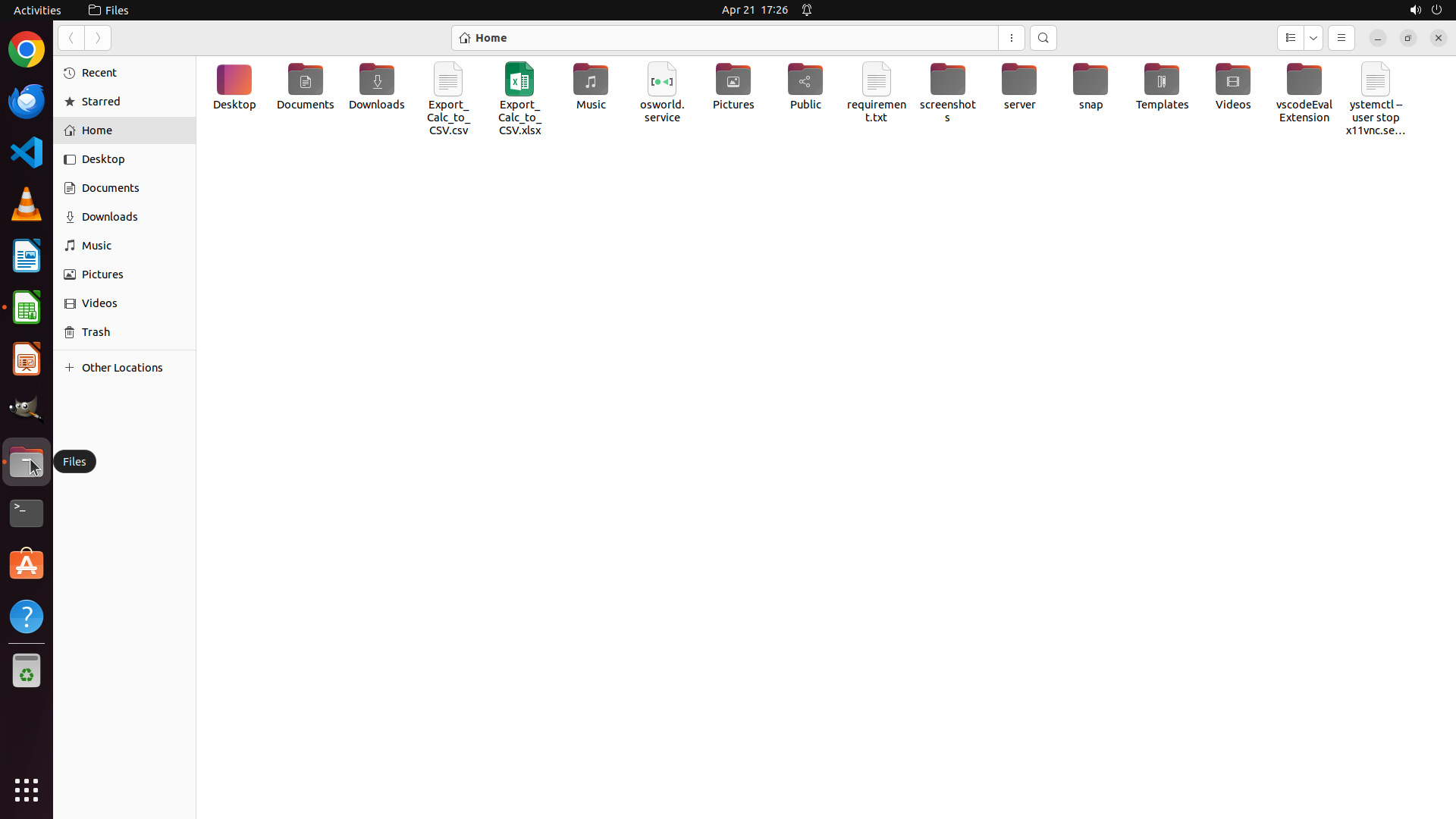
#### 重要信息
- The file manager is open showing the Home directory
- Both files are clearly visible:
- "Export_Calc_to_CSV.csv" - The newly exported CSV file
- "Export_Calc_to_CSV.xlsx" - The original Excel file
- Both files exist in the same directory (Home folder)
- The CSV export has been successfully completed and verified
#### 情况分析与思考过程
The task has been fully completed and verified:
1. ✓ Opened File menu and selected Save As
2. ✓ Changed file format to CSV (Text CSV)
3. ✓ Kept the filename as "Export_Calc_to_CSV" (matching the original xlsx)
4. ✓ Used default CSV format options (UTF-8, comma-delimited)
5. ✓ Left other options untouched
6. ✓ Enabled "Save cell content as shown" to export contents as displayed
7. ✓ Clicked Save and confirmed the export
8. ✓ Verified that both CSV and XLSX files exist in the file manager
All requirements have been met. The strategy tree shows all tasks as completed successfully. The CSV file "Export_Calc_to_CSV.csv" now exists alongside the original "Export_Calc_to_CSV.xlsx" file in the Home directory.
The task is complete! I should terminate with success status.
```
The spreadsheet has been successfully exported to CSV format. The file "Export_Calc_to_CSV.csv" now exists in the Home directory alongside the original "Export_Calc_to_CSV.xlsx" file. The export used the default CSV format (UTF-8, comma-delimited) with the "Save cell content as shown" option enabled, ensuring the contents are exported exactly as displayed on screen.