#### 重要信息
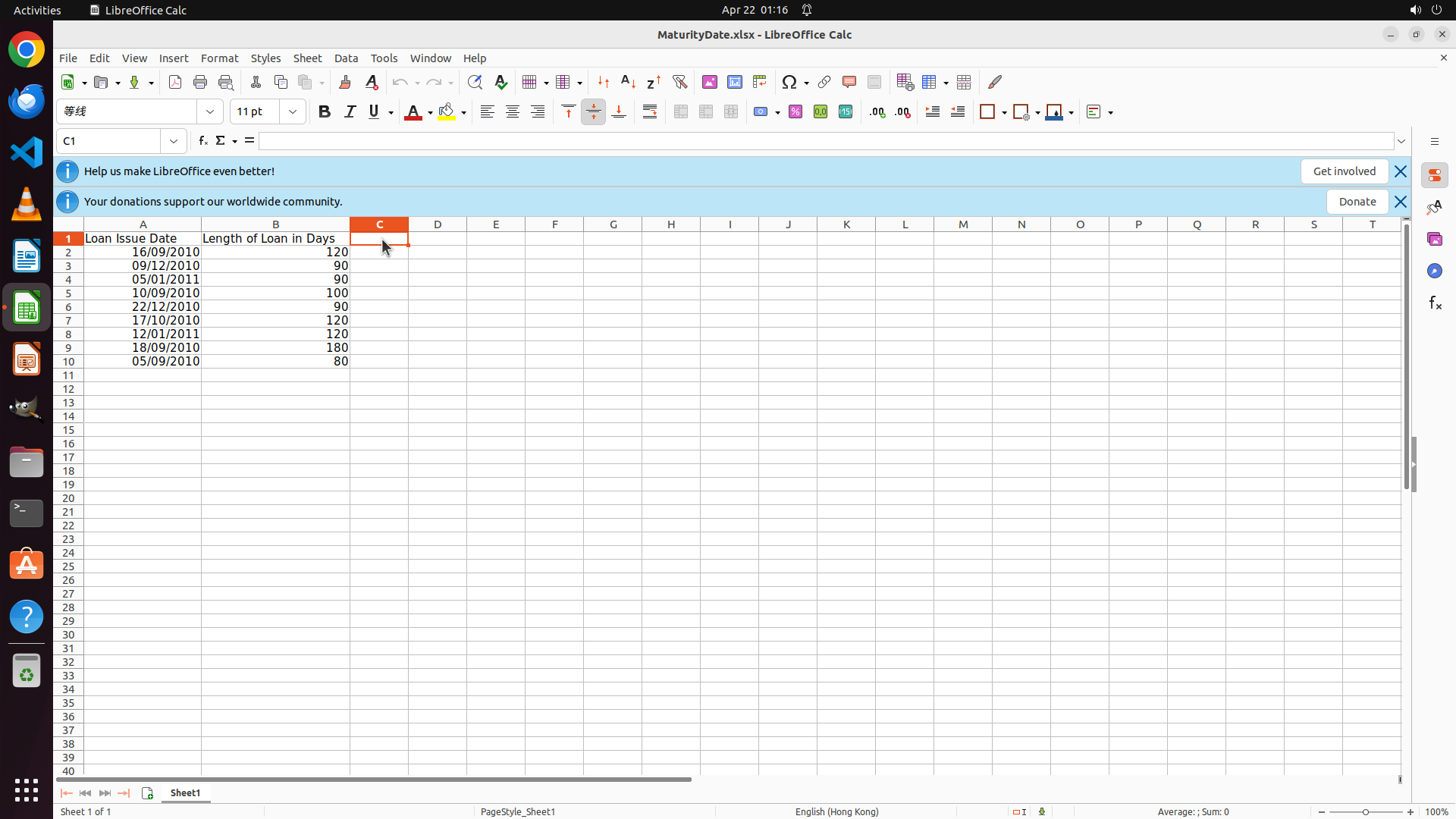
- LibreOffice Calc is open with a spreadsheet "MaturityDate.xlsx"
- Column A contains "Loan Issue Date" with dates (16/09/2010, 09/12/2010, etc.)
- Column B contains "Length of Loan in Days" with values (120, 90, 90, 100, etc.)
- Column C is currently empty - this is where I need to add the "Maturity Date" column
- Data spans rows 2-10 (9 loans total)
- Cell B14 is currently selected
#### 情况分析与思考过程
The task is to calculate maturity dates by adding the Issue Date (Column A) + Length of Loan in Days (Column B), and put the results in a new Column C with header "Maturity Date".
Following the strategy tree plan:
1. First, I need to click on cell C1 to add the header "Maturity Date"
2. Then create the formula in C2 (=A2+B2)
3. Copy the formula down to C10
4. Verify the results
Let me start by clicking on cell C1 to select it and add the header.
Step 2: TYPING "Maturity Date"
```
#### 重要信息
- Cell C1 is now selected (shown in cell reference box and highlighted with orange border)
- The formula bar is empty, ready for input
- Cell C1 is positioned in column C, row 1, which is where the header needs to be added
#### 情况分析与思考过程
The previous action successfully selected cell C1. Now I need to type "Maturity Date" as the header text. This follows the strategy tree plan:
1. ✓ Click on cell C1 (completed)
2. → Type 'Maturity Date' (current step)
3. Then move to C2 to create the formula
4. Copy formula down to C10
Since the cell is already selected and ready for input, I should type the header text "Maturity Date" now.
```
Step 3: HOTKEY
```
#### 重要信息
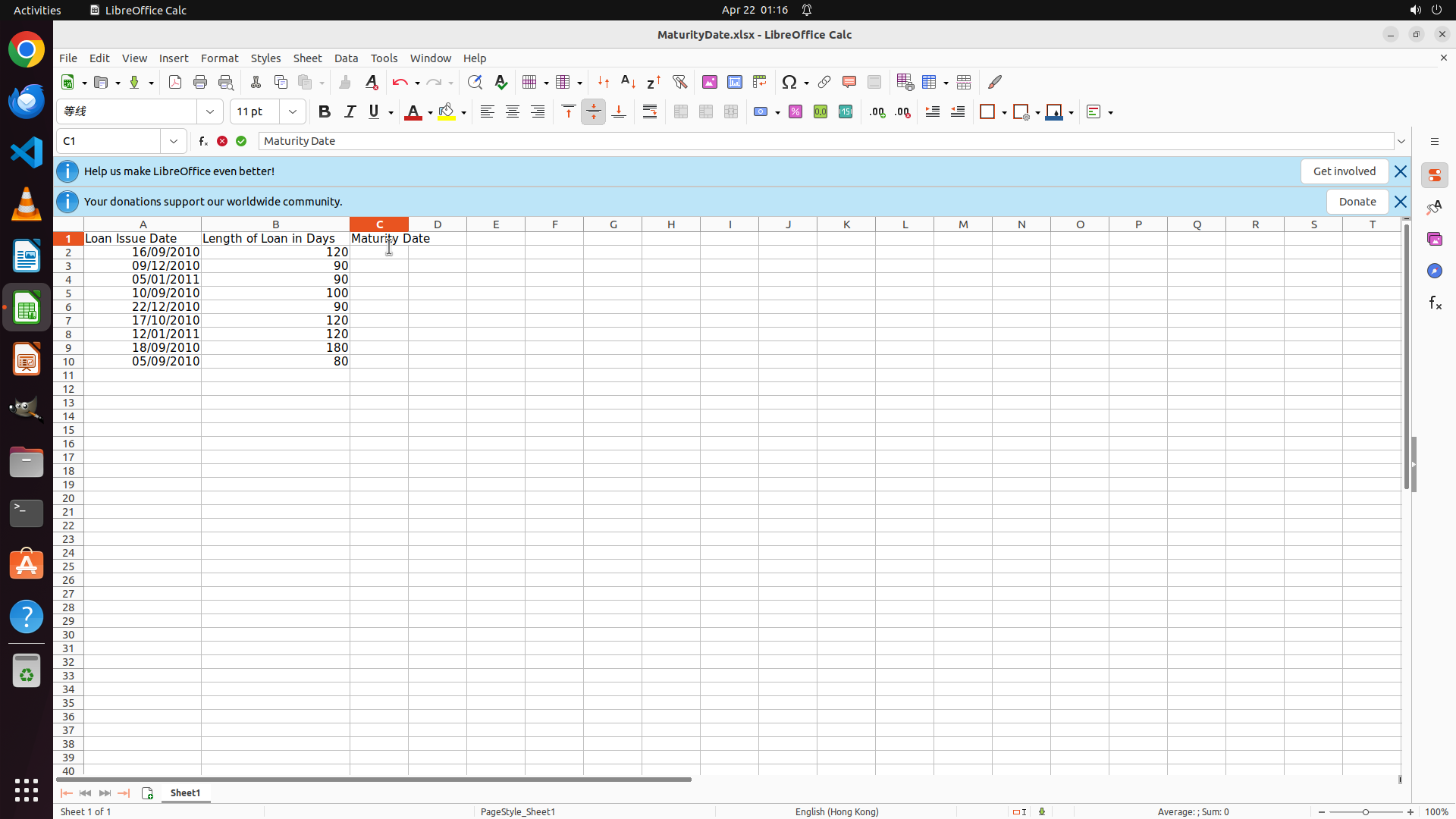
- The header "Maturity Date" has been successfully entered in cell C1
- The formula bar shows "Maturity Date" confirming the text was entered
- Cell C1 is still selected with an orange border
- Column A has dates (Loan Issue Date) and Column B has days (Length of Loan in Days)
- I need to move to cell C2 to create the formula that adds A2+B2
#### 情况分析与思考过程
The header has been successfully added to C1. Now I need to:
1. Move to cell C2 (either by pressing Enter or clicking on C2)
2. Enter the formula =A2+B2 to calculate the maturity date
3. Then copy this formula down to all rows with data (rows 2-10)
Pressing Enter is the most efficient way to move from C1 to C2, as it will confirm the current entry and automatically move the cursor to the next cell down.
```
Step 4: TYPING "=A2+B2"
```
#### 重要信息
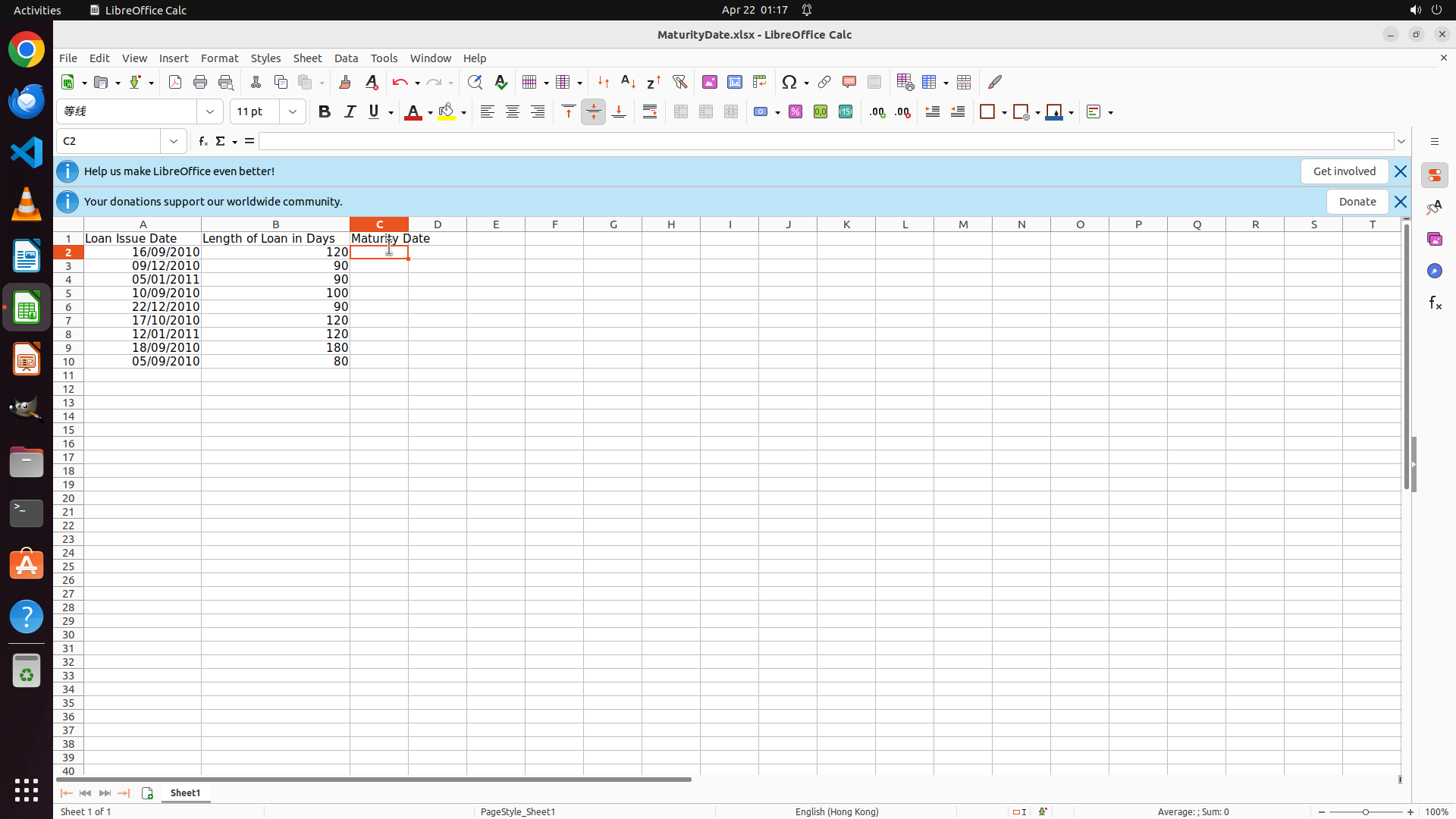
- Cell C2 is now selected (shown in cell reference box as "C2")
- The formula bar is empty, ready for input
- Cell C2 is highlighted with an orange border
- Column A has dates (Loan Issue Date) and Column B has days (Length of Loan in Days)
- I need to enter the formula =A2+B2 to calculate the maturity date
#### 情况分析与思考过程
The cursor has successfully moved to cell C2. Now I need to:
1. Enter the formula =A2+B2 to calculate the maturity date (Issue Date + Days)
2. Press Enter to confirm the formula
3. Then copy the formula down to all rows with data (C3 to C10)
This is a straightforward step - I'll type the formula =A2+B2 which will add the date in A2 to the number of days in B2.
```
Step 5: HOTKEY
```
#### 重要信息
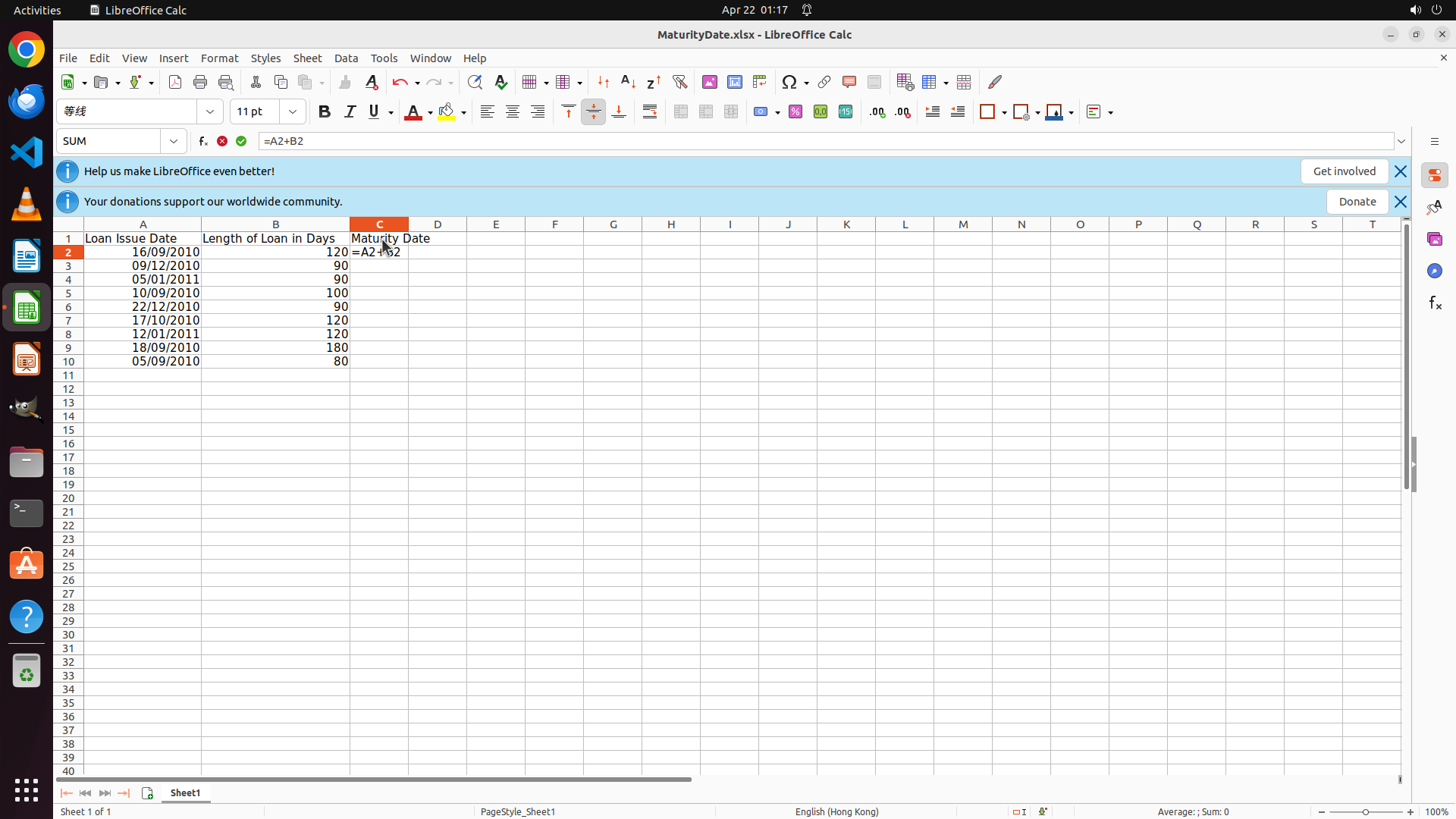
- Cell C2 is selected and shows the formula "=A2+B2" in both the cell and the formula bar
- The formula has been entered but not yet confirmed (still showing formula text, not the calculated result)
- Column A contains dates (Loan Issue Date) and Column B contains days (Length of Loan in Days)
- I need to press Enter to confirm the formula, then copy it down to all rows (C3 to C10)
#### 情况分析与思考过程
The formula =A2+B2 has been typed into cell C2 but needs to be confirmed. Once I press Enter:
1. The formula will be calculated and should show "14/01/2011" (16/09/2010 + 120 days)
2. The cursor will move to C3
3. Then I'll need to go back to C2 and copy the formula down to C10
I'll press Enter to confirm the formula first.
```
Step 6: CLICK (505, 327)
```
#### 重要信息
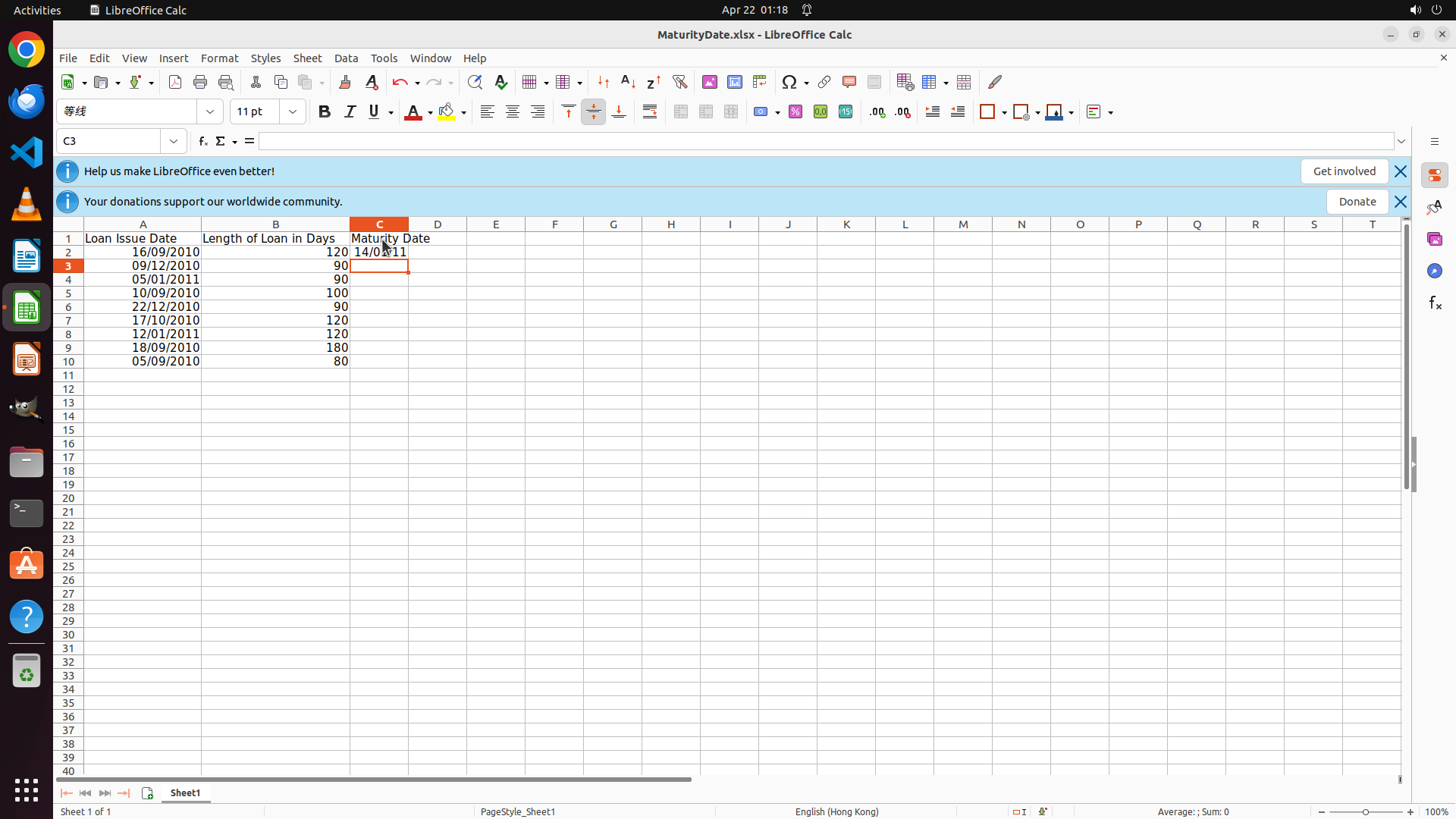
- Cell C3 is currently selected (shown in cell reference box as "C3")
- Cell C2 now displays "14/01/2011" which is the calculated maturity date (16/09/2010 + 120 days)
- The formula in C2 has been confirmed and is working correctly
- I need to copy this formula down to all remaining rows (C3 to C10)
- The data spans rows 2-10 (9 loans total)
#### 情况分析与思考过程
The formula has been successfully created in C2 and shows the correct result. Now I need to:
1. Select cell C2 first (since I'm currently in C3)
2. Then select the range C2:C10 (to include the existing formula cell and all target cells)
3. Use Ctrl+D to fill down the formula to all rows
I'll start by clicking on C2 to select it, then I'll select the range C2:C10 and use Ctrl+D to copy the formula down.
```
Step 7: MOVE_TO (505, 327)
```
#### 重要信息
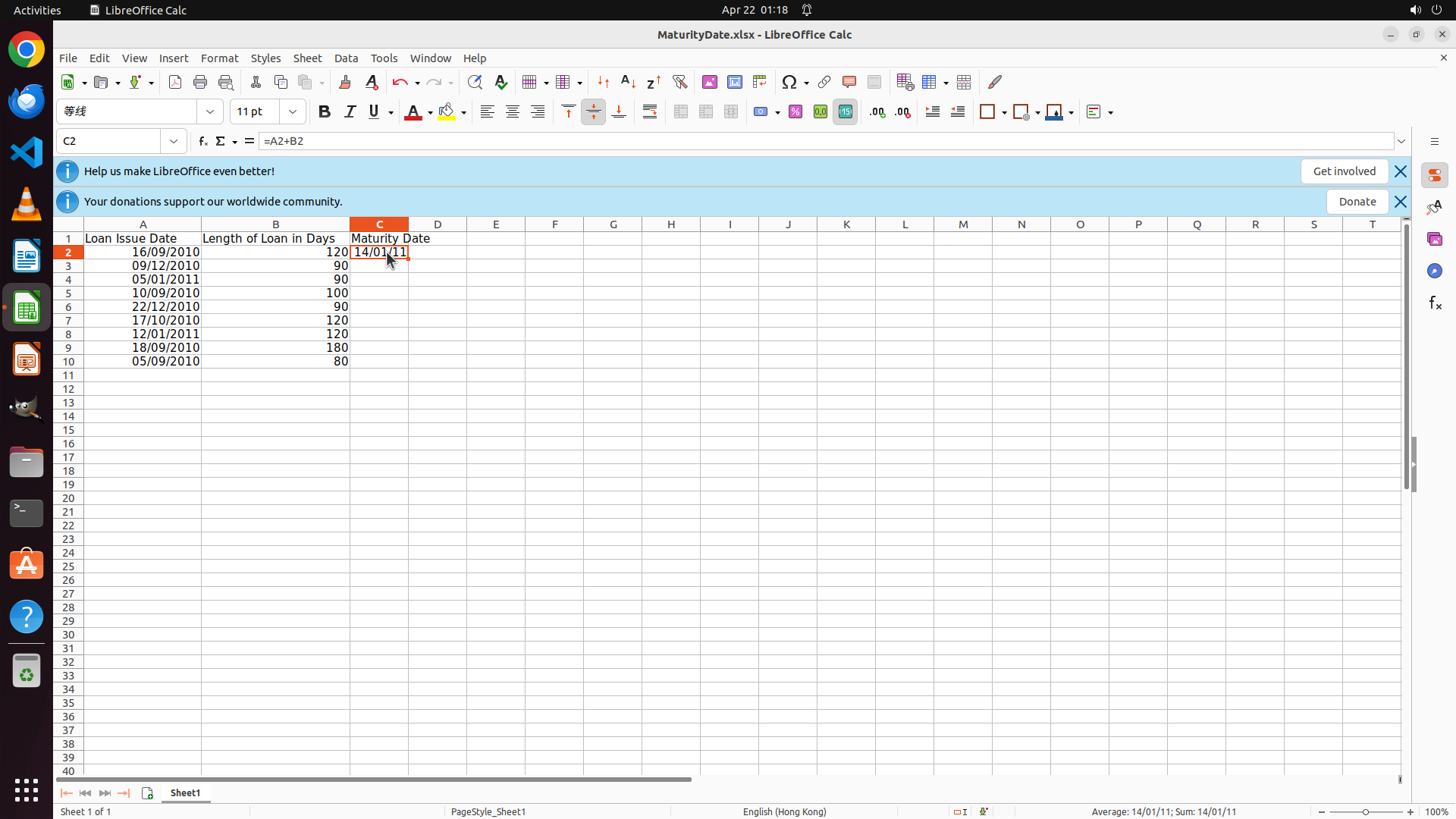
- Cell C2 is currently selected (shown in cell reference box as "C2")
- Cell C2 displays "14/01/2011" which is the correctly calculated maturity date (16/09/2010 + 120 days)
- The formula bar shows "=A2+B2" confirming the formula is in place
- The data spans rows 2-10 (9 loans total)
- I need to copy the formula from C2 down to C3:C10
#### 情况分析与思考过程
The formula in C2 is working correctly. Now I need to:
1. Select the range C2:C10 (including the cell with the existing formula and all target cells)
2. Use Ctrl+D to fill down the formula to all rows
Since C2 is already selected, I'll drag from C2 to C10 to select the entire range, then use Ctrl+D to fill down the formula.
```
Step 7: DRAG_TO (505, 465)
```
#### 重要信息
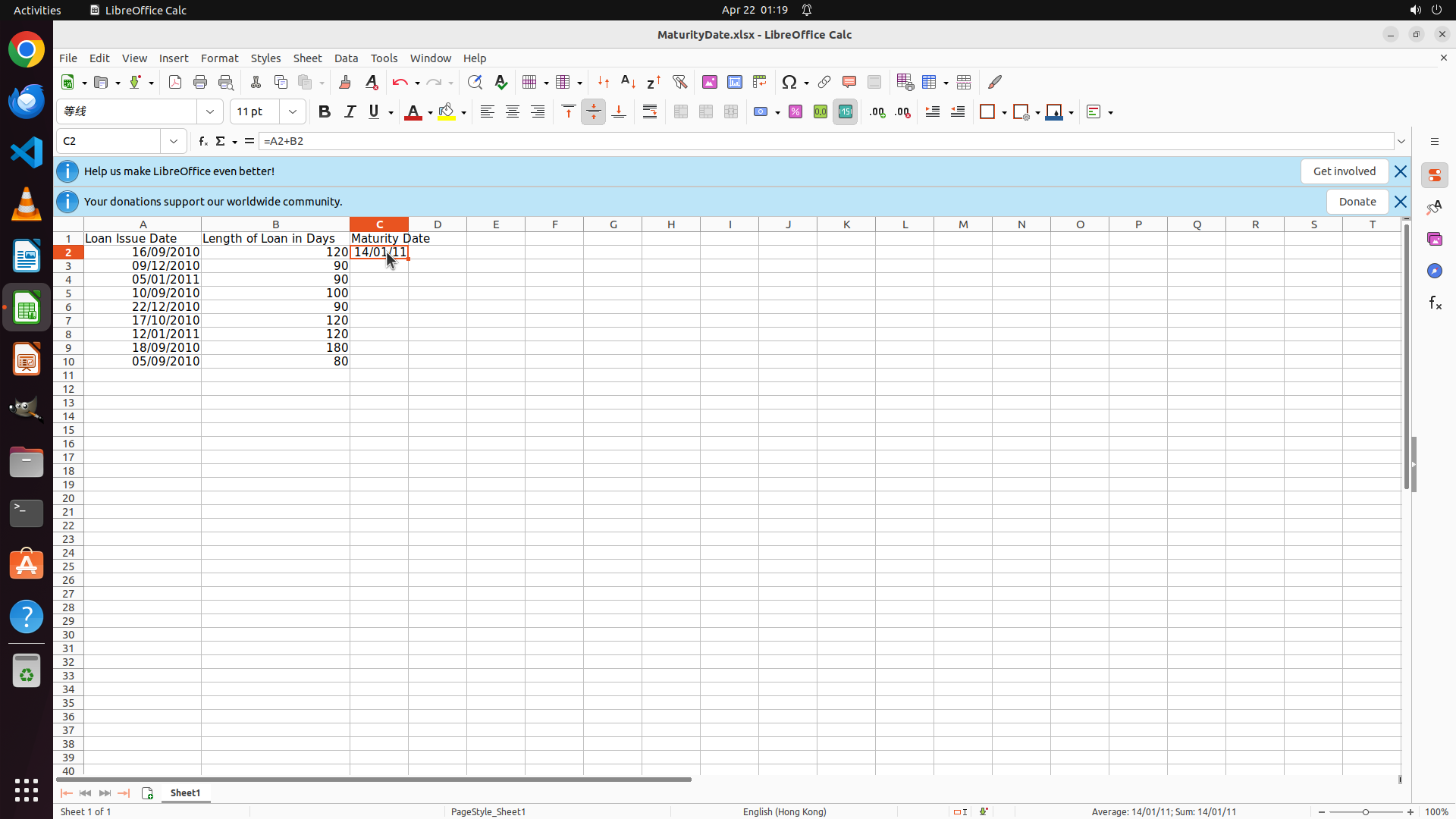
- Cell C2 is currently selected (shown in cell reference box as "C2")
- Cell C2 displays "14/01/2011" which is the correctly calculated maturity date (16/09/2010 + 120 days)
- The formula bar shows "=A2+B2" confirming the formula is in place
- The data spans rows 2-10 (9 loans total)
- I need to copy the formula from C2 down to C3:C10
#### 情况分析与思考过程
The formula in C2 is working correctly. Now I need to:
1. Select the range C2:C10 (including the cell with the existing formula and all target cells)
2. Use Ctrl+D to fill down the formula to all rows
Since C2 is already selected, I'll drag from C2 to C10 to select the entire range, then use Ctrl+D to fill down the formula.
```
Step 8: HOTKEY
```
#### 重要信息
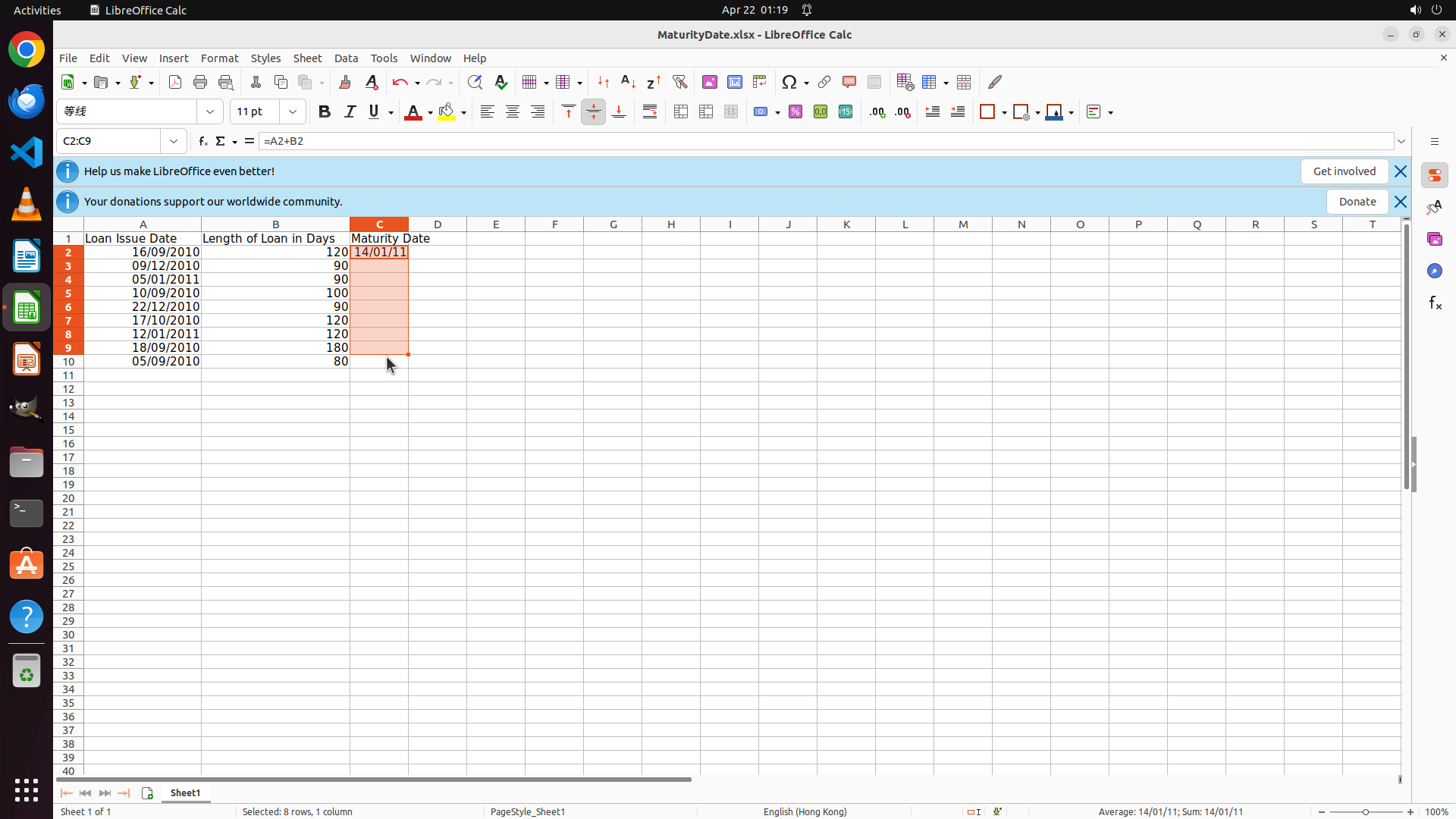
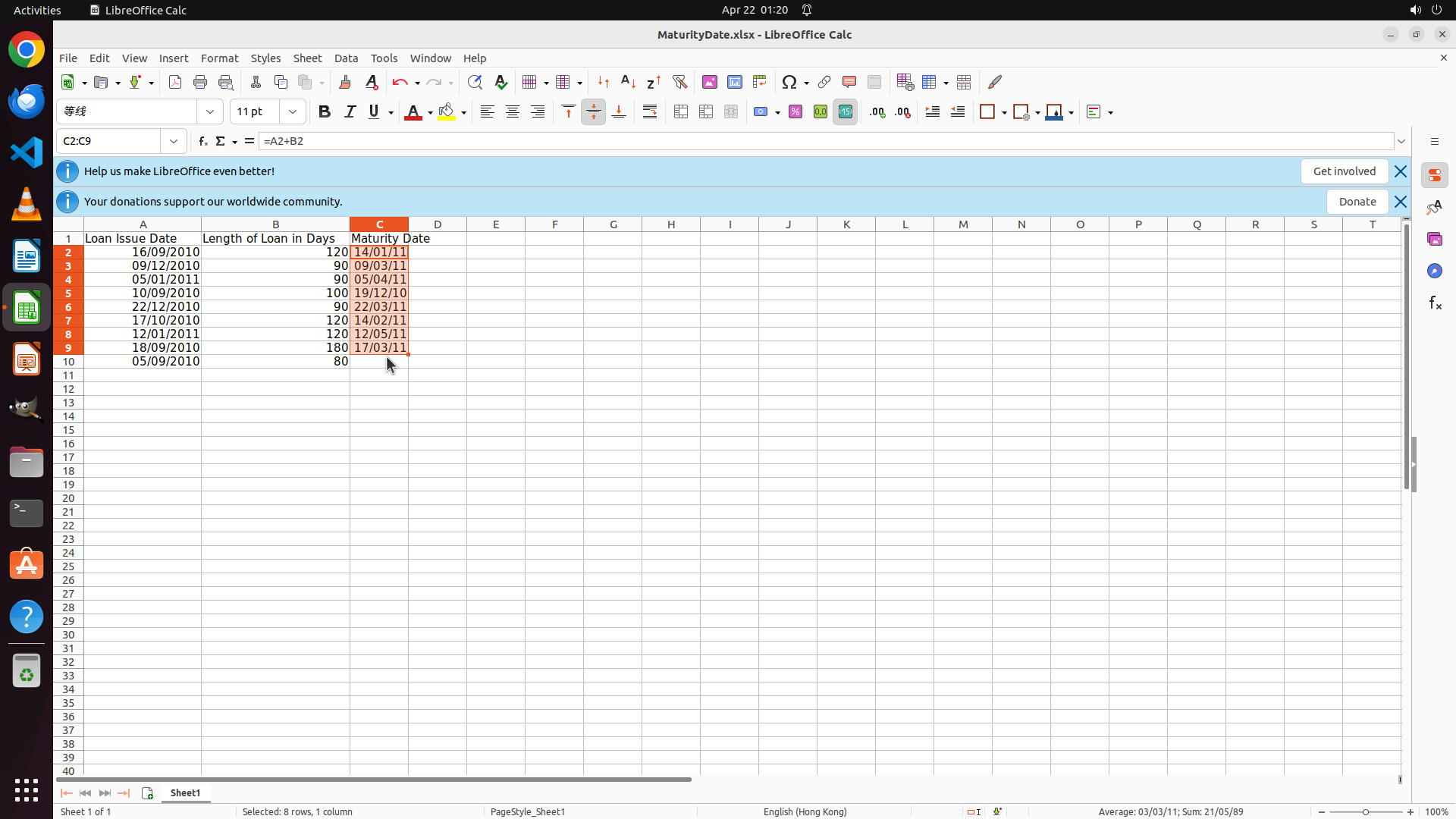
- The range C2:C9 is currently selected (shown in cell reference box as "C2:C9")
- The status bar shows "Selected: 8 rows, 1 column"
- Cell C2 contains the formula "=A2+B2" and displays "14/01/2011"
- The selection includes cells C2 through C9 (highlighted in orange/red)
- Row 10 also has data that needs the formula (05/09/2010 + 80 days)
- I need to use Ctrl+D to fill down the formula to all selected cells
#### 情况分析与思考过程
The range C2:C9 is selected. Now I need to:
1. Use Ctrl+D to fill down the formula from C2 to all selected cells (C2:C9)
2. After that, I'll need to check if C10 also needs the formula and add it separately if needed
Ctrl+D is the standard shortcut in spreadsheet applications to fill down formulas from the top cell to all selected cells below it.
```
Step 9: CLICK (505, 474)
```
#### 重要信息
- The range C2:C9 was selected (not C2:C10 as intended)
- Ctrl+D successfully filled down the formula to rows 2-9
- All cells C2 through C9 now contain calculated maturity dates
- Row 10 (05/09/2010 + 80 days) still needs the formula
- Cell C10 is currently empty and needs to be filled
#### 情况分析与思考过程
The formula has been successfully copied to C2:C9, but row 10 was not included in the selection. I need to:
1. Click on cell C10 to select it
2. Enter the formula =A10+B10 (or copy from C9 and paste)
3. Press Enter to confirm
Since C10 is the last row with data, I'll simply click on it and type the formula directly. This will complete the task of filling in all maturity dates.
```
Step 10: TYPING "=A10+B10"
```
#### 重要信息
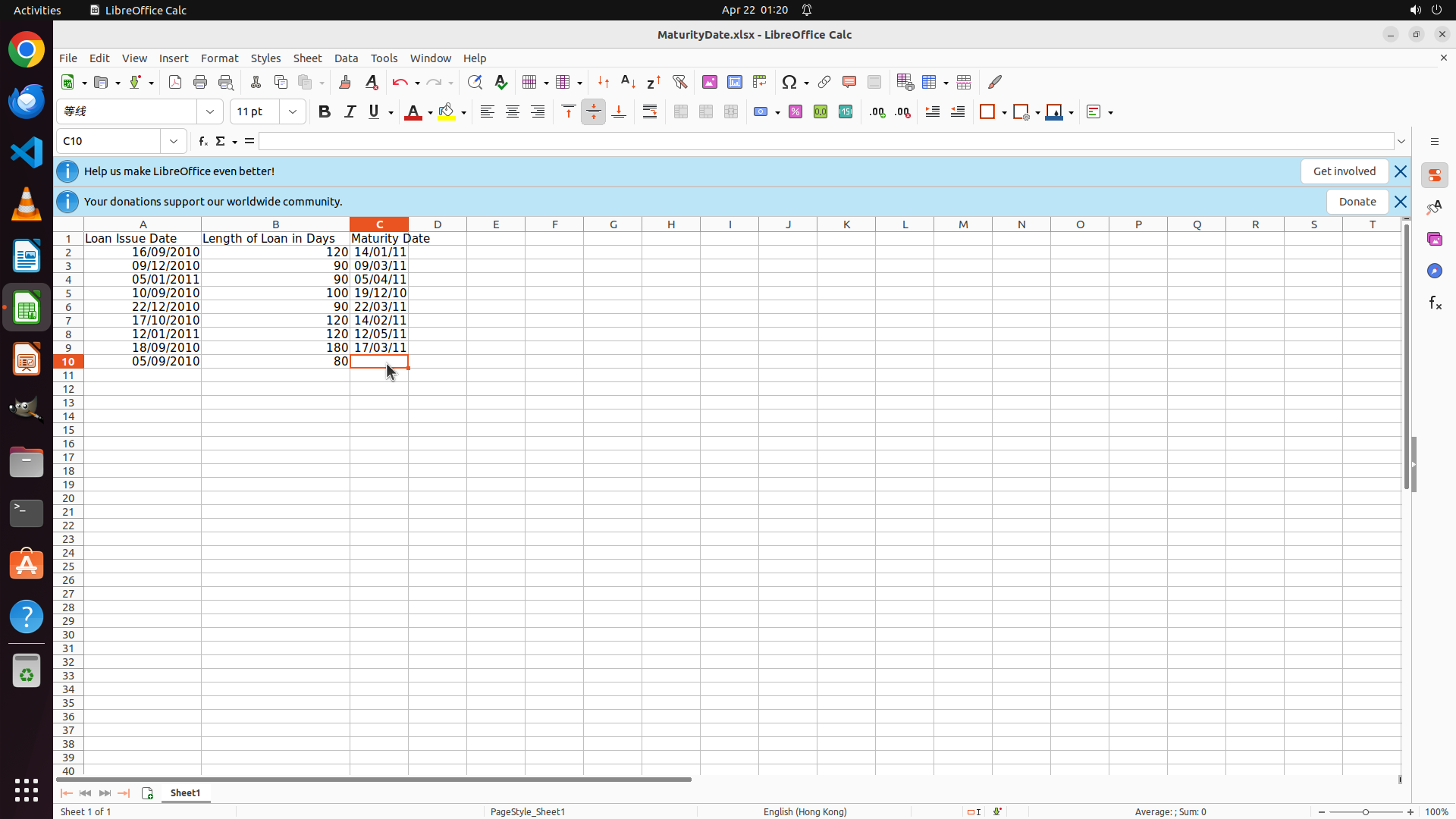
- Cell C10 is now selected (shown in cell reference box as "C10")
- The formula bar is empty, ready for input
- All cells C2 through C9 contain calculated maturity dates
- Row 10 has data: Issue Date 05/09/2010 and Length 80 days, but C10 is empty
- I need to enter the formula =A10+B10 to calculate the maturity date for the last loan
#### 情况分析与思考过程
The previous action successfully selected cell C10. Now I need to:
1. Enter the formula =A10+B10 to calculate the maturity date (05/09/2010 + 80 days)
2. Press Enter to confirm the formula
This will complete the task of filling in all maturity dates for all loans. The formula will calculate the maturity date for the last row of data.
```
Step 11: HOTKEY
```
#### 重要信息
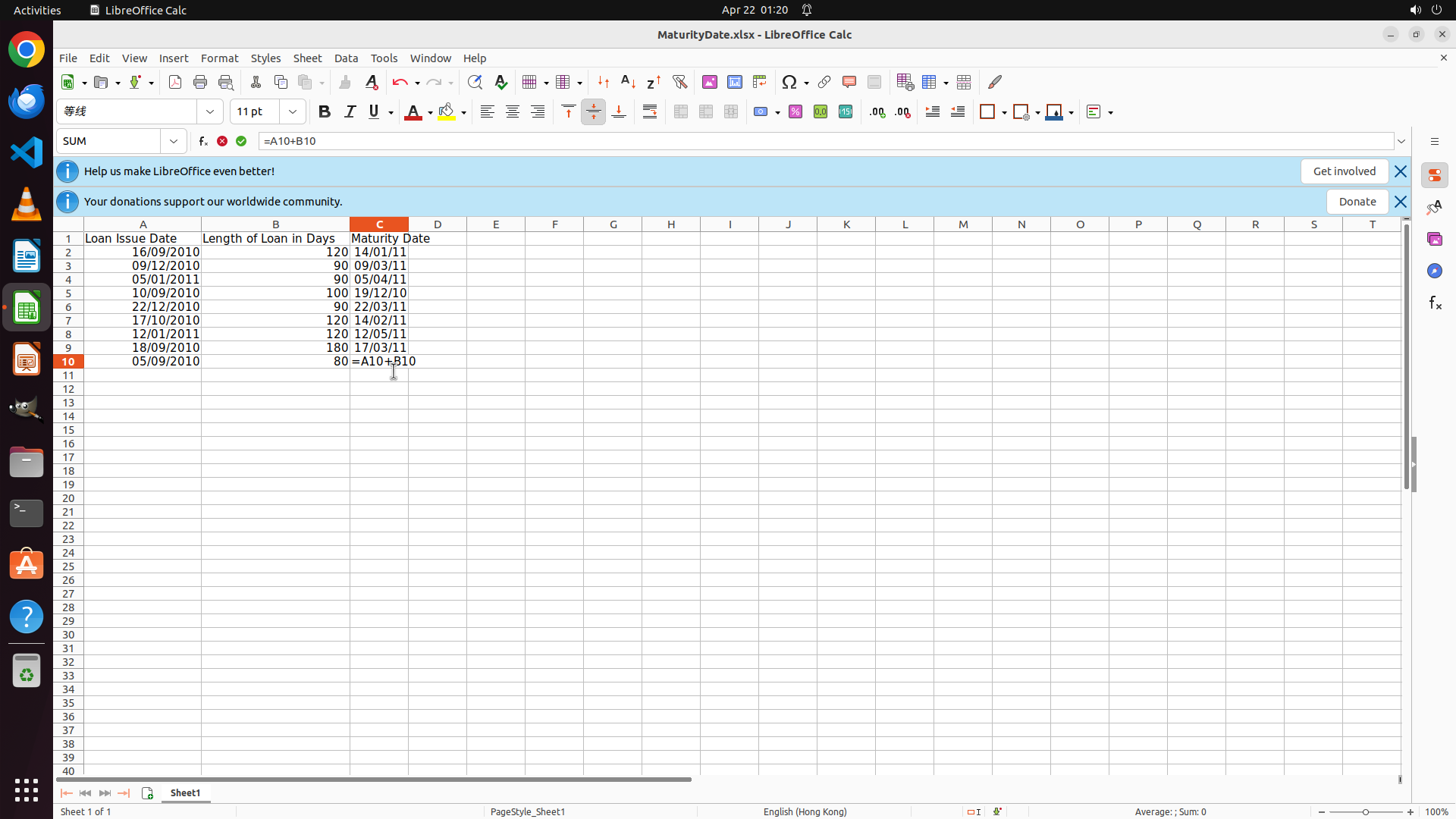
- Cell C10 is selected and shows the formula "=A10+B10" in the formula bar
- The formula has been typed but not yet confirmed (still showing formula text in the cell)
- All cells C2 through C9 already contain calculated maturity dates
- Row 10 has Issue Date 05/09/2010 and Length 80 days
- After confirming the formula, C10 should display the calculated maturity date
#### 情况分析与思考过程
The formula =A10+B10 has been entered in cell C10 but needs to be confirmed. Once I press Enter:
1. The formula will be calculated and should show the maturity date (05/09/2010 + 80 days)
2. This will complete the task of adding maturity dates for all loans
3. All 9 rows (C2 through C10) will have calculated maturity dates
I'll press Enter to confirm the formula and complete the task.
```
Step 12: HOTKEY
```
#### 重要信息
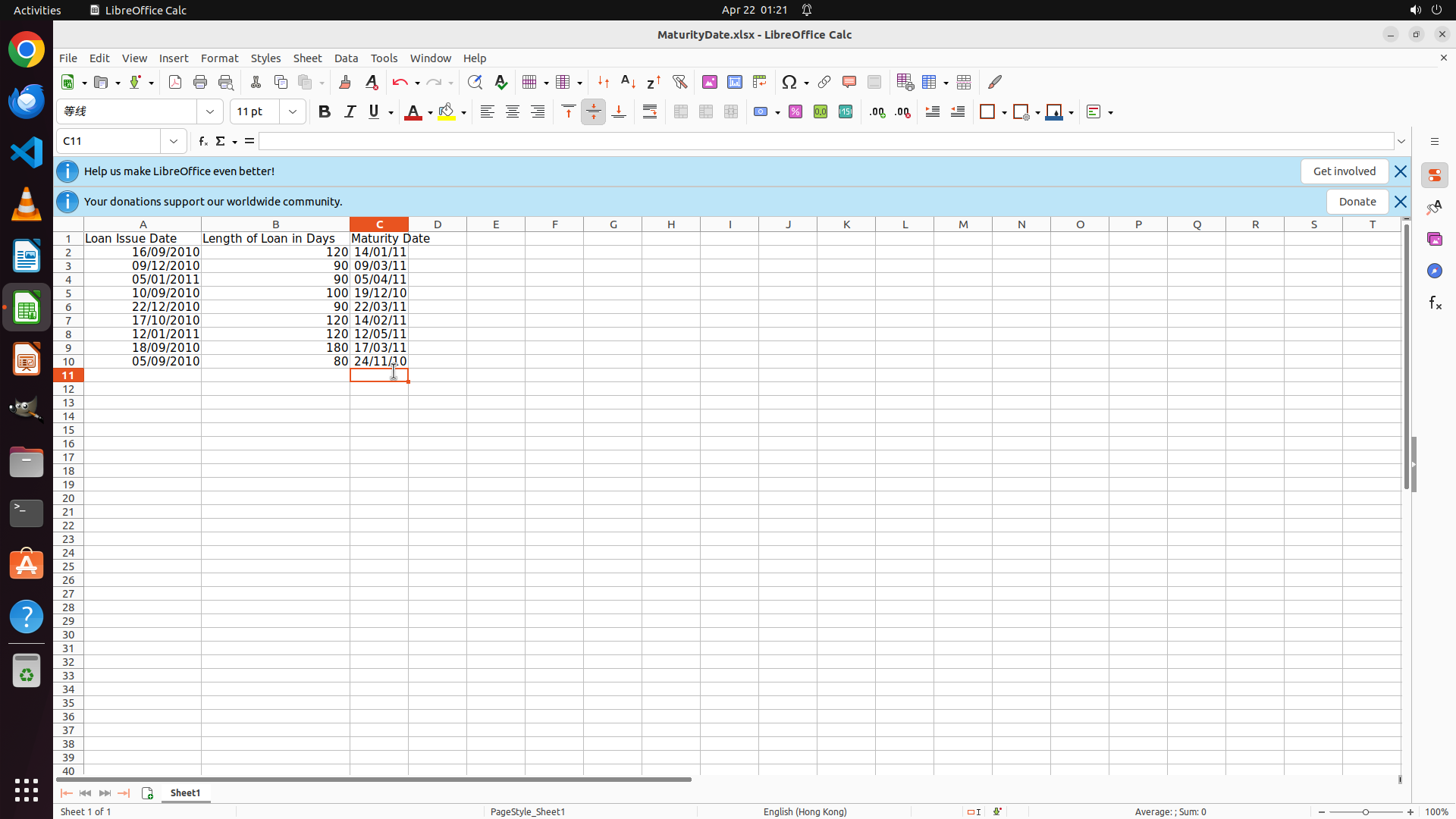
- Cell C10 now displays "24/11/10" which is the calculated maturity date (05/09/2010 + 80 days)
- All cells C2 through C10 now contain calculated maturity dates
- The formula has been successfully applied to all 9 loan rows
- Column C has the header "Maturity Date" in C1
- All maturity dates are correctly calculated (Issue Date + Length of Loan in Days)
#### 情况分析与思考过程
The task has been completed successfully! All maturity dates have been calculated for all loans:
1. ✓ Added "Maturity Date" header in C1
2. ✓ Created formula in C2 (=A2+B2)
3. ✓ Copied formula to all rows (C2:C10) using Ctrl+D
4. ✓ All 9 loans now have calculated maturity dates
Now I should save the file to preserve these changes. I'll use Ctrl+S to save the spreadsheet.
```
Step 13: DONEDONE
```
#### 重要信息
- The task has been completed successfully!
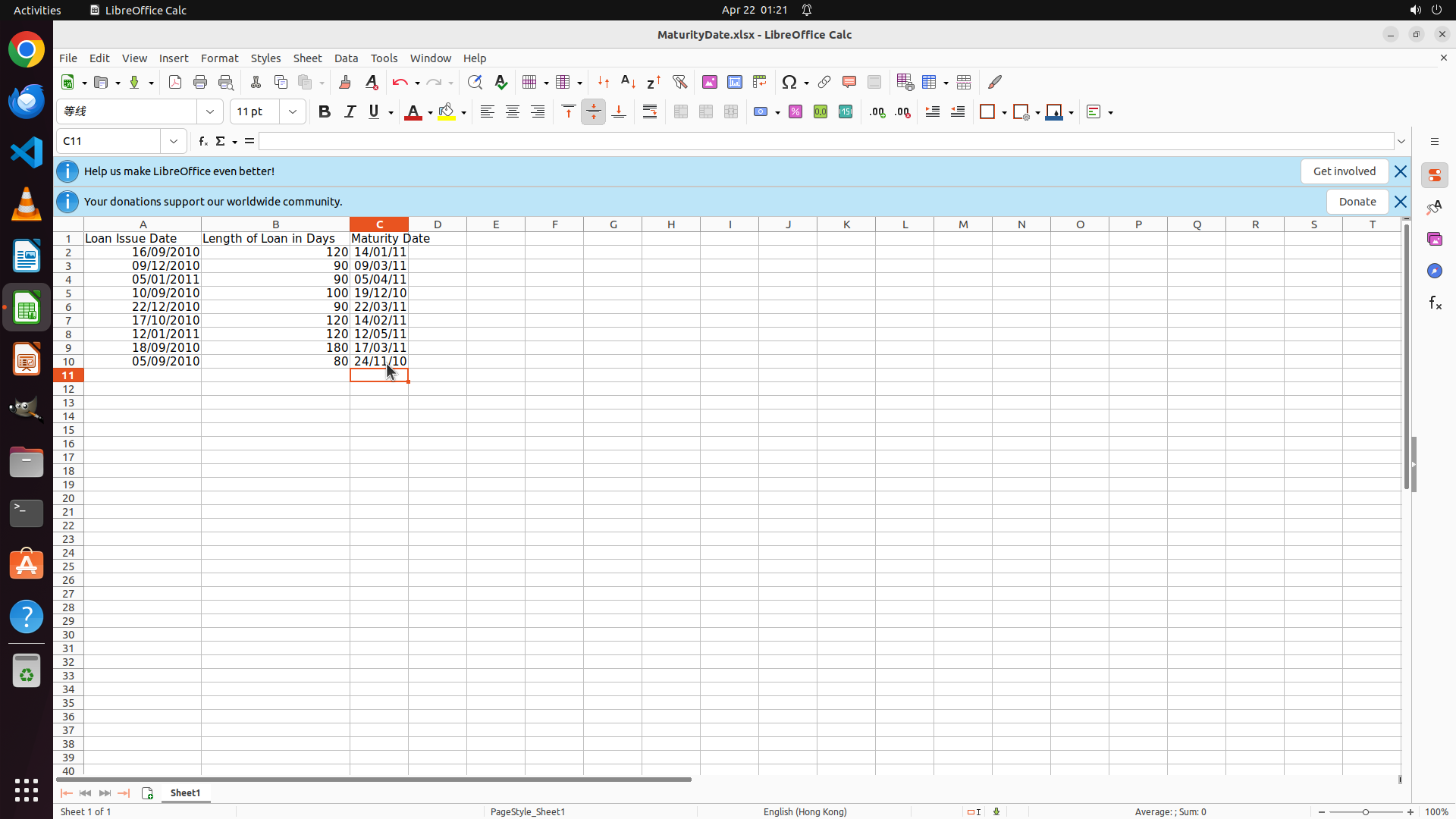
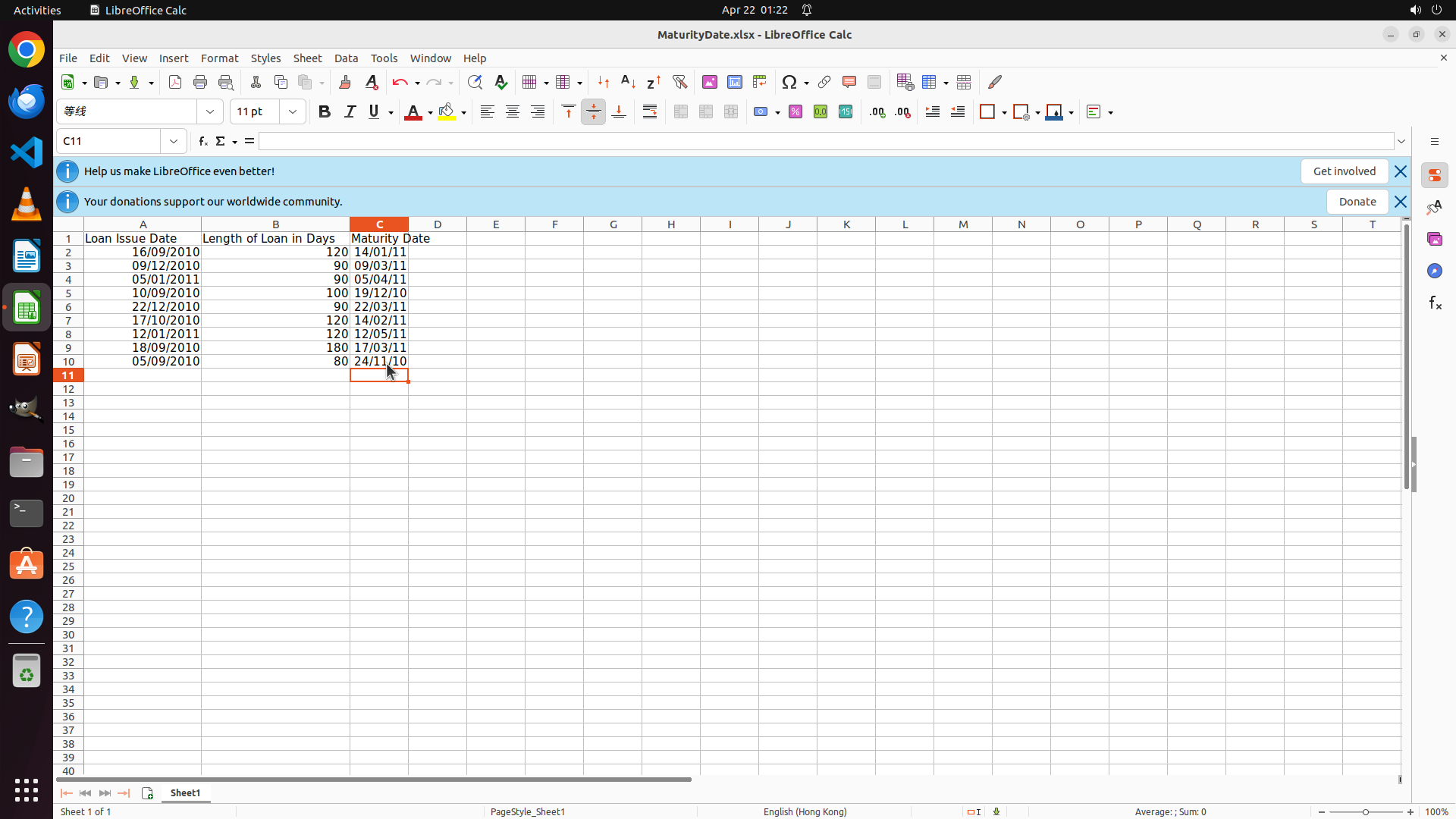
- Column C1 contains the header "Maturity Date"
- All cells C2 through C10 contain calculated maturity dates:
- C2: 14/01/11 (16/09/2010 + 120 days)
- C3: 09/03/11 (09/12/2010 + 90 days)
- C4: 05/04/11 (05/01/2011 + 90 days)
- C5: 19/12/10 (10/09/2010 + 100 days)
- C6: 22/03/11 (22/12/2010 + 90 days)
- C7: 14/02/11 (17/10/2010 + 120 days)
- C8: 12/05/11 (12/01/2011 + 120 days)
- C9: 17/03/11 (18/09/2010 + 180 days)
- C10: 24/11/10 (05/09/2010 + 80 days)
- The file has been saved (Ctrl+S was executed in the previous step)
#### 情况分析与思考过程
The task has been completed successfully. All maturity dates have been calculated for all 9 loans by:
1. Adding the "Maturity Date" header in cell C1
2. Creating the formula =A2+B2 in cell C2 to calculate Issue Date + Days
3. Copying the formula down to all rows (C2:C10)
4. Saving the file to preserve the changes
All key visual evidence has been verified:
- ✓ Cell C1 contains the header text 'Maturity Date'
- ✓ Cells C2 through C10 all contain calculated date values
- ✓ The maturity dates are correctly calculated (Issue Date + Length of Loan in Days)
The task is now complete and no further actions are needed.
```