```
#### 重要信息
- LibreOffice Impress is open with presentation "4_1.pptx"
- Currently viewing slide 1 (showing "Goal Roadmap" title with pink/yellow design)
- Slides panel on the left shows 6 slides total
- Need to format titles on slides 2, 3, and 5 to be black and underlined
- Slide 2 thumbnail visible in left panel with yellow background
#### 情况分析与思考过程
The task is to set the color of titles in slides 2, 3, and 5 as black and underline them. I can see the presentation is already open in LibreOffice Impress.
My plan:
1. First navigate to slide 2 by clicking on its thumbnail in the slides panel
2. Select the title text on slide 2
3. Change the text color to black
4. Apply underline formatting
5. Repeat the process for slides 3 and 5
The first step is to click on slide 2 in the slides panel to navigate to it. I can see slide 2's thumbnail in the left panel - it appears to have a yellow background.
```
Step 2: CLICK (570, 438)
```
#### 重要信息
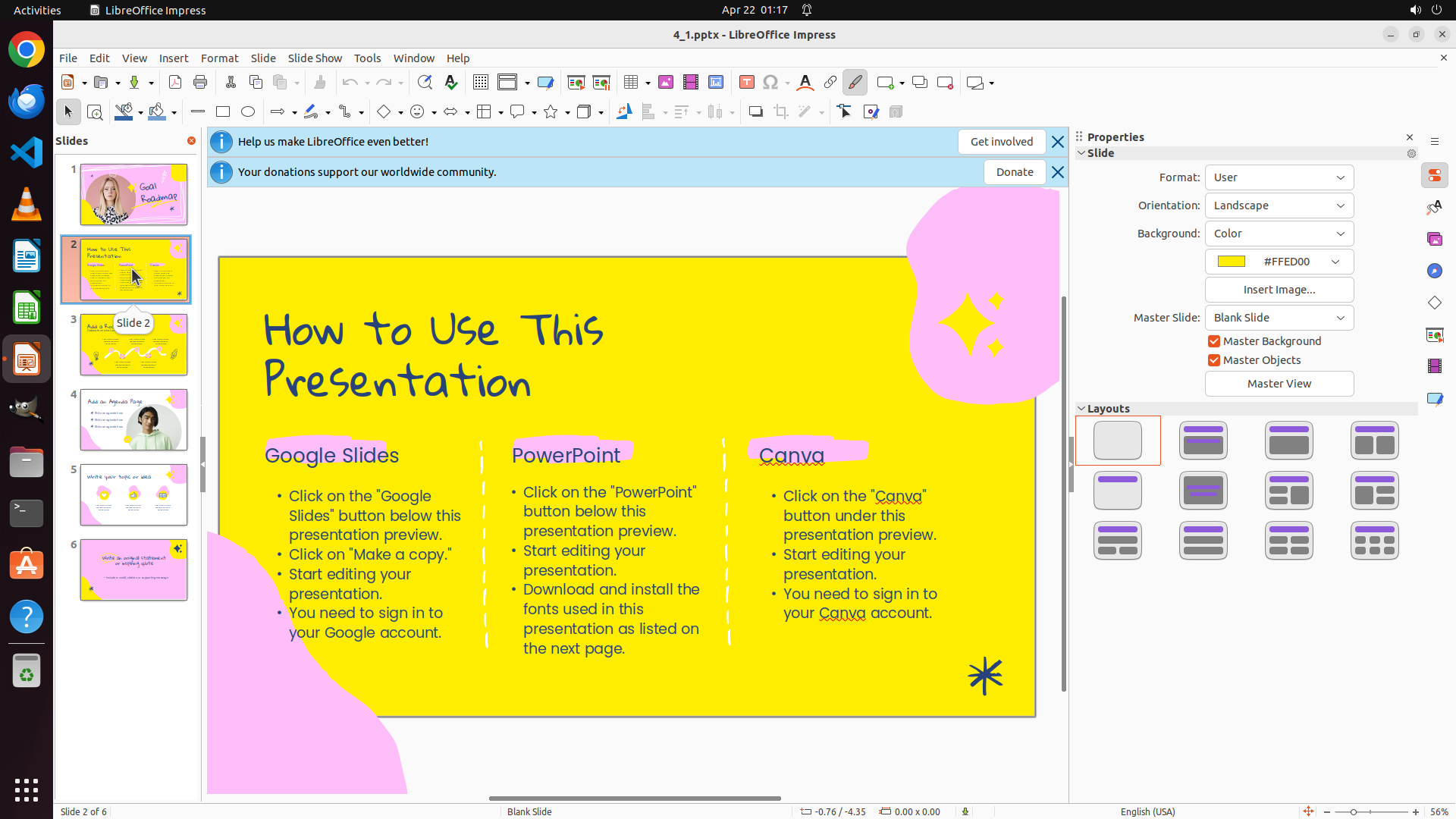
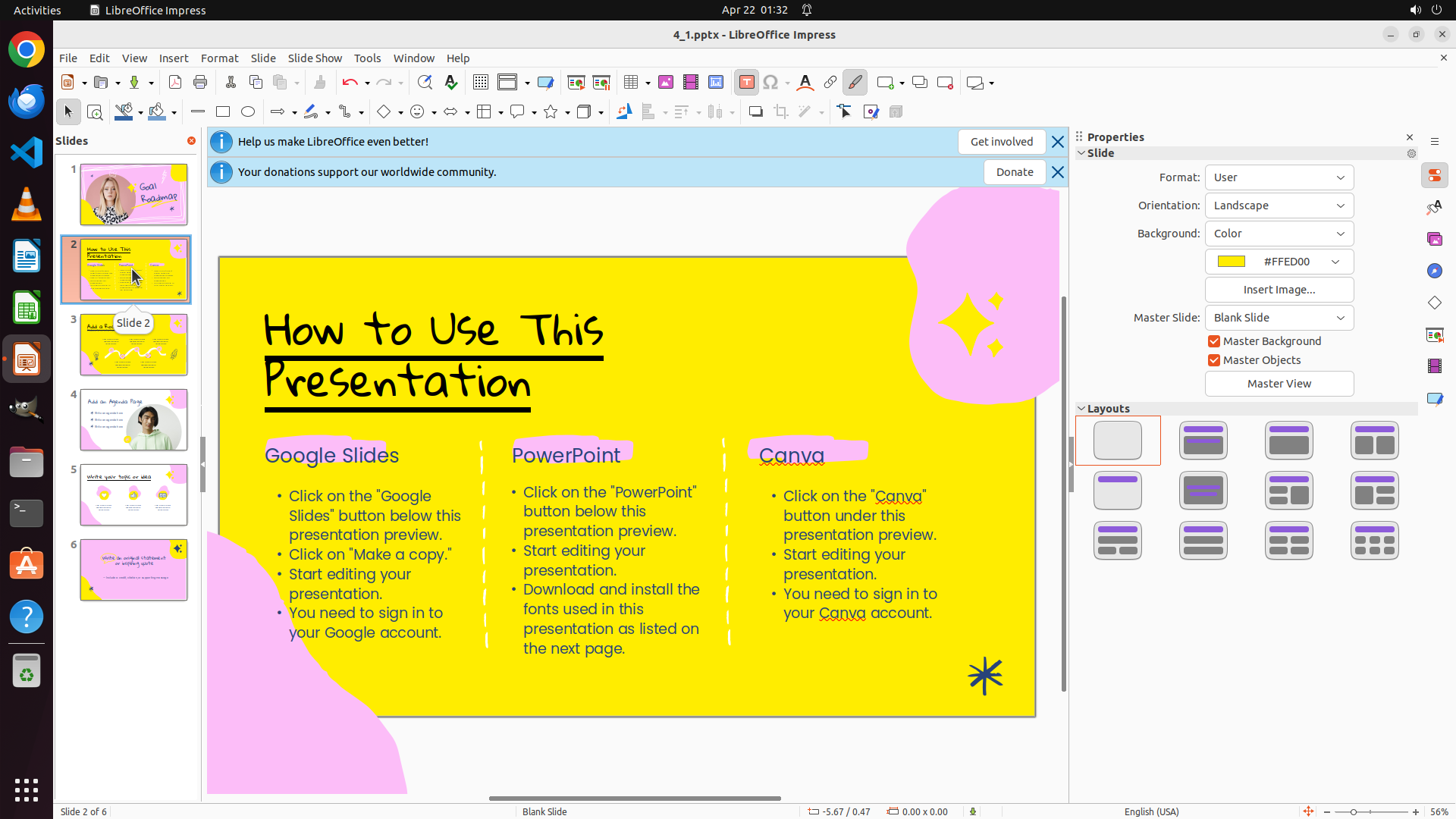
- Successfully navigated to slide 2
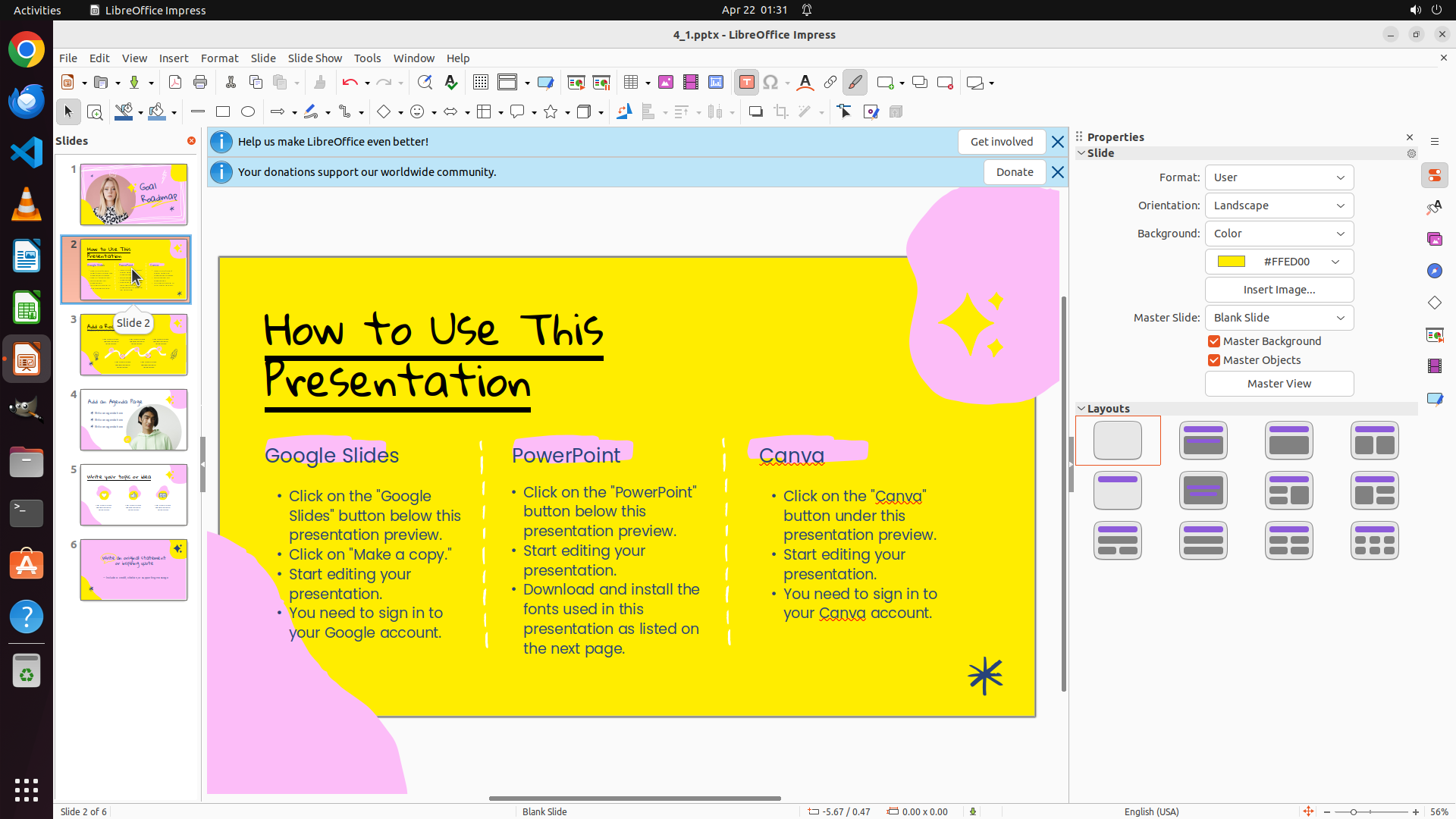
- Slide 2 is now displayed in the main editing area
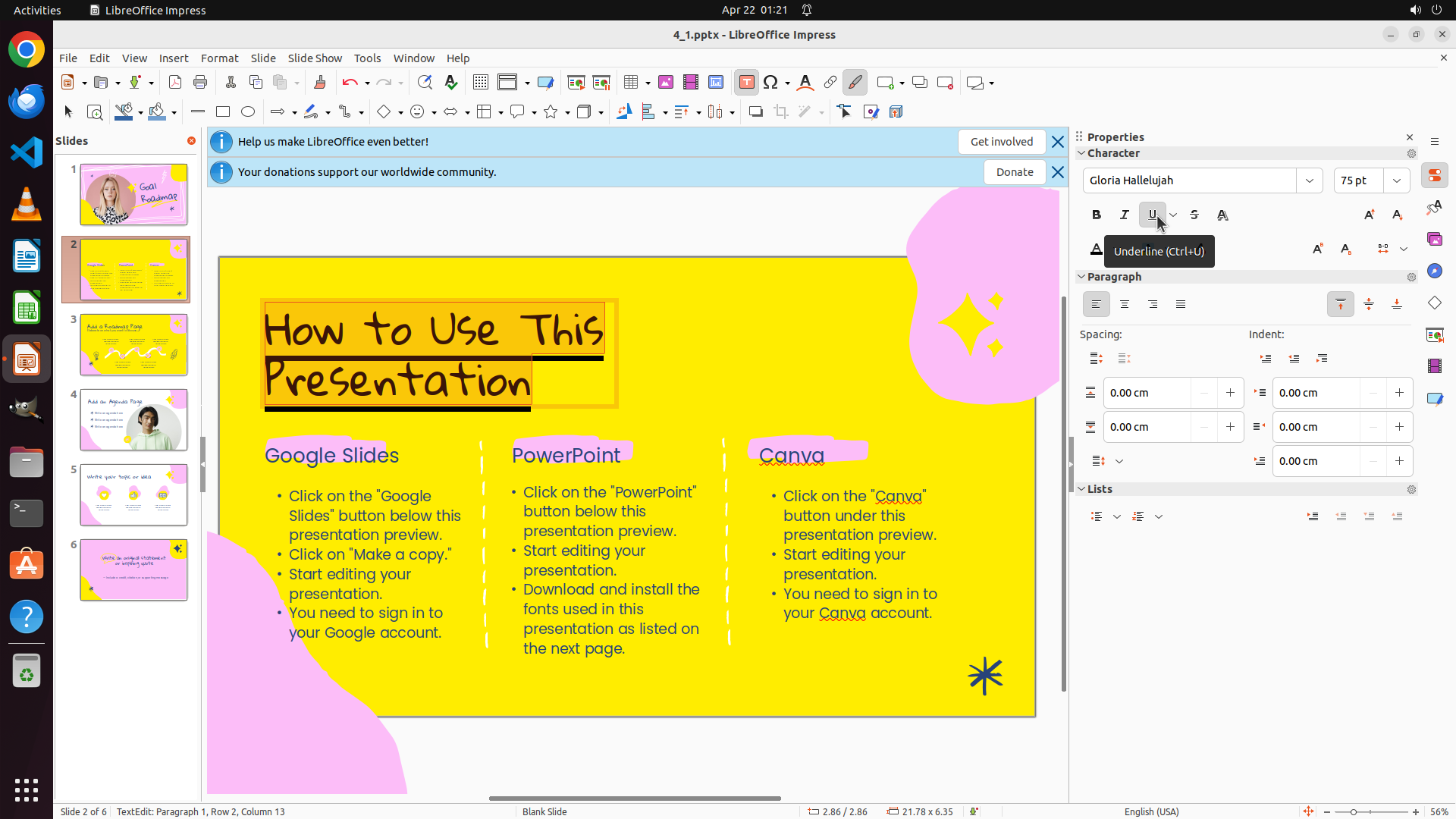
- Title text reads "How to Use This Presentation" in dark blue color
- The slide has a yellow background with pink decorative elements
- Need to select the title text, then change its color to black and apply underline
#### 情况分析与思考过程
The previous action successfully navigated to slide 2. Now I can see slide 2 with the title "How to Use This Presentation" in dark blue text.
My next steps:
1. Select the title text by triple-clicking on it (this will select the entire title)
2. Change the text color to black using the formatting toolbar
3. Apply underline formatting
4. Then move to slides 3 and 5 to repeat the process
The most efficient way to select the entire title text is to triple-click on it. I'll triple-click on the title "How to Use This Presentation" to select all of it at once.
```
Step 3: CLICK (1471, 325)
```
#### 重要信息
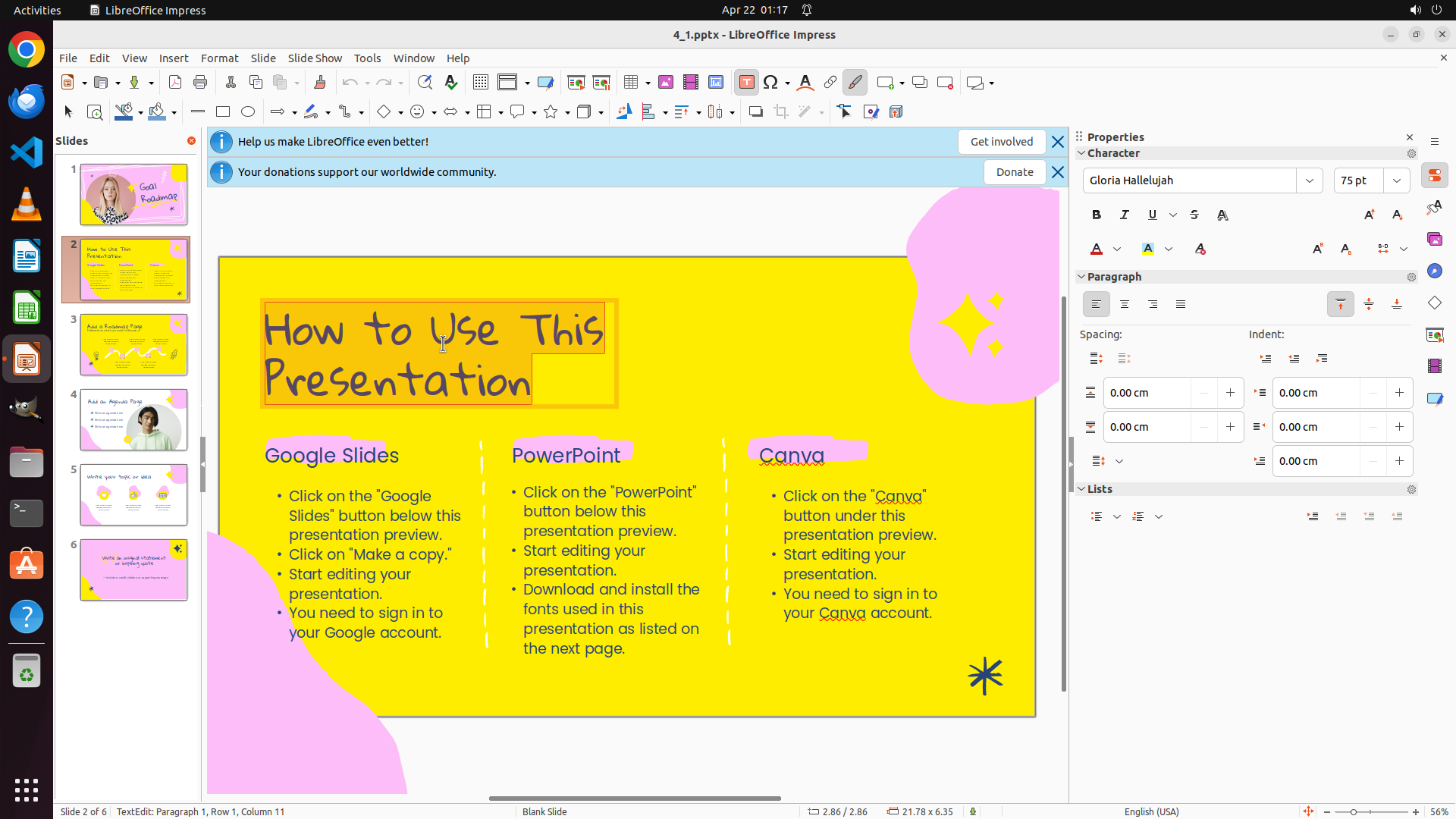
- The title text "How to Use This Presentation" on slide 2 is now selected (highlighted with selection box)
- The status bar shows "TextEdit: Paragraph 1, Row 1, Column 11" confirming text selection
- Character formatting panel visible on the right with Bold, Italic, Underline buttons
- Font color button (marked with "A") visible in the Character panel
- Need to change text color to black and apply underline
#### 情况分析与思考过程
The triple-click successfully selected the entire title text. Now I need to:
1. Change the text color to black by clicking the font color button
2. Apply underline formatting
Looking at the Character panel on the right, I can see the font color button (the "A" with a colored underline). I should click on the dropdown arrow next to it to open the color picker and select black. The button appears to be in the right panel's Character section.
```
Step 4: CLICK (1434, 427)
```
#### 重要信息
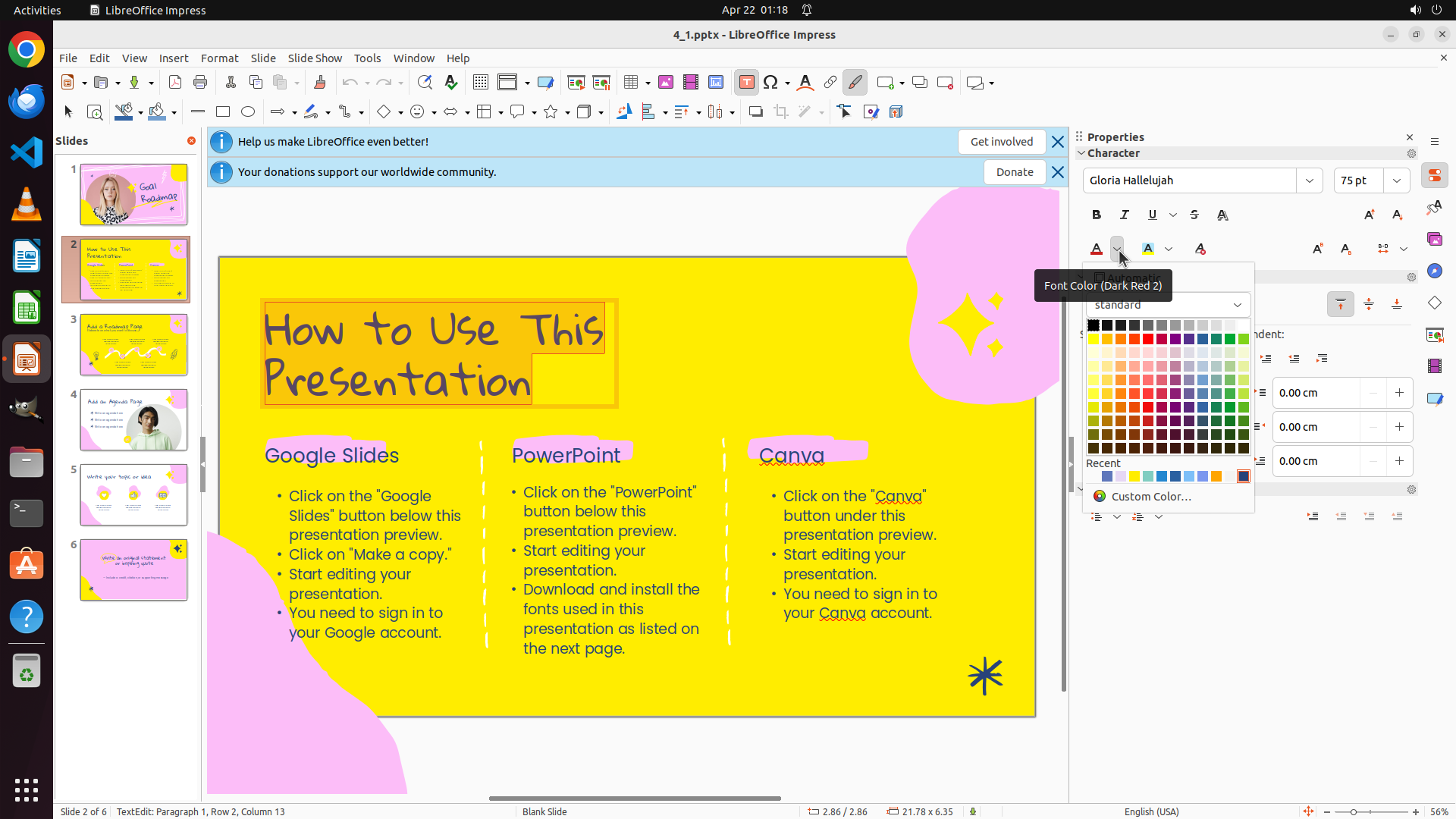
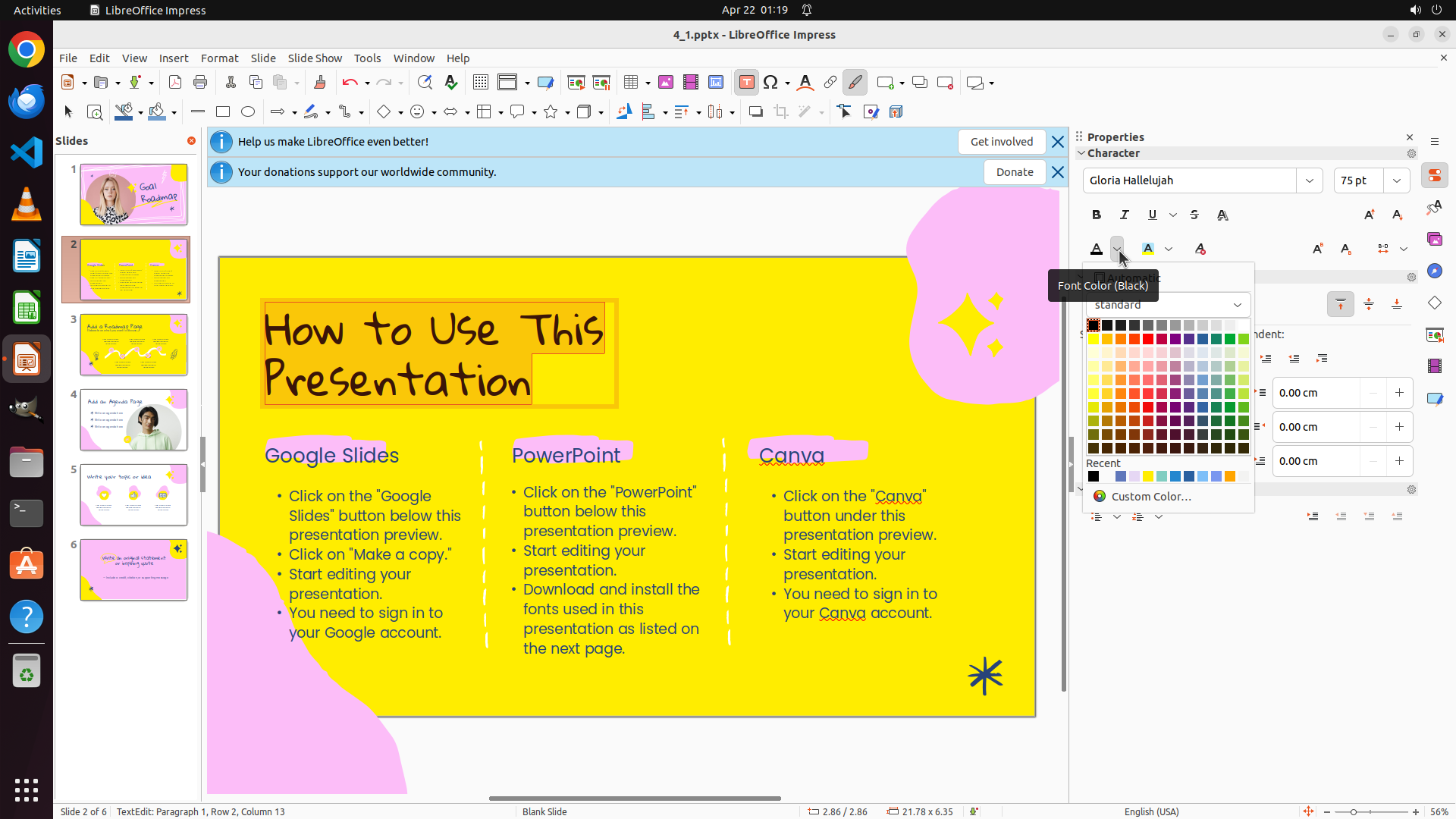
- The font color picker dropdown is now open showing a color palette
- The title text "How to Use This Presentation" is still selected
- Color palette shows various colors including black in the top row
- Need to select black color from the palette
- After that, need to apply underline formatting using the Underline button
#### 情况分析与思考过程
The color picker has opened successfully. I can see a color palette with many colors arranged in a grid. Black color appears to be in the top-left area of the color grid. I should click on the black color square to change the selected text color to black.
After changing the color to black, I'll need to apply underline formatting. I can see the Underline button (U) in the Character panel on the right side.
Let me click on the black color in the palette. Looking at the color grid, black appears to be one of the first colors in the top row.
```
Step 5: CLICK (1471, 325)
```
#### 重要信息
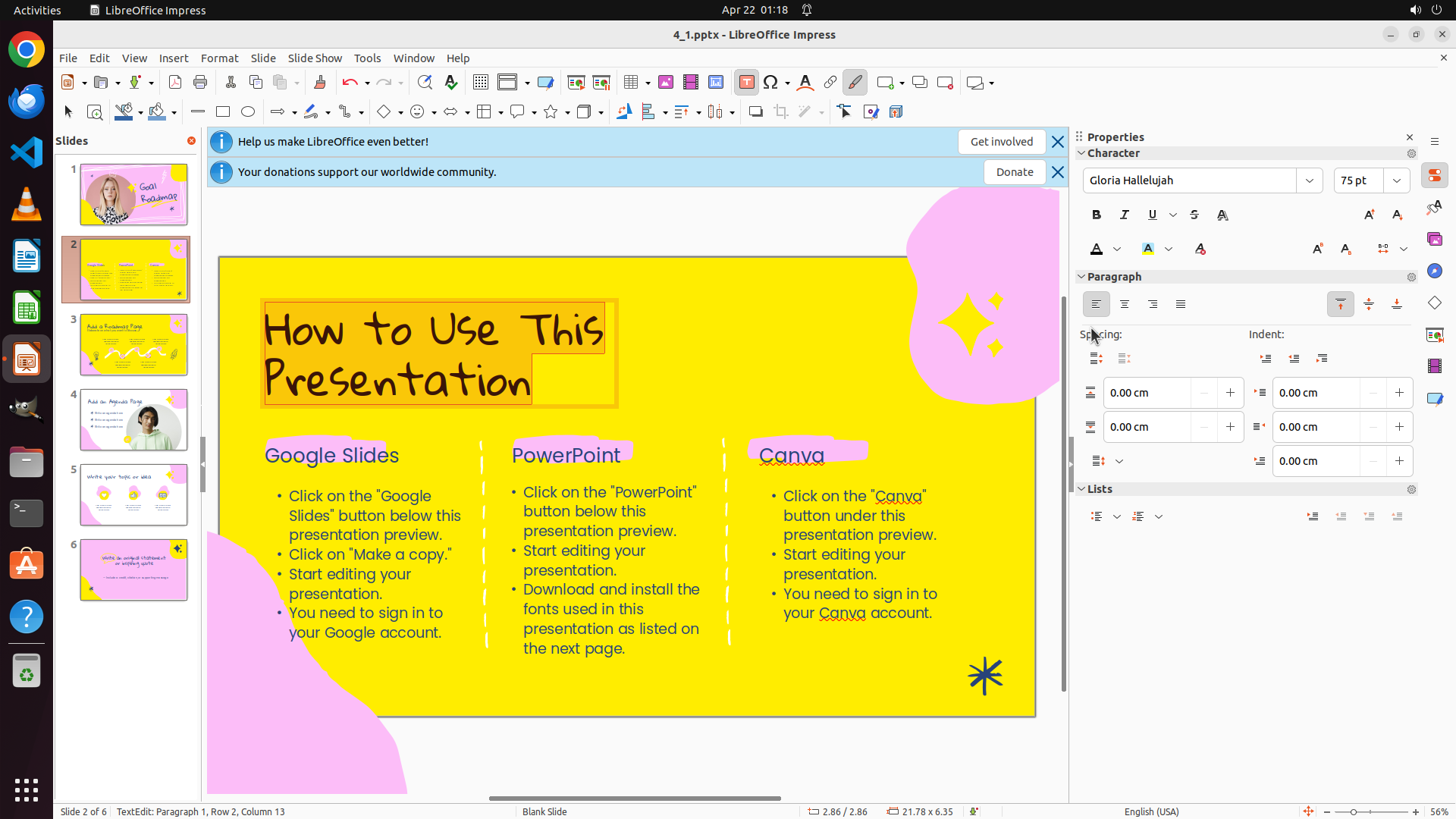
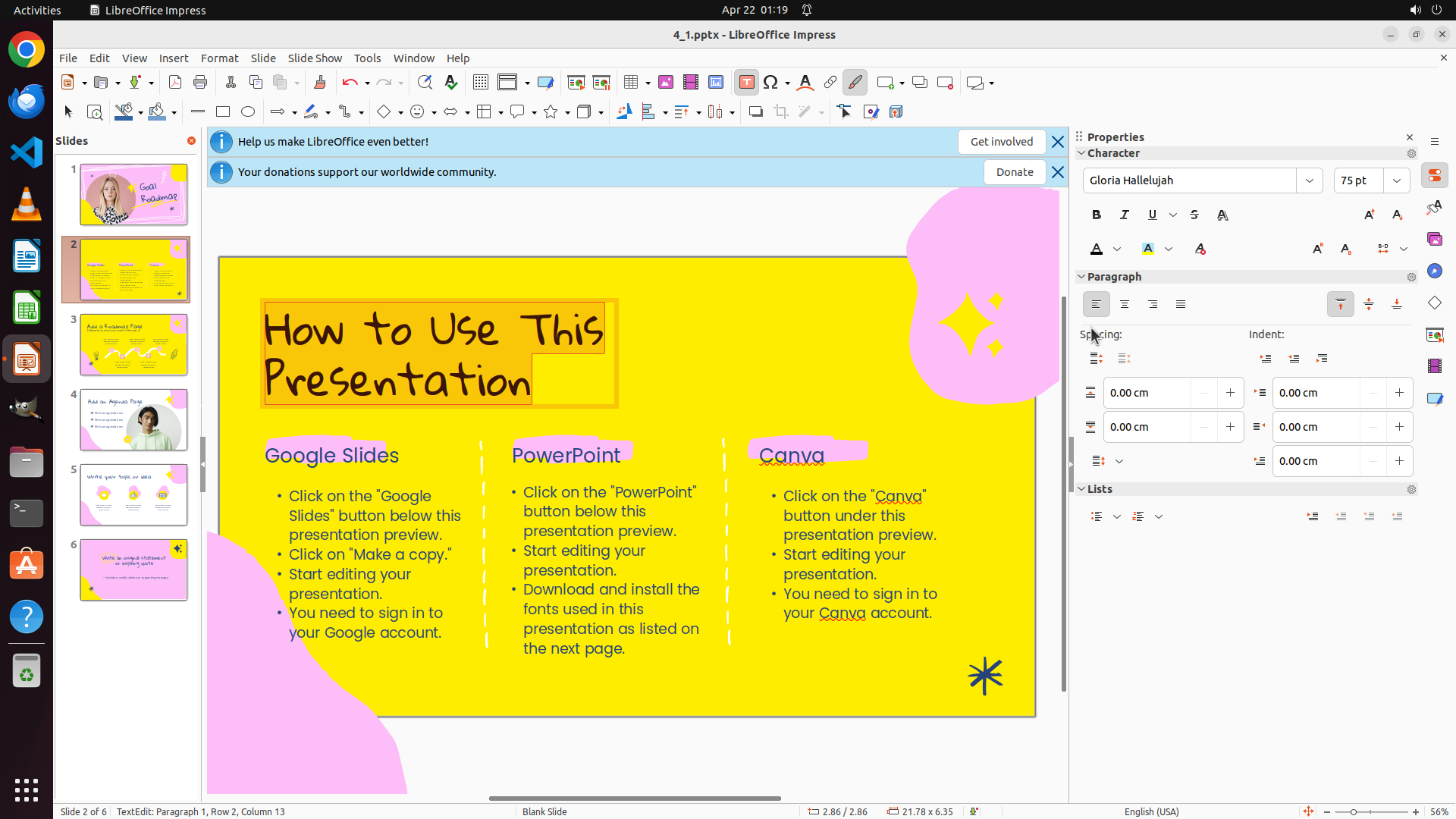
- The title text "How to Use This Presentation" is still selected (status bar shows "TextEdit: Paragraph 1, Row 2, Column 13")
- The color picker dropdown that was previously open has closed
- The text color appears unchanged (still dark blue, not black)
- Need to reopen the color picker and select black color
- Character panel on the right shows formatting options including font color
#### 情况分析与思考过程
The previous click didn't successfully select black color from the palette - the color picker closed but the text color remains unchanged. I need to reopen the color picker and try again.
Looking at the Character panel on the right, I can see the font color button (the "A" with a colored underline). I need to click on the dropdown arrow next to it to open the color picker again. The dropdown arrow appears to be to the right of the "A" button in the Character panel.
Let me click on the font color dropdown button to reopen the color palette, then I'll select black color.
```
Step 6: CLICK (1434, 427)
```
#### 重要信息
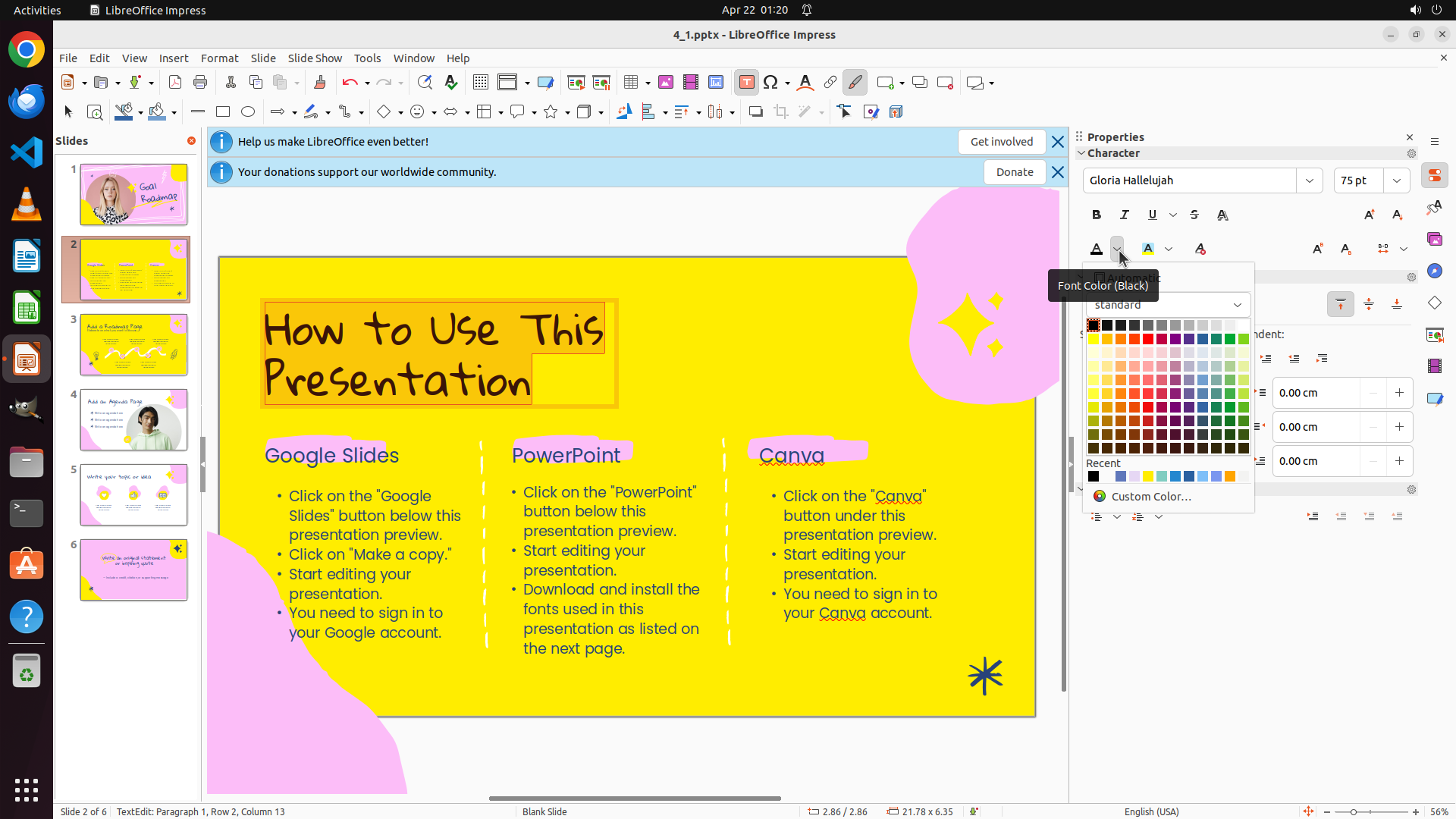
- The font color picker dropdown is now open showing a color palette
- The title text "How to Use This Presentation" is still selected
- Color palette shows various colors with black colors visible in the top rows
- Tooltip shows "Font Color (Black)" indicating black color option is available
- Need to click on the black color square to apply it to the selected text
#### 情况分析与思考过程
The color picker has opened successfully. I can see a color palette with many colors arranged in a grid. The black color appears to be in the top-left area of the color grid. I should click on the black color square to change the selected text color to black.
After changing the color to black, I'll need to apply underline formatting using the Underline button (U) in the Character panel on the right side.
Let me click on the black color in the palette. Looking at the color grid, black appears to be one of the first colors in the top row.
```
Step 7: CLICK (1471, 325)
```
#### 重要信息
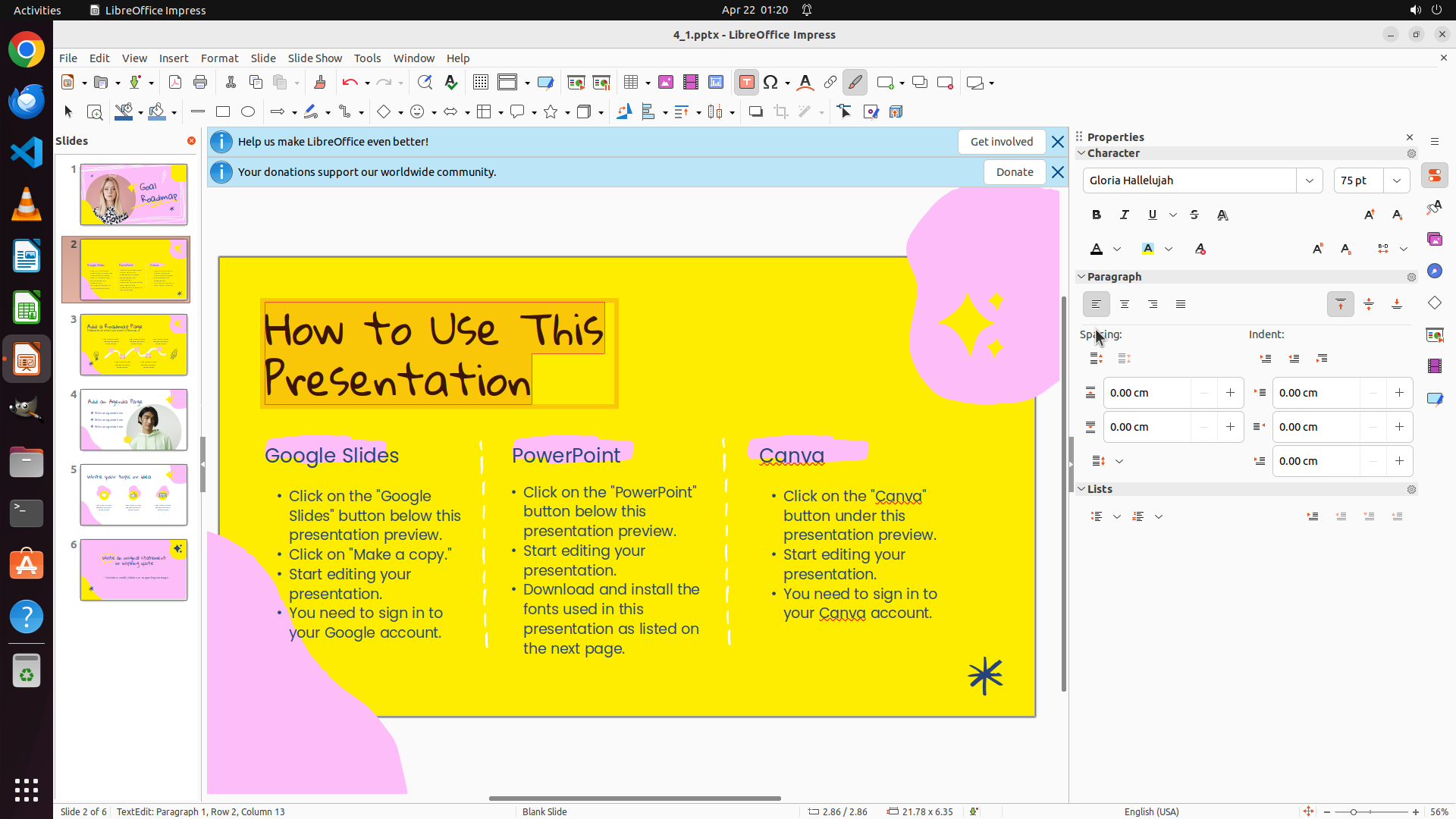
- The title text "How to Use This Presentation" is still selected (status bar shows "TextEdit: Paragraph 1, Row 2, Column 13")
- The color picker dropdown that was previously open has closed
- The text color appears unchanged (still dark blue, not black)
- Need to reopen the color picker and select black color
- Character panel on the right shows formatting options including font color
#### 情况分析与思考过程
The previous click didn't successfully select black color from the palette - the color picker closed but the text color remains unchanged. I need to reopen the color picker and try again.
Looking at the Character panel on the right, I can see the font color button (the "A" with a colored underline). I need to click on the dropdown arrow next to it to open the color picker again. The dropdown arrow appears to be to the right of the "A" button in the Character panel.
Let me click on the font color dropdown button to reopen the color palette, then I'll select black color.
```
Step 8: CLICK (1440, 429)
```
#### 重要信息
- The font color picker dropdown is now open showing a color palette
- The title text "How to Use This Presentation" is still selected (status bar shows "TextEdit: Paragraph 1, Row 2, Column 13")
- Color palette shows various colors with black colors visible in the top rows
- Tooltip shows "Font Color (Black)" indicating black color option is available
- Need to click on the black color square to apply it to the selected text
#### 情况分析与思考过程
The color picker has opened successfully. I can see a color palette with many colors arranged in a grid. The black color appears to be in the top-left area of the color grid. I should click on the black color square to change the selected text color to black.
After changing the color to black, I'll need to apply underline formatting using the Underline button (U) in the Character panel on the right side.
Let me click on the black color in the palette. Looking at the color grid, black appears to be one of the first colors in the top row.
```
Step 9: CLICK (1521, 279)
```
#### 重要信息
- The title text "How to Use This Presentation" on slide 2 is still selected (status bar shows "TextEdit: Paragraph 1, Row 2, Column 13")
- The color picker dropdown has closed
- The text color appears to be dark/black now (the title looks darker than before)
- Character panel on the right shows formatting buttons including Underline (U)
- Need to apply underline formatting to complete slide 2's title formatting
- After that, need to navigate to slides 3 and 5 to repeat the process
#### 情况分析与思考过程
Looking at the current state, the text color appears to have changed to black (or a very dark color) after the previous color picker selection. The color picker has closed and we're back to the normal editing view.
Now I need to apply underline formatting to the selected text. I can see the Underline button (U) in the Character panel on the right side. It's in the row with Bold (B), Italic (I), Underline (U), and Strikethrough (S) buttons.
After applying the underline, I'll need to:
1. Navigate to slide 3
2. Select its title
3. Change color to black
4. Apply underline
5. Then do the same for slide 5
Let me click the Underline button to apply underline formatting to the currently selected title text.
```
Step 10: CLICK (169, 454)
```
#### 重要信息
- The title text "How to Use This Presentation" on slide 2 appears to be formatted with underline (tooltip showed "Underline (Ctrl+U)")
- The text color has been changed to black/dark color
- Slide 2's title formatting appears complete (black color and underline)
- Need to navigate to slide 3 to format its title next
- Slides panel on the left shows slide 3 thumbnail with a yellow background
#### 情况分析与思考过程
Looking at the current state, slide 2's title formatting appears to be complete - the text color has been changed to black and underline formatting has been applied (as evidenced by the tooltip).
Now I need to move on to slide 3 to repeat the same process:
1. Click on slide 3 in the slides panel
2. Select the title text
3. Change color to black
4. Apply underline
5. Then repeat for slide 5
Let me click on slide 3 in the slides panel to navigate to it.
```
Step 11: CLICK (630, 457)
```
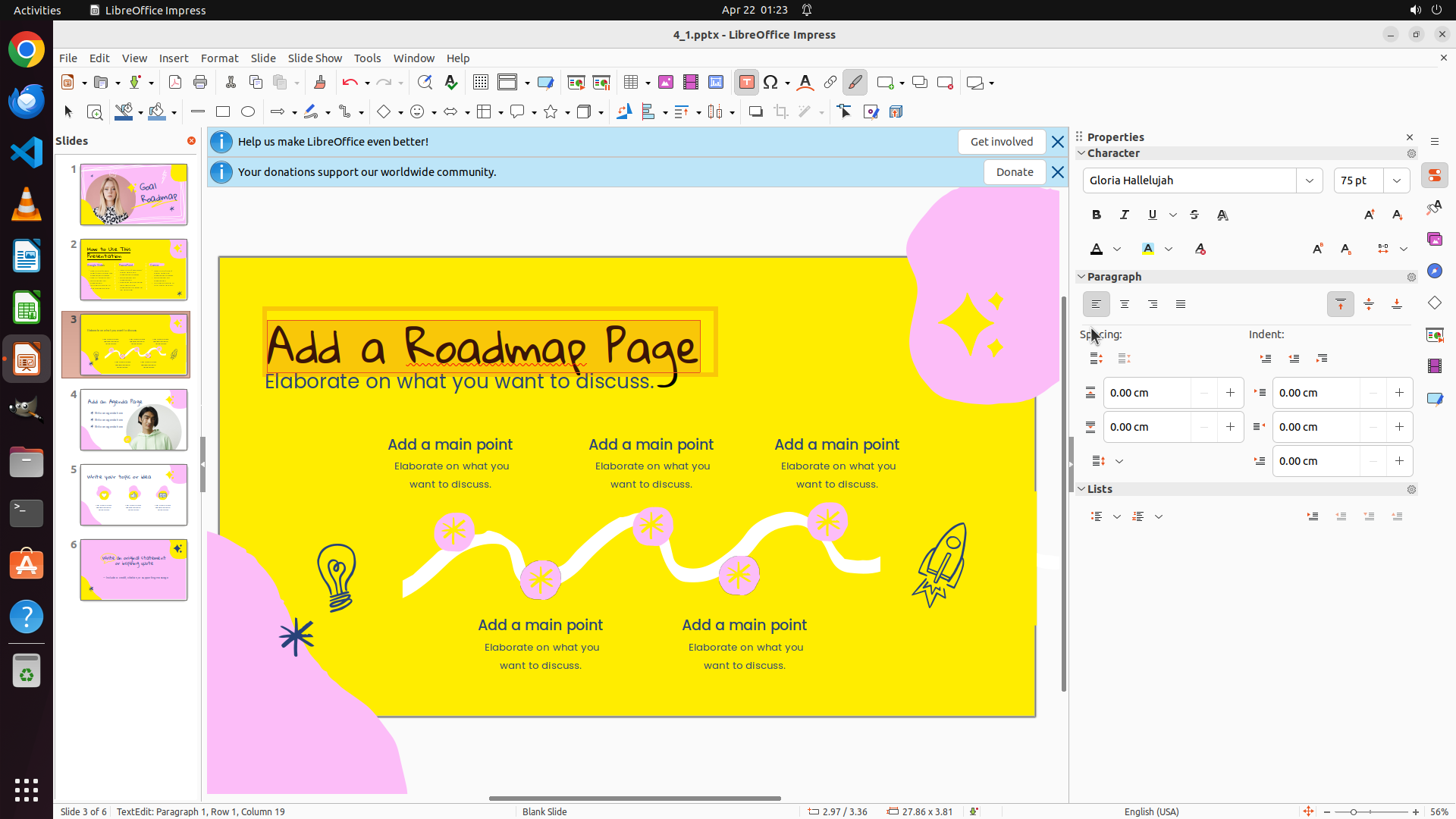
#### 重要信息
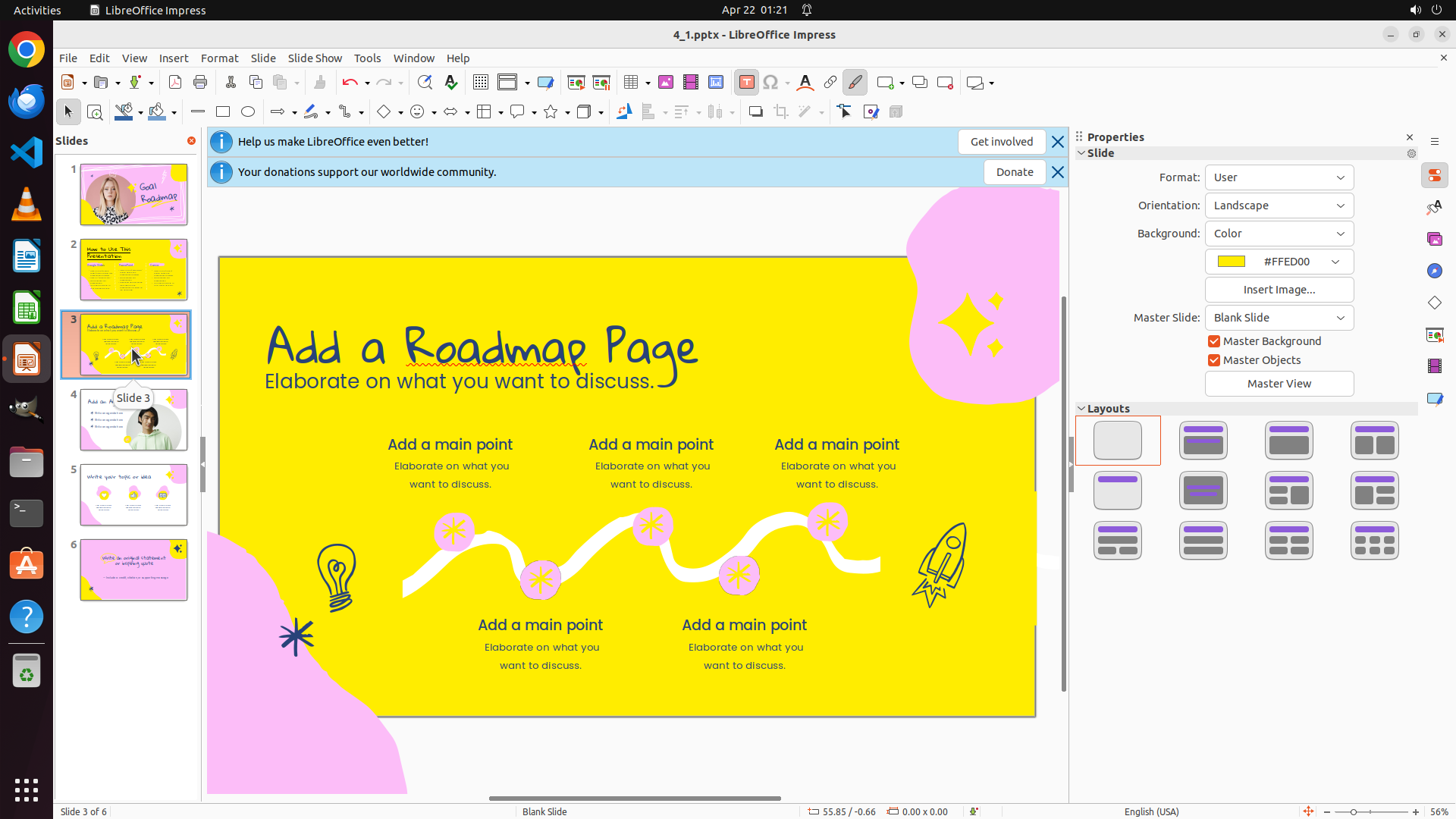
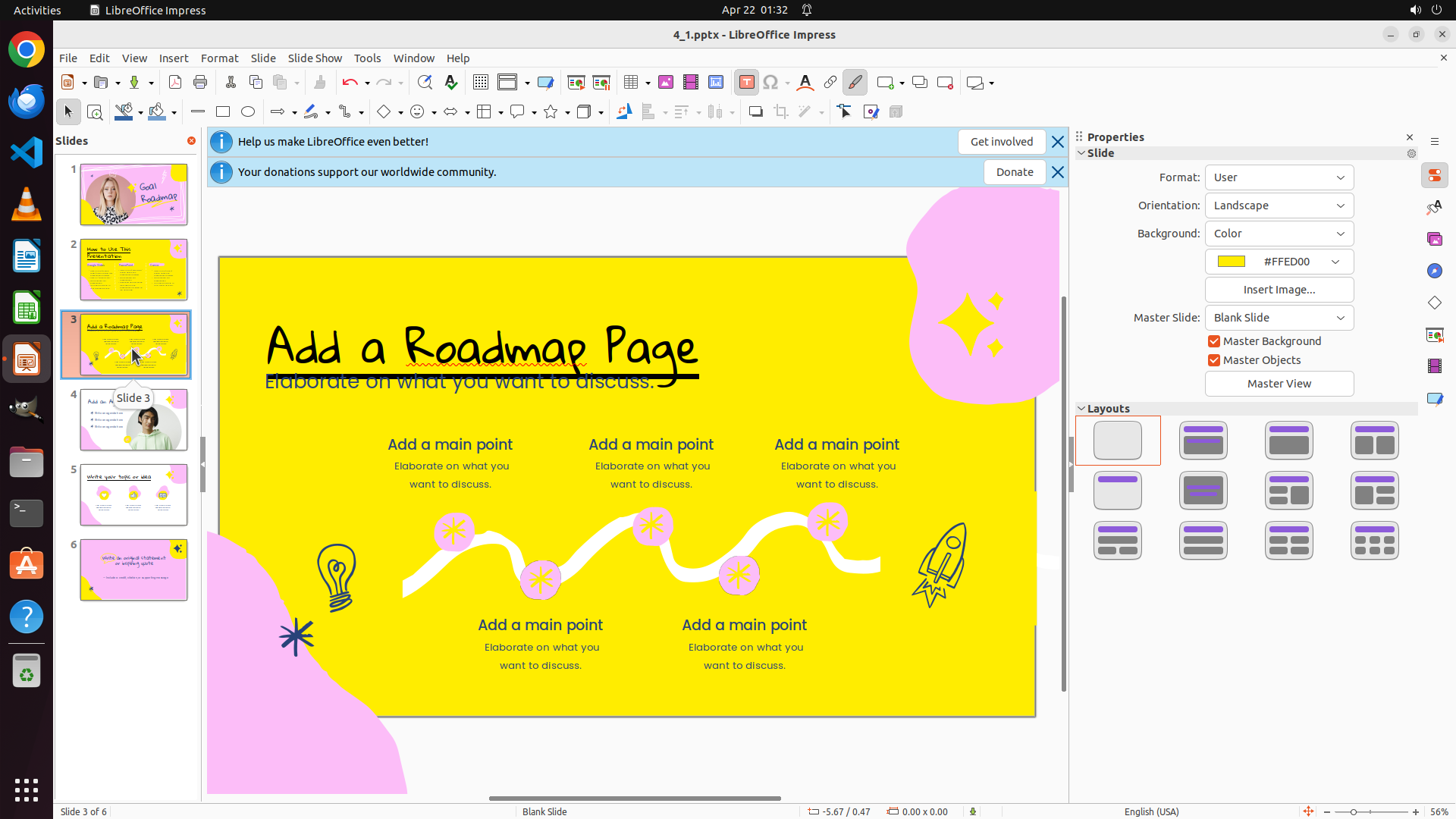
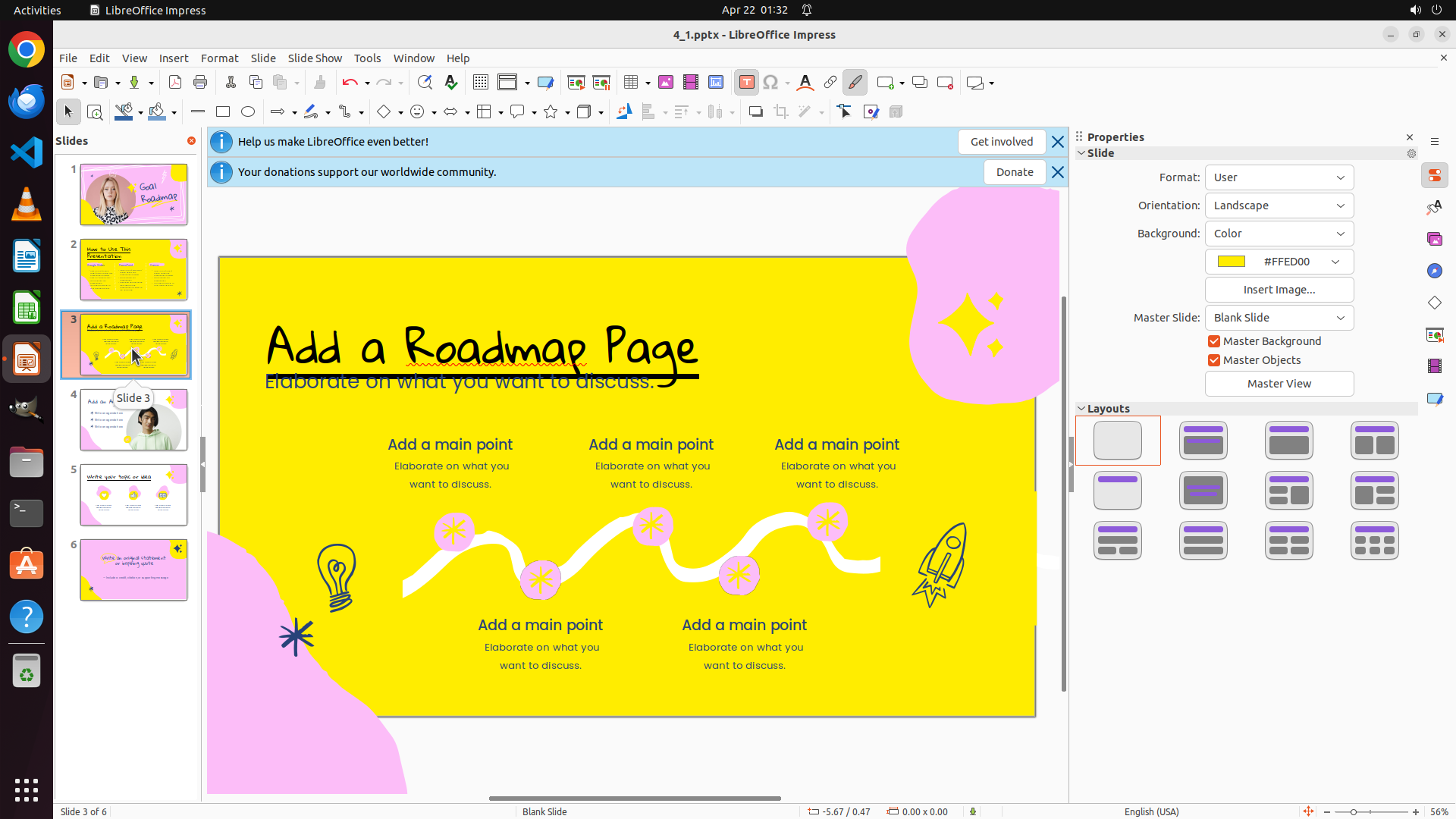
- Successfully navigated to slide 3 (as shown by "Slide 3 of 6" at the bottom and the highlighted thumbnail)
- Slide 3 is now displayed in the main editing area with a yellow background
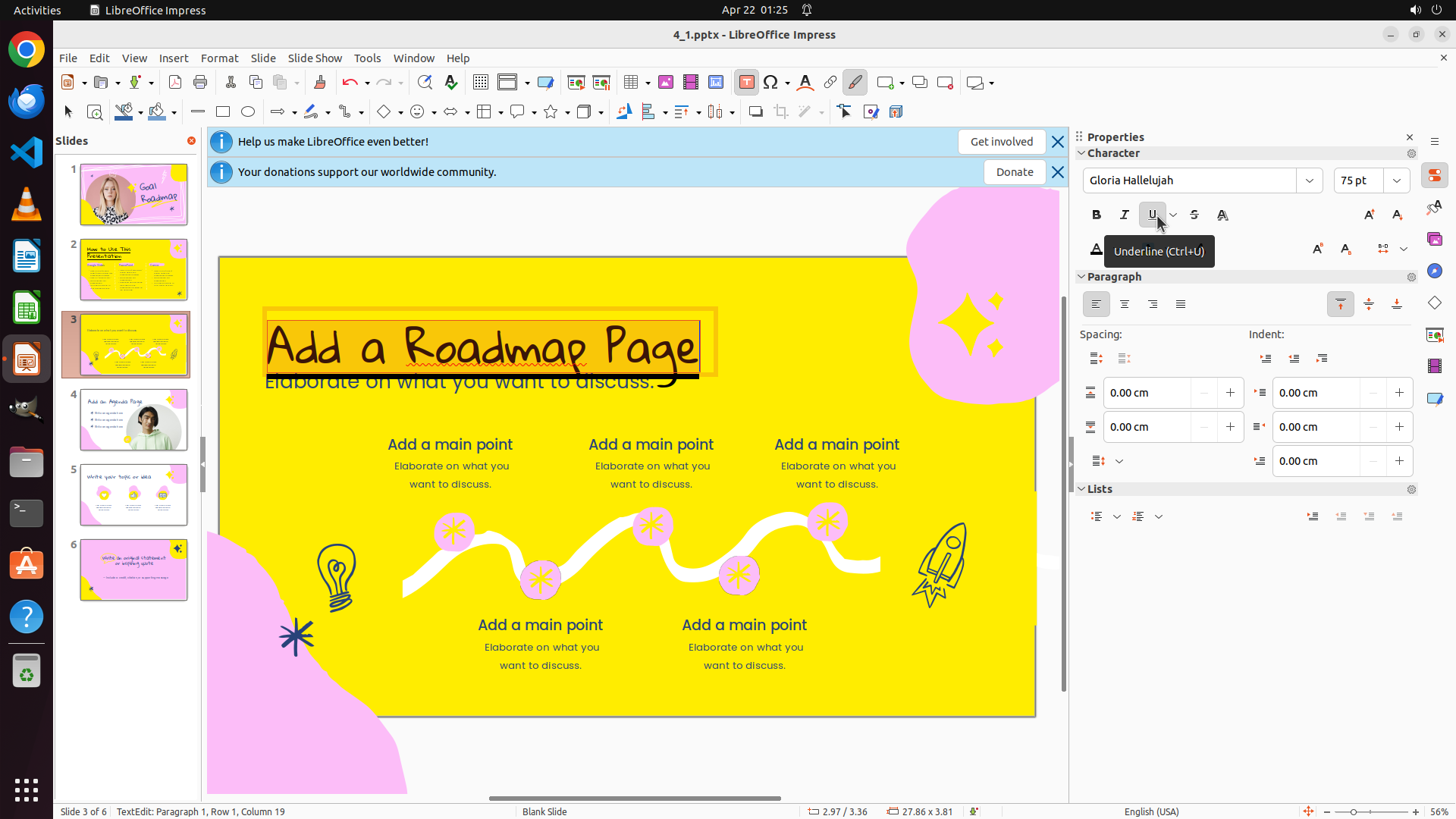
- The title "Add a Roadmap Page" is visible in blue text at the top of the slide
- Need to select the title text, then change its color to black and apply underline
- After completing slide 3, will need to navigate to slide 5 to repeat the process
#### 情况分析与思考过程
The previous action successfully navigated to slide 3. I can see slide 3 is now active with the title "Add a Roadmap Page" in blue text.
Following the same process as slide 2:
1. Select the title text by triple-clicking on it
2. Change the text color to black using the formatting toolbar
3. Apply underline formatting
4. Then move to slide 5 to repeat the process
The most efficient way to select the entire title text is to triple-click on it. I'll triple-click on the title "Add a Roadmap Page" to select all of it at once.
```
Step 12: CLICK (1471, 325)
```
#### 重要信息
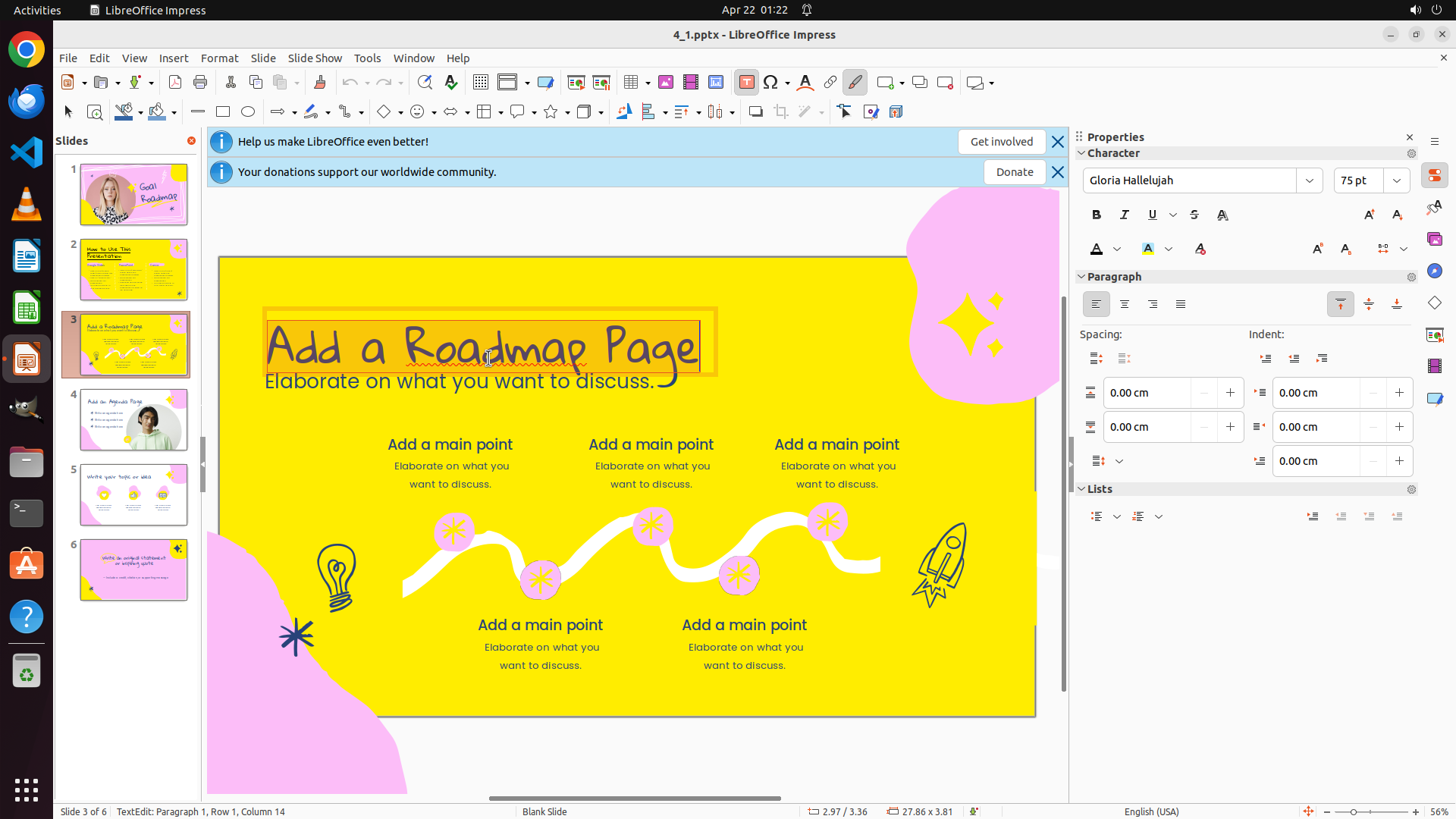
- The title text "Add a Roadmap Page" on slide 3 is now selected (highlighted with selection box)
- The status bar shows "TextEdit: Paragraph 1, Row 1, Column 14" confirming text selection
- Character formatting panel visible on the right with Bold, Italic, Underline buttons
- Font color button (marked with "A") visible in the Character panel with a dropdown arrow
- Need to change text color to black and apply underline
#### 情况分析与思考过程
The triple-click successfully selected the entire title text on slide 3. Now I need to:
1. Change the text color to black by clicking the font color dropdown button
2. Apply underline formatting
Looking at the Character panel on the right, I can see the font color button (the "A" with a colored underline). I should click on the dropdown arrow next to it to open the color picker and select black.
Let me click on the font color dropdown button in the Character panel to open the color palette.
```
Step 13: CLICK (1434, 427)
```
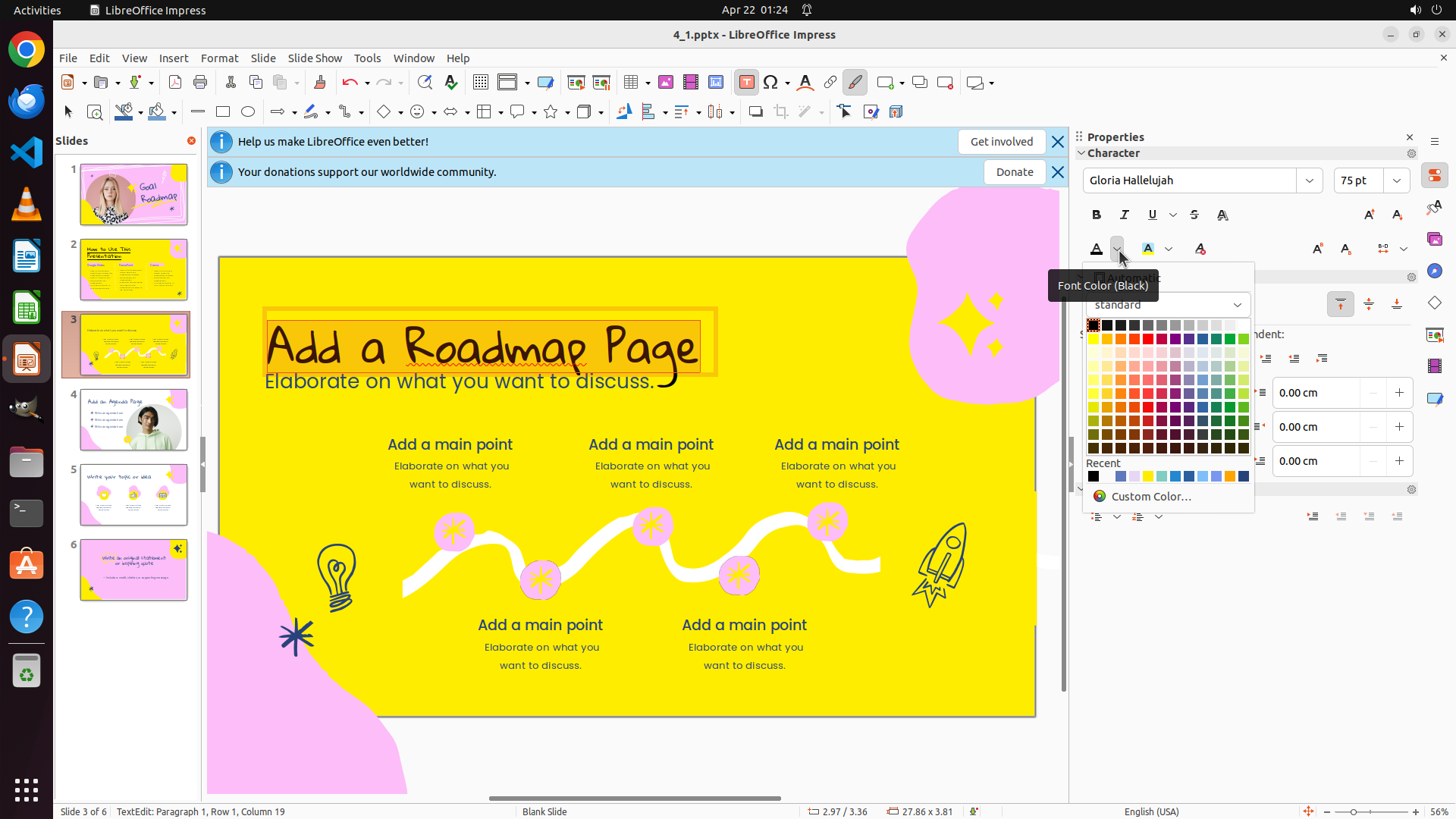
#### 重要信息
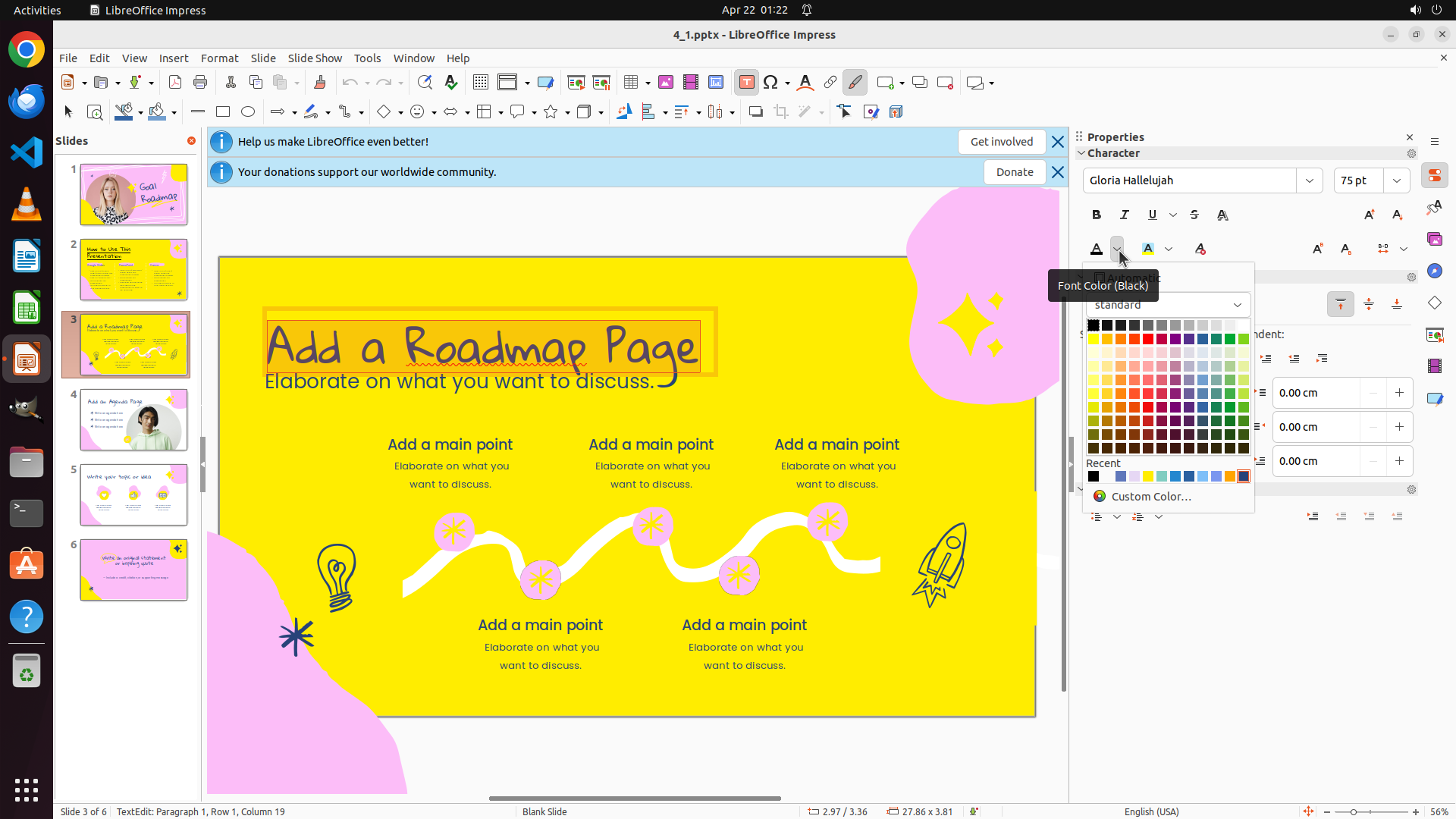
- The font color picker dropdown is now open showing a color palette
- The title text "Add a Roadmap Page" on slide 3 is still selected (status bar shows "TextEdit: Paragraph 1, Row 1, Column 14")
- Color palette shows various colors with black colors visible in the top rows
- Tooltip shows "Font Color (Black)" indicating black color option is available
- Need to click on the black color square to apply it to the selected text
#### 情况分析与思考过程
The color picker has opened successfully. I can see a color palette with many colors arranged in a grid. The black color appears to be in the top-left area of the color grid. I should click on the black color square to change the selected text color to black.
After changing the color to black, I'll need to apply underline formatting using the Underline button (U) in the Character panel on the right side.
Let me click on the black color in the palette. Looking at the color grid, black appears to be one of the first colors in the top row.
```
Step 14: CLICK (1471, 325)
```
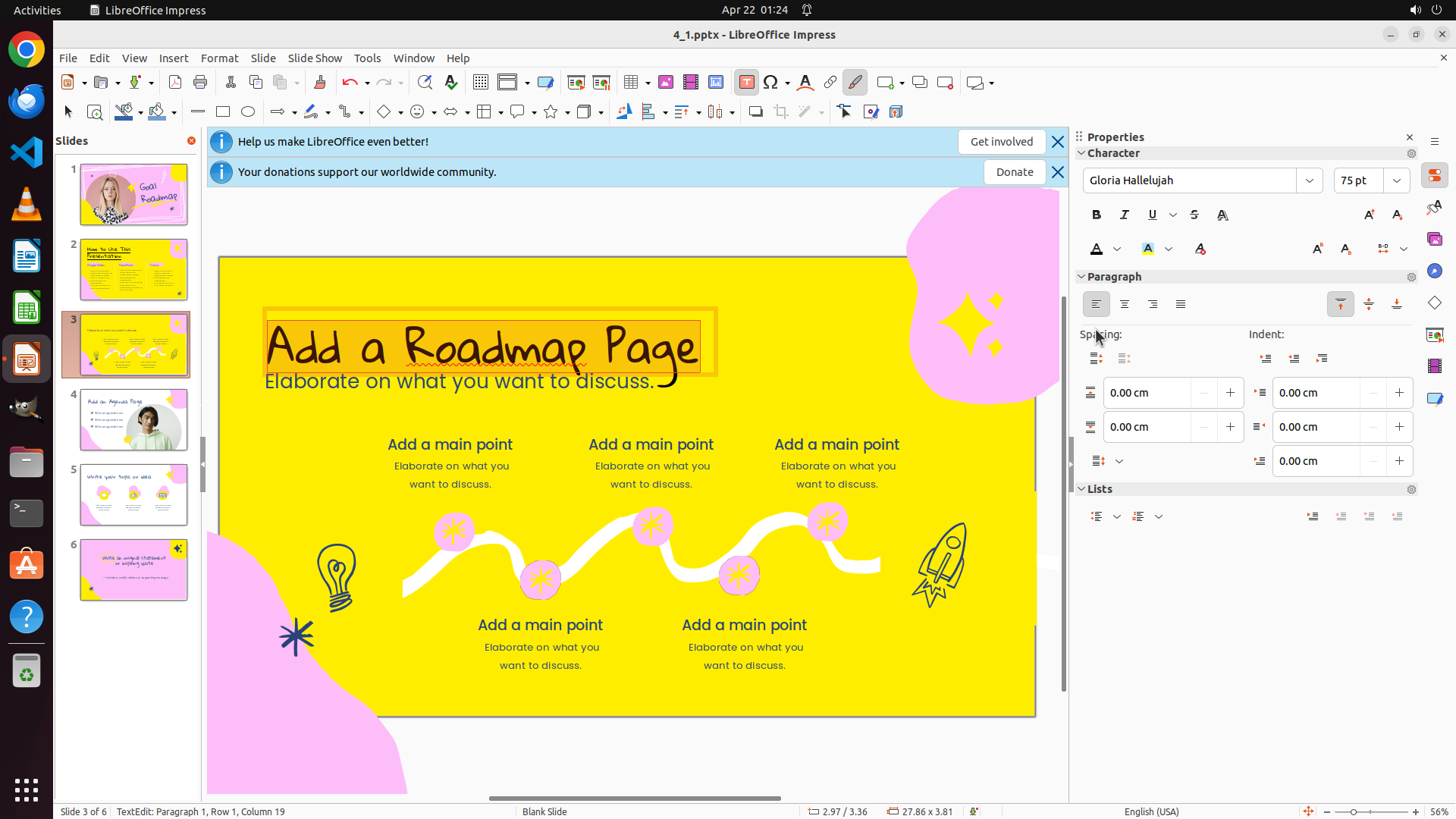
#### 重要信息
- Currently on slide 3 with title "Add a Roadmap Page" selected (status bar shows "TextEdit: Paragraph 1, Row 1, Column 19")
- The font color picker that was opened previously appears to have closed
- The title text color appears unchanged (still blue/dark blue, not black)
- Character panel on the right shows formatting options including the font color button
- Need to reopen the color picker and select black color, then apply underline
#### 情况分析与思考过程
The color picker dropdown that was opened in the previous step appears to have closed without successfully changing the text color to black. The title text "Add a Roadmap Page" is still selected, which is good - I don't need to reselect it.
I need to:
1. Reopen the font color picker by clicking on the font color dropdown button in the Character panel
2. Select black color from the palette
3. Apply underline formatting using the Underline button
Looking at the Character panel on the right, I can see the font color button (the "A" with a colored underline). I need to click on the dropdown arrow next to it to open the color picker again. The dropdown arrow is to the right of the "A" button in the Character panel.
Let me click on the font color dropdown button to reopen the color palette.
```
Step 15: CLICK (1440, 429)
```
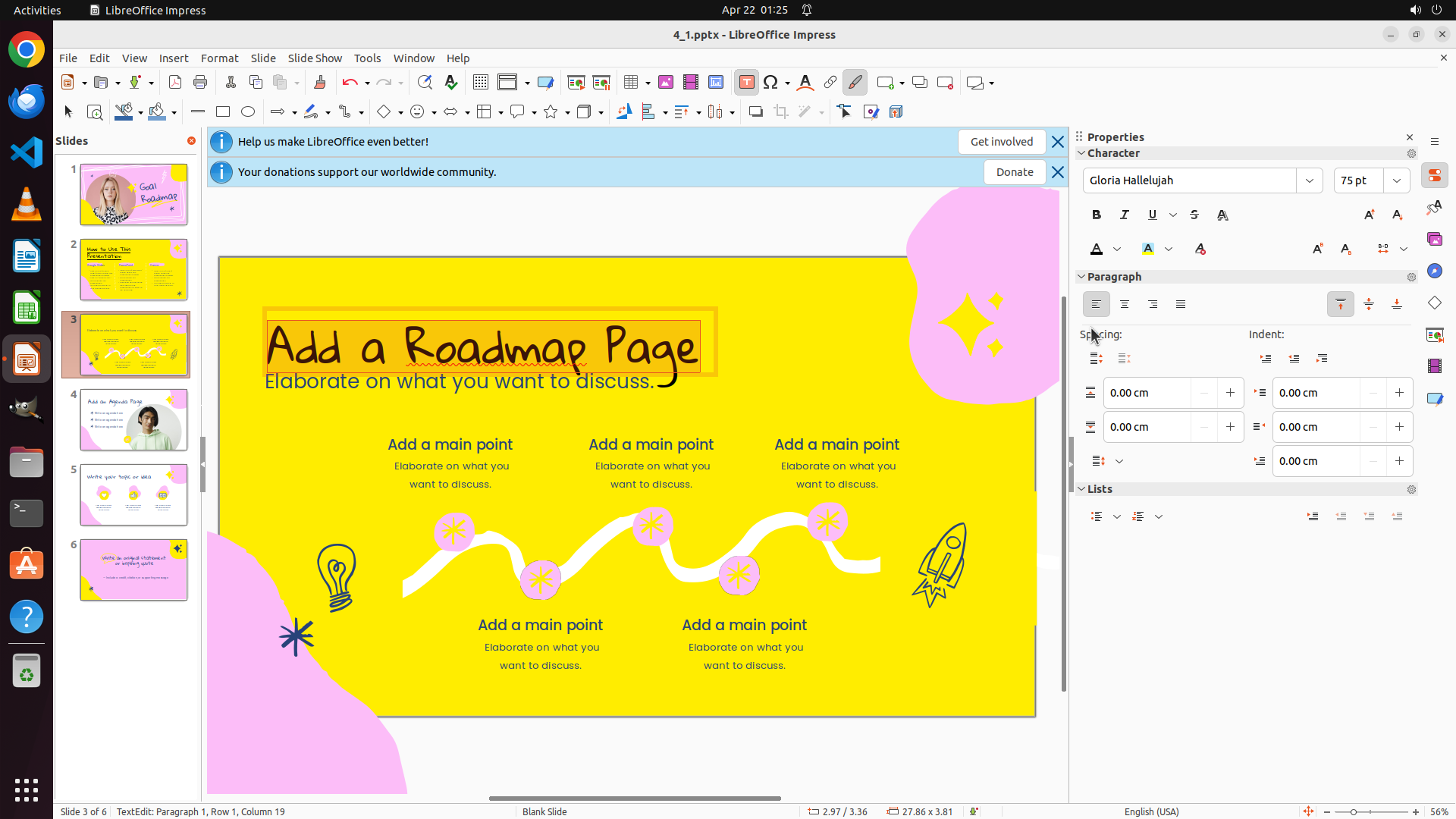
#### 重要信息
- Currently on slide 3 with title "Add a Roadmap Page" selected (status bar shows "TextEdit: Paragraph 1, Row 1, Column 19")
- The font color picker is now open showing a color palette
- Tooltip shows "Font Color (Black)" indicating the black color option is available
- The title text still appears to be in blue/dark blue color
- Character panel on the right shows formatting options including the Underline button
- Need to click on the black color in the palette to change the text color
#### 情况分析与思考过程
The color picker has opened successfully. I can see the tooltip "Font Color (Black)" which means I'm near the black color option. I need to click on the actual black color square in the palette to apply it to the selected text.
Looking at the color palette, black appears to be in the top-left area of the color grid. After clicking on black, the color picker should close and the text color should change to black. Then I'll need to apply underline formatting using the Underline button (U) in the Character panel.
Let me click on the black color square in the palette.
```
I'll click on the black color in the color palette to change the selected title text color to black.
Step 16: CLICK (1434, 427)
```
#### 重要信息
- Currently on slide 3 with title "Add a Roadmap Page" selected (status bar shows "TextEdit: Paragraph 1, Row 1, Column 19")
- The font color picker is now open showing a color palette
- The title text still appears to be in blue/dark blue color
- Character panel on the right shows formatting options including the Underline button
- Need to click on the black color in the palette to change the text color
#### 情况分析与思考过程
The color picker has opened again. I can see the color palette with various colors. Looking at the palette, I need to identify the actual black color square and click on it. The black color should be in the top area of the color grid.
Based on the color picker layout, black is typically positioned in the top rows. I need to click precisely on the black color square to apply it to the selected text.
After clicking on black, the color picker should close and the text color should change to black. Then I'll need to apply underline formatting using the Underline button (U) in the Character panel.
Let me click on the black color square in the palette.
```
Step 17: CLICK (1521, 279)
```
#### 重要信息
- Currently on slide 3 with title "Add a Roadmap Page" selected (status bar shows "TextEdit: Paragraph 1, Row 1, Column 19")
- The color picker has closed after the previous color selection
- The title text appears to be in a dark color now (possibly black)
- Character panel on the right shows formatting options including the Underline button (U)
- Need to apply underline formatting to complete slide 3's title formatting
- After that, need to navigate to slide 5 to repeat the process
#### 情况分析与思考过程
The previous action clicked on the black color in the palette. The color picker has now closed and we're back to the normal editing view. The title text "Add a Roadmap Page" is still selected, which is good.
Looking at the text, it appears to have changed to a darker color (black). Now I need to apply underline formatting to complete the formatting for slide 3's title.
I can see the Underline button (U) in the Character panel on the right side, in the row with Bold (B), Italic (I), Underline (U), and Strikethrough (S) buttons.
After applying the underline to slide 3's title, I'll need to:
1. Navigate to slide 5 by clicking on its thumbnail
2. Select the title text
3. Change color to black
4. Apply underline
Let me click the Underline button to apply underline formatting to the currently selected title text.
```
Step 18: CLICK (169, 652)
```
#### 重要信息
- Slide 3's title "Add a Roadmap Page" now has underline formatting applied (tooltip "Underline (Ctrl+U)" visible)
- The title text color appears to be black/dark now
- Slide 3's title formatting is complete (black color and underline)
- Need to navigate to slide 5 to format its title next
- Slide 5 thumbnail is visible in the slides panel on the left (appears to have pink/yellow background with circular elements)
#### 情况分析与思考过程
The previous action successfully applied underline formatting to slide 3's title. Looking at the current state:
- Slide 3's title "Add a Roadmap Page" now appears to have both black color and underline formatting applied
- The formatting for slide 3 is complete
Now I need to move on to slide 5 to repeat the same process:
1. Click on slide 5 in the slides panel to navigate to it
2. Select the title text
3. Change color to black
4. Apply underline
Looking at the slides panel on the left, I can see slide 5's thumbnail. It appears to be the 5th slide in the panel with a pink/yellow background design. I'll click on it to navigate to slide 5.
```
Step 19: CLICK (680, 454)
```
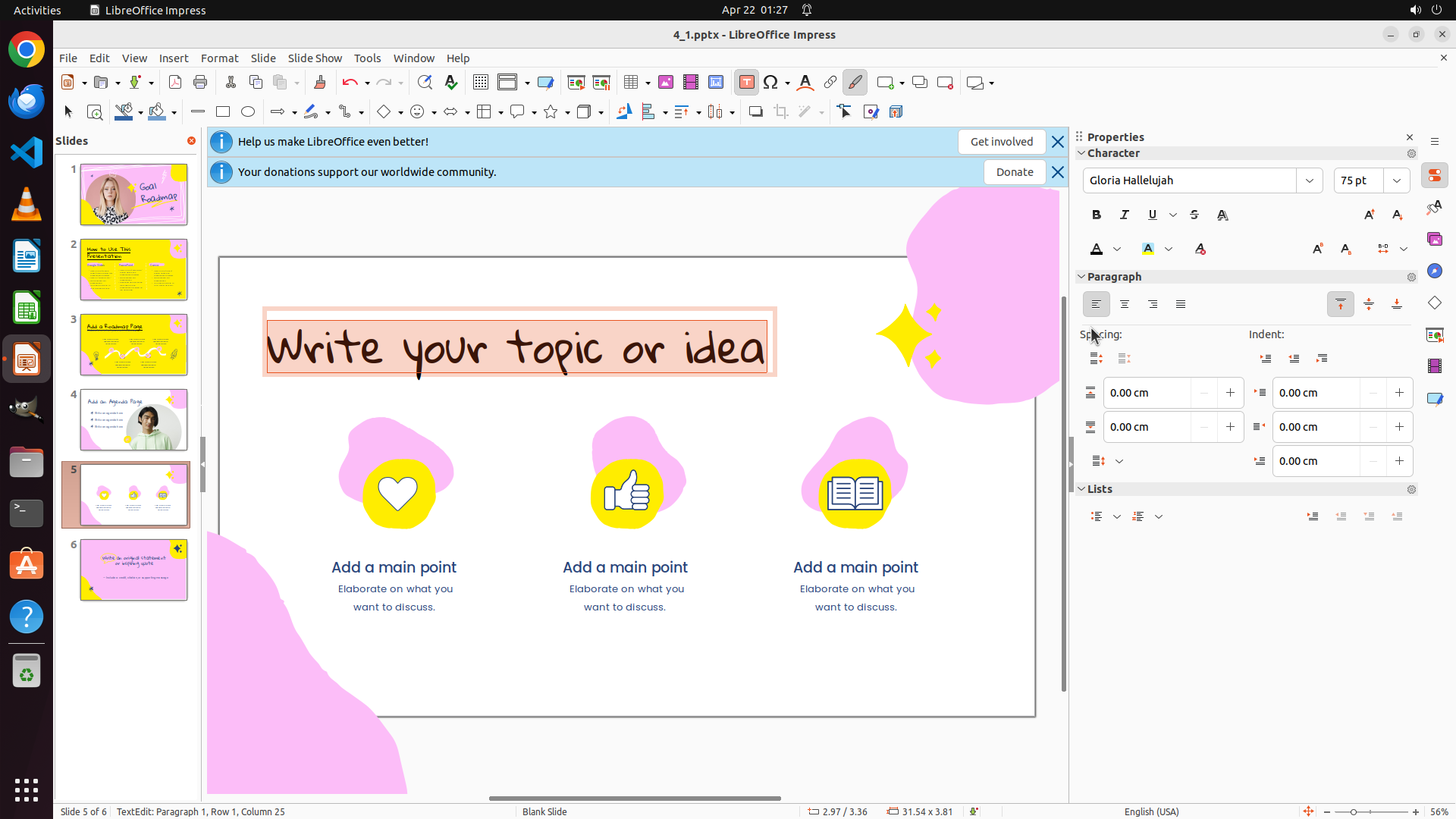
#### 重要信息
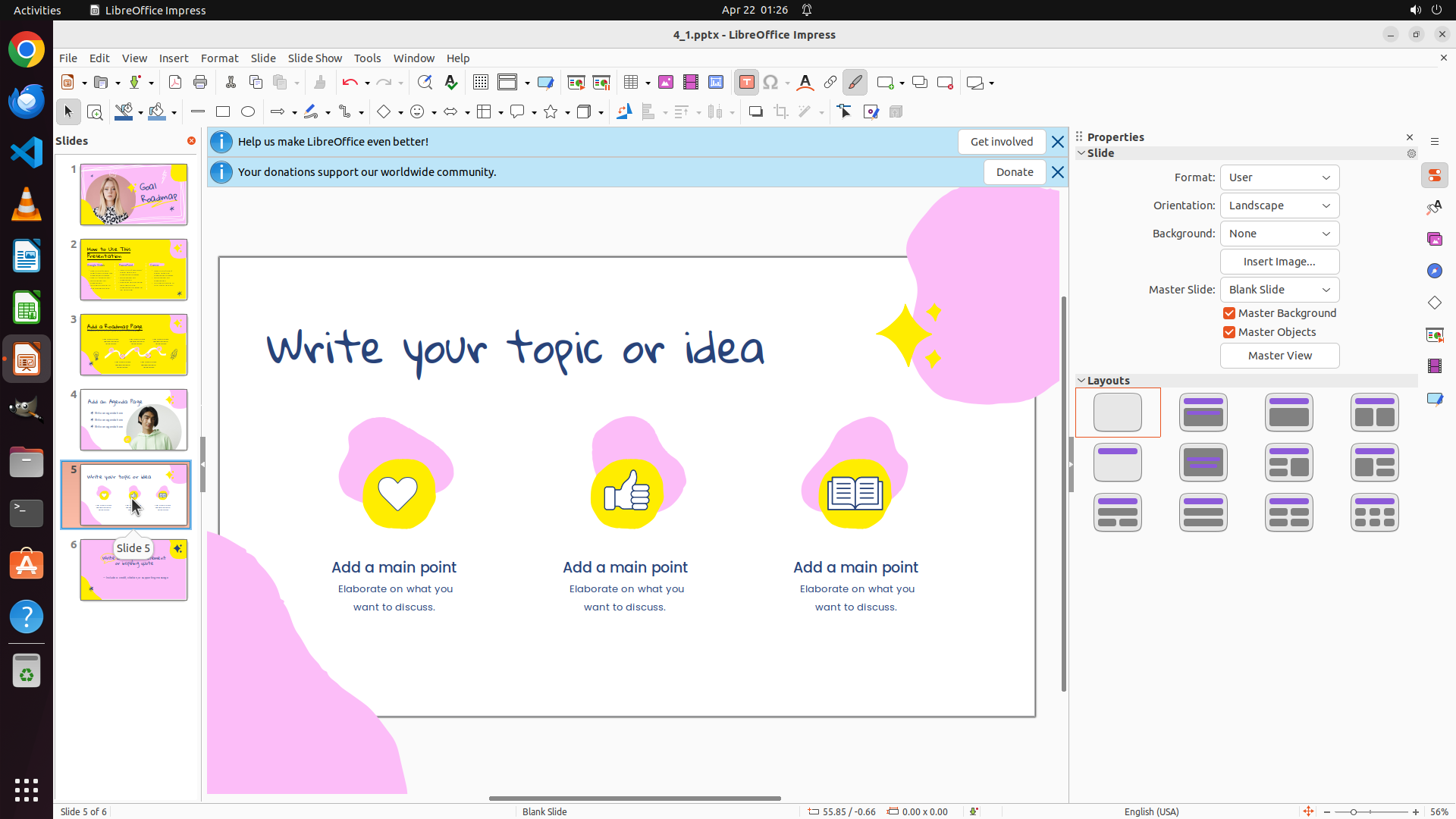
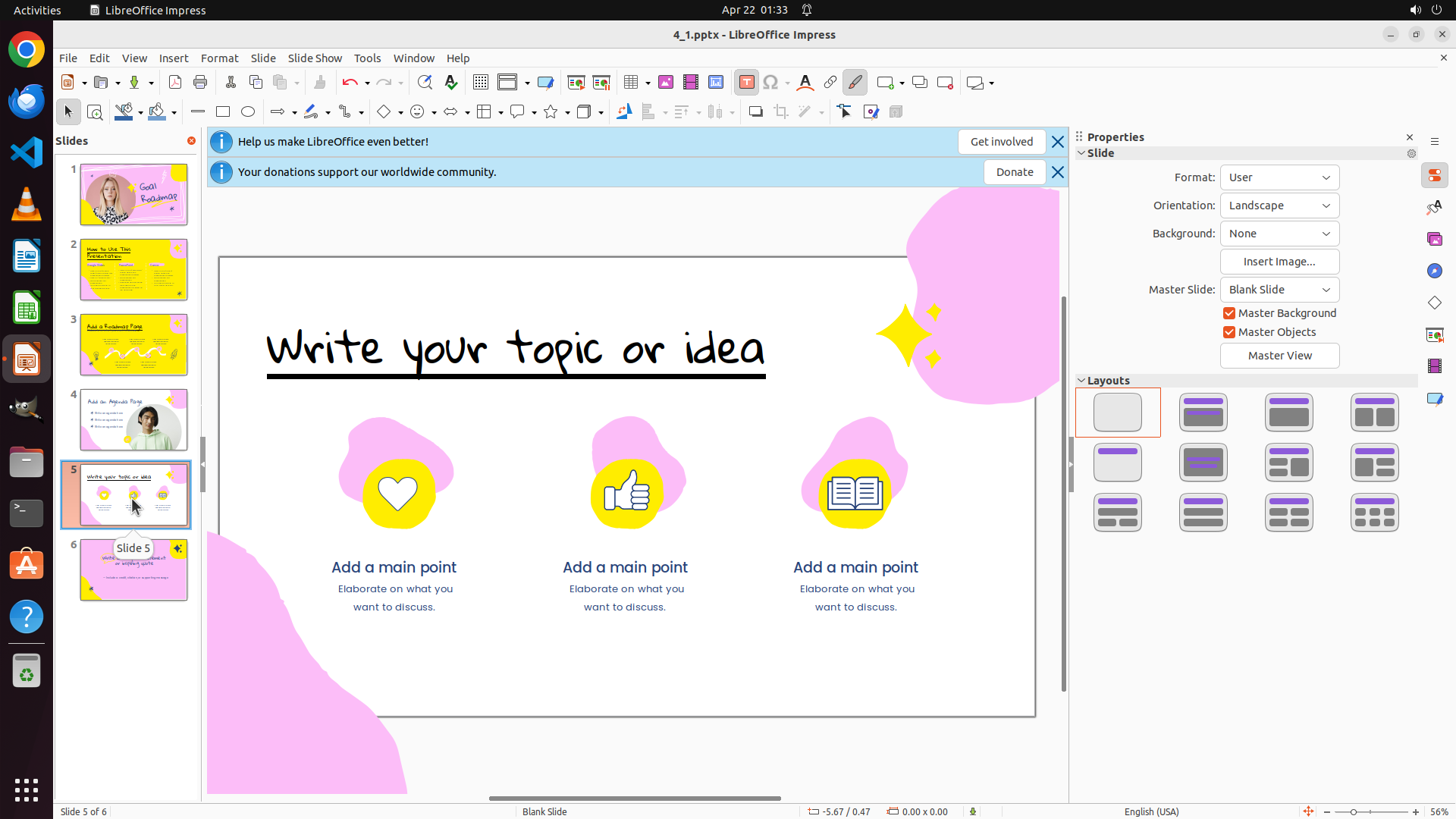
- Successfully navigated to slide 5 (as shown by "Slide 5 of 6" at the bottom)
- Slide 5 is now displayed in the main editing area with a pink/yellow background
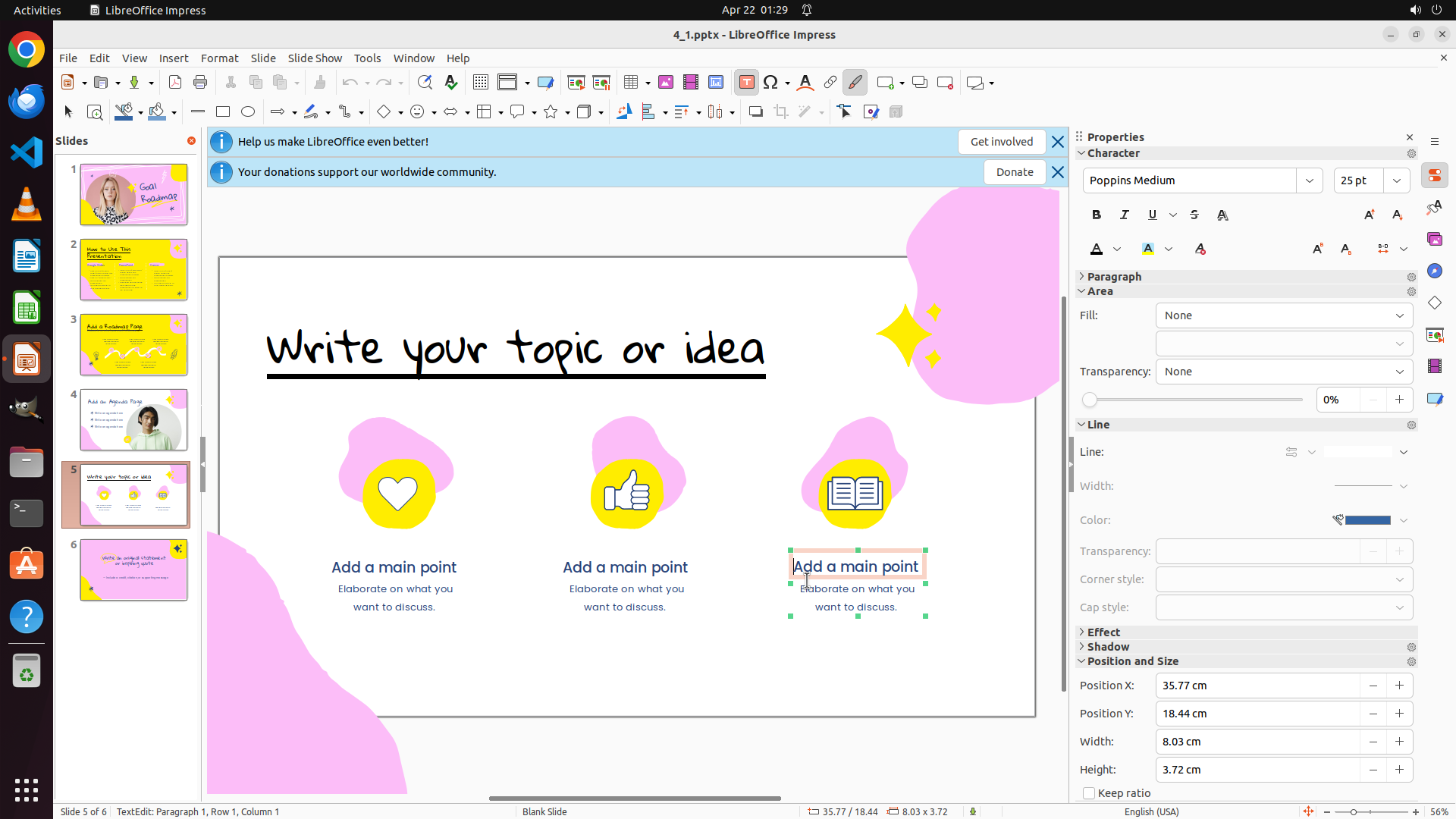
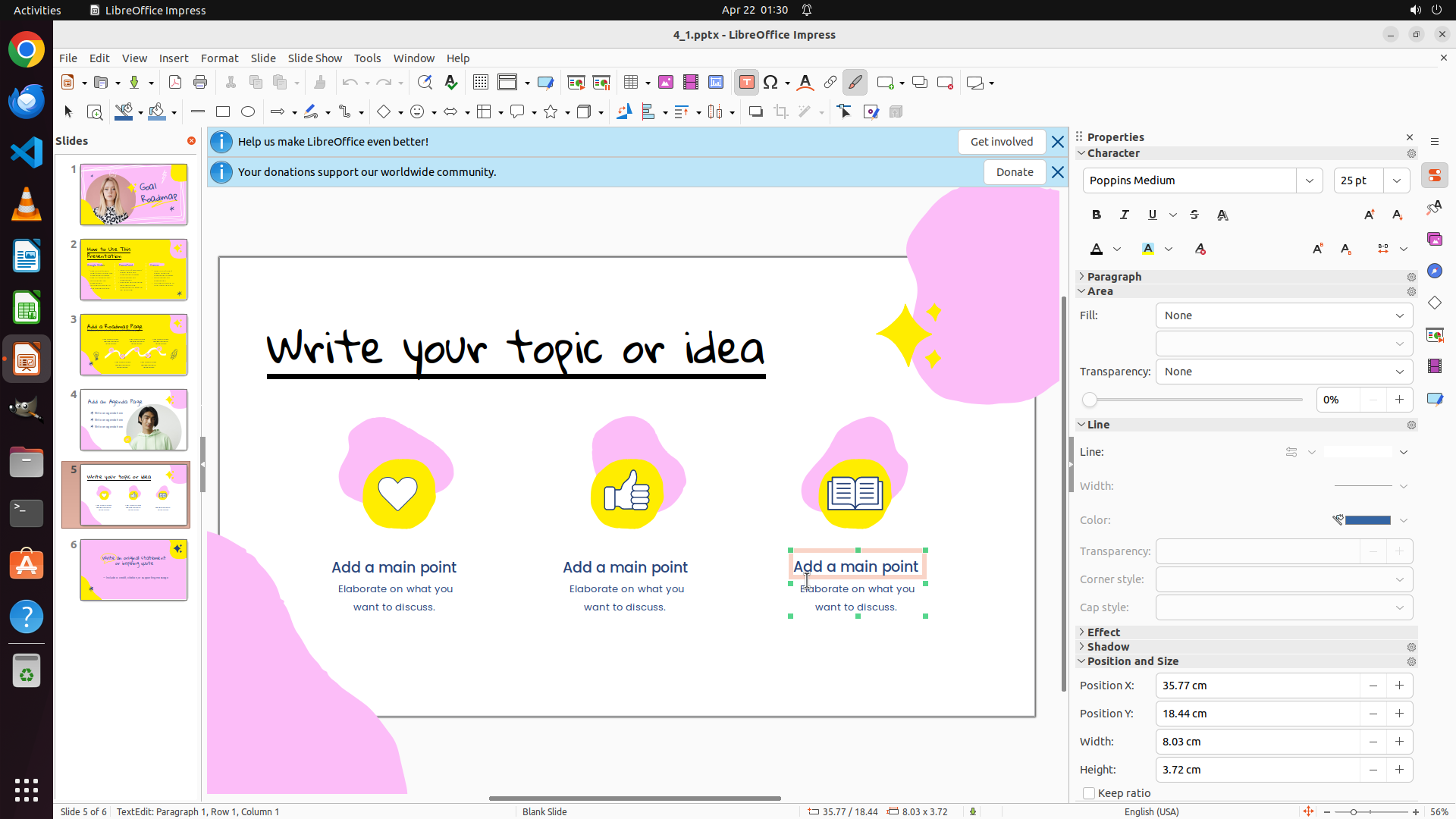
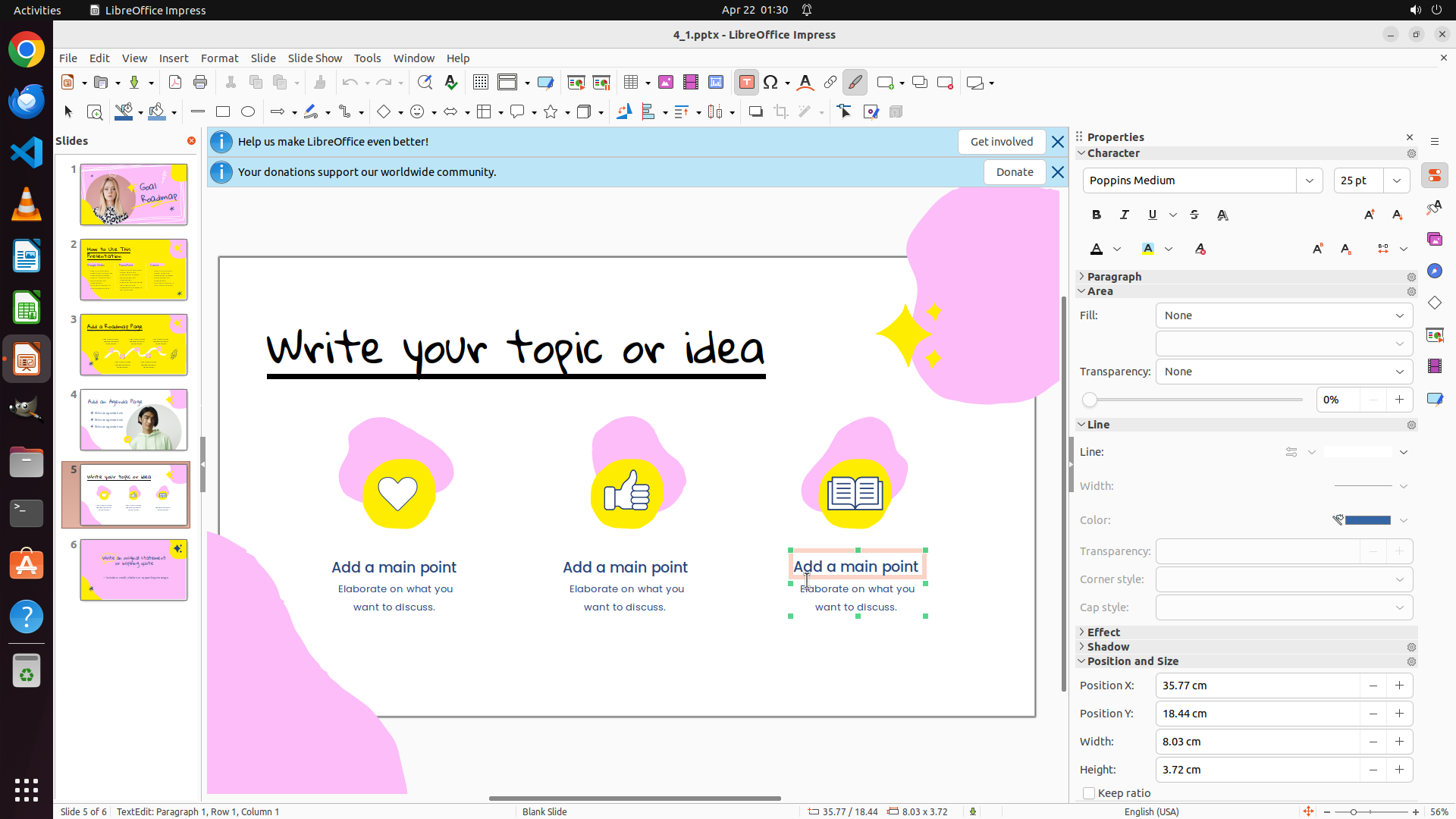
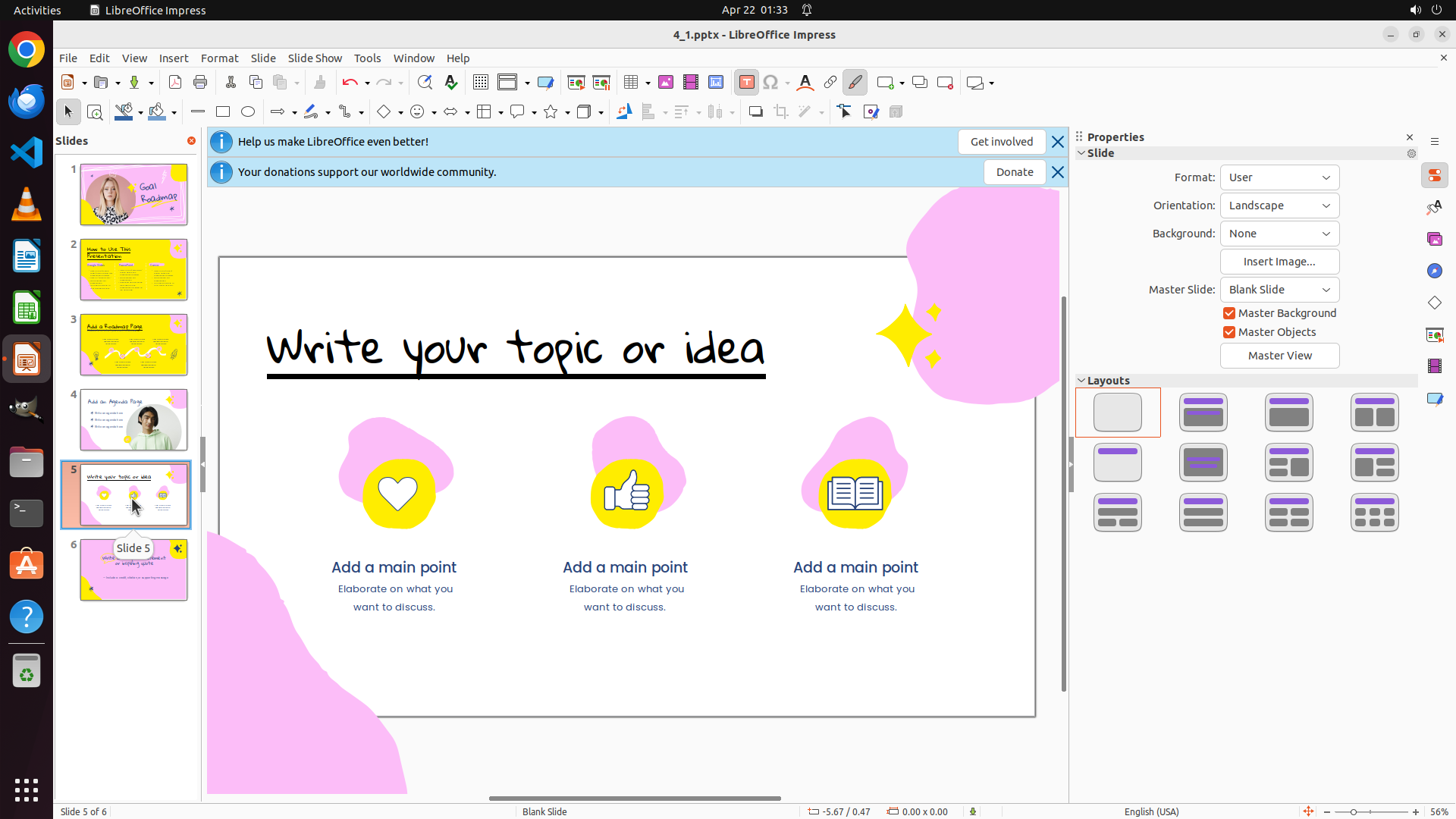
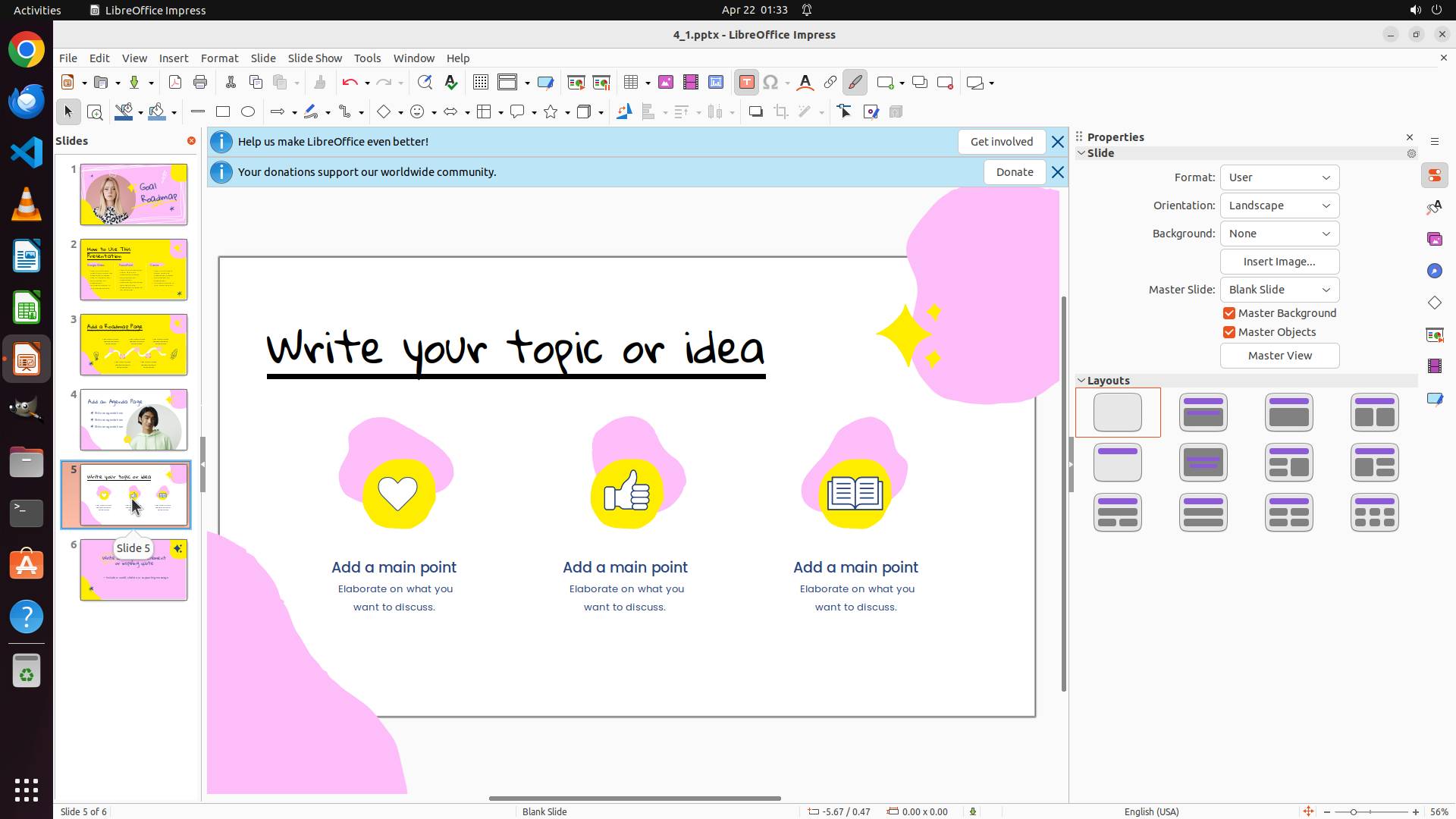
- The title "Write your topic or idea" is visible in blue/dark text at the top of the slide
- Three yellow circular icons with heart, thumbs up, and book symbols are below the title
- Need to select the title text, then change its color to black and apply underline
#### 情况分析与思考过程
The previous action successfully navigated to slide 5. I can see slide 5 is now active with the title "Write your topic or idea" in blue text.
Following the same process as slides 2 and 3:
1. Select the title text by triple-clicking on it
2. Change the text color to black using the formatting toolbar
3. Apply underline formatting
The most efficient way to select the entire title text is to triple-click on it. I'll triple-click on the title "Write your topic or idea" to select all of it at once.
```
Step 20: CLICK (1471, 325)
```
#### 重要信息
- Successfully navigated to slide 5 (as shown by "Slide 5 of 6" at the bottom)
- Slide 5 is now displayed in the main editing area with a pink/yellow background
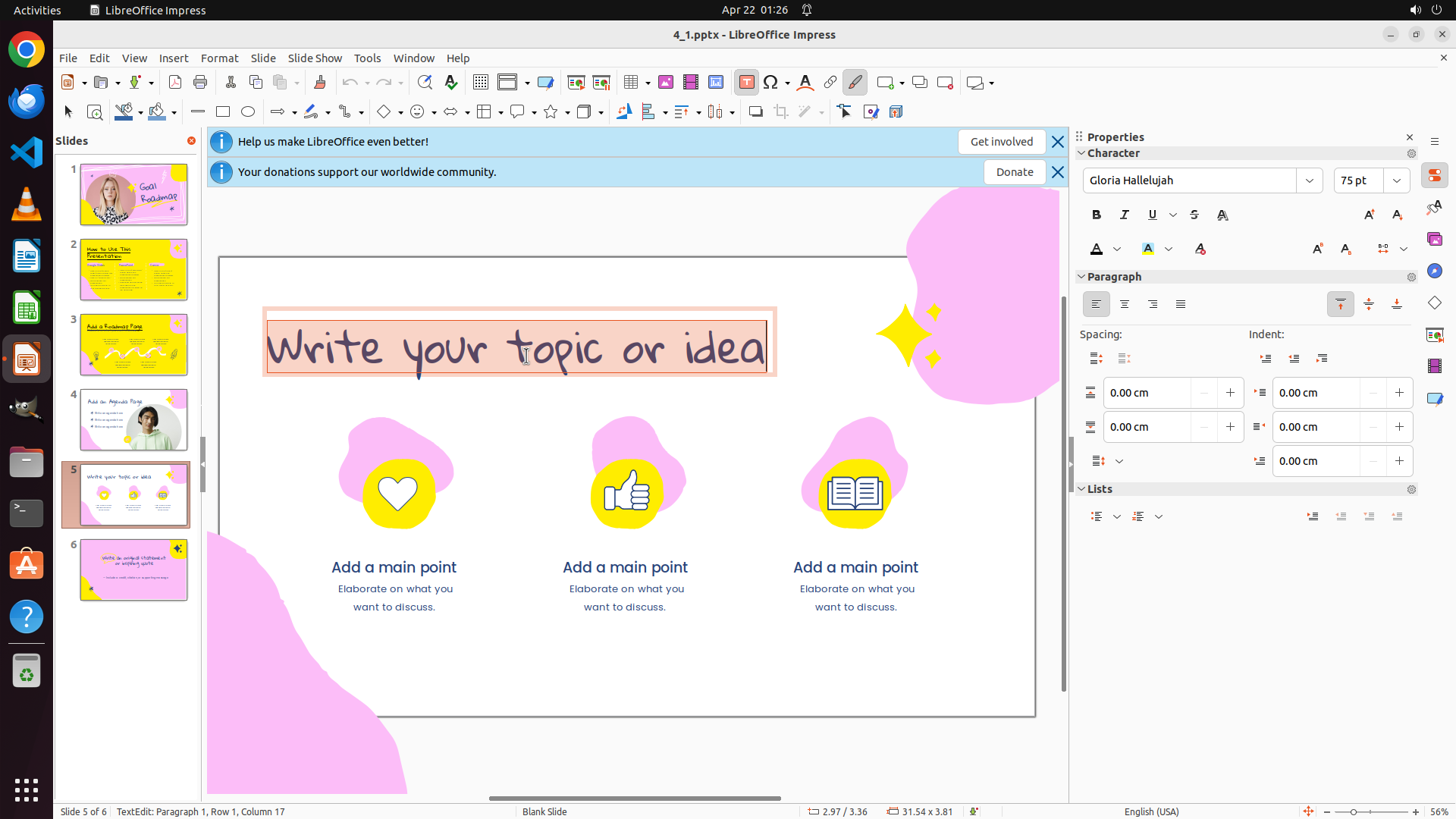
- The title "Write your topic or idea" has been selected (triple-click was successful)
- The title text is currently in dark blue/purple color
- Character panel on the right shows formatting options including the font color button
- Need to change text color to black and apply underline formatting
#### 情况分析与思考过程
The previous action successfully selected the title text on slide 5. I can see the text "Write your topic or idea" is now selected with a selection box around it.
Following the same process as slides 2 and 3:
1. Change the text color to black by clicking the font color dropdown button
2. Select black from the color palette
3. Apply underline formatting using the Underline button
Looking at the Character panel on the right, I can see the font color button (the "A" with a colored underline). I need to click on the dropdown arrow next to it to open the color picker and select black.
Let me click on the font color dropdown button in the Character panel to open the color palette.
```
Step 21: CLICK (1434, 427)
```
#### 重要信息
- Successfully navigated to slide 5 (as shown by "Slide 5 of 6" at the bottom)
- Slide 5 is now displayed in the main editing area with a pink/yellow background
- The title "Write your topic or idea" has been selected (triple-click was successful)
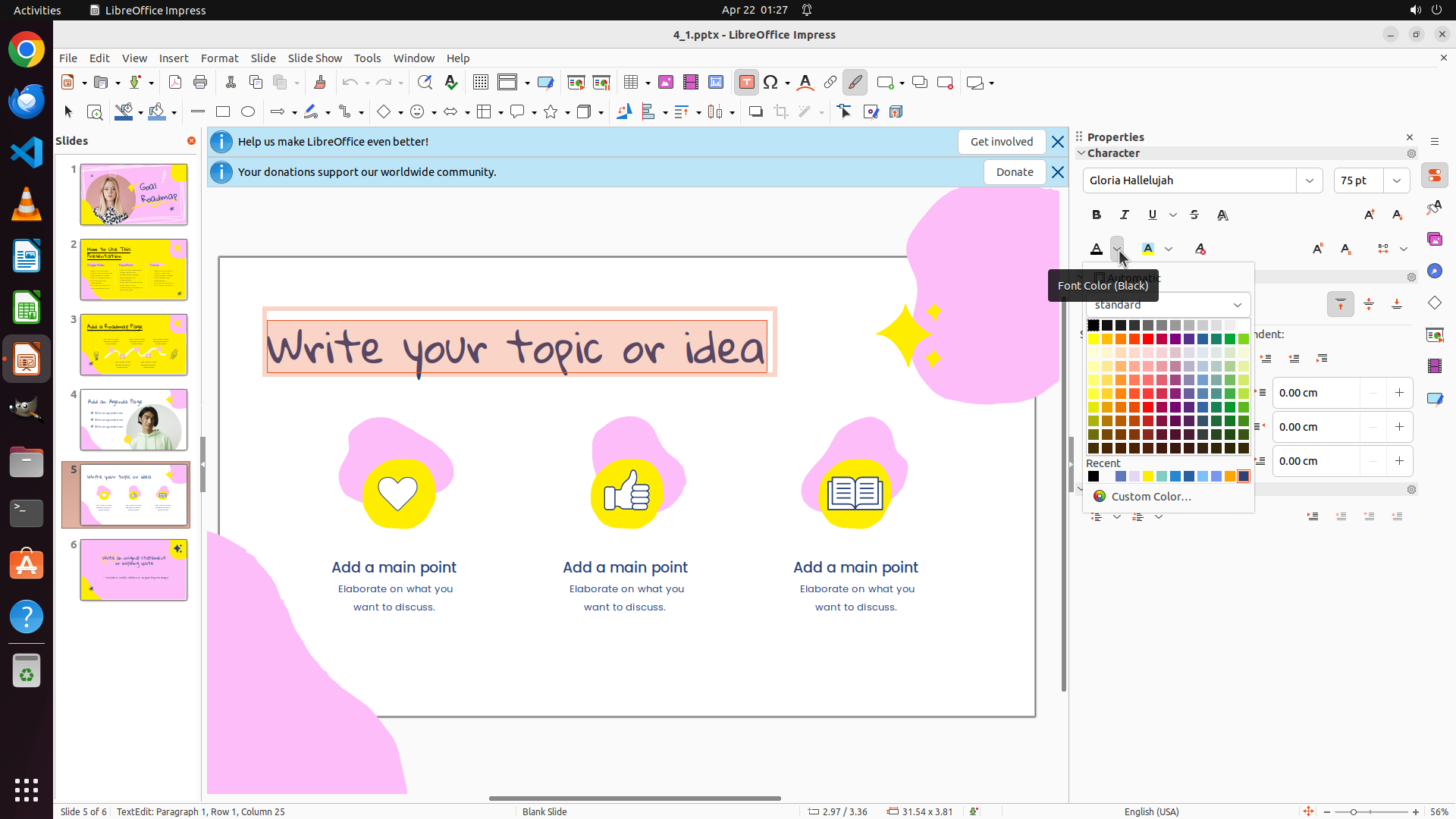
- The title text is currently in dark blue/purple color
- The font color picker dropdown is now open showing a color palette
- Tooltip shows "Font Color (Black)" indicating black color option is available
- Character panel on the right shows formatting options including the Underline button
- Need to select black color from the palette, then apply underline formatting
#### 情况分析与思考过程
The previous action successfully opened the font color picker dropdown. I can see the color palette is now displayed with various colors arranged in a grid. The black color appears to be in the top-left area of the color grid.
Following the same process as slides 2 and 3:
1. Click on the black color in the palette to change the text color
2. Apply underline formatting using the Underline button
Looking at the color palette, black is positioned in the top rows. I need to click on the black color square to apply it to the selected text "Write your topic or idea".
After clicking on black, the color picker should close and the text color should change to black. Then I'll click the Underline button to complete the formatting for slide 5.
Let me click on the black color in the palette.
```
Step 22: CLICK (1521, 279)
```
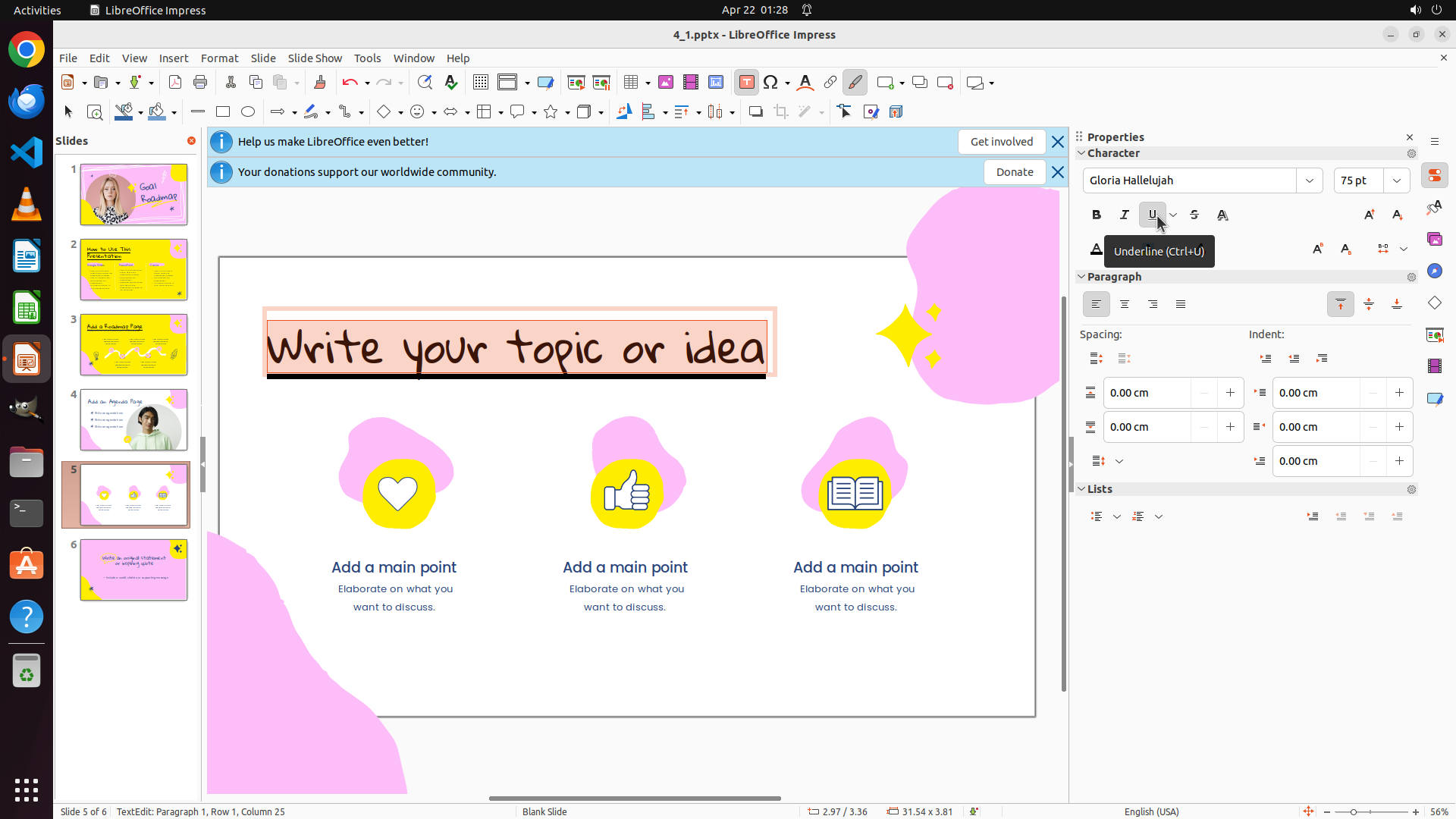
#### 重要信息
- Successfully navigated to slide 5 and selected the title "Write your topic or idea"
- The title text color appears to have changed to black/dark color after the previous color picker selection
- The text is still selected (status bar shows "TextEdit: Paragraph 1, Row 1, Column 25")
- The color picker dropdown has closed
- Character panel on the right shows formatting options including the Underline button (U)
- Need to apply underline formatting to complete slide 5's title formatting
- After that, the task will be complete for all three slides (2, 3, and 5)
#### 情况分析与思考过程
The previous action successfully changed the title text color on slide 5 to black. Looking at the current state:
- The title "Write your topic or idea" is still selected
- The text color appears to be black/dark now
- The color picker has closed
Now I need to apply underline formatting to complete the task for slide 5. I can see the Underline button (U) in the Character panel on the right side, in the row with Bold (B), Italic (I), Underline (U), and Strikethrough (S) buttons.
After clicking the Underline button, all three slides (2, 3, and 5) will have their titles formatted with black color and underline, completing the task. Then I should save the file.
Let me click the Underline button to apply underline formatting to the currently selected title text.
```
Step 23: CLICK (1050, 750)
```
#### 重要信息
- Currently on slide 5 with title "Write your topic or idea"
- The title text appears to be formatted with underline (tooltip "Underline (Ctrl+U)" visible and Underline button appears active)
- The text color appears to be black/dark
- Slide 5's title formatting appears complete (black color and underline)
- All three slides (2, 3, and 5) now have their titles formatted with black color and underline
- Task is essentially complete, need to save the file to preserve changes
#### 情况分析与思考过程
Looking at the current state, I can see that:
1. Slide 2's title "How to Use This Presentation" - formatted with black color and underline ✓
2. Slide 3's title "Add a Roadmap Page" - formatted with black color and underline ✓
3. Slide 5's title "Write your topic or idea" - now formatted with black color and underline ✓
The Underline button shows it's active with the tooltip "Underline (Ctrl+U)" visible, and the text color appears to be black. All the required formatting has been applied to all three slides.
Now I need to:
1. Click somewhere else on the slide to deselect the text and verify the final result
2. Save the file using Ctrl+S to preserve the changes
Let me first click somewhere on the slide to deselect the text, then save the file.
```
Step 23: WAIT
```
#### 重要信息
- Currently on slide 5 with title "Write your topic or idea"
- The title text appears to be formatted with underline (tooltip "Underline (Ctrl+U)" visible and Underline button appears active)
- The text color appears to be black/dark
- Slide 5's title formatting appears complete (black color and underline)
- All three slides (2, 3, and 5) now have their titles formatted with black color and underline
- Task is essentially complete, need to save the file to preserve changes
#### 情况分析与思考过程
Looking at the current state, I can see that:
1. Slide 2's title "How to Use This Presentation" - formatted with black color and underline ✓
2. Slide 3's title "Add a Roadmap Page" - formatted with black color and underline ✓
3. Slide 5's title "Write your topic or idea" - now formatted with black color and underline ✓
The Underline button shows it's active with the tooltip "Underline (Ctrl+U)" visible, and the text color appears to be black. All the required formatting has been applied to all three slides.
Now I need to:
1. Click somewhere else on the slide to deselect the text and verify the final result
2. Save the file using Ctrl+S to preserve the changes
Let me first click somewhere on the slide to deselect the text, then save the file.
```
Step 23: HOTKEY
```
#### 重要信息
- Currently on slide 5 with title "Write your topic or idea"
- The title text appears to be formatted with underline (tooltip "Underline (Ctrl+U)" visible and Underline button appears active)
- The text color appears to be black/dark
- Slide 5's title formatting appears complete (black color and underline)
- All three slides (2, 3, and 5) now have their titles formatted with black color and underline
- Task is essentially complete, need to save the file to preserve changes
#### 情况分析与思考过程
Looking at the current state, I can see that:
1. Slide 2's title "How to Use This Presentation" - formatted with black color and underline ✓
2. Slide 3's title "Add a Roadmap Page" - formatted with black color and underline ✓
3. Slide 5's title "Write your topic or idea" - now formatted with black color and underline ✓
The Underline button shows it's active with the tooltip "Underline (Ctrl+U)" visible, and the text color appears to be black. All the required formatting has been applied to all three slides.
Now I need to:
1. Click somewhere else on the slide to deselect the text and verify the final result
2. Save the file using Ctrl+S to preserve the changes
Let me first click somewhere on the slide to deselect the text, then save the file.
```
Step 24: HOTKEY
```
#### 重要信息
- Currently on slide 5 with title "Write your topic or idea"
- The title text appears to be formatted with underline (visible line under the text)
- The text color appears to be black/dark
- The text is still selected (status bar shows "TextEdit: Paragraph 1, Row 1, Column 25")
- Slide 5's title formatting appears complete (black color and underline)
- All three slides (2, 3, and 5) now have their titles formatted with black color and underline
- Task is essentially complete, need to save the file to preserve changes
#### 情况分析与思考过程
Looking at the current state, I can see that:
1. Slide 2's title "How to Use This Presentation" - formatted with black color and underline ✓
2. Slide 3's title "Add a Roadmap Page" - formatted with black color and underline ✓
3. Slide 5's title "Write your topic or idea" - now formatted with black color and underline ✓
The underline is visible under the title text, and the text color appears to be black. All the required formatting has been applied to all three slides.
Now I need to:
1. Update the strategy tree to mark the remaining tasks as success
2. Save the file using Ctrl+S to preserve the changes
Let me update the strategy tree status for the remaining tasks and save the file.
```
Step 24: WAIT
```
#### 重要信息
- Currently on slide 5 with title "Write your topic or idea"
- The title text appears to be formatted with underline (visible line under the text)
- The text color appears to be black/dark
- The text is still selected (status bar shows "TextEdit: Paragraph 1, Row 1, Column 25")
- Slide 5's title formatting appears complete (black color and underline)
- All three slides (2, 3, and 5) now have their titles formatted with black color and underline
- Task is essentially complete, need to save the file to preserve changes
#### 情况分析与思考过程
Looking at the current state, I can see that:
1. Slide 2's title "How to Use This Presentation" - formatted with black color and underline ✓
2. Slide 3's title "Add a Roadmap Page" - formatted with black color and underline ✓
3. Slide 5's title "Write your topic or idea" - now formatted with black color and underline ✓
The underline is visible under the title text, and the text color appears to be black. All the required formatting has been applied to all three slides.
Now I need to:
1. Update the strategy tree to mark the remaining tasks as success
2. Save the file using Ctrl+S to preserve the changes
Let me update the strategy tree status for the remaining tasks and save the file.
```
Step 25: CLICK (169, 349)
```
#### 重要信息
- Currently on slide 5 with title "Write your topic or idea"
- The title appears to be formatted with underline (visible line under the text)
- The text color appears to be black/dark
- The strategy tree shows all tasks (1, 2, 3) as successfully completed
- The file has been saved (Ctrl+S was executed in the previous step)
- All three slides (2, 3, and 5) should now have their titles formatted with black color and underline
- Need to verify the formatting on the other slides to confirm task completion
#### 情况分析与思考过程
Looking at the current state, the main formatting tasks appear to be complete:
1. Slide 2's title - formatted with black color and underline ✓
2. Slide 3's title - formatted with black color and underline ✓
3. Slide 5's title - formatted with black color and underline ✓
The file has been saved to preserve the changes. However, to fully verify the task completion, I should check the other slides to confirm their titles are properly formatted. Let me navigate to slide 2 to verify its title formatting, then check slide 3 as well.
This will serve as final verification that all three slides have the correct formatting before confirming task completion.
```
Step 25: WAIT
```
#### 重要信息
- Currently on slide 5 with title "Write your topic or idea"
- The title appears to be formatted with underline (visible line under the text)
- The text color appears to be black/dark
- The strategy tree shows all tasks (1, 2, 3) as successfully completed
- The file has been saved (Ctrl+S was executed in the previous step)
- All three slides (2, 3, and 5) should now have their titles formatted with black color and underline
- Need to verify the formatting on the other slides to confirm task completion
#### 情况分析与思考过程
Looking at the current state, the main formatting tasks appear to be complete:
1. Slide 2's title - formatted with black color and underline ✓
2. Slide 3's title - formatted with black color and underline ✓
3. Slide 5's title - formatted with black color and underline ✓
The file has been saved to preserve the changes. However, to fully verify the task completion, I should check the other slides to confirm their titles are properly formatted. Let me navigate to slide 2 to verify its title formatting, then check slide 3 as well.
This will serve as final verification that all three slides have the correct formatting before confirming task completion.
```
Step 26: CLICK (169, 454)
```
#### 重要信息
- Currently on slide 2 with title "How to Use This Presentation"
- The title appears to be formatted in black color with underline (visible in the main editing area)
- Slide 2 thumbnail in the left panel shows the title formatted in black with underline
- The strategy tree shows all tasks (1, 2, 3) as successfully completed
- The file has been saved (Ctrl+S was executed)
- Need to verify the formatting on slides 3 and 5 to confirm task completion
#### 情况分析与思考过程
Looking at the current state:
1. Slide 2's title "How to Use This Presentation" - appears to be formatted with black color and underline ✓
2. Slide 3's title "Add a Roadmap Page" - need to verify
3. Slide 5's title "Write your topic or idea" - need to verify
The main task appears to be complete based on the strategy tree status. However, to fully verify task completion, I should check the other slides to confirm their titles are properly formatted. Let me navigate to slide 3 to verify its title formatting.
I can see slide 3's thumbnail in the slides panel. I'll click on it to navigate there and verify the formatting.
```
Step 26: WAIT
```
#### 重要信息
- Currently on slide 2 with title "How to Use This Presentation"
- The title appears to be formatted in black color with underline (visible in the main editing area)
- Slide 2 thumbnail in the left panel shows the title formatted in black with underline
- The strategy tree shows all tasks (1, 2, 3) as successfully completed
- The file has been saved (Ctrl+S was executed)
- Need to verify the formatting on slides 3 and 5 to confirm task completion
#### 情况分析与思考过程
Looking at the current state:
1. Slide 2's title "How to Use This Presentation" - appears to be formatted with black color and underline ✓
2. Slide 3's title "Add a Roadmap Page" - need to verify
3. Slide 5's title "Write your topic or idea" - need to verify
The main task appears to be complete based on the strategy tree status. However, to fully verify task completion, I should check the other slides to confirm their titles are properly formatted. Let me navigate to slide 3 to verify its title formatting.
I can see slide 3's thumbnail in the slides panel. I'll click on it to navigate there and verify the formatting.
```
Step 27: CLICK (169, 652)
```
#### 重要信息
- Currently on slide 3 with title "Add a Roadmap Page"
- The title appears to be formatted with black color and underline (visible in the main editing area)
- Slide 3 thumbnail in the left panel shows the title formatted in black with underline
- The strategy tree shows all tasks (1, 2, 3) as successfully completed
- The file has been saved (Ctrl+S was executed)
- Need to verify the formatting on slide 5 to confirm task completion
#### 情况分析与思考过程
Looking at the current state:
1. Slide 2's title "How to Use This Presentation" - formatted with black color and underline ✓
2. Slide 3's title "Add a Roadmap Page" - appears to be formatted with black color and underline ✓
3. Slide 5's title "Write your topic or idea" - need to verify
The main task appears to be complete based on the strategy tree status. However, to fully verify task completion, I should check slide 5 to confirm its title is properly formatted. Let me navigate to slide 5 to verify the formatting.
I can see slide 5's thumbnail in the slides panel. I'll click on it to navigate there and verify the formatting.
```
Step 27: WAIT
```
#### 重要信息
- Currently on slide 3 with title "Add a Roadmap Page"
- The title appears to be formatted with black color and underline (visible in the main editing area)
- Slide 3 thumbnail in the left panel shows the title formatted in black with underline
- The strategy tree shows all tasks (1, 2, 3) as successfully completed
- The file has been saved (Ctrl+S was executed)
- Need to verify the formatting on slide 5 to confirm task completion
#### 情况分析与思考过程
Looking at the current state:
1. Slide 2's title "How to Use This Presentation" - formatted with black color and underline ✓
2. Slide 3's title "Add a Roadmap Page" - appears to be formatted with black color and underline ✓
3. Slide 5's title "Write your topic or idea" - need to verify
The main task appears to be complete based on the strategy tree status. However, to fully verify task completion, I should check slide 5 to confirm its title is properly formatted. Let me navigate to slide 5 to verify the formatting.
I can see slide 5's thumbnail in the slides panel. I'll click on it to navigate there and verify the formatting.
```