#### 重要信息
- LibreOffice Calc is open with a spreadsheet
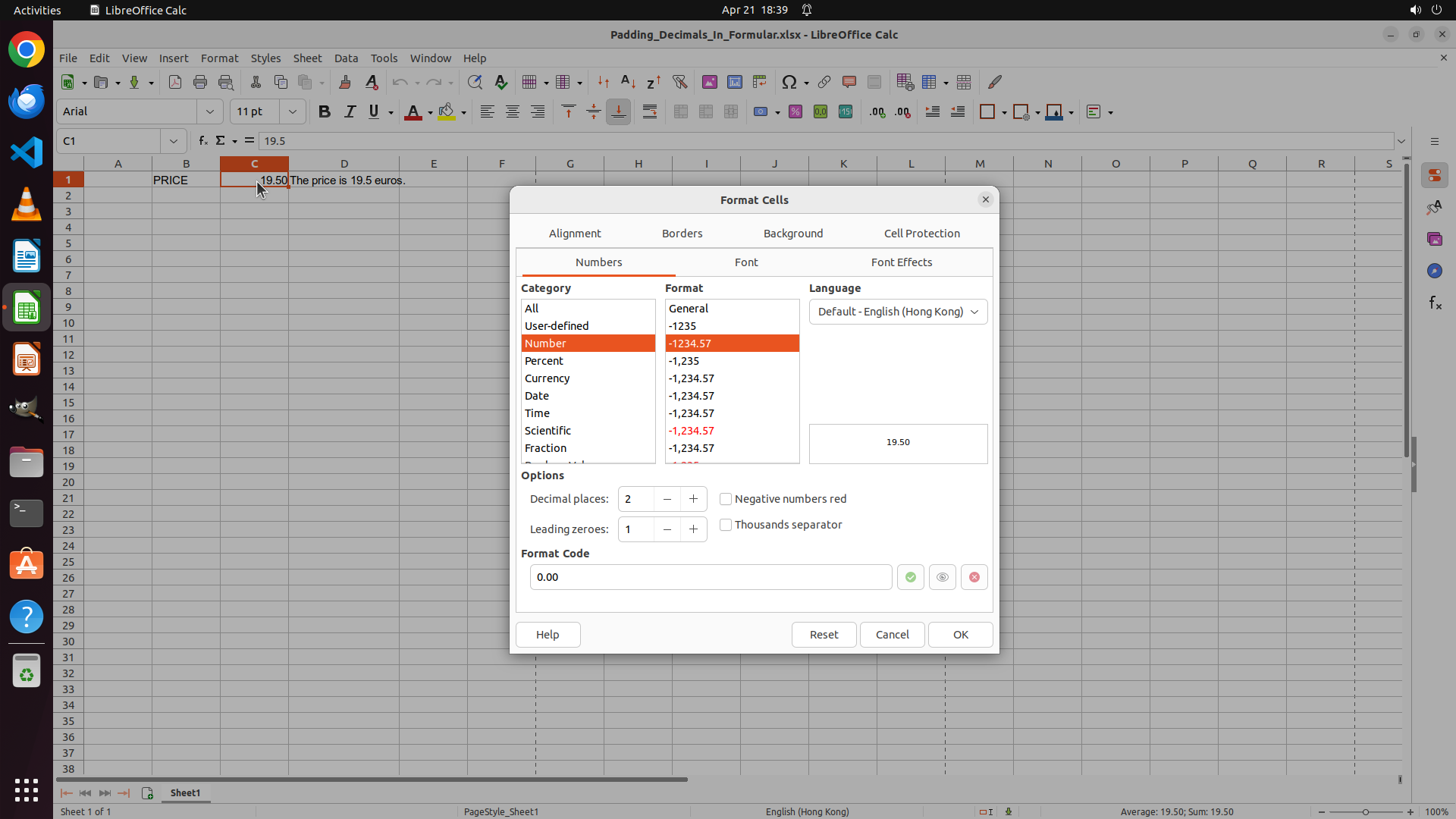
- A "Format Cells" dialog is currently open, blocking access to the spreadsheet
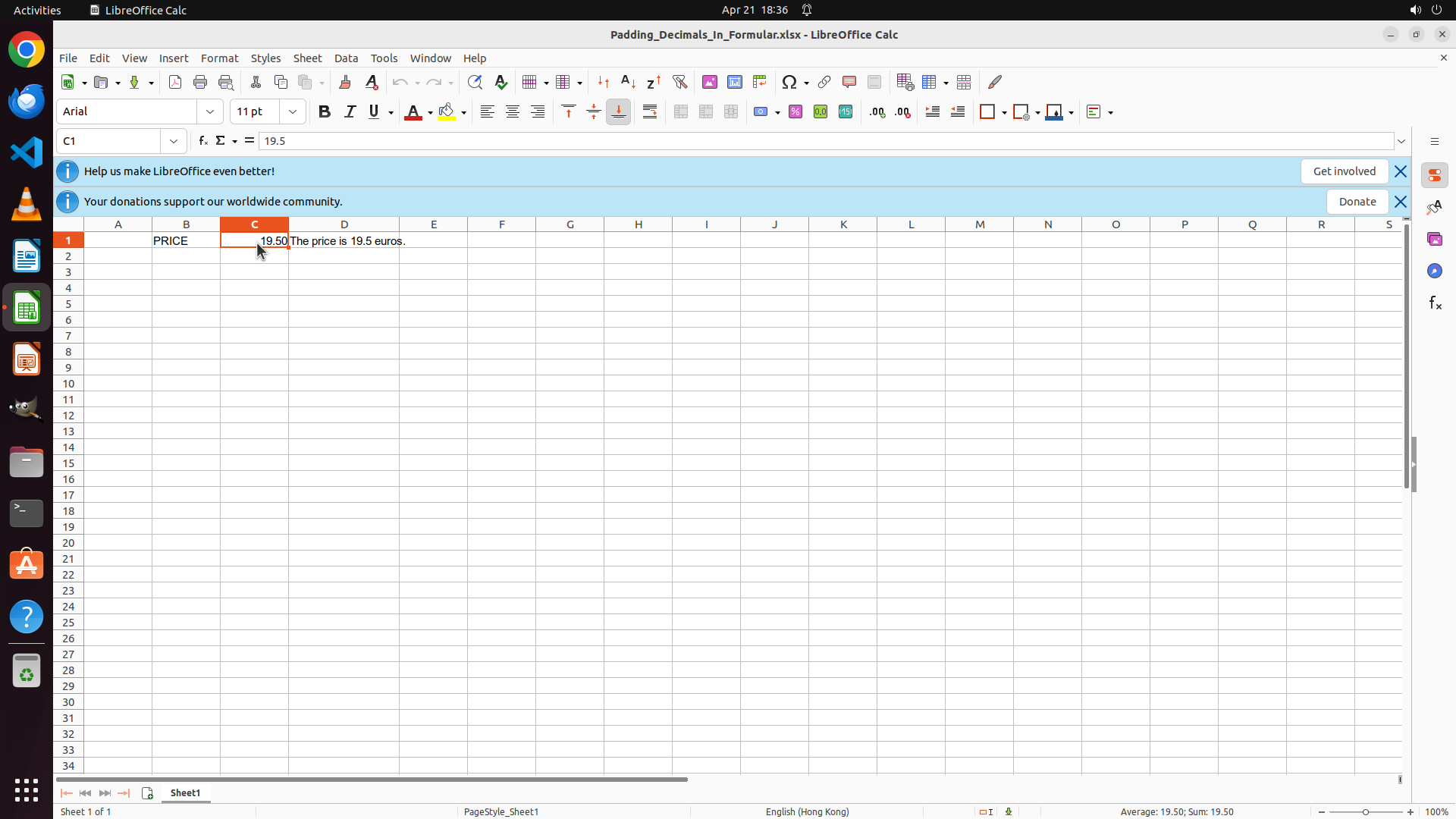
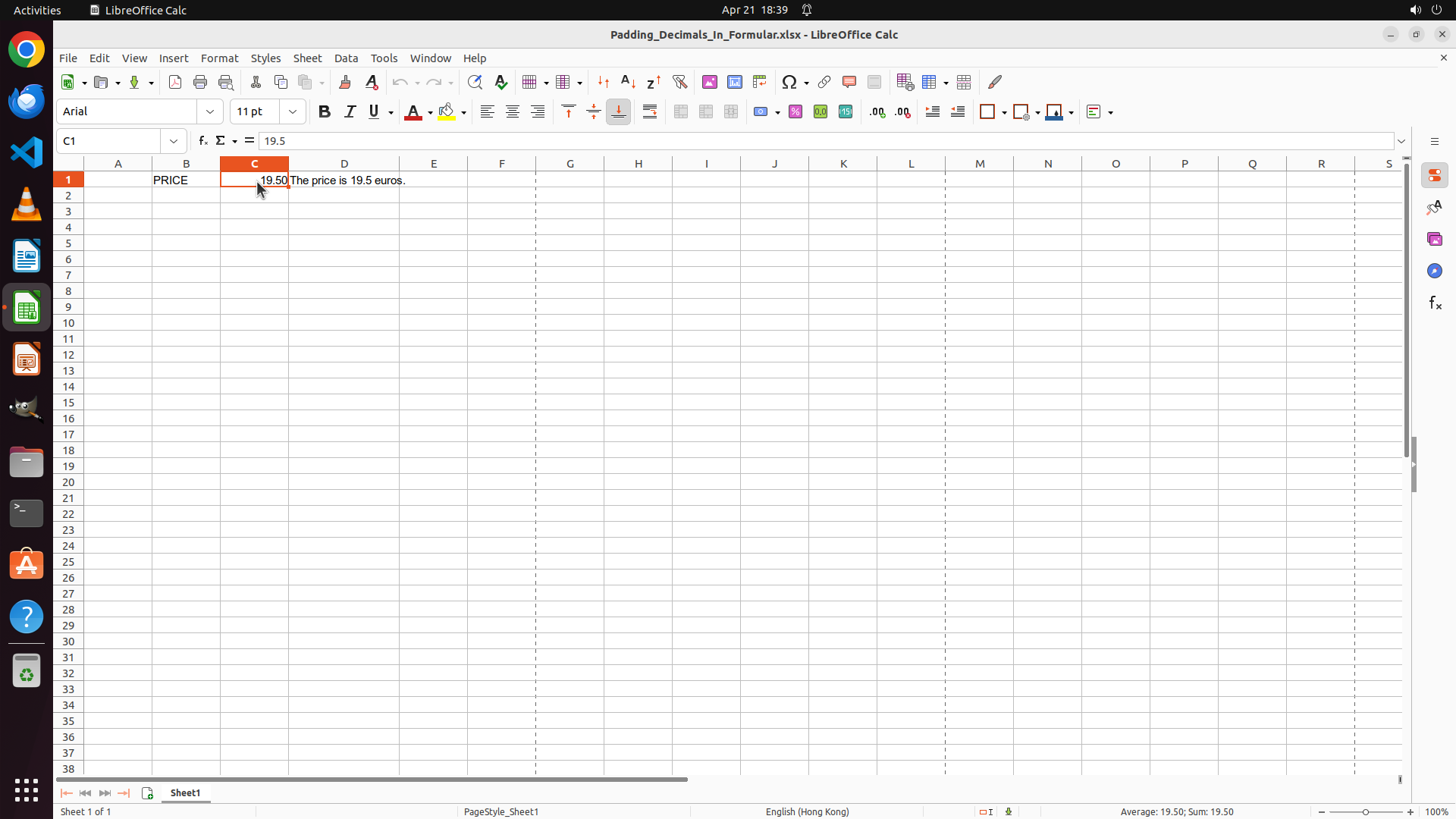
- Cell C1 contains the value 19.5 (formatted as 19.50 with 2 decimal places in the preview)
- Cell D1 shows the text "The price is 19.5 euros." - this is missing the trailing zero
- The goal is to modify the formula in D1 to use TEXT() function to display 2 decimal places
#### 情况分析与思考过程
The Format Cells dialog is currently open and blocking access to the spreadsheet. I need to close this dialog first before I can select and edit cell D1. The dialog shows that C1 is already formatted with 2 decimal places (showing 19.50 in the preview), but the text in D1 still shows "19.5" because it's referencing C1 directly without using the TEXT() function for formatting.
My plan:
1. Close the Format Cells dialog by clicking Cancel
2. Select cell D1
3. Modify the formula to use TEXT(C1,"0.00") to ensure 2 decimal places are shown
4. Press Enter to confirm
Let me start by closing the dialog.
Step 7: CLICK (449, 234)
```
#### 重要信息
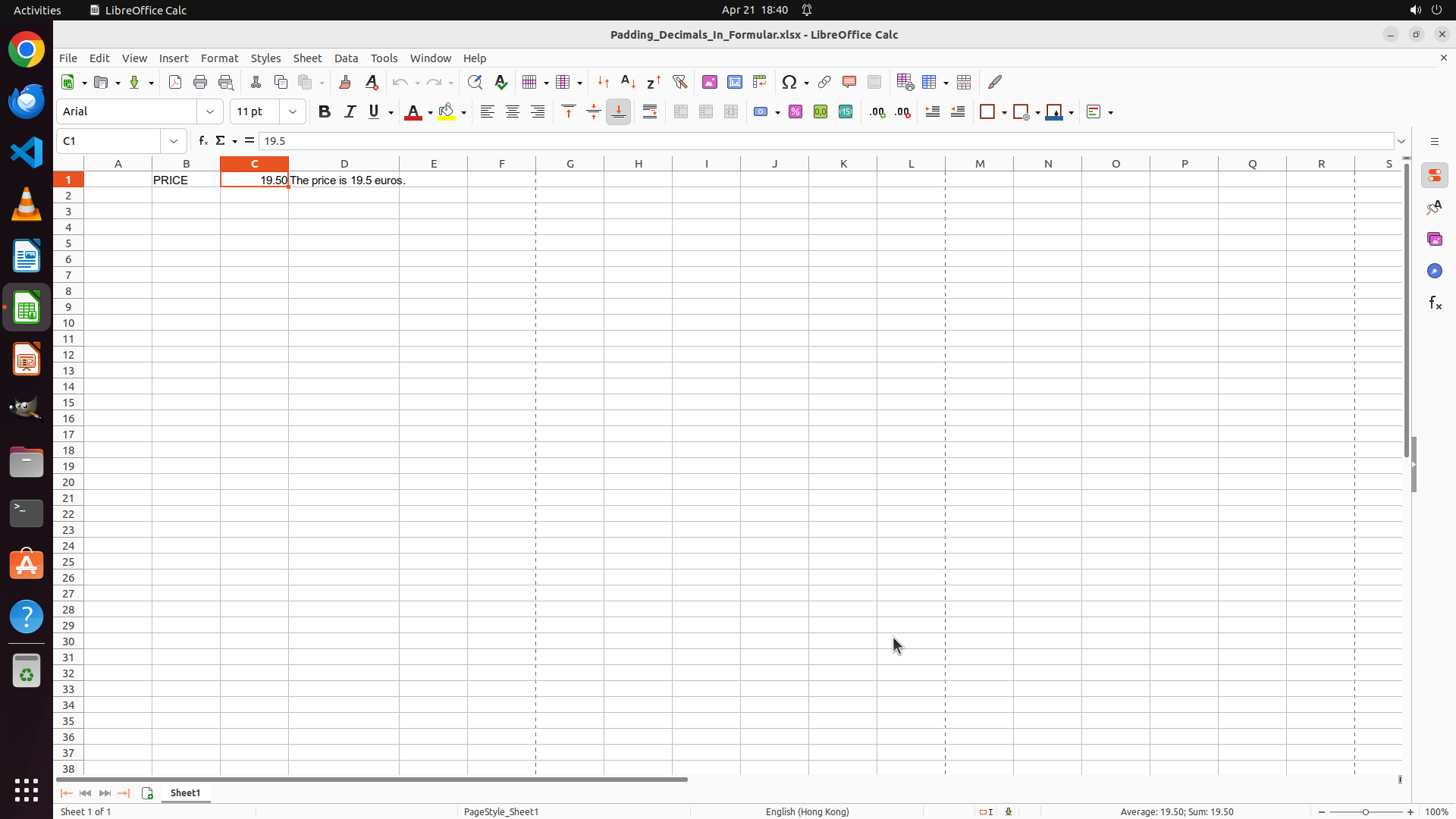
- The Format Cells dialog has been successfully closed
- Cell C1 contains 19.5 (formatted as 19.50)
- Cell D1 currently shows "The price is 19.5 euros." - missing the trailing zero
- Cell C1 is currently selected (shown in the name box)
- I need to select cell D1 and modify its formula to use TEXT() function
#### 情况分析与思考过程
The dialog is closed and I can now access the spreadsheet. I can see that cell D1 contains text that references C1 but doesn't format it with 2 decimal places. I need to:
1. Click on cell D1 to select it
2. Edit the formula to use TEXT(C1,"0.00") instead of just referencing C1
3. Press Enter to confirm
Let me start by clicking on cell D1 to select it.
```
Step 8: TYPING "="The price is "&TEXT(C1,"0.00")&" euros…"
```
#### 重要信息
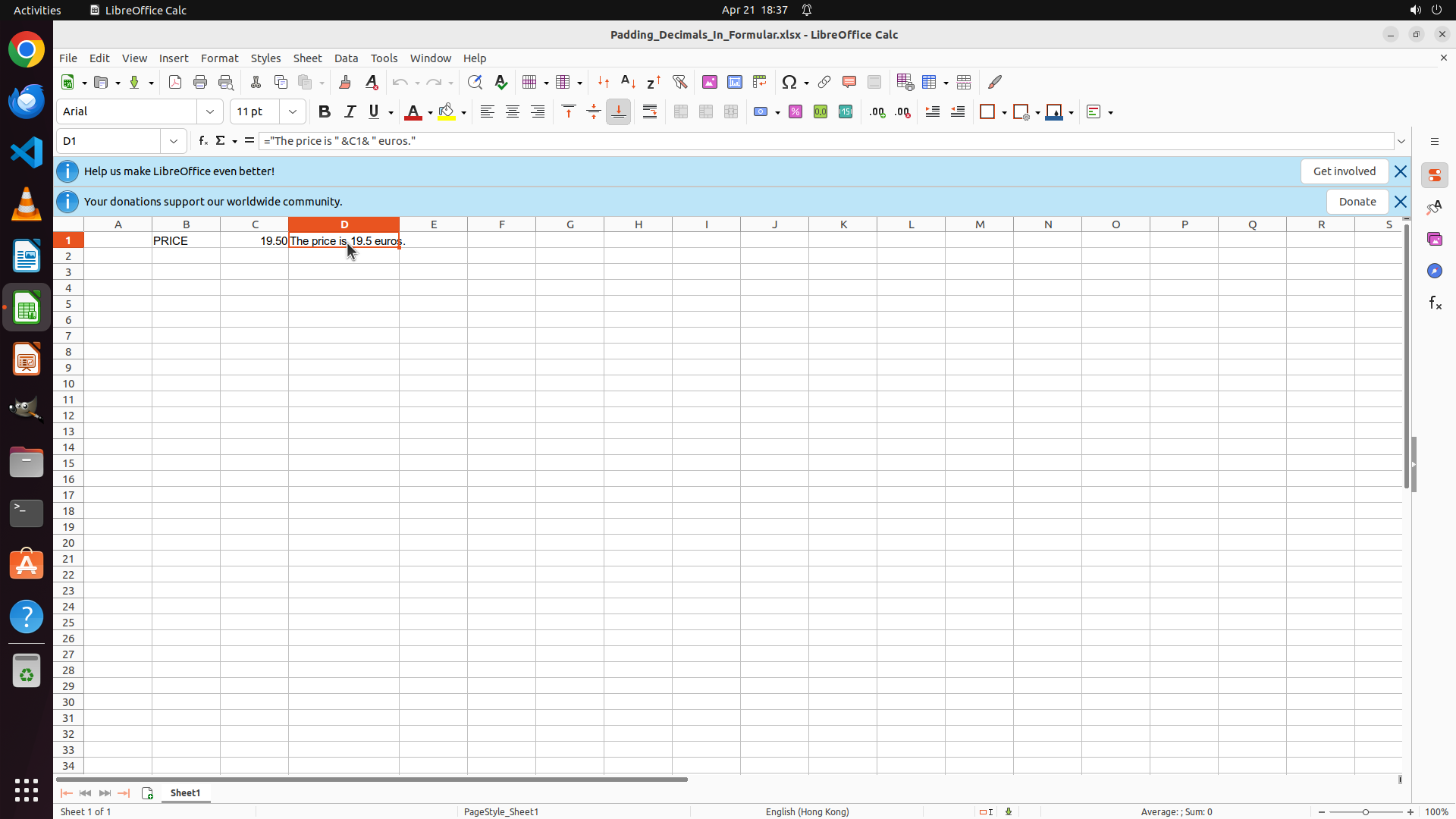
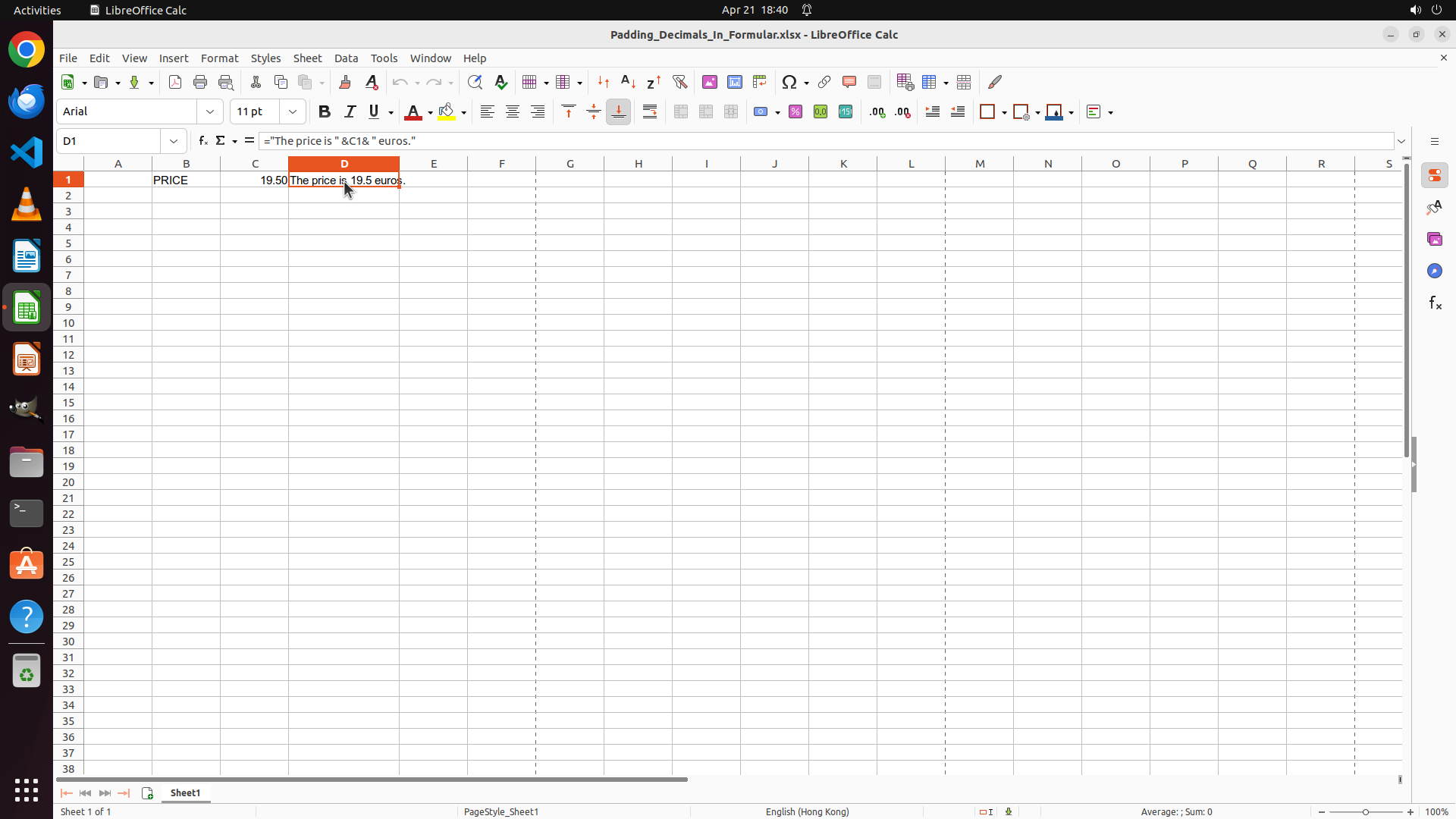
- Cell D1 is now selected (shown in the name box as "D1")
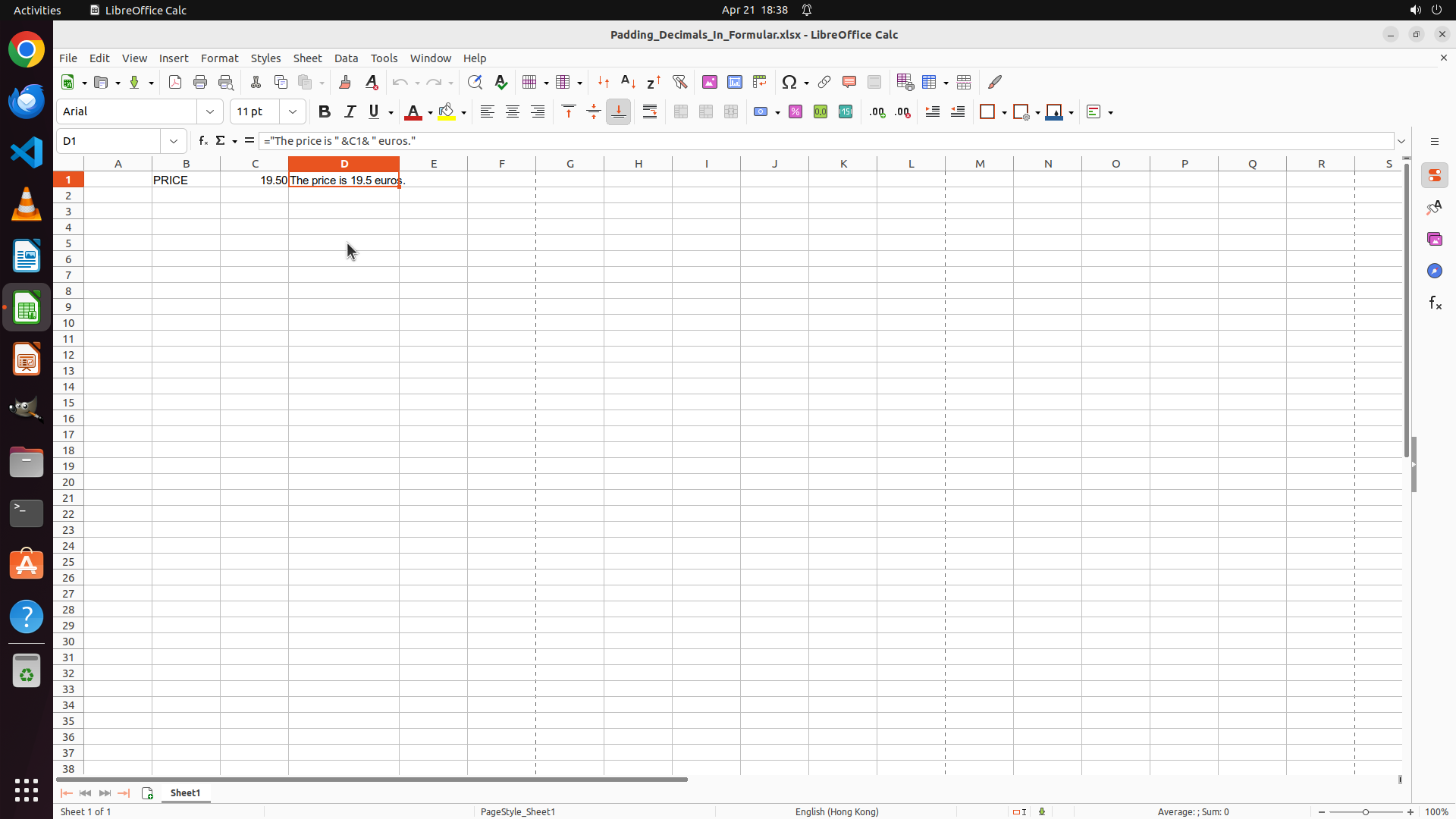
- The formula bar shows: ="The price is "&C1&" euros."
- Cell D1 displays "The price is 19.5 euros." - missing the trailing zero
- I need to modify the formula to use TEXT(C1,"0.00") to show 2 decimal places
#### 情况分析与思考过程
Good! Cell D1 is now selected. I can see the formula in the formula bar: ="The price is "&C1&" euros."
I need to change this to: ="The price is "&TEXT(C1,"0.00")&" euros."
I have a few options:
1. Click in the formula bar and edit it there
2. Start typing to replace the entire formula
3. Use F2 to enter edit mode in the cell
The most straightforward approach is to simply start typing the new formula, which will replace the current content. I'll type the complete new formula with the TEXT() function.
```
Step 9: HOTKEY
```
#### 重要信息
- Cell D1 is selected and currently in edit mode
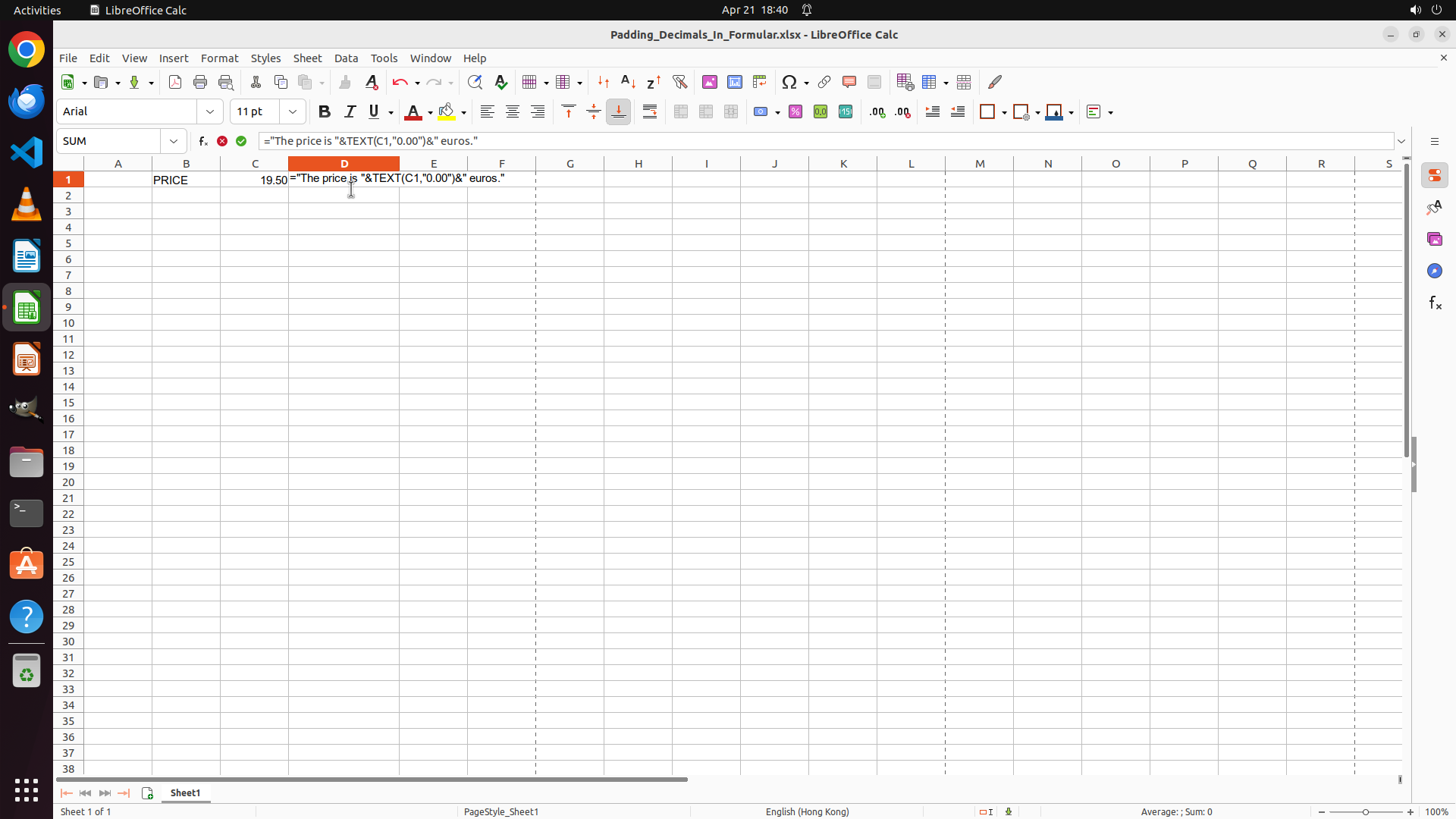
- The formula bar shows: ="The price is "&TEXT(C1,"0.00")&" euros."
- The cell is displaying the formula text rather than the calculated result
- The formula needs to be confirmed by pressing Enter
#### 情况分析与思考过程
The formula has been successfully typed into cell D1, but it's still in edit mode. I can see the formula text is showing in the cell itself rather than the calculated result. To complete the task, I need to press Enter to confirm the formula change. This will:
1. Exit edit mode
2. Calculate the formula
3. Display "The price is 19.50 euros." with the trailing zero visible
This is the final step needed to complete the task.
```
Step 10: HOTKEY
```
#### 重要信息
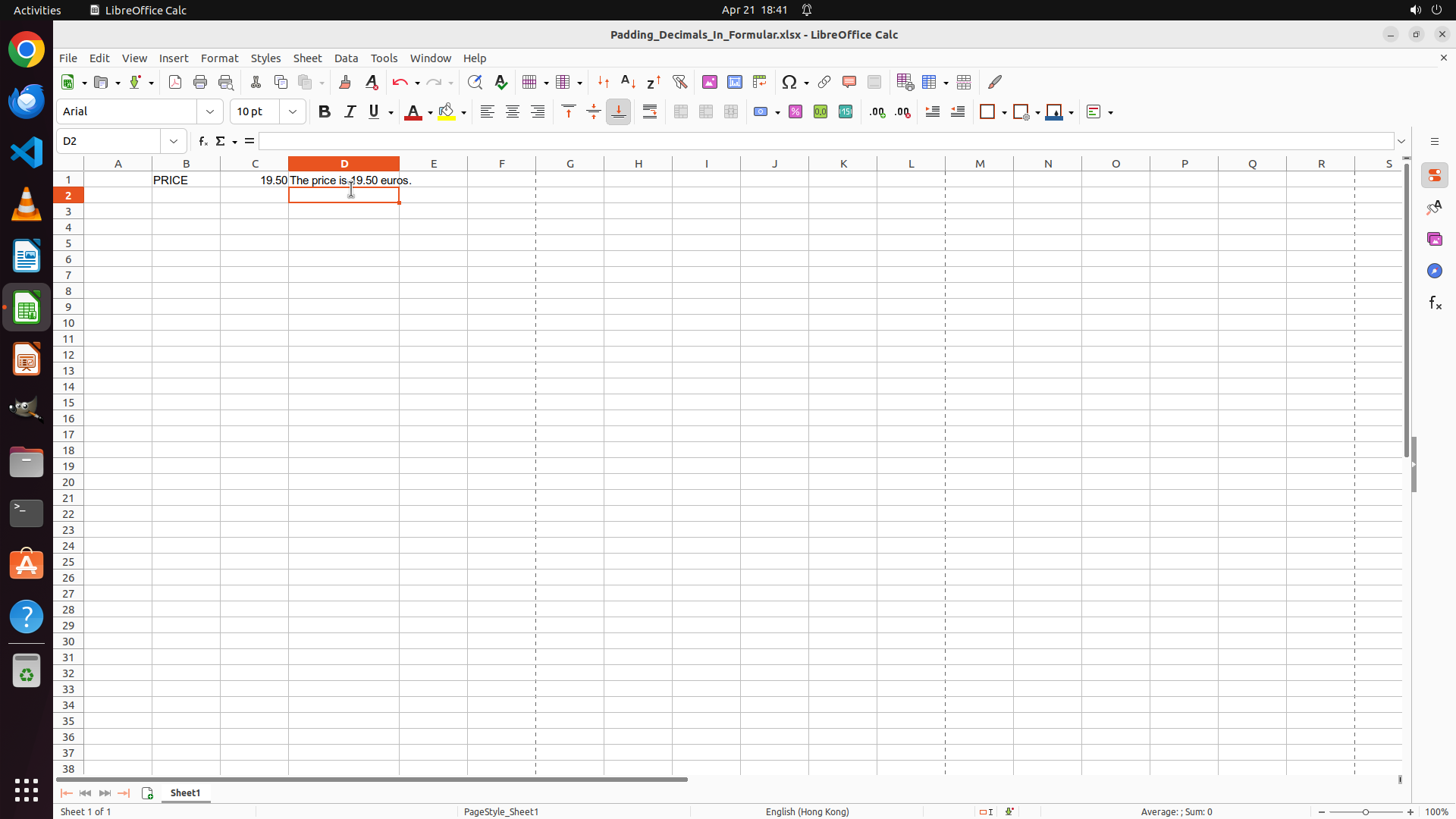
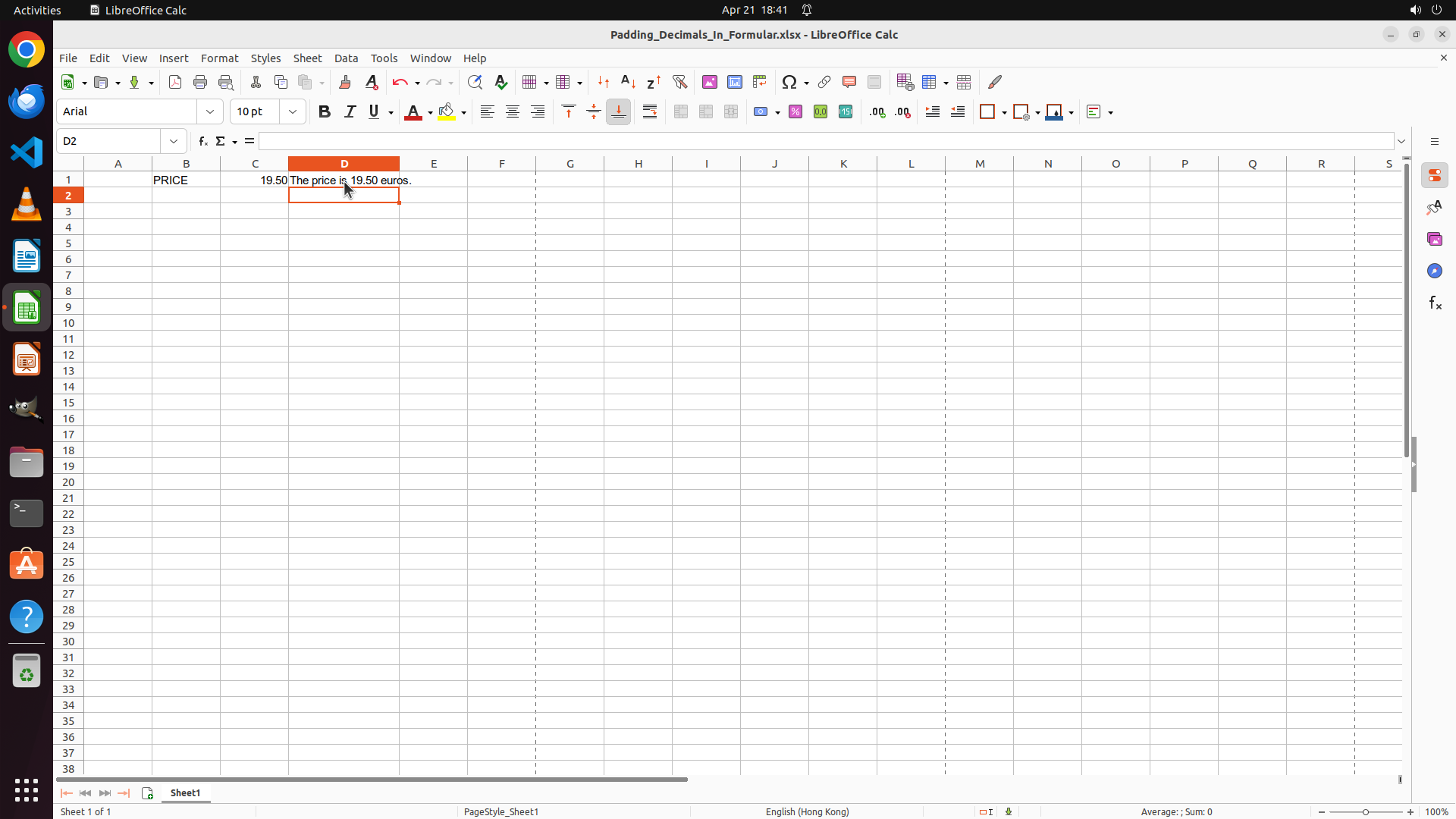
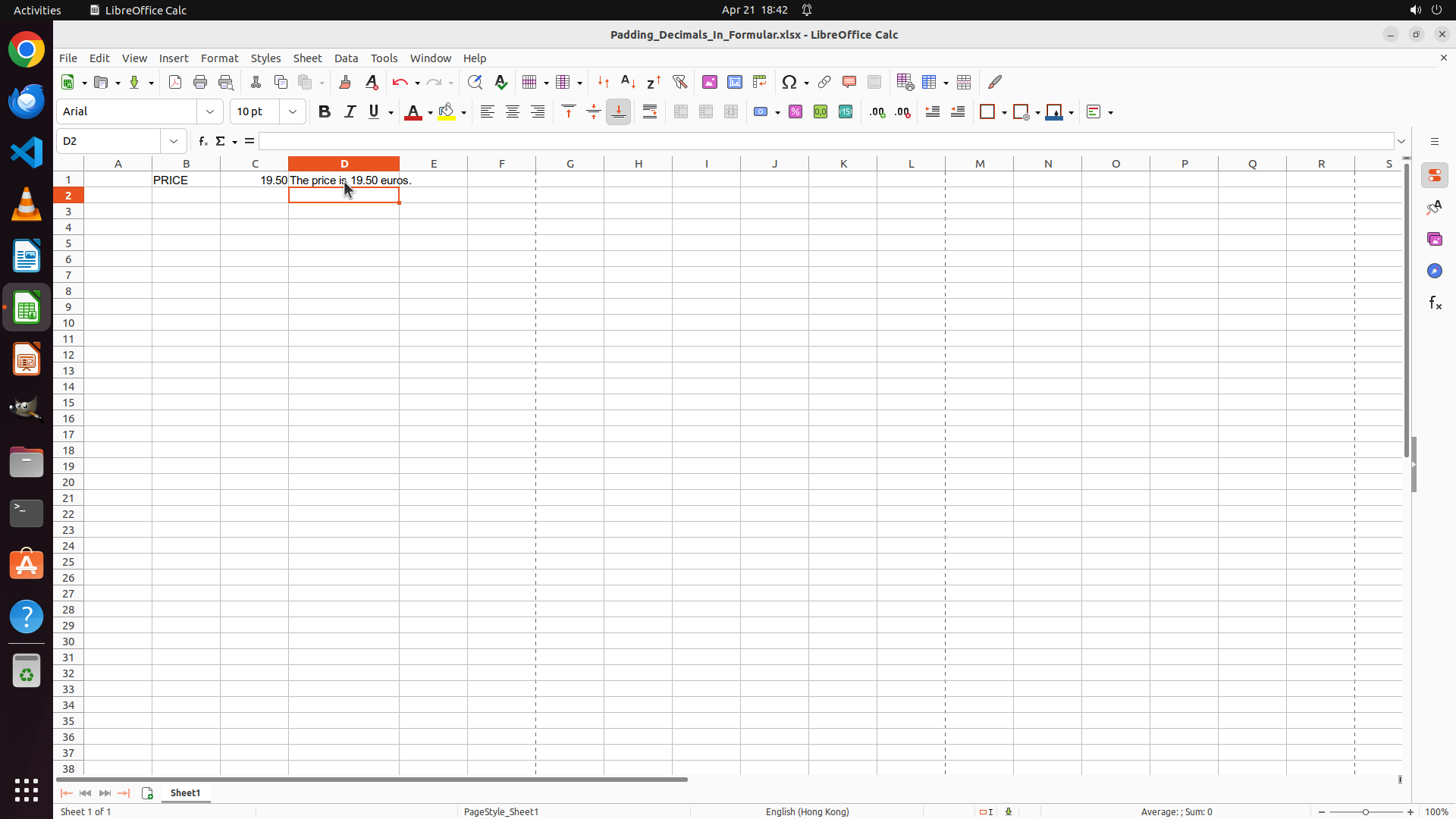
- Cell D1 now displays "The price is 19.50 euros." with the trailing zero visible (19.50 instead of 19.5)
- The formula has been successfully applied and confirmed
- The cursor has moved to cell D2 after pressing Enter
- The task goal has been achieved - the numerical value from C1 is now displayed with 2 decimal places in the text
#### 情况分析与思考过程
Excellent! The task has been completed successfully. The formula in cell D1 now uses the TEXT() function to format the number from C1 with 2 decimal places. The result shows "The price is 19.50 euros." with the trailing zero preserved.
The key visual evidence has been verified:
1. Cell D1 displays the text with the trailing zero: "The price is 19.50 euros." ✓
2. The formula uses TEXT(C1,"0.00") to format the number ✓
Now I should:
1. Update the strategy tree to mark all tasks as completed
2. Save the file to preserve the changes
Let me save the file first to ensure the changes are preserved.
```