```
#### 重要信息
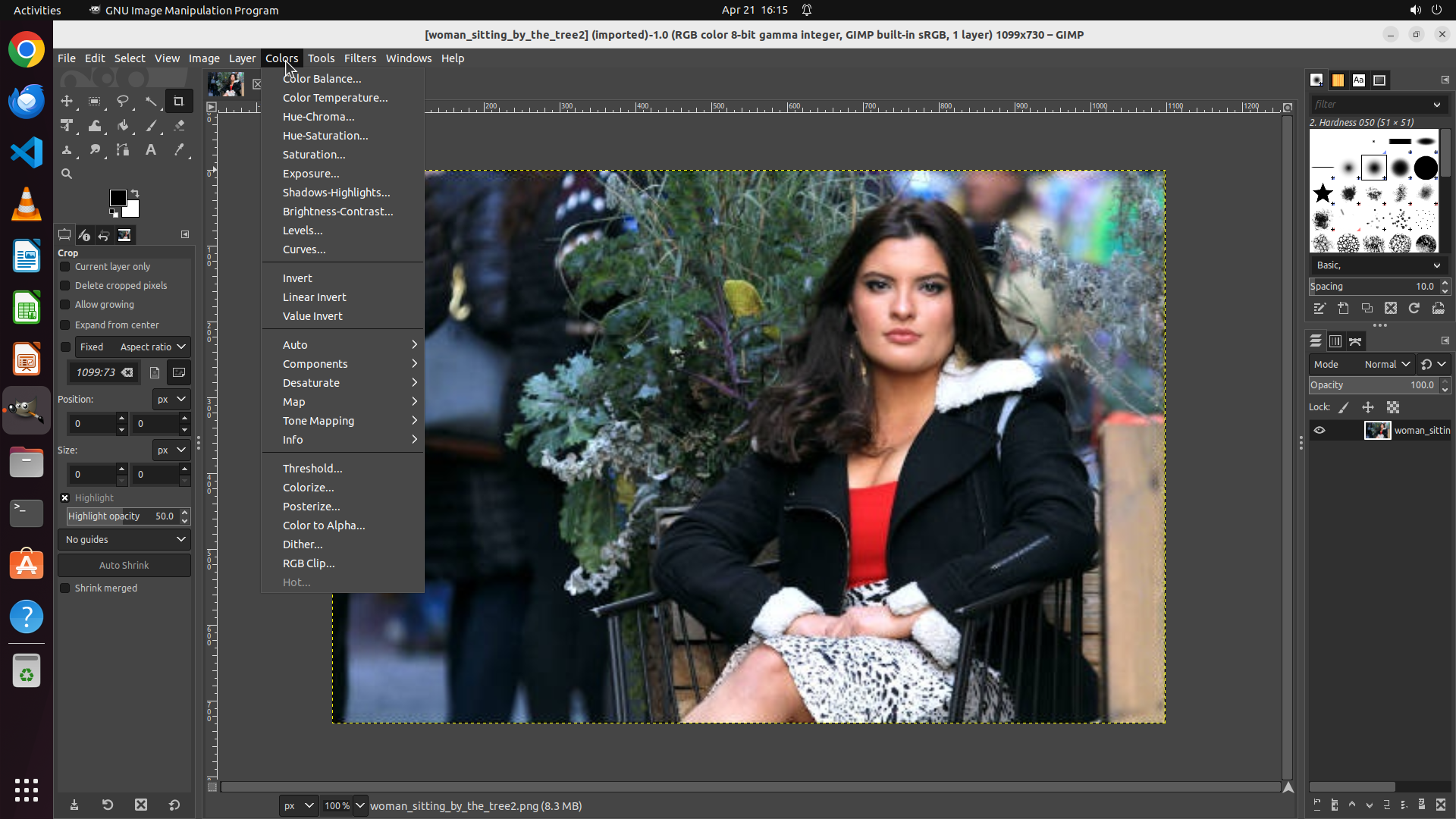
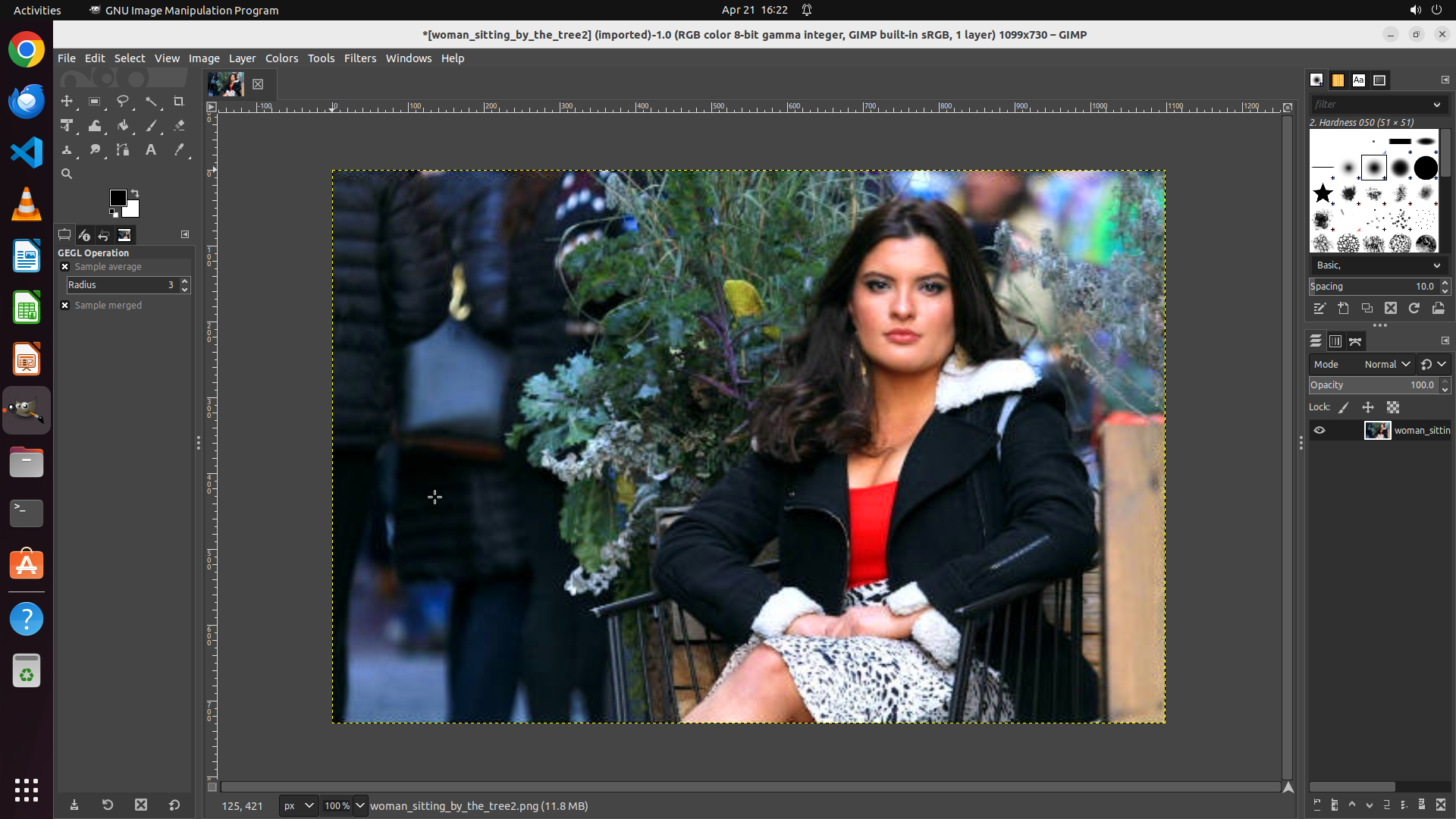
- GIMP is already open with an image loaded: "woman_sitting_by_the_tree2.png"
- The image shows a woman with a red top and green foliage in the background - good candidates for color vibrancy enhancement
- The Colors menu is visible in the menu bar at the top
- No color adjustment dialogs are currently open
#### 情况分析与思考过程
The task is to enhance color vibrancy of the photo. GIMP is already running with an image loaded, so I can proceed directly to the color adjustment steps.
According to the strategy tree:
1. First, I need to open the Colors menu
2. Then select Hue-Saturation tool to adjust saturation
3. Increase the saturation slider to boost color vibrancy
4. Apply and save the changes
The logical next action is to click on the "Colors" menu in the menu bar to access the color adjustment tools. This will open a dropdown menu where I can select Hue-Saturation.
```
I'll help you enhance the color vibrancy of your photo in GIMP. Let me start by accessing the Colors menu to find the saturation adjustment tool.
Step 2: CLICK (428, 175)
```
#### 重要信息
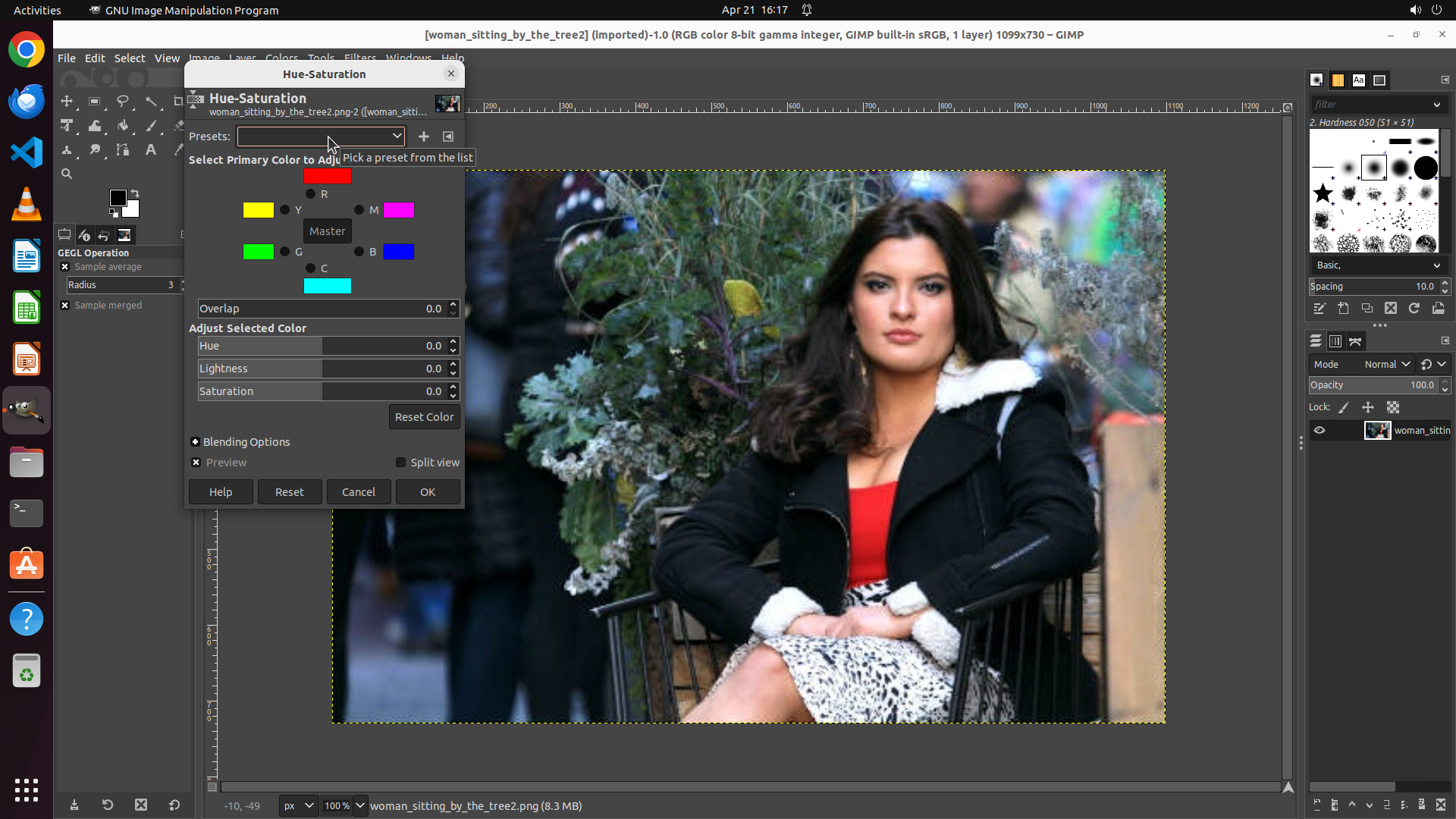
- The Colors menu has been successfully opened and is displaying a dropdown with various color adjustment options
- I can see "Hue-Saturation..." option in the dropdown menu, which is the tool needed to enhance color vibrancy
- The image is still visible in the background showing a woman with a red top and green foliage
- No dialogs are currently open for color adjustments
#### 情况分析与思考过程
The previous action successfully opened the Colors menu. Now I can see all the color adjustment options available. To enhance color vibrancy, I need to select "Hue-Saturation..." from this menu. This tool will allow me to increase the saturation of the image, making the colors more vibrant and intense.
According to the strategy tree:
1. ✓ Open Colors menu (completed)
2. Next: Select Hue-Saturation tool
3. Then: Increase saturation slider
4. Finally: Apply and save
The "Hue-Saturation..." option is visible in the dropdown menu. Clicking on it will open the Hue-Saturation adjustment dialog where I can boost the saturation to enhance color vibrancy.
```
Step 3: CLICK (570, 513)
```
#### 重要信息
- The Hue-Saturation dialog has successfully opened
- I can see three adjustment sliders: Hue (0.0), Lightness (0.0), and Saturation (0.0)
- The Preview checkbox is checked, so changes will be visible in real-time on the image
- The image shows a woman with a red top and green foliage - perfect for saturation enhancement
#### 情况分析与思考过程
The previous action successfully opened the Hue-Saturation dialog. Now I need to increase the Saturation value to enhance color vibrancy. According to the key visual evidence, I should set the Saturation slider to a positive value (e.g., +20 or higher).
Looking at the current state:
- Saturation is currently at 0.0 (no change)
- I need to click on the Saturation value field and increase it
- A value around 25-30 would provide good color enhancement without looking unnatural
The most efficient way is to triple-click on the Saturation value field to select all the text, then type a new value. This will immediately update the preview showing the enhanced colors.
```
Step 4: TYPING "25"
```
#### 重要信息
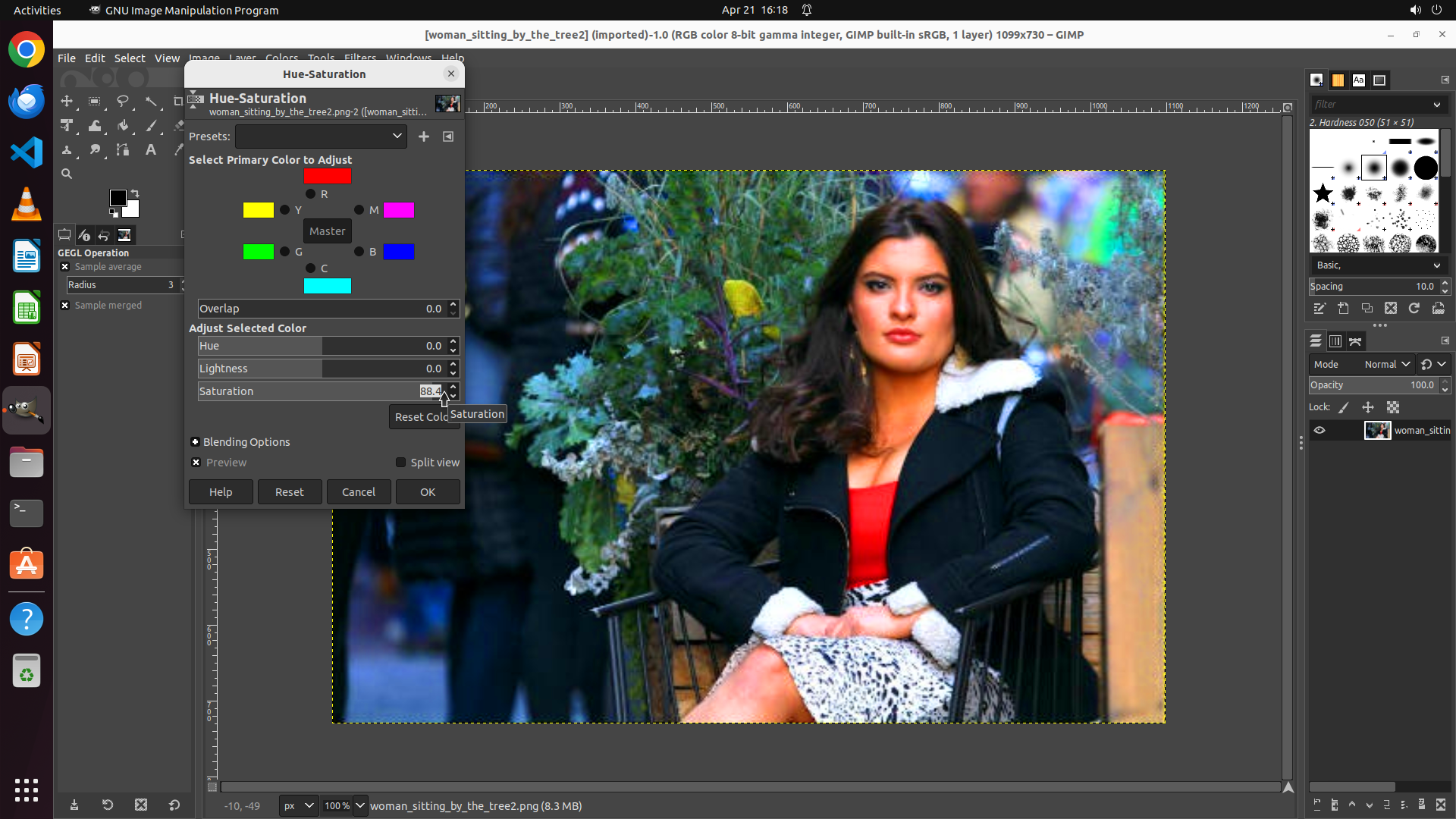
- The Saturation value field is currently selected (showing "88.4" with a tooltip "Reset Color Saturation")
- The text in the Saturation field appears to be selected from the triple-click
- The image preview shows the photo with colors that appear to be enhanced (the red top and green foliage look more vibrant)
- The Hue-Saturation dialog is still open with Preview checkbox checked
#### 情况分析与思考过程
The triple-click successfully selected the Saturation value field. I can see the current value is 88.4, which is extremely high and would likely over-saturate the image. A more reasonable value for color enhancement would be around 25-30, which would boost vibrancy without making the image look unnatural.
Since the text is already selected, I can now type a new value to replace it. I'll type "25" to set a moderate saturation increase that will enhance the color vibrancy while keeping the image looking natural. After typing, the preview should update to show the enhanced colors.
```
Step 5: CLICK (563, 645)
```
#### 重要信息
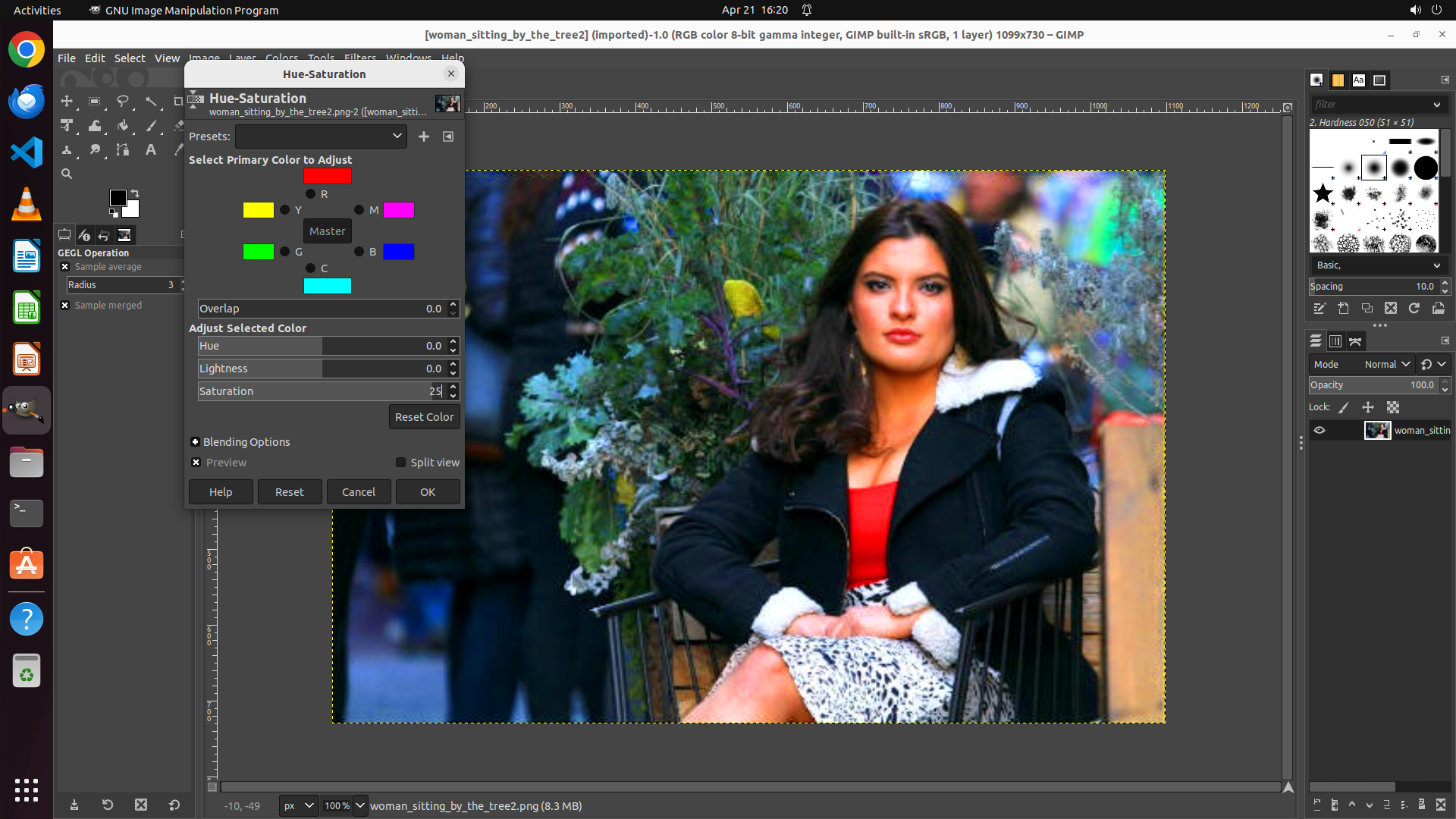
- The Saturation value has been successfully changed from 88.4 to 25
- The Hue-Saturation dialog is still open with the Preview checkbox checked
- The image preview shows the photo with enhanced color vibrancy - the red top and green foliage appear more saturated and vivid
- The OK button is visible at the bottom of the dialog, ready to apply the changes
#### 情况分析与思考过程
The previous action successfully set the Saturation value to 25, which provides a good balance of color enhancement without over-saturating the image. The preview shows that the colors are now more vibrant - the red top is more vivid and the green foliage has more intensity.
Now I need to apply these changes by clicking the "OK" button. This will:
1. Apply the saturation adjustment to the image
2. Close the Hue-Saturation dialog
3. Return to the main GIMP window with the enhanced image
After clicking OK, I'll need to save the image to complete the task. The OK button is located at the bottom right of the dialog.
```
Step 6: HOTKEY
```
#### 重要信息
- The Hue-Saturation dialog has been closed after clicking OK
- The color adjustments have been successfully applied to the image
- The image now displays enhanced color vibrancy - the red top appears more vivid and the green foliage is more saturated
- The title bar shows an asterisk (*[woman_sitting_by_the_tree2]) indicating unsaved changes
- The file name at the bottom shows "woman_sitting_by_the_tree2.png (11.8 MB)"
#### 情况分析与思考过程
The color vibrancy enhancement has been successfully applied. The image now shows:
- More vibrant red on the woman's top
- Enhanced green saturation in the foliage background
- Overall improved color intensity compared to the original
Now I need to complete the final step: save the enhanced image. The asterisk in the title bar indicates there are unsaved changes. I'll use Ctrl+S to save the file, which will preserve the color adjustments that were just applied.
```
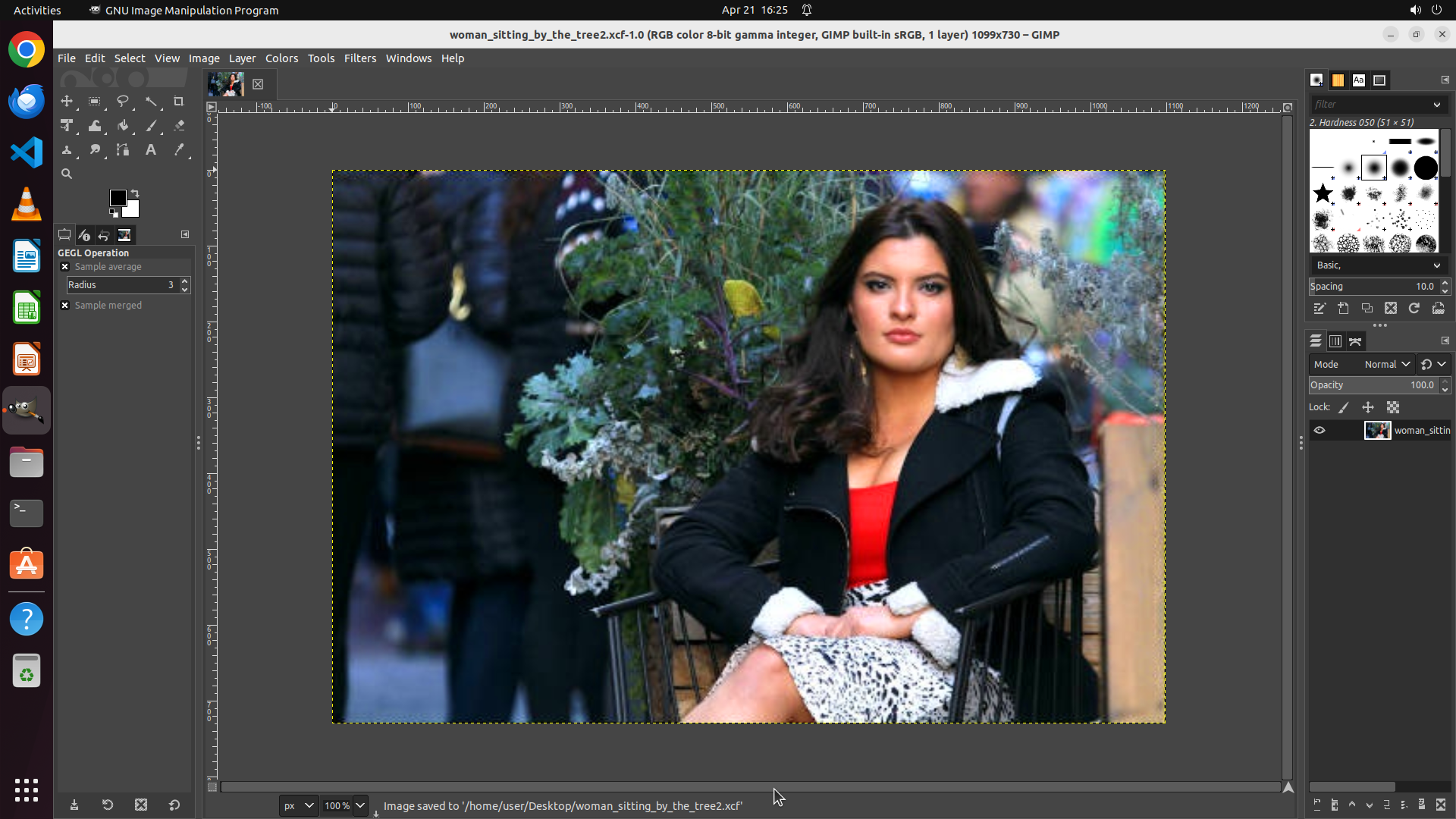
Step 7: CLICK (1016, 1035)
```
#### 重要信息
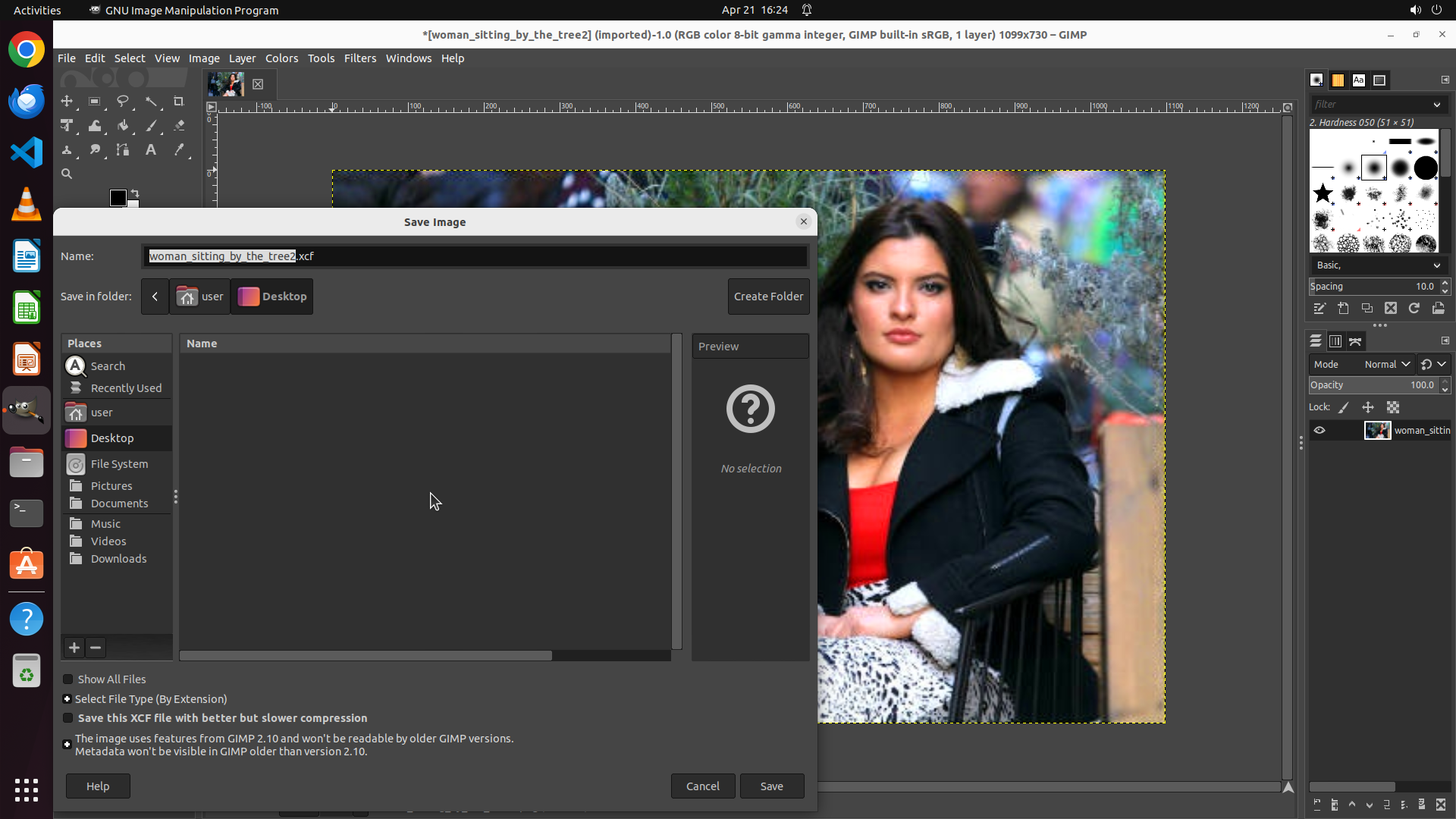
- The Save Image dialog has opened after pressing Ctrl+S
- The filename is set to "woman_sitting_by_the_tree2.xcf" (GIMP's native format)
- The save location is Desktop (shown in the breadcrumb)
- The enhanced image is visible in the background with more vibrant colors - the red top and green foliage appear more saturated
- The Save button is available at the bottom right of the dialog
#### 情况分析与思考过程
The previous action (Ctrl+S) successfully opened the Save Image dialog. The image has been enhanced with increased saturation (set to 25), making the colors more vibrant. Now I just need to complete the save operation by clicking the "Save" button.
The .xcf format is GIMP's native format which will preserve all editing capabilities. This is appropriate for saving the enhanced image. The filename and location look correct.
Clicking the Save button will:
1. Save the enhanced image to the Desktop
2. Close the Save dialog
3. Complete the task of enhancing and saving the photo
This will be the final step to complete the color vibrancy enhancement task.
```