```
#### 重要信息
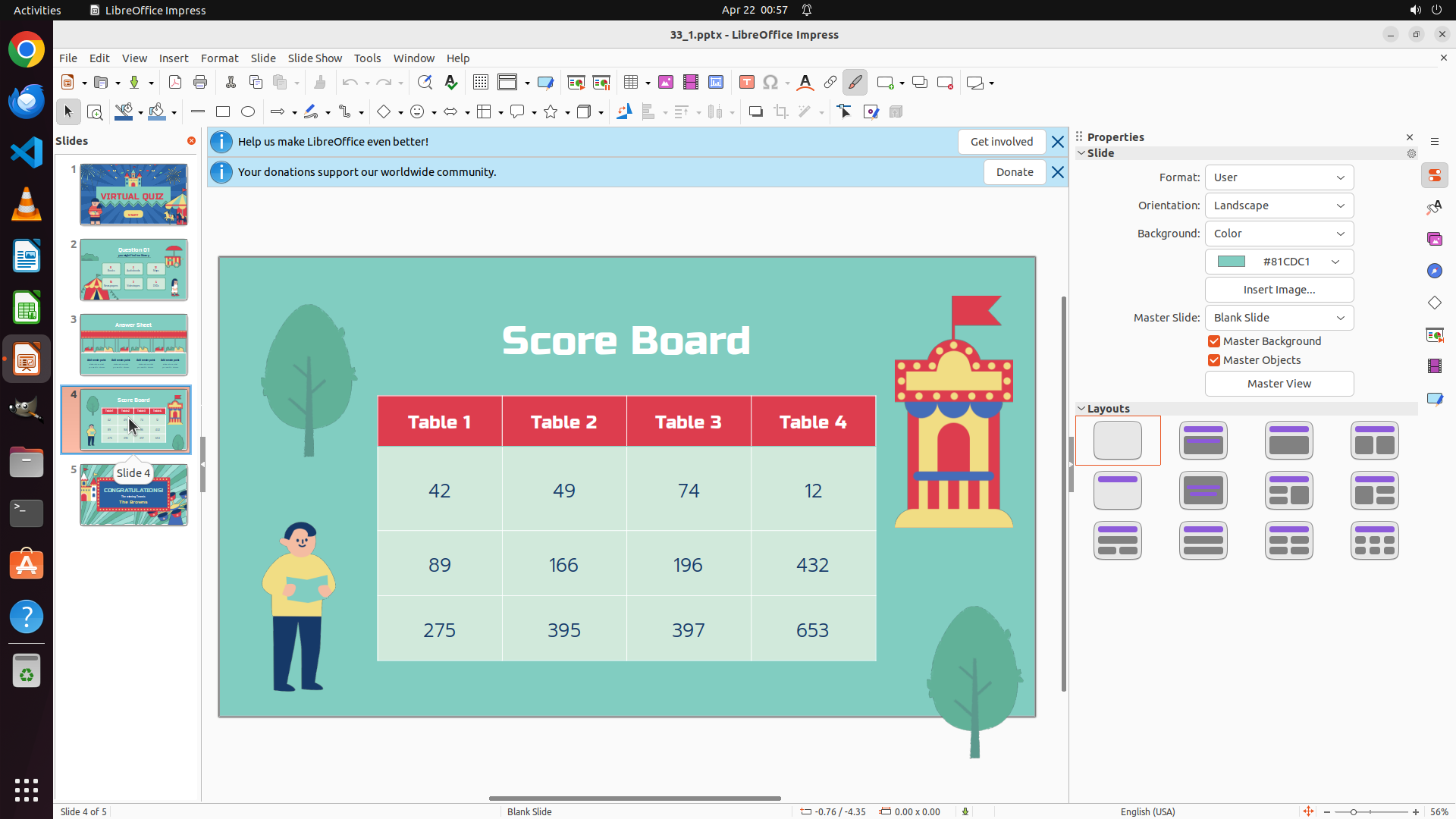
LibreOffice Impress is open with a presentation file "33_1.pptx". Currently slide 1 (VIRTUAL QUIZ title slide) is displayed in the main editing area. The left panel shows 5 slide thumbnails, and I can see slide 4 contains what appears to be a table. The task requires me to navigate to slide 4 and change the first row of the table to "T1", "T2", "T3", "T4".
#### 情况分析与思考过程
I need to complete the task in steps:
1. First, navigate to slide 4 by clicking on its thumbnail in the left panel
2. Then select the table on slide 4
3. Edit the first row cells to contain "T1", "T2", "T3", "T4"
4. Save the file
Currently, I'm on slide 1. The most logical next action is to click on slide 4's thumbnail in the left panel to navigate to that slide. I can see slide 4 in the left panel - it appears to be the one with a table layout.
```
Step 2: CLICK (580, 552)
```
#### 重要信息
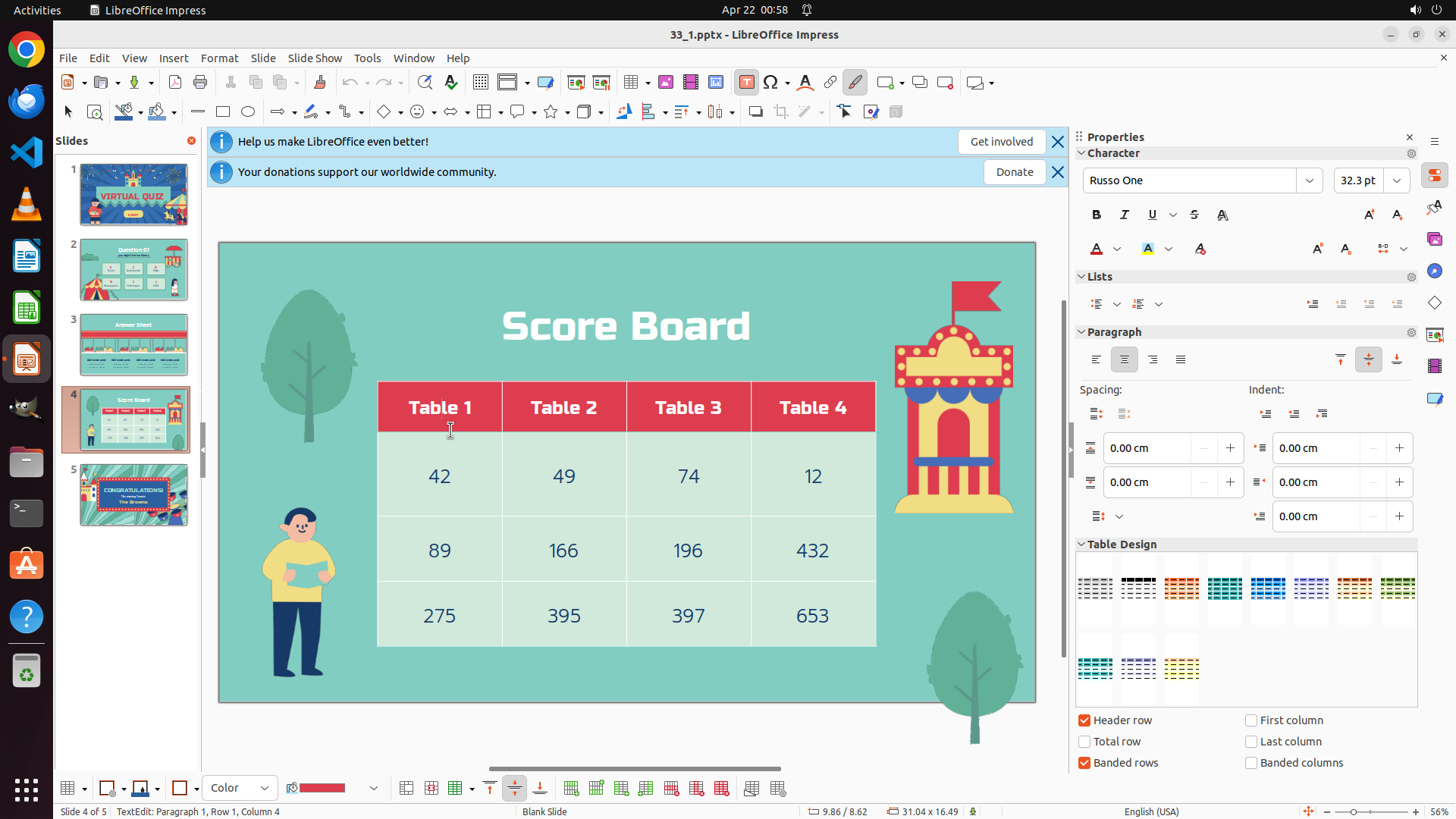
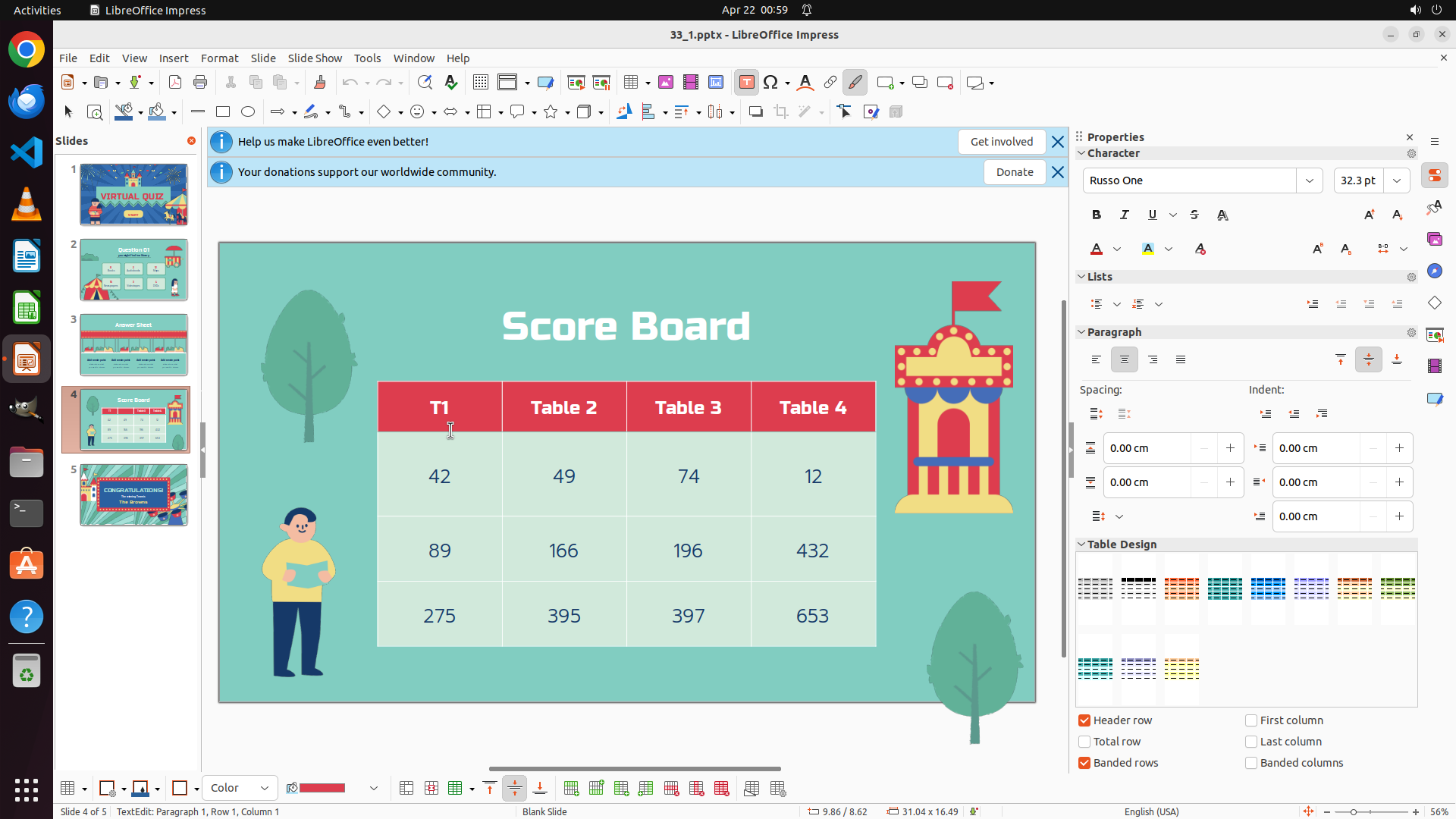
LibreOffice Impress is open on slide 4, which displays the "Score Board" table. The table has 4 columns with headers "Table 1", "Table 2", "Table 3", "Table 4" in the first row. The task is to change these headers to "T1", "T2", "T3", "T4". Slide 4 is now active as indicated by the orange border around slide 4's thumbnail in the left panel.
#### 情况分析与思考过程
The previous action successfully navigated to slide 4. Now I need to:
1. Click on the table to select it
2. Edit each cell in the first row to change the text from "Table 1", "Table 2", "Table 3", "Table 4" to "T1", "T2", "T3", "T4"
I can see the table clearly in the main editing area. The first cell contains "Table 1" and I need to click on it to start editing. Once I click on a cell, I can select the text and replace it with the new text.
I'll start by clicking on the first cell with "Table 1" text to select it and begin editing. This will allow me to change it to "T1".
```
Step 3: CLICK (580, 552)
```
#### 重要信息
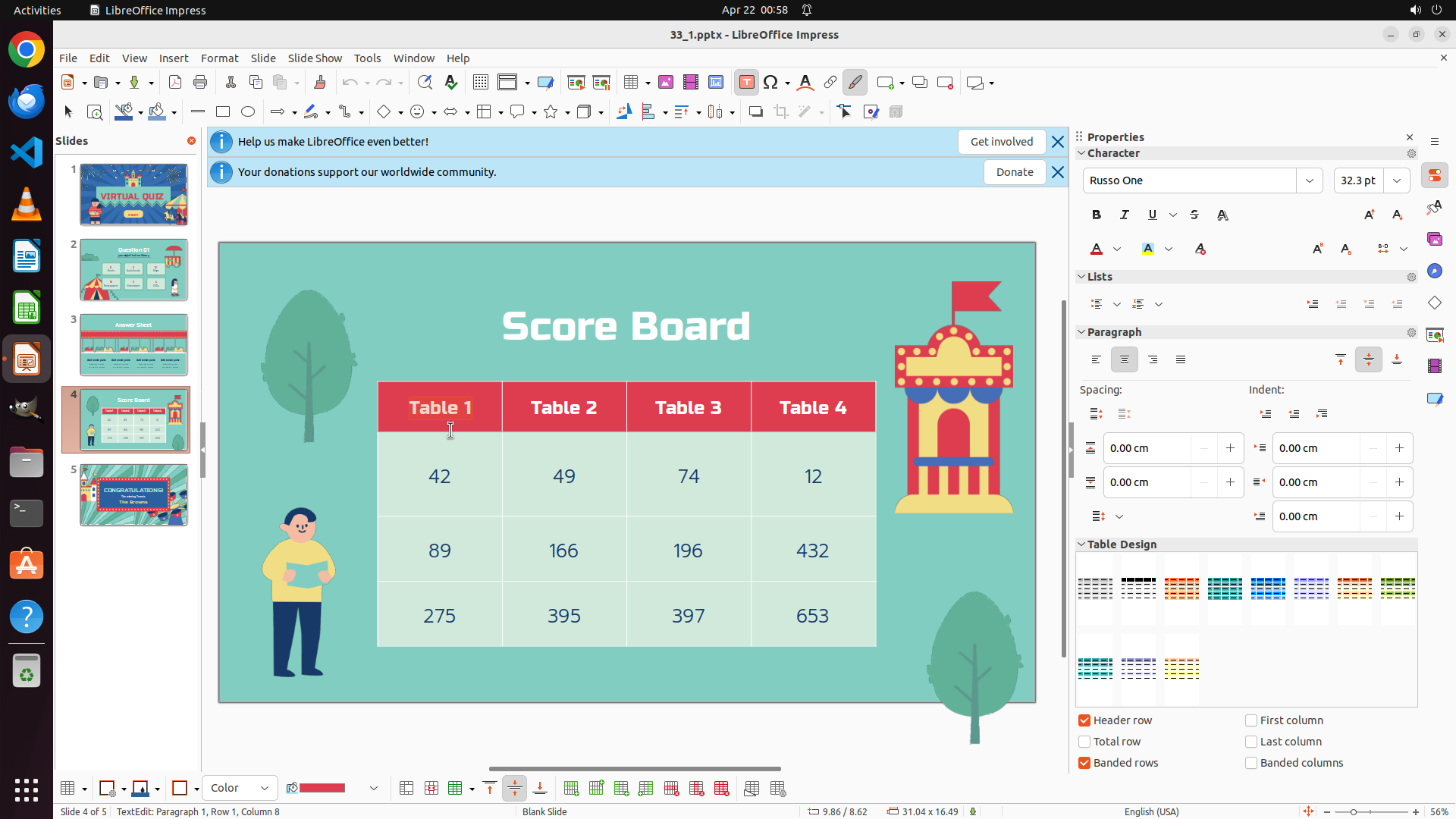
The previous action successfully clicked on the first cell of the table. The cursor is now in the "Table 1" cell as indicated by the status bar showing "TextEdit: Paragraph 1, Row 1, Column 4". The cell is now in edit mode. I need to select the text "Table 1" and replace it with "T1".
#### 情况分析与思考过程
Now that I'm in the first cell, I need to:
1. Select all the text "Table 1" in this cell
2. Type "T1" to replace it
3. Move to the next cell (Table 2) and repeat
To select all text in the current cell, I can triple-click which will select the entire content. Then I can type "T1" to replace it. This is more efficient than manually selecting the text.
I'll triple-click on the current cell to select all text "Table 1", then type "T1" to replace it.
```
Step 3: TYPING "T1"
```
#### 重要信息
The previous action successfully clicked on the first cell of the table. The cursor is now in the "Table 1" cell as indicated by the status bar showing "TextEdit: Paragraph 1, Row 1, Column 4". The cell is now in edit mode. I need to select the text "Table 1" and replace it with "T1".
#### 情况分析与思考过程
Now that I'm in the first cell, I need to:
1. Select all the text "Table 1" in this cell
2. Type "T1" to replace it
3. Move to the next cell (Table 2) and repeat
To select all text in the current cell, I can triple-click which will select the entire content. Then I can type "T1" to replace it. This is more efficient than manually selecting the text.
I'll triple-click on the current cell to select all text "Table 1", then type "T1" to replace it.
```
Step 4: HOTKEY
```
#### 重要信息
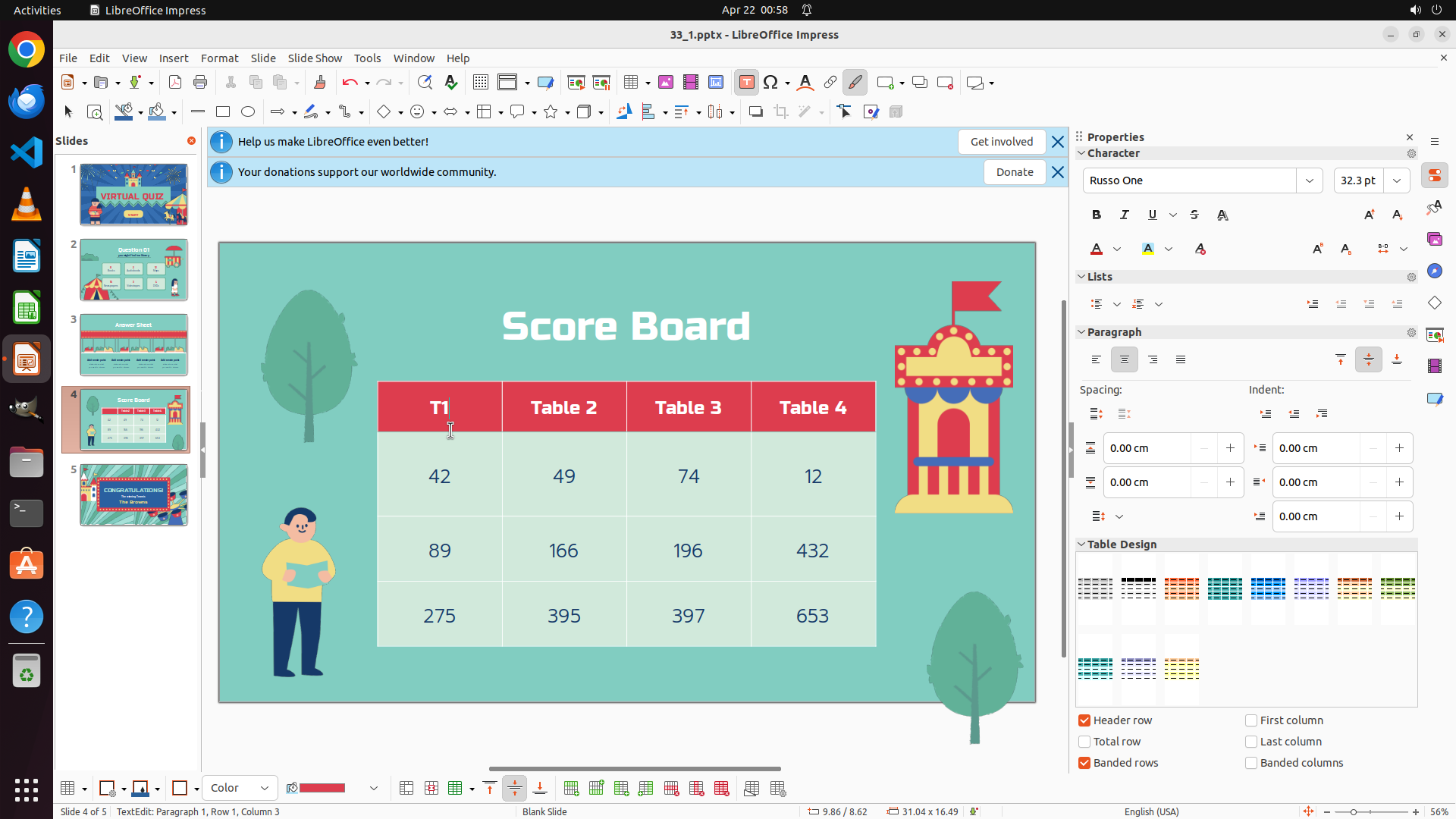
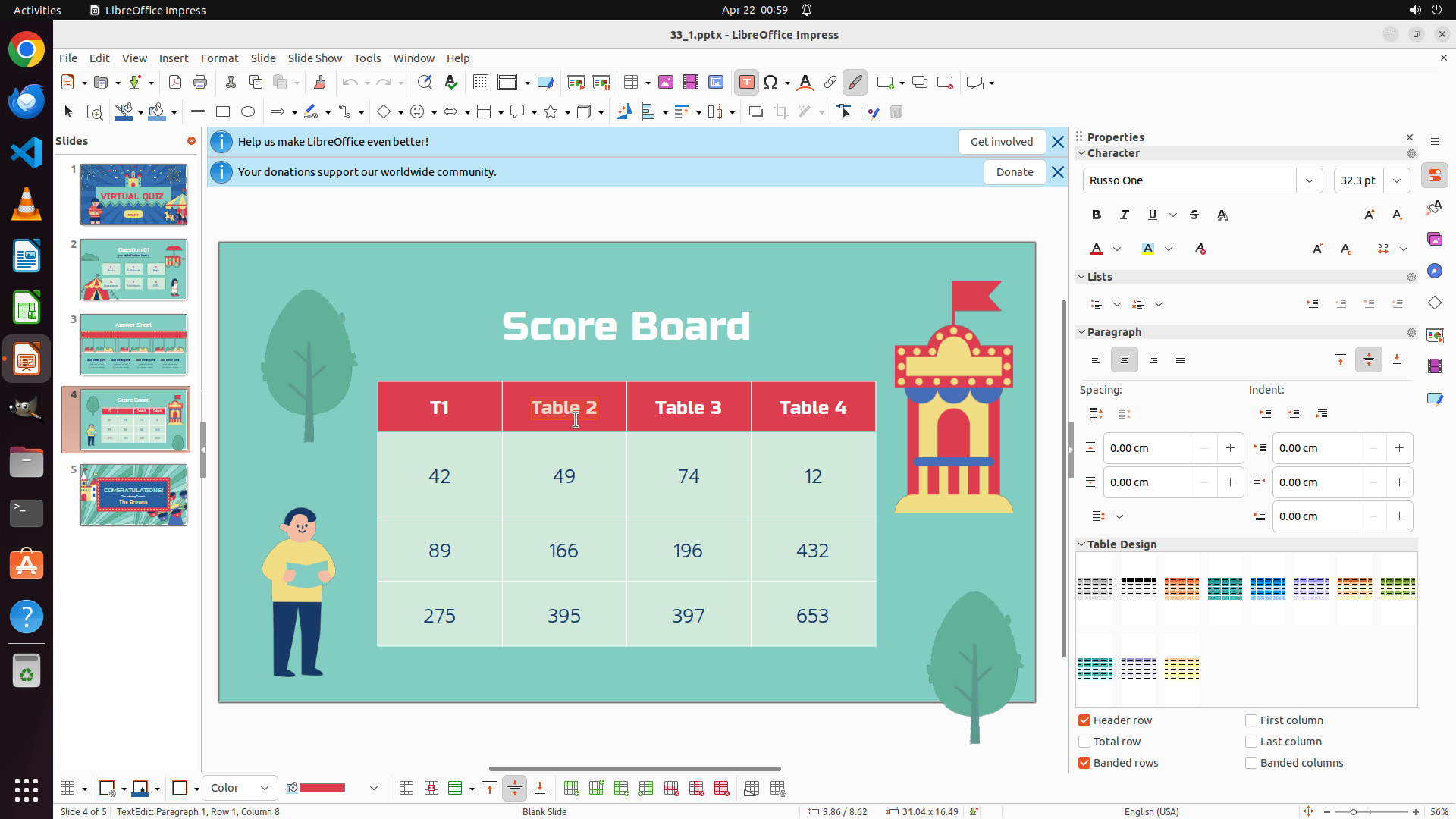
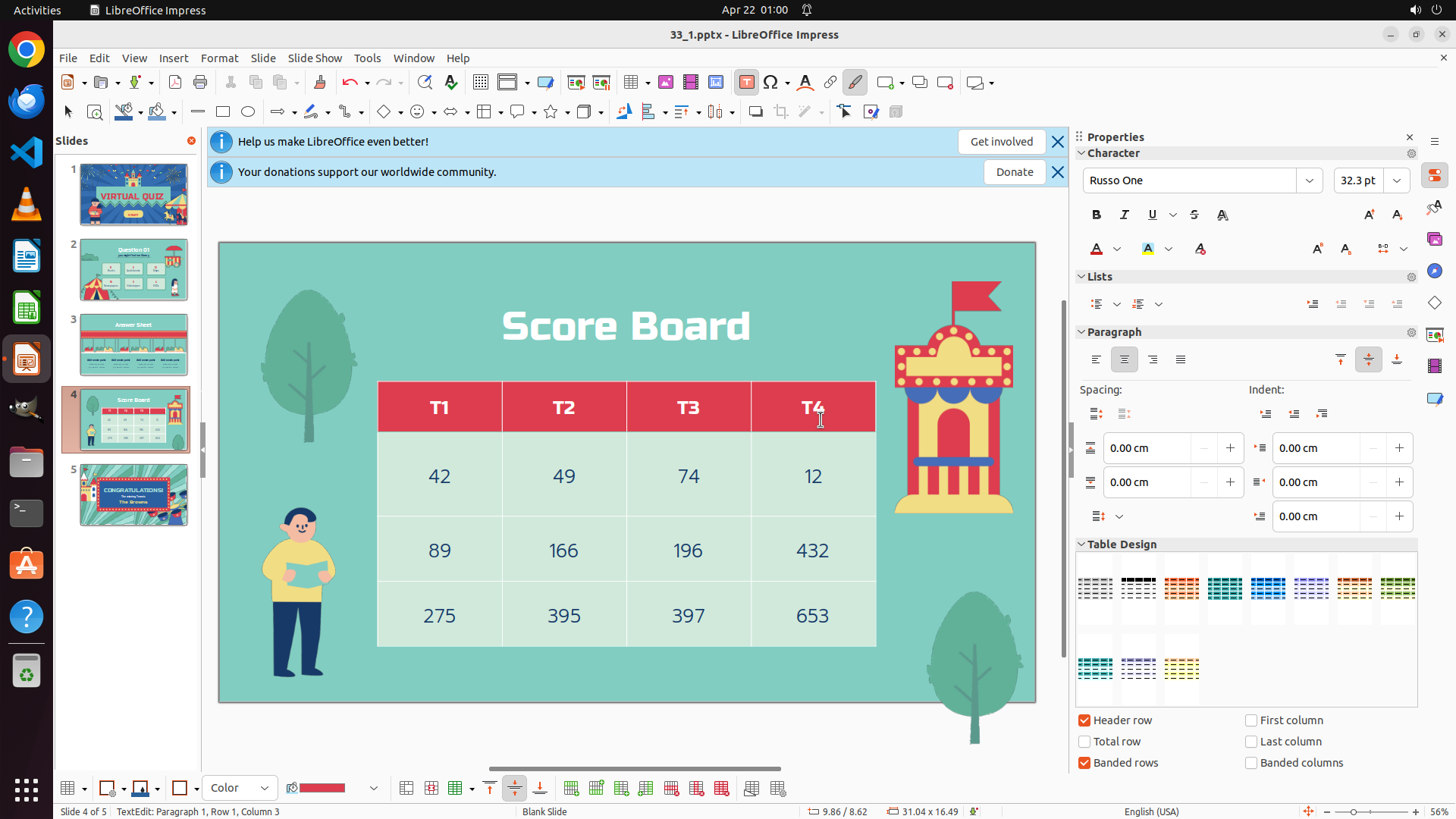
The previous action successfully changed the first cell from "Table 1" to "T1". I can see in the current screenshot that the first cell now displays "T1" as required. The cursor is still in the table editing mode.
#### 情况分析与思考过程
Now I need to:
1. Move to the second cell (currently showing "Table 2")
2. Select all text and replace it with "T2"
3. Repeat for the third and fourth cells
Since I'm already in table edit mode, I can press Tab to move to the next cell (second cell). Then I'll triple-click to select all text in that cell and type "T2" to replace it.
I'll press Tab to move to the next cell, then triple-click to select the text "Table 2", and type "T2" to replace it.
```
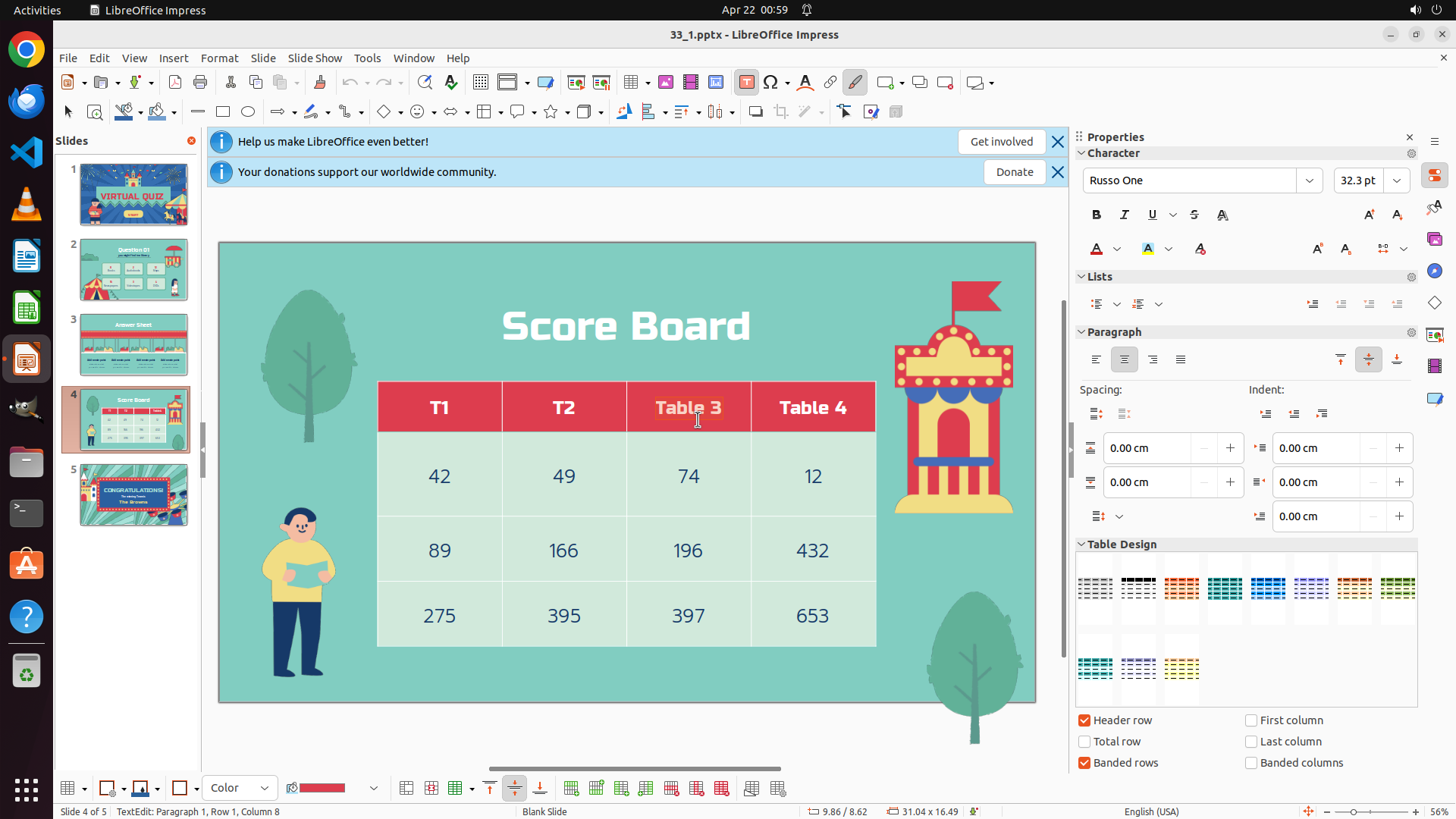
Step 4: CLICK (745, 538)
```
#### 重要信息
The previous action successfully changed the first cell from "Table 1" to "T1". I can see in the current screenshot that the first cell now displays "T1" as required. The cursor is still in the table editing mode.
#### 情况分析与思考过程
Now I need to:
1. Move to the second cell (currently showing "Table 2")
2. Select all text and replace it with "T2"
3. Repeat for the third and fourth cells
Since I'm already in table edit mode, I can press Tab to move to the next cell (second cell). Then I'll triple-click to select all text in that cell and type "T2" to replace it.
I'll press Tab to move to the next cell, then triple-click to select the text "Table 2", and type "T2" to replace it.
```
Step 4: TYPING "T2"
```
#### 重要信息
The previous action successfully changed the first cell from "Table 1" to "T1". I can see in the current screenshot that the first cell now displays "T1" as required. The cursor is still in the table editing mode.
#### 情况分析与思考过程
Now I need to:
1. Move to the second cell (currently showing "Table 2")
2. Select all text and replace it with "T2"
3. Repeat for the third and fourth cells
Since I'm already in table edit mode, I can press Tab to move to the next cell (second cell). Then I'll triple-click to select all text in that cell and type "T2" to replace it.
I'll press Tab to move to the next cell, then triple-click to select the text "Table 2", and type "T2" to replace it.
```
Step 5: HOTKEY
```
#### 重要信息
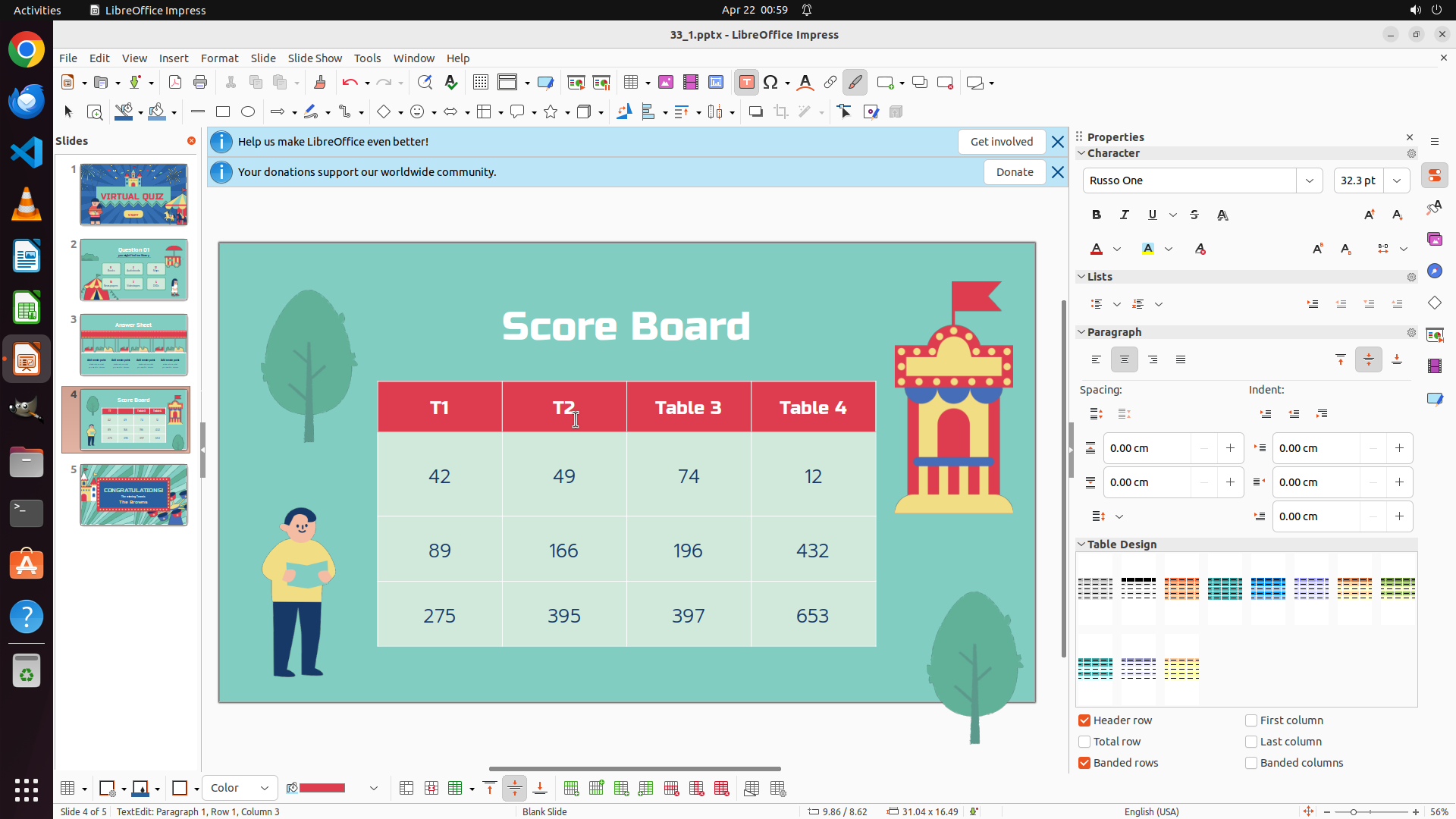
The previous action successfully changed the second cell from "Table 2" to "T2". I can see in the current screenshot that the first two cells now display "T1" and "T2" as required. The cursor is currently in the second cell.
#### 情况分析与思考过程
Now I need to:
1. Move to the third cell (currently showing "Table 3")
2. Select all text and replace it with "T3"
3. Move to the fourth cell and replace "Table 4" with "T4"
Since I'm already in table edit mode, I can press Tab to move to the next cell (third cell). Then I'll triple-click to select all text in that cell and type "T3" to replace it.
I'll press Tab to move to the next cell, then triple-click to select the text "Table 3", and type "T3" to replace it.
```
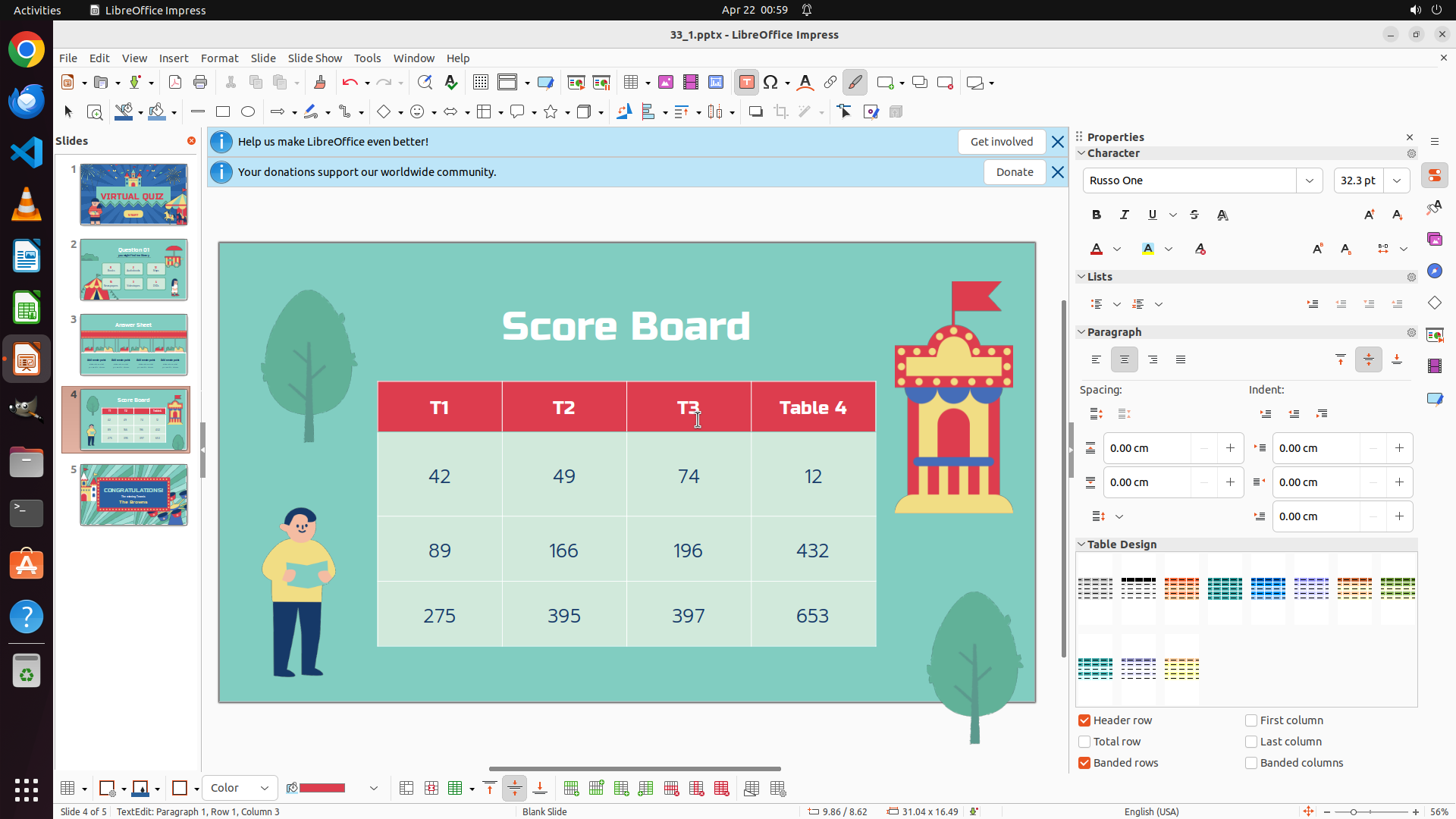
Step 5: CLICK (906, 538)
```
#### 重要信息
The previous action successfully changed the second cell from "Table 2" to "T2". I can see in the current screenshot that the first two cells now display "T1" and "T2" as required. The cursor is currently in the second cell.
#### 情况分析与思考过程
Now I need to:
1. Move to the third cell (currently showing "Table 3")
2. Select all text and replace it with "T3"
3. Move to the fourth cell and replace "Table 4" with "T4"
Since I'm already in table edit mode, I can press Tab to move to the next cell (third cell). Then I'll triple-click to select all text in that cell and type "T3" to replace it.
I'll press Tab to move to the next cell, then triple-click to select the text "Table 3", and type "T3" to replace it.
```
Step 5: TYPING "T3"
```
#### 重要信息
The previous action successfully changed the second cell from "Table 2" to "T2". I can see in the current screenshot that the first two cells now display "T1" and "T2" as required. The cursor is currently in the second cell.
#### 情况分析与思考过程
Now I need to:
1. Move to the third cell (currently showing "Table 3")
2. Select all text and replace it with "T3"
3. Move to the fourth cell and replace "Table 4" with "T4"
Since I'm already in table edit mode, I can press Tab to move to the next cell (third cell). Then I'll triple-click to select all text in that cell and type "T3" to replace it.
I'll press Tab to move to the next cell, then triple-click to select the text "Table 3", and type "T3" to replace it.
```
Step 6: HOTKEY
```
#### 重要信息
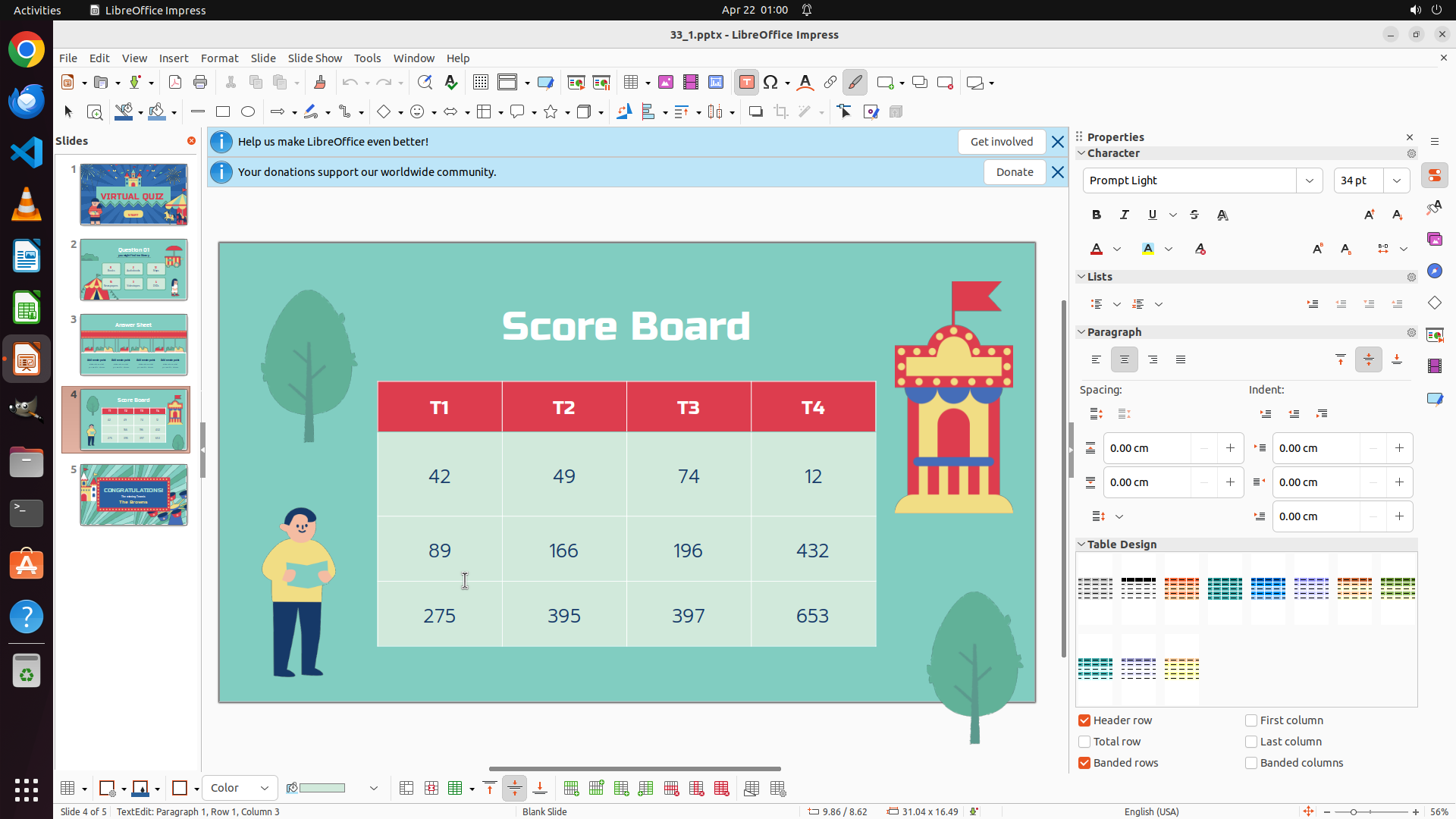
The previous action successfully changed the third cell from "Table 3" to "T3". I can see in the current screenshot that the first three cells now display "T1", "T2", and "T3" as required. The cursor is currently in the third cell.
#### 情况分析与思考过程
Now I need to:
1. Move to the fourth cell (currently showing "Table 4")
2. Select all text and replace it with "T4"
3. Save the file
Since I'm already in table edit mode, I can press Tab to move to the next cell (fourth cell). Then I'll triple-click to select all text in that cell and type "T4" to replace it.
I'll press Tab to move to the fourth cell, then triple-click to select "Table 4", and type "T4" to replace it.
```
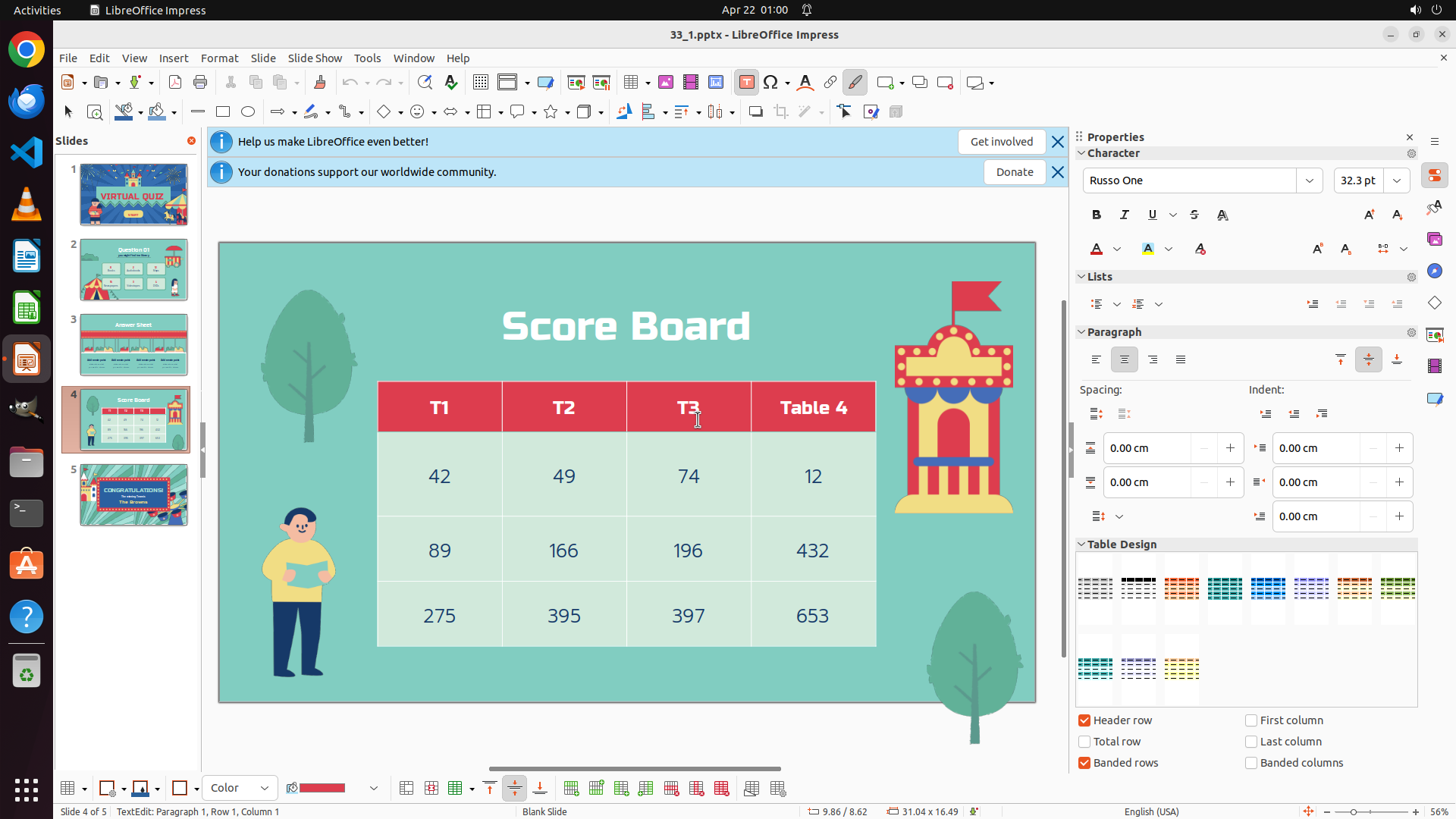
Step 6: CLICK (1068, 538)
```
#### 重要信息
The previous action successfully changed the third cell from "Table 3" to "T3". I can see in the current screenshot that the first three cells now display "T1", "T2", and "T3" as required. The cursor is currently in the third cell.
#### 情况分析与思考过程
Now I need to:
1. Move to the fourth cell (currently showing "Table 4")
2. Select all text and replace it with "T4"
3. Save the file
Since I'm already in table edit mode, I can press Tab to move to the next cell (fourth cell). Then I'll triple-click to select all text in that cell and type "T4" to replace it.
I'll press Tab to move to the fourth cell, then triple-click to select "Table 4", and type "T4" to replace it.
```
Step 6: TYPING "T4"
```
#### 重要信息
The previous action successfully changed the third cell from "Table 3" to "T3". I can see in the current screenshot that the first three cells now display "T1", "T2", and "T3" as required. The cursor is currently in the third cell.
#### 情况分析与思考过程
Now I need to:
1. Move to the fourth cell (currently showing "Table 4")
2. Select all text and replace it with "T4"
3. Save the file
Since I'm already in table edit mode, I can press Tab to move to the next cell (fourth cell). Then I'll triple-click to select all text in that cell and type "T4" to replace it.
I'll press Tab to move to the fourth cell, then triple-click to select "Table 4", and type "T4" to replace it.
```
Step 7: CLICK (599, 750)
Step 7: HOTKEY
Step 8: CLICK (599, 750)
```
#### 重要信息
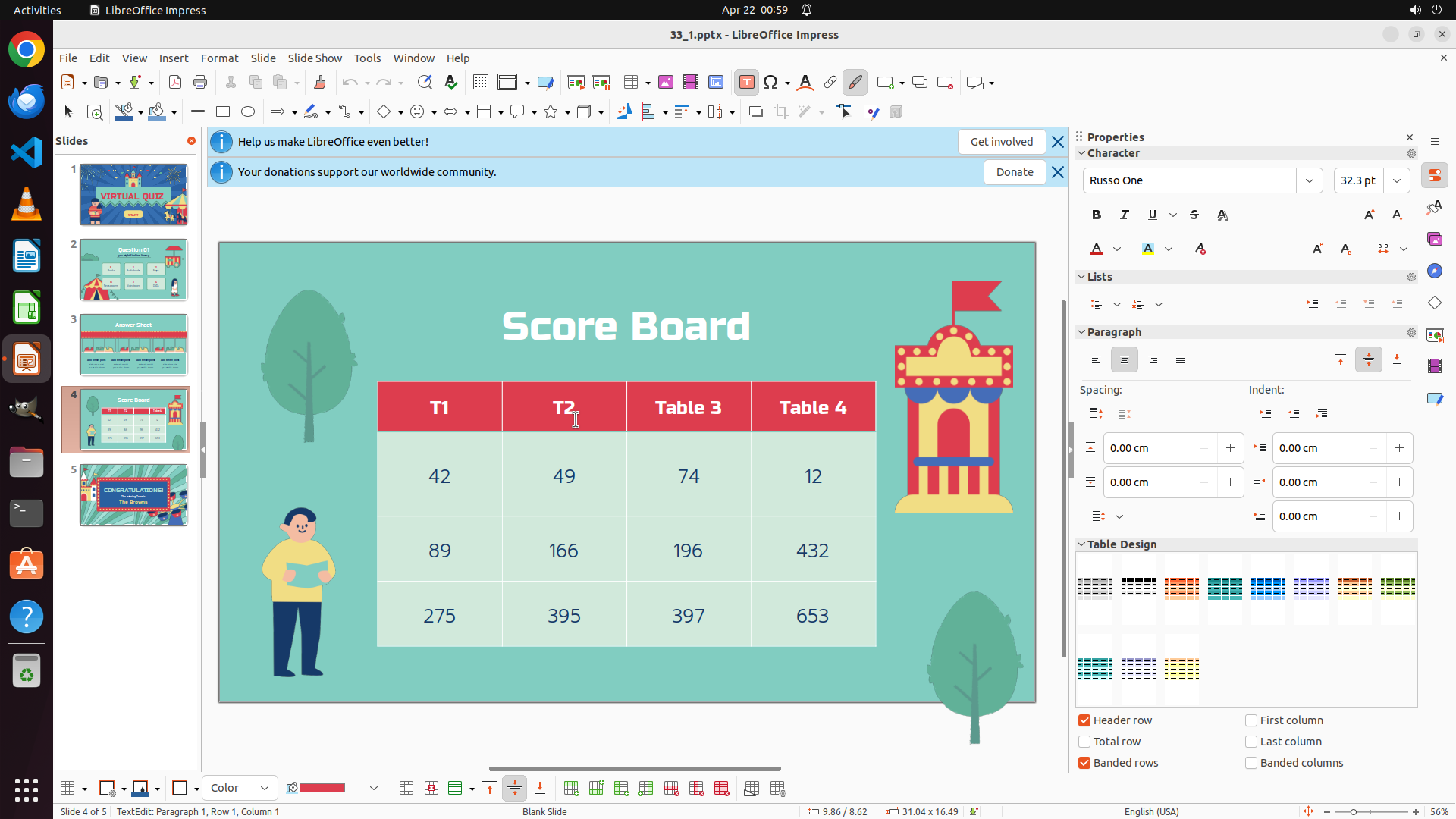
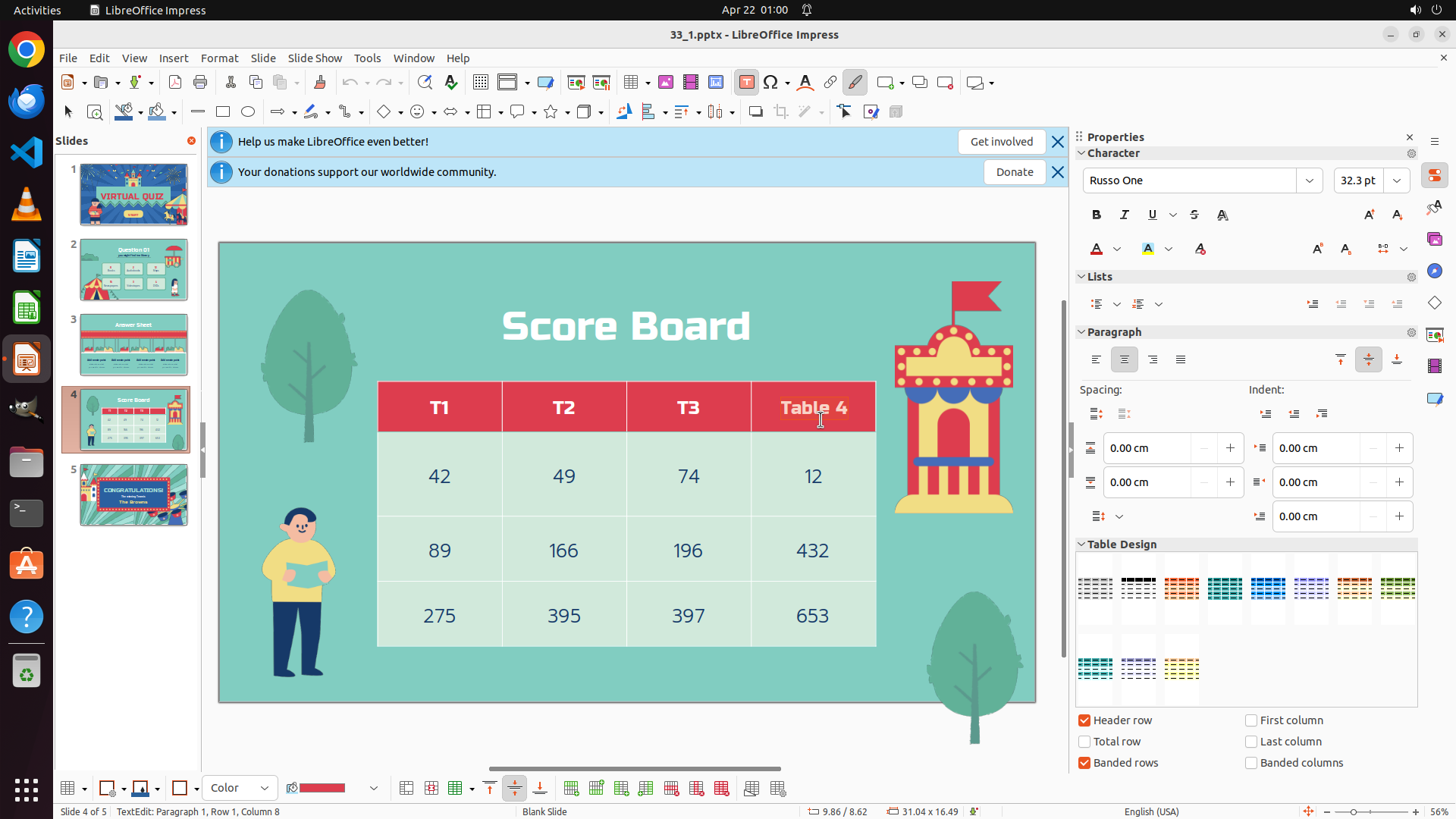
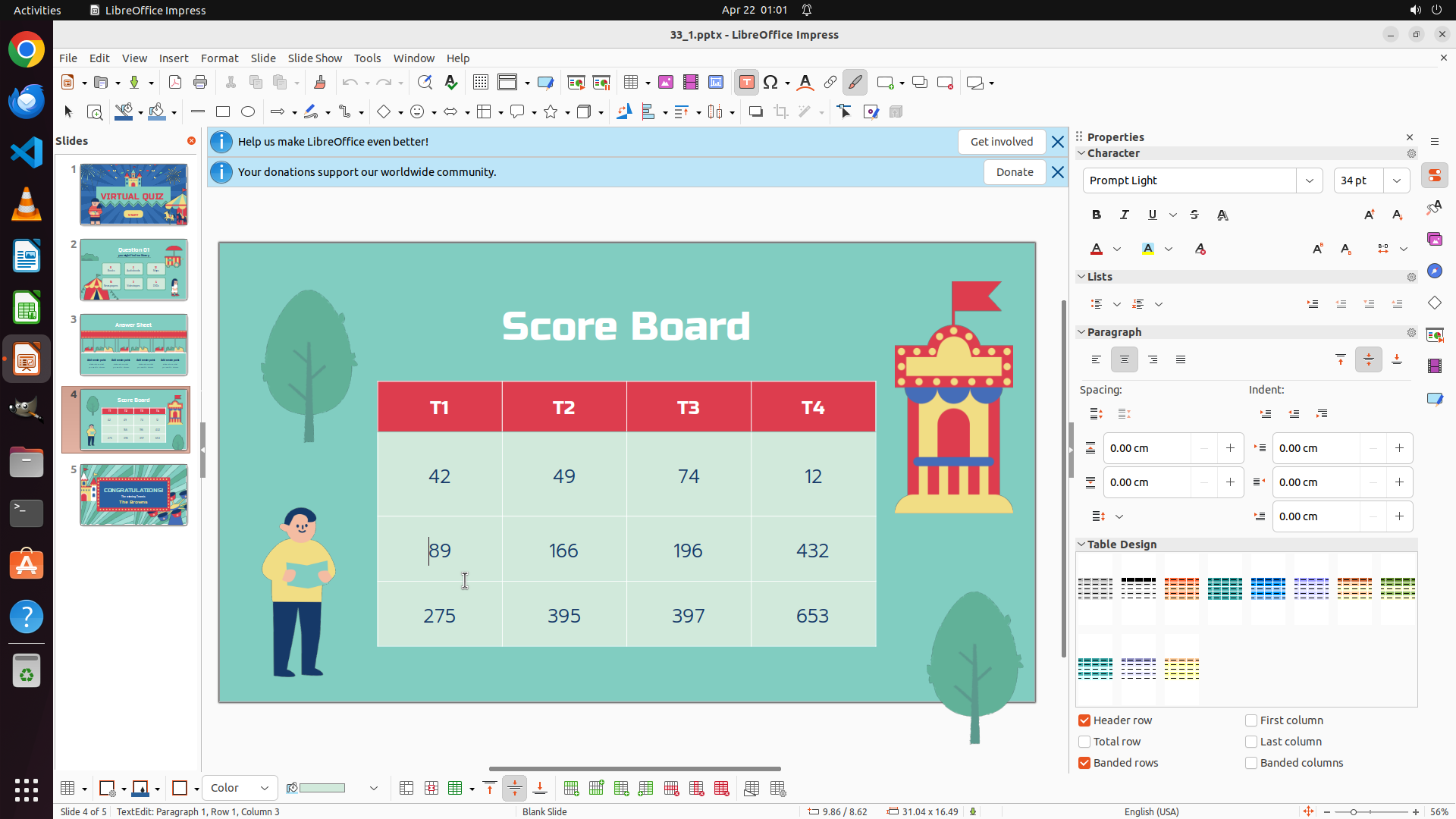
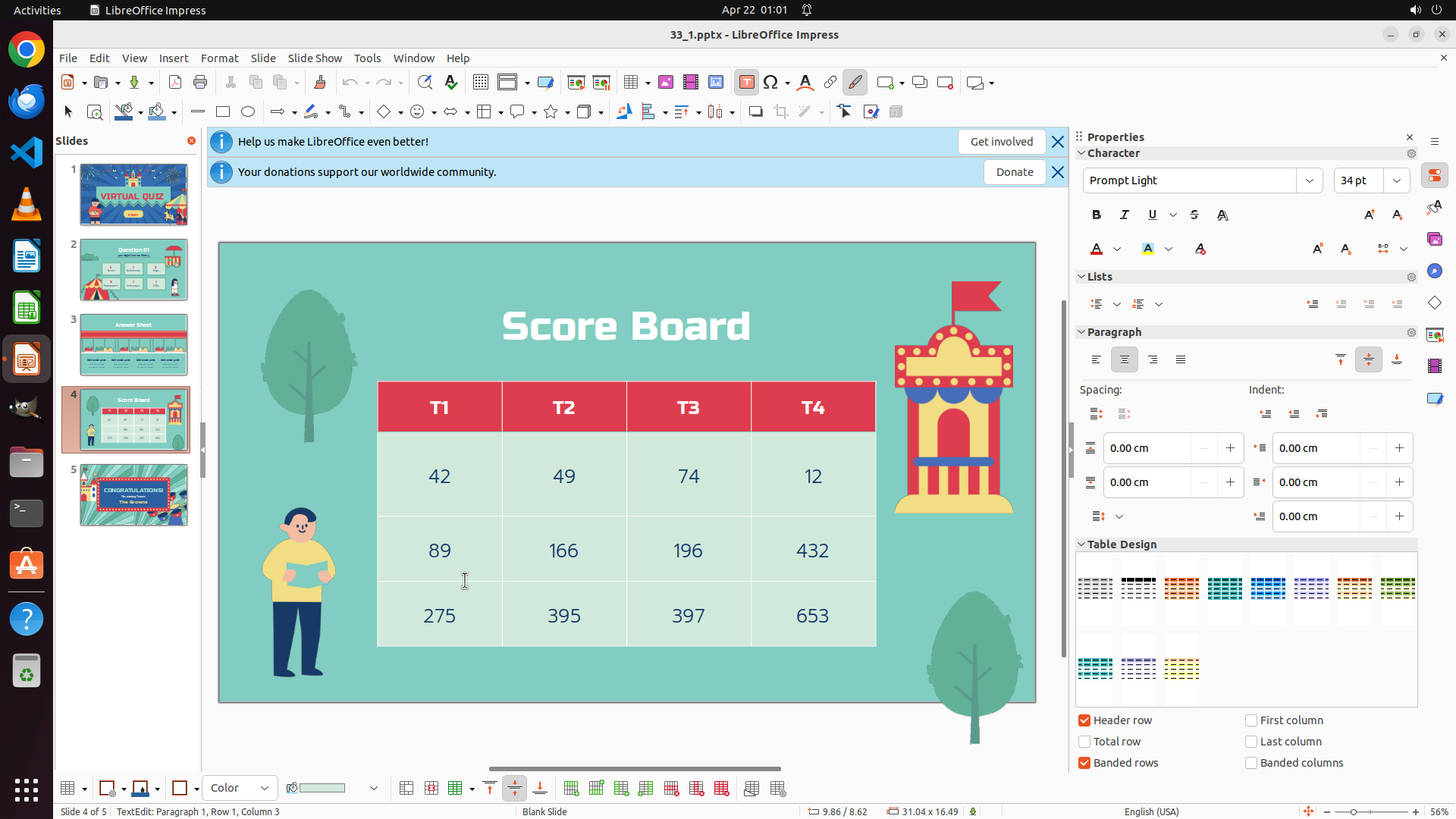
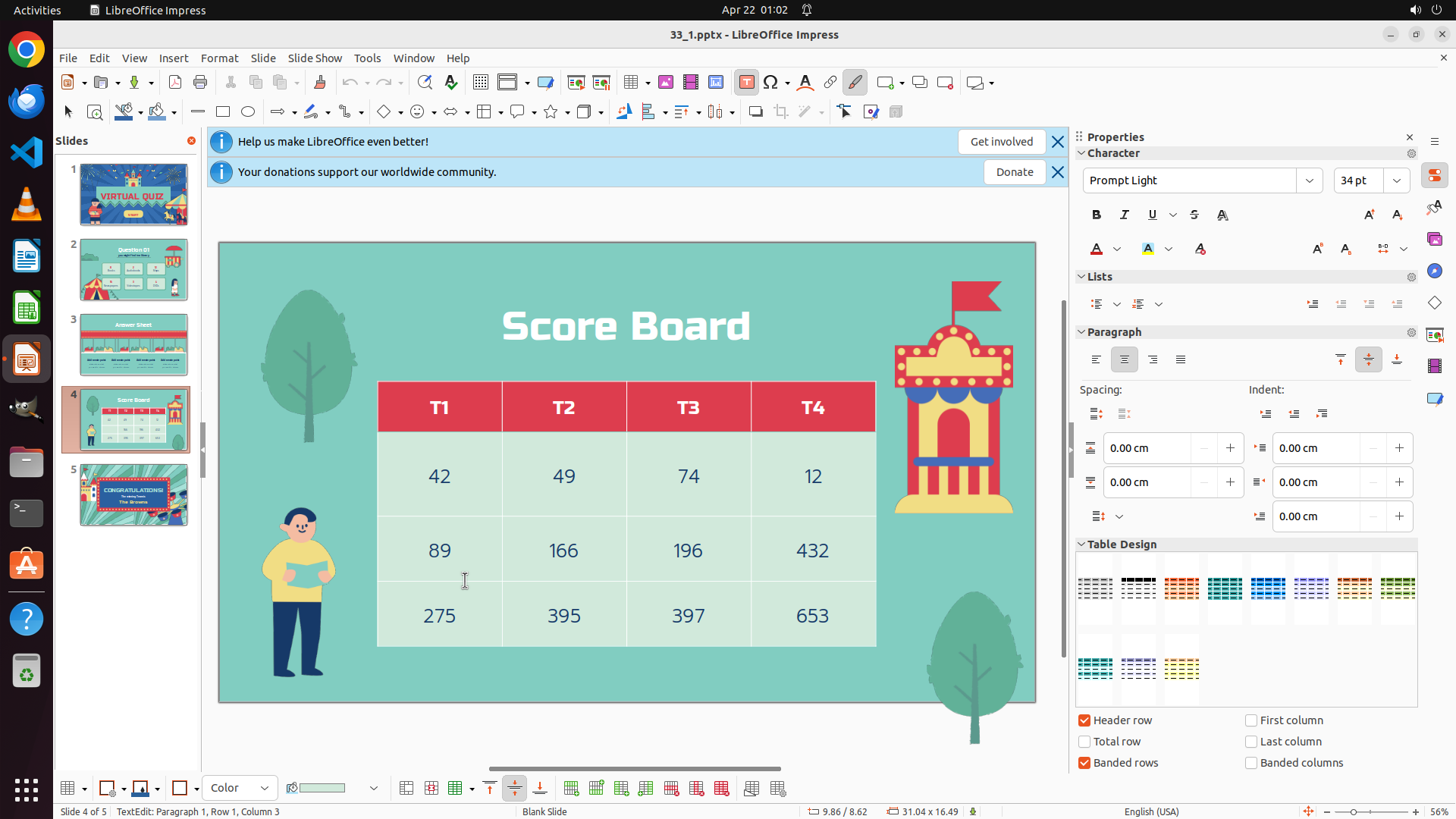
LibreOffice Impress is open on slide 4 with the "Score Board" table clearly visible. The first row of the table now displays "T1", "T2", "T3", "T4" as required. All four cells have been successfully modified from their original "Table 1", "Table 2", "Table 3", "Table 4" values. The file has been saved (Ctrl+S was executed in the previous action). The cursor is currently in the table editing mode in the third column.
#### 情况分析与思考过程
The task has been completed successfully:
1. ✓ Navigated to slide 4 (slide 4 thumbnail is highlighted in the left panel)
2. ✓ Selected and edited the table
3. ✓ Changed all four cells in the first row to "T1", "T2", "T3", "T4"
4. ✓ Saved the presentation file
All key visual evidence requirements are met:
- Slide 4 is selected and displayed
- The Score Board table is visible with the first row showing T1, T2, T3, T4
- The file has been saved
To finalize and show a clean completion state, I should click outside the table to deselect it. This will provide a clear final view of the completed task.
```