```
#### 重要信息
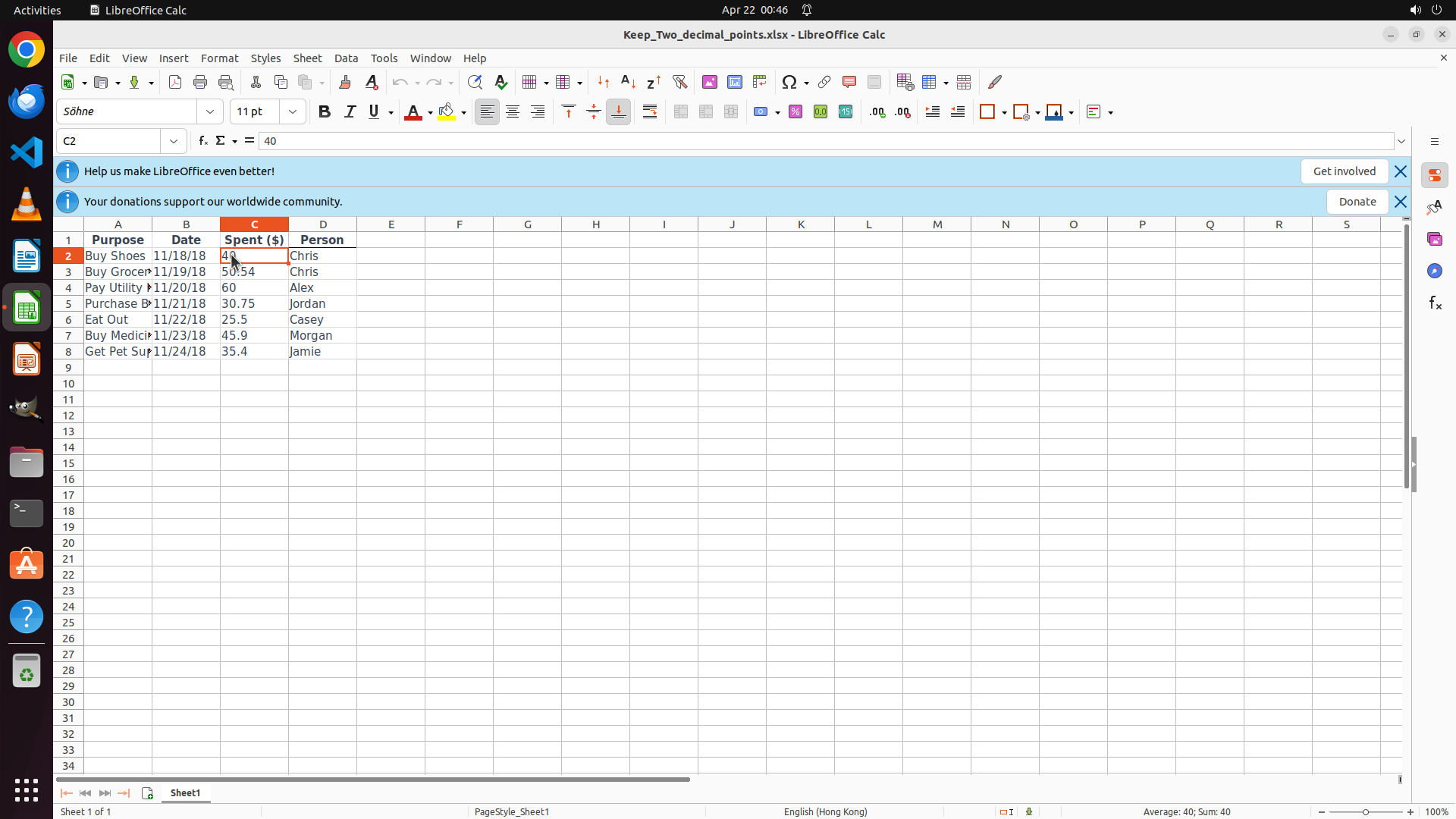
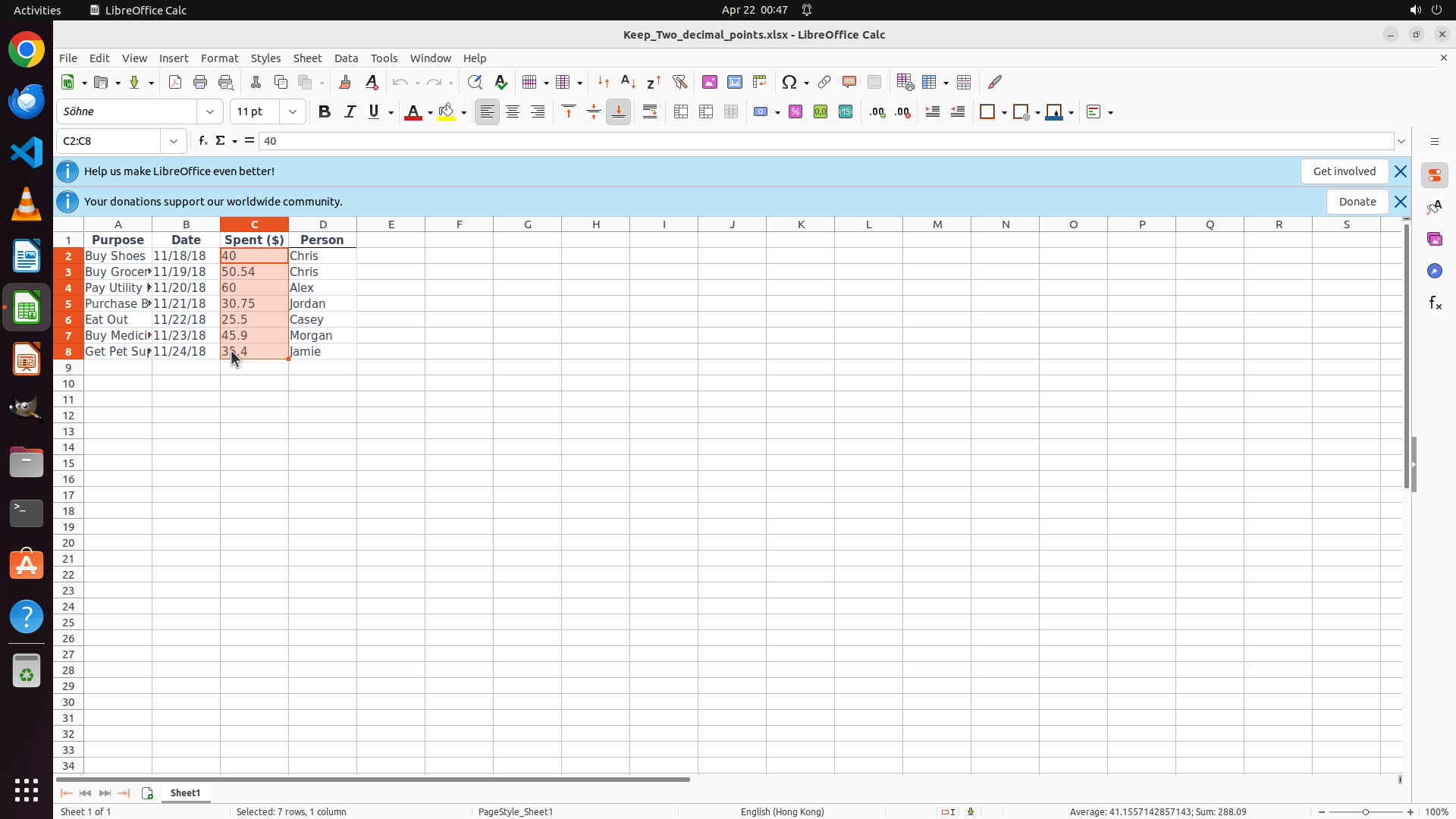
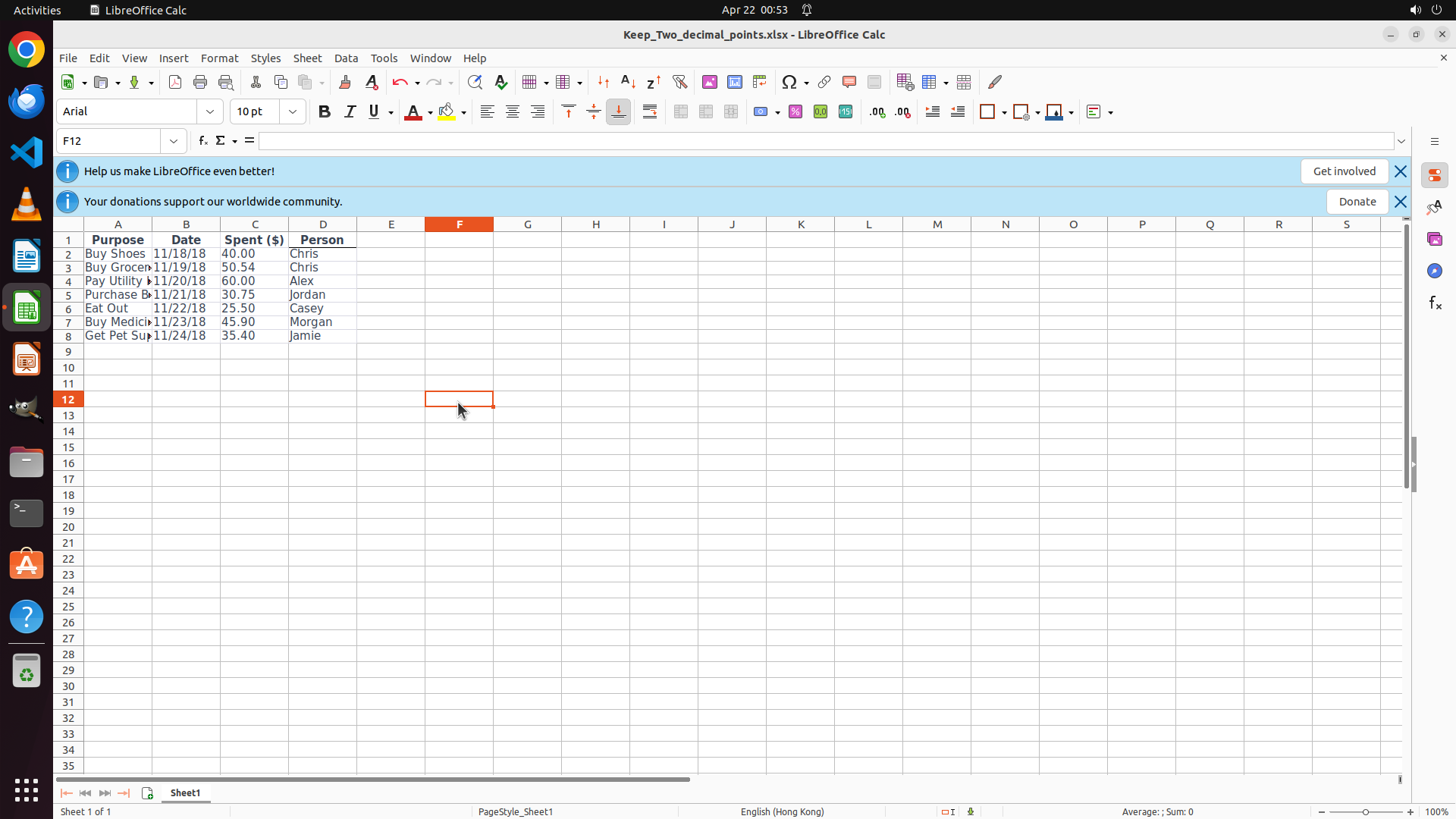
- LibreOffice Calc is open with a spreadsheet containing expense data
- Column C is labeled "Spent ($)" and contains numeric values (40, 50.54, 60, 30.75, 25.5, 45.9, 35.4)
- The data is in rows 2-8 (row 1 is the header)
- Current values show inconsistent decimal formatting (some show no decimals, some show 1 or 2 decimals)
- Need to format all values in column C to display exactly 2 decimal places
#### 情况分析与思考过程
The task is to format the "Spent ($)" column to keep two decimal points. I can see the spreadsheet with data in column C from rows 2 to 8. The current values display inconsistent decimal formatting.
My plan:
1. First, click on cell C2 (the first data cell with value 40)
2. Then drag down to select all data cells from C2 to C8
3. Right-click to open Format Cells dialog
4. Select Number category and set decimal places to 2
5. Click OK to apply
I'll start by clicking on cell C2 to begin the selection process.
```
Step 2: MOVE_TO (300, 330)
```
#### 重要信息
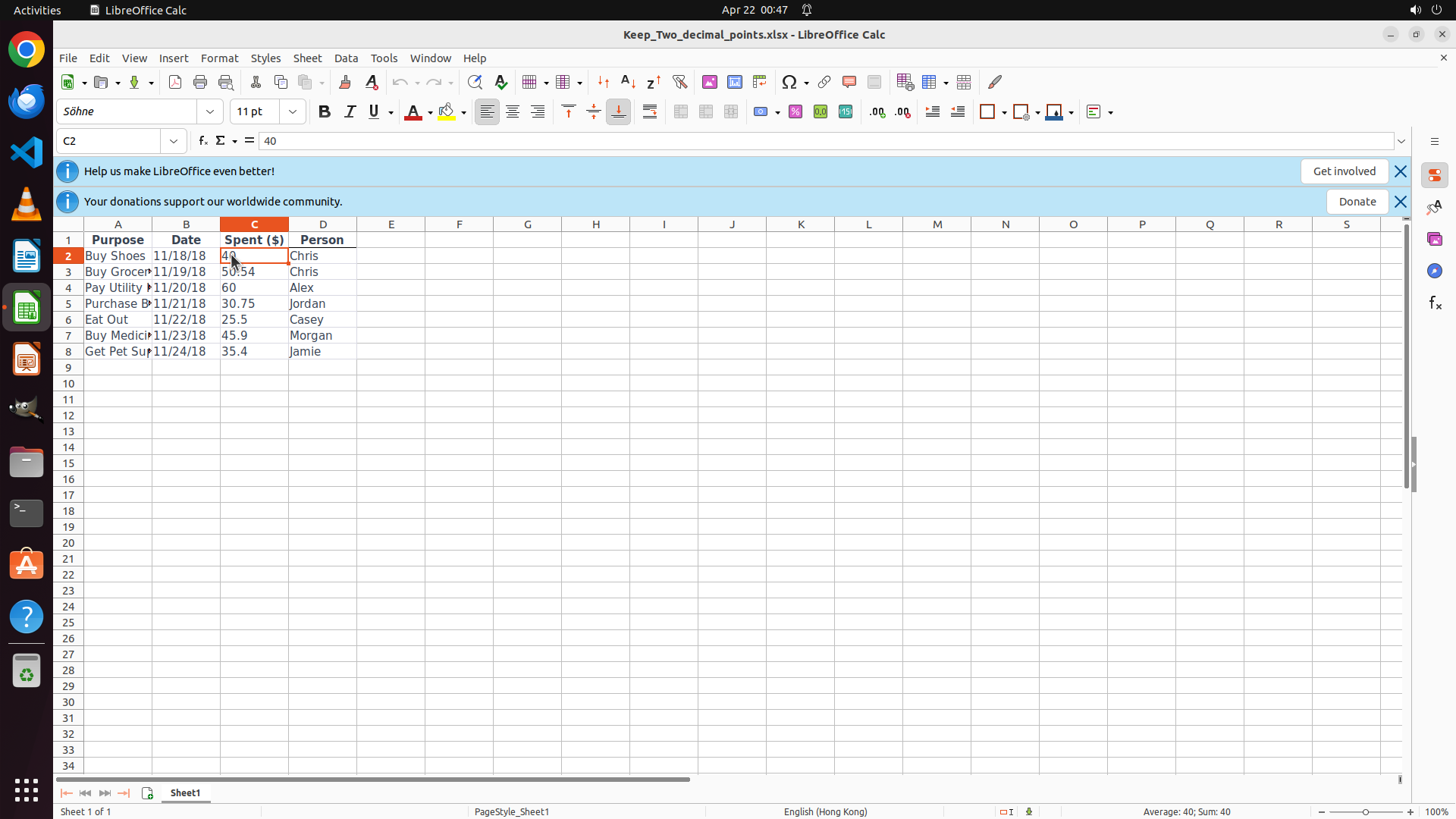
- LibreOffice Calc is open with the expense spreadsheet
- Cell C2 is now selected (showing value "40" in the formula bar)
- The cell reference box shows "C2"
- Column C contains data from rows 2 to 8 (values: 40, 50.54, 60, 30.75, 25.5, 45.9, 35.4)
- Need to select the range C2:C8 to format all values at once
#### 情况分析与思考过程
The previous action successfully selected cell C2. Now I need to extend the selection from C2 down to C8 to include all the data cells in the Spent ($) column.
I can see the data goes from row 2 (Buy Shoes - 40) to row 8 (Get Pet Supplies - 35.4). To select this range, I'll drag from the current position at C2 down to C8.
After selecting the range, I'll need to:
1. Right-click to open Format Cells dialog
2. Select Number category
3. Set decimal places to 2
4. Click OK
For now, I'll drag from C2 to C8 to select all the data cells.
```
Step 2: DRAG_TO (300, 451)
```
#### 重要信息
- LibreOffice Calc is open with the expense spreadsheet
- Cell C2 is now selected (showing value "40" in the formula bar)
- The cell reference box shows "C2"
- Column C contains data from rows 2 to 8 (values: 40, 50.54, 60, 30.75, 25.5, 45.9, 35.4)
- Need to select the range C2:C8 to format all values at once
#### 情况分析与思考过程
The previous action successfully selected cell C2. Now I need to extend the selection from C2 down to C8 to include all the data cells in the Spent ($) column.
I can see the data goes from row 2 (Buy Shoes - 40) to row 8 (Get Pet Supplies - 35.4). To select this range, I'll drag from the current position at C2 down to C8.
After selecting the range, I'll need to:
1. Right-click to open Format Cells dialog
2. Select Number category
3. Set decimal places to 2
4. Click OK
For now, I'll drag from C2 to C8 to select all the data cells.
```
Step 3: KEY_DOWN
```
#### 重要信息
- LibreOffice Calc is open with the expense spreadsheet
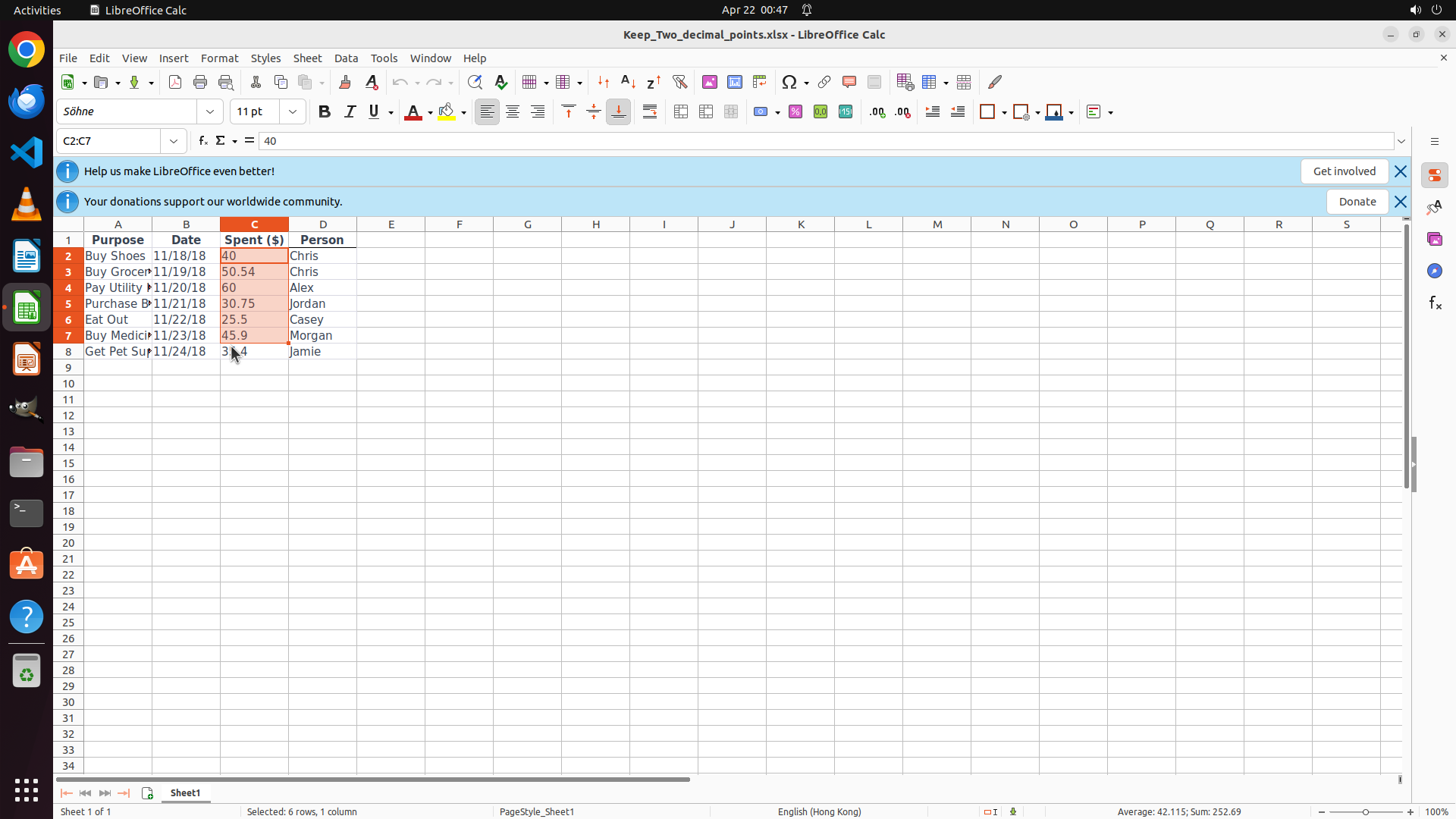
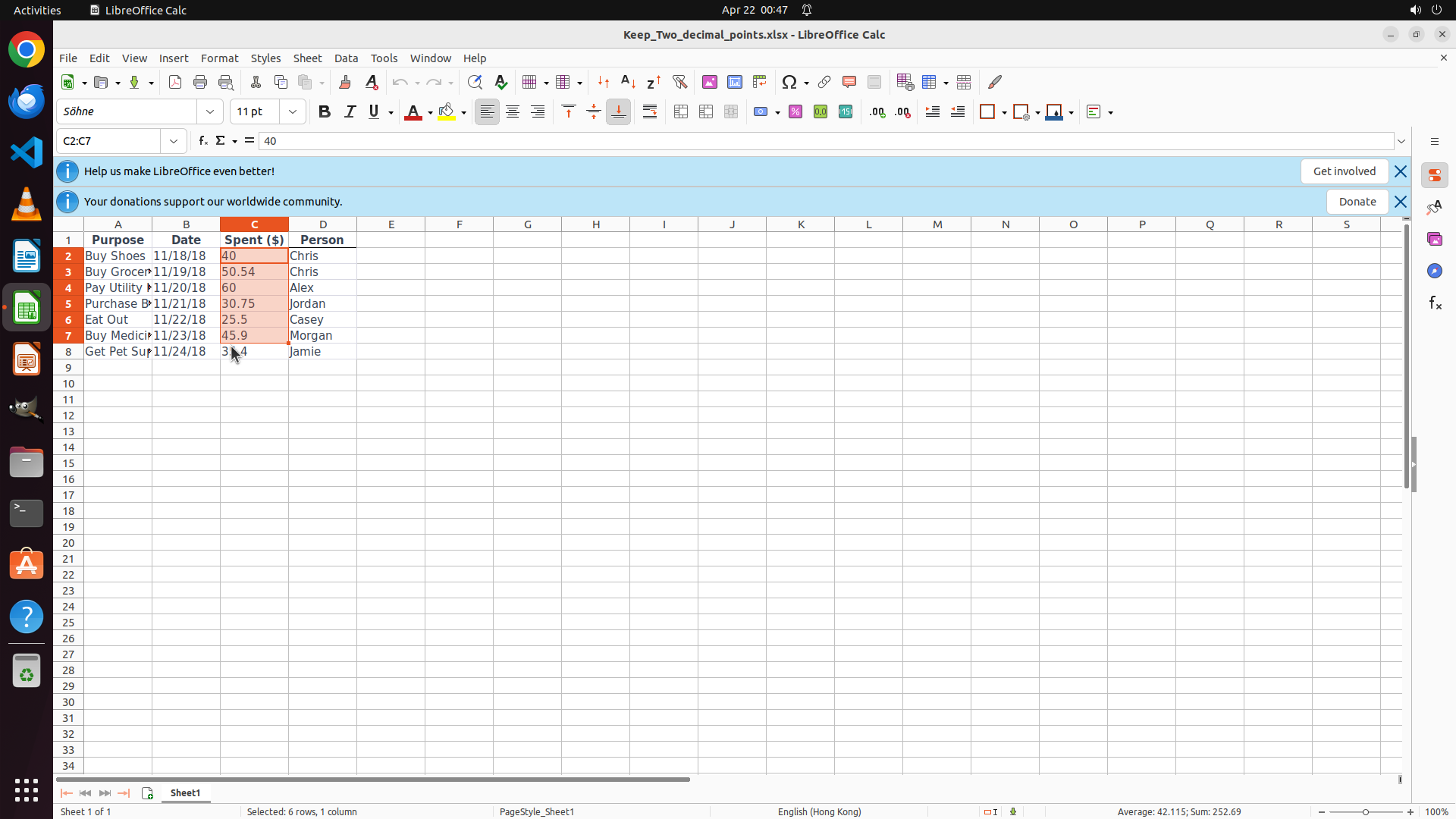
- The range C2:C7 is currently selected (shown in cell reference box as "C2:C7")
- The selection includes 6 rows of data (shown in status bar: "Selected: 6 rows, 1 column")
- Row 8 with value "35.4" in column C is NOT included in the current selection
- Need to extend the selection to include C8 (the last row with data)
#### 情况分析与思考过程
The previous drag action selected C2:C7, but I need to include C8 as well to format all the data in the Spent ($) column. I can see row 8 contains "Get Pet Supplies" with value "35.4".
Since I already have C2:C7 selected, the most efficient way to extend the selection to C8 is to hold Shift and click on cell C8. This will extend the selection from C2:C7 to C2:C8, including all the data cells in the Spent ($) column.
After extending the selection to include all data (C2:C8), I'll proceed to:
1. Right-click to open Format Cells dialog
2. Select Number category
3. Set decimal places to 2
4. Click OK to apply
I'll hold Shift and click on C8 to extend the selection.
```
Step 3: CLICK (300, 457)
```
#### 重要信息
- LibreOffice Calc is open with the expense spreadsheet
- The range C2:C7 is currently selected (shown in cell reference box as "C2:C7")
- The selection includes 6 rows of data (shown in status bar: "Selected: 6 rows, 1 column")
- Row 8 with value "35.4" in column C is NOT included in the current selection
- Need to extend the selection to include C8 (the last row with data)
#### 情况分析与思考过程
The previous drag action selected C2:C7, but I need to include C8 as well to format all the data in the Spent ($) column. I can see row 8 contains "Get Pet Supplies" with value "35.4".
Since I already have C2:C7 selected, the most efficient way to extend the selection to C8 is to hold Shift and click on cell C8. This will extend the selection from C2:C7 to C2:C8, including all the data cells in the Spent ($) column.
After extending the selection to include all data (C2:C8), I'll proceed to:
1. Right-click to open Format Cells dialog
2. Select Number category
3. Set decimal places to 2
4. Click OK to apply
I'll hold Shift and click on C8 to extend the selection.
```
Step 3: KEY_UP
```
#### 重要信息
- LibreOffice Calc is open with the expense spreadsheet
- The range C2:C7 is currently selected (shown in cell reference box as "C2:C7")
- The selection includes 6 rows of data (shown in status bar: "Selected: 6 rows, 1 column")
- Row 8 with value "35.4" in column C is NOT included in the current selection
- Need to extend the selection to include C8 (the last row with data)
#### 情况分析与思考过程
The previous drag action selected C2:C7, but I need to include C8 as well to format all the data in the Spent ($) column. I can see row 8 contains "Get Pet Supplies" with value "35.4".
Since I already have C2:C7 selected, the most efficient way to extend the selection to C8 is to hold Shift and click on cell C8. This will extend the selection from C2:C7 to C2:C8, including all the data cells in the Spent ($) column.
After extending the selection to include all data (C2:C8), I'll proceed to:
1. Right-click to open Format Cells dialog
2. Select Number category
3. Set decimal places to 2
4. Click OK to apply
I'll hold Shift and click on C8 to extend the selection.
```
Step 4: RIGHT_CLICK (300, 375)
```
#### 重要信息
- LibreOffice Calc is open with the expense spreadsheet
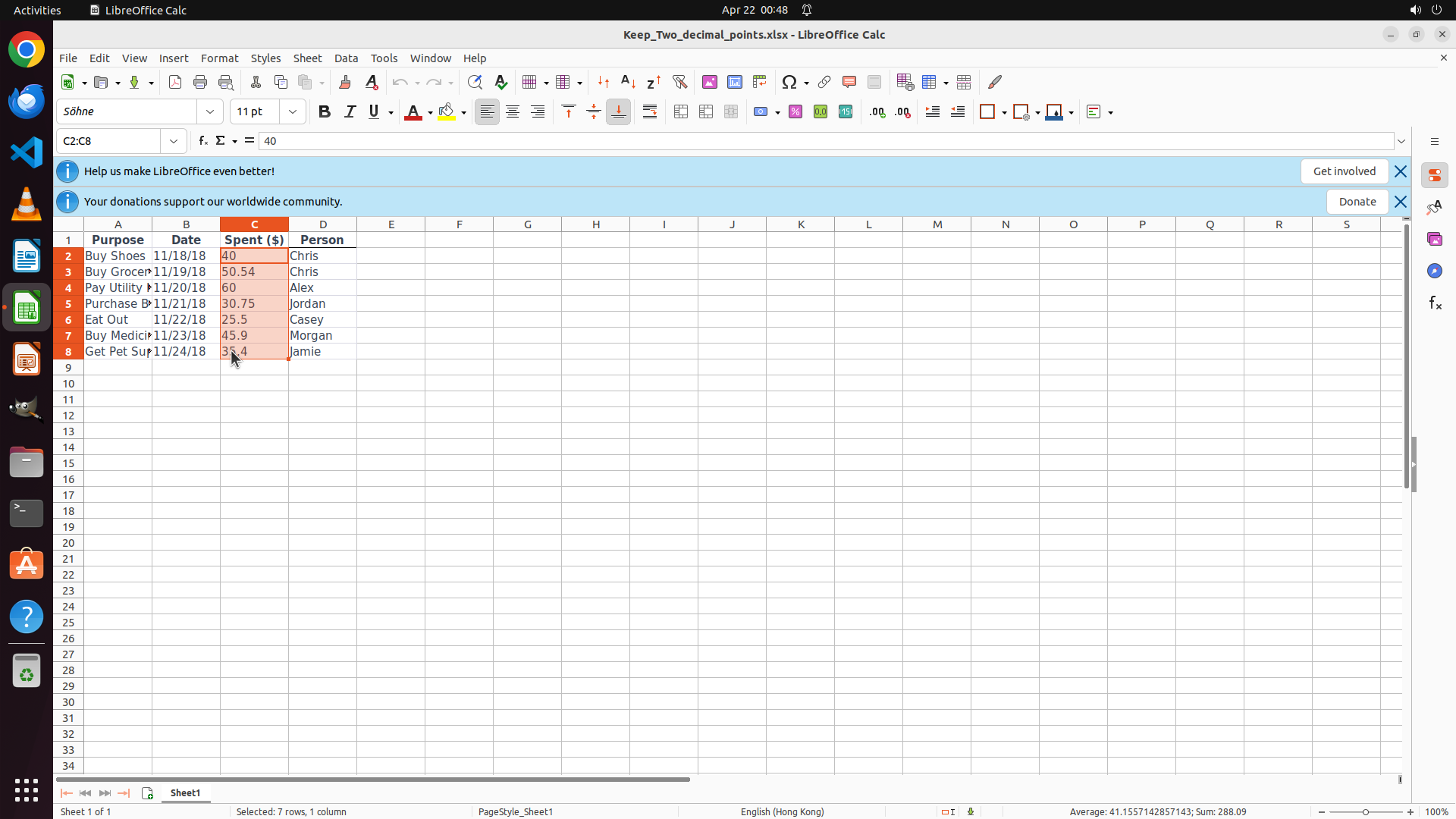
- The range C2:C8 is now selected (shown in cell reference box as "C2:C8")
- All 7 data rows in the Spent ($) column are selected (shown in status bar: "Selected: 7 rows, 1 column")
- The selection includes all values: 40, 50.54, 60, 30.75, 25.5, 45.9, 35.4
- Ready to open Format Cells dialog to apply 2 decimal places formatting
#### 情况分析与思考过程
The previous Shift+click action successfully extended the selection to include all data cells from C2 to C8. Now I have the complete range selected that needs formatting.
According to the strategy tree, the next step is to open the Format Cells dialog. I can do this by:
1. Right-clicking on the selected range to open the context menu, then selecting "Format Cells"
2. Or using the Format menu > Cells
The right-click method is typically faster and more direct. I'll right-click on the selected range to bring up the context menu, which should contain the "Format Cells" option.
After opening the Format Cells dialog, I'll need to:
1. Select "Number" category from the list
2. Set Decimal places to 2
3. Click OK to apply formatting
```
Step 5: CLICK (376, 694)
```
#### 重要信息
- LibreOffice Calc is open with the expense spreadsheet
- The range C2:C8 is still selected (shown in cell reference box as "C2:C8")
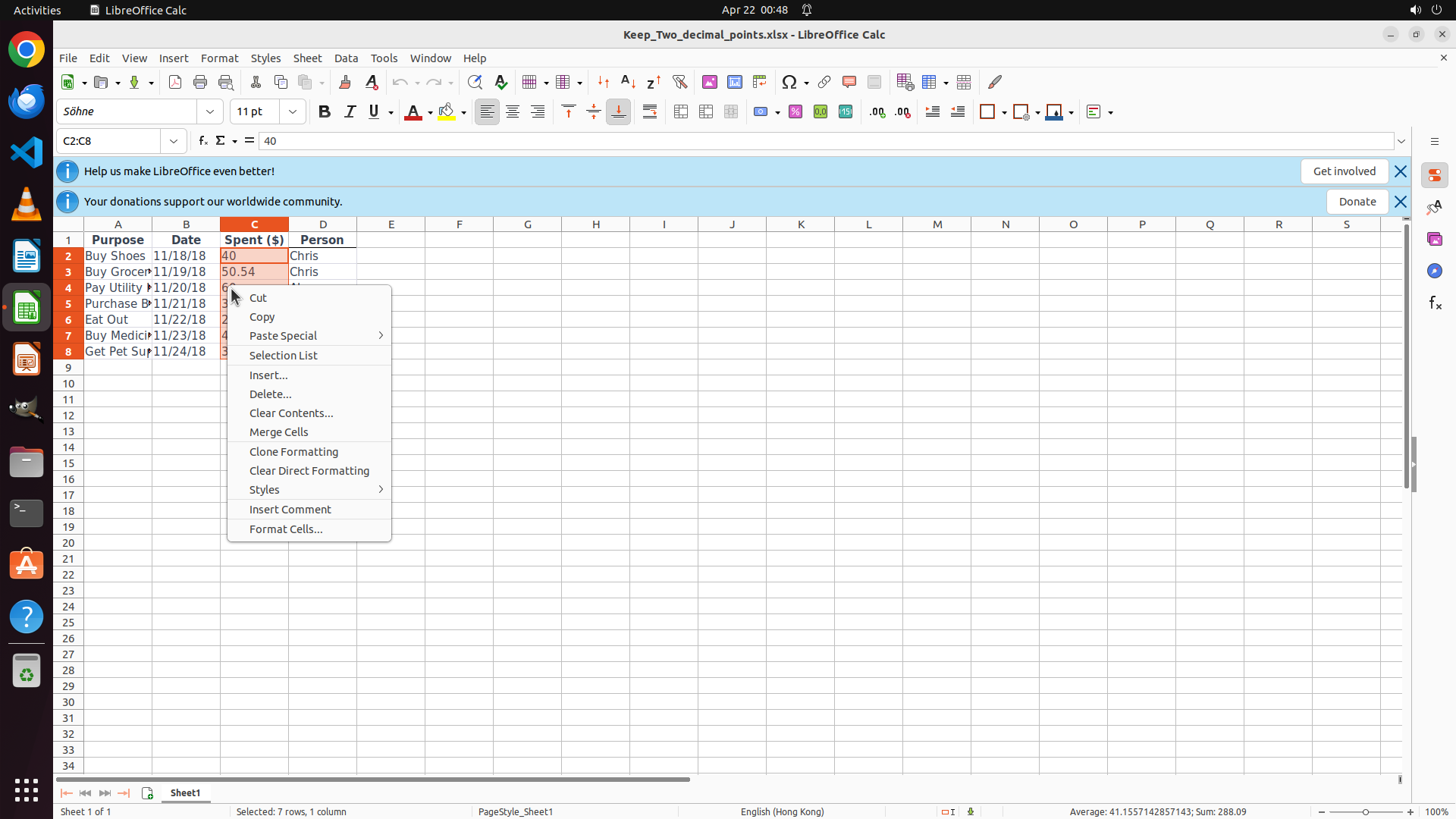
- Context menu is now open after right-clicking on the selected range
- The context menu shows various options including "Format Cells..." at the bottom
- Ready to click on "Format Cells..." to open the formatting dialog
#### 情况分析与思考过程
The previous right-click action successfully opened the context menu. I can see the "Format Cells..." option at the bottom of the menu. This is exactly what I need to proceed with formatting the Spent ($) column to display two decimal places.
According to the strategy tree, I need to:
1. Click on "Format Cells..." to open the Format Cells dialog
2. Select "Number" category from the list
3. Set Decimal places to 2
4. Click OK to apply formatting
I'll click on "Format Cells..." now to open the dialog.
```
Step 6: CLICK (847, 654)
```
#### 重要信息
- LibreOffice Calc is open with the expense spreadsheet
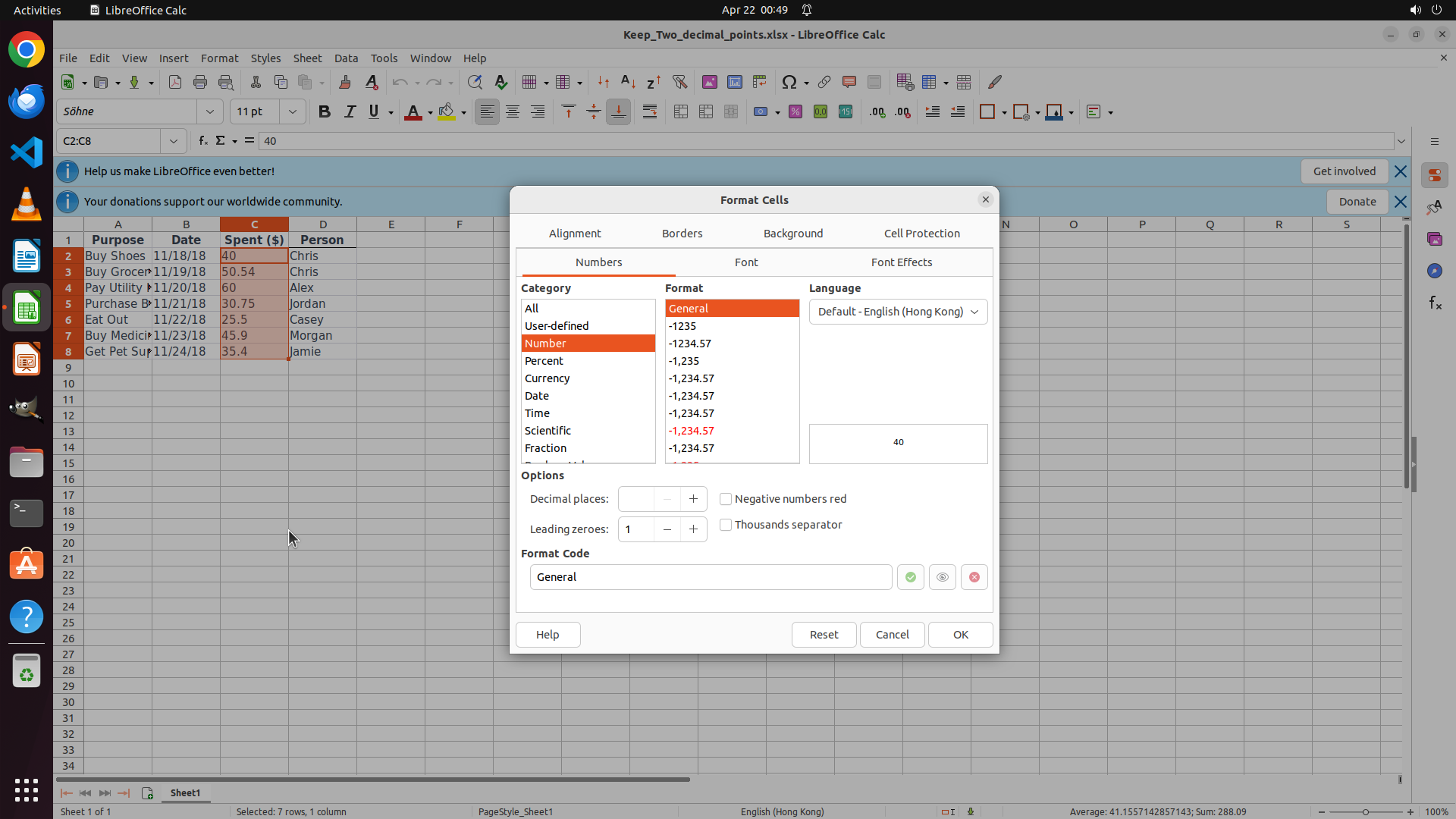
- The Format Cells dialog is now open with the "Numbers" tab active
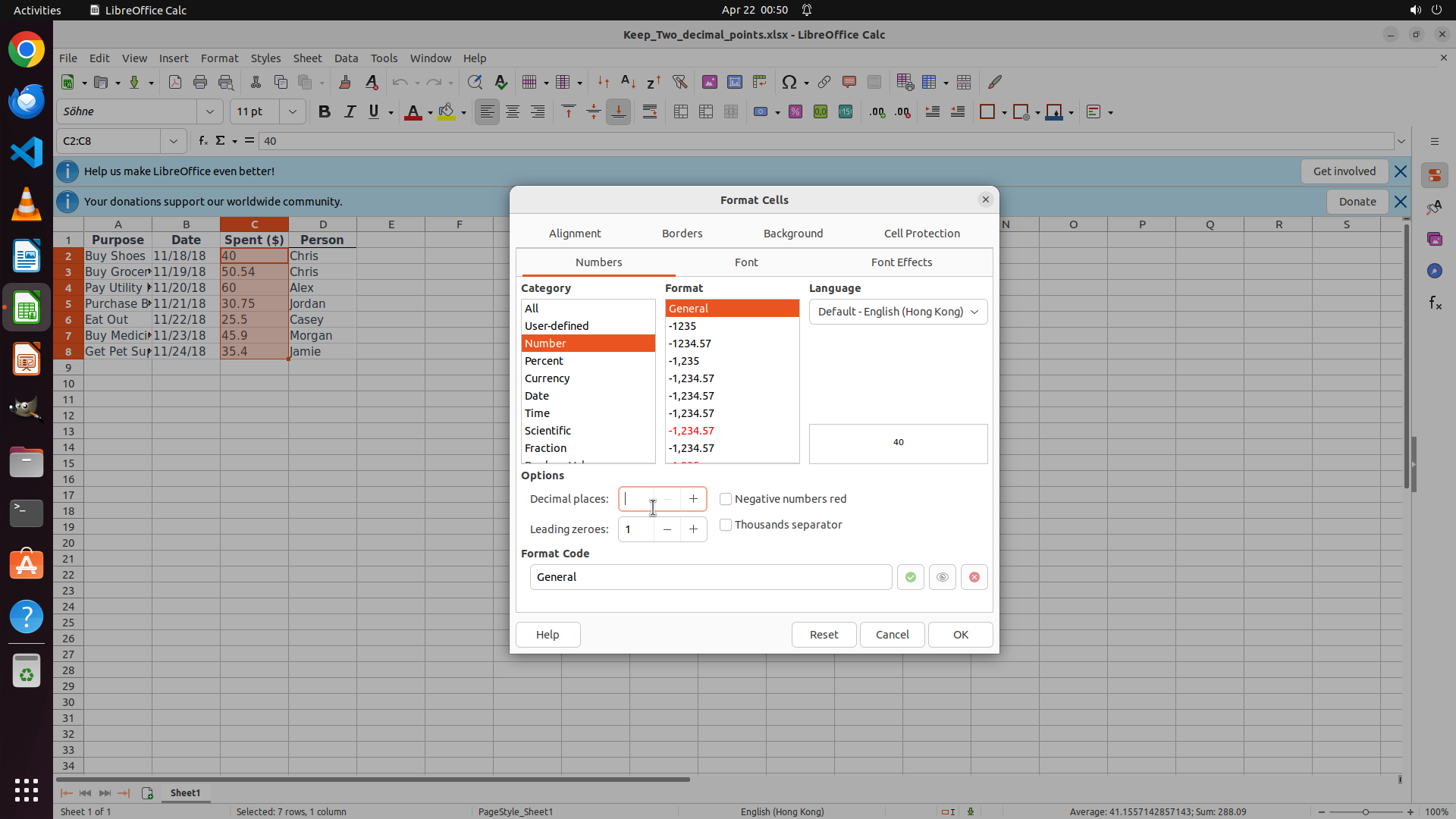
- "Number" category is already selected (highlighted in orange in the Category list)
- The "Decimal places:" field is visible in the Options section
- Need to ensure decimal places is set to 2, then click OK to apply formatting
#### 情况分析与思考过程
The Format Cells dialog has opened successfully. I can see that:
1. The "Numbers" tab is already active
2. "Number" category is already selected in the Category list
3. I can see the "Decimal places:" field in the Options section
Now I need to:
1. Click on the decimal places input field and ensure it's set to 2
2. Click OK to apply the formatting
Let me click on the decimal places input field to check/set the value to 2.
```
Step 7: TYPING "2"
```
#### 重要信息
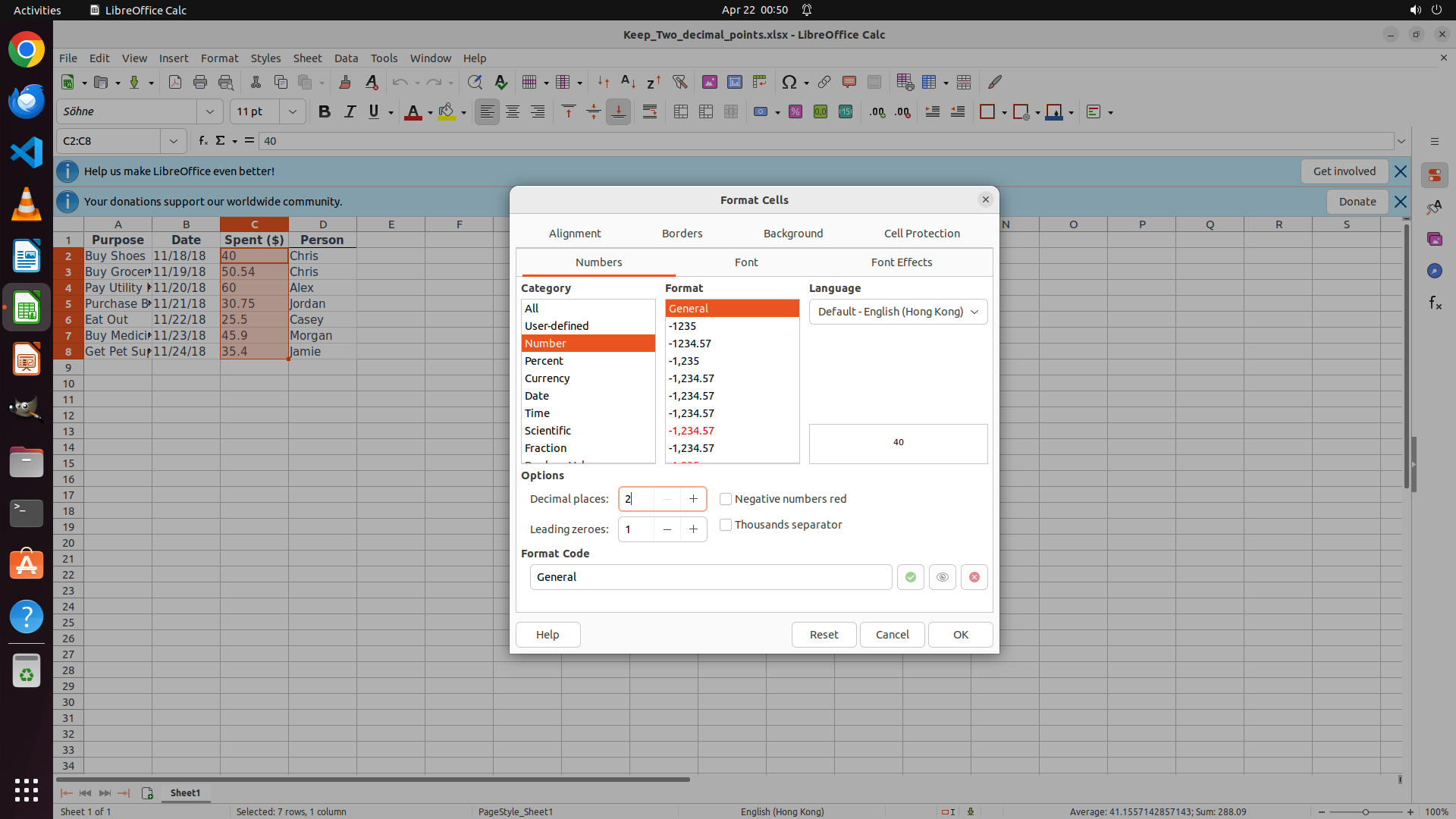
- LibreOffice Calc is open with the Format Cells dialog
- The "Numbers" tab is active and "Number" category is selected
- The "Decimal places:" input field is now focused (cursor visible)
- The current value in the field needs to be set to 2
- After setting to 2, I need to click OK to apply the formatting
#### 情况分析与思考过程
The previous action successfully clicked on the "Decimal places:" input field, and the cursor is now positioned there. Now I need to:
1. Clear the current value and type "2" to ensure decimal places is set to 2
2. Then click the OK button to apply the formatting
I'll type "2" to set the decimal places value. This will ensure all values in the selected range (C2:C8) will display with exactly 2 decimal places.
```
Step 8: CLICK (1267, 835)
```
#### 重要信息
- LibreOffice Calc is open with the Format Cells dialog
- The "Numbers" tab is active and "Number" category is selected
- The "Decimal places:" field now shows "2"
- The OK button is visible at the bottom right of the dialog
- Clicking OK will apply the 2 decimal places formatting to the selected range C2:C8
#### 情况分析与思考过程
The previous action successfully set the decimal places to 2. Now I can see:
1. The Format Cells dialog is properly configured with:
- Category: Number (selected)
- Decimal places: 2
2. The preview area shows how the formatting will look
3. The OK button is ready to be clicked to apply the changes
The next logical step is to click the OK button to apply the formatting to the selected range (C2:C8). This will complete the task of formatting the "Spent ($)" column to display exactly 2 decimal places.
After clicking OK:
- The dialog will close
- All values in column C (40, 50.54, 60, 30.75, 25.5, 45.9, 35.4) should display with exactly 2 decimal places (40.00, 50.54, 60.00, 30.75, 25.50, 45.90, 35.40)
```
Step 9: HOTKEY
```
#### 重要信息
- LibreOffice Calc is open with the expense spreadsheet
- The Format Cells dialog has been closed
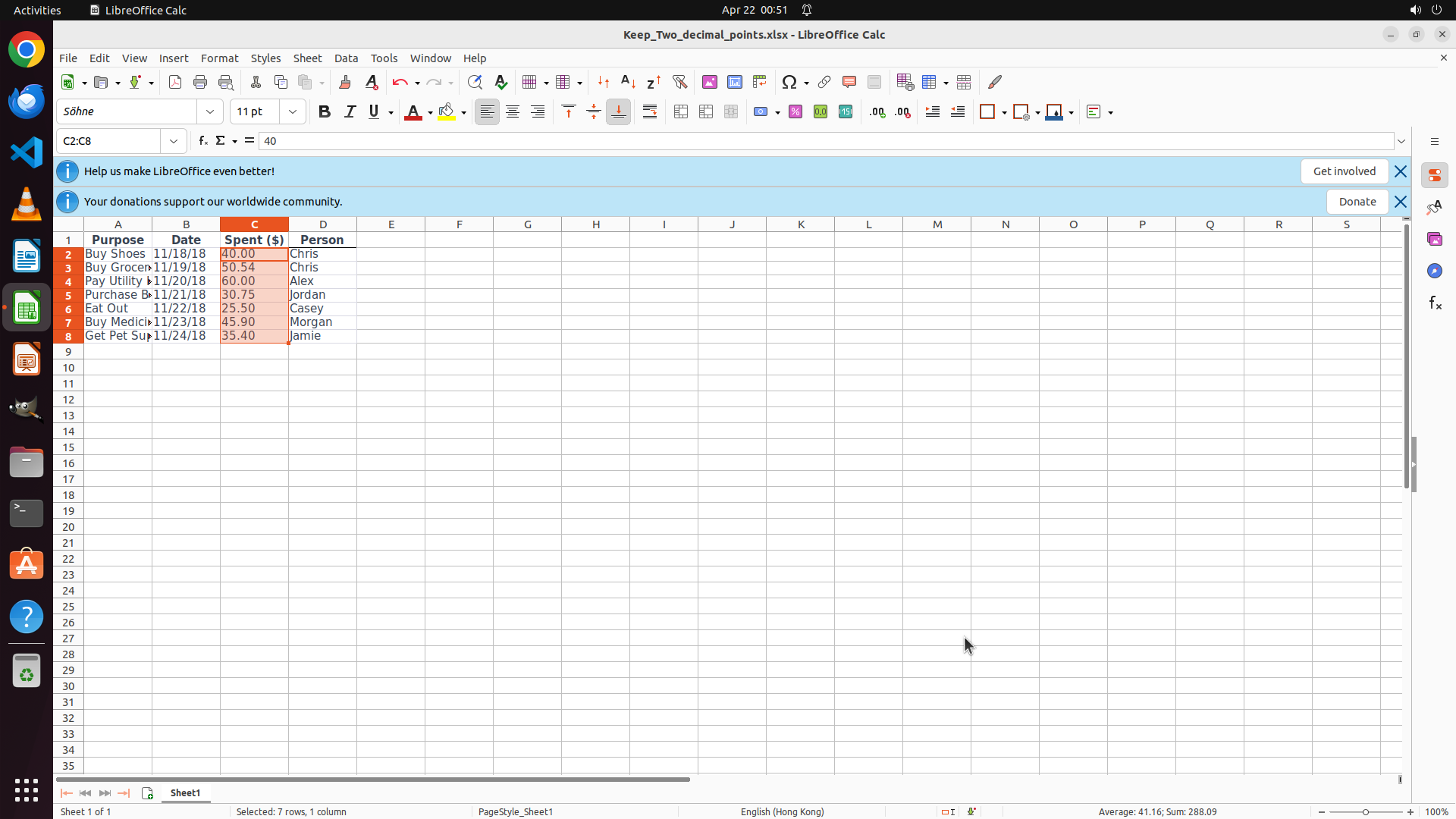
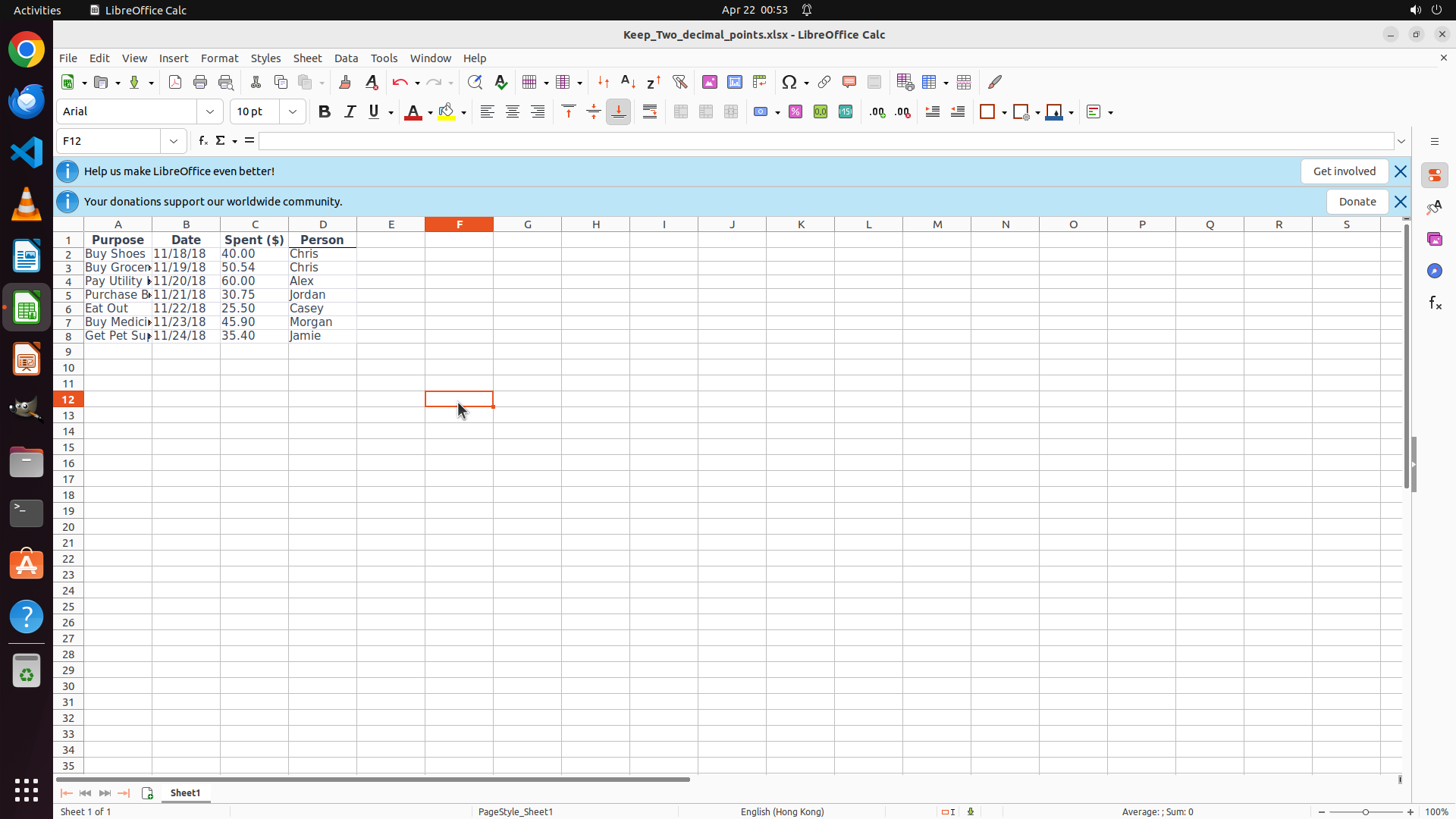
- All values in column C (Spent $) now display with exactly 2 decimal places:
- C2: 40.00 ✓
- C3: 50.54 ✓
- C4: 60.00 ✓
- C5: 30.75 ✓
- C6: 25.50 ✓
- C7: 45.90 ✓
- C8: 35.40 ✓
- The formatting has been successfully applied to the entire selected range
- The task appears to be complete
#### 情况分析与思考过程
The previous action clicked the OK button in the Format Cells dialog, and the formatting has been successfully applied. I can see that:
1. All values in the Spent ($) column now display with exactly 2 decimal places
2. The dialog has closed and we're back to the spreadsheet
3. The values are properly formatted as requested
Now I should:
1. Save the file to preserve the changes (Ctrl+S)
2. Mark the task as complete
The task has been successfully completed - all values in the "Spent ($)" column now display with exactly 2 decimal places as requested.
```
Step 10: CLICK (599, 525)
```
#### 重要信息
- LibreOffice Calc is open with the expense spreadsheet
- The file "Keep_Two_decimal_points.xlsx" has been saved
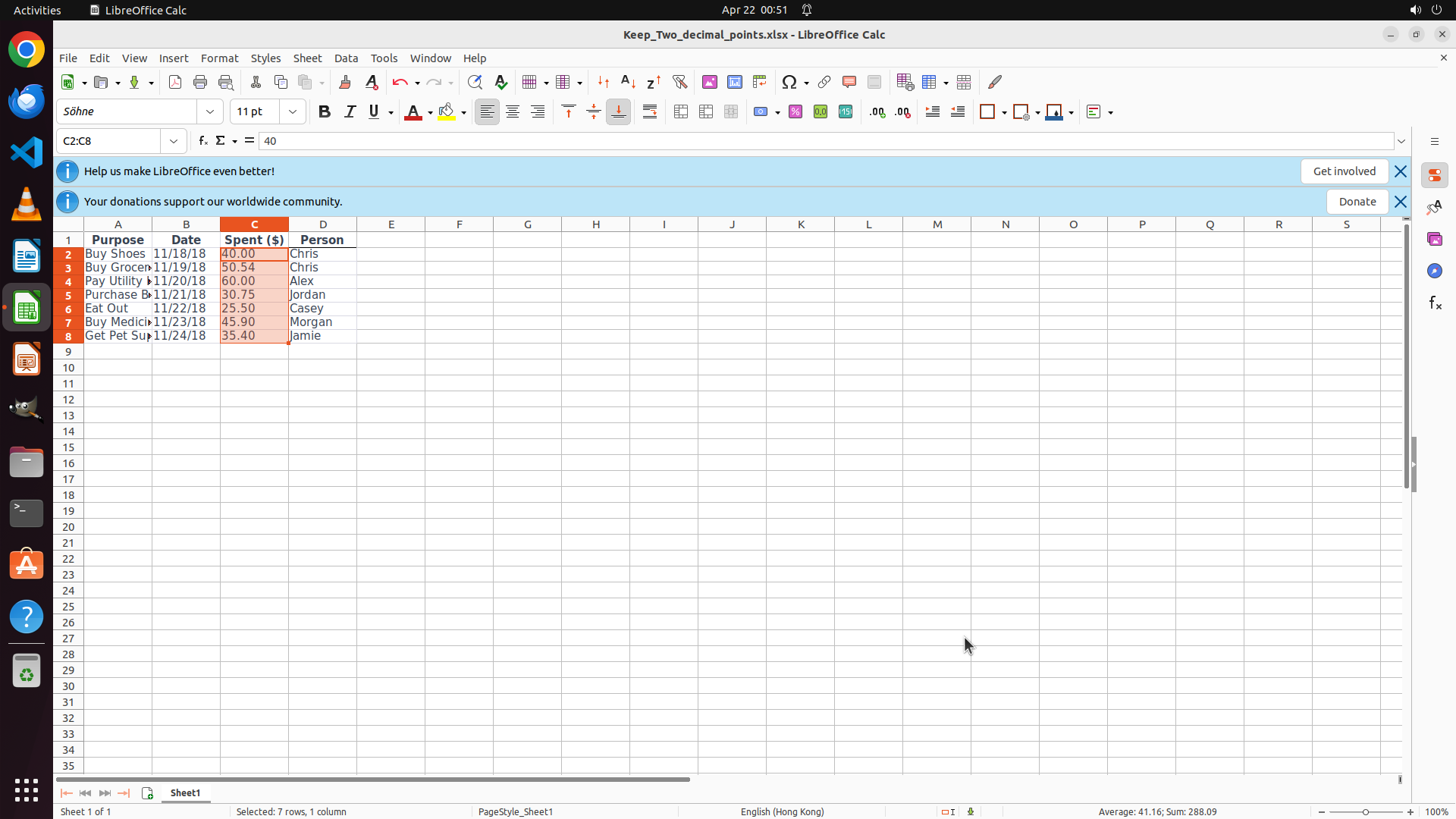
- All values in column C (Spent $) now display with exactly 2 decimal places:
- C2: 40.00 ✓
- C3: 50.54 ✓
- C4: 60.00 ✓
- C5: 30.75 ✓
- C6: 25.50 ✓
- C7: 45.90 ✓
- C8: 35.40 ✓
- The formatting has been successfully applied and saved
- The task is complete
#### 情况分析与思考过程
The task has been fully completed. Looking at the current state:
1. All steps in the strategy tree have been marked as success
2. The "Spent ($)" column (column C) has been formatted to display exactly 2 decimal places
3. All values now show consistent formatting with 2 decimal places
4. The file has been saved with Ctrl+S
The task goal was to "format column 'spent' by keeping two decimal points" and this has been achieved. All values in the Spent ($) column now display with exactly 2 decimal places as requested.
I'll click on a neutral cell to deselect the current selection and show the final result clearly, confirming the task is complete.
```