```
#### 重要信息
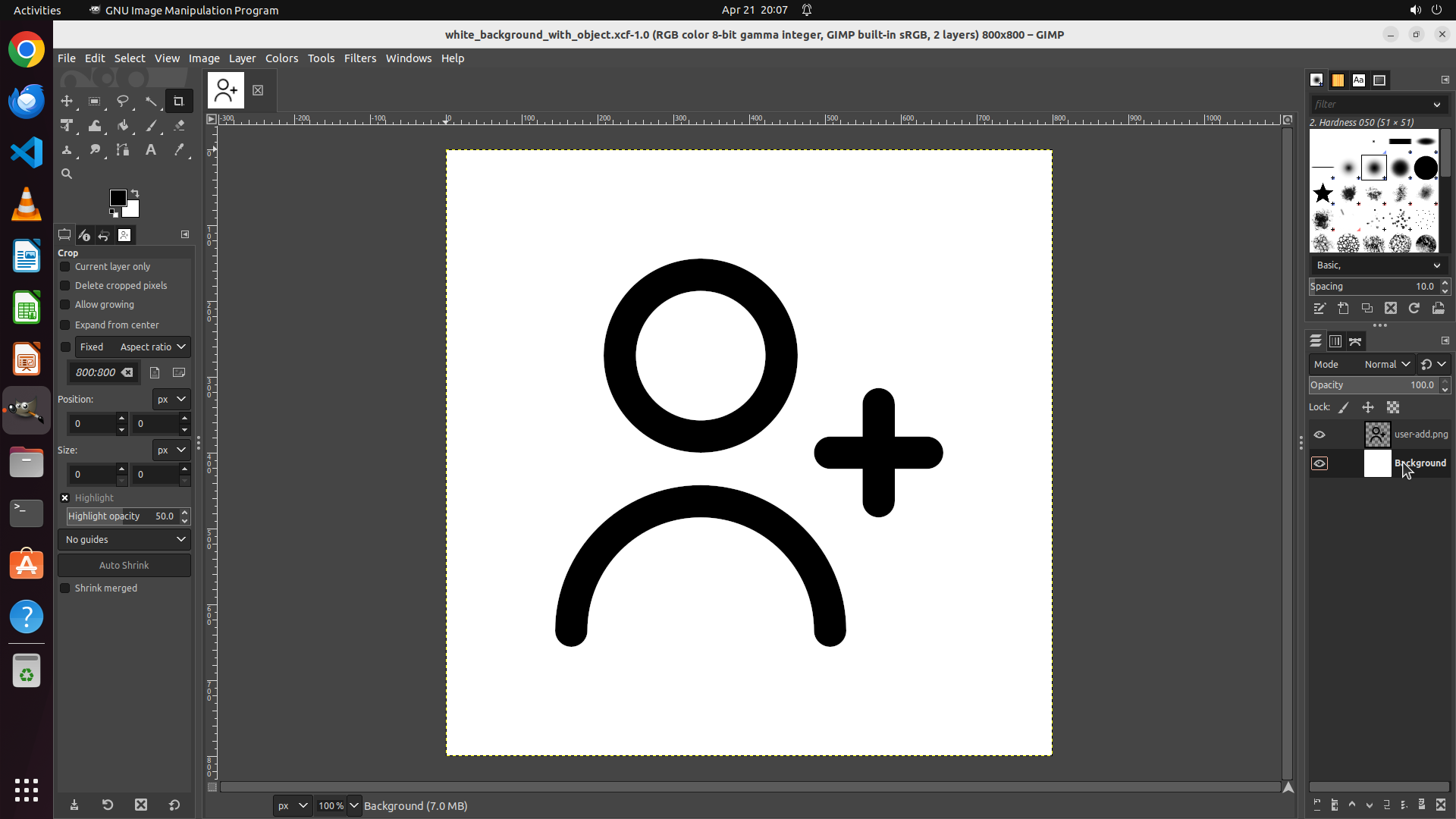
- GIMP is open with an image containing a black user-add icon on a white background
- The Layers panel on the right shows two layers: "user-add.png" (object layer) and "Background"
- The Background layer appears to be already selected (highlighted in white in the layers panel)
- The foreground color is currently black (visible in the color swatch on the left toolbar)
- The task is to fill the Background layer with green while keeping the object layer unchanged
#### 情况分析与思考过程
The task requires me to:
1. Ensure the Background layer is selected (it appears to be already)
2. Change the foreground color to green
3. Use the bucket fill tool to fill the background
I can see the Background layer is highlighted in the layers panel. I should first click on it to make sure it's active, then proceed to change the foreground color to green. The foreground color swatch is visible in the left toolbar - it's the black square. I'll click on it to open the color picker.
Let me start by clicking on the Background layer to ensure it's selected, then click on the foreground color swatch to change it to green.
```
Step 2: CLICK (156, 259)
```
#### 重要信息
- GIMP is open with an image containing a black user-add icon on a white background
- The Layers panel shows two layers: "user-add.png" (object layer) and "Background"
- The Background layer is now selected (highlighted in white in the layers panel)
- The foreground color is currently black (visible in the color swatch on the left toolbar)
- The task is to fill the Background layer with green while keeping the object layer unchanged
#### 情况分析与思考过程
The previous action successfully selected the Background layer - I can see it's now highlighted in the layers panel. Now I need to:
1. Change the foreground color to green
2. Use the bucket fill tool to fill the background
The foreground color swatch is visible in the left toolbar - it's the black square. I need to click on it to open the color picker dialog where I can select green color. The color swatch appears to be in the left toolbar area.
After changing the color to green, I'll need to select the bucket fill tool and click on the canvas to fill the background.
```
Step 3: CLICK (217, 225)
```
#### 重要信息
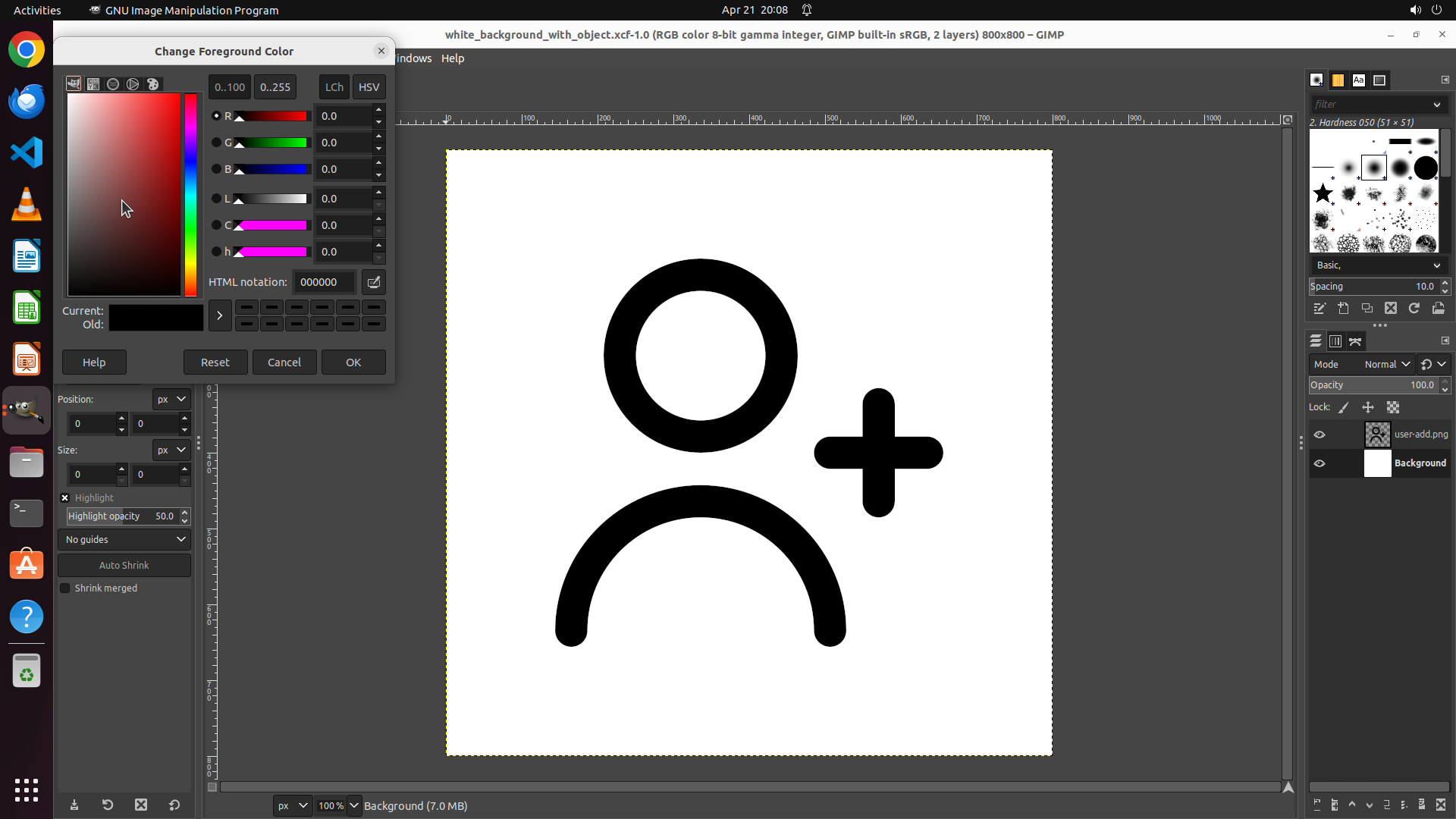
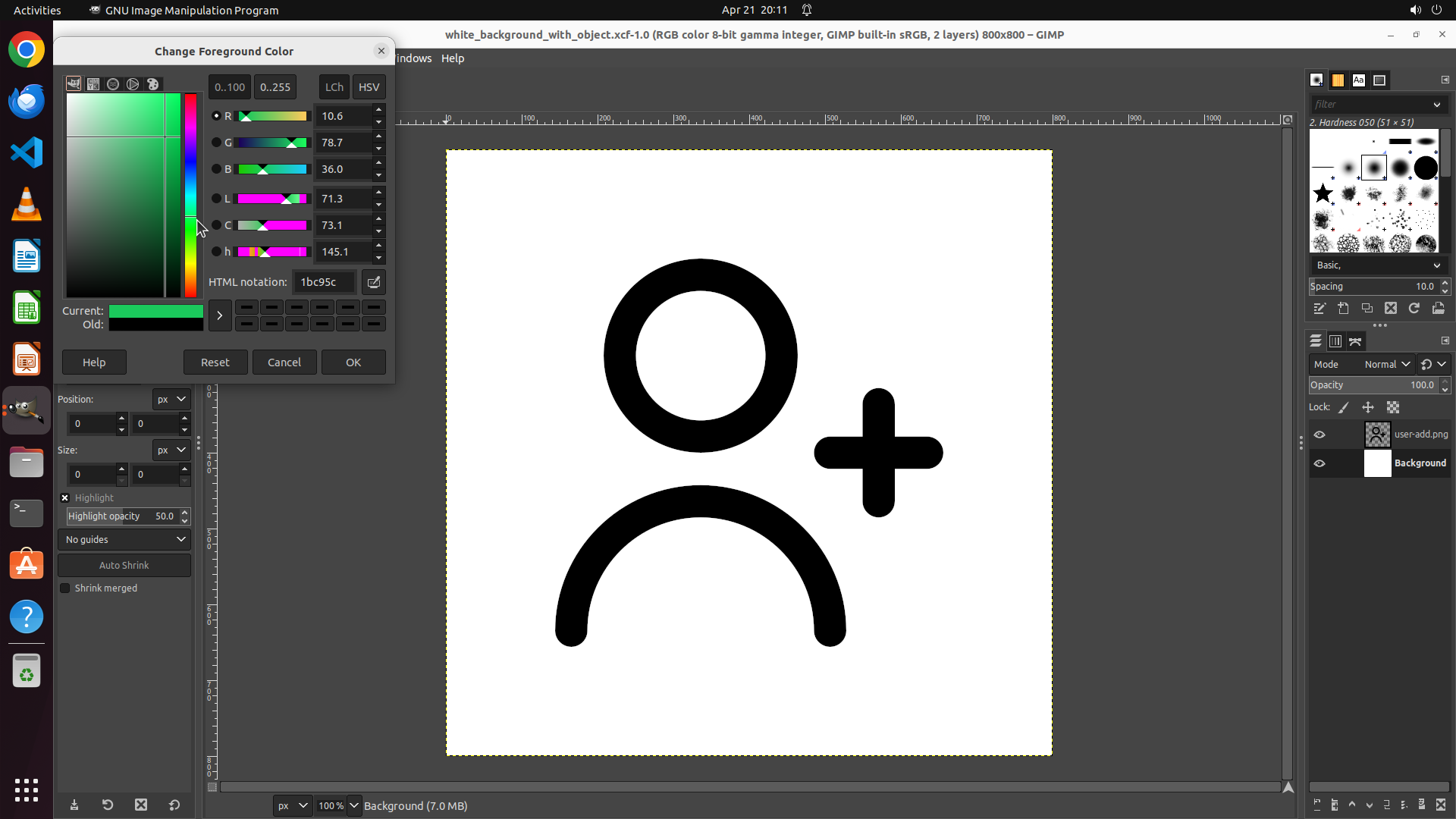
- The "Change Foreground Color" dialog is now open
- The color picker shows a gradient area on the left and a vertical hue bar on the right
- The current color is black (HTML notation shows "000000")
- The RGB values all show 0.0 (black)
- I need to select a green color from the gradient
#### 情况分析与思考过程
The color picker dialog is open. I need to:
1. Click on a green color in the gradient area to select it
2. Click OK to apply the color
3. Then use the bucket fill tool to fill the background
Looking at the color gradient, green colors are visible in the middle-left area of the gradient square. I should click on a nice bright green area to select it. The green region appears to be in the upper portion of the gradient where yellow-green transitions to pure green.
After selecting green, the RGB values should update to show high G (green) value and low R and B values.
```
Step 4: CLICK (217, 180)
```
#### 重要信息
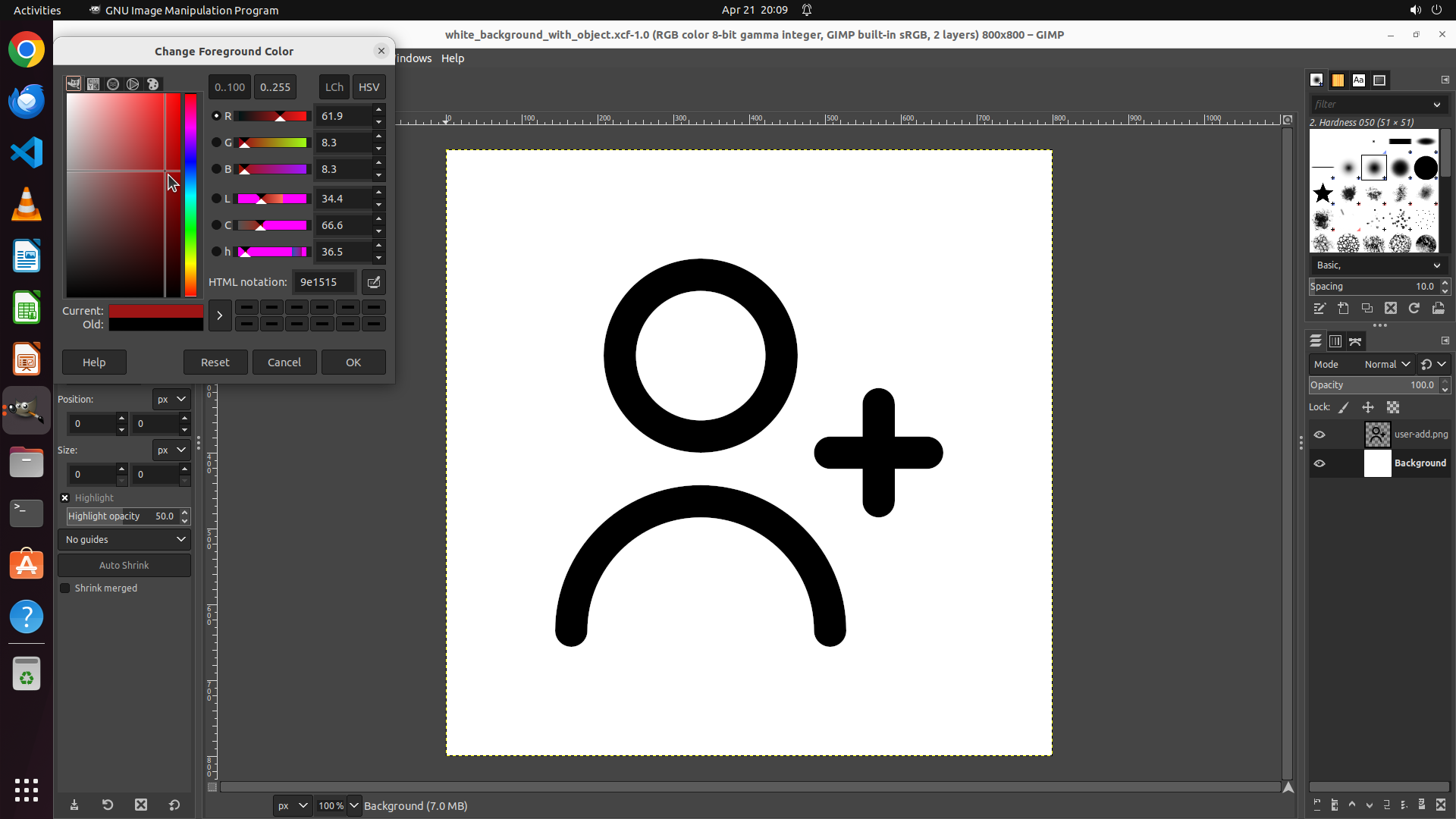
- The "Change Foreground Color" dialog is still open
- The previous click selected a reddish color (HTML: 9e1515, RGB: R=61.9, G=8.3, B=8.3)
- This is NOT green - it's a dark red/burgundy color
- I need to click on a proper green area in the color gradient
#### 情况分析与思考过程
The previous action clicked on the wrong area of the color gradient, selecting a red color instead of green. I need to click on the green region of the gradient. Looking at the color picker:
- The gradient square shows colors with green in the upper-left to middle-left area
- Green colors are where the G (green) value is high and R and B values are low
- I should click higher up in the gradient, in the green-yellow transition area
After selecting a proper green color, the RGB values should show high G value and low R and B values. Then I'll click OK to apply the color and proceed with the bucket fill.
```
Step 5: CLICK (255, 285)
```
#### 重要信息
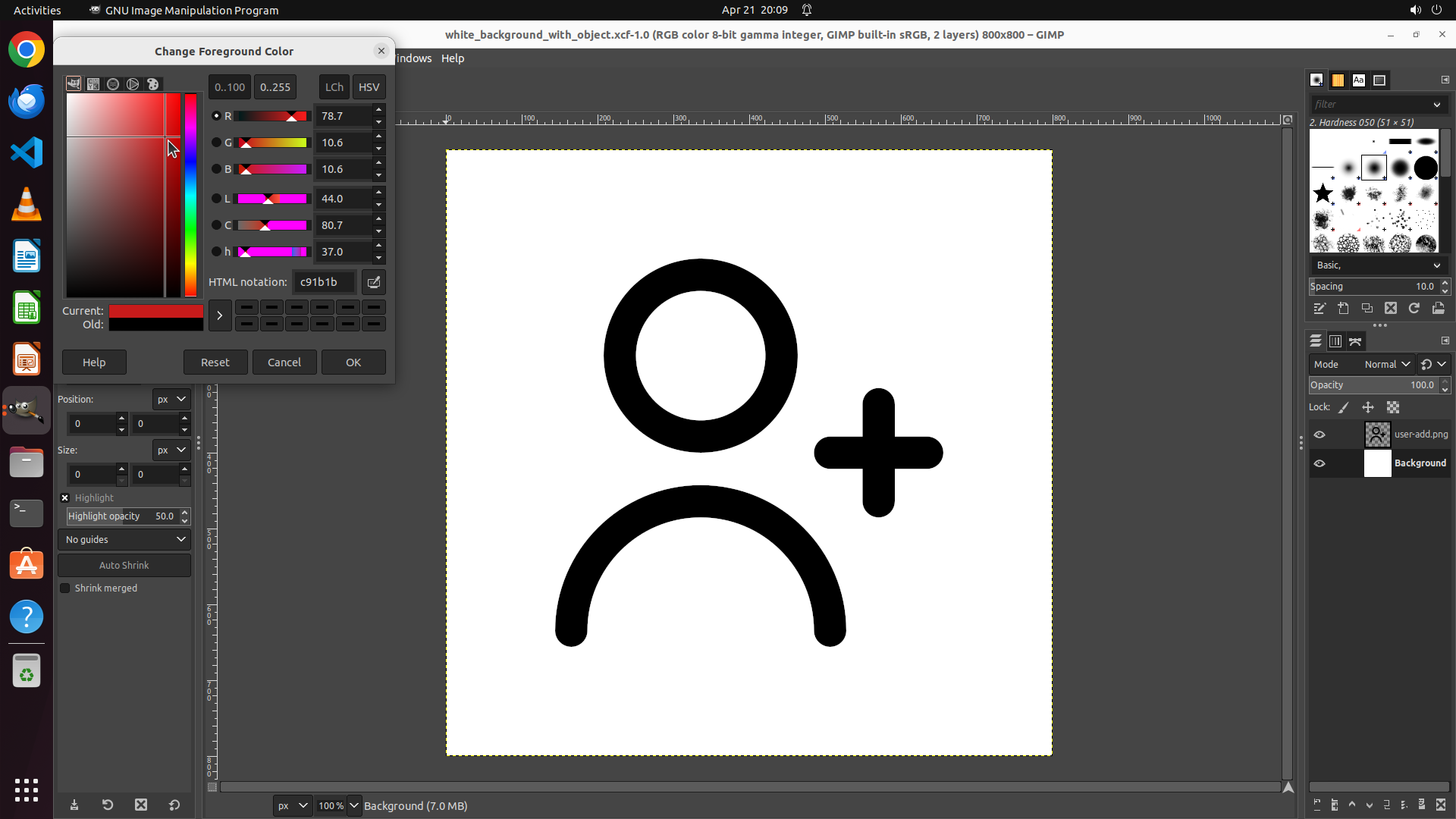
- The "Change Foreground Color" dialog is still open
- The current color is still red (HTML: c91b1b, RGB: R=78.7, G=10.6, B=10.6)
- I need to click on the green section of the vertical hue bar to select green
- The vertical hue bar on the right side of the dialog shows the color spectrum from red (top) through yellow, green, cyan, blue, magenta
#### 情况分析与思考过程
The previous clicks on the gradient square selected red colors because the hue was set to red. I need to first change the hue to green by clicking on the green section of the vertical hue bar. Looking at the vertical bar:
- The top is red
- Middle sections go through yellow and green
- Green appears to be in the lower-middle portion of the vertical bar
Once I click on the green section of the hue bar, the gradient square will update to show variations of green, and then I can select the exact shade of green I want. After that, I'll click OK to apply the color and proceed with the bucket fill.
```
Step 6: CLICK (465, 474)
```
#### 重要信息
- The "Change Foreground Color" dialog is still open
- The color has been successfully changed to green (HTML: 1bc95c, RGB: R=10.6, G=78.7, B=36.0)
- The "Current" color preview shows bright green
- The "Old" color preview shows the previous red color
- The OK button is visible at the bottom right of the dialog
#### 情况分析与思考过程
The previous action successfully changed the hue to green. The color picker now shows a nice green color (HTML: 1bc95c) which is a good bright green. The RGB values confirm this is green with G=78.7 being the highest value.
Now I need to:
1. Click the "OK" button to apply this green color and close the dialog
2. Then use the bucket fill tool to fill the Background layer with green
The OK button is located at the bottom right of the color picker dialog. Clicking it will close the dialog and set the foreground color to green, which I can then use with the bucket fill tool.
```
Step 7: CLICK (156, 160)
```
#### 重要信息
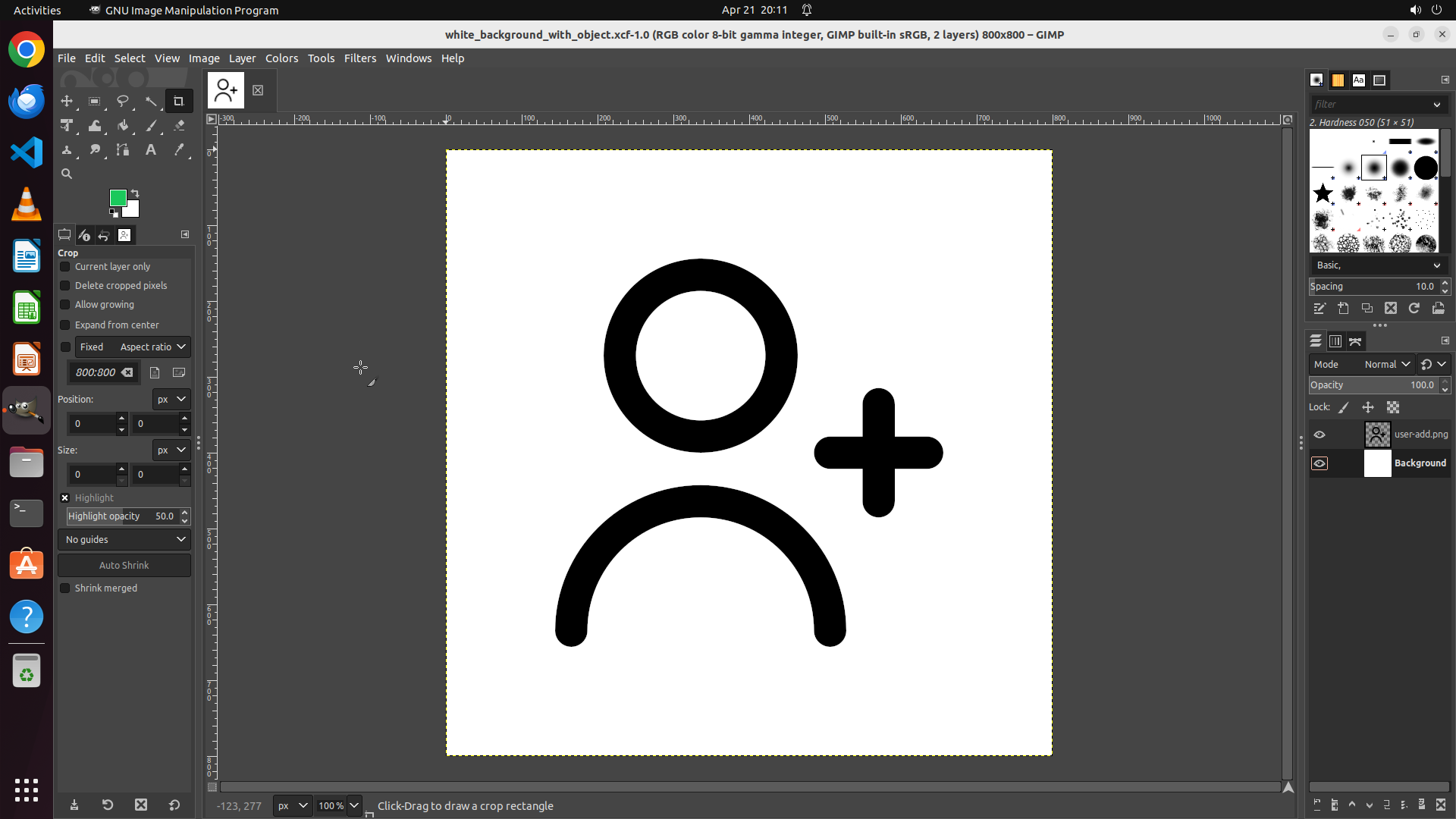
- The color picker dialog has been closed successfully
- The foreground color is now set to green (visible in the color swatch on the left toolbar)
- The Background layer is still selected in the Layers panel
- The canvas still shows white background with the black user-add icon
- I need to select the bucket fill tool and use it to fill the background with green
#### 情况分析与思考过程
The previous action successfully closed the color picker dialog and applied the green color. Now I need to:
1. Select the bucket fill tool from the toolbox
2. Click on the canvas to fill the Background layer with green
Looking at the left toolbar, I can see various tools. The bucket fill tool (paint bucket icon) should be in the toolbox. I can see what appears to be the bucket fill tool icon in the upper portion of the left toolbar. It looks like a paint bucket icon.
Once I select the bucket fill tool, I'll be able to click on the canvas to fill the background with the green color that's now set as the foreground color.
Let me click on the bucket fill tool in the toolbox to select it.
```
Step 8: CLICK (676, 285)
```
#### 重要信息
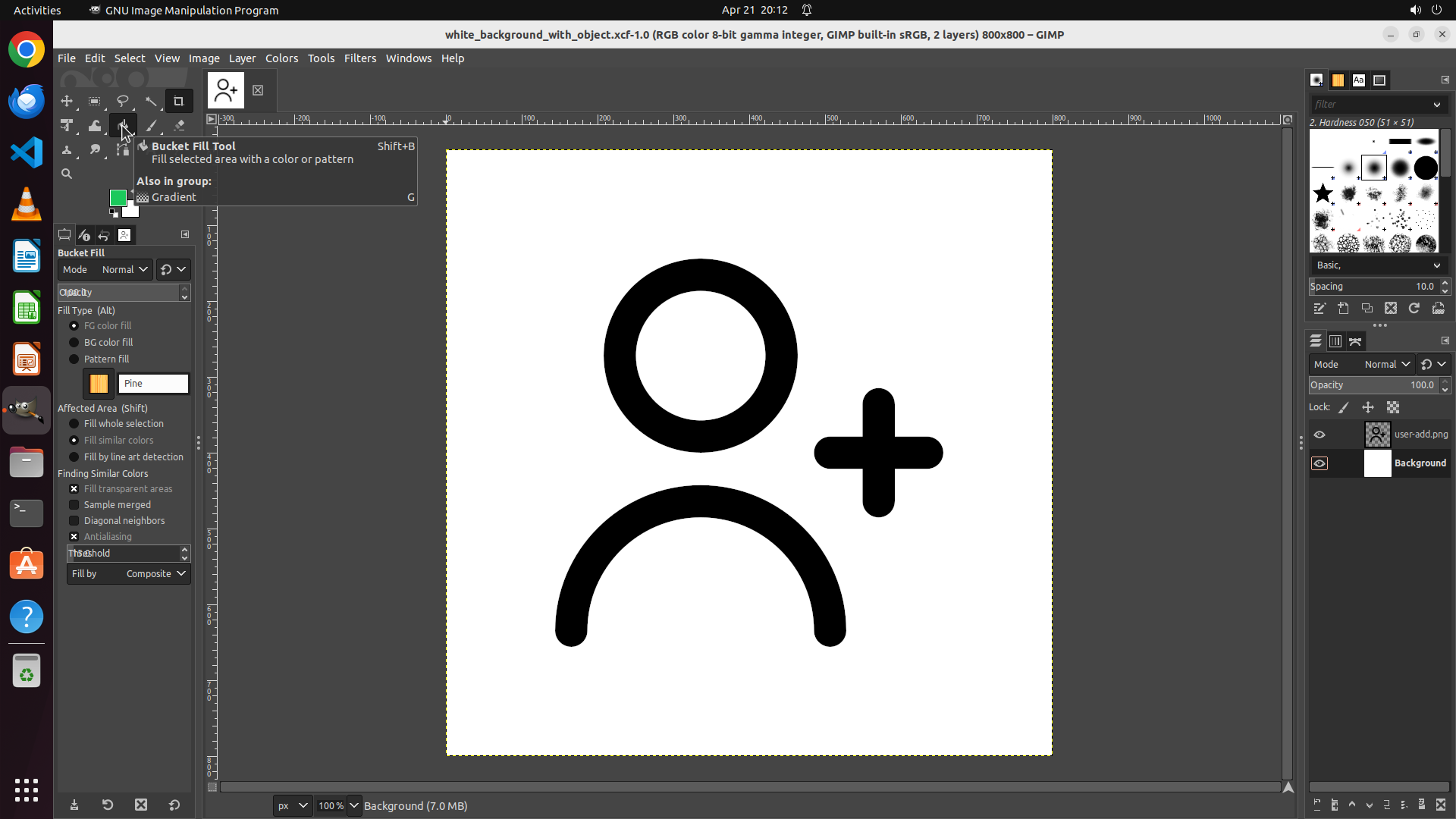
- The bucket fill tool has been successfully selected (tooltip shows "Bucket Fill Tool")
- The tool options panel shows "Bucket Fill" settings with "FG color fill" selected
- The foreground color is green (visible in the color swatch on the left toolbar)
- The Background layer is selected in the Layers panel
- The canvas still shows white background with the black user-add icon
- I need to click on the white background area to fill it with green
#### 情况分析与思考过程
The previous action successfully selected the bucket fill tool. Now I have:
1. The bucket fill tool active
2. Green set as the foreground color
3. The Background layer selected
The next step is to click on the white background area of the canvas to fill it with green. I should click on a clear area of the white background, avoiding the black icon. Looking at the canvas, there's plenty of white space around the black user-add icon. I'll click on the upper left area of the canvas where there's clear white background.
After clicking, the white background should be filled with green color while the black icon remains unchanged on top.
```
Step 9: HOTKEY
```
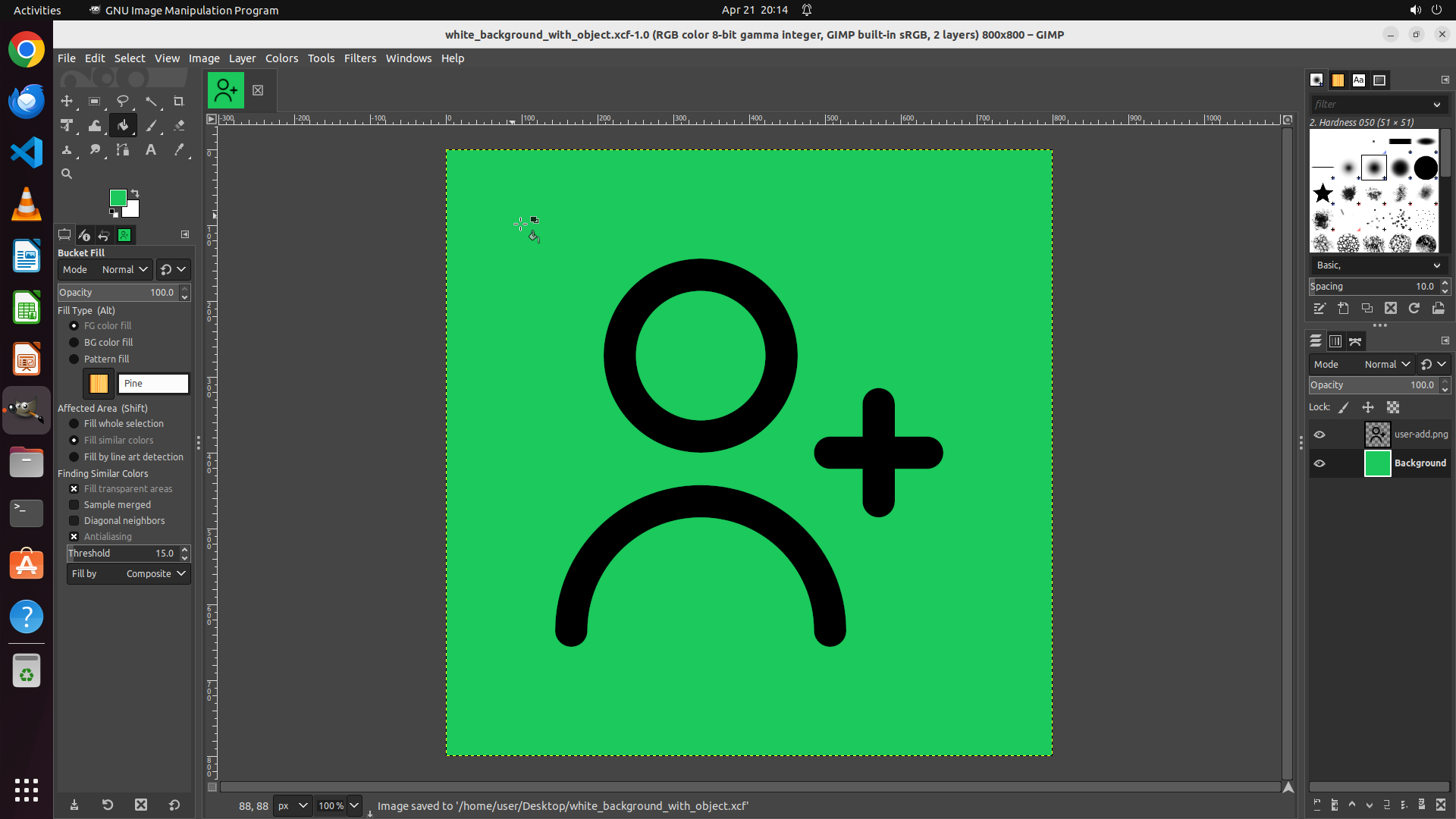
#### 重要信息
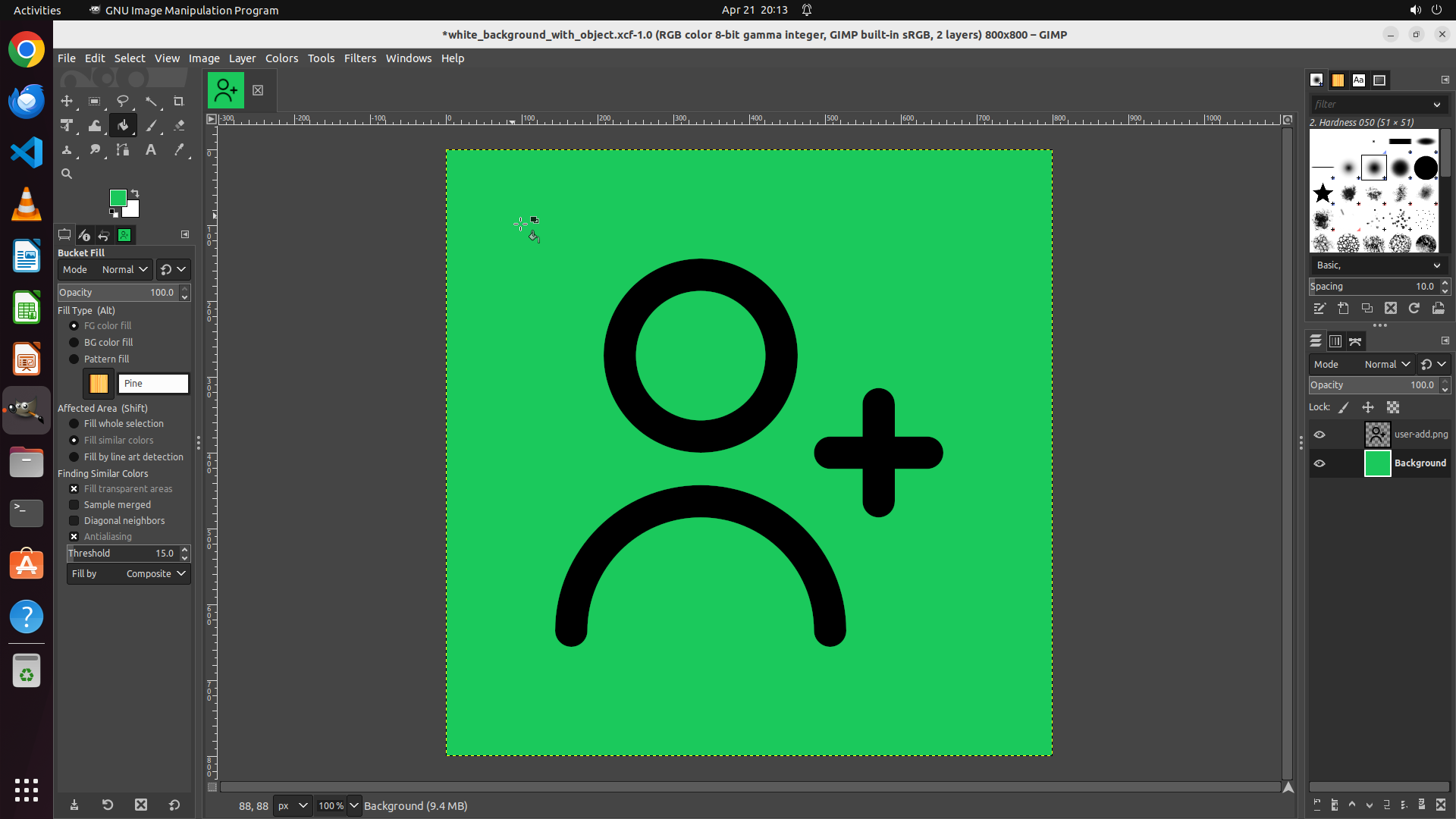
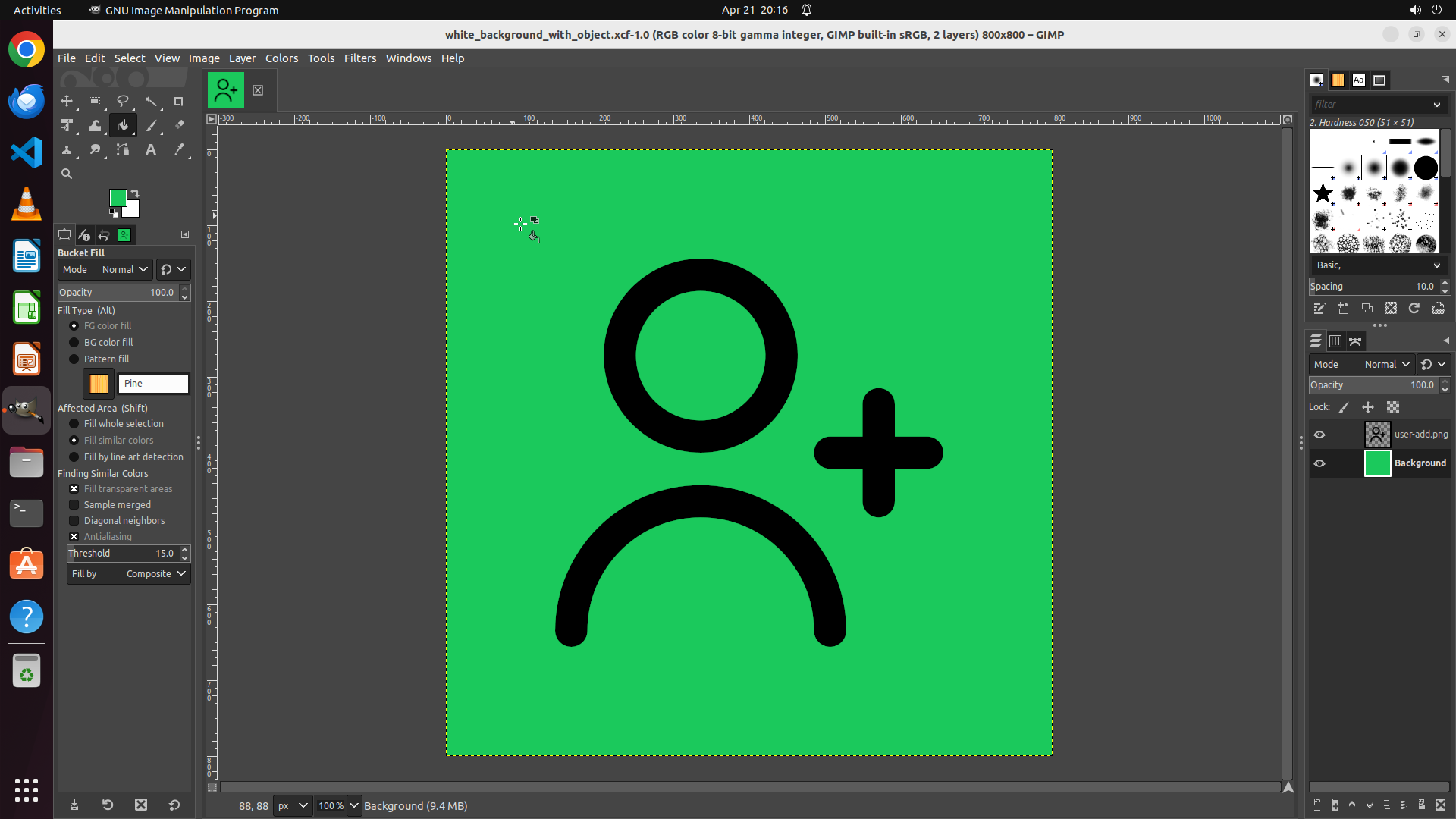
- The background has been successfully filled with green color
- The canvas now shows bright green background with the black user-add icon unchanged on top
- The Background layer thumbnail in the Layers panel shows green color
- The bucket fill tool is still active
- The foreground color remains green
- All key visual evidence requirements have been met
#### 情况分析与思考过程
The task has been completed successfully! The previous action (clicking on the canvas with the bucket fill tool) successfully filled the Background layer with green color. Looking at the current state:
1. The canvas background is now bright green (changed from white) ✓
2. The black user-add icon remains visible and unchanged on top of the green background ✓
3. The Background layer thumbnail in the Layers panel shows green color ✓
Now I should:
1. Update the strategy tree to mark the tasks as completed
2. Save the file to preserve the changes
I'll update the strategy tree to mark the completed steps and then save the file using Ctrl+S.
```