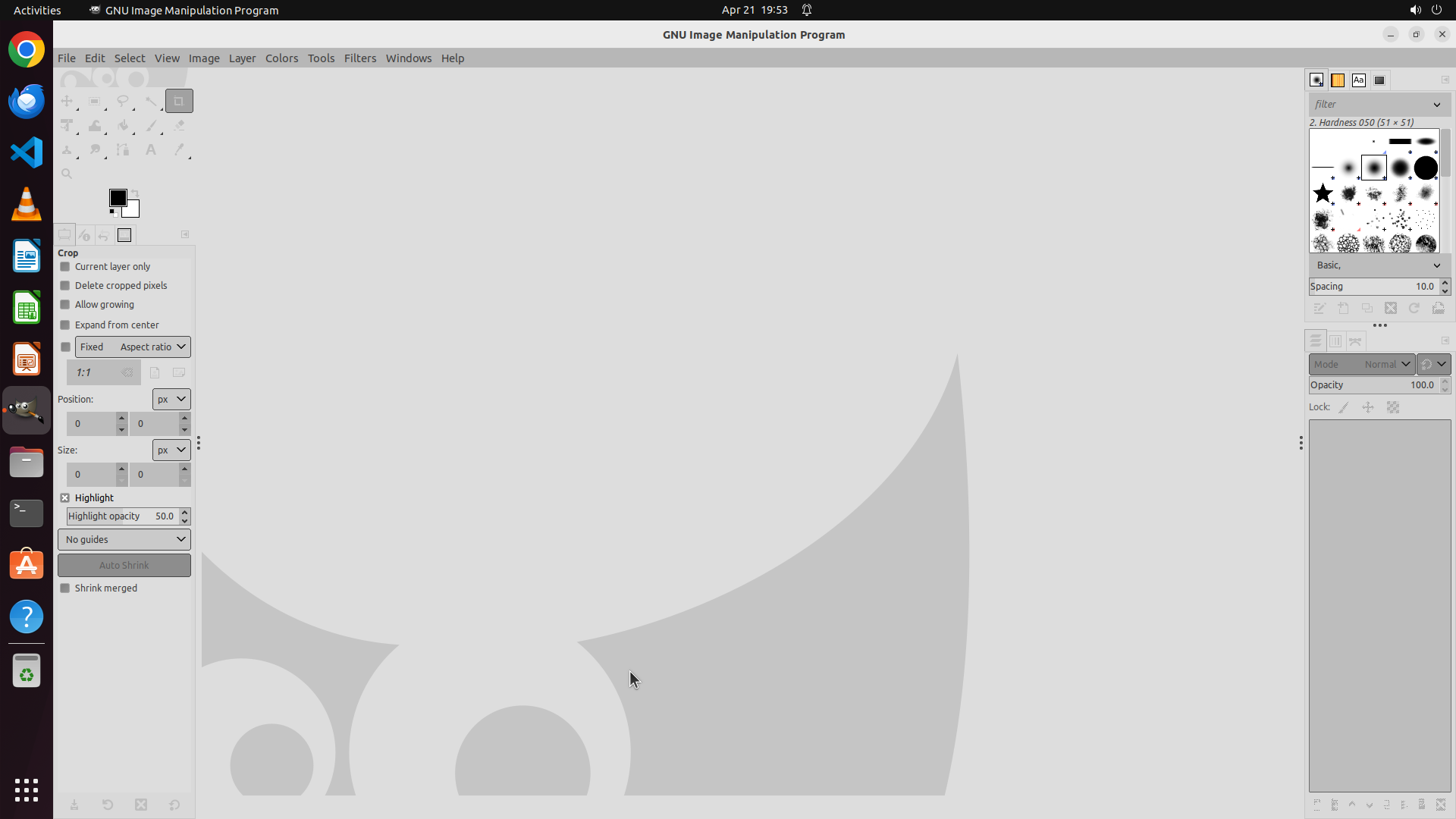
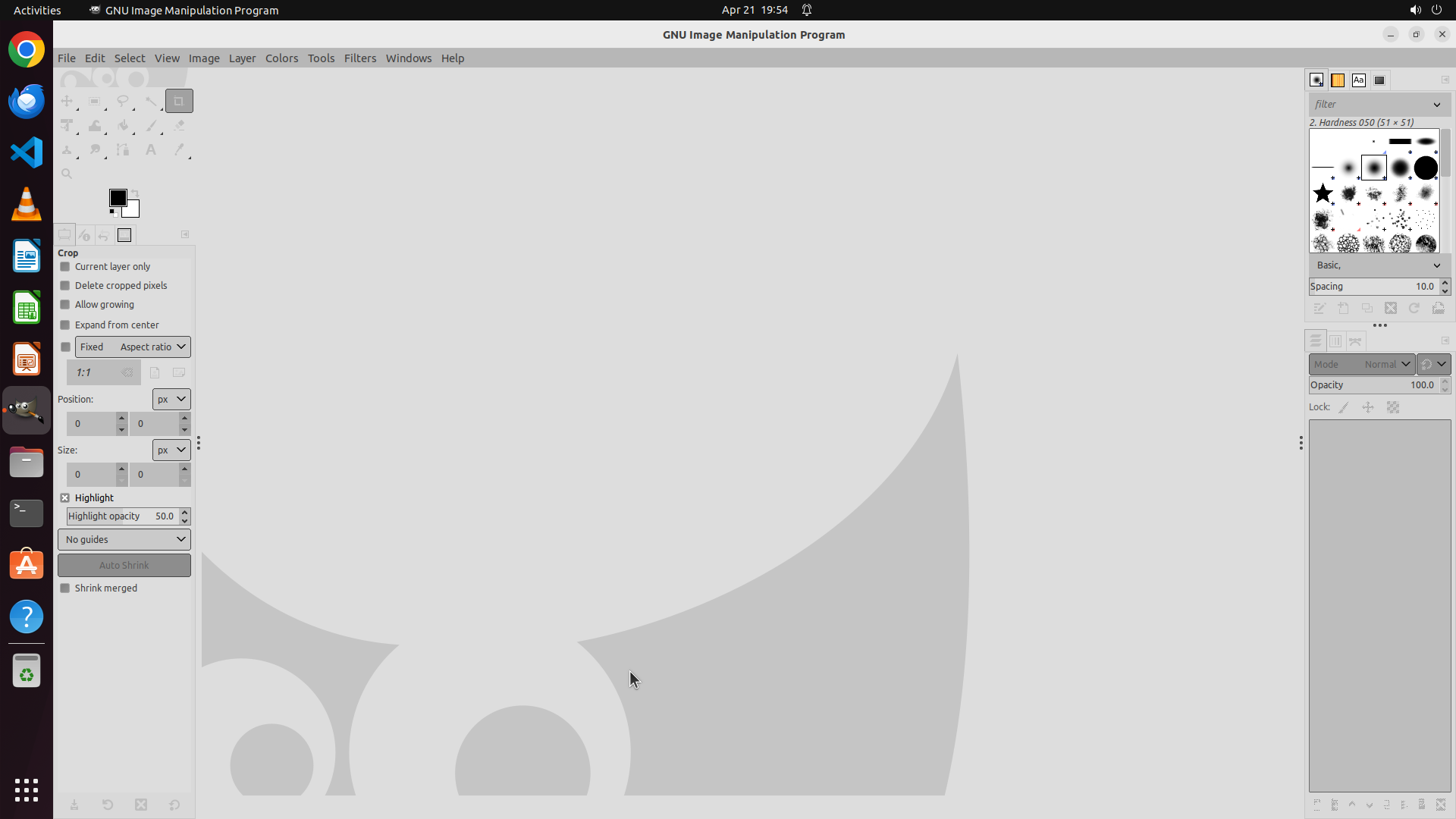
Step 1:
CLICK (125, 72)
```
#### 重要信息
GIMP is currently open and displaying with a dark theme. The interface shows:
- Dark gray left toolbox panel with various tools
- Dark gray right panels (Layers, Brushes, etc.)
- Menu bar at the top with File, Edit, Select, View, Image, Layer, Colors, Tools, Filters, Windows, Help
- The Edit menu is visible in the menu bar, which is where Preferences can be accessed
#### 情况分析与思考过程
To change GIMP's theme from dark to light, I need to:
1. First, click on the "Edit" menu in the menu bar to access the dropdown menu
2. Then select "Preferences" from the dropdown
3. Navigate to the Theme settings (usually under Interface)
4. Change from dark to light theme
5. Apply the changes
The first step is to click on the Edit menu. I can see it in the menu bar at the top of the GIMP window, positioned between "File" and "Select".
```
I'll help you change GIMP's theme from dark to light. Let me start by clicking on the Edit menu to access Preferences.
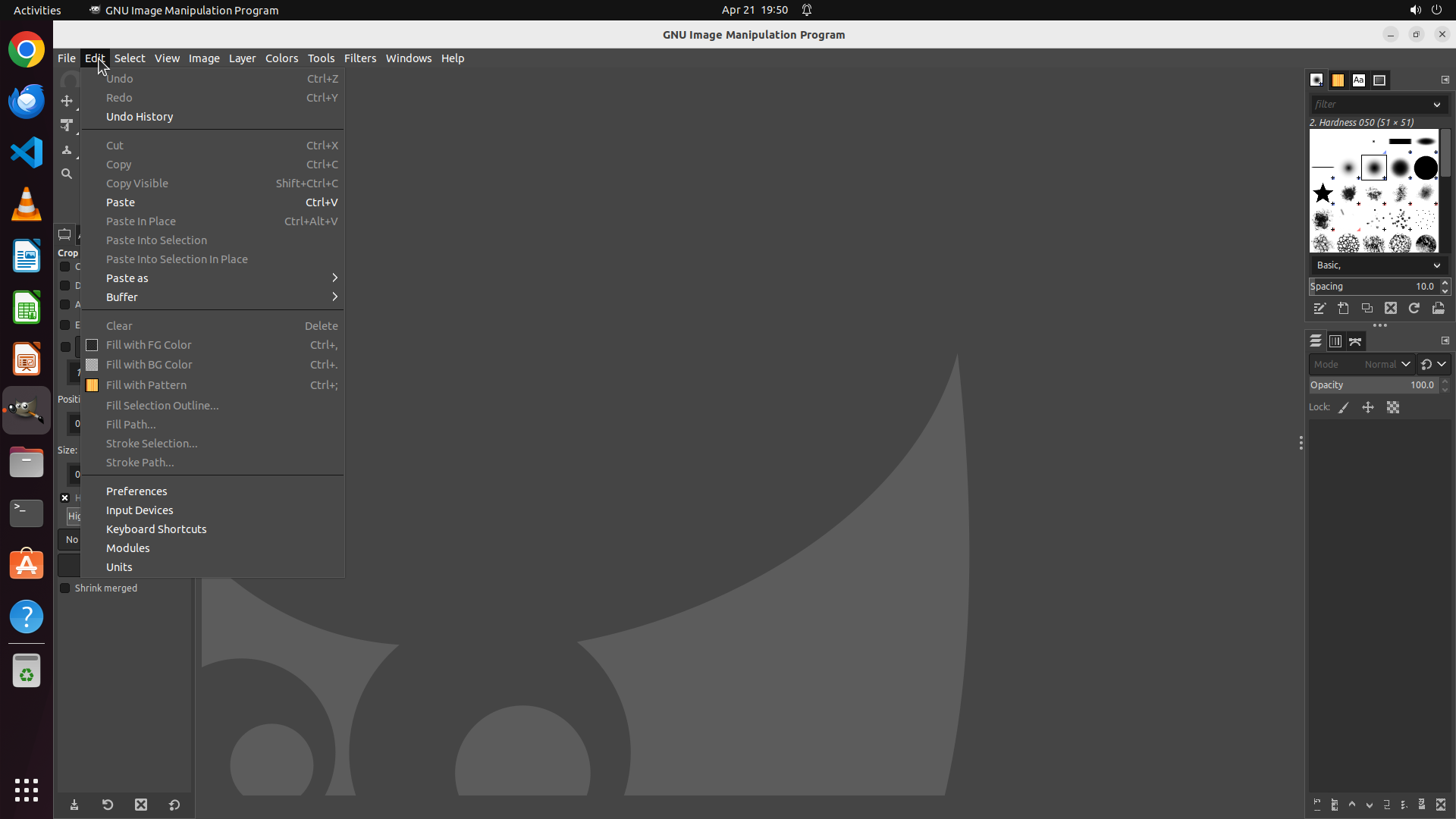
Step 2:
CLICK (180, 652)
```
#### 重要信息
The Edit menu dropdown is now open and visible. I can see the "Preferences" option in the menu list, positioned near the bottom section of the dropdown menu. The GIMP interface still displays the dark theme with dark gray panels on the left and right sides.
#### 情况分析与思考过程
The previous action successfully clicked on the Edit menu and opened the dropdown. Now I need to:
1. Click on "Preferences" to open the preferences dialog
2. Navigate to the Theme/Interface settings
3. Change the theme from dark to light
4. Apply the changes
The Preferences option is clearly visible in the Edit menu dropdown. This is the correct next step to access the theme settings. I'll click on "Preferences" now.
```
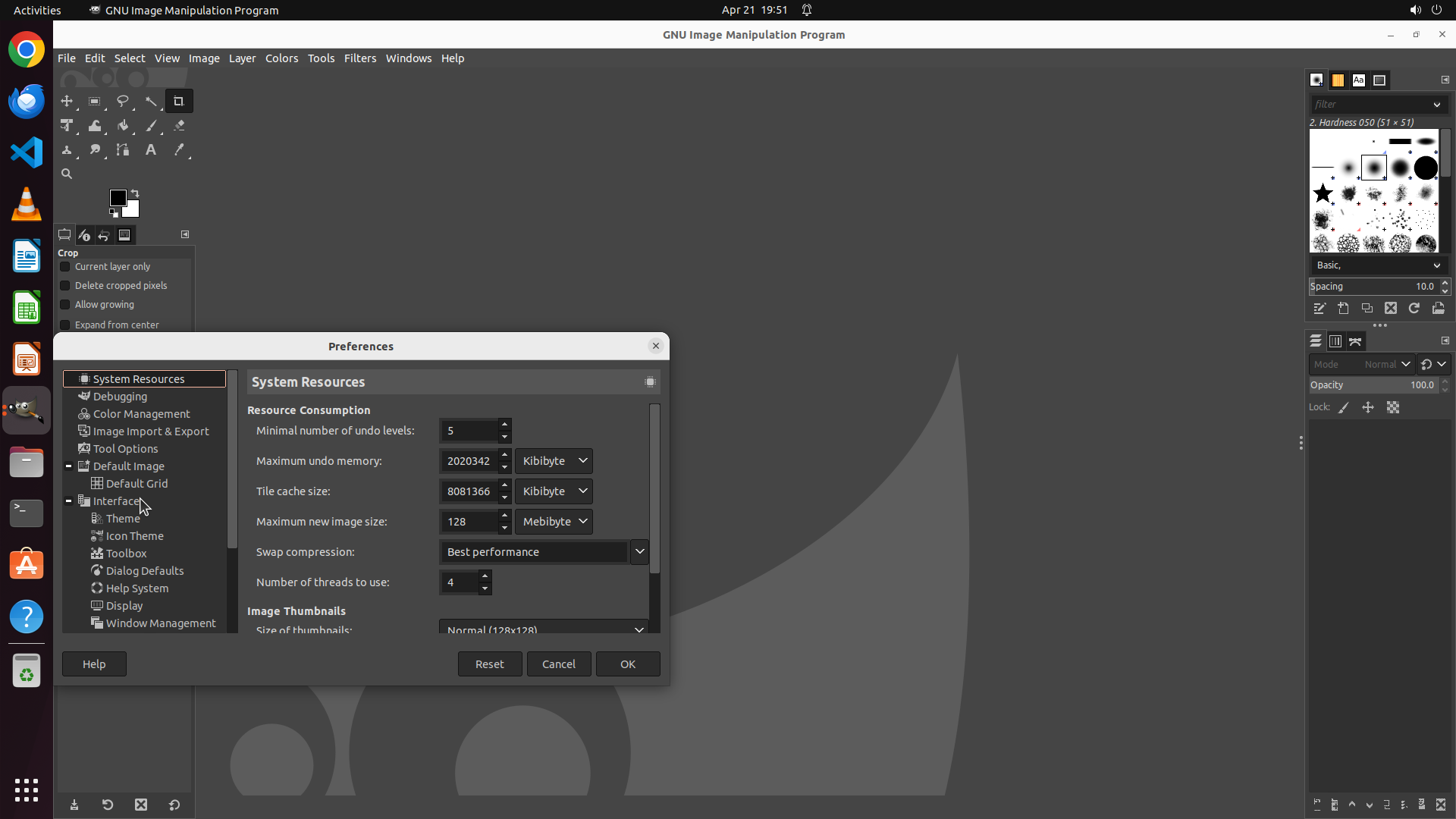
Step 3:
CLICK (159, 681)
```
#### 重要信息
The Preferences dialog has successfully opened. I can see the left sidebar with various settings categories. Under the "Interface" section, I can see "Theme" option which is exactly what I need to access to change the theme from dark to light. The current view shows "System Resources" is selected.
#### 情况分析与思考过程
Now I need to:
1. Click on "Theme" under the Interface section in the left sidebar
2. This should show theme options on the right side where I can select "Light" theme
3. Then click OK to apply the changes
The "Theme" option is visible in the left sidebar under "Interface". This is the correct path to change the theme settings. I'll click on it now.
```
Step 4:
CLICK (361, 634)
```
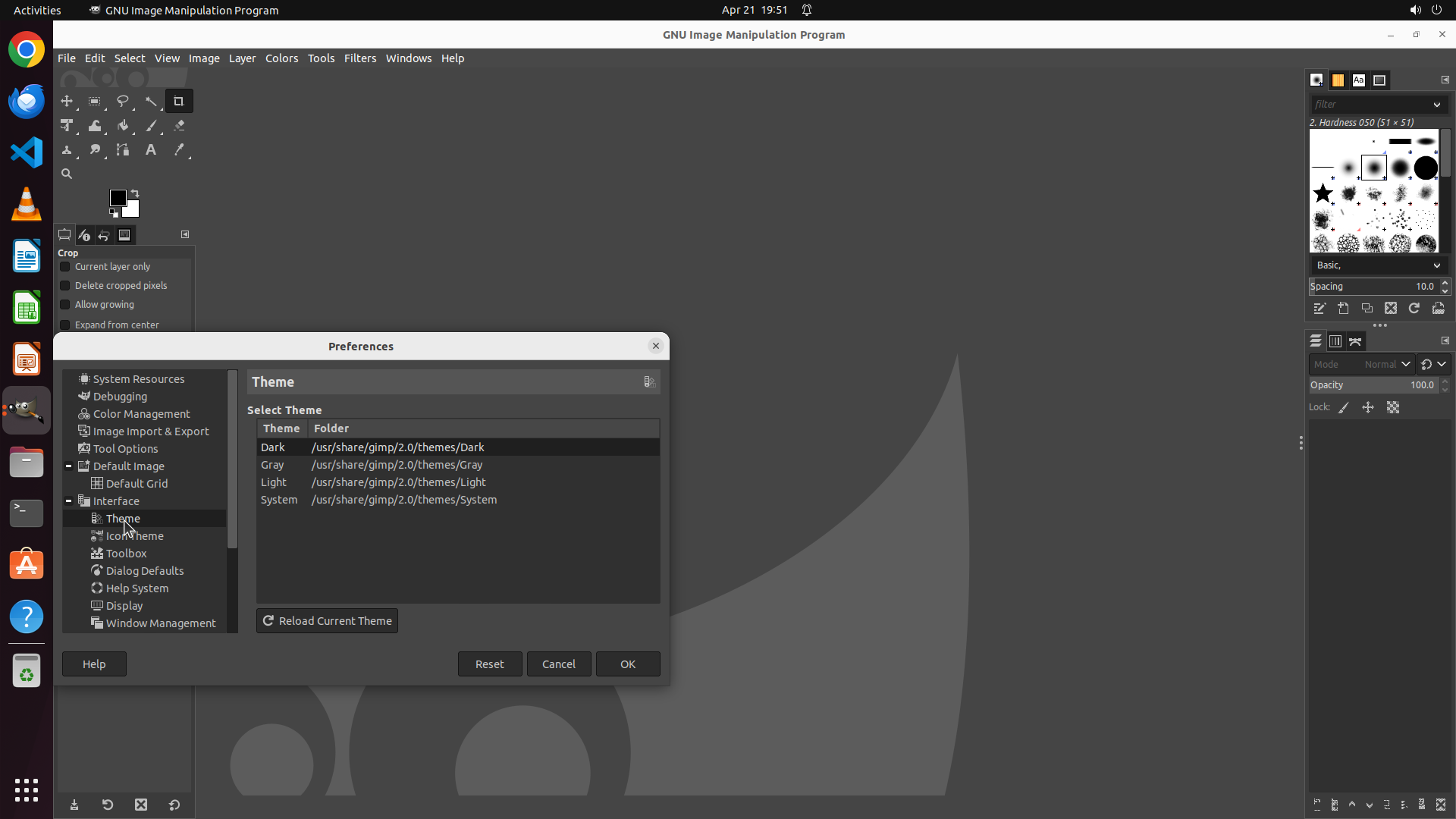
#### 重要信息
The Theme settings panel is now displayed on the right side. I can see a list of available themes:
- Dark (currently selected/highlighted)
- Gray
- Light
- System
The "Dark" theme is currently active. I need to select "Light" from this list to change the theme.
#### 情况分析与思考过程
The previous action successfully navigated to the Theme settings. Now I need to:
1. Click on "Light" in the theme list to select it
2. Then click "OK" to apply the changes
The "Light" option is clearly visible in the theme list. Clicking on it will select the light theme. After that, I'll need to click the OK button to apply the changes to GIMP's interface.
```
I'll click on the "Light" theme option in the list to select it.
Step 5:
CLICK (826, 880)
```
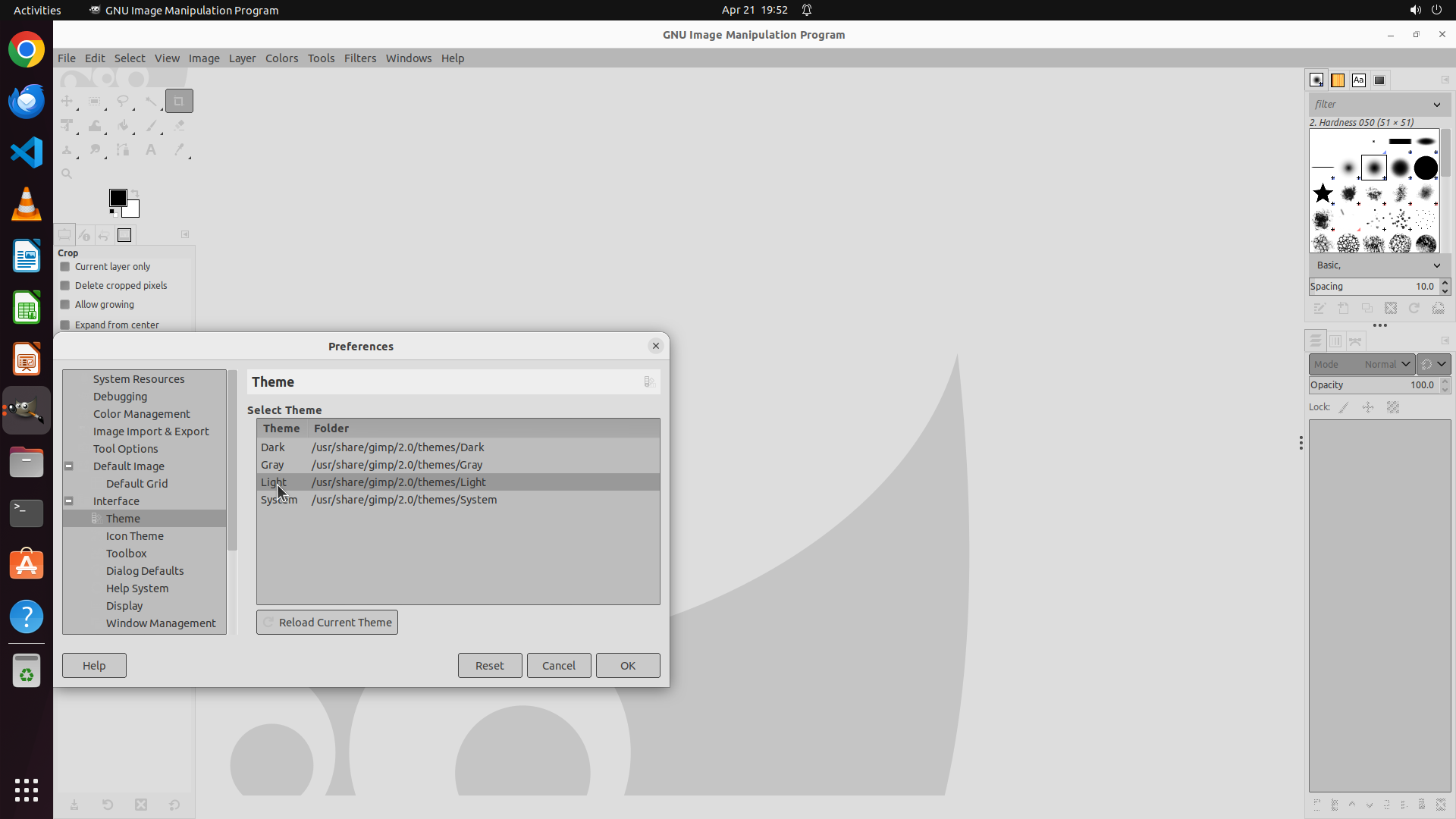
#### 重要信息
The "Light" theme has been successfully selected in the theme list - it is now highlighted. The Preferences dialog is still open and showing the Theme settings. To complete the task, I need to click the "OK" button to apply the light theme to GIMP.
Current state:
- Light theme is selected in the list
- Preferences dialog is open
- OK button is visible at the bottom right of the dialog
#### 情况分析与思考过程
The previous action successfully selected the "Light" theme. Now I need to apply this change by clicking the "OK" button. This will:
1. Close the Preferences dialog
2. Apply the light theme to GIMP's interface
3. Complete the task
The OK button is located at the bottom right of the Preferences dialog. Clicking it will finalize the theme change.
```
I'll click the OK button to apply the light theme to GIMP.