```
#### 从截图中观察到的信息
1. LibreOffice Impress is open with file "30_1.pptx" - the application is responsive and ready for editing
2. The presentation has 6 slides total (bottom shows "Slide 1 of 6")
3. From the slide thumbnails on the left panel:
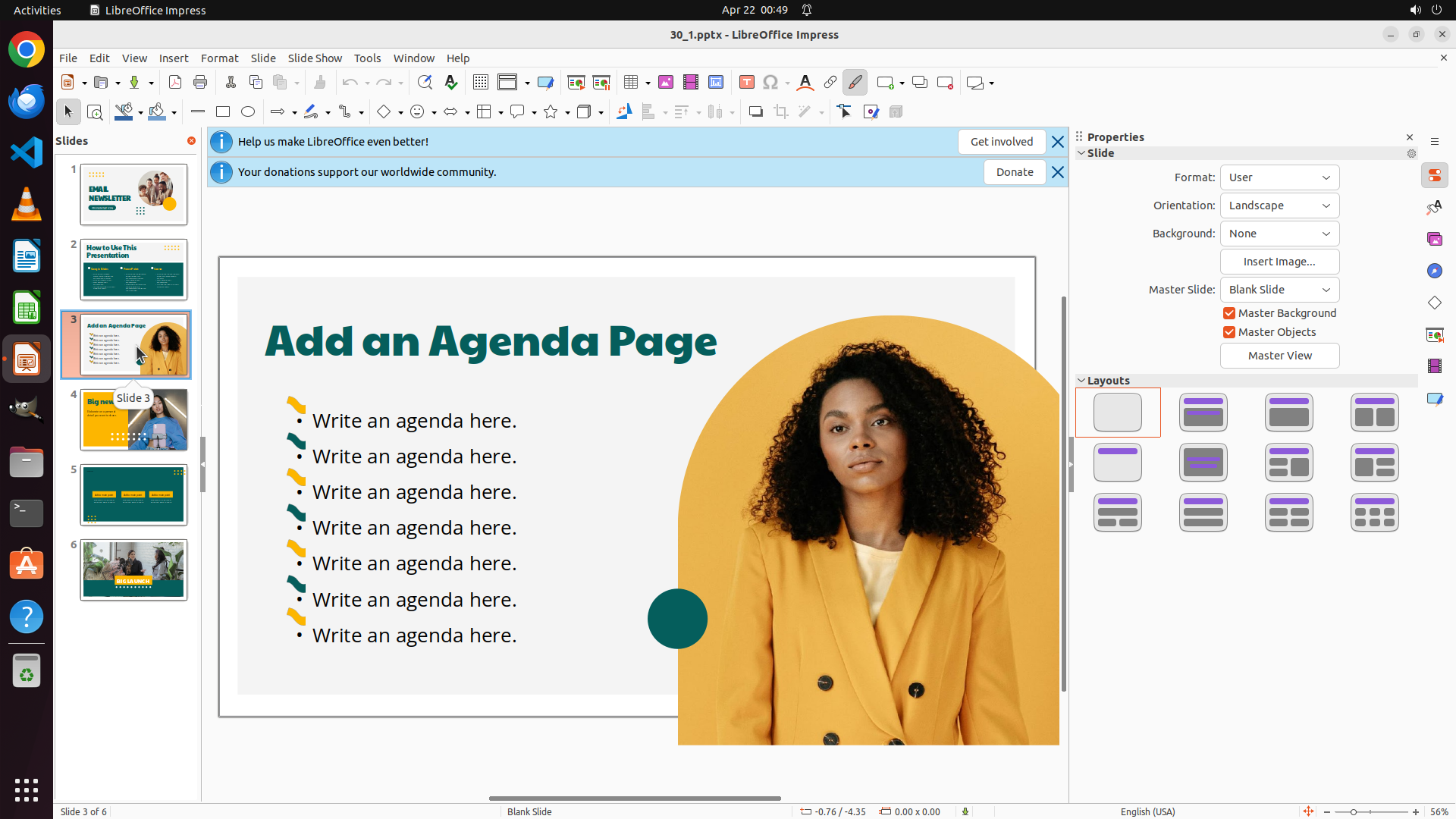
- Slide 3 appears to contain a picture of a person (woman with curly hair)
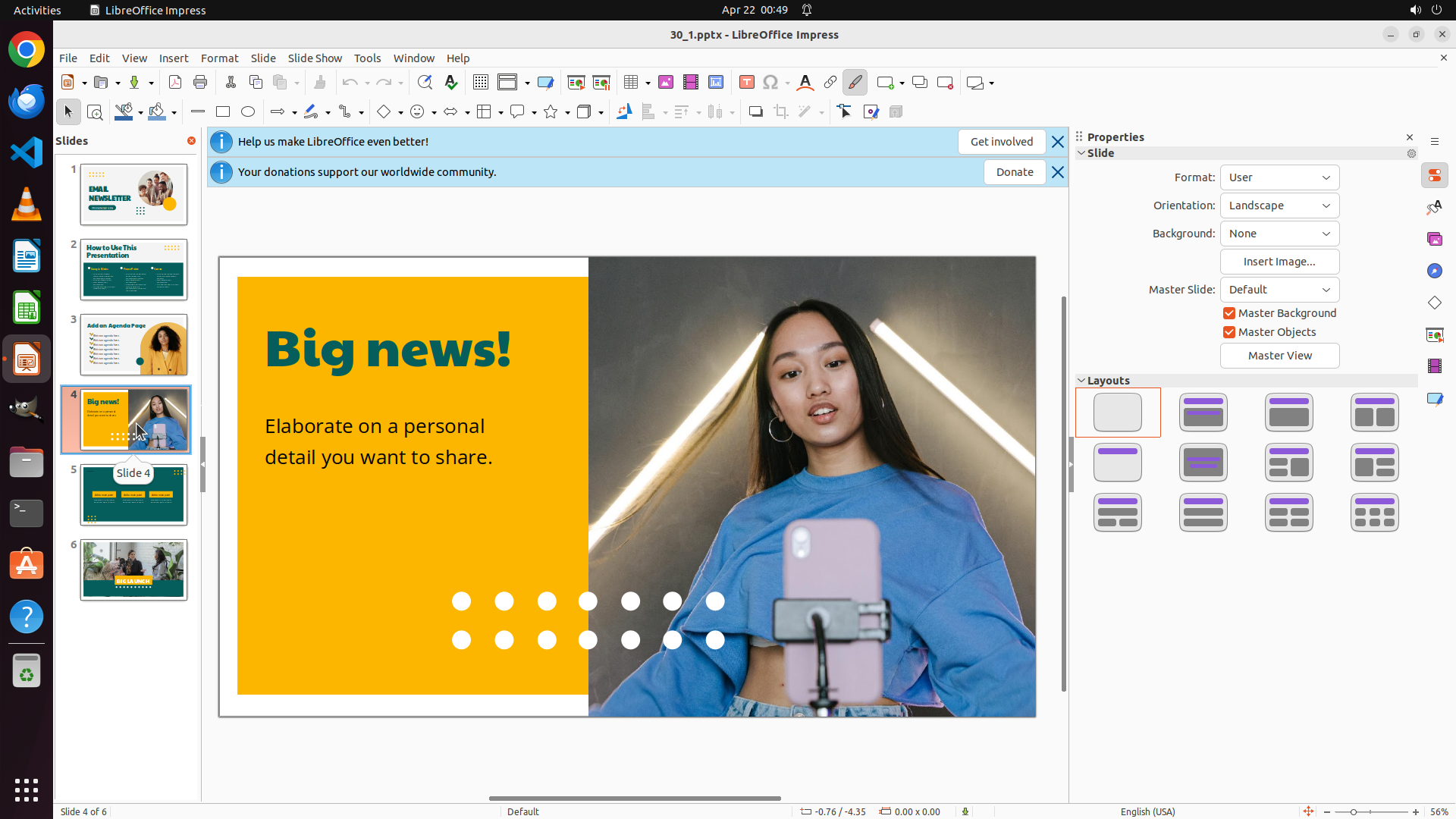
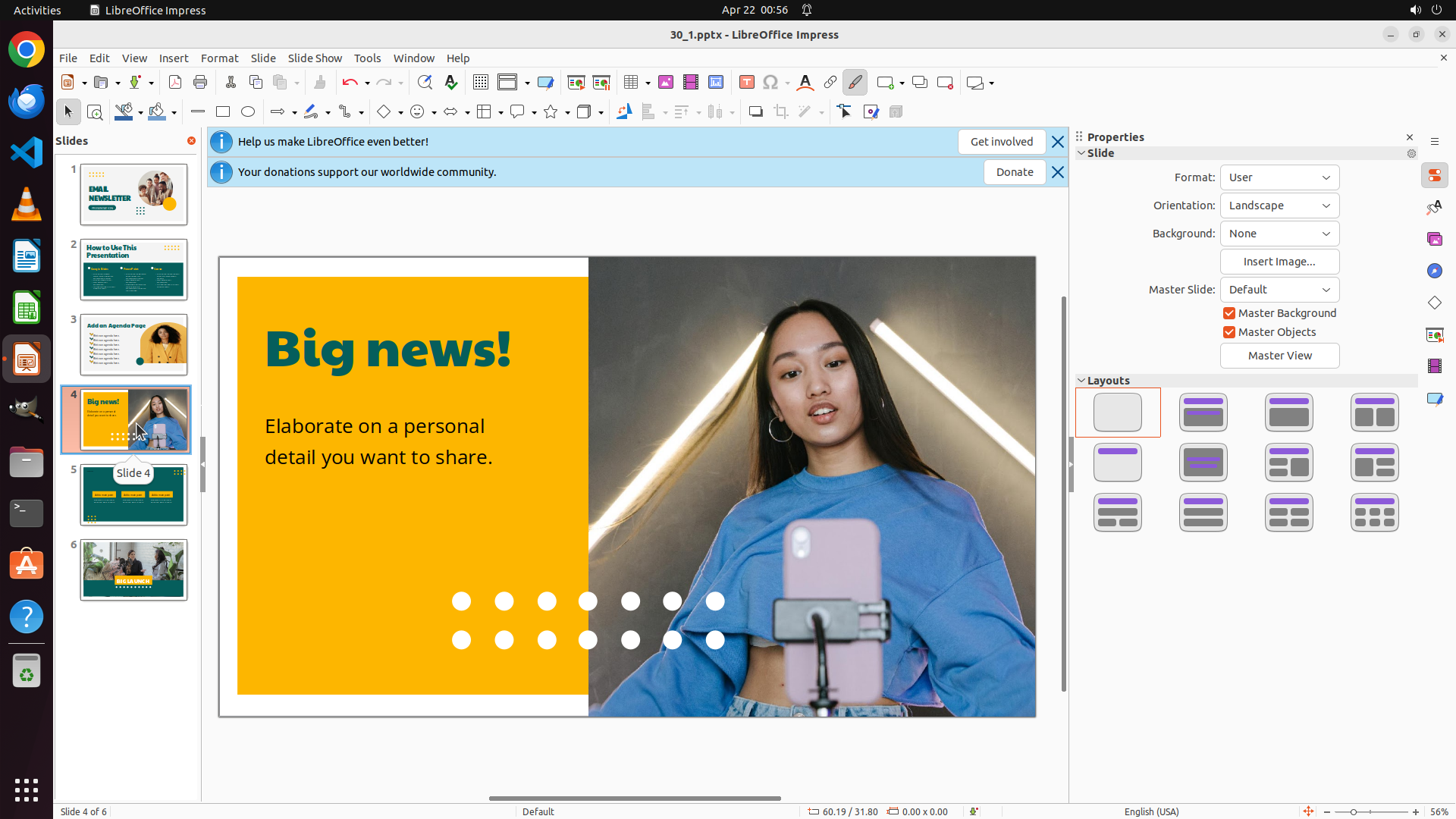
- Slide 4 appears to contain a picture of a person with a laptop
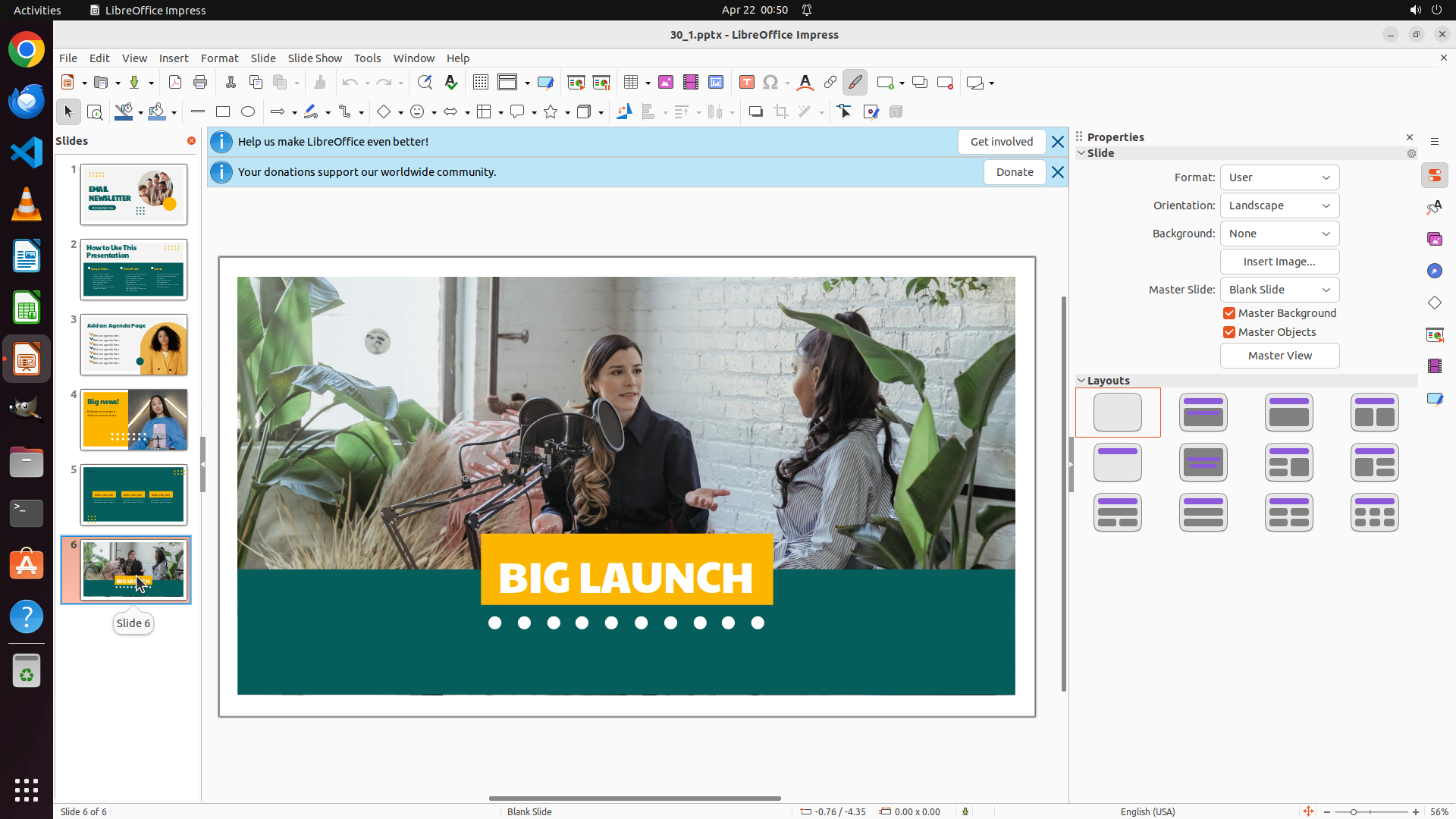
- Slide 6 appears to contain pictures of people
4. The file is currently open and appears to be accessible
#### 下一步计划
I need to navigate to slides 3, 4, and 6 to verify the pictures in detail. Let me click on slide 3 first to see it in the main view and confirm what picture is there.
```
Step 2: CLICK (175, 553)
```
#### 从截图中观察到的信息
1. Successfully navigated to slide 3 - it is now displayed in the main view
2. Slide 3 contains a picture of a woman with curly hair wearing a yellow/orange blazer on the right side
3. The picture is positioned on the right side of the slide with a circular/oval crop effect
4. From the slide thumbnails, I can see:
- Slide 4 appears to have a picture of someone with a laptop (yellow background)
- Slide 6 appears to have multiple pictures of people
5. The presentation shows "Slide 3 of 6" at the bottom
#### 下一步计划
Now I need to navigate to slide 4 to verify and identify the picture there. I'll click on slide 4 in the left panel.
```
Step 3: CLICK (175, 754)
```
#### 从截图中观察到的信息
1. Successfully navigated to slide 4 - it is now displayed in the main view
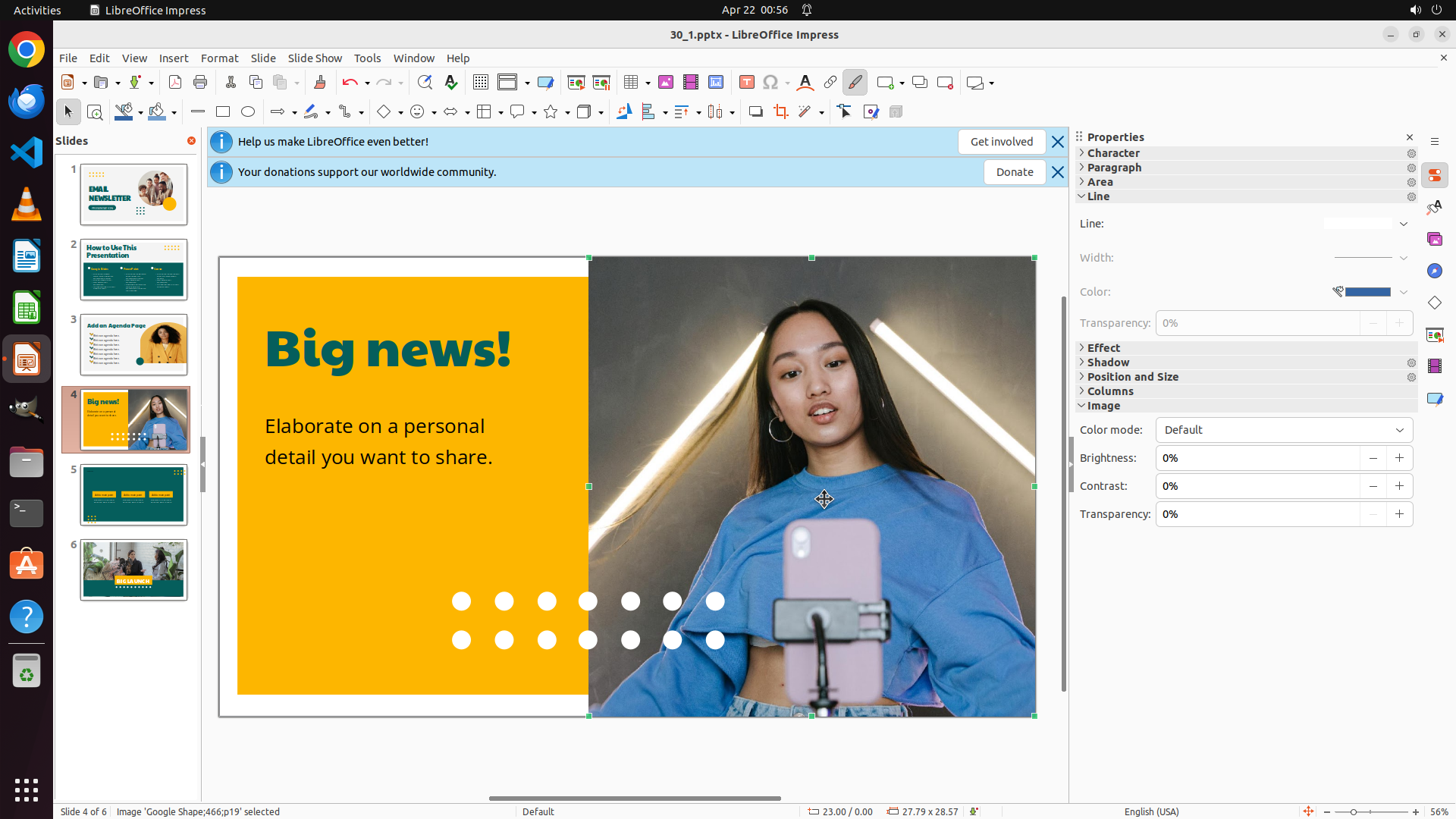
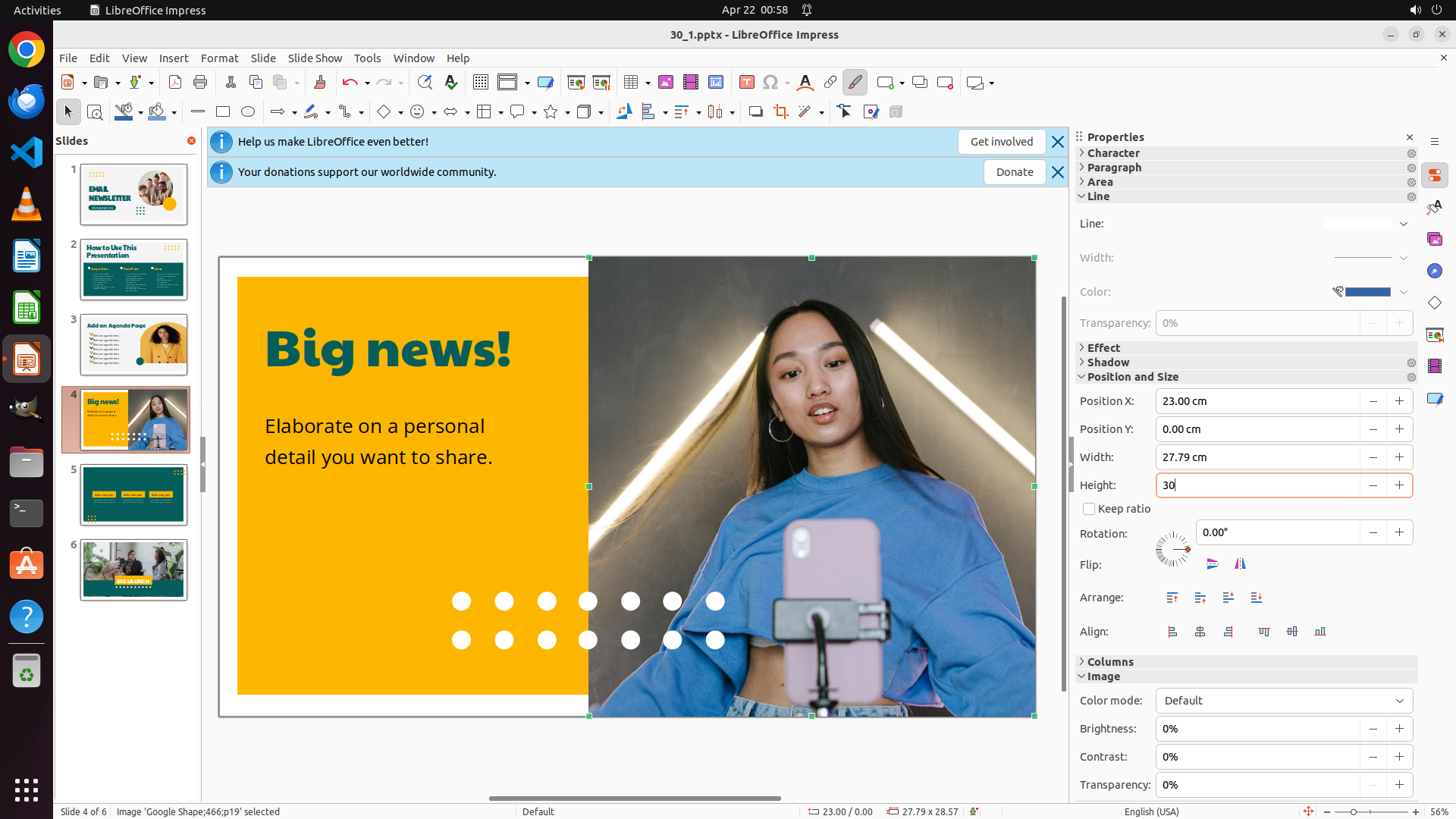
2. Slide 4 contains a picture of a woman wearing a blue top/sweater, holding a pink smartphone
3. The picture is positioned on the right side of the slide
4. The slide has a yellow background on the left with "Big news!" text and "Elaborate on a personal detail you want to share." subtitle
5. The picture appears to be a full rectangular photo (not cropped in a circular shape like slide 3)
6. From the slide thumbnails, I can see slide 6 appears to have multiple pictures of people in what looks like a collage layout
#### 下一步计划
Now I need to navigate to slide 6 to verify and identify the picture(s) there. I'll click on slide 6 in the left panel.
```
Step 4: CLICK (175, 453)
```
#### 重要信息
- LibreOffice Impress is open with file "30_1.pptx"
- Currently viewing slide 6 (as shown at bottom "Slide 6 of 6")
- The slide panel on the left shows all 6 slides
- Slide 3 thumbnail shows a woman with curly hair in yellow/orange outfit
- Slide 4 thumbnail shows a woman in blue top
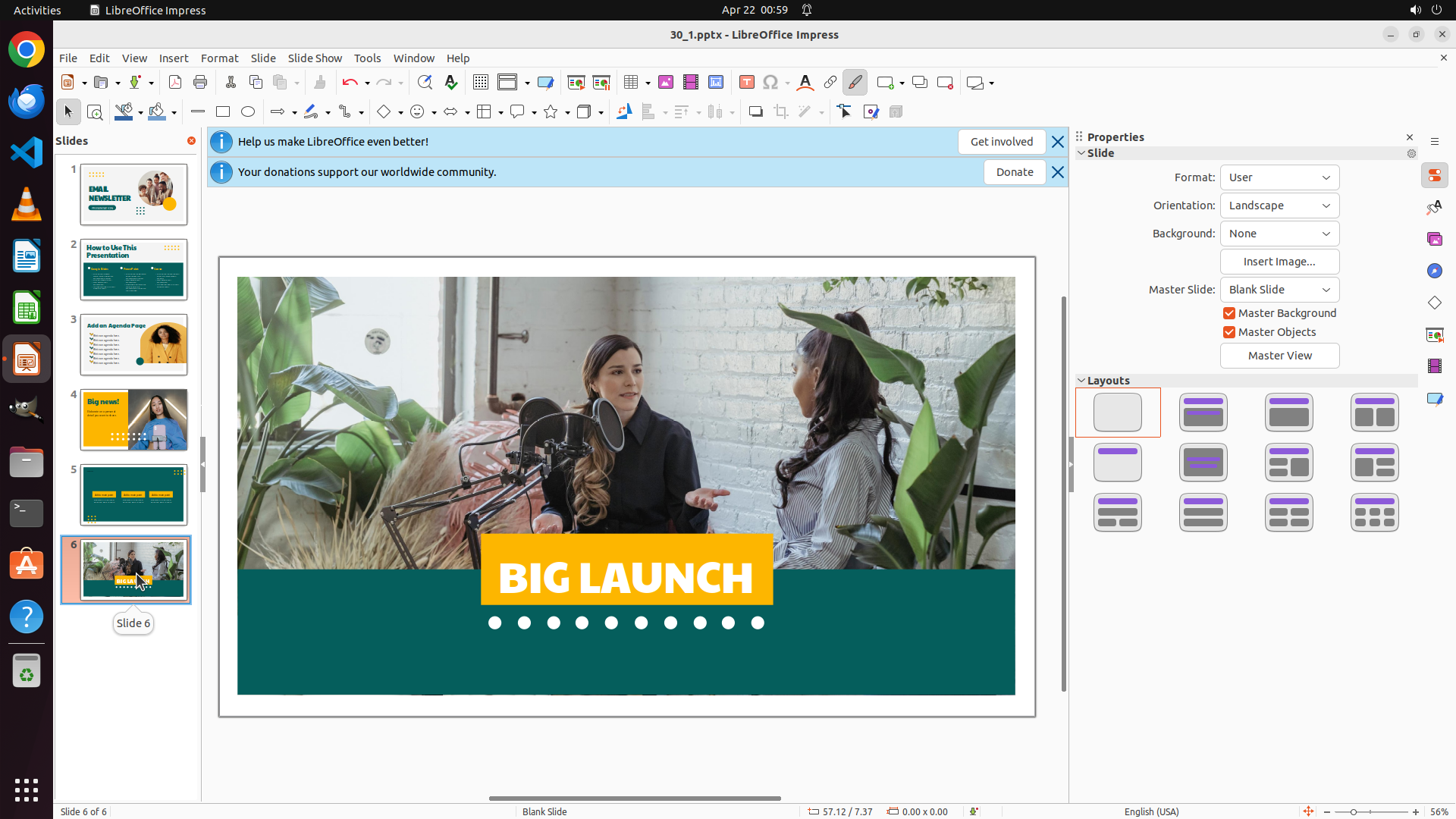
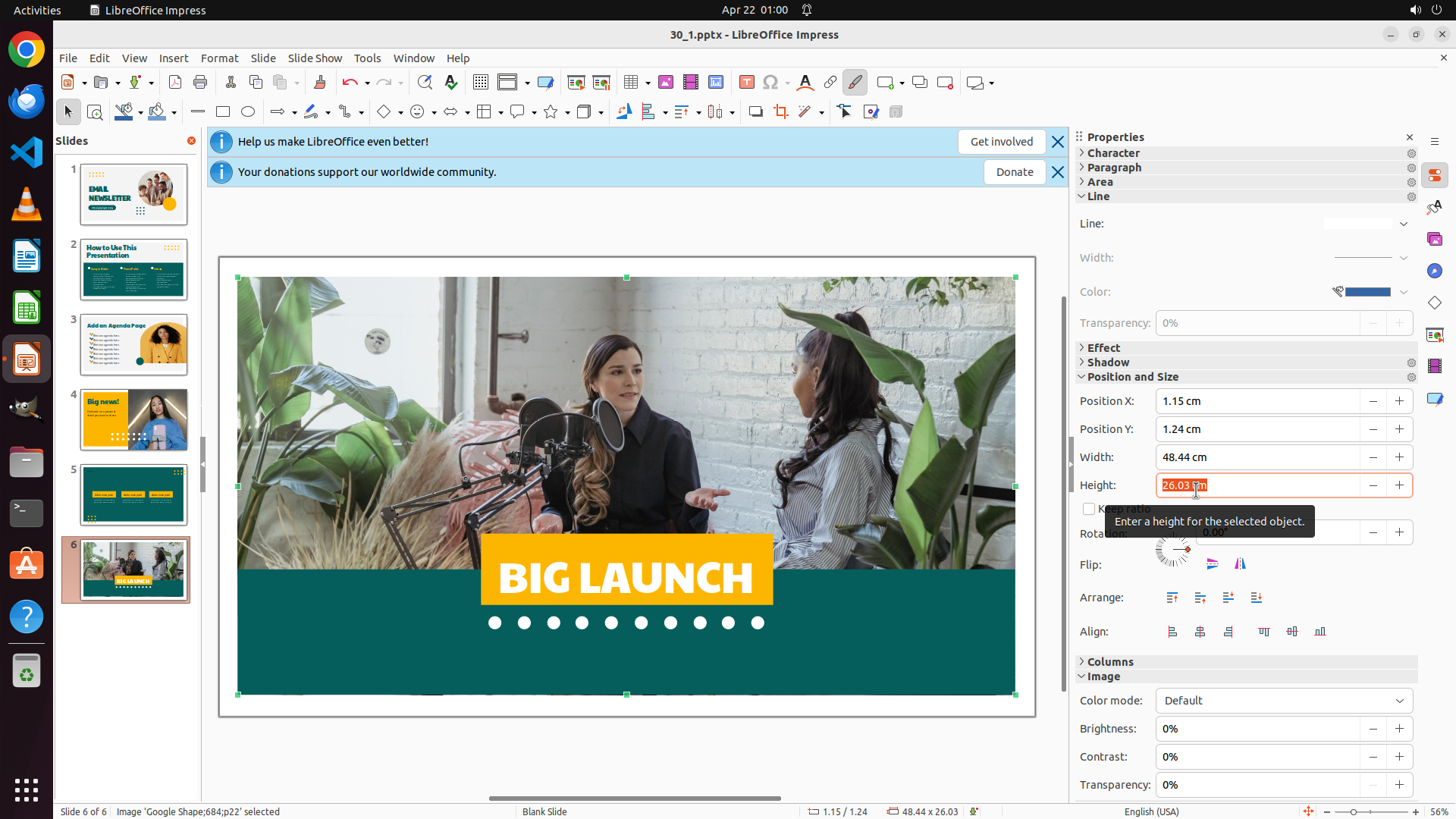
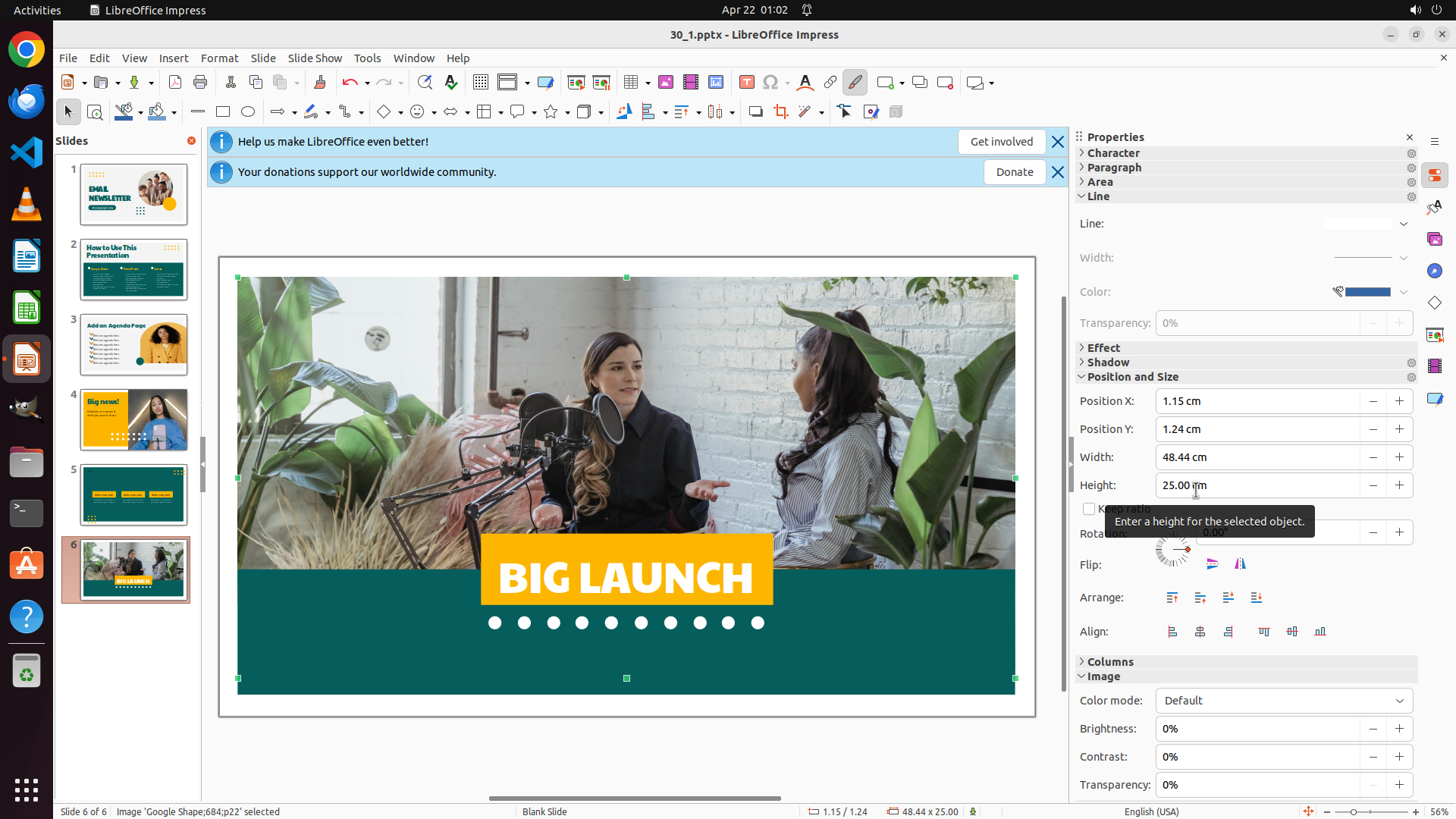
- Slide 6 is currently displayed (two women with "BIG LAUNCH" overlay)
- Properties panel is open on the right side showing "Slide" properties
#### 情况分析与思考过程
The task requires me to change picture heights on slides 3, 4, and 6 to 20cm, 30cm, and 25cm respectively. I'm currently on slide 6, but I should start from slide 3 according to the strategy tree.
My plan:
1. First, navigate to slide 3 by clicking on its thumbnail in the left panel
2. Select the picture on slide 3 and change height to 20cm
3. Navigate to slide 4 and change picture height to 30cm
4. Navigate to slide 6 and change picture height to 25cm
5. Save the file
Looking at the slide panel, slide 3 is the third thumbnail from the top. I need to click on it to navigate to that slide.
```
Step 5: CLICK (1146, 715)
```
#### 重要信息
- Successfully navigated to slide 3
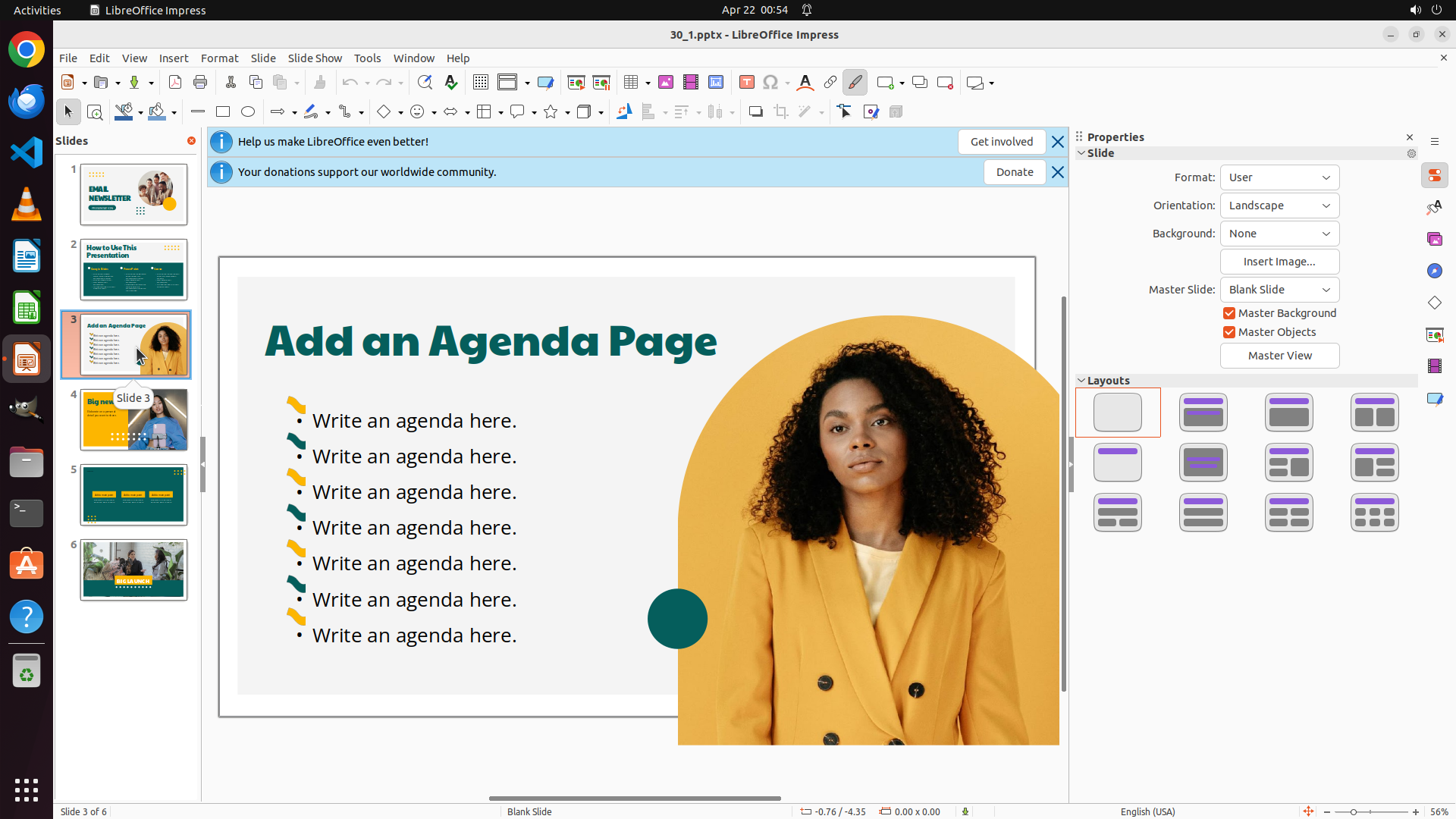
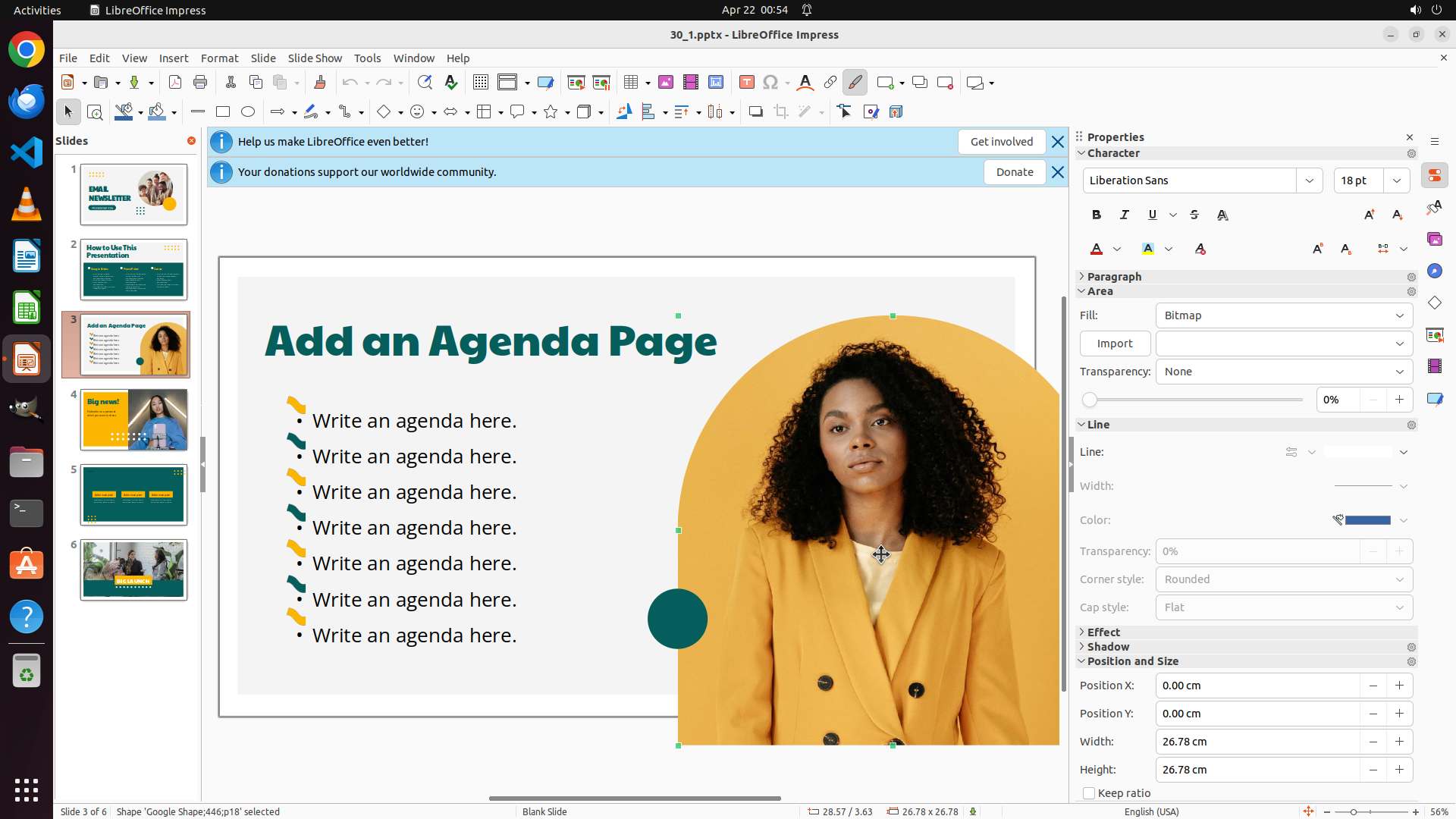
- Slide 3 shows "Add an Agenda Page" with a picture of a woman with curly hair in yellow/orange blazer on the right side
- The picture appears to be circular cropped and positioned on the right side of the slide
- Properties panel currently shows "Slide" properties (Format, Orientation, Background, etc.)
- Need to select the picture to access its properties
#### 情况分析与思考过程
The previous action successfully navigated to slide 3. Now I need to:
1. Select the picture of the woman with curly hair in the yellow/orange blazer
2. Once selected, the Properties panel should show picture properties including height
3. Change the height to 20cm
Looking at the slide, the picture of the woman is on the right side. I need to click on it to select it. Once selected, the Properties panel should switch from "Slide" properties to picture/object properties where I can adjust the height.
I'll click on the picture to select it.
```
Step 6: CLICK (1563, 1012)
```
#### 重要信息
- The picture on slide 3 (woman with curly hair in yellow blazer) is now selected
- Properties panel shows "Position and Size" section
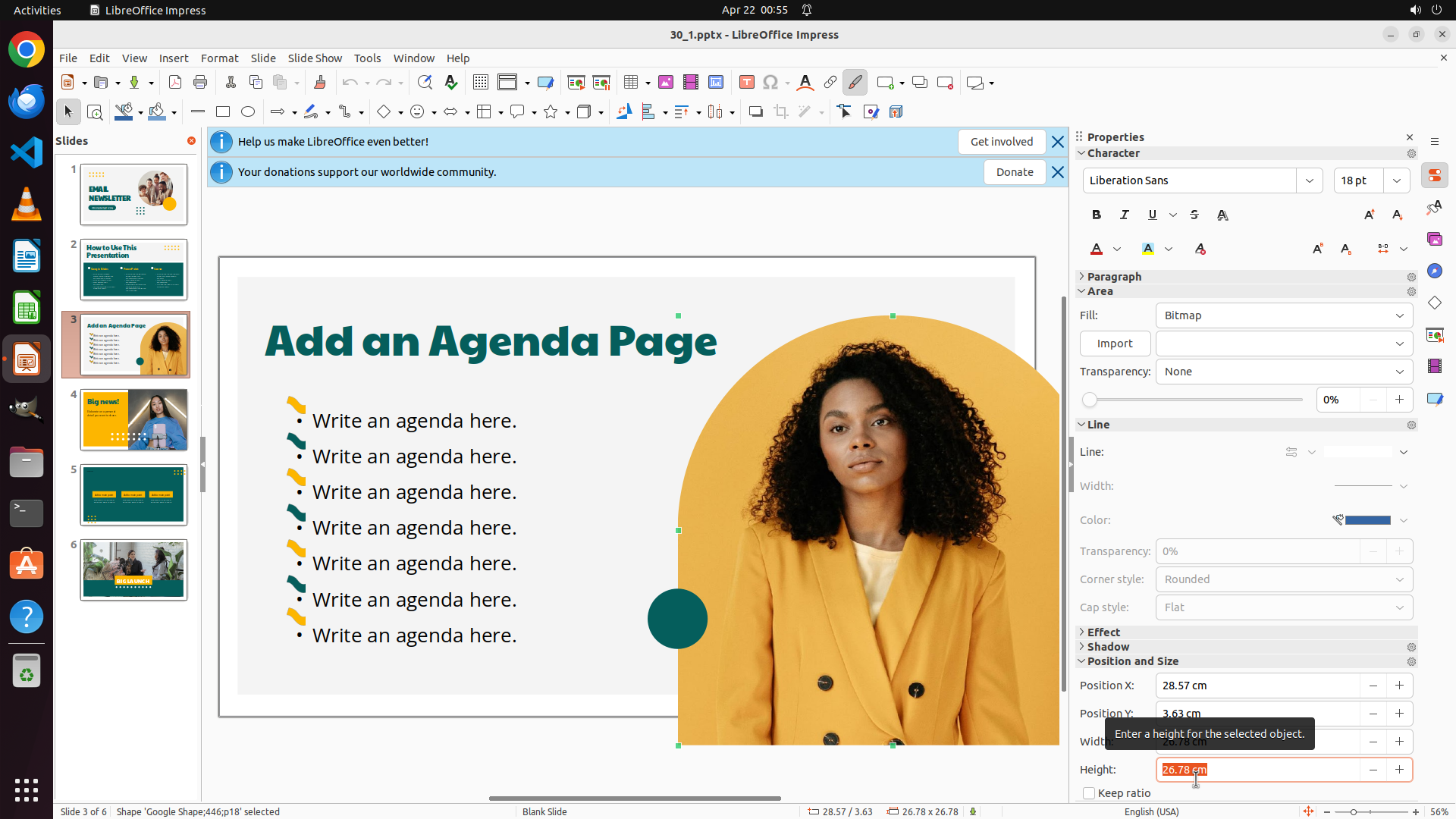
- Current Height: 26.78 cm
- Current Width: 26.78 cm
- "Keep ratio" checkbox is checked (maintaining aspect ratio)
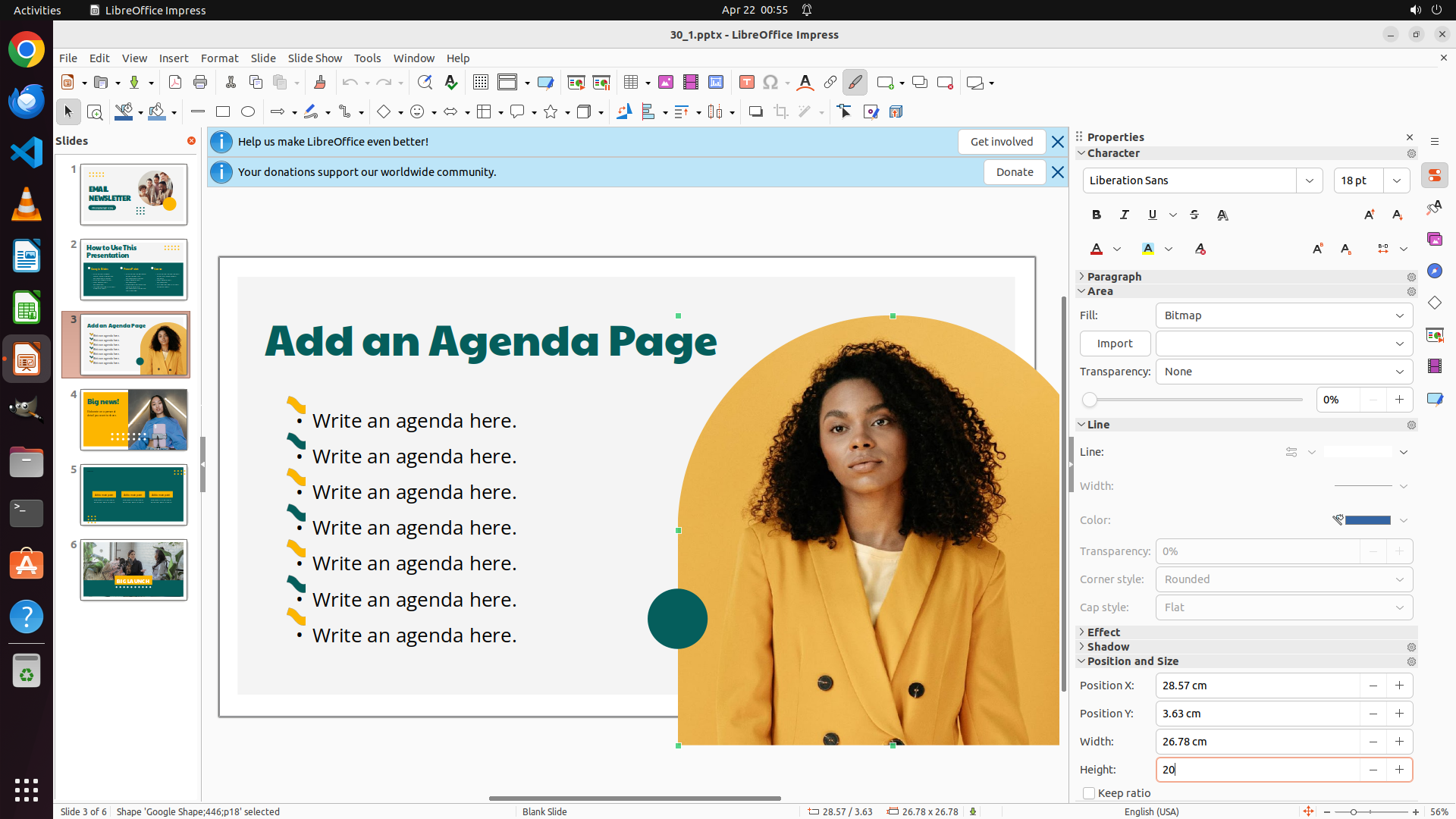
- Need to change Height to 20 cm
#### 情况分析与思考过程
The picture is successfully selected and I can see the Properties panel showing the Position and Size properties. The current height is 26.78 cm, and I need to change it to 20 cm. Since "Keep ratio" is checked, the width will automatically adjust proportionally.
I need to:
1. Click on the Height field to select it
2. Clear the current value (26.78)
3. Type "20"
4. Press Enter to apply
I'll click on the Height input field and then change the value to 20.
```
Step 6: TYPING "20"
```
#### 重要信息
- The picture on slide 3 (woman with curly hair in yellow blazer) is now selected
- Properties panel shows "Position and Size" section
- Current Height: 26.78 cm
- Current Width: 26.78 cm
- "Keep ratio" checkbox is checked (maintaining aspect ratio)
- Need to change Height to 20 cm
#### 情况分析与思考过程
The picture is successfully selected and I can see the Properties panel showing the Position and Size properties. The current height is 26.78 cm, and I need to change it to 20 cm. Since "Keep ratio" is checked, the width will automatically adjust proportionally.
I need to:
1. Click on the Height field to select it
2. Clear the current value (26.78)
3. Type "20"
4. Press Enter to apply
I'll click on the Height input field and then change the value to 20.
```
Step 6: HOTKEY
```
#### 重要信息
- The picture on slide 3 (woman with curly hair in yellow blazer) is now selected
- Properties panel shows "Position and Size" section
- Current Height: 26.78 cm
- Current Width: 26.78 cm
- "Keep ratio" checkbox is checked (maintaining aspect ratio)
- Need to change Height to 20 cm
#### 情况分析与思考过程
The picture is successfully selected and I can see the Properties panel showing the Position and Size properties. The current height is 26.78 cm, and I need to change it to 20 cm. Since "Keep ratio" is checked, the width will automatically adjust proportionally.
I need to:
1. Click on the Height field to select it
2. Clear the current value (26.78)
3. Type "20"
4. Press Enter to apply
I'll click on the Height input field and then change the value to 20.
```
Step 7: CLICK (175, 553)
```
#### 重要信息
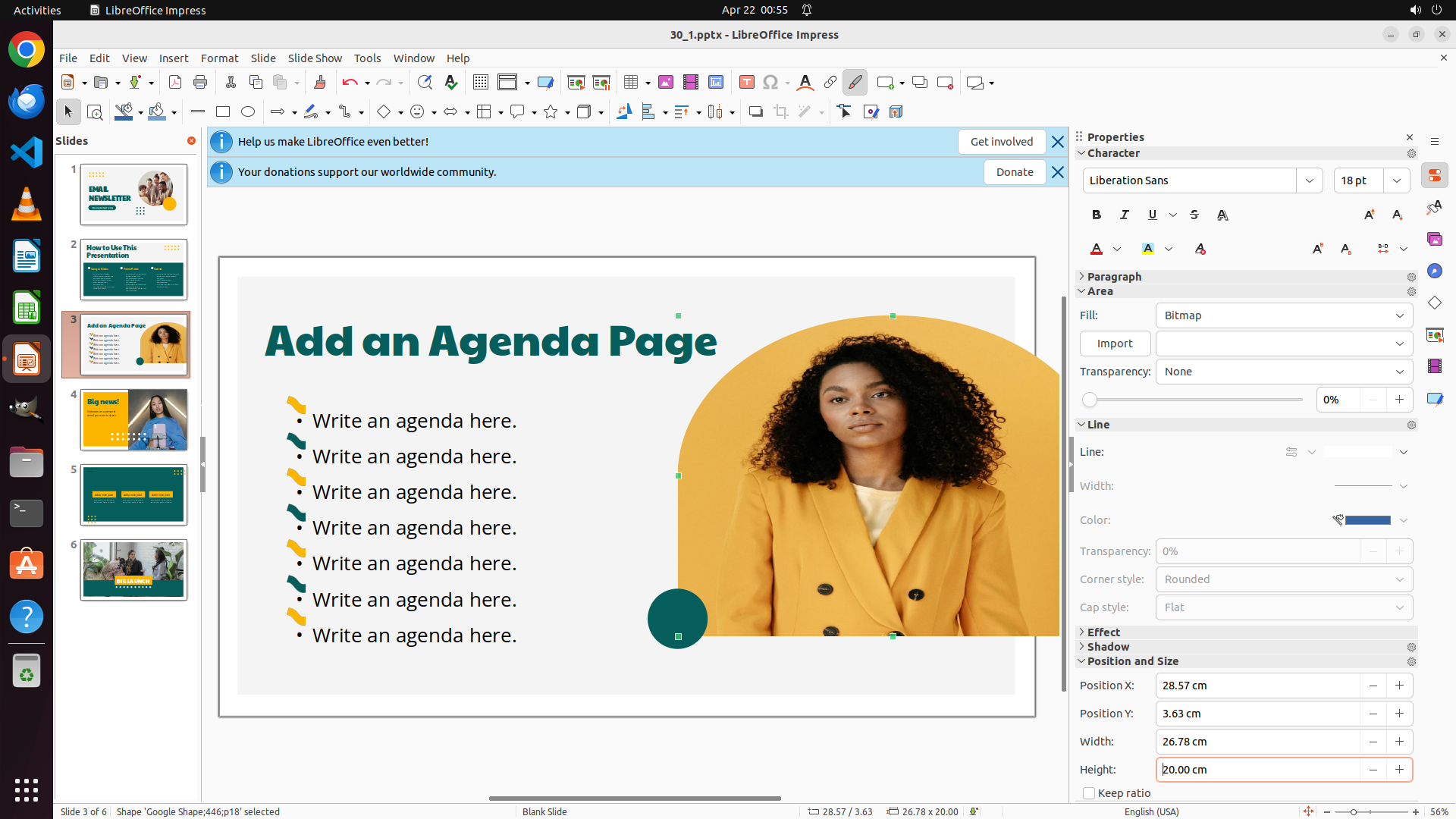
- Successfully changed the height of the picture on slide 3 to 20.00 cm
- The Properties panel confirms "Height: 20.00 cm"
- Width was automatically adjusted to 26.78 cm (maintaining aspect ratio as "Keep ratio" is checked)
- Now need to navigate to slide 4 and change the picture height to 30cm
#### 情况分析与思考过程
Task 1 is complete - I've successfully changed the picture height on slide 3 to 20cm. Now I need to:
1. Update the strategy tree to mark task 1 as success
2. Navigate to slide 4 by clicking on its thumbnail in the left panel
3. Select the picture on slide 4 (woman in blue top with pink smartphone)
4. Change its height to 30cm
5. Then move to slide 6 for the final picture adjustment
Looking at the slide panel on the left, slide 4 is the fourth thumbnail showing a woman in a blue top with a pink/yellow background. I'll click on it to navigate to that slide.
```
Step 8: CLICK (1071, 642)
```
#### 重要信息
- Successfully navigated to slide 4
- Slide 4 shows "Big news!" with a picture of a woman in blue top holding a pink smartphone on the right side
- The slide thumbnail panel shows slide 4 is selected (highlighted with orange border)
- Properties panel currently shows "Slide" properties, meaning no object is selected
- Need to select the picture to access its properties and change height to 30cm
#### 情况分析与思考过程
The previous action successfully navigated to slide 4. Now I need to:
1. Select the picture of the woman in blue top with pink smartphone
2. Once selected, the Properties panel should show picture properties including height
3. Change the height to 30cm
Looking at the slide, the picture of the woman is on the right side of the slide. I need to click on it to select it. Once selected, the Properties panel should switch from "Slide" properties to picture/object properties where I can adjust the height.
I'll click on the picture to select it.
```
Step 9: CLICK (1498, 495)
```
#### 重要信息
- Successfully selected the picture on slide 4 (woman in blue top with pink smartphone)
- The picture is now selected with green selection handles visible
- Properties panel shows picture properties with sections: Character, Paragraph, Area, Line, Width, Color, Transparency, Effect, Shadow, Position and Size, Columns, Image
- Status bar confirms "Image 'Google Shape-66x19' selected"
- Need to access the Height field in the Properties panel to change it to 30cm
#### 情况分析与思考过程
The picture on slide 4 is successfully selected. Now I need to:
1. Access the Height field in the Properties panel
2. Change the height value to 30cm
3. Then move to slide 6 for the final adjustment
Looking at the Properties panel, I can see "Position and Size" section is visible but collapsed (indicated by the arrow next to it). I need to click on "Position and Size" to expand it and reveal the Height field. This is similar to what I did for slide 3.
I'll click on "Position and Size" to expand that section.
```
Step 10: CLICK (1563, 634)
```
#### 重要信息
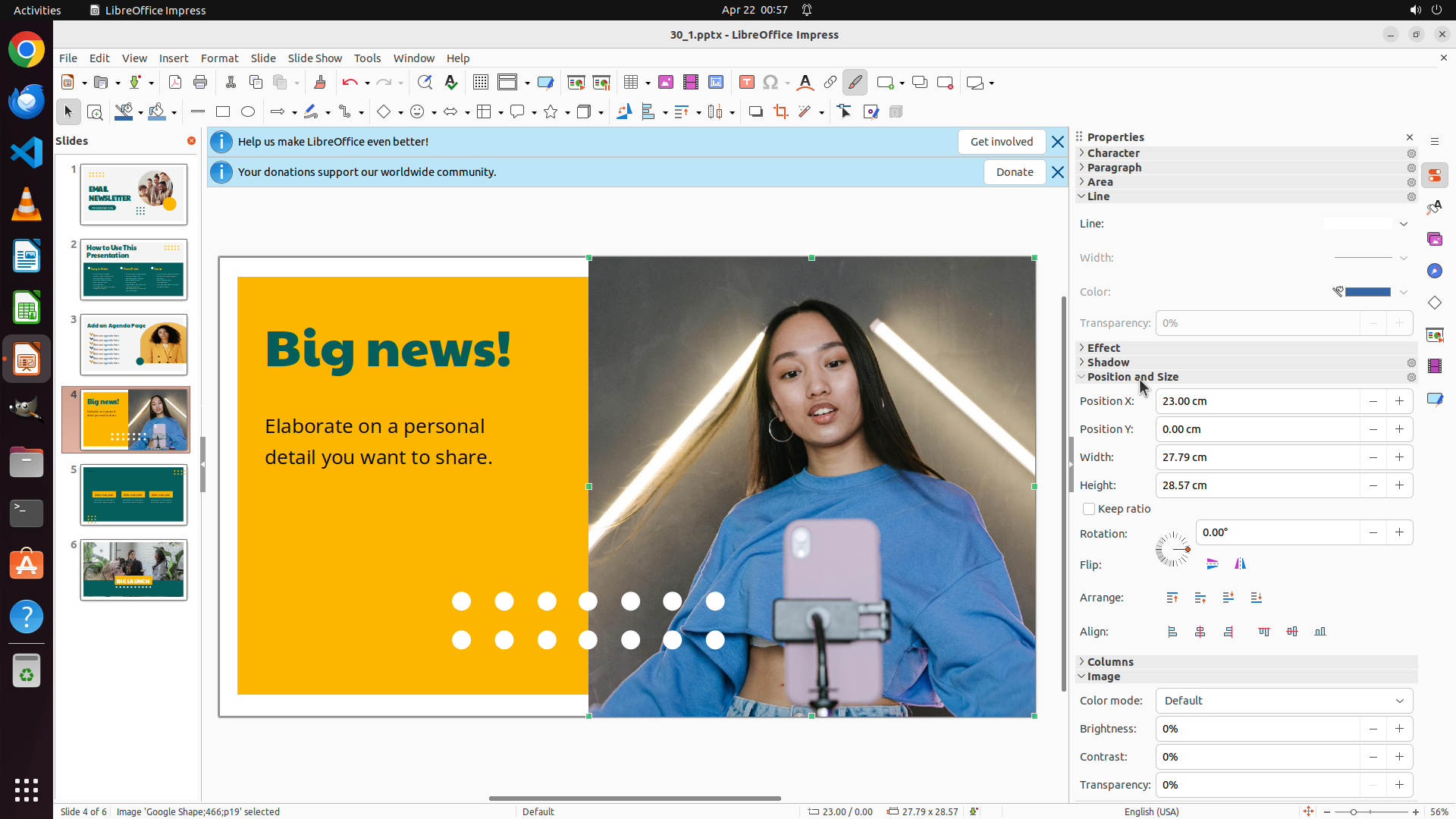
- The "Position and Size" section is now expanded in the Properties panel
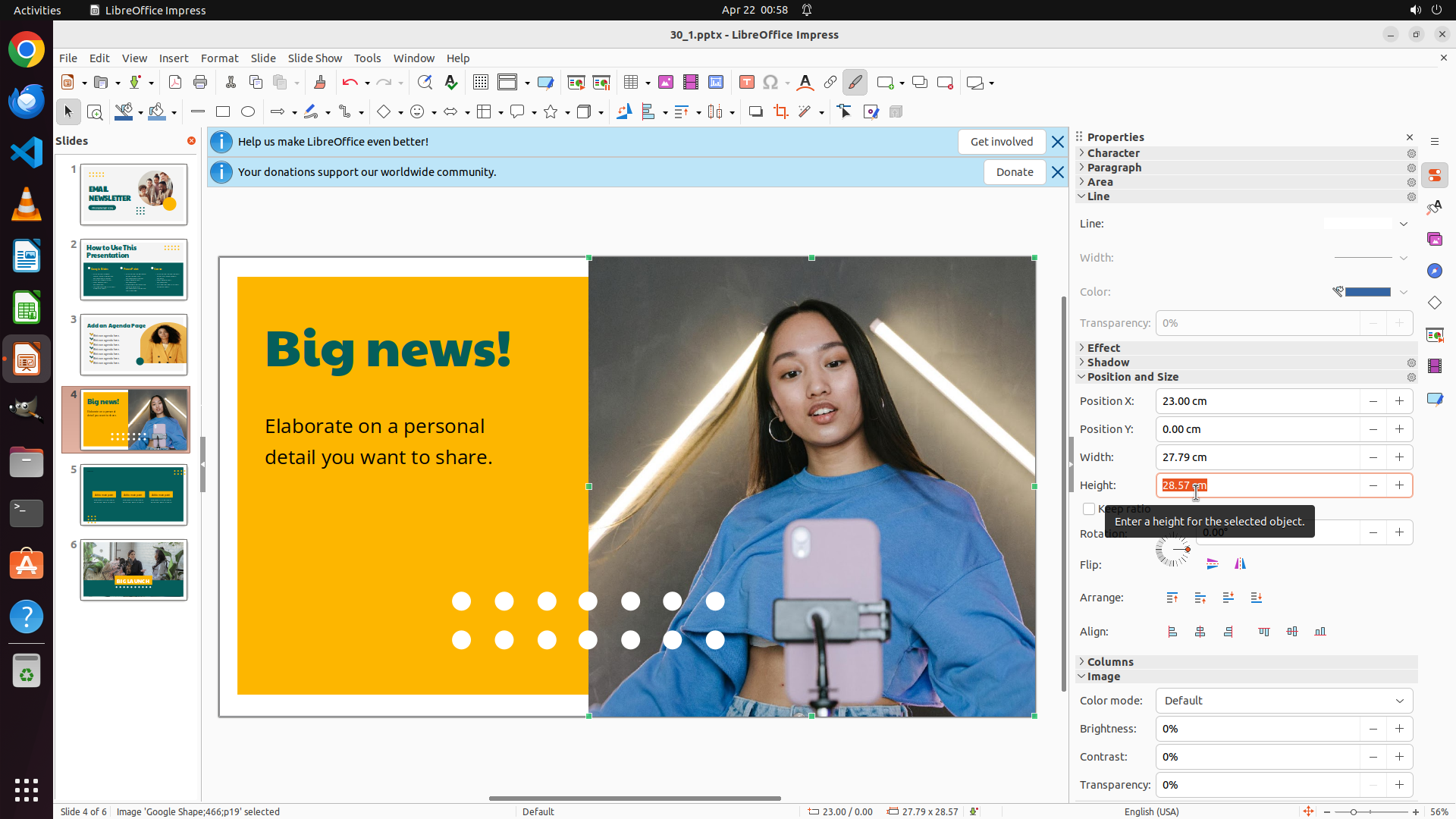
- Current Height shows: 28.57 cm
- Current Width shows: 27.79 cm
- "Keep ratio" checkbox is checked (maintaining aspect ratio)
- The picture on slide 4 (woman in blue top with pink smartphone) is selected
- Need to change Height to 30 cm
#### 情况分析与思考过程
The previous action successfully expanded the Position and Size section. Now I can see the Height field showing 28.57 cm. I need to change this value to 30 cm. Since "Keep ratio" is checked, the width will automatically adjust proportionally when I change the height.
My next steps:
1. Click on the Height field to select it
2. Clear the current value (28.57)
3. Type "30"
4. Press Enter to apply
I'll triple-click on the Height input field to select all the text, then type the new value.
```
Step 10: TYPING "30"
```
#### 重要信息
- The "Position and Size" section is now expanded in the Properties panel
- Current Height shows: 28.57 cm
- Current Width shows: 27.79 cm
- "Keep ratio" checkbox is checked (maintaining aspect ratio)
- The picture on slide 4 (woman in blue top with pink smartphone) is selected
- Need to change Height to 30 cm
#### 情况分析与思考过程
The previous action successfully expanded the Position and Size section. Now I can see the Height field showing 28.57 cm. I need to change this value to 30 cm. Since "Keep ratio" is checked, the width will automatically adjust proportionally when I change the height.
My next steps:
1. Click on the Height field to select it
2. Clear the current value (28.57)
3. Type "30"
4. Press Enter to apply
I'll triple-click on the Height input field to select all the text, then type the new value.
```
Step 10: HOTKEY
```
#### 重要信息
- The "Position and Size" section is now expanded in the Properties panel
- Current Height shows: 28.57 cm
- Current Width shows: 27.79 cm
- "Keep ratio" checkbox is checked (maintaining aspect ratio)
- The picture on slide 4 (woman in blue top with pink smartphone) is selected
- Need to change Height to 30 cm
#### 情况分析与思考过程
The previous action successfully expanded the Position and Size section. Now I can see the Height field showing 28.57 cm. I need to change this value to 30 cm. Since "Keep ratio" is checked, the width will automatically adjust proportionally when I change the height.
My next steps:
1. Click on the Height field to select it
2. Clear the current value (28.57)
3. Type "30"
4. Press Enter to apply
I'll triple-click on the Height input field to select all the text, then type the new value.
```
Step 11: CLICK (175, 751)
```
#### 重要信息
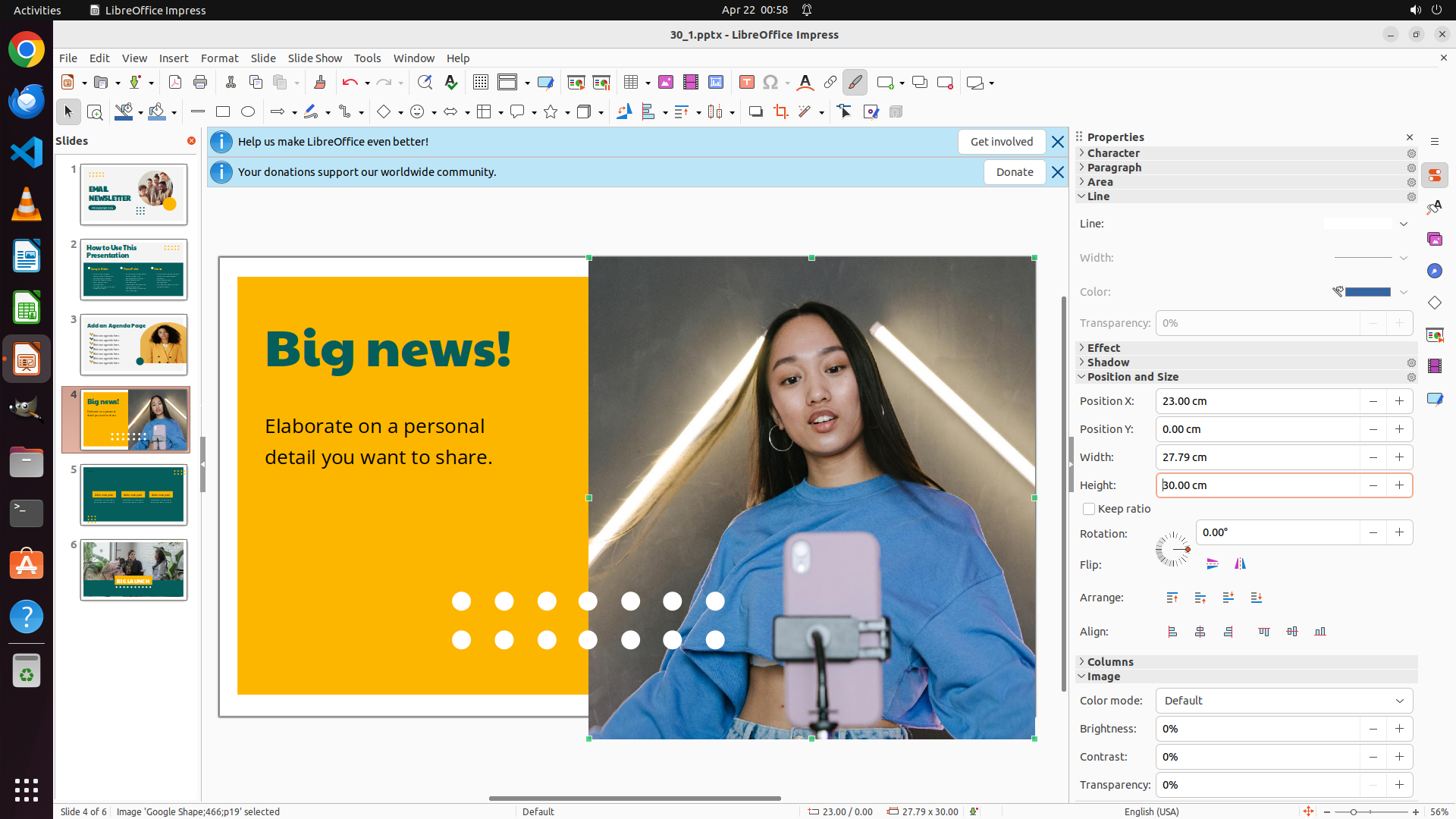
- Successfully changed the height of the picture on slide 4 to 30.00 cm
- The Properties panel confirms "Height: 30.00 cm"
- Width was automatically adjusted to 27.79 cm (maintaining aspect ratio)
- Now need to navigate to slide 6 and change the picture height to 25cm
- Slide 6 thumbnail is visible in the left panel (bottom thumbnail showing two women with "BIG LAUNCH")
#### 情况分析与思考过程
Task 2 is complete - I've successfully changed the picture height on slide 4 to 30cm. Now I need to:
1. Navigate to slide 6 by clicking on its thumbnail in the left panel
2. Select the picture on slide 6 (two women in podcast studio with BIG LAUNCH overlay)
3. Change its height to 25cm
4. Save the file
Looking at the slide panel on the left, slide 6 is the bottom thumbnail showing two women in a podcast studio with "BIG LAUNCH" text overlay. I'll click on it to navigate to that slide.
```
Step 12: CLICK (820, 546)
```
#### 重要信息
- Successfully navigated to slide 6
- Slide 6 shows two women in a podcast studio with "BIG LAUNCH" text overlay on a yellow/green banner
- The slide thumbnail panel shows slide 6 is selected (highlighted with orange border)
- Properties panel currently shows "Slide" properties (Format, Orientation, Background, Master Slide, etc.)
- Status bar shows "Slide 6 of 6"
- Need to select the picture to access its properties and change height to 25cm
#### 情况分析与思考过程
The previous action successfully navigated to slide 6. Now I need to:
1. Select the picture of the two women in the podcast studio with BIG LAUNCH overlay
2. Once selected, the Properties panel should show picture properties including height
3. Change the height to 25cm
4. Save the file
Looking at the slide, the main image showing the two women with microphones and plants is the picture I need to select. I need to click on it to select it. Once selected, the Properties panel should switch from "Slide" properties to picture/object properties where I can adjust the height.
I'll click on the picture to select it.
```
Step 13: CLICK (1563, 631)
```
#### 重要信息
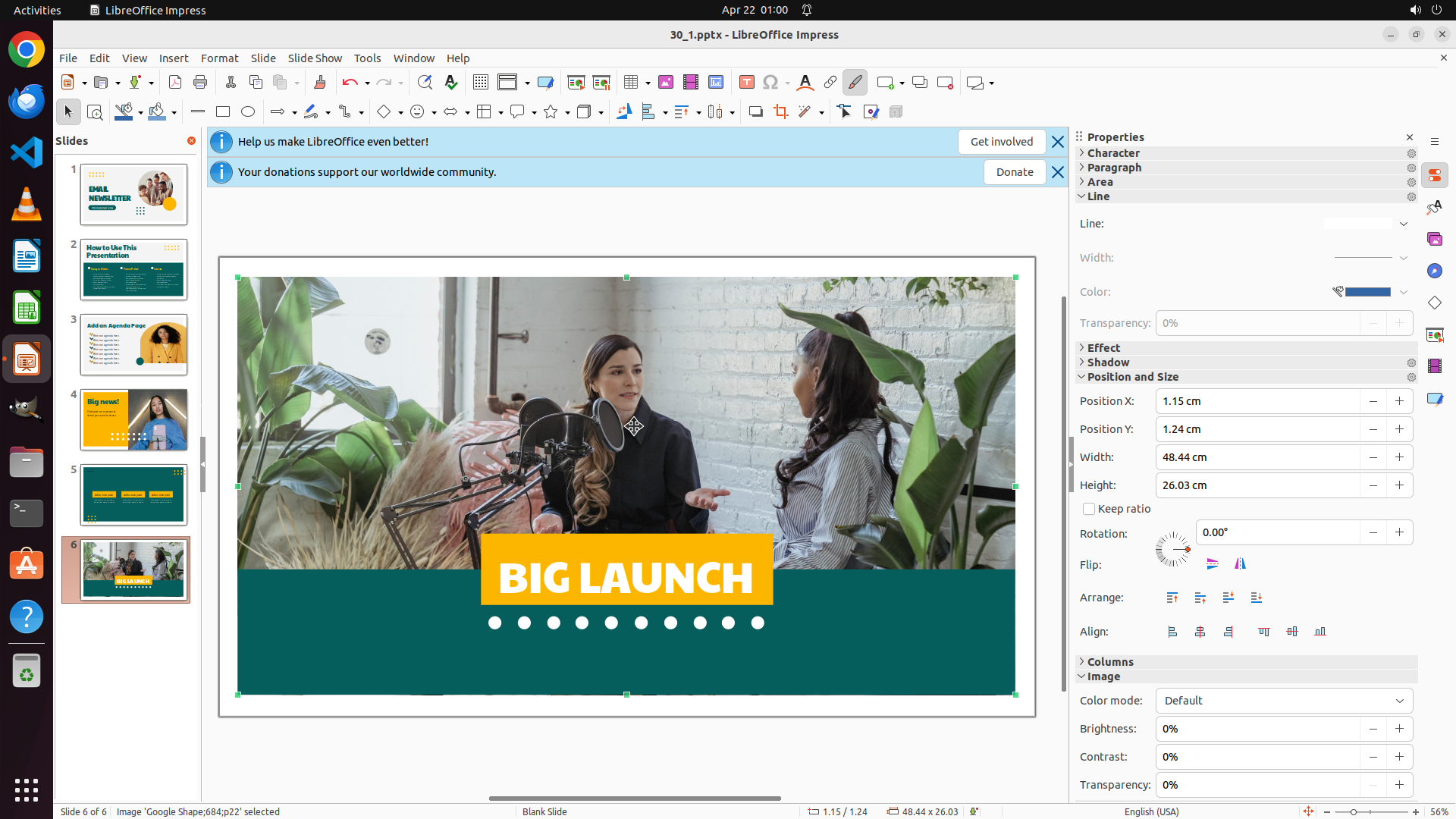
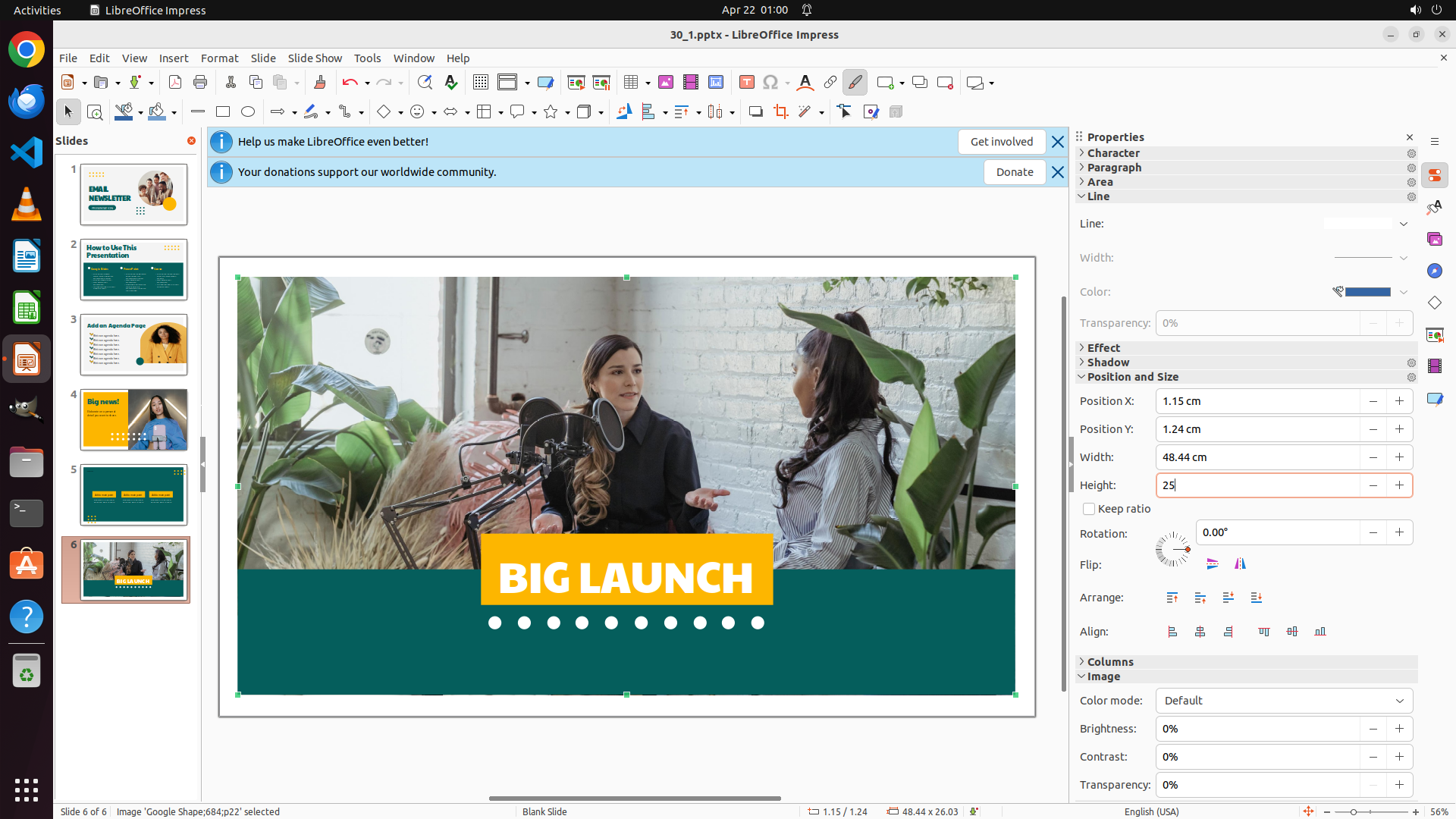
- The picture on slide 6 (two women in podcast studio with BIG LAUNCH overlay) is now selected
- Properties panel shows "Position and Size" section is expanded
- Current Height: 26.03 cm
- Current Width: 48.44 cm
- "Keep ratio" checkbox is checked (maintaining aspect ratio)
- Status bar confirms "Image 'Google Shape-684x22' selected"
- Need to change Height to 25 cm
#### 情况分析与思考过程
The previous action successfully selected the picture on slide 6. Now I can see the Properties panel showing the Position and Size properties. The current height is 26.03 cm, and I need to change it to 25 cm. Since "Keep ratio" is checked, the width will automatically adjust proportionally.
I need to:
1. Click on the Height field to select it (triple-click to select all text)
2. Type "25" to replace the current value
3. Press Enter to apply the change
4. Then save the file to preserve all changes
I'll triple-click on the Height input field to select all the text, then type the new value.
```
Step 13: TYPING "25"
```
#### 重要信息
- The picture on slide 6 (two women in podcast studio with BIG LAUNCH overlay) is now selected
- Properties panel shows "Position and Size" section is expanded
- Current Height: 26.03 cm
- Current Width: 48.44 cm
- "Keep ratio" checkbox is checked (maintaining aspect ratio)
- Status bar confirms "Image 'Google Shape-684x22' selected"
- Need to change Height to 25 cm
#### 情况分析与思考过程
The previous action successfully selected the picture on slide 6. Now I can see the Properties panel showing the Position and Size properties. The current height is 26.03 cm, and I need to change it to 25 cm. Since "Keep ratio" is checked, the width will automatically adjust proportionally.
I need to:
1. Click on the Height field to select it (triple-click to select all text)
2. Type "25" to replace the current value
3. Press Enter to apply the change
4. Then save the file to preserve all changes
I'll triple-click on the Height input field to select all the text, then type the new value.
```
Step 13: HOTKEY
```
#### 重要信息
- The picture on slide 6 (two women in podcast studio with BIG LAUNCH overlay) is now selected
- Properties panel shows "Position and Size" section is expanded
- Current Height: 26.03 cm
- Current Width: 48.44 cm
- "Keep ratio" checkbox is checked (maintaining aspect ratio)
- Status bar confirms "Image 'Google Shape-684x22' selected"
- Need to change Height to 25 cm
#### 情况分析与思考过程
The previous action successfully selected the picture on slide 6. Now I can see the Properties panel showing the Position and Size properties. The current height is 26.03 cm, and I need to change it to 25 cm. Since "Keep ratio" is checked, the width will automatically adjust proportionally.
I need to:
1. Click on the Height field to select it (triple-click to select all text)
2. Type "25" to replace the current value
3. Press Enter to apply the change
4. Then save the file to preserve all changes
I'll triple-click on the Height input field to select all the text, then type the new value.
```
Step 14: HOTKEY
```
#### 重要信息
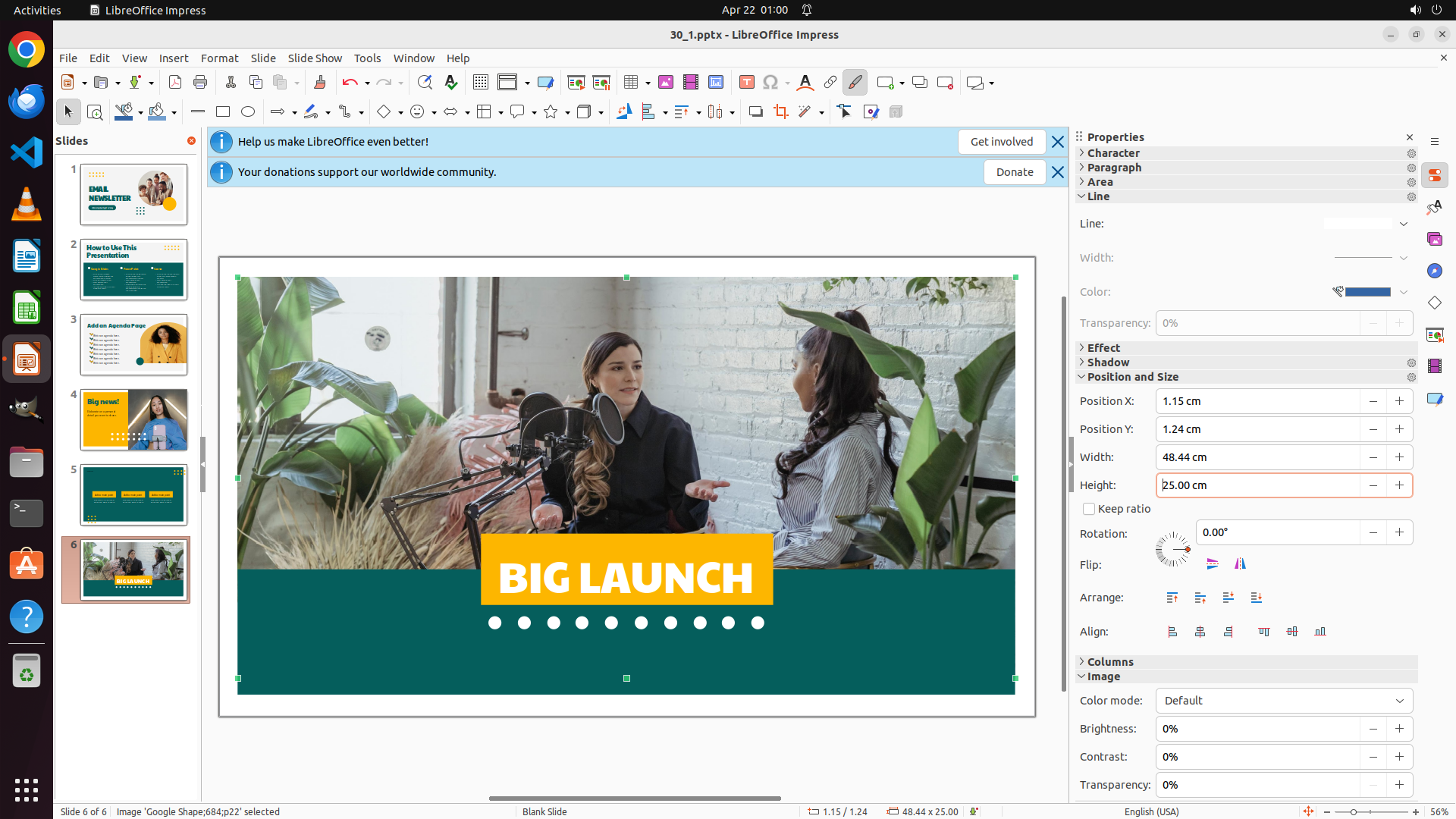
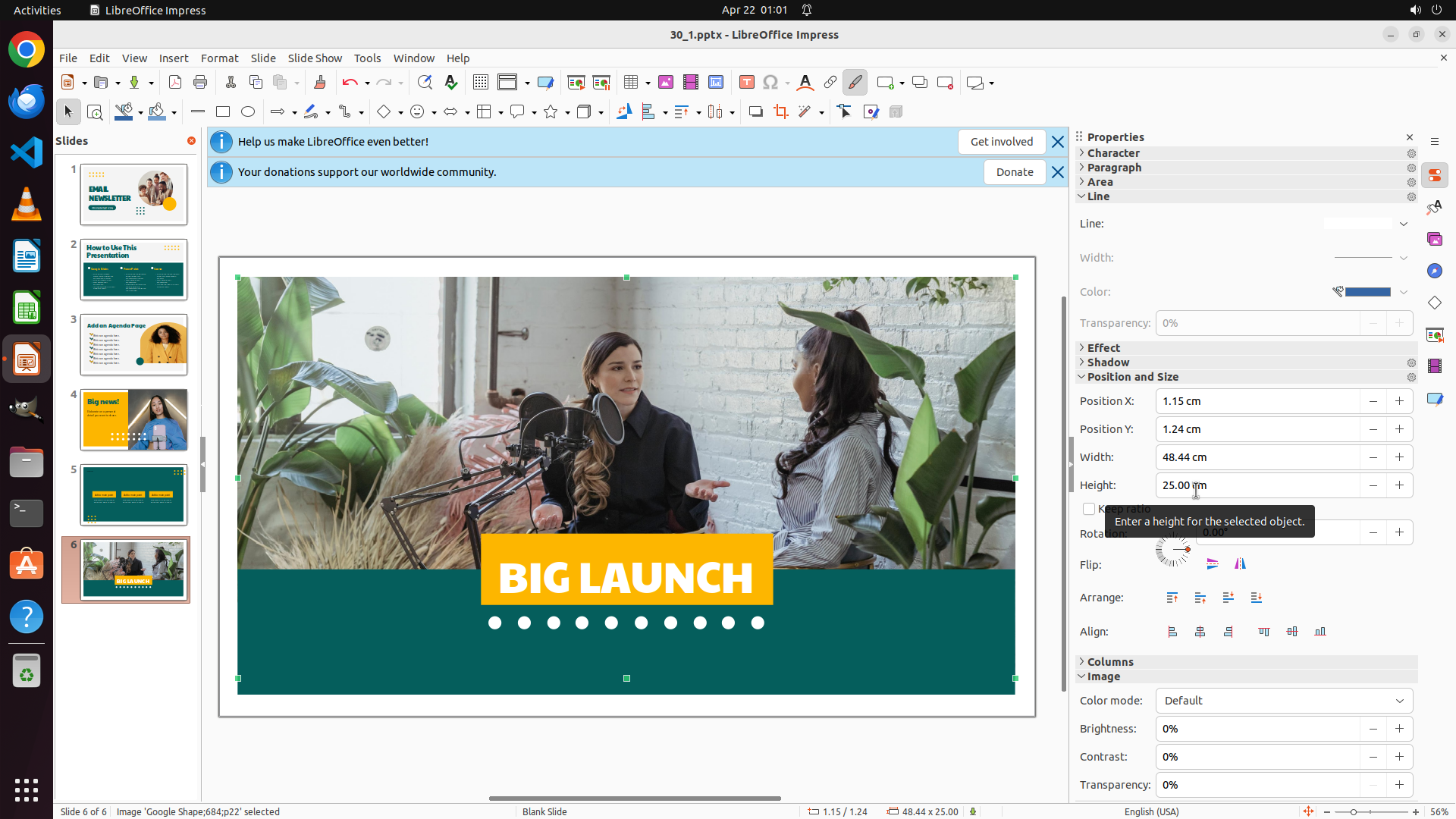
- Successfully changed the height of the picture on slide 6 to 25.00 cm
- The Properties panel confirms "Height: 25.00 cm" (shown in the Height field)
- Width was automatically adjusted to 48.44 cm (maintaining aspect ratio as "Keep ratio" is checked)
- All three picture height adjustments are now complete:
- Slide 3: 20cm ✓
- Slide 4: 30cm ✓
- Slide 6: 25cm ✓
- Now need to save the file to preserve all changes
#### 情况分析与思考过程
All the required picture height adjustments have been successfully completed:
1. Slide 3's picture (woman in yellow blazer) - changed to 20cm ✓
2. Slide 4's picture (woman in blue top with pink smartphone) - changed to 30cm ✓
3. Slide 6's picture (two women in podcast studio with BIG LAUNCH overlay) - changed to 25cm ✓
The final step is to save the presentation file to preserve all these changes. I'll use Ctrl+S keyboard shortcut to save the file, which is the standard and most reliable method.
After saving, I should update the strategy tree to mark task 3 as success and task 4 (save) as success as well.
```