```
#### 重要信息
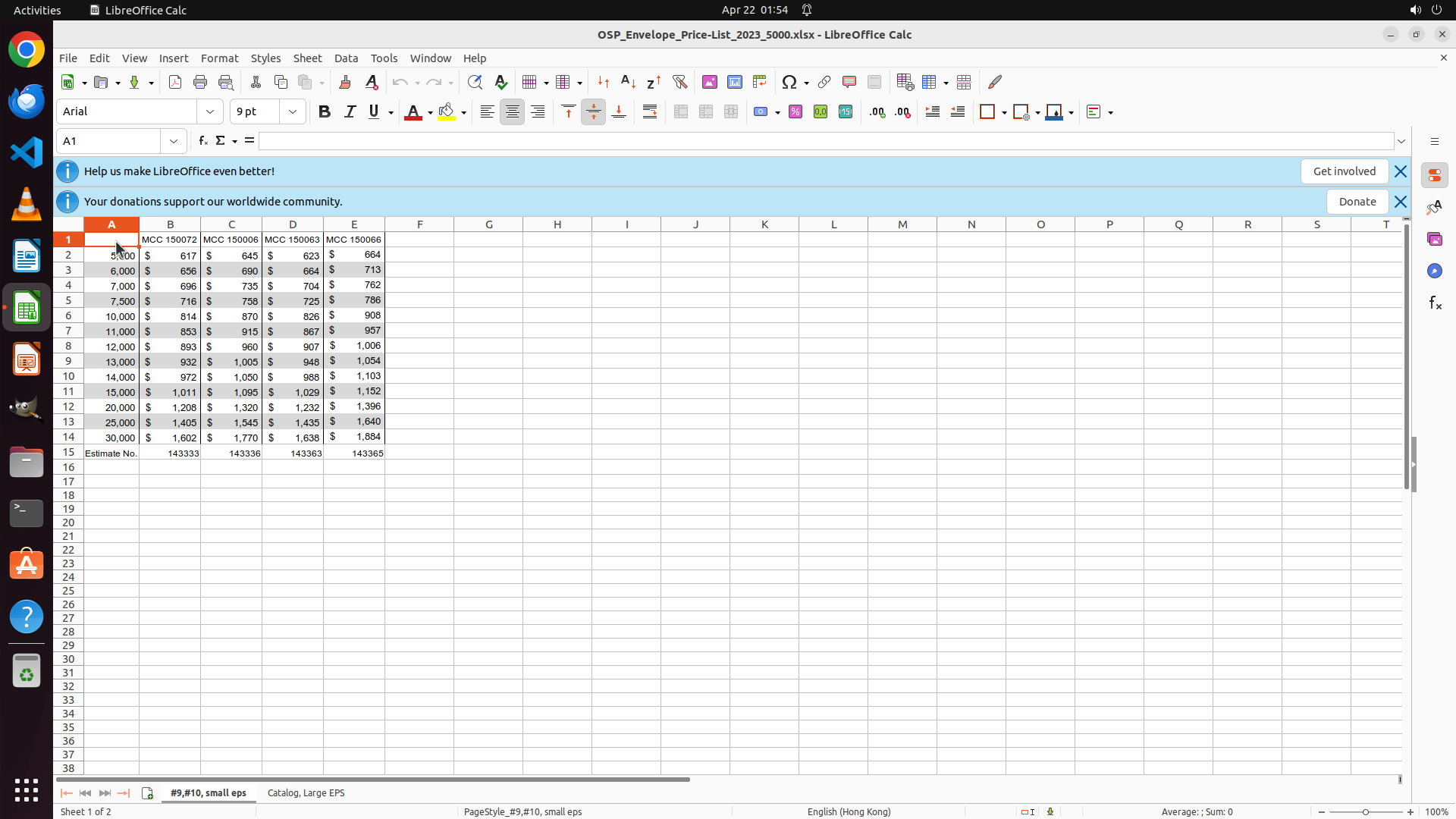
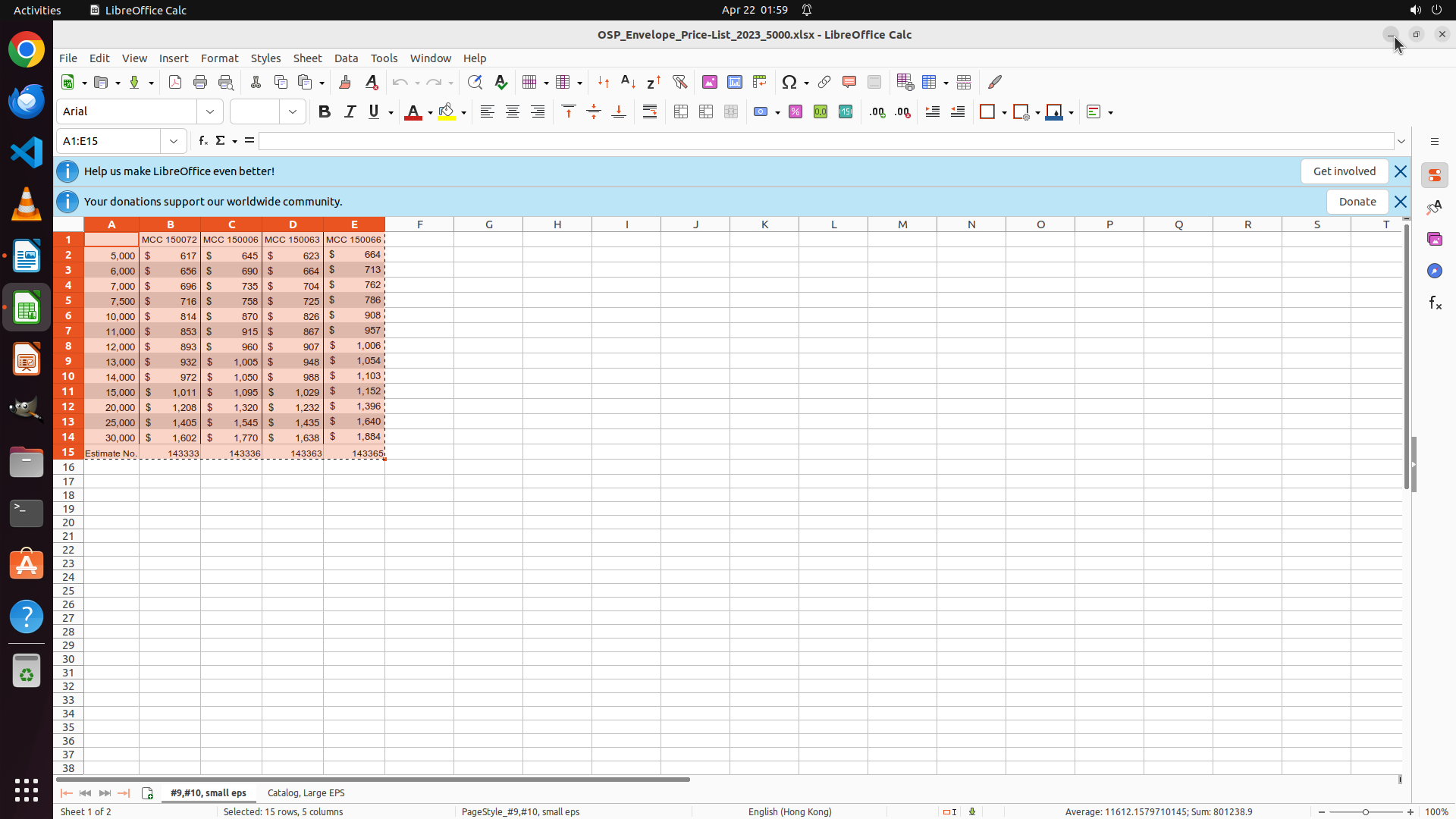
LibreOffice Calc is currently open with a spreadsheet containing price data. The data is organized in columns A through E, with:
- Row 1: Headers (MCC 150072, MCC 150006, MCC 150003, MCC 150066)
- Rows 2-14: Price data with dollar amounts (e.g., $ 617, $ 645, etc.)
- Row 15: Footer information with "Estimate No." and reference numbers
The data range appears to be A1:E15, which includes all headers and price information that needs to be transferred.
#### 情况分析与思考过程
I need to transfer data from Calc to Writer while preserving formatting. The strategy is:
1. First, select all data in Calc (A1:E15)
2. Copy the selection
3. Open Writer
4. Paste as a formatted table
5. Save as price.docx on Desktop
To begin, I should click on cell A1 to start the selection process. Looking at the spreadsheet, cell A1 is in the top-left area of the data grid, near where the row numbers and column letters intersect.
```
Step 2: MOVE_TO (148, 313)
```
#### 重要信息
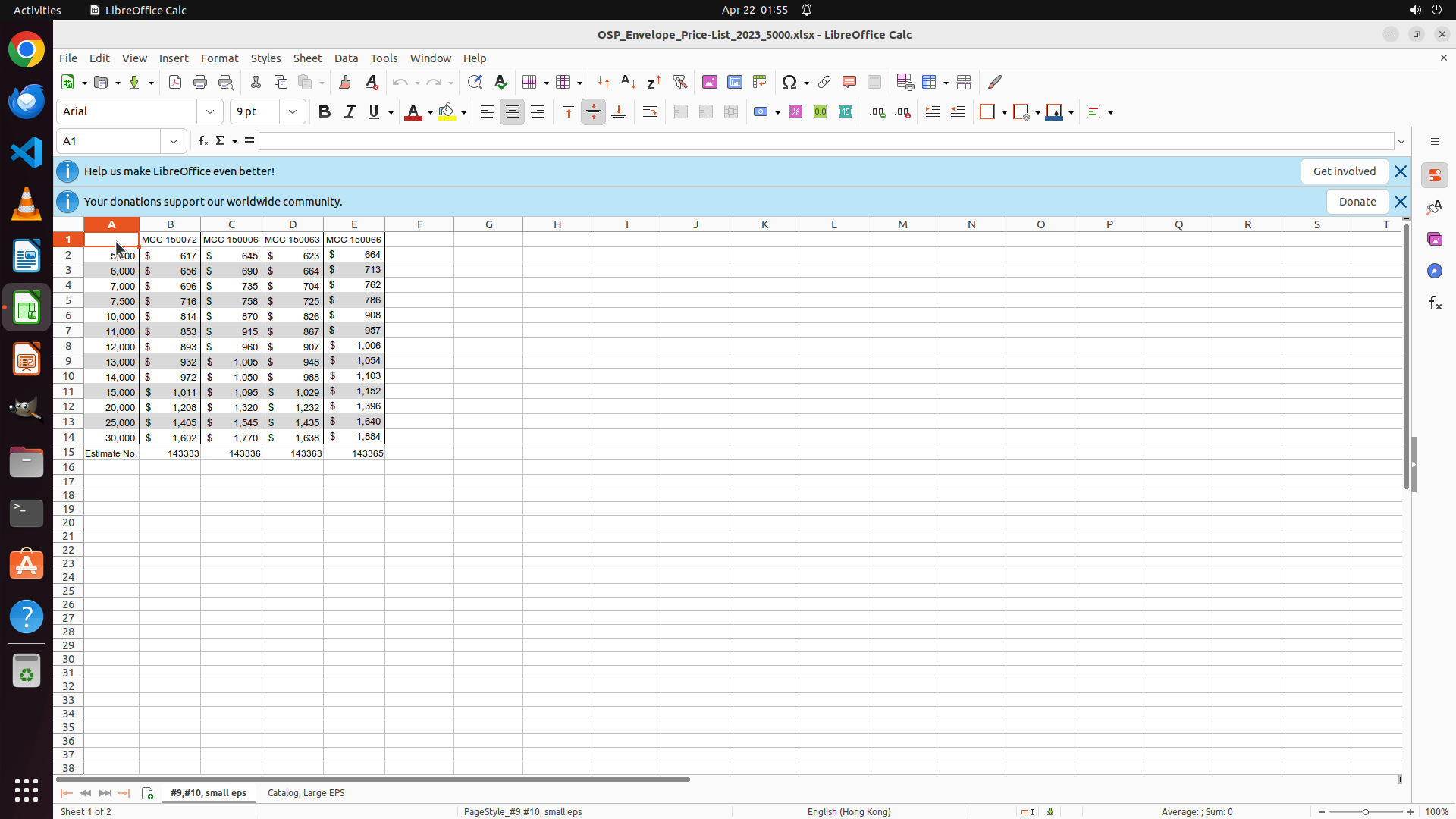
LibreOffice Calc is open with the price data spreadsheet. Cell A1 is currently selected (highlighted in orange) as shown in the cell reference box displaying "A1". The spreadsheet contains:
- Row 1: Headers (MCC 150072, MCC 150006, MCC 150003, MCC 150066)
- Rows 2-14: Price data with dollar amounts ($ 617, $ 645, etc.)
- Row 15: Footer with "Estimate No." and reference numbers
The data range A1:E15 needs to be selected to capture all headers and price data.
#### 情况分析与思考过程
The previous action successfully clicked on cell A1. Now I need to select the entire data range from A1 to E15. I can see that:
1. Cell A1 is currently selected (top-left of the data)
2. I need to drag to E15 to select all data including headers and the footer row
3. After selection, I'll copy the data with Ctrl+C
The most efficient way is to drag from A1 to E15. Looking at the visible grid, E15 would be at the intersection of column E and row 15, which contains "143365". I'll drag from the current position to that location to select the full range.
```
Now I'll drag from A1 to E15 to select all the data:
Step 2: DRAG_TO (467, 597)
```
#### 重要信息
LibreOffice Calc is open with the price data spreadsheet. Cell A1 is currently selected (highlighted in orange) as shown in the cell reference box displaying "A1". The spreadsheet contains:
- Row 1: Headers (MCC 150072, MCC 150006, MCC 150003, MCC 150066)
- Rows 2-14: Price data with dollar amounts ($ 617, $ 645, etc.)
- Row 15: Footer with "Estimate No." and reference numbers
The data range A1:E15 needs to be selected to capture all headers and price data.
#### 情况分析与思考过程
The previous action successfully clicked on cell A1. Now I need to select the entire data range from A1 to E15. I can see that:
1. Cell A1 is currently selected (top-left of the data)
2. I need to drag to E15 to select all data including headers and the footer row
3. After selection, I'll copy the data with Ctrl+C
The most efficient way is to drag from A1 to E15. Looking at the visible grid, E15 would be at the intersection of column E and row 15, which contains "143365". I'll drag from the current position to that location to select the full range.
```
Now I'll drag from A1 to E15 to select all the data:
Step 3: HOTKEY
```
#### 重要信息
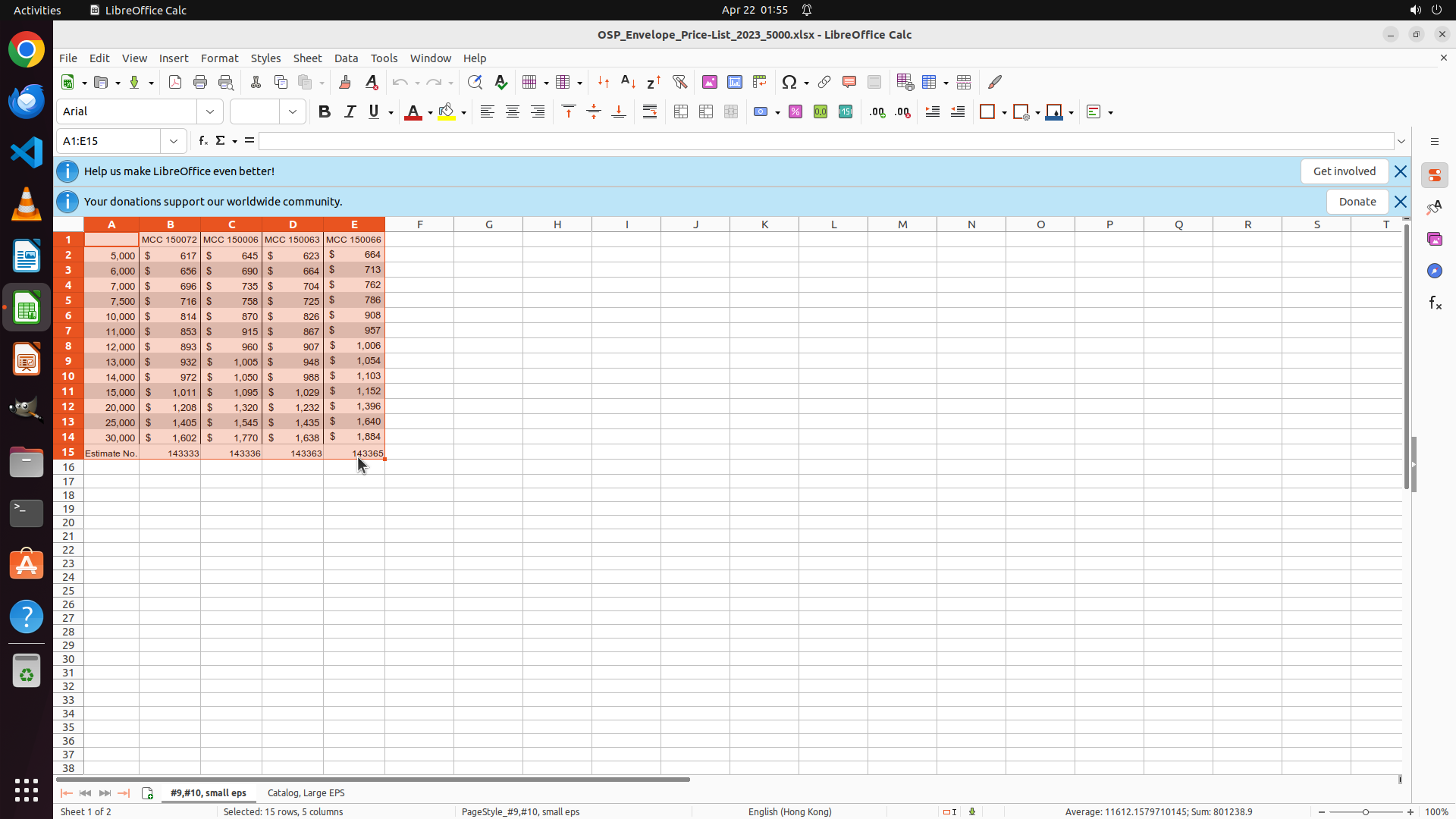
The range A1:E15 has been successfully selected in LibreOffice Calc:
- Cell reference box displays "A1:E15"
- Status bar shows "Selected: 15 rows, 5 columns"
- The data including headers (MCC 150072, etc.) and all price data with dollar amounts is selected
Now I need to copy this selection using Ctrl+C.
#### 情况分析与思考过程
The selection was successful. The next steps in my plan are:
1. Copy the selected data (Ctrl+C) - this is the immediate next action
2. Open LibreOffice Writer
3. Paste the data preserving formatting
4. Save as price.docx on Desktop
Copying with Ctrl+C is the logical next step since I have the correct range selected.
```
Now I'll copy the selected data using Ctrl+C:
Step 4: CLICK (36, 337)
```
#### 重要信息
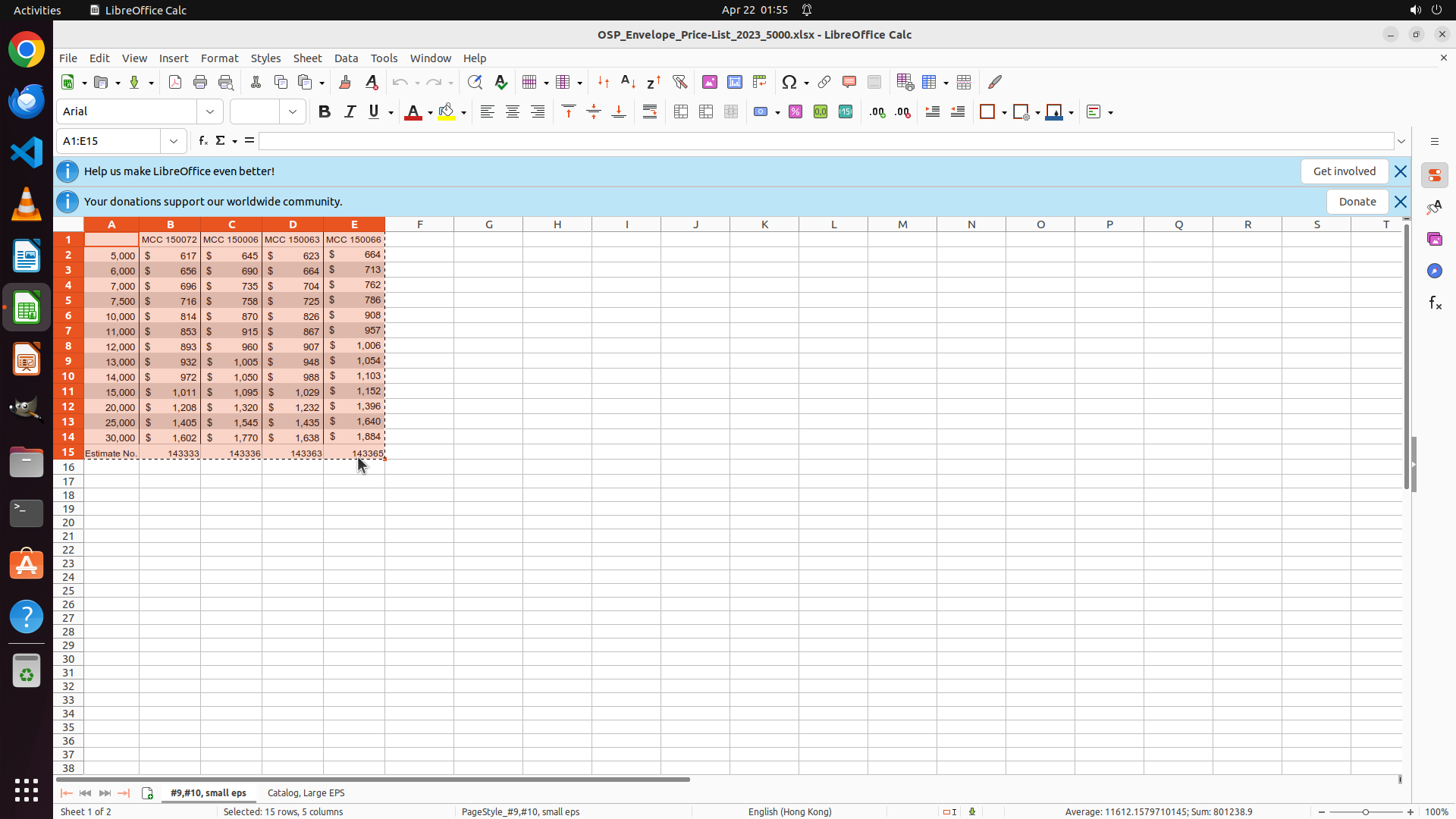
The data has been successfully copied from LibreOffice Calc. I can see:
- The selection A1:E15 is still highlighted with a dotted border (marching ants), indicating it's in the clipboard
- The status bar still shows "Selected: 15 rows, 5 columns"
- All the price data with headers is ready to be pasted
Now I need to open LibreOffice Writer to paste this data as a formatted table.
#### 情况分析与思考过程
The copy operation was successful. The next steps are:
1. Open LibreOffice Writer - this is the immediate next action
2. Paste the data preserving formatting
3. Save as price.docx on Desktop
I can see the LibreOffice Writer icon in the left sidebar (the document icon with blue lines). Clicking on it will open Writer where I can paste the copied data.
```
Now I'll update the strategy tree to mark the copy task as complete and open LibreOffice Writer:
Step 5: HOTKEY
```
#### 重要信息
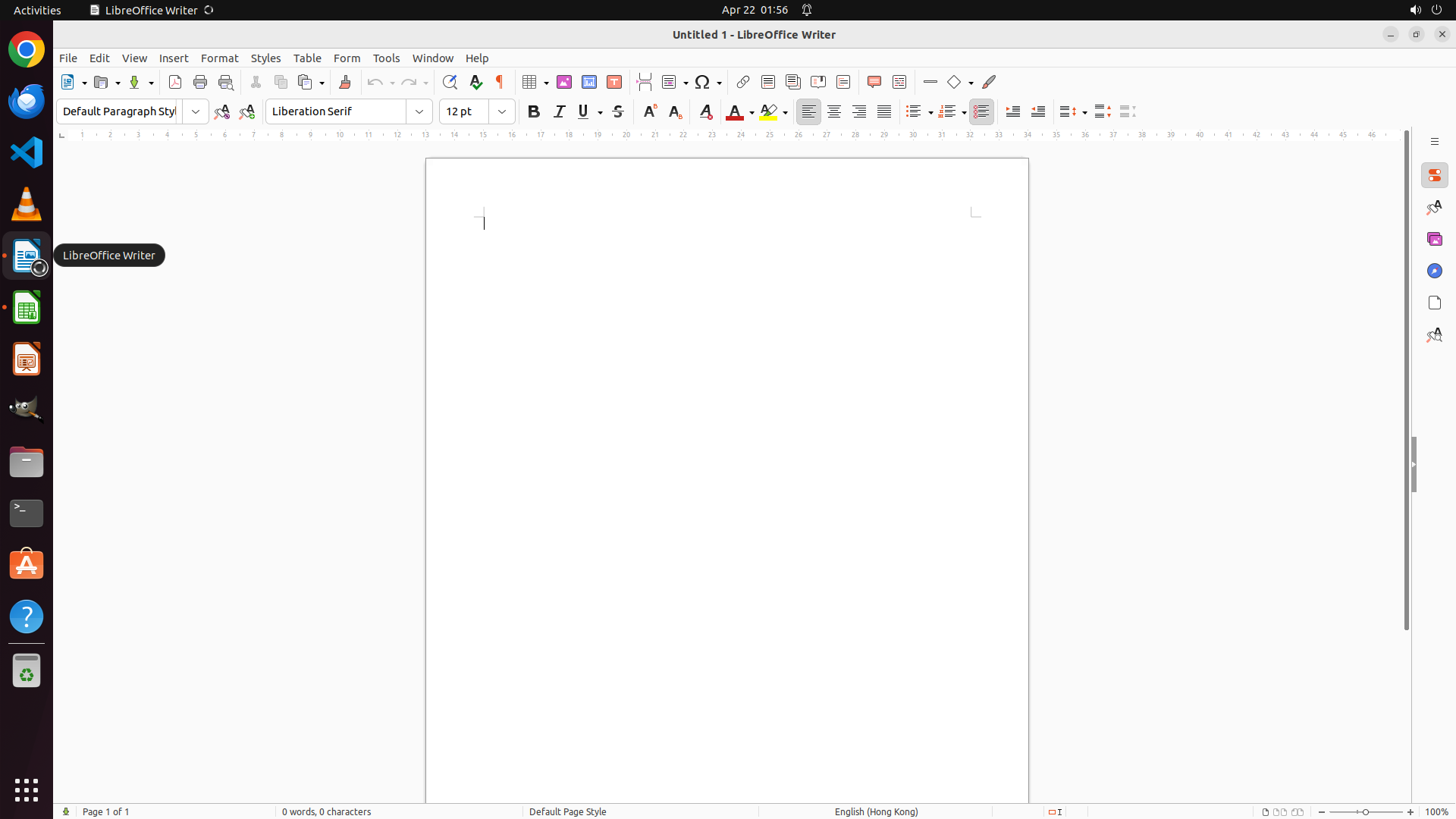
LibreOffice Writer has successfully opened with a blank document. The window title shows "Untitled 1 - LibreOffice Writer" and the document is ready for content. The cursor is positioned in the document, ready for pasting.
#### 情况分析与思考过程
The previous action successfully opened LibreOffice Writer. Now I need to:
1. Paste the copied data from Calc using Ctrl+V - this should preserve the table formatting
2. Verify the table formatting matches the original Calc appearance
3. Save the document as "price.docx" on the Desktop
The data was copied from Calc in the previous steps (A1:E15 range with headers and price data). Using Ctrl+V should paste it as a formatted table in Writer. This is the most straightforward way to preserve formatting when transferring from Calc to Writer.
I'll paste the data now and then verify the formatting is preserved with dollar signs and proper table structure.
```
Now I'll paste the copied data using Ctrl+V:
Step 6: CLICK (88, 73)
```
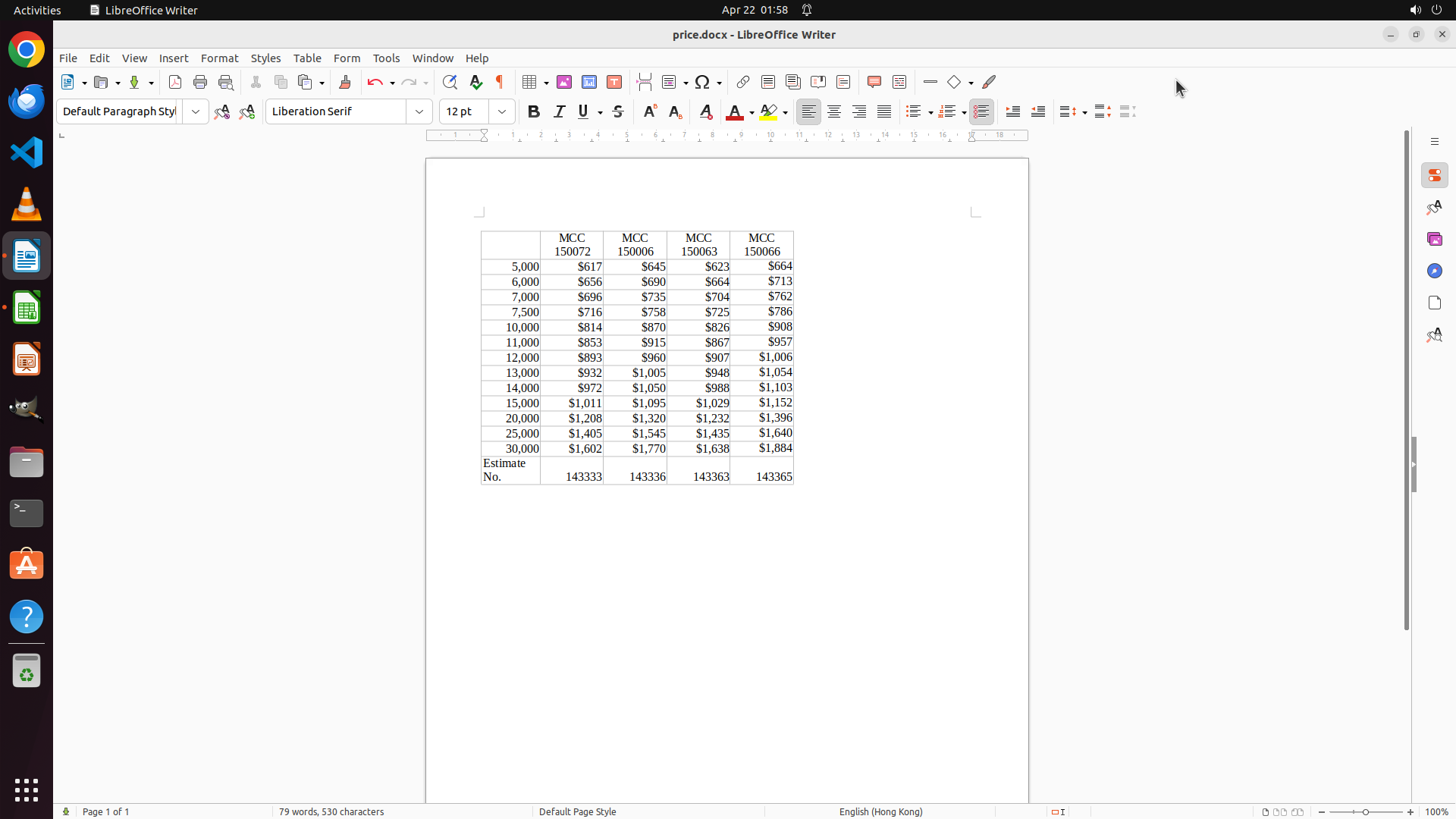
#### 重要信息
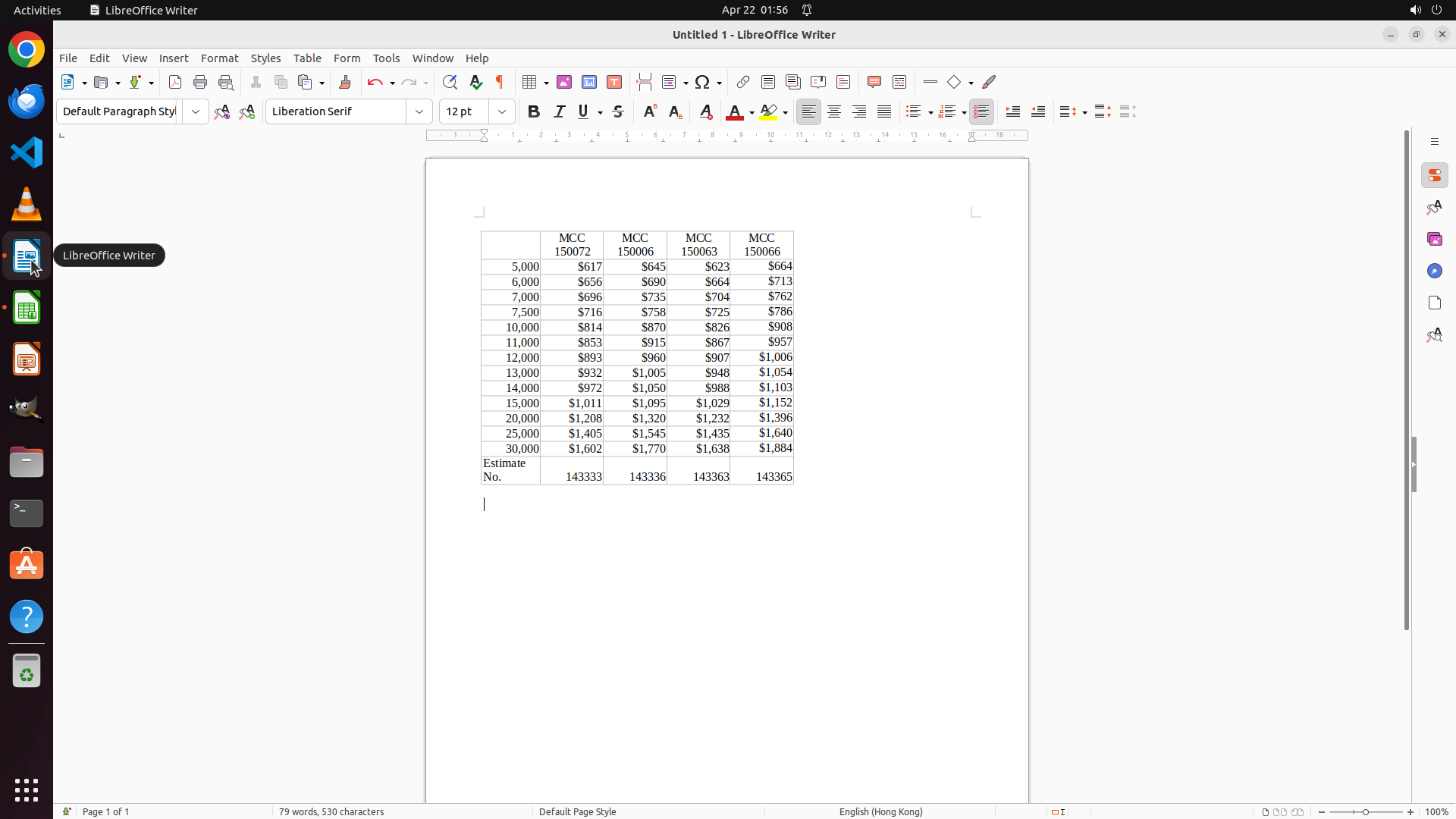
The data has been successfully pasted into LibreOffice Writer as a formatted table:
- Table contains headers: "MCC 150072", "MCC 150006", "MCC 150003", "MCC 150066"
- All price data is displayed with dollar signs preserved ($617, $645, $623, $664, etc.)
- The "Estimate No." row is visible at the bottom with reference numbers
- Table structure and formatting from Calc has been preserved
The document title still shows "Untitled 1 - LibreOffice Writer", indicating it hasn't been saved yet.
#### 情况分析与思考过程
The paste operation was successful and the table formatting has been preserved. Now I need to:
1. Save the document as "price.docx" on the Desktop
2. Use File > Save As to specify the location and filename
3. Select the Word 2007-3654 (.docx) format
4. Complete the save operation
I'll start by clicking on the File menu to access Save As.
```
Now I'll click on the File menu to begin the save process:
Step 7: CLICK (127, 349)
```
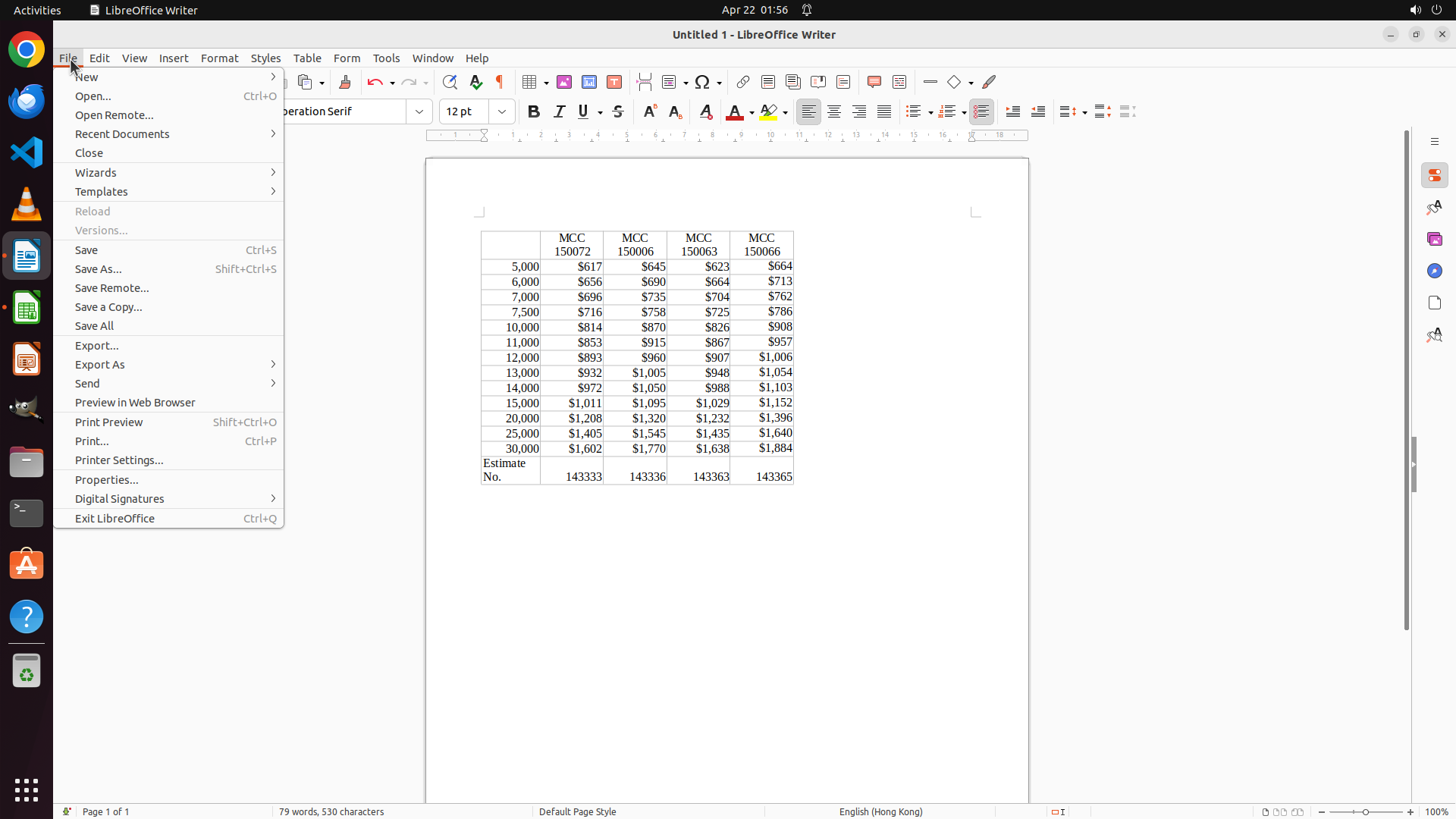
#### 重要信息
The File menu has successfully opened. I can see the dropdown menu with various file options including:
- Save (Ctrl+S)
- Save As... (Shift+Ctrl+S)
- Save Remote...
- Save a Copy...
The table with the price data is visible in the document behind the menu, showing all the transferred data with proper formatting including dollar signs ($617, $645, etc.) and headers (MCC 150072, MCC 150006, etc.).
#### 情况分析与思考过程
The File menu is now open. To save the document as "price.docx" on the Desktop, I need to:
1. Click on "Save As..." to open the save dialog
2. Navigate to Desktop location
3. Set the filename to "price.docx"
4. Select the Word 2007-3654 (.docx) format
5. Click Save
The "Save As..." option is visible in the menu. Clicking on it will open the save dialog where I can specify the location (Desktop) and filename.
```
Step 8: CLICK (457, 186)
```
#### 重要信息
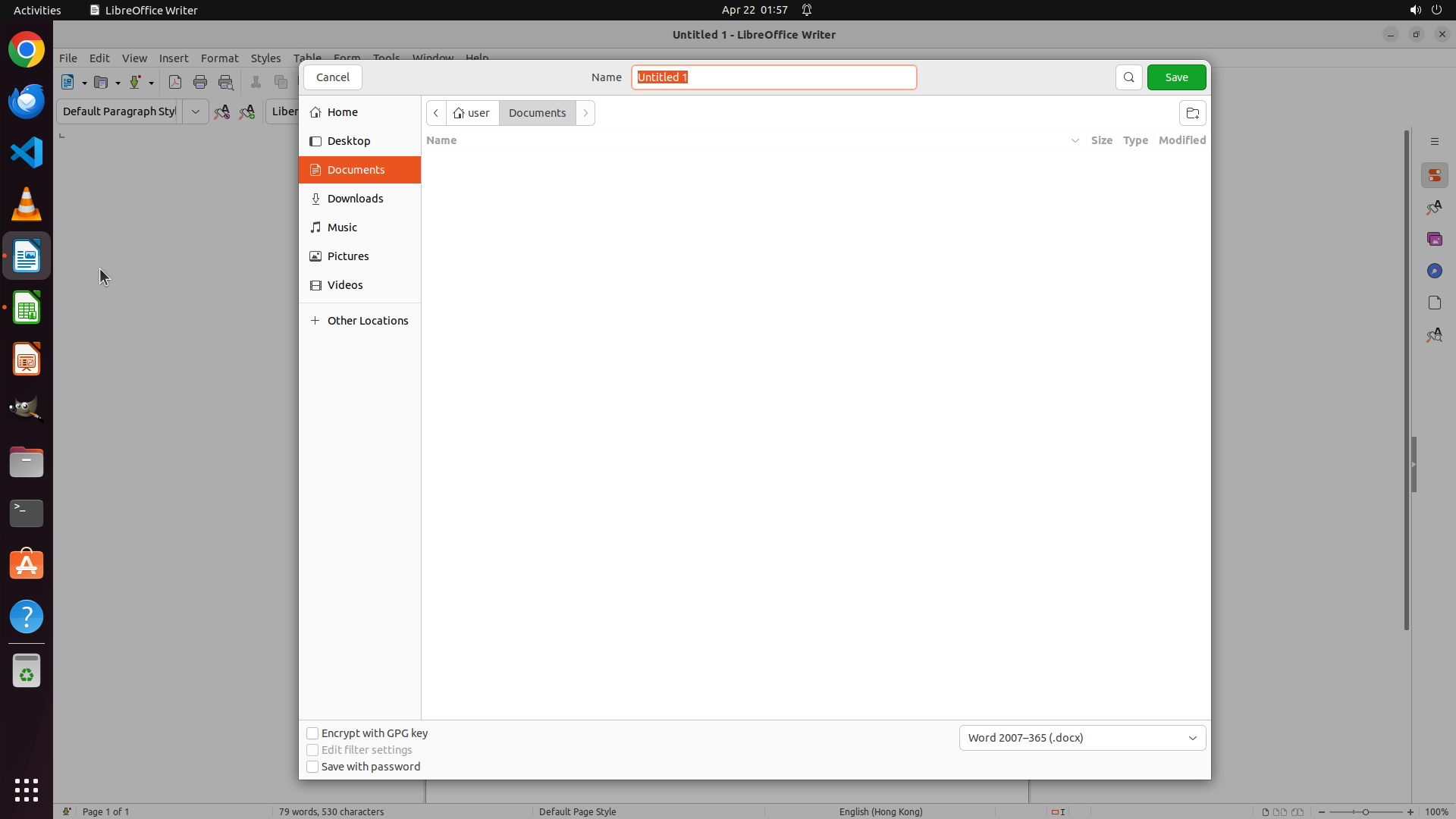
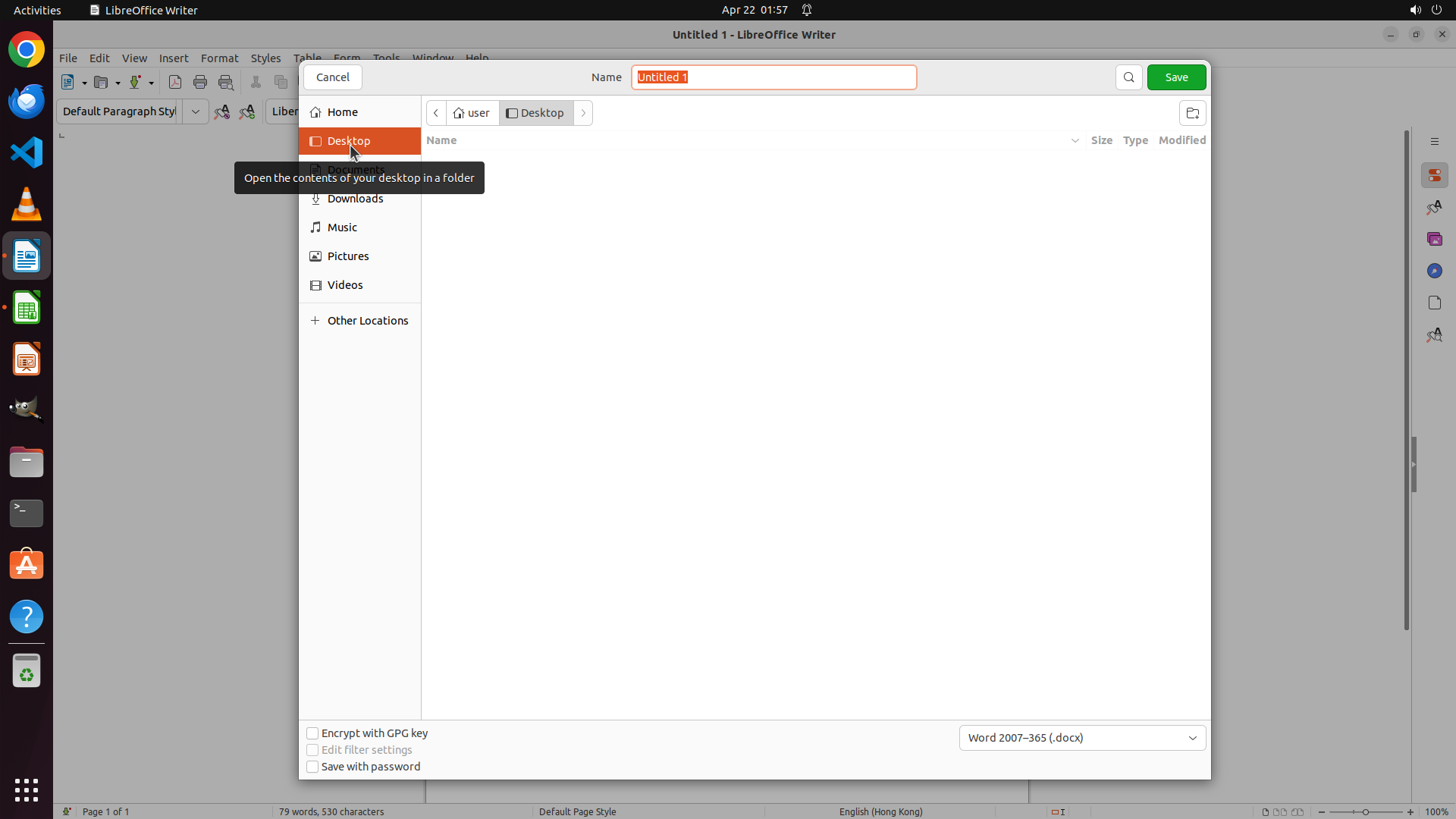
The Save As dialog has opened successfully. I can see:
- Filename field showing "Untitled 1" (highlighted in orange, ready for editing)
- Current location is "Documents" folder (user > Documents)
- File format is already set to "Word 2007-365 (.docx)" at the bottom
- Left sidebar shows "Desktop" option available
#### 情况分析与思考过程
The Save As dialog is open. I need to:
1. Navigate to Desktop by clicking on it in the left sidebar
2. Change the filename from "Untitled 1" to "price.docx"
3. The format is already set to .docx which is correct
4. Click Save
I'll click on "Desktop" in the left sidebar first to change the save location.
```
Step 9: TYPING "price.docx"
```
#### 重要信息
The Desktop location has been successfully selected:
- Desktop is highlighted in orange in the left sidebar
- Breadcrumb path shows "user > Desktop"
- Filename field shows "Untitled 1" (highlighted in orange, ready for editing)
- File format is set to "Word 2007-365 (.docx)" at the bottom
#### 情况分析与思考过程
The previous action successfully navigated to Desktop. Now I need to:
1. Change the filename from "Untitled 1" to "price.docx"
2. Click the Save button
Since the filename field is already selected (highlighted in orange), I can directly type the new filename "price.docx". The file format is already correctly set to .docx, so I don't need to change that.
```
Now I'll type the new filename "price.docx":
Step 10: CLICK (1546, 100)
```
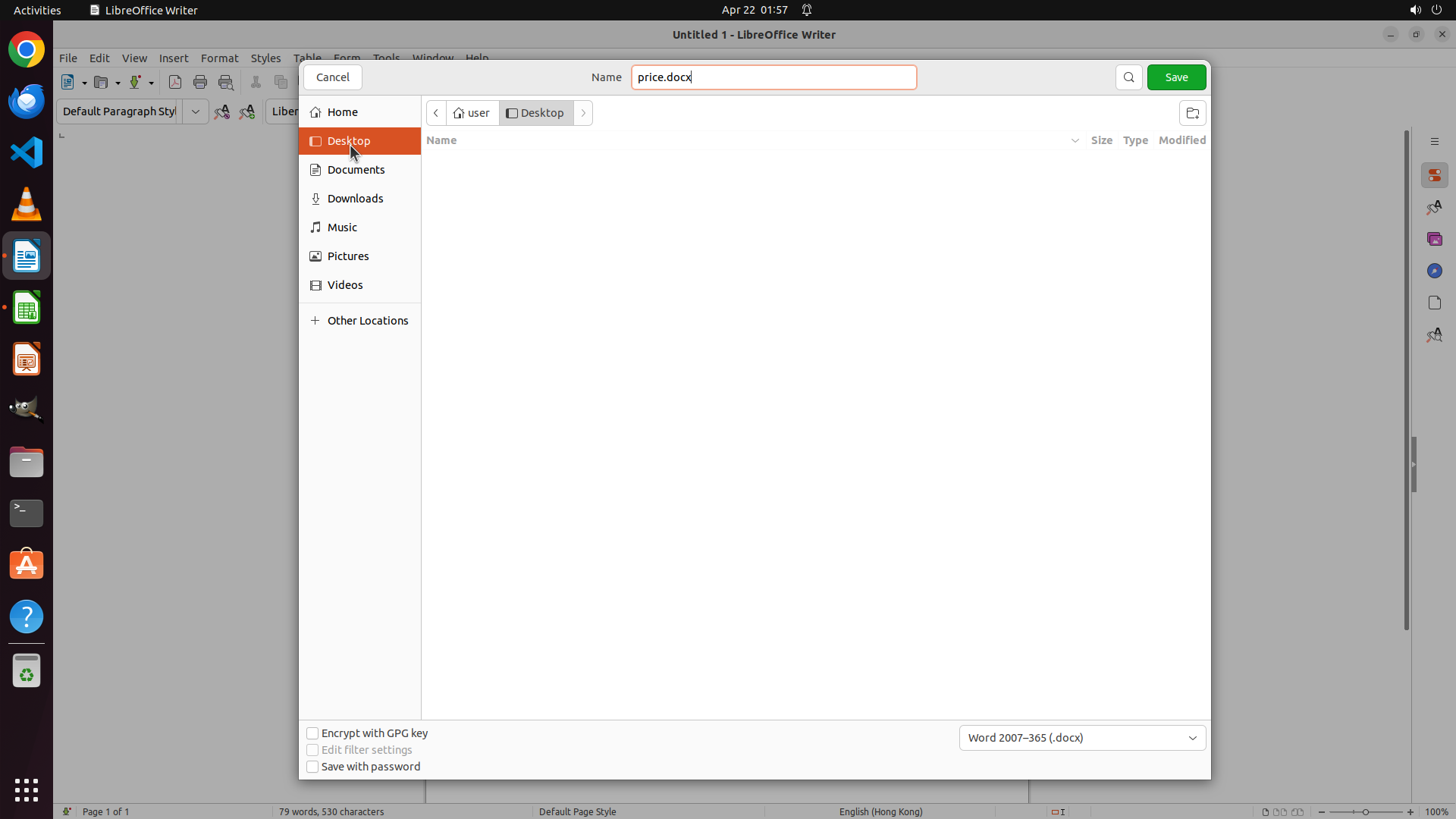
#### 重要信息
The filename has been successfully changed to "price.docx":
- Name field shows "price.docx"
- Desktop location is selected (highlighted in orange in left sidebar)
- File format is set to "Word 2007-365 (.docx)" at the bottom
- Save button is visible in the top right corner (green button)
#### 情况分析与思考过程
All the necessary settings are in place for saving:
1. Location: Desktop (selected)
2. Filename: price.docx (entered)
3. Format: Word 2007-365 (.docx) (correctly set)
The final step is to click the Save button to complete the task. This will save the document with the table data transferred from Calc to the Desktop as "price.docx". After saving, I should verify that the file appears on the Desktop and the document title changes to "price.docx" without an asterisk.
```
Now I'll click the Save button to complete the file saving:
Step 11: HOTKEY
```
#### 重要信息
The file has been successfully saved! I can see:
- The Save As dialog has closed
- The document title bar now shows "price.docx - LibreOffice Writer" (changed from "Untitled 1")
- The table is displayed with all data properly formatted:
- Headers: MCC 150072, MCC 150006, MCC 150003, MCC 150066
- All price values with dollar signs preserved ($617, $645, $623, $664, etc.)
- The "Estimate No." row with reference numbers at the bottom
- No asterisk or modification indicator in the title, confirming the save was successful
#### 情况分析与思考过程
The task has been completed successfully:
1. ✅ Selected all data in LibreOffice Calc (A1:E15) including headers and price data
2. ✅ Copied the selected data
3. ✅ Opened LibreOffice Writer
4. ✅ Pasted the data as a formatted table preserving the original formatting (dollar signs, table structure)
5. ✅ Saved the document as "price.docx" on the Desktop in Word 2007-365 (.docx) format
All the key requirements have been met:
- Data transferred from Calc to Writer
- Original formatting preserved (currency symbols, table structure)
- Document saved as "price.docx" on Desktop
Now I should update the strategy tree to mark all tasks as complete and verify the file is visible on the desktop by minimizing or closing Writer.
```
I'll update the strategy tree to mark all tasks as complete and then verify the file is on the desktop:
Step 12: CLICK (1834, 43)
```
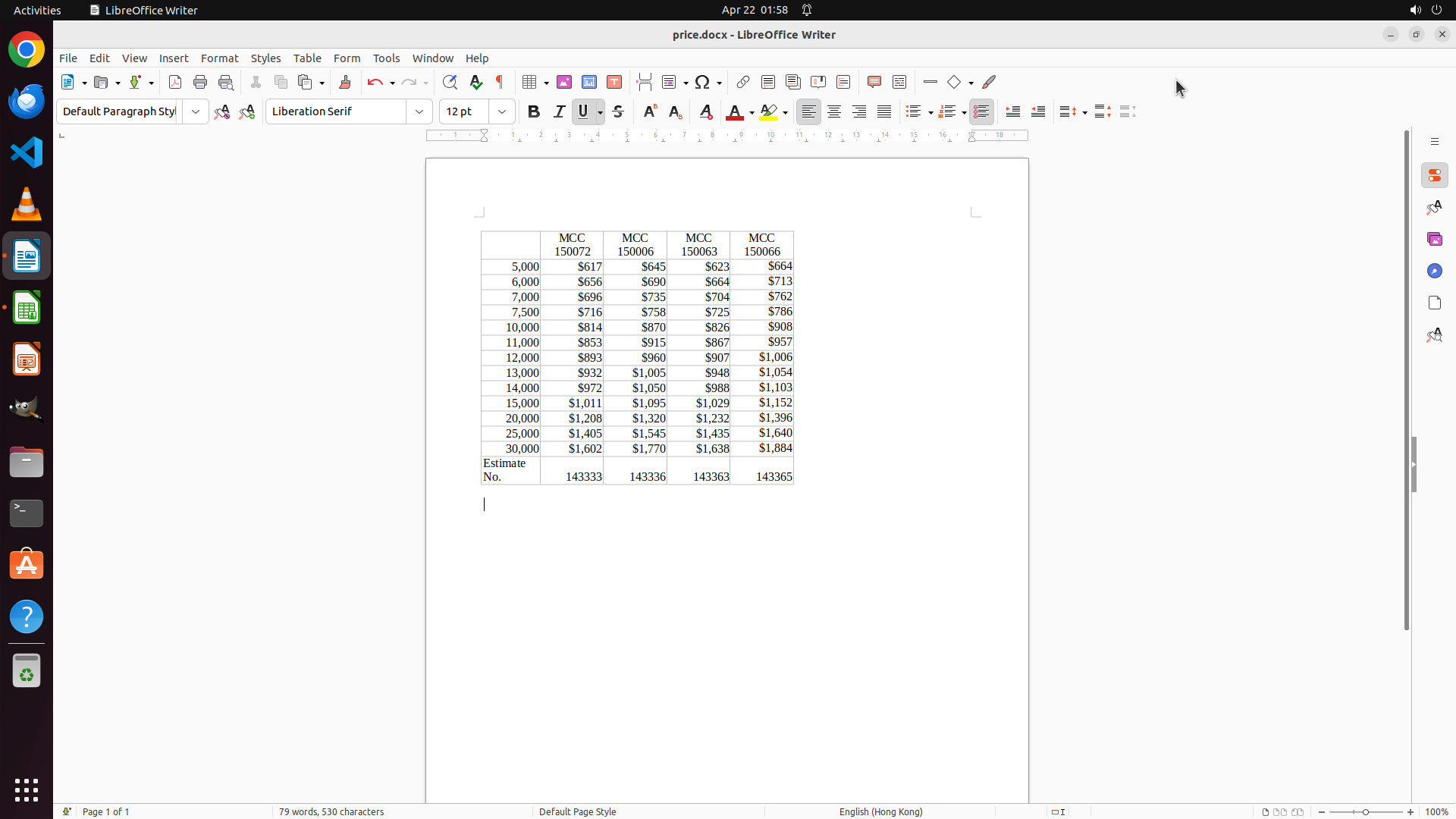
#### 重要信息
The document has been successfully saved as "price.docx" - the title bar confirms this with "price.docx - LibreOffice Writer" and no asterisk indicates the save was successful. The table with all the price data is properly displayed with:
- Headers: MCC 150072, MCC 150006, MCC 150003, MCC 150066
- All price values with dollar signs preserved ($617, $645, $623, etc.)
- The "Estimate No." row at the bottom with reference numbers
The previous attempt to minimize the window using "command+d" didn't work because that's a macOS shortcut, not Ubuntu Linux.
#### 情况分析与思考过程
The task has been completed successfully:
1. ✅ Selected and copied data from LibreOffice Calc (A1:E15)
2. ✅ Opened LibreOffice Writer and pasted as formatted table
3. ✅ Original formatting preserved (currency symbols, table structure)
4. ✅ Saved as "price.docx" on Desktop
To verify the file is visible on the Desktop, I should minimize the Writer window by clicking the minimize button in the top-right corner of the window. This will allow me to see the Desktop and confirm the file is there.
```
Now I'll minimize the Writer window to verify the file is on the Desktop:
Step 13: CLICK (35, 600)
```
#### 重要信息
The screen has switched back to LibreOffice Calc, which is now showing the original spreadsheet with the price data. The data range A1:E15 is still selected (as shown in the cell reference box and status bar indicating "Selected: 15 rows, 5 columns"). The Writer window is no longer visible, suggesting it was closed or minimized.
According to the strategy tree and previous actions, the task should be complete:
- Data was copied from Calc to Writer
- Document was saved as "price.docx" on Desktop
- All steps are marked as "success"
However, I need to verify that the "price.docx" file is actually visible on the Desktop to confirm the task is fully complete.
#### 情况分析与思考过程
The previous attempt to minimize the Writer window using "command+d" (a macOS shortcut) failed, but it seems the Writer window is now closed and we're back to Calc. To verify the task completion, I need to check the Desktop to confirm the "price.docx" file exists there.
I should open the Files application to navigate to the Desktop folder and verify the file is present. I can see the Files icon in the left sidebar (the folder icon).
Let me click on the Files icon to open the file manager and check the Desktop.
```
I'll open the Files application to verify the "price.docx" file is on the Desktop:
Step 14: CLICK (132, 208)
```
#### 重要信息
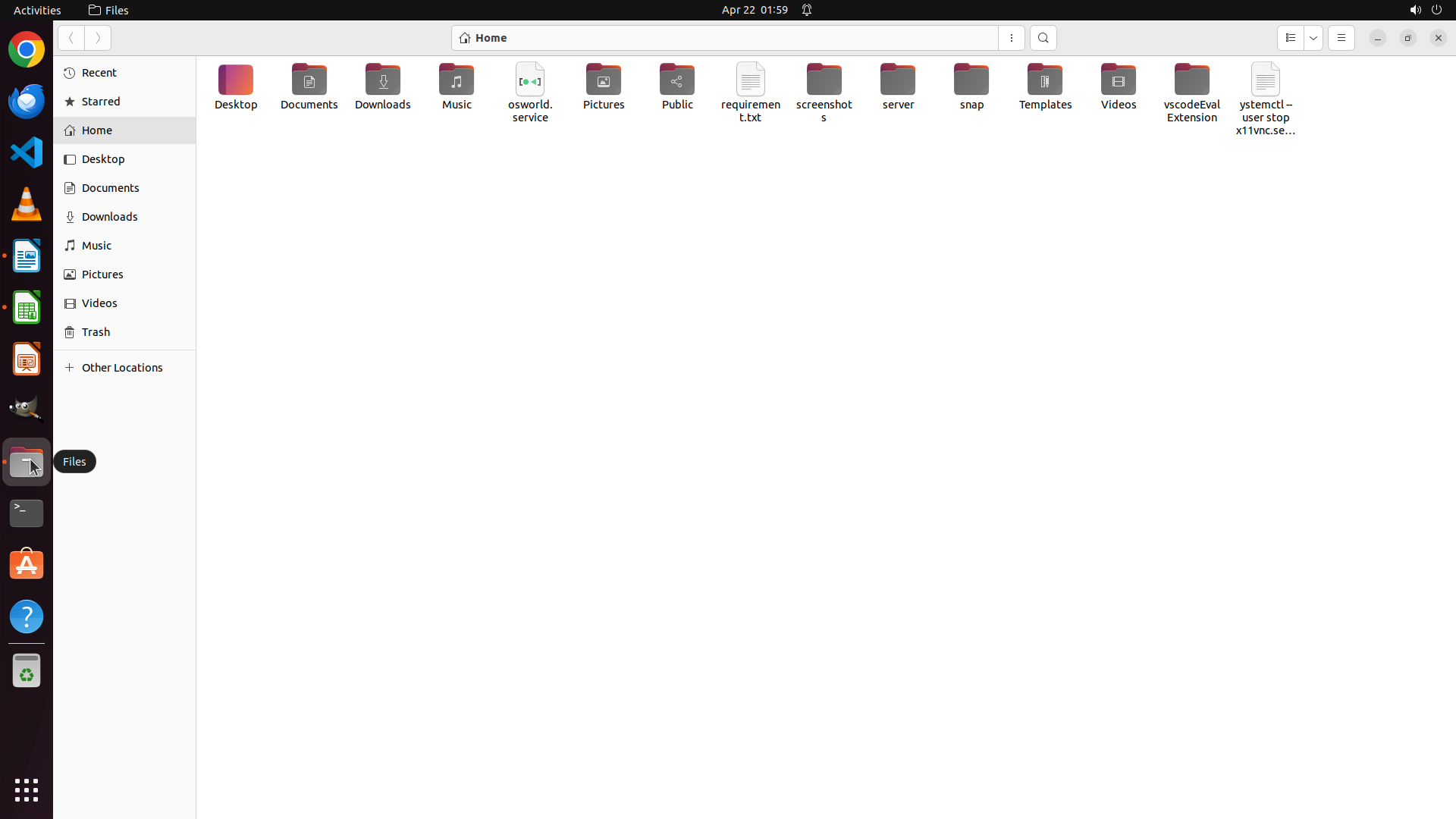
The Files application is now open showing the Home directory. I can see various folders including Desktop, Documents, Downloads, Music, Pictures, etc. in the main view. The left sidebar also shows navigation options including Desktop.
According to the previous actions, the document "price.docx" should have been saved to the Desktop. To verify the task is complete, I need to navigate to the Desktop folder to confirm the file exists there.
#### 情况分析与思考过程
The task workflow was:
1. ✅ Select all data in LibreOffice Calc (A1:E15) - completed
2. ✅ Copy the selected data - completed
3. ✅ Open LibreOffice Writer - completed
4. ✅ Paste data preserving table format - completed
5. ✅ Save document as "price.docx" on Desktop - completed
Now I need to verify the final step by checking if the file exists on the Desktop. I can see "Desktop" in the left sidebar of the Files application. Clicking on it will show the Desktop contents where I should see "price.docx" if the save was successful.
This verification step will confirm all key visual evidence requirements are met:
- The file 'price.docx' is visible on the desktop
```
Step 15: WAIT
```
#### 重要信息
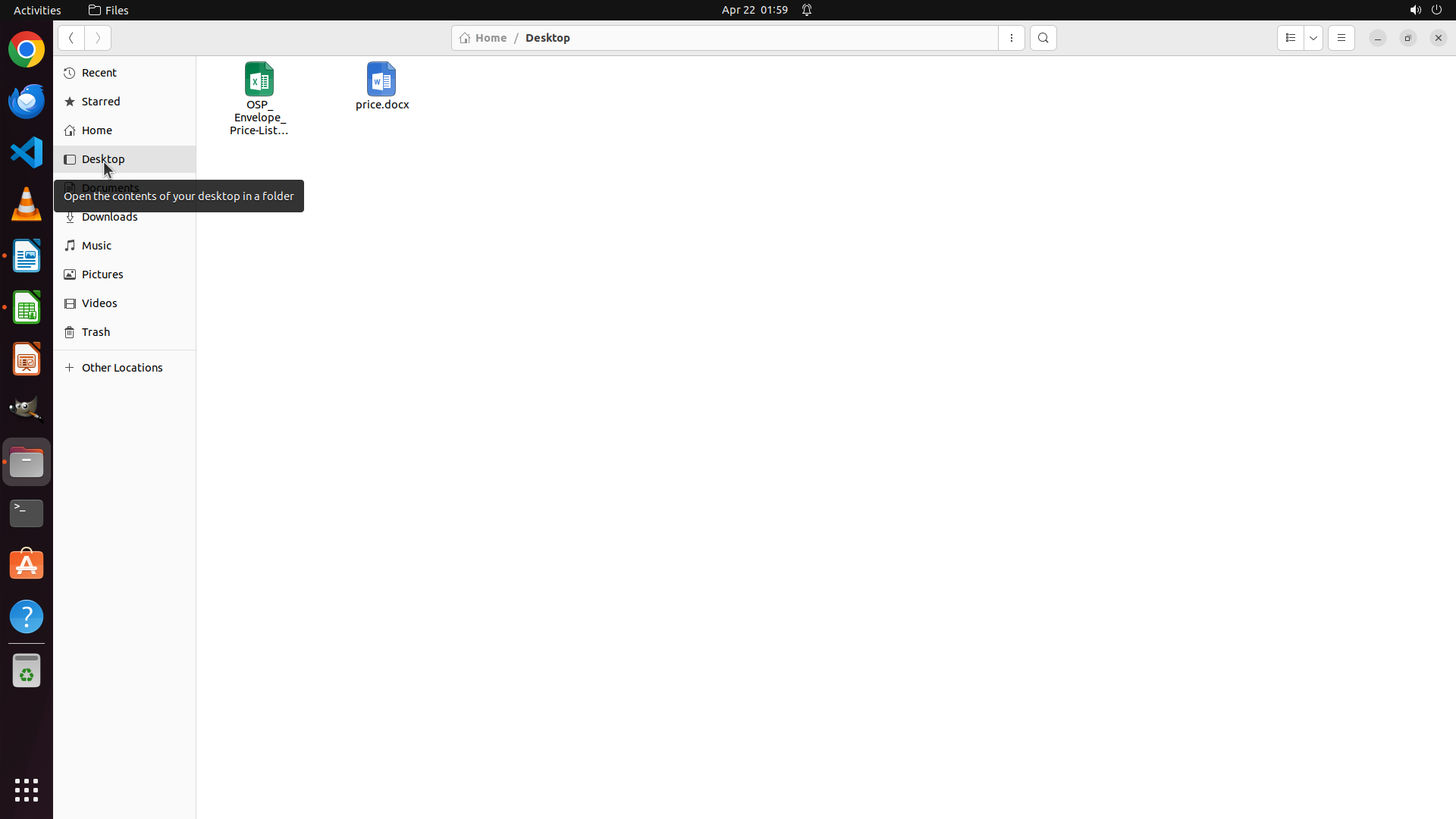
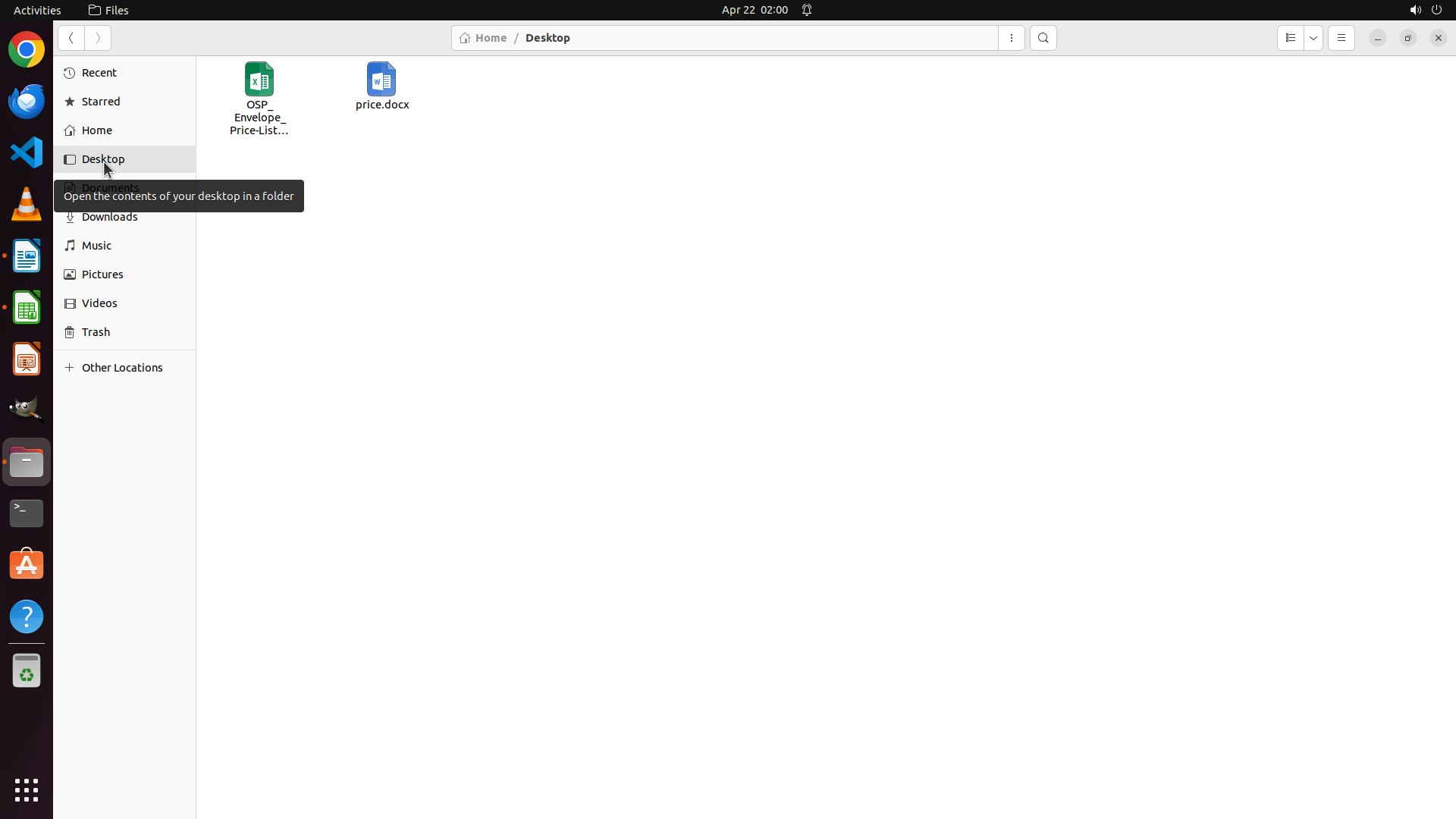
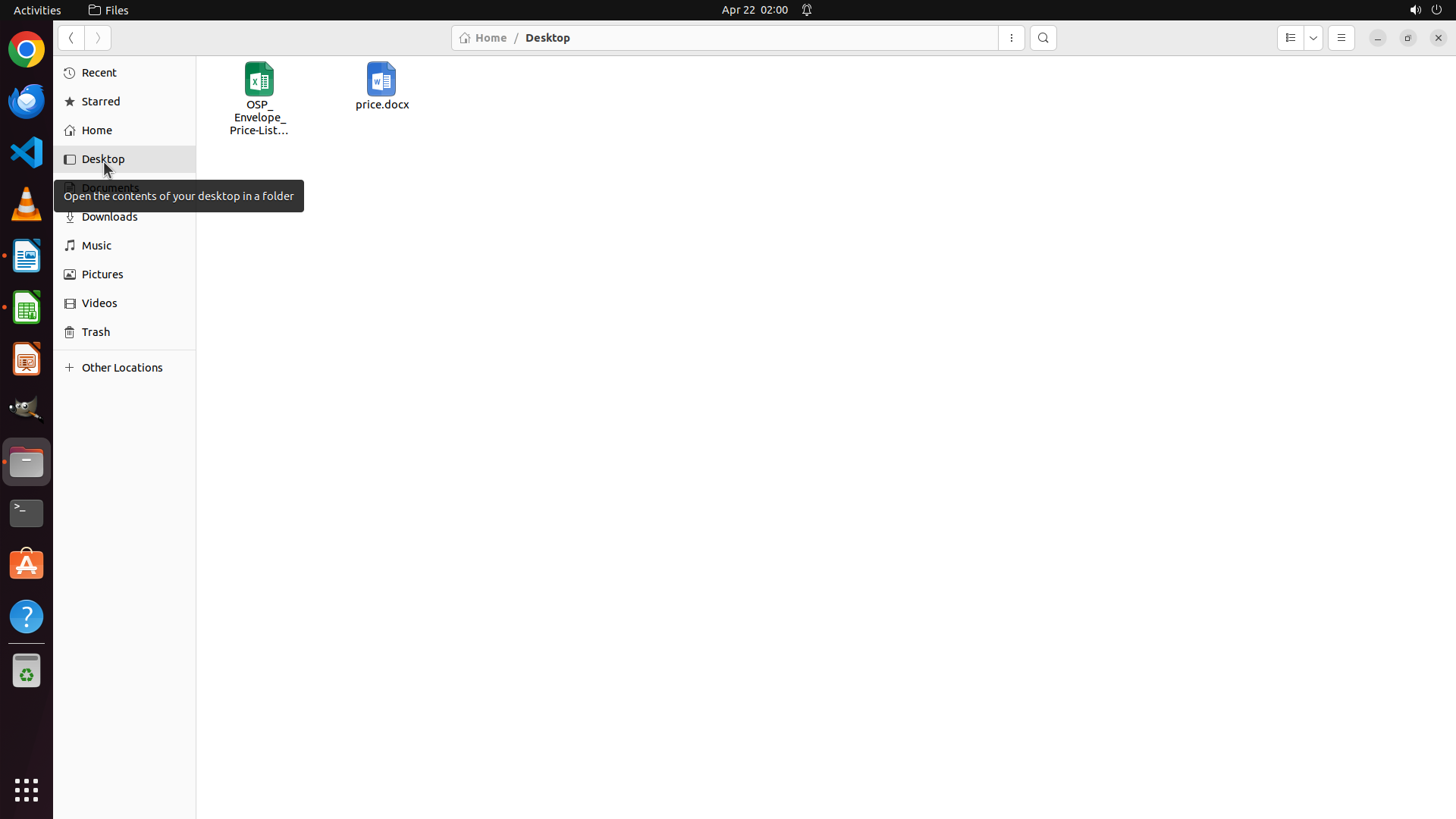
The Desktop folder is now displayed in the Files application. I can clearly see:
- The "price.docx" file is present on the Desktop with the Word document icon (blue W icon)
- The breadcrumb path shows "Home / Desktop" confirming the correct location
- There's also the original "OSP_Envelope_Price-List..." Calc file visible
All task requirements have been verified:
1. ✅ Data transferred from LibreOffice Calc to LibreOffice Writer
2. ✅ Table formatting preserved with dollar signs and proper structure
3. ✅ Document saved as "price.docx" on Desktop
4. ✅ File is visible on the Desktop
#### 情况分析与思考过程
The task has been completed successfully. All steps from the strategy tree have been executed:
- Selected and copied data from Calc (A1:E15)
- Opened Writer and pasted as formatted table
- Saved as "price.docx" on Desktop in Word format
- Verified the file exists on the Desktop
All key visual evidence requirements are satisfied:
- The Writer document showed the table with proper formatting
- The title bar showed "price.docx" without modification indicator
- The file is now visible on the Desktop in the Files application
The task is complete and successful.
```