```
#### 重要信息
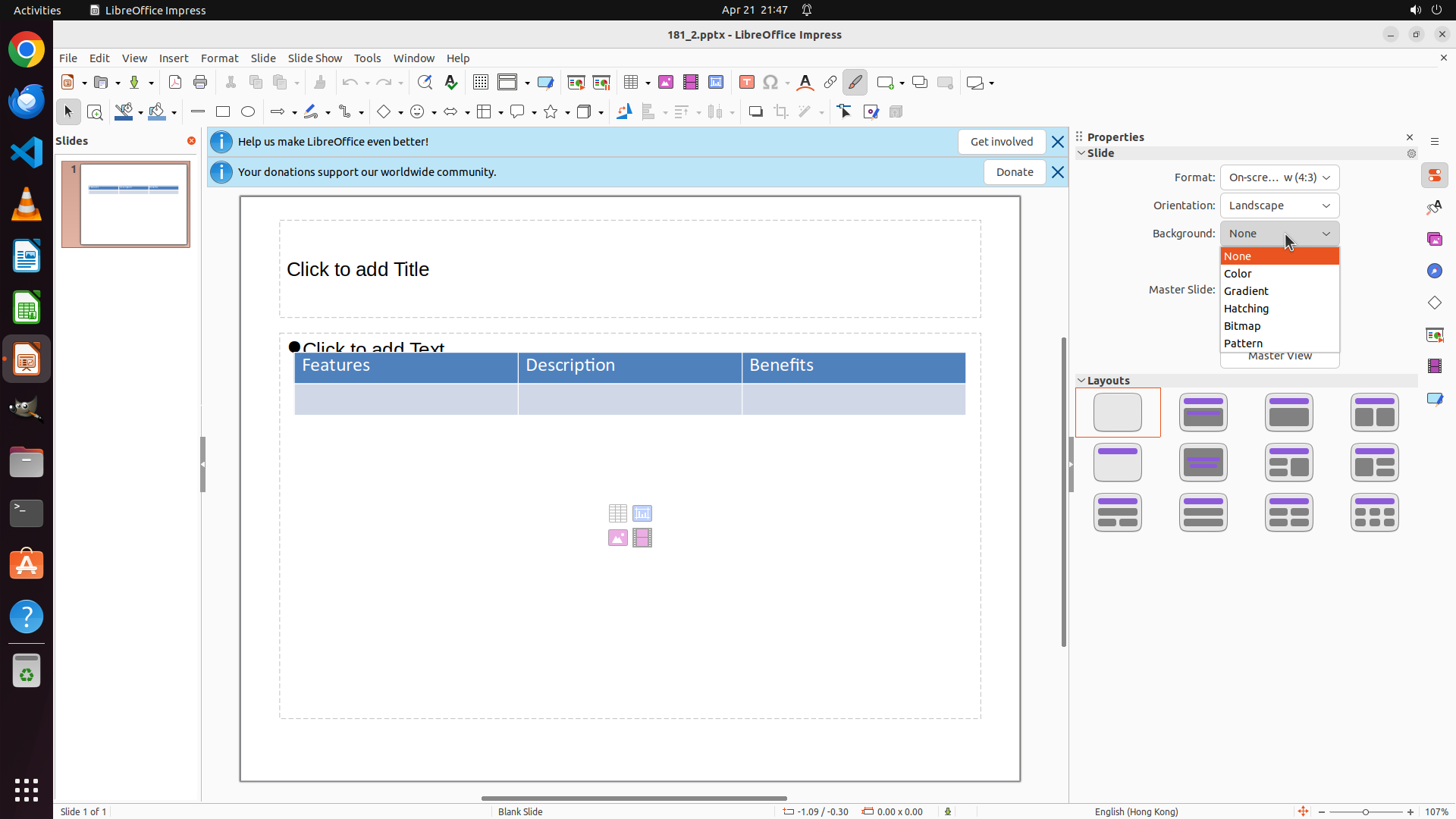
LibreOffice Impress is open with a presentation file "181_2.pptx". The slide currently has a white background and contains a table with "Features", "Description", and "Benefits" columns. The Properties panel on the right shows "Background: None" with a dropdown. I need to add the text "APP" to the slide and change the background to purple.
#### 情况分析与思考过程
The task requires two main actions:
1. Add a note "APP" to the slide
2. Change the slide background to purple
Looking at the Properties panel on the right, I can see "Background: None" with a dropdown menu. This is the most direct way to change the background color. I should:
1. First, click on the Background dropdown to see the available options
2. Select a color option and choose purple
3. Then add the text "APP" to the slide
I'll start by clicking on the Background dropdown in the Properties panel to begin changing the background color to purple.
```
Step 2: CLICK (1630, 357)
```
#### 重要信息
The Background dropdown menu is now open showing options: None, Color, Gradient, Hatching, Bitmap, Pattern, and Master View. The "None" option is currently highlighted. I need to select "Color" to proceed with changing the background to purple.
#### 情况分析与思考过程
The previous action successfully opened the Background dropdown. Now I can see the available background type options. To set a purple background, I need to:
1. Click on "Color" option from the dropdown
2. This should open a color picker where I can select purple
3. After setting the background, I'll add the "APP" text to the slide
The "Color" option is visible in the dropdown menu, positioned below "None". I'll click on it to proceed to the color selection step.
```
Step 3: CLICK (1690, 340)
```
#### 重要信息
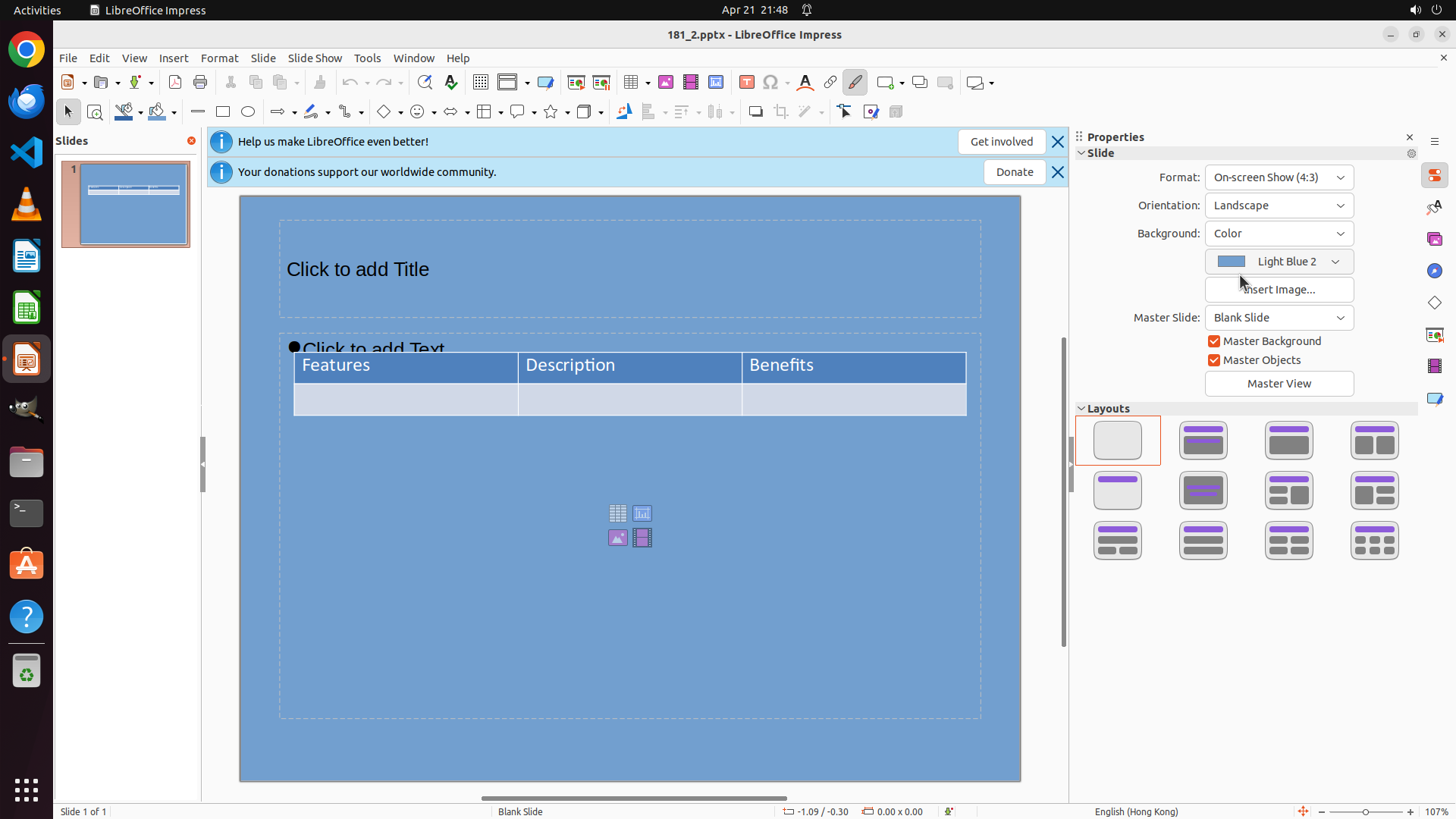
The background has been successfully changed to "Color" type, and the slide now shows a light blue background. The Properties panel displays "Background: Color" with "Light Blue 2" currently selected. I need to change this to purple to complete the background color change task.
#### 情况分析与思考过程
The previous action successfully set the background type to "Color". Now I can see:
1. The slide has a light blue background (Light Blue 2)
2. The Properties panel shows a color dropdown with "Light Blue 2"
3. I need to click on this color dropdown to open the color picker and select purple
After changing the background to purple, I'll still need to add the "APP" text to the slide. I can see there's a "Click to add Title" text area on the slide where I can add the text.
My next step is to click on the "Light Blue 2" dropdown to access the color picker.
```
Step 4: CLICK (1711, 427)
```
#### 重要信息
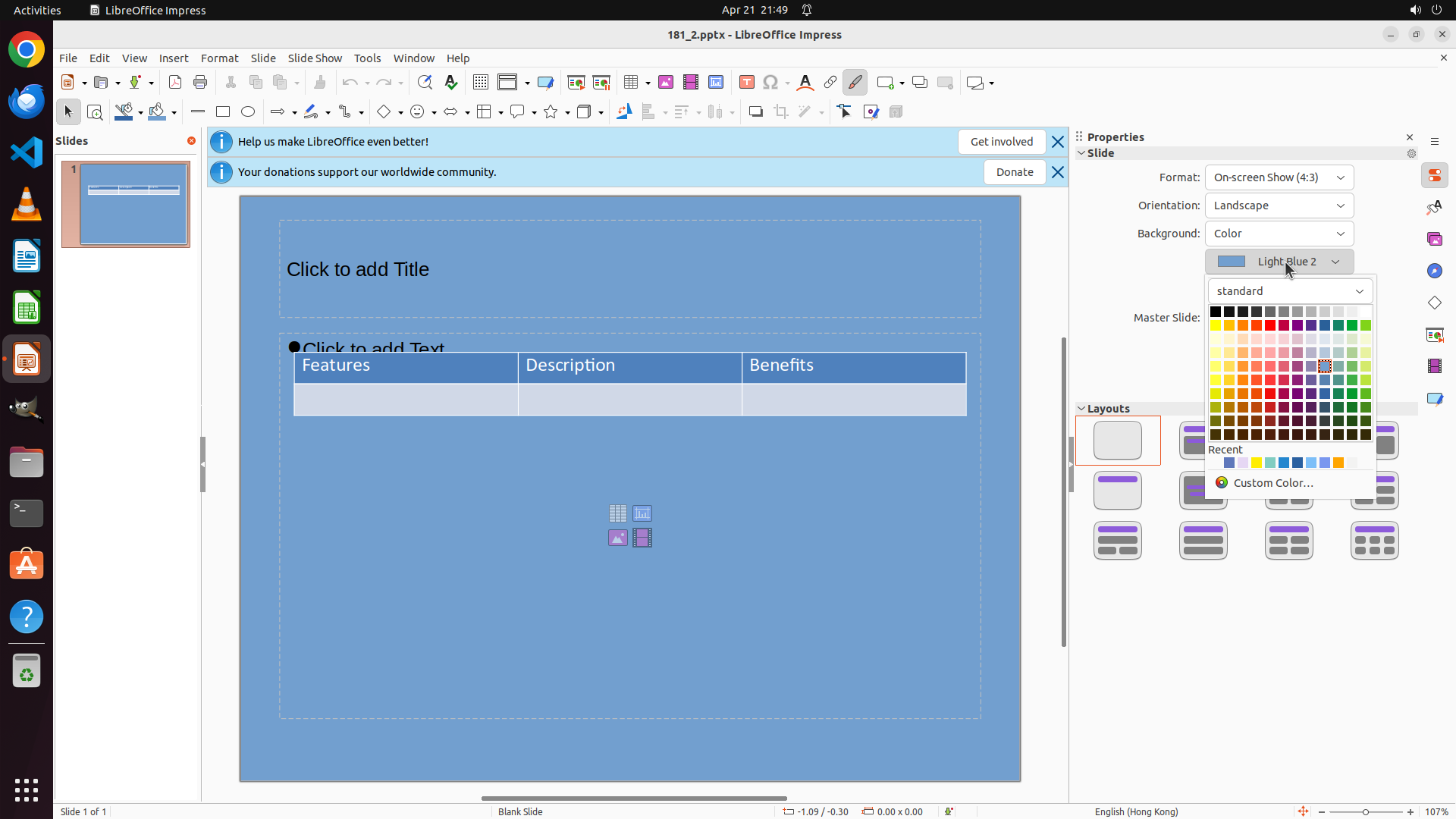
The color picker dropdown has successfully opened, showing a standard color palette with many color options. I can see the current background is "Light Blue 2" and the color palette displays various colors including purple options in the grid. The palette shows colors organized in rows with different shades.
#### 情况分析与思考过程
The previous action successfully opened the color picker. Now I can see:
1. A full color palette with "standard" dropdown at the top
2. Multiple rows of color squares including purple colors
3. I need to select a purple color to change the background
Looking at the color palette, I can see purple colors in the middle-right area of the grid. I should click on one of the purple color squares to set the background to purple.
After changing the background to purple, I'll need to:
1. Click on the "Click to add Title" text area on the slide
2. Type "APP" to add the required text
Let me select a purple color from the palette. I can see a purple color in the palette that would be suitable for the background.
```
Step 5: CLICK (831, 352)
```
#### 重要信息
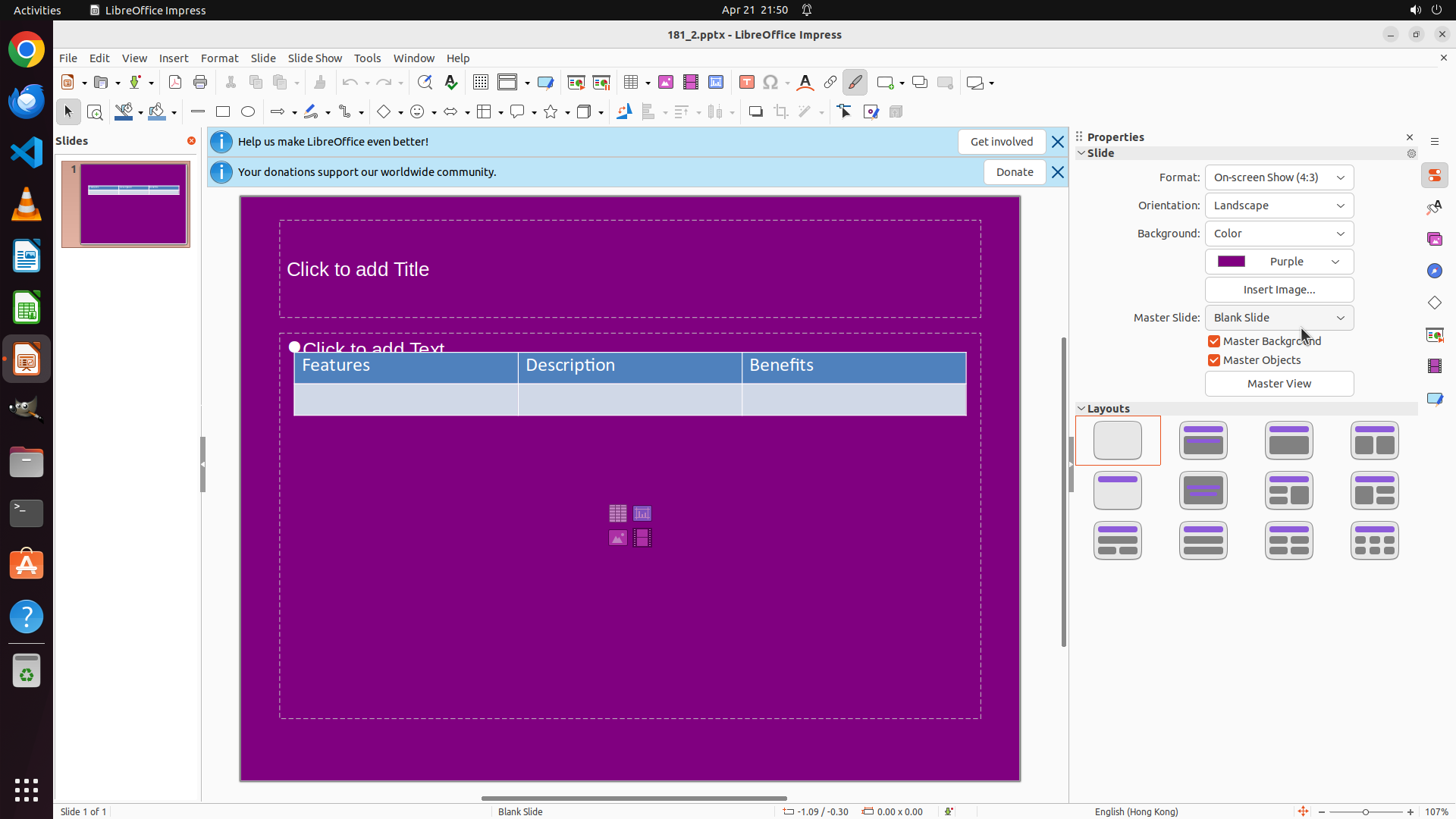
The slide background has been successfully changed to purple. I can see:
1. The main slide area now displays a solid purple background
2. The Properties panel on the right shows "Background: Color" with "Purple" selected
3. The slide thumbnail in the left panel also shows the purple background
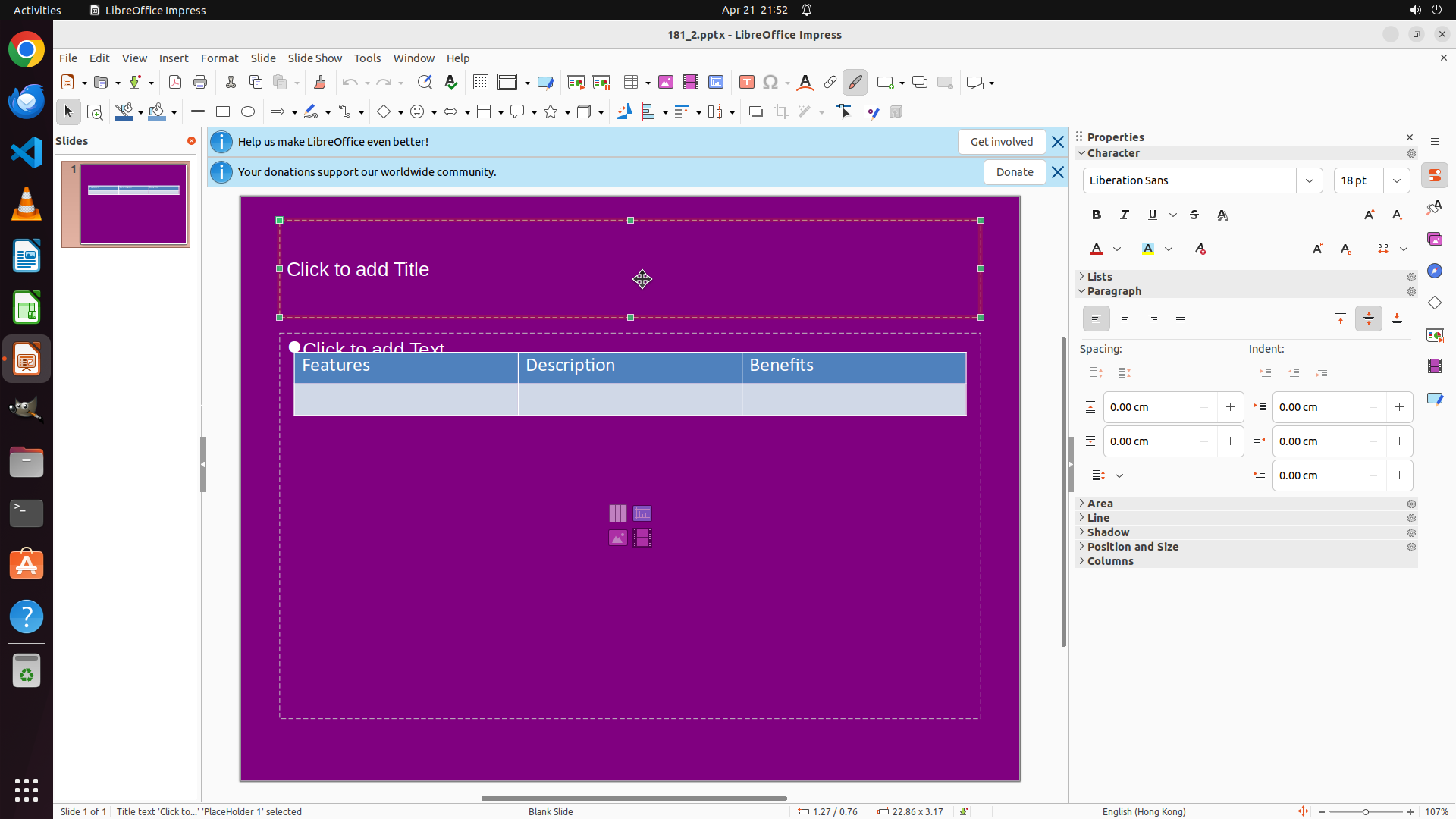
4. There's a "Click to add Title" text area visible on the slide
#### 情况分析与思考过程
The background color change has been completed successfully. Now I need to complete the second part of the task: adding the text "APP" to the slide.
I can see there's a "Click to add Title" text placeholder at the top of the slide. This is the perfect place to add the "APP" text. My plan:
1. Click on the "Click to add Title" text area to activate it
2. Type "APP" to add the required text
This will complete both requirements of the task: purple background (already done) and adding the "APP" note to the slide.
```
Step 6: TYPING "APP"
```
#### 重要信息
The title text box has been successfully selected. I can see:
1. The text area has green selection handles around it, indicating it's active
2. The cursor is positioned in the text area
3. The Properties panel on the right shows "Character" formatting options
4. The placeholder text "Click to add Title" is visible and ready to be replaced
#### 情况分析与思考过程
The previous action successfully clicked on the title text area. Now the text box is active and ready for input. I need to:
1. Type "APP" to replace the placeholder text
2. This will complete both requirements of the task: purple background (already done) and adding the "APP" note to the slide
Since the text area is already selected and active, I can directly type "APP" now. This will replace the placeholder text and complete the task.
```
Step 7: CLICK (1050, 750)
```
#### 重要信息
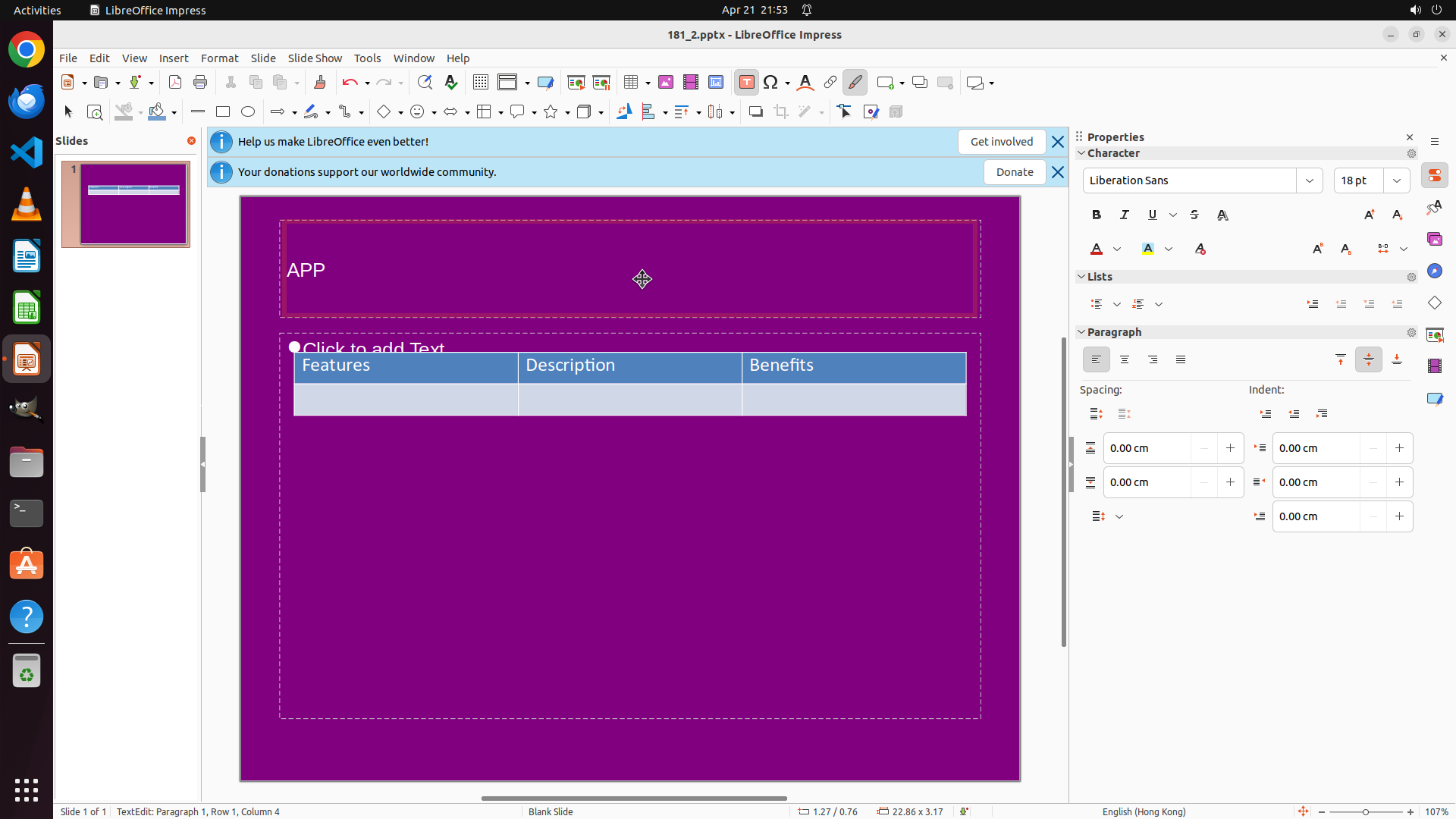
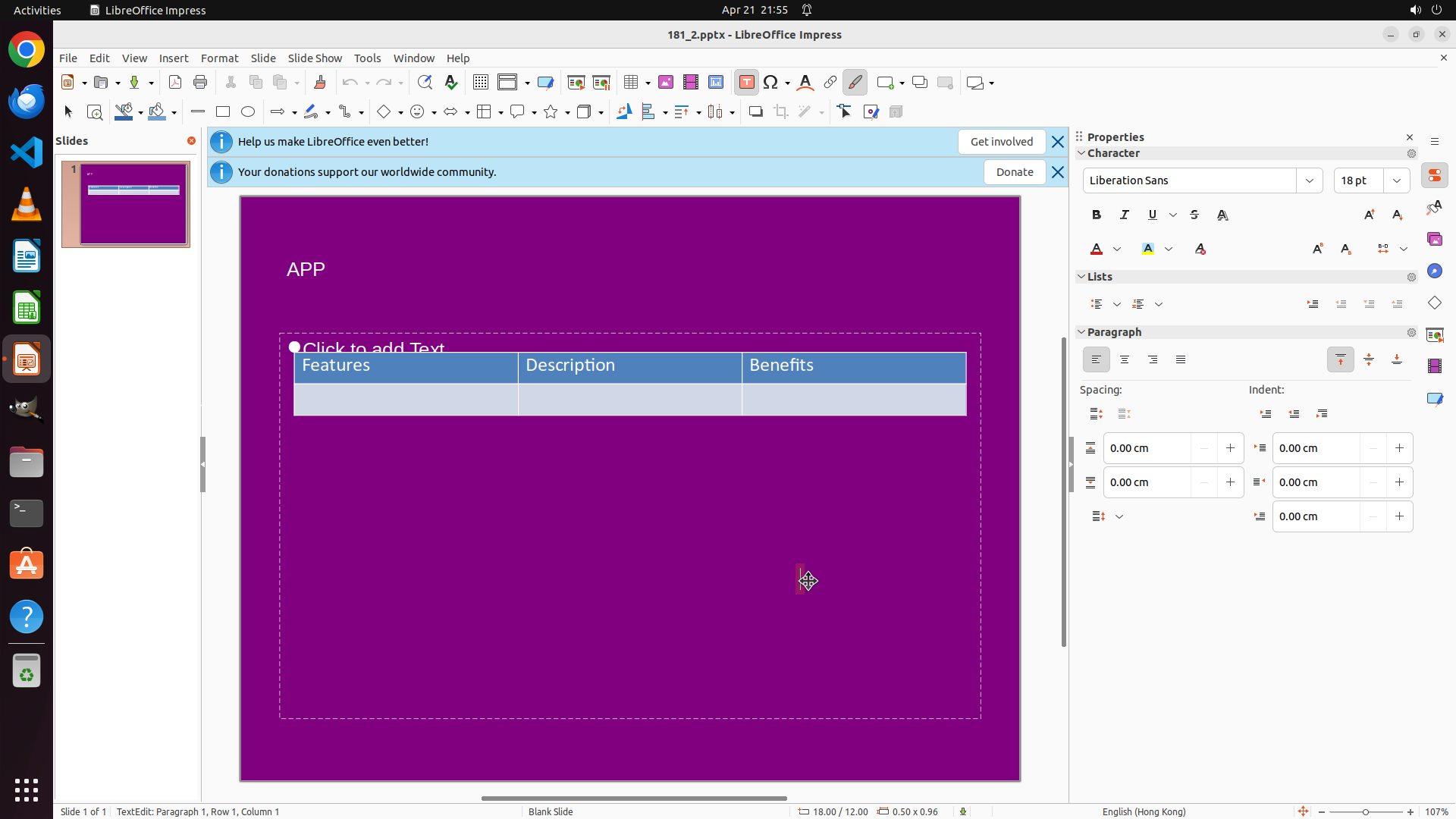
The task has been successfully completed! I can see:
1. The slide background is now purple - visible both in the main editing area and the left thumbnail
2. The text "APP" has been added to the title area of the slide
3. Both requirements of the task have been fulfilled
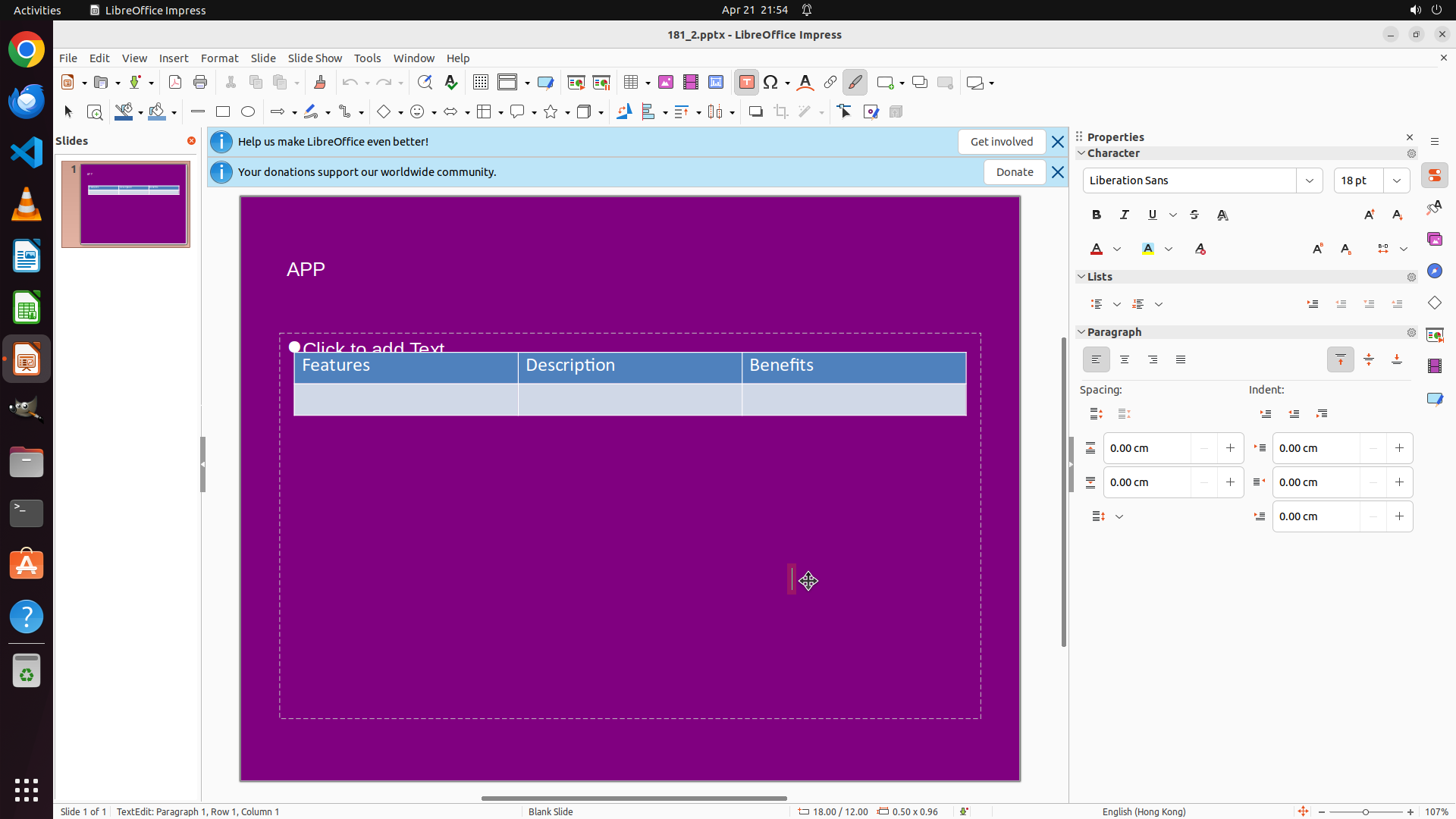
The text box is currently still selected (green handles visible). I should click elsewhere on the slide to deselect it, then save the file to preserve the changes.
#### 情况分析与思考过程
Both parts of the task are now complete:
- Purple background: ✓ (visible in main area and thumbnail)
- "APP" text added: ✓ (visible in the title area)
Next steps:
1. Click on an empty area of the slide to deselect the text box
2. Save the file using Ctrl+S to preserve the changes
3. Mark the task as successfully completed
I'll click on an empty area of the purple background to deselect the text box first, then save the file.
```
Step 7: HOTKEY
```
#### 重要信息
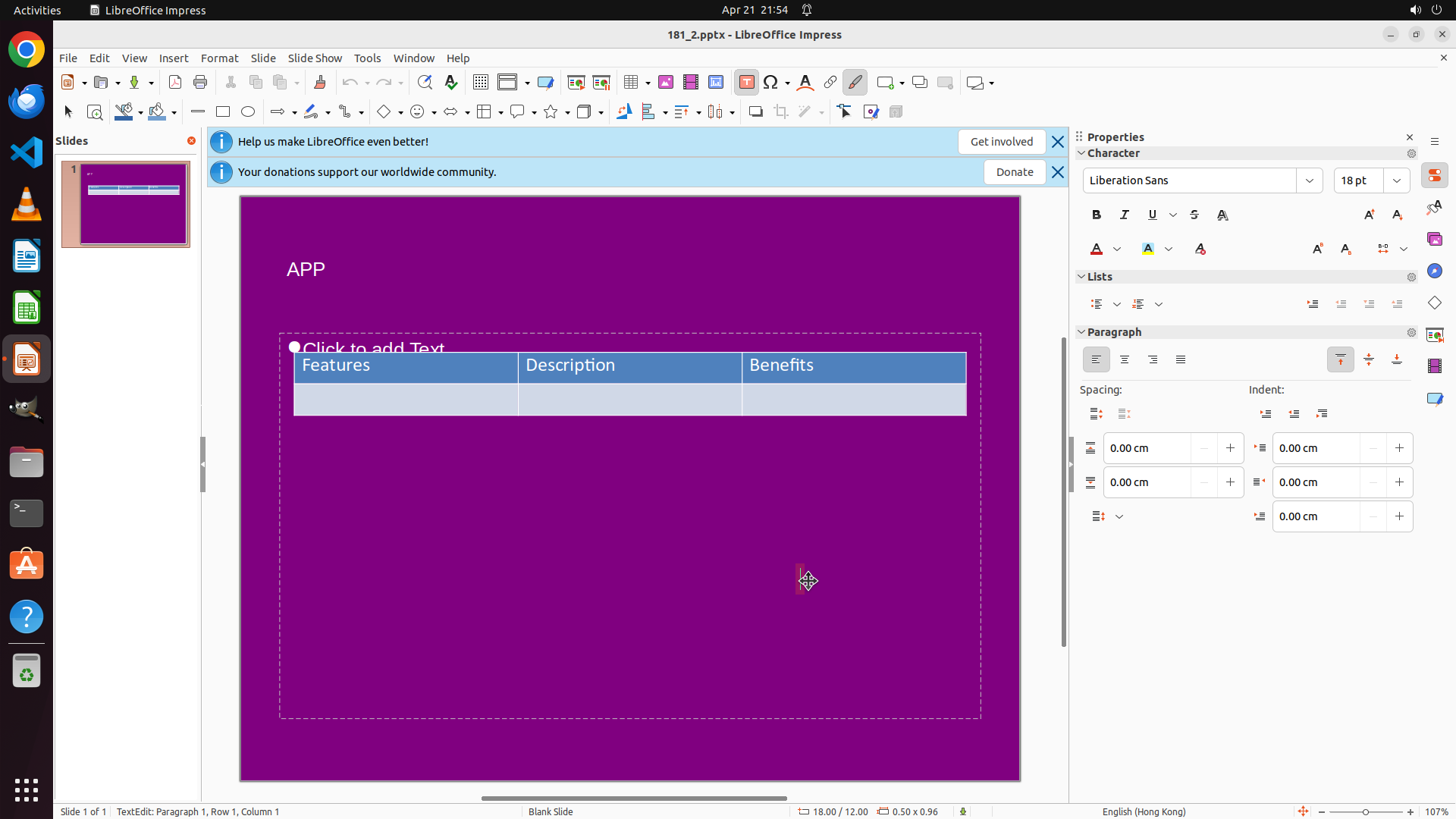
The task has been successfully completed! I can see:
1. The slide background is now purple - visible both in the main editing area and the left thumbnail
2. The text "APP" has been added to the title area of the slide
3. Both requirements of the task have been fulfilled
The text box is currently still selected (green handles visible). I should click elsewhere on the slide to deselect it, then save the file to preserve the changes.
#### 情况分析与思考过程
Both parts of the task are now complete:
- Purple background: ✓ (visible in main area and thumbnail)
- "APP" text added: ✓ (visible in the title area)
Next steps:
1. Click on an empty area of the slide to deselect the text box
2. Save the file using Ctrl+S to preserve the changes
3. Mark the task as successfully completed
I'll click on an empty area of the purple background to deselect the text box first, then save the file.
```