```
#### 重要信息
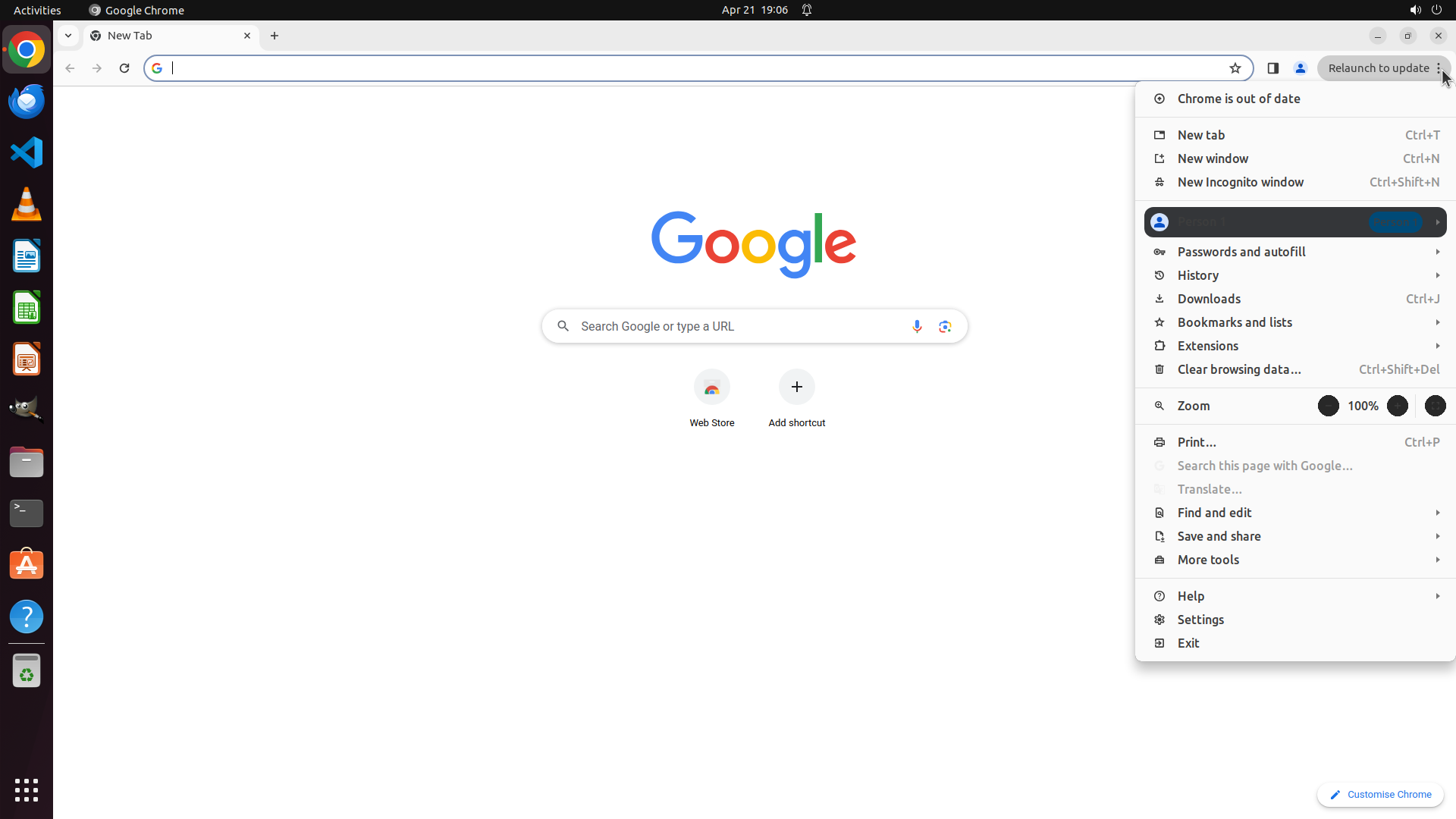
- Google Chrome is already open and displaying the Google homepage
- The browser appears to be in light mode already (white background visible)
- The three-dot menu button is visible in the top-right corner of the browser window
- Need to access Chrome Settings to verify and change the theme if needed
#### 情况分析与思考过程
The task is to turn off dark mode in Google Chrome. Looking at the current state:
1. Chrome is already open with the Google homepage displayed
2. The interface appears to be in light mode already (white background)
3. However, I should verify the settings to ensure dark mode is properly turned off
My plan:
1. Click the three-dot menu in the top-right corner to open Chrome menu
2. Select "Settings" from the dropdown
3. Navigate to "Appearance" section
4. Select "Light" theme if not already selected
5. Verify the change
I'll start by clicking on the three-dot menu button (⋮) in the top-right corner of Chrome to access the settings menu.
```
Step 2: CLICK (1580, 816)
```
#### 重要信息
- The Chrome menu has successfully opened after clicking the three-dot button
- The menu displays various options including "Settings" near the bottom
- The browser interface appears to already be in light mode (white background visible)
- Need to click on "Settings" to access Chrome settings and verify the theme
#### 情况分析与思考过程
The previous action successfully opened the Chrome menu. Now I need to:
1. Click on "Settings" to open the Chrome settings page
2. Navigate to the "Appearance" section
3. Verify that Light theme is selected
4. Change to Light theme if it's currently set to Dark
I can see the "Settings" option in the menu. It's located near the bottom of the menu, just above "Exit". I'll click on it to open the Chrome settings page.
```
Step 3: CLICK (169, 357)
```
#### 重要信息
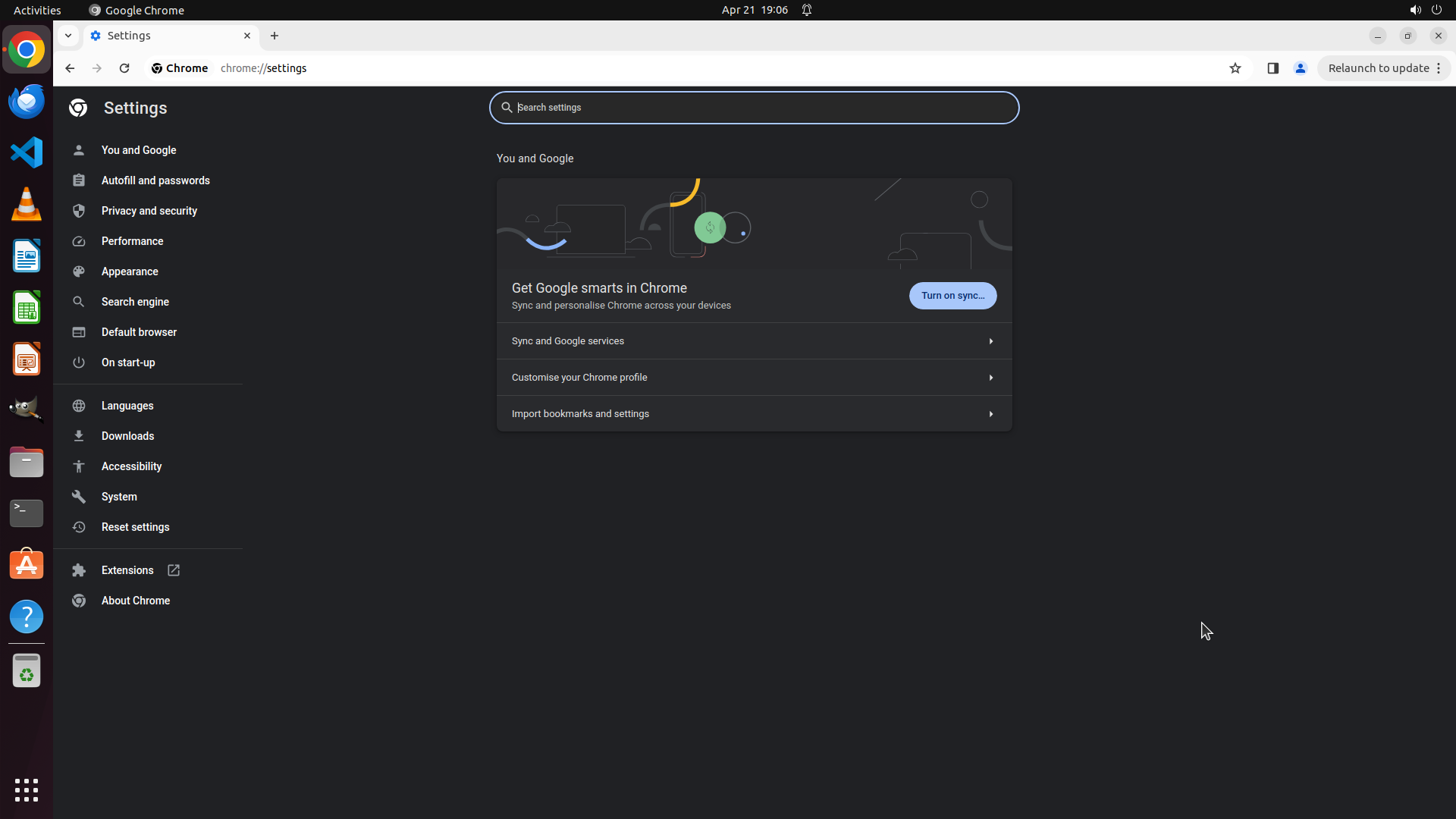
- Chrome Settings page is now open at chrome://settings
- The browser interface is currently in dark mode (dark background with white text)
- The left sidebar shows various settings categories including "Appearance"
- Need to click on "Appearance" to access the theme settings
#### 情况分析与思考过程
The previous action successfully opened Chrome Settings. I can now see that the browser is indeed in dark mode (the settings page has a dark background). To change this to light mode, I need to:
1. Click on "Appearance" in the left sidebar
2. Select "Light" theme option
3. Verify the browser switches to light mode
I can see "Appearance" in the left sidebar menu. It's located between "Performance" and "Search engine". I'll click on it to navigate to the appearance settings where I can change the theme from Dark to Light.
```
Step 4: CLICK (1212, 322)
```
#### 重要信息
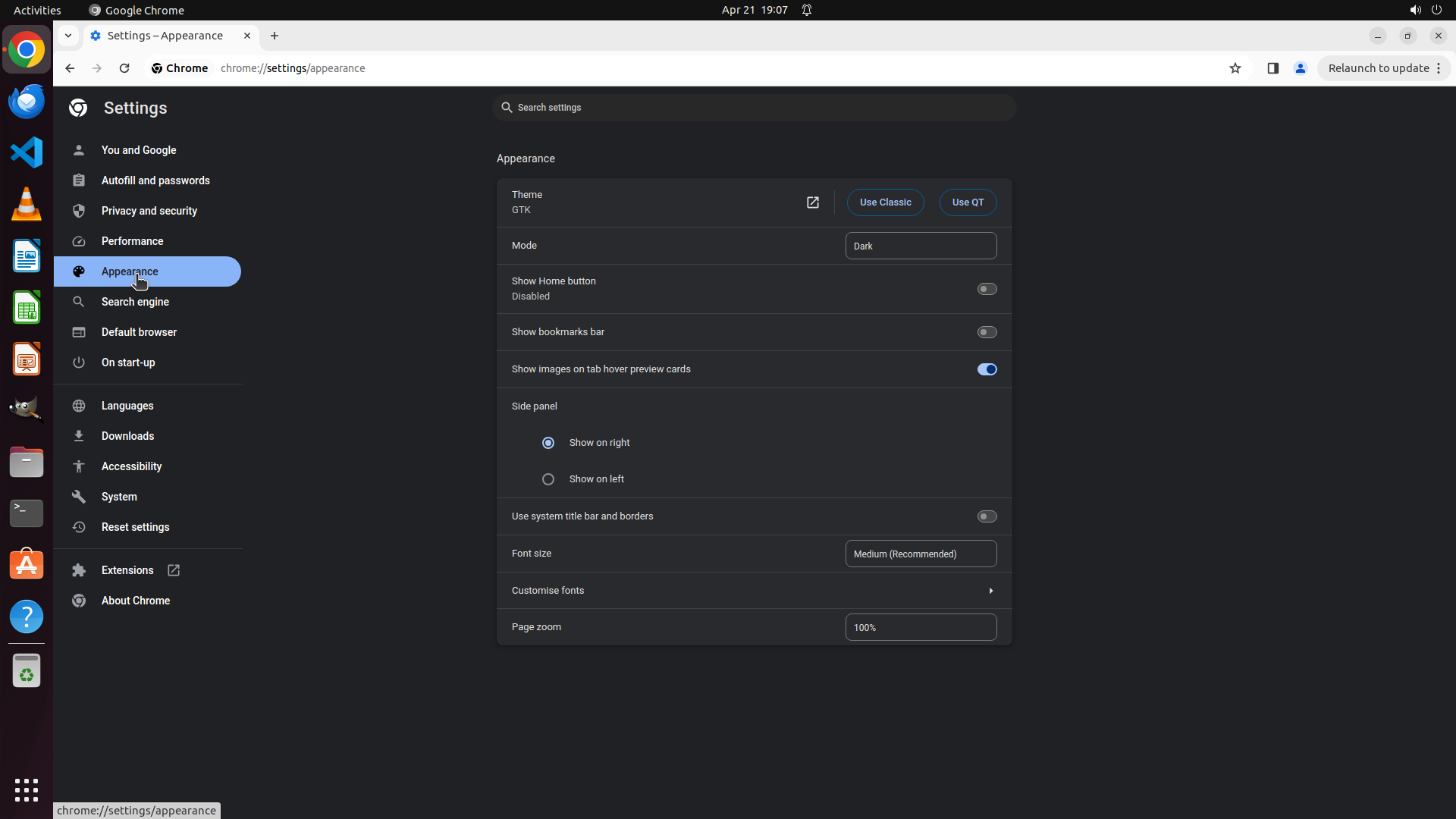
- Chrome Settings page is now open at chrome://settings/appearance
- The "Appearance" section is selected in the left sidebar (highlighted in blue)
- The browser interface is currently in dark mode (dark background)
- The "Mode" setting shows "Dark" in a dropdown menu
- Need to click on the "Dark" dropdown to change it to "Light"
#### 情况分析与思考过程
The previous action successfully navigated to the Appearance settings page. I can now see all the appearance-related options. The key setting I need to change is the "Mode" dropdown which currently shows "Dark".
To complete the task:
1. Click on the "Dark" dropdown under "Mode"
2. Select "Light" from the dropdown options
3. Verify the browser interface switches to light mode
I'll click on the "Dark" dropdown to open the theme mode options.
```
Step 5: CLICK (1140, 348)
```
#### 重要信息
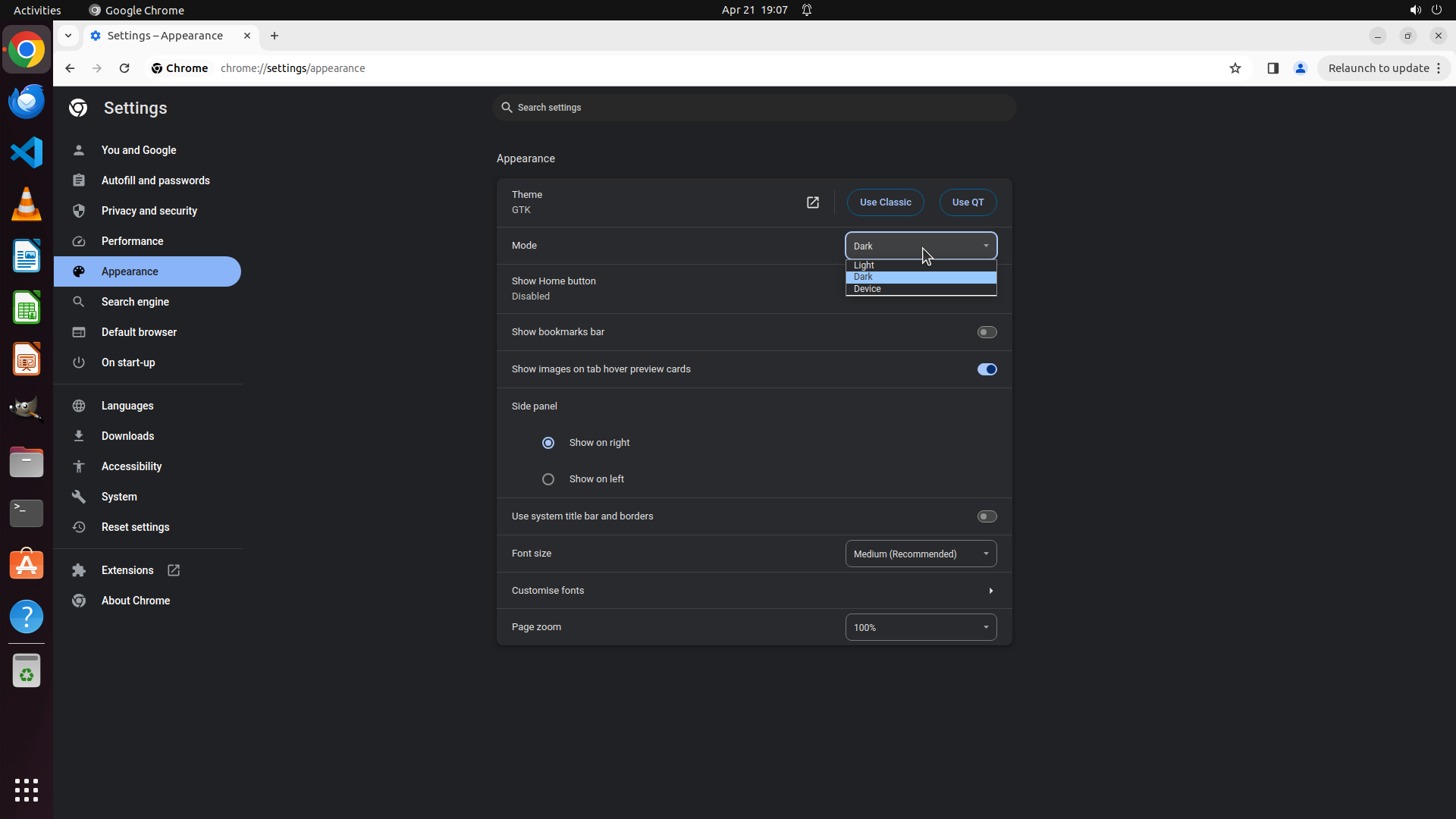
- The "Mode" dropdown menu is now open showing three options: "Dark" (currently selected), "Light", and "Device"
- The browser interface is still in dark mode (dark background)
- The dropdown is positioned under the "Mode" setting in the Appearance section
- Need to click on "Light" to change the theme from Dark to Light
#### 情况分析与思考过程
The previous action successfully opened the Mode dropdown menu. I can now see all three available theme options:
- Dark (currently selected)
- Light
- Device
To complete the task of turning off dark mode, I need to click on the "Light" option in the dropdown. This should immediately change the browser interface from dark mode to light mode.
After clicking "Light", I expect:
1. The dropdown to close
2. The "Mode" setting to display "Light" instead of "Dark"
3. The browser interface background to change from dark to light/white
I'll click on the "Light" option in the dropdown menu.
```
Step 6: WAIT
```
#### 重要信息
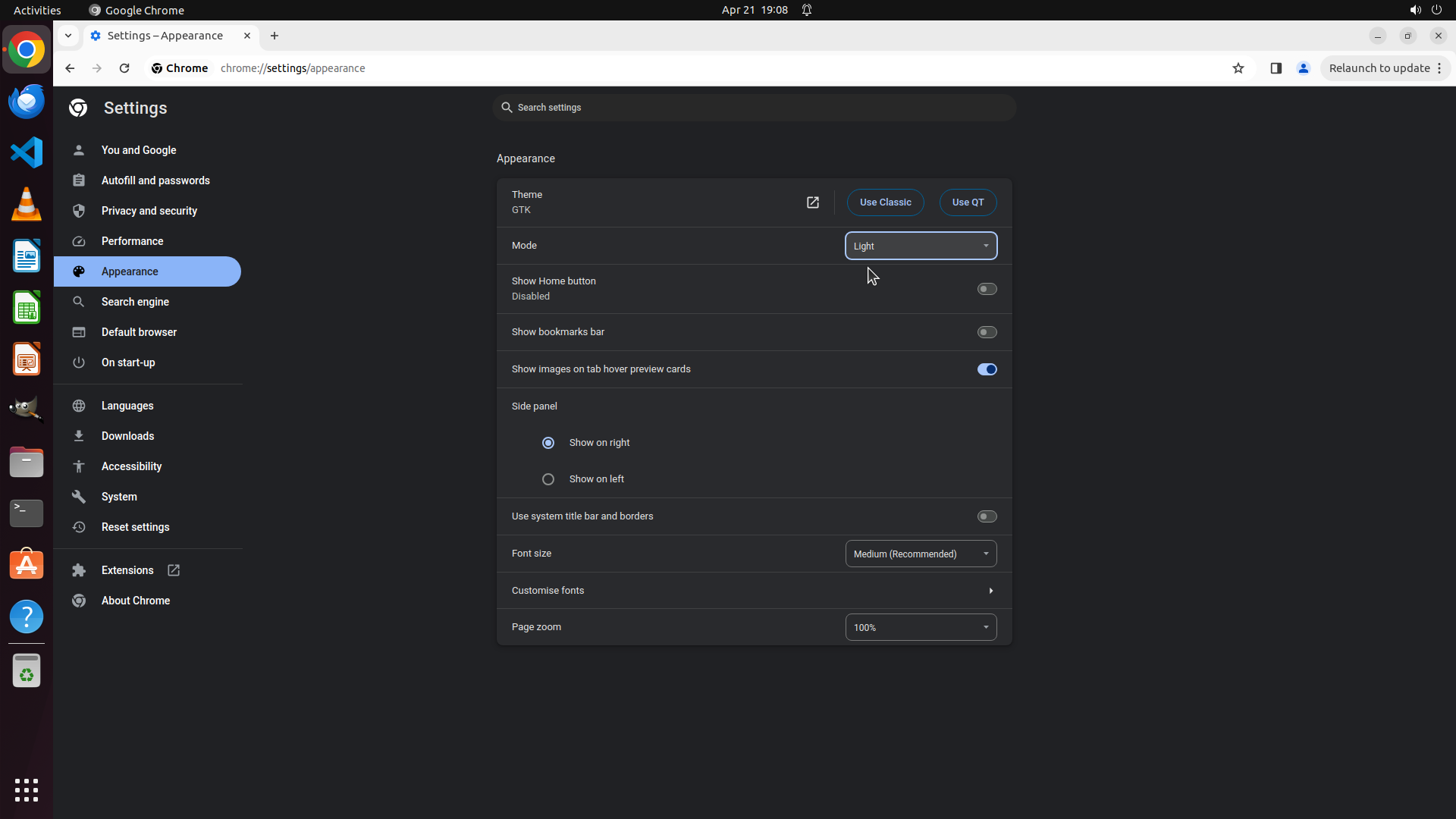
- The Mode setting now shows "Light" as selected in the dropdown
- However, the browser interface is still displaying in dark mode (dark background)
- The change from Dark to Light has been selected but may need time to apply or require a page refresh
- The Appearance settings page is still open at chrome://settings/appearance
#### 情况分析与思考过程
The previous action successfully changed the Mode setting from "Dark" to "Light". I can see that the dropdown now displays "Light" instead of "Dark". However, the browser interface is still showing a dark theme (dark background).
This is not uncommon - sometimes theme changes in Chrome need a moment to apply, or the page may need to be refreshed to see the change take effect. I should:
1. Wait briefly to see if the theme automatically updates
2. If not, refresh the page to verify the change has been applied
3. The theme change should result in the browser interface switching from dark to light (white/light background)
Let me wait a moment first to see if the theme change takes effect automatically.
```
I can see that the Mode has been set to "Light", but the interface is still in dark mode. Let me wait a moment for the change to apply, then refresh the page to verify the theme has changed.
Step 7: HOTKEY
```
#### 重要信息
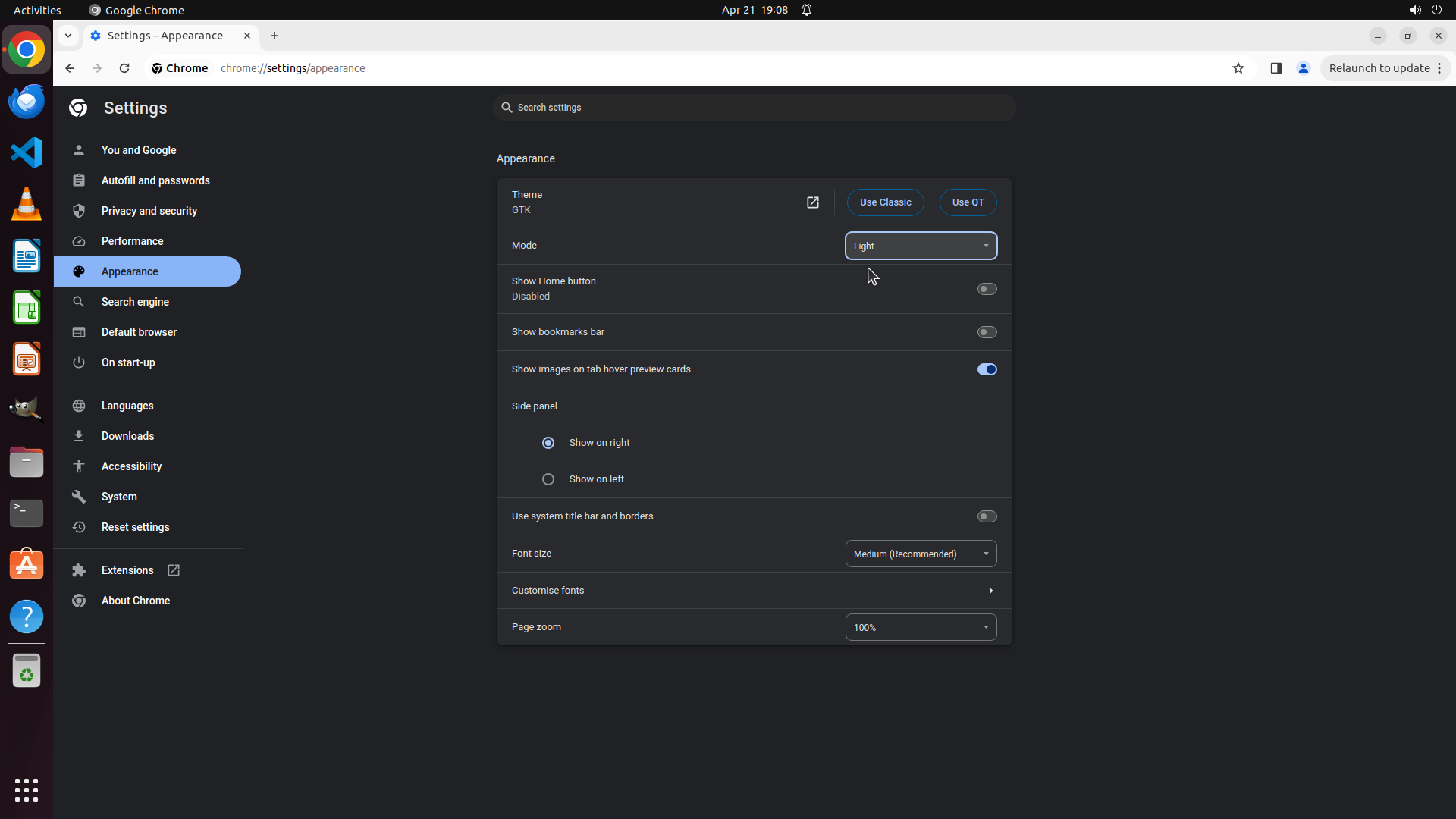
- The Mode dropdown now shows "Light" as the selected option
- However, the browser interface is still displaying in dark mode (dark background)
- The settings page is at chrome://settings/appearance
- The theme change has been selected but hasn't visually applied yet
#### 情况分析与思考过程
The previous wait action didn't result in the theme automatically changing. The Mode is set to "Light" in the dropdown, but the interface remains dark. This is a common situation where Chrome needs a page refresh or browser restart to fully apply theme changes.
My next steps should be:
1. Refresh the current settings page to see if the theme change takes effect
2. If the page refreshes and shows in light mode, the task is complete
3. If it's still dark after refresh, I may need to close and reopen Chrome
Let me refresh the page by pressing F5 or using Ctrl+R to reload the settings page and verify if the light theme has been applied.
```
Step 8: WAIT
```
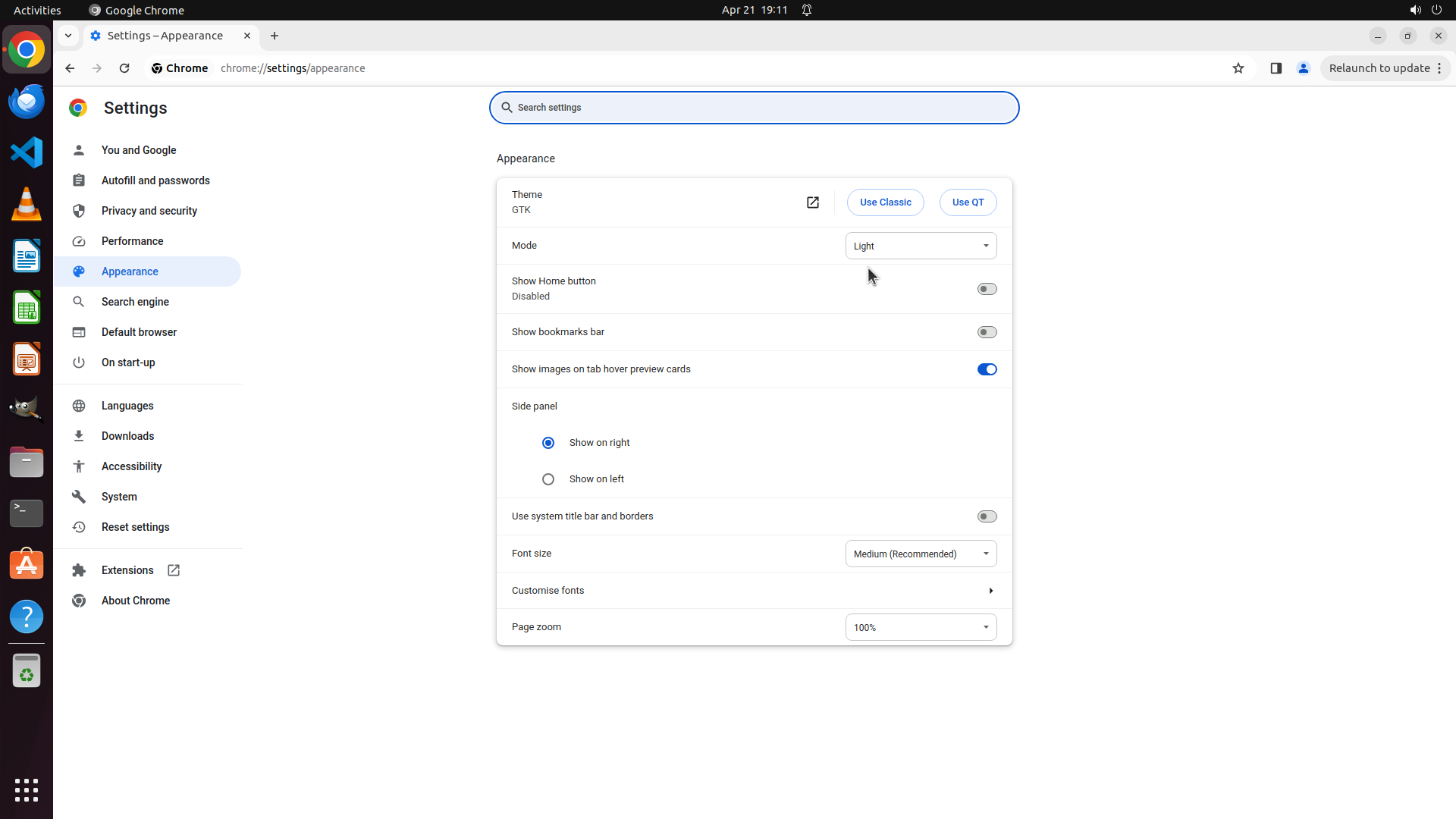
#### 重要信息
- Chrome Settings page is open at chrome://settings/appearance
- The Mode dropdown now shows "Light" as the selected option
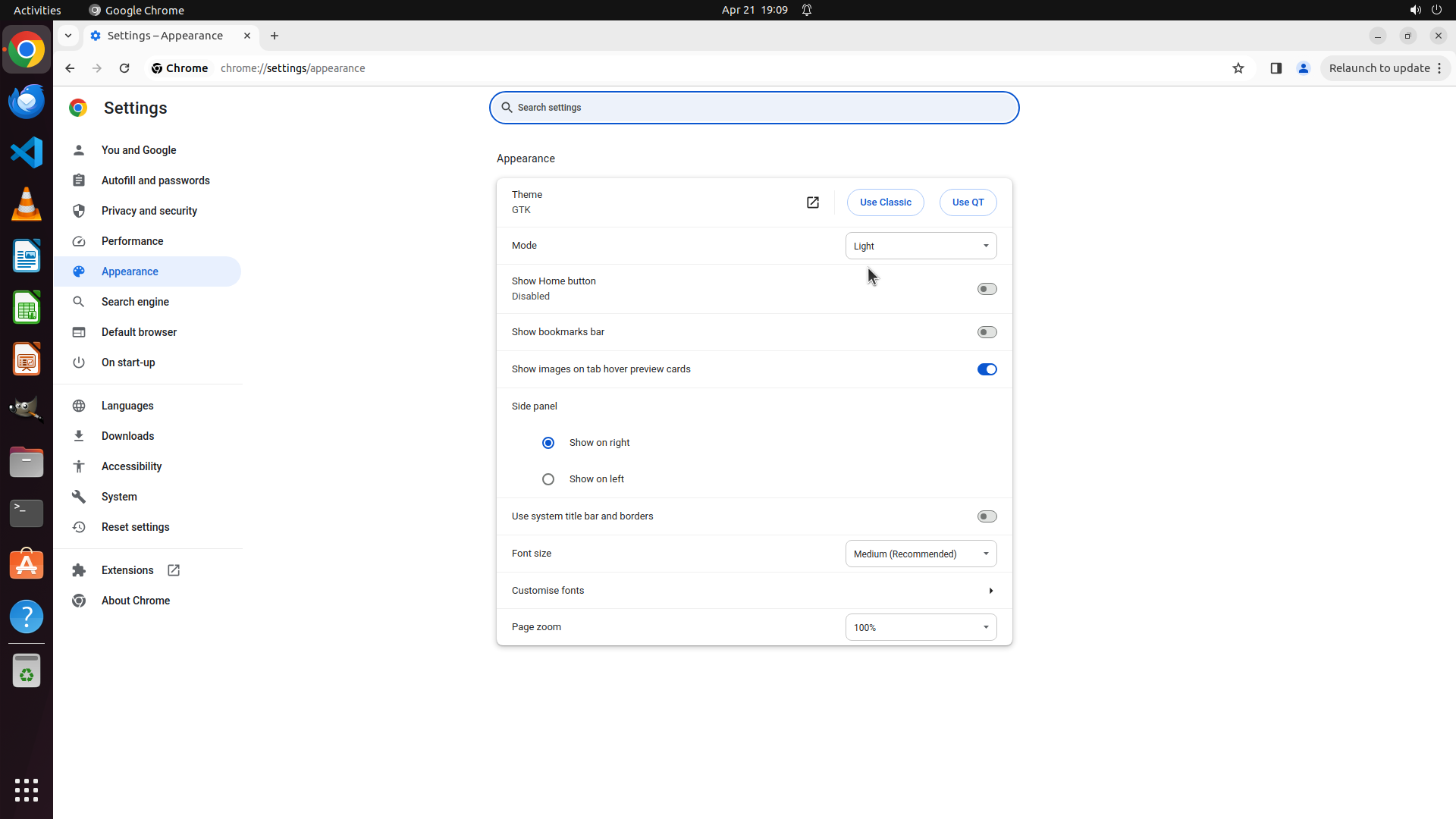
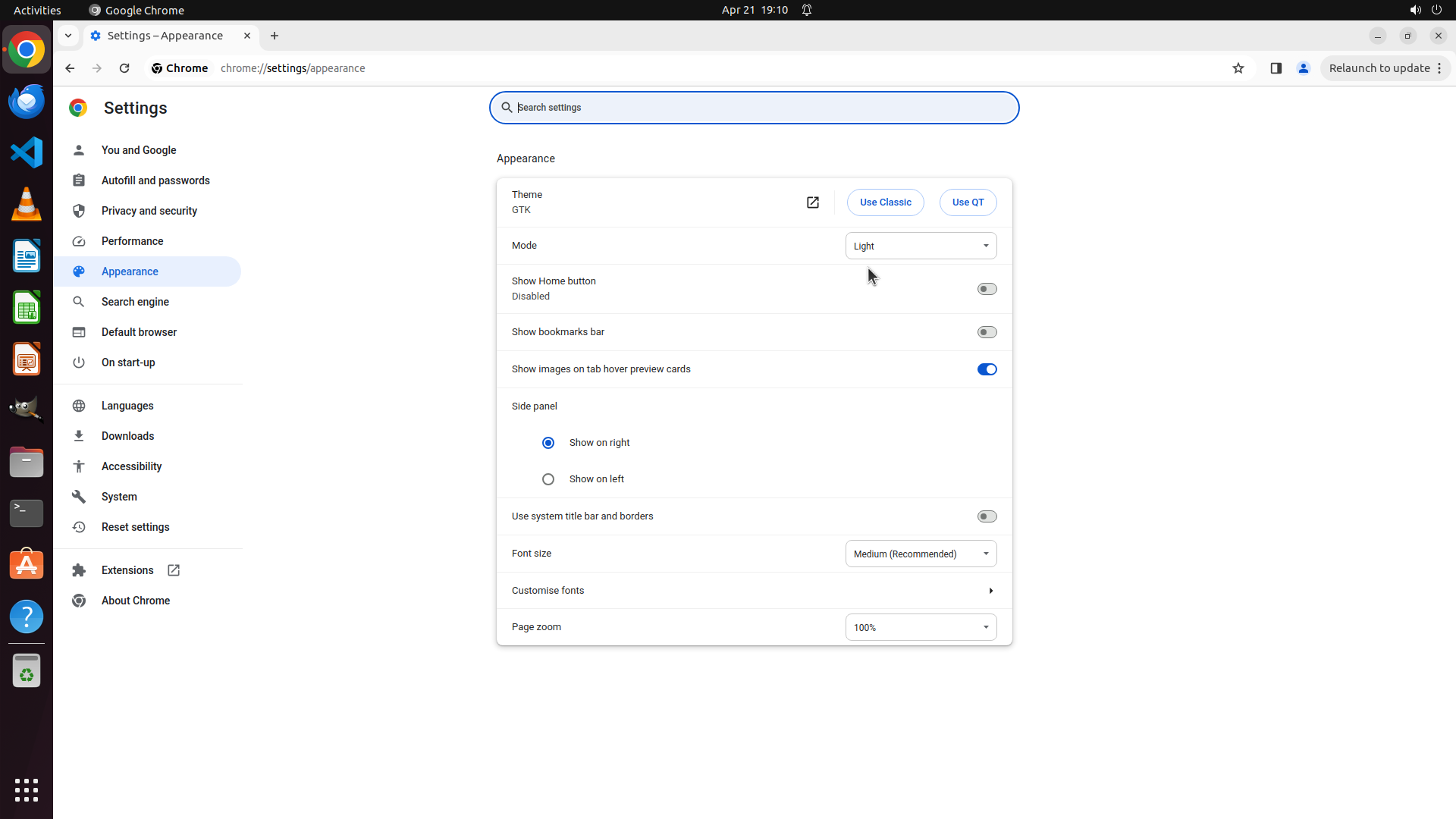
- The browser interface background has changed from dark to WHITE/LIGHT
- The entire settings page is now displaying in light mode with white background
- All visual evidence confirms dark mode has been successfully turned off
#### 情况分析与思考过程
The previous refresh action (F5) was successful in applying the theme change. Comparing the current screenshot with the previous one:
Before (Step 5.2):
- The settings page had a dark/black background
- The interface was in dark mode
After (Current screenshot):
- The settings page now has a WHITE/LIGHT background
- The Mode dropdown clearly shows "Light" as selected
- The entire browser interface has switched to light mode
All key visual evidence criteria have been met:
1. ✓ Chrome Settings page is open at chrome://settings/appearance
2. ✓ The 'Appearance' section is visible
3. ✓ The Theme setting displays 'Light' as selected
4. ✓ The browser interface background is white/light colored
The task has been completed successfully. Dark mode has been turned off in Google Chrome, and the browser is now using the light theme which should be easier for the user to read with their astigmatism.
```