Task: 9656a811-9b5b-4ddf-99c7-5117bcef0626
| Application | chrome |
| Score | 1.0 |
| Status | success |
| Timestamp | 2026-04-21 12:13:48 |
Runtime Log
Trajectory
Step 1:
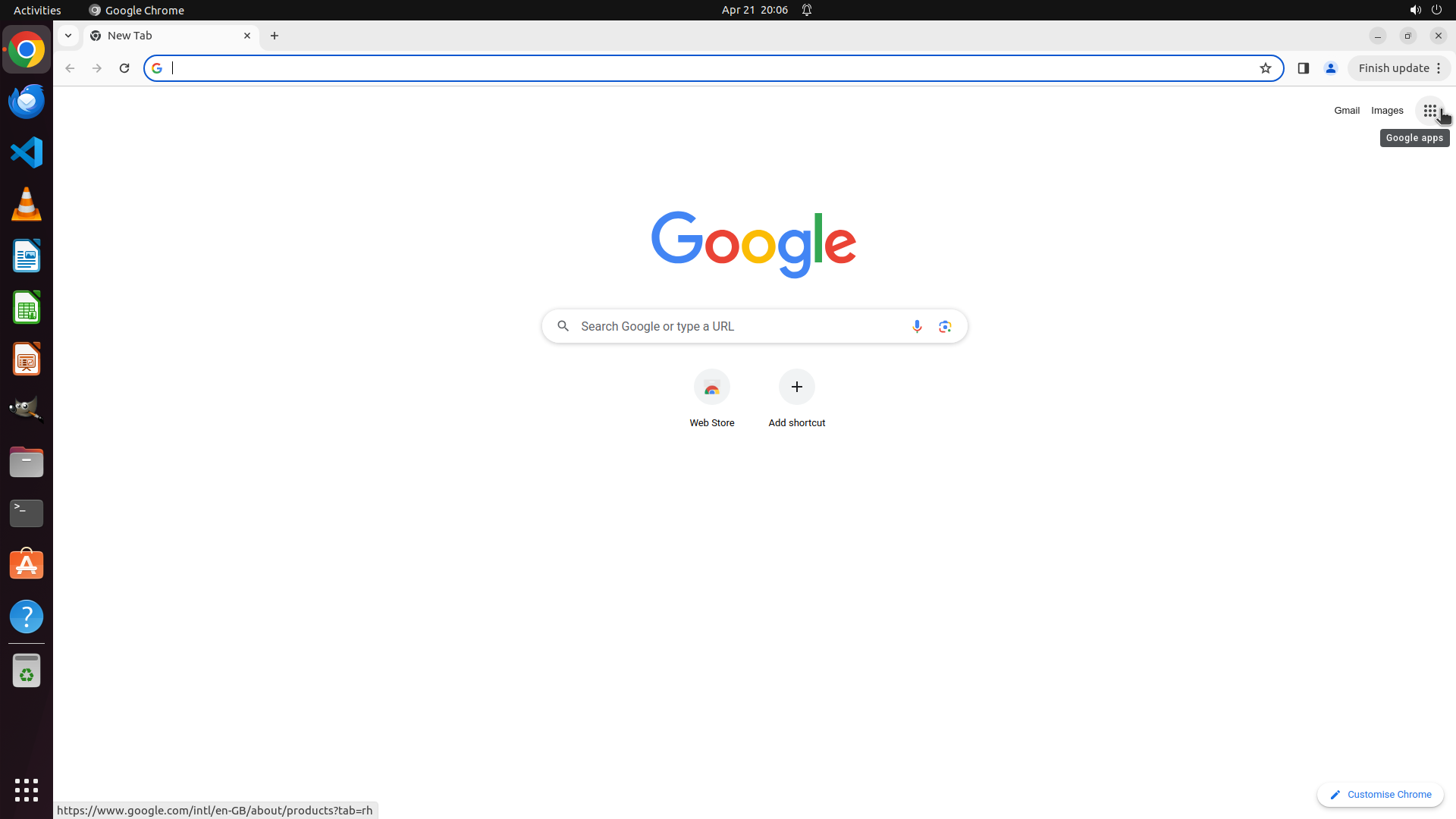
CLICK (1889, 139)
```
#### 重要信息
- Chrome浏览器已经打开,显示Google首页
- 右上角有一个"Can't update Chrome"的通知弹窗,需要关闭
- 任务需要启用Chrome的Safe Browsing功能来保护用户免受危险网站的威胁
#### 情况分析与思考过程
根据策略树,我需要:
1. 首先关闭更新通知弹窗(避免遮挡菜单)
2. 点击Chrome右上角的三点菜单
3. 选择Settings
4. 导航到Privacy and security > Security
5. 启用Safe Browsing(选择Standard protection或Enhanced protection)
现在需要先关闭通知弹窗,然后打开Chrome设置菜单。我会先关闭通知,再点击菜单按钮。
```
Step 1:
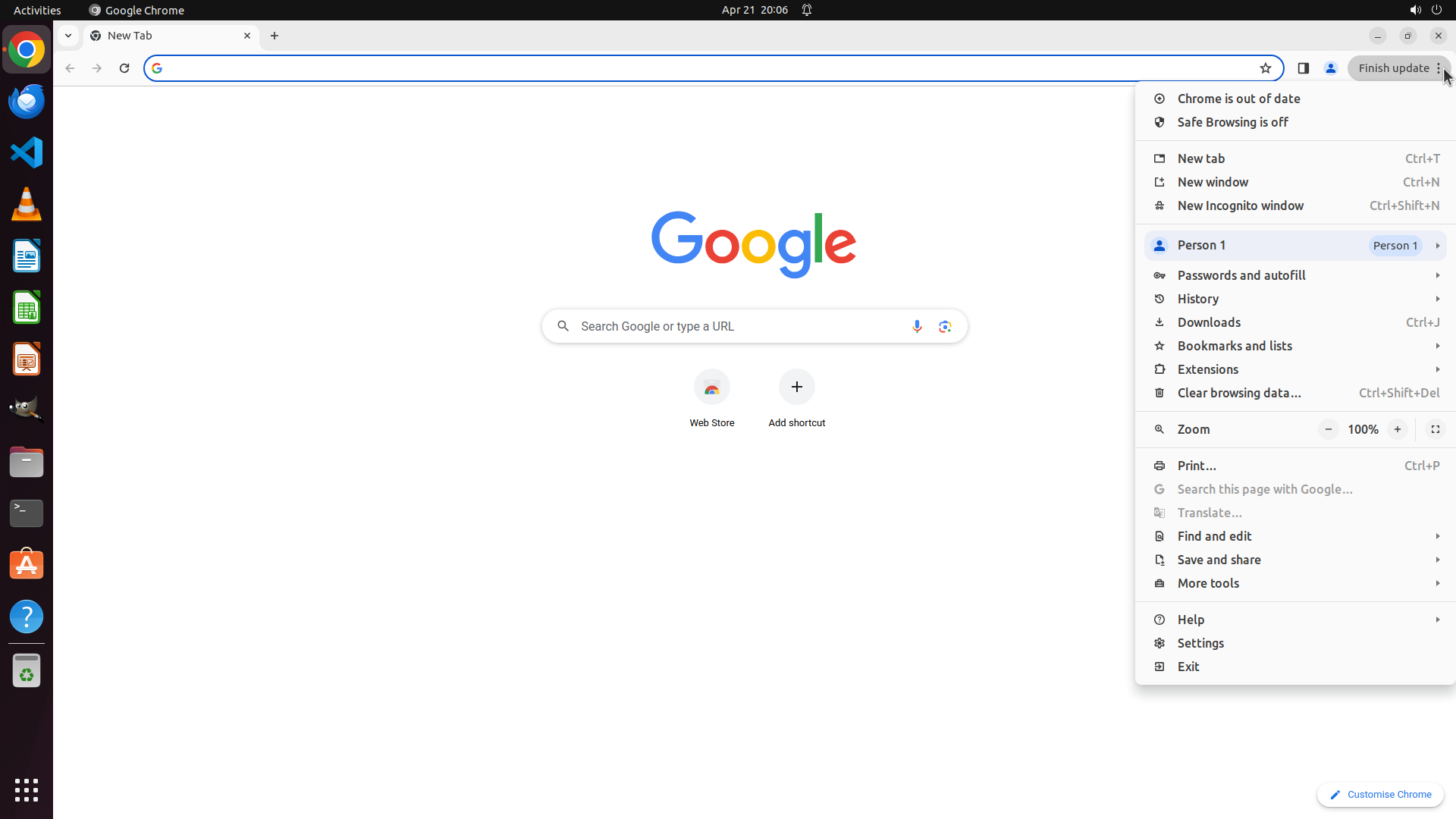
CLICK (1899, 85)
```
#### 重要信息
- Chrome浏览器已经打开,显示Google首页
- 右上角有一个"Can't update Chrome"的通知弹窗,需要关闭
- 任务需要启用Chrome的Safe Browsing功能来保护用户免受危险网站的威胁
#### 情况分析与思考过程
根据策略树,我需要:
1. 首先关闭更新通知弹窗(避免遮挡菜单)
2. 点击Chrome右上角的三点菜单
3. 选择Settings
4. 导航到Privacy and security > Security
5. 启用Safe Browsing(选择Standard protection或Enhanced protection)
现在需要先关闭通知弹窗,然后打开Chrome设置菜单。我会先关闭通知,再点击菜单按钮。
```
Step 1:
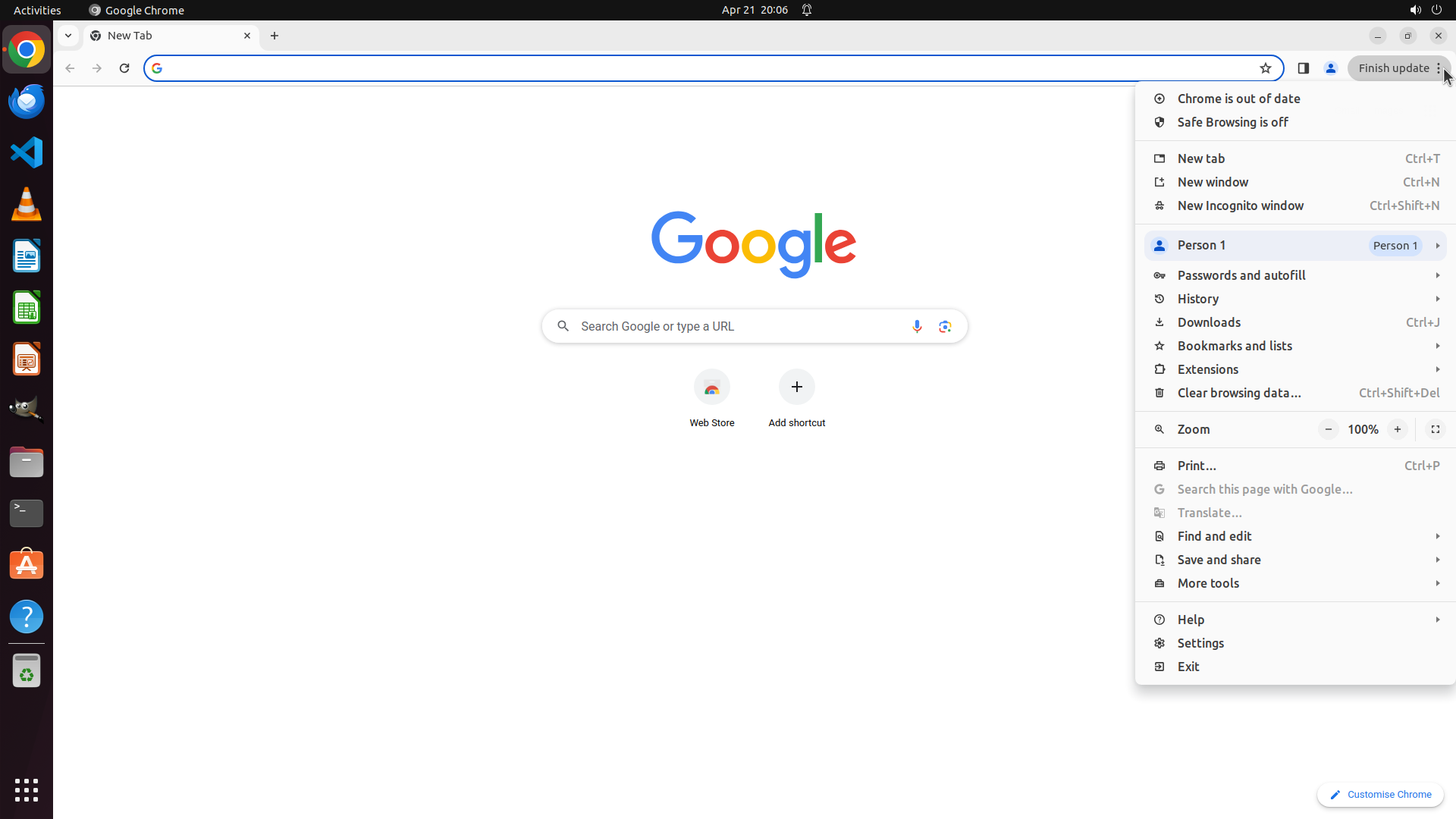
WAIT
```
#### 重要信息
- Chrome浏览器已经打开,显示Google首页
- 右上角有一个"Can't update Chrome"的通知弹窗,需要关闭
- 任务需要启用Chrome的Safe Browsing功能来保护用户免受危险网站的威胁
#### 情况分析与思考过程
根据策略树,我需要:
1. 首先关闭更新通知弹窗(避免遮挡菜单)
2. 点击Chrome右上角的三点菜单
3. 选择Settings
4. 导航到Privacy and security > Security
5. 启用Safe Browsing(选择Standard protection或Enhanced protection)
现在需要先关闭通知弹窗,然后打开Chrome设置菜单。我会先关闭通知,再点击菜单按钮。
```
Step 2:
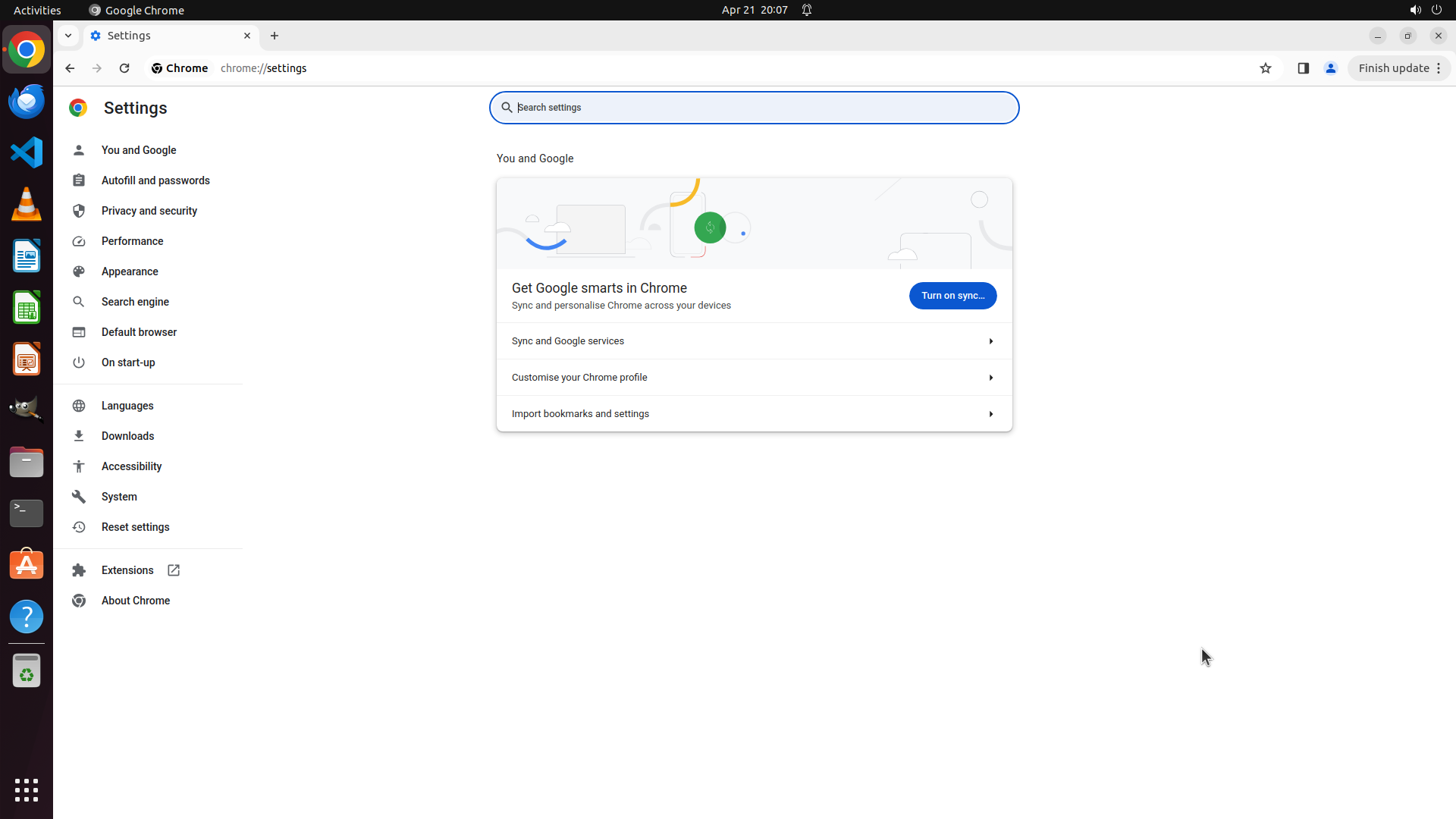
CLICK (1580, 850)
```
#### 重要信息
- Chrome菜单已成功打开,显示下拉菜单
- 菜单顶部显示"Safe Browsing is off"的警告,确认安全浏览功能当前已关闭
- 菜单中包含"Settings"选项,位于菜单底部附近
#### 情况分析与思考过程
上一步成功打开了Chrome的三点菜单。现在我可以看到:
1. 菜单已展开,显示所有Chrome选项
2. 顶部明确显示"Safe Browsing is off",这证实了我们需要启用这个功能
3. 接下来需要点击"Settings"进入设置页面
根据策略树计划:
- 1.1 点击三点菜单 ✓(已完成)
- 1.2 选择Settings(当前步骤)
- 然后导航到Privacy and security > Security
- 最后启用Safe Browsing
我需要点击菜单中的"Settings"选项来继续任务。
```
Step 3:
CLICK (196, 276)
```
#### 重要信息
- Chrome Settings页面已成功打开,显示在chrome://settings
- 左侧边栏显示多个设置选项,包括"Privacy and security"
- 当前页面显示"You and Google"部分的设置内容
- 需要点击"Privacy and security"来访问安全浏览设置
#### 情况分析与思考过程
上一步成功点击了Settings,现在Chrome设置页面已打开。根据策略树:
- 1.1 点击三点菜单 ✓
- 1.2 选择Settings ✓
- 2.1 点击"Privacy and security"(当前步骤)
- 2.2 点击"Security"
- 3.1 选择保护级别
我可以看到左侧边栏中有"Privacy and security"选项,需要点击它来进入隐私和安全设置页面,然后才能找到Safe Browsing选项。
```
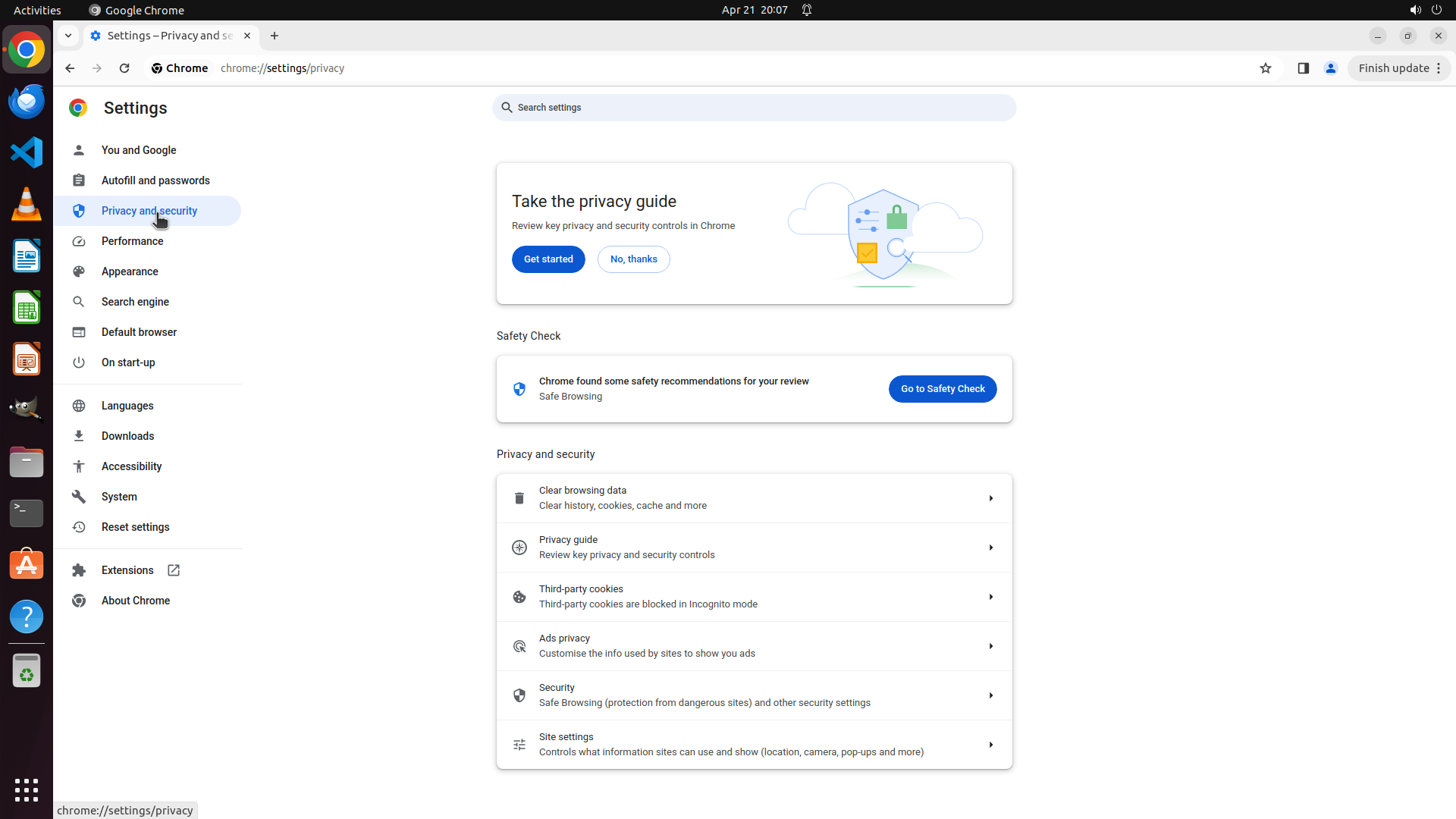
Step 4:
CLICK (735, 918)
```
#### 重要信息
- Chrome Settings页面已成功打开,当前显示"Privacy and security"部分
- 左侧边栏中"Privacy and security"已高亮显示
- 主内容区域显示多个隐私和安全选项,包括"Security"选项
- "Security"选项的描述明确提到"Safe Browsing (protection from dangerous sites) and other security settings"
- 需要点击"Security"来进入安全浏览设置页面
#### 情况分析与思考过程
上一步成功点击了"Privacy and security",现在页面已切换到隐私和安全设置。根据策略树:
- 1.1 点击三点菜单 ✓
- 1.2 选择Settings ✓
- 2.1 点击"Privacy and security" ✓
- 2.2 点击"Security"(当前步骤)
- 3.1 选择保护级别
我可以看到"Security"选项在页面中,描述文字明确提到"Safe Browsing (protection from dangerous sites)",这正是我们需要配置的功能。点击这个选项将带我进入安全浏览设置页面,在那里可以选择"Standard protection"或"Enhanced protection"来启用安全浏览功能。
```
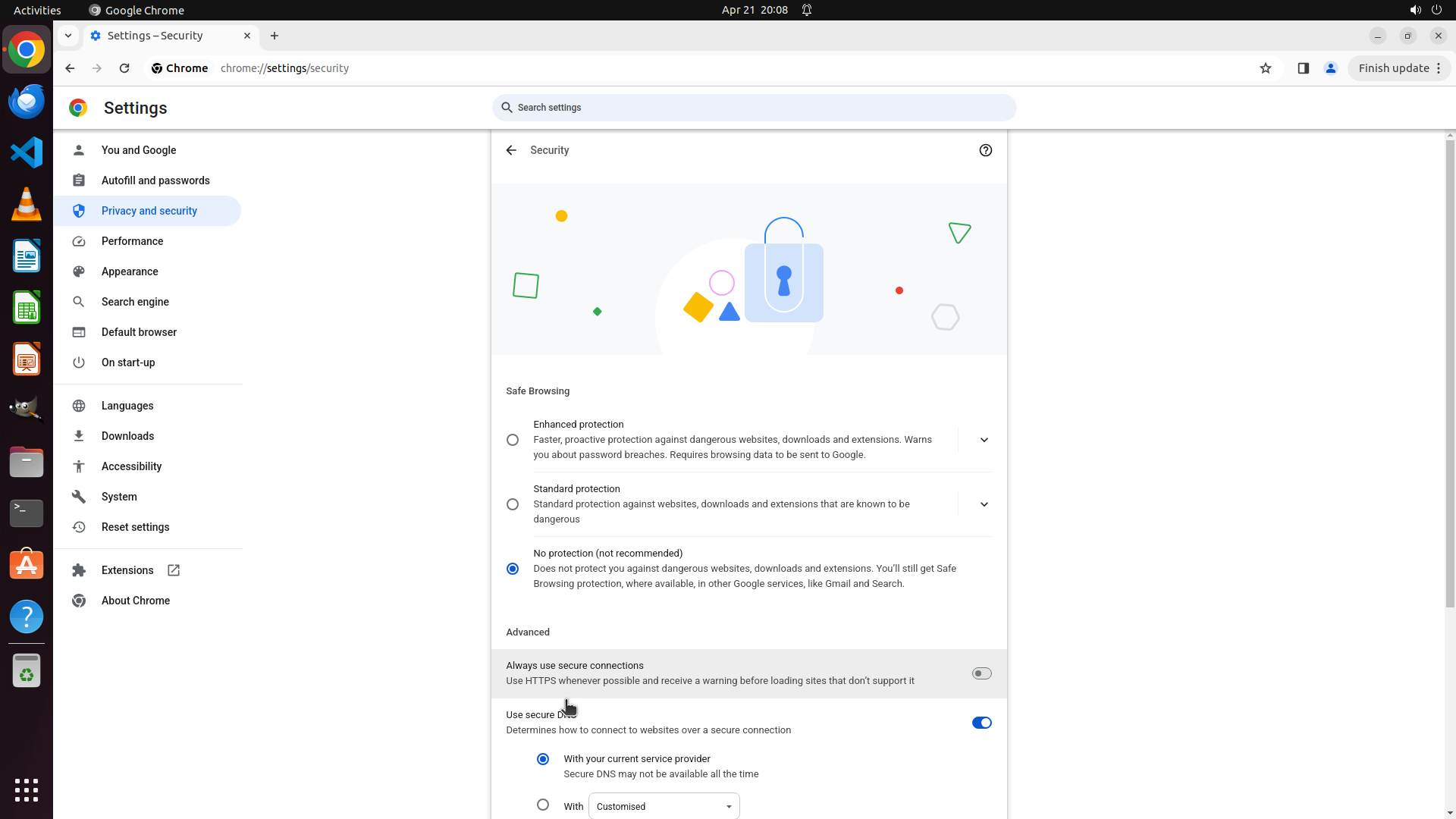
Step 5:
CLICK (676, 664)
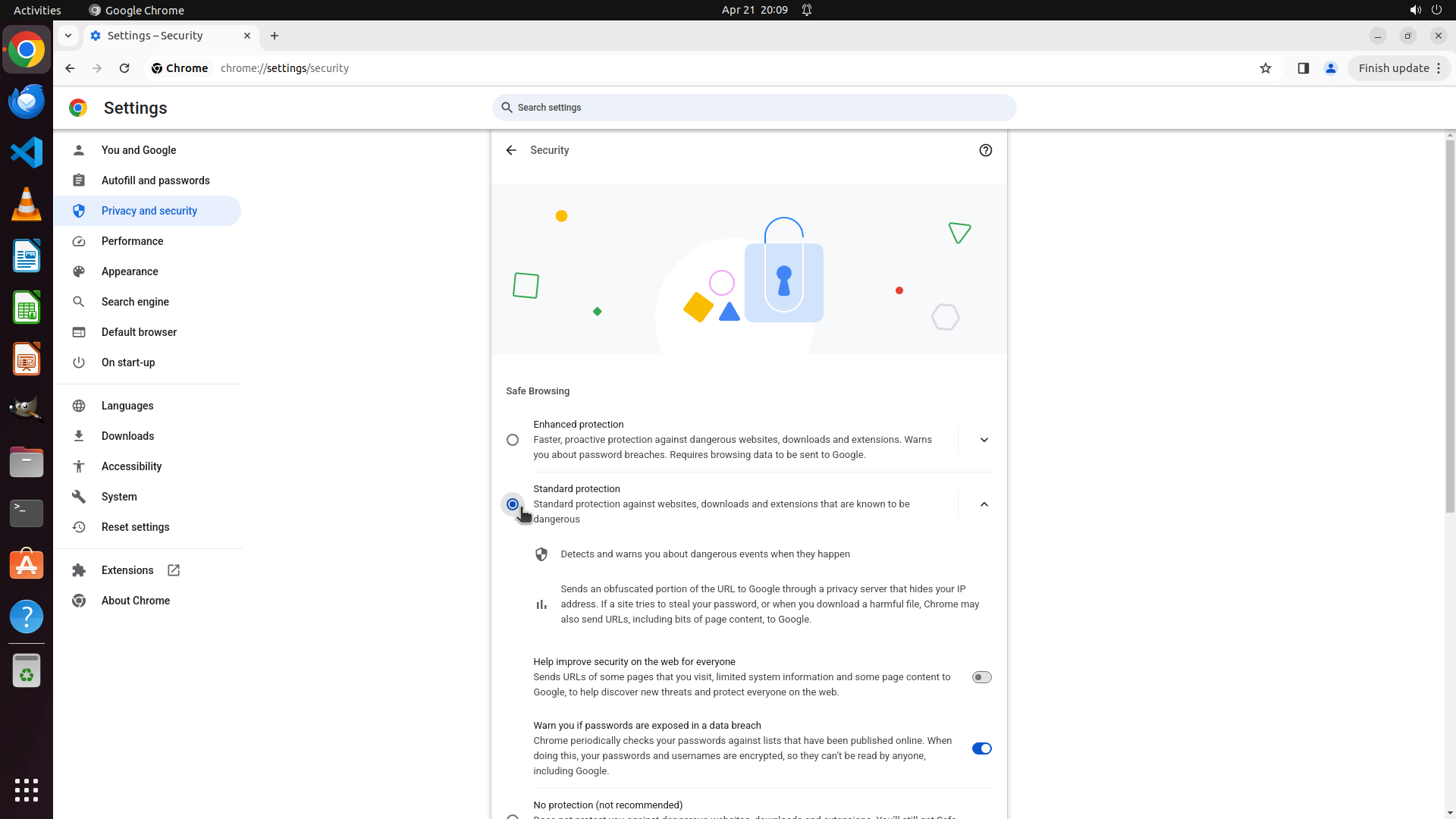
Step 6:
WAIT
```
#### 重要信息
- Chrome Settings页面已打开,当前显示Security设置页面(chrome://settings/security)
- Safe Browsing部分显示三个选项:Enhanced protection、Standard protection、No protection
- "Standard protection"选项的radio button已被选中(蓝色圆点)
- 描述文字显示:"Standard protection against websites, downloads and extensions that are known to be dangerous"
- 下方还有详细说明:"Detects and warns you about dangerous events when they happen"
#### 情况分析与思考过程
根据上一张截图(操作前),"No protection (not recommended)"是被选中的状态。上一步操作点击了"Standard protection"的radio button。
从当前截图可以看到:
- "Standard protection"现在已被选中(蓝色radio button)
- 这意味着Safe Browsing功能已成功启用
- 用户现在会在访问危险网站、下载危险文件或扩展时收到警告
任务目标已经达成!Chrome现在会警告用户访问潜在有害或不安全的网站。我需要更新策略树状态,标记所有任务为完成。
策略树状态更新:
- 1: Open Chrome Settings menu ✓
- 1.1: Click the three-dot menu ✓
- 1.2: Select 'Settings' ✓
- 2: Navigate to Security settings ✓
- 2.1: Click 'Privacy and security' ✓
- 2.2: Click 'Security' ✓
- 3: Enable Safe Browsing protection ✓
- 3.1: Select 'Standard protection' ✓
- 3.2: Verify setting is active ✓
```
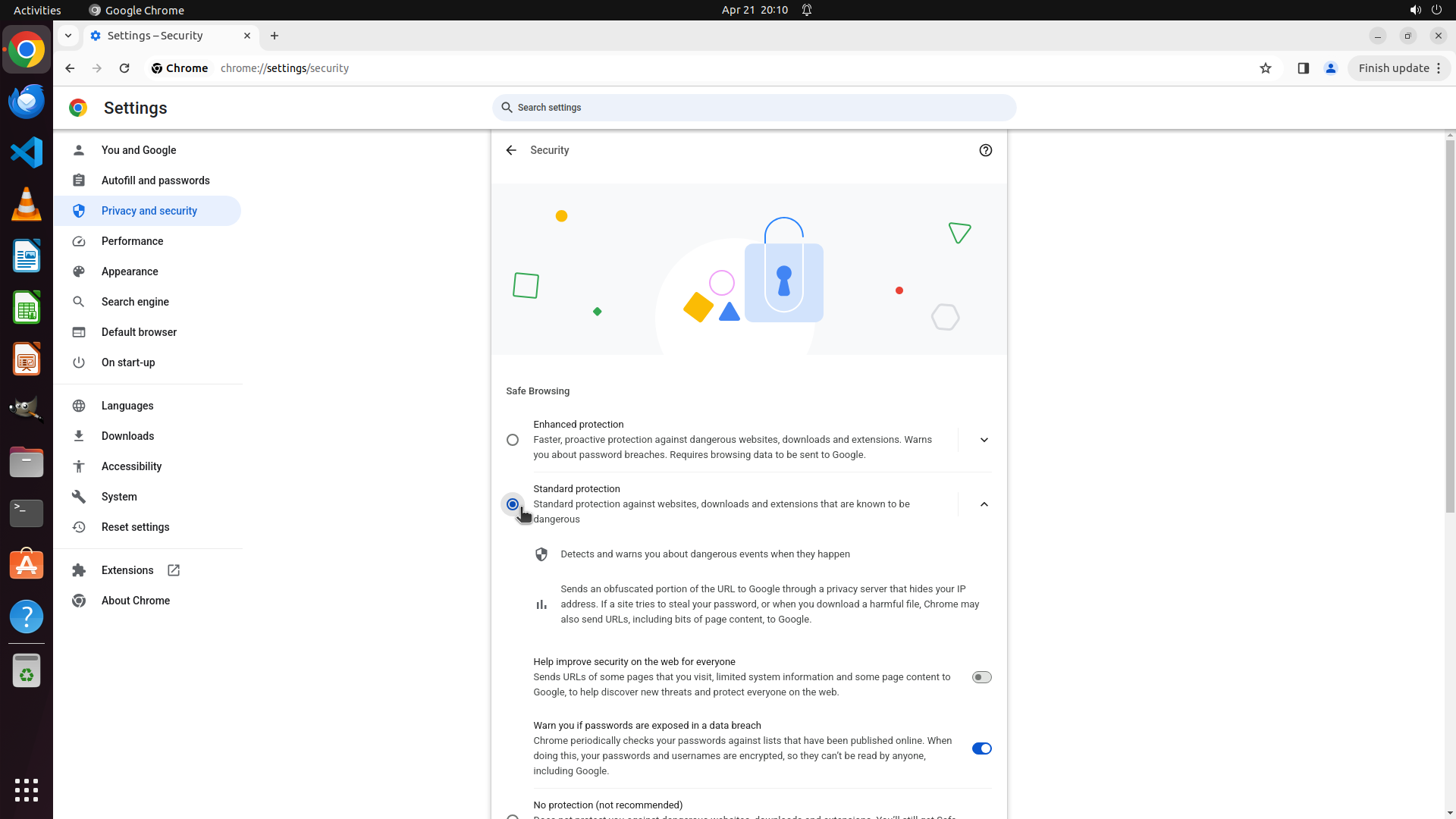
Step 7:
CLICK (324, 45)
```
#### 重要信息
- Chrome Settings页面已打开,显示Security设置(chrome://settings/security)
- Safe Browsing部分显示"Standard protection"已被选中(蓝色radio button)
- 描述文字确认:"Detects and warns you about dangerous events when they happen"
- 任务目标已达成:Chrome现在会在访问危险网站时发出警告
#### 情况分析与思考过程
根据当前截图,我可以看到:
1. "Standard protection"选项已被选中(蓝色radio button)
2. 页面明确显示该功能会"Detects and warns you about dangerous events when they happen"
3. 这意味着Safe Browsing功能已成功启用
任务已完成!用户要求启用Chrome的安全功能以在访问潜在有害网站时发出警告,现在该功能已通过"Standard protection"设置启用。
接下来我应该:
1. 更新策略树,将所有任务标记为成功
2. 关闭设置标签页以完成整个流程
策略树更新:
- 1: Open Chrome Settings menu - success
- 2: Navigate to Security settings - success
- 3: Enable Safe Browsing protection - success
- 3.1: Select protection level - success
- 3.2: Verify and close - 需要标记为success并关闭标签页
```

Step 8:
DONE DONE
STRATEGY ITEMS ALL DONE

Recording
![]()