```
#### 重要信息
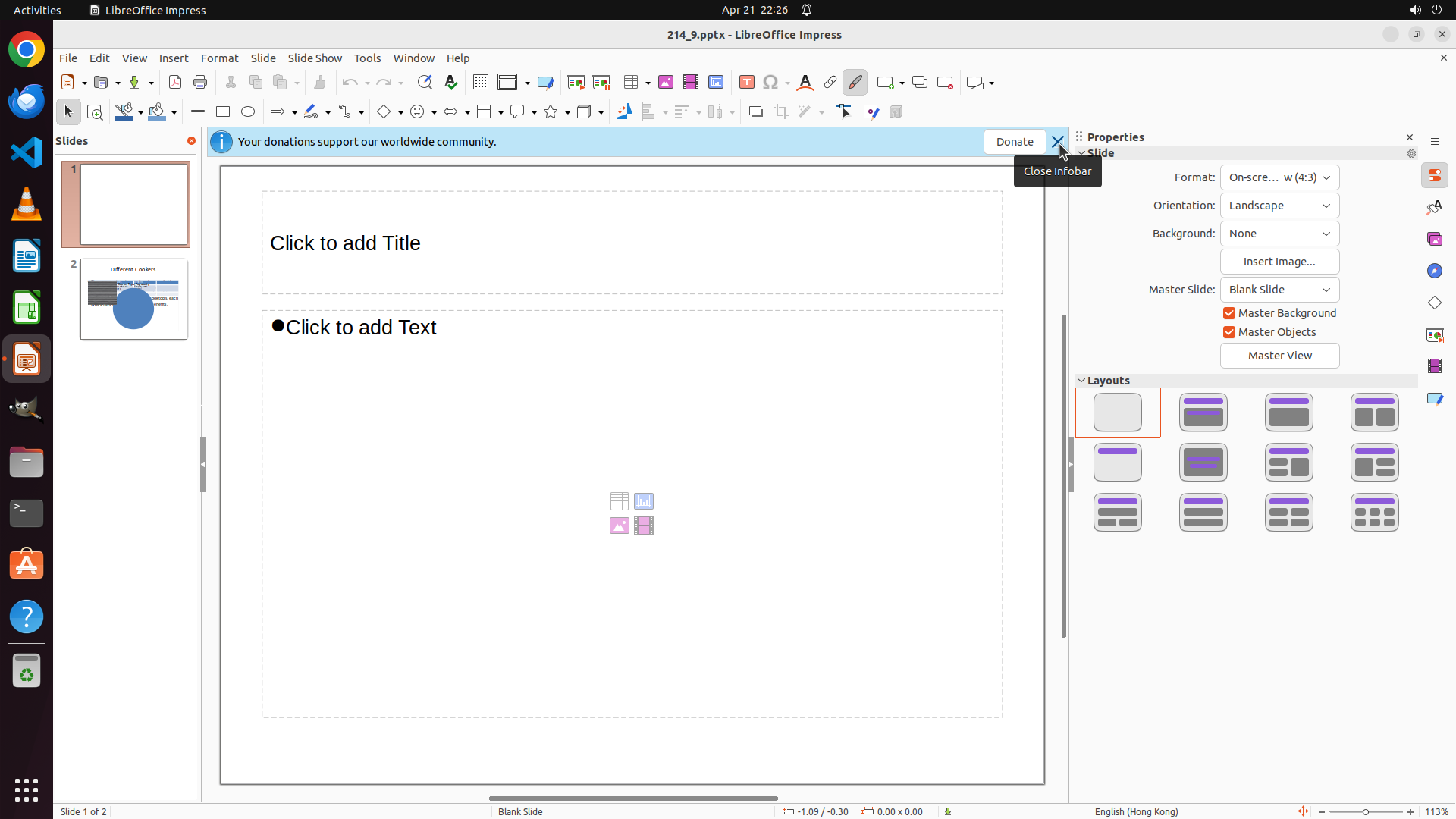
- LibreOffice Impress is open with a presentation file "214_9.pptx"
- Slide 1 is already selected in the left panel (highlighted with orange border)
- The main canvas shows slide 1 with a white background
- The Properties panel on the right shows "Background: None" with a dropdown
- There are notification banners at the top that might interfere with the interface
#### 情况分析与思考过程
The task is to move to slide 1 and give it a green background color. Currently:
- I'm already on slide 1 (it's selected in the left panel)
- The background is currently white/None
To change the background to green, I need to:
1. First, close the notification banners to have a cleaner workspace
2. Click on the "Background" dropdown in the Properties panel (currently showing "None")
3. Select a green color option
Let me start by closing the notification banners, then access the background settings.
```
Step 1: CLICK (1392, 184)
```
#### 重要信息
- LibreOffice Impress is open with a presentation file "214_9.pptx"
- Slide 1 is already selected in the left panel (highlighted with orange border)
- The main canvas shows slide 1 with a white background
- The Properties panel on the right shows "Background: None" with a dropdown
- There are notification banners at the top that might interfere with the interface
#### 情况分析与思考过程
The task is to move to slide 1 and give it a green background color. Currently:
- I'm already on slide 1 (it's selected in the left panel)
- The background is currently white/None
To change the background to green, I need to:
1. First, close the notification banners to have a cleaner workspace
2. Click on the "Background" dropdown in the Properties panel (currently showing "None")
3. Select a green color option
Let me start by closing the notification banners, then access the background settings.
```
Step 2: CLICK (1684, 306)
```
#### 重要信息
- LibreOffice Impress is open with presentation "214_9.pptx"
- Slide 1 is selected (highlighted with orange border in left panel)
- The Properties panel on the right shows "Background: None" with a dropdown menu
- The main canvas shows slide 1 with a white background
- No notification banners are visible (they may have been closed or weren't there)
#### 情况分析与思考过程
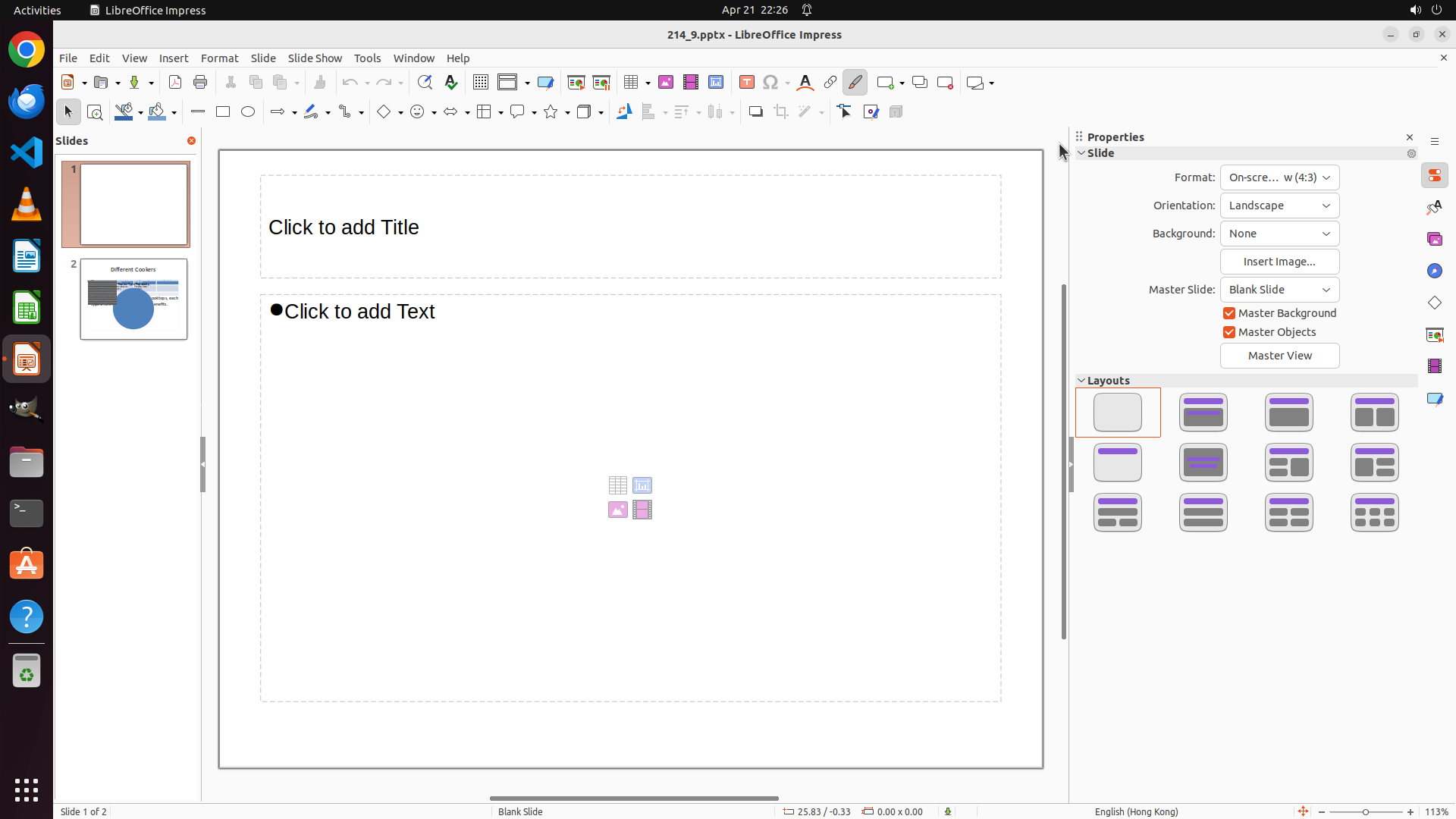
The previous action attempted to close notification banners, but I don't see any change - the interface looks the same. However, this doesn't prevent me from proceeding with the main task.
To change the slide background to green:
1. I need to click on the "Background" dropdown in the Properties panel (currently showing "None")
2. This should reveal background options including color choices
3. Select green color
Looking at the Properties panel on the right, I can see the "Background:" field with "None" displayed and a dropdown arrow. Clicking on this dropdown should open the background options where I can select a color.
Let me click on the Background dropdown to access the background settings.
```
Step 3: CLICK (1632, 357)
```
#### 重要信息
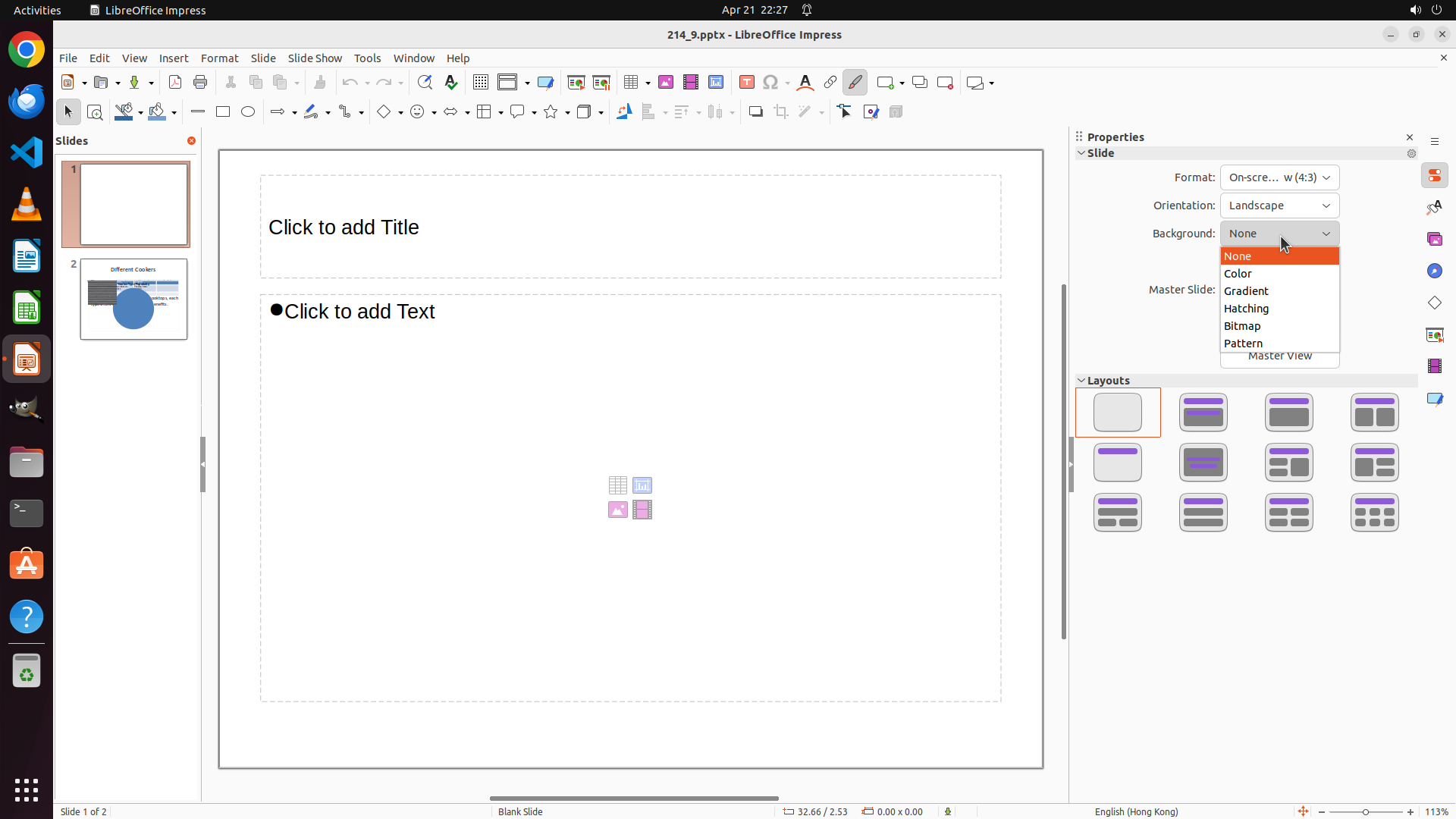
- The Background dropdown menu is now open showing options: None, Color, Gradient, Hatching, Bitmap, Pattern
- "None" is currently selected (highlighted in orange)
- Slide 1 is still selected in the left panel
- The main canvas still shows a white background
#### 情况分析与思考过程
The previous action successfully opened the Background dropdown menu. Now I can see the available background options. To set a green background color, I need to:
1. Click on "Color" from the dropdown menu
2. This should open a color picker where I can select green
The "Color" option is visible in the dropdown menu below "None". Clicking on it should allow me to access color selection options.
```
Step 4: CLICK (1761, 343)
```
#### 重要信息
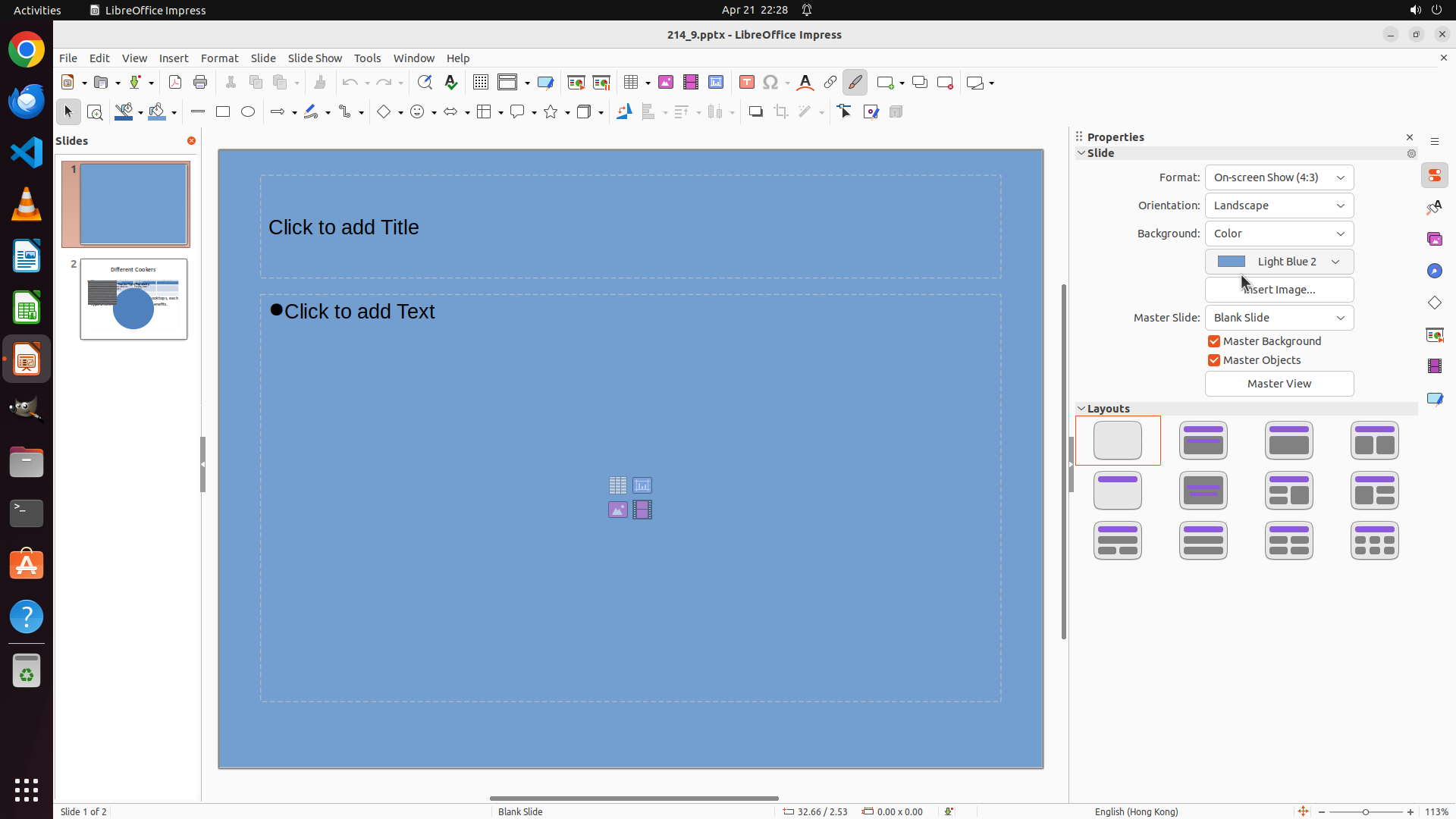
- The Background has been successfully changed from "None" to "Color"
- The current color is "Light Blue 2" as shown in the Properties panel
- The main slide canvas now displays a light blue background
- Slide 1 is selected in the left panel
- There is a color dropdown button next to "Light Blue 2" that I can click to change the color
#### 情况分析与思考过程
The previous action successfully changed the background type to "Color" and it automatically applied "Light Blue 2". However, the task requires a GREEN background, not blue.
To complete the task:
1. I need to click on the color dropdown (the button next to "Light Blue 2") to open the color picker
2. Select a green color from the available options
The color dropdown button appears to be located to the right of the "Light Blue 2" text in the Properties panel. Clicking on it should open a color palette where I can select green.
```
Step 5: CLICK (1782, 429)
```
#### 重要信息
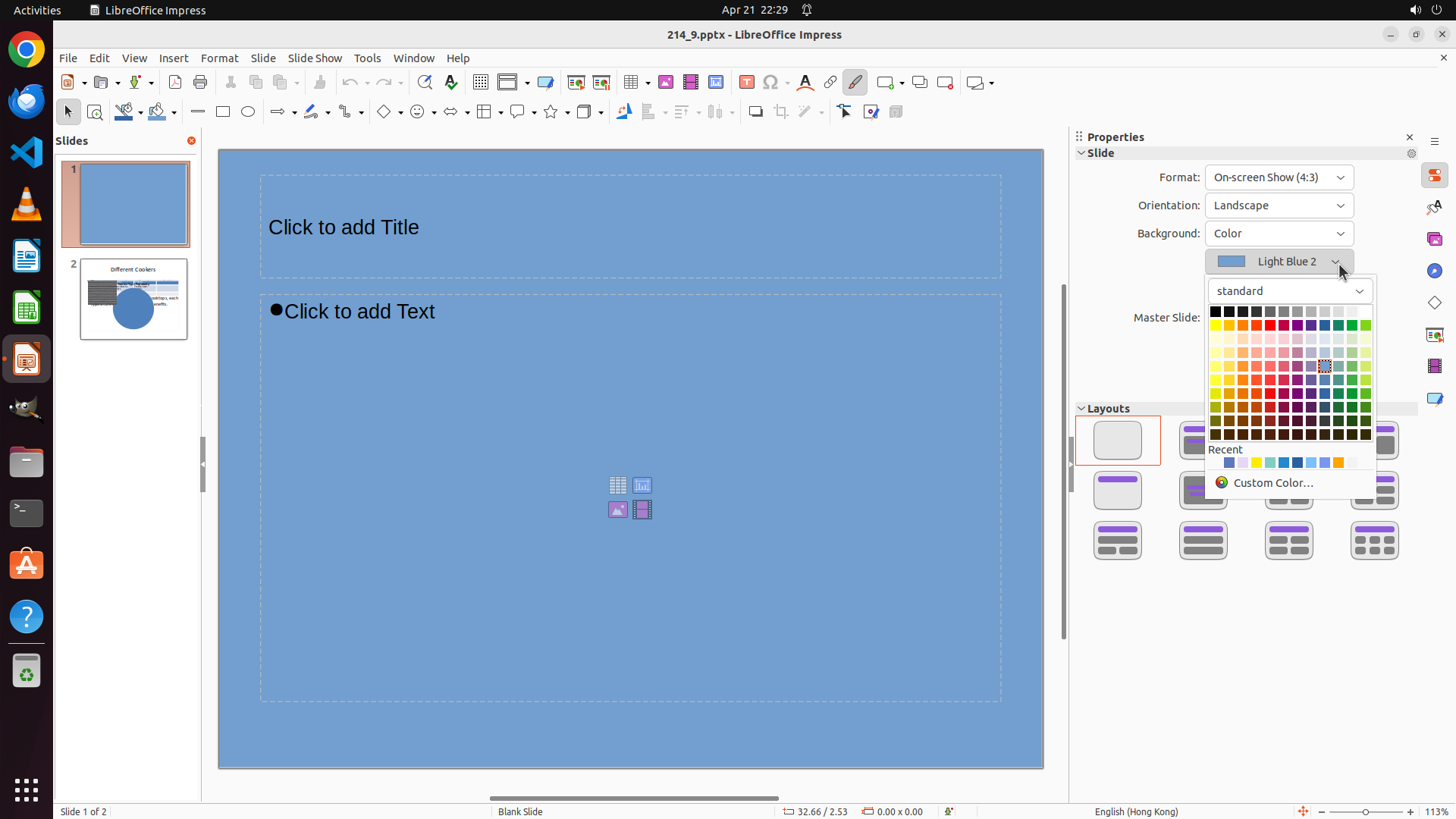
- The color picker palette is now open showing a grid of colors
- The current background color is "Light Blue 2" (blue)
- There are multiple green color options available in the palette
- I can see green colors in the right section of the color grid
- Slide 1 is still selected in the left panel
#### 情况分析与思考过程
The previous action successfully opened the color picker. Now I need to select a green color from the palette to complete the task. Looking at the color grid, I can see several green options. I should select a clear, vibrant green color that will be easily recognizable as green.
I can see green colors in the palette - there appear to be various shades of green in the right portion of the color grid. I'll select a medium green color that is clearly green.
After clicking on a green color:
1. The color picker should close
2. The background should change from blue to green
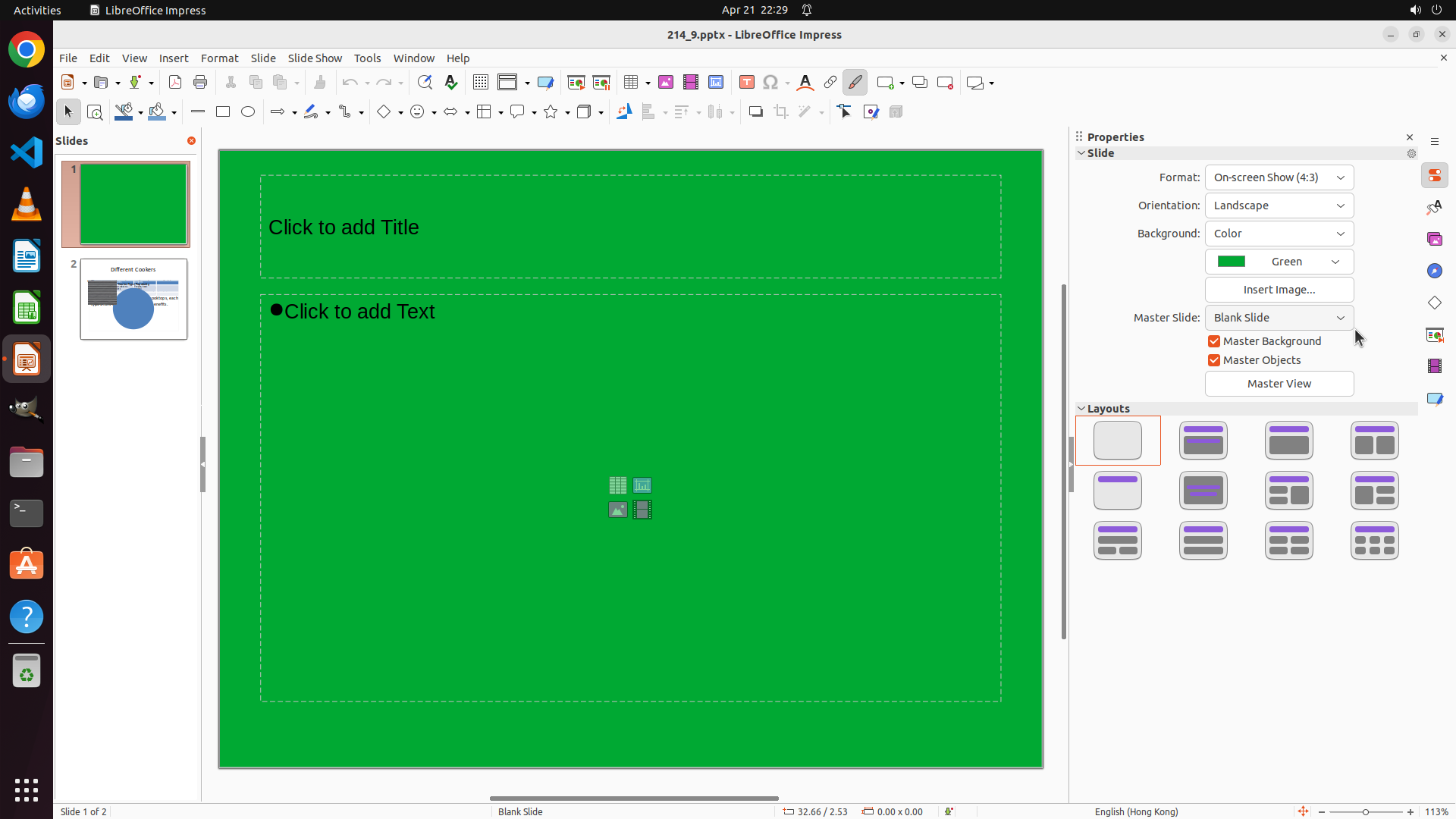
3. The slide thumbnail in the left panel should update to show green
4. The Properties panel should show the selected green color name
Let me click on one of the green color swatches in the palette.
```