```
#### 重要信息
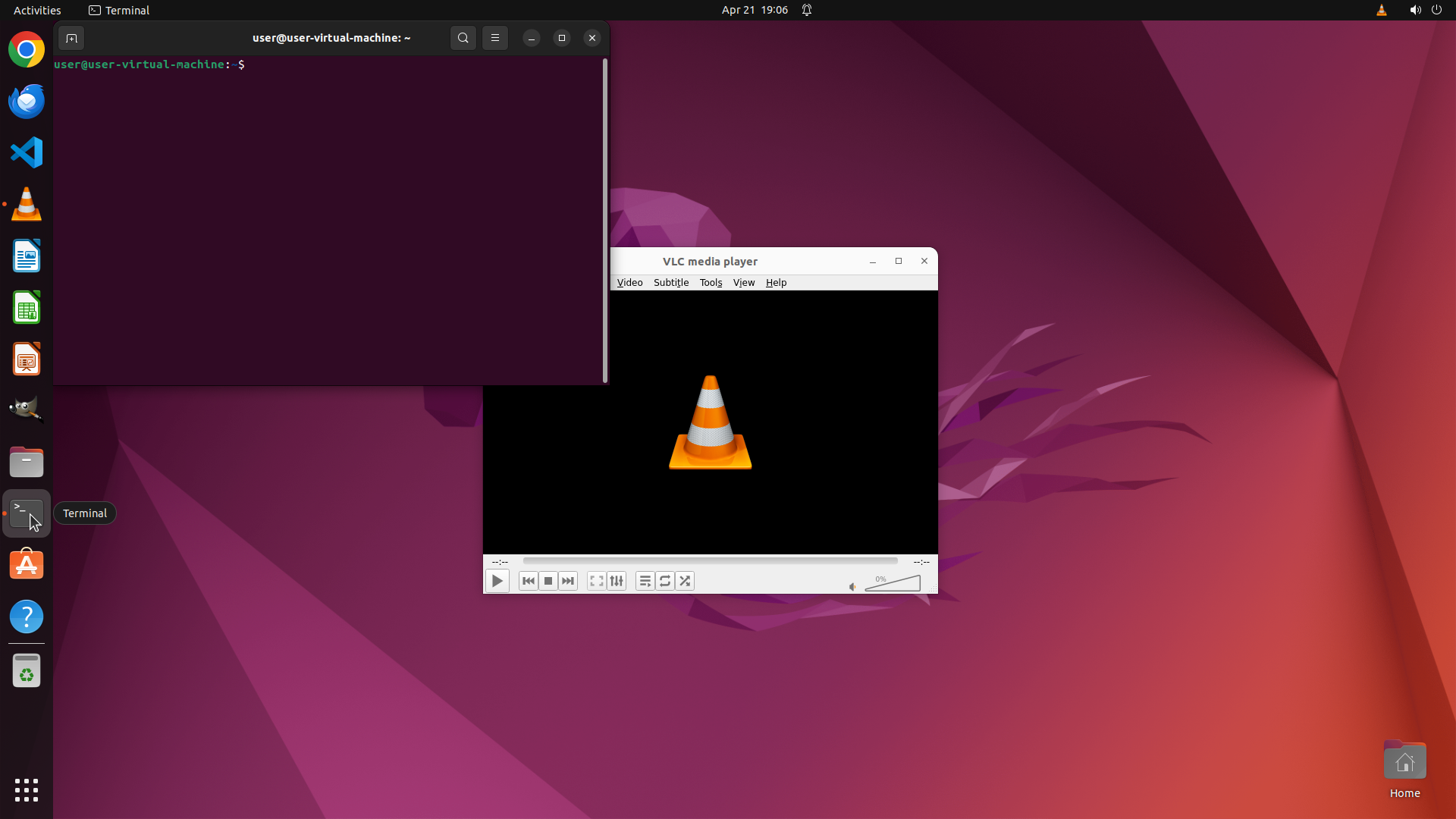
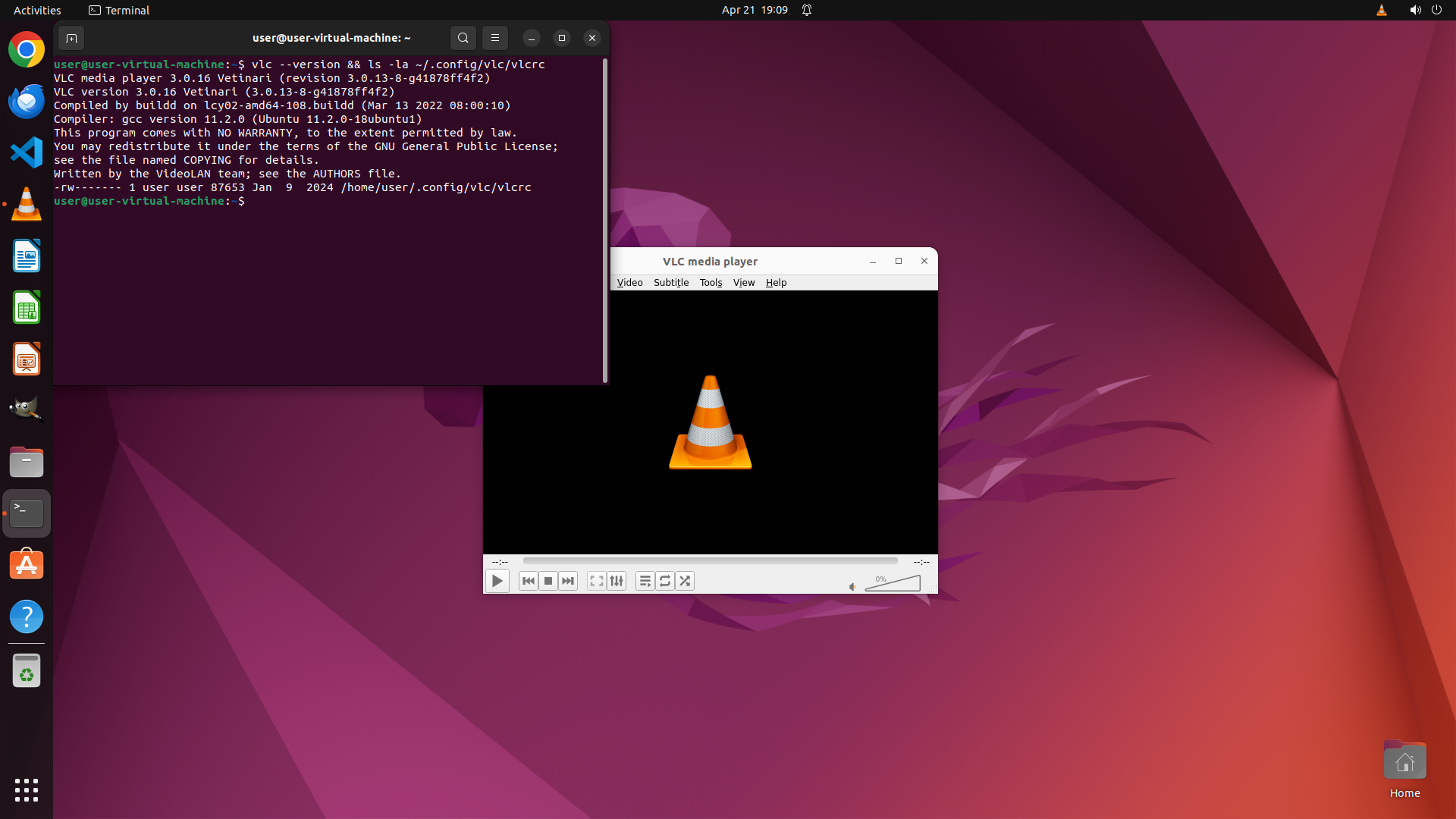
1. VLC media player is currently running with the full interface - the bottom playback control bar is clearly visible with play/pause buttons, progress slider, and volume controls.
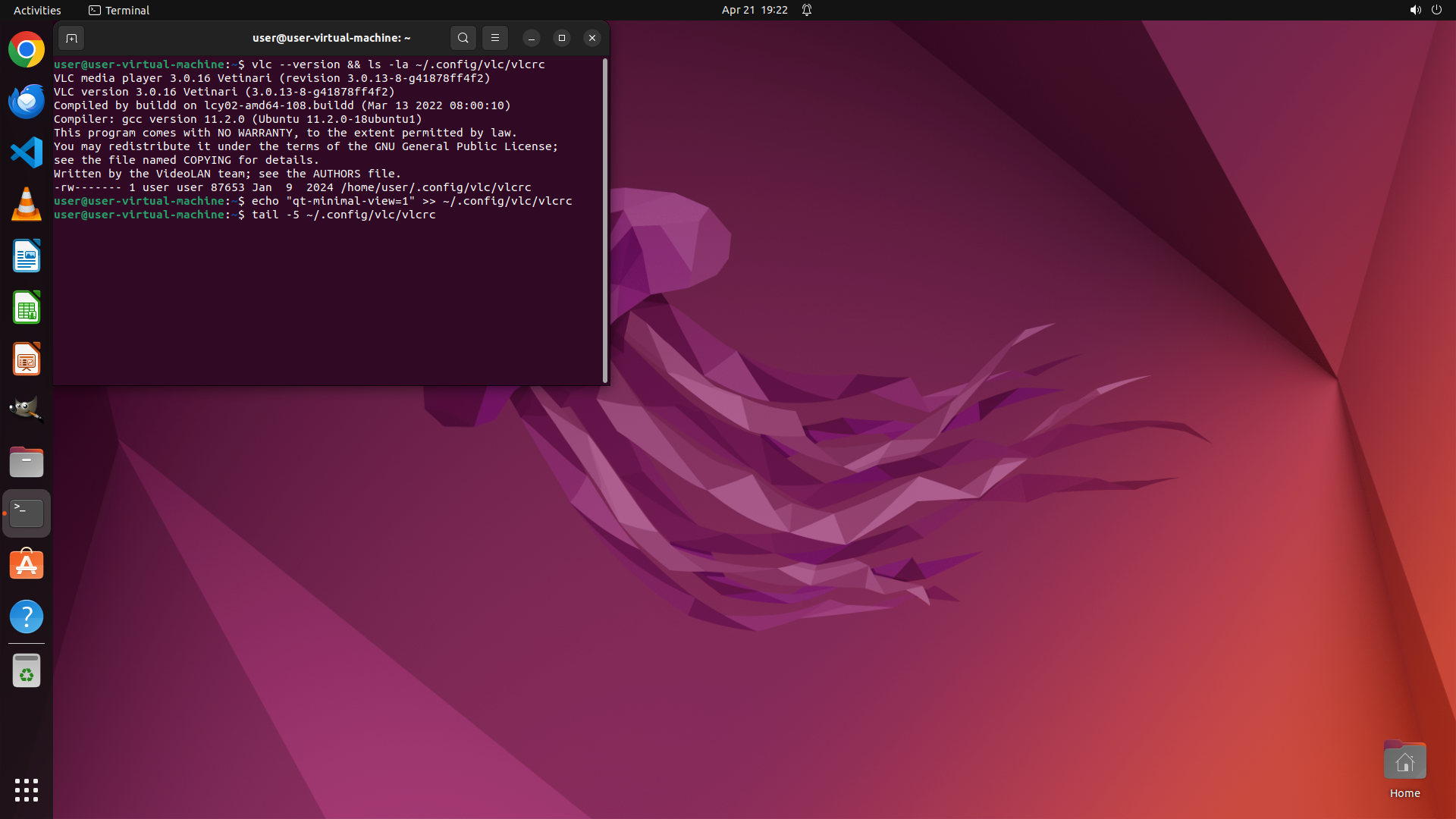
2. A terminal window is open showing VLC version (3.0.16) and confirming the VLC configuration file exists at `/home/user/.config/vlc/vlcrc` with read/write permissions for the user.
3. The configuration file already exists, so I just need to modify it to add the minimal interface setting.
#### 情况分析与思考过程
To enable VLC's minimal interface and hide the bottom playback controls, I need to:
1. First close VLC (the configuration file should be edited while VLC is not running to ensure changes persist)
2. Edit the VLC configuration file at `~/.config/vlc/vlcrc` to add `qt-minimal-view=1`
3. Restart VLC and verify the minimal interface is active
The first step is to close VLC by clicking the X button on the VLC window. This will allow me to safely modify the configuration file.
```
Step 5: CLICK (449, 300)
```
#### 重要信息
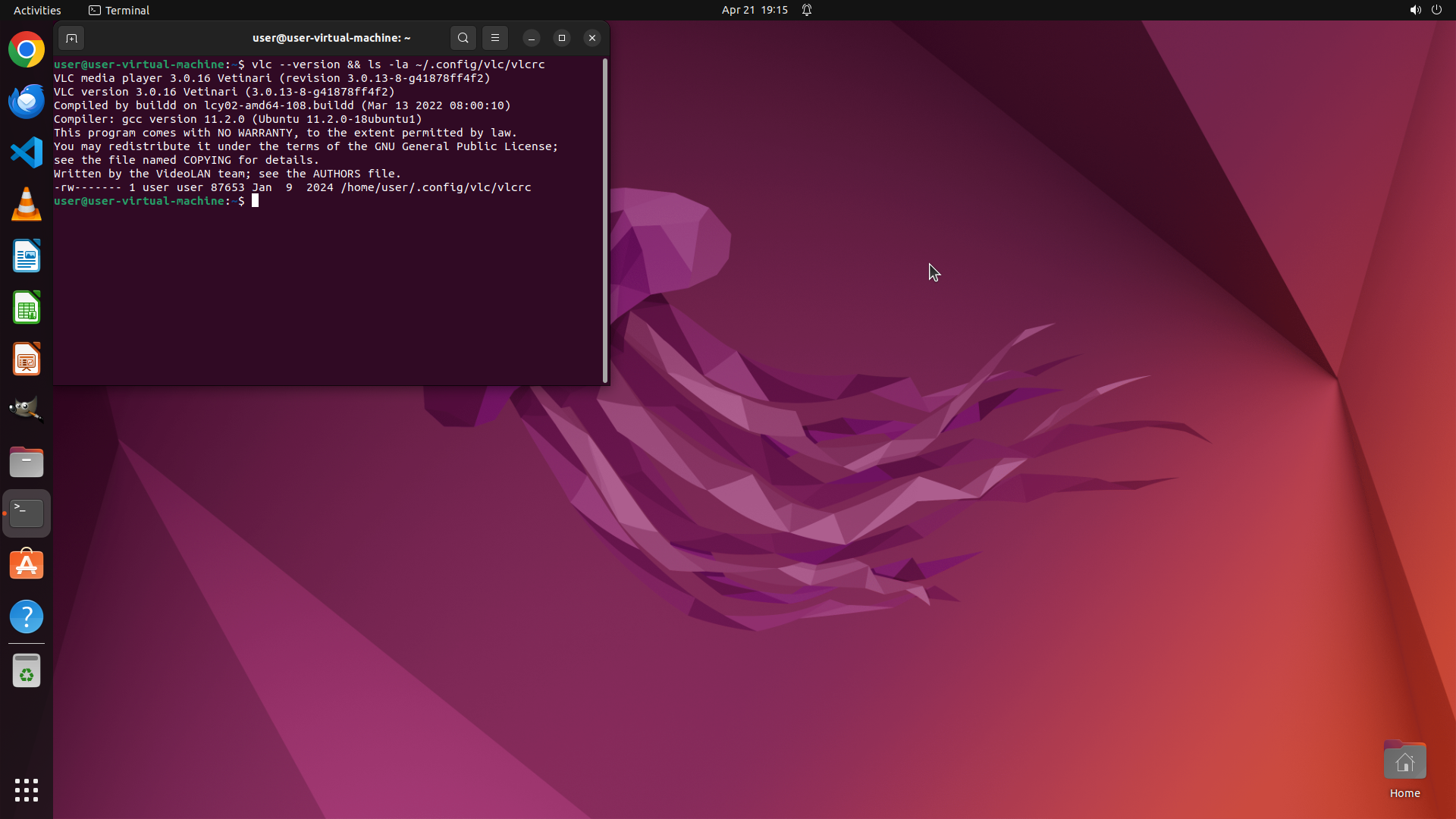
1. VLC has been successfully closed - the VLC window is no longer visible on the screen.
2. Only the terminal window remains open, showing the previous command output confirming VLC version and configuration file location.
3. The configuration file exists at `/home/user/.config/vlc/vlcrc` with proper permissions.
#### 情况分析与思考过程
VLC has been closed successfully. Now I need to:
1. Edit the VLC configuration file at `~/.config/vlc/vlcrc` to add `qt-minimal-view=1`
2. Then restart VLC to verify the minimal interface works
I can use the already open terminal to edit the configuration file. I'll use echo command to append the setting to the file. First, let me click on the terminal to ensure it's focused, then type the command.
```
```
#### 重要信息
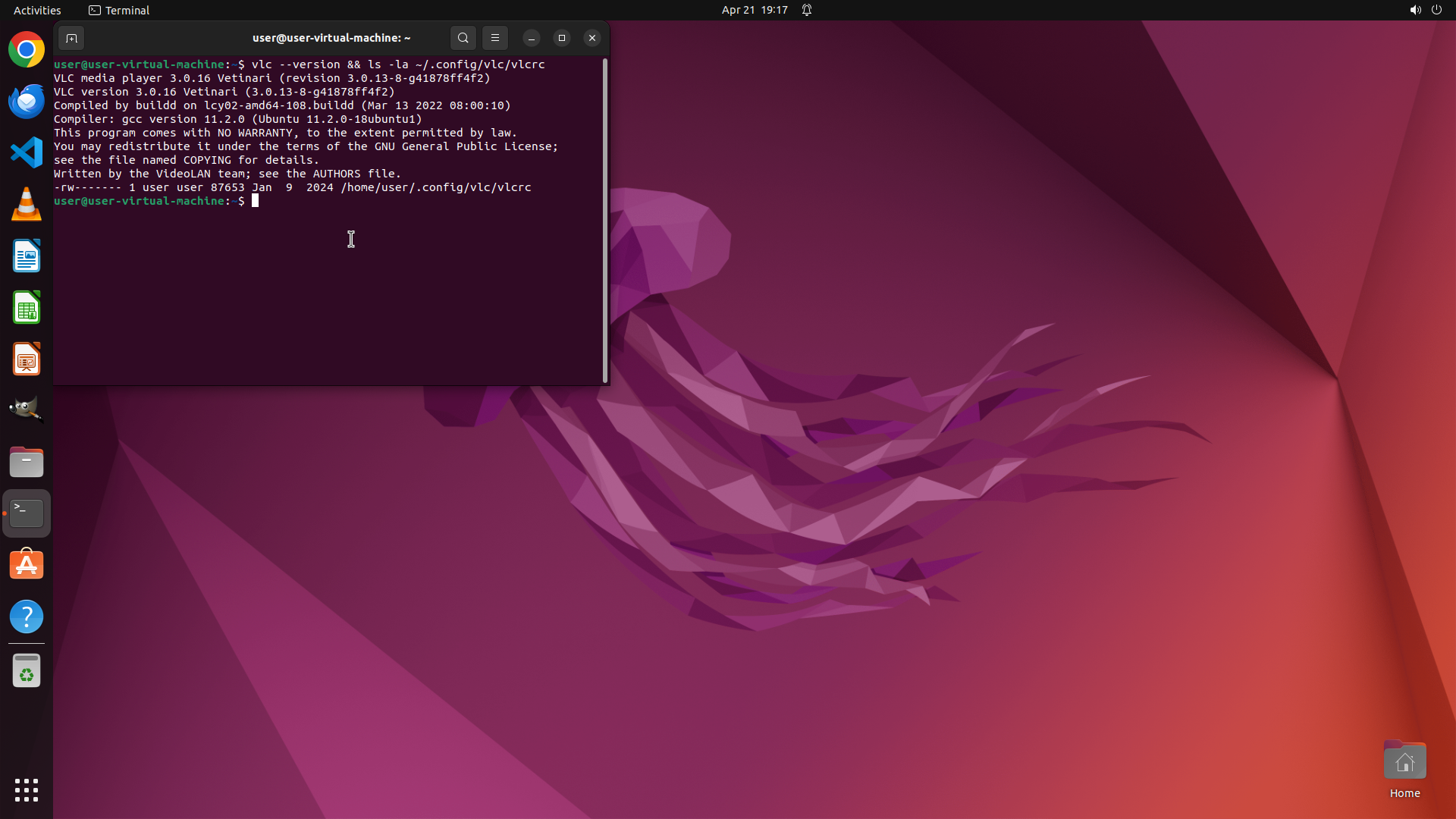
1. The terminal is now focused and ready for input, showing the command prompt.
2. VLC is closed and the configuration file exists at `/home/user/.config/vlc/vlcrc`.
3. I need to add the `qt-minimal-view=1` setting to the VLC configuration file.
#### 情况分析与思考过程
Now I need to add the minimal interface setting to the VLC configuration file. I'll use the echo command to append `qt-minimal-view=1` to the `~/.config/vlc/vlcrc` file. This will enable the minimal interface mode that hides the bottom playback controls.
After adding the setting, I'll need to:
1. Verify the setting was added correctly (optional but good practice)
2. Restart VLC to test the minimal interface
3. Verify the bottom controls are hidden
4. Close and reopen VLC again to confirm the setting persists
Let me type the command to add the setting to the configuration file.
```
Step 7: HOTKEY
```
#### 重要信息
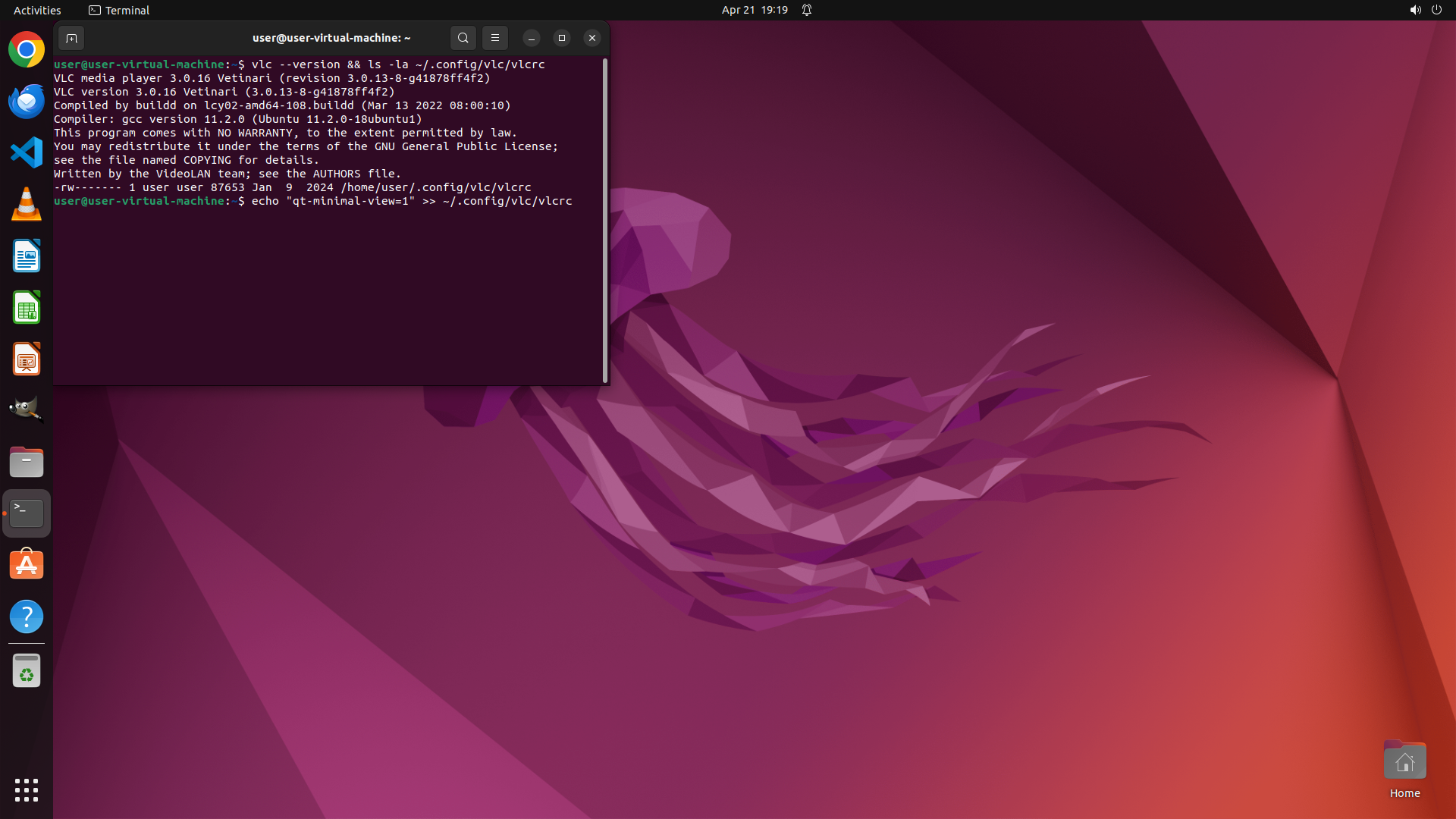
1. The terminal is focused and the command `echo "qt-minimal-view=1" >> ~/.config/vlc/vlcrc` has been typed but not yet executed.
2. I can see the command is ready to be executed in the terminal window.
3. VLC is currently closed, which is the correct state for modifying the configuration file.
#### 情况分析与思考过程
The command to add the minimal interface setting has been typed in the terminal. Now I need to execute it by pressing Enter. This will append `qt-minimal-view=1` to the VLC configuration file at `~/.config/vlc/vlcrc`.
After executing this command, I'll need to:
1. Restart VLC to test if the minimal interface is working (bottom controls should be hidden)
2. Verify the setting persists after closing and reopening VLC
Let me press Enter to execute the command.
```
Step 8: TYPING "tail -5 ~/.config/vlc/vlcrc"
```
#### 重要信息
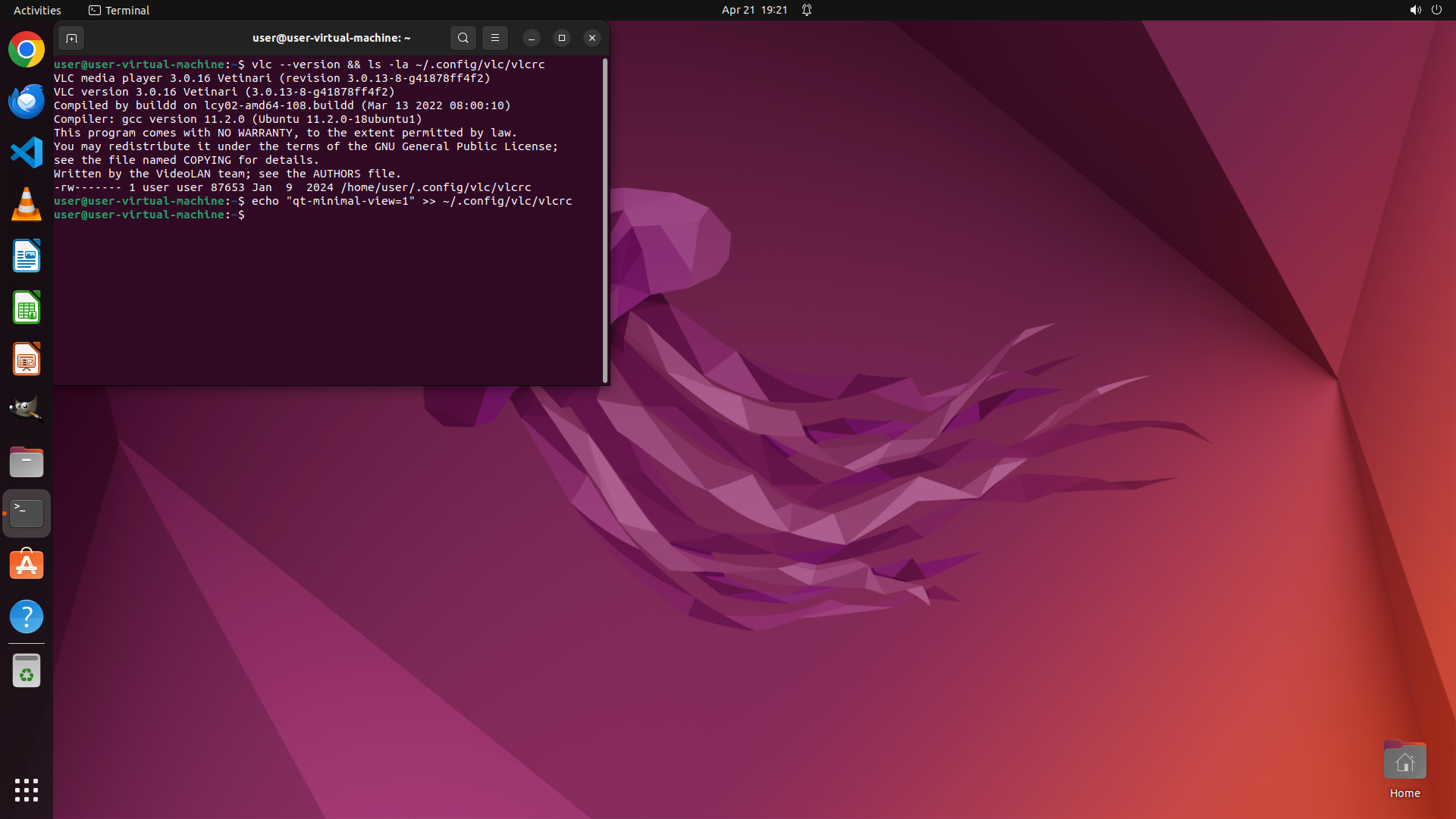
1. The command has been executed successfully - the terminal shows the command prompt has returned without errors.
2. The command `echo "qt-minimal-view=1" >> ~/.config/vlc/vlcrc` should have appended the minimal interface setting to the VLC configuration file.
3. VLC is still closed, which is the correct state before restarting it with the new configuration.
#### 情况分析与思考过程
The configuration file has been modified. Now I need to:
1. Verify the setting was added correctly to the configuration file (optional but good practice)
2. Restart VLC to test the minimal interface
3. Verify the bottom playback controls are hidden
4. Close and reopen VLC to confirm the setting persists
Let me first verify the configuration change by checking the end of the vlcrc file, then restart VLC. I'll use `tail` command to check the last few lines of the configuration file to confirm the setting was added.
```
Step 8: HOTKEY
```
#### 重要信息
1. The command has been executed successfully - the terminal shows the command prompt has returned without errors.
2. The command `echo "qt-minimal-view=1" >> ~/.config/vlc/vlcrc` should have appended the minimal interface setting to the VLC configuration file.
3. VLC is still closed, which is the correct state before restarting it with the new configuration.
#### 情况分析与思考过程
The configuration file has been modified. Now I need to:
1. Verify the setting was added correctly to the configuration file (optional but good practice)
2. Restart VLC to test the minimal interface
3. Verify the bottom playback controls are hidden
4. Close and reopen VLC to confirm the setting persists
Let me first verify the configuration change by checking the end of the vlcrc file, then restart VLC. I'll use `tail` command to check the last few lines of the configuration file to confirm the setting was added.
```
Step 9: TYPING "vlc"
```
#### 重要信息
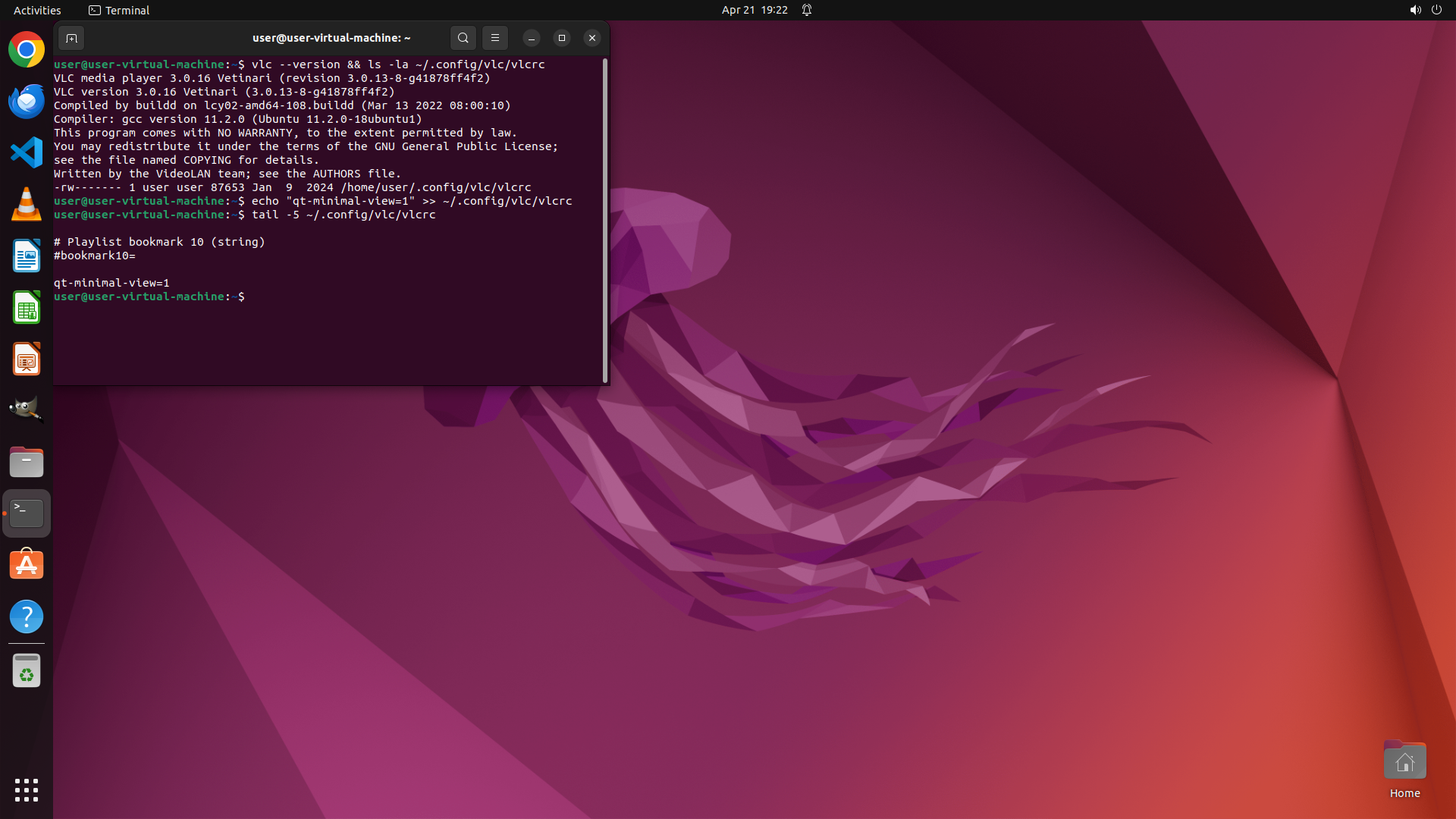
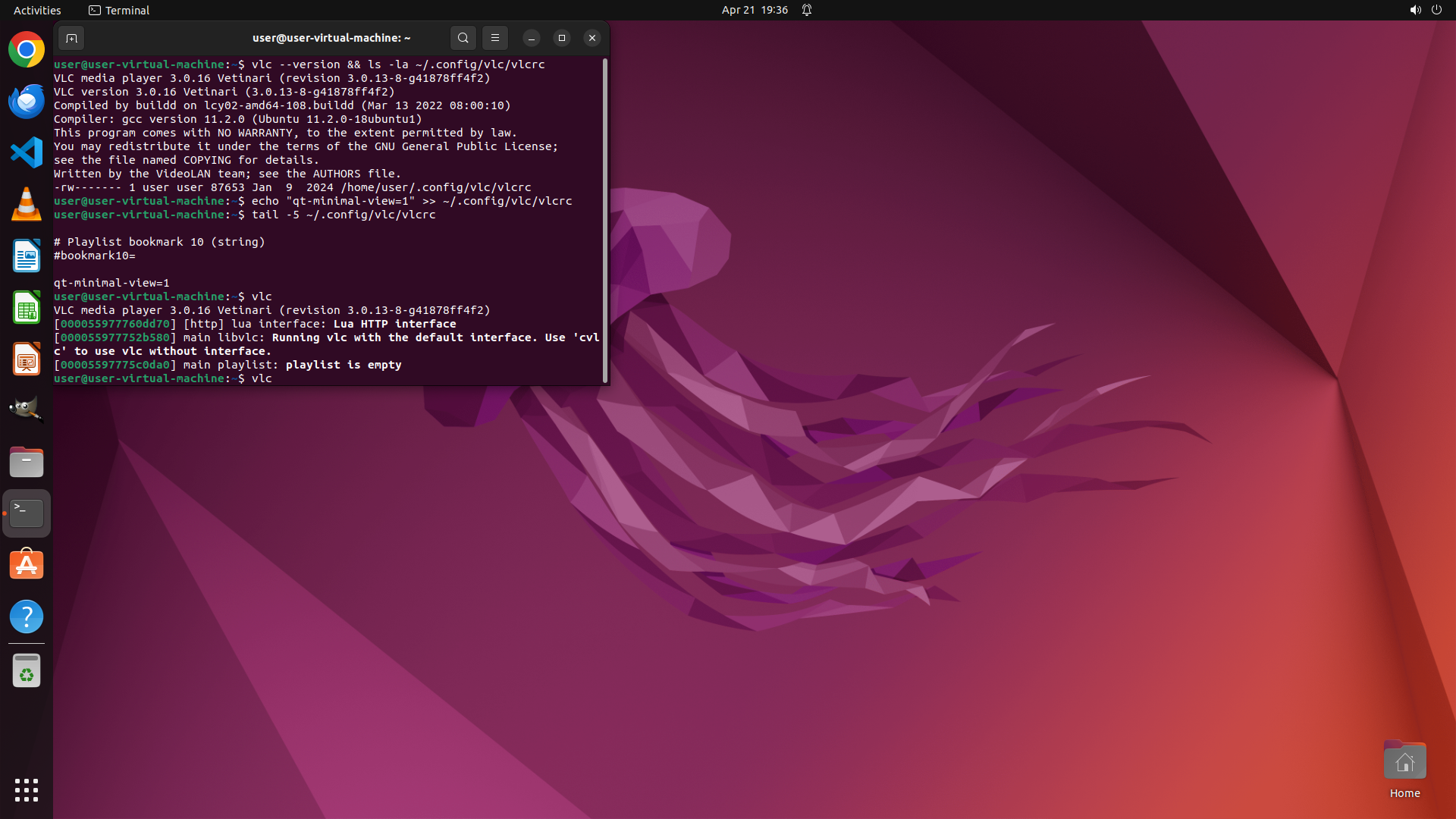
1. The terminal shows the output of `tail -5 ~/.config/vlc/vlcrc` command, confirming that `qt-minimal-view=1` has been successfully added to the VLC configuration file.
2. The last line of the output clearly shows `qt-minimal-view=1`, which means the minimal interface setting is now configured.
3. VLC is still closed, and I need to restart it to test if the minimal interface works.
#### 情况分析与思考过程
The configuration has been successfully modified. The `qt-minimal-view=1` setting is now in the VLC configuration file. Now I need to:
1. Start VLC to verify the minimal interface is active (bottom playback controls should be hidden)
2. Verify the setting persists by closing and reopening VLC
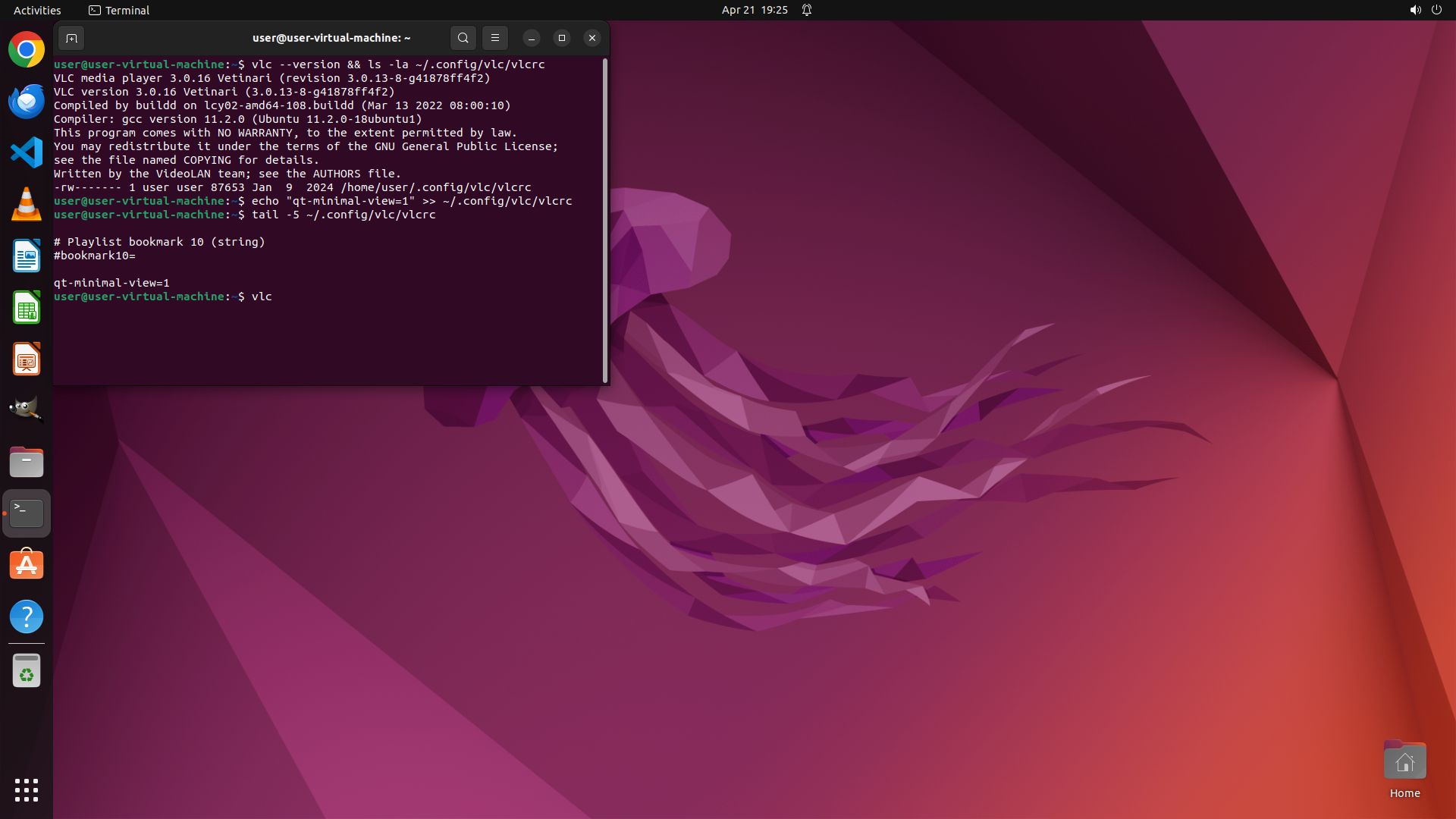
Let me start VLC from the terminal to see the minimal interface in action.
```
Step 9: HOTKEY
```
#### 重要信息
1. The terminal shows the output of `tail -5 ~/.config/vlc/vlcrc` command, confirming that `qt-minimal-view=1` has been successfully added to the VLC configuration file.
2. The last line of the output clearly shows `qt-minimal-view=1`, which means the minimal interface setting is now configured.
3. VLC is still closed, and I need to restart it to test if the minimal interface works.
#### 情况分析与思考过程
The configuration has been successfully modified. The `qt-minimal-view=1` setting is now in the VLC configuration file. Now I need to:
1. Start VLC to verify the minimal interface is active (bottom playback controls should be hidden)
2. Verify the setting persists by closing and reopening VLC
Let me start VLC from the terminal to see the minimal interface in action.
```
Step 10: CLICK (1221, 343)
Step 11: CLICK (36, 271)
Step 12: CLICK (1221, 343)
```
#### 重要信息
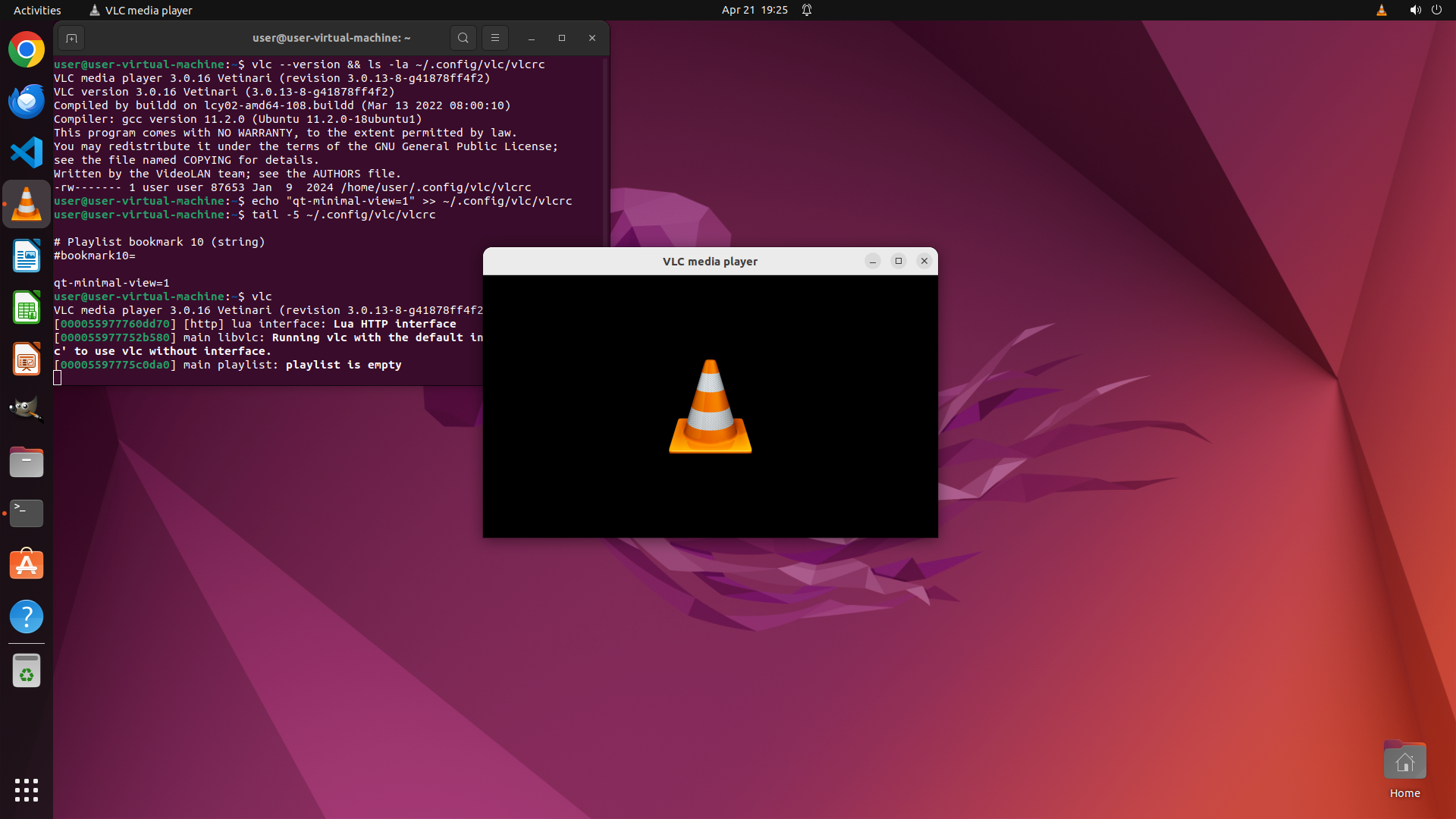
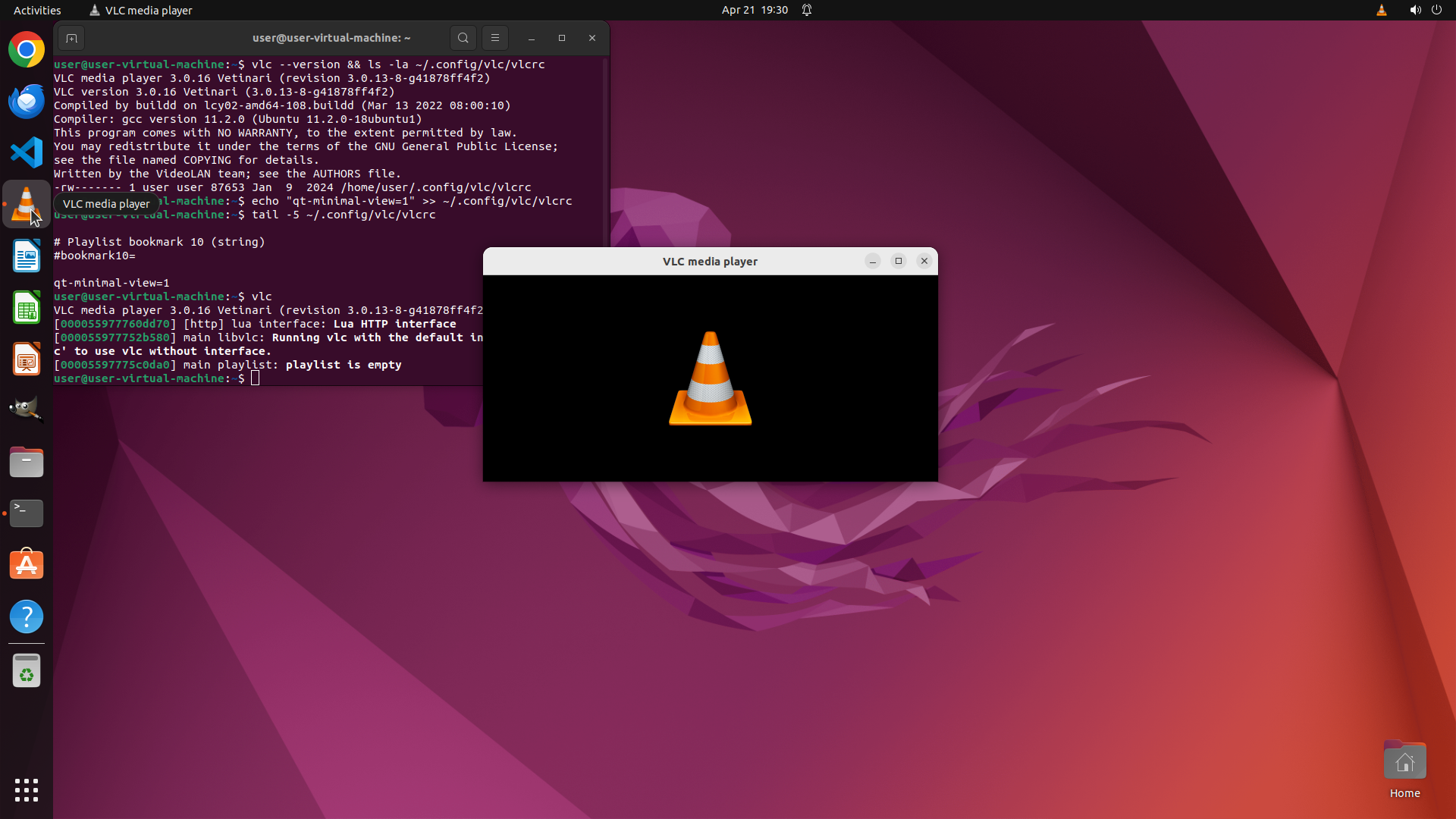
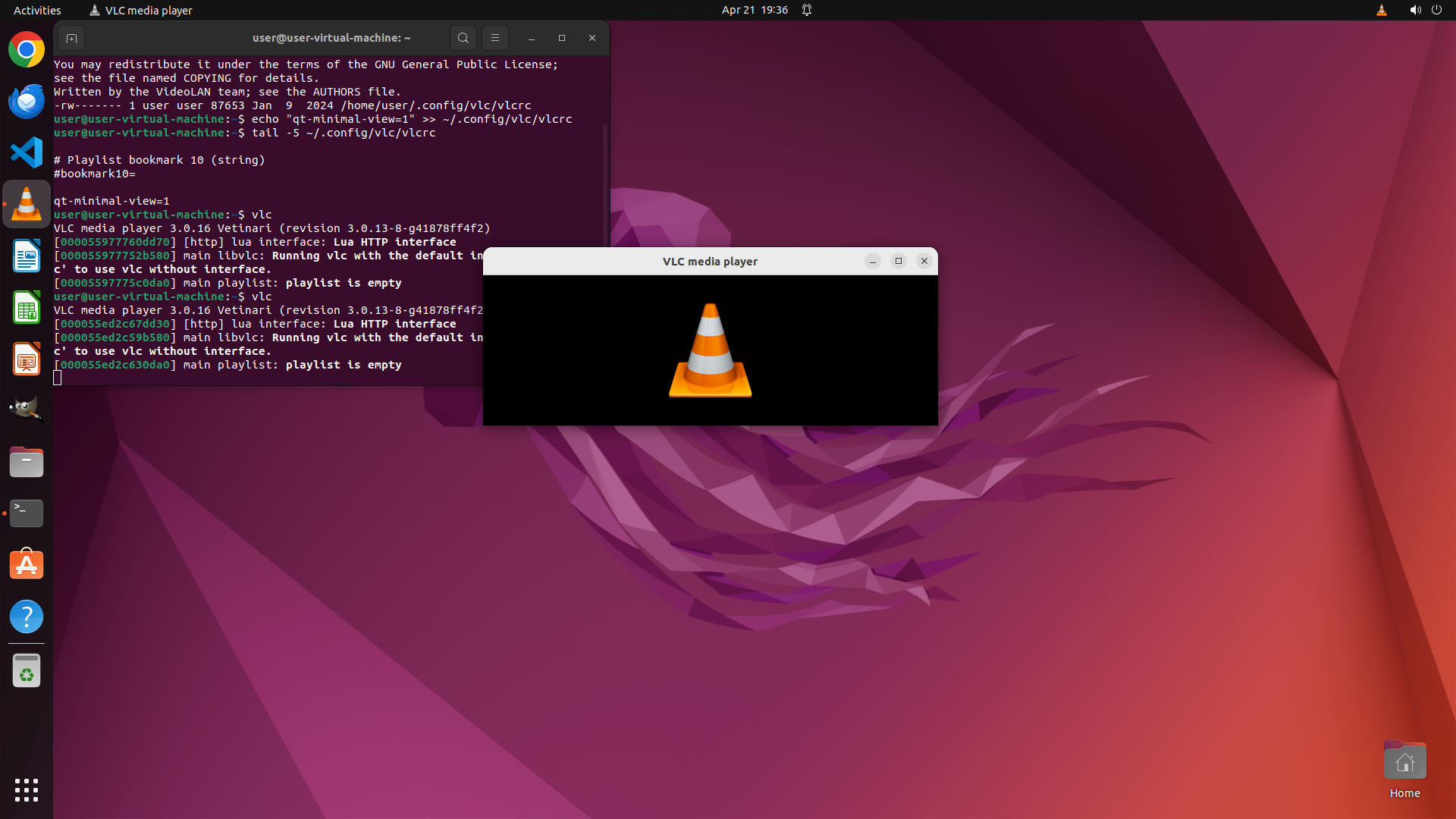
1. VLC is currently running and appears to be in minimal interface mode - the window shows only the VLC cone logo without any visible bottom playback control bar (play/pause buttons, progress slider, volume controls).
2. The terminal shows that `qt-minimal-view=1` has been successfully added to the VLC configuration file at `~/.config/vlc/vlcrc`.
3. VLC was restarted from the terminal and the minimal interface appears to be working.
#### 情况分析与思考过程
The minimal interface appears to be active - I can see the VLC window displaying just the cone logo without the bottom control bar. Now I need to verify that this setting persists after restarting VLC.
To complete the verification:
1. Close VLC by clicking the X button
2. Restart VLC
3. Confirm the minimal interface is still active (no bottom controls)
Let me close VLC first to test persistence.
```
Step 13: CLICK (449, 300)
```
#### 重要信息
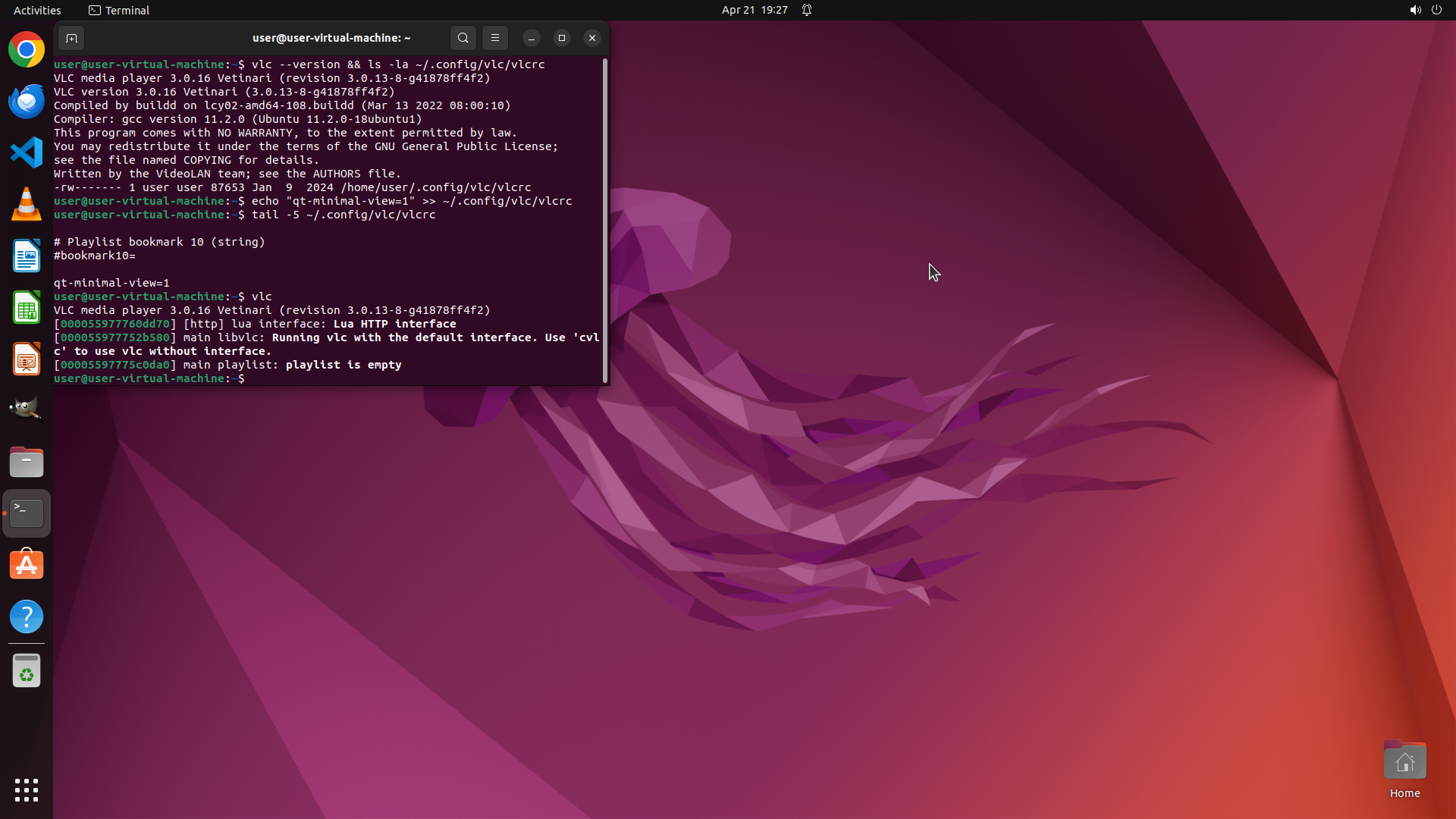
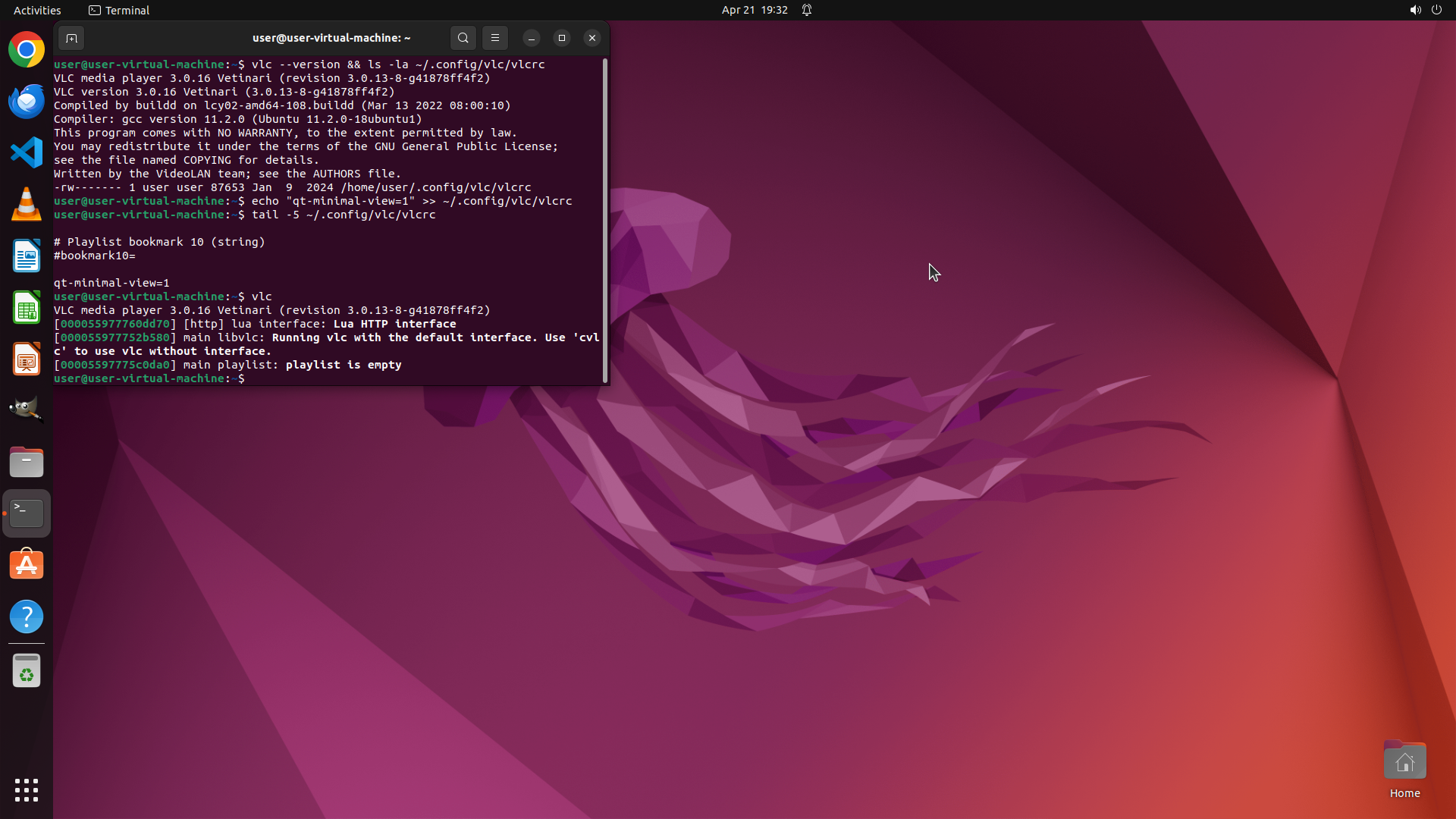
1. VLC has been successfully closed - the VLC window is no longer visible on the screen.
2. The terminal window is still open and shows that VLC was previously running with the minimal interface (the output shows "main playlist: playlist is empty").
3. The configuration file has been modified with `qt-minimal-view=1` and now I need to restart VLC to verify the setting persists.
#### 情况分析与思考过程
VLC was closed successfully in the previous step. Now I need to complete the final verification step - confirming that the minimal interface setting persists after restarting VLC.
My plan:
1. Click on the terminal to focus it
2. Type `vlc` command to restart VLC
3. Verify that the minimal interface is still active (no bottom playback controls visible)
This will complete task 3.2 in the strategy tree - verifying the setting persists after VLC restart.
Let me click on the terminal window first to focus it.
```
Step 14: TYPING "vlc"
```
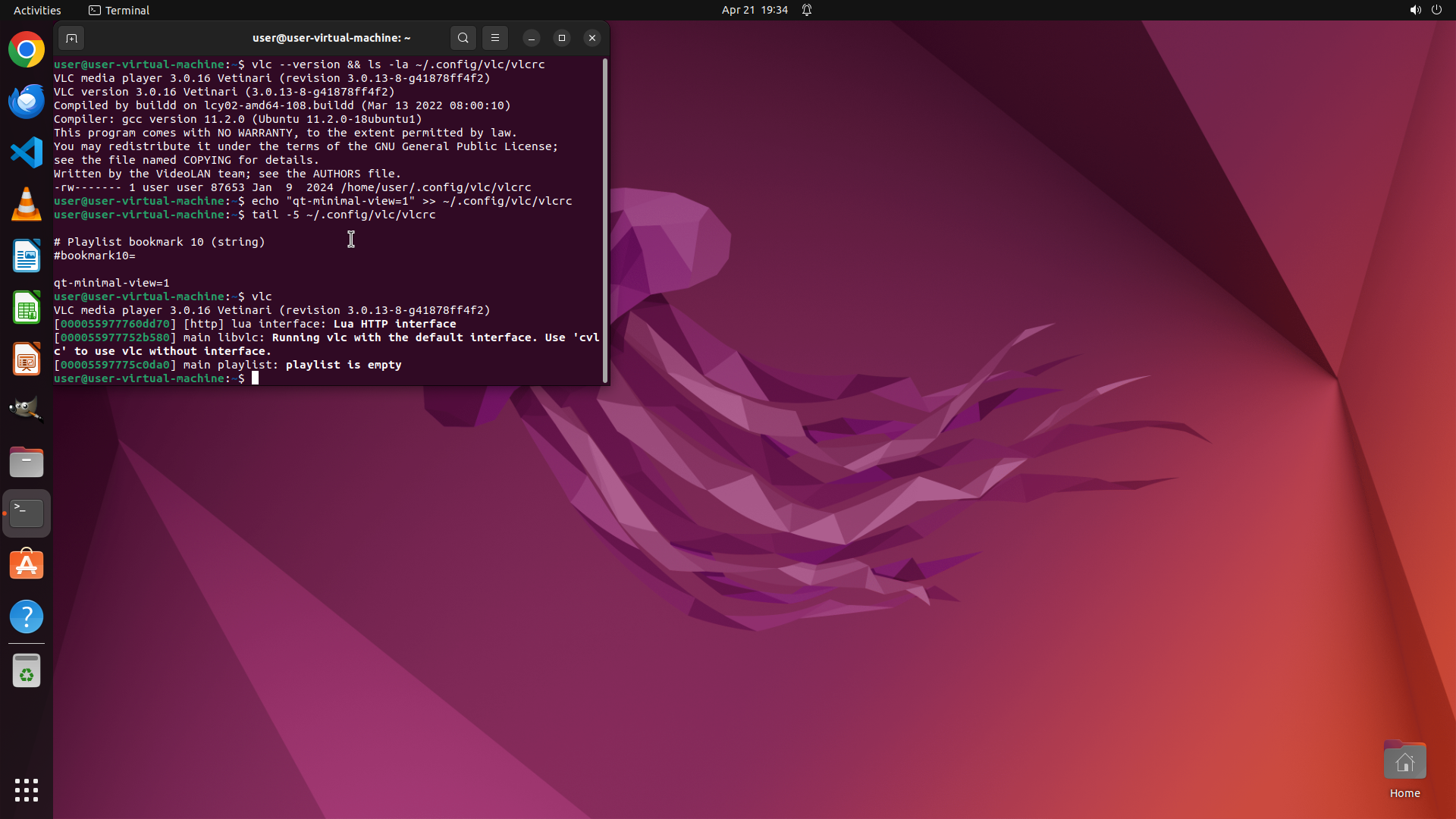
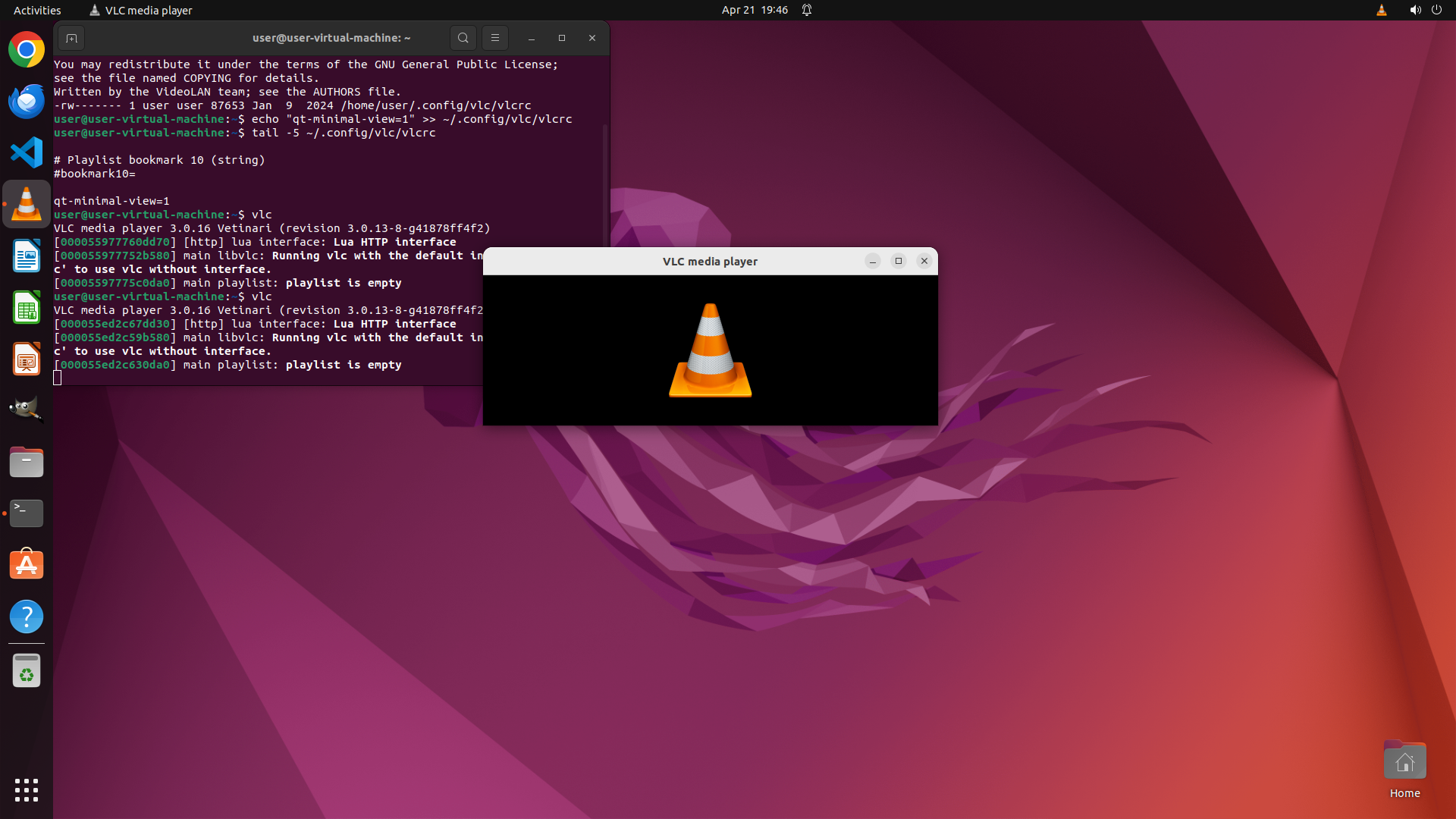
#### 重要信息
1. VLC is currently not running - the VLC window is not visible on the screen.
2. The terminal is focused and shows the previous VLC session ended successfully.
3. The configuration file has been modified with `qt-minimal-view=1` and previously VLC showed the minimal interface without bottom controls.
4. Now I need to restart VLC to verify the setting persists after restart.
#### 情况分析与思考过程
The previous steps have successfully:
- Closed VLC
- Modified the configuration file with `qt-minimal-view=1`
- Verified the minimal interface was working (bottom controls hidden)
- Closed VLC again to test persistence
Now I need to complete the final verification step (task 3.2): restart VLC and confirm the minimal interface setting persists. I'll start VLC from the terminal and verify that the bottom playback controls remain hidden.
Let me type the `vlc` command in the terminal to restart VLC.
```
Step 14: HOTKEY
```
#### 重要信息
1. VLC is currently not running - the VLC window is not visible on the screen.
2. The terminal is focused and shows the previous VLC session ended successfully.
3. The configuration file has been modified with `qt-minimal-view=1` and previously VLC showed the minimal interface without bottom controls.
4. Now I need to restart VLC to verify the setting persists after restart.
#### 情况分析与思考过程
The previous steps have successfully:
- Closed VLC
- Modified the configuration file with `qt-minimal-view=1`
- Verified the minimal interface was working (bottom controls hidden)
- Closed VLC again to test persistence
Now I need to complete the final verification step (task 3.2): restart VLC and confirm the minimal interface setting persists. I'll start VLC from the terminal and verify that the bottom playback controls remain hidden.
Let me type the `vlc` command in the terminal to restart VLC.
```