```
#### 重要信息
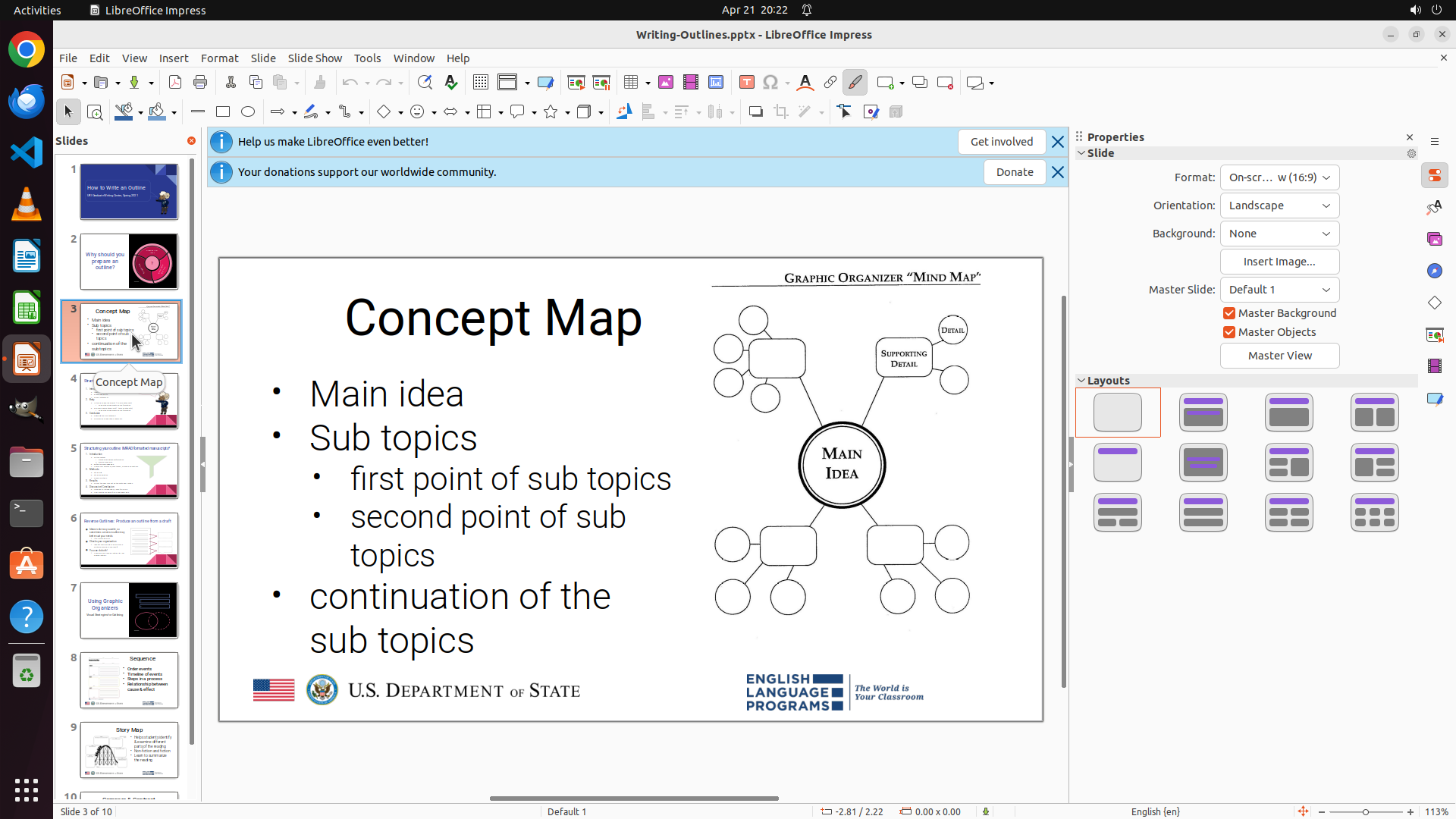
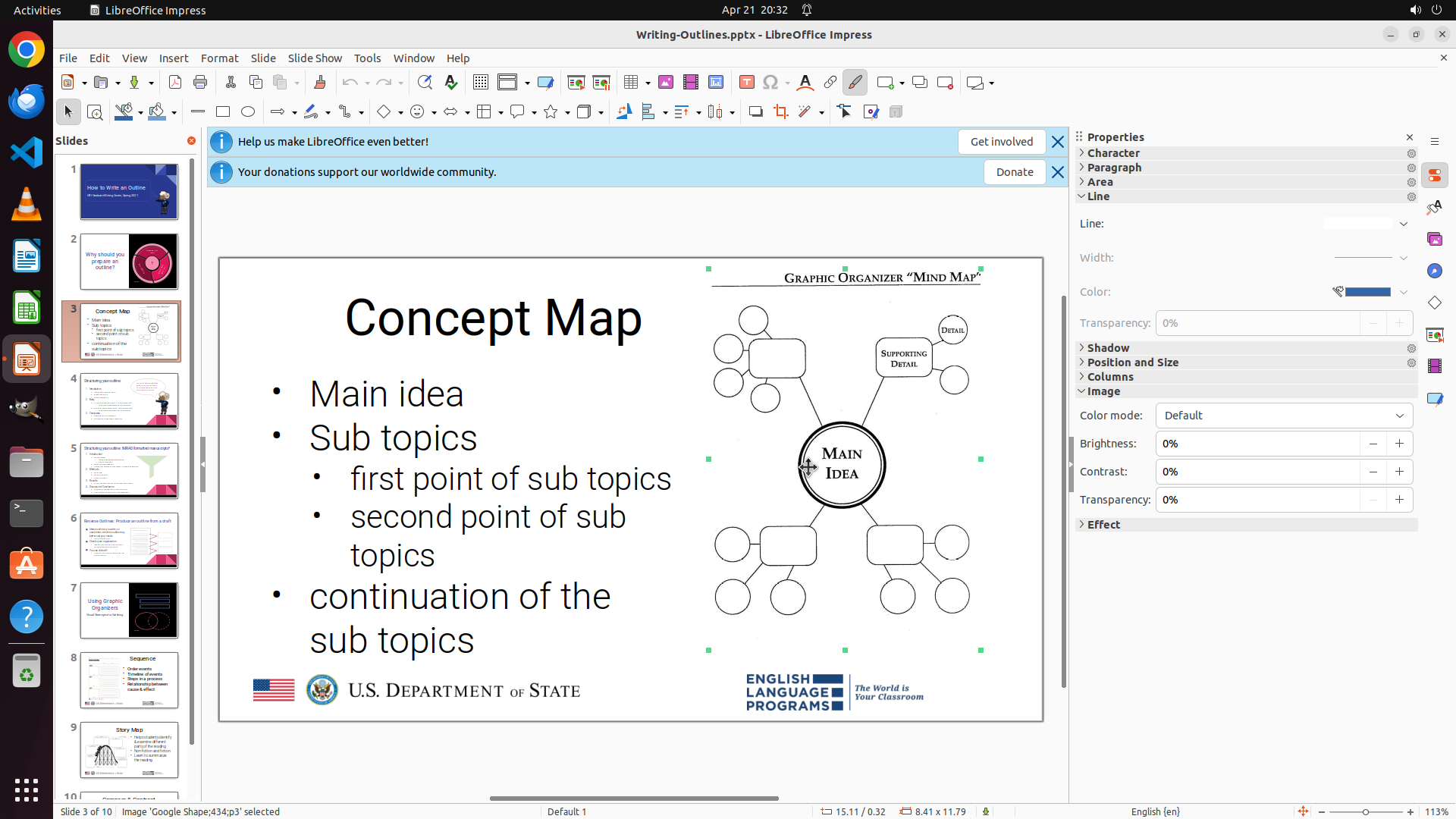
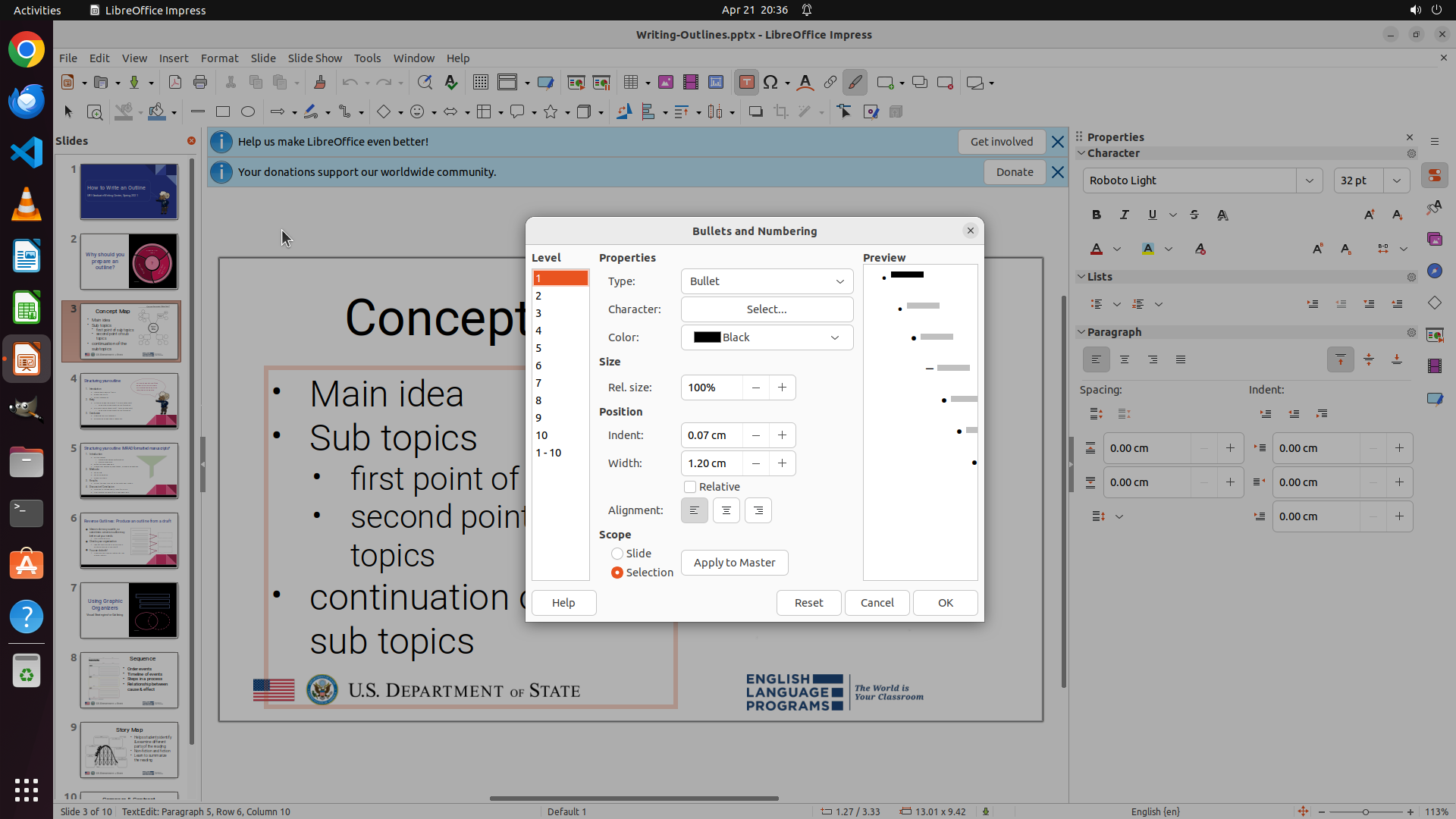
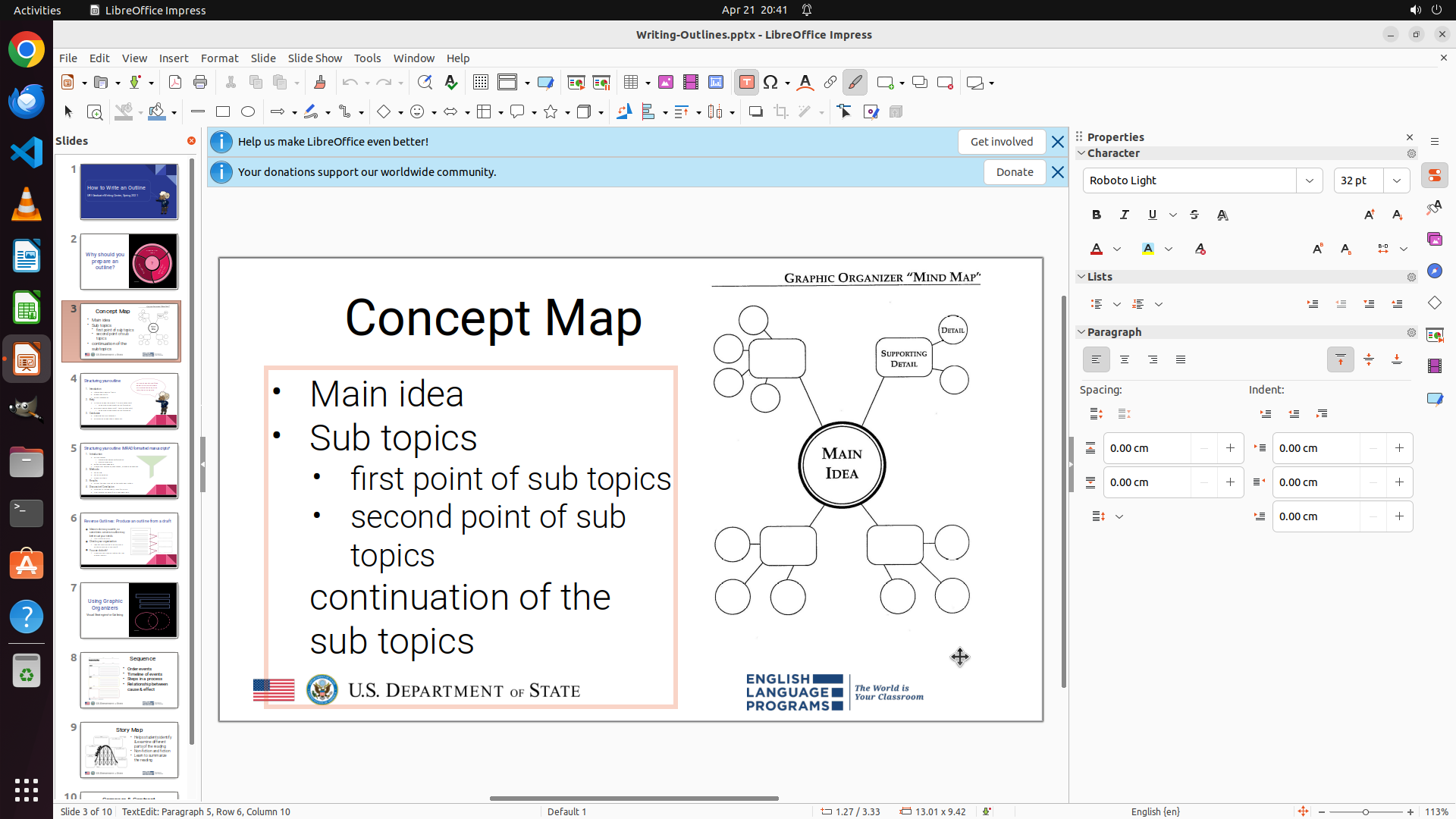
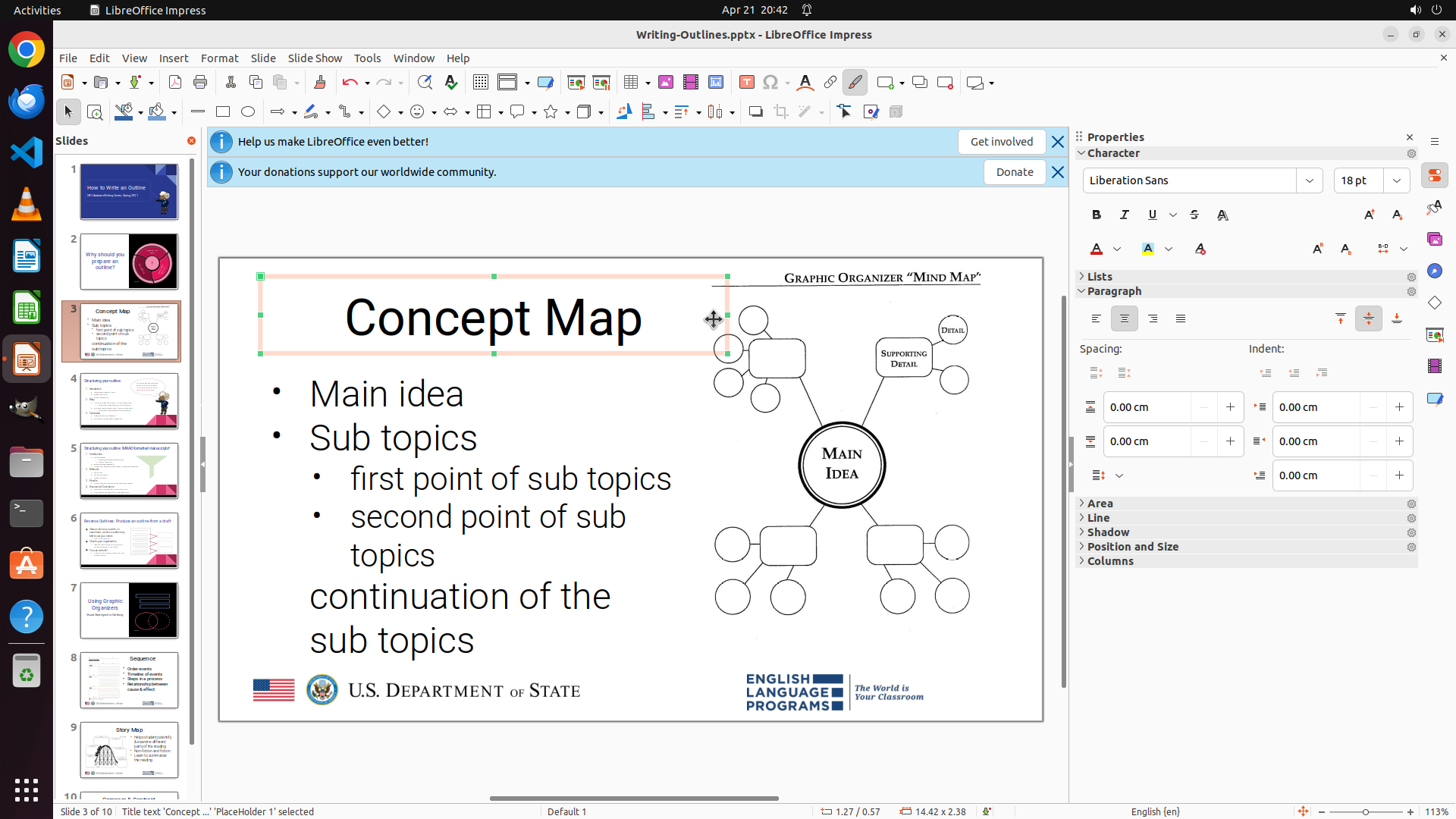
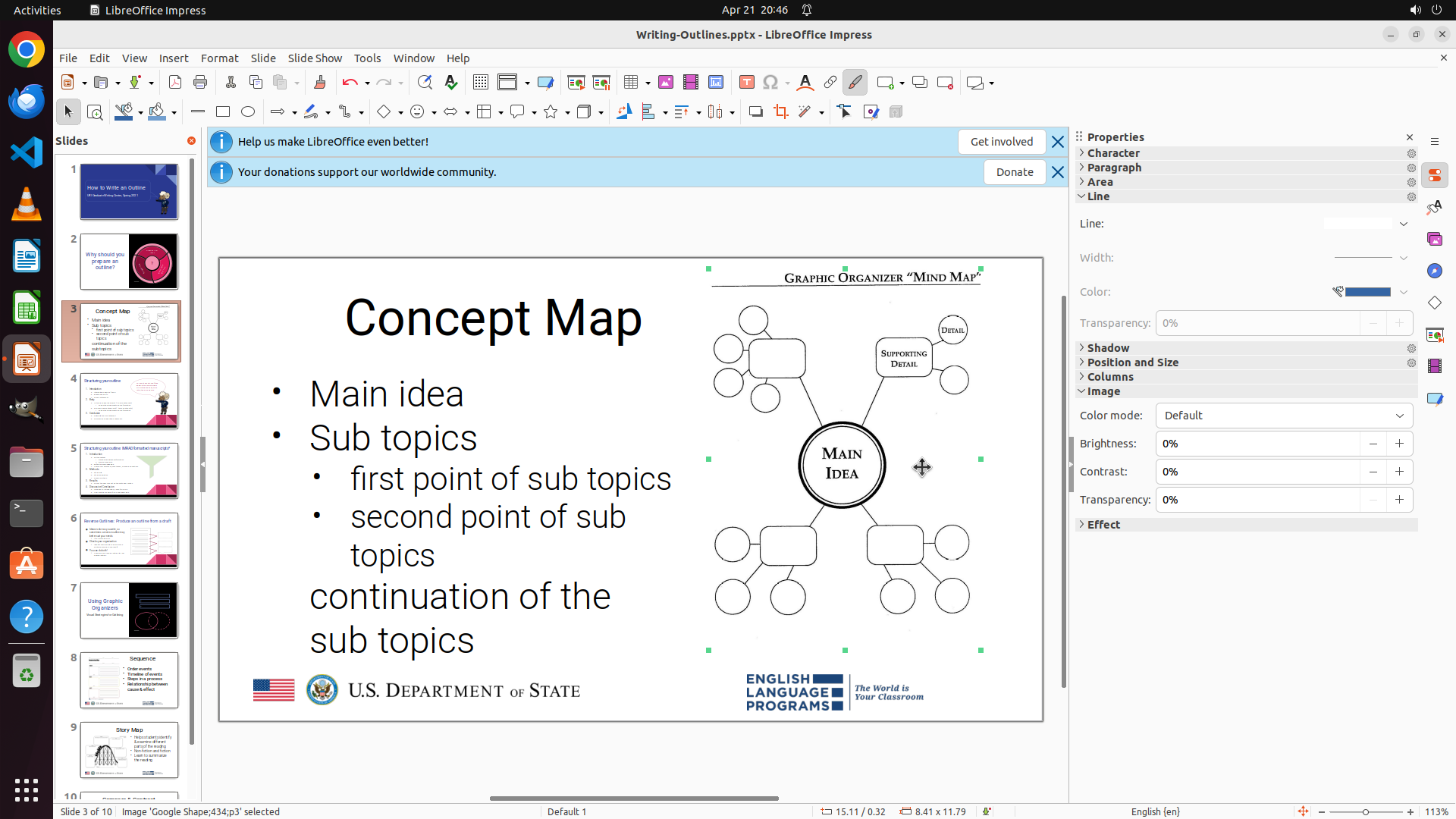
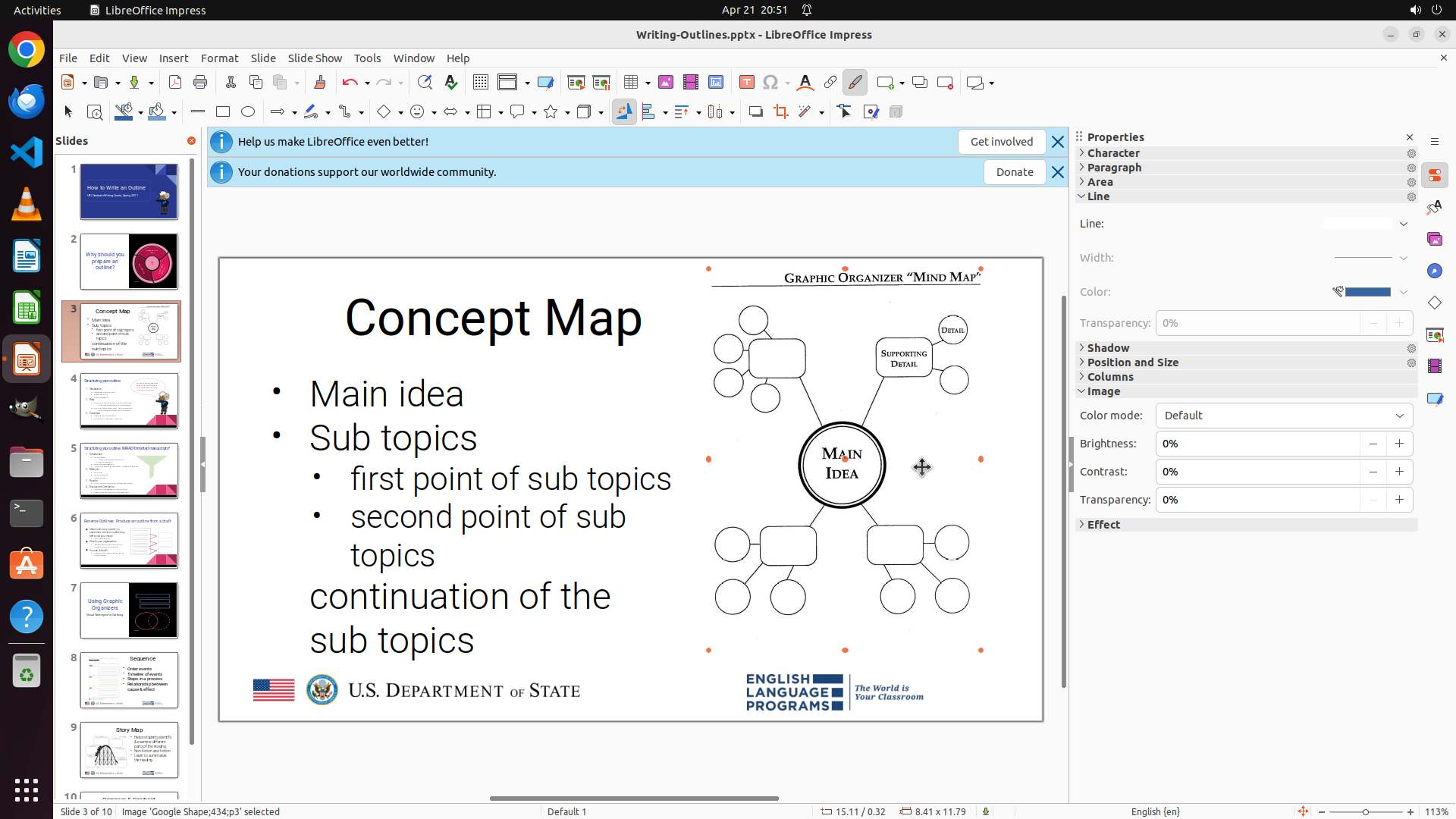
LibreOffice Impress 已经打开,当前显示的是 Slide 3(页面底部显示 "Slide 3 of 10")。幻灯片上显示一个带有项目符号的列表:
- Main idea(有项目符号)
- Sub topics(有项目符号)
- first point of sub topics(缩进,有项目符号)
- second point of sub topics(缩进,有项目符号)
- continuation of the sub topics(有项目符号)
用户希望将 "continuation of the sub topics" 的项目符号移除,并使其缩进与 "Main idea" 和 "Sub topics" 对齐(即提升到同一层级)。
#### 情况分析与思考过程
当前策略树已经规划了清晰的步骤:
1. 导航到 slide 3 并选择目标文本
2. 移除项目符号格式
3. 验证更改
由于 slide 3 已经在当前视图中,我需要:
1. 首先点击文本框进入编辑模式
2. 然后选择 "continuation of the sub topics" 这一行
3. 使用工具栏的项目符号开关按钮或 Format 菜单移除项目符号
4. 如果需要,调整缩进级别
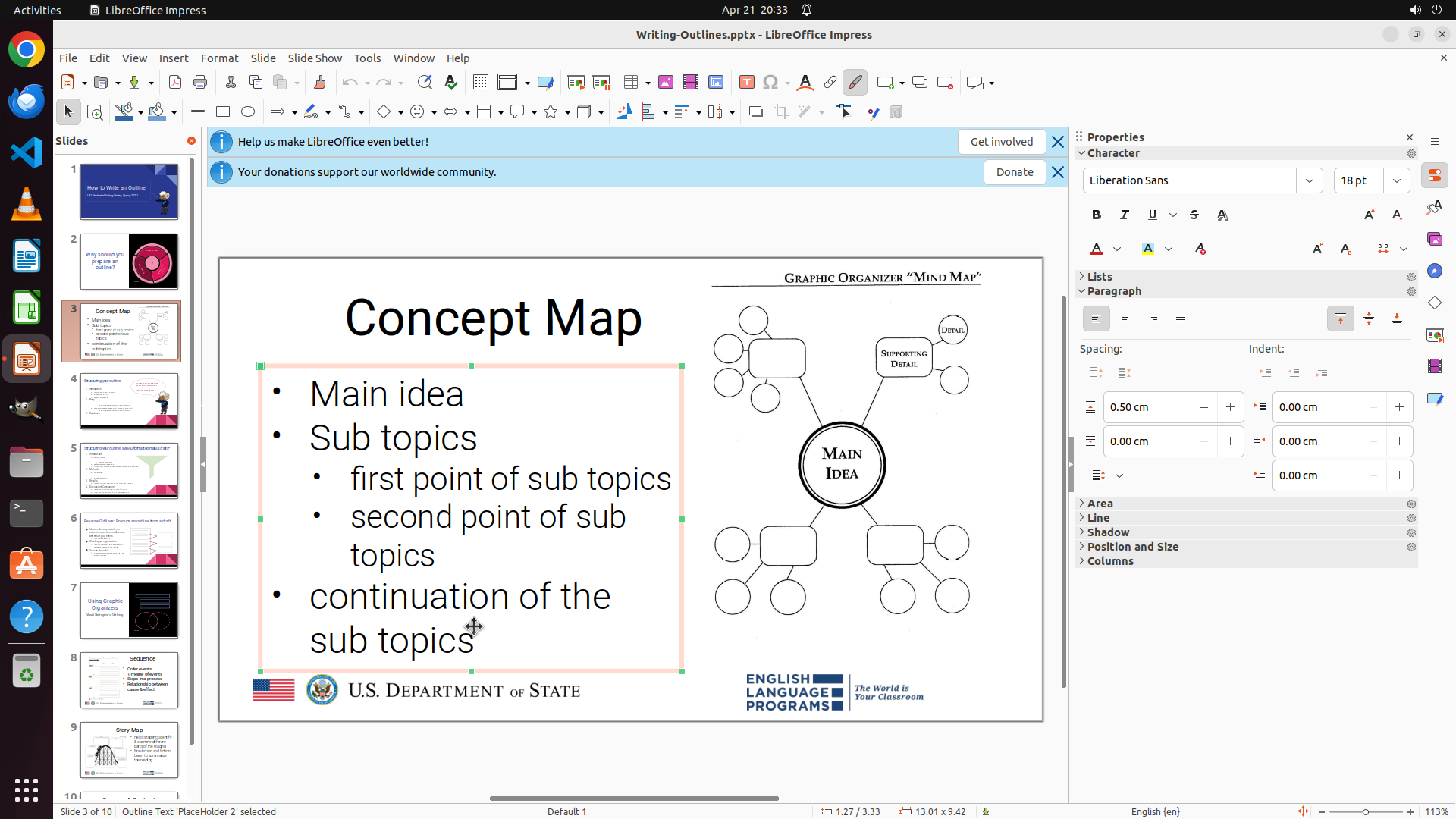
第一步:点击文本框进入编辑模式。我可以看到文本列表在幻灯片左侧,需要点击该文本框。
```
我将开始操作,首先点击文本框进入编辑模式。
Step 3: CLICK (609, 810)
```
#### 重要信息
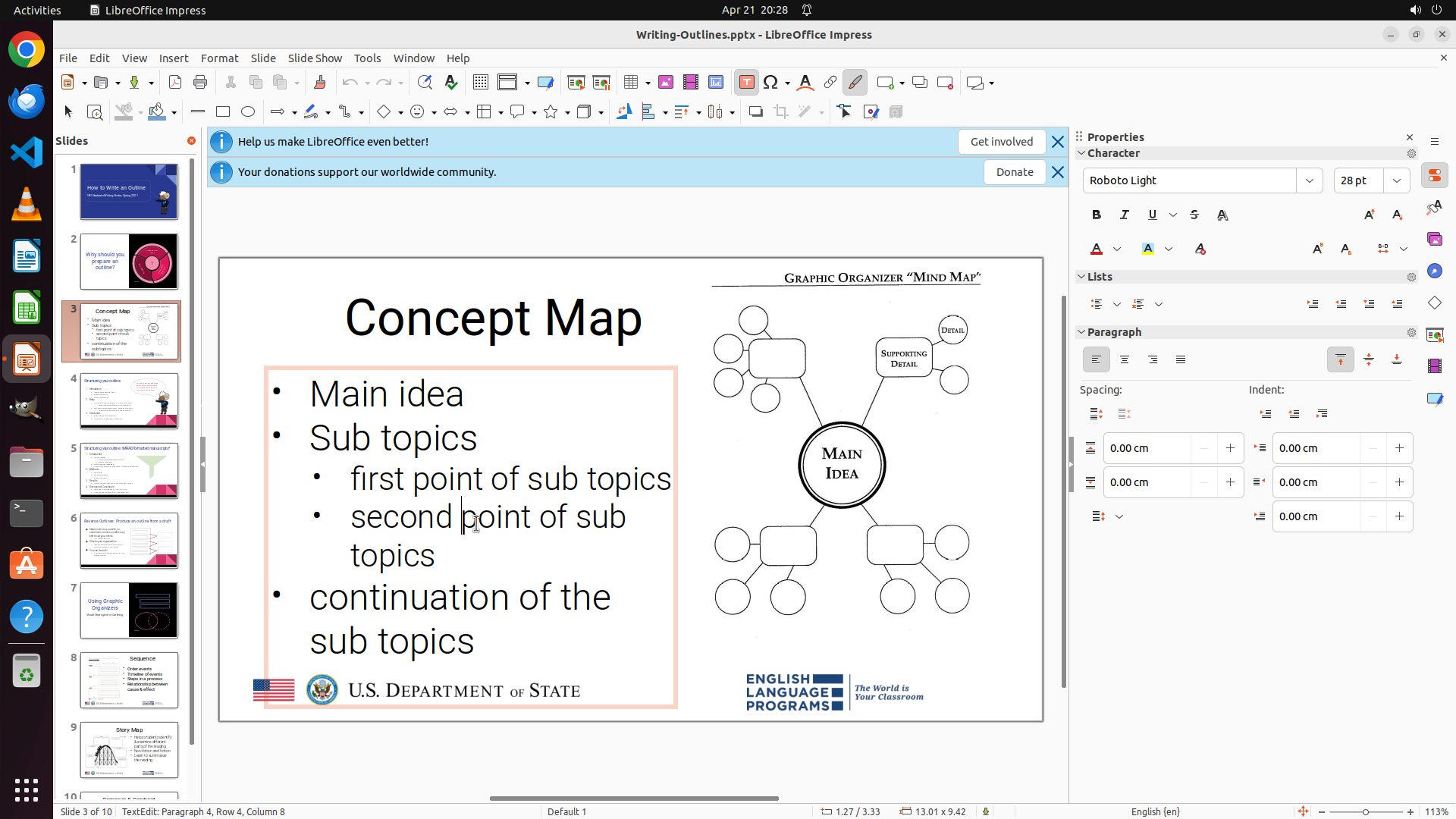
LibreOffice Impress 已经处于文本编辑模式(文本框有橙色边框,状态栏显示 "TextEdit: Paragraph 4, Row 4, Column 8")。当前文本列表显示:
- Main idea(有项目符号)
- Sub topics(有项目符号)
- first point of sub topics(缩进,有项目符号)
- second point of sub topics(缩进,有项目符号)
- continuation of the sub topics(有项目符号)
#### 情况分析与思考过程
上一步成功进入了文本编辑模式。现在我需要:
1. 选中 "continuation of the sub topics" 这一行
2. 移除其项目符号
3. 确保缩进与 "Main idea" 和 "Sub topics" 对齐
我可以看到 "continuation of the sub topics" 位于文本框底部。我将使用 triple-click 来选中整行,然后使用 Shift+F12 快捷键来切换项目符号开关。
```
```
#### 重要信息
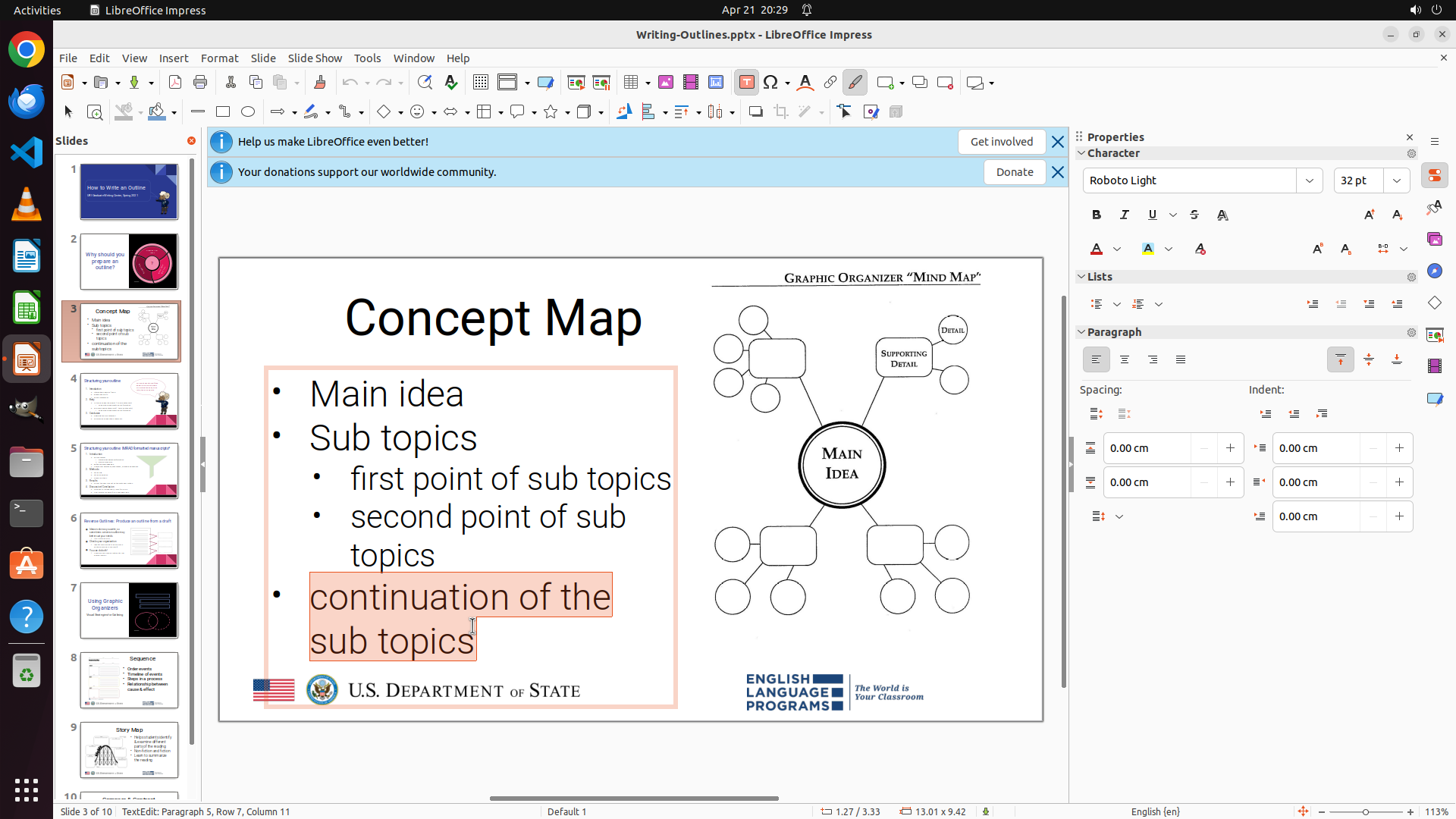
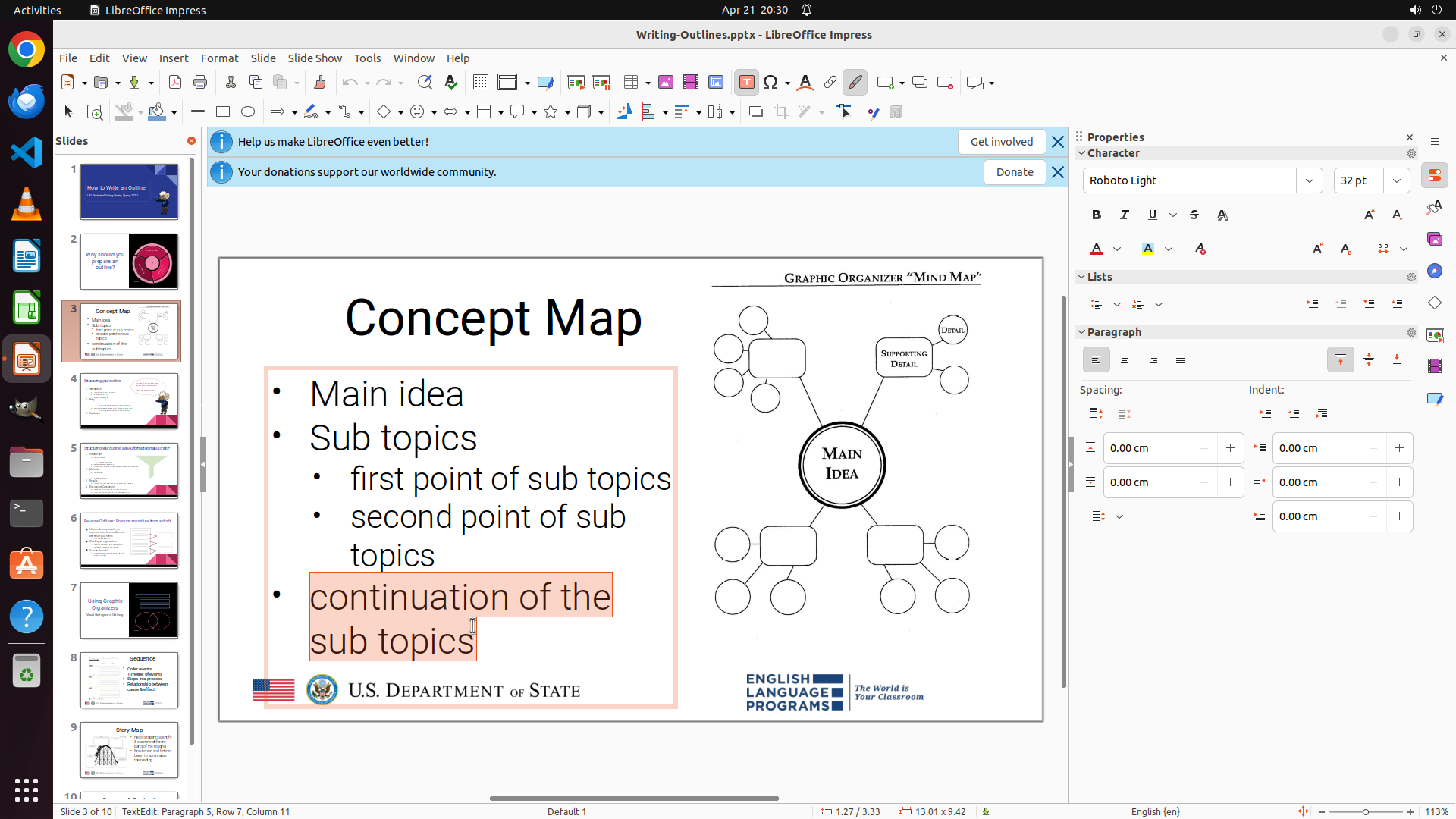
文本 "continuation of the sub topics" 仍处于选中状态(橙色高亮)。上一步使用了 Shift+F12 快捷键尝试移除项目符号。现在需要点击空白处取消选择,以查看项目符号是否已成功移除。同时需要确认缩进级别是否与 "Main idea" 和 "Sub topics" 一致。
#### 情况分析与思考过程
上一步执行了 Shift+F12 来切换项目符号。由于文本仍处于选中状态,无法清楚看到项目符号是否已被移除。我需要:
1. 首先点击空白处取消选择,查看当前格式状态
2. 检查 "continuation of the sub topics" 是否还有项目符号
3. 如果还有项目符号,需要再次尝试移除(可能使用工具栏按钮或 Format 菜单)
4. 确认缩进级别是否正确(应该与 "Main idea" 和 "Sub topics" 同级)
从右侧的 Properties 面板可以看到 Lists 部分,那里也有项目符号控制选项。如果 Shift+F12 没有生效,我可以尝试使用界面上的按钮。
我先点击空白处查看当前效果。
```
Step 6: CLICK (609, 810)
```
#### 重要信息
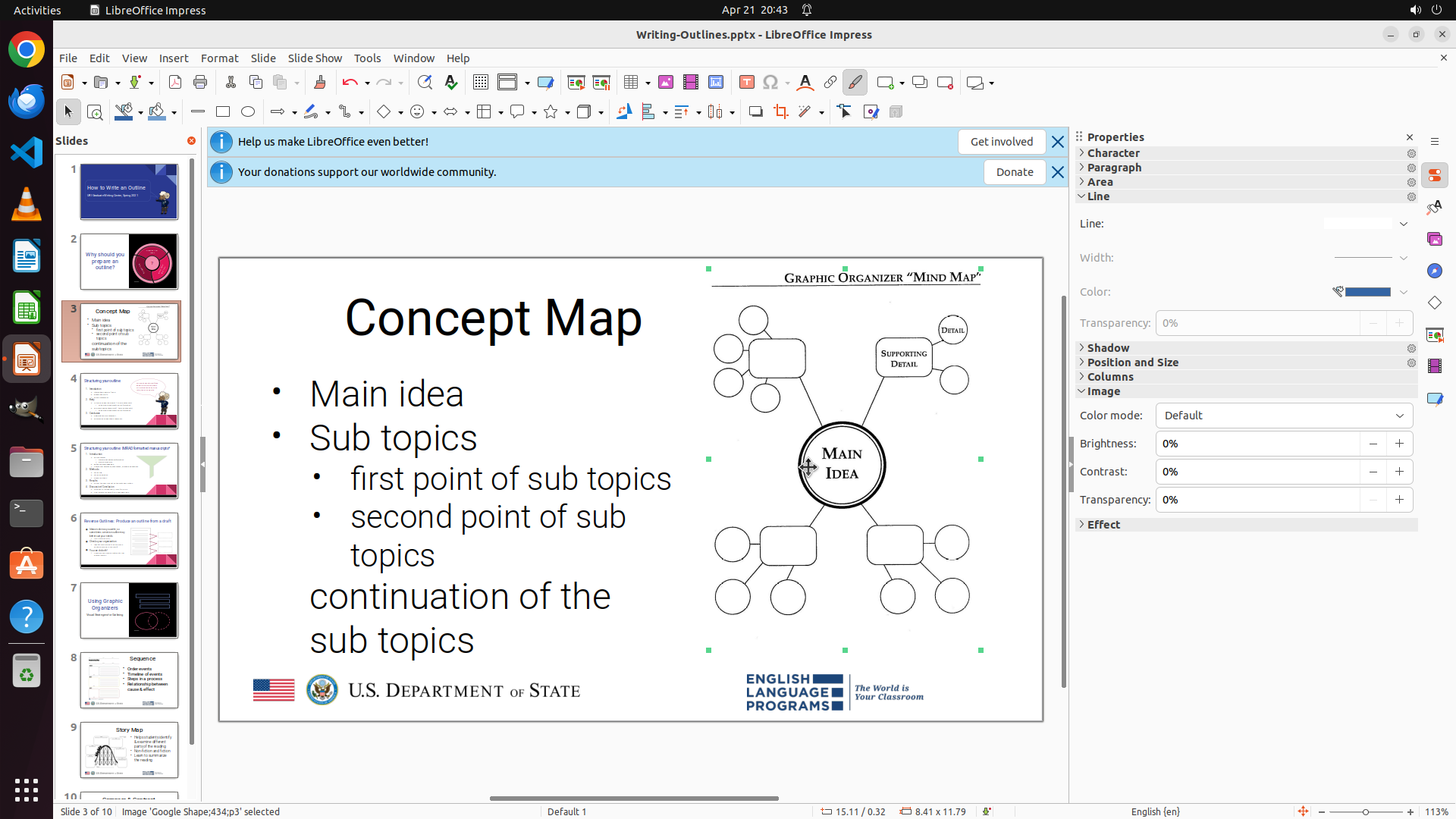
当前屏幕显示 Slide 3,文本框已被选中(显示绿色手柄),但不在编辑模式(状态栏显示 "Image 'Google Shape-s4.svg' selected")。观察文本列表:
- Main idea(有项目符号 •)
- Sub topics(有项目符号 •)
- first point of sub topics(缩进,有项目符号 •)
- second point of sub topics(缩进,有项目符号 •)
- continuation of the sub topics(有项目符号 •)
"continuation of the sub topics" 仍然带有项目符号,说明之前的 Shift+F12 快捷键没有生效。我需要重新进入文本编辑模式,选择目标文本,然后尝试其他方法移除项目符号。
#### 情况分析与思考过程
之前的 Shift+F12 快捷键尝试没有成功移除项目符号。现在我需要:
1. 首先点击文本框进入编辑模式
2. 选择 "continuation of the sub topics" 这一行
3. 尝试使用工具栏上的项目符号按钮或 Format 菜单来移除项目符号
4. 同时需要检查并调整缩进级别,使其与 "Main idea" 和 "Sub topics" 对齐
我注意到在工具栏上应该有项目符号相关的按钮。让我先进入编辑模式,选择文本,然后尝试使用界面上的按钮来移除项目符号。
下一步操作:点击文本框进入编辑模式,然后选择目标文本行。
```
Step 6: CLICK (609, 810)
```
#### 重要信息
当前屏幕显示 Slide 3,文本框已被选中(显示绿色手柄),但不在编辑模式(状态栏显示 "Image 'Google Shape-s4.svg' selected")。观察文本列表:
- Main idea(有项目符号 •)
- Sub topics(有项目符号 •)
- first point of sub topics(缩进,有项目符号 •)
- second point of sub topics(缩进,有项目符号 •)
- continuation of the sub topics(有项目符号 •)
"continuation of the sub topics" 仍然带有项目符号,说明之前的 Shift+F12 快捷键没有生效。我需要重新进入文本编辑模式,选择目标文本,然后尝试其他方法移除项目符号。
#### 情况分析与思考过程
之前的 Shift+F12 快捷键尝试没有成功移除项目符号。现在我需要:
1. 首先点击文本框进入编辑模式
2. 选择 "continuation of the sub topics" 这一行
3. 尝试使用工具栏上的项目符号按钮或 Format 菜单来移除项目符号
4. 同时需要检查并调整缩进级别,使其与 "Main idea" 和 "Sub topics" 对齐
我注意到在工具栏上应该有项目符号相关的按钮。让我先进入编辑模式,选择文本,然后尝试使用界面上的按钮来移除项目符号。
下一步操作:点击文本框进入编辑模式,然后选择目标文本行。
```
Step 7: CLICK (290, 75)
```
#### 重要信息
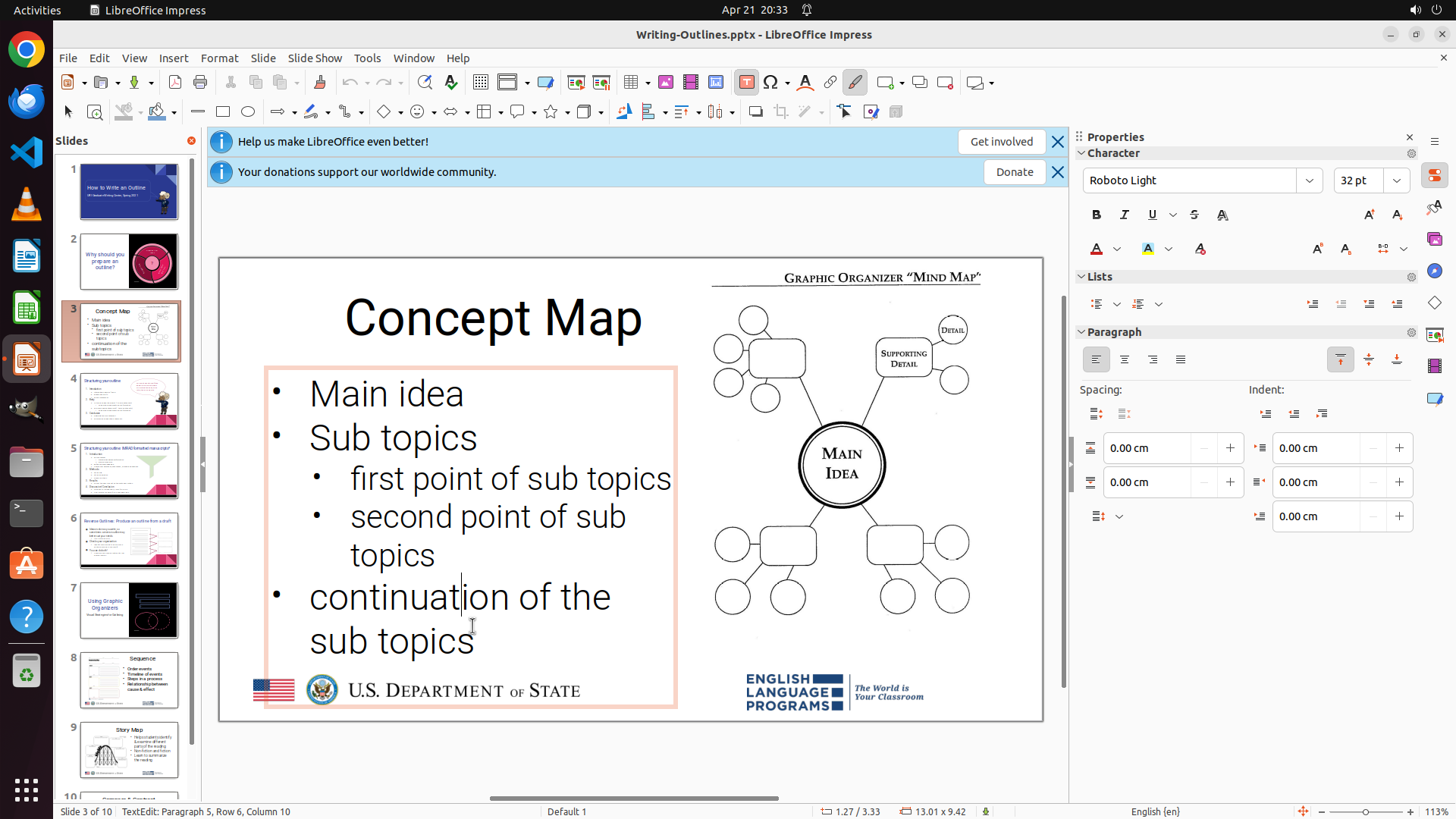
当前屏幕显示 Slide 3 的文本编辑模式。"continuation of the sub topics" 已被选中(橙色高亮),状态栏显示 "TextEdit: Paragraph 5, Row 6, Column 1"。从右侧 Properties 面板可以看到 Lists 部分有项目符号控制选项。
文本当前状态:
- Main idea(有项目符号 •)
- Sub topics(有项目符号 •)
- first point of sub topics(缩进,有项目符号 •)
- second point of sub topics(缩进,有项目符号 •)
- continuation of the sub topics(有项目符号 •,当前被选中)
#### 情况分析与思考过程
之前的 Shift+F12 快捷键没有生效。现在文本已经被选中,我可以尝试其他方法:
1. 使用 Format 菜单 > Bullets and Numbering 来移除项目符号
2. 使用右侧 Properties 面板中的 Lists 选项
3. 使用工具栏上的项目符号按钮
我注意到右侧 Properties 面板中 Lists 部分有项目符号的图标。让我尝试使用 Format 菜单,这是比较可靠的方法。我需要:
1. 点击 Format 菜单
2. 找到 Bullets and Numbering 选项
3. 选择移除项目符号
4. 然后调整缩进(如果需要)
让我先点击 Format 菜单。
```
Step 8: CLICK (367, 298)
```
#### 重要信息
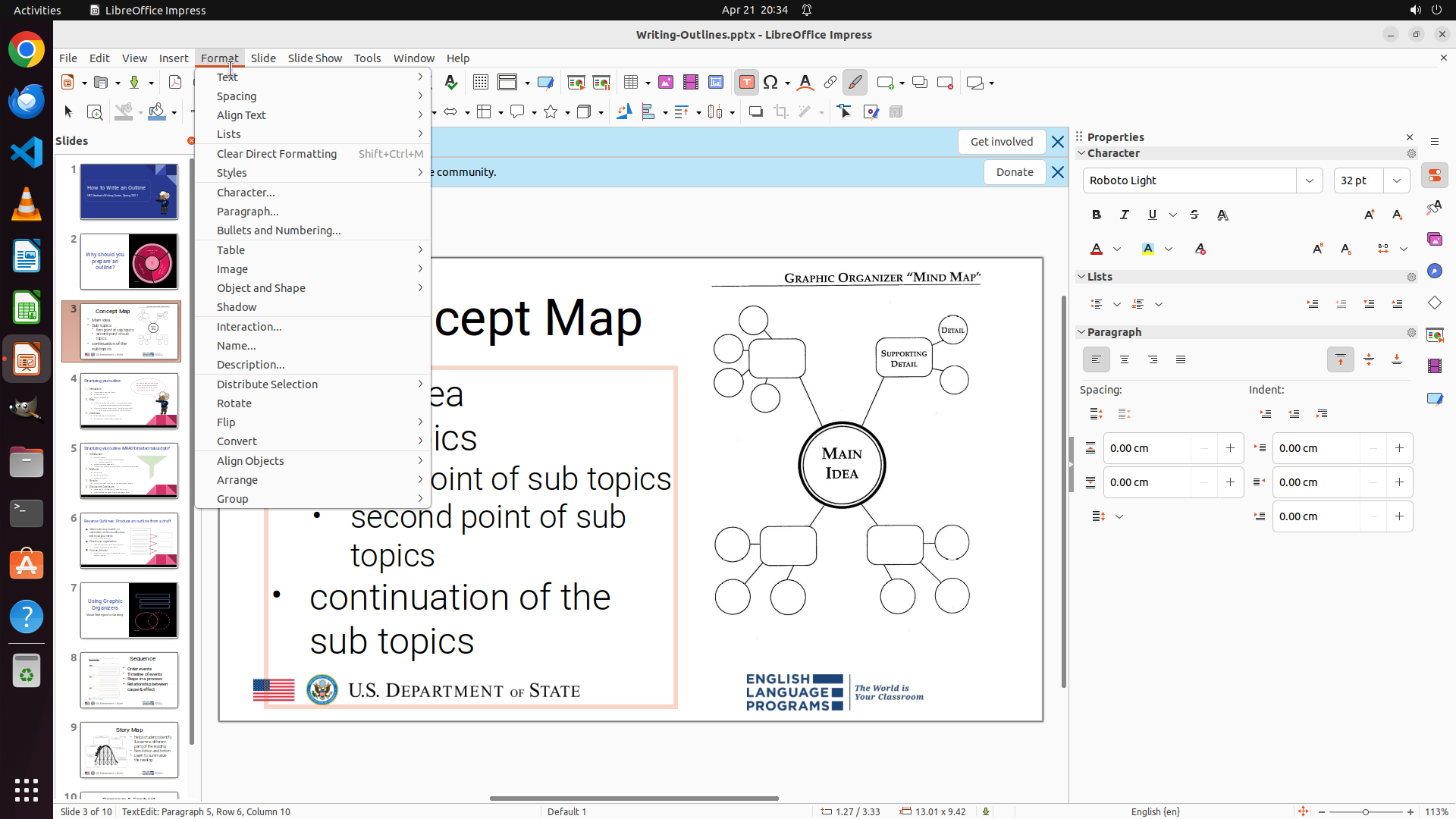
Format 菜单已成功打开。我可以看到菜单中有 "Bullets and Numbering..." 选项,这正是我需要的功能来移除项目符号。当前 "continuation of the sub topics" 文本应该仍然处于选中状态(从之前的操作来看)。
#### 情况分析与思考过程
现在我需要点击 "Bullets and Numbering..." 选项来打开项目符号和编号对话框,在那里我可以选择移除项目符号。这是比 Shift+F12 快捷键更可靠的方法。
操作步骤:
1. 点击 "Bullets and Numbering..." 选项
2. 在弹出的对话框中选择 "No bullet" 或类似选项
3. 确认更改
让我点击 "Bullets and Numbering..." 选项。
```
Step 9: CLICK (1012, 364)
```
#### 重要信息
"Bullets and Numbering" 对话框已成功打开。当前显示:
- Level 1 被选中(橙色高亮)
- Type: "Bullet" 在下拉菜单中被选中
- Scope 部分选择了 "Selection"(表示更改将应用于选中的文本)
- 预览面板显示了当前的项目符号样式
#### 情况分析与思考过程
现在我需要移除 "continuation of the sub topics" 的项目符号。在 Bullets and Numbering 对话框中,我需要:
1. 点击 Type 下拉菜单(当前显示 "Bullet")
2. 选择 "None" 或类似的选项来移除项目符号
3. 点击 OK 确认更改
之后,我还需要检查缩进级别是否正确。如果移除项目符号后缩进不对,可能需要调整 Indent 设置或手动调整文本位置。
让我点击 Type 下拉菜单查看可用选项。
```
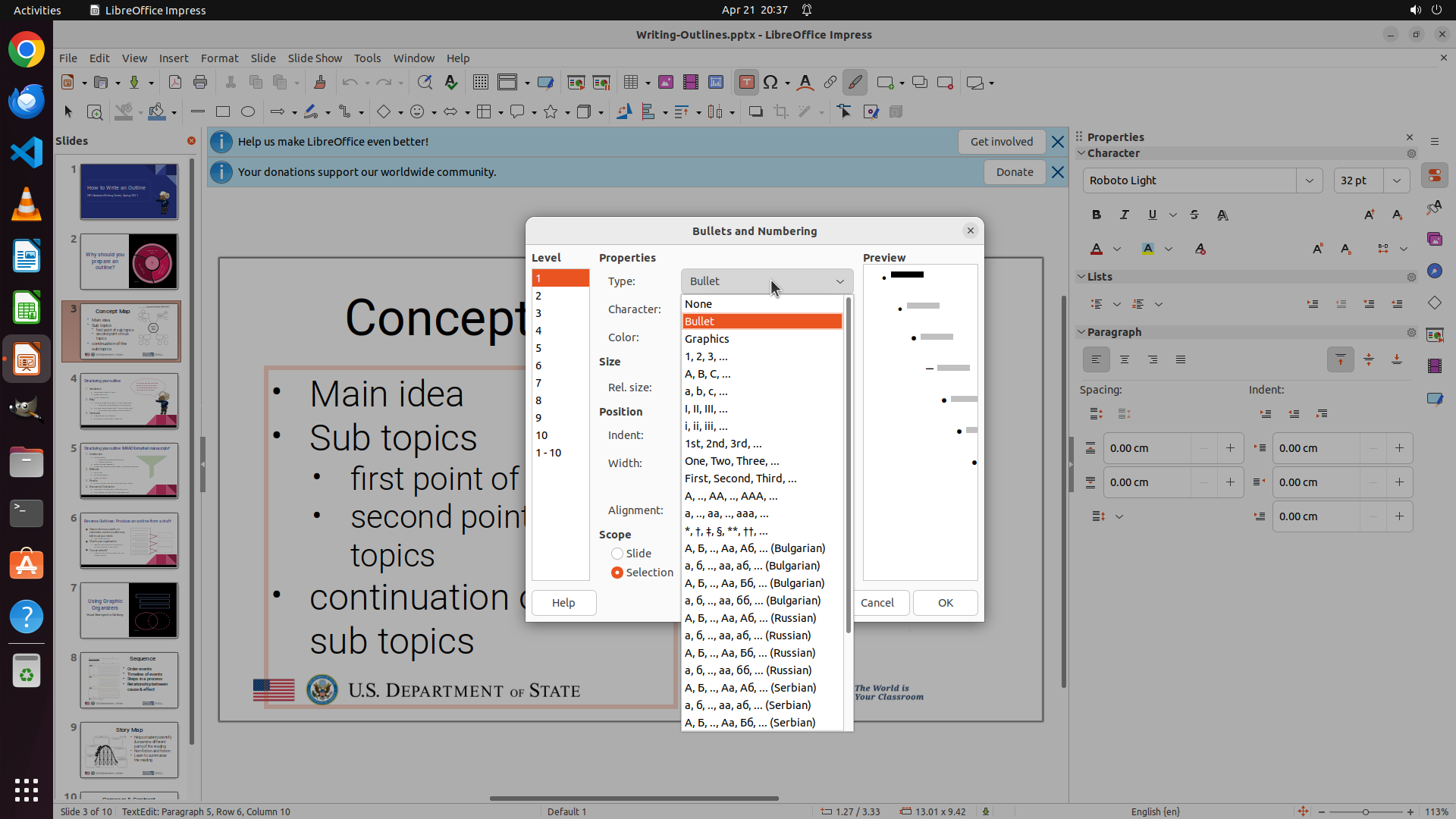
Step 10: CLICK (925, 405)
Step 11: CLICK (925, 405)
```
#### 重要信息
当前 "Bullets and Numbering" 对话框已打开,Type 下拉菜单处于展开状态,显示了多个选项:
- None(在顶部)
- Bullet
- Graphics
- A, B, C, ...
- 以及其他编号格式
当前 Level 1 被选中(橙色高亮),Scope 设置为 "Selection",这意味着更改将应用于选中的文本 "continuation of the sub topics"。
#### 情况分析与思考过程
现在我需要:
1. 点击 "None" 选项来移除项目符号
2. 确认 Level 1 的缩进设置与 "Main idea" 和 "Sub topics" 一致(从 Indent 字段显示 0.07 cm 来看,这应该是 Level 1 的默认缩进)
3. 点击 OK 应用更改
由于 "continuation of the sub topics" 当前应该是 Level 1(与 "Main idea" 和 "Sub topics" 同级),选择 "None" 后应该既能移除项目符号,又能保持正确的缩进级别。
下一步操作:点击 "None" 选项。
```
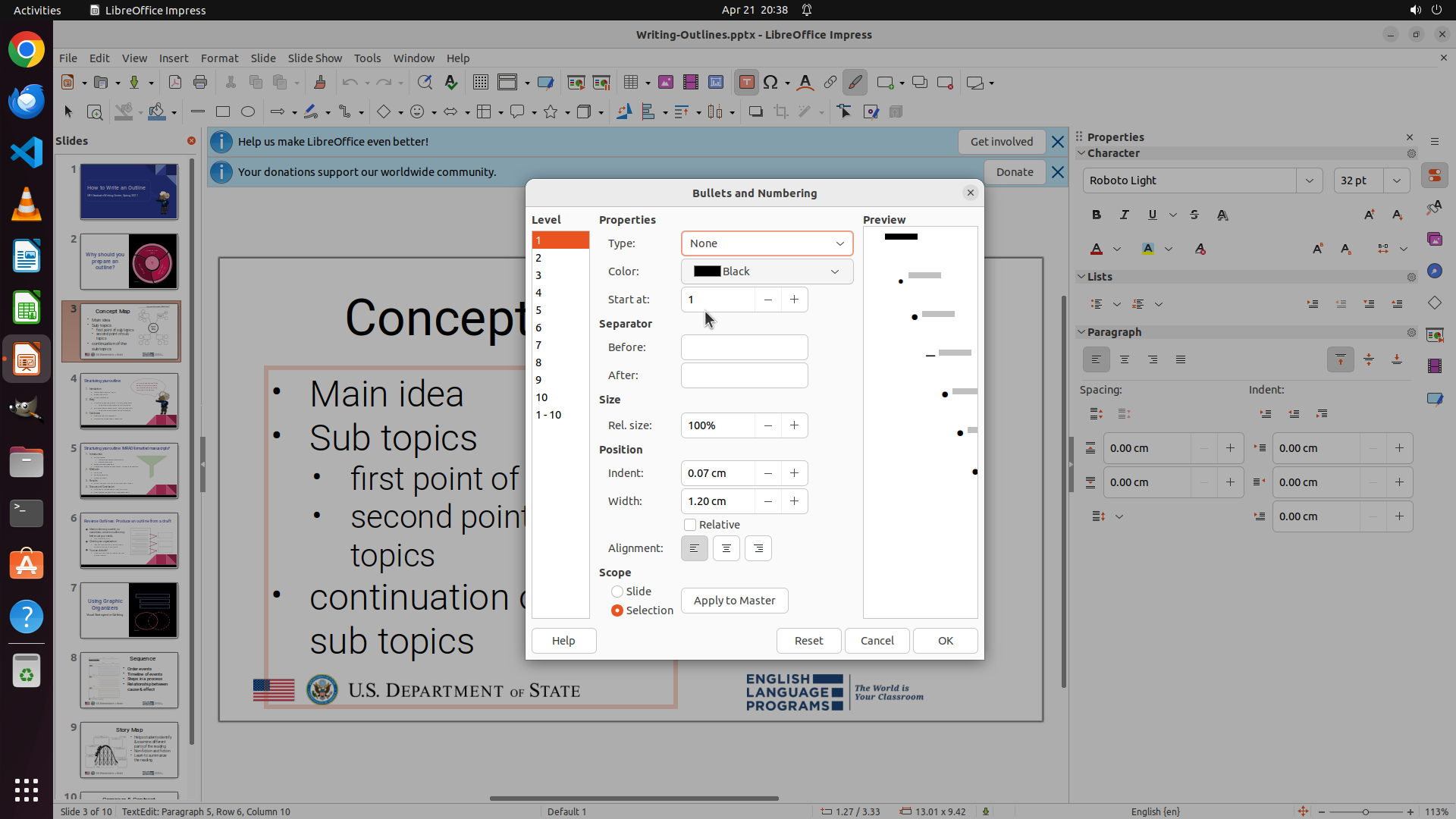
Step 12: CLICK (1250, 850)
Step 13: CLICK (925, 405)
```
#### 重要信息
当前 "Bullets and Numbering" 对话框已打开,Type 下拉菜单处于展开状态,显示了多个选项:
- None(在顶部)
- Bullet
- Graphics
- A, B, C, ...
- 以及其他编号格式
当前 Level 1 被选中(橙色高亮),Scope 设置为 "Selection",这意味着更改将应用于选中的文本 "continuation of the sub topics"。
#### 情况分析与思考过程
现在我需要:
1. 点击 "None" 选项来移除项目符号
2. 确认 Level 1 的缩进设置与 "Main idea" 和 "Sub topics" 一致(从 Indent 字段显示 0.07 cm 来看,这应该是 Level 1 的默认缩进)
3. 点击 OK 应用更改
由于 "continuation of the sub topics" 当前应该是 Level 1(与 "Main idea" 和 "Sub topics" 同级),选择 "None" 后应该既能移除项目符号,又能保持正确的缩进级别。
下一步操作:点击 "None" 选项。
```
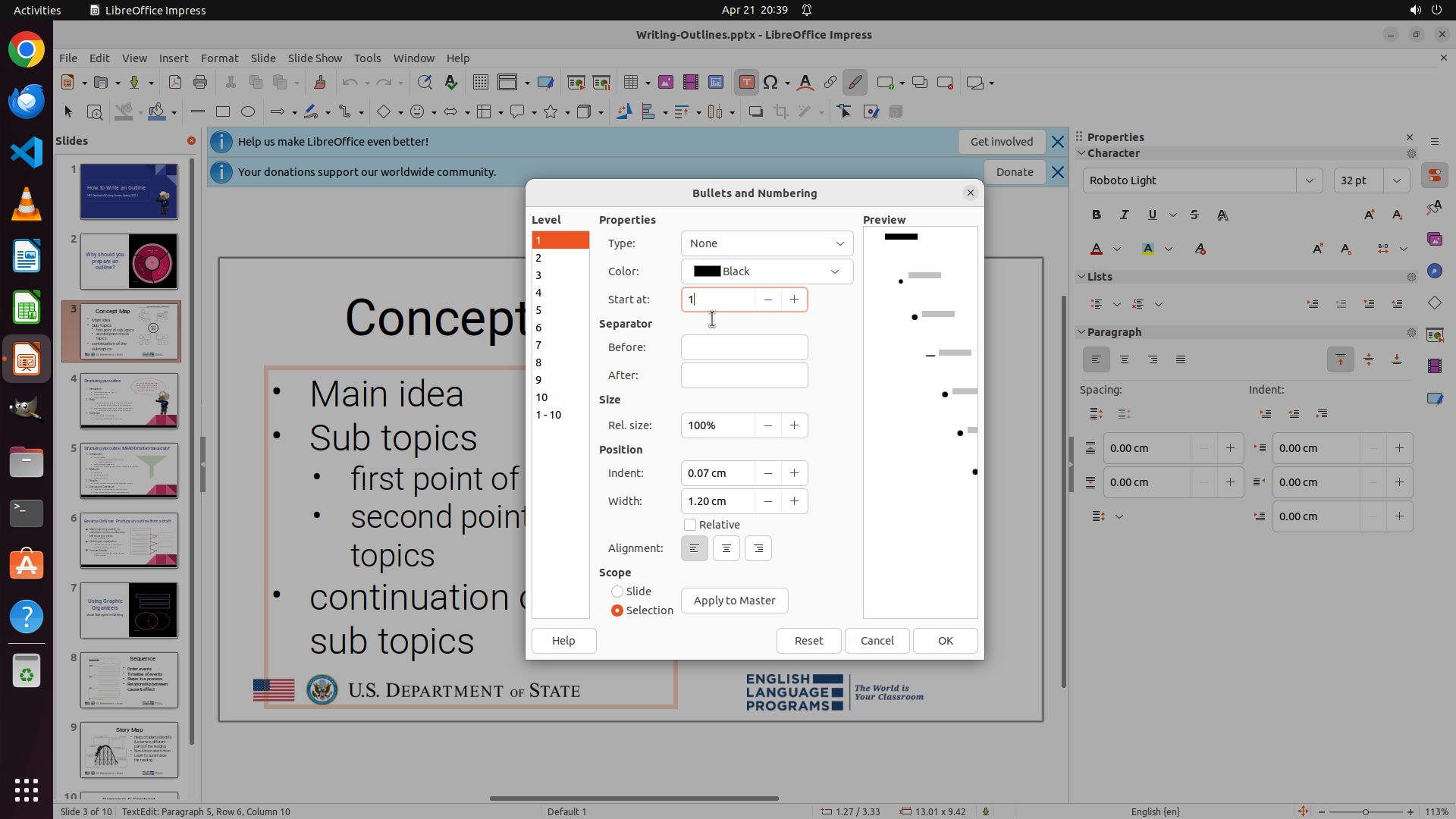
Step 14: CLICK (1050, 600)
```
#### 重要信息
"Bullets and Numbering" 对话框已经关闭,回到了主幻灯片视图。从当前视图可以看到:
- "Main idea"(有项目符号 •)
- "Sub topics"(有项目符号 •)
- "first point of sub topics"(缩进,有项目符号 •)
- "second point of sub topics"(缩进,有项目符号 •)
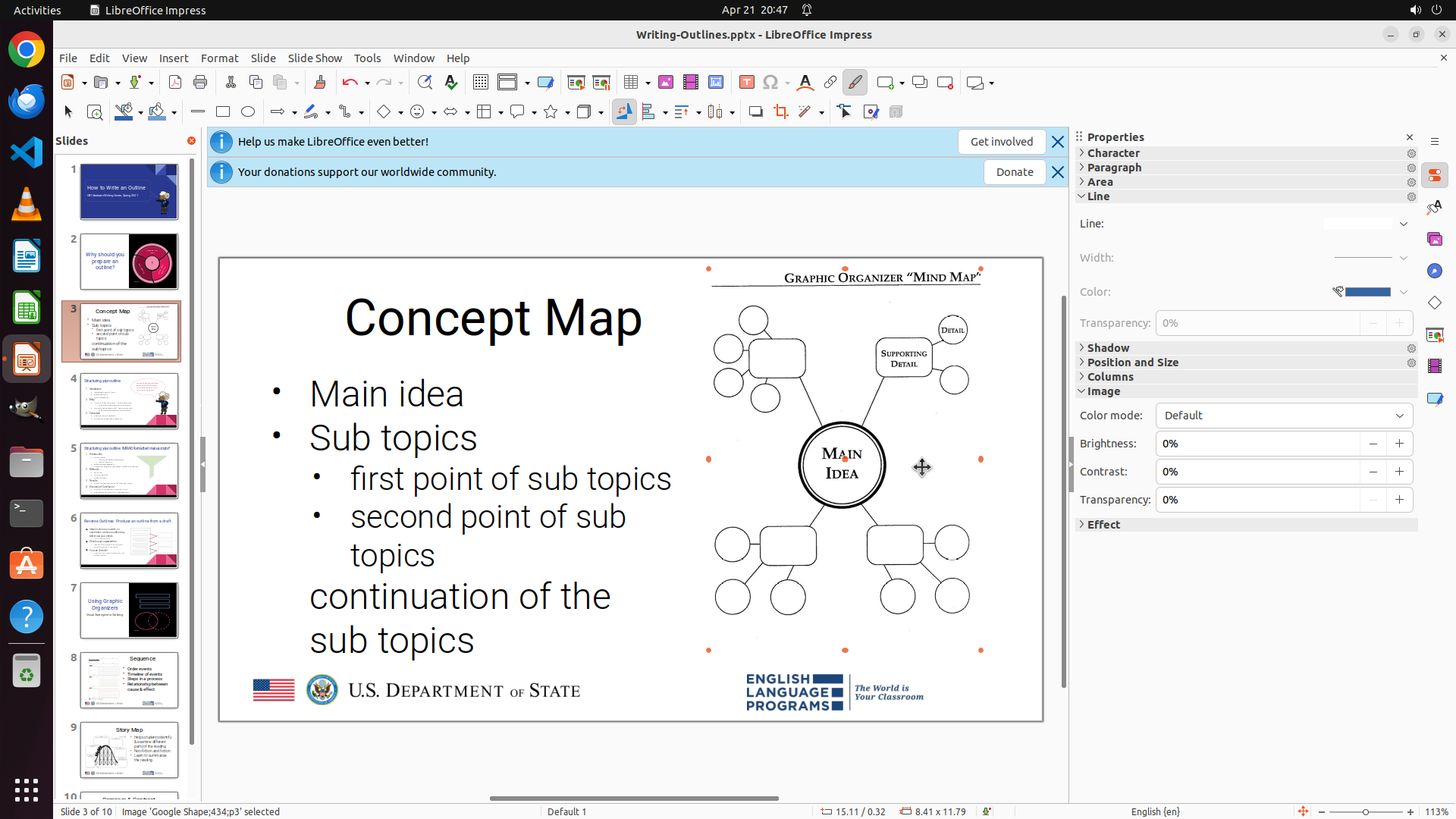
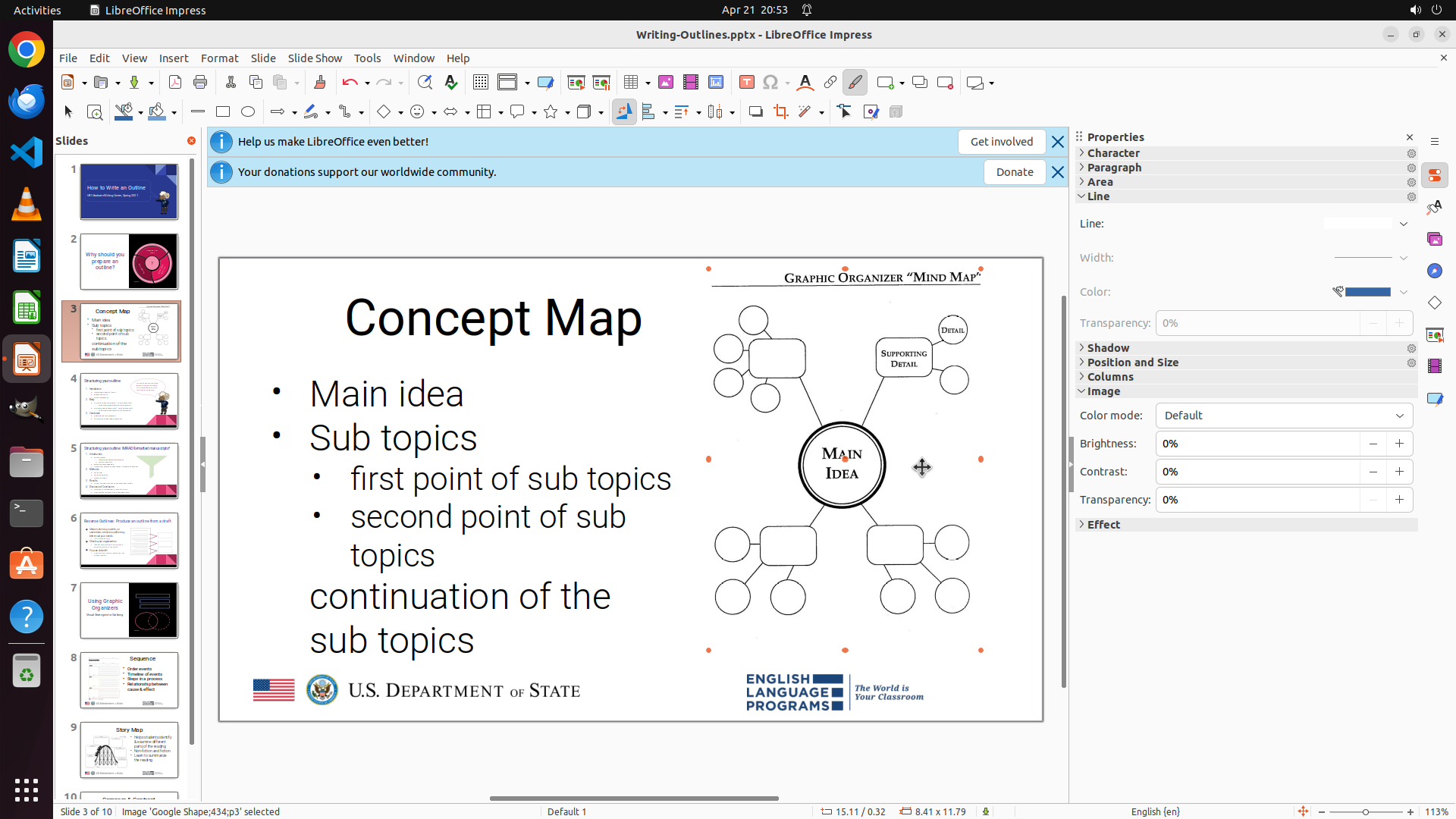
- "continuation of the sub topics"(**没有项目符号**)
看起来项目符号已经成功移除。现在我需要点击空白处取消文本框选择,以更清楚地查看最终的缩进对齐情况,确认 "continuation of the sub topics" 是否与 "Main idea" 和 "Sub topics" 处于相同的缩进级别。
#### 情况分析与思考过程
上一步操作关闭了 Bullets and Numbering 对话框。现在需要:
1. 点击空白处取消选择,查看最终结果
2. 确认 "continuation of the sub topics" 没有项目符号
3. 确认其缩进与 "Main idea" 和 "Sub topics" 对齐
4. 如果缩进不正确,可能需要进一步调整
让我先点击空白处查看最终效果。
```
Step 15: CLICK (1200, 600)
```
#### 重要信息
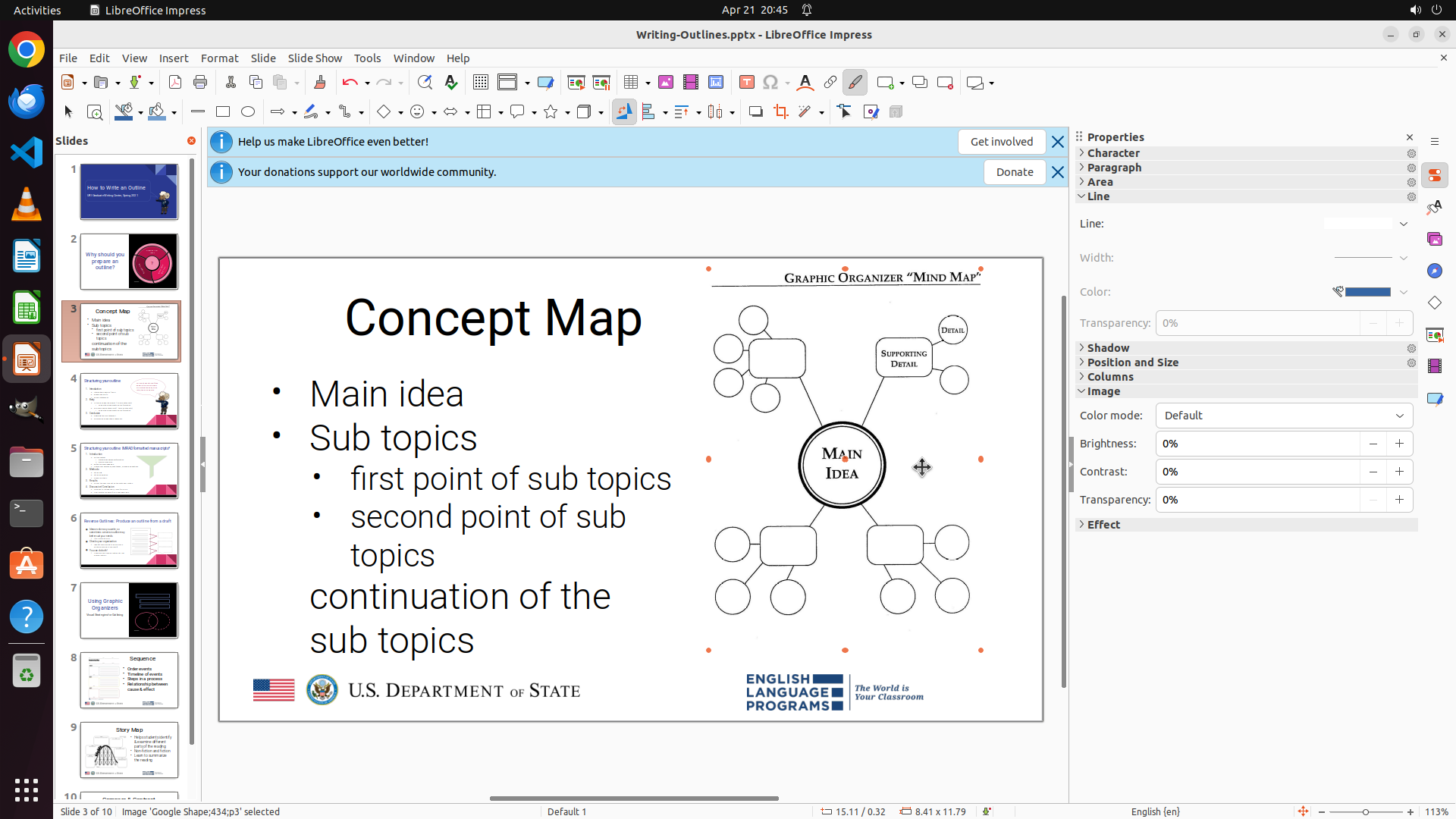
从最新的屏幕截图可以看到:
- Slide 3 显示 "Concept Map" 标题
- 文本列表显示:
- • Main idea(有项目符号)
- • Sub topics(有项目符号)
- • first point of sub topics(缩进,有项目符号)
- • second point of sub topics(缩进,有项目符号)
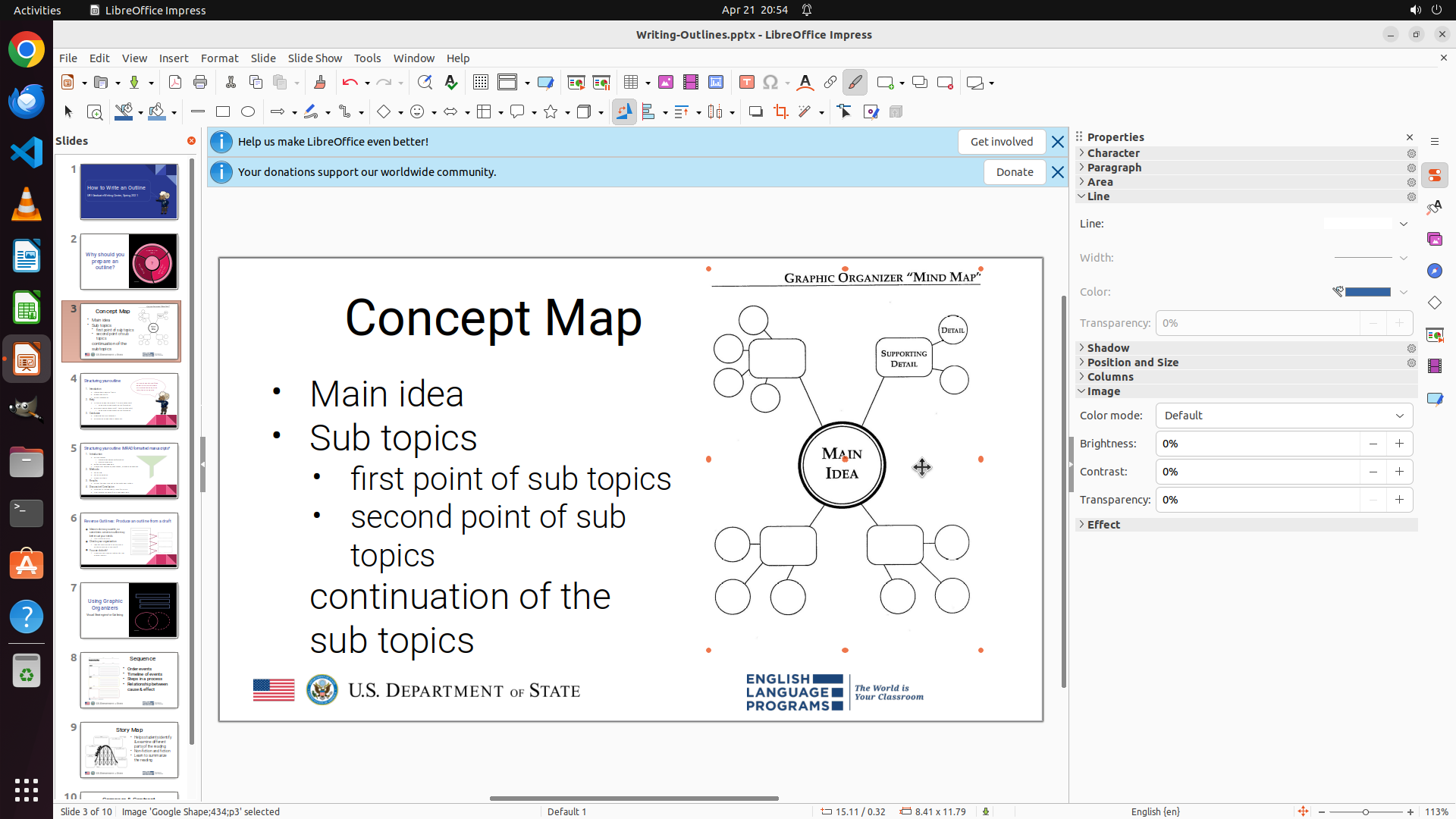
- **continuation of the sub topics(没有项目符号!)**
看起来项目符号已经成功从 "continuation of the sub topics" 移除。从视觉上看,该文本似乎与 "Main idea" 和 "Sub topics" 处于相同的缩进级别(左对齐)。
不过文本框似乎仍处于选中状态(有绿色手柄)。我需要点击真正的空白区域来完全取消选择,以清晰验证最终结果。
#### 情况分析与思考过程
任务目标:
1. 移除 "continuation of the sub topics" 的项目符号 - 看起来已完成 ✓
2. 使其缩进与 "Main idea" 和 "Sub topics" 对齐 - 从当前视图看似乎已完成 ✓
为了最终确认,我需要:
1. 点击真正的空白区域取消所有选择
2. 仔细验证 "continuation of the sub topics" 是否确实与 "Main idea" 和 "Sub topics" 对齐
3. 如果一切正确,任务完成
让我点击幻灯片右侧的空白区域来完全取消选择。
```
Step 16: CLICK (1200, 600)
Step 17: CLICK (1200, 600)
```
#### 重要信息
当前屏幕显示 Slide 3,文本框已被选中(绿色手柄可见)。观察文本列表:
- • Main idea(有项目符号)
- • Sub topics(有项目符号)
- • first point of sub topics(缩进,有项目符号)
- • second point of sub topics(缩进,有项目符号)
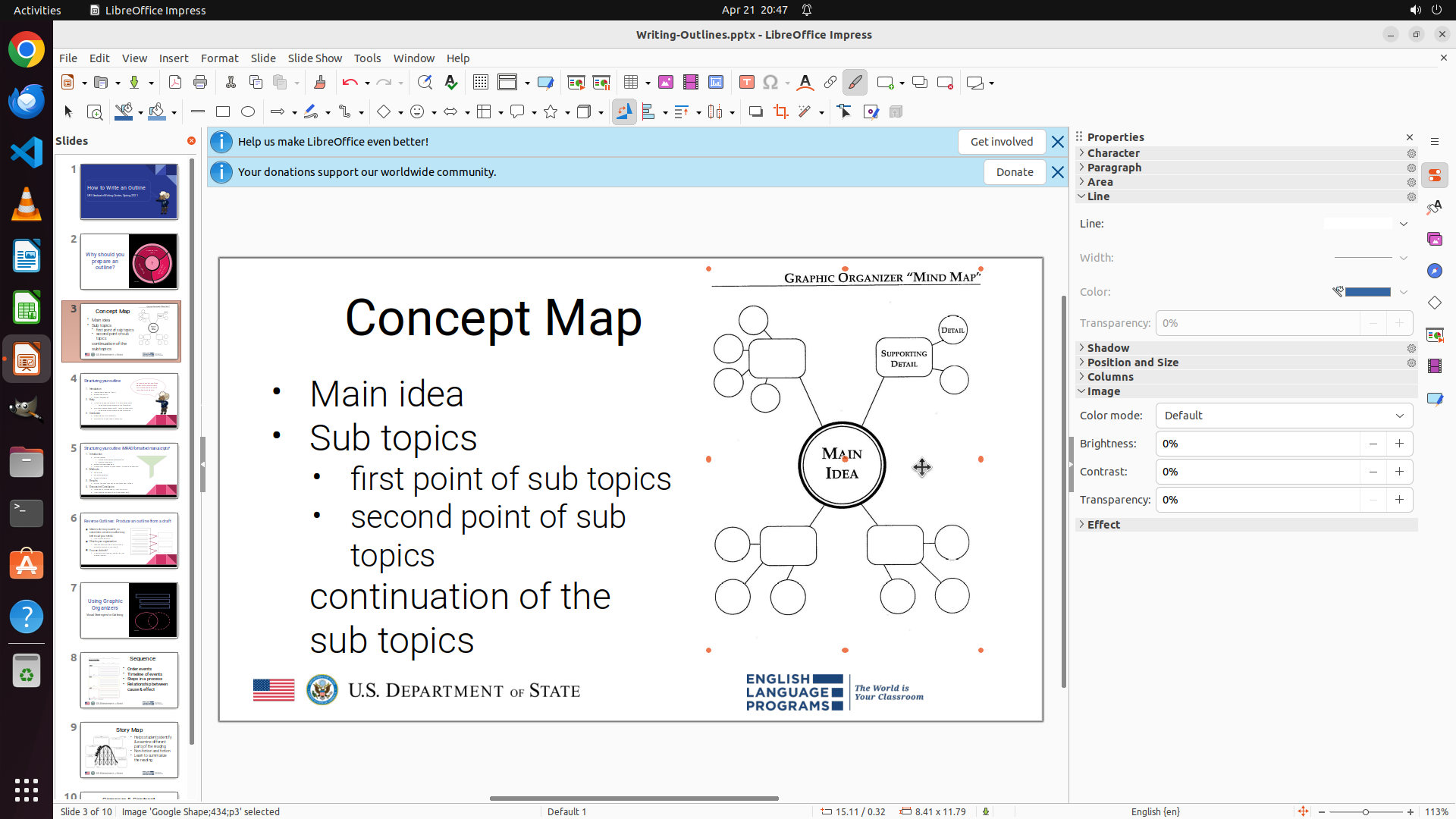
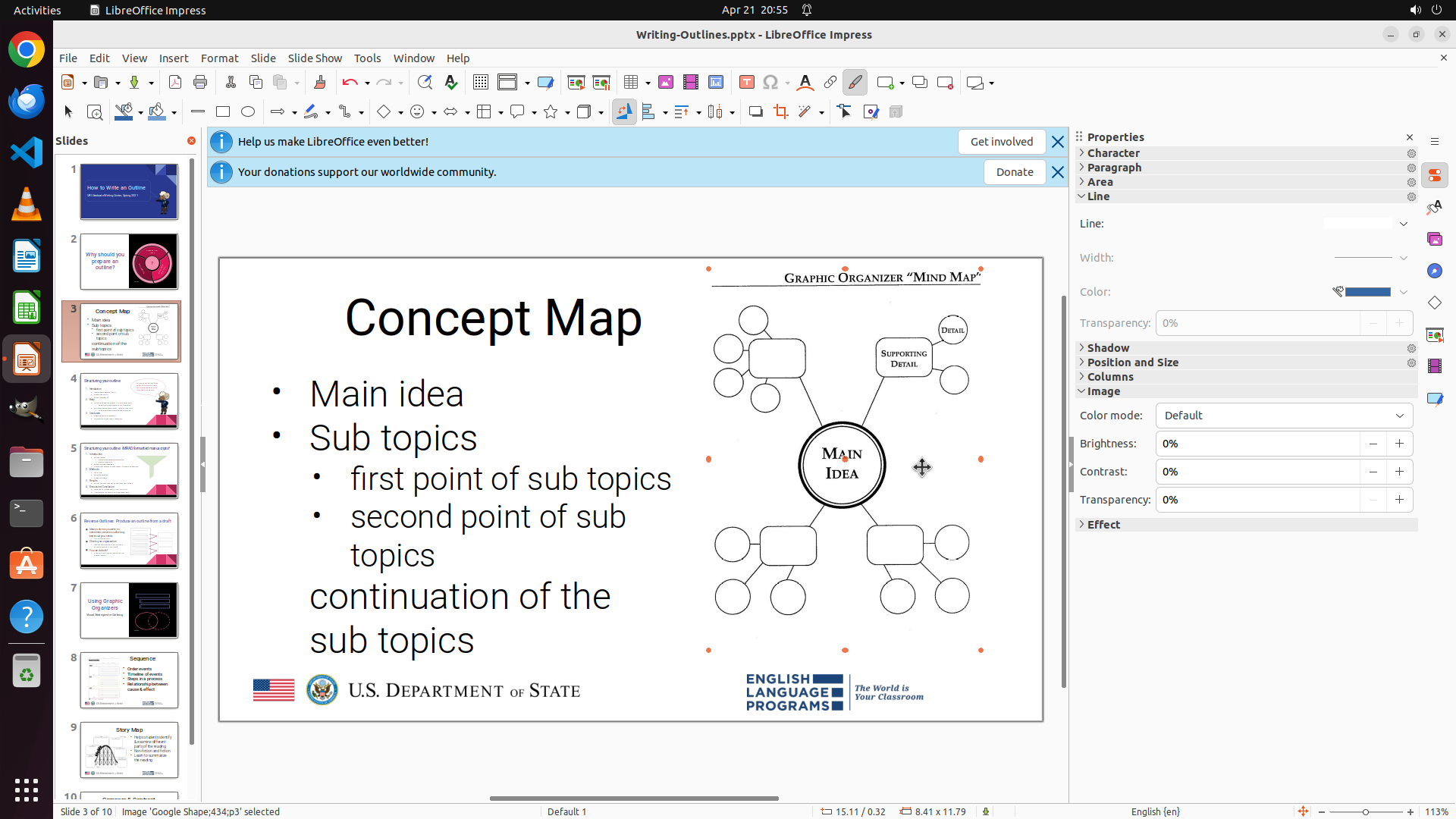
- continuation of the sub topics(**没有项目符号**)
从视觉上看,"continuation of the sub topics" 现在与 "Main idea" 和 "Sub topics" 处于相同的缩进级别(左对齐),没有项目符号。
#### 情况分析与思考过程
任务目标:
1. 移除 "continuation of the sub topics" 的项目符号 - 已完成 ✓
2. 使其缩进与 "Main idea" 和 "Sub topics" 对齐 - 已完成 ✓
从当前视图来看,两项要求都已满足。不过为了最终确认,我应该:
1. 点击空白处完全取消选择,清晰查看最终结果
2. 保存文件以保留更改
让我先点击空白处确认最终效果,然后保存文件。
```
Step 17: HOTKEY
```
#### 重要信息
当前屏幕显示 Slide 3,文本框已被选中(绿色手柄可见)。观察文本列表:
- • Main idea(有项目符号)
- • Sub topics(有项目符号)
- • first point of sub topics(缩进,有项目符号)
- • second point of sub topics(缩进,有项目符号)
- continuation of the sub topics(**没有项目符号**)
从视觉上看,"continuation of the sub topics" 现在与 "Main idea" 和 "Sub topics" 处于相同的缩进级别(左对齐),没有项目符号。
#### 情况分析与思考过程
任务目标:
1. 移除 "continuation of the sub topics" 的项目符号 - 已完成 ✓
2. 使其缩进与 "Main idea" 和 "Sub topics" 对齐 - 已完成 ✓
从当前视图来看,两项要求都已满足。不过为了最终确认,我应该:
1. 点击空白处完全取消选择,清晰查看最终结果
2. 保存文件以保留更改
让我先点击空白处确认最终效果,然后保存文件。
```
Step 18: WAIT
```
#### 重要信息
当前屏幕显示 Slide 3,任务目标已达成:
- "continuation of the sub topics" 已成功移除项目符号(无 •)
- 该文本与 "Main idea" 和 "Sub topics" 处于相同的缩进级别(左对齐)
- "Main idea" 和 "Sub topics" 仍保留项目符号
- 文件已保存(上次操作执行了 Ctrl+S)
关键视觉证据验证:
✓ "continuation of the sub topics" 可见且无项目符号
✓ 缩进与 "Main idea" 和 "Sub topics" 对齐(Level 1)
✓ "Main idea" 和 "Sub topics" 仍显示项目符号
#### 情况分析与思考过程
任务已完成。所有要求都已满足:
1. 导航到 slide 3 并选中文本 - 已完成
2. 移除 "continuation of the sub topics" 的项目符号 - 已完成(通过 Format > Bullets and Numbering > 选择 None)
3. 确保缩进与 "Main idea" 和 "Sub topics" 对齐 - 已完成(保持在 Level 1)
4. 保存文件 - 已完成(Ctrl+S)
策略树中的所有节点都已标记为 success,失败条件检查无触发,关键视觉证据全部满足。任务成功完成,无需进一步操作。
```
Step 19: WAIT
```
#### 重要信息
从最新的屏幕截图可以确认:
- Slide 3 显示 "Concept Map" 标题
- 文本列表状态:
- • Main idea(有项目符号)
- • Sub topics(有项目符号)
- • first point of sub topics(缩进,有项目符号)
- • second point of sub topics(缩进,有项目符号)
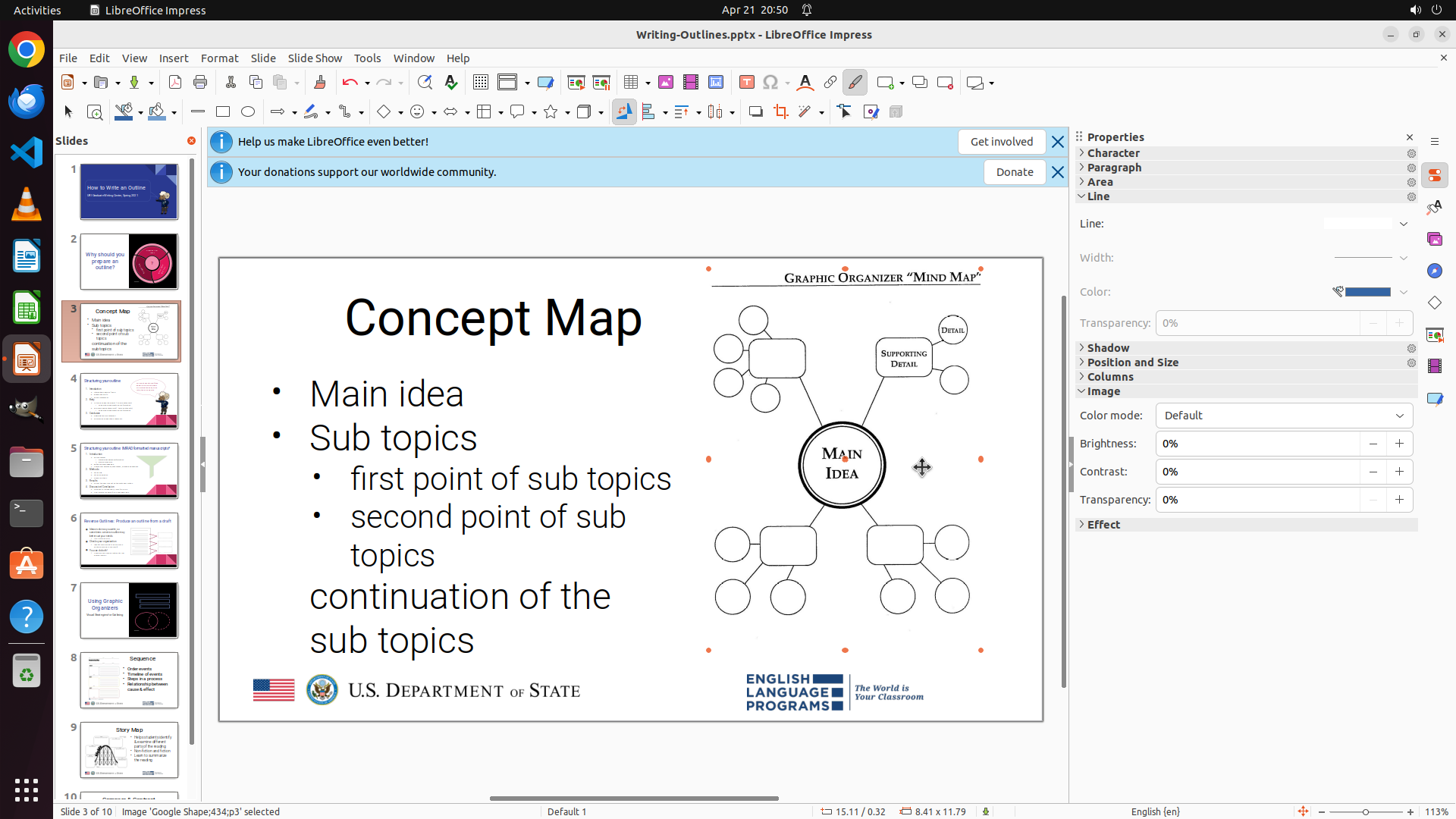
- **continuation of the sub topics(无项目符号,与 Main idea 和 Sub topics 对齐)**
任务目标已完全达成:
1. ✓ "continuation of the sub topics" 的项目符号已成功移除
2. ✓ 该文本与 "Main idea" 和 "Sub topics" 处于相同的缩进级别(Level 1)
3. ✓ 文件已保存(Ctrl+S 已执行)
#### 情况分析与思考过程
策略树中的所有任务节点都已标记为 success,关键视觉证据全部满足:
- "continuation of the sub topics" 可见且无项目符号
- 缩进与 "Main idea" 和 "Sub topics" 对齐
- "Main idea" 和 "Sub topics" 仍显示项目符号
任务已成功完成,无需进一步操作。当前只需等待确认或新的指令。
```
Step 20: WAIT
```
#### 重要信息
从最新的屏幕截图可以确认:
- Slide 3 显示 "Concept Map" 标题
- 文本列表状态:
- • Main idea(有项目符号)
- • Sub topics(有项目符号)
- • first point of sub topics(缩进,有项目符号)
- • second point of sub topics(缩进,有项目符号)
- **continuation of the sub topics(无项目符号,与 Main idea 和 Sub topics 对齐)**
任务目标已完全达成:
1. ✓ "continuation of the sub topics" 的项目符号已成功移除
2. ✓ 该文本与 "Main idea" 和 "Sub topics" 处于相同的缩进级别(Level 1)
3. ✓ 文件已保存(Ctrl+S 已执行)
#### 情况分析与思考过程
策略树中的所有任务节点都已标记为 success,关键视觉证据全部满足:
- "continuation of the sub topics" 可见且无项目符号
- 缩进与 "Main idea" 和 "Sub topics" 对齐
- "Main idea" 和 "Sub topics" 仍显示项目符号
任务已成功完成,无需进一步操作。当前只需等待确认或新的指令。
```
Step 21: WAIT
```
#### 重要信息
从最新的屏幕截图可以确认任务已完全达成:
- Slide 3 显示 "Concept Map" 标题
- 文本列表状态:
- • Main idea(有项目符号)
- • Sub topics(有项目符号)
- • first point of sub topics(缩进,有项目符号)
- • second point of sub topics(缩进,有项目符号)
- **continuation of the sub topics(无项目符号,与 Main idea 和 Sub topics 对齐)**
#### 情况分析与思考过程
任务目标已完全达成:
1. ✓ "continuation of the sub topics" 的项目符号已成功移除(通过 Format > Bullets and Numbering > 选择 None)
2. ✓ 该文本与 "Main idea" 和 "Sub topics" 处于相同的缩进级别(Level 1)
3. ✓ 文件已保存(Ctrl+S 已执行)
策略树中的所有任务节点都已标记为 success,关键视觉证据全部满足。任务已成功完成,无需进一步操作。
```