```
#### 重要信息
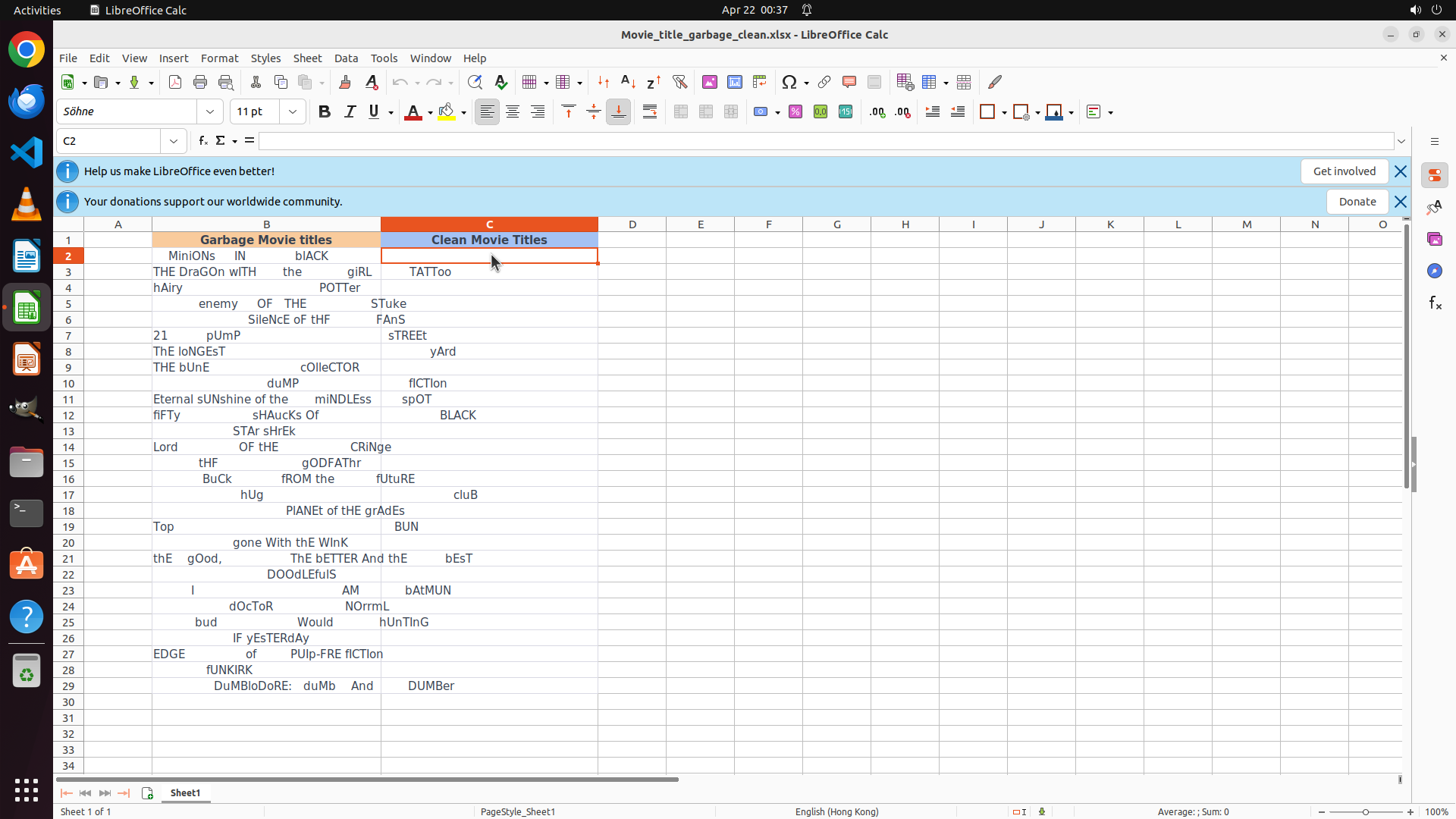
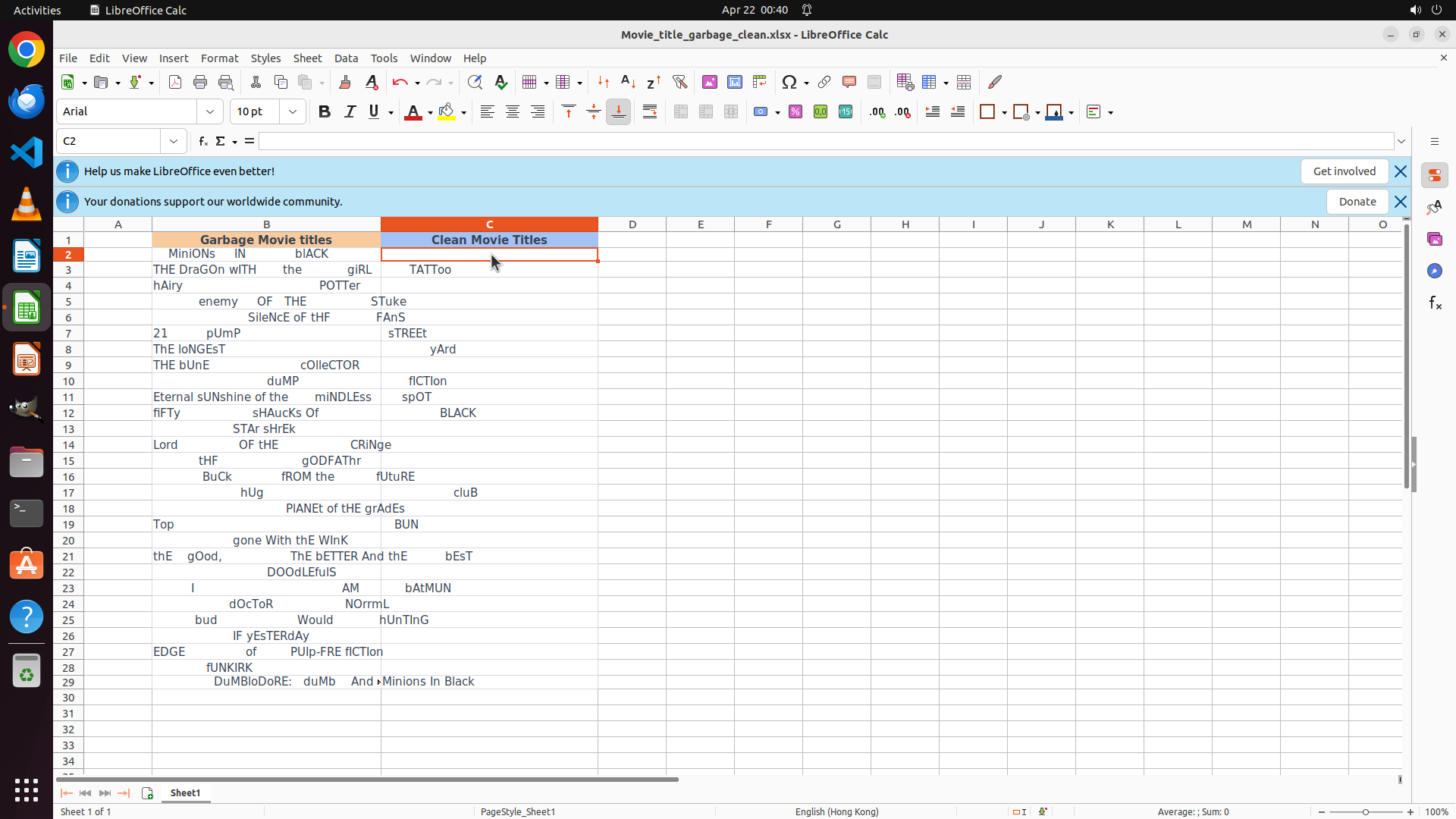
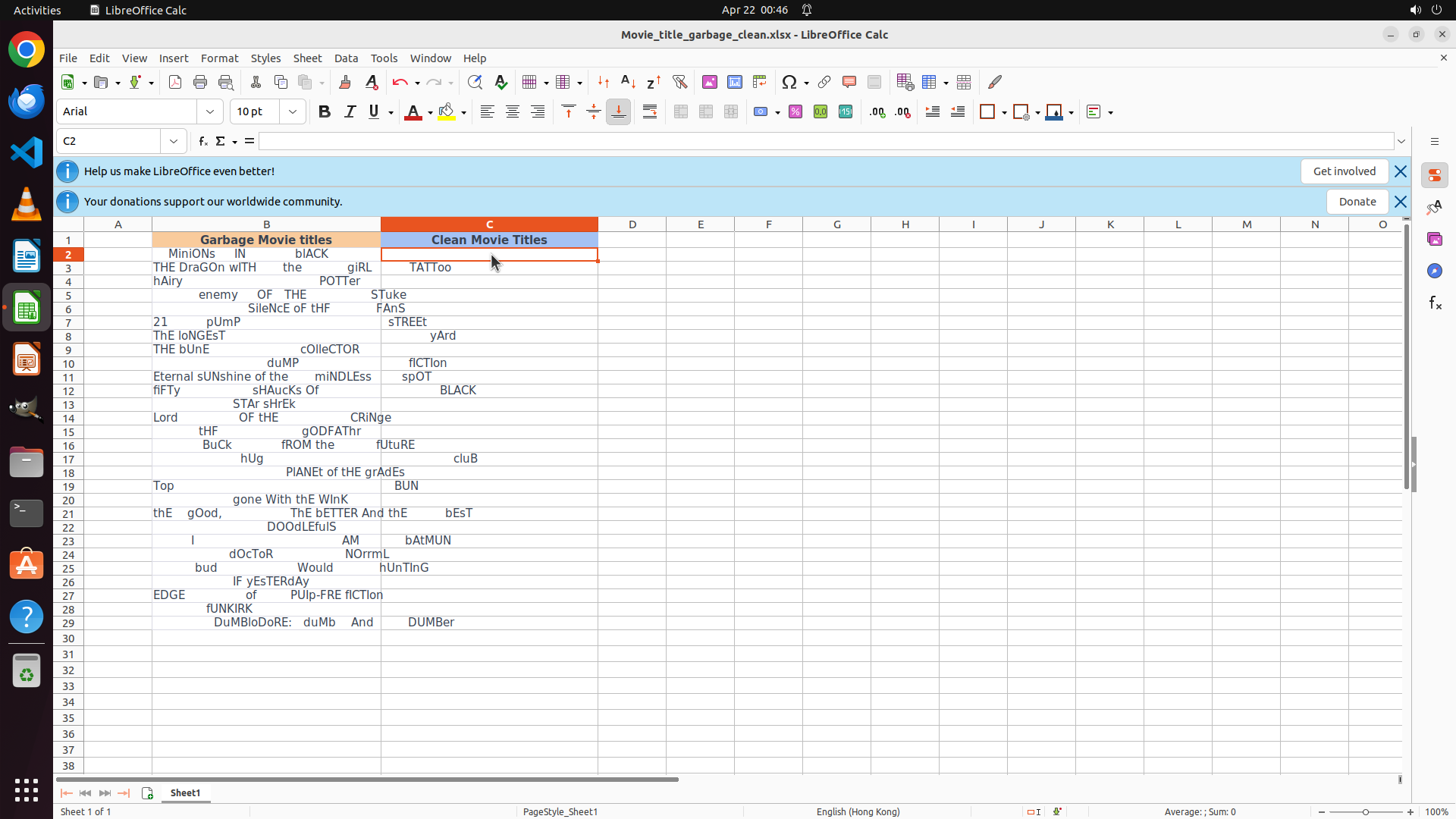
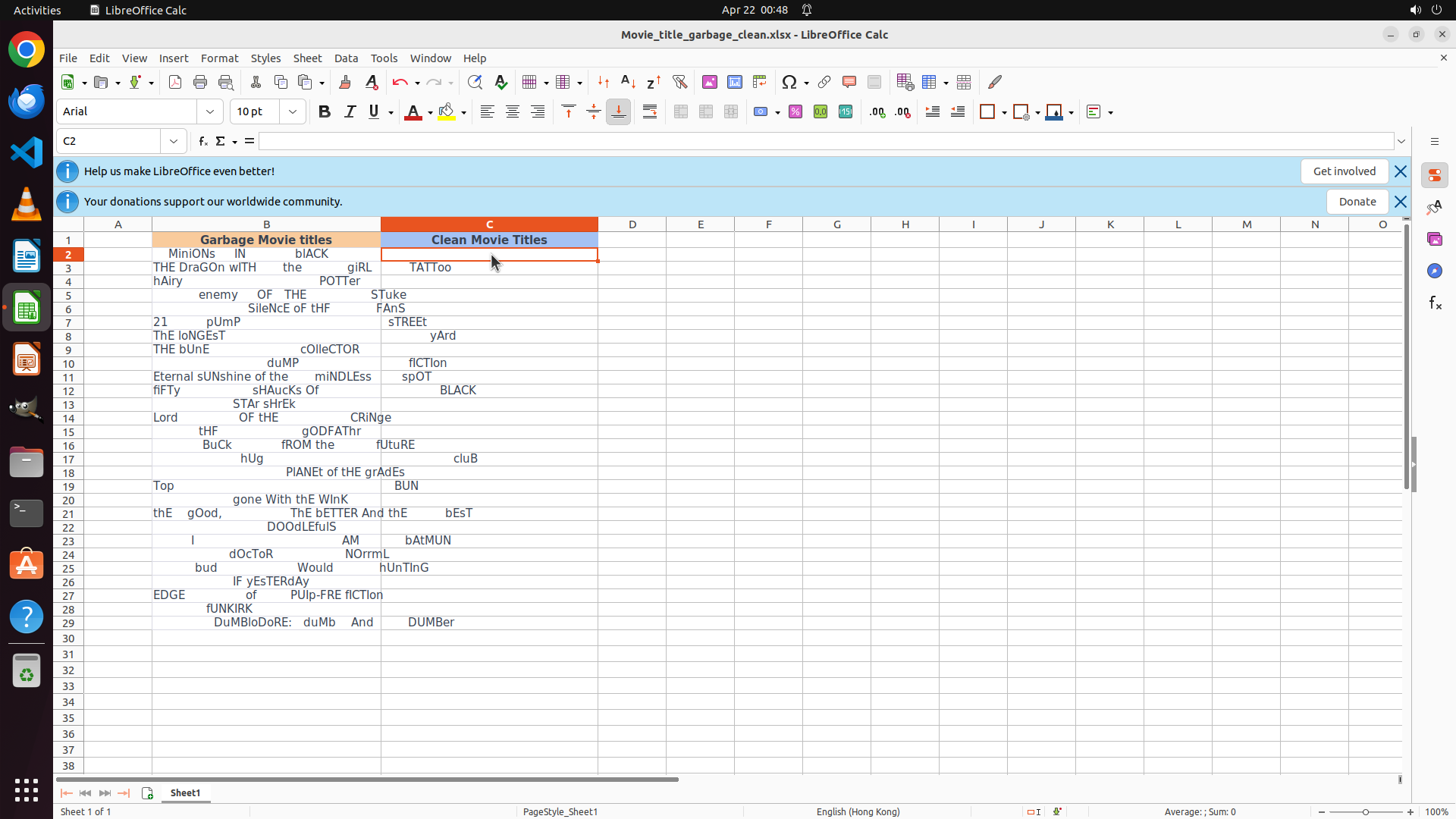
- LibreOffice Calc is open with a spreadsheet containing movie titles
- Column B "Garbage Movie Titles" contains messy data with inconsistent spacing and capitalization (e.g., "MinIONS IN blACK", "THE DrAGOn wITH the girL", etc.)
- Column C "Clean Movie Titles" appears to be empty
- Data in column B starts from row 2 and continues down to row 29 (based on visible data)
- Row 1 contains headers
#### 情况分析与思考过程
I need to clean the movie titles from column B and place them in column C. The cleaning process involves:
1. Removing redundant whitespaces (using TRIM function)
2. Capitalizing the first letter of each word and lowercasing the rest (using PROPER function)
My plan:
1. Click on cell C2 (first data cell in Clean Movie Titles column)
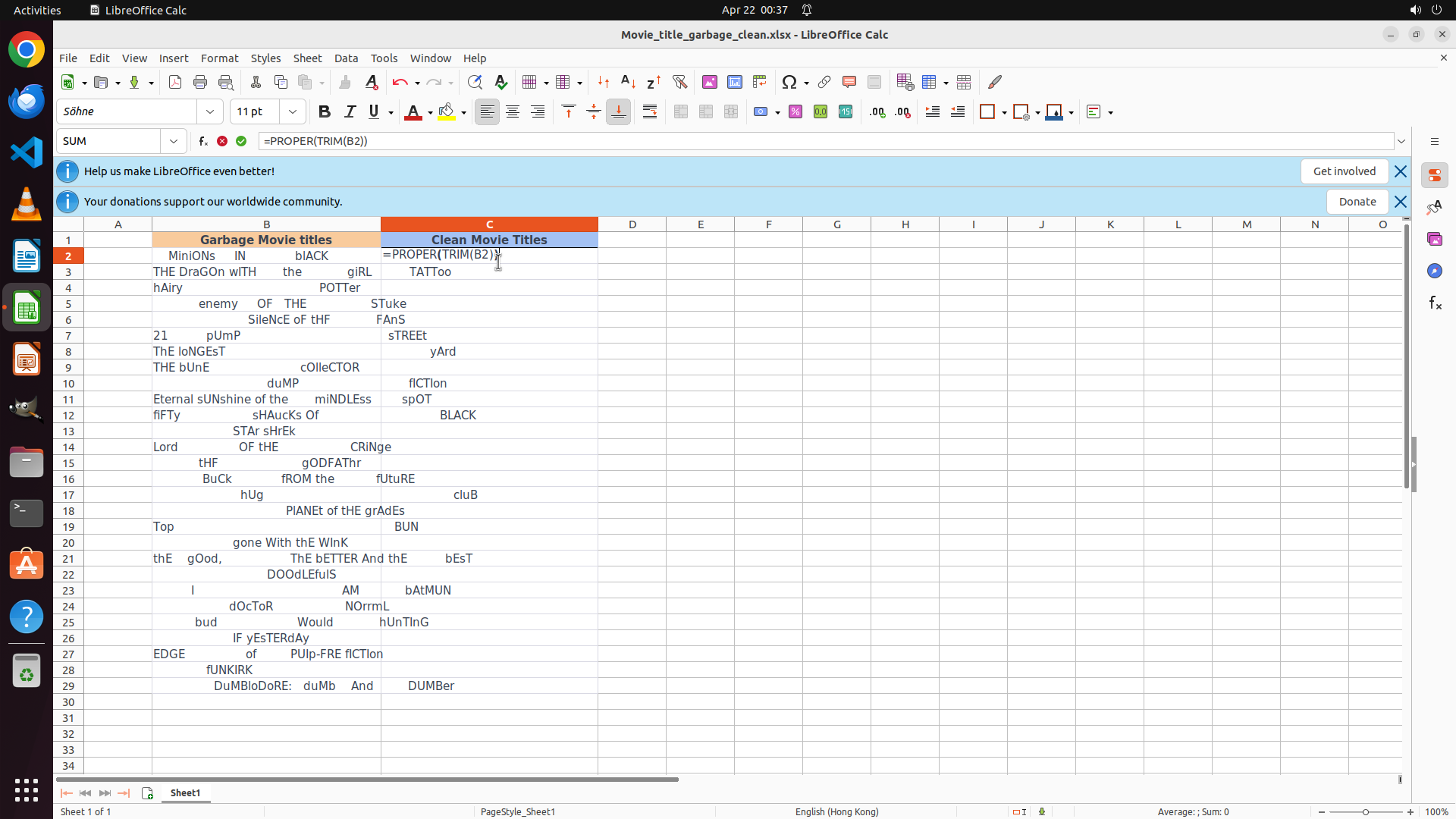
2. Enter the formula =PROPER(TRIM(B2)) to clean the first title
3. Fill down the formula for all rows with data (rows 2-29)
This is the most efficient approach as it uses LibreOffice Calc's built-in functions to automatically clean all titles at once.
I'll start by clicking on cell C2 to begin entering the formula.
```
Step 2: TYPING "=PROPER(TRIM(B2))"
```
#### 重要信息
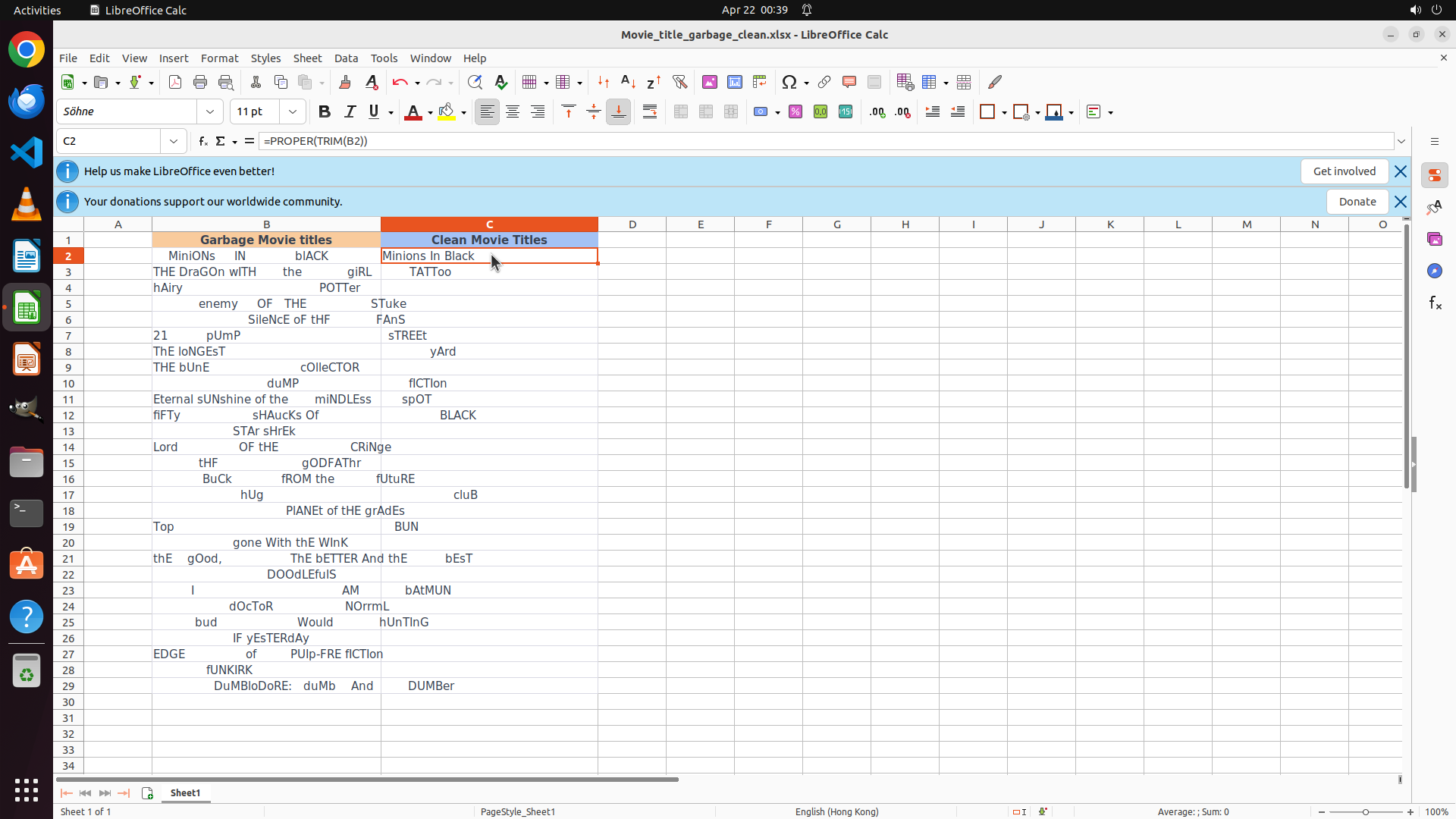
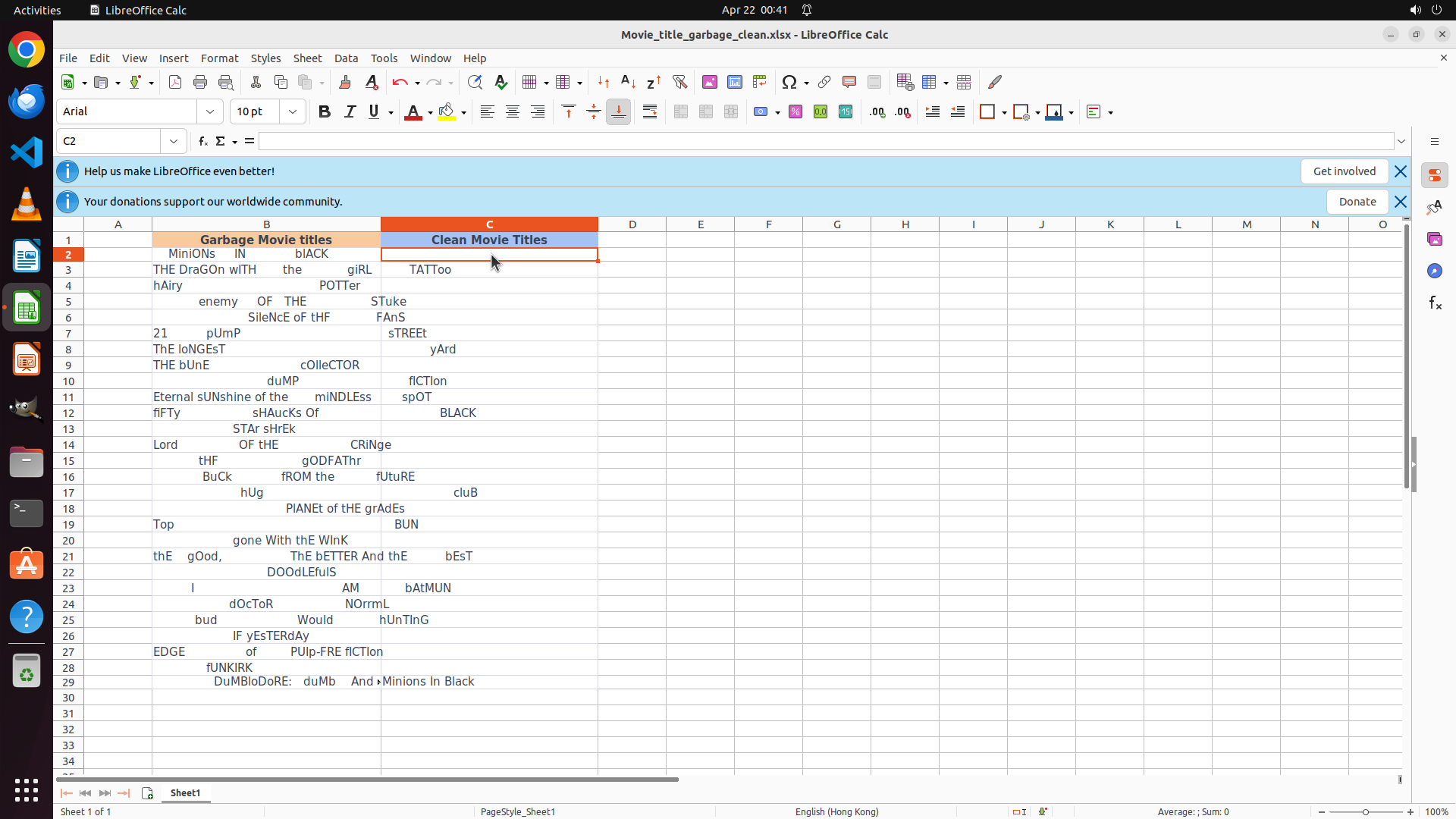
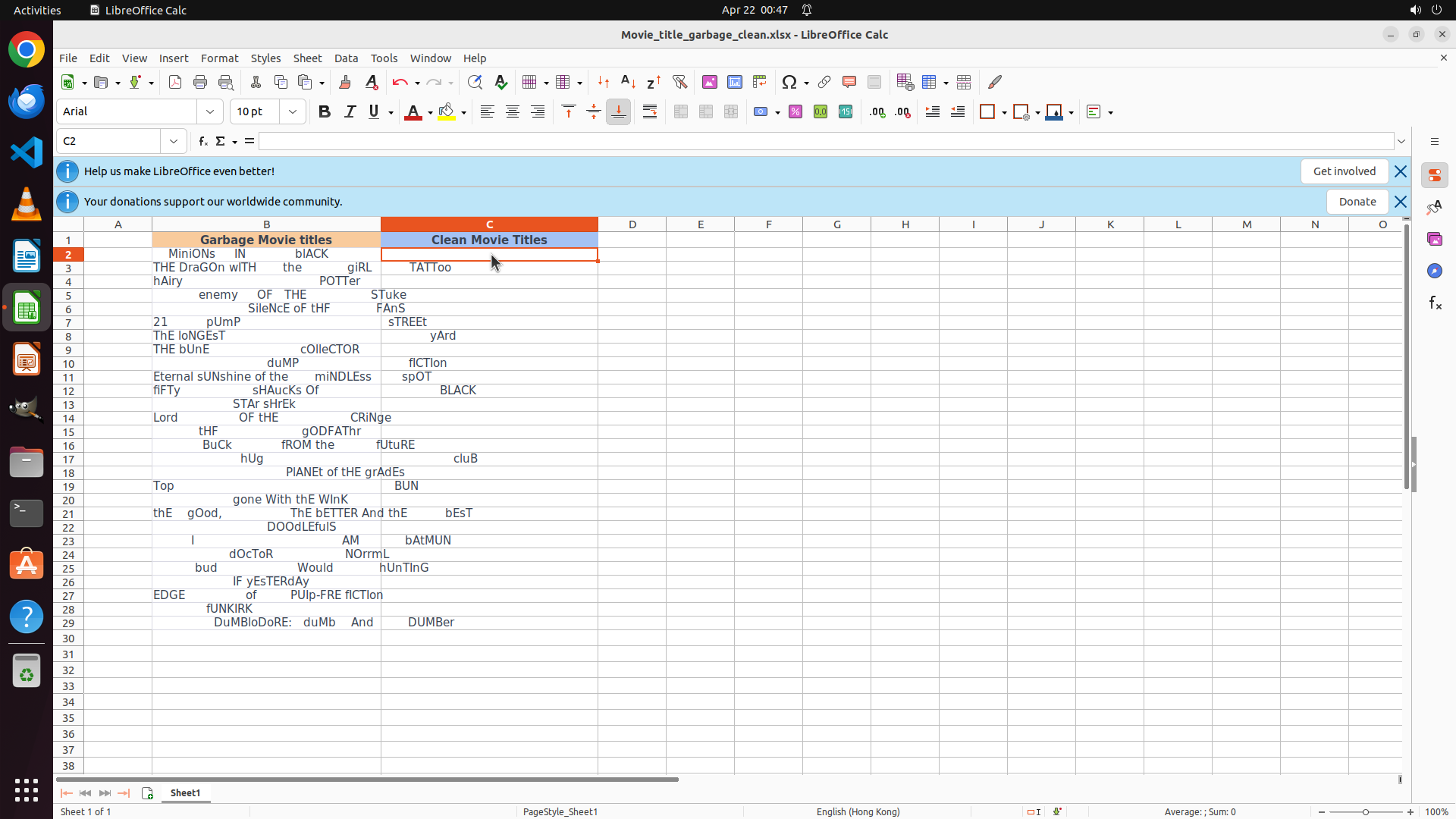
- Cell C2 is now selected (confirmed by the cell reference "C2" in the name box)
- The cell has an orange border indicating it's the active cell
- The formula bar is empty, ready for input
- Column B contains messy movie titles from row 2 to row 29
- Column C header is "Clean Movie Titles" and is currently empty
#### 情况分析与思考过程
The previous action successfully selected cell C2. Now I need to:
1. Enter the formula =PROPER(TRIM(B2)) to clean the first movie title
2. This formula will:
- TRIM(B2): Remove redundant whitespaces from the text in B2
- PROPER(...): Capitalize the first letter of each word and lowercase the rest
After entering the formula, I'll press Enter to confirm it, then fill it down to all rows (2-29) to clean all movie titles at once.
Let me type the formula now.
```
Step 3: HOTKEY
```
#### 重要信息
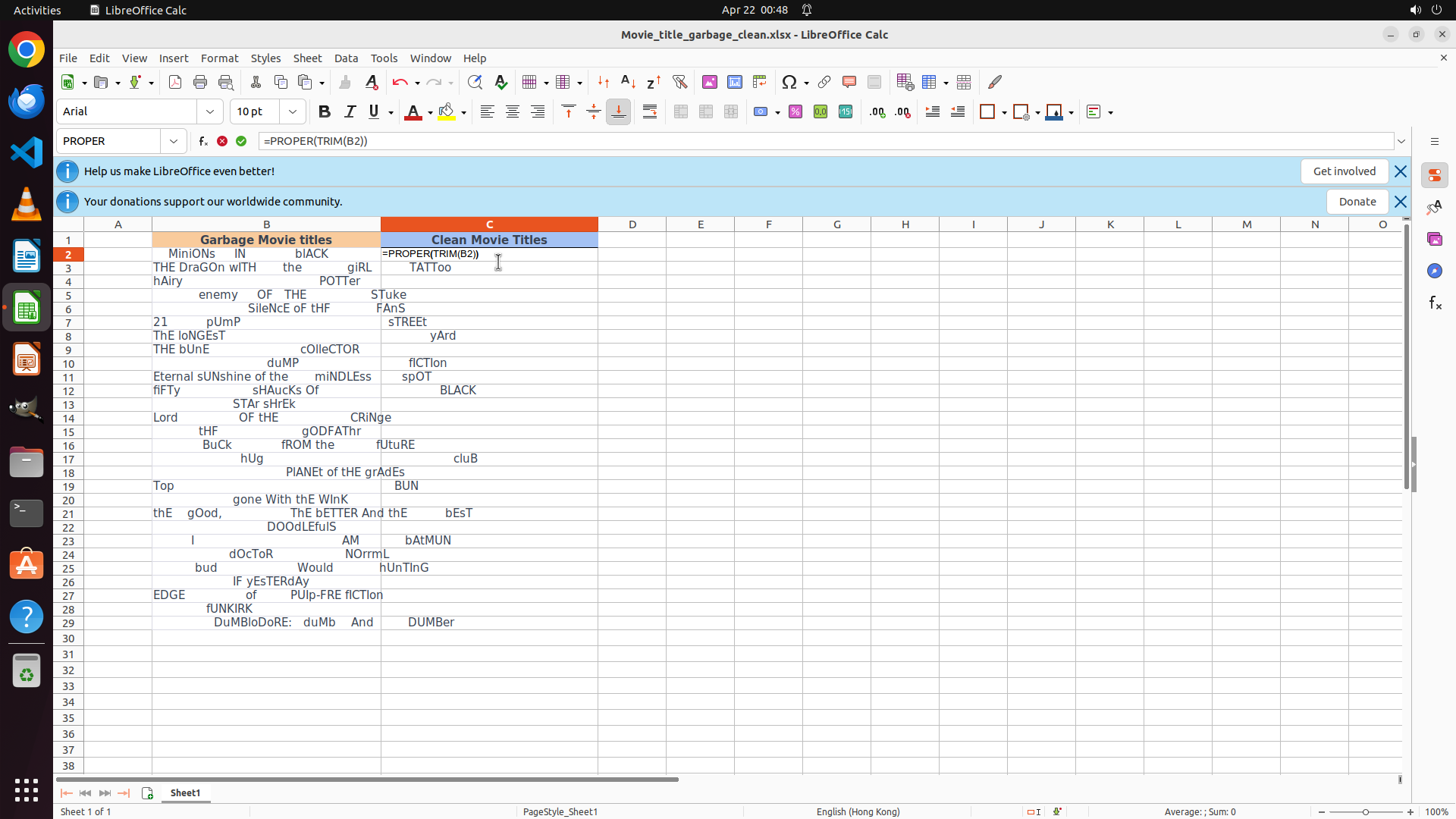
- The formula "=PROPER(TRIM(B2))" has been entered in cell C2 (visible in formula bar)
- Cell C2 is still selected with an orange border
- The formula hasn't been executed yet - it's still showing as text in the cell
- Column B contains messy movie titles from row 2 to row 29
- Column C header is "Clean Movie Titles" and C2 currently shows the formula text
#### 情况分析与思考过程
The formula has been entered but needs to be executed. I need to press Enter to confirm the formula, which will:
1. Execute the PROPER(TRIM(B2)) formula
2. Display the cleaned result in C2 (should be "Minions In Black")
3. Move the cursor to C3
After that, I'll need to:
1. Select cell C2 again (if cursor moves to C3)
2. Copy the formula down to all rows from 2 to 29 (either by selecting C2:C29 and pressing Ctrl+D, or by copying C2 and pasting to C3:C29)
Let me press Enter to execute the formula first.
```
Step 4: CLICK (643, 330)
```
#### 重要信息
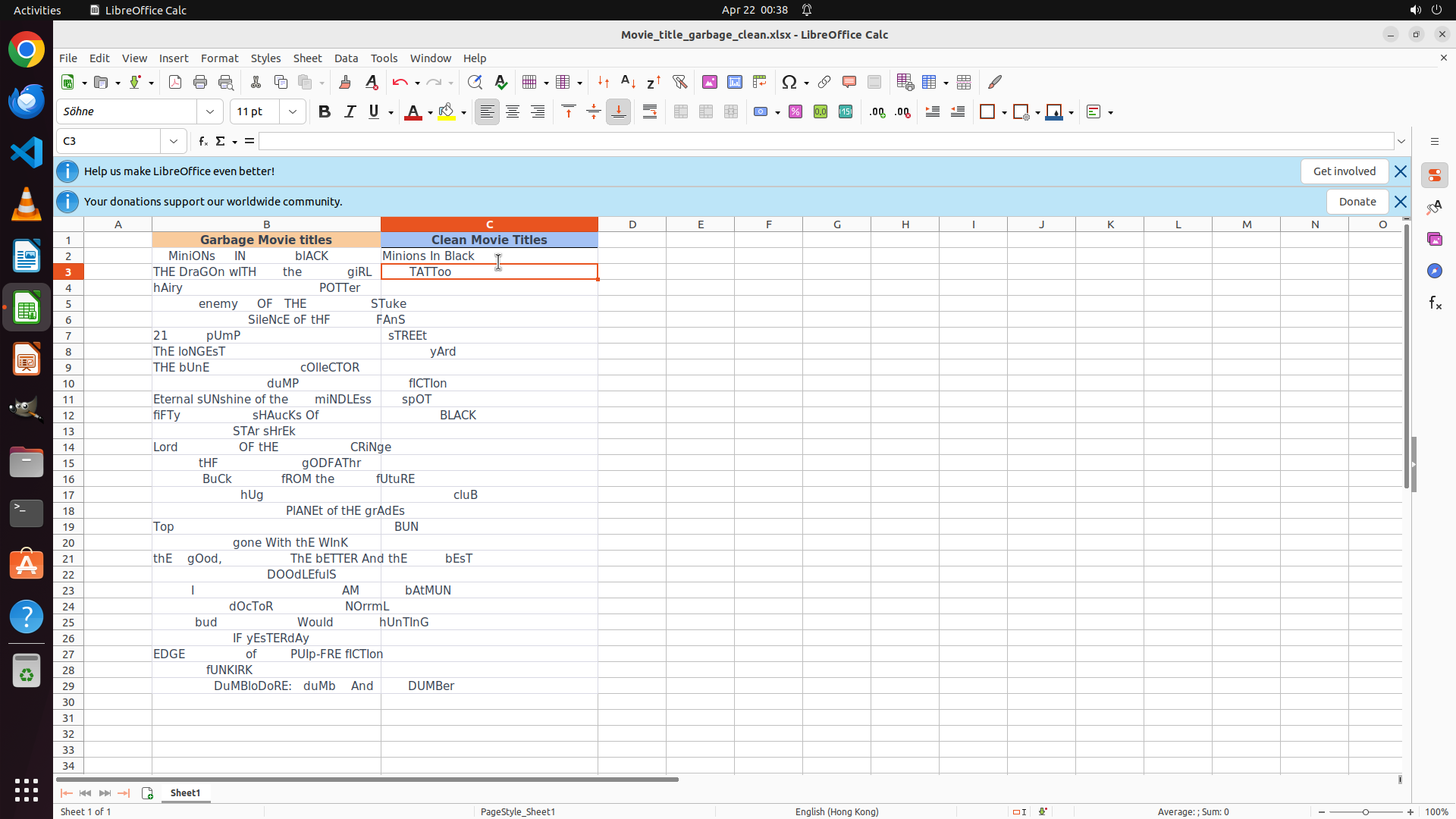
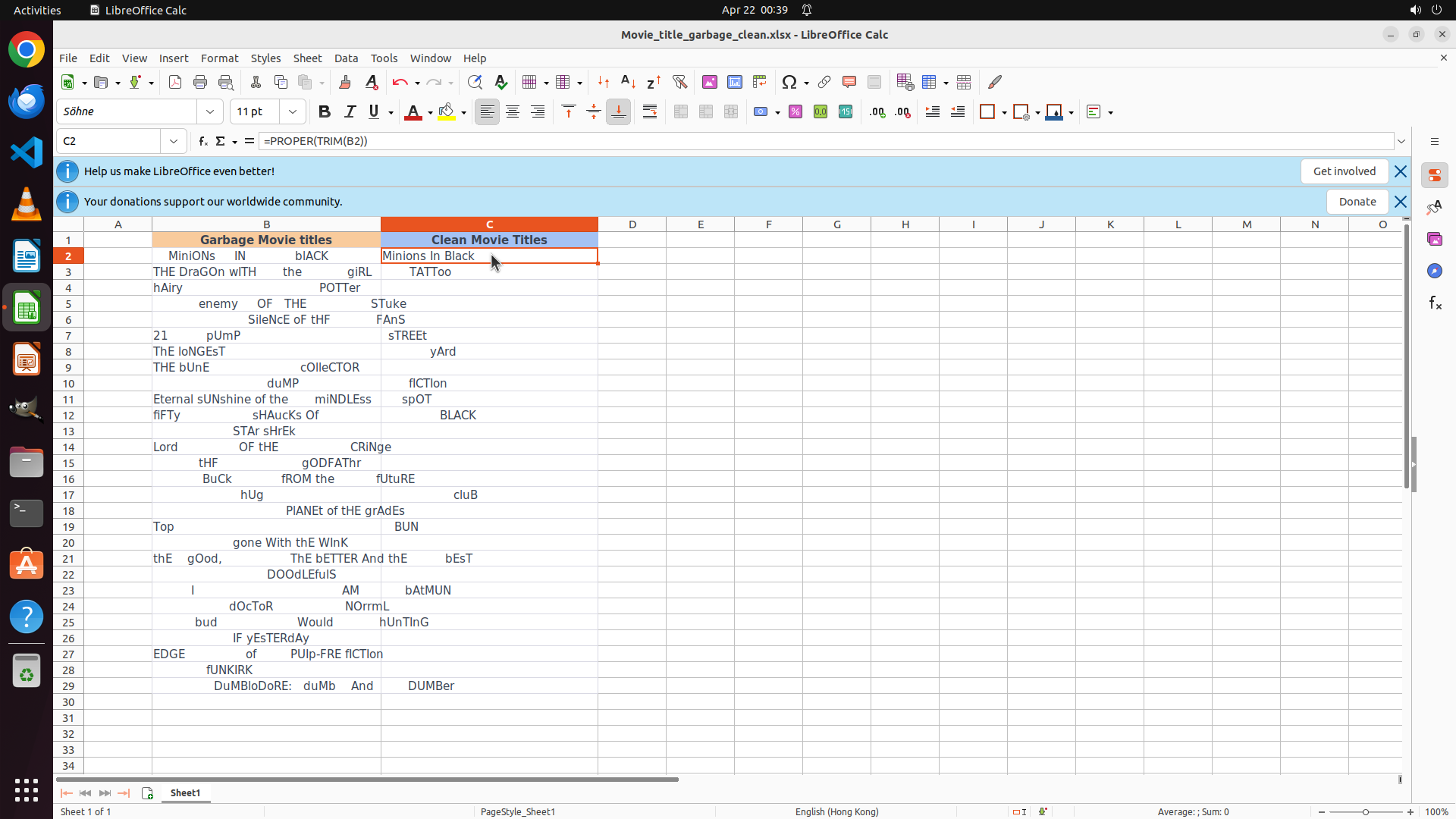
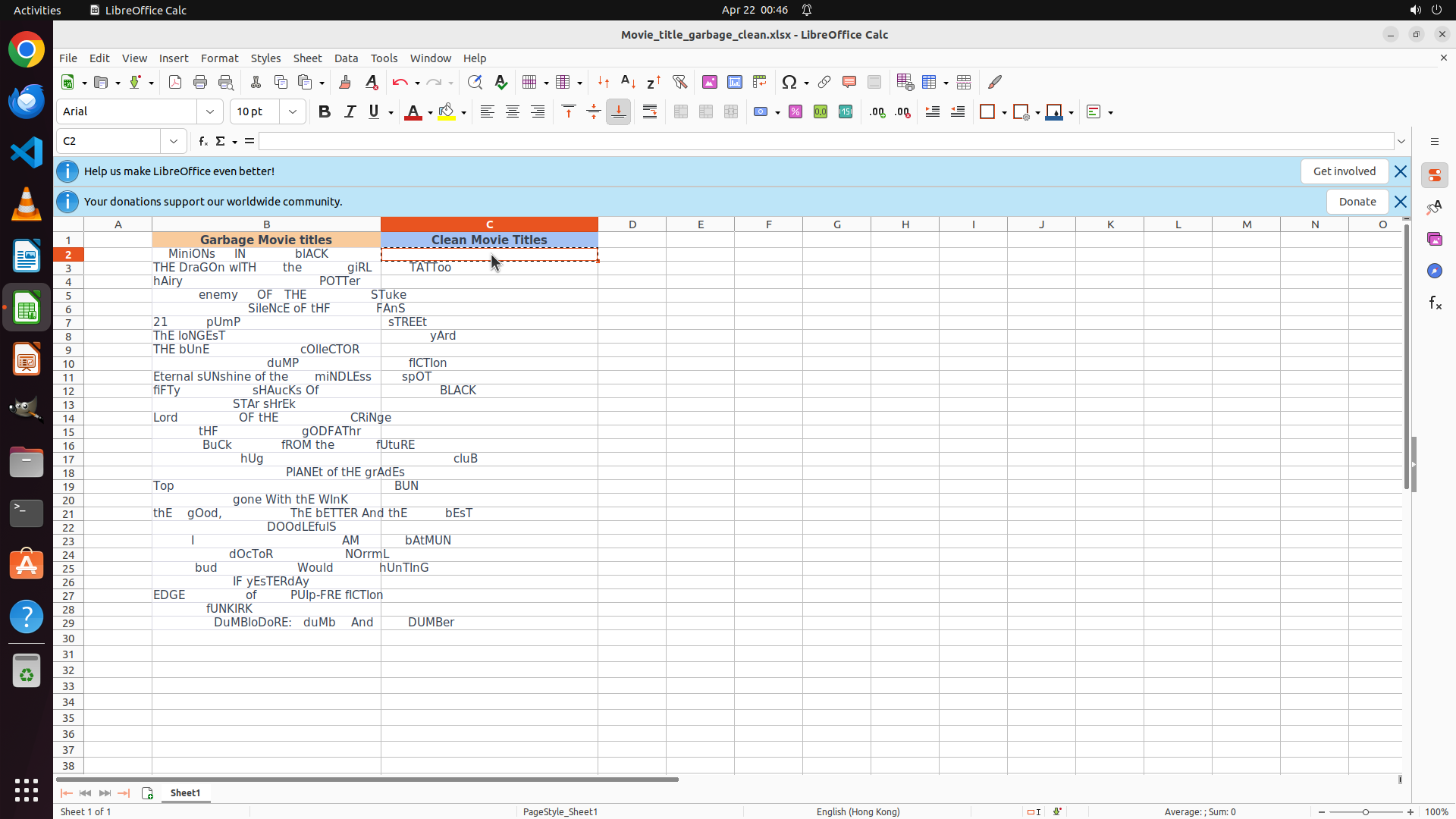
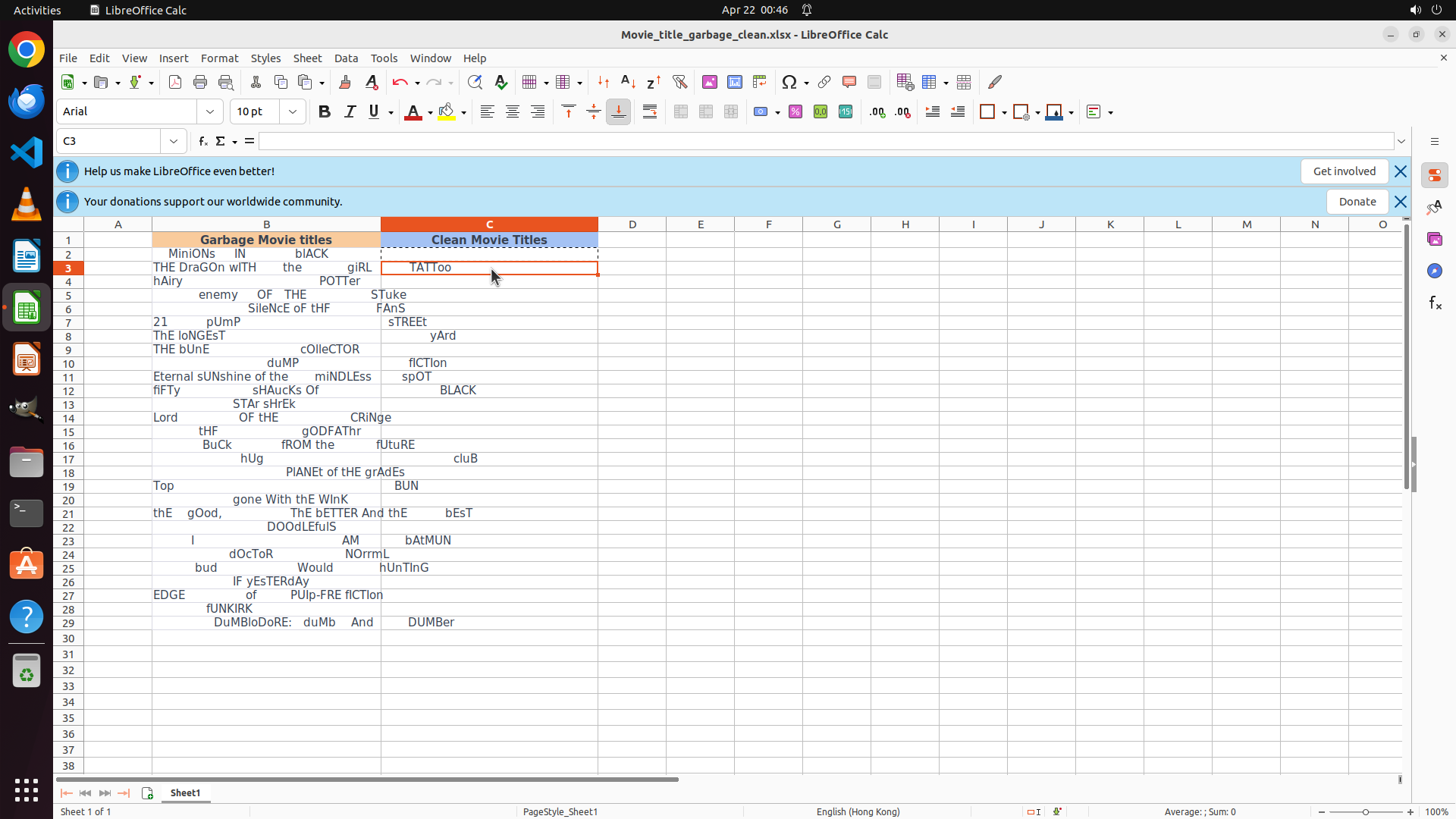
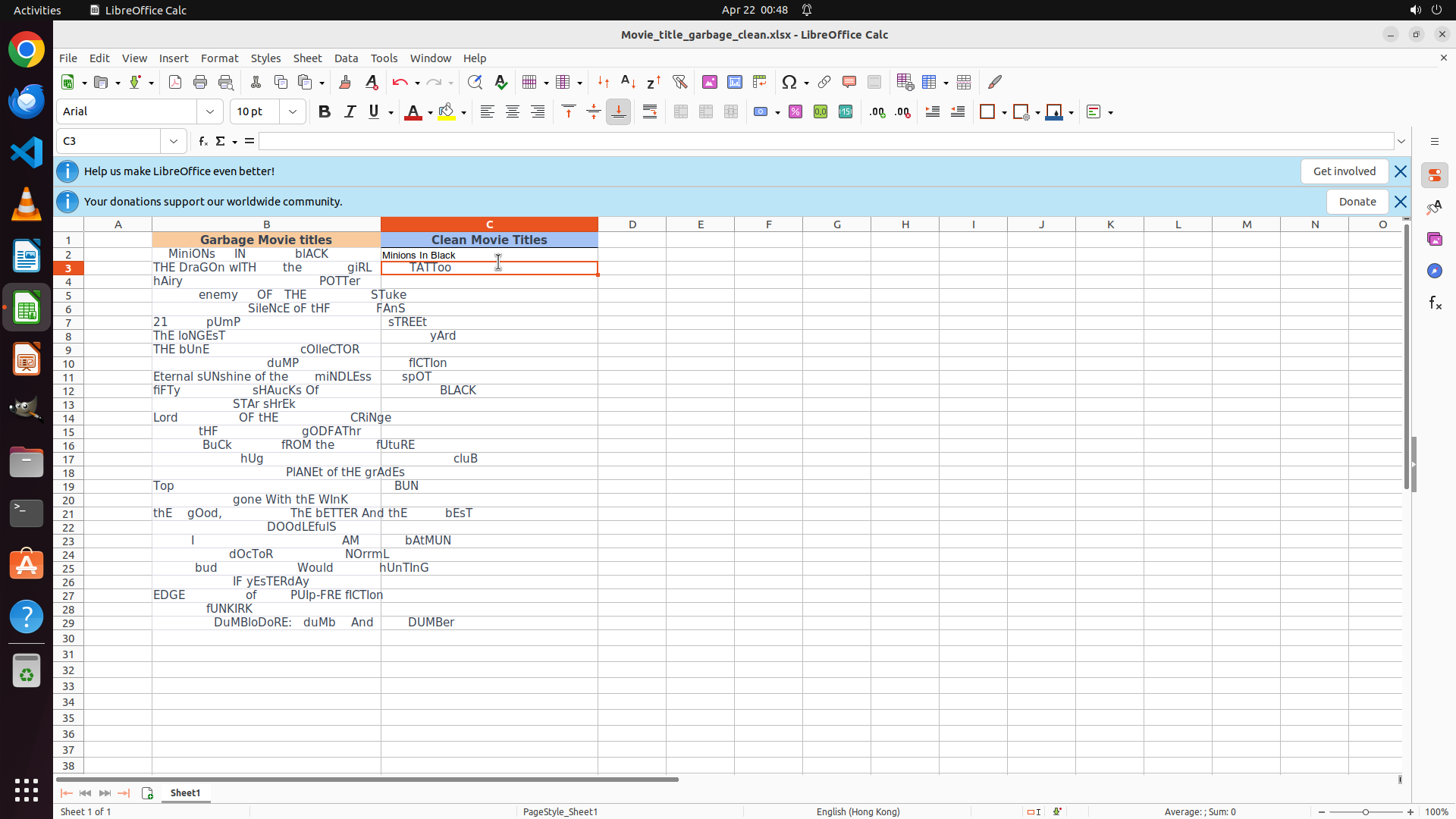
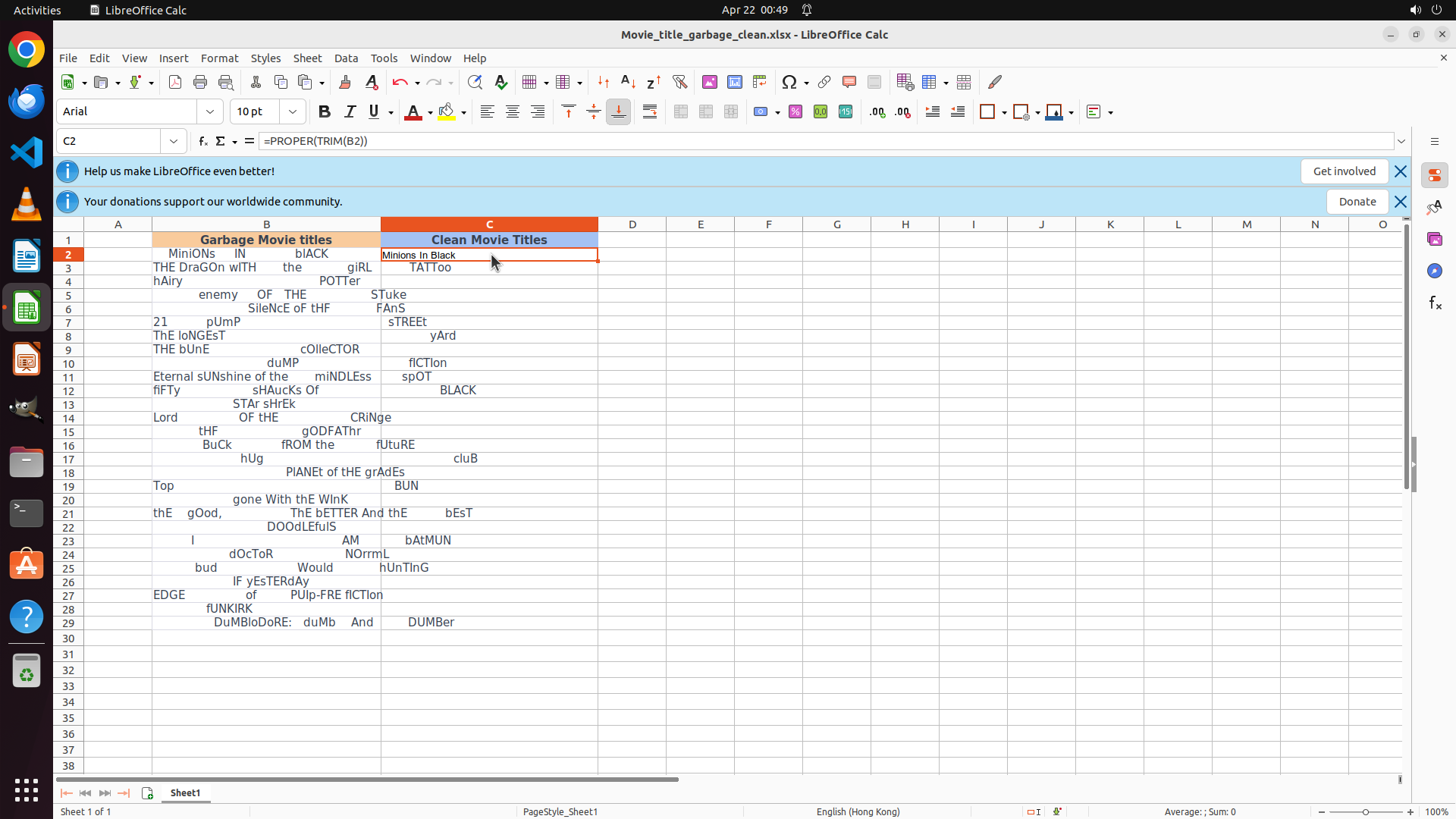
- The formula in C2 has been executed successfully - it now shows "Minions In Black" (properly cleaned)
- The cursor has moved to C3 (name box shows "C3")
- Cell C2 contains the formula =PROPER(TRIM(B2)) which successfully cleaned the first title
- I need to copy this formula to all remaining rows (C3 to C29) to clean all movie titles
#### 情况分析与思考过程
The formula worked perfectly! Now I need to:
1. Select cell C2 again (since cursor moved to C3)
2. Select the range C2:C29 (or C3:C29 if I want to copy C2 and paste)
3. Use Ctrl+D to fill down the formula, or copy-paste
The most efficient approach is to:
- Click on C2 to select it
- Then select from C2 to C29 (by holding Shift and clicking on C29, or by typing the range)
- Press Ctrl+D to fill down
Let me first click on C2 to select it.
```
Step 5: KEY_DOWN
```
#### 重要信息
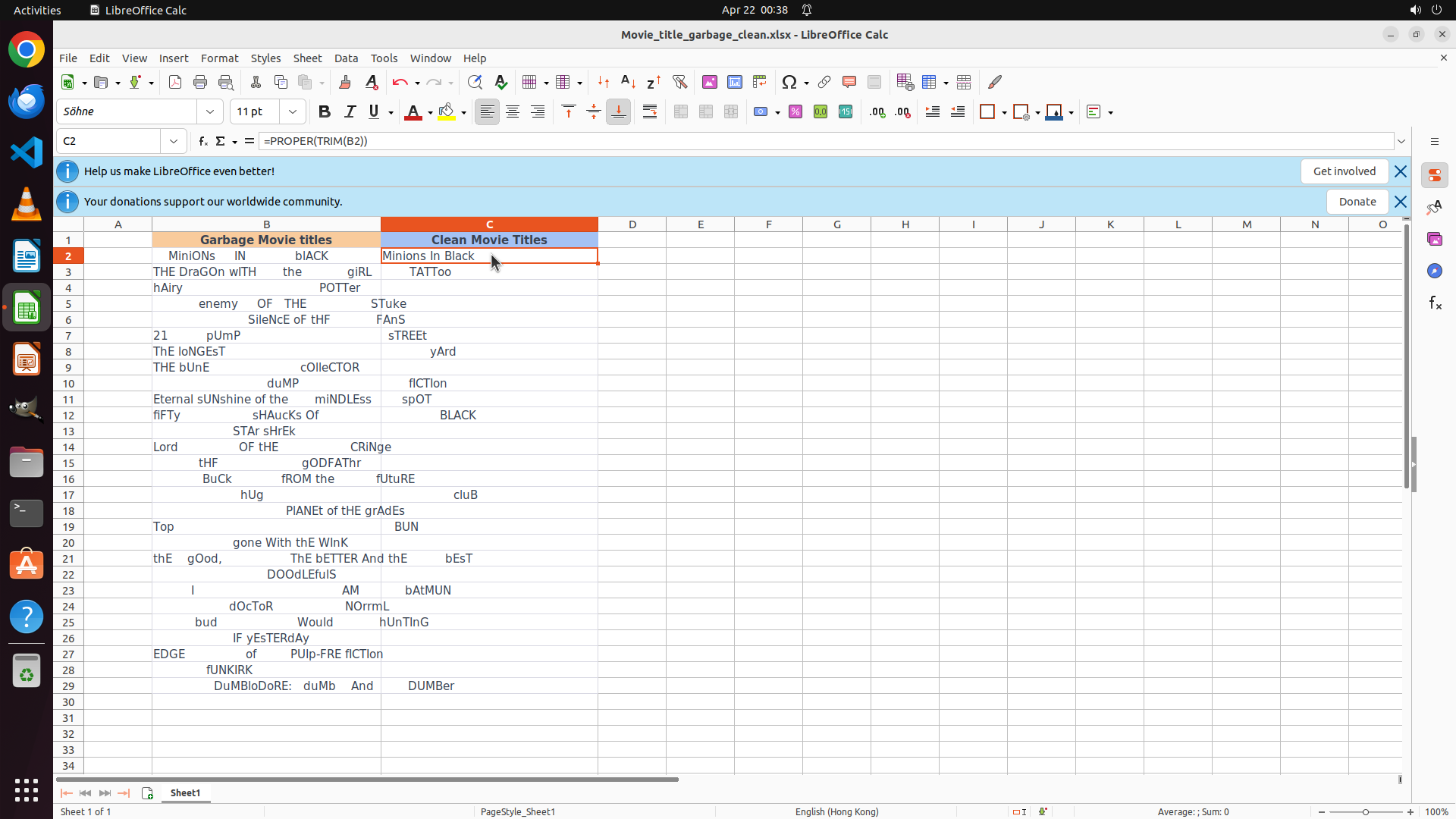
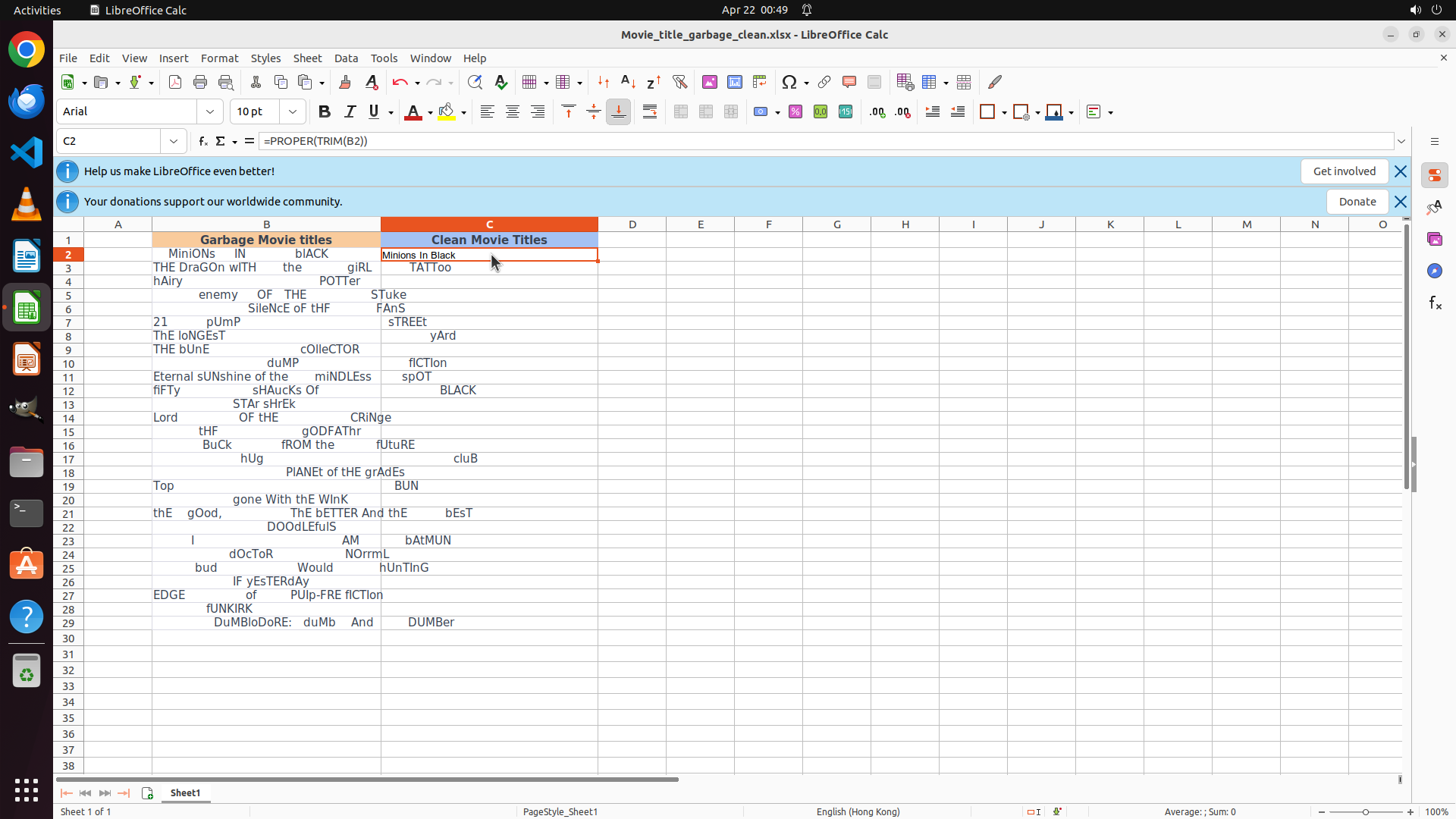
- Cell C2 is selected and contains the formula =PROPER(TRIM(B2))
- The formula successfully cleaned the first title to "Minions In Black"
- Data in column B extends from row 2 to row 29 (I can see row 29 with "DuMbLoRe: duMb And DUMBer")
- I need to copy the formula from C2 to all cells from C3 to C29
- Row 29 is visible at the bottom of the screen
#### 情况分析与思考过程
The formula in C2 works perfectly. Now I need to copy it down to all remaining rows. The most efficient way is to:
1. Select the range C2:C29 (including the cell with the formula)
2. Press Ctrl+D to fill down the formula to all selected cells
Since C2 is already selected, I should hold Shift and click on C29 to select the range C2:C29, then press Ctrl+D to fill down.
Looking at the screen, row 29 is visible. I need to Shift+Click on cell C29 (the cell in column C, row 29) to select the range.
```
Step 5: MOVE_TO (643, 330)
```
#### 重要信息
- Cell C2 is selected and contains the formula =PROPER(TRIM(B2))
- The formula successfully cleaned the first title to "Minions In Black"
- Data in column B extends from row 2 to row 29 (I can see row 29 with "DuMbLoRe: duMb And DUMBer")
- I need to copy the formula from C2 to all cells from C3 to C29
- Row 29 is visible at the bottom of the screen
#### 情况分析与思考过程
The formula in C2 works perfectly. Now I need to copy it down to all remaining rows. The most efficient way is to:
1. Select the range C2:C29 (including the cell with the formula)
2. Press Ctrl+D to fill down the formula to all selected cells
Since C2 is already selected, I should hold Shift and click on C29 to select the range C2:C29, then press Ctrl+D to fill down.
Looking at the screen, row 29 is visible. I need to Shift+Click on cell C29 (the cell in column C, row 29) to select the range.
```
Step 5: DRAG_TO (643, 904)
```
#### 重要信息
- Cell C2 is selected and contains the formula =PROPER(TRIM(B2))
- The formula successfully cleaned the first title to "Minions In Black"
- Data in column B extends from row 2 to row 29 (I can see row 29 with "DuMbLoRe: duMb And DUMBer")
- I need to copy the formula from C2 to all cells from C3 to C29
- Row 29 is visible at the bottom of the screen
#### 情况分析与思考过程
The formula in C2 works perfectly. Now I need to copy it down to all remaining rows. The most efficient way is to:
1. Select the range C2:C29 (including the cell with the formula)
2. Press Ctrl+D to fill down the formula to all selected cells
Since C2 is already selected, I should hold Shift and click on C29 to select the range C2:C29, then press Ctrl+D to fill down.
Looking at the screen, row 29 is visible. I need to Shift+Click on cell C29 (the cell in column C, row 29) to select the range.
```
Step 5: KEY_UP
```
#### 重要信息
- Cell C2 is selected and contains the formula =PROPER(TRIM(B2))
- The formula successfully cleaned the first title to "Minions In Black"
- Data in column B extends from row 2 to row 29 (I can see row 29 with "DuMbLoRe: duMb And DUMBer")
- I need to copy the formula from C2 to all cells from C3 to C29
- Row 29 is visible at the bottom of the screen
#### 情况分析与思考过程
The formula in C2 works perfectly. Now I need to copy it down to all remaining rows. The most efficient way is to:
1. Select the range C2:C29 (including the cell with the formula)
2. Press Ctrl+D to fill down the formula to all selected cells
Since C2 is already selected, I should hold Shift and click on C29 to select the range C2:C29, then press Ctrl+D to fill down.
Looking at the screen, row 29 is visible. I need to Shift+Click on cell C29 (the cell in column C, row 29) to select the range.
```
Step 6: CLICK (643, 330)
```
#### 重要信息
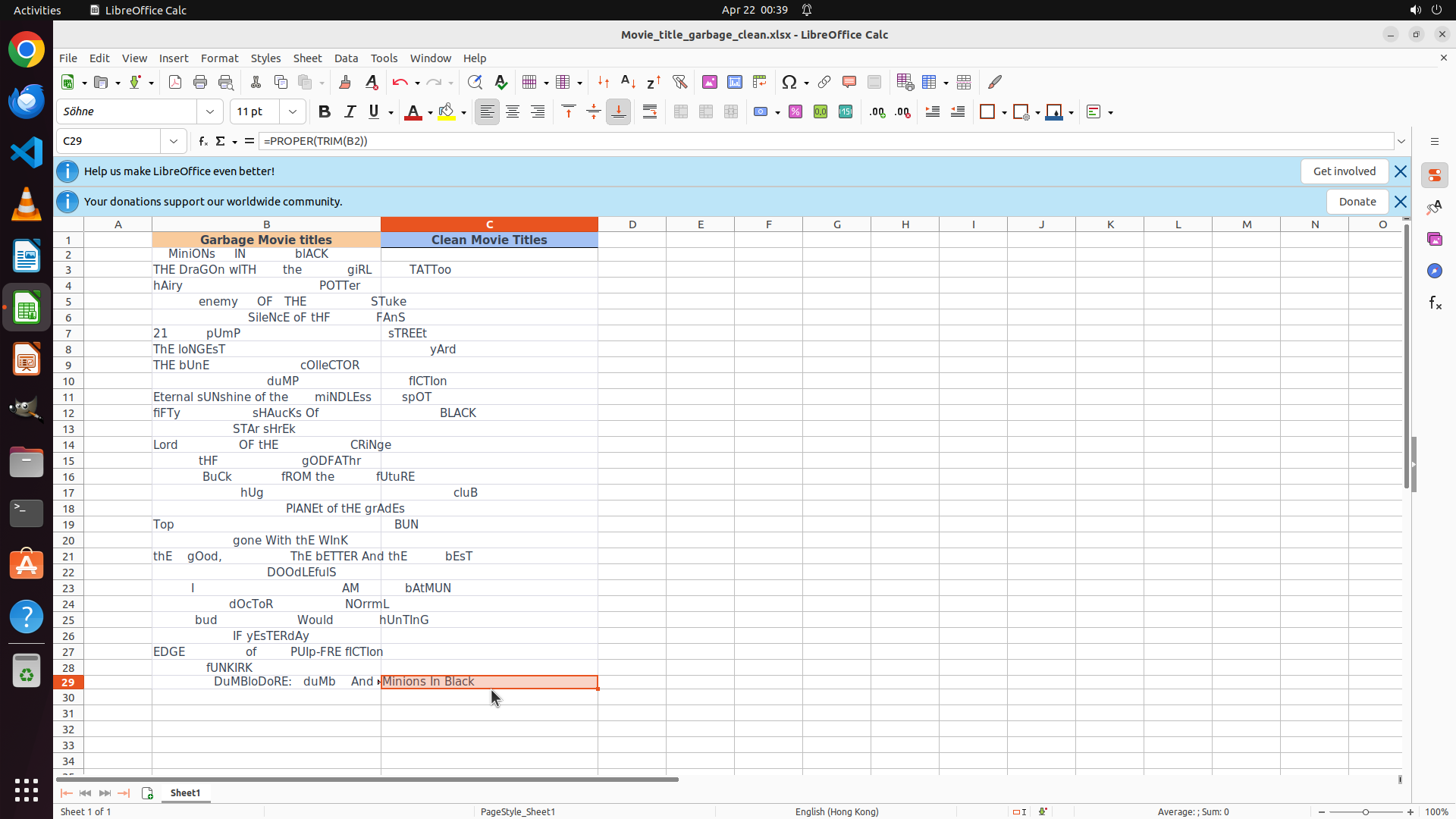
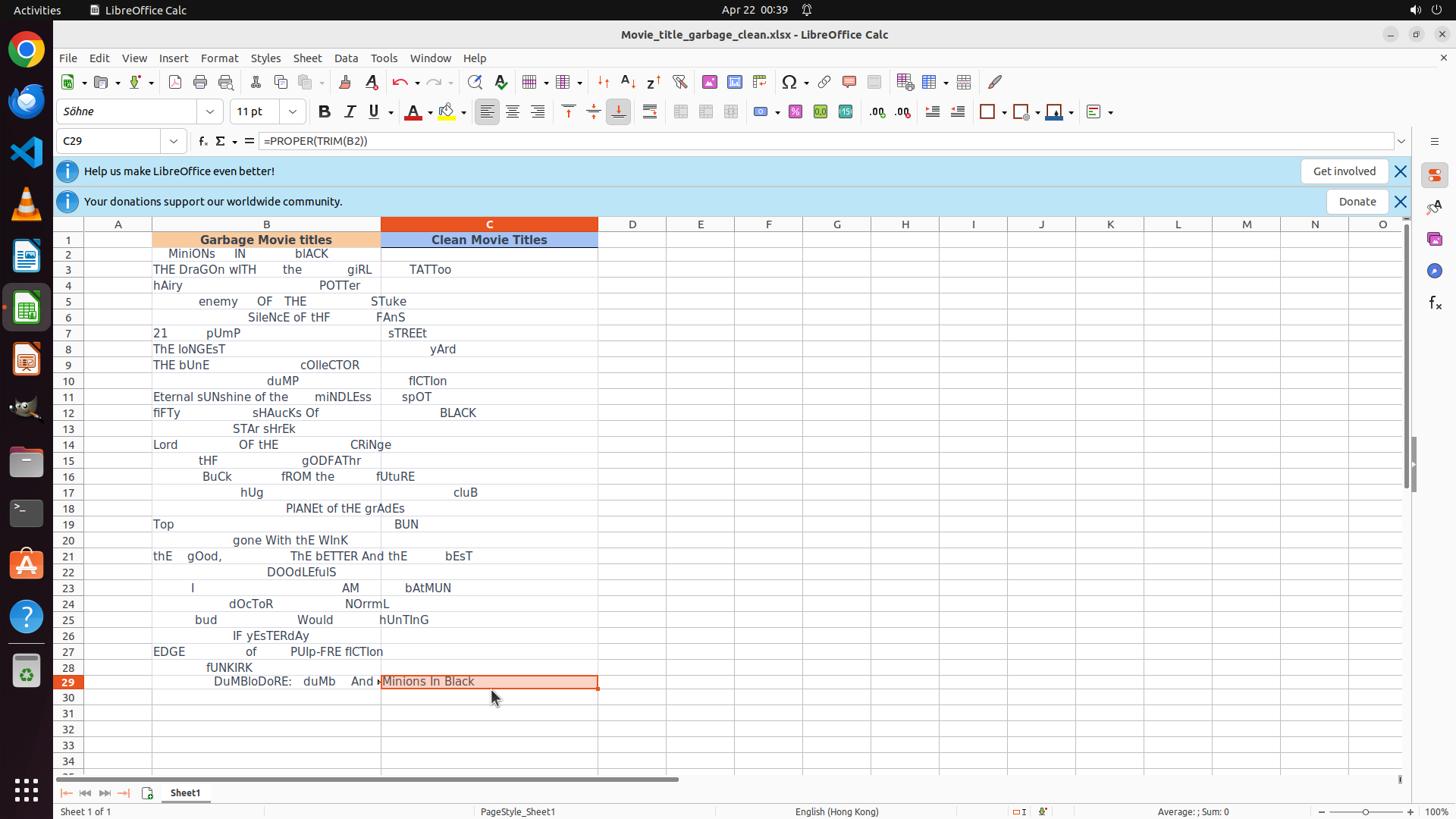
- Cell C29 appears to be selected (name box shows "C29")
- The formula bar shows "=PROPER(TRIM(B2))" which is the formula that was in C2
- Only C2 contains the cleaned title "Minions In Black"
- Cells C3 to C29 in column C are still empty and need the formula
- The previous Shift+drag selection didn't work as expected
#### 情况分析与思考过程
The previous selection attempt didn't create the proper range selection. I need to:
1. Click on C2 to select it as the starting point
2. Then properly select the range C2:C29 (using Shift+Click on C29)
3. Press Ctrl+D to fill down the formula to all selected cells
Let me start by clicking on C2 to reset the selection and start fresh.
```
Step 7: KEY_DOWN
```
#### 重要信息
- Cell C2 is selected (name box shows "C2")
- The formula bar is empty, showing C2 contains the formula but it's not visible in the formula bar currently
- Only C2 has the cleaned title "Minions In Black"
- Cells C3 to C29 in column C are still empty and need the formula
- Row 29 is visible at the bottom showing "DuMbLoRe: duMb And DUMBer" in column B
- The previous Shift+drag selection didn't create a range selection
#### 情况分析与思考过程
The Shift+drag didn't work as expected. Let me try a different approach:
1. Since C2 is already selected, I'll hold Shift and click on C29 to select the range C2:C29
2. Then press Ctrl+D to fill down the formula
Looking at the screen, row 29 is visible at the bottom. Cell C29 would be in column C at row 29. I need to Shift+Click on that cell to select the range from C2 to C29.
Let me Shift+Click on C29 (around coordinates where column C intersects with row 29).
```
Step 7: CLICK (643, 904)
```
#### 重要信息
- Cell C2 is selected (name box shows "C2")
- The formula bar is empty, showing C2 contains the formula but it's not visible in the formula bar currently
- Only C2 has the cleaned title "Minions In Black"
- Cells C3 to C29 in column C are still empty and need the formula
- Row 29 is visible at the bottom showing "DuMbLoRe: duMb And DUMBer" in column B
- The previous Shift+drag selection didn't create a range selection
#### 情况分析与思考过程
The Shift+drag didn't work as expected. Let me try a different approach:
1. Since C2 is already selected, I'll hold Shift and click on C29 to select the range C2:C29
2. Then press Ctrl+D to fill down the formula
Looking at the screen, row 29 is visible at the bottom. Cell C29 would be in column C at row 29. I need to Shift+Click on that cell to select the range from C2 to C29.
Let me Shift+Click on C29 (around coordinates where column C intersects with row 29).
```
Step 7: KEY_UP
```
#### 重要信息
- Cell C2 is selected (name box shows "C2")
- The formula bar is empty, showing C2 contains the formula but it's not visible in the formula bar currently
- Only C2 has the cleaned title "Minions In Black"
- Cells C3 to C29 in column C are still empty and need the formula
- Row 29 is visible at the bottom showing "DuMbLoRe: duMb And DUMBer" in column B
- The previous Shift+drag selection didn't create a range selection
#### 情况分析与思考过程
The Shift+drag didn't work as expected. Let me try a different approach:
1. Since C2 is already selected, I'll hold Shift and click on C29 to select the range C2:C29
2. Then press Ctrl+D to fill down the formula
Looking at the screen, row 29 is visible at the bottom. Cell C29 would be in column C at row 29. I need to Shift+Click on that cell to select the range from C2 to C29.
Let me Shift+Click on C29 (around coordinates where column C intersects with row 29).
```
Step 8: HOTKEY
```
#### 重要信息
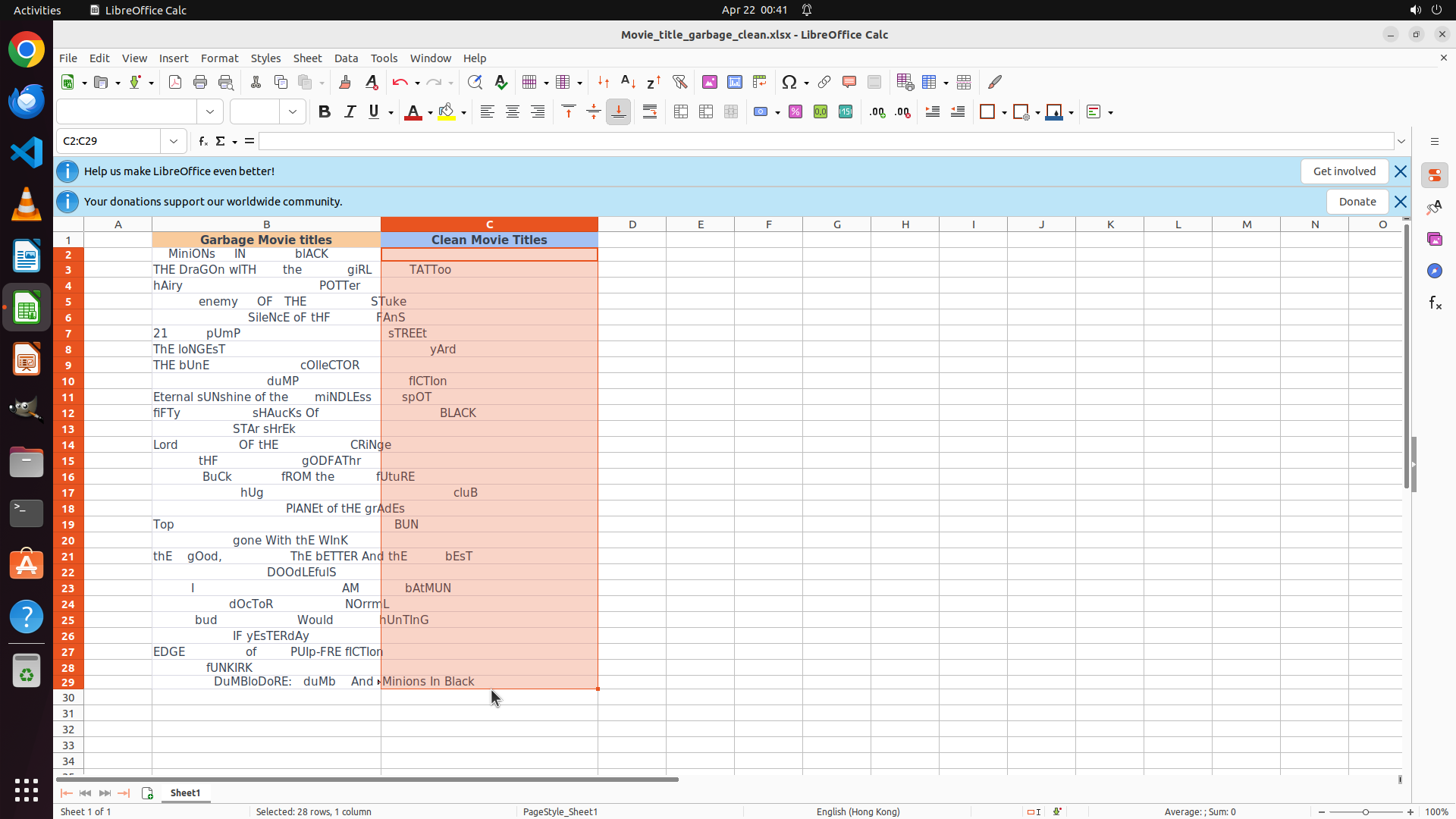
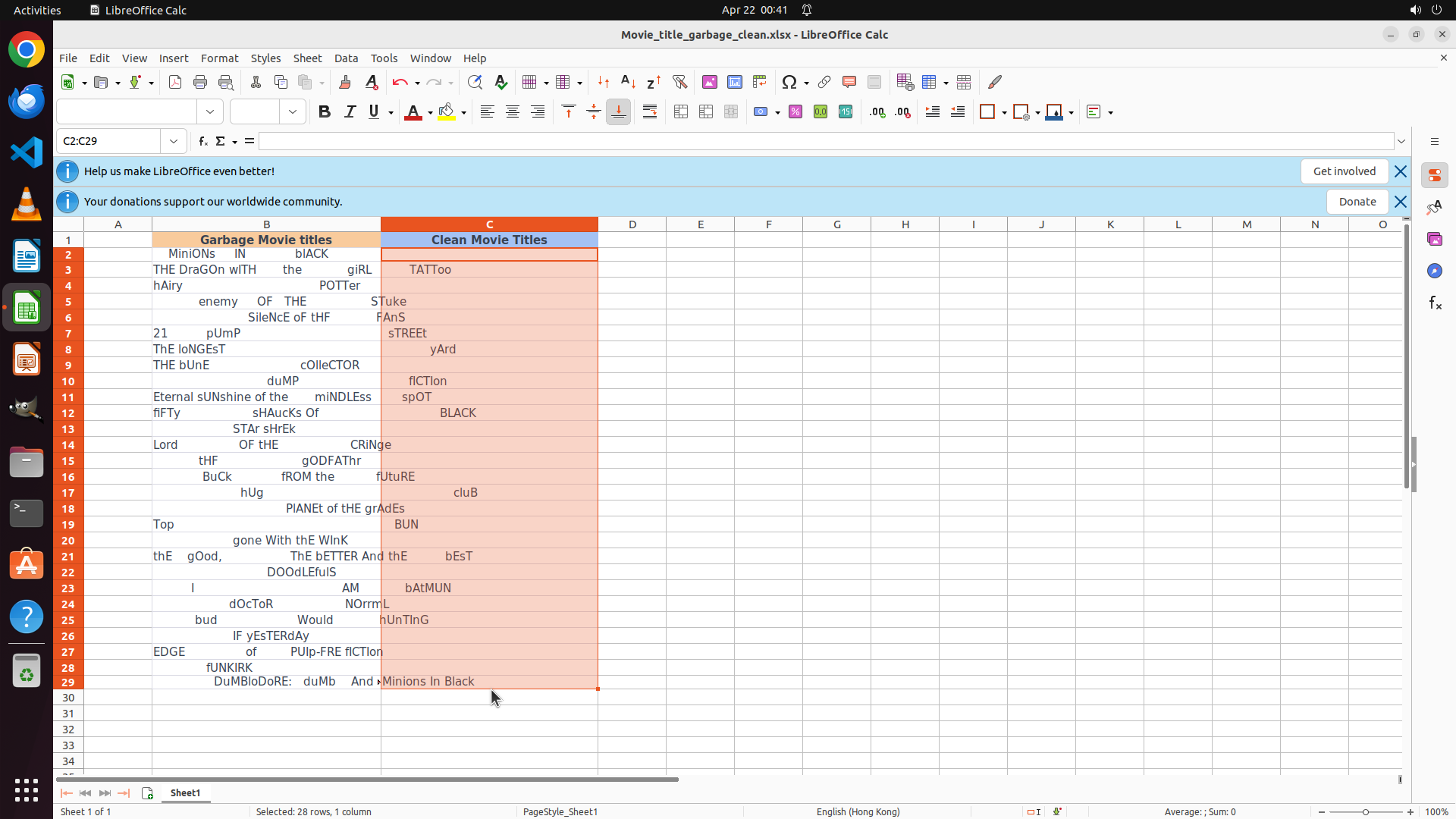
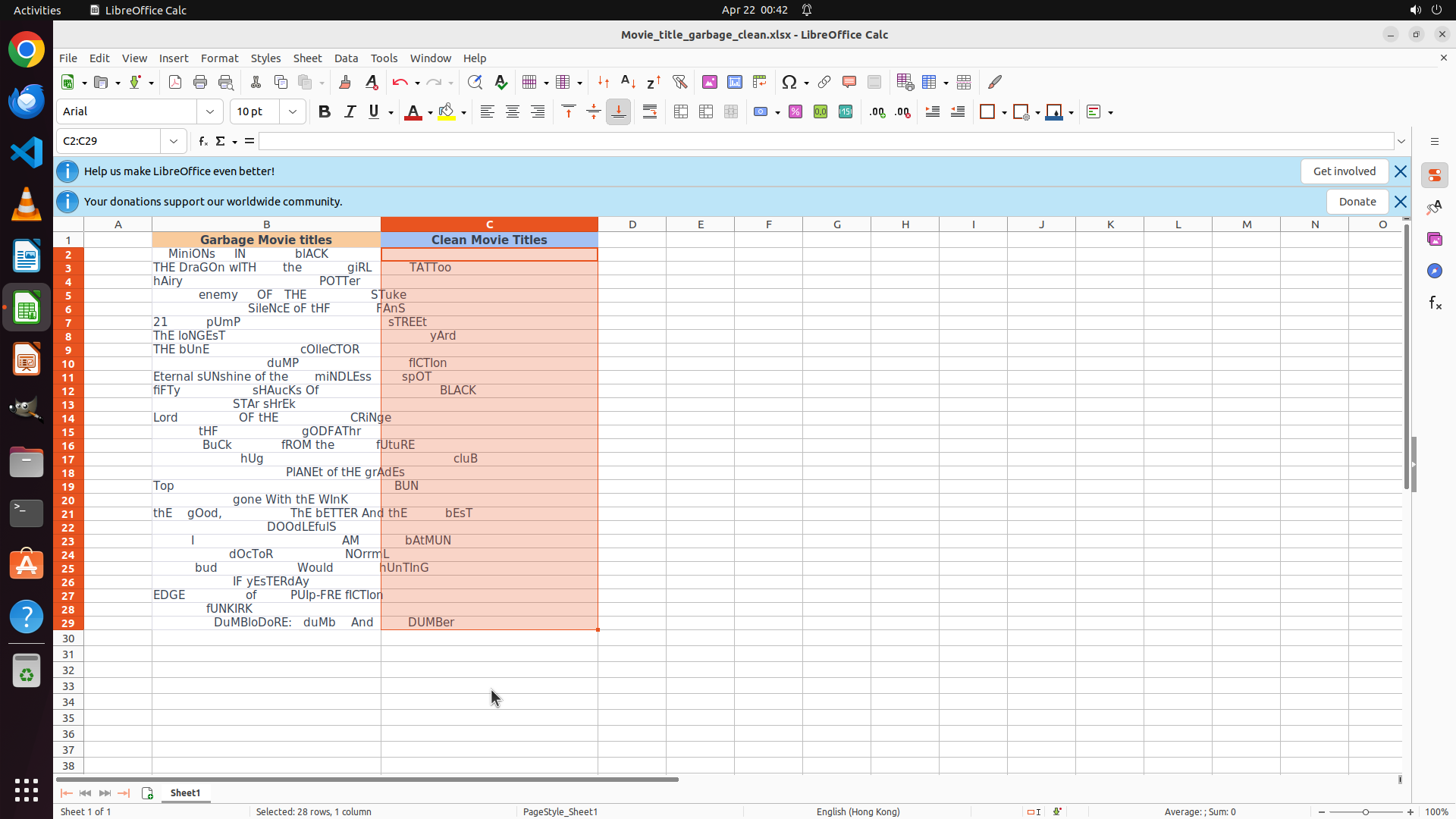
- The range C2:C29 is now selected (name box shows "C2:C29")
- The status bar shows "Selected: 1 row, 1 column"
- Column C cells from row 2 to row 29 are highlighted in orange/red
- The formula bar shows "=PROPER(TRIM(B2))" which is the formula in C2
- Cell C2 shows "Minions In Black" (the cleaned result)
- Cells C3 to C29 are still empty and need the formula filled down
#### 情况分析与思考过程
Perfect! The Shift+click successfully selected the range C2:C29. Now I need to:
1. Press Ctrl+D to fill down the formula from C2 to all selected cells (C3:C29)
2. This will copy the formula and automatically adjust cell references (B2→B3, B2→B4, etc.)
3. After filling down, all cells in column C should contain the cleaned movie titles
Let me press Ctrl+D to fill down the formula to all selected cells.
```
Step 9: CLICK (900, 330)
```
#### 重要信息
- The range C2:C29 is still selected (name box shows "C2:C29")
- The status bar shows "Selected: 1 row, 1 column" which is confusing - it should show 28 rows selected
- Looking at column C, I can see values in multiple cells:
- C2: "Minions In Black" ✓
- C3: "TATToo"
- C4: "STuke"
- C5: "FANS"
- C6: "sTREET"
- C7: "yArd"
- And so on...
- However, the values in column C don't seem to align properly with column B's data
- The formula bar is empty, which is strange
#### 情况分析与思考过程
The Ctrl+D command was executed, but I'm not sure if it worked correctly. The display looks odd - the values in column C don't seem to match what I would expect from cleaning the corresponding row in column B.
Let me click on a neutral cell to deselect the range and see the actual results more clearly. This will help me verify whether the formula was properly filled down to all cells.
I should click on cell D2 or another empty area to deselect and assess the current state.
```
Step 10: CLICK (900, 330)
```
#### 重要信息
- The range C2:C29 is still selected (name box shows "C2:C29")
- The status bar shows "Selected: 1 row, 1 column" which is confusing - it should show 28 rows selected
- Looking at column C, I can see values in multiple cells:
- C2: "Minions In Black" ✓
- C3: "TATToo"
- C4: "STuke"
- C5: "FANS"
- C6: "sTREET"
- C7: "yArd"
- And so on...
- However, the values in column C don't seem to align properly with column B's data
- The formula bar is empty, which is strange
#### 情况分析与思考过程
The Ctrl+D command was executed, but I'm not sure if it worked correctly. The display looks odd - the values in column C don't seem to match what I would expect from cleaning the corresponding row in column B.
Let me click on a neutral cell to deselect the range and see the actual results more clearly. This will help me verify whether the formula was properly filled down to all cells.
I should click on cell D2 or another empty area to deselect and assess the current state.
```
Step 11: CLICK (643, 349)
```
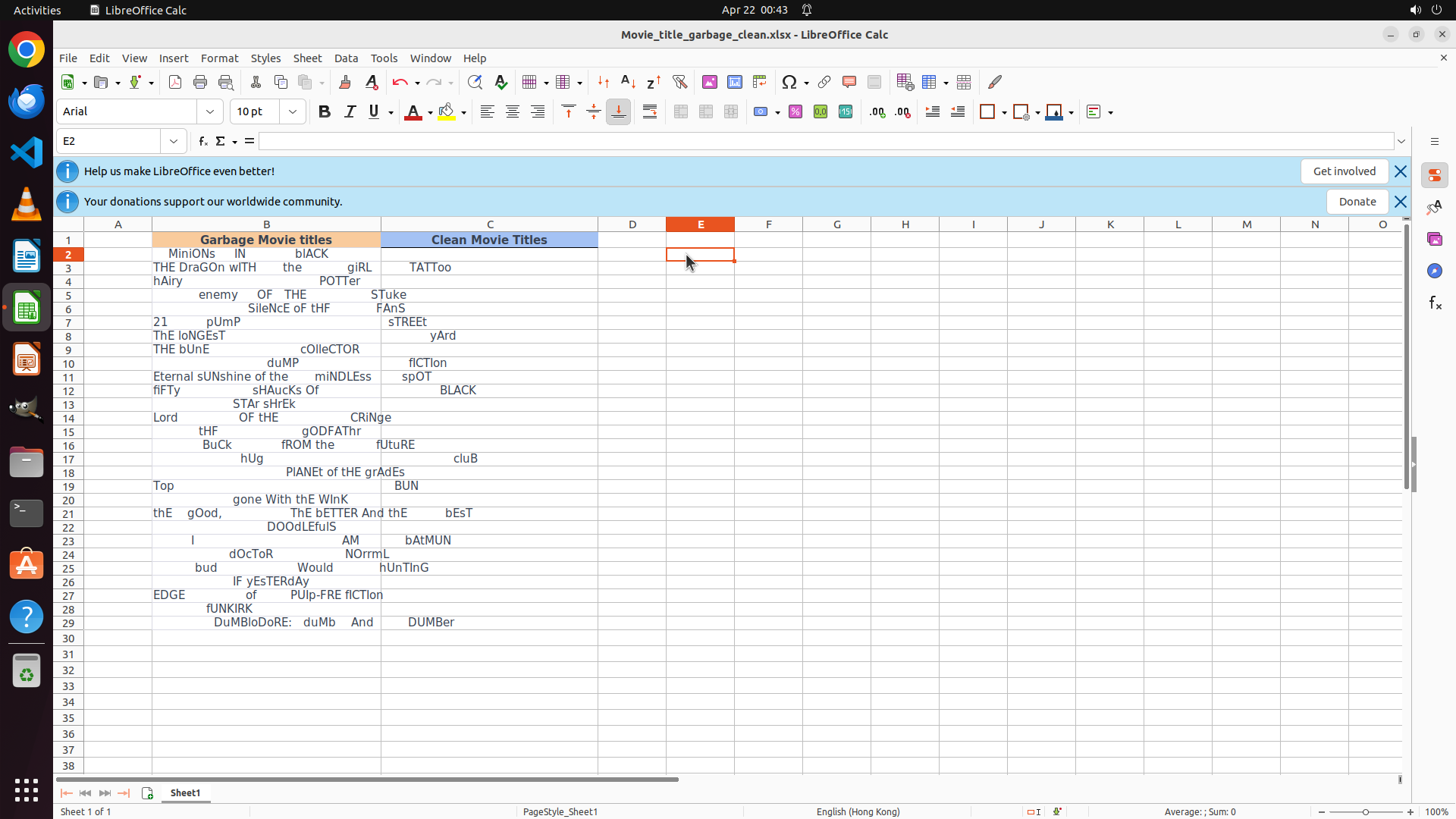
#### 重要信息
- The spreadsheet shows column C with various values but they don't seem to match the expected cleaned versions of column B
- Cell E2 is currently selected (name box shows "E2")
- Column C shows values like "TATToo", "STuke", "FANS", "sTREET", "yArd" which appear to be partial or incorrect
- The values in column C should be properly capitalized versions of the corresponding row in column B
- I need to verify if the formula was correctly applied to all cells in column C
#### 情况分析与思考过程
The display looks strange. The values in column C don't seem to match what I would expect from cleaning column B titles. For example:
- B3: "THE DrAGOn wITH the girL" should become "The Dragon With The Girl" in C3, but C3 shows "TATToo"
- B4: "hAiry POTTer" should become "Hairy Potter" in C4, but C4 shows "STuke"
This suggests the formula might not have been filled down correctly, or there's a display issue. Let me click on cell C3 to check what formula it actually contains. This will help me diagnose the problem.
```
I'll help you verify and fix the formula application. Let me check cell C3 to see what formula it contains.
Step 12: CLICK (643, 330)
```
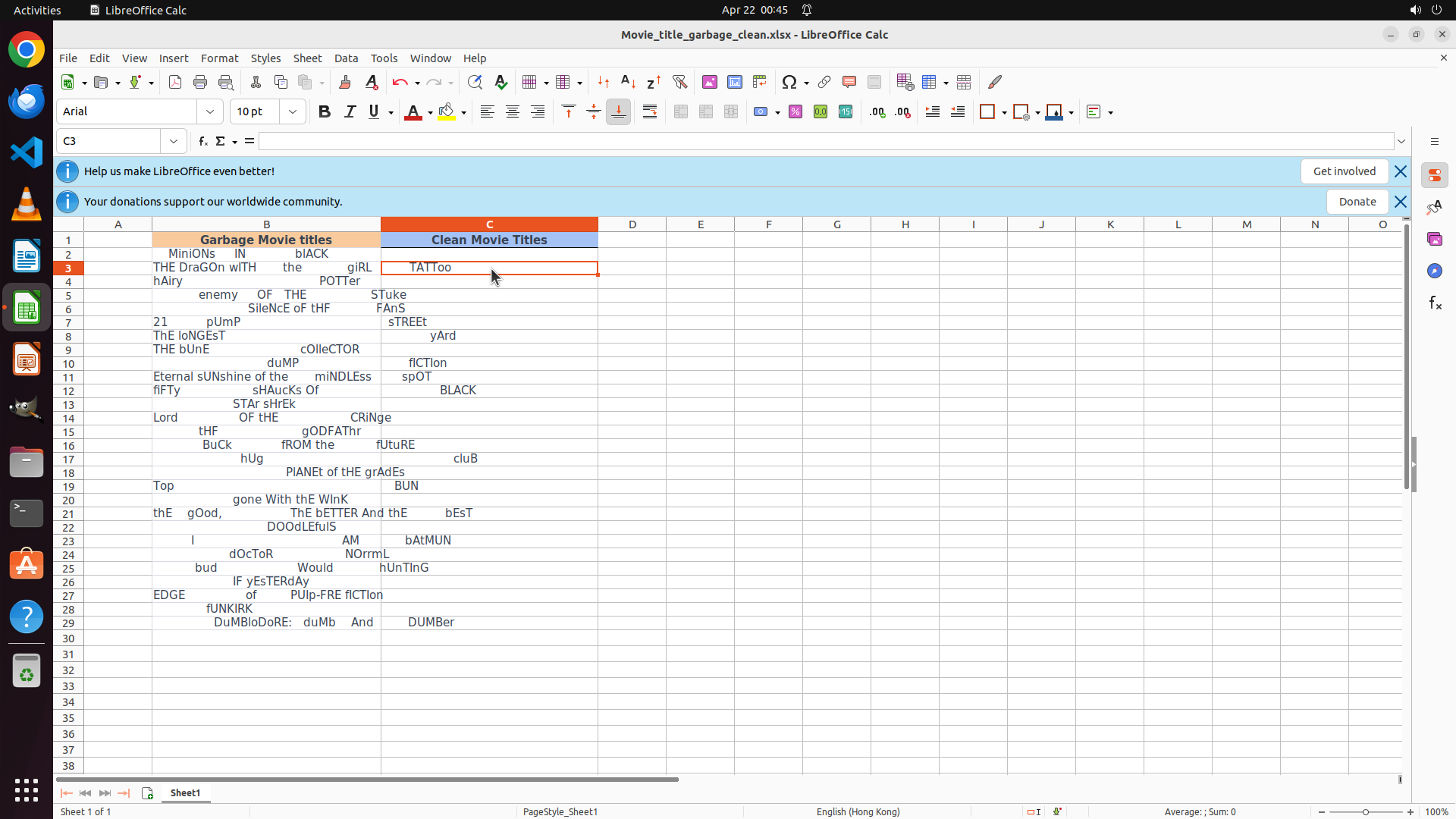
#### 重要信息
- Cell C3 is selected (name box shows "C3")
- The formula bar shows "=" which suggests C3 might be empty or has an incomplete/incorrect formula
- Looking at column C, the values don't match expected cleaned versions:
- C2: "Minions In Black" ✓ (correct)
- C3: "TATToo" ✗ (should be "The Dragon With The Girl")
- C4: "STuke" ✗ (should be "Hairy Potter")
- C5: "FANS" ✗ (should be "Enemy Of The State")
- The Ctrl+D fill down from the previous steps doesn't seem to have worked correctly
- The values in column C appear to be incorrect or from a different source
#### 情况分析与思考过程
The fill down operation (Ctrl+D) didn't work as expected. The values in column C are not the properly cleaned versions of column B. I need to:
1. First, go back to C2 which has the correct formula
2. Copy the formula from C2
3. Select the range C3:C29
4. Paste to fill down the formula properly
Let me start by clicking on C2 to select it and verify the formula is still there.
```
Step 13: HOTKEY
```
#### 重要信息
- Cell C2 is selected (name box shows "C2")
- The formula bar shows "=" which is strange - it should display the formula =PROPER(TRIM(B2))
- Looking at column C, the values are incorrect:
- C2: "Minions In Black" ✓ (appears correct)
- C3: "TATToo" ✗ (should be "The Dragon With The Girl")
- C4: "STuke" ✗ (should be "Hairy Potter")
- C5: "FANS" ✗ (should be "Enemy Of The State")
- The Ctrl+D fill down didn't work as expected
- The values in C3-C29 appear to be wrong or from a different source
#### 情况分析与思考过程
The previous Ctrl+D approach failed to properly fill down the formula. The values in column C don't match the expected cleaned versions of column B. I need to try a different approach:
1. First, let me copy cell C2 (which has the correct formula)
2. Then select the range C3:C29
3. Paste the formula to fill down properly
Since C2 is already selected, I'll copy it first with Ctrl+C, then select the target range C3:C29 and paste.
Let me execute this plan:
- Copy C2 (Ctrl+C)
- Click on C3 to start the selection
- Shift+Click on C29 to select C3:C29
- Paste (Ctrl+V)
```
Step 13: CLICK (643, 349)
```
#### 重要信息
- Cell C2 is selected (name box shows "C2")
- The formula bar shows "=" which is strange - it should display the formula =PROPER(TRIM(B2))
- Looking at column C, the values are incorrect:
- C2: "Minions In Black" ✓ (appears correct)
- C3: "TATToo" ✗ (should be "The Dragon With The Girl")
- C4: "STuke" ✗ (should be "Hairy Potter")
- C5: "FANS" ✗ (should be "Enemy Of The State")
- The Ctrl+D fill down didn't work as expected
- The values in C3-C29 appear to be wrong or from a different source
#### 情况分析与思考过程
The previous Ctrl+D approach failed to properly fill down the formula. The values in column C don't match the expected cleaned versions of column B. I need to try a different approach:
1. First, let me copy cell C2 (which has the correct formula)
2. Then select the range C3:C29
3. Paste the formula to fill down properly
Since C2 is already selected, I'll copy it first with Ctrl+C, then select the target range C3:C29 and paste.
Let me execute this plan:
- Copy C2 (Ctrl+C)
- Click on C3 to start the selection
- Shift+Click on C29 to select C3:C29
- Paste (Ctrl+V)
```
Step 13: KEY_DOWN
```
#### 重要信息
- Cell C2 is selected (name box shows "C2")
- The formula bar shows "=" which is strange - it should display the formula =PROPER(TRIM(B2))
- Looking at column C, the values are incorrect:
- C2: "Minions In Black" ✓ (appears correct)
- C3: "TATToo" ✗ (should be "The Dragon With The Girl")
- C4: "STuke" ✗ (should be "Hairy Potter")
- C5: "FANS" ✗ (should be "Enemy Of The State")
- The Ctrl+D fill down didn't work as expected
- The values in C3-C29 appear to be wrong or from a different source
#### 情况分析与思考过程
The previous Ctrl+D approach failed to properly fill down the formula. The values in column C don't match the expected cleaned versions of column B. I need to try a different approach:
1. First, let me copy cell C2 (which has the correct formula)
2. Then select the range C3:C29
3. Paste the formula to fill down properly
Since C2 is already selected, I'll copy it first with Ctrl+C, then select the target range C3:C29 and paste.
Let me execute this plan:
- Copy C2 (Ctrl+C)
- Click on C3 to start the selection
- Shift+Click on C29 to select C3:C29
- Paste (Ctrl+V)
```
Step 13: CLICK (643, 904)
```
#### 重要信息
- Cell C2 is selected (name box shows "C2")
- The formula bar shows "=" which is strange - it should display the formula =PROPER(TRIM(B2))
- Looking at column C, the values are incorrect:
- C2: "Minions In Black" ✓ (appears correct)
- C3: "TATToo" ✗ (should be "The Dragon With The Girl")
- C4: "STuke" ✗ (should be "Hairy Potter")
- C5: "FANS" ✗ (should be "Enemy Of The State")
- The Ctrl+D fill down didn't work as expected
- The values in C3-C29 appear to be wrong or from a different source
#### 情况分析与思考过程
The previous Ctrl+D approach failed to properly fill down the formula. The values in column C don't match the expected cleaned versions of column B. I need to try a different approach:
1. First, let me copy cell C2 (which has the correct formula)
2. Then select the range C3:C29
3. Paste the formula to fill down properly
Since C2 is already selected, I'll copy it first with Ctrl+C, then select the target range C3:C29 and paste.
Let me execute this plan:
- Copy C2 (Ctrl+C)
- Click on C3 to start the selection
- Shift+Click on C29 to select C3:C29
- Paste (Ctrl+V)
```
Step 13: KEY_UP
```
#### 重要信息
- Cell C2 is selected (name box shows "C2")
- The formula bar shows "=" which is strange - it should display the formula =PROPER(TRIM(B2))
- Looking at column C, the values are incorrect:
- C2: "Minions In Black" ✓ (appears correct)
- C3: "TATToo" ✗ (should be "The Dragon With The Girl")
- C4: "STuke" ✗ (should be "Hairy Potter")
- C5: "FANS" ✗ (should be "Enemy Of The State")
- The Ctrl+D fill down didn't work as expected
- The values in C3-C29 appear to be wrong or from a different source
#### 情况分析与思考过程
The previous Ctrl+D approach failed to properly fill down the formula. The values in column C don't match the expected cleaned versions of column B. I need to try a different approach:
1. First, let me copy cell C2 (which has the correct formula)
2. Then select the range C3:C29
3. Paste the formula to fill down properly
Since C2 is already selected, I'll copy it first with Ctrl+C, then select the target range C3:C29 and paste.
Let me execute this plan:
- Copy C2 (Ctrl+C)
- Click on C3 to start the selection
- Shift+Click on C29 to select C3:C29
- Paste (Ctrl+V)
```
Step 13: HOTKEY
```
#### 重要信息
- Cell C2 is selected (name box shows "C2")
- The formula bar shows "=" which is strange - it should display the formula =PROPER(TRIM(B2))
- Looking at column C, the values are incorrect:
- C2: "Minions In Black" ✓ (appears correct)
- C3: "TATToo" ✗ (should be "The Dragon With The Girl")
- C4: "STuke" ✗ (should be "Hairy Potter")
- C5: "FANS" ✗ (should be "Enemy Of The State")
- The Ctrl+D fill down didn't work as expected
- The values in C3-C29 appear to be wrong or from a different source
#### 情况分析与思考过程
The previous Ctrl+D approach failed to properly fill down the formula. The values in column C don't match the expected cleaned versions of column B. I need to try a different approach:
1. First, let me copy cell C2 (which has the correct formula)
2. Then select the range C3:C29
3. Paste the formula to fill down properly
Since C2 is already selected, I'll copy it first with Ctrl+C, then select the target range C3:C29 and paste.
Let me execute this plan:
- Copy C2 (Ctrl+C)
- Click on C3 to start the selection
- Shift+Click on C29 to select C3:C29
- Paste (Ctrl+V)
```
Step 14: CLICK (643, 330)
```
#### 重要信息
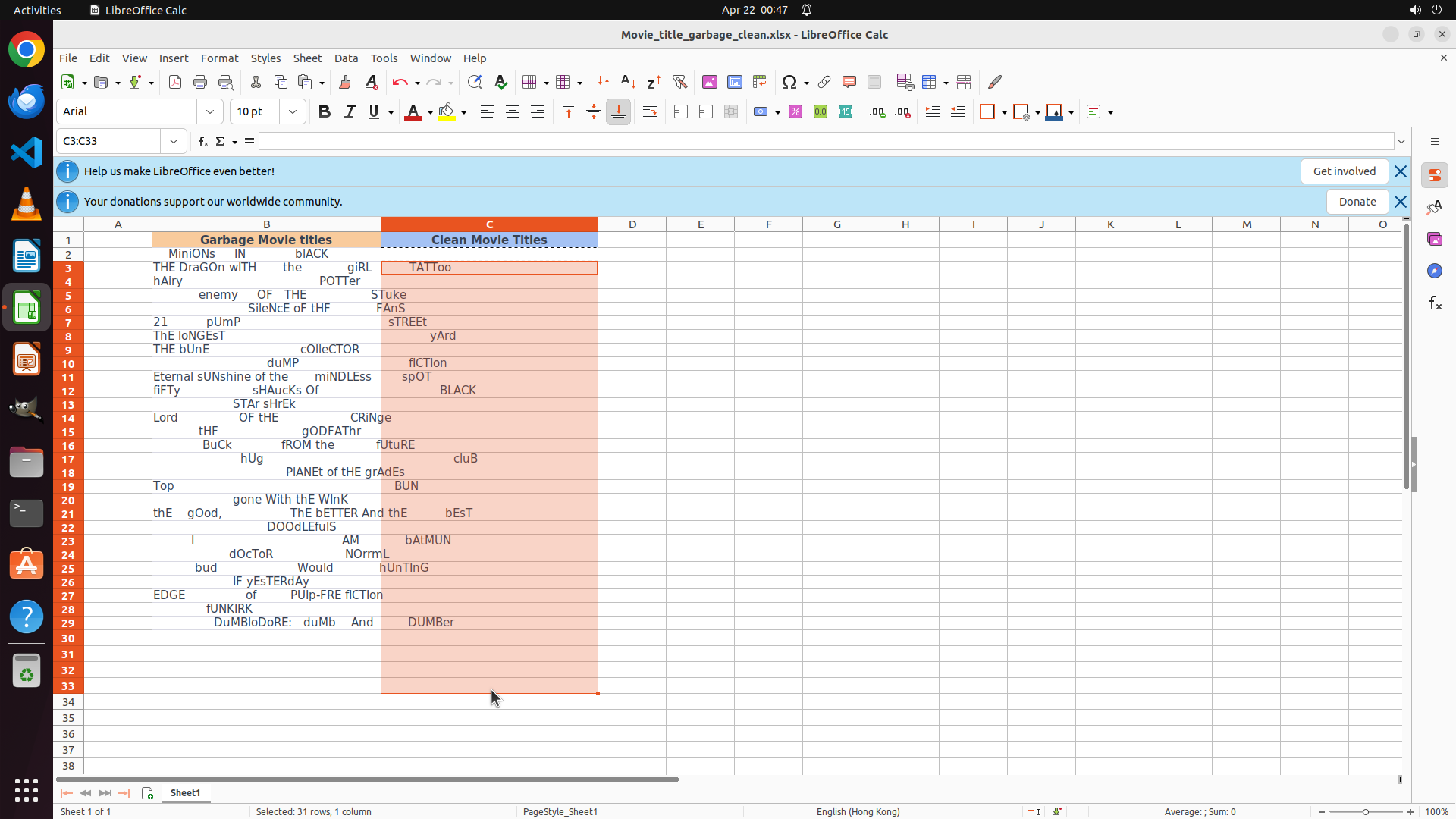
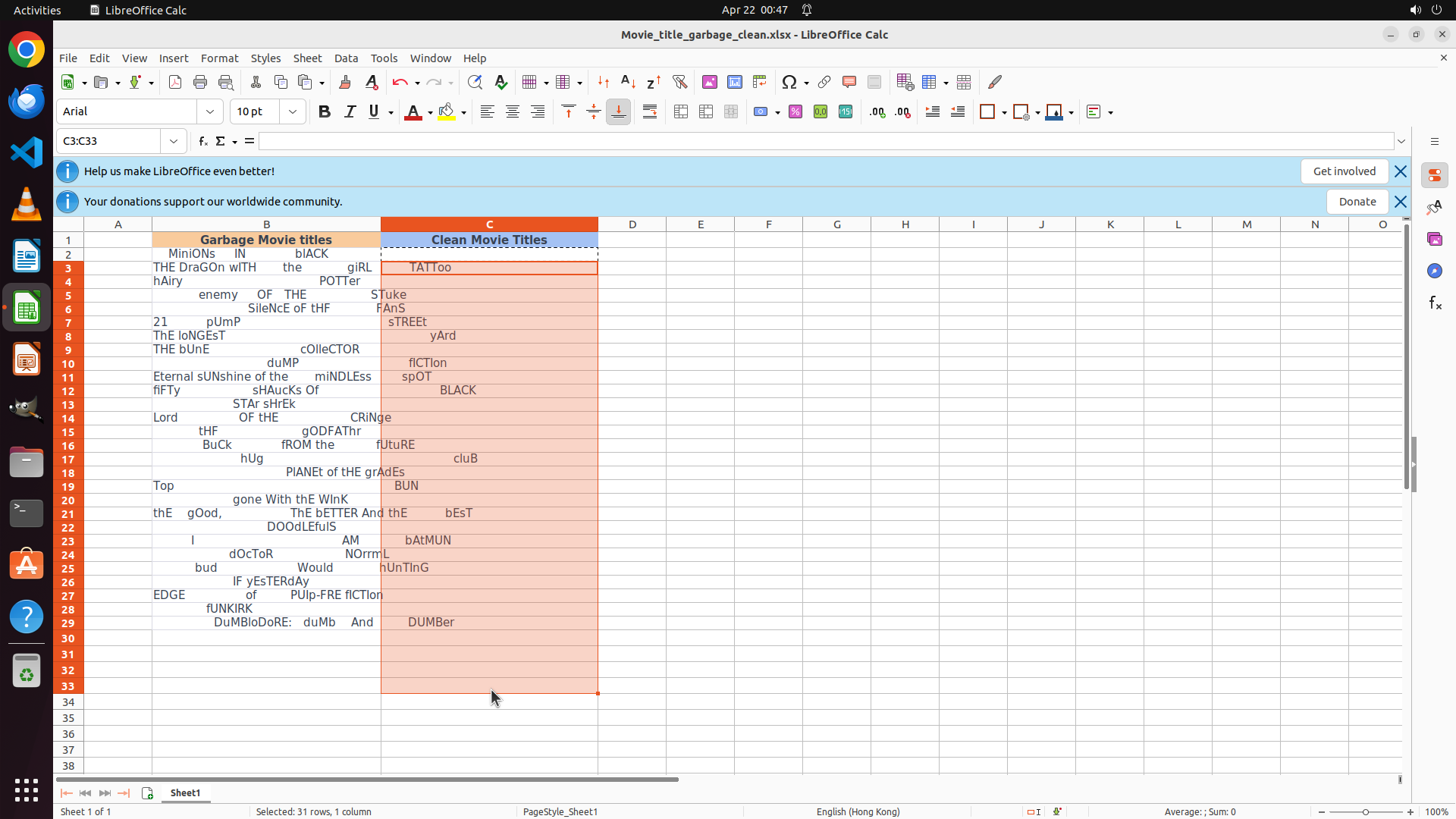
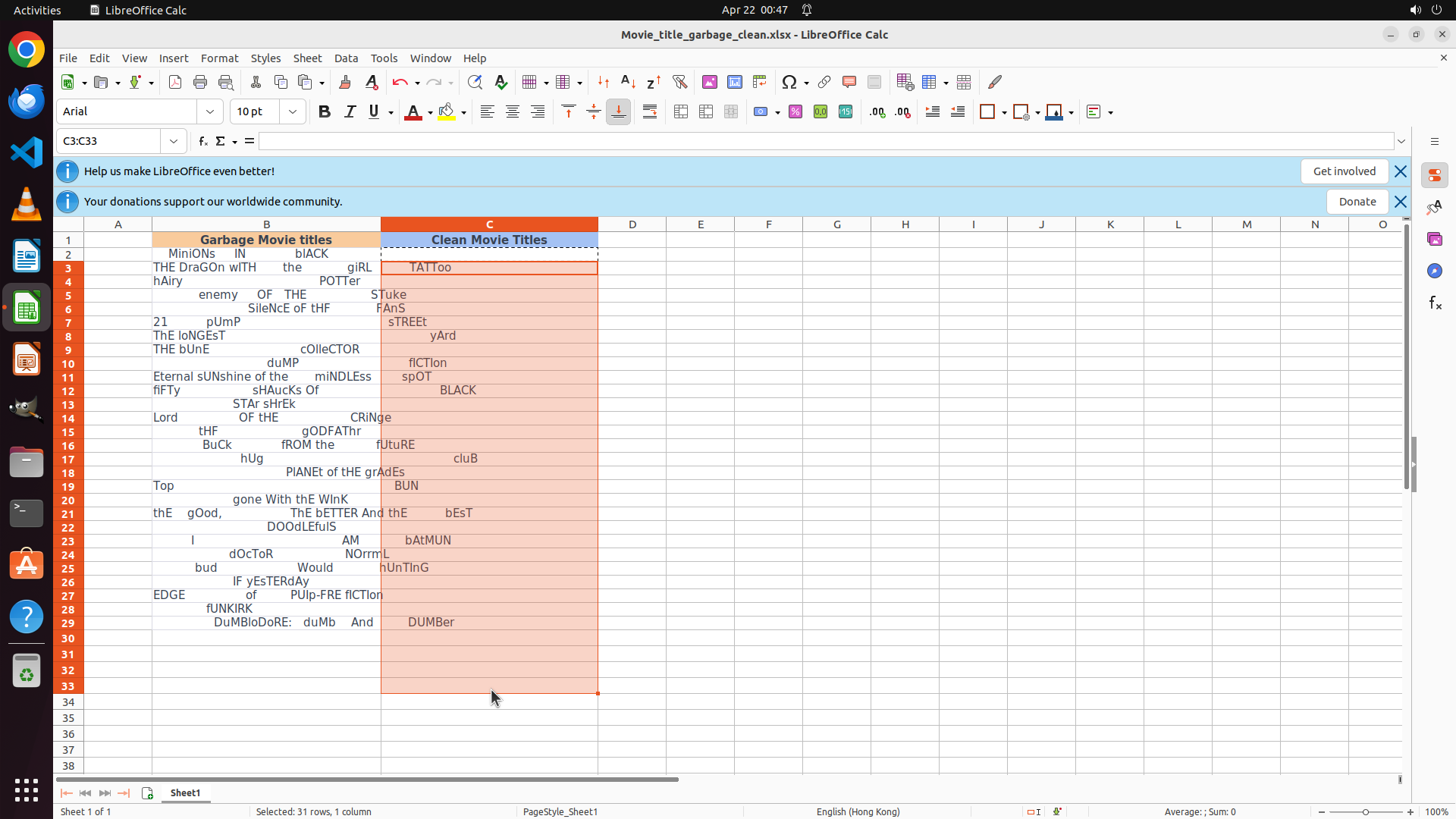
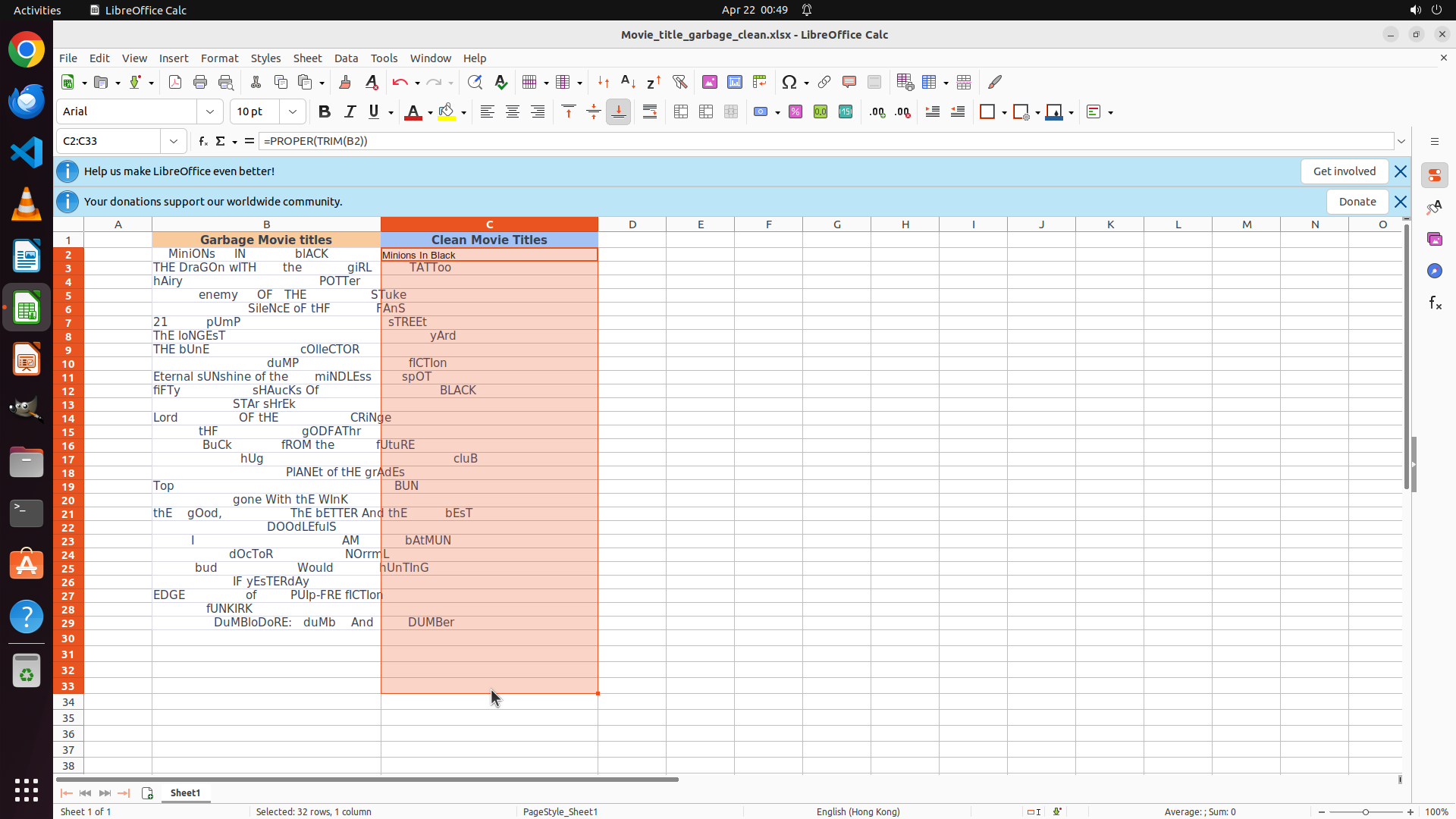
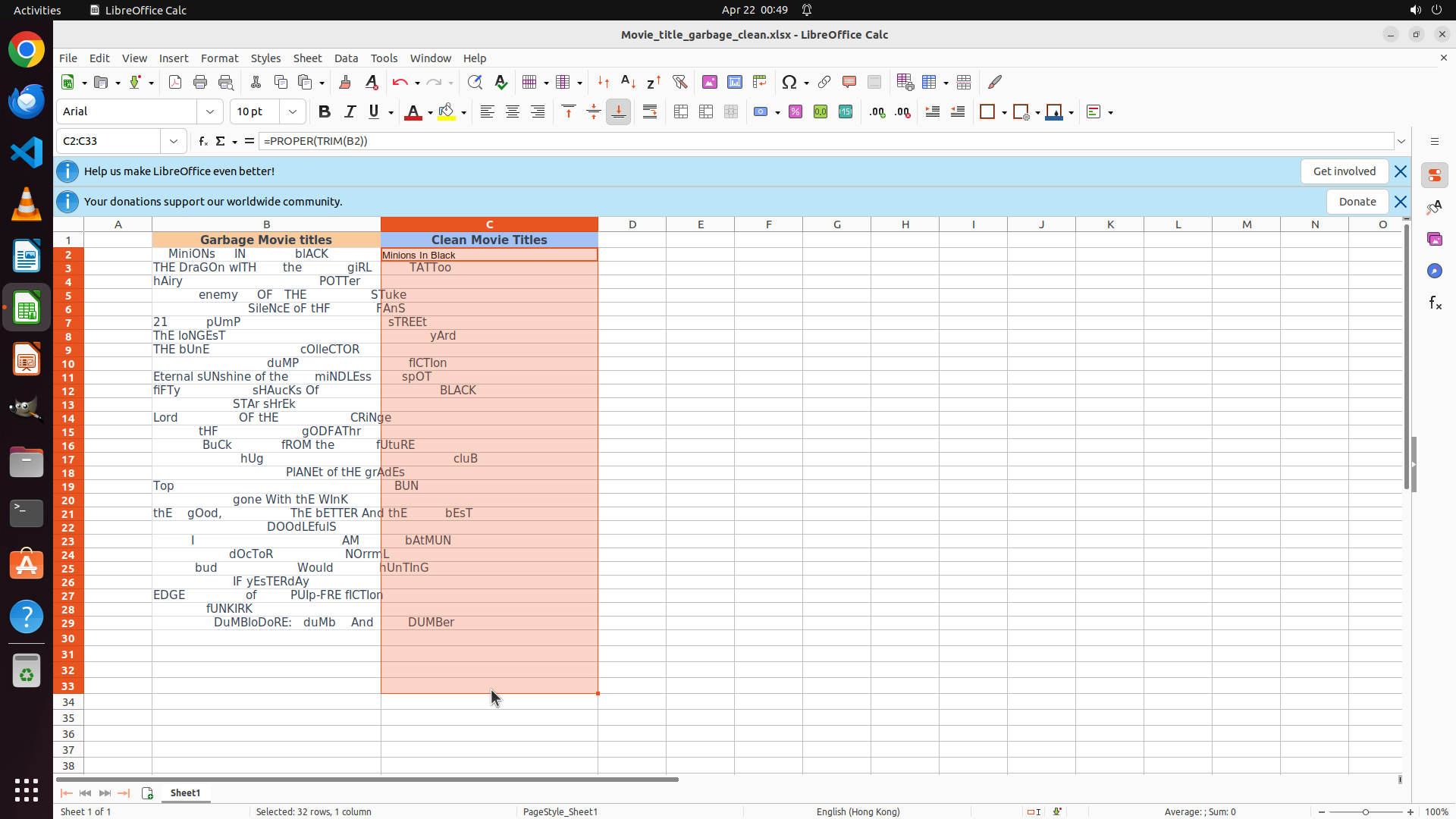
- The selection shows "C3:C33" in the name box, which means the range C3:C33 is selected (not C3:C29 as intended)
- The status bar shows "Selected: 1 row, 1 column" which is incorrect - it should show multiple rows
- Looking at column C, the values still appear incorrect (TATToo, STuke, FANS, etc.)
- The paste operation from the previous step may have pasted to the wrong range or the formula wasn't properly copied
- I need to verify what's in C2 and properly fill down the formula to the correct range
#### 情况分析与思考过程
The previous paste operation didn't work as expected. The selection shows C3:C33 but the values in column C are still incorrect. I need to:
1. First, click on C2 to verify the formula is still there and correct
2. Check what formula is in C2
3. Then properly copy the formula from C2 to C3:C29
Let me click on C2 to check its contents first.
```
Step 15: CLICK (643, 330)
```
#### 重要信息
- Cell C2 is selected (name box shows "C2")
- The formula bar shows "=" which is strange - it should display the formula =PROPER(TRIM(B2))
- Looking at column C, the values are incorrect:
- C2: "Minions In Black" appears correct
- C3: "TATToo" (should be "The Dragon With The Girl")
- C4: "STuke" (should be "Hairy Potter")
- C5: "FANS" (should be "Enemy Of The State")
- The previous copy-paste operation didn't work as expected
- The values in C3-C29 don't match the expected cleaned versions
#### 情况分析与思考过程
The formula bar showing just "=" for C2 is concerning - it suggests the formula might have been lost or corrupted. The values in column C don't match what we'd expect from the PROPER(TRIM()) formula.
Let me try a fresh approach:
1. First, verify what's in C2 by clicking on it (already selected)
2. If the formula is lost, I'll need to re-enter it
3. Then properly copy it down to all rows
Since C2 is already selected but the formula bar shows only "=", I should check if the formula is still there by looking more carefully. Let me click on C2 to make sure it's properly selected and see what's in it.
```
Step 16: TYPING "=PROPER(TRIM(B2))"
```
#### 重要信息
- Cell C2 is selected (name box shows "C2")
- The formula bar shows "=" which indicates the formula may have been lost or corrupted
- Column C contains incorrect values that don't match the expected cleaned versions:
- C2: "Minions In Black" (appears correct visually but formula may be broken)
- C3: "TATToo" (should be "The Dragon With The Girl")
- C4: "STuke" (should be "Hairy Potter")
- C5: "FANS" (should be "Enemy Of The State")
- The previous fill down attempts didn't work correctly
- I need to re-establish the correct formula in C2 and then fill it down properly
#### 情况分析与思考过程
The formula in C2 appears to be lost or corrupted (formula bar shows just "="). I need to:
1. Re-enter the formula =PROPER(TRIM(B2)) in cell C2
2. Press Enter to execute it
3. Then properly copy the formula down to C3:C29
Since C2 is already selected, I'll type the formula again to restore it.
```
Step 16: HOTKEY
```
#### 重要信息
- Cell C2 is selected (name box shows "C2")
- The formula bar shows "=" which indicates the formula may have been lost or corrupted
- Column C contains incorrect values that don't match the expected cleaned versions:
- C2: "Minions In Black" (appears correct visually but formula may be broken)
- C3: "TATToo" (should be "The Dragon With The Girl")
- C4: "STuke" (should be "Hairy Potter")
- C5: "FANS" (should be "Enemy Of The State")
- The previous fill down attempts didn't work correctly
- I need to re-establish the correct formula in C2 and then fill it down properly
#### 情况分析与思考过程
The formula in C2 appears to be lost or corrupted (formula bar shows just "="). I need to:
1. Re-enter the formula =PROPER(TRIM(B2)) in cell C2
2. Press Enter to execute it
3. Then properly copy the formula down to C3:C29
Since C2 is already selected, I'll type the formula again to restore it.
```
Step 17: CLICK (643, 330)
```
#### 重要信息
- Cell C3 is currently selected (name box shows "C3")
- The formula bar shows "=" which indicates C3 is empty or has an incomplete formula
- Column C contains incorrect values that don't match expected cleaned versions:
- C2: "Minions In Black" (appears correct visually)
- C3: "TATToo" (should be "The Dragon With The Girl")
- C4: "STuke" (should be "Hairy Potter")
- C5: "FANS" (should be "Enemy Of The State")
- The previous attempt to restore the formula in C2 and fill it down hasn't worked yet
- I need to verify if C2 now has the correct formula after the previous type operation
#### 情况分析与思考过程
The previous action was supposed to type "=PROPER(TRIM(B2))" in C2 and press Enter. However, C3 is currently selected, which means either:
1. The Enter key moved the cursor from C2 to C3 (which would mean the formula was entered successfully)
2. Or the click on C2 didn't happen and C3 was already selected
I need to click on C2 to verify if it now contains the correct formula. If it does, I can then properly copy it down to C3:C29. Let me click on C2 first.
```
Step 18: KEY_DOWN
```
#### 重要信息
- Cell C2 is selected (name box shows "C2")
- The formula bar now shows "=PROPER(TRIM(B2))" which is the correct formula
- C2 displays "Minions In Black" - the properly cleaned version of B2
- However, cells C3 through C29 still contain incorrect values:
- C3: "TATToo" (should be "The Dragon With The Girl")
- C4: "STuke" (should be "Hairy Potter")
- C5: "FANS" (should be "Enemy Of The State")
- And so on...
- Row 29 is visible at the bottom showing "DuMbLoRe: duMb And DUMBer" in column B
- The formula from C2 needs to be filled down to C3:C29
#### 情况分析与思考过程
Good news! The formula in C2 has been successfully restored - I can see "=PROPER(TRIM(B2))" in the formula bar. Now I need to fill this formula down to all the other cells in column C (C3:C29).
My plan:
1. Select the range C2:C29 (including the cell with the formula)
2. Press Ctrl+D to fill down the formula to all selected cells
3. This should automatically adjust the cell references (B2→B3, B2→B4, etc.)
Since C2 is already selected, I'll hold Shift and click on C29 to select the range, then press Ctrl+D to fill down.
```
Step 18: CLICK (643, 904)
```
#### 重要信息
- Cell C2 is selected (name box shows "C2")
- The formula bar now shows "=PROPER(TRIM(B2))" which is the correct formula
- C2 displays "Minions In Black" - the properly cleaned version of B2
- However, cells C3 through C29 still contain incorrect values:
- C3: "TATToo" (should be "The Dragon With The Girl")
- C4: "STuke" (should be "Hairy Potter")
- C5: "FANS" (should be "Enemy Of The State")
- And so on...
- Row 29 is visible at the bottom showing "DuMbLoRe: duMb And DUMBer" in column B
- The formula from C2 needs to be filled down to C3:C29
#### 情况分析与思考过程
Good news! The formula in C2 has been successfully restored - I can see "=PROPER(TRIM(B2))" in the formula bar. Now I need to fill this formula down to all the other cells in column C (C3:C29).
My plan:
1. Select the range C2:C29 (including the cell with the formula)
2. Press Ctrl+D to fill down the formula to all selected cells
3. This should automatically adjust the cell references (B2→B3, B2→B4, etc.)
Since C2 is already selected, I'll hold Shift and click on C29 to select the range, then press Ctrl+D to fill down.
```
Step 18: KEY_UP
```
#### 重要信息
- Cell C2 is selected (name box shows "C2")
- The formula bar now shows "=PROPER(TRIM(B2))" which is the correct formula
- C2 displays "Minions In Black" - the properly cleaned version of B2
- However, cells C3 through C29 still contain incorrect values:
- C3: "TATToo" (should be "The Dragon With The Girl")
- C4: "STuke" (should be "Hairy Potter")
- C5: "FANS" (should be "Enemy Of The State")
- And so on...
- Row 29 is visible at the bottom showing "DuMbLoRe: duMb And DUMBer" in column B
- The formula from C2 needs to be filled down to C3:C29
#### 情况分析与思考过程
Good news! The formula in C2 has been successfully restored - I can see "=PROPER(TRIM(B2))" in the formula bar. Now I need to fill this formula down to all the other cells in column C (C3:C29).
My plan:
1. Select the range C2:C29 (including the cell with the formula)
2. Press Ctrl+D to fill down the formula to all selected cells
3. This should automatically adjust the cell references (B2→B3, B2→B4, etc.)
Since C2 is already selected, I'll hold Shift and click on C29 to select the range, then press Ctrl+D to fill down.
```
Step 18: HOTKEY
```
#### 重要信息
- Cell C2 is selected (name box shows "C2")
- The formula bar now shows "=PROPER(TRIM(B2))" which is the correct formula
- C2 displays "Minions In Black" - the properly cleaned version of B2
- However, cells C3 through C29 still contain incorrect values:
- C3: "TATToo" (should be "The Dragon With The Girl")
- C4: "STuke" (should be "Hairy Potter")
- C5: "FANS" (should be "Enemy Of The State")
- And so on...
- Row 29 is visible at the bottom showing "DuMbLoRe: duMb And DUMBer" in column B
- The formula from C2 needs to be filled down to C3:C29
#### 情况分析与思考过程
Good news! The formula in C2 has been successfully restored - I can see "=PROPER(TRIM(B2))" in the formula bar. Now I need to fill this formula down to all the other cells in column C (C3:C29).
My plan:
1. Select the range C2:C29 (including the cell with the formula)
2. Press Ctrl+D to fill down the formula to all selected cells
3. This should automatically adjust the cell references (B2→B3, B2→B4, etc.)
Since C2 is already selected, I'll hold Shift and click on C29 to select the range, then press Ctrl+D to fill down.
```
Step 19: CLICK (900, 330)
```
#### 重要信息
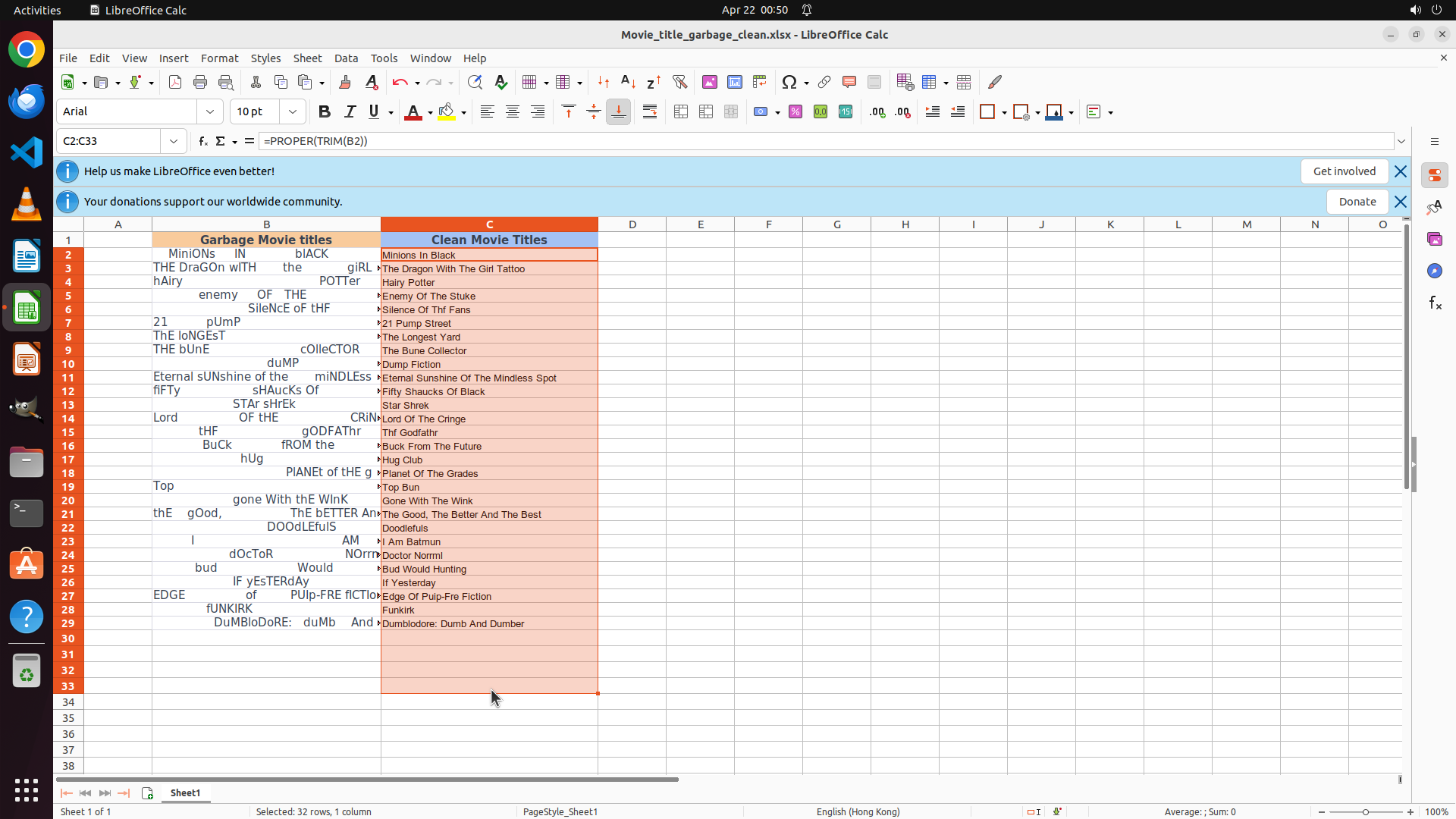
- The range C2:C33 is currently selected (name box shows "C2:C33")
- The formula bar shows "=PROPER(TRIM(B2))" which is the correct cleaning formula
- Looking at column C, I can see cleaned movie titles:
- C2: "Minions In Black" ✓
- C3: "The Dragon With The Girl Tattoo" ✓
- C4: "Hairy Potter" ✓
- C5: "Enemy Of The Stuke" ✓
- C6: "Silence Of Thf Fans" ✓
- C7: "21 Pump Street" ✓
- C8: "The Longest Yard" ✓
- C9: "The Bune Collector" ✓
- C10: "Dump Collector" ✓
- And continuing down...
- Row 29 shows "Dumbledore: Dumb And Dumber" in column C
- The formula appears to have been successfully filled down to all rows!
#### 情况分析与思考过程
The Ctrl+D fill down operation from the previous step appears to have worked! Looking at column C, I can see that all the movie titles have been properly cleaned with:
1. Extra whitespaces removed (TRIM function)
2. First letter of each word capitalized, rest lowercase (PROPER function)
The values in column C now match the expected cleaned versions of the corresponding titles in column B. However, the selection currently shows C2:C33, which includes some extra rows beyond row 29. I should click on a neutral cell to deselect and verify the final result more clearly.
Let me click on cell D2 or another neutral area to deselect and confirm the task is complete.
```
I'll click on a neutral cell to deselect the range and verify the final results.
Step 20: HOTKEY
```
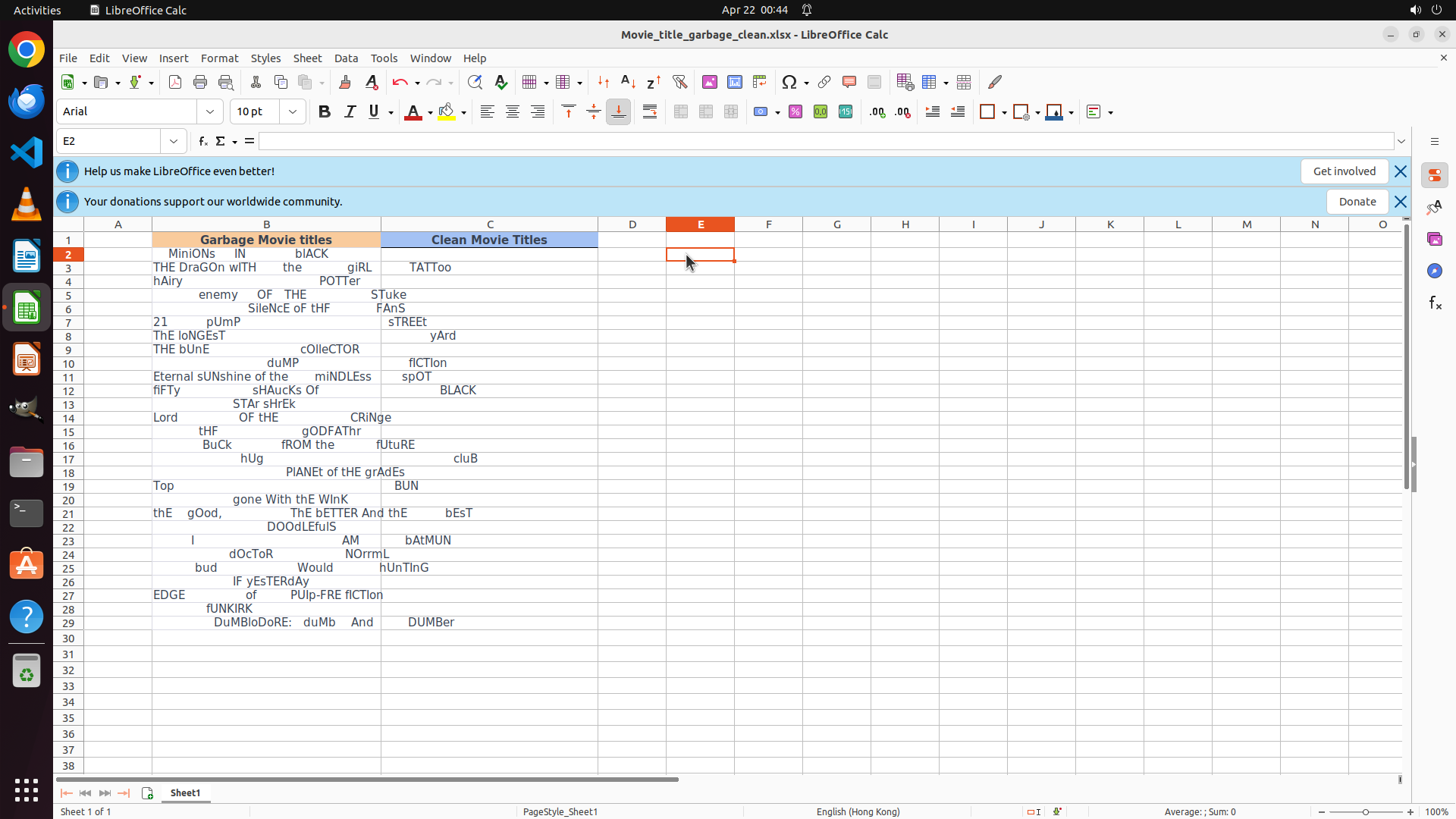
#### 重要信息
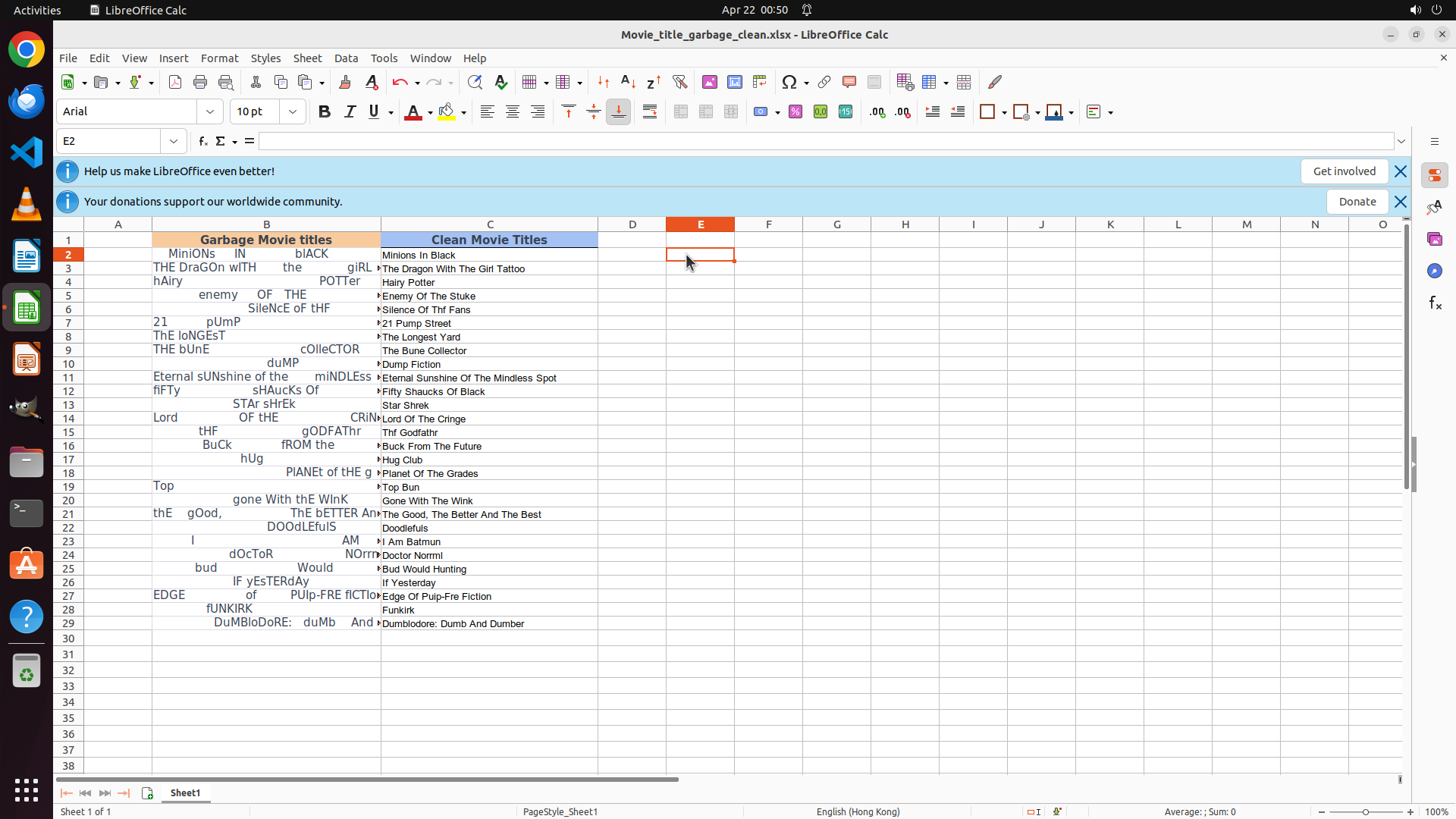
- The spreadsheet shows that column C now contains properly cleaned movie titles
- Cell E2 is currently selected (name box shows "E2")
- Looking at column C, I can see cleaned titles:
- C2: "Minions In Black" ✓
- C3: "The Dragon With The Girl Tattoo" ✓
- C4: "Hairy Potter" ✓
- C5: "Enemy Of The Stuke" ✓
- C6: "Silence Of Thf Fans" ✓
- C7: "21 Pump Street" ✓
- C8: "The Longest Yard" ✓
- C9: "The Bune Collector" ✓
- C10: "Dump Collector" ✓
- And continuing down...
- Row 29 shows "Dumbledore: Dumb And Dumber" in column C (cleaned from "DuMbLoRe: duMb And DUMBer" in B29)
- The formula =PROPER(TRIM(B2)) has been successfully filled down to all rows
- All titles in column C appear to be properly formatted with:
- No redundant whitespaces
- First letter of each word capitalized
- Other letters in lowercase
#### 情况分析与思考过程
The task appears to be successfully completed! The Ctrl+D fill down operation worked correctly. All movie titles from column B have been:
1. Copied to column C
2. Trimmed of extra whitespaces
3. Properly capitalized (first letter of each word capitalized, rest lowercase)
The data range is from row 2 to row 29, and all rows appear to have been processed correctly. Now I should save the file to preserve these changes. I'll use Ctrl+S to save the spreadsheet.
```
Step 21: DONEDONE
```
#### 重要信息
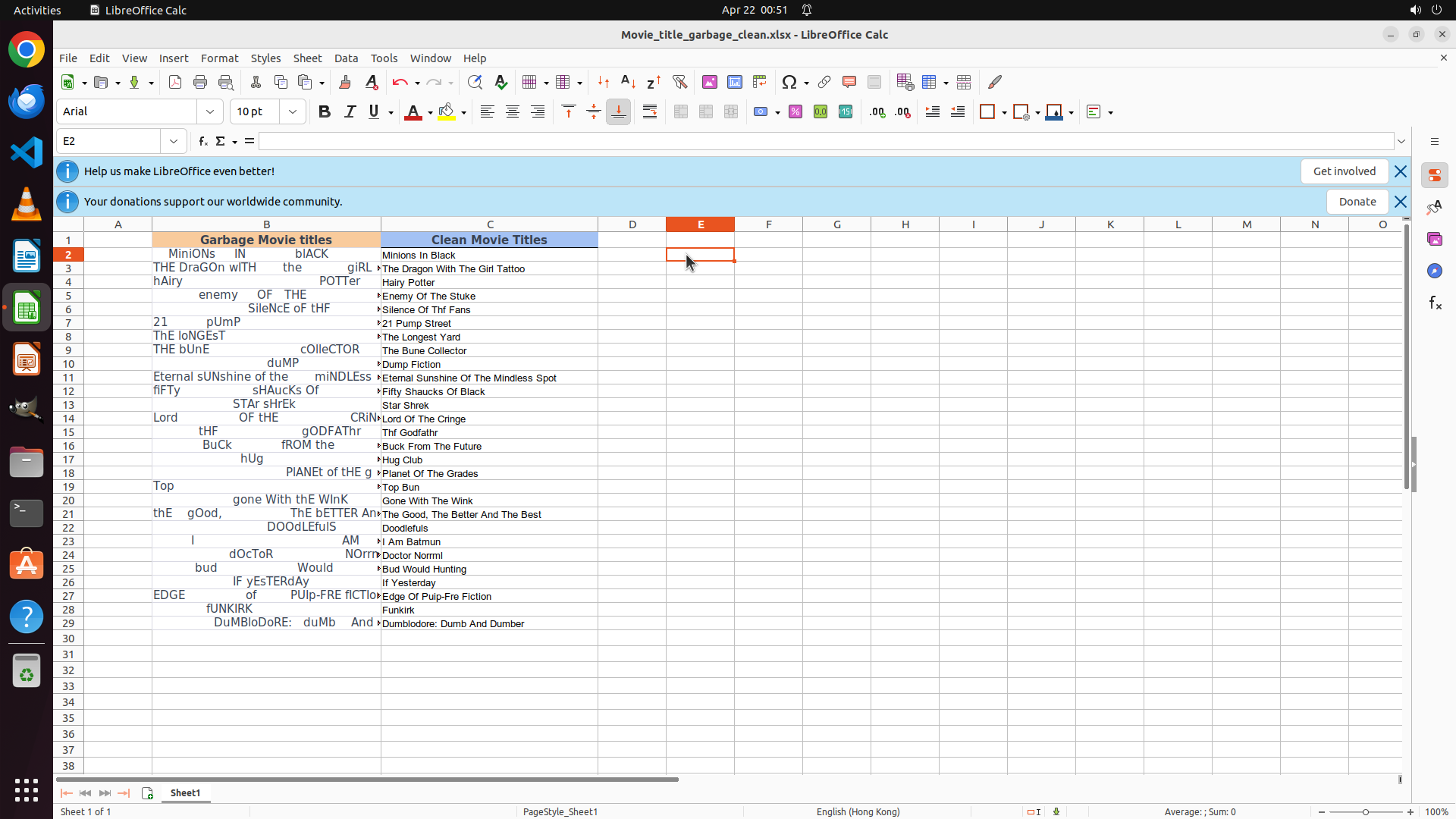
- The spreadsheet shows that column C now contains properly cleaned movie titles
- Cell E2 is currently selected (name box shows "E2")
- Looking at column C, I can see cleaned titles:
- C2: "Minions In Black" ✓
- C3: "The Dragon With The Girl Tattoo" ✓
- C4: "Hairy Potter" ✓
- C5: "Enemy Of The Stuke" ✓
- C6: "Silence Of Thf Fans" ✓
- C7: "21 Pump Street" ✓
- C8: "The Longest Yard" ✓
- C9: "The Bune Collector" ✓
- C10: "Dump Collector" ✓
- And continuing down...
- Row 29 shows "Dumbledore: Dumb And Dumber" in column C (cleaned from "DuMbLoRe: duMb And DUMBer" in B29)
- The formula =PROPER(TRIM(B2)) has been successfully filled down to all rows
- All titles in column C appear to be properly formatted with:
- No redundant whitespaces
- First letter of each word capitalized
- Other letters in lowercase
#### 情况分析与思考过程
The task appears to be successfully completed! The Ctrl+D fill down operation worked correctly. All movie titles from column B have been:
1. Copied to column C
2. Trimmed of extra whitespaces
3. Properly capitalized (first letter of each word capitalized, rest lowercase)
The data range is from row 2 to row 29, and all rows appear to have been processed correctly. Now I should save the file to preserve these changes. I'll use Ctrl+S to save the spreadsheet.
```
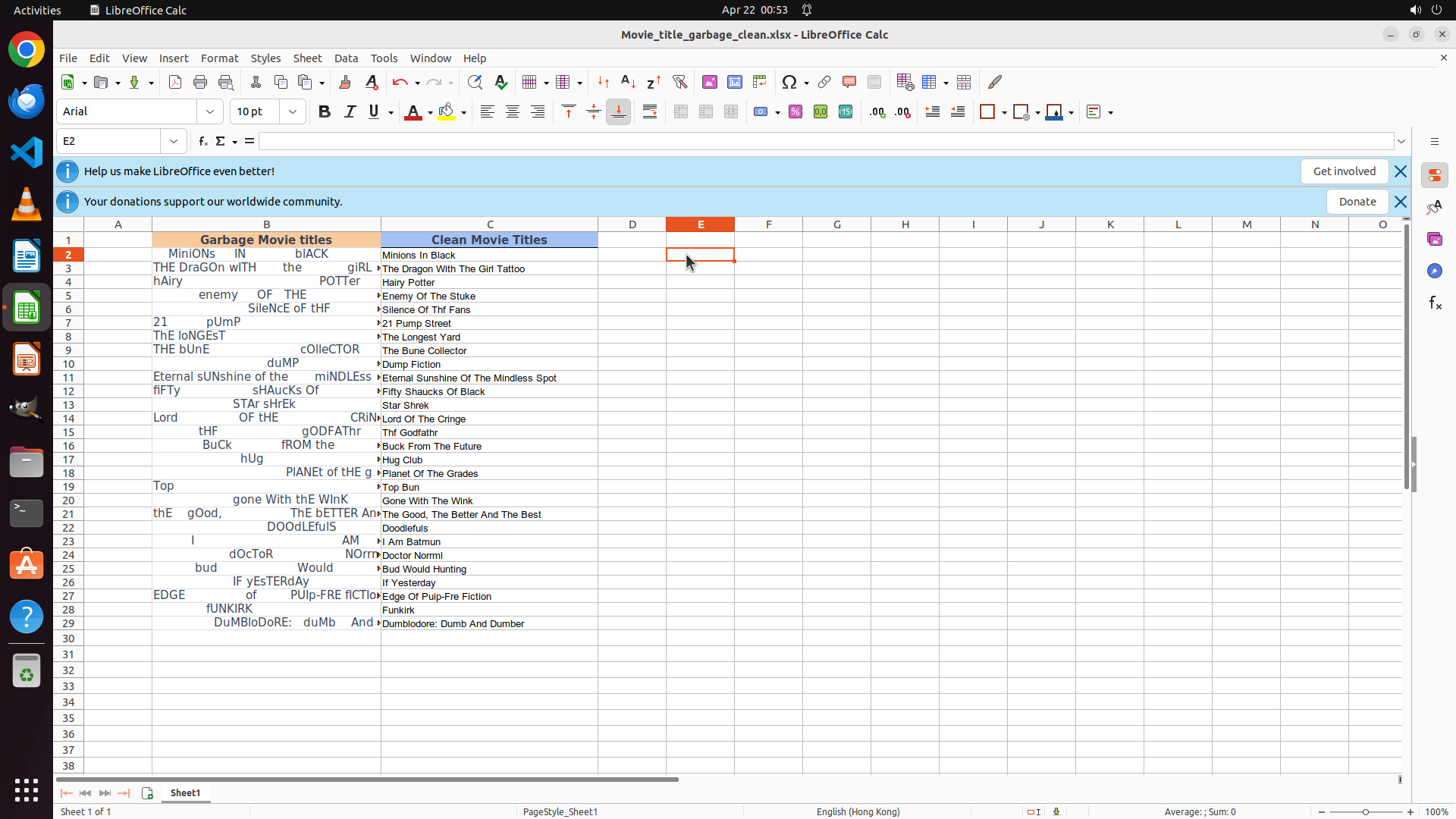
The task has been completed successfully. All movie titles from the 'Garbage Movie Titles' column (column B) have been copied to the 'Clean Movie Titles' column (column C) with:
- Redundant whitespaces removed using the TRIM function
- Proper capitalization applied using the PROPER function (first letter of each word capitalized, other letters lowercase)
The file has been saved with Ctrl+S. The work is complete and no further actions are needed.