```
#### 从截图中观察到的信息
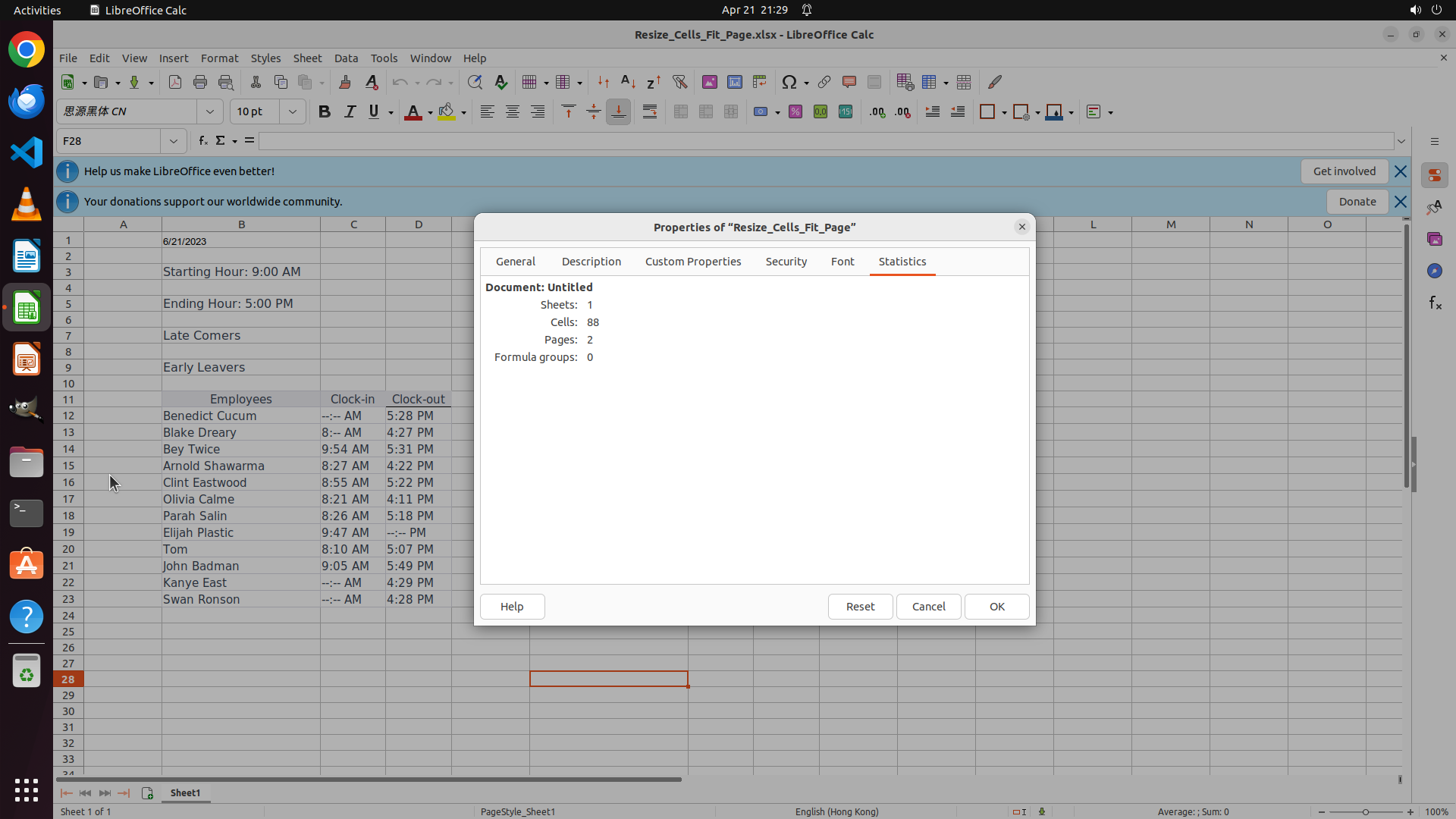
1. The Properties dialog for "Resize_Cells_Fit_Page" is now open
2. The dialog shows document statistics: 1 sheet, 88 cells, 2 pages
3. The General tab shows "Document: Untitled" but does NOT show the full file path
4. The spreadsheet content is visible in the background with employee clock-in/clock-out data
5. The filename is known as "Resize_Cells_Fit_Page.xlsx" from the title bar
6. I still need to find:
- The full file path of the spreadsheet
- The user's home directory path
#### 下一步计划
1. Close this Properties dialog (click Cancel or OK)
2. Open a terminal to get the home directory path and locate the file
3. Or try to use "Save As" to see the current location
I will close this dialog and open a terminal to get the home directory and file path information.
```
Step 4: CLICK (35, 660)
```
#### 从截图中观察到的信息
1. The Properties dialog for "Resize_Cells_Fit_Page" is now open
2. The dialog shows document statistics: 1 sheet, 88 cells, 2 pages
3. The General tab shows "Document: Untitled" but does NOT show the full file path
4. The spreadsheet content is visible in the background with employee clock-in/clock-out data
5. The filename is known as "Resize_Cells_Fit_Page.xlsx" from the title bar
6. I still need to find:
- The full file path of the spreadsheet
- The user's home directory path
#### 下一步计划
1. Close this Properties dialog (click Cancel or OK)
2. Open a terminal to get the home directory path and locate the file
3. Or try to use "Save As" to see the current location
I will close this dialog and open a terminal to get the home directory and file path information.
```
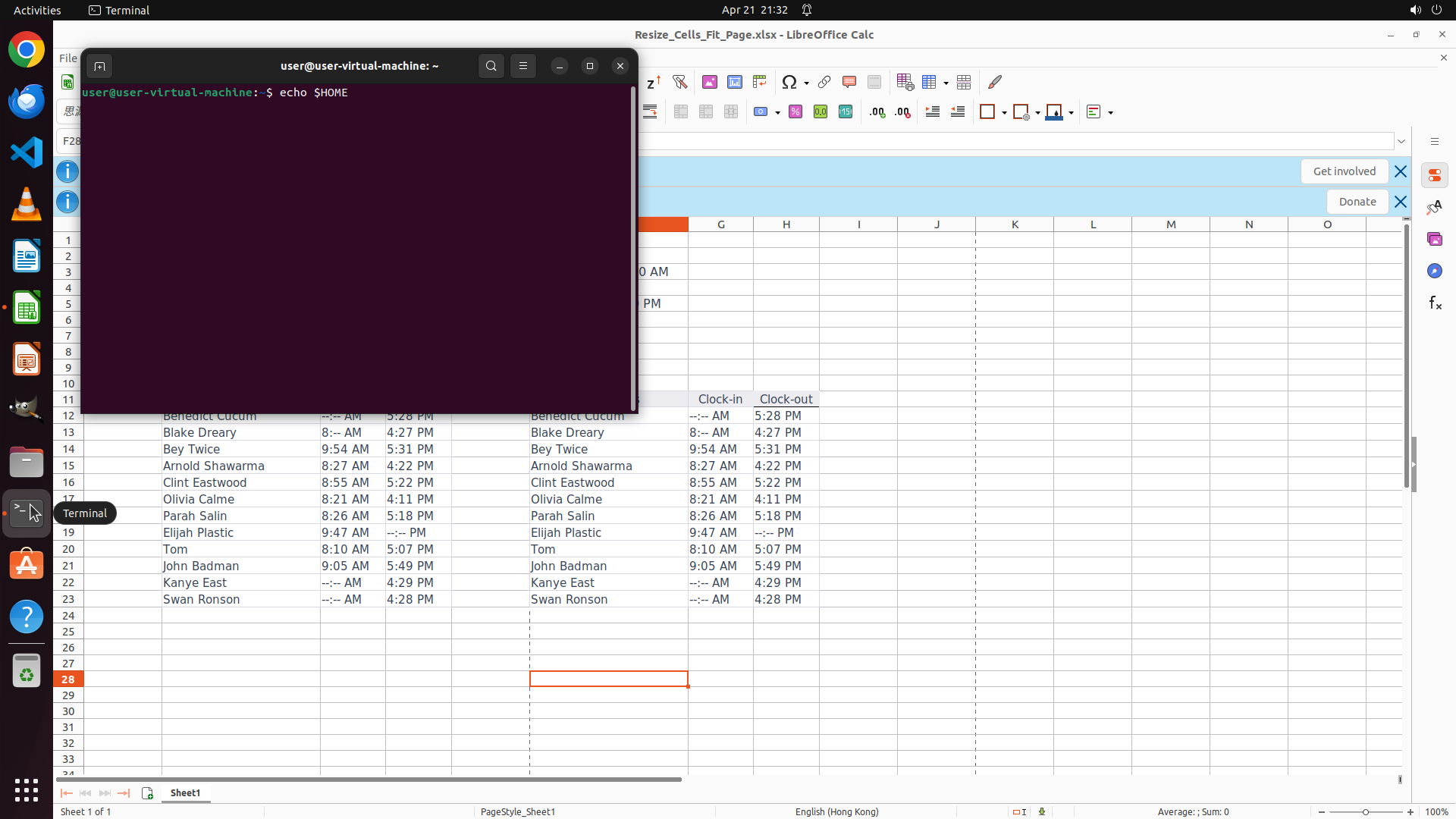
Step 5: TYPING "echo $HOME"
```
#### 从截图中观察到的信息
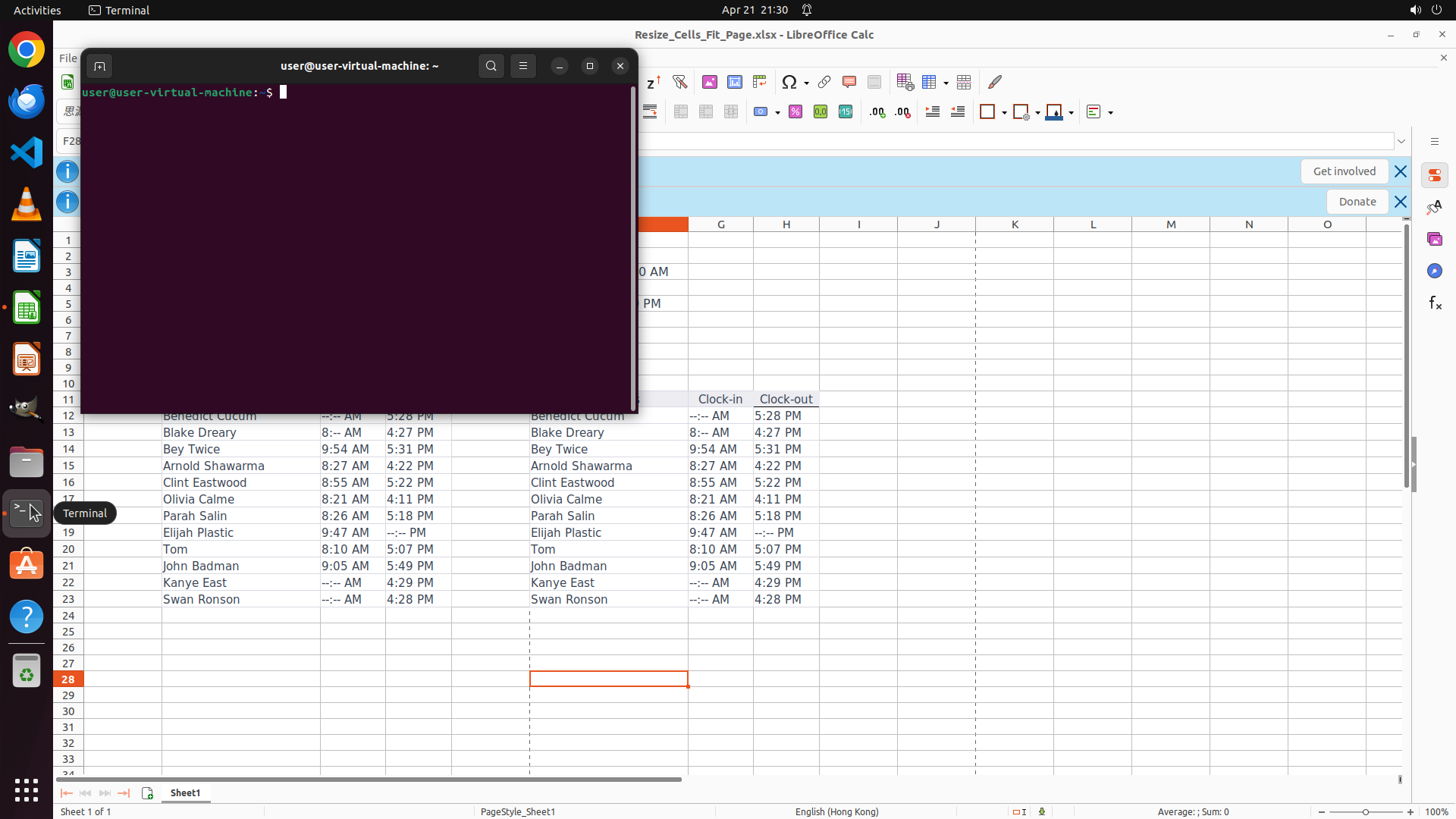
1. The terminal is now open and ready for commands
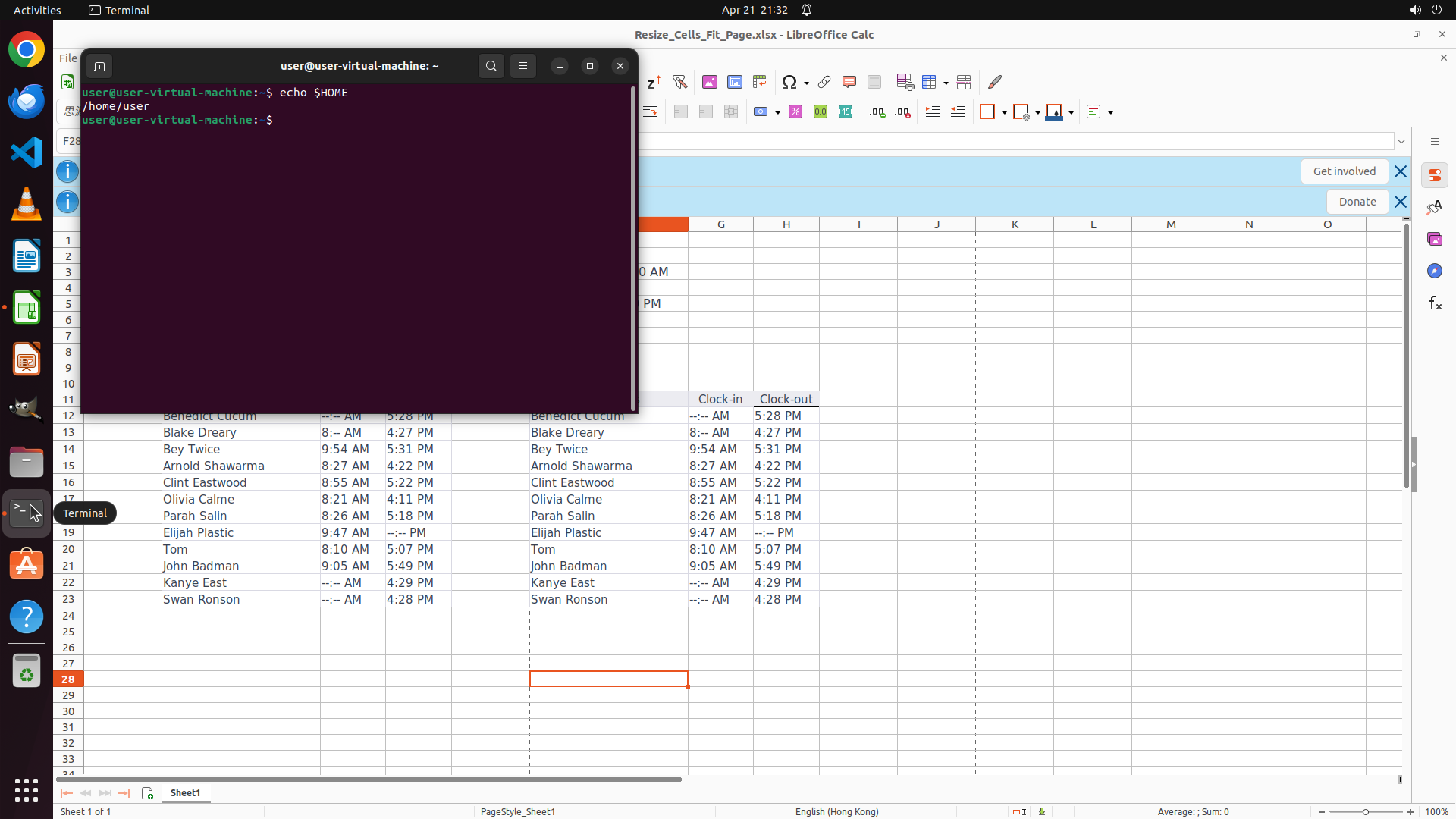
2. The prompt shows "user@user-virtual-machine:~$" which indicates the home directory is likely /home/user
3. The LibreOffice Calc spreadsheet "Resize_Cells_Fit_Page.xlsx" is still open in the background
4. I can see the spreadsheet contains employee clock-in/clock-out data
#### 下一步计划
1. Type commands in the terminal to:
- Get the home directory path using `echo $HOME`
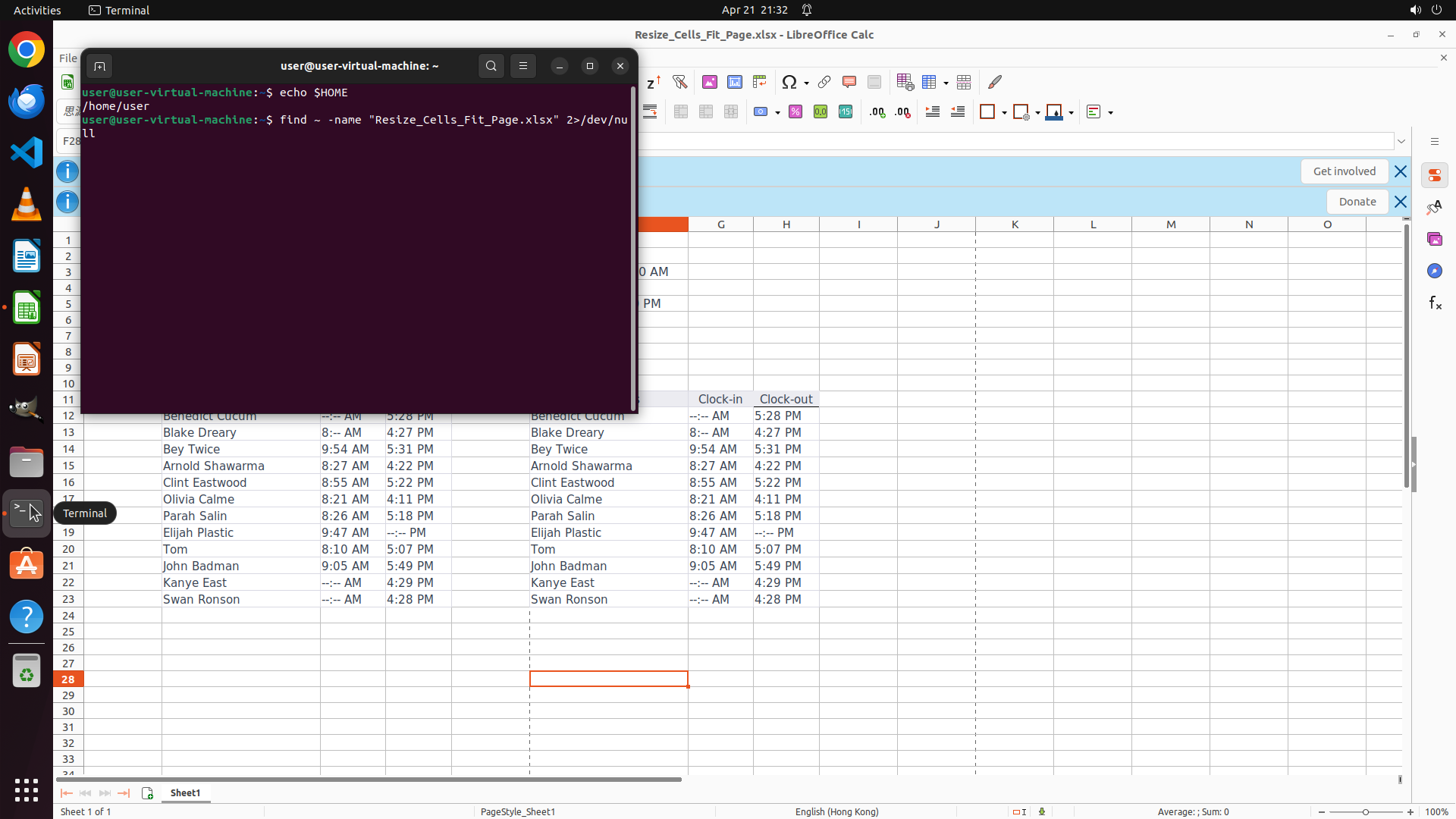
- Find the full file path of the spreadsheet using `find` command
2. This will answer both remaining questions in one operation
I will type the commands to get both the home directory and the file path.
```
Step 5: HOTKEY
```
#### 从截图中观察到的信息
1. The terminal is now open and ready for commands
2. The prompt shows "user@user-virtual-machine:~$" which indicates the home directory is likely /home/user
3. The LibreOffice Calc spreadsheet "Resize_Cells_Fit_Page.xlsx" is still open in the background
4. I can see the spreadsheet contains employee clock-in/clock-out data
#### 下一步计划
1. Type commands in the terminal to:
- Get the home directory path using `echo $HOME`
- Find the full file path of the spreadsheet using `find` command
2. This will answer both remaining questions in one operation
I will type the commands to get both the home directory and the file path.
```
```
#### 从截图中观察到的信息
1. The terminal is now open and ready for commands
2. The prompt shows "user@user-virtual-machine:~$" which indicates the home directory is likely /home/user
3. The LibreOffice Calc spreadsheet "Resize_Cells_Fit_Page.xlsx" is still open in the background
4. I can see the spreadsheet contains employee clock-in/clock-out data
#### 下一步计划
1. Type commands in the terminal to:
- Get the home directory path using `echo $HOME`
- Find the full file path of the spreadsheet using `find` command
2. This will answer both remaining questions in one operation
I will type the commands to get both the home directory and the file path.
```
Step 5: HOTKEY
```
#### 从截图中观察到的信息
1. The terminal is now open and ready for commands
2. The prompt shows "user@user-virtual-machine:~$" which indicates the home directory is likely /home/user
3. The LibreOffice Calc spreadsheet "Resize_Cells_Fit_Page.xlsx" is still open in the background
4. I can see the spreadsheet contains employee clock-in/clock-out data
#### 下一步计划
1. Type commands in the terminal to:
- Get the home directory path using `echo $HOME`
- Find the full file path of the spreadsheet using `find` command
2. This will answer both remaining questions in one operation
I will type the commands to get both the home directory and the file path.
```
Step 6: CLICK (818, 82)
```
#### 重要信息
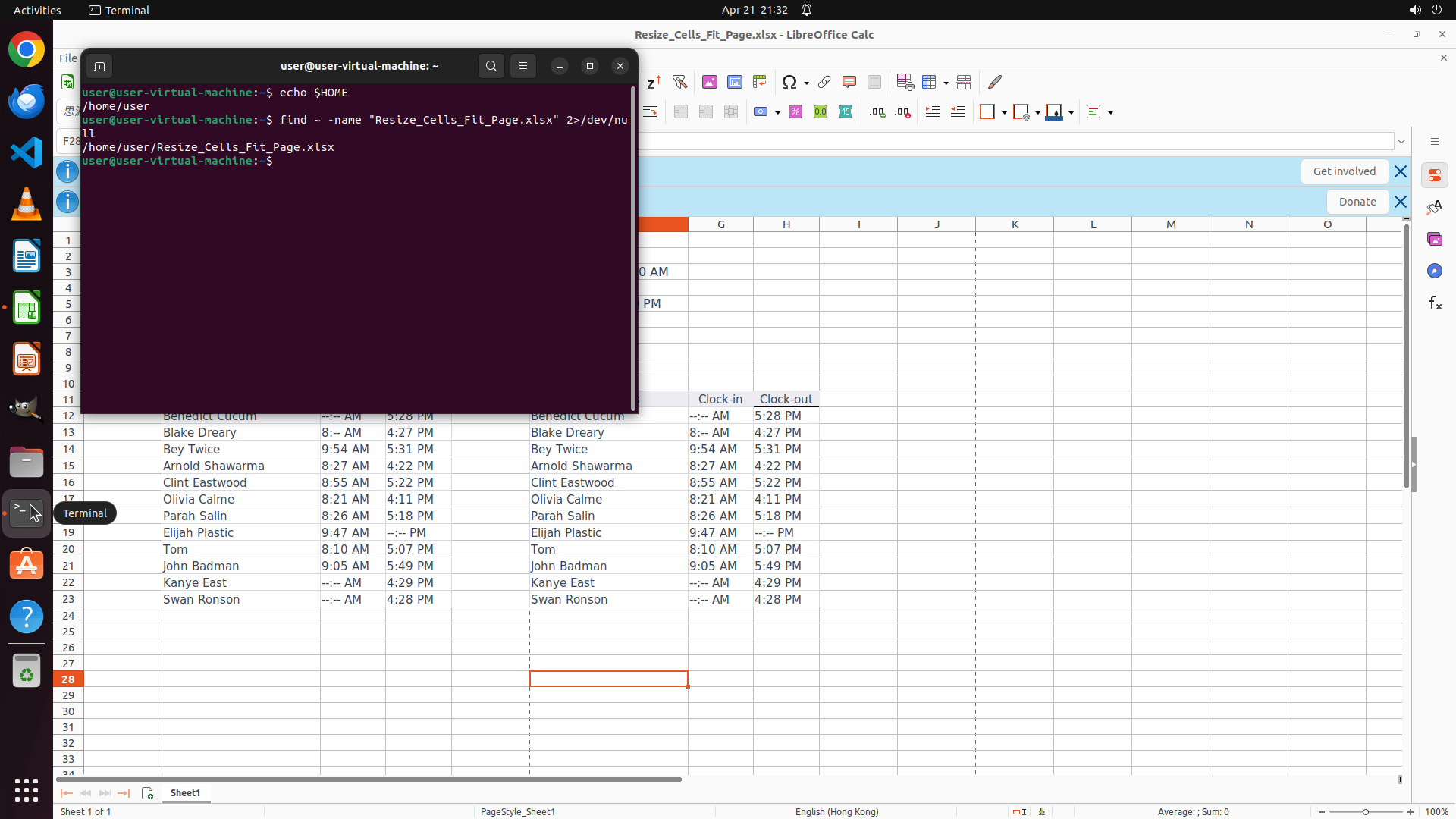
- LibreOffice Calc is open with "Resize_Cells_Fit_Page.xlsx"
- A terminal window is open showing the file exists at `/home/user/Resize_Cells_Fit_Page.xlsx`
- The spreadsheet contains employee data with clock-in and clock-out times
- The task requires configuring page settings to fit on one page and exporting to PDF
#### 情况分析与思考过程
I need to help resize the spreadsheet cells to fit on one page and export it to PDF. The strategy tree shows the steps clearly:
1. First, configure the page style settings to fit on one page
2. Then export as PDF to the home directory
Currently, there's a terminal window open that's covering part of the spreadsheet. I should close it first to have better access to the LibreOffice Calc interface. Then I'll proceed with Format > Page Style to configure the scaling settings.
The terminal window has a close button (X) in the top-right corner. Closing it will give me a clearer view of the spreadsheet to work with.
```
Step 7: CLICK (288, 75)
```
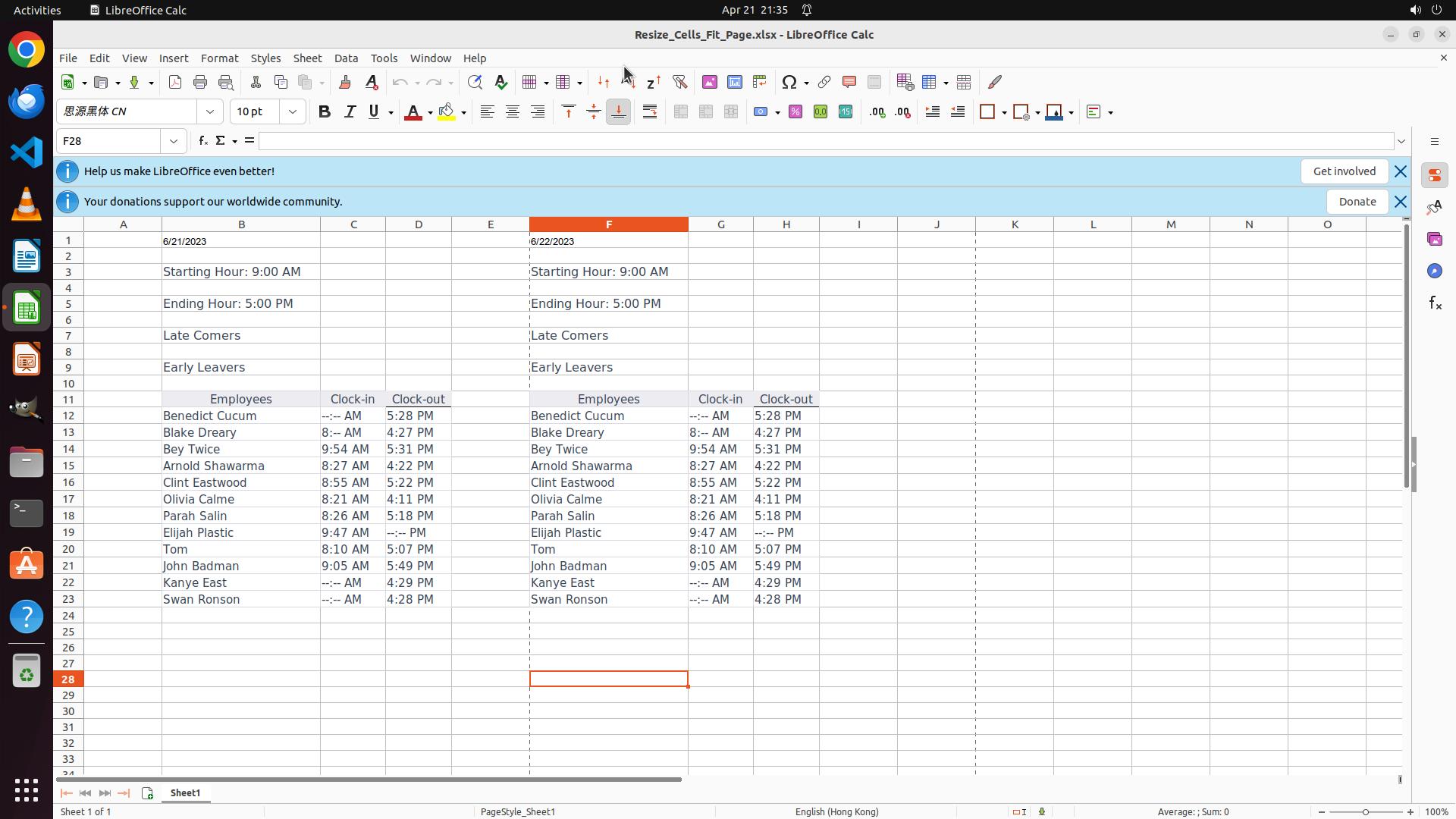
#### 重要信息
- LibreOffice Calc is open with "Resize_Cells_Fit_Page.xlsx" file loaded
- The terminal window has been successfully closed
- The spreadsheet shows employee clock-in/clock-out data
- The Format menu is visible in the menu bar at coordinates around (0.150, 0.069)
- No blocking dialogs or error messages are present
#### 情况分析与思考过程
The terminal has been closed successfully, giving me a clear view of the spreadsheet. Now I need to proceed with configuring the page settings to fit on one page.
According to the strategy tree, I need to:
1. First, configure page settings via Format > Page Style
2. Then export as PDF
The next logical step is to click on the "Format" menu in the menu bar to access the Page Style options. This will open the Format menu dropdown where I can select "Page Style" to configure the scaling settings.
After clicking Format, I expect to see a dropdown menu with various formatting options including "Page Style".
```
Step 8: CLICK (324, 375)
```
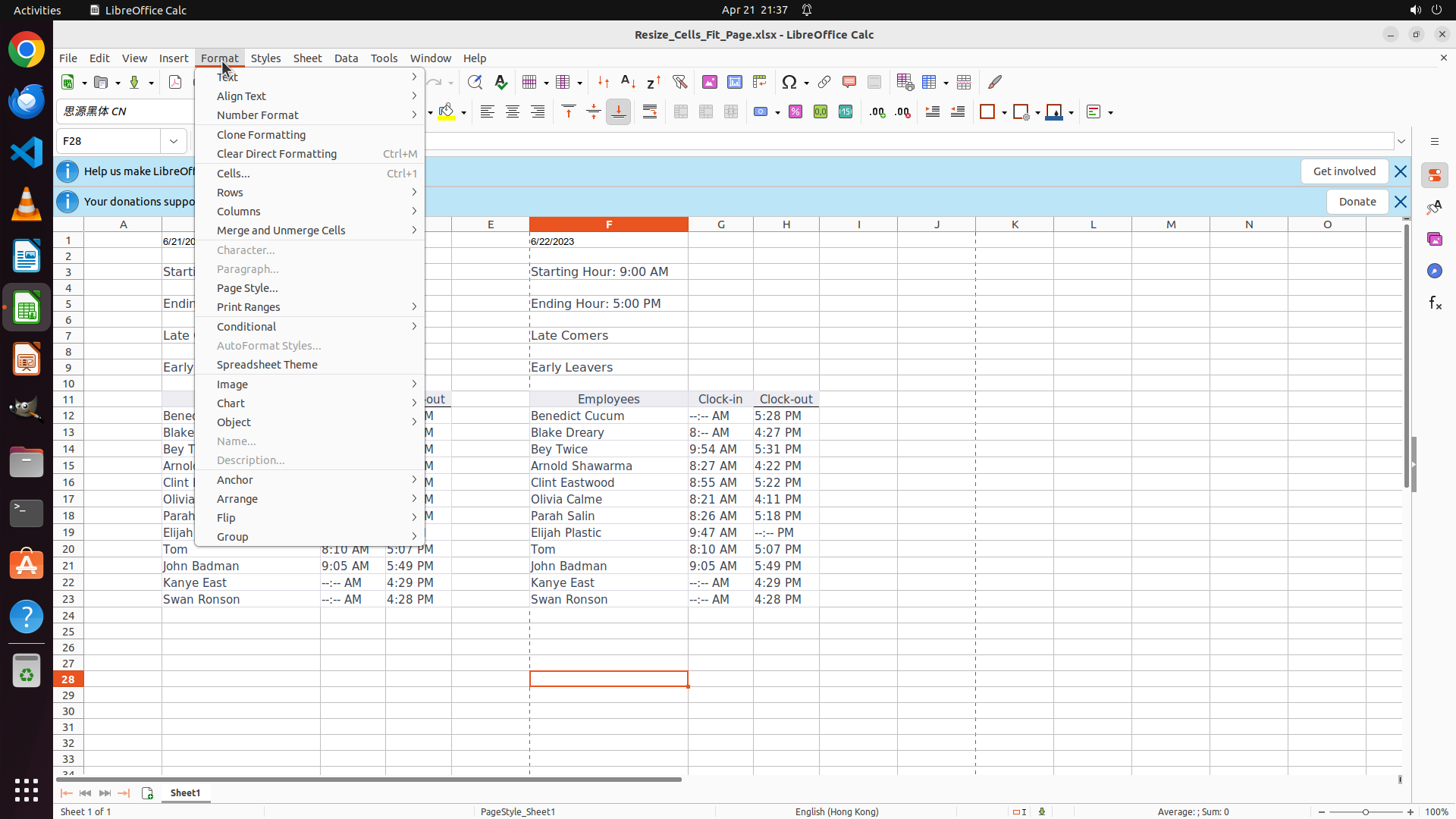
#### 重要信息
- LibreOffice Calc is open with "Resize_Cells_Fit_Page.xlsx" file loaded
- The Format menu dropdown is now visible with various formatting options
- I can see "Page Style..." option in the dropdown menu
- The spreadsheet shows employee clock-in/clock-out data in the background
#### 情况分析与思考过程
The Format menu has been successfully opened. Now I need to click on "Page Style..." to open the page style dialog where I can configure the scaling settings to fit the spreadsheet on one page.
According to the strategy tree:
1.1: Open Format menu and select Page Style ← I'm here
1.2: In Sheet tab, set Scale to Width: 1 page and Height: 1 page
1.3: Click OK to apply page settings
The "Page Style..." option is visible in the dropdown menu. Clicking on it will open the Page Style dialog where I can configure the Sheet tab settings to fit the print range on one page.
```
Step 9: CLICK (1183, 300)
```
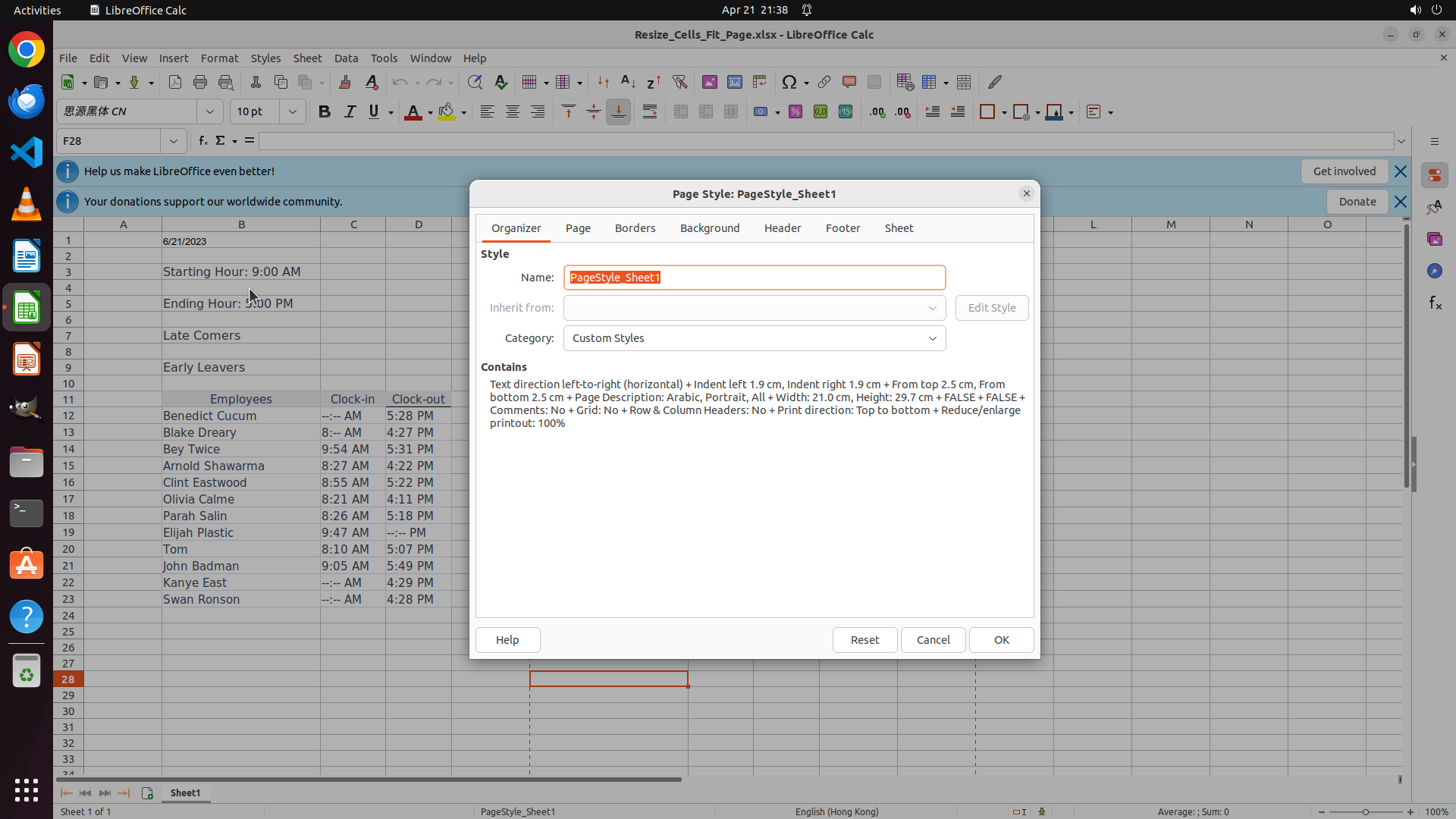
#### 重要信息
- LibreOffice Calc is open with "Resize_Cells_Fit_Page.xlsx" file loaded
- The Page Style dialog is now open showing "Page Style: PageStyle_Sheet1"
- Multiple tabs are visible: Organizer, Page, Borders, Background, Header, Footer, and Sheet
- Currently on the "Organizer" tab
- The spreadsheet with employee clock-in/clock-out data is visible in the background
#### 情况分析与思考过程
The Page Style dialog has been successfully opened. Now I need to navigate to the "Sheet" tab to configure the scaling settings to fit the spreadsheet on one page.
According to the strategy tree:
1.1: Open Format menu and select Page Style ← Completed
1.2: In Sheet tab, set Scale to Width: 1 page and Height: 1 page ← I'm here
1.3: Click OK to apply page settings
I can see the "Sheet" tab at the top of the dialog. Clicking on it will show the sheet-specific settings where I can configure the scaling mode to fit the print range on one page.
```
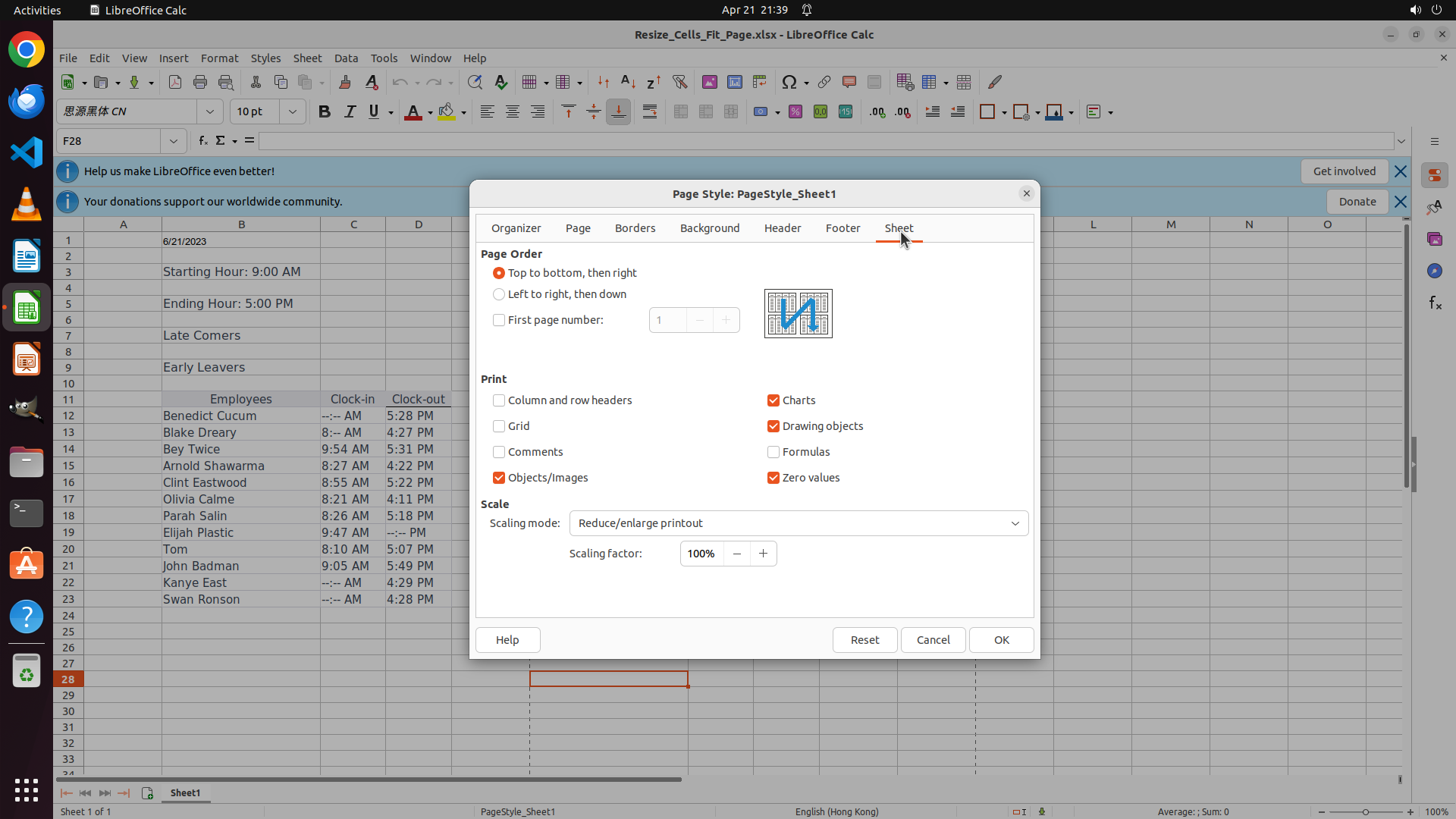
Step 10: CLICK (1338, 681)
```
#### 重要信息
- The Page Style dialog is now showing the "Sheet" tab
- The Scale section is visible with "Scaling mode" dropdown currently set to "Reduce/enlarge printout"
- There's a "Scaling factor" field showing 100%
- I need to change the scaling mode to fit the print range on one page
#### 情况分析与思考过程
I'm now on the Sheet tab where I can configure the scaling settings. The current scaling mode is "Reduce/enlarge printout" which is not what I need. I need to click on the "Scaling mode" dropdown to see other options and select the option to fit print ranges on one page.
According to the strategy tree:
1.1: Open Format menu and select Page Style ← Completed
1.2: In Sheet tab, set Scale to Width: 1 page and Height: 1 page ← I'm here
1.3: Click OK to apply page settings
The dropdown for "Scaling mode" needs to be clicked to reveal options like "Fit print range(s) on one page". This is the next logical step to configure the spreadsheet to fit on one page.
```
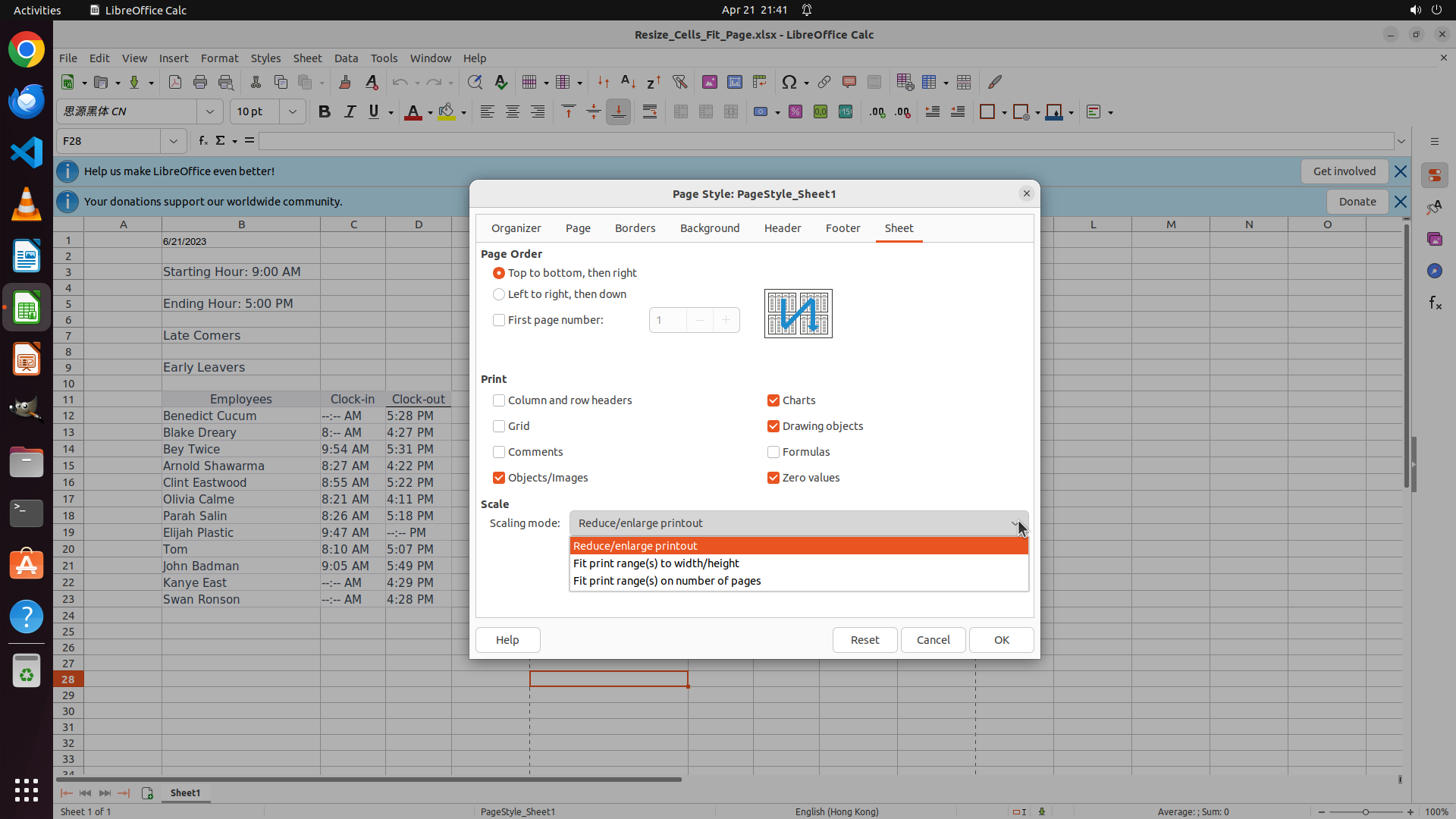
Step 11: CLICK (870, 739)
```
#### 重要信息
- The Scaling mode dropdown menu is now open showing three options:
- "Reduce/enlarge printout" (currently selected, highlighted in orange)
- "Fit print range(s) to width/height"
- "Fit print range(s) on number of pages"
- I need to select the appropriate option to fit the spreadsheet on one page
#### 情况分析与思考过程
The dropdown menu is now open and showing the available scaling options. According to the strategy tree step 1.2, I need to "set Scale to Width: 1 page and Height: 1 page". The option "Fit print range(s) to width/height" seems to be the one that will allow me to specify width and height in pages.
I should click on "Fit print range(s) to width/height" to select it. This will likely reveal input fields where I can set Width to 1 page and Height to 1 page, as required by the task.
After selecting this option, I expect to see additional fields appear where I can specify the number of pages for width and height.
```
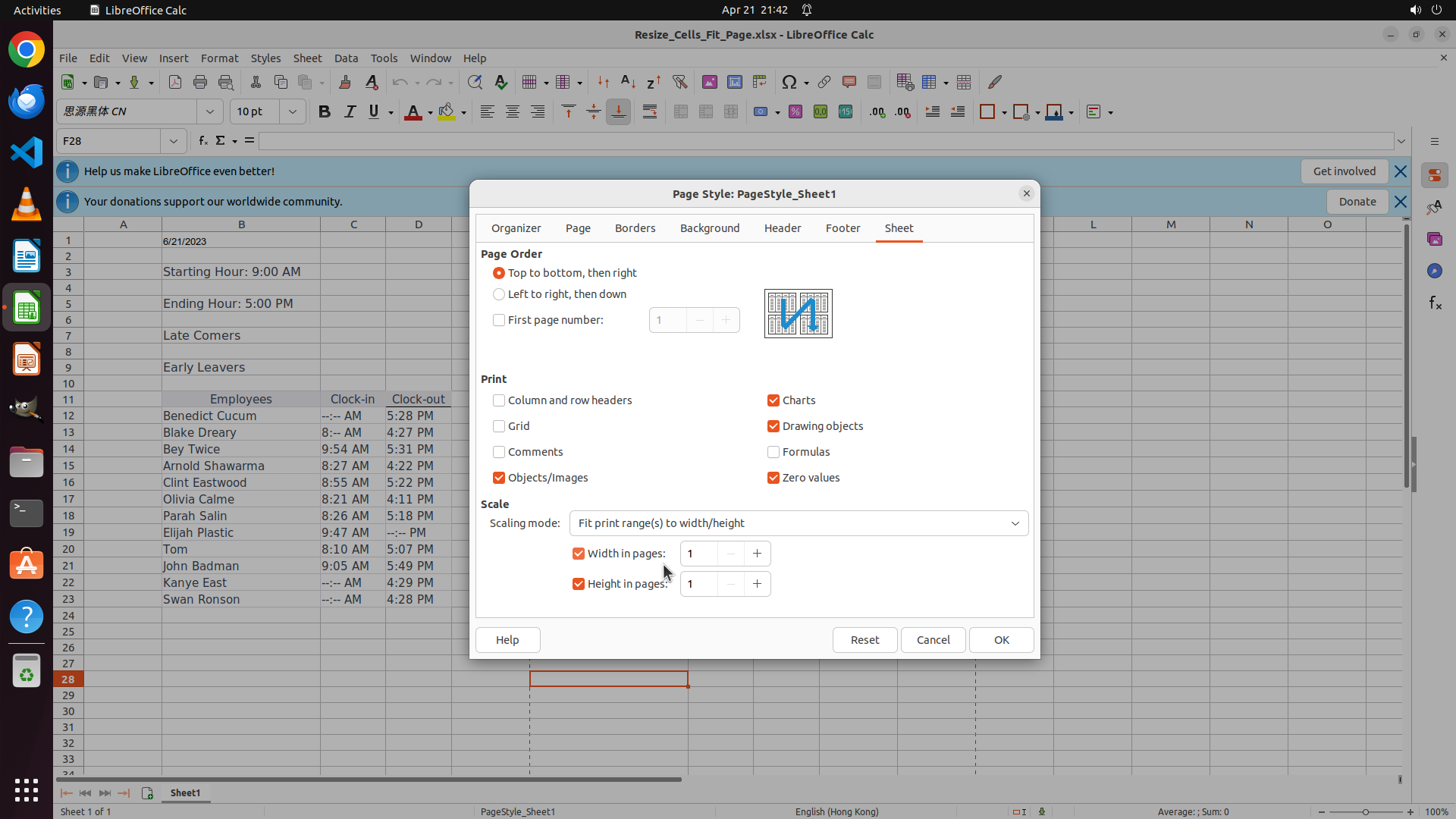
Step 12: CLICK (1323, 843)
```
#### 重要信息
- The Page Style dialog is showing the "Sheet" tab with scaling settings configured
- Scaling mode is now set to "Fit print range(s) to width/height"
- "Width in pages:" is set to 1 (checked)
- "Height in pages:" is set to 1 (checked)
- This matches the requirement to fit the spreadsheet on one page
- The OK button is visible at the bottom right of the dialog
#### 情况分析与思考过程
Perfect! The scaling settings have been successfully configured. The "Fit print range(s) to width/height" option is now selected, and both width and height are set to 1 page, which means the spreadsheet will be scaled to fit on a single page.
According to the strategy tree:
- 1.1: Open Format menu and select Page Style ✓ Completed
- 1.2: In Sheet tab, set Scale to Width: 1 page and Height: 1 page ✓ Completed
- 1.3: Click OK to apply page settings ← Current step
Now I need to click the OK button to apply these settings. After that, I'll proceed to task 2: exporting the spreadsheet as PDF to the home directory with the same filename.
The logical next action is to click the OK button to apply the page settings and close the dialog.
```
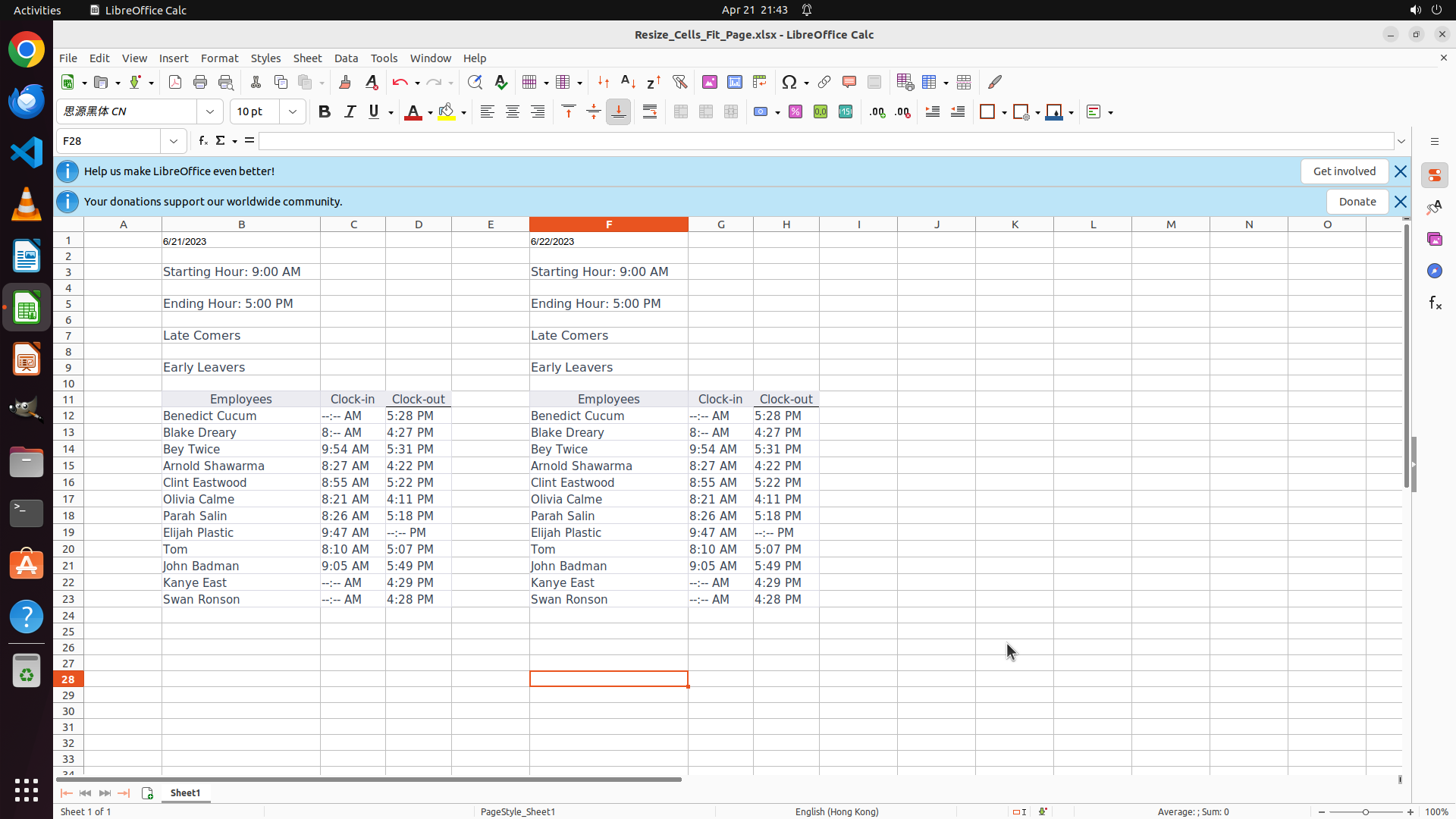
Step 13: CLICK (84, 75)
```
#### 重要信息
- The Page Style dialog has been closed successfully
- The spreadsheet is now back to normal view with the page settings applied
- The spreadsheet shows employee clock-in/clock-out data
- The File menu is visible in the menu bar at the top left
- According to the strategy tree, task 1 is complete and I need to start task 2: Export spreadsheet as PDF
#### 情况分析与思考过程
The page settings have been successfully applied. The spreadsheet is now configured to fit on one page when printed or exported to PDF. Now I need to proceed with exporting the spreadsheet as PDF.
According to the strategy tree:
1: Configure spreadsheet to fit on one page ✓ Completed
2: Export spreadsheet as PDF to home directory ← Current task
2.1: Open File menu and select Export as PDF ← Current step
2.2: Verify PDF export settings and click Export
2.3: Set filename to Resize_Cells_Fit_Page.pdf in /home/user directory
2.4: Click Save to complete PDF export
The next logical step is to click on the "File" menu to access the export options. The File menu is located in the top menu bar. After clicking File, I expect to see a dropdown menu with various options including "Export as PDF".
```
Step 14: CLICK (150, 483)
```
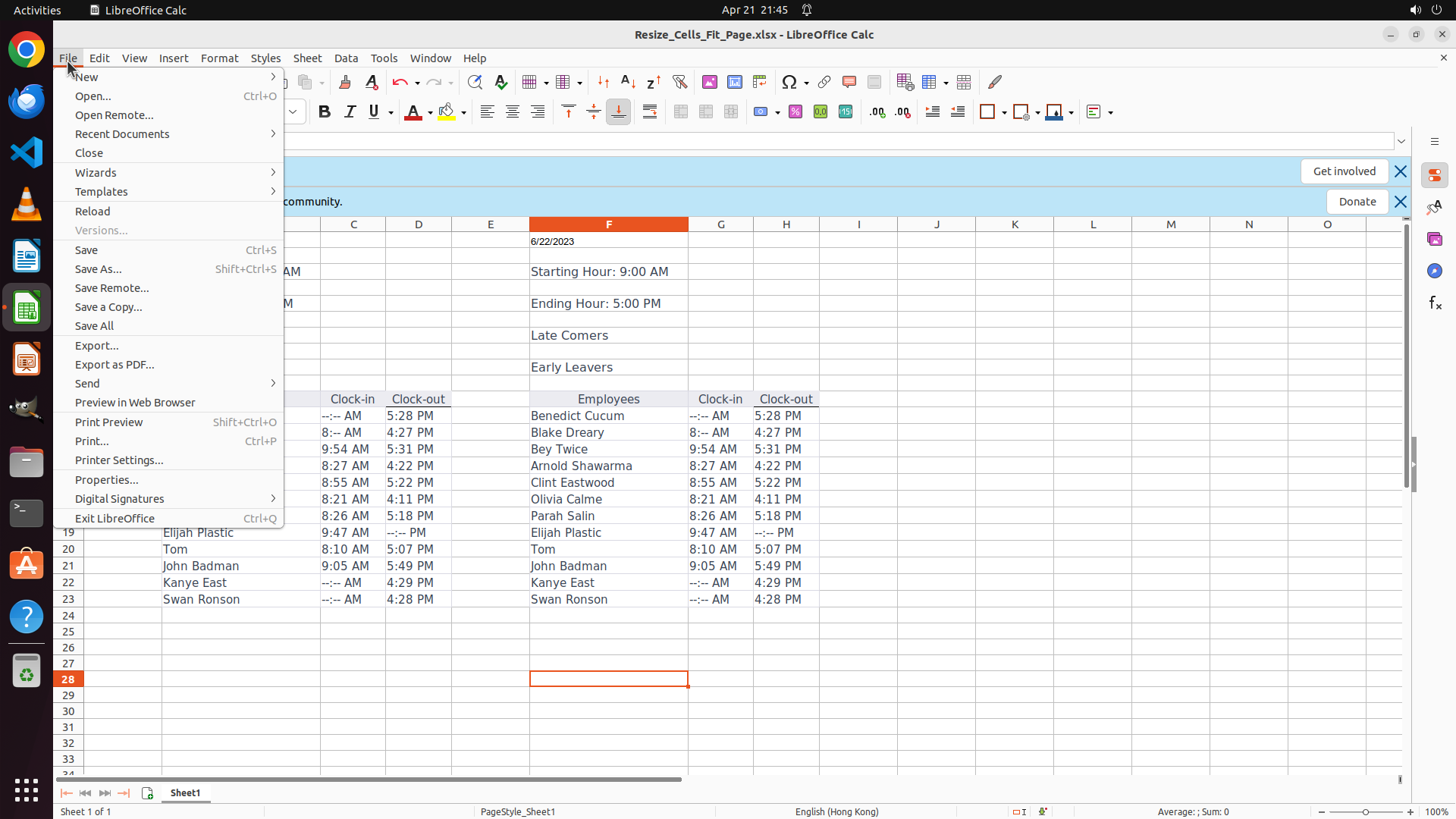
#### 重要信息
- The File menu is now open showing various options
- I can see "Export as PDF..." option in the dropdown menu
- The spreadsheet is visible in the background with employee clock-in/clock-out data
- According to the strategy tree, I'm on step 2.1: Open File menu and select Export as PDF
#### 情况分析与思考过程
The File menu has been successfully opened. Now I need to click on "Export as PDF..." to proceed with exporting the spreadsheet as a PDF file.
According to the strategy tree:
- 1: Configure spreadsheet to fit on one page ✓ Completed
- 2: Export spreadsheet as PDF to home directory ← Current task
- 2.1: Open File menu and select Export as PDF ← I'm here
- 2.2: Verify PDF export settings and click Export
- 2.3: Set filename to Resize_Cells_Fit_Page.pdf in /home/user directory
- 2.4: Click Save to complete PDF export
The "Export as PDF..." option is clearly visible in the File menu. Clicking on it will open the PDF export dialog where I can configure the export settings and specify the filename and location.
```
Step 15: CLICK (1348, 816)
```
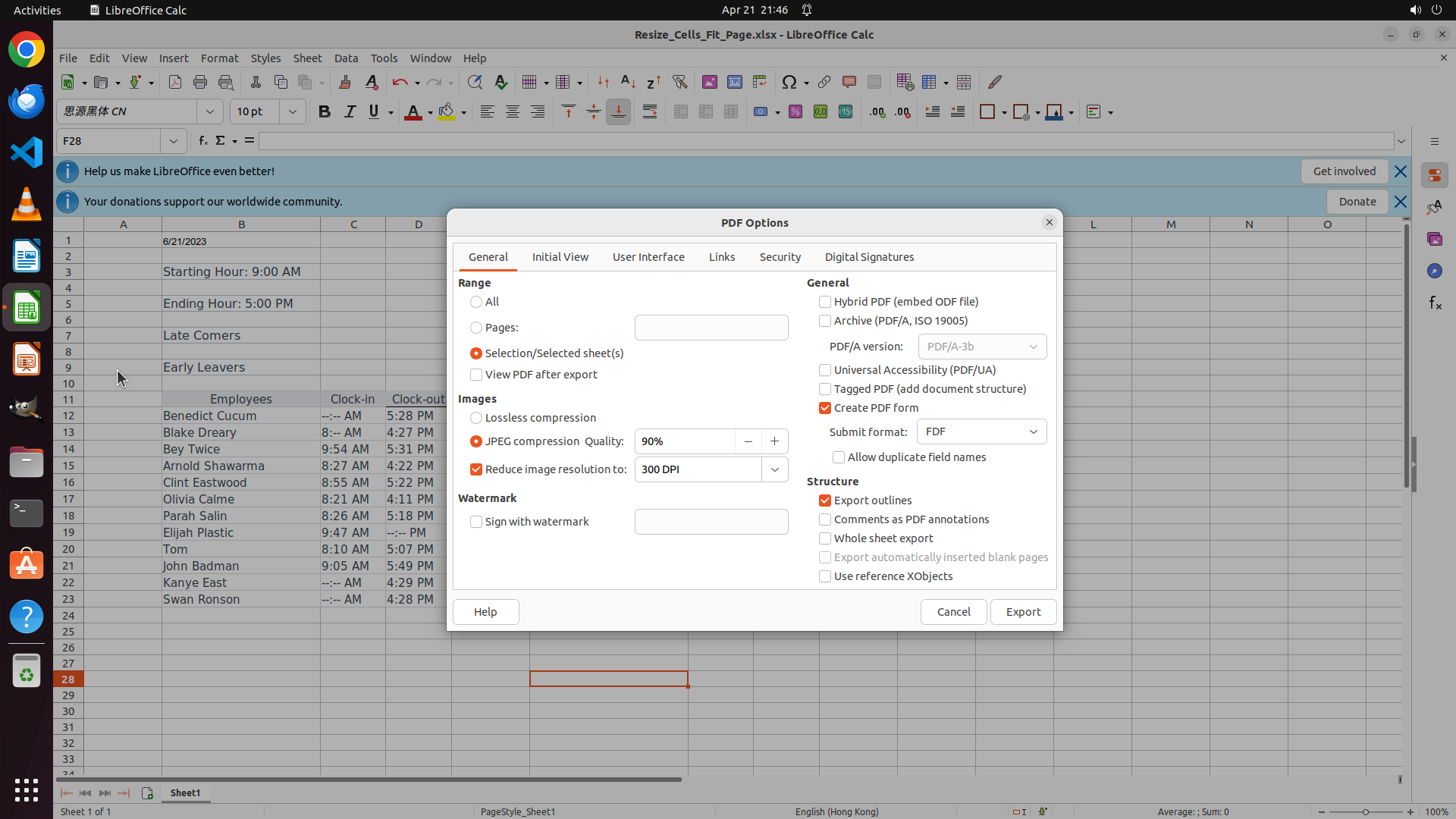
#### 重要信息
- The PDF Options dialog is now open with various export settings
- "Selection/Selected sheet(s)" is selected in the Range section, which is appropriate
- The Export button is visible at the bottom right of the dialog
- The spreadsheet with employee clock-in/clock-out data is visible in the background
- According to the strategy tree, I'm on step 2.2: Verify PDF export settings and click Export
#### 情况分析与思考过程
The PDF Options dialog has opened successfully after clicking "Export as PDF..." from the File menu. The export settings look appropriate:
- "Selection/Selected sheet(s)" is selected, which will export the current spreadsheet
- The page scaling settings we configured earlier (fit to 1 page width and height) should be applied automatically
According to the strategy tree:
- 1: Configure spreadsheet to fit on one page ✓ Completed
- 2: Export spreadsheet as PDF to home directory ← Current task
- 2.1: Open File menu and select Export as PDF ✓ Completed
- 2.2: Verify PDF export settings and click Export ← I'm here
- 2.3: Set filename to Resize_Cells_Fit_Page.pdf in /home/user directory
- 2.4: Click Save to complete PDF export
The next logical step is to click the "Export" button to proceed to the file save dialog where I can specify the filename as "Resize_Cells_Fit_Page.pdf" and set the location to /home/user directory.
```
Step 16: CLICK (1551, 100)
```
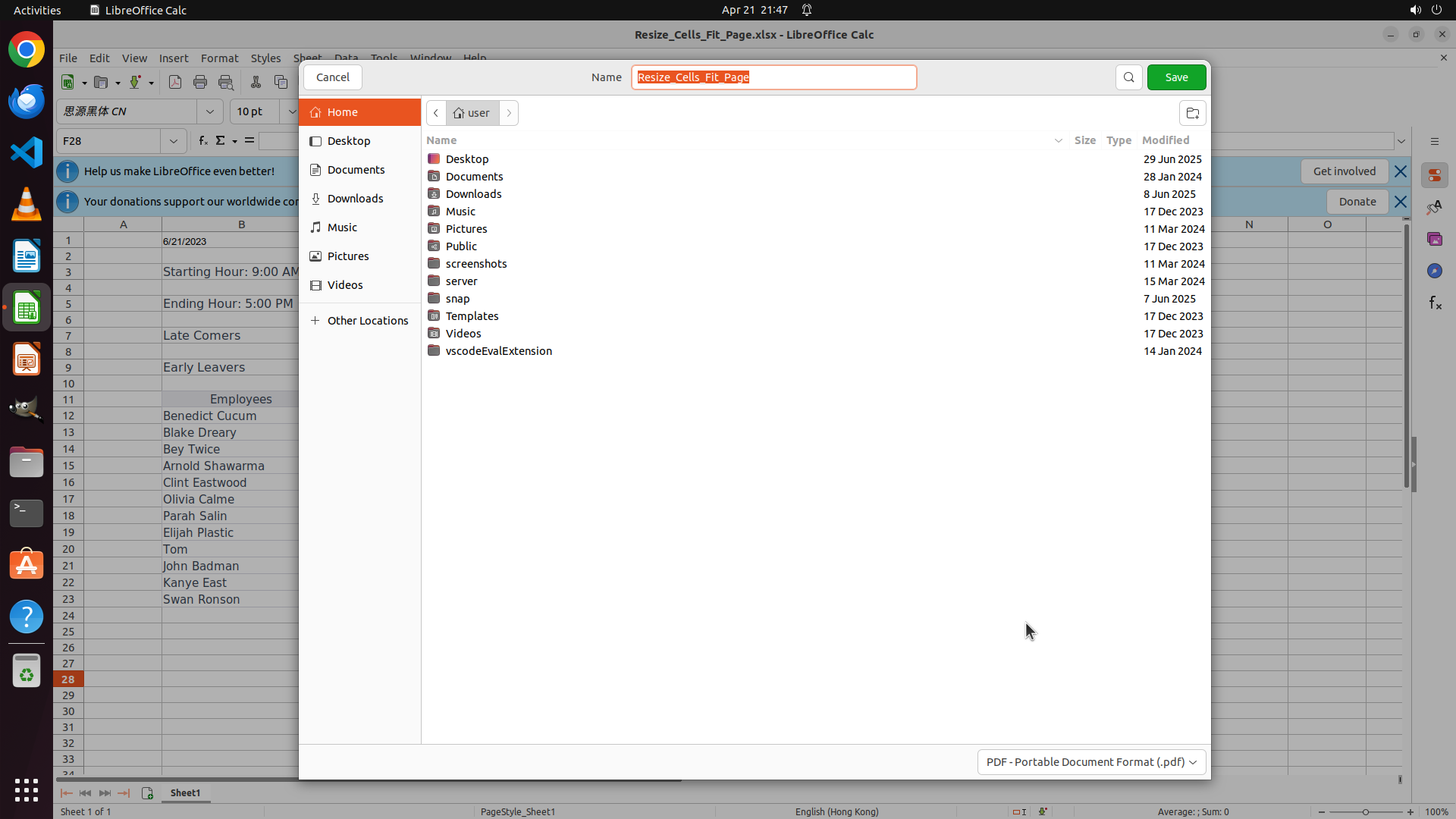
#### 重要信息
- The file save dialog is now open after clicking Export in the PDF Options dialog
- The filename field shows "Resize_Cells_Fit_Page" which matches the original spreadsheet name
- The current location is "Home" (/user), which is the correct destination directory
- The file type is set to "PDF - Portable Document Format (.pdf)"
- The Save button is visible in the top right corner (green button)
- According to the strategy tree, I'm on step 2.3/2.4: Set filename and save the PDF
#### 情况分析与思考过程
The save dialog has opened successfully with all the correct settings already in place:
- Filename: "Resize_Cells_Fit_Page" (automatically populated from the spreadsheet name)
- Location: Home directory (/user)
- File type: PDF
According to the strategy tree:
- 1: Configure spreadsheet to fit on one page ✓ Completed
- 2: Export spreadsheet as PDF to home directory ← Current task
- 2.1: Open File menu and select Export as PDF ✓ Completed
- 2.2: Verify PDF export settings and click Export ✓ Completed
- 2.3: Set filename to Resize_Cells_Fit_Page.pdf in /home/user directory ✓ Already set correctly
- 2.4: Click Save to complete PDF export ← Current step
The filename and location are already correctly configured. The logical next action is to click the "Save" button to complete the PDF export process. This will save the file as "Resize_Cells_Fit_Page.pdf" in the /home/user directory, fulfilling the task requirements.
```
Step 17: CLICK (35, 673)
```
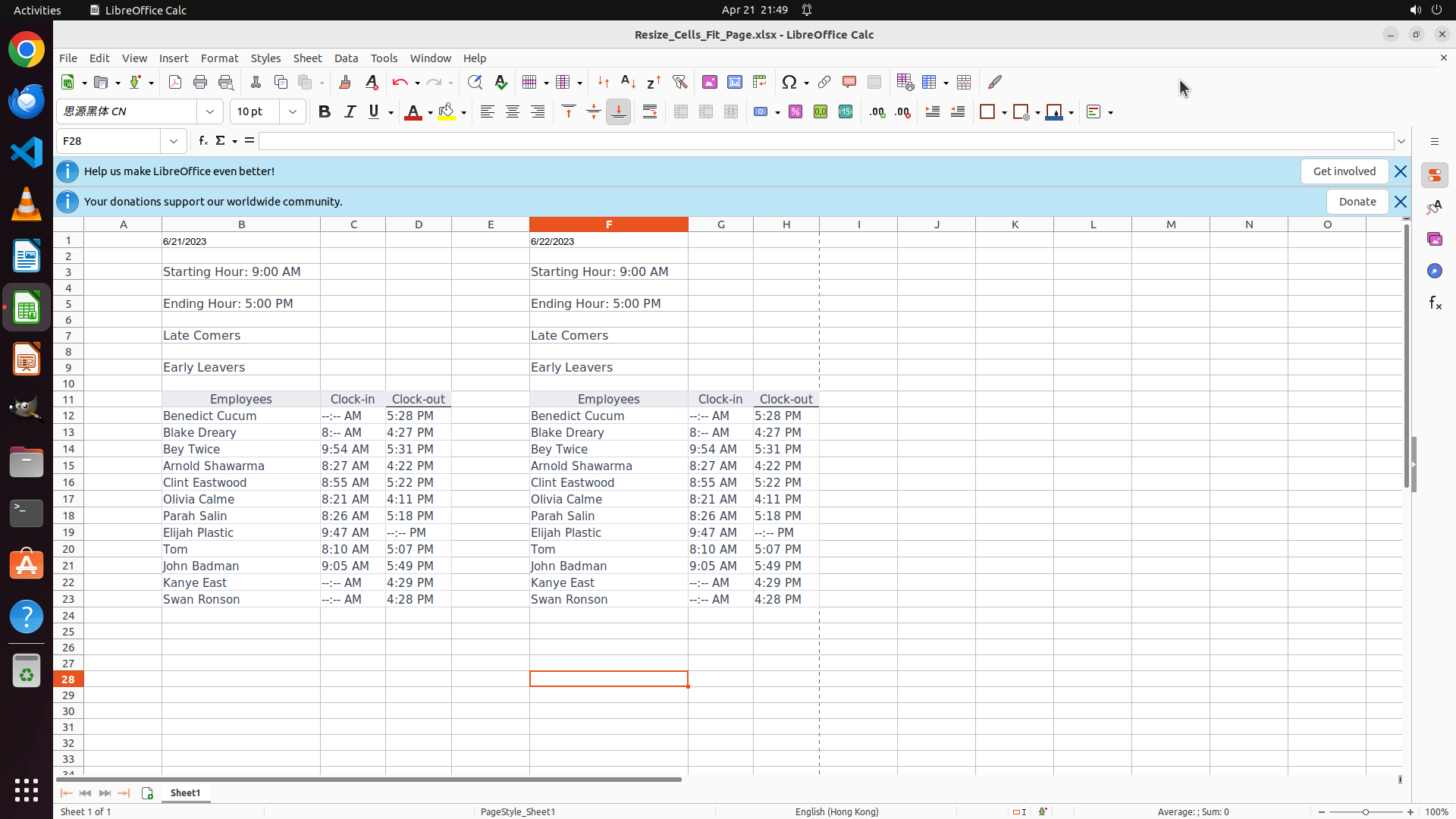
#### 重要信息
- The save dialog has closed and we're back to the LibreOffice Calc spreadsheet view
- The spreadsheet "Resize_Cells_Fit_Page.xlsx" is still open showing employee clock-in/clock-out data
- The PDF export process appears to have completed (dialog closed, returned to normal view)
- According to the strategy tree, step 2.4 (Click Save to complete PDF export) appears to be completed
- Now I need to verify that the PDF file was created successfully in /home/user directory
#### 情况分析与思考过程
The PDF export seems to have completed successfully since the save dialog has closed and we're back to the normal spreadsheet view. According to the key visual evidence requirements, I need to verify that:
- The file '/home/user/Resize_Cells_Fit_Page.pdf' exists with non-zero size
To verify this, I should open a terminal and check if the file exists. I can see the terminal icon in the left sidebar. Opening a terminal will allow me to list the file and confirm it was created successfully with the correct name in the home directory.
According to the strategy tree:
- 1: Configure spreadsheet to fit on one page ✓ Completed
- 2: Export spreadsheet as PDF to home directory ✓ Likely completed
- 2.1: Open File menu and select Export as PDF ✓ Completed
- 2.2: Verify PDF export settings and click Export ✓ Completed
- 2.3: Set filename to Resize_Cells_Fit_Page.pdf in /home/user directory ✓ Completed
- 2.4: Click Save to complete PDF export ✓ Completed
Next step: Verify the PDF file exists by opening a terminal and checking the file.
```
```
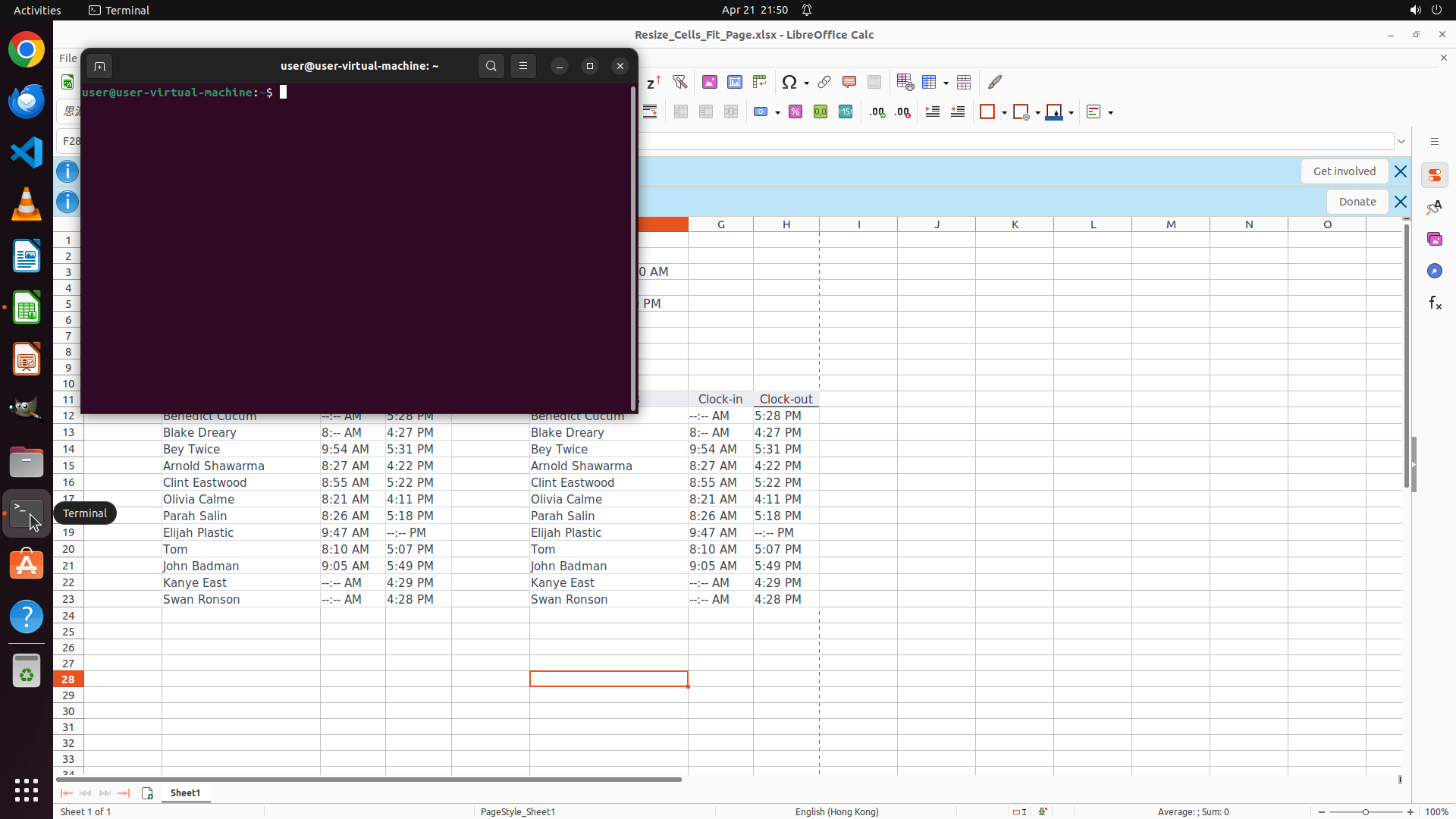
#### 重要信息
- A terminal window has been opened and is now active
- The terminal shows the prompt "user@user-virtual-machine:~$" indicating we're in the home directory
- LibreOffice Calc with the spreadsheet is still visible in the background
- I need to verify that the PDF file "Resize_Cells_Fit_Page.pdf" was created successfully in the home directory
#### 情况分析与思考过程
The terminal is now open and ready for commands. I need to verify that the PDF export was successful by checking if the file exists in the home directory. According to the key visual evidence requirements, I need to confirm:
- The file '/home/user/Resize_Cells_Fit_Page.pdf' exists with non-zero size
I should type a command to list the file details to verify its existence and size. The `ls -lh` command will show the file with human-readable size format. This will confirm whether the PDF export was successful and the file is in the correct location with the correct name.
After verifying the file exists, I can mark the task as complete.
```
Step 19: HOTKEY
```
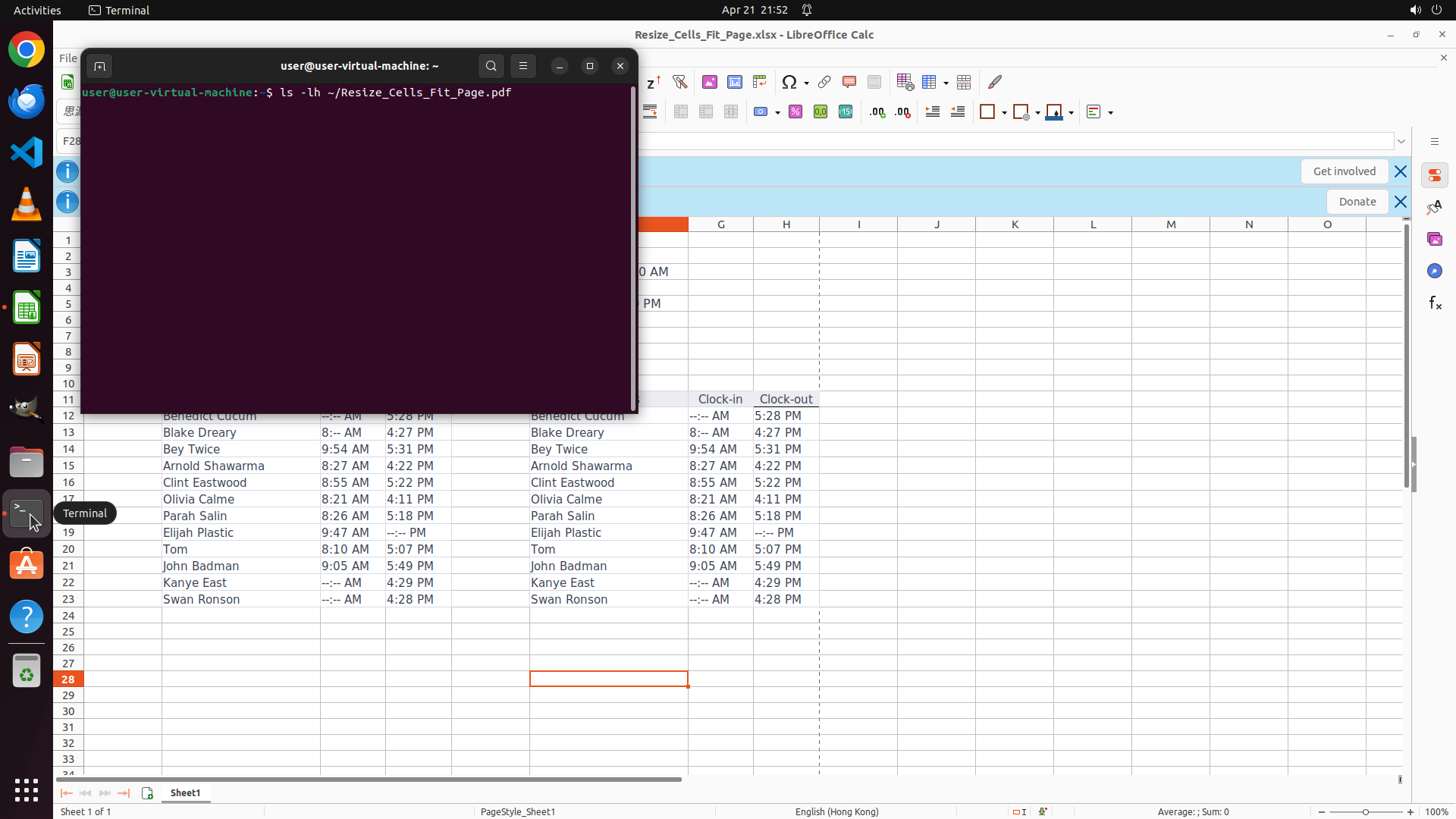
#### 重要信息
- The terminal window is active and showing the typed command `ls -lh ~/Resize_Cells_Fit_Page.pdf`
- The command has been typed but not yet executed
- The cursor is at the end of the command line
- LibreOffice Calc with the spreadsheet is visible in the background
- I need to execute the command to verify the PDF file exists
#### 情况分析与思考过程
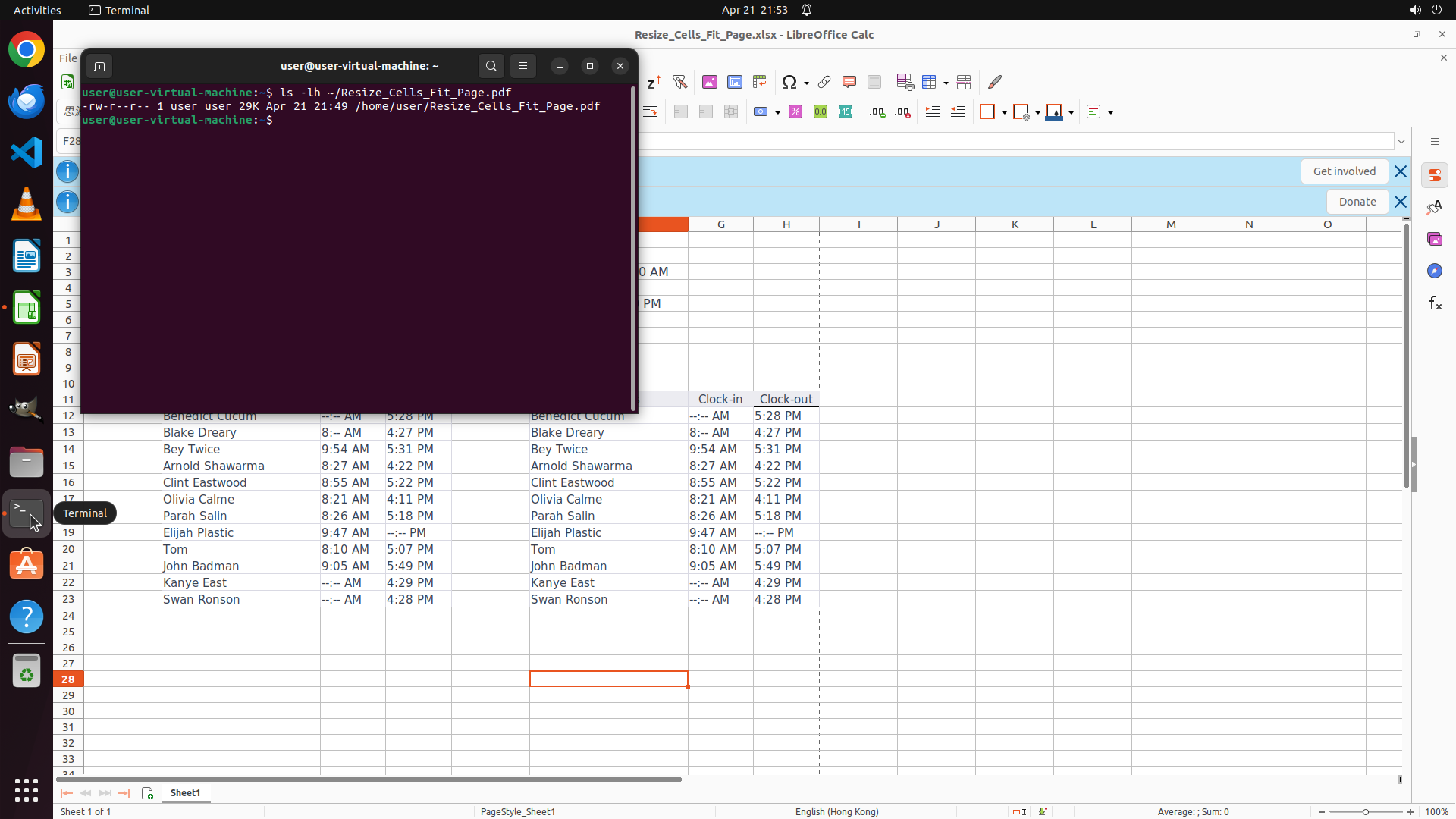
The command to check the PDF file has been successfully typed in the terminal. Now I need to execute it by pressing Enter. This will run the `ls -lh ~/Resize_Cells_Fit_Page.pdf` command which will:
1. Check if the file exists in the home directory
2. Show the file size in human-readable format
3. Confirm the file was created successfully with non-zero size
According to the strategy tree:
- 1: Configure spreadsheet to fit on one page ✓ Completed
- 2: Export spreadsheet as PDF to home directory ✓ Completed
- 2.1: Open File menu and select Export as PDF ✓ Completed
- 2.2: Verify PDF export settings and click Export ✓ Completed
- 2.3: Set filename to Resize_Cells_Fit_Page.pdf in /home/user directory ✓ Completed
- 2.4: Click Save to complete PDF export ✓ Completed
Current step: Verify the PDF file exists by executing the typed command.
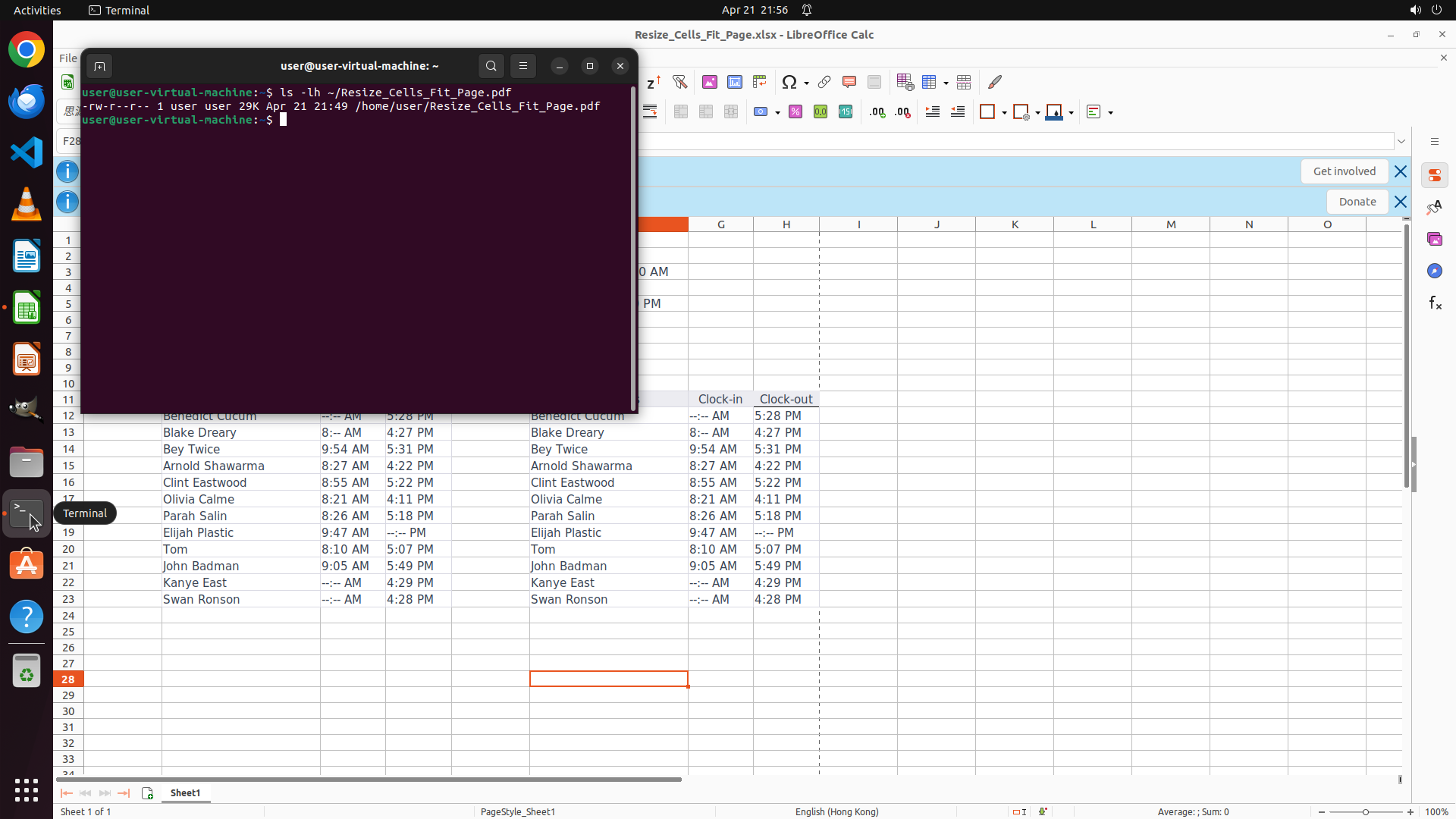
After pressing Enter, I expect to see output showing the file details including permissions, owner, size, and timestamp. If the file exists with non-zero size, the task will be complete.
```