```
#### 重要信息
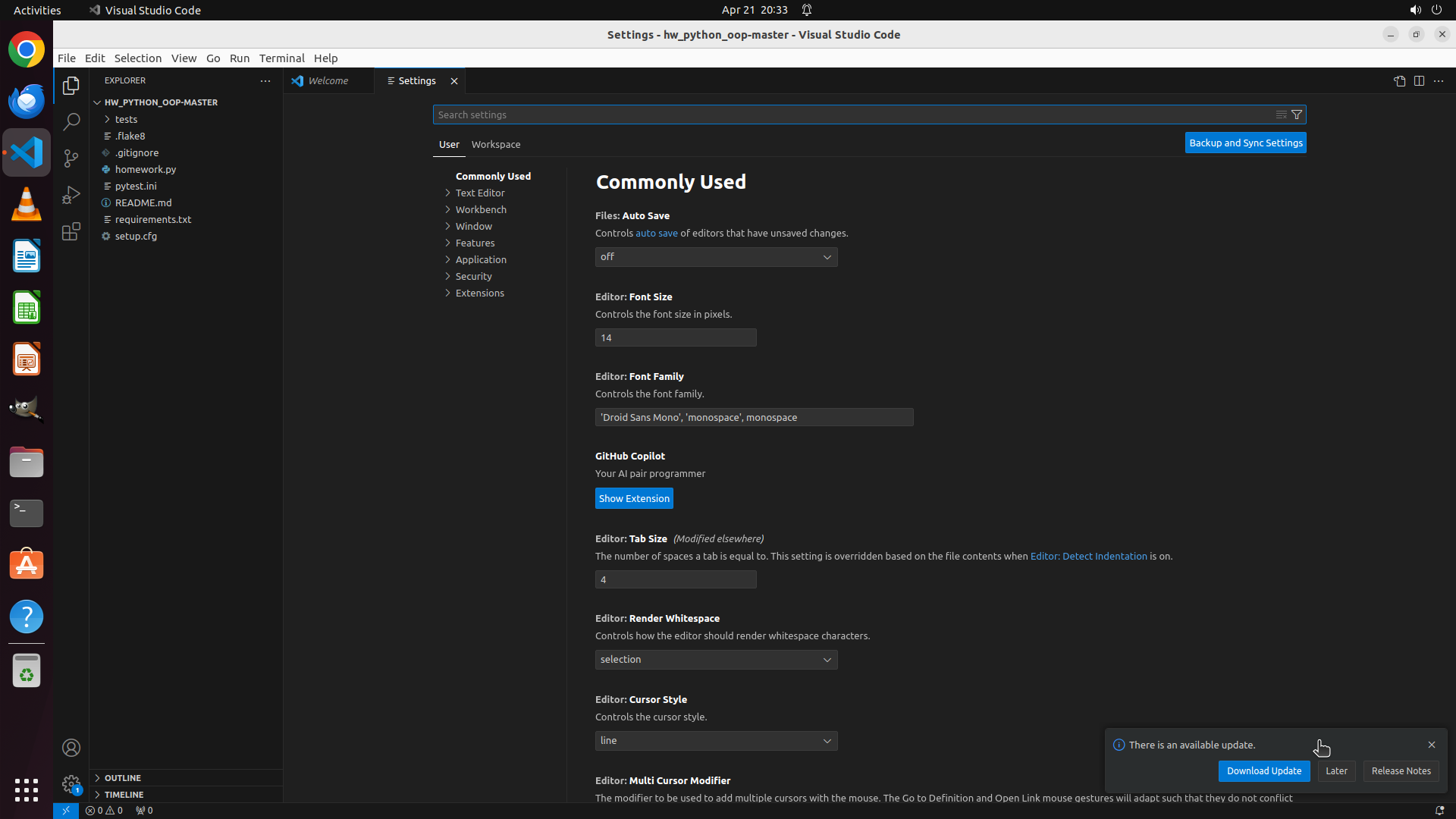
VS Code: is currently open with a project called "HW_PYTHON_OOP-MASTER". The Explorer view is visible on the left side showing the file tree. The Welcome tab is displayed in the main area. There's also an update notification at the bottom right.
#### 情况分析与思考过程
The task is to modify VS Code: settings to hide all "__pycache__" folders in the explorer view. VS Code: is already open, so I can proceed directly to open the Settings. The most efficient way is to use the keyboard shortcut Ctrl+, (Ctrl+comma) which will open the Settings page immediately. This is faster than navigating through File > Preferences > Settings menu.
Once Settings opens, I'll need to:
1. Search for "files.exclude" in the search box
2. Add the pattern "**/__pycache__" to exclude these folders
3. Verify the configuration
Let me start by opening Settings with the keyboard shortcut.
```
Step 2: CLICK (1146, 150)
```
#### 重要信息
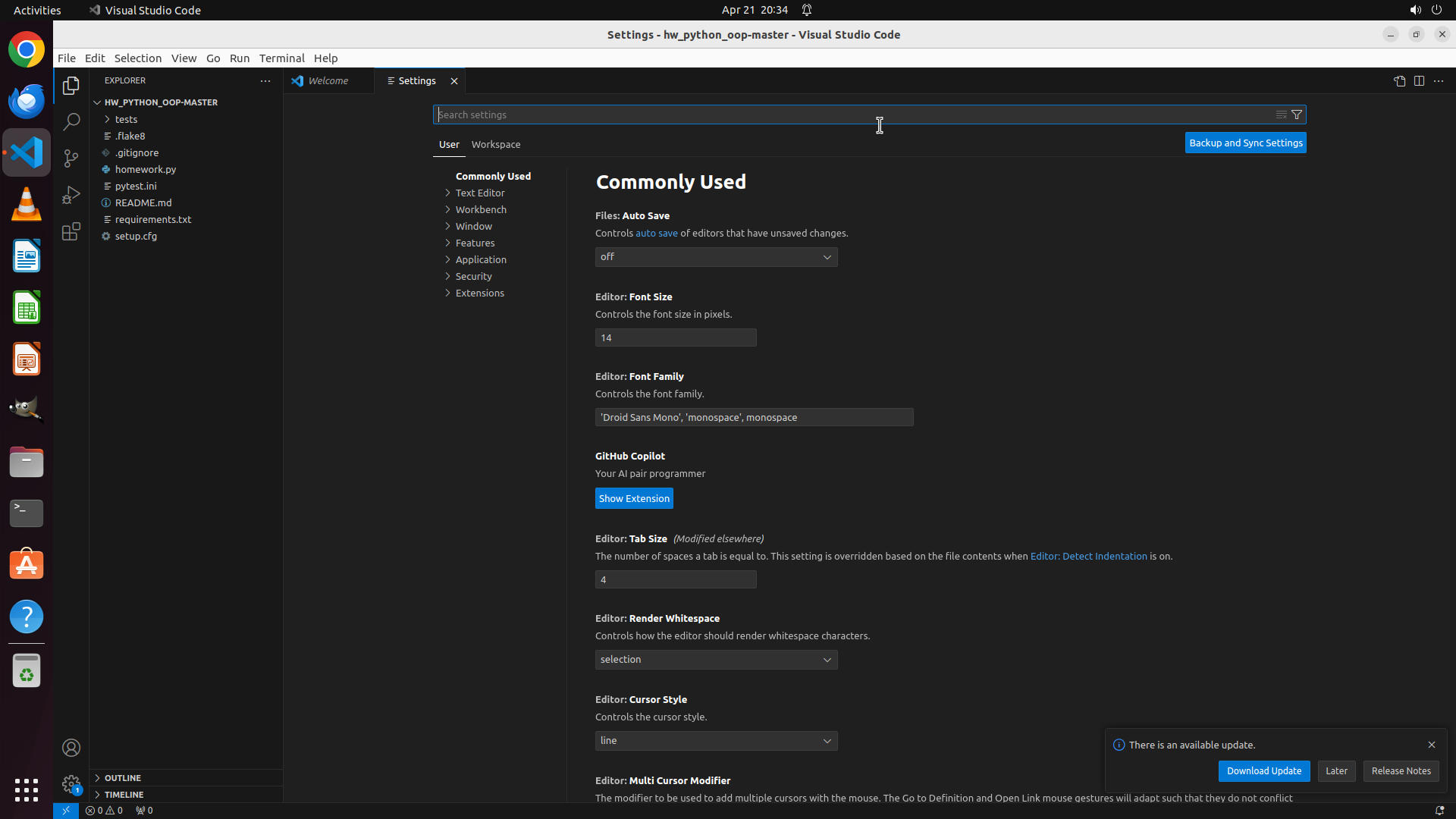
VS Code: Settings page has successfully opened. The Settings tab is now active showing the "Commonly Used" section. I can see the search box at the top labeled "Search settings" where I need to search for the files.exclude setting. There's also an update notification at the bottom right which I can ignore for now.
#### 情况分析与思考过程
The previous action (Ctrl+,) successfully opened the Settings page. Now I need to:
1. Search for "files.exclude" in the settings search box
2. Add the pattern "**/__pycache__" to hide these folders
3. Verify the configuration is saved
The search box is visible at the top of the Settings page. I'll click on it and type "files.exclude" to find the relevant setting. This is the most direct way to locate the file exclusion settings.
```
Step 2: TYPING "files.exclude"
```
#### 重要信息
VS Code: Settings page has successfully opened. The Settings tab is now active showing the "Commonly Used" section. I can see the search box at the top labeled "Search settings" where I need to search for the files.exclude setting. There's also an update notification at the bottom right which I can ignore for now.
#### 情况分析与思考过程
The previous action (Ctrl+,) successfully opened the Settings page. Now I need to:
1. Search for "files.exclude" in the settings search box
2. Add the pattern "**/__pycache__" to hide these folders
3. Verify the configuration is saved
The search box is visible at the top of the Settings page. I'll click on it and type "files.exclude" to find the relevant setting. This is the most direct way to locate the file exclusion settings.
```
Step 3: CLICK (835, 481)
```
#### 重要信息
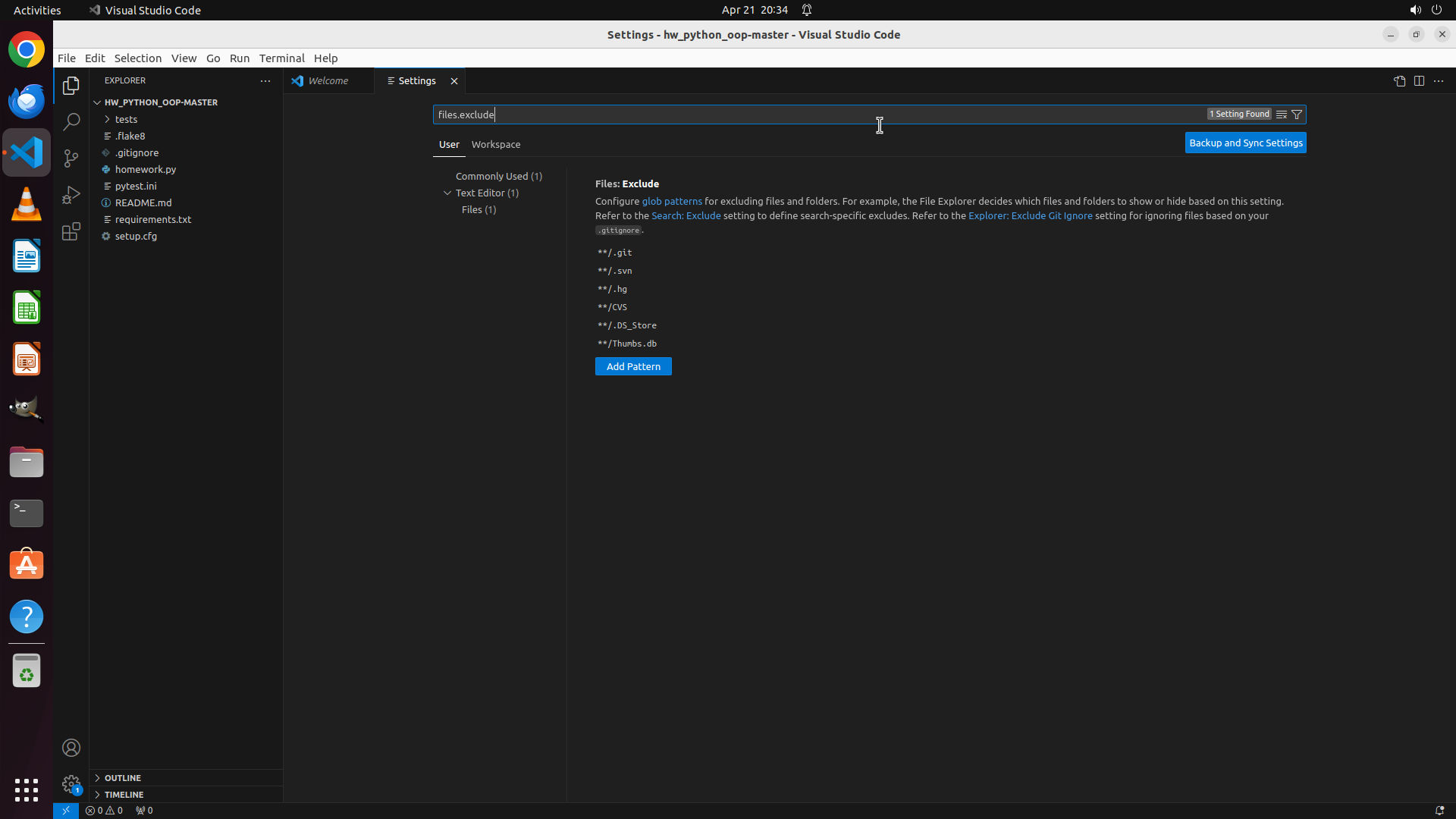
The Settings page now shows the "Files: Exclude" section with existing exclusion patterns visible (**/.git, **/.svn, **/.hg, **/CVS, **/.DS_Store, **/Thumbs.db). The search for "files.exclude" was successful. I can see the blue "Add Pattern" button which I need to click to add the __pycache__ exclusion pattern.
#### 情况分析与思考过程
The previous action successfully searched for and found the files.exclude setting. Now I can see the Files: Exclude configuration with existing patterns. The next step is to click the "Add Pattern" button to add a new pattern for __pycache__ folders. After clicking this button, I should be able to enter "**/__pycache__" as the pattern to hide all __pycache__ folders throughout the project.
```
Step 4: TYPING "**/__pycache__"
```
#### 重要信息
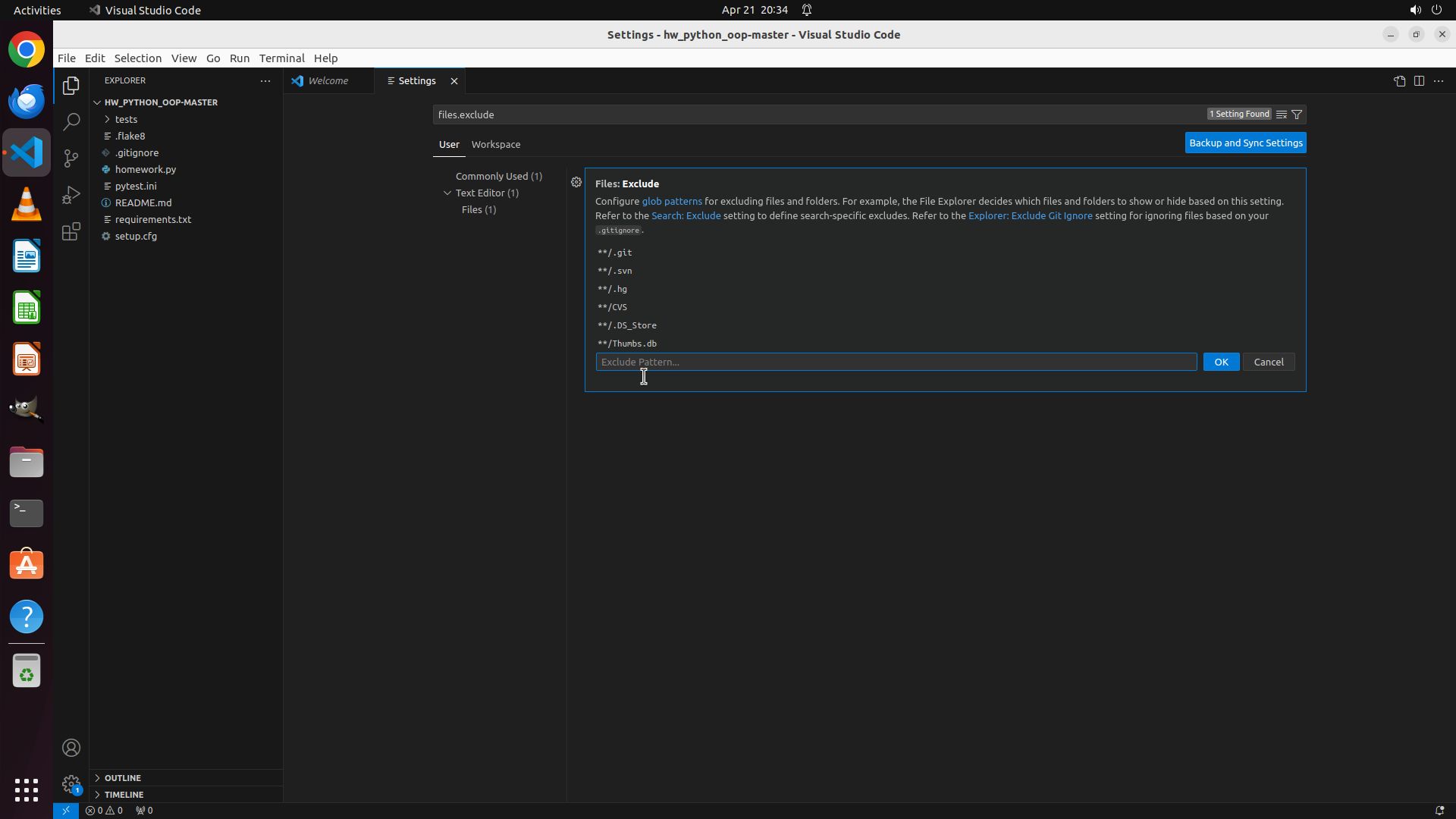
The "Add Pattern" dialog has opened successfully. I can see a text input field with placeholder "Exclude Pattern..." and an "OK" button. The cursor is already in the input field. Now I need to type the pattern "**/__pycache__" to exclude all __pycache__ folders from the Explorer view.
#### 情况分析与思考过程
The previous action clicked the "Add Pattern" button and the input dialog appeared as expected. The cursor is already positioned in the text field. Now I need to:
1. Type "**/__pycache__" in the input field
2. Click the "OK" button to confirm the addition
This pattern will match all __pycache__ folders at any level in the project directory structure, effectively hiding them from the Explorer view.
```
Step 5: CLICK (1611, 472)
```
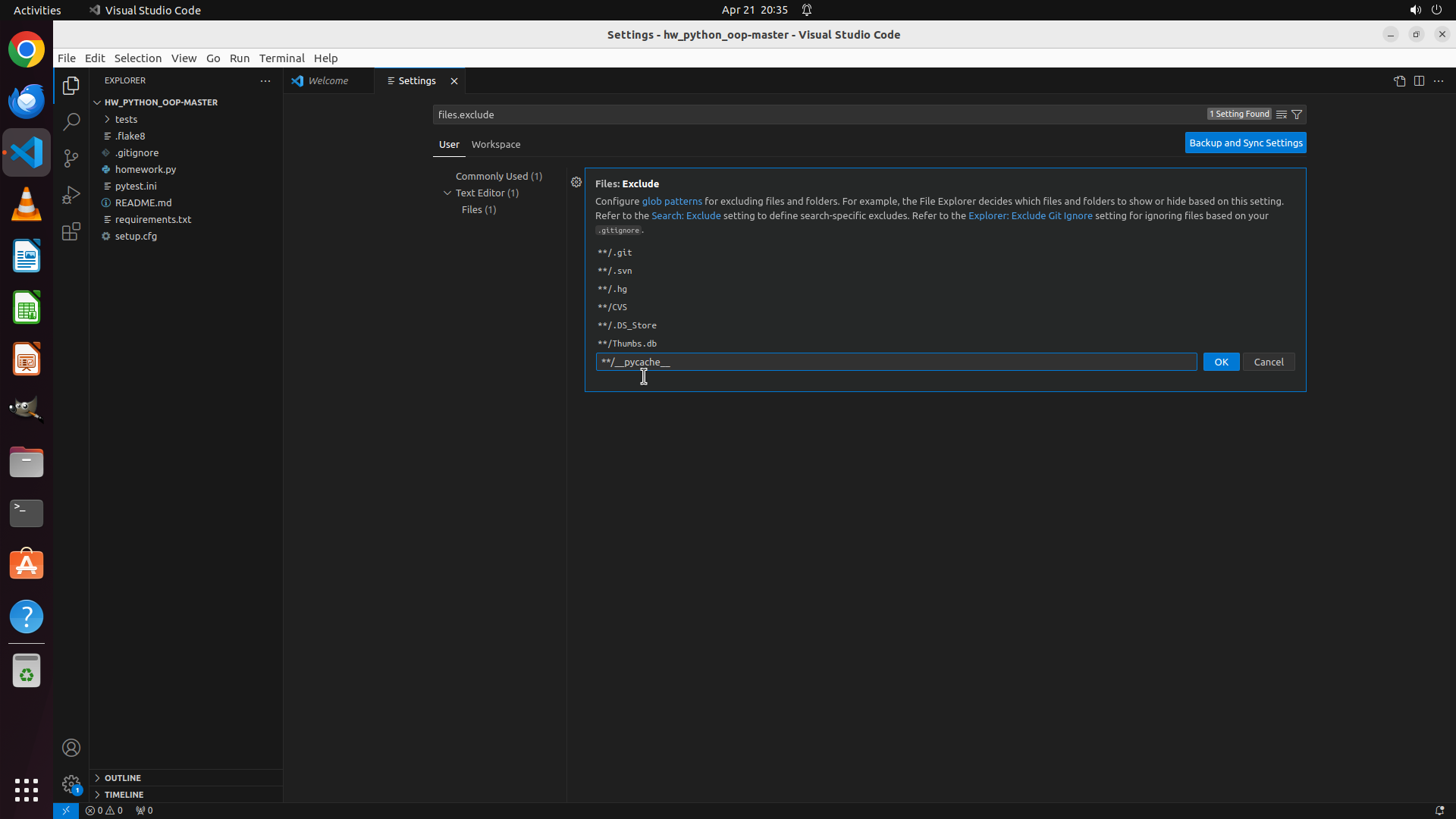
#### 重要信息
The text "**/__pycache__" has been successfully entered into the input field. I can see the pattern is displayed in the text field, and there are two buttons available: "OK" (blue) and "Cancel". The cursor is positioned at the end of the typed text.
#### 情况分析与思考过程
The previous action successfully typed the exclusion pattern. Now I need to:
1. Click the "OK" button to confirm and add the pattern to the files.exclude setting
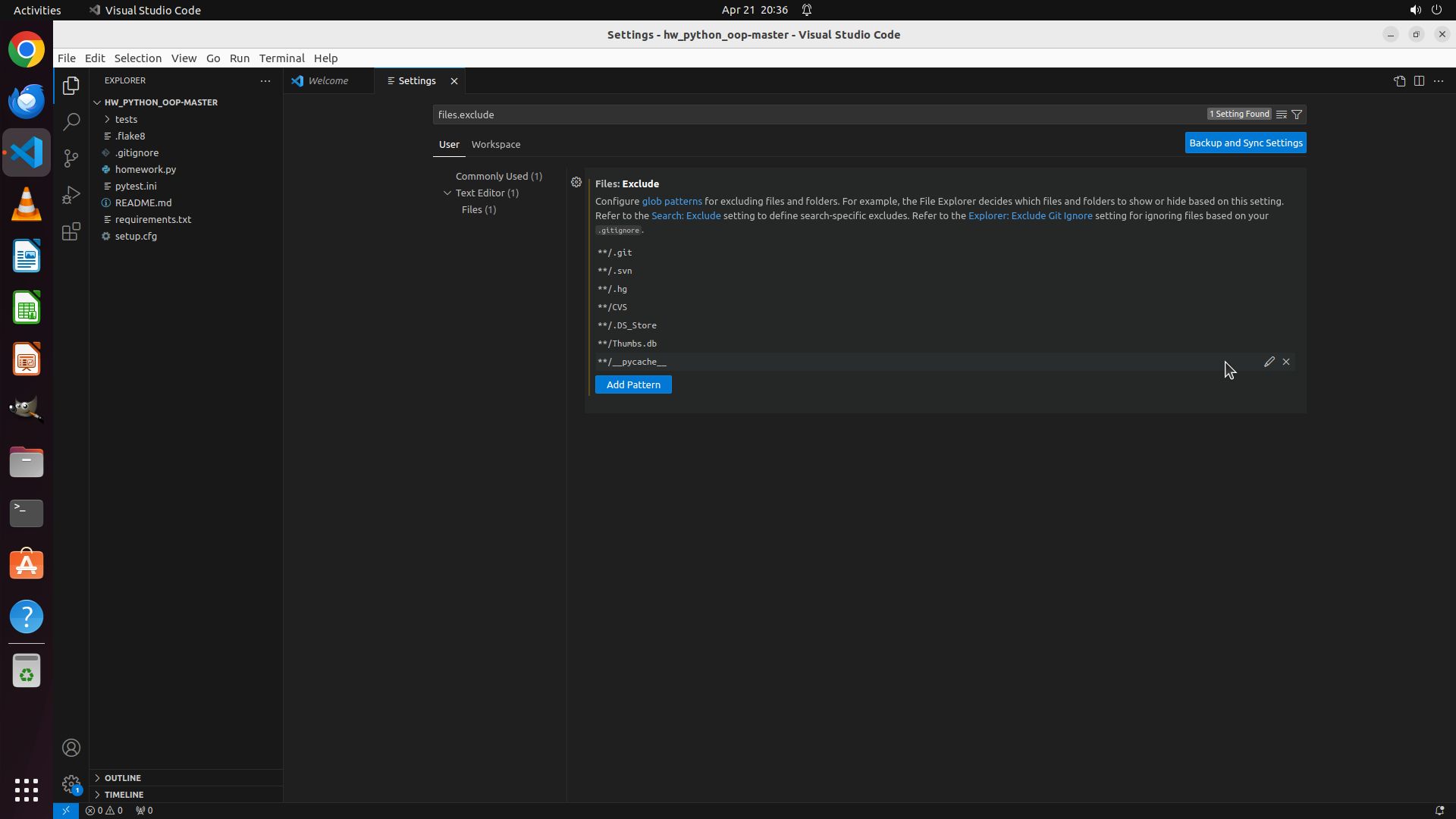
2. After that, verify the pattern appears in the exclusion list
3. Check the Explorer view to confirm __pycache__ folders are hidden
The OK button is clearly visible and ready to be clicked. This will save the configuration and add the pattern to the list of excluded files/folders.
```