```
#### 重要信息
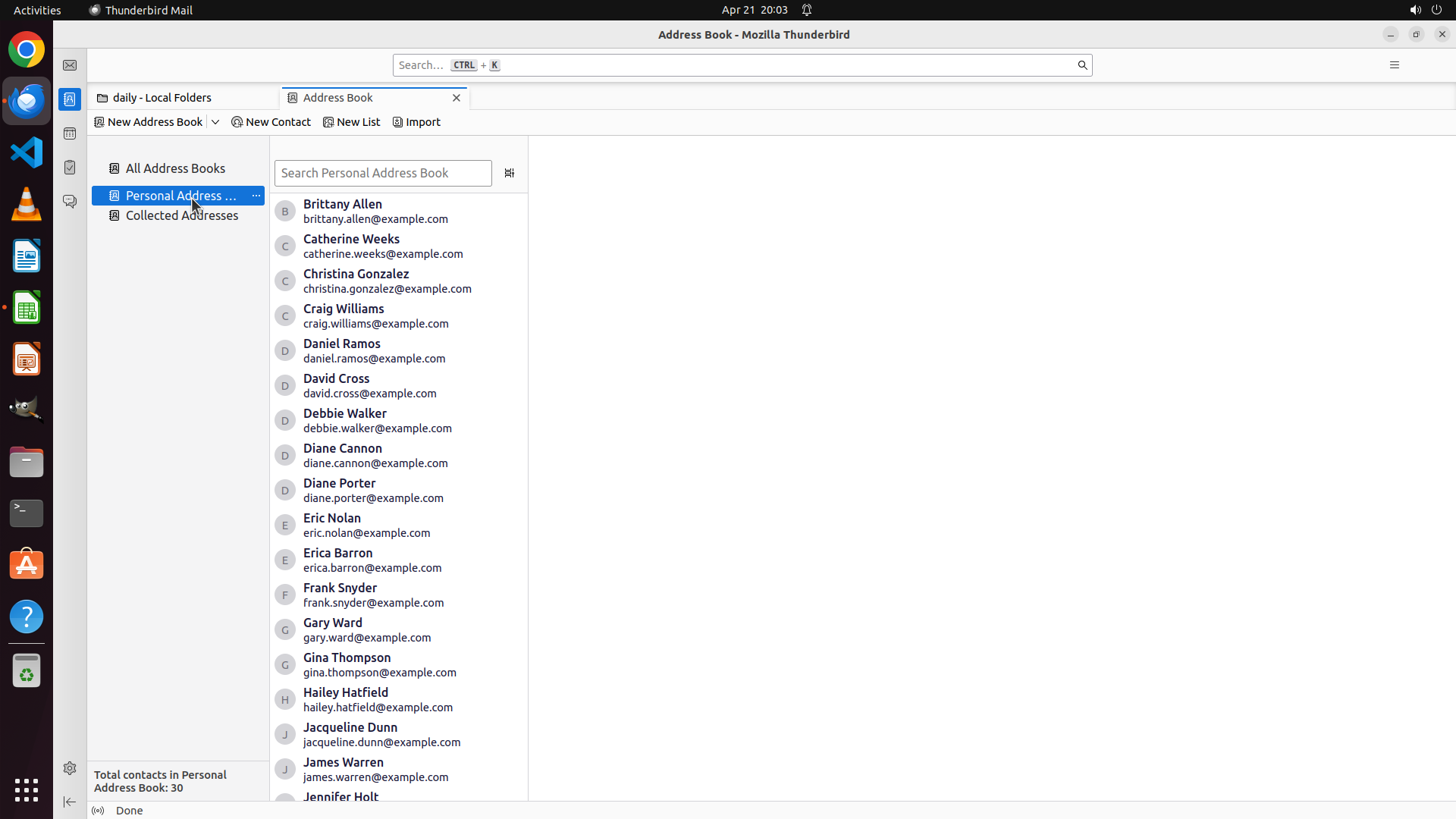
Thunderbird Mail is open with the Address Book window displayed. I can see:
- The left sidebar shows "All Address Books", "Personal Address Book", and "Collected Addresses"
- The main area shows a list of contacts including anonym-x2024, Brittany Allen, Catherine Weeks, etc.
- The status bar shows "Total contacts in all address books: 31"
- The toolbar shows buttons: New Address Book, New Contact, New List, Import
- There's a menu bar at the top (not fully visible but likely contains Tools menu)
#### 情况分析与思考过程
The task requires me to:
1. Export contacts from Personal Address Book to CSV on Desktop
2. Convert the CSV to XLSX using LibreOffice Calc
Current state: Thunderbird Address Book is already open. I can see the Personal Address Book in the sidebar.
Next steps:
1. First, I need to click on "Personal Address Book" in the left sidebar to select it
2. Then access the Tools menu to find the Export function
3. Save as CSV to Desktop
4. Open in LibreOffice Calc and save as XLSX
I'll start by clicking on "Personal Address Book" in the left sidebar to ensure it's selected.
```
Step 2: CLICK (338, 256)
```
#### 重要信息
The previous action successfully selected "Personal Address Book" - it's now highlighted in blue in the left sidebar. The main area displays contacts from the Personal Address Book including Brittany Allen, Catherine Weeks, Christina Gonzalez, etc. The status bar shows "Total contacts in Personal Address Book: 30".
I can see:
- The Personal Address Book is selected (highlighted in blue)
- There's a "..." button (more options) next to "Personal Address Book" in the sidebar
- The toolbar shows: New Address Book, New Contact, New List, Import buttons
- There's a search box showing "Search Personal Address Book"
#### 情况分析与思考过程
The Personal Address Book is now selected. Next, I need to find the Export function. I have a few options:
1. Click the "..." button next to "Personal Address Book" to see if there's a context menu with export options
2. Look for a Tools menu in the menu bar
3. Try right-clicking on the address book
The "..." button next to "Personal Address Book" is the most likely place to find export functionality, as it's specifically associated with the selected address book. This is a common UI pattern for accessing additional options for a selected item.
I'll click on the "..." button to see what options are available.
```
Step 3: CLICK (388, 340)
```
#### 重要信息
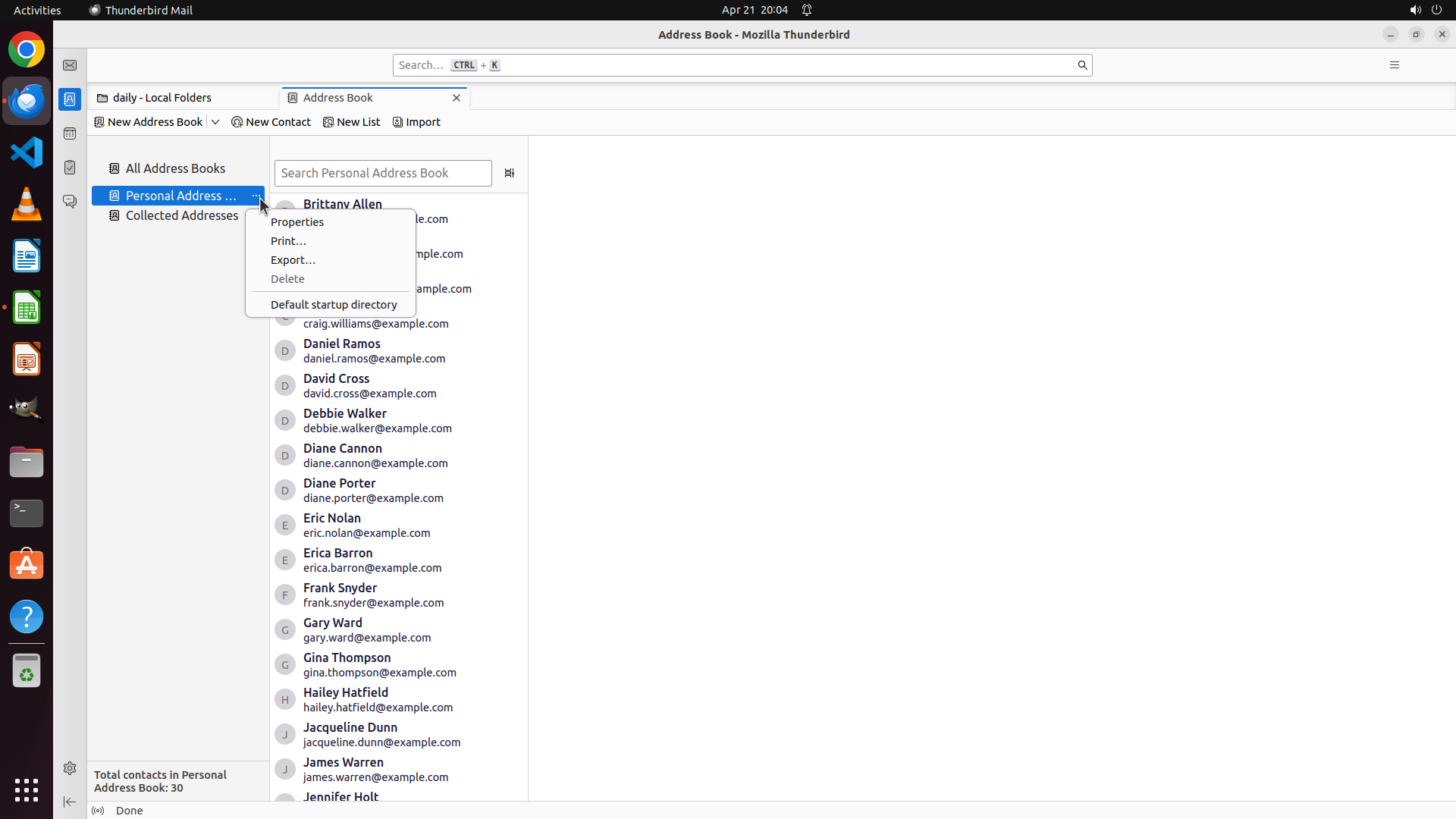
A context menu appeared after clicking the "..." button next to "Personal Address Book". The menu shows several options including:
- Properties
- Print...
- Export...
- Delete
- Default startup directory
The "Export..." option is visible and available, which is exactly what I need to export the contacts to CSV format.
#### 情况分析与思考过程
Perfect! The context menu has appeared with the "Export..." option. This is exactly what I need to export the contacts from the Personal Address Book. I'll click on "Export..." to proceed with the export process. This should open a dialog where I can choose the export format (CSV) and specify the save location (Desktop).
```
Step 4: CLICK (453, 184)
```
#### 重要信息
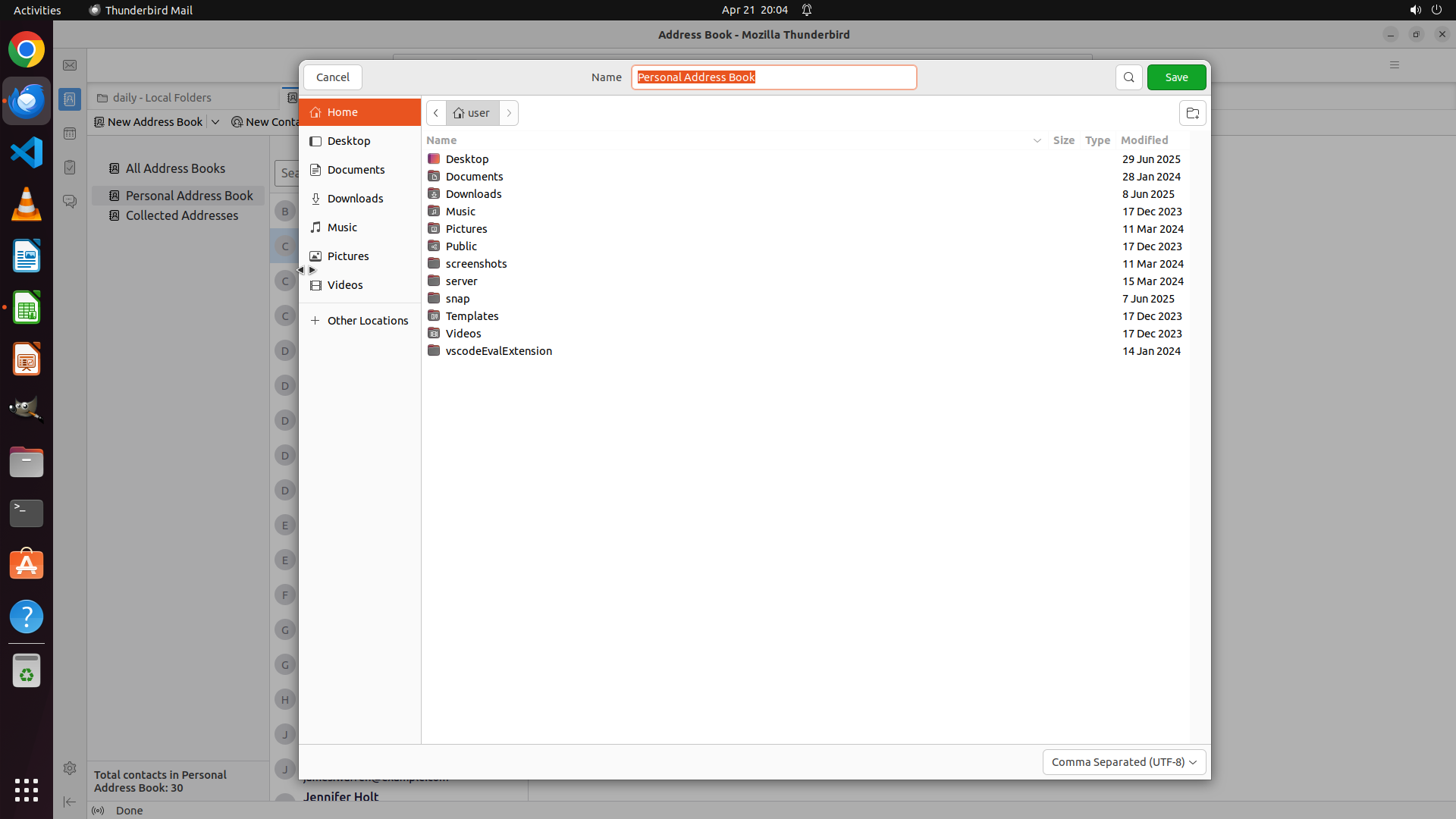
An export dialog has opened. I can see:
- The Name field shows "Personal Address Book"
- Current location is Home (user folder)
- Desktop folder is visible in the left sidebar
- File type dropdown at the bottom shows "Comma Separated (UTF-8)" which is CSV format
- Cancel and Save buttons are available
#### 情况分析与思考过程
The export dialog has opened successfully. I need to:
1. Navigate to Desktop folder by clicking on it in the left sidebar
2. Change the filename to "contacts.csv"
3. Make sure the format is CSV (already set to "Comma Separated (UTF-8)")
4. Click Save
Let me start by clicking on "Desktop" in the left sidebar to navigate to the Desktop location where I need to save the file.
```
Step 5: CLICK (1020, 100)
```
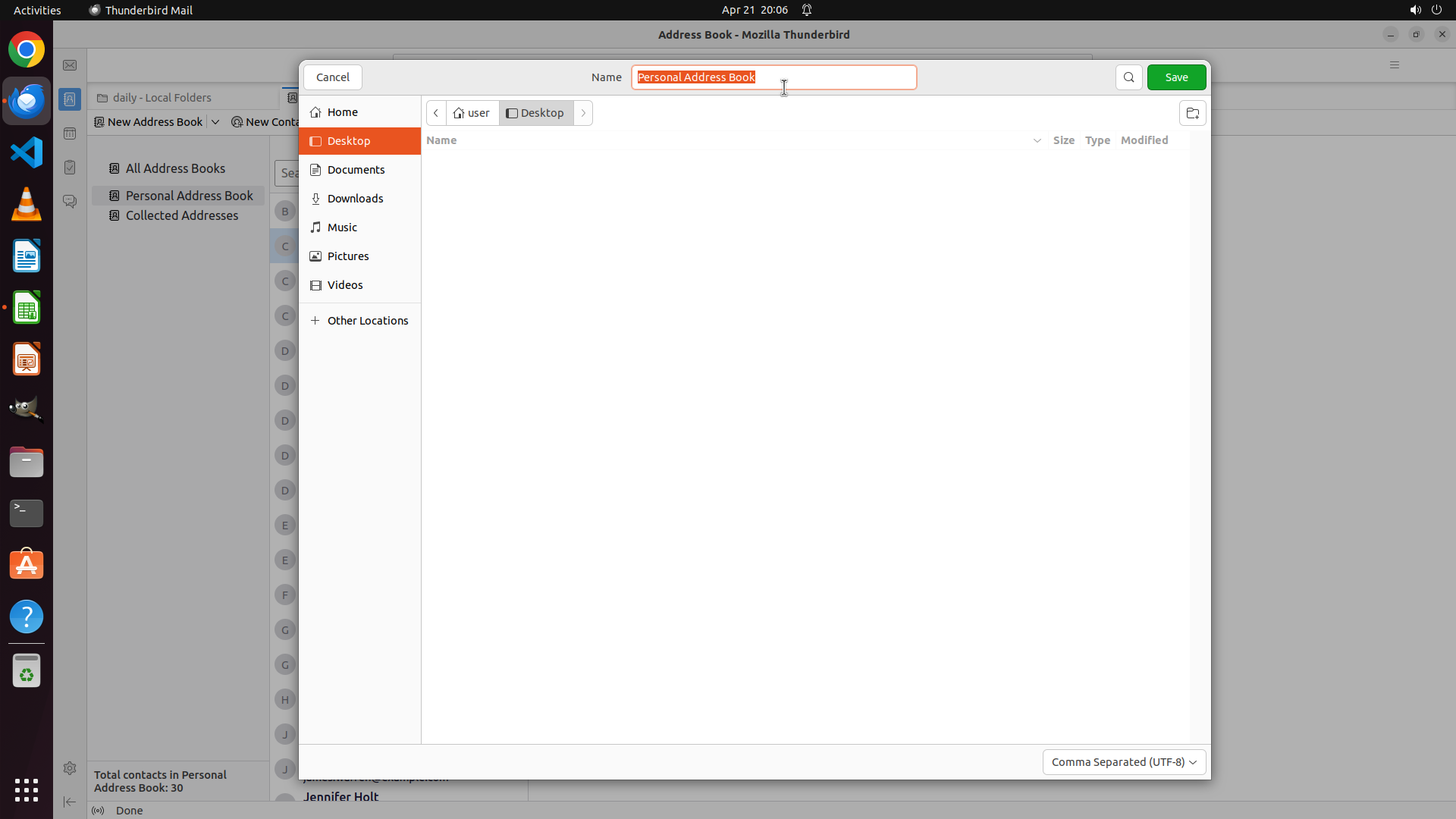
#### 重要信息
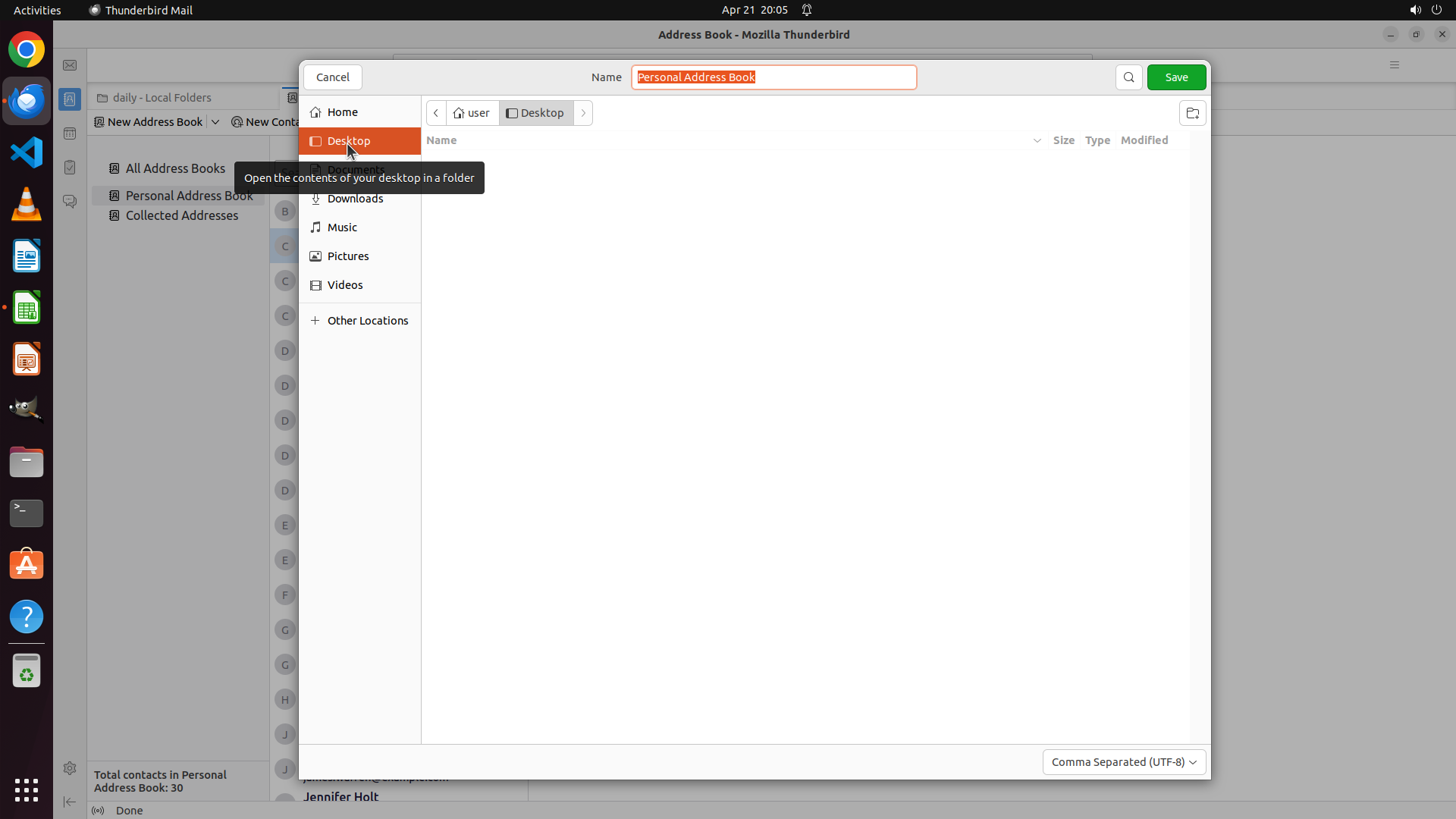
The Desktop folder has been successfully selected. I can see:
- Desktop is highlighted in orange in the left sidebar
- The breadcrumb path shows "user > Desktop"
- The Desktop folder appears to be empty (no files shown in main area)
- The Name field still shows "Personal Address Book"
- File format is set to "Comma Separated (UTF-8)" which is correct for CSV
#### 情况分析与思考过程
Good progress! I've navigated to the Desktop folder. Now I need to:
1. Change the filename from "Personal Address Book" to "contacts.csv"
2. Click Save to export the contacts
The filename field is at the top of the dialog. I'll click on it to select the current text and then type the new filename "contacts.csv". Let me triple-click on the Name field to select all the text, then type the new name.
```
Step 5: TYPING "contacts.csv"
```
#### 重要信息
The Desktop folder has been successfully selected. I can see:
- Desktop is highlighted in orange in the left sidebar
- The breadcrumb path shows "user > Desktop"
- The Desktop folder appears to be empty (no files shown in main area)
- The Name field still shows "Personal Address Book"
- File format is set to "Comma Separated (UTF-8)" which is correct for CSV
#### 情况分析与思考过程
Good progress! I've navigated to the Desktop folder. Now I need to:
1. Change the filename from "Personal Address Book" to "contacts.csv"
2. Click Save to export the contacts
The filename field is at the top of the dialog. I'll click on it to select the current text and then type the new filename "contacts.csv". Let me triple-click on the Name field to select all the text, then type the new name.
```
Step 6: CLICK (1551, 100)
```
#### 重要信息
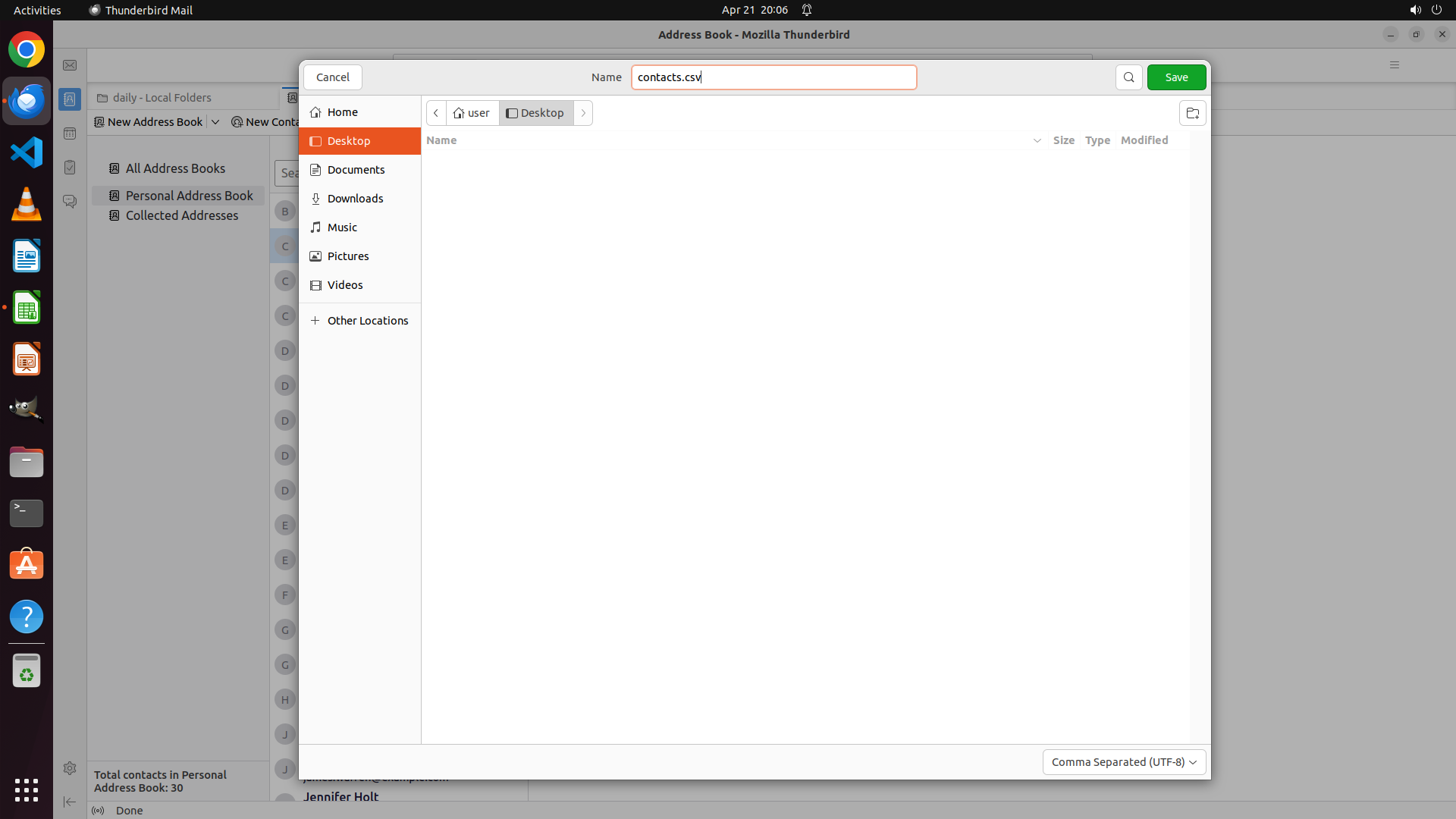
The filename has been successfully changed to "contacts.csv" in the Name field. I can see:
- Desktop is selected as the save location (highlighted in orange in sidebar)
- The Name field now shows "contacts.csv"
- File format is set to "Comma Separated (UTF-8)" at the bottom
- The green "Save" button is visible in the top right corner
#### 情况分析与思考过程
Perfect! Everything is set correctly for the export:
1. ✓ Desktop location is selected
2. ✓ Filename is set to "contacts.csv"
3. ✓ File format is CSV (Comma Separated UTF-8)
Now I just need to click the "Save" button to complete the export. This will save the contacts from the Personal Address Book to the Desktop as contacts.csv. After this, I'll need to open the CSV file in LibreOffice Calc and convert it to XLSX format.
```
Step 7: CLICK (35, 405)
```
#### 重要信息
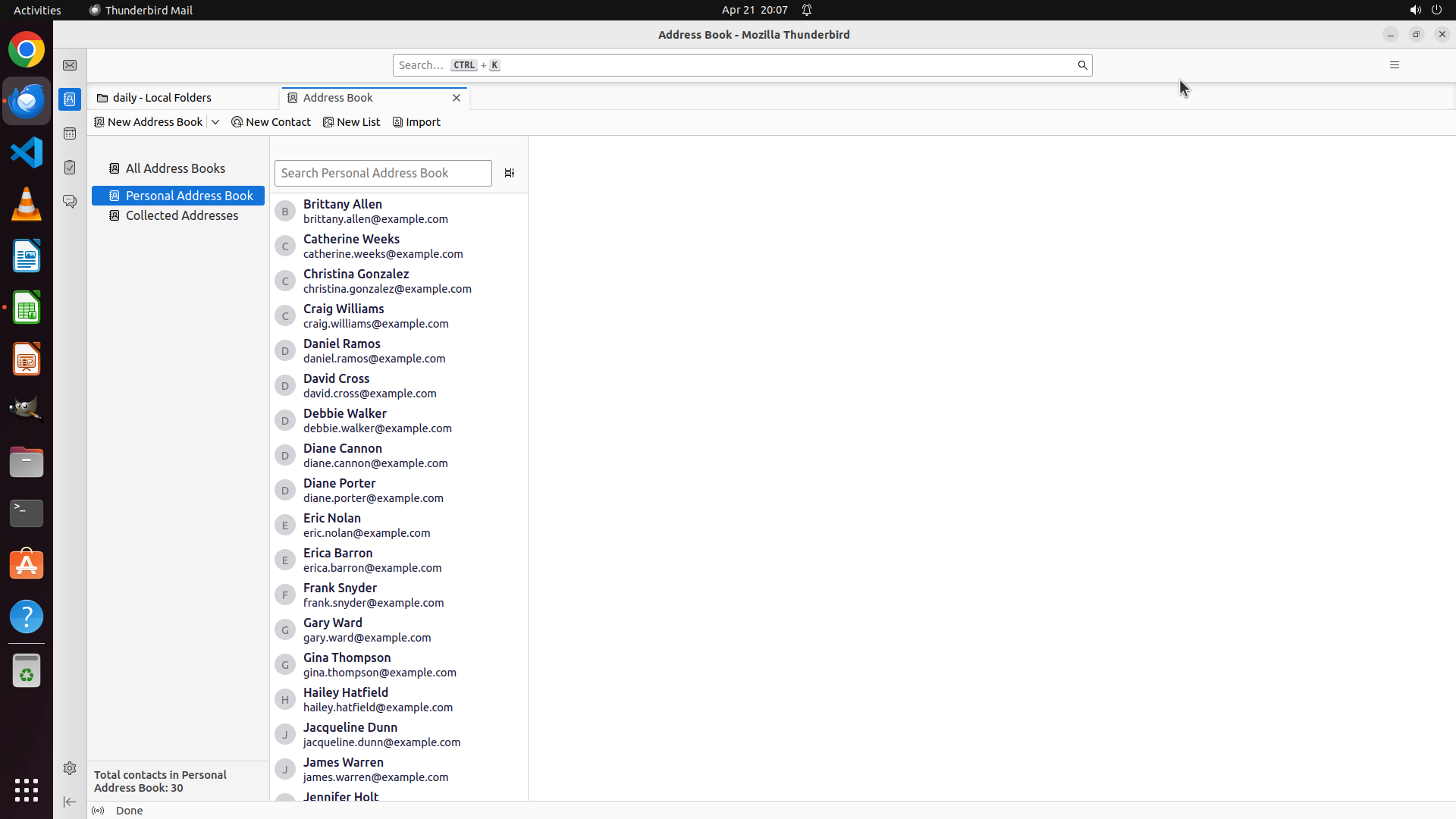
The export dialog has closed and we're back to the Thunderbird Address Book window. The contacts.csv file should now be saved on the Desktop. I can see:
- The Address Book window is displayed with the Personal Address Book selected
- The left sidebar shows various application icons including what appears to be LibreOffice Calc (green spreadsheet icon)
- The export operation appears to have completed successfully
#### 情况分析与思考过程
Great! The first part of the task is complete - the contacts have been exported from Thunderbird's Personal Address Book to contacts.csv on the Desktop. Now I need to:
1. Open LibreOffice Calc
2. Open the contacts.csv file from Desktop
3. Save it as contacts.xlsx on Desktop
I can see the LibreOffice Calc icon in the left sidebar (the green spreadsheet icon). I'll click on it to open LibreOffice Calc, then open the contacts.csv file and save it as XLSX format.
```
Step 8: HOTKEY
```
#### 重要信息
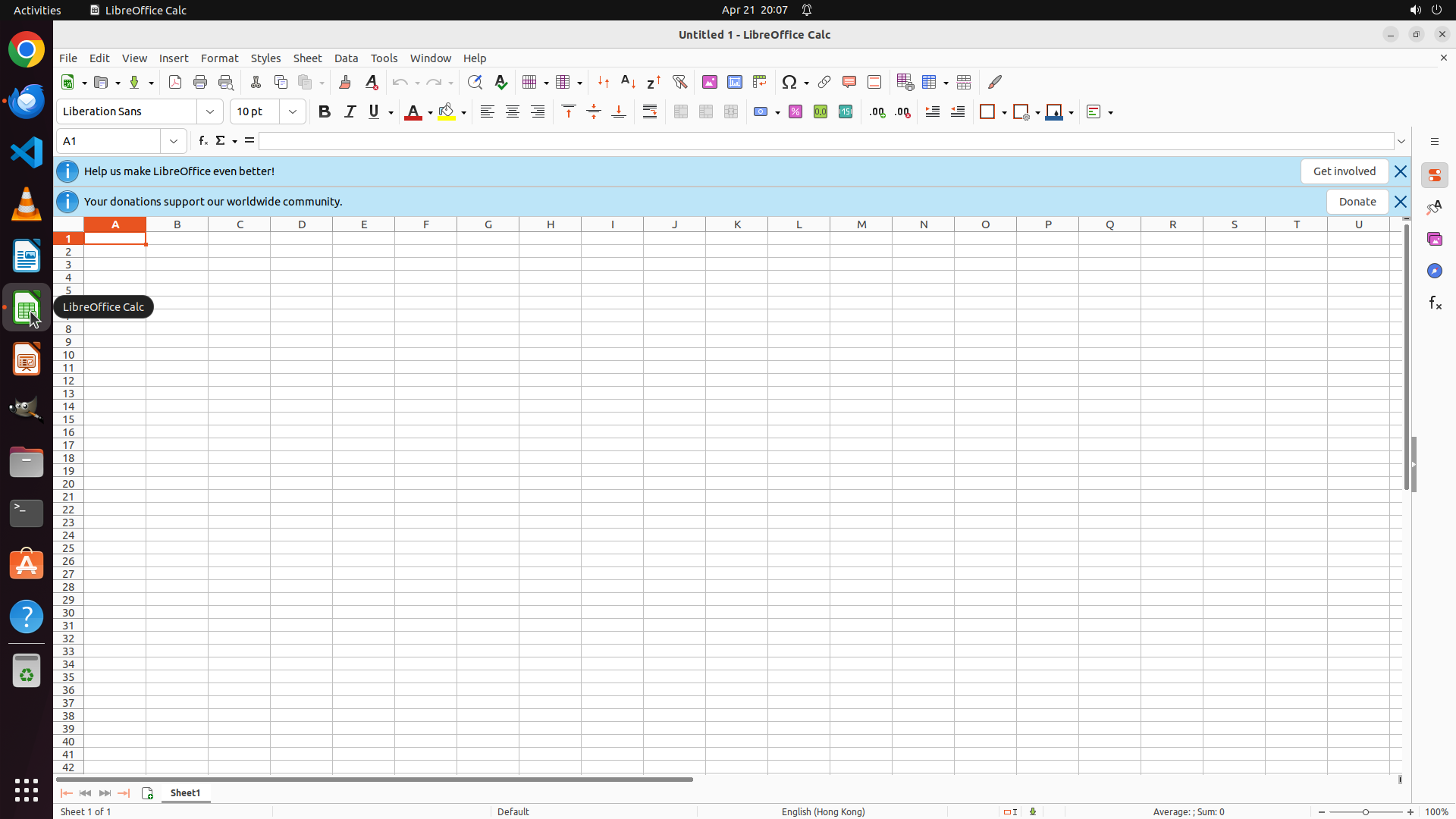
LibreOffice Calc has successfully opened. I can see:
- The title bar shows "Untitled 1 - LibreOffice Calc"
- An empty spreadsheet is displayed with cell A1 selected
- There are two notification banners at the top (donation/community related) with X buttons to close them
- The menu bar shows File, Edit, View, Insert, Format, Styles, Sheet, Data, Tools, Window, Help
#### 情况分析与思考过程
LibreOffice Calc is now open. The contacts.csv file should be on the Desktop from the previous export. Now I need to:
1. Open the contacts.csv file from Desktop
2. Save it as contacts.xlsx on Desktop
I'll use Ctrl+O to open the file dialog, then navigate to Desktop and select contacts.csv. This is the most efficient approach.
```
Step 9: CLICK (453, 222)
```
#### 重要信息
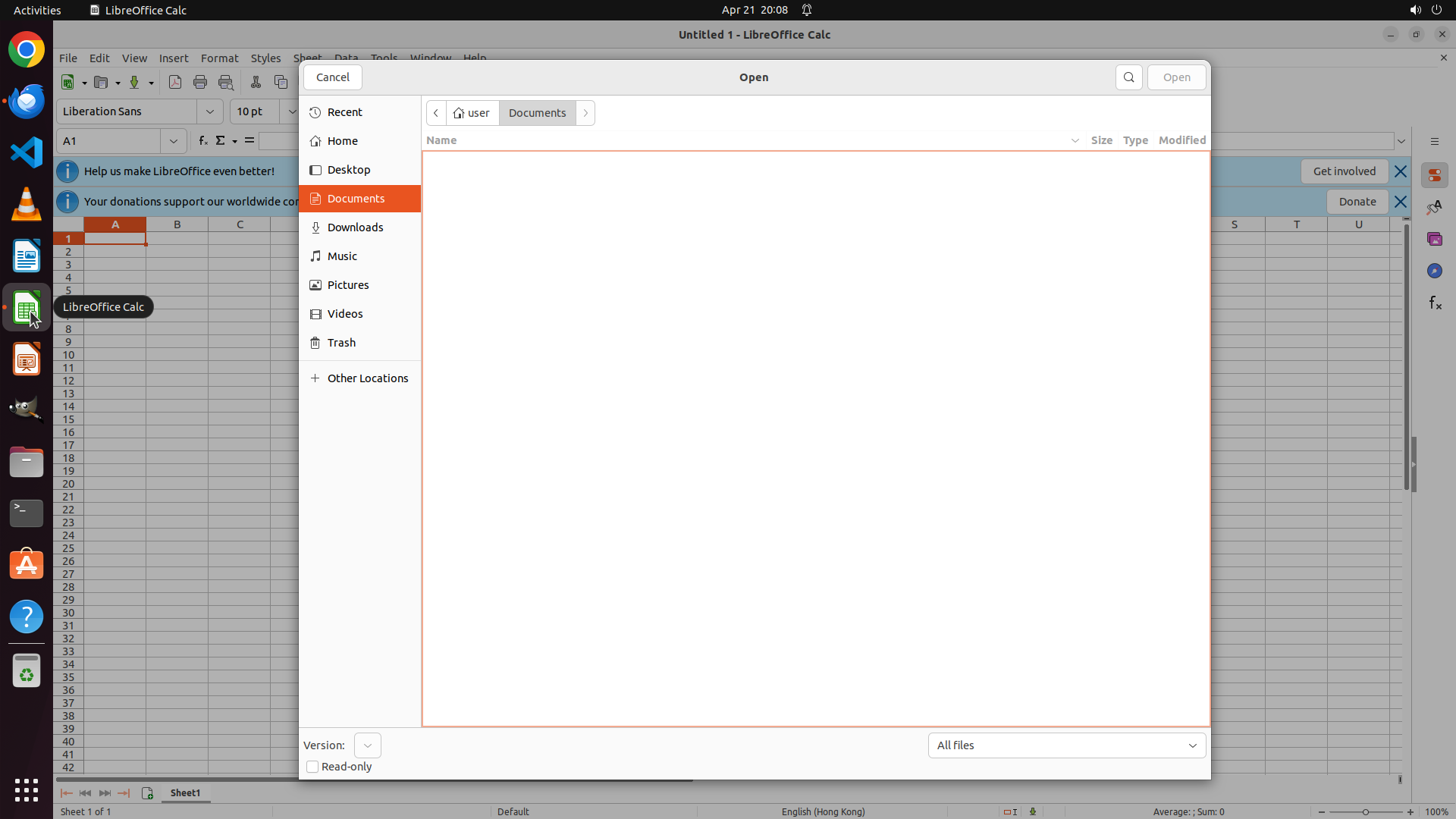
The Open dialog has successfully opened in LibreOffice Calc. I can see:
- The dialog title shows "Open" at the top
- Current location is "Documents" (shown in breadcrumb as "user > Documents")
- Desktop folder is visible in the left sidebar
- The file list area is empty (no files in Documents folder)
- "Cancel" and "Open" buttons are available
#### 情况分析与思考过程
The Open dialog is now active. I need to navigate to the Desktop folder where the contacts.csv file was saved in the previous export operation. I can see "Desktop" in the left sidebar of the dialog. I'll click on it to navigate to the Desktop folder and then select the contacts.csv file to open it.
After opening the file, I'll need to save it as an XLSX format to complete the task.
```
Step 10: CLICK (1551, 100)
```
#### 重要信息
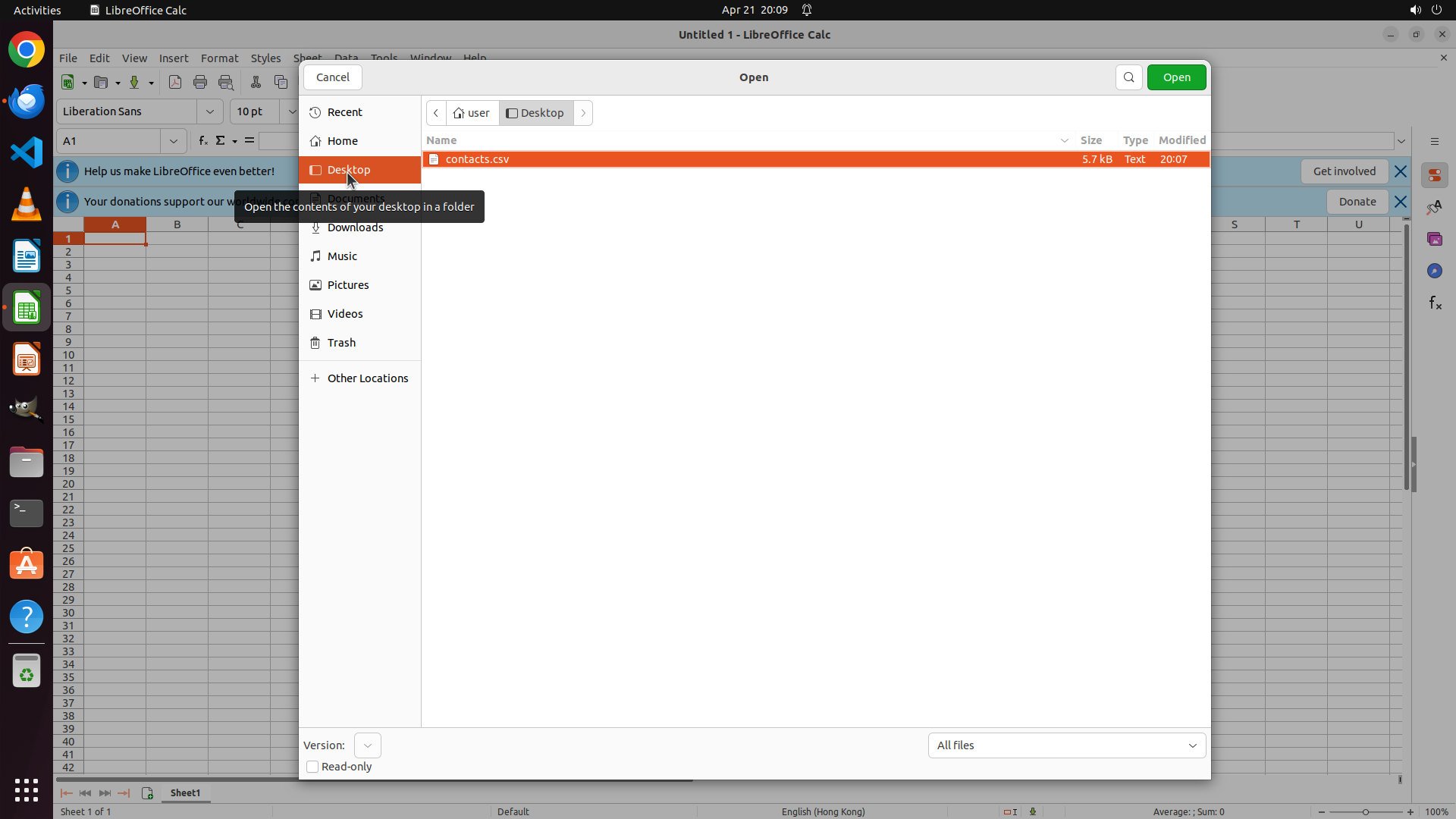
The Open dialog has successfully navigated to the Desktop folder. I can see:
- Desktop is selected (highlighted in orange in the left sidebar)
- The breadcrumb shows "user > Desktop"
- The contacts.csv file is visible in the file list, highlighted in orange (5.7 kB, Text, 20:07)
- The green "Open" button is available in the top right corner
- A tooltip is showing "Open the contents of your desktop in a folder"
#### 情况分析与思考过程
Excellent! The contacts.csv file is now visible and appears to be selected (highlighted in orange). The file was successfully exported from Thunderbird in the previous steps. Now I need to:
1. Click the "Open" button to open the contacts.csv file in LibreOffice Calc
2. Once opened, save it as contacts.xlsx on Desktop to complete the task
The contacts.csv file is already selected, so I just need to click the "Open" button to load it into LibreOffice Calc. After that, I'll use File > Save As to save it in XLSX format.
```
Step 11: CLICK (1300, 879)
```
#### 重要信息
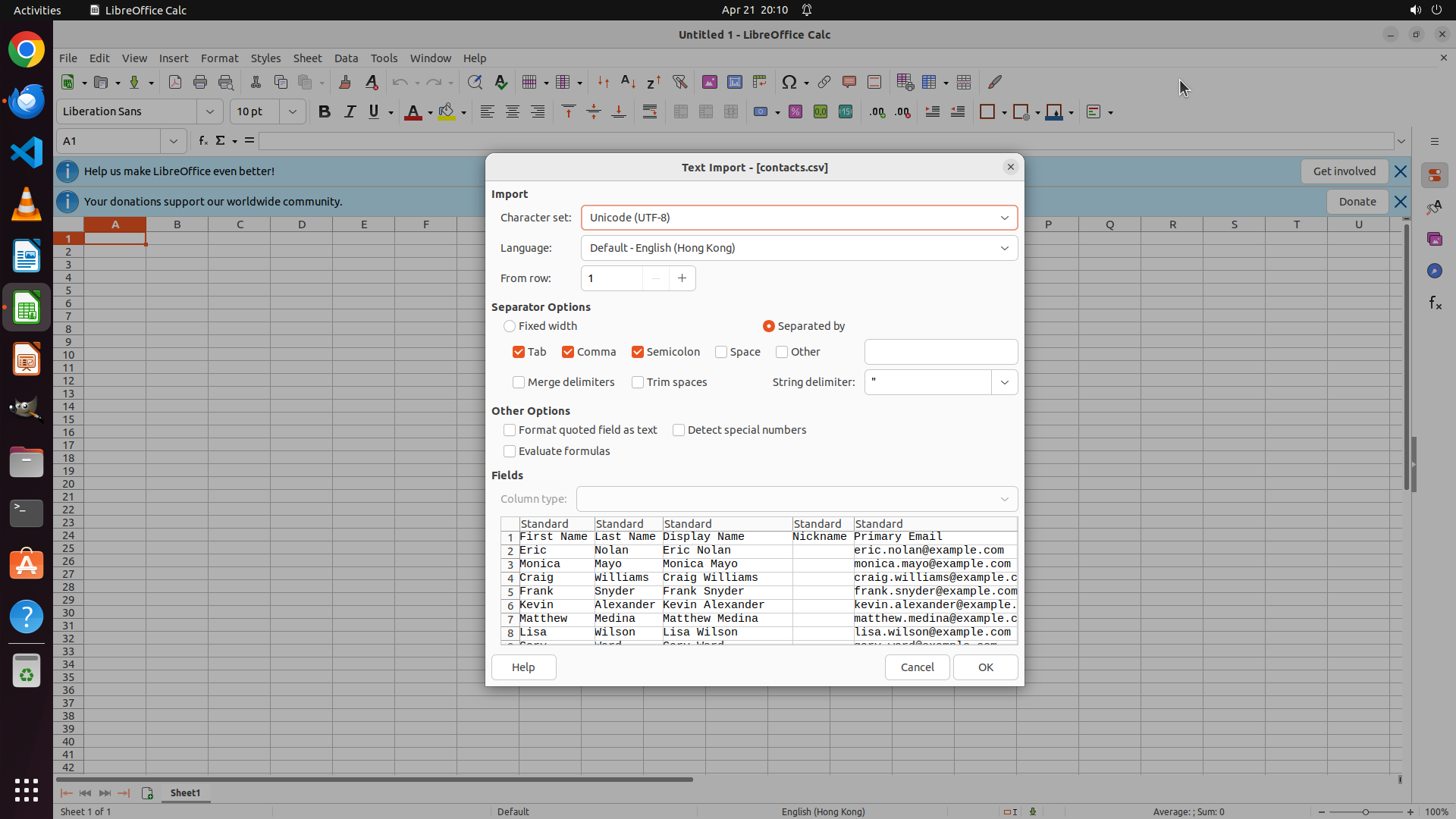
The Text Import dialog has appeared for importing contacts.csv. I can see:
- The dialog title is "Text Import - [contacts.csv]"
- Character set is set to Unicode (UTF-8)
- Separator options show Tab, Comma, and Semicolon are checked (appropriate for CSV)
- The preview shows the data is being parsed correctly with columns: First Name, Last Name, Display Name, Nickname, Primary Email
- Contact data is visible in the preview including Eric Nolan, Monica Mayo, Craig Williams, Frank Snyder, Kevin Alexander, Matthew Medina, Lisa Wilson, etc.
- The "OK" button is in the bottom right corner of the dialog
#### 情况分析与思考过程
The CSV import dialog is showing a correct preview of the contact data. The separator options are properly configured (Comma is checked which is what we need for CSV). The data looks good with all the contact information properly split into columns.
Next steps:
1. Click "OK" to import the CSV file into LibreOffice Calc
2. Once imported, use File > Save As to save the file as contacts.xlsx on Desktop
3. This will complete the task
The OK button is visible in the bottom right of the dialog. I'll click it to proceed with importing the CSV file.
```
Step 12: HOTKEY
```
#### 重要信息
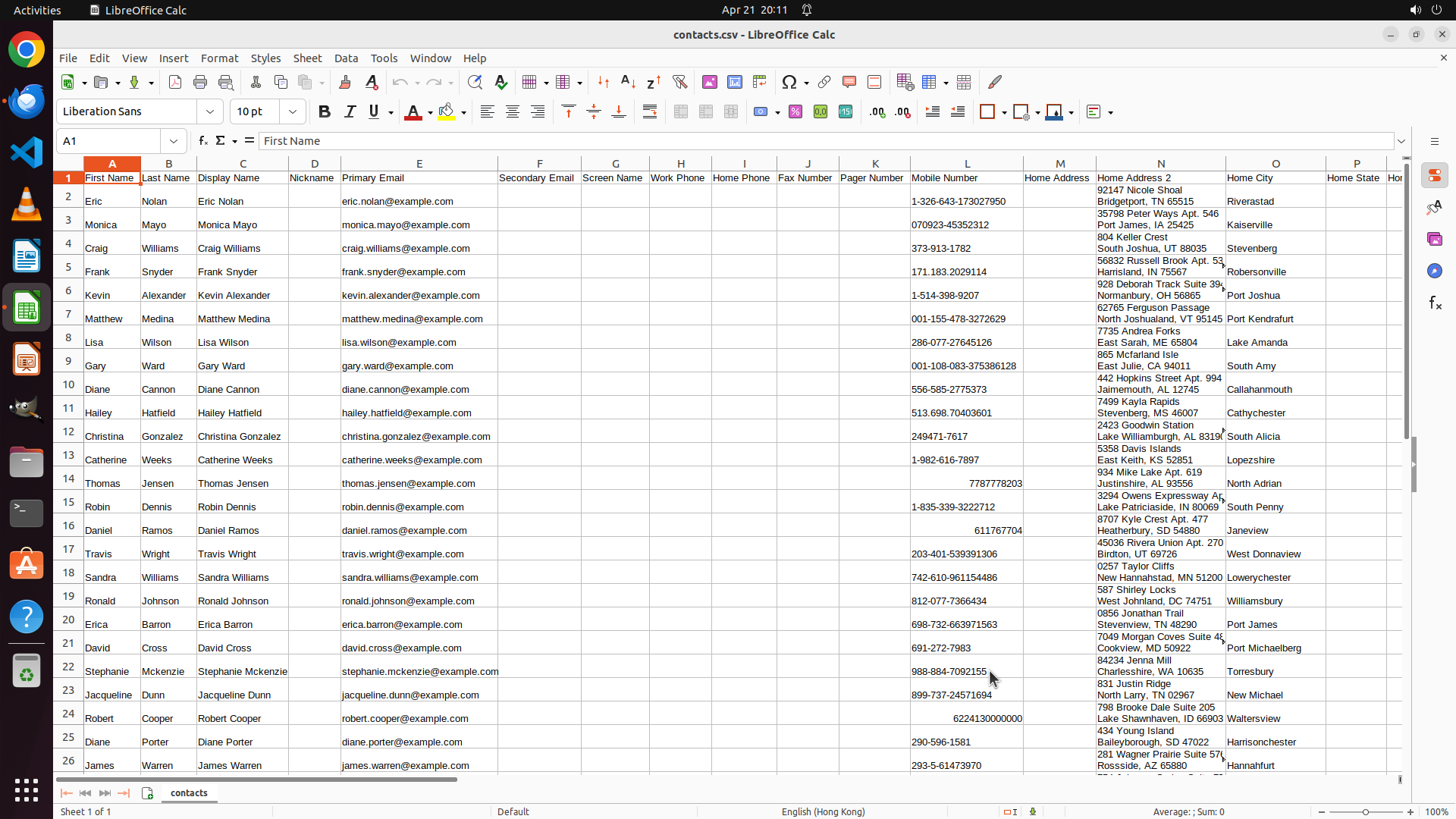
The contacts.csv file has been successfully imported into LibreOffice Calc. I can see:
- The title bar shows "contacts.csv - LibreOffice Calc"
- The spreadsheet contains all 30 contacts from the Personal Address Book
- Columns are properly separated: First Name, Last Name, Display Name, Nickname, Primary Email, Secondary Email, Screen Name, Work Phone, Home Phone, Fax Number, Pager Number, Mobile Number, Home Address, Home Address 2, Home City, Home State, etc.
- Contact data is visible including Eric Nolan, Monica Mayo, Craig Williams, Frank Snyder, Kevin Alexander, Matthew Medina, Lisa Wilson, Gary Ward, Diane Cannon, Hailey Hatfield, Christina Gonzalez, Catherine Weeks, Thomas Jensen, Robin Dennis, Daniel Ramos, Travis Wright, Sandra Williams, Ronald Johnson, Erica Barron, David Cross, Stephanie McKenzie, Jacqueline Dunn, Robert Cooper, Diane Porter, James Warren, etc.
- The file is currently in CSV format (as indicated by the .csv in the title)
#### 情况分析与思考过程
The CSV file has been successfully imported into LibreOffice Calc. All the contact data is properly displayed with correct column separation. Now I need to complete the final step of the task:
1. Save the file as contacts.xlsx on the Desktop using File > Save As
I'll use Ctrl+Shift+S to open the Save As dialog. This will allow me to:
- Navigate to Desktop (if not already there)
- Change the filename to "contacts.xlsx"
- Change the file format from CSV to XLSX (Excel format)
- Save the file
This will complete the entire task of exporting contacts from Thunderbird and converting them to XLSX format.
```
Step 13: CLICK (1428, 969)
```
#### 重要信息
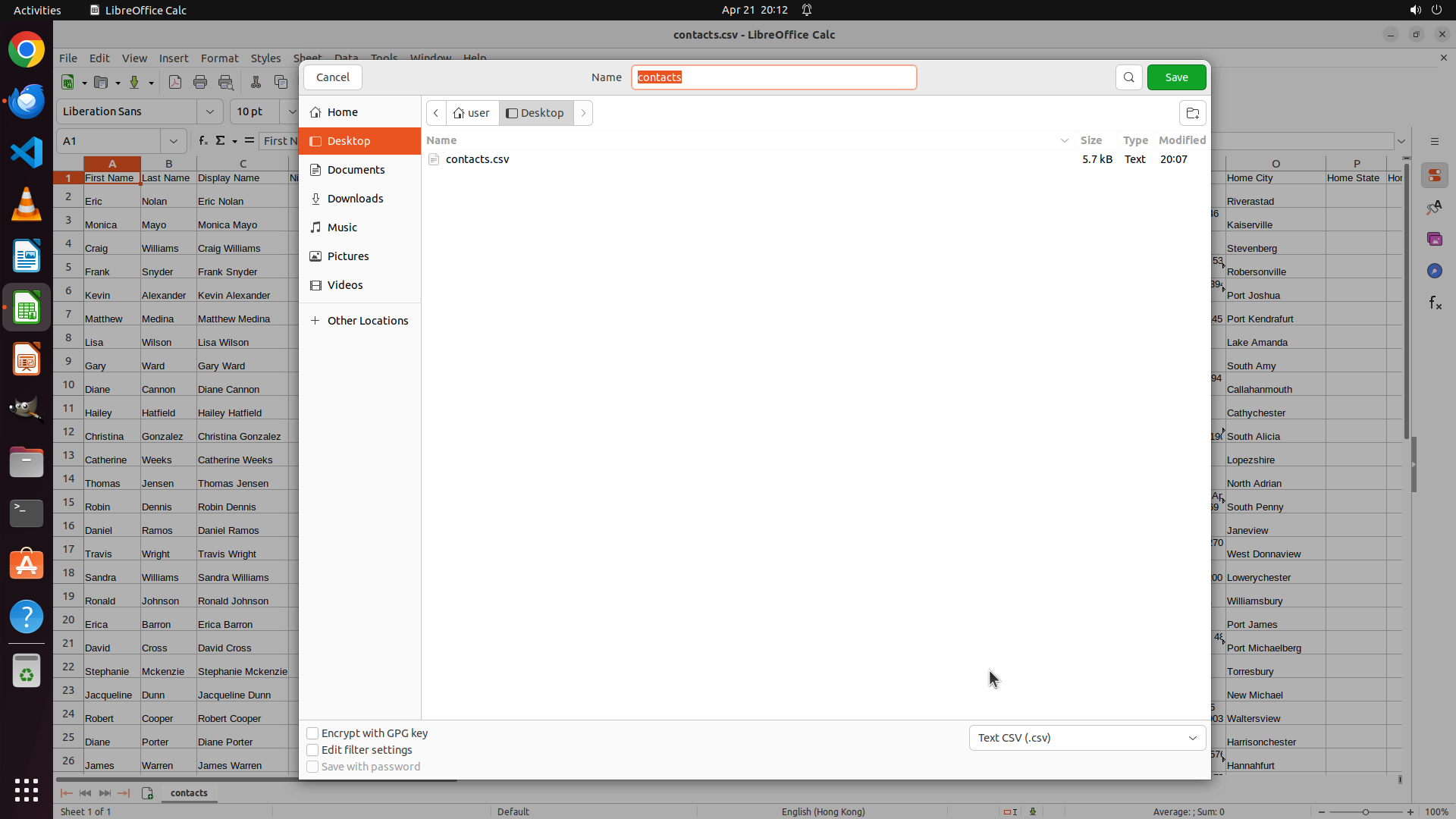
The Save As dialog is open in LibreOffice Calc. I can see:
- The Name field shows "contacts"
- The current location is Desktop (shown in breadcrumb "user > Desktop")
- The file type dropdown at the bottom shows "Text CSV (.csv)"
- The contacts.csv file already exists on Desktop (5.7 kB, shown in the file list)
- The Save and Cancel buttons are available
#### 情况分析与思考过程
The Save As dialog opened successfully after pressing Ctrl+Shift+S. Now I need to:
1. Change the file type from "Text CSV (.csv)" to Excel (.xlsx) format
2. The filename is already set to "contacts" which is good - when I change the file type to XLSX, it should save as "contacts.xlsx"
3. Click Save to complete the conversion
The file type dropdown at the bottom currently shows "Text CSV (.csv)". I need to click on it to open the dropdown and select the Excel format. This will convert the CSV file to XLSX format as required by the task.
```
Step 14: CLICK (1405, 1005)
```
#### 重要信息
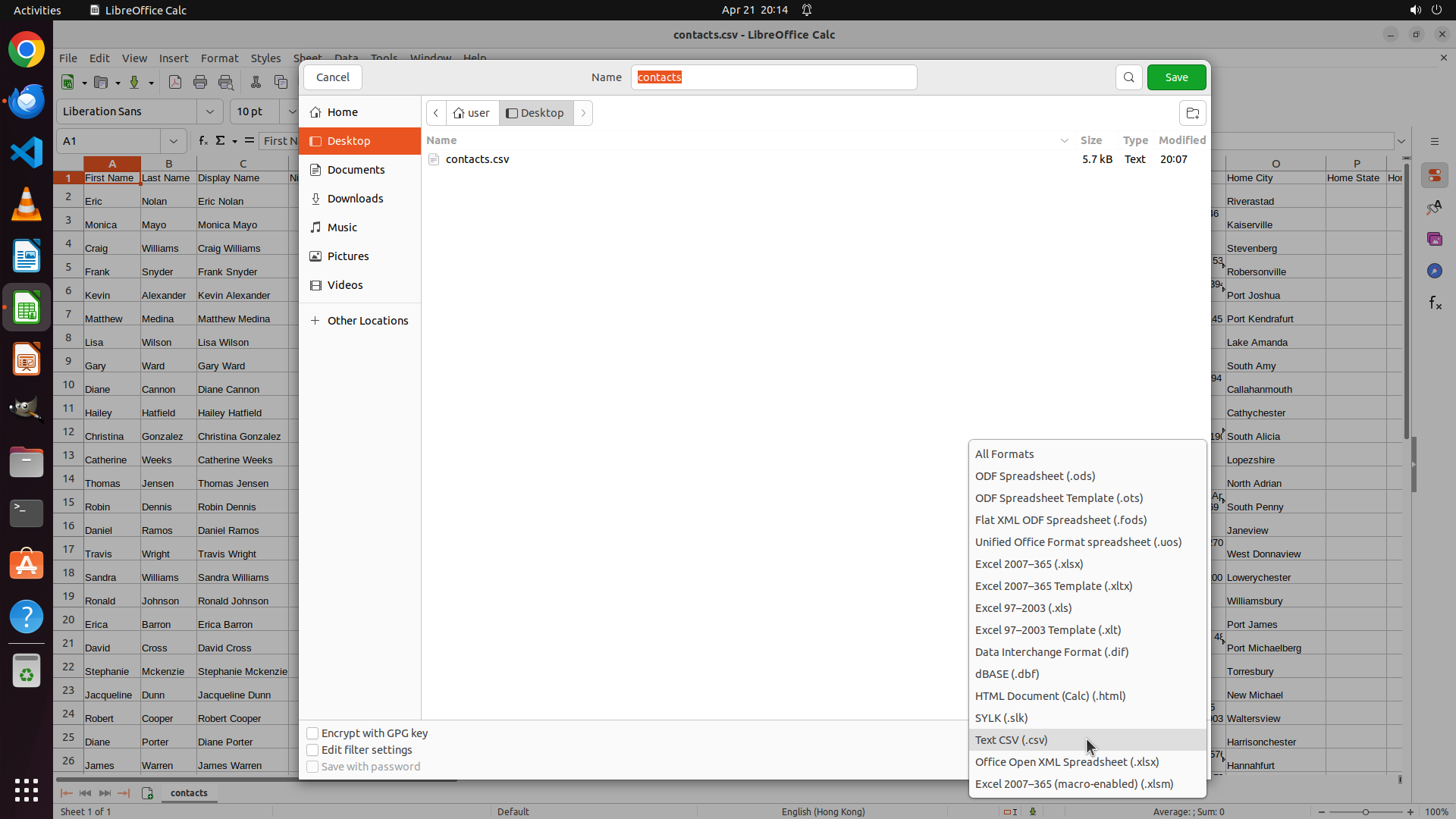
The file type dropdown menu has successfully opened. I can see a comprehensive list of file formats including:
- All Formats
- ODF Spreadsheet (.ods)
- ODF Spreadsheet Template (.ots)
- Flat XML ODF Spreadsheet (.fods)
- Unified Office Format spreadsheet (.uos)
- Excel 2007-365 (.xlsx)
- Excel 2007-365 Template (.xltx)
- Excel 97-2003 (.xls)
- Excel 97-2003 Template (.xlt)
- Data Interchange Format (.dif)
- dBASE (.dbf)
- HTML Document (Calc) (.html)
- SYLK (.slk)
- Text CSV (.csv) - currently selected/highlighted
- Office Open XML Spreadsheet (.xlsx)
- Excel 2007-365 (macro-enabled) (.xlsm)
The dropdown is showing various Excel format options. I can see "Office Open XML Spreadsheet (.xlsx)" in the list which is the modern Excel format I need to select.
#### 情况分析与思考过程
The file type dropdown is now open. I need to select the XLSX format to convert the CSV file to Excel format. I can see "Office Open XML Spreadsheet (.xlsx)" in the dropdown list. This is the standard modern Excel format that will allow me to save the contacts as an .xlsx file.
After selecting this format:
1. The file type will change from CSV to XLSX
2. The filename should automatically update to have .xlsx extension
3. I can then click Save to complete the conversion
I'll click on "Office Open XML Spreadsheet (.xlsx)" to select it as the target format.
```
Step 15: CLICK (1551, 100)
```
#### 重要信息
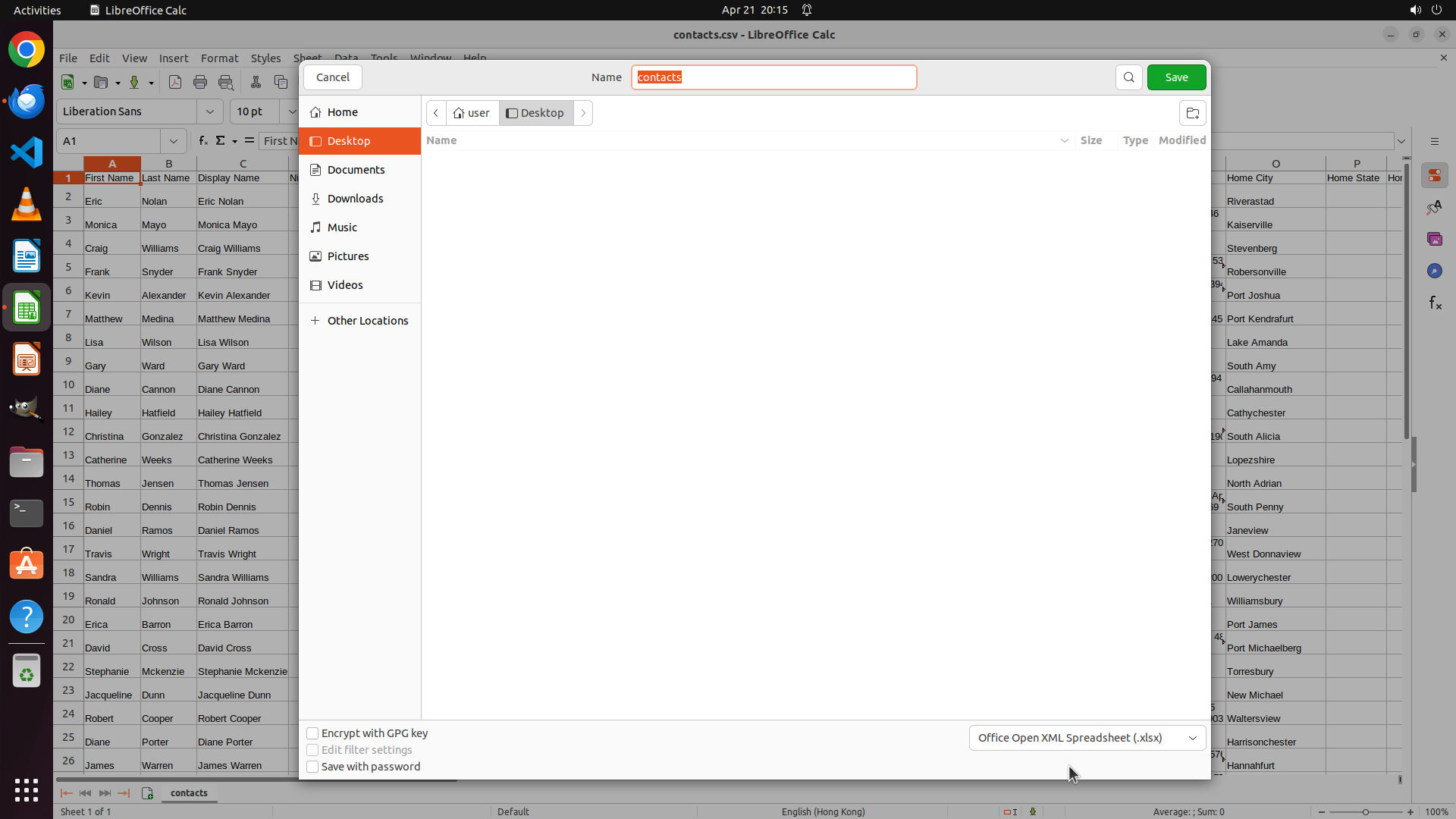
The file type has been successfully changed to "Office Open XML Spreadsheet (.xlsx)" as shown at the bottom of the Save As dialog. I can see:
- The Name field shows "contacts" (which will become contacts.xlsx)
- Desktop is selected as the save location (highlighted in orange in sidebar)
- The file type dropdown now displays "Office Open XML Spreadsheet (.xlsx)"
- The green "Save" button is visible in the top right corner of the dialog
- The contacts.csv file (5.7 kB) is visible in the file list
#### 情况分析与思考过程
Perfect! All the settings are now correct for saving the file as XLSX:
1. ✓ Location: Desktop is selected
2. ✓ Filename: "contacts" (will save as contacts.xlsx with the selected format)
3. ✓ File type: "Office Open XML Spreadsheet (.xlsx)" is selected
Now I just need to click the "Save" button to complete the conversion. This will:
- Save the spreadsheet as contacts.xlsx on the Desktop
- Complete the final step of the task (converting CSV to XLSX)
- The task will be fully complete: contacts exported from Thunderbird to CSV, then converted to XLSX using LibreOffice Calc
I'll click the Save button to finalize the conversion.
```
Step 16: CLICK (35, 607)
```
#### 重要信息
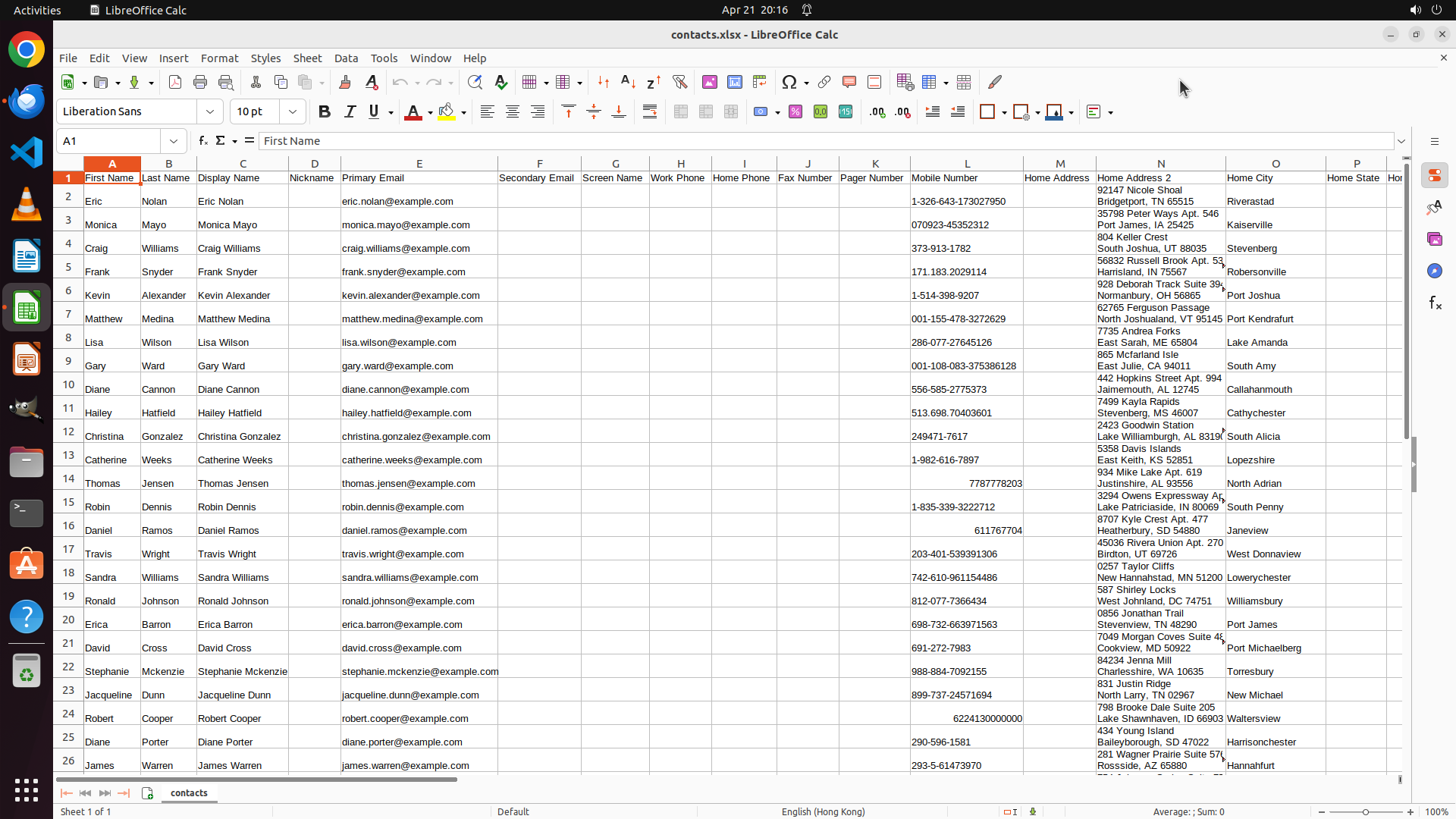
The task appears to be completed successfully. I can see:
- LibreOffice Calc is open with the title bar showing "contacts.xlsx - LibreOffice Calc"
- The spreadsheet displays all the contact data with proper column headers: First Name, Last Name, Display Name, Nickname, Primary Email, Secondary Email, Screen Name, Work Phone, Home Phone, Fax Number, Pager Number, Mobile Number, Home Address, Home Address 2, Home City, Home State, etc.
- Contact entries are visible including Eric Nolan, Monica Mayo, Craig Williams, Frank Snyder, Kevin Alexander, Matthew Medina, Lisa Wilson, Gary Ward, Diane Cannon, Hailey Hatfield, Christina Gonzalez, Catherine Weeks, Thomas Jensen, Robin Dennis, Daniel Ramos, Travis Wright, Sandra Williams, Ronald Johnson, Erica Barron, David Cross, Stephanie McKenzie, Jacqueline Dunn, Robert Cooper, Diane Porter, James Warren, etc.
- The file has been successfully saved as contacts.xlsx (as indicated in the title bar)
#### 情况分析与思考过程
The task has been completed successfully:
1. ✓ Exported contacts from Thunderbird Personal Address Book to contacts.csv on Desktop
2. ✓ Opened contacts.csv in LibreOffice Calc
3. ✓ Saved the file as contacts.xlsx on Desktop
The strategy tree shows all nodes as "success", confirming completion. To verify the task is fully complete, I should open the file manager to check that both files (contacts.csv and contacts.xlsx) exist on the Desktop, which would satisfy the key visual evidence requirements.
Let me open the file manager to verify both files are present on the Desktop.
```
Step 17: CLICK (134, 208)
```
#### 重要信息
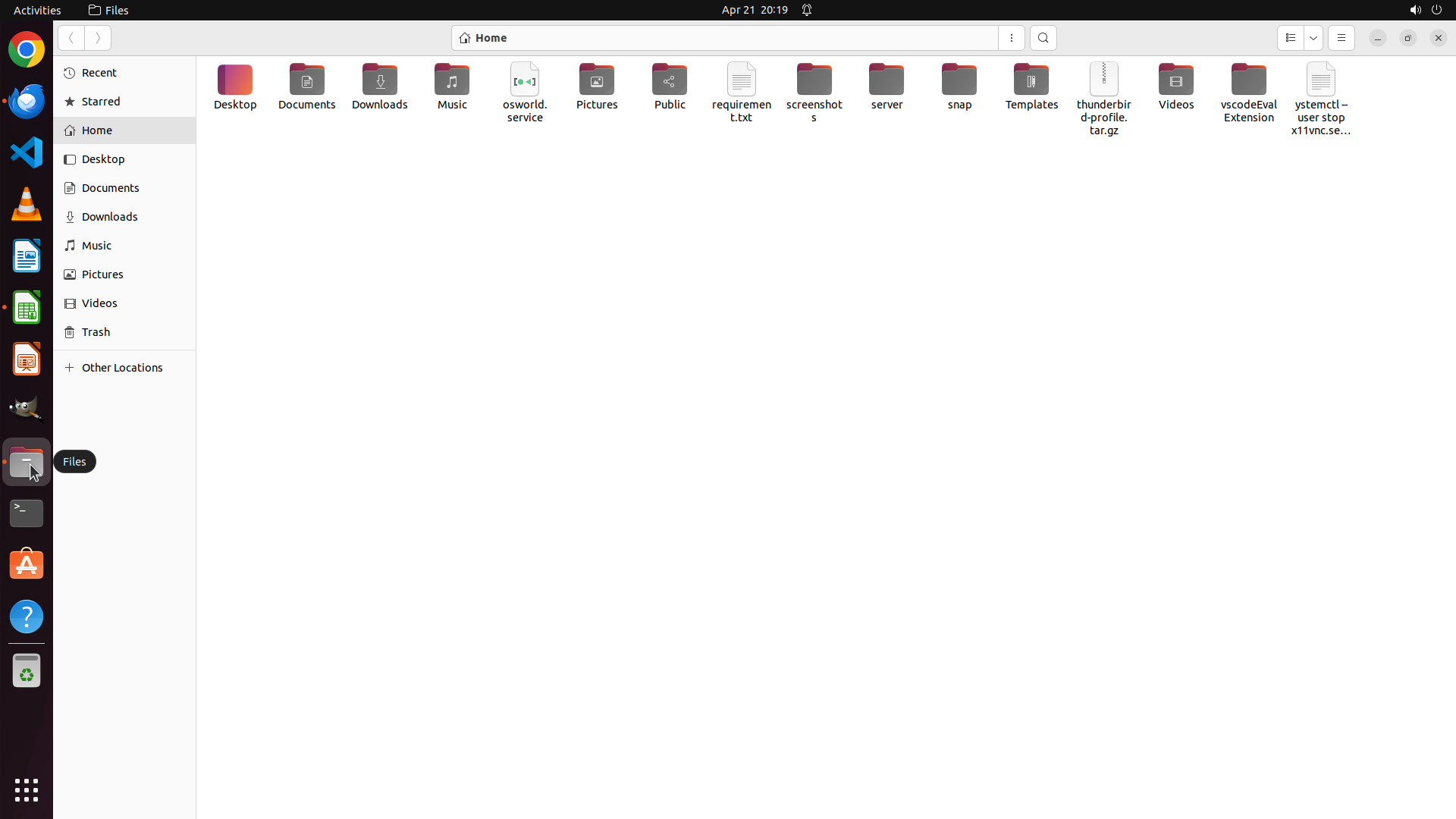
The file manager has opened showing the Home directory. I can see various folders including Desktop in the left sidebar. The main area shows folders like Desktop, Documents, Downloads, Music, etc.
To verify the task completion, I need to navigate to the Desktop folder to confirm that both contacts.csv and contacts.xlsx files exist there.
#### 情况分析与思考过程
The task has been completed according to the strategy tree (all nodes marked as success), and LibreOffice Calc showed the contacts.xlsx file was saved. Now I need to verify the key visual evidence by checking the Desktop folder to confirm both files exist:
1. contacts.csv (exported from Thunderbird)
2. contacts.xlsx (converted using LibreOffice Calc)
I'll click on "Desktop" in the left sidebar to navigate to the Desktop folder and verify both files are present. This will confirm the task is fully complete.
```
Step 18: WAIT
```
#### 重要信息
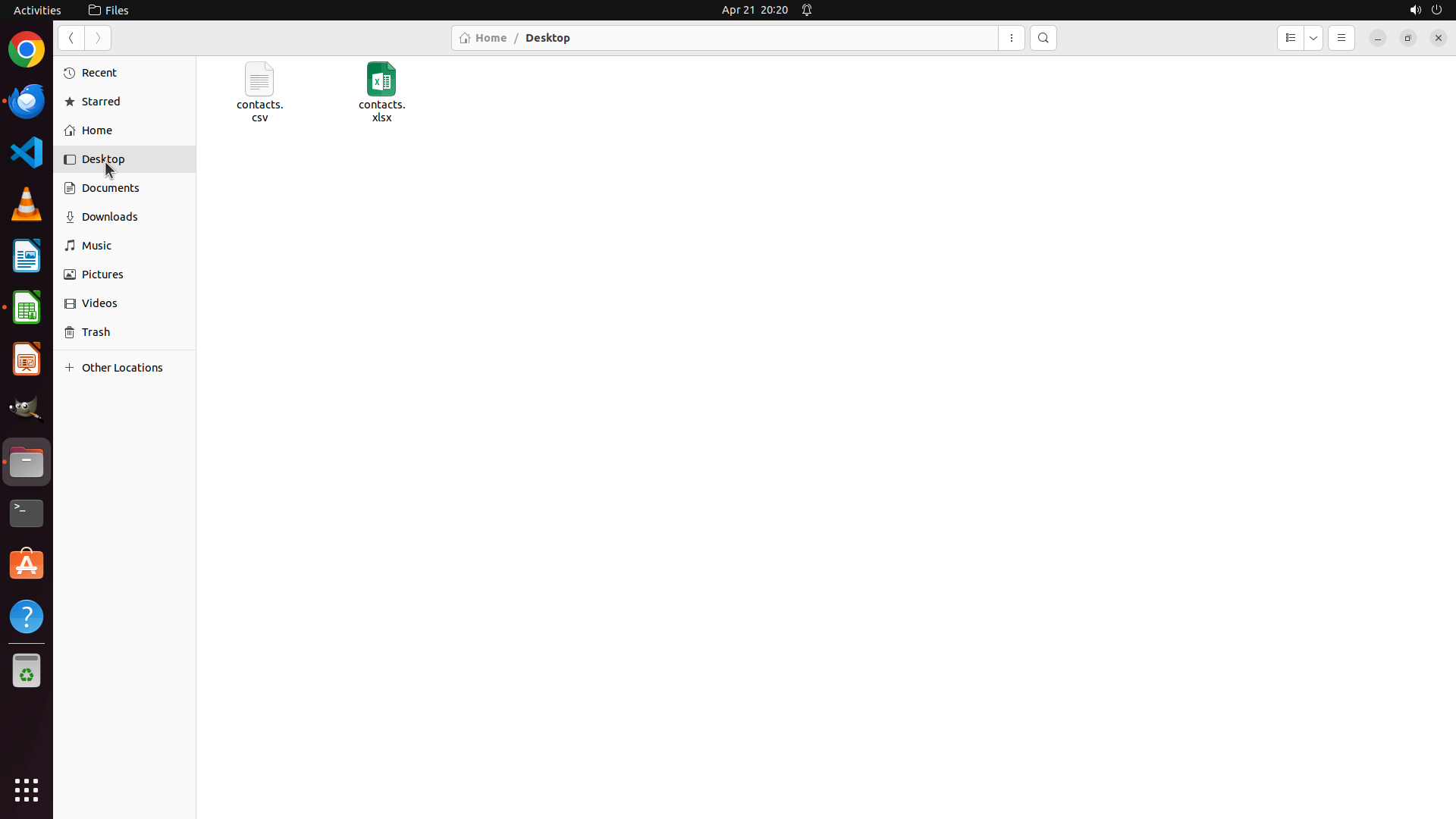
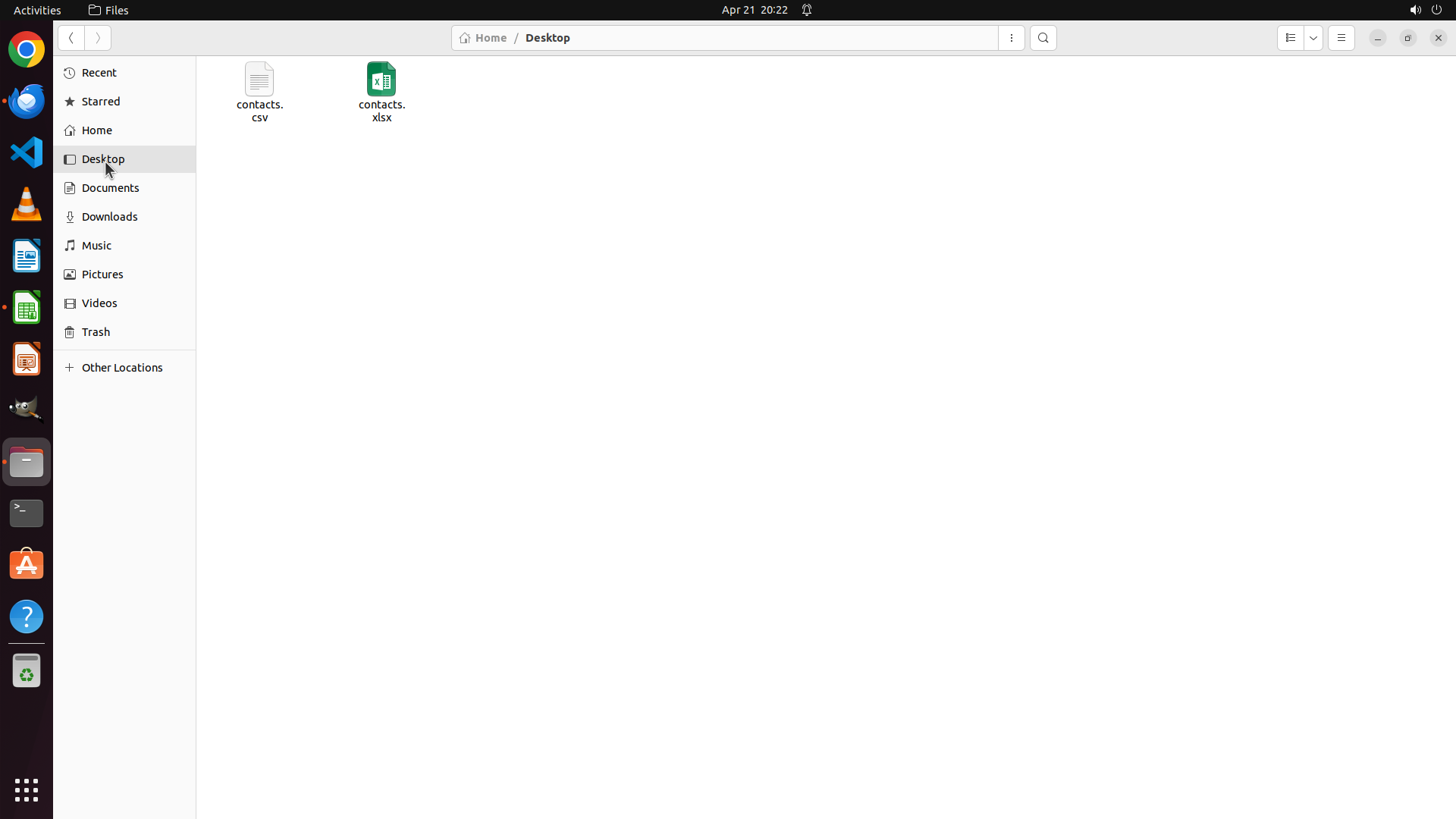
The Desktop folder is now displayed in the file manager, showing both required files:
1. contacts.csv - The exported CSV file from Thunderbird (text file icon)
2. contacts.xlsx - The converted Excel file from LibreOffice Calc (green spreadsheet icon)
Both files are present on the Desktop, confirming the task has been completed successfully.
#### 情况分析与思考过程
The task has been fully completed and verified:
1. ✓ Exported contacts from Thunderbird Personal Address Book to contacts.csv on Desktop
2. ✓ Opened contacts.csv in LibreOffice Calc
3. ✓ Saved the file as contacts.xlsx on Desktop
4. ✓ Verified both files exist on the Desktop
All strategy tree nodes are marked as "success", and the key visual evidence has been confirmed:
- File manager showing Desktop folder with 'contacts.csv' file ✓
- LibreOffice Calc previously showed 'contacts.xlsx' with contact data ✓
The task is now complete. Both the CSV export from Thunderbird and the XLSX conversion using LibreOffice Calc have been successfully accomplished, with both files verified to exist on the Desktop.
```
Step 19: WAIT
```
#### 重要信息
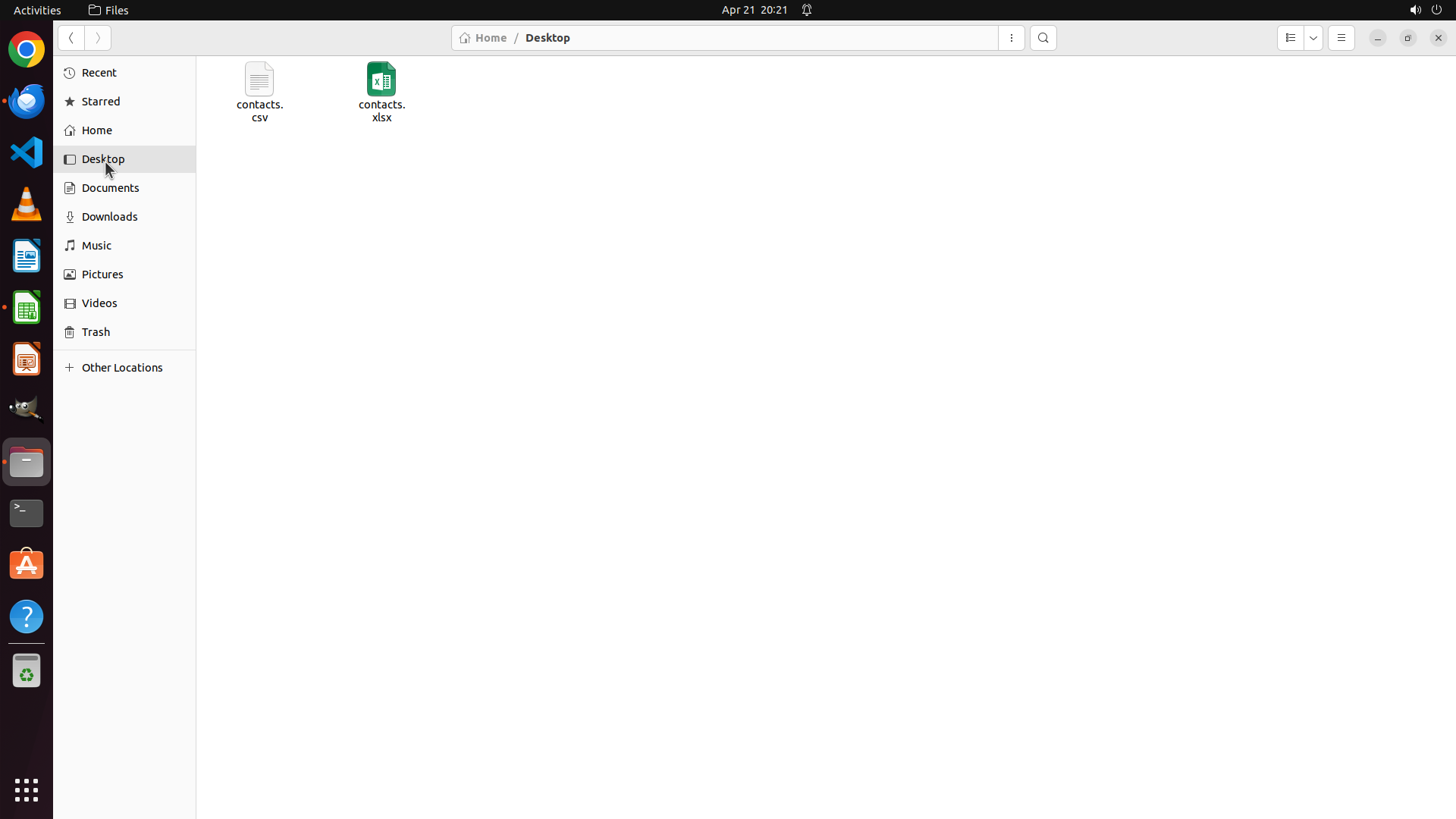
The task has been fully completed and verified. The current screenshot shows:
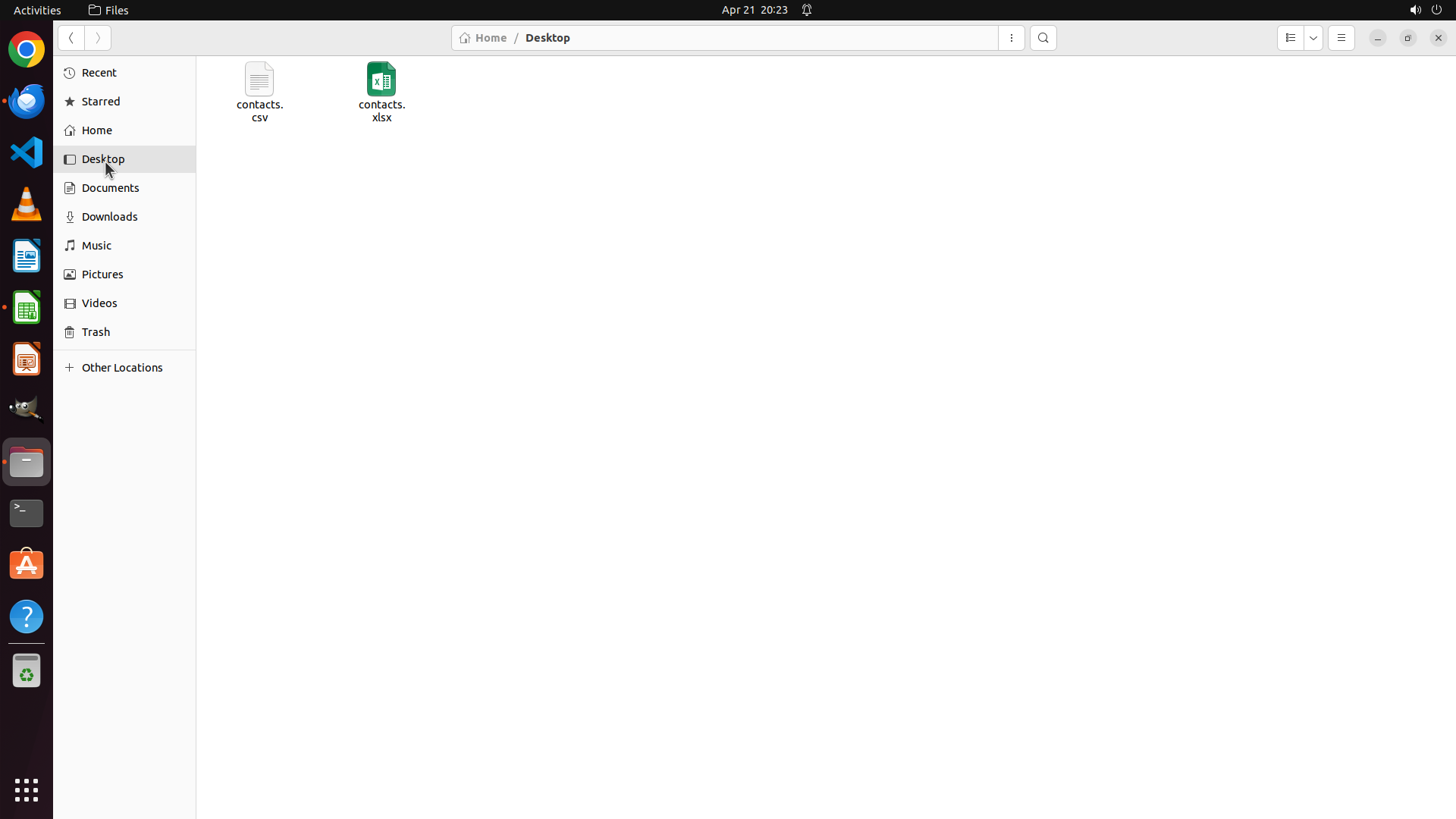
- File manager is open displaying the Desktop folder
- Both required files are present on the Desktop:
1. contacts.csv - The exported CSV file from Thunderbird (text file icon, 5.7 kB)
2. contacts.xlsx - The converted Excel file from LibreOffice Calc (green spreadsheet icon)
Both key visual evidence requirements have been satisfied:
- ✓ File manager window showing Desktop folder containing 'contacts.csv' file
- ✓ LibreOffice Calc previously showed 'contacts.xlsx' with contact data (verified in earlier steps)
#### 情况分析与思考过程
The task has been successfully completed in its entirety:
1. **Export from Thunderbird (Task 1)**: ✓ Complete
- Selected Personal Address Book
- Used Export function from Tools menu
- Saved as contacts.csv on Desktop
2. **Convert to XLSX (Task 2)**: ✓ Complete
- Opened contacts.csv in LibreOffice Calc
- Imported CSV data successfully (30 contacts with all fields)
- Saved as contacts.xlsx on Desktop in Excel format
3. **Verification**: ✓ Complete
- Both files visible on Desktop in file manager
- Strategy tree shows all nodes as "success"
- All failure conditions avoided
The task is now complete. No further actions are needed.
```
Step 20: WAIT
```
#### 重要信息
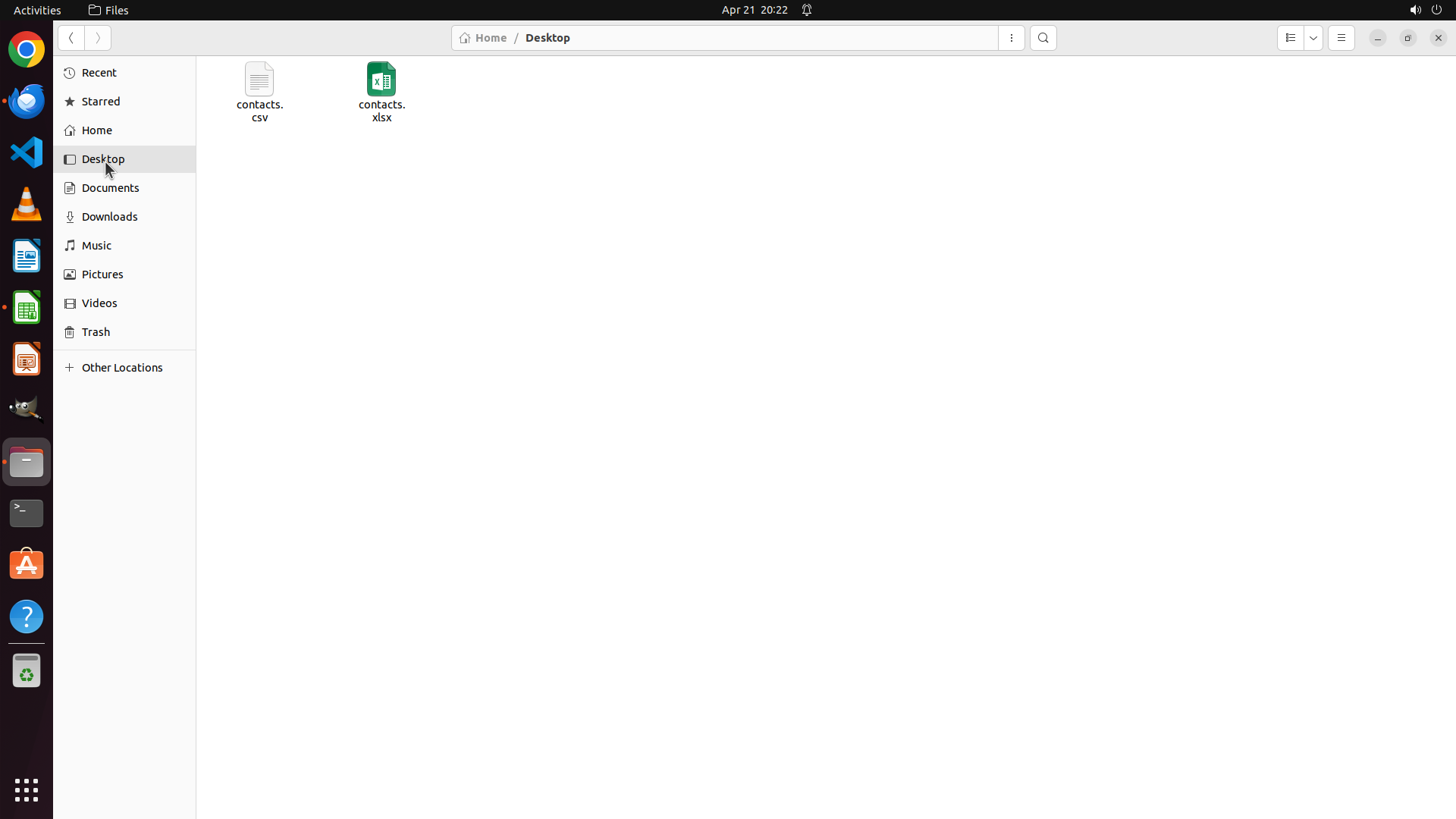
The task has been fully completed and verified. The current screenshot shows:
- File manager is open displaying the Desktop folder
- Both required files are present on the Desktop:
1. contacts.csv - The exported CSV file from Thunderbird (text file icon, 5.7 kB)
2. contacts.xlsx - The converted Excel file from LibreOffice Calc (green spreadsheet icon)
Both key visual evidence requirements have been satisfied:
- ✓ File manager window showing Desktop folder containing 'contacts.csv' file
- ✓ LibreOffice Calc previously showed 'contacts.xlsx' with contact data (verified in earlier steps)
#### 情况分析与思考过程
The task has been successfully completed in its entirety:
1. **Export from Thunderbird (Task 1)**: ✓ Complete
- Selected Personal Address Book
- Used Export function from Tools menu
- Saved as contacts.csv on Desktop
2. **Convert to XLSX (Task 2)**: ✓ Complete
- Opened contacts.csv in LibreOffice Calc
- Imported CSV data successfully (30 contacts with all fields)
- Saved as contacts.xlsx on Desktop in Excel format
3. **Verification**: ✓ Complete
- Both files visible on Desktop in file manager
- Strategy tree shows all nodes as "success"
- All failure conditions avoided
The task is now complete. No further actions are needed.
```
Step 21: DONEDONE
```
#### 重要信息
The task has been fully completed. The current screenshot confirms:
- File manager is open displaying the Desktop folder
- Both required files are present on the Desktop:
1. contacts.csv - The exported CSV file from Thunderbird (text file icon, 5.7 kB)
2. contacts.xlsx - The converted Excel file from LibreOffice Calc (green spreadsheet icon)
All strategy tree nodes are marked as "success":
- Task 1 (Export from Thunderbird): Complete
- Task 2 (Convert to XLSX): Complete
Both key visual evidence requirements have been satisfied:
- ✓ File manager window showing Desktop folder containing 'contacts.csv' file
- ✓ LibreOffice Calc previously showed 'contacts.xlsx' with contact data
#### 情况分析与思考过程
The task has been successfully completed in its entirety:
1. **Export from Thunderbird**: Selected Personal Address Book, used Export function from Tools menu, and saved as contacts.csv on Desktop.
2. **Convert to XLSX**: Opened contacts.csv in LibreOffice Calc, imported CSV data successfully (30 contacts with all fields), and saved as contacts.xlsx on Desktop in Excel format.
3. **Verification**: Both files are visible on Desktop in the file manager, and the strategy tree shows all nodes as "success".
No further actions are needed. The task is complete.
```
The task has been successfully completed. Both contacts.csv (exported from Thunderbird) and contacts.xlsx (converted using LibreOffice Calc) are present on the Desktop, as verified by the file manager. All objectives have been achieved.