#### 重要信息
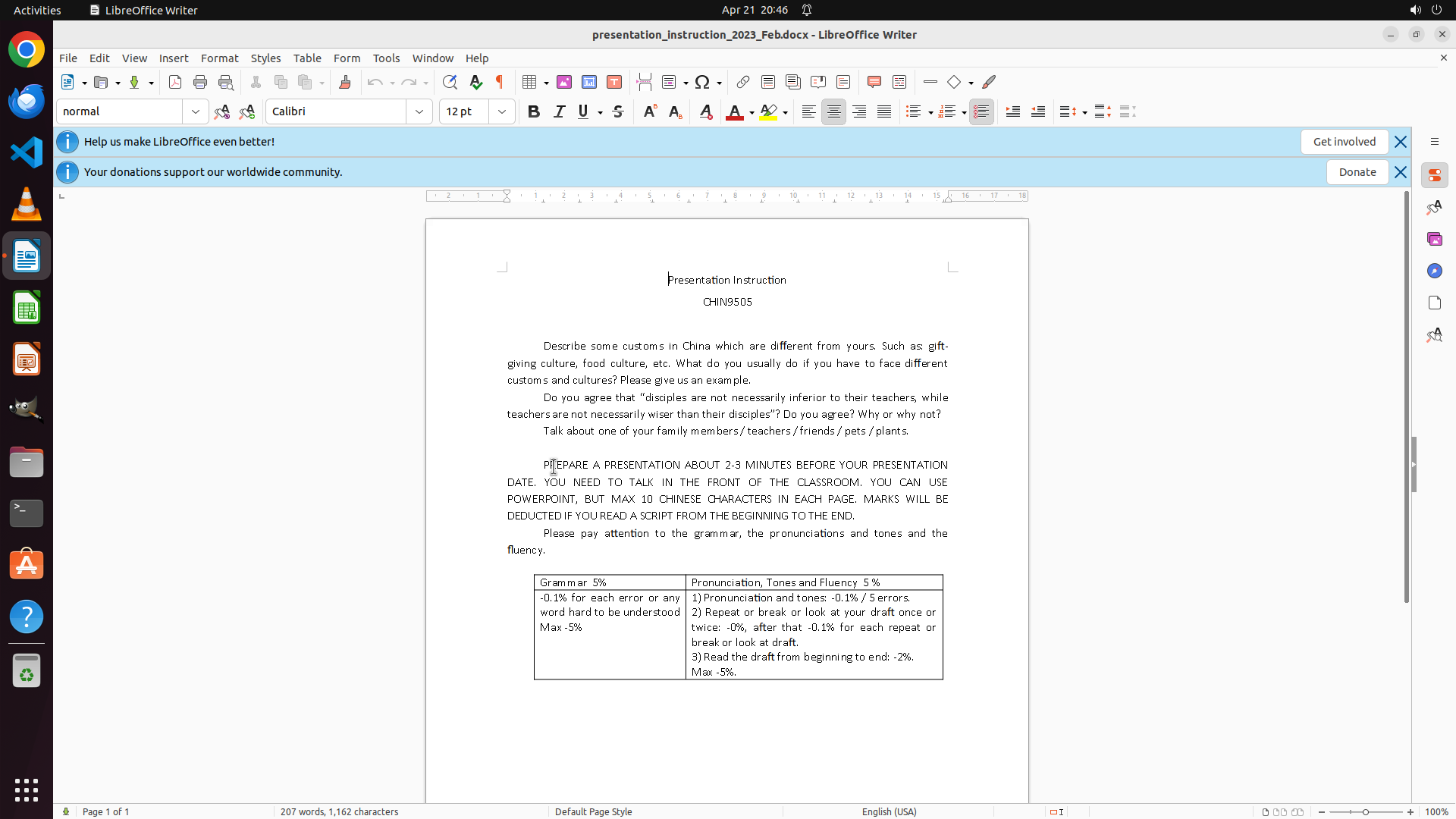
- LibreOffice Writer is open with a document called "presentation_instruction_2023_Feb.docx"
- The document contains uppercase text sections:
- "CHIN9505" (course code in uppercase)
- A large block starting with "PREPARE A PRESENTATION ABOUT 2-3 MINUTES..." which is entirely in uppercase
- The paragraph continues with "YOU NEED TO TALK IN THE FRONT OF THE CLASSROOM..." and more all-caps text
- The strategy tree indicates I need to convert these uppercase sections to lowercase
- According to the key visual evidence, the expected outcome shows both 'CHIN9505' and the instruction block converted to lowercase
#### 情况分析与思考过程
The task is to convert all uppercase text to lowercase. I can see there's a significant block of text in all caps that needs conversion. The best approach is:
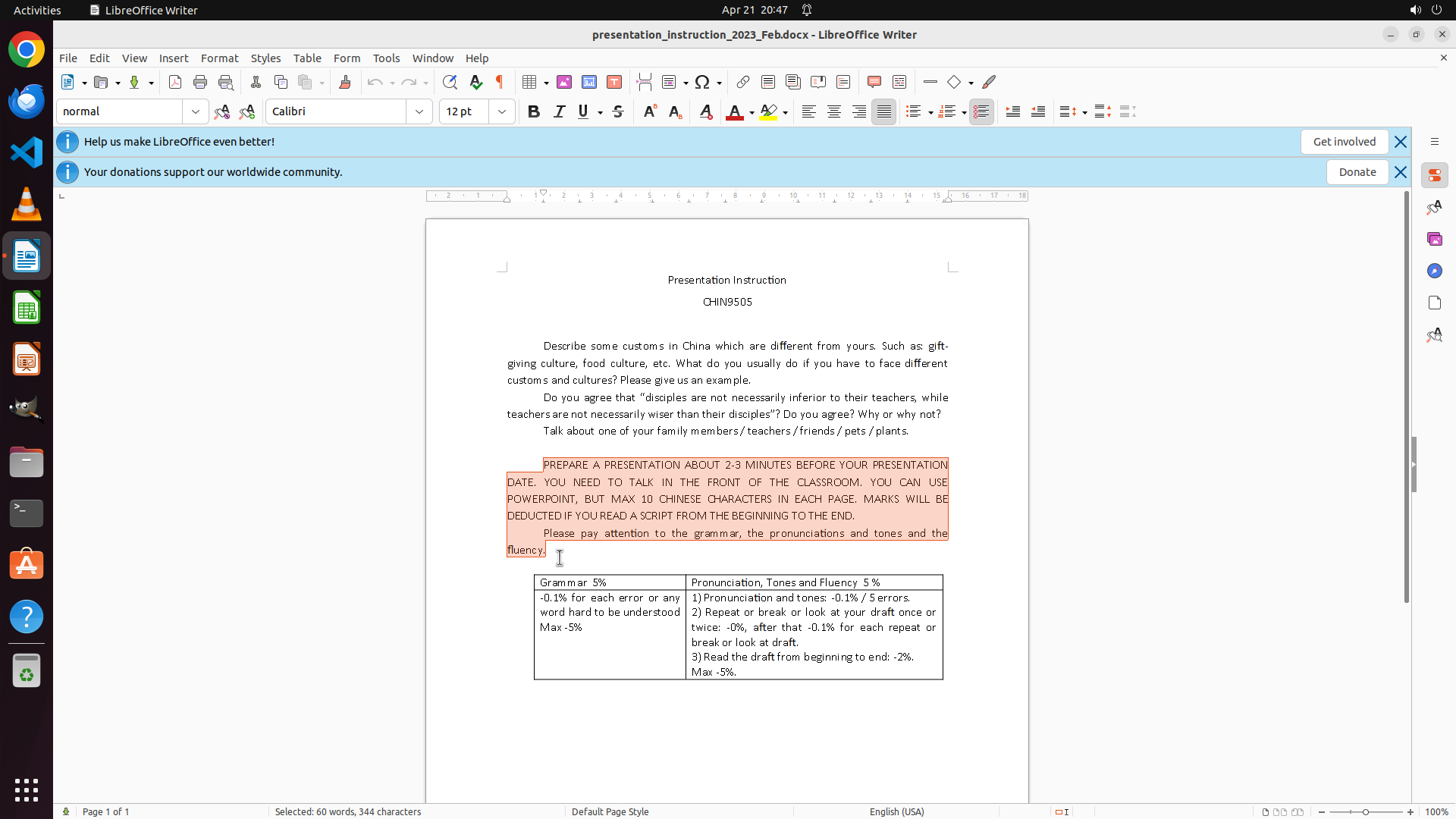
1. First, I'll select the all-caps paragraph block (starting with "PREPARE A PRESENTATION...")
2. Use Format > Text > lowercase to convert it
3. Then handle the "CHIN9505" course code
4. Save the document
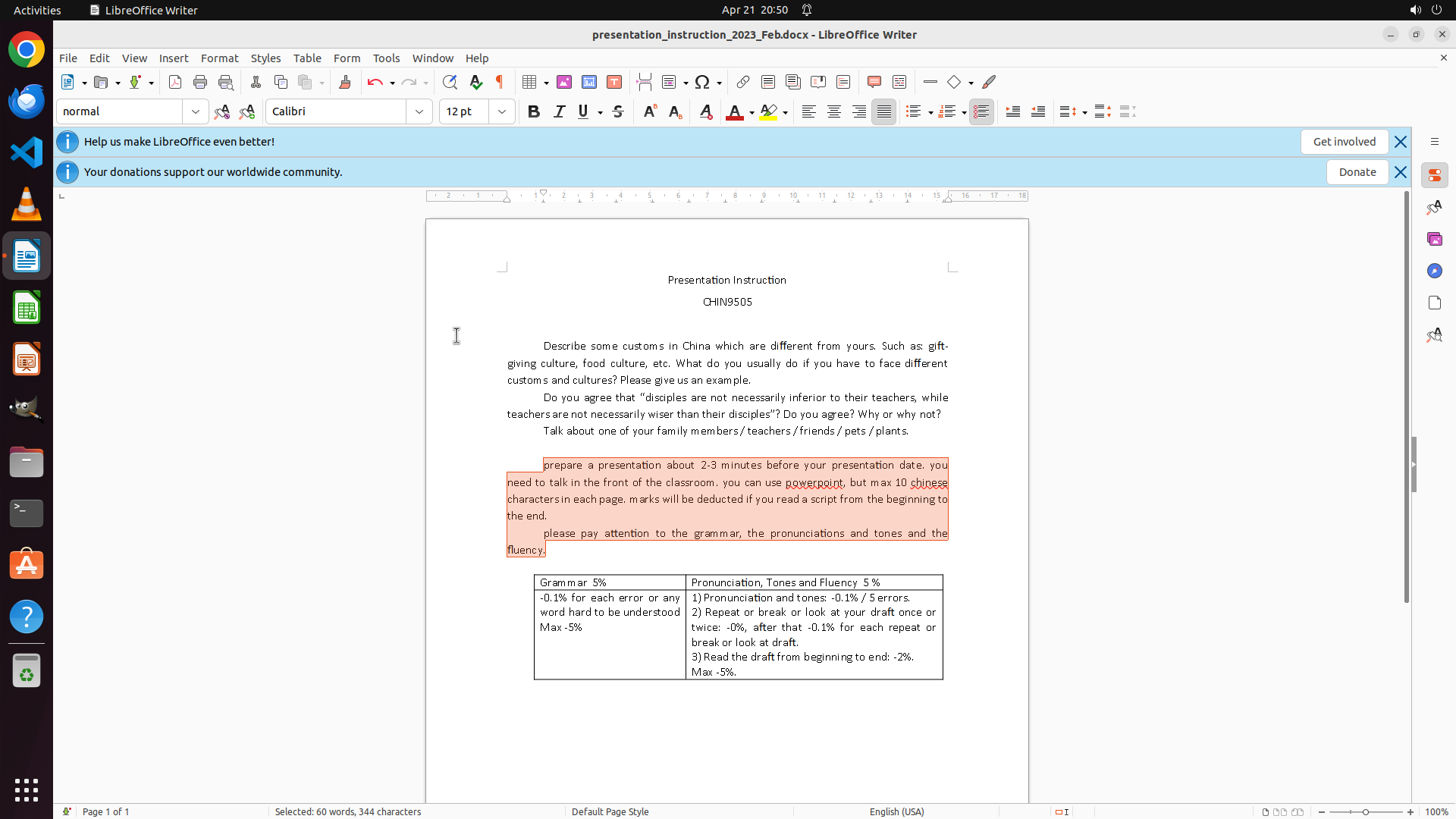
I'll start by clicking at the beginning of the uppercase block and dragging to select it. I can see "PREPARE A PRESENTATION" starts around the middle of the page. Let me select this entire uppercase block by clicking and dragging from the beginning of "PREPARE" to the end of the uppercase section (which appears to end with "fluency." or thereabouts).
Looking at the document, I need to select the all-caps text block. I'll triple-click to select a paragraph or click and drag to select the specific uppercase section. Let me click at the start of "PREPARE" and drag to select the entire uppercase instruction block.
Step 1: DRAG_TO (724, 720)
#### 重要信息
- LibreOffice Writer is open with a document called "presentation_instruction_2023_Feb.docx"
- The document contains uppercase text sections:
- "CHIN9505" (course code in uppercase)
- A large block starting with "PREPARE A PRESENTATION ABOUT 2-3 MINUTES..." which is entirely in uppercase
- The paragraph continues with "YOU NEED TO TALK IN THE FRONT OF THE CLASSROOM..." and more all-caps text
- The strategy tree indicates I need to convert these uppercase sections to lowercase
- According to the key visual evidence, the expected outcome shows both 'CHIN9505' and the instruction block converted to lowercase
#### 情况分析与思考过程
The task is to convert all uppercase text to lowercase. I can see there's a significant block of text in all caps that needs conversion. The best approach is:
1. First, I'll select the all-caps paragraph block (starting with "PREPARE A PRESENTATION...")
2. Use Format > Text > lowercase to convert it
3. Then handle the "CHIN9505" course code
4. Save the document
I'll start by clicking at the beginning of the uppercase block and dragging to select it. I can see "PREPARE A PRESENTATION" starts around the middle of the page. Let me select this entire uppercase block by clicking and dragging from the beginning of "PREPARE" to the end of the uppercase section (which appears to end with "fluency." or thereabouts).
Looking at the document, I need to select the all-caps text block. I'll triple-click to select a paragraph or click and drag to select the specific uppercase section. Let me click at the start of "PREPARE" and drag to select the entire uppercase instruction block.
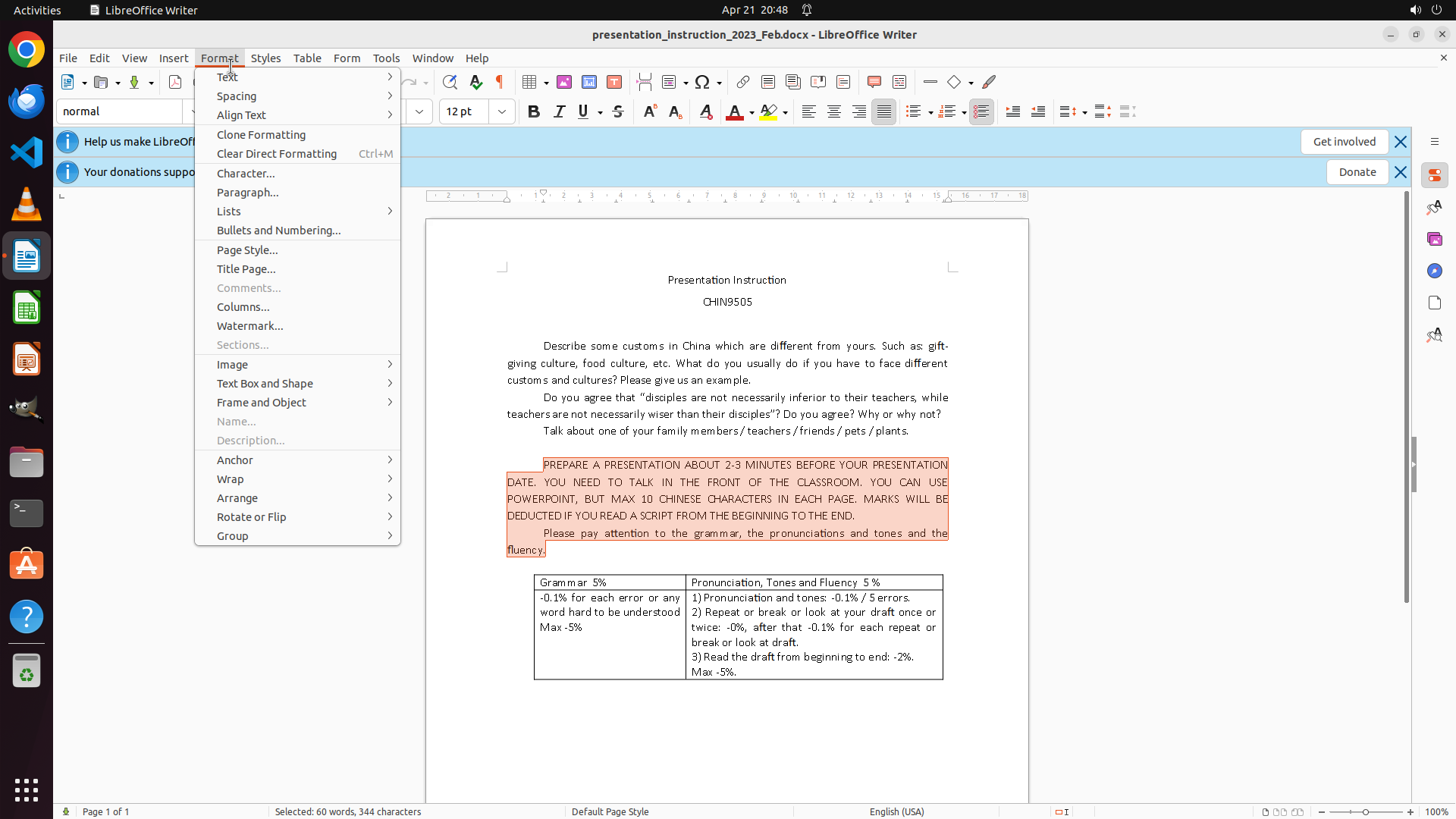
Step 2: CLICK (290, 72)
```
#### 重要信息
- LibreOffice Writer is open with the document "presentation_instruction_2023_Feb.docx"
- A block of uppercase text has been selected (highlighted in orange/red): "PREPARE A PRESENTATION ABOUT 2-3 MINUTES BEFORE YOUR PRESENTATION DATE..."
- The text "CHIN9505" is still visible in uppercase at the top of the document
- The selected text block includes multiple lines of all-caps instructions
- The status bar shows "Selected: 94 words, 344 characters"
#### 情况分析与思考过程
The previous action successfully selected the uppercase text block. Now I need to convert this selected text to lowercase. The best approach is to use the Format menu:
1. Click on "Format" in the menu bar
2. Navigate to Text > lowercase
3. This will convert the selected uppercase text to lowercase
After converting this block, I'll need to also convert "CHIN9505" to lowercase, and then save the document.
Let me click on the Format menu to access the text case options.
```
Step 3: CLICK (298, 96)
```
#### 重要信息
- The Format menu is now open and expanded
- I can see the "Text" option in the menu with an arrow indicating a submenu
- The uppercase text block is still selected (highlighted in orange/red)
- The status bar still shows "Selected: 94 words, 344 characters"
- I need to access the Text submenu to find the lowercase conversion option
#### 情况分析与思考过程
The previous action successfully opened the Format menu. Now I need to navigate to the Text submenu where the text case options (including lowercase) should be located.
My plan:
1. Click on "Text" in the Format menu to open its submenu
2. Select the "lowercase" option to convert the selected uppercase text
3. Then select and convert "CHIN9505" to lowercase
4. Save the document with Ctrl+S
The logical next action is to click on "Text" to access the text case conversion options. This will open a submenu where I should find options like "UPPERCASE", "lowercase", "Sentence case", etc.
```
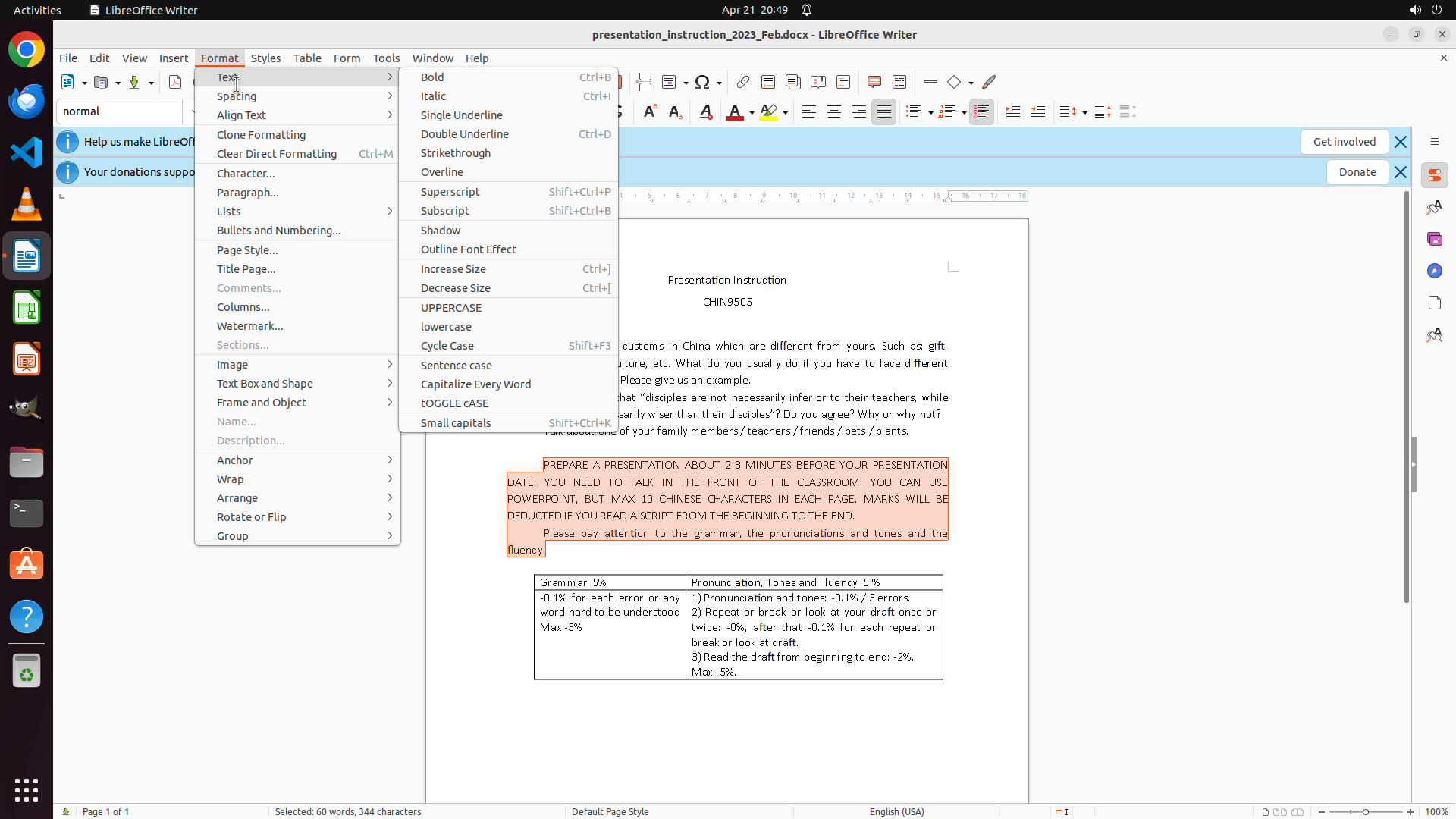
Step 4: CLICK (588, 427)
```
#### 重要信息
- The Text submenu is now open showing various text case options
- I can see the "lowercase" option in the submenu
- The uppercase text block is still selected (highlighted in orange/red)
- The status bar shows "Selected: 94 words, 344 characters"
- The "CHIN9505" course code at the top still needs to be converted after this
#### 情况分析与思考过程
The previous action successfully opened the Text submenu. Now I can see the "lowercase" option which is exactly what I need to convert the selected uppercase text.
My plan:
1. Click on "lowercase" to convert the currently selected uppercase text block
2. Then select "CHIN9505" and convert it to lowercase
3. Save the document with Ctrl+S
The logical next action is to click on the "lowercase" option in the Text submenu. This will convert all the selected uppercase text to lowercase, completing the conversion of the instruction block.
```
Step 5: CLICK (958, 396)
```
#### 重要信息
- The uppercase text block has been successfully converted to lowercase - I can see "prepare a presentation about 2-3 minutes..." is now in lowercase format
- The text is still selected (highlighted in orange/red)
- "CHIN9505" at the top of the document is still in uppercase and needs to be converted
- The document shows "Presentation Instruction" as the heading, then "CHIN9505" below it
- According to the strategy tree and key visual evidence, I need to convert "CHIN9505" to lowercase and then save the document
#### 情况分析与思考过程
The previous action successfully converted the selected uppercase instruction block to lowercase. I can see the text is now in lowercase format. However, "CHIN9505" still appears in uppercase at the top of the document.
My plan to complete the task:
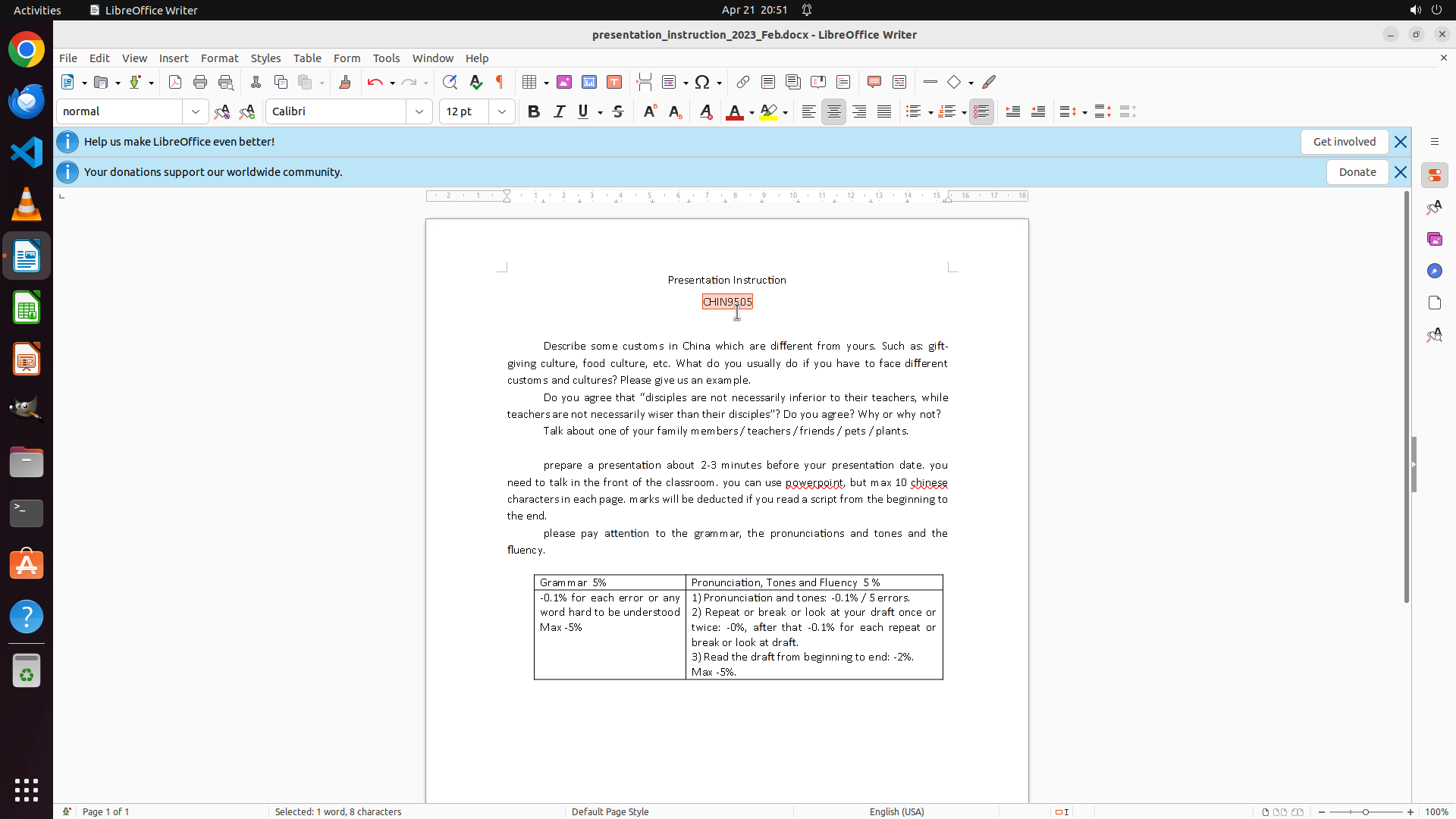
1. Select "CHIN9505" by triple-clicking on it
2. Convert it to lowercase using Format > Text > lowercase
3. Save the document with Ctrl+S
The logical next action is to triple-click on "CHIN9505" to select it. Triple-clicking will select the entire word/course code, making it ready for conversion to lowercase.
```
Step 6: CLICK (290, 72)
```
#### 重要信息
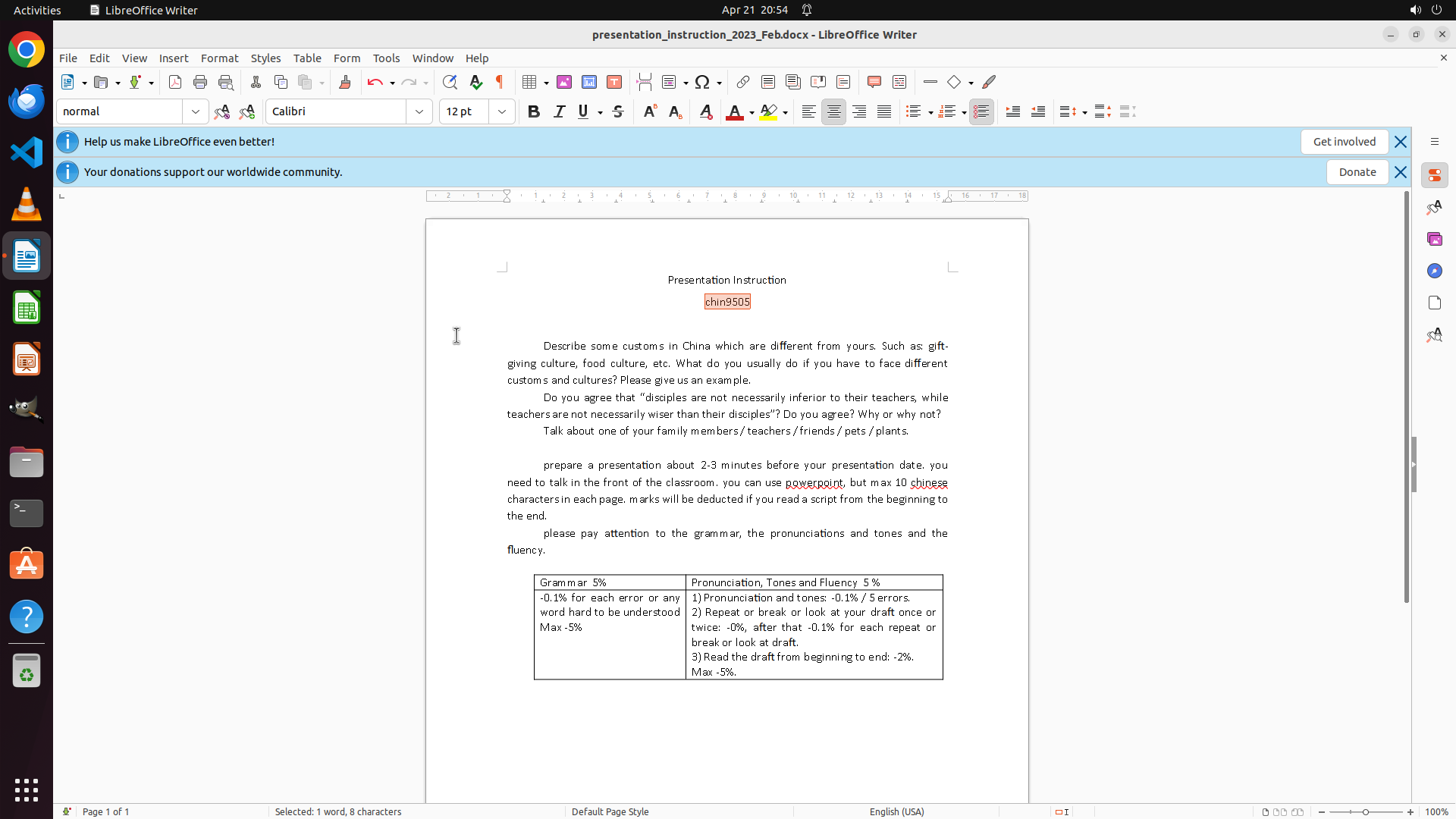
- "CHIN9505" has been successfully selected (highlighted in orange/red)
- The status bar shows "Selected: 1 word, 8 characters" confirming the selection
- The instruction block below is now in lowercase (I can see "prepare a presentation about 2-3 minutes..." in lowercase)
- Now I need to convert "CHIN9505" to lowercase using Format > Text > lowercase
#### 情况分析与思考过程
The previous action successfully selected "CHIN9505". Now I need to convert it to lowercase using the same process I used for the instruction block:
1. Click on Format menu
2. Navigate to Text > lowercase
3. Then save the document with Ctrl+S
The logical next action is to click on the Format menu to access the text case conversion options.
```
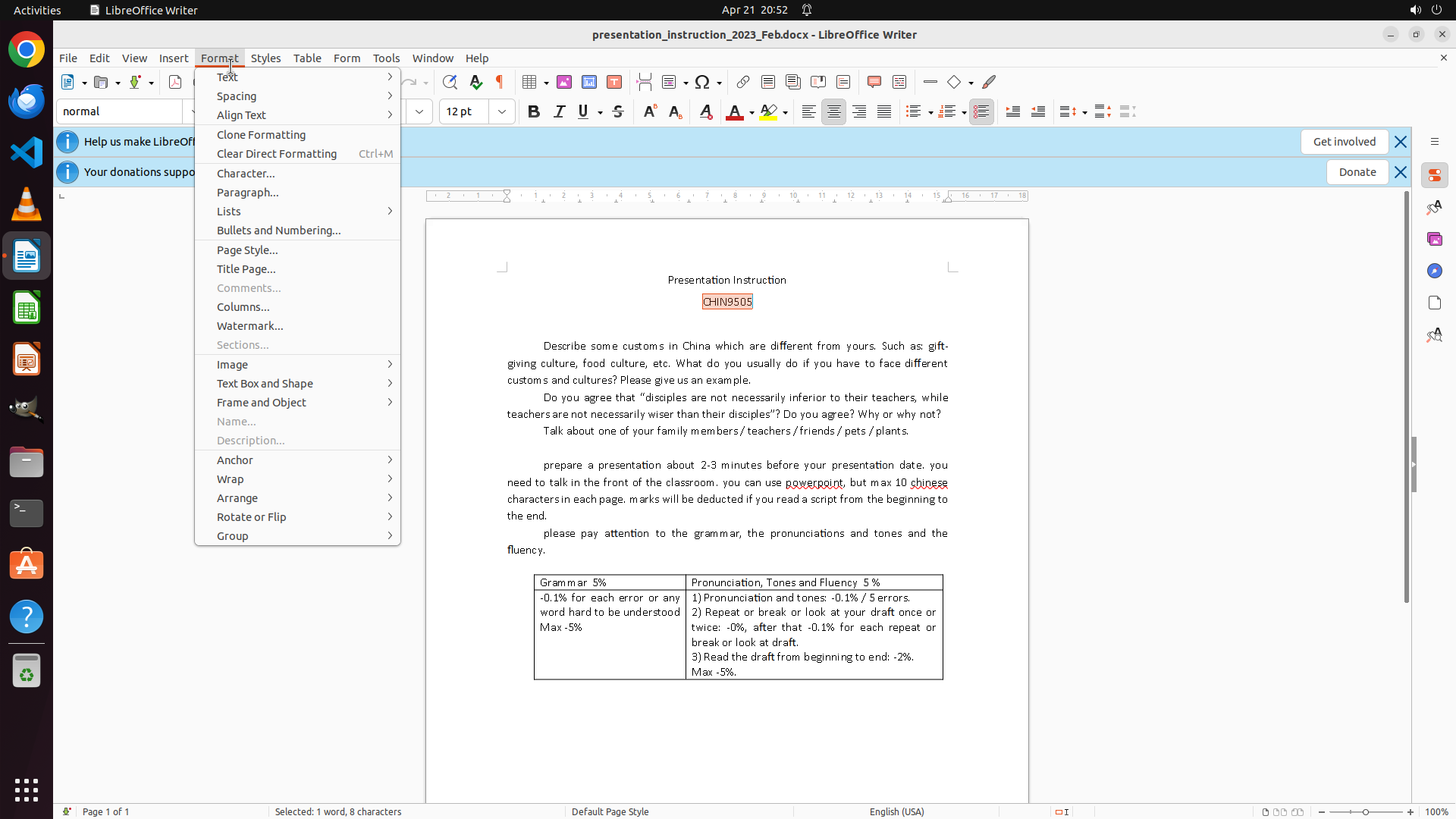
Step 7: CLICK (298, 96)
```
#### 重要信息
- The Format menu is currently open
- "CHIN9505" is still selected (highlighted in orange/red)
- The status bar shows "Selected: 1 word, 8 characters" confirming the selection
- The instruction block below has already been converted to lowercase (visible as "prepare a presentation about 2-3 minutes...")
- I can see the "Text" option in the Format menu with an arrow indicating a submenu
- After converting "CHIN9505" to lowercase, I'll need to save the document
#### 情况分析与思考过程
The previous action opened the Format menu. Now I need to navigate to the Text submenu to access the lowercase conversion option for the selected "CHIN9505" text.
My plan to complete the task:
1. Click on "Text" in the Format menu to open its submenu
2. Click on "lowercase" to convert "CHIN9505" to lowercase
3. Save the document with Ctrl+S
The logical next action is to click on "Text" in the Format menu to access the text case conversion options.
```
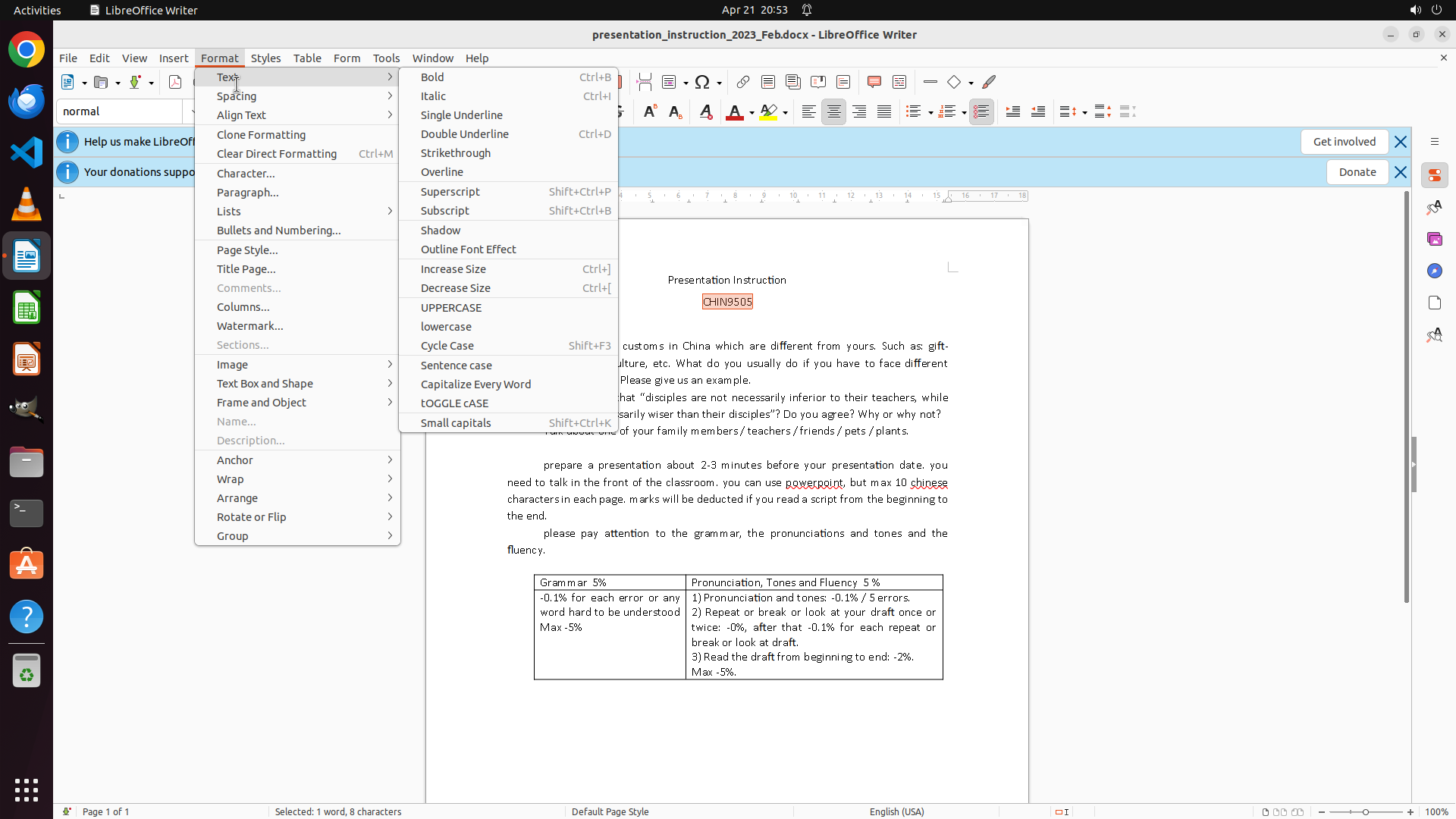
Step 8: CLICK (588, 427)
```
#### 重要信息
- The Text submenu is now open showing various text case options
- I can see the "lowercase" option in the submenu at around coordinate (0.306, 0.395)
- "CHIN9505" is still selected (highlighted in orange/red)
- The status bar shows "Selected: 1 word, 8 characters" confirming the selection
- The instruction block below has already been converted to lowercase
#### 情况分析与思考过程
The previous action opened the Text submenu. Now I can see the "lowercase" option which I need to click to convert the selected "CHIN9505" to lowercase.
My plan to complete the task:
1. Click on "lowercase" to convert "CHIN9505" to lowercase
2. Save the document with Ctrl+S
The logical next action is to click on the "lowercase" option in the Text submenu. This will convert the selected "CHIN9505" to "chin9505", completing the text conversion part of the task.
```
Step 9: HOTKEY
```
#### 重要信息
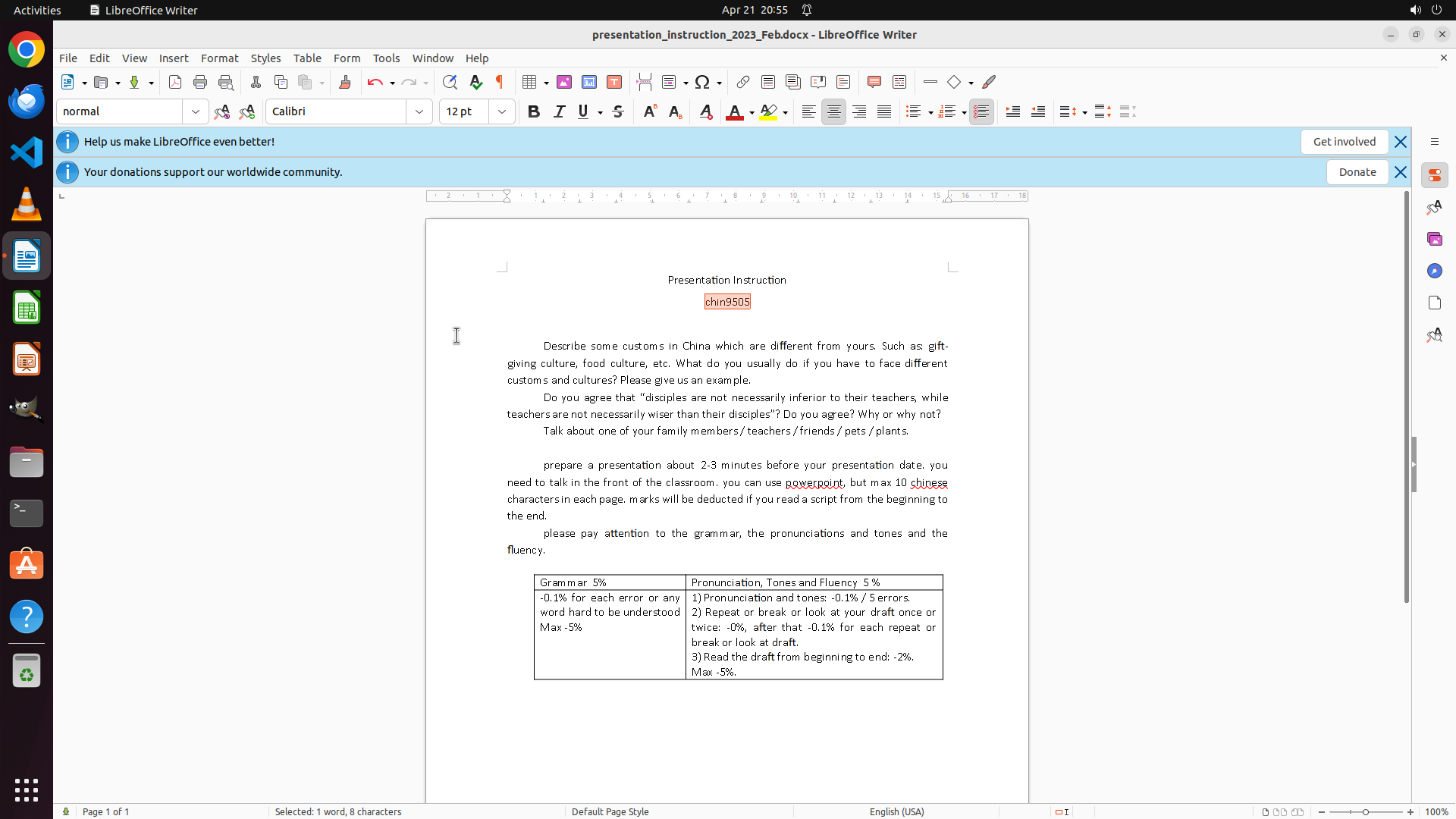
- The text conversion is complete - I can see "chin9505" is now displayed in lowercase (previously "CHIN9505")
- The instruction block that started with "PREPARE A PRESENTATION..." is now in lowercase format ("prepare a presentation...")
- The status bar shows "Selected: 1 word, 8 characters" indicating "chin9505" is still selected
- The document title is "presentation_instruction_2023_Feb.docx - LibreOffice Writer"
- All uppercase text has been successfully converted to lowercase
#### 情况分析与思考过程
The previous action successfully converted "CHIN9505" to "chin9505". Now all the uppercase text in the document has been converted to lowercase:
1. ✓ The instruction block has been converted to lowercase
2. ✓ "CHIN9505" has been converted to "chin9505"
The only remaining step is to save the document. According to the strategy tree and the tips, I should save the file using Ctrl+S to preserve the changes.
The logical next action is to press Ctrl+S to save the document. This will complete the entire task.
```
Step 10: CLICK (960, 600)
```
#### 重要信息
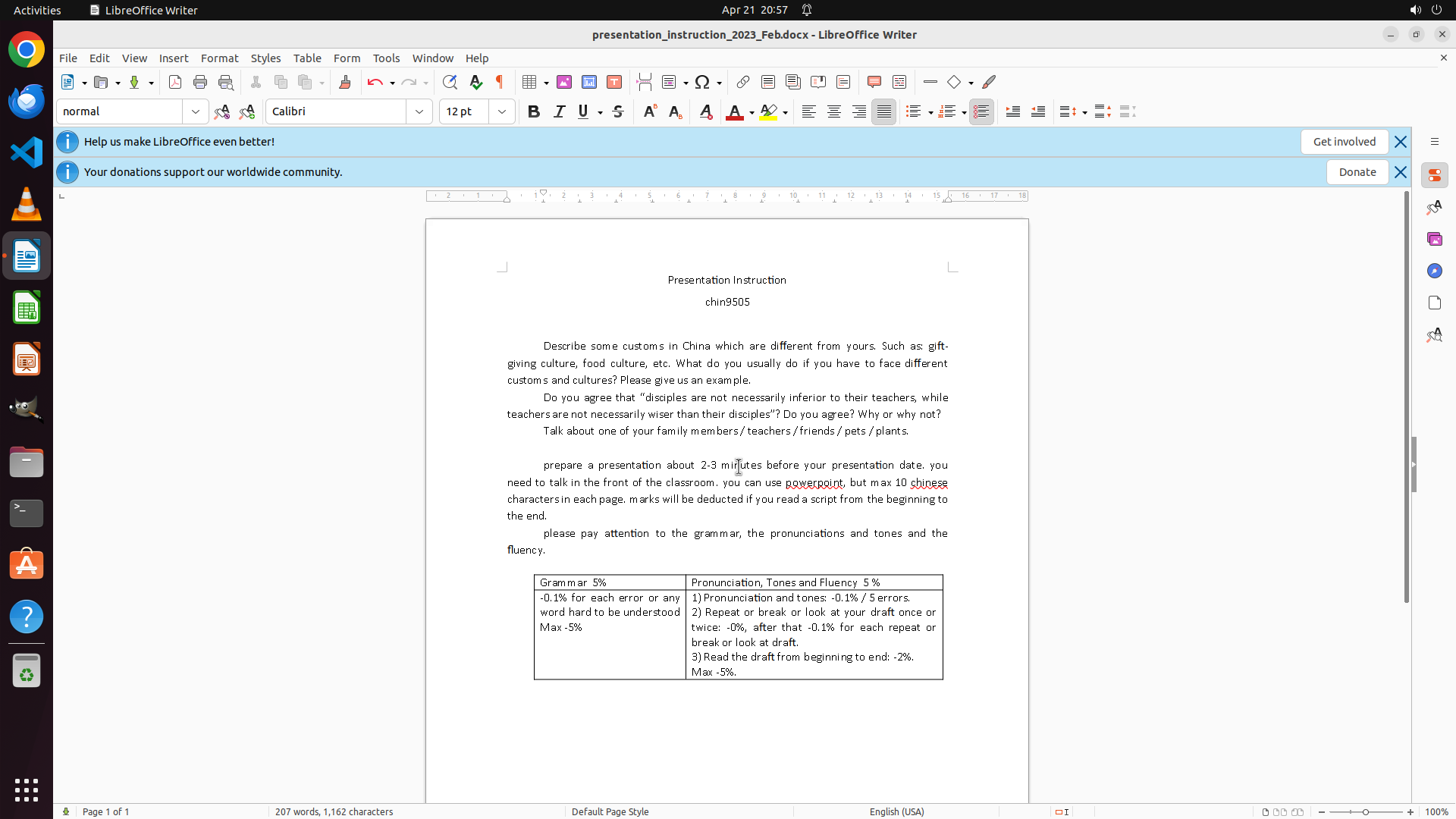
- The document has been saved successfully - the title bar shows "presentation_instruction_2023_Feb.docx - LibreOffice Writer" with no modification indicator
- All uppercase text has been converted to lowercase:
- "chin9505" is now displayed in lowercase (previously "CHIN9505")
- The instruction block that started with "PREPARE A PRESENTATION..." is now in lowercase format
- The status bar still shows "Selected: 1 word, 8 characters" indicating "chin9505" is still selected
- The document shows "Page 1 of 1" confirming all content has been processed
#### 情况分析与思考过程
The task has been completed successfully:
1. ✓ All uppercase text sections have been identified and located
2. ✓ The uppercase instruction block has been converted to lowercase using Format > Text > lowercase
3. ✓ "CHIN9505" has been converted to "chin9505" using the same method
4. ✓ The document has been saved using Ctrl+S
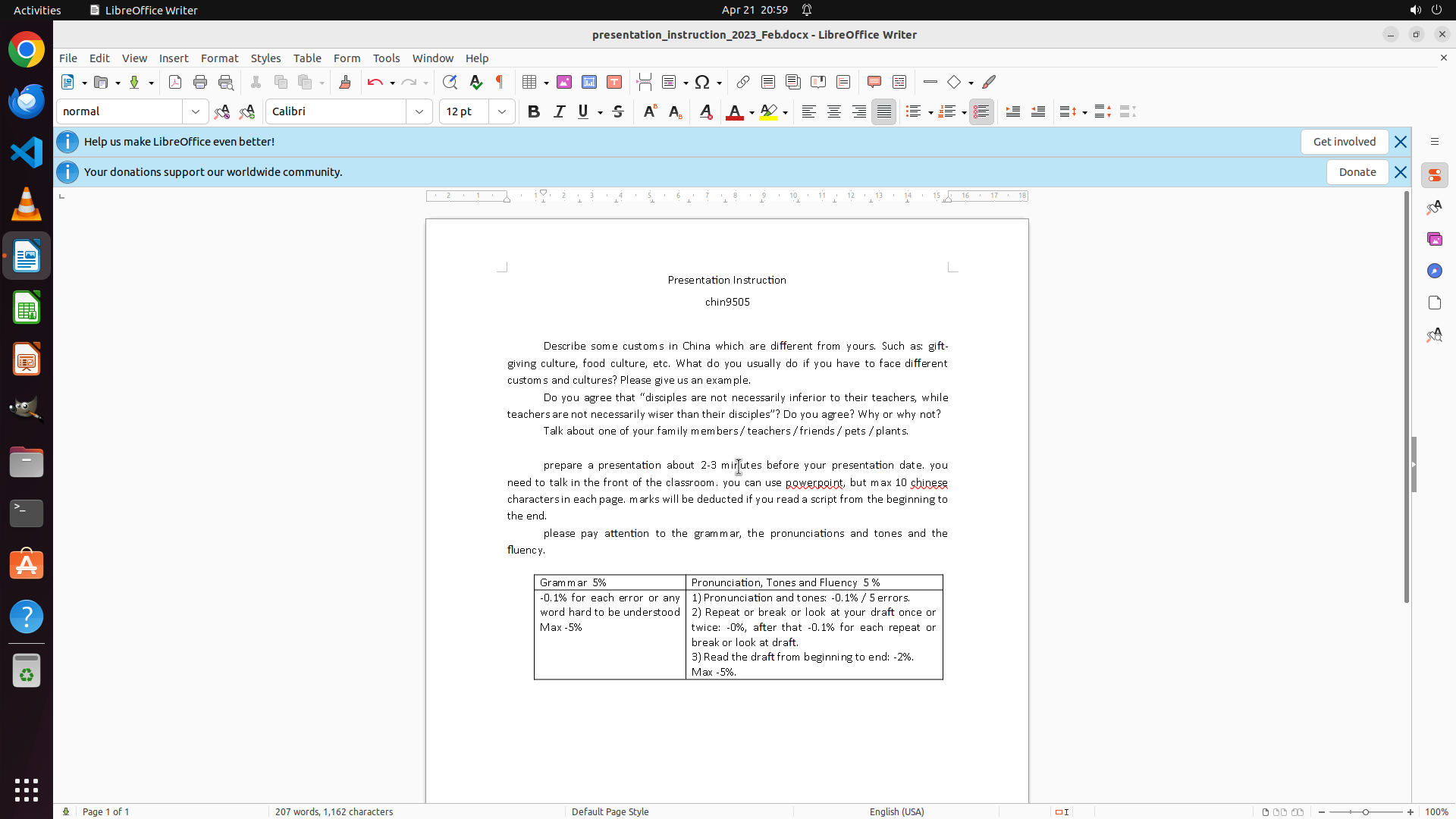
All the key visual evidence requirements have been met:
- The heading previously showing 'CHIN9505' now displays as 'chin9505' in lowercase
- The paragraph previously starting with 'PREPARE A PRESENTATION...' is now in lowercase format
- The document status bar shows 'Page 1 of 1' confirming all content on the single page has been processed
The task is now complete. I should click somewhere in the document to deselect the text and take a final screenshot to confirm the final state, then update the strategy tree to mark the task as successfully completed.
```