#### 重要信息
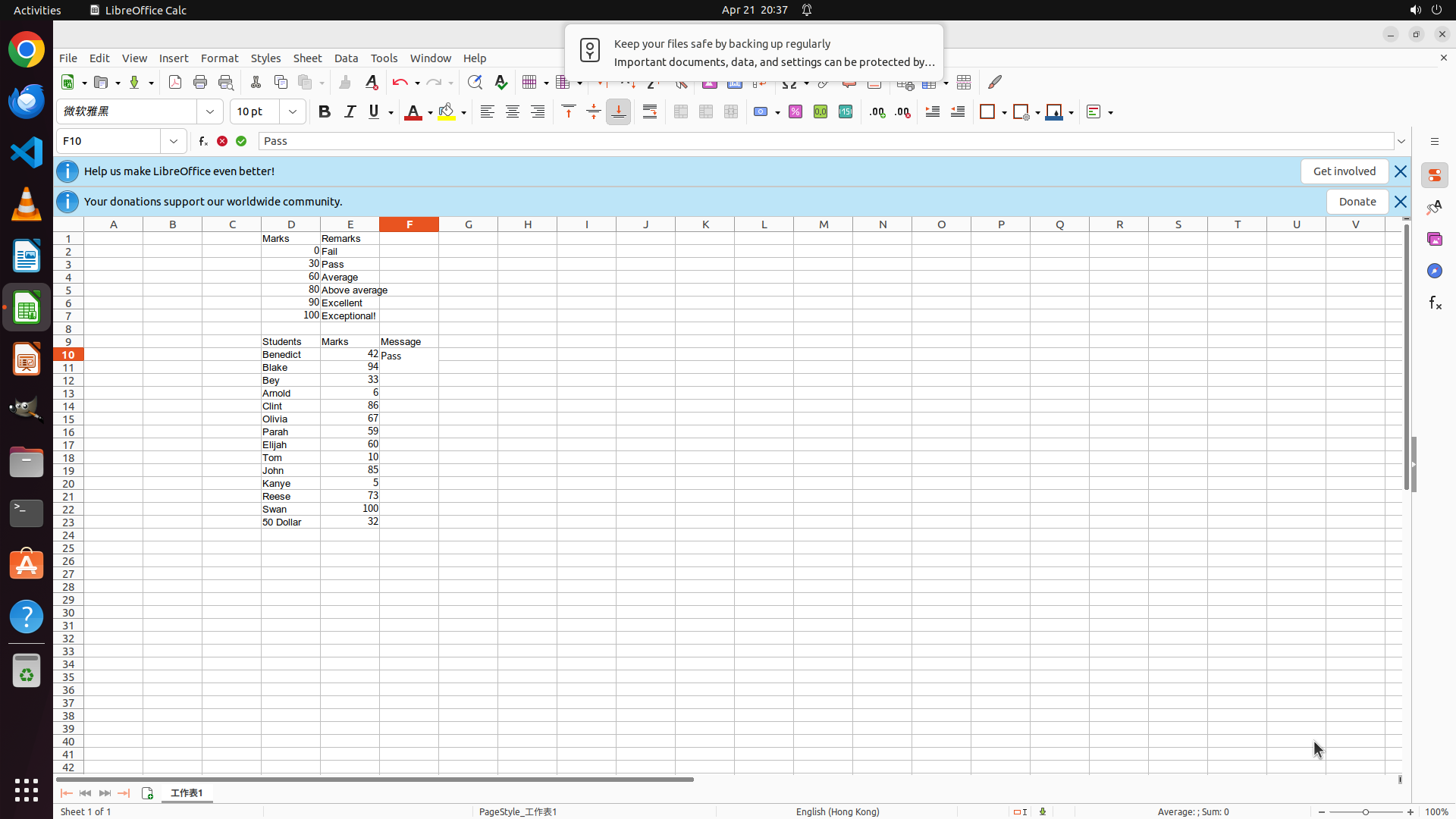
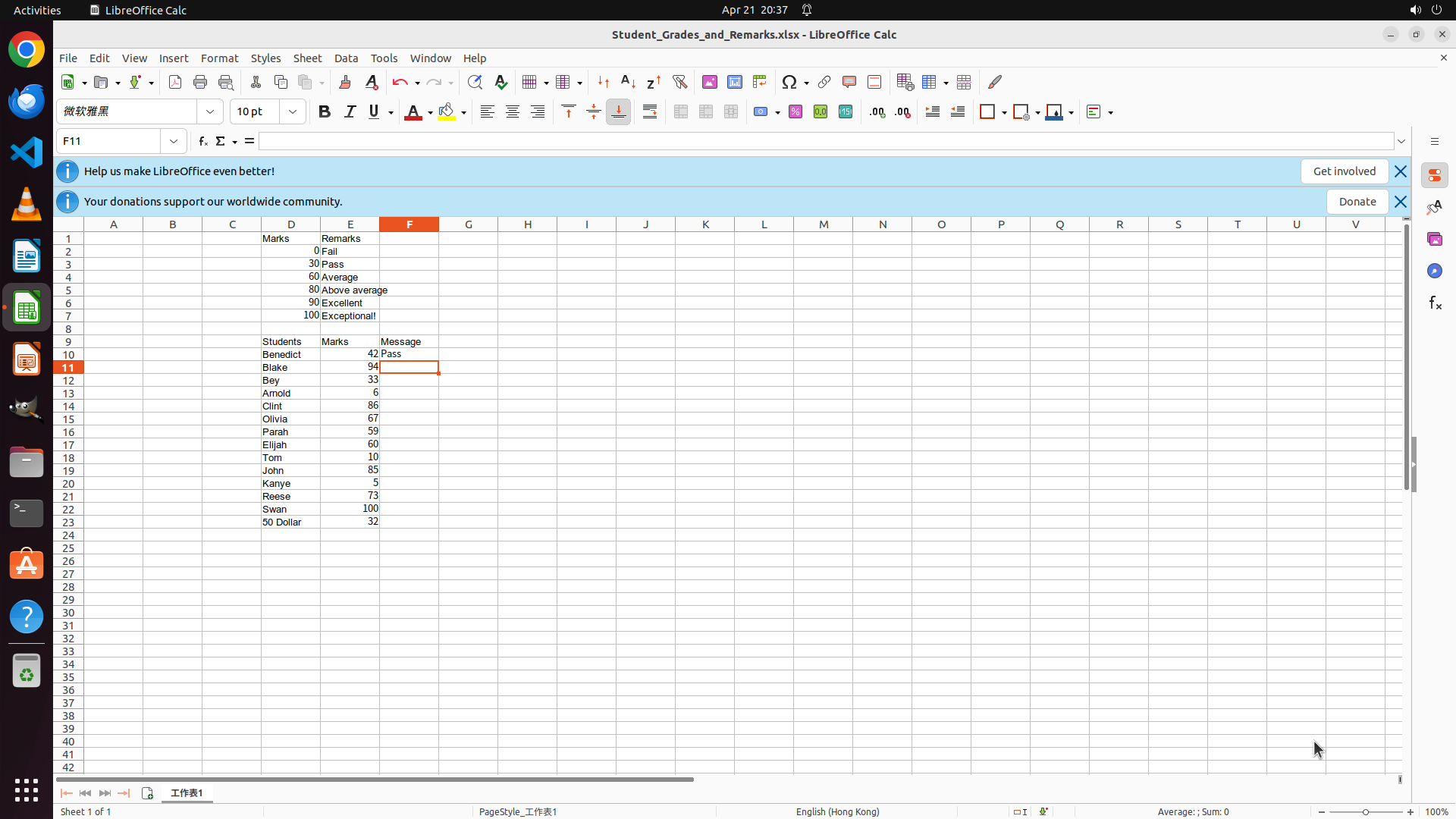
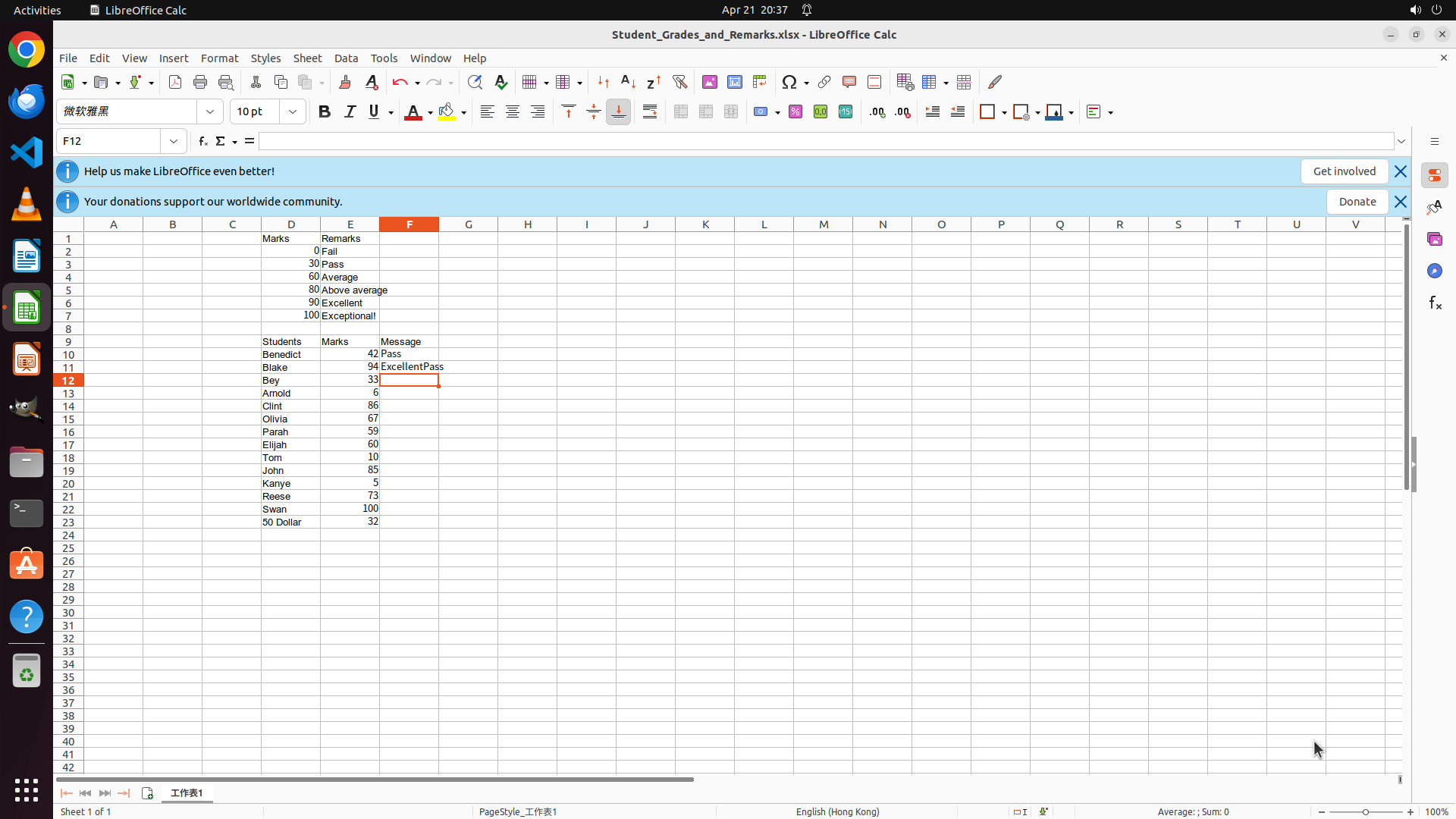
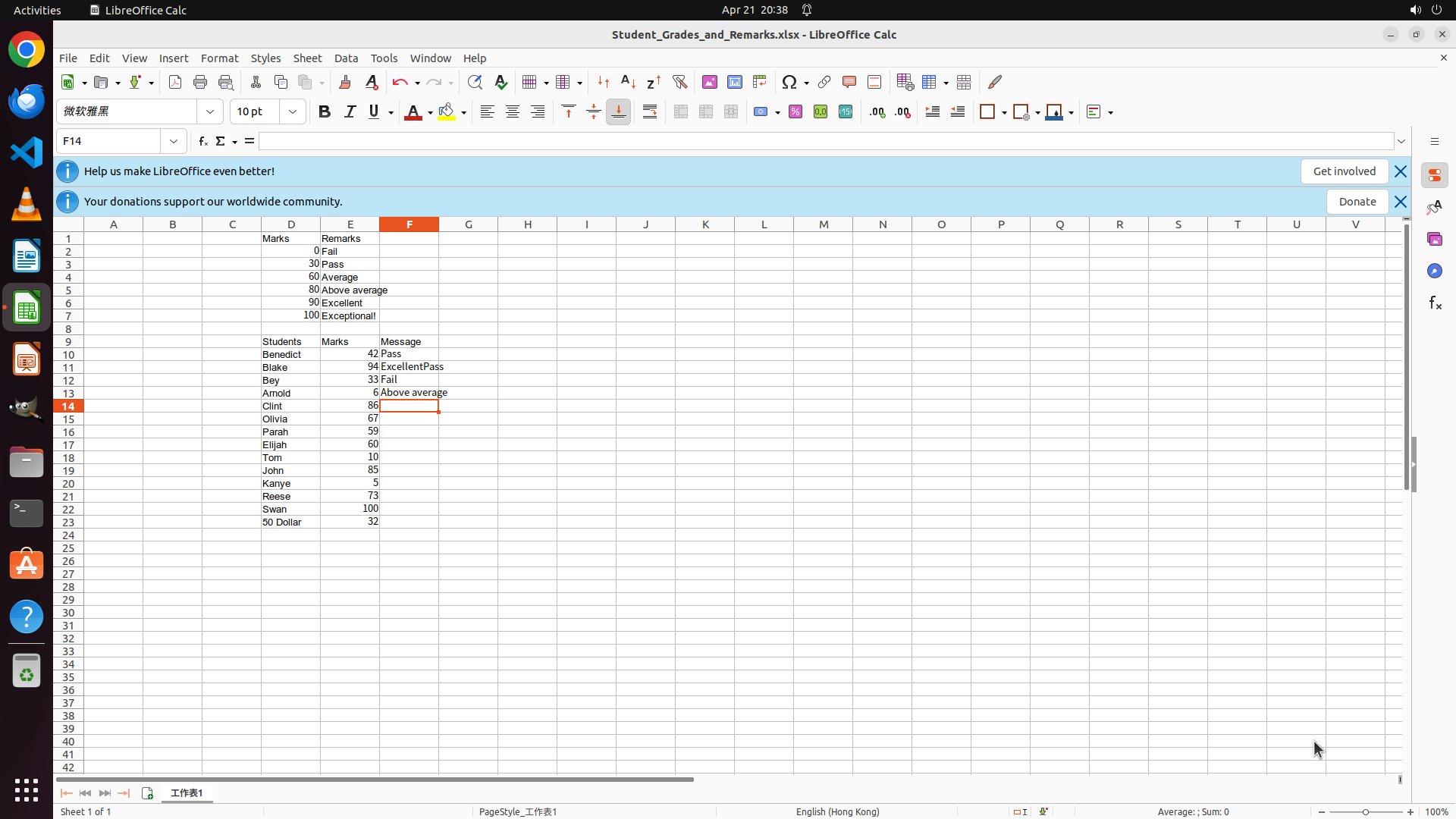
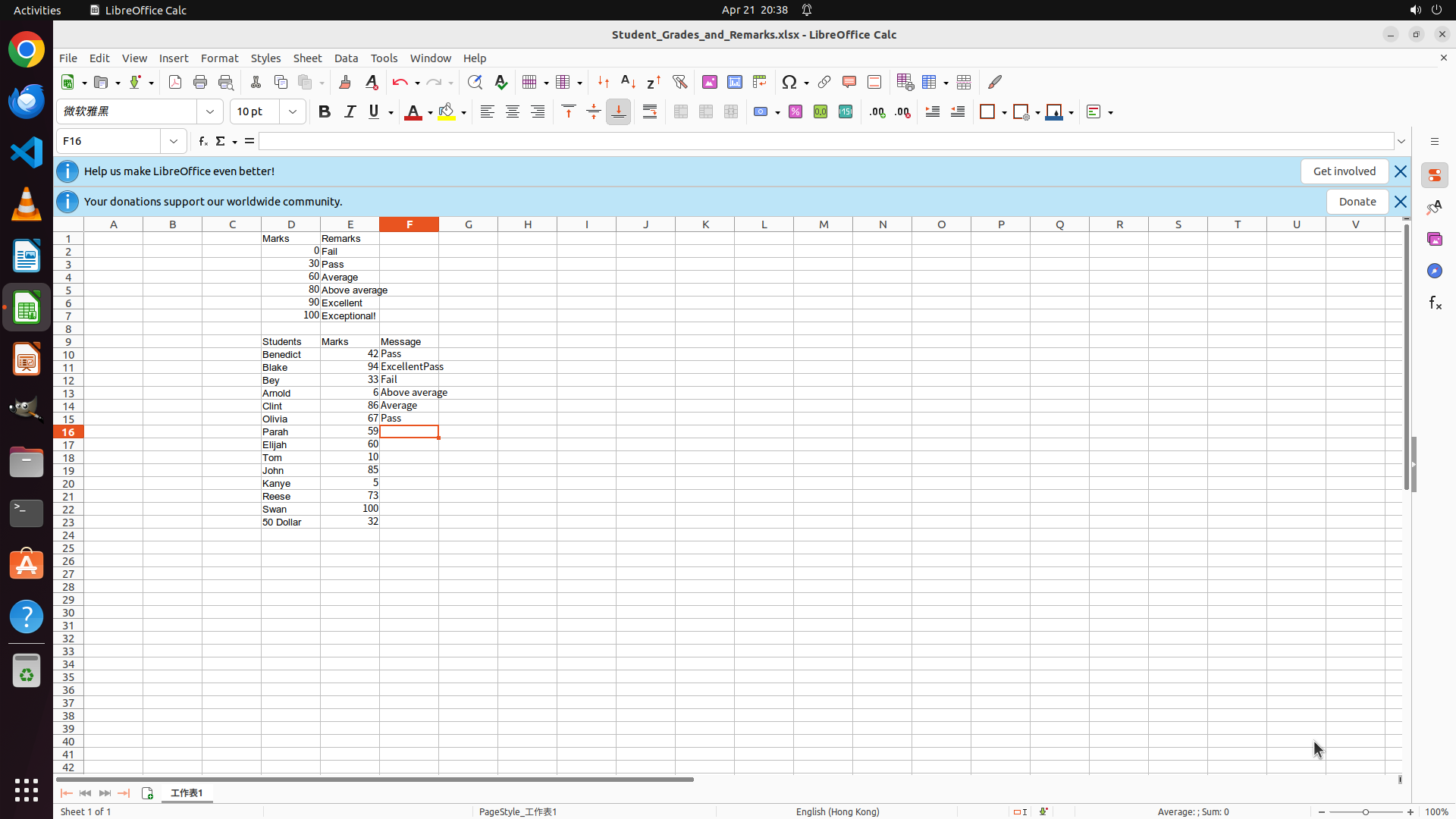
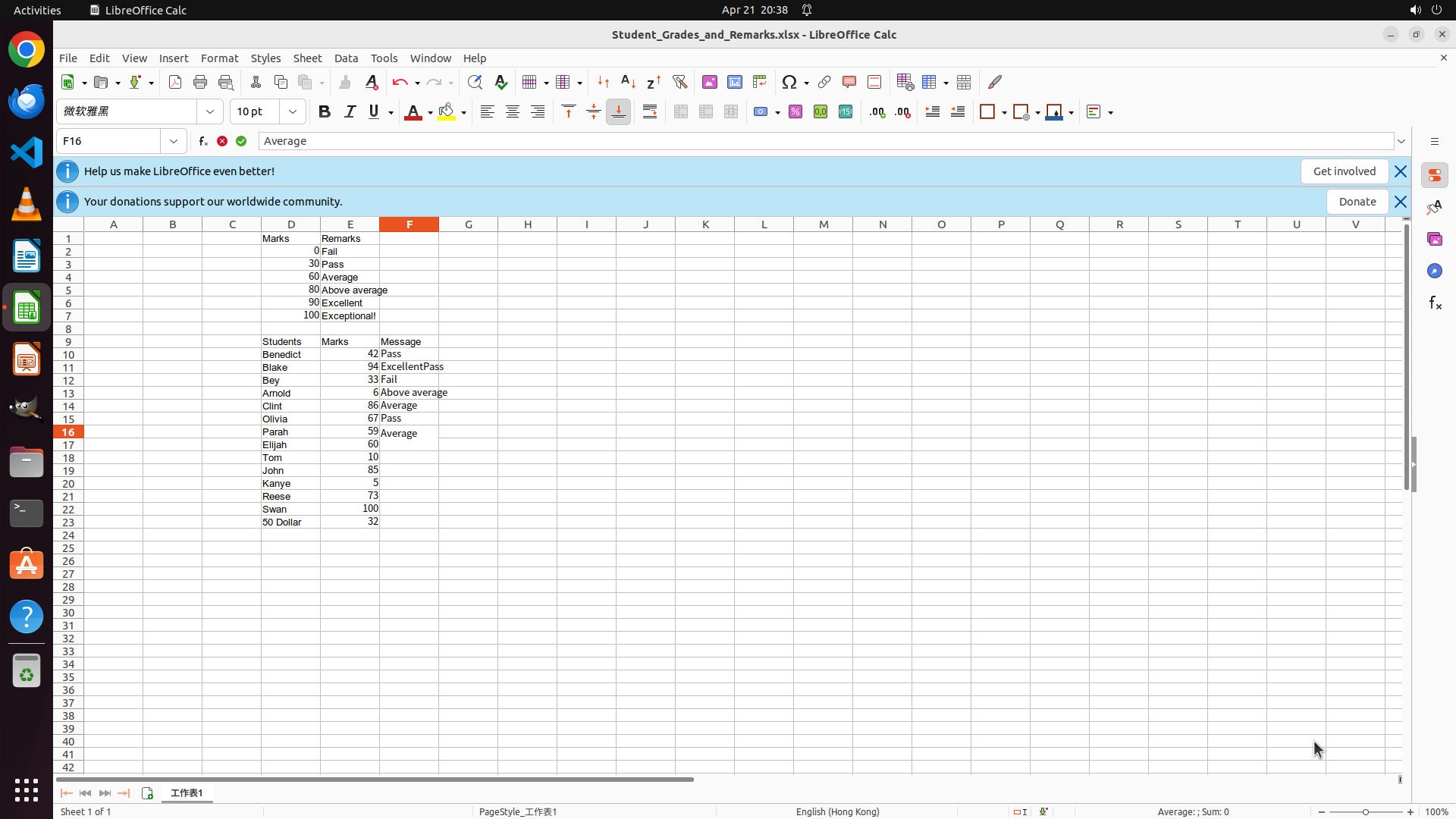
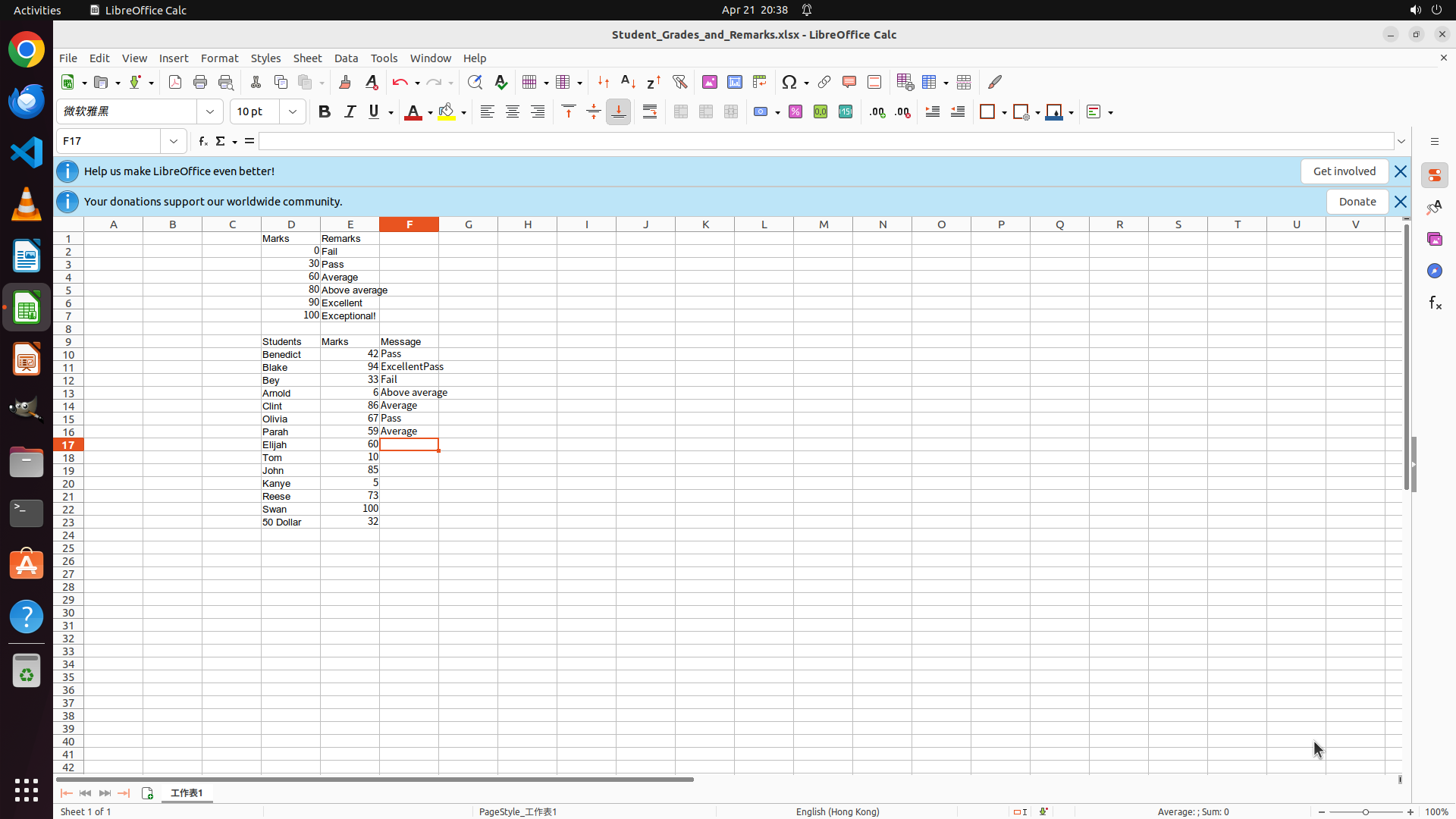
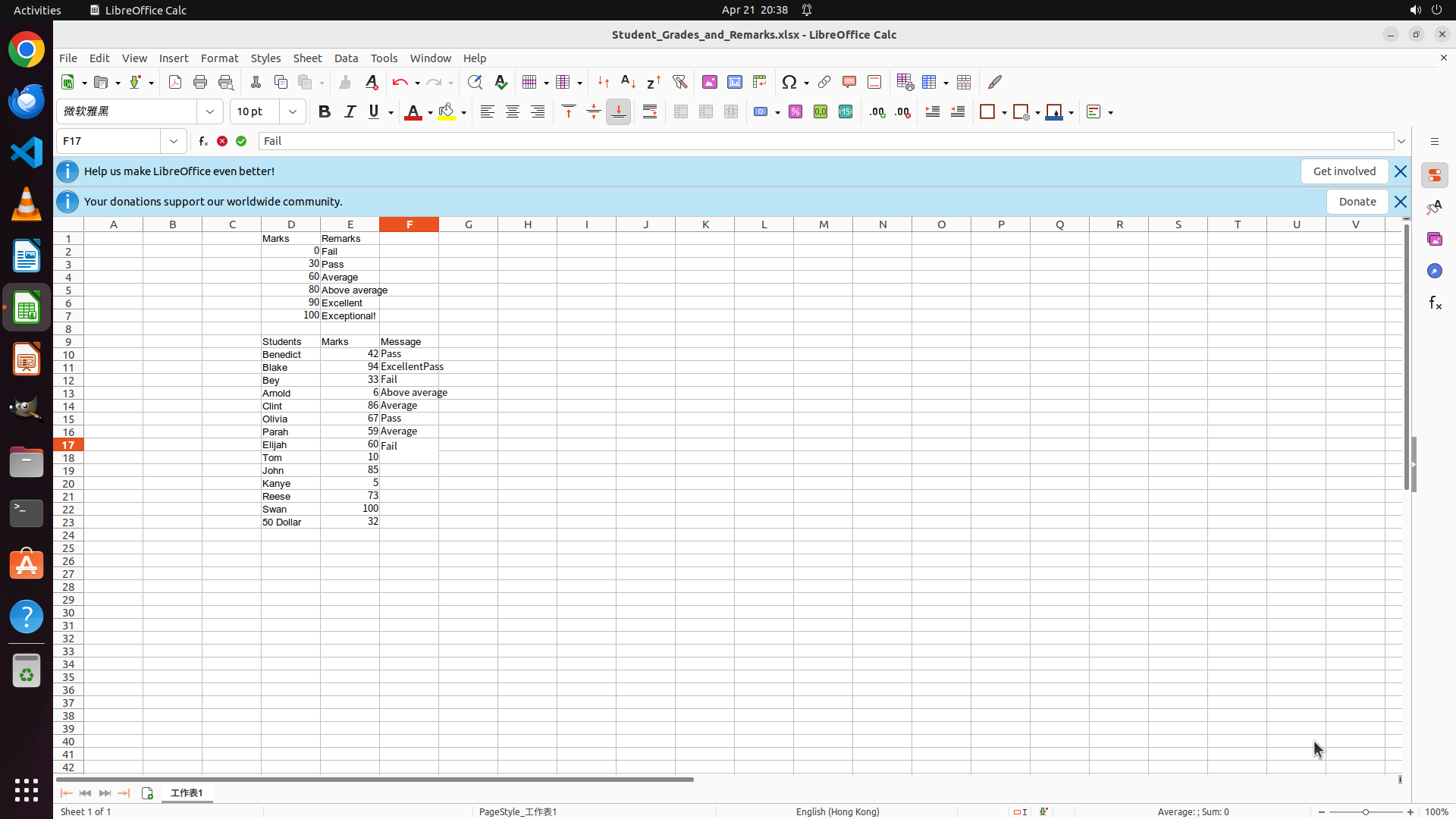
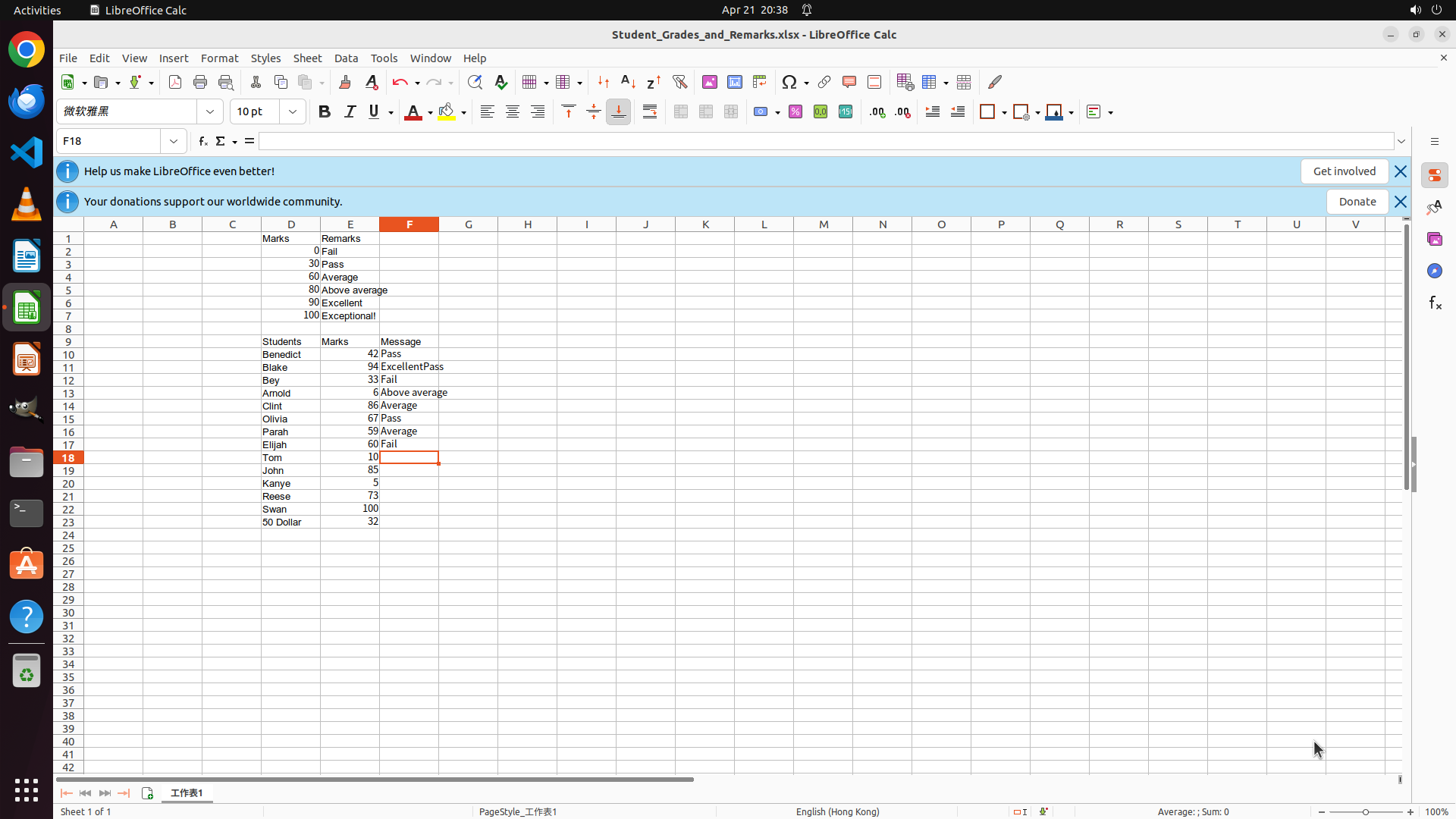
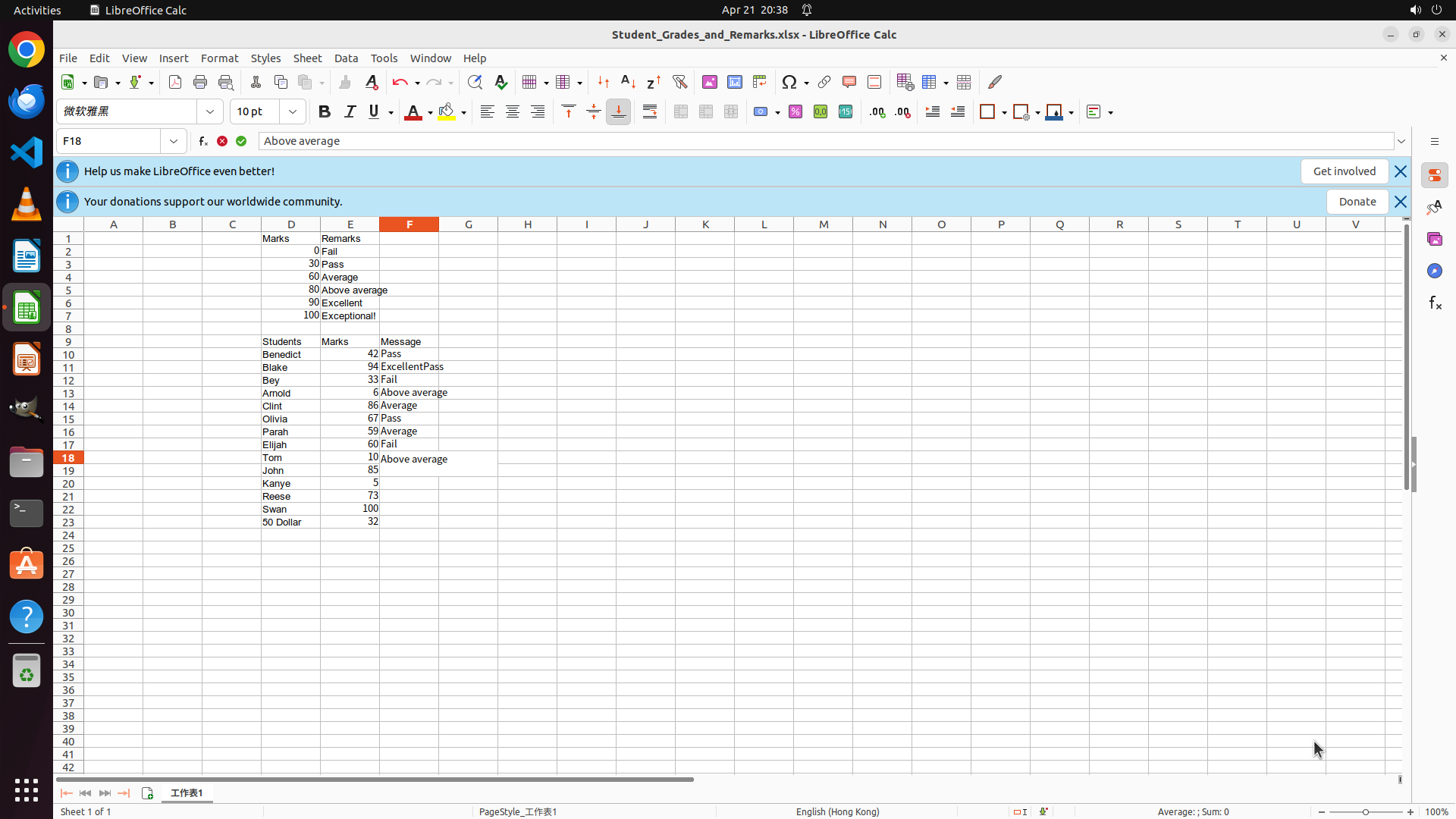
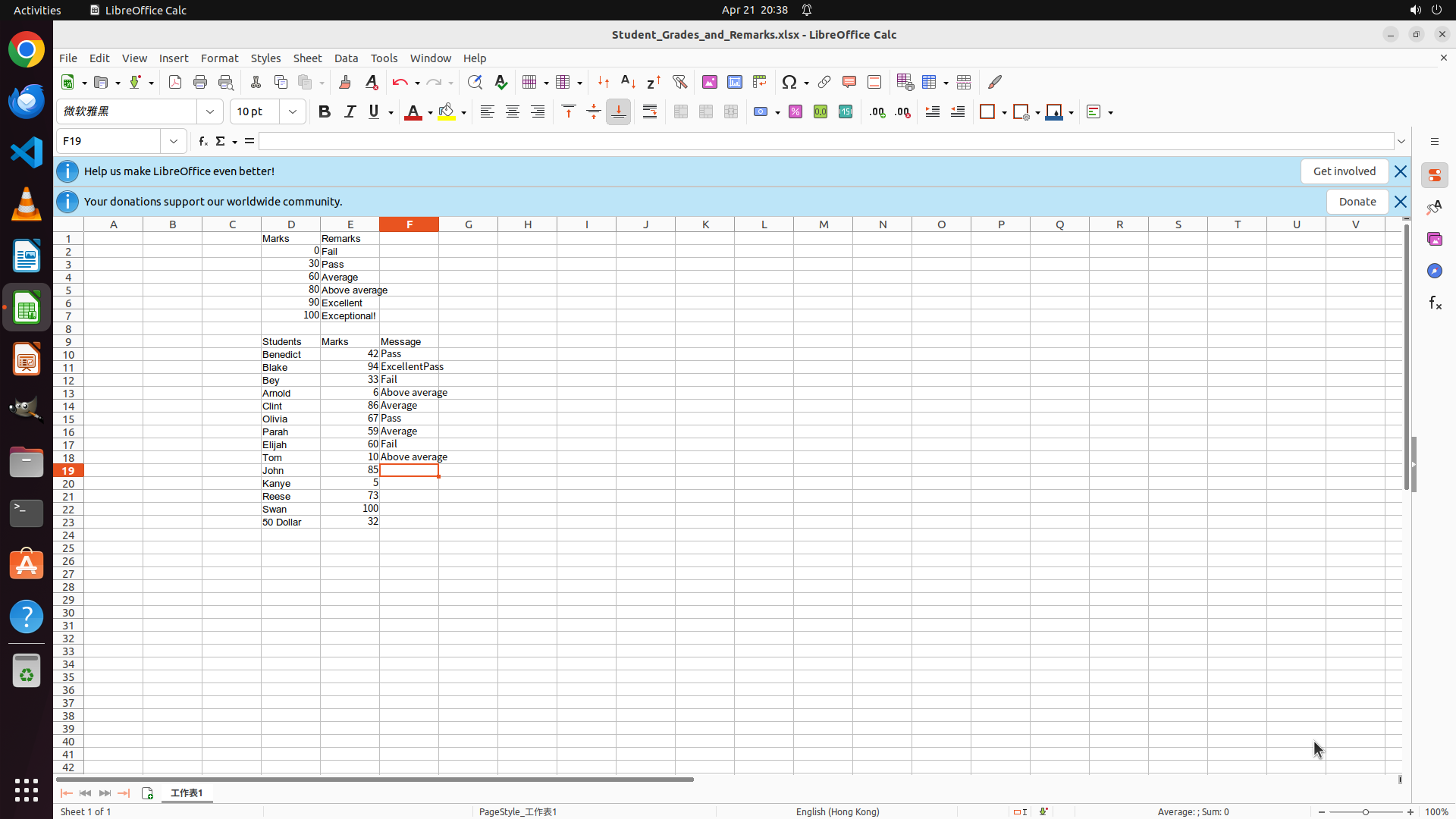
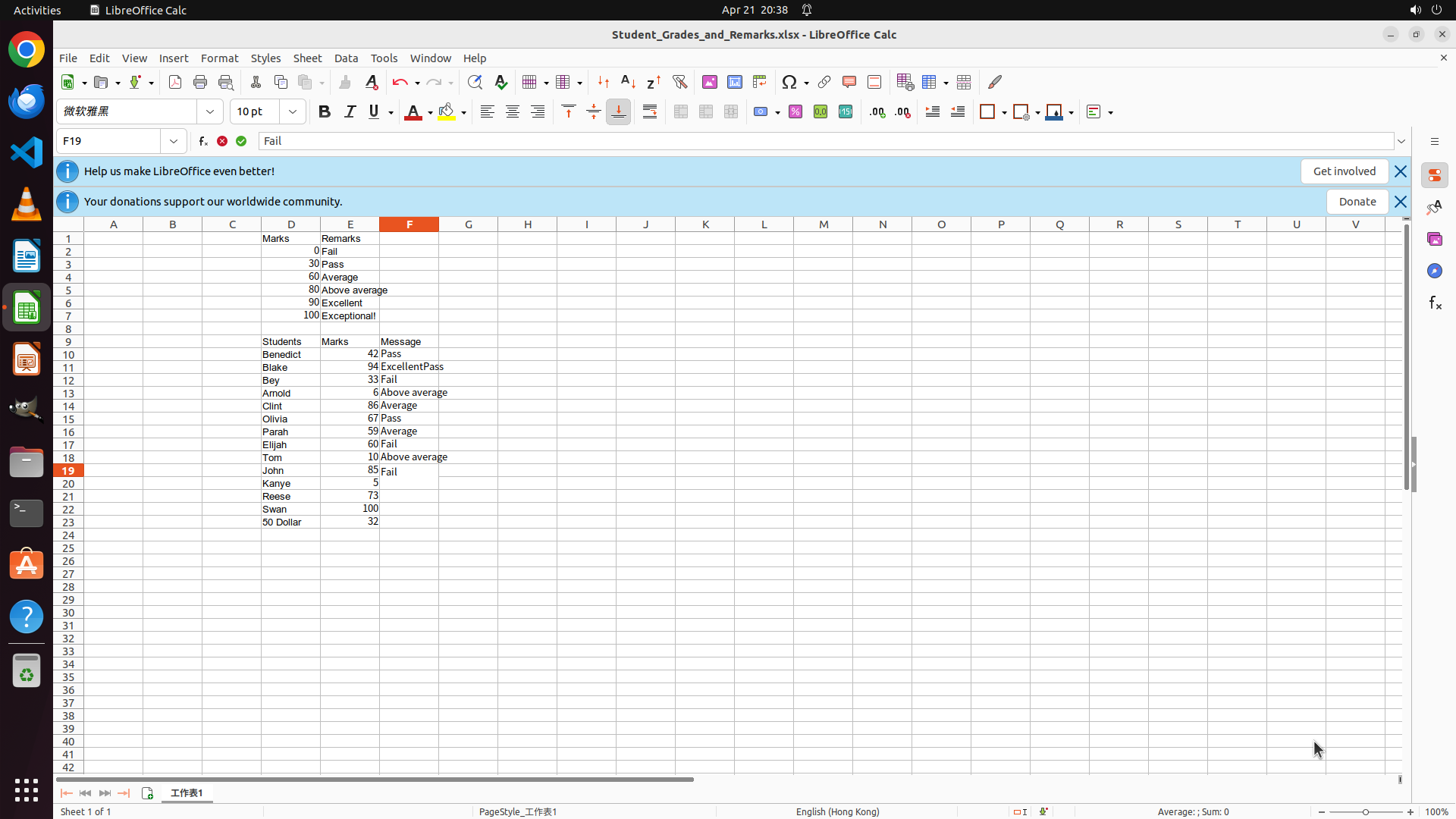
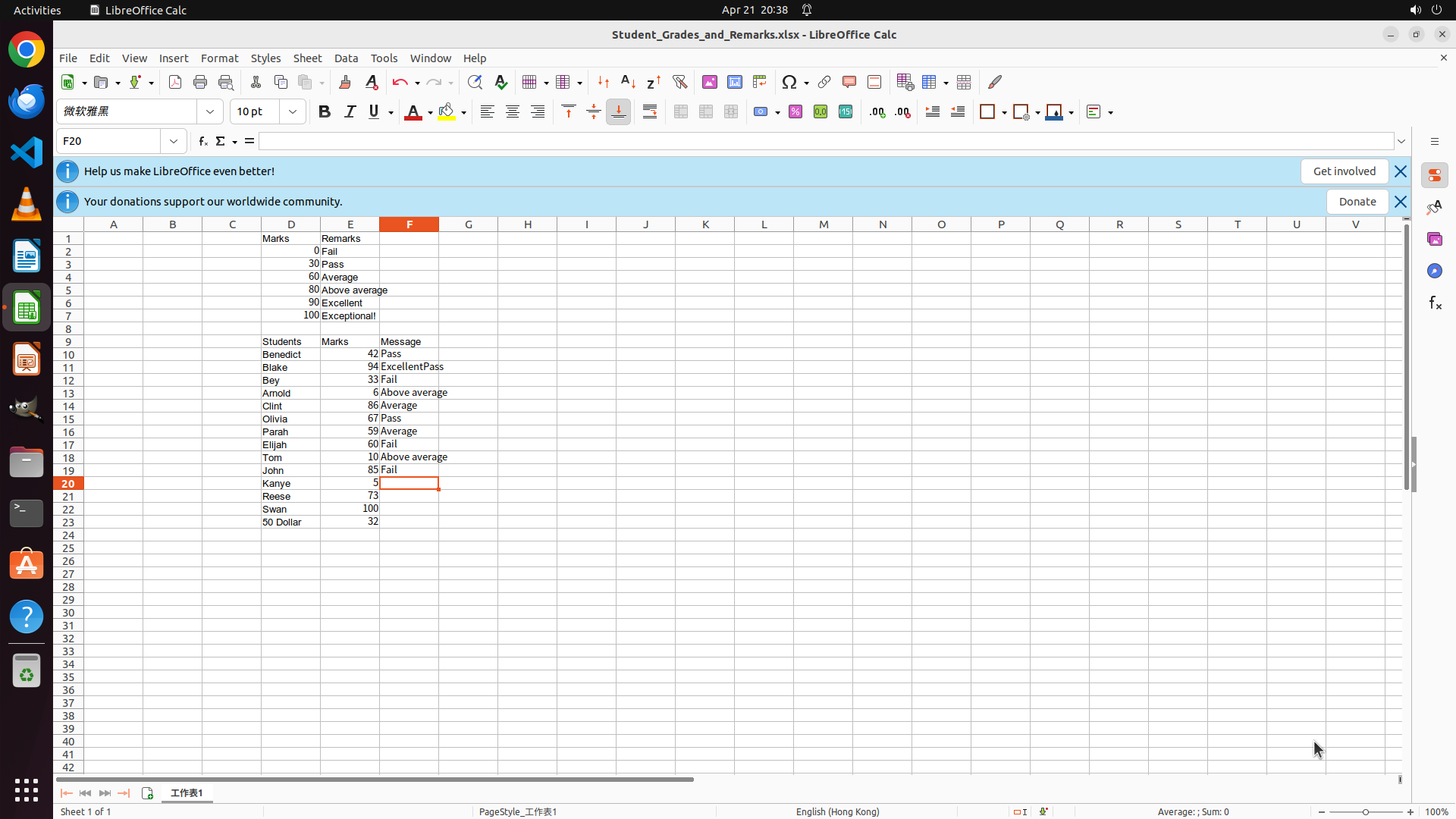
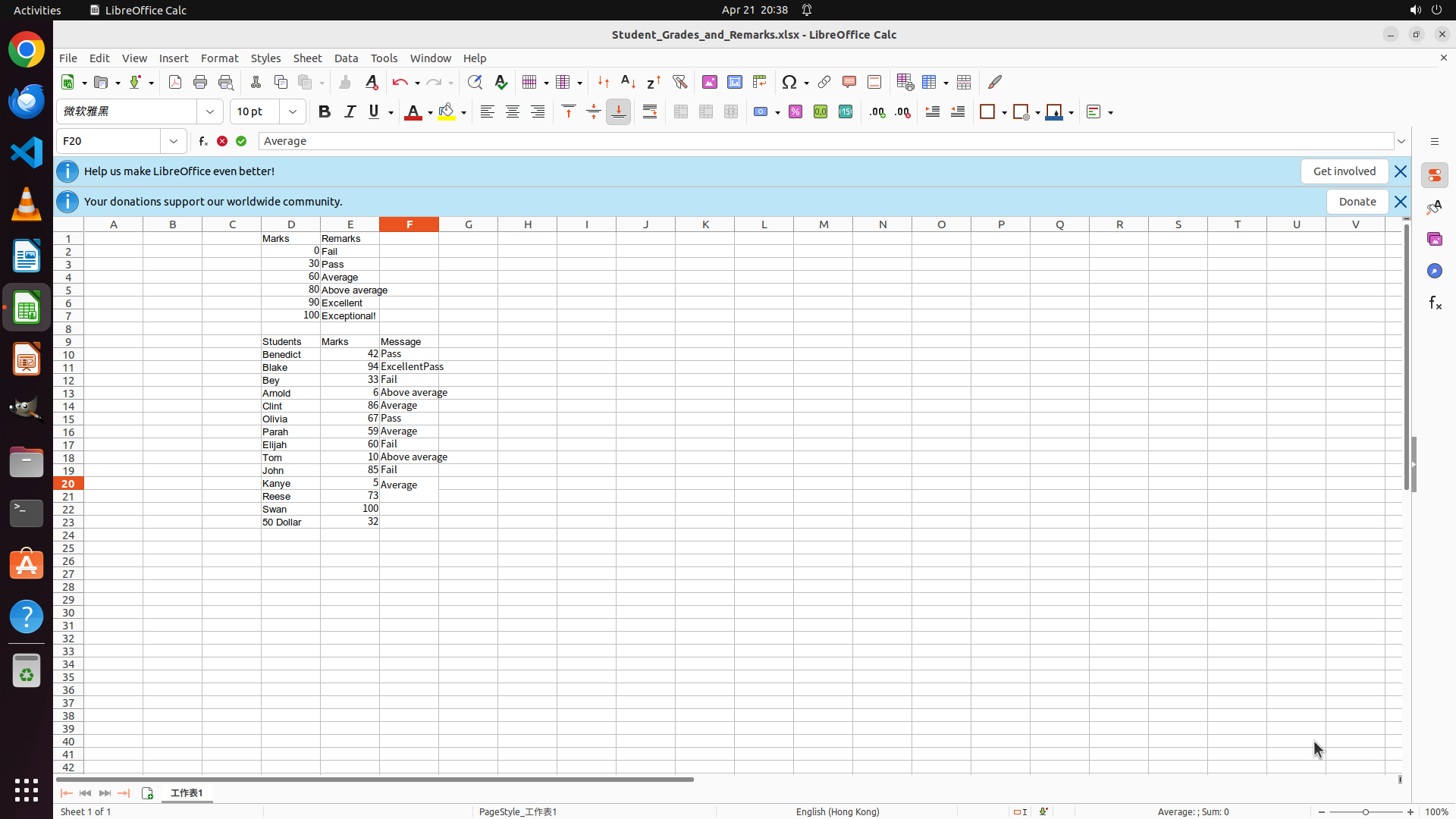
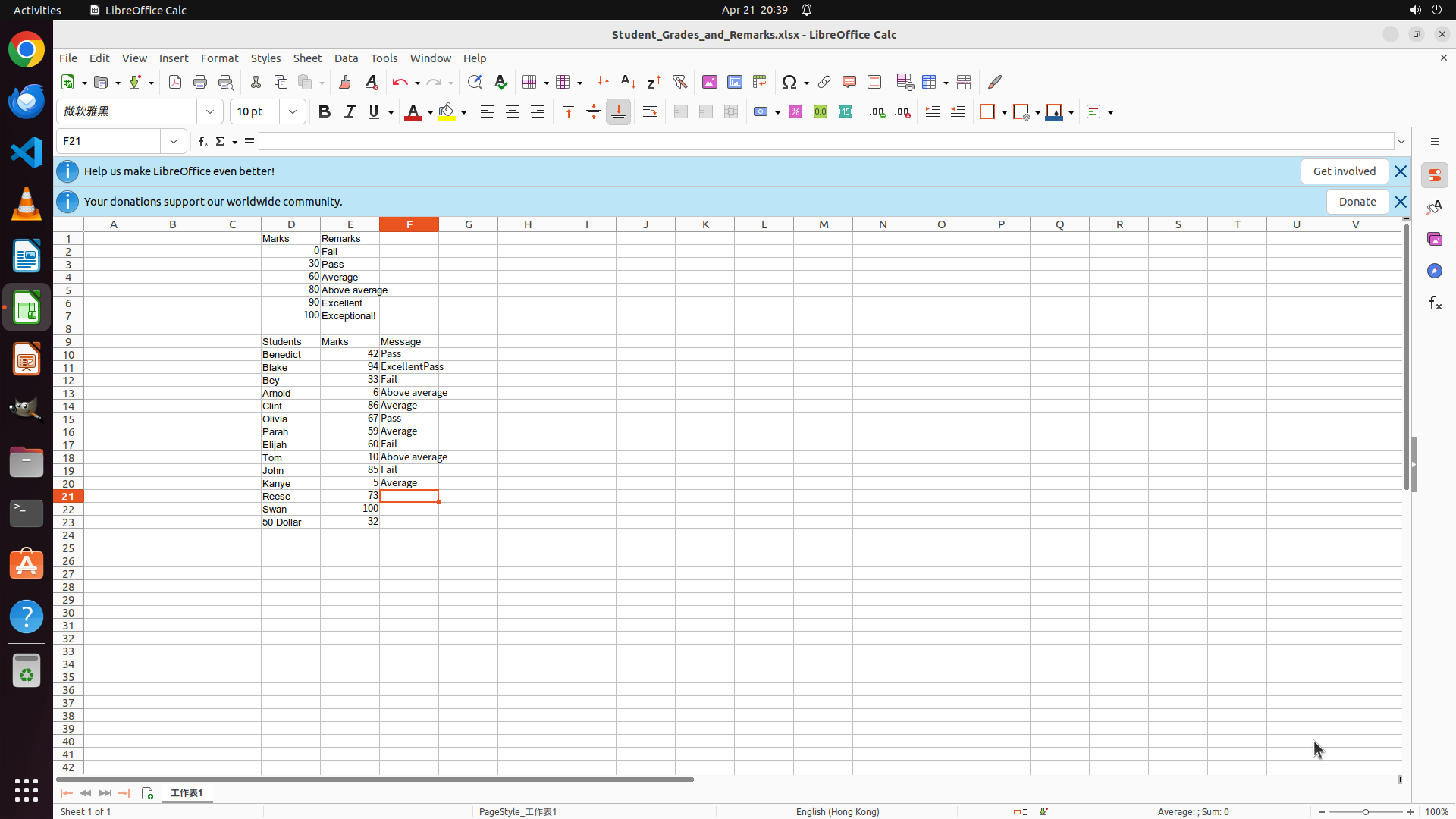
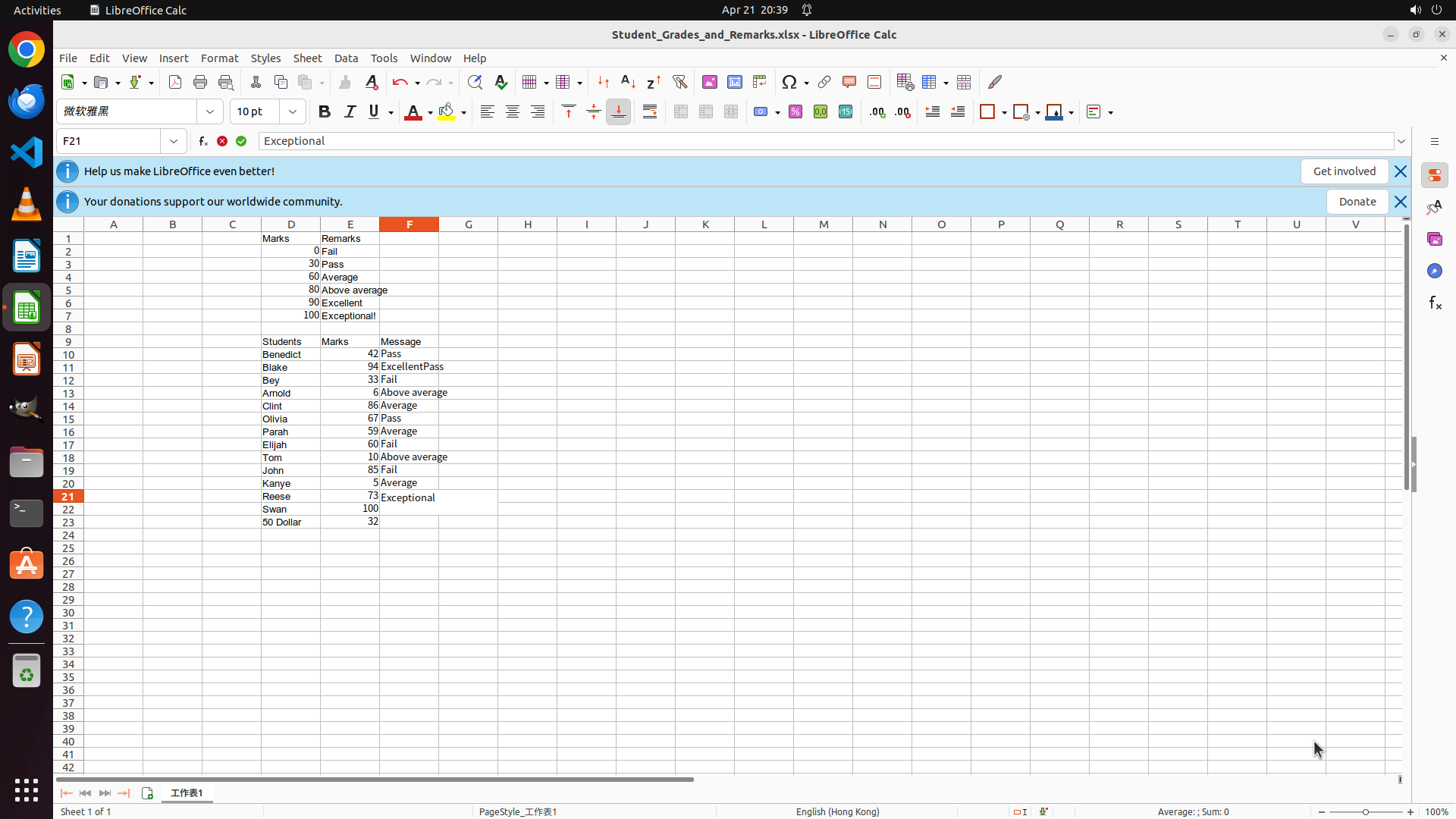
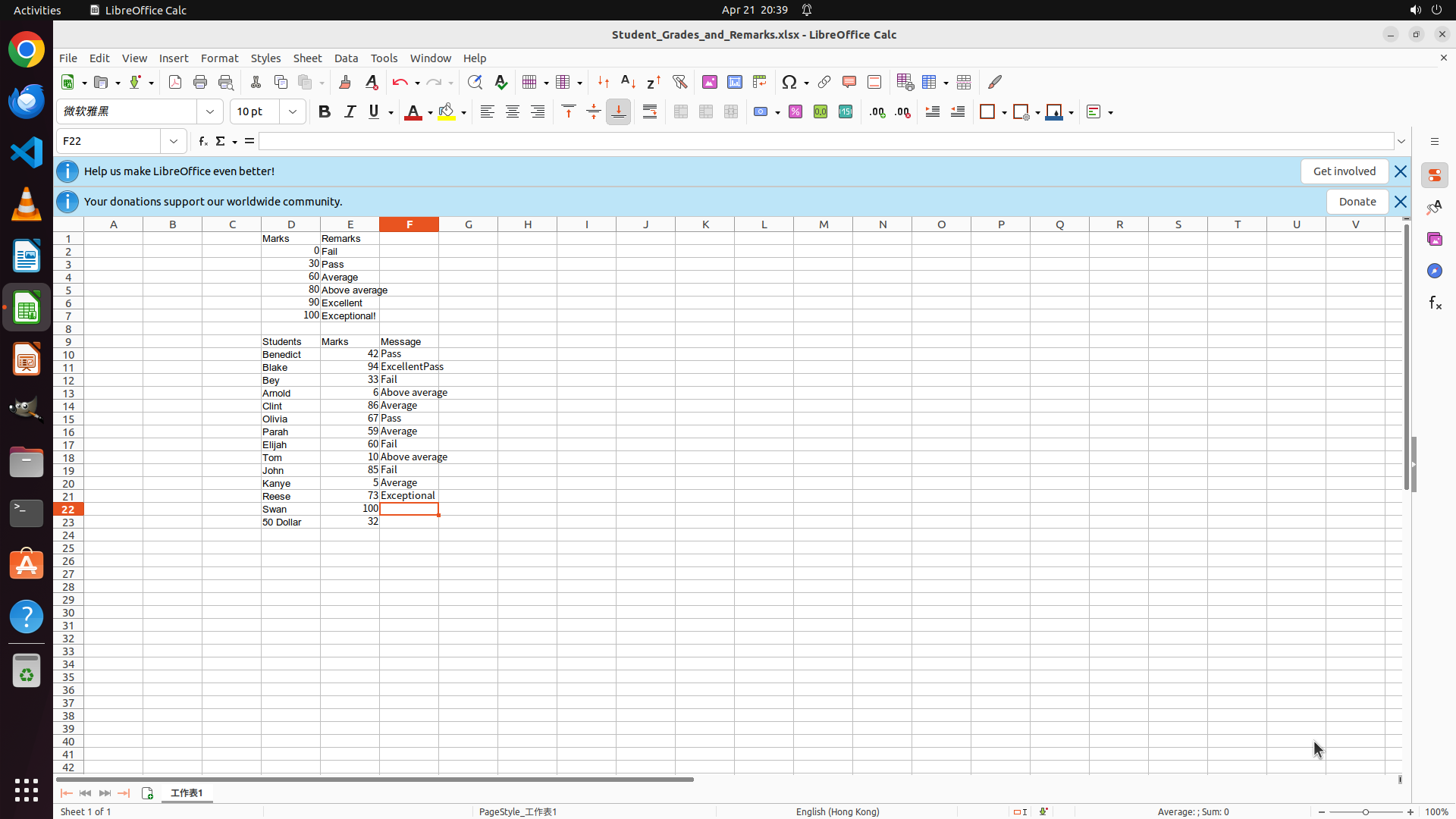
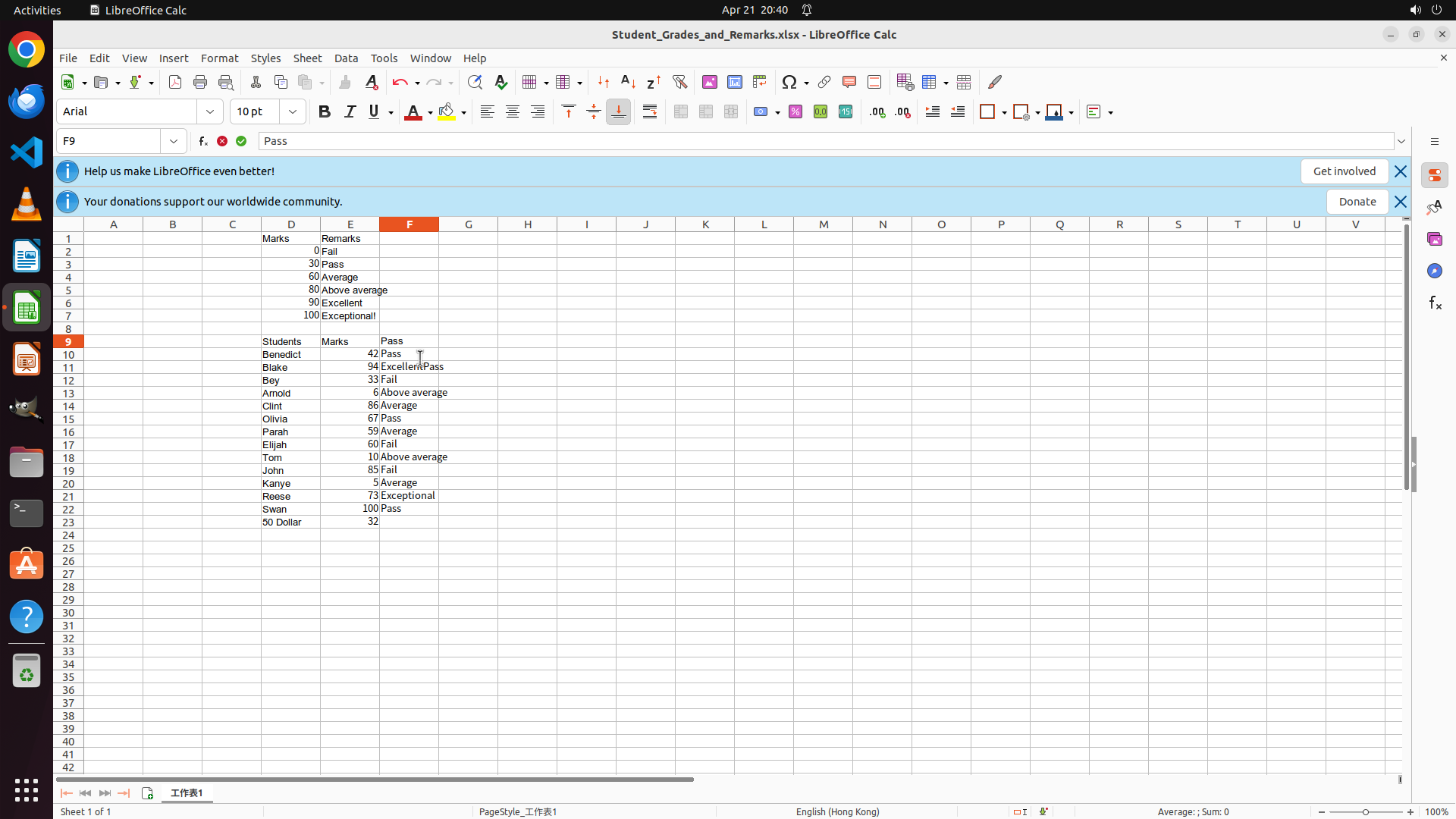
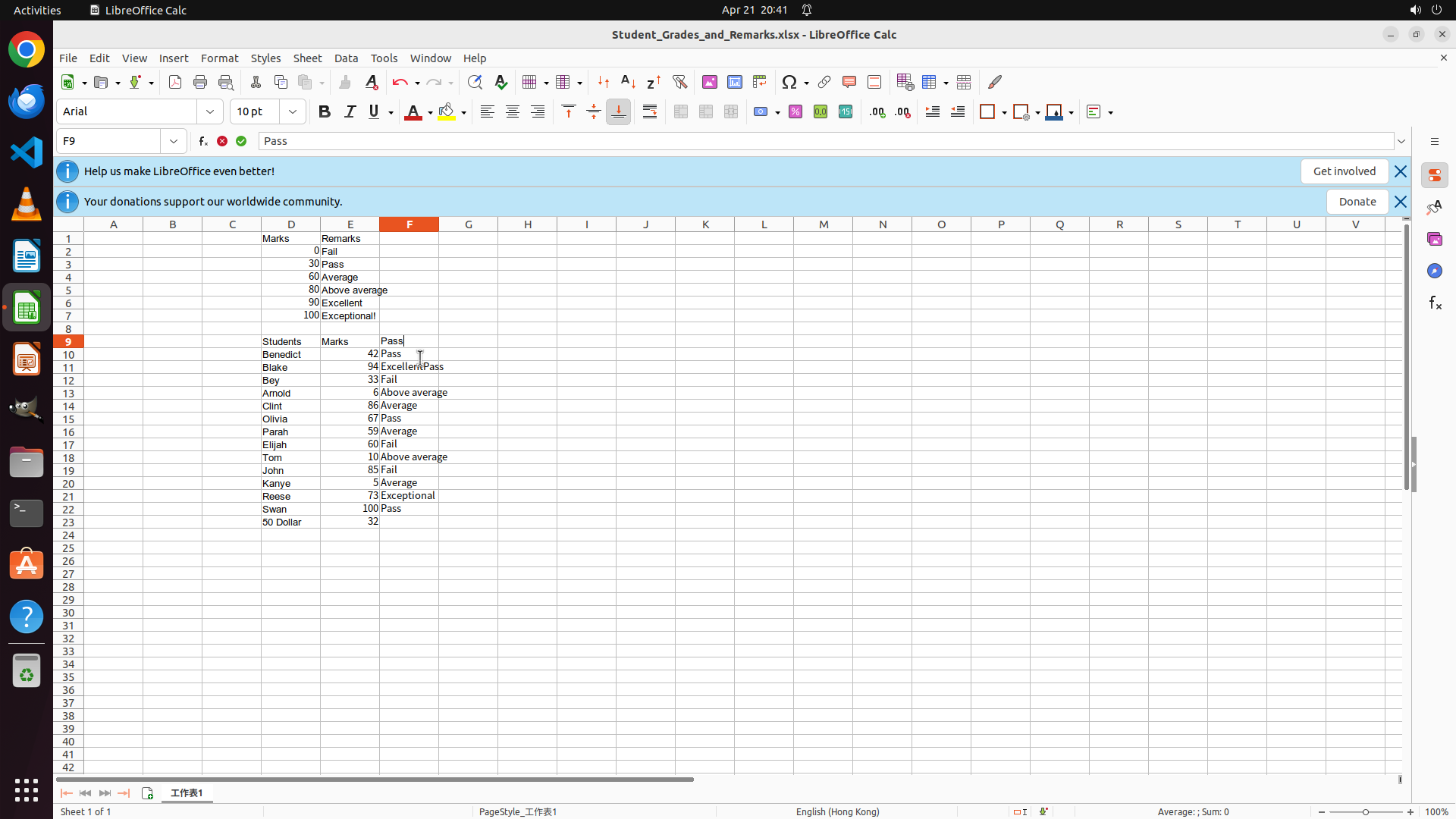
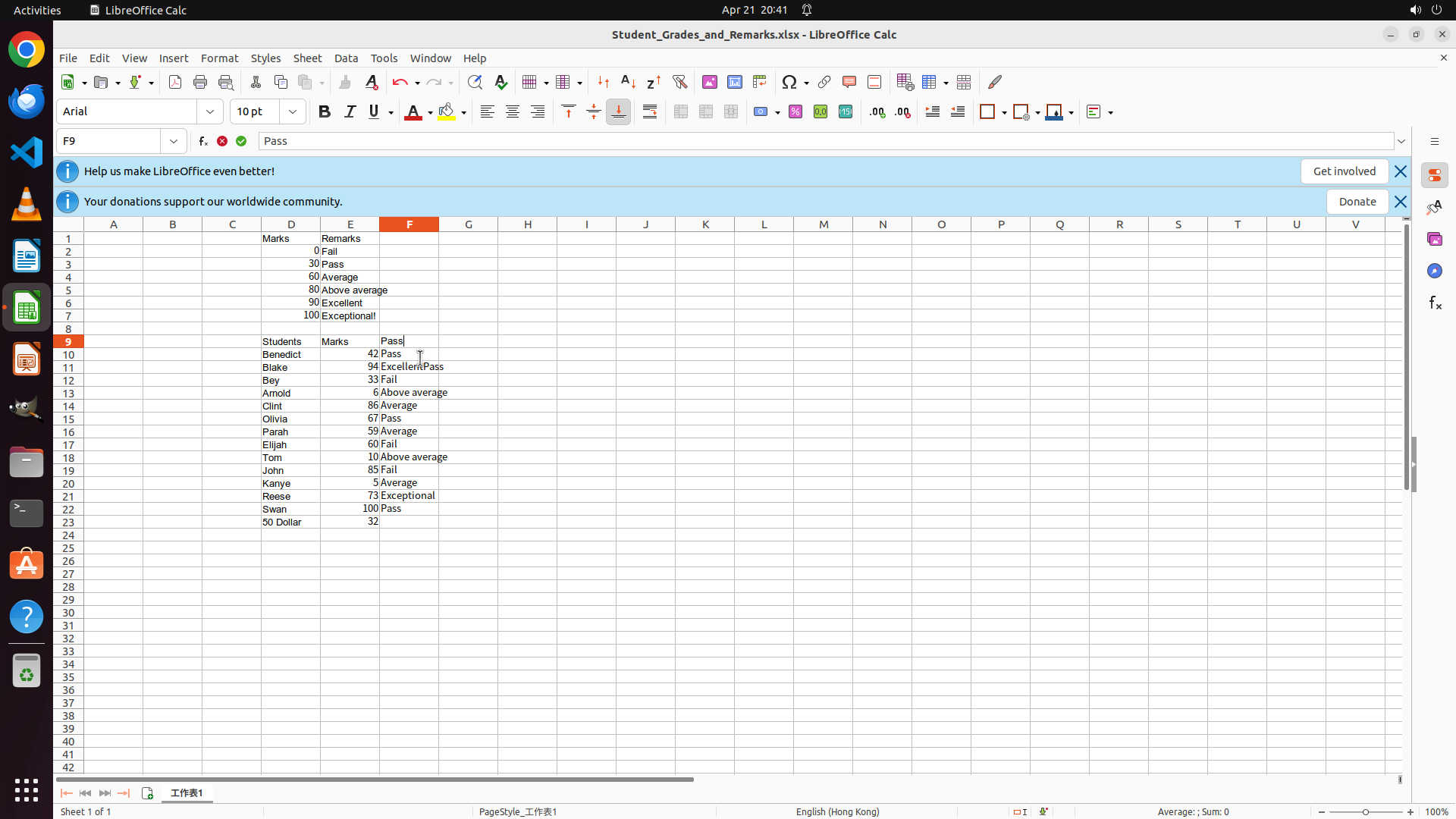
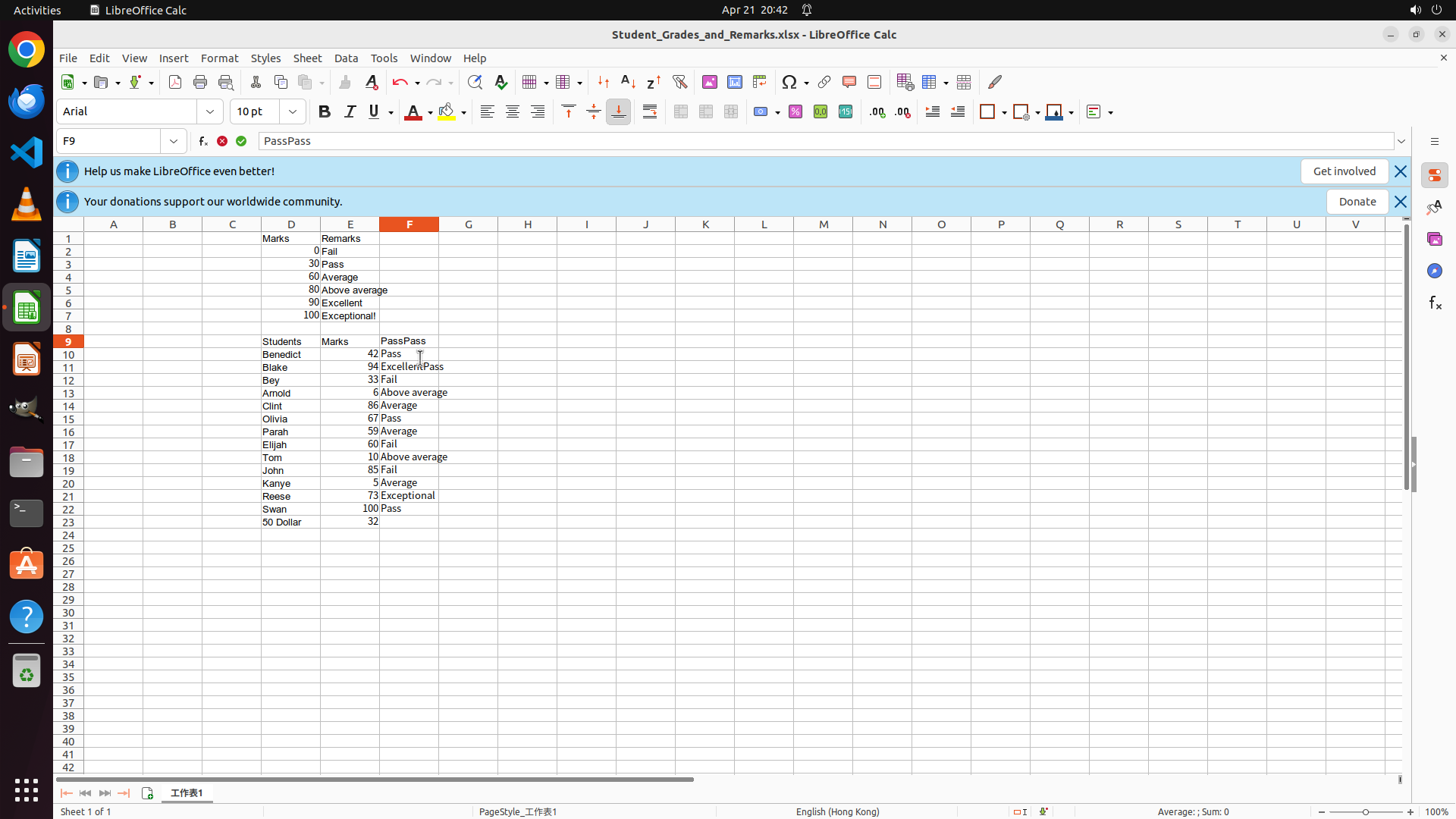
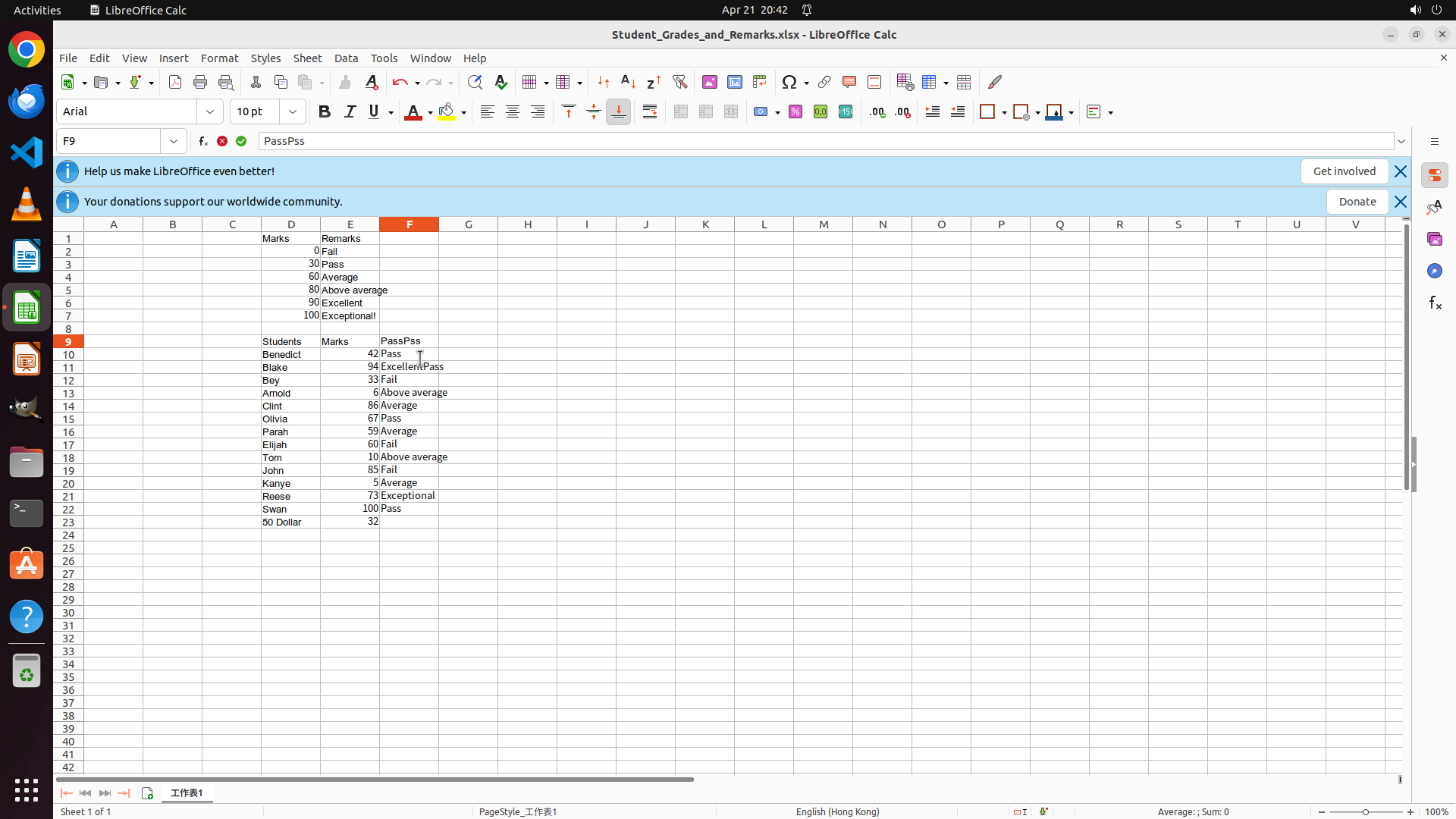
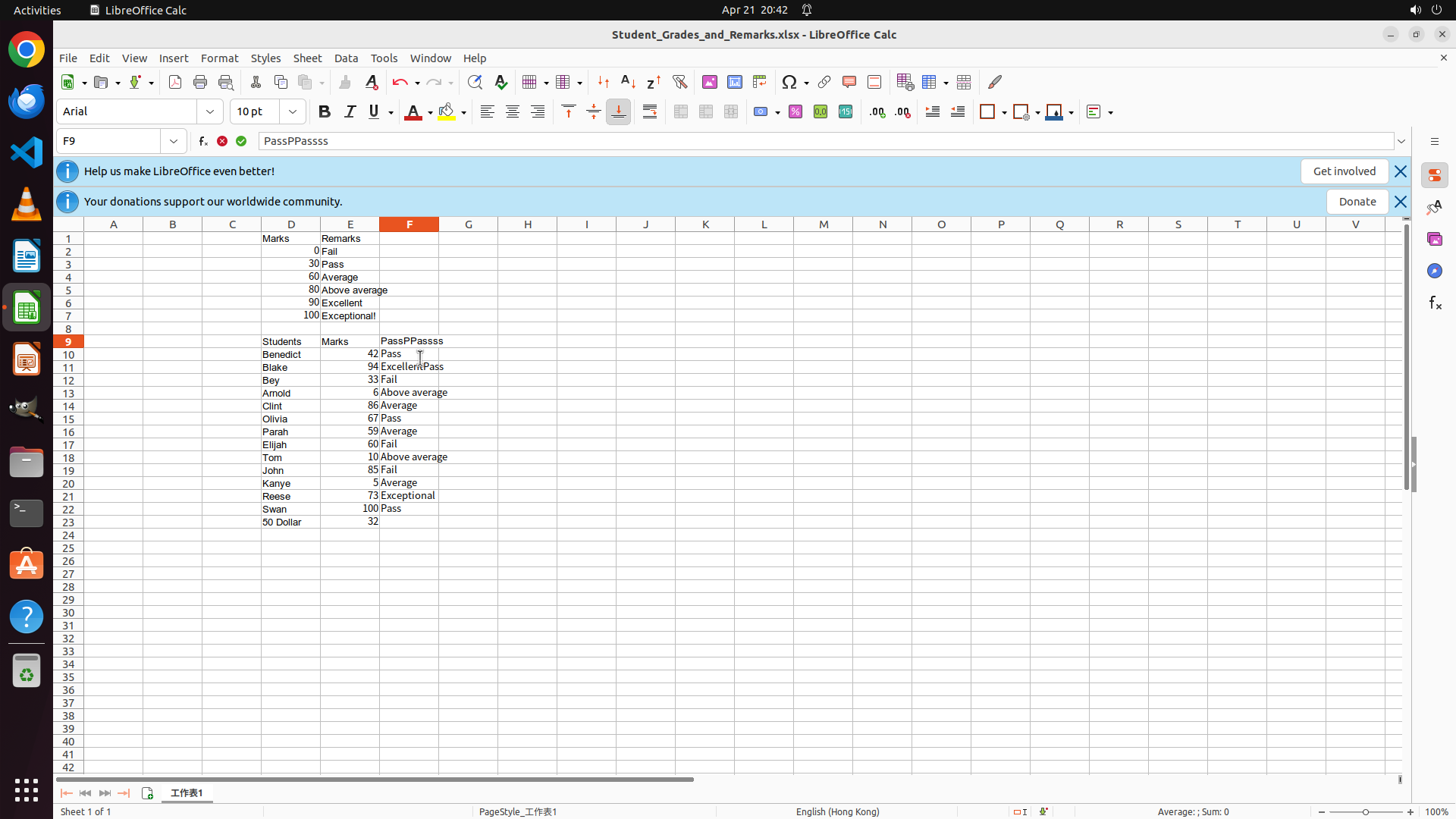
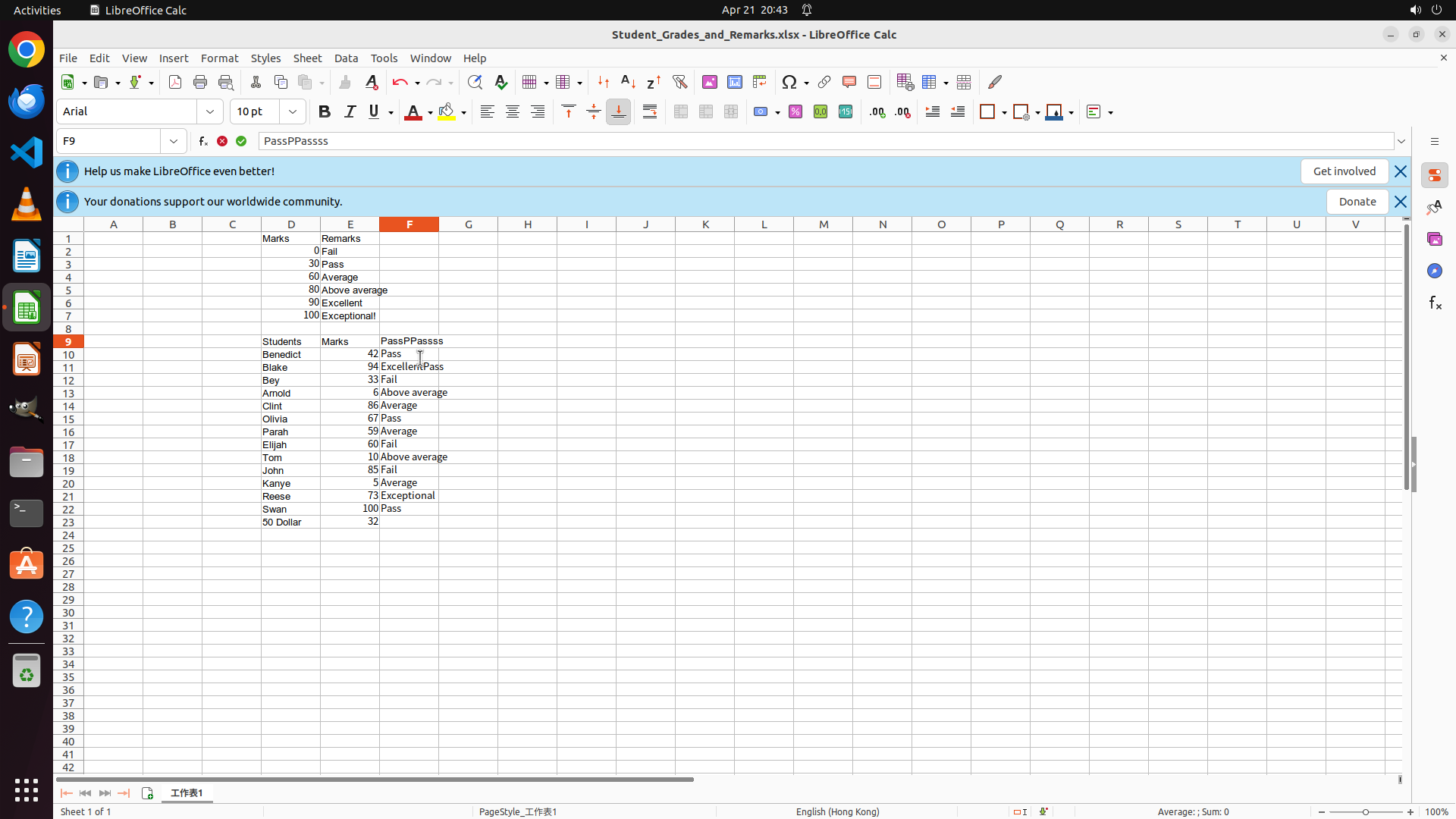
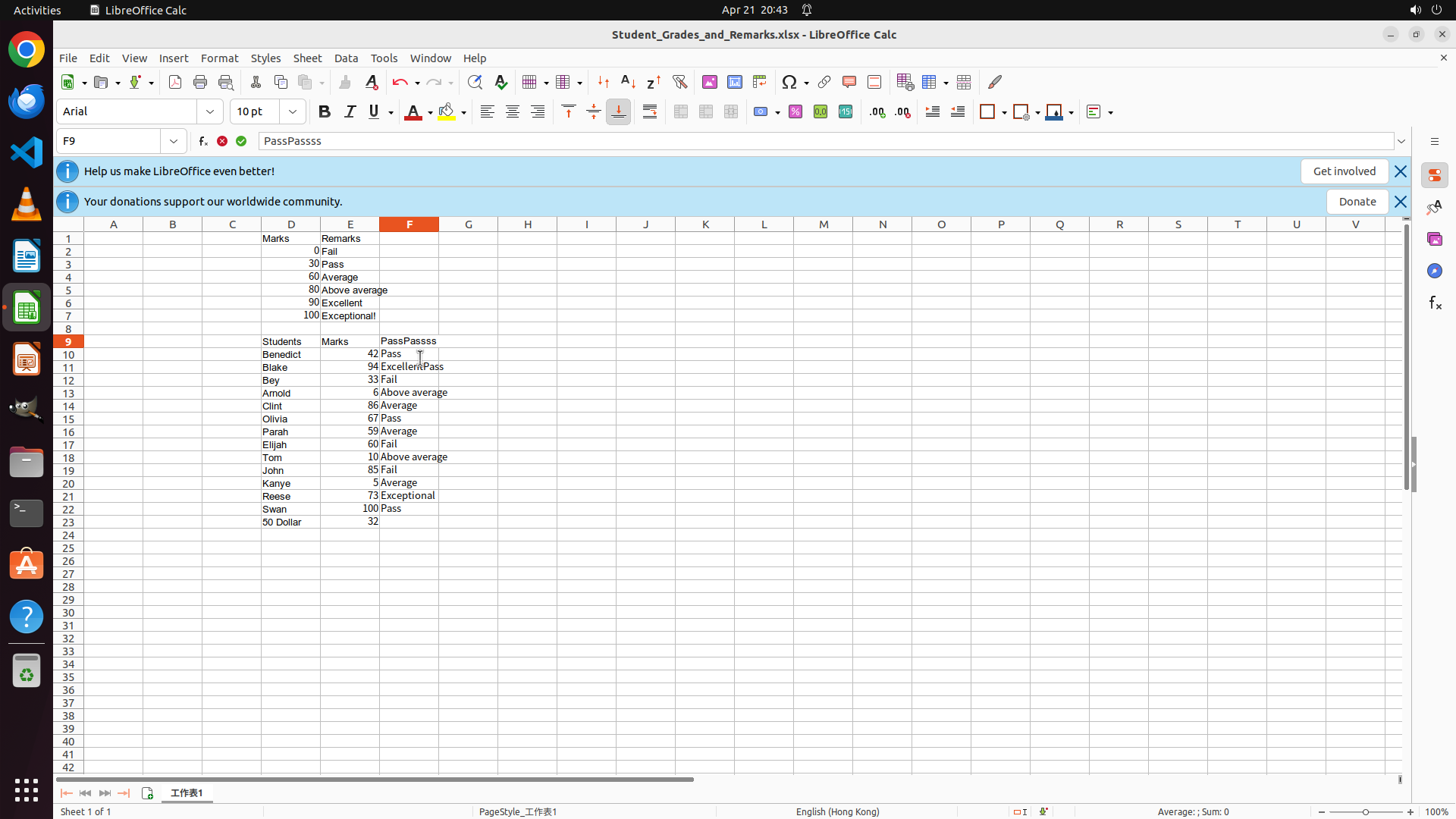
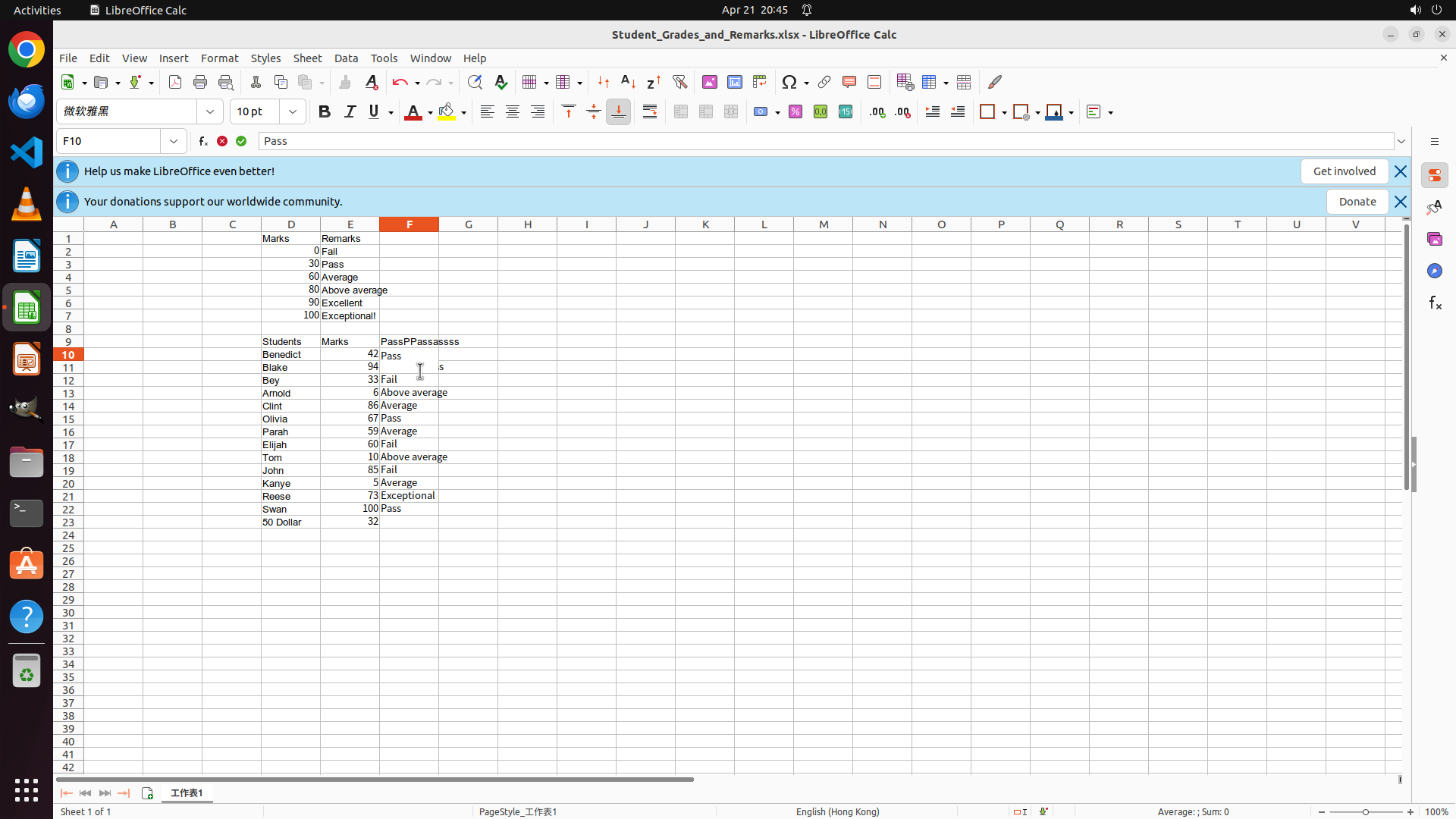
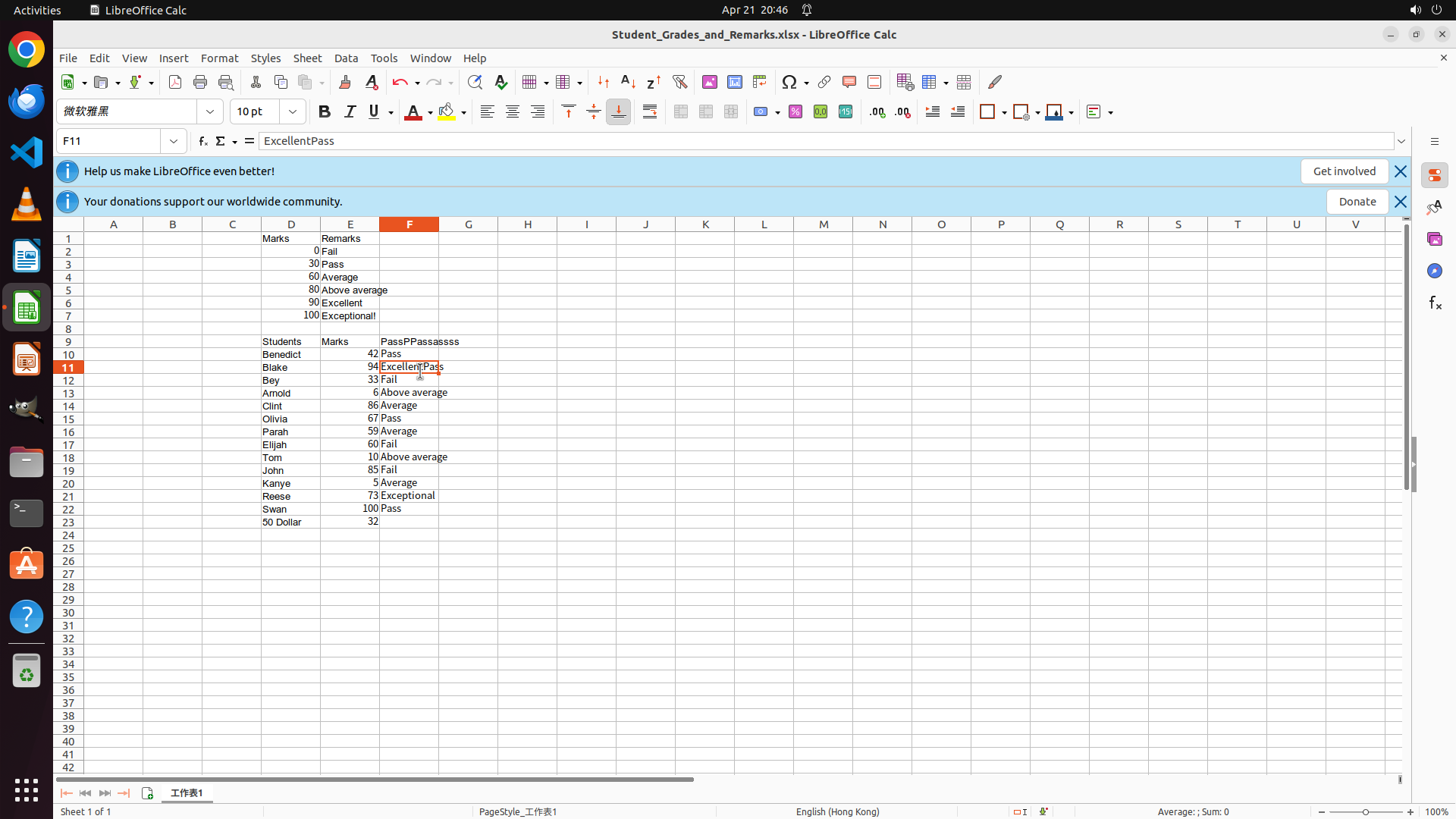
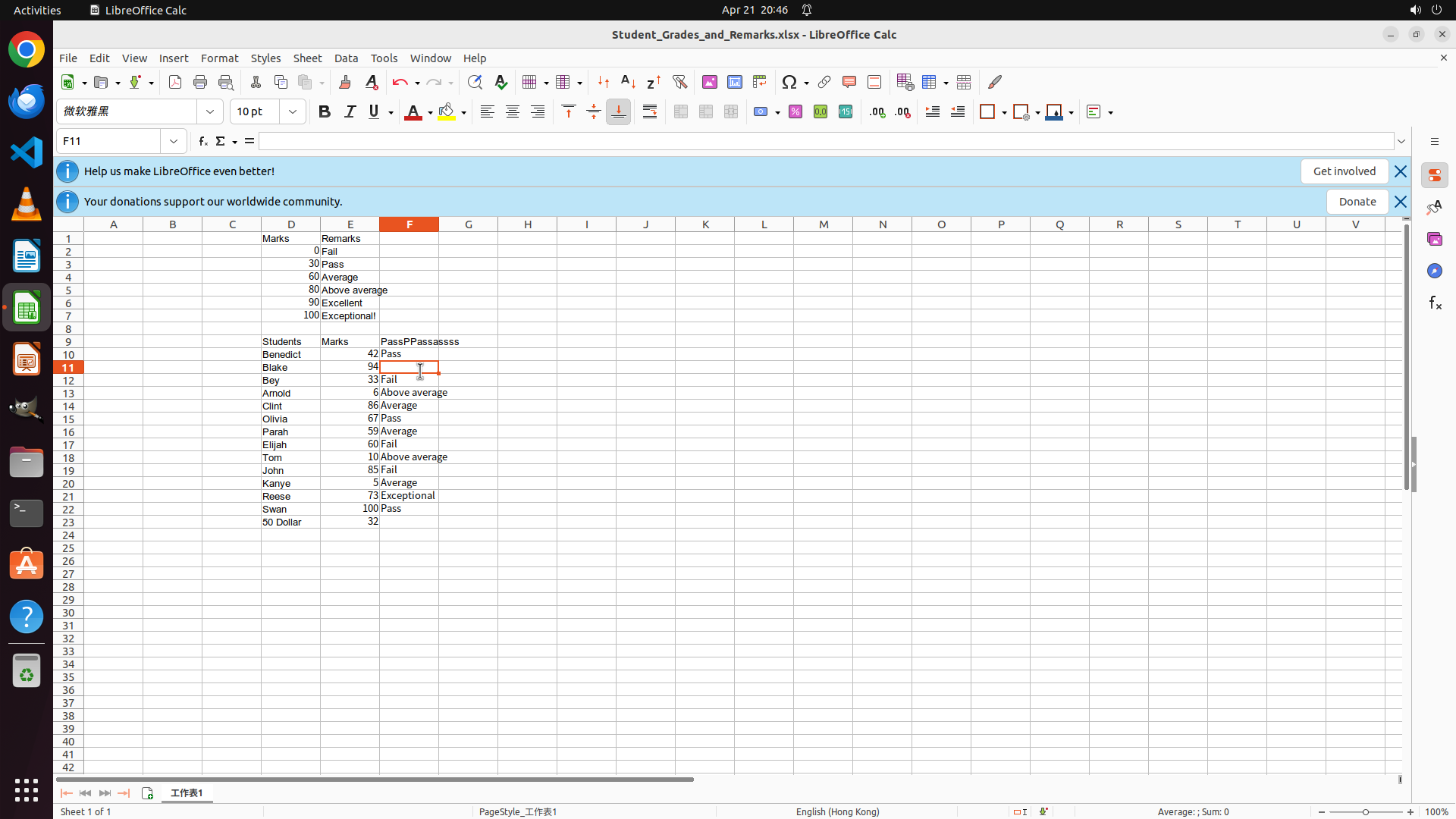
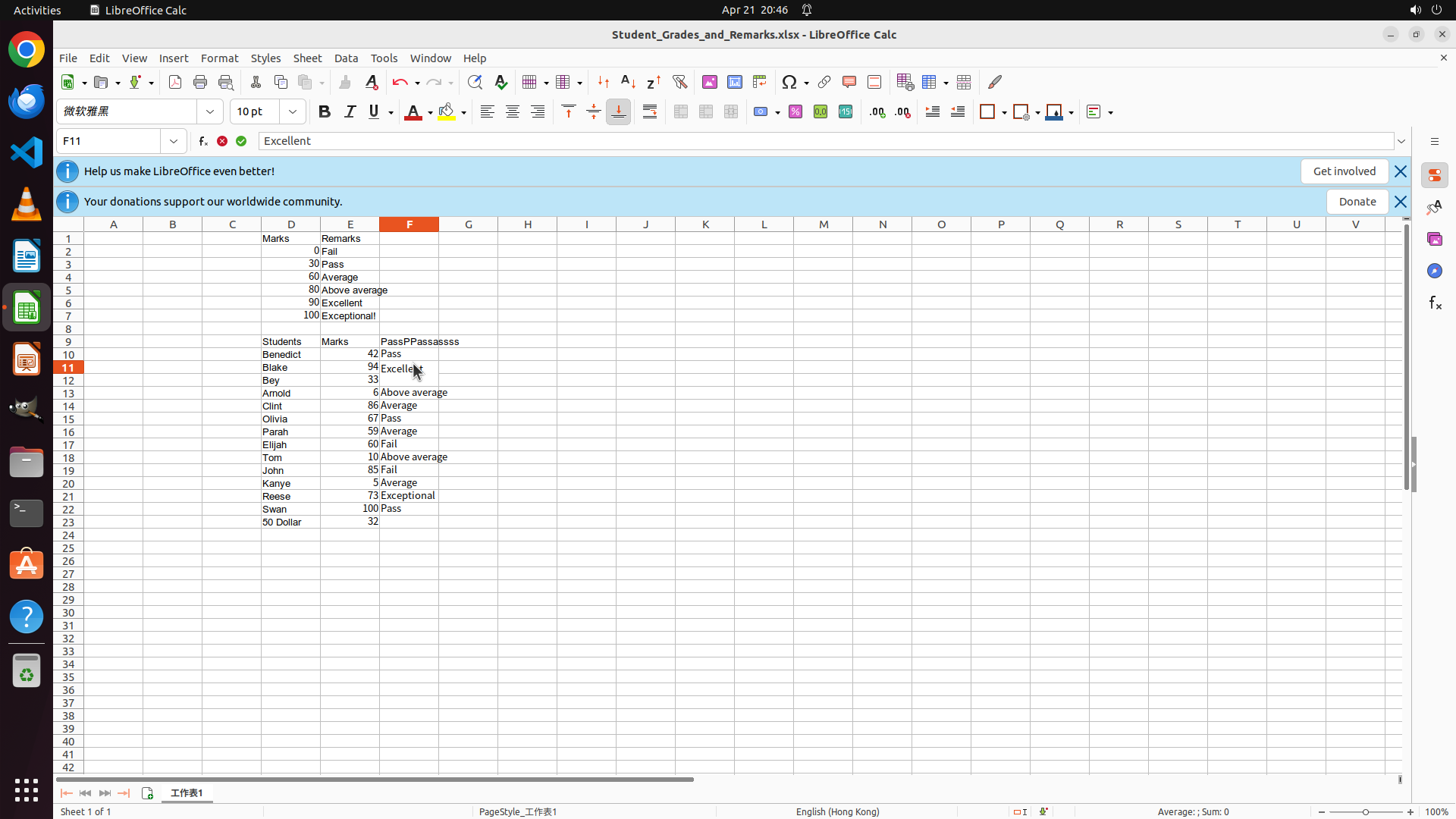
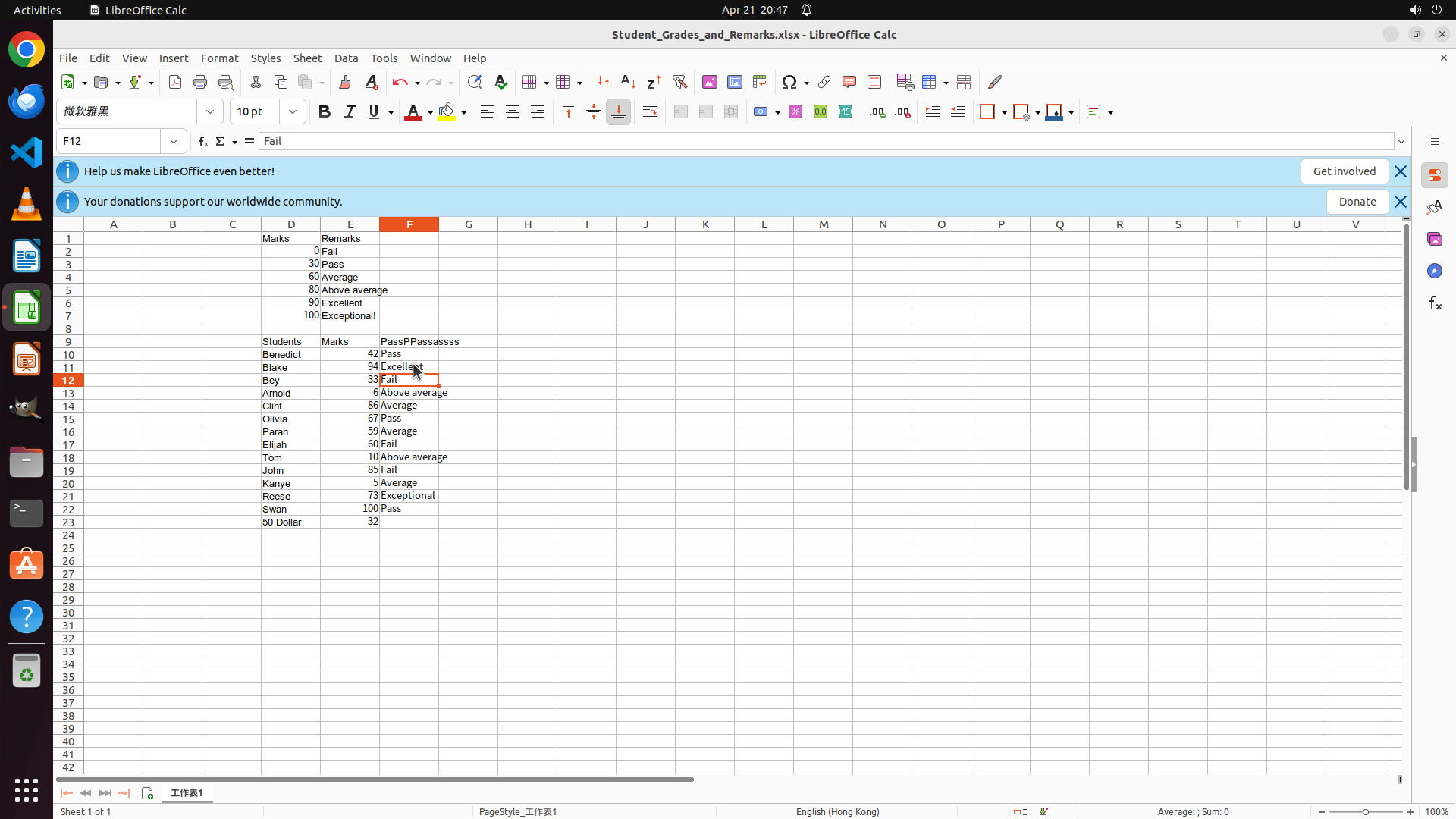
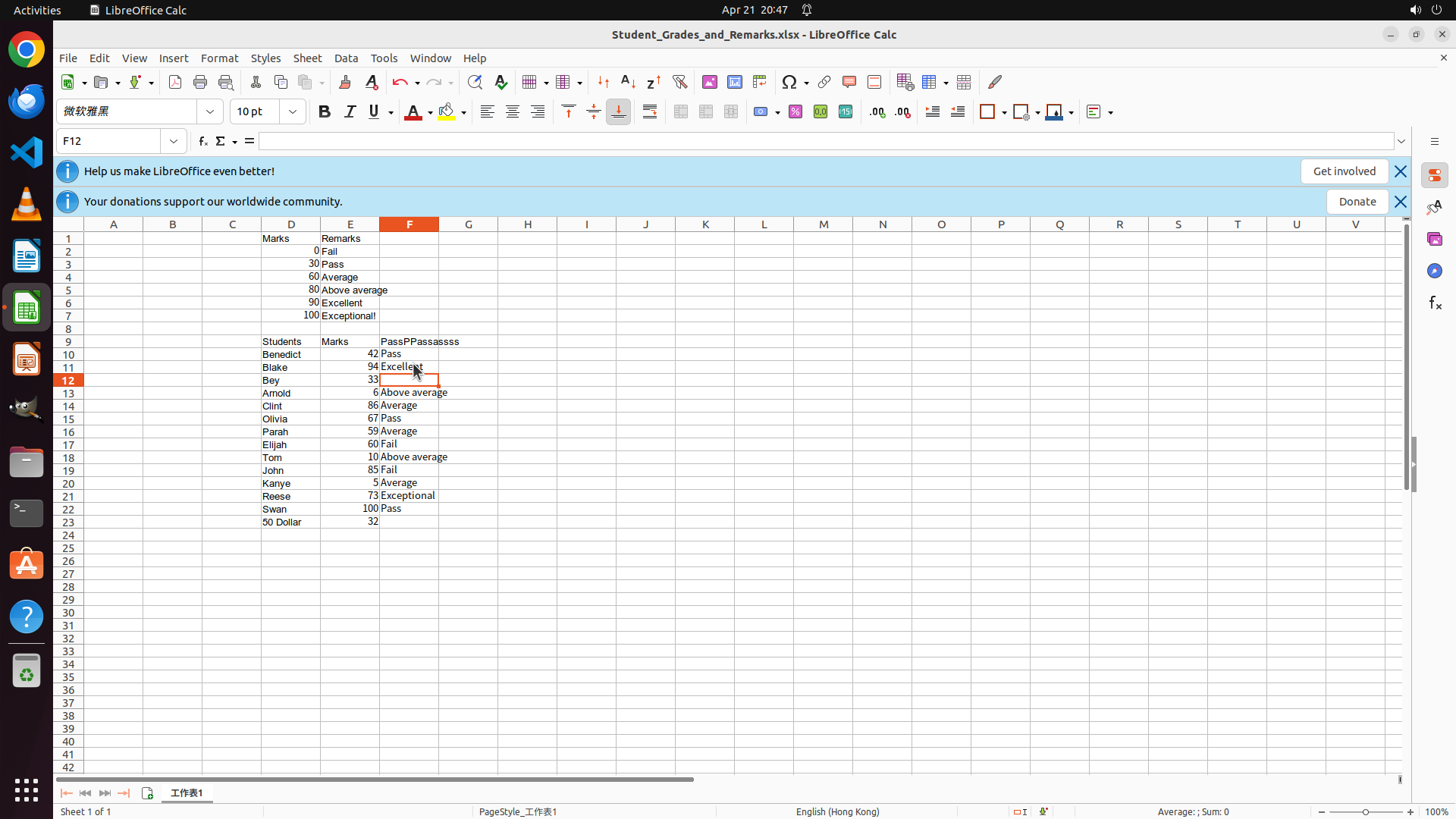
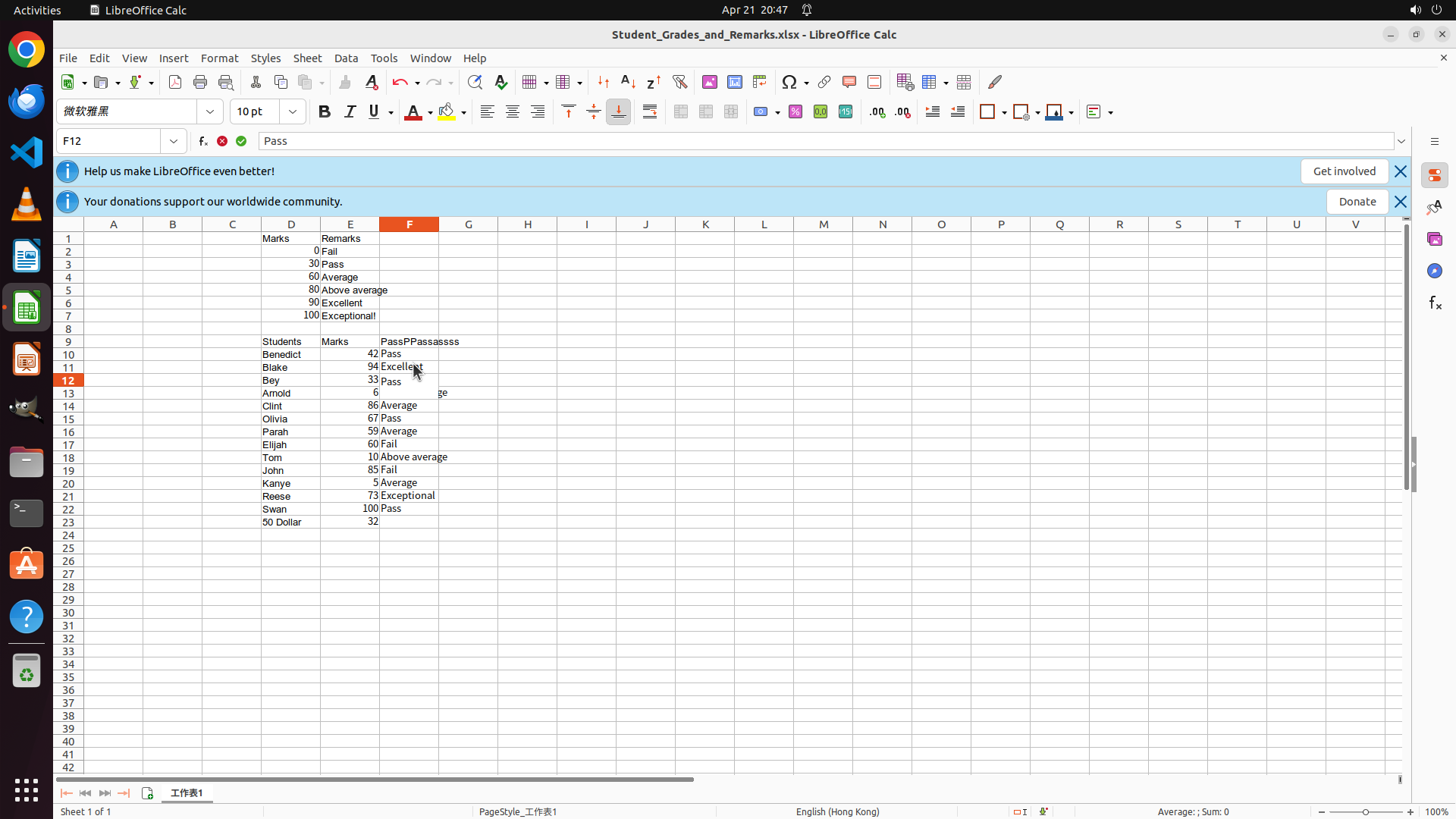
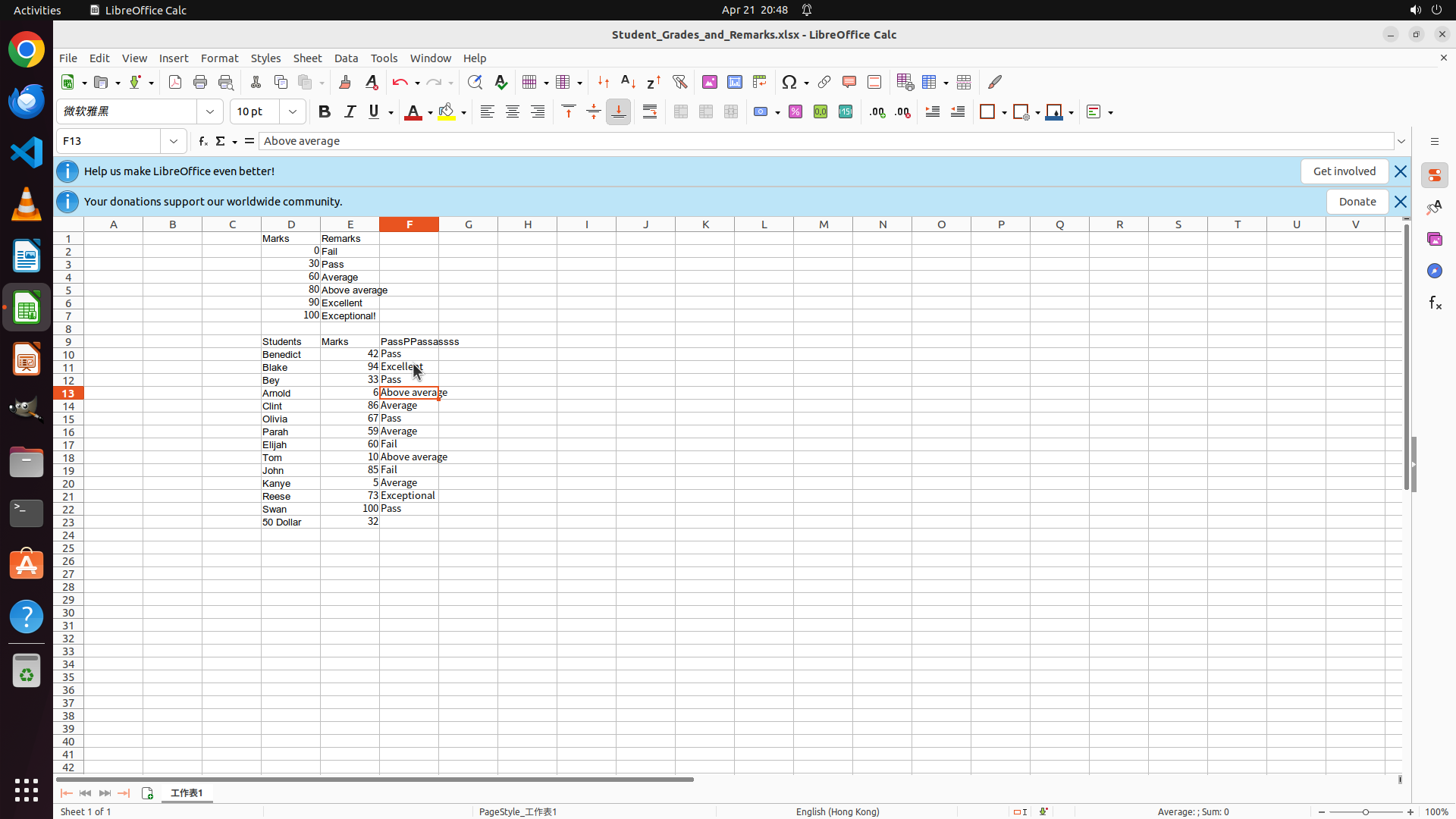
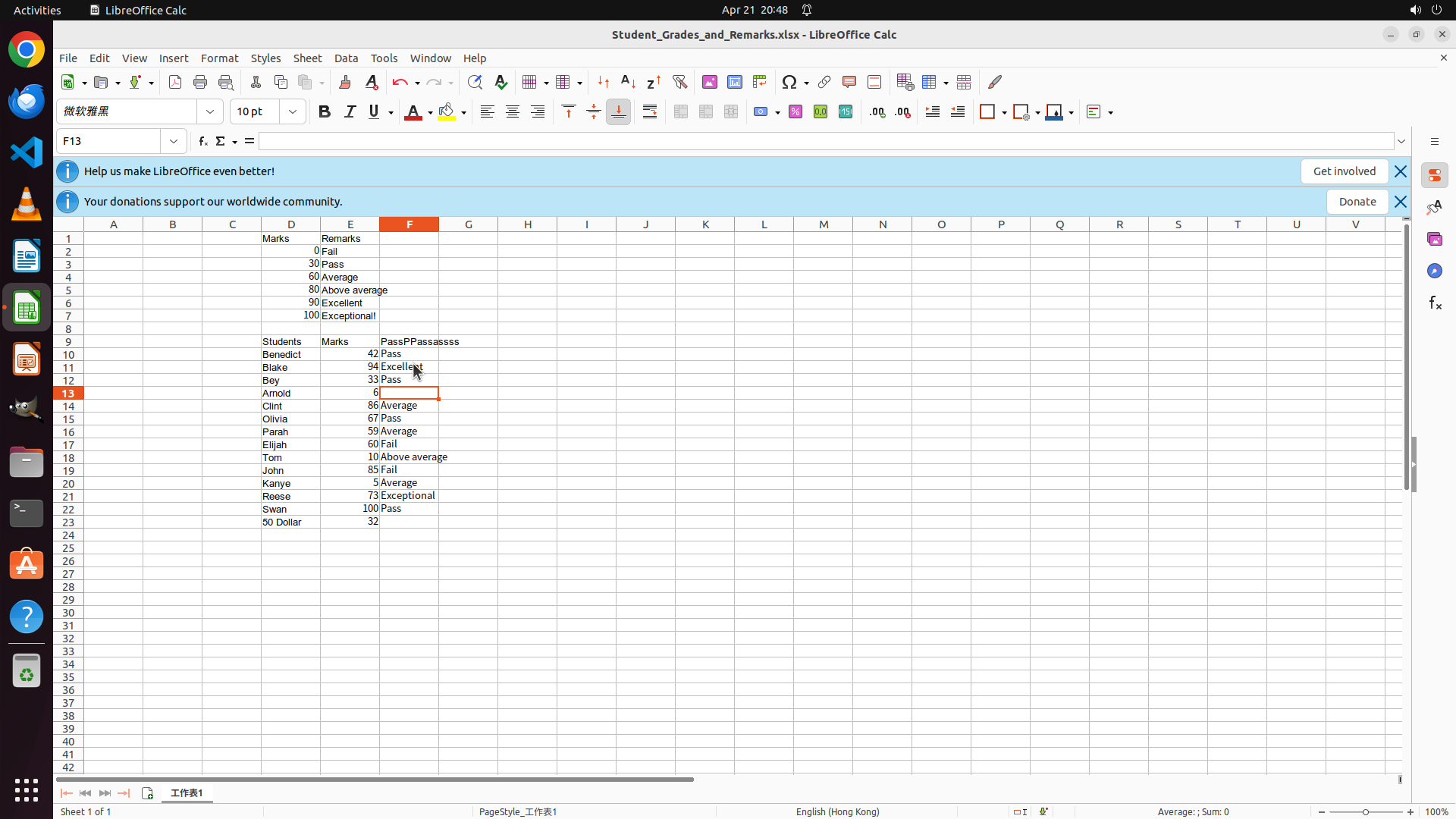
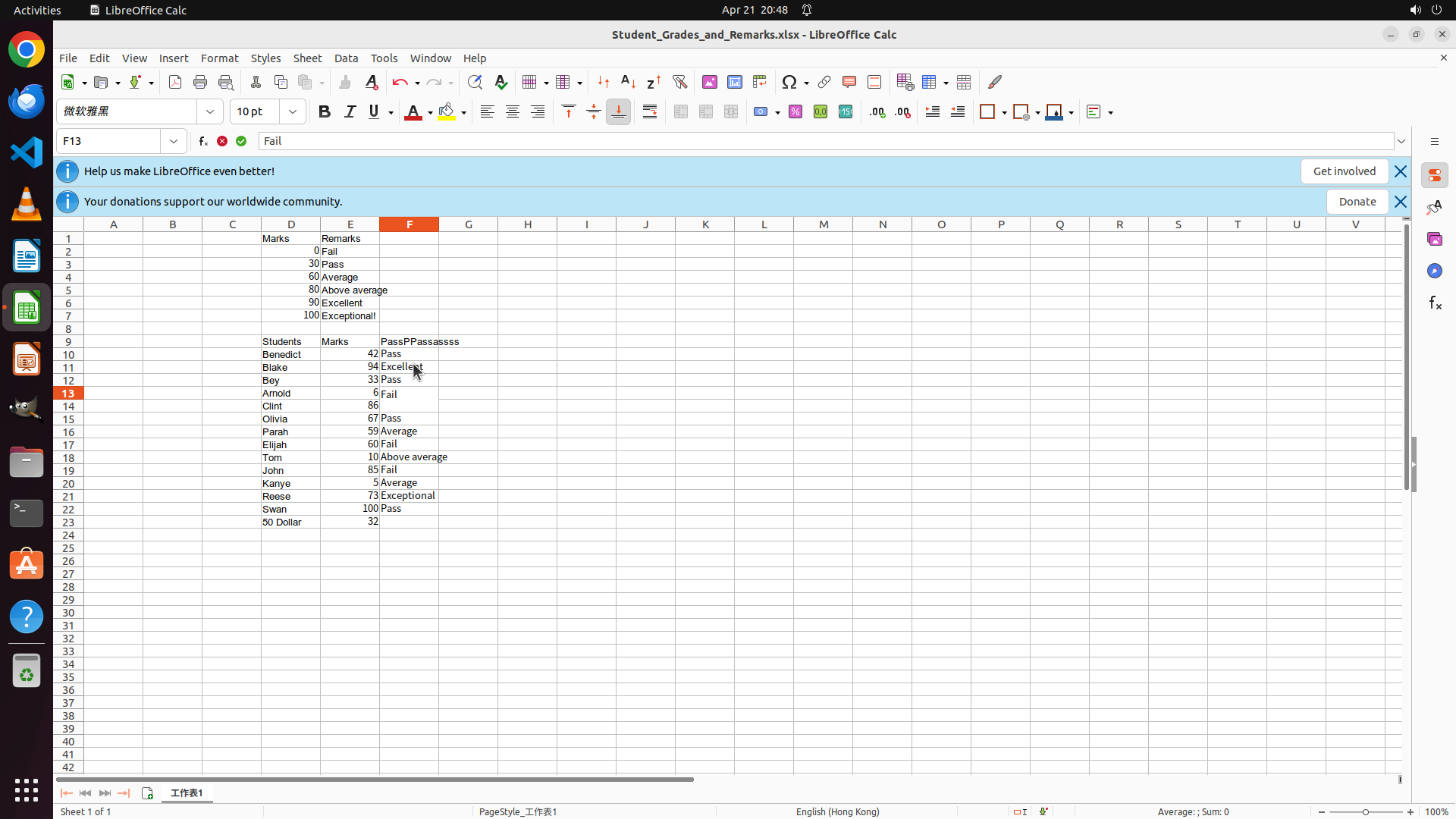
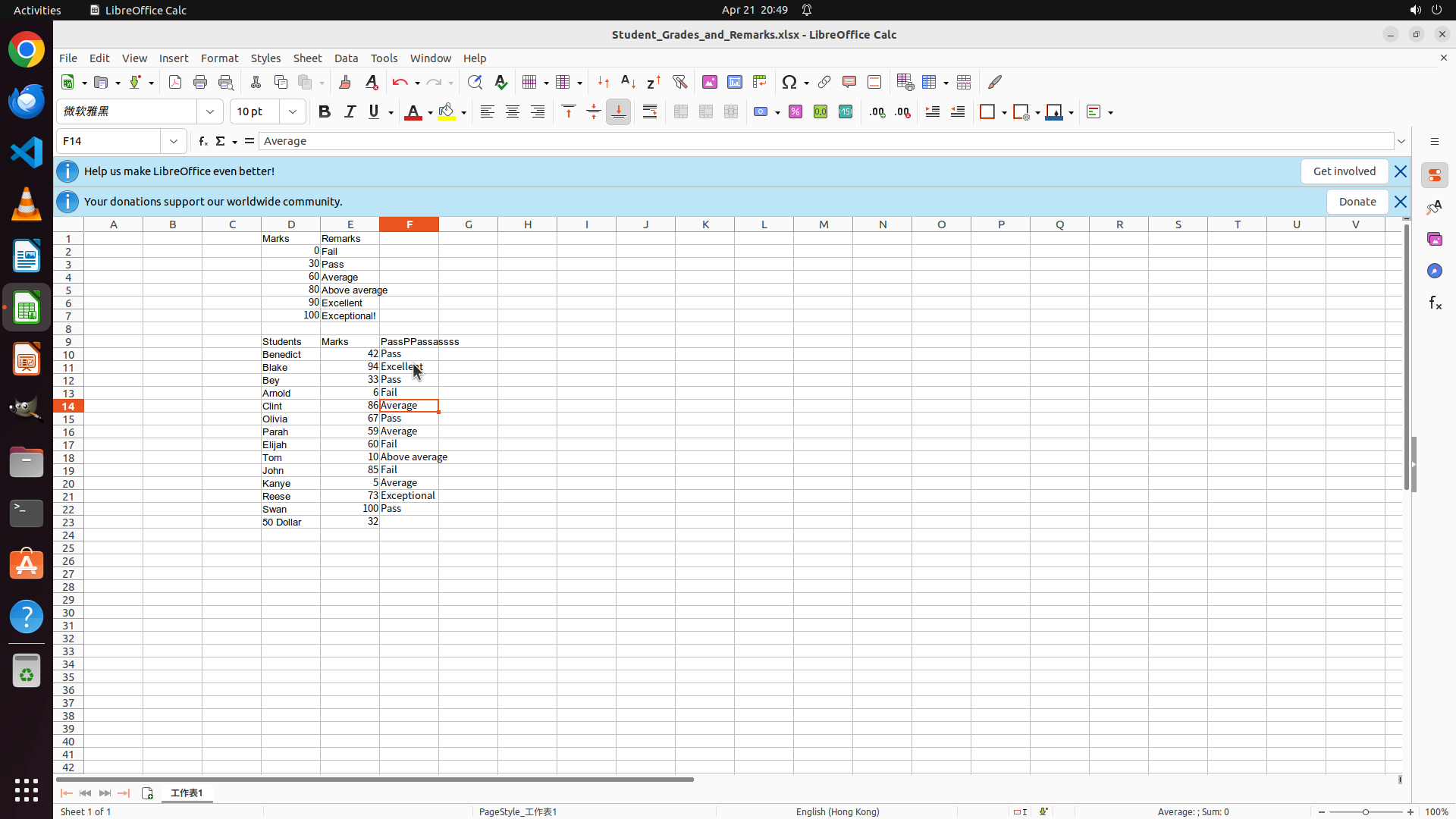
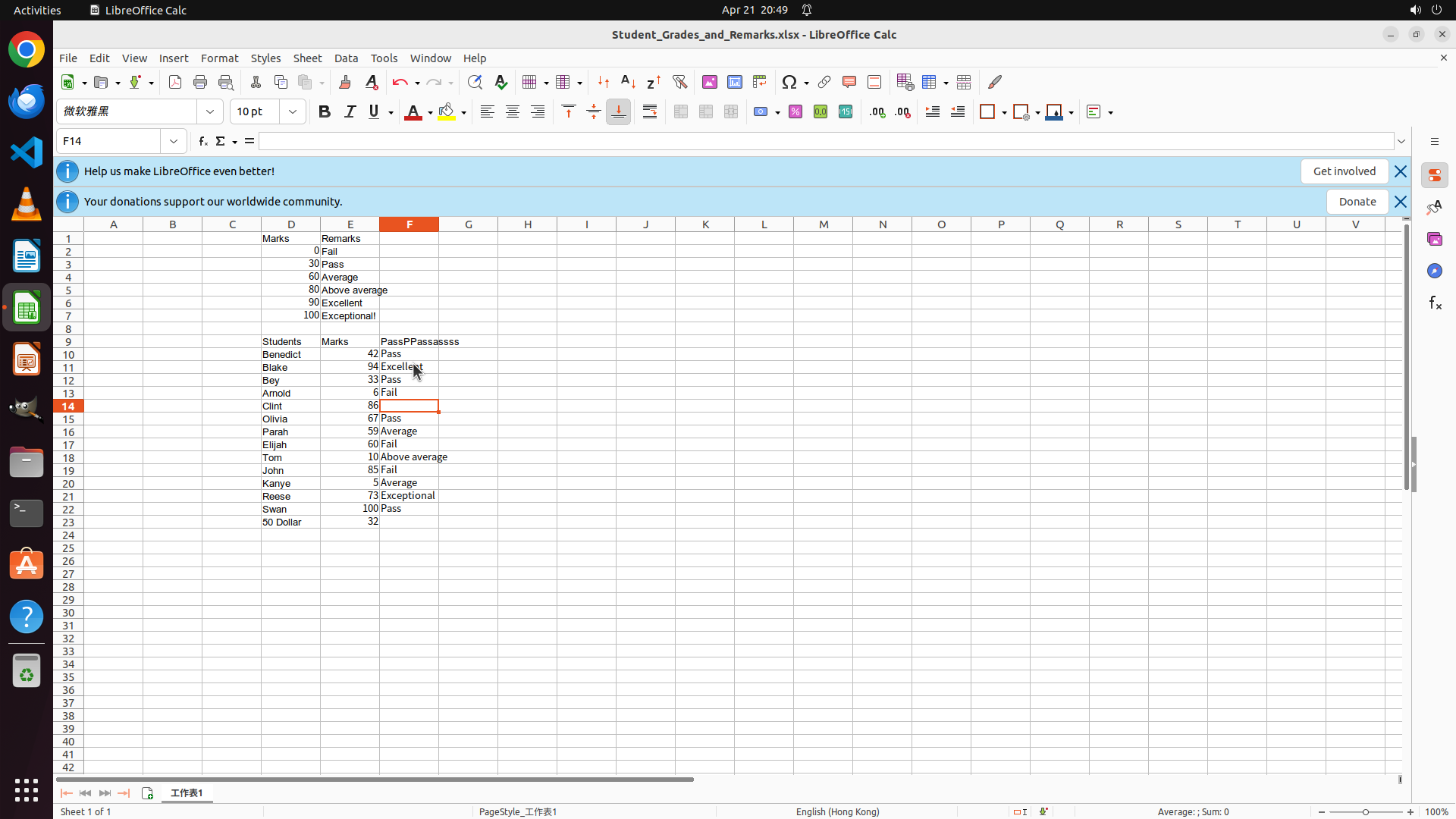
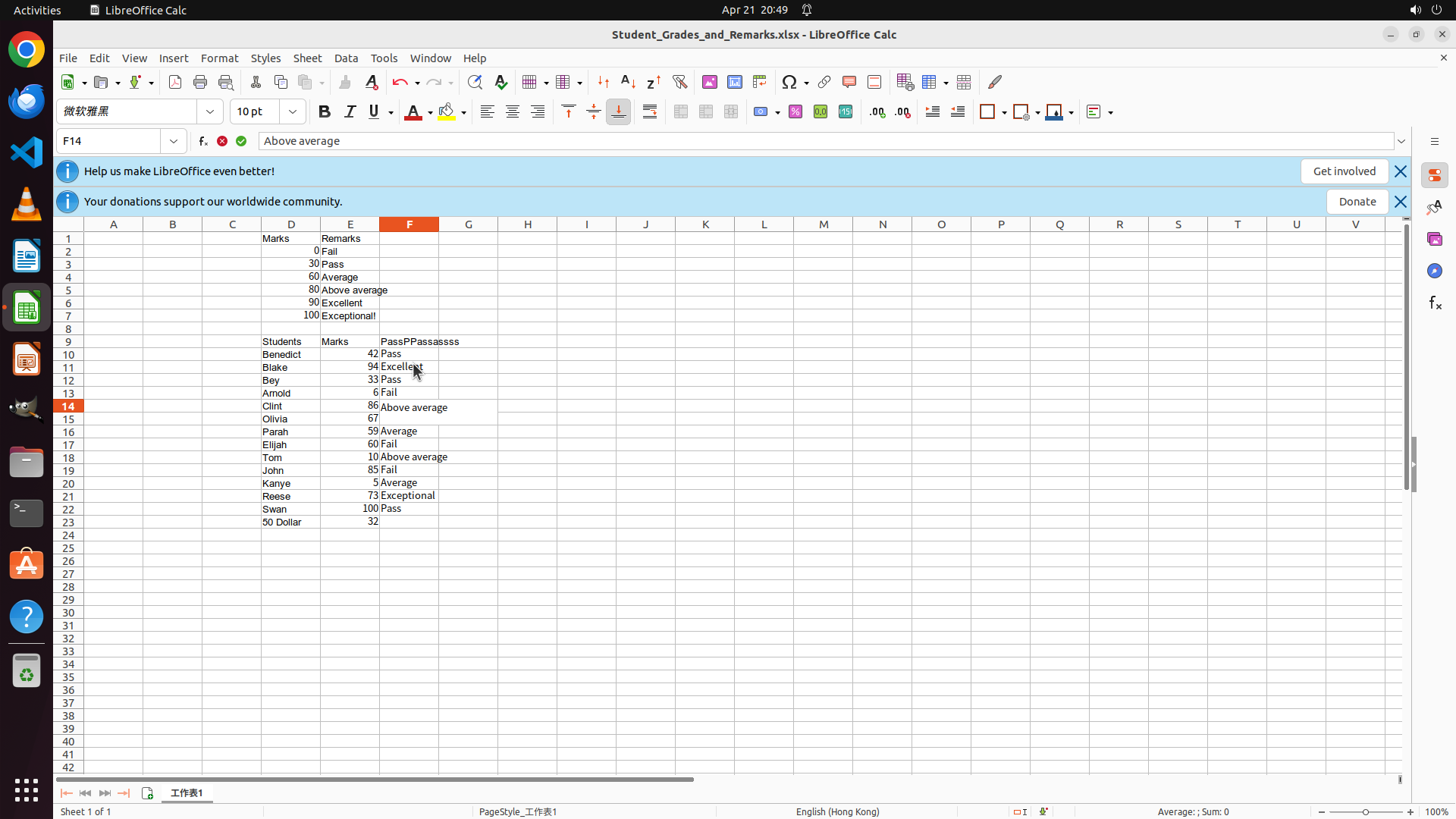
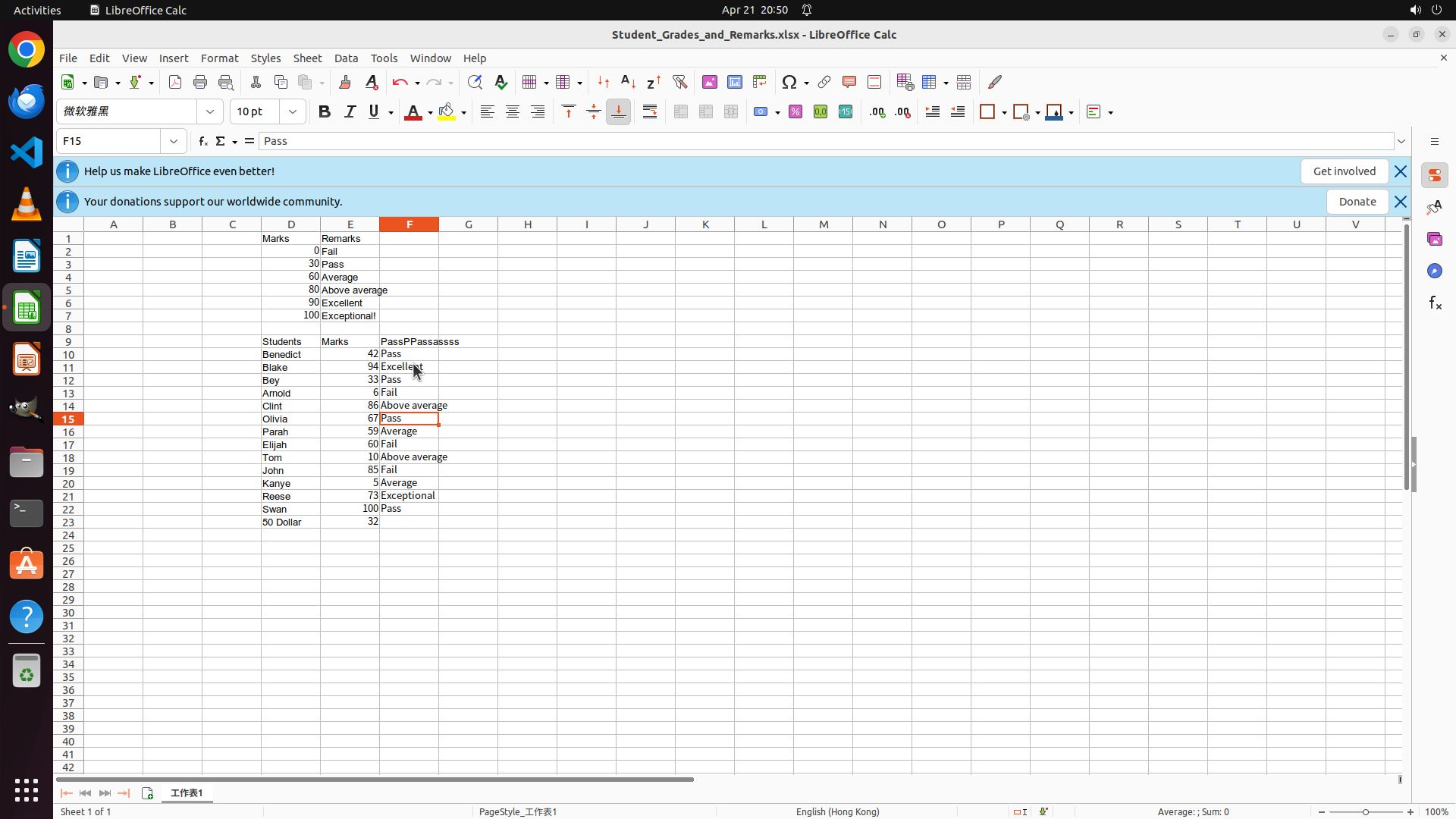
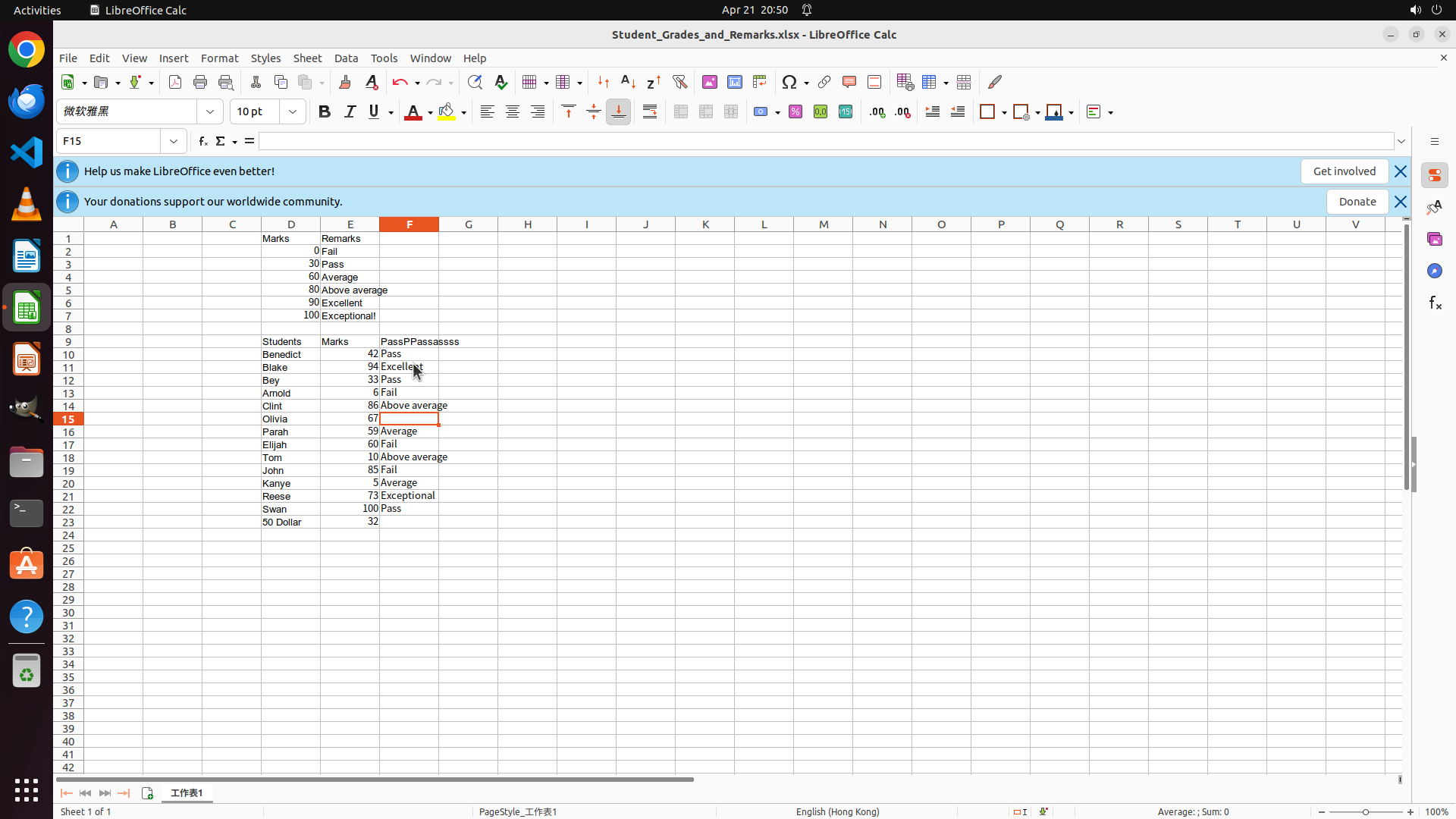
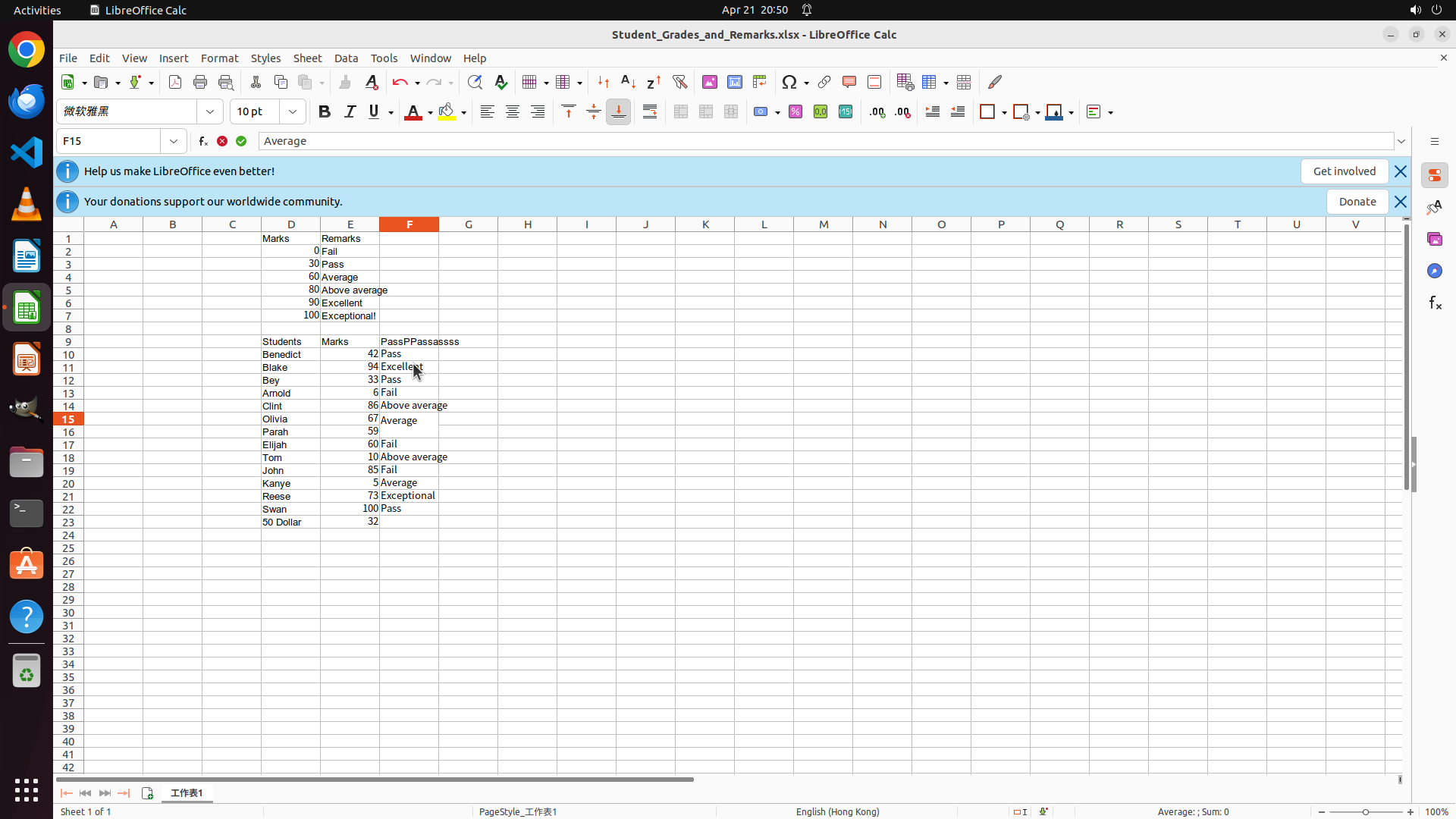
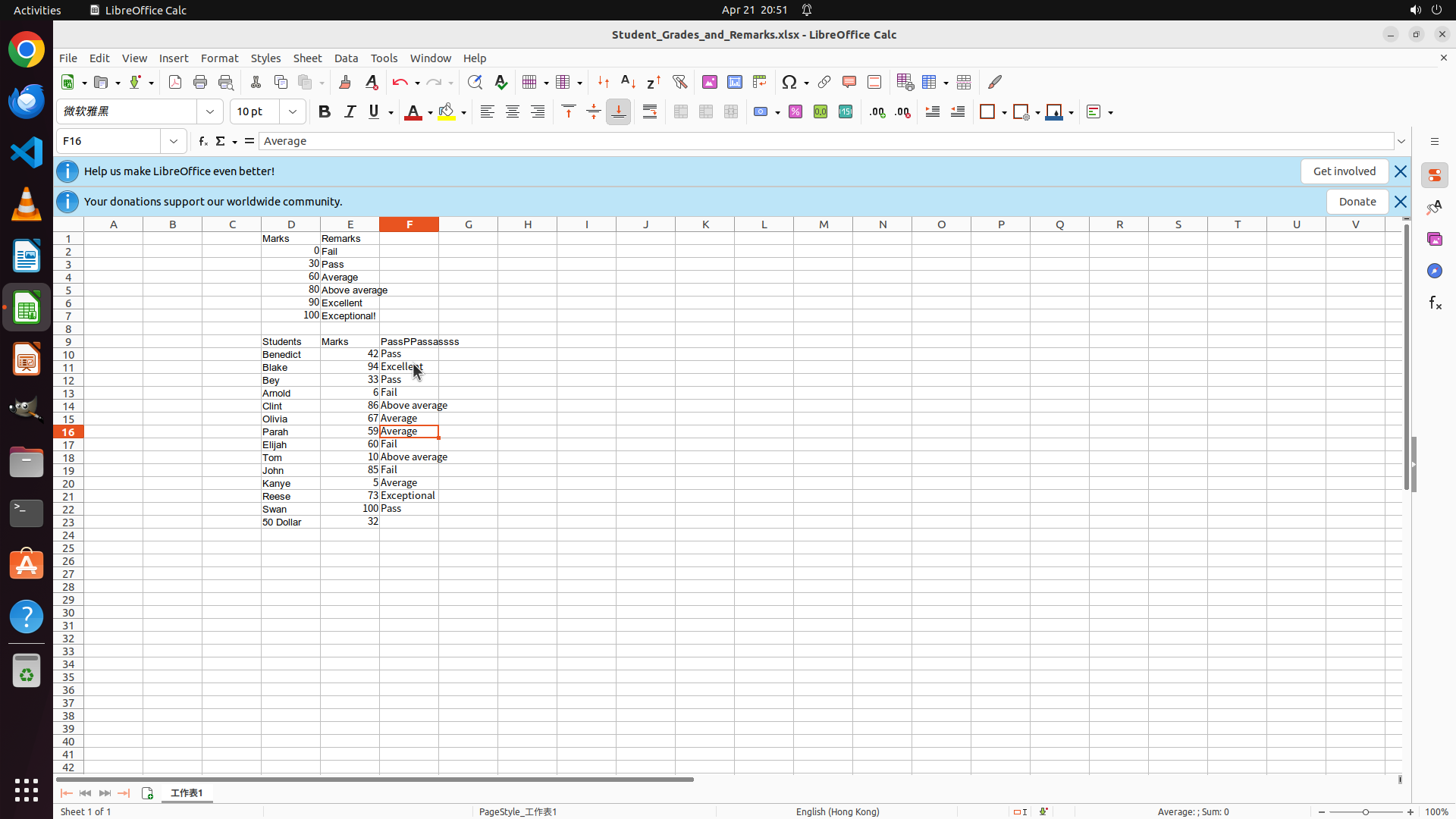
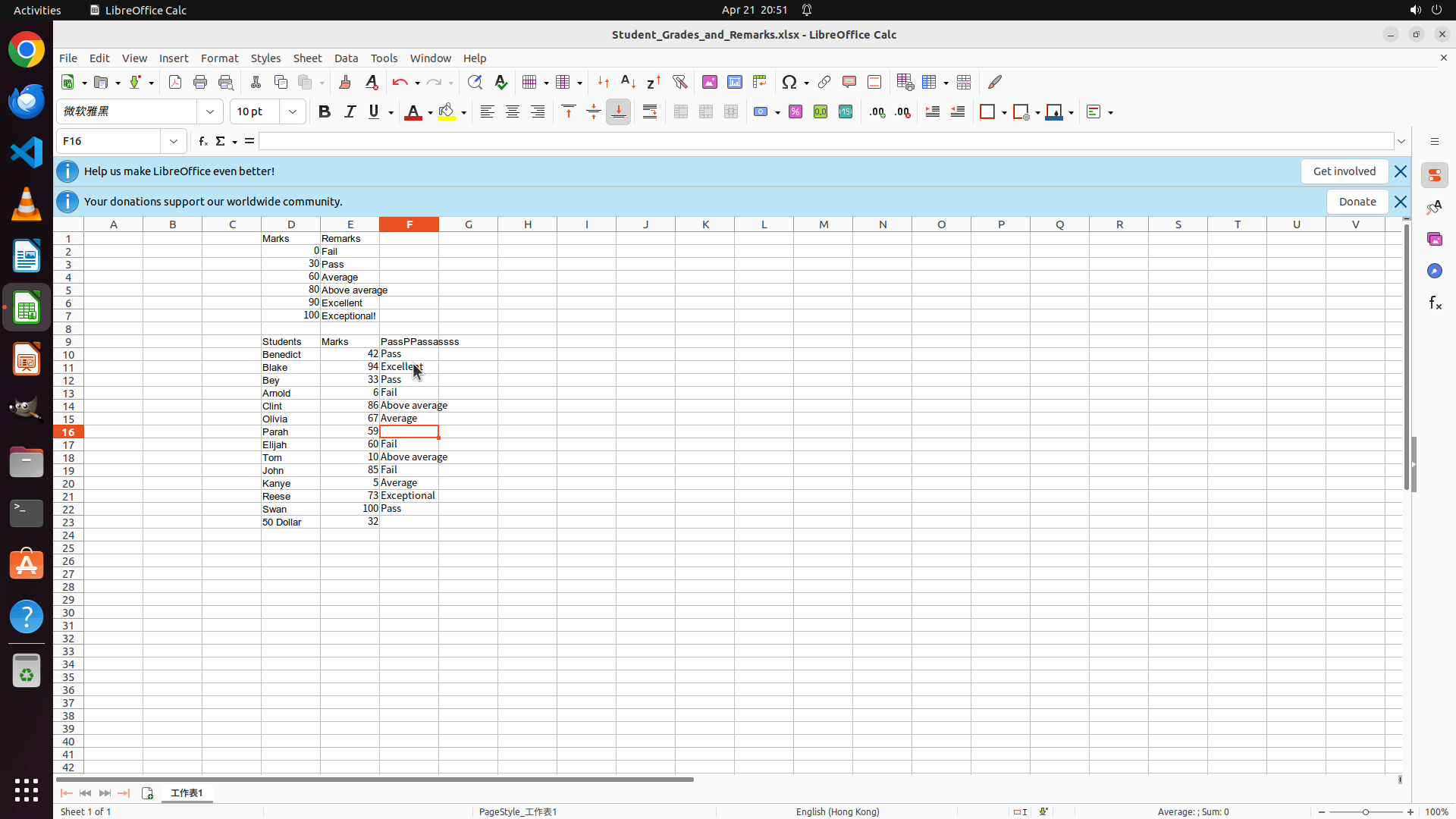
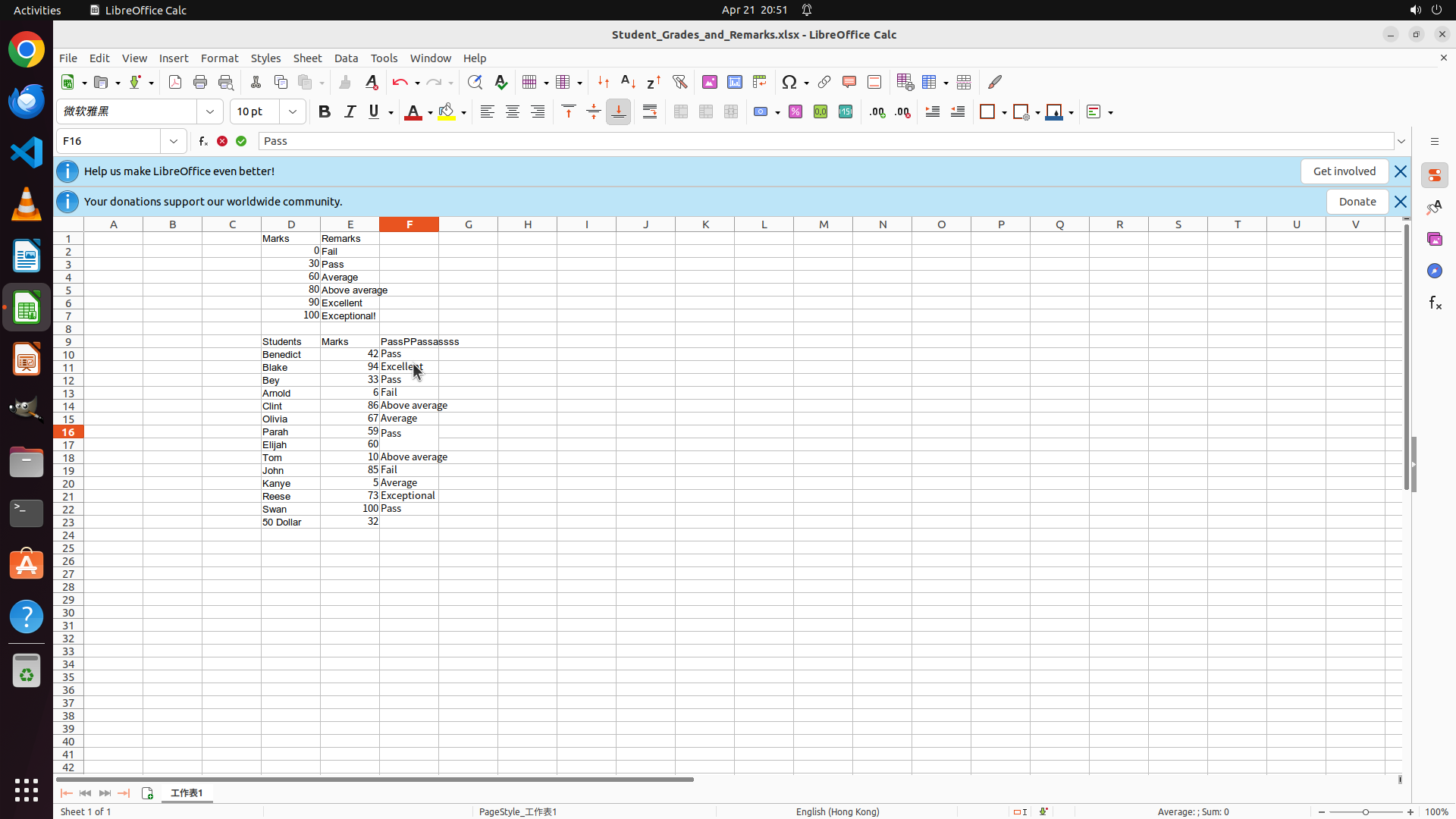
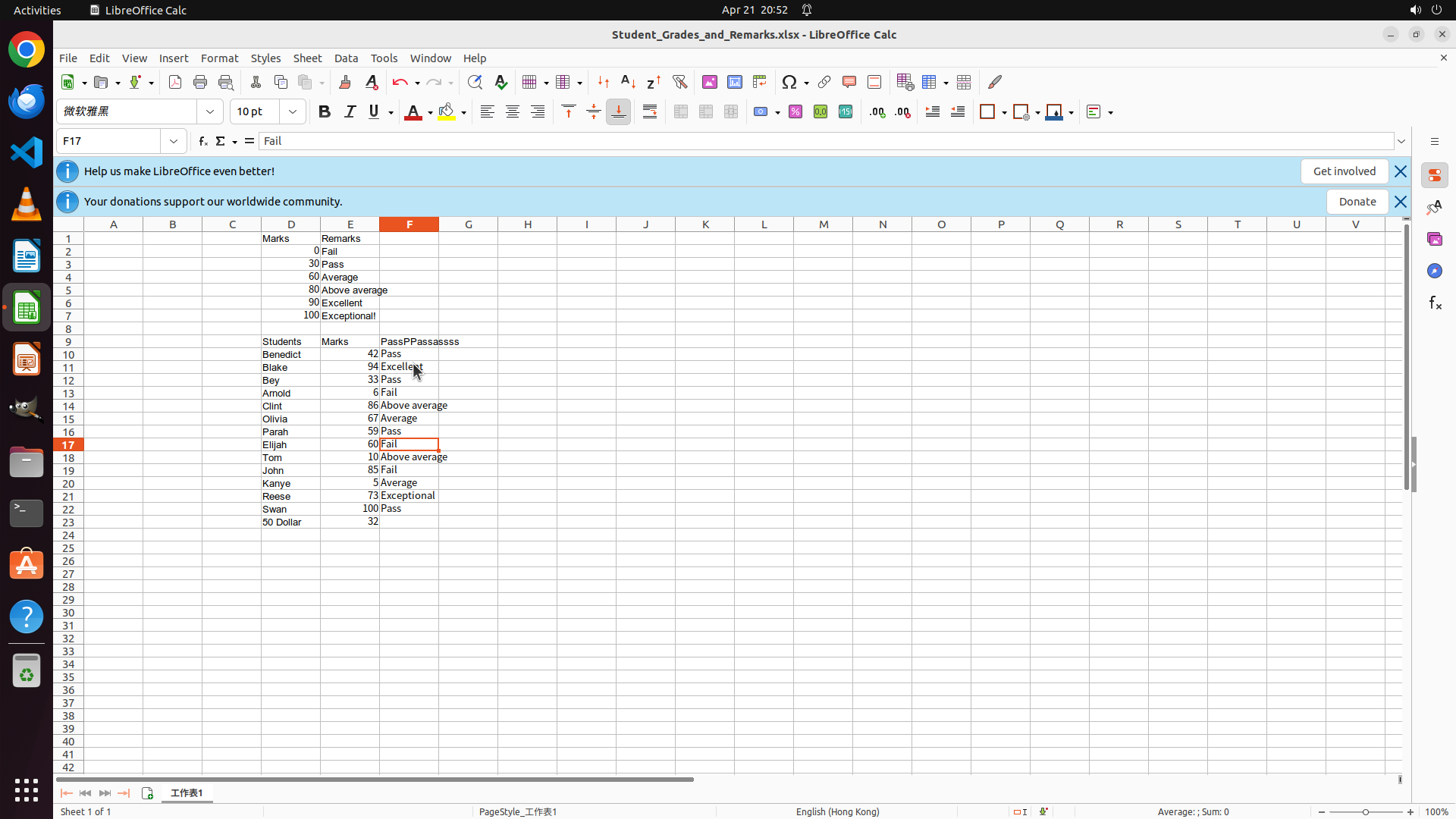
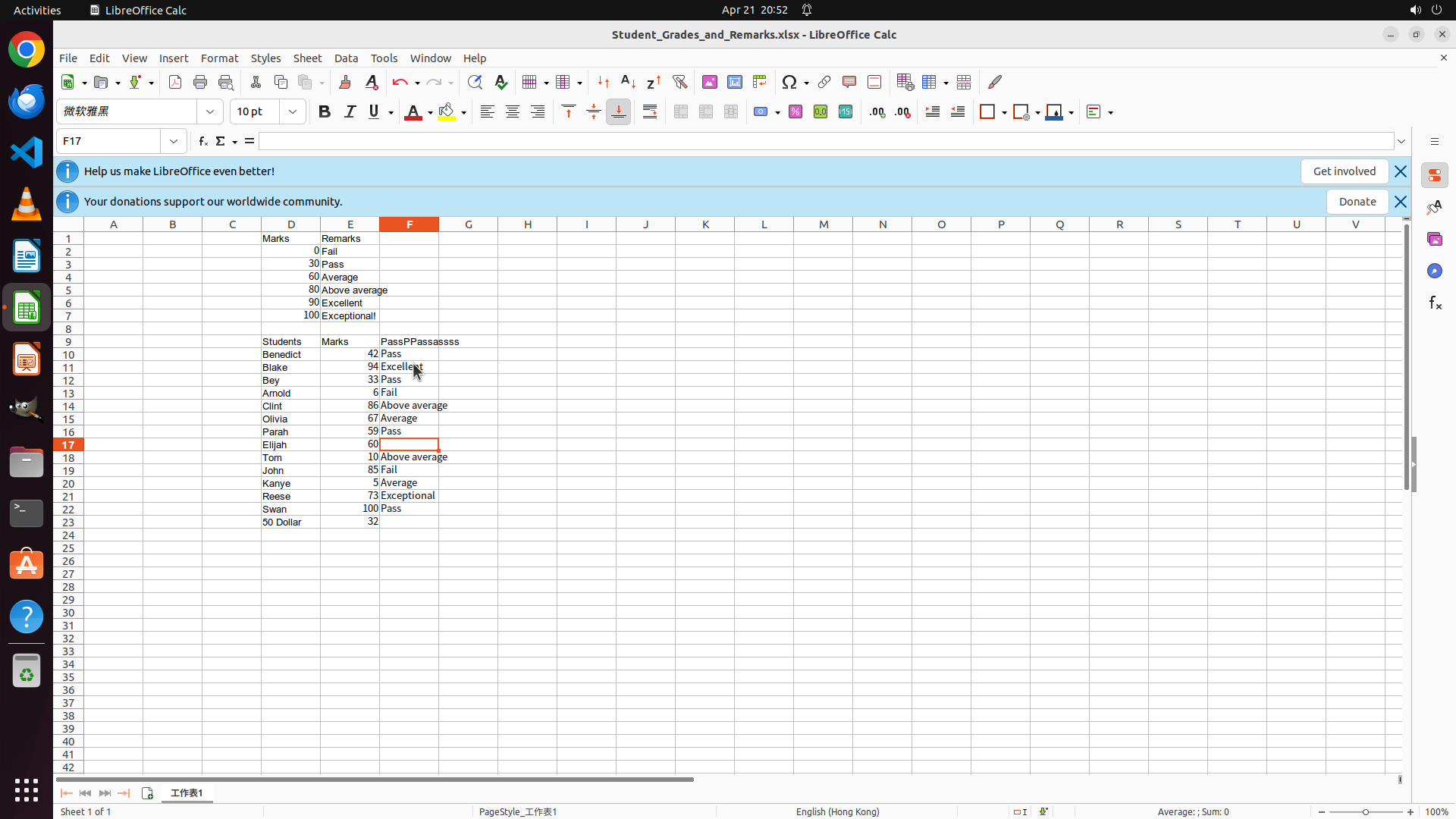
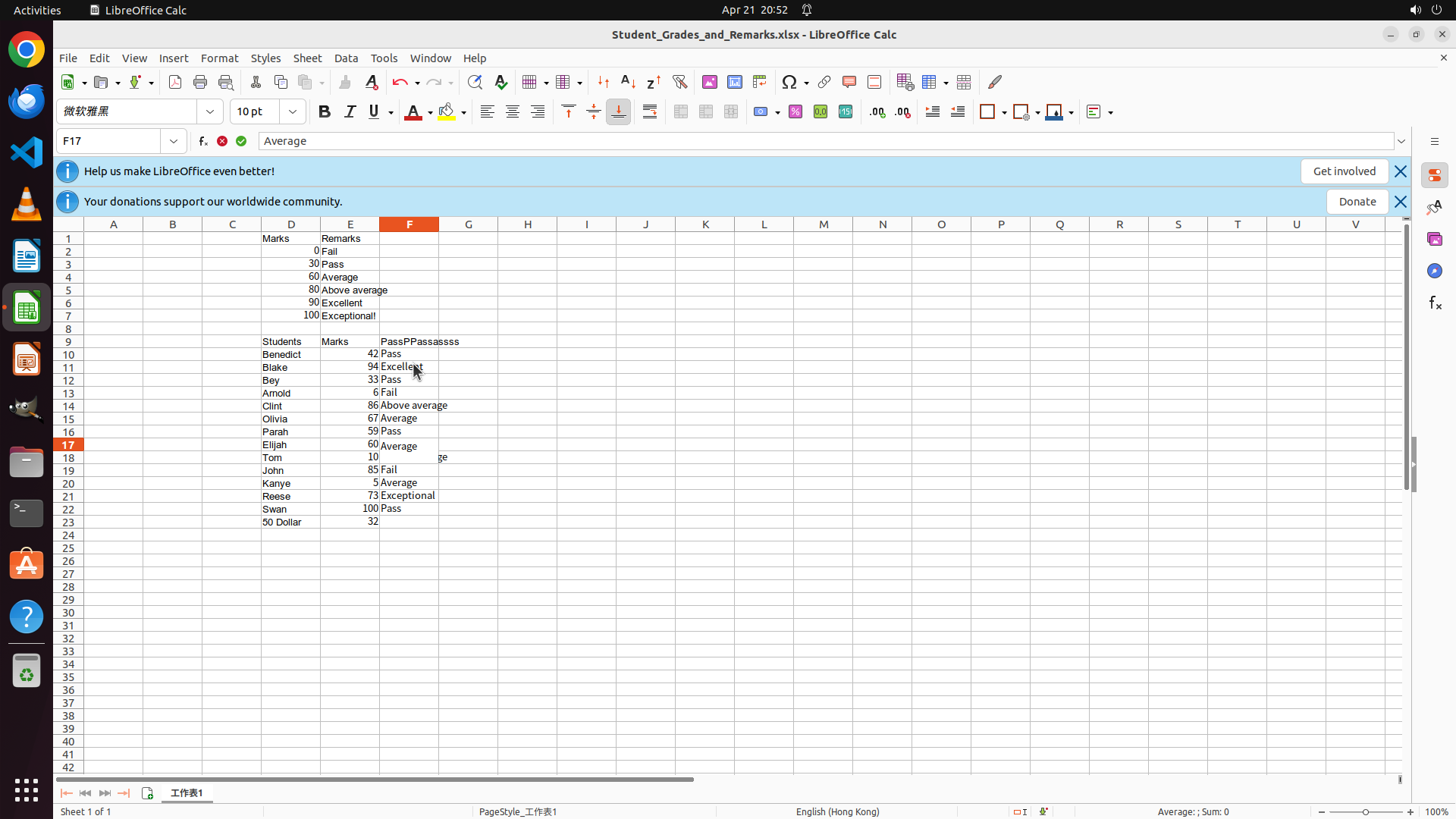
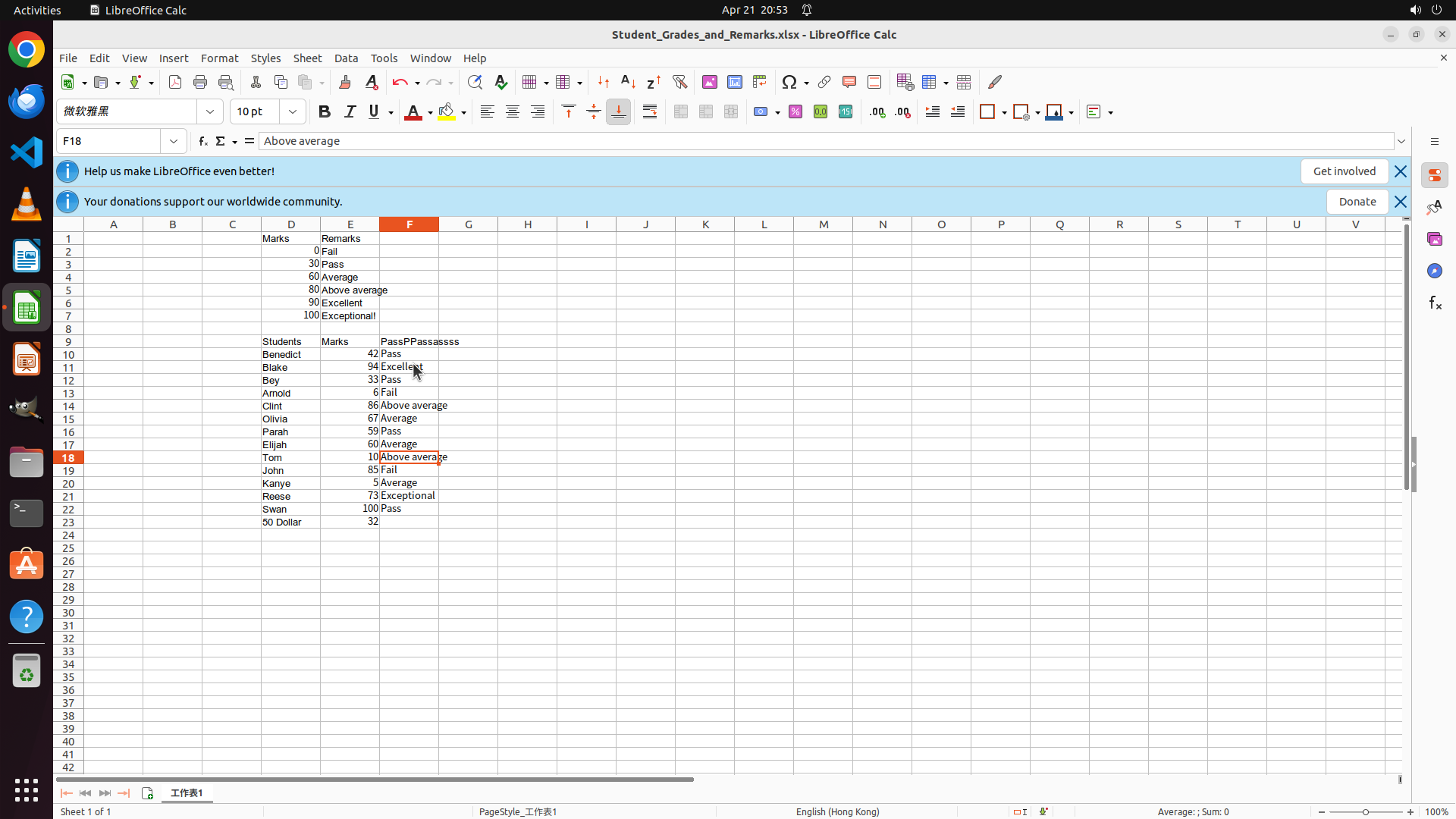
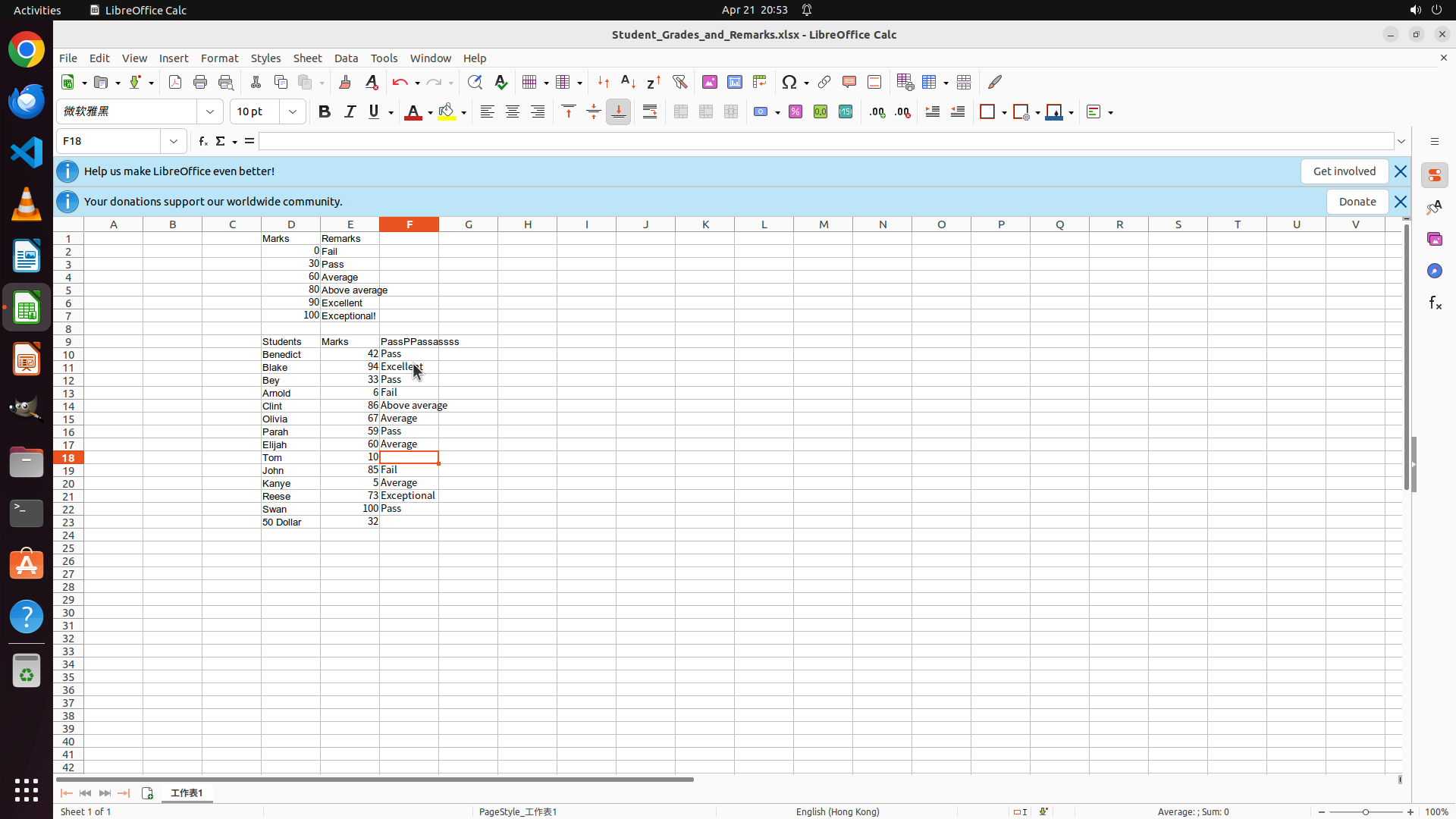
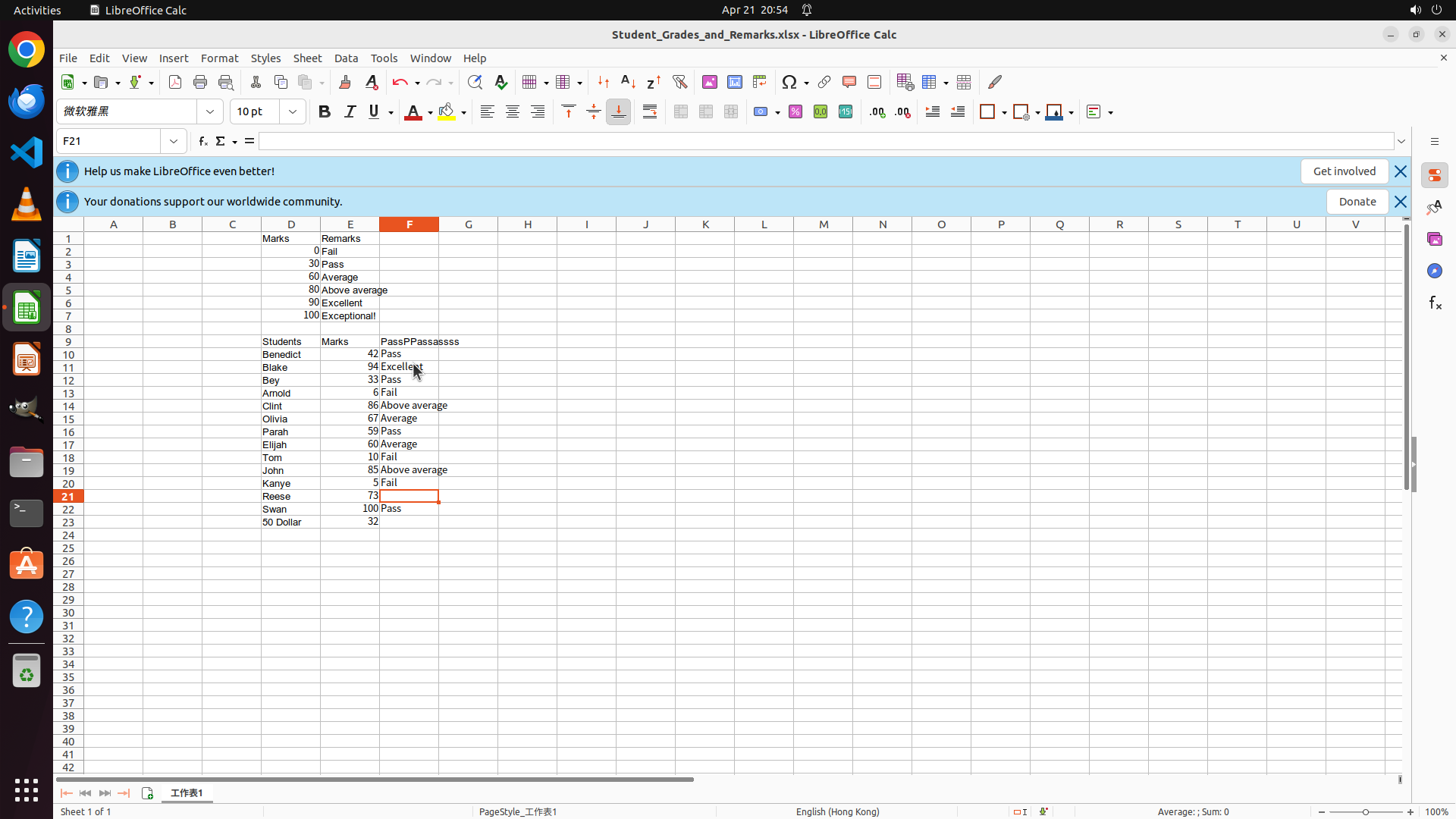
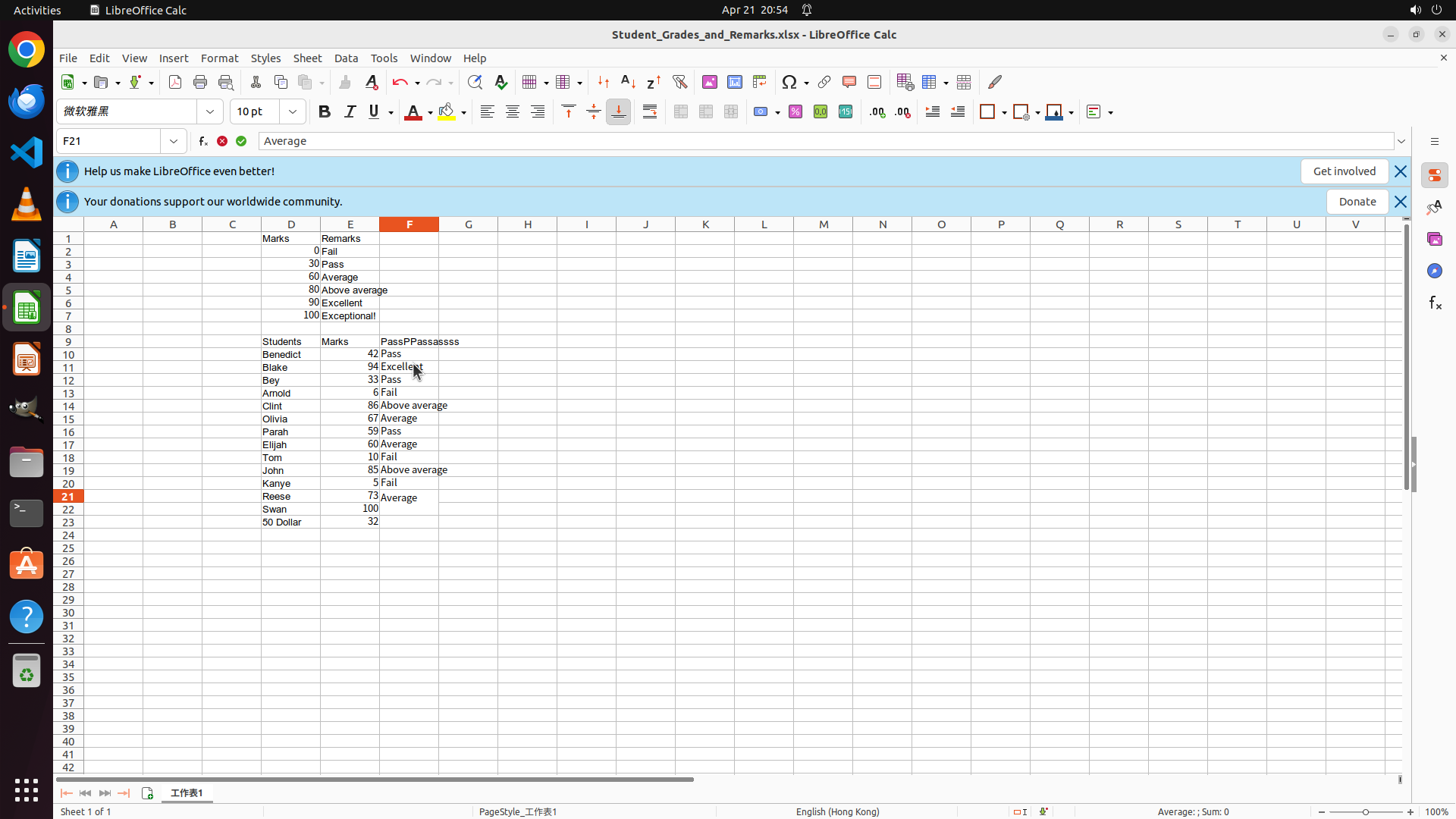
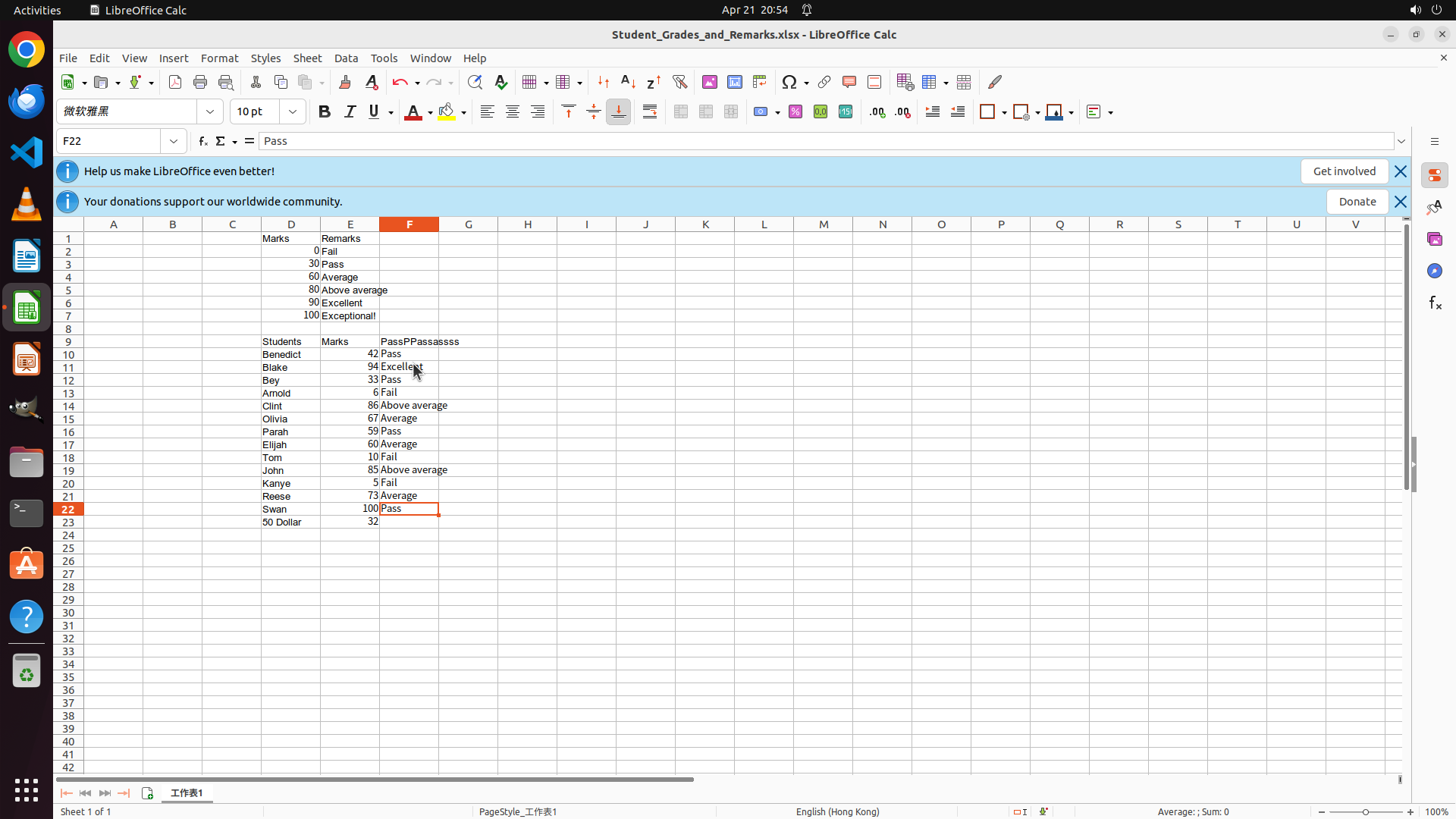
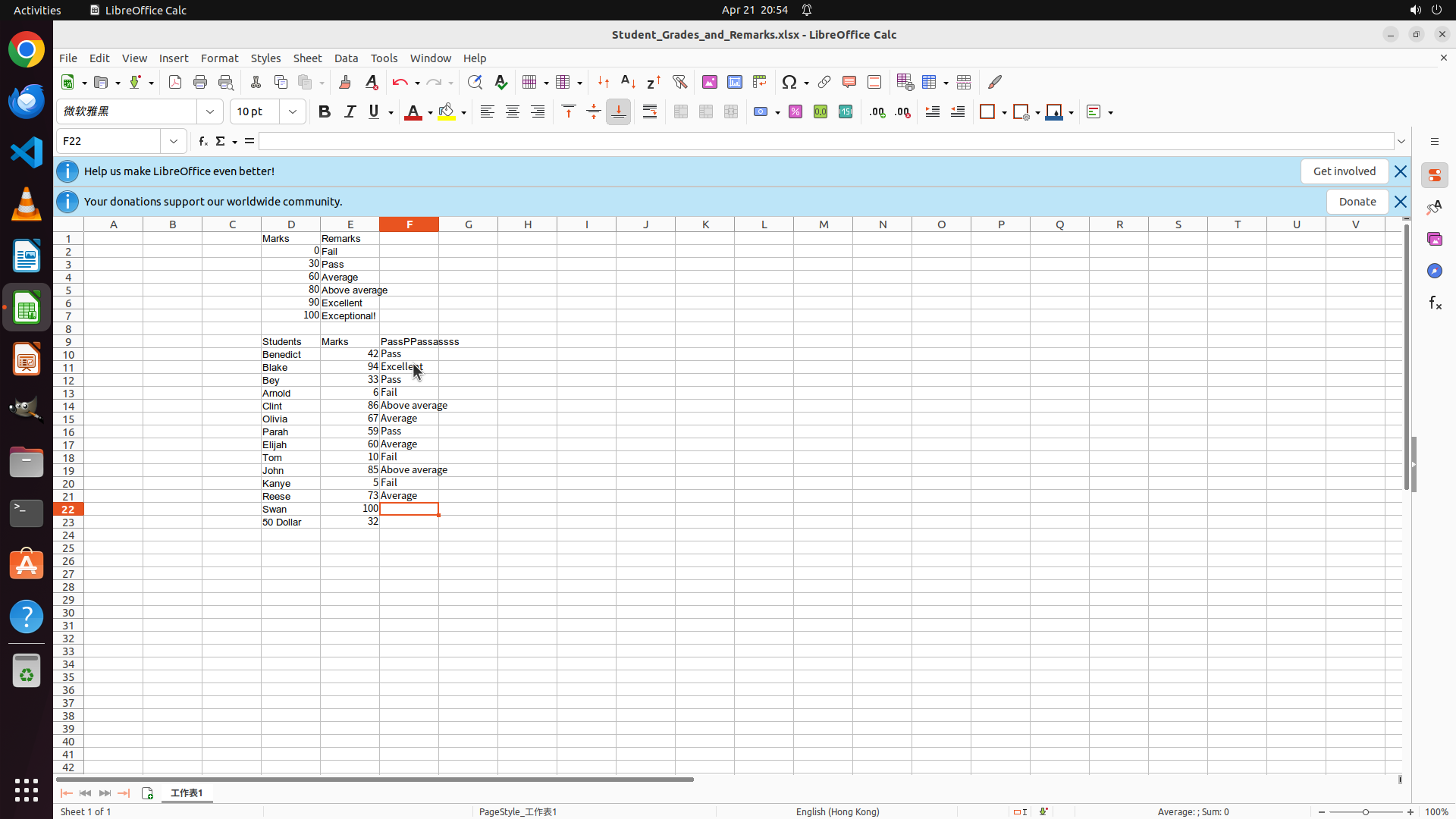
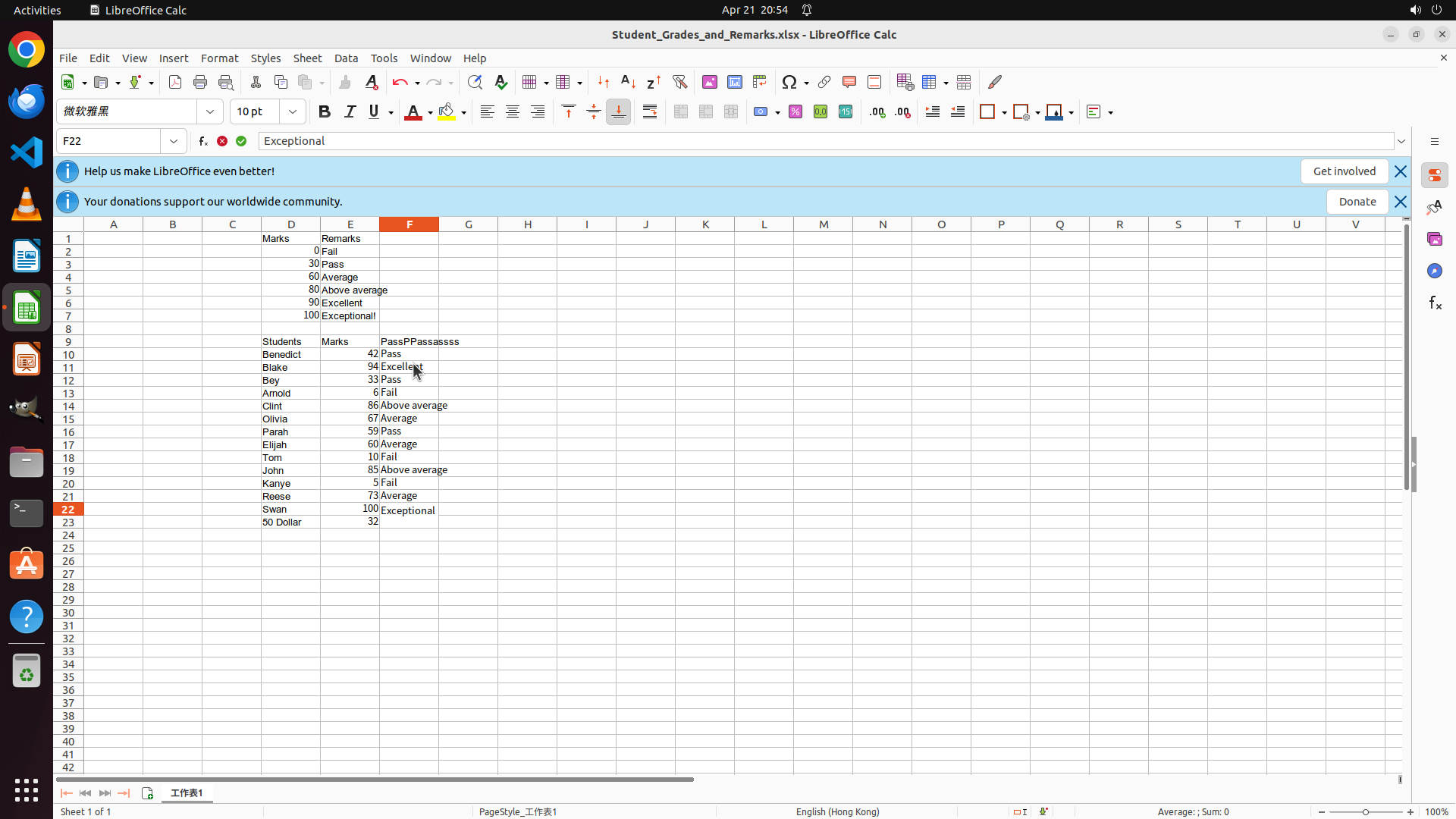
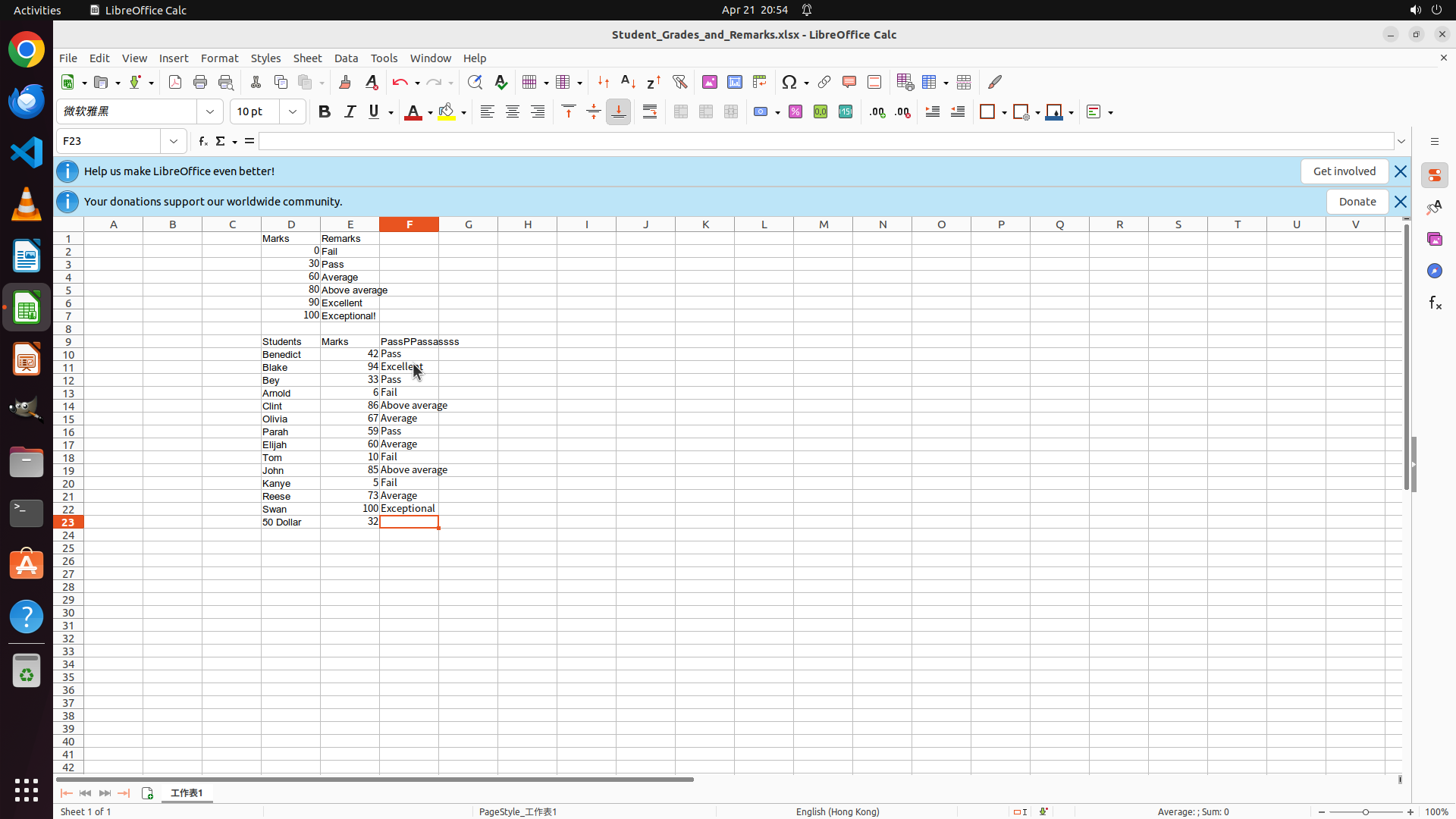
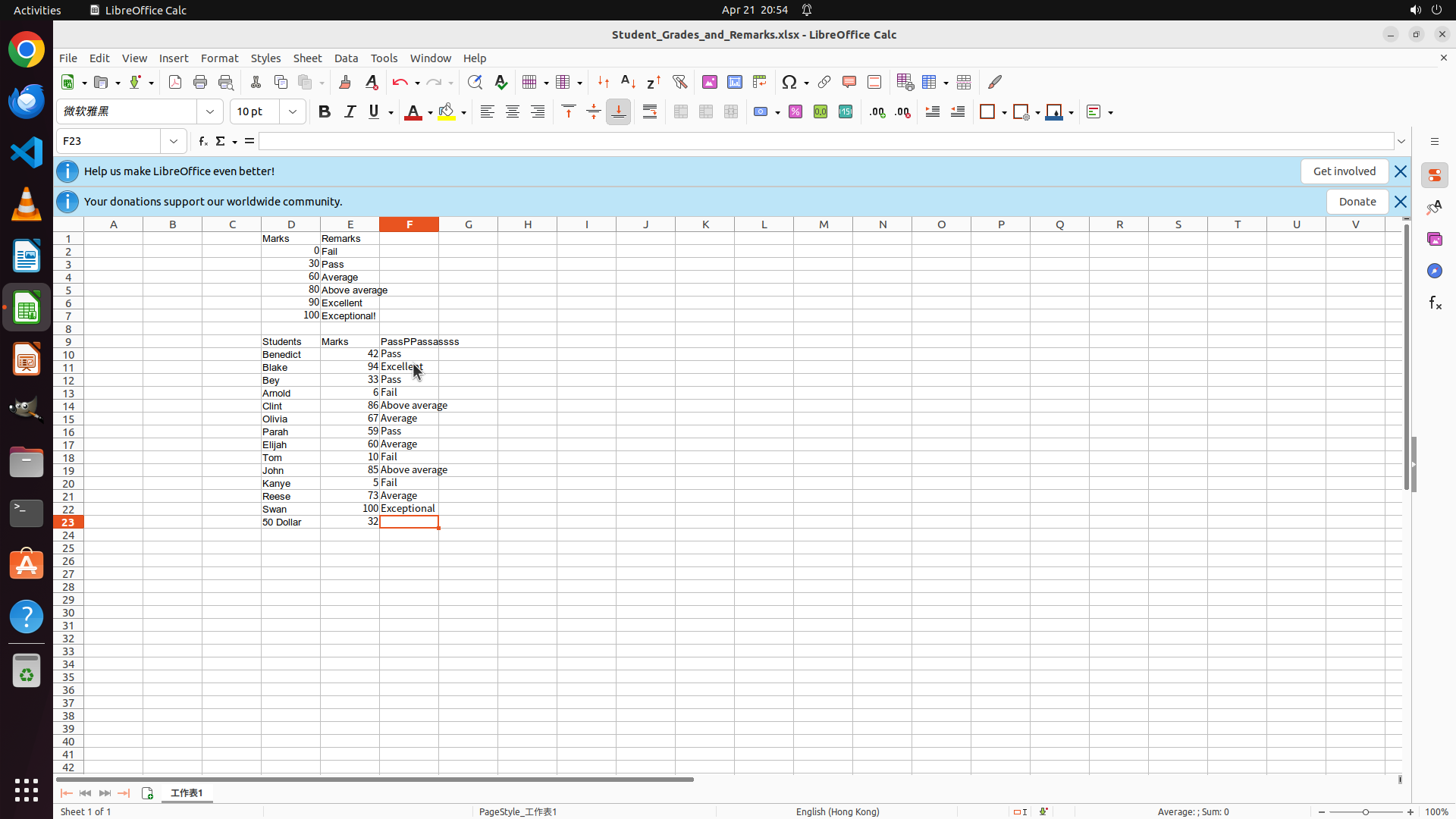
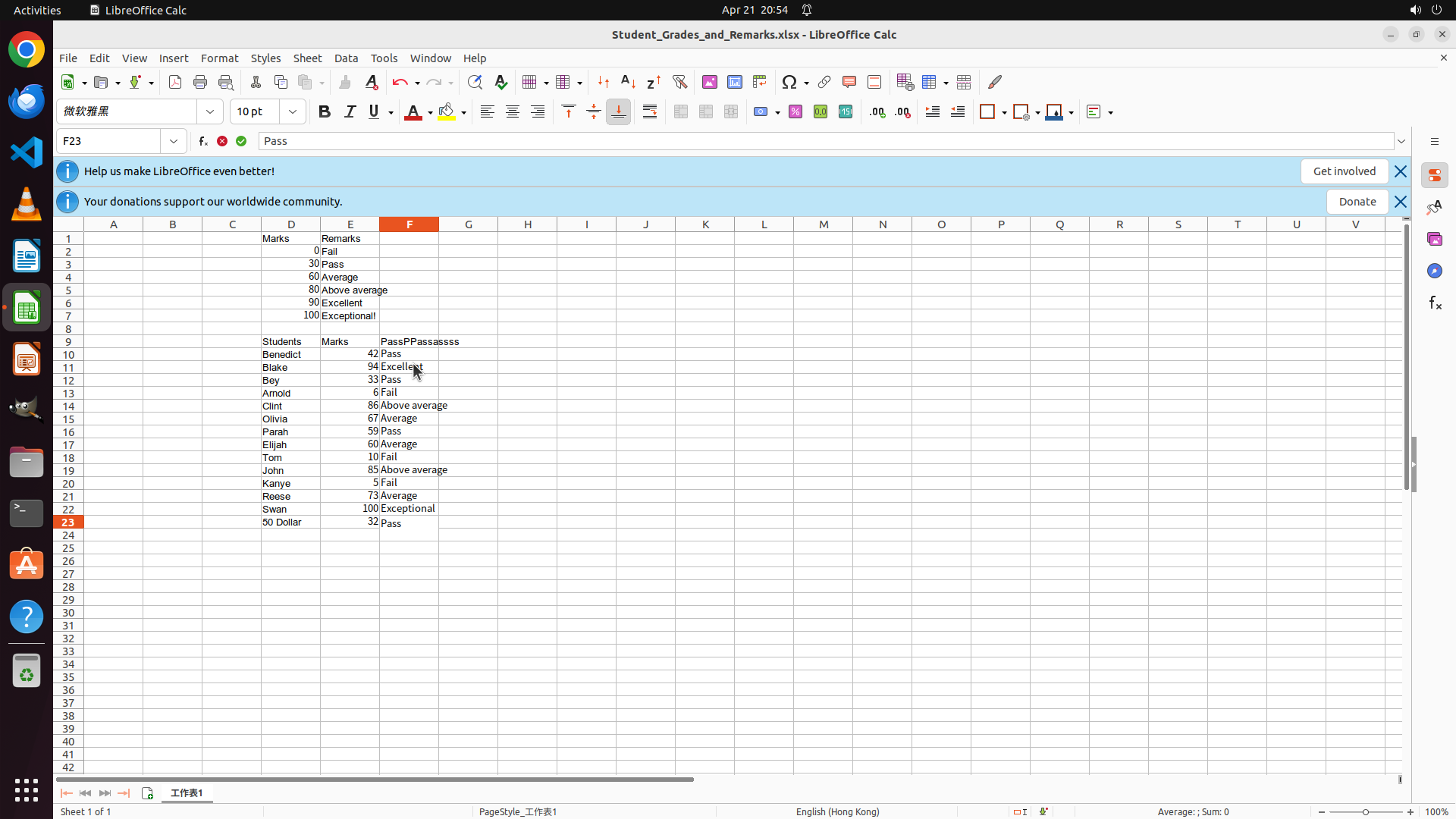
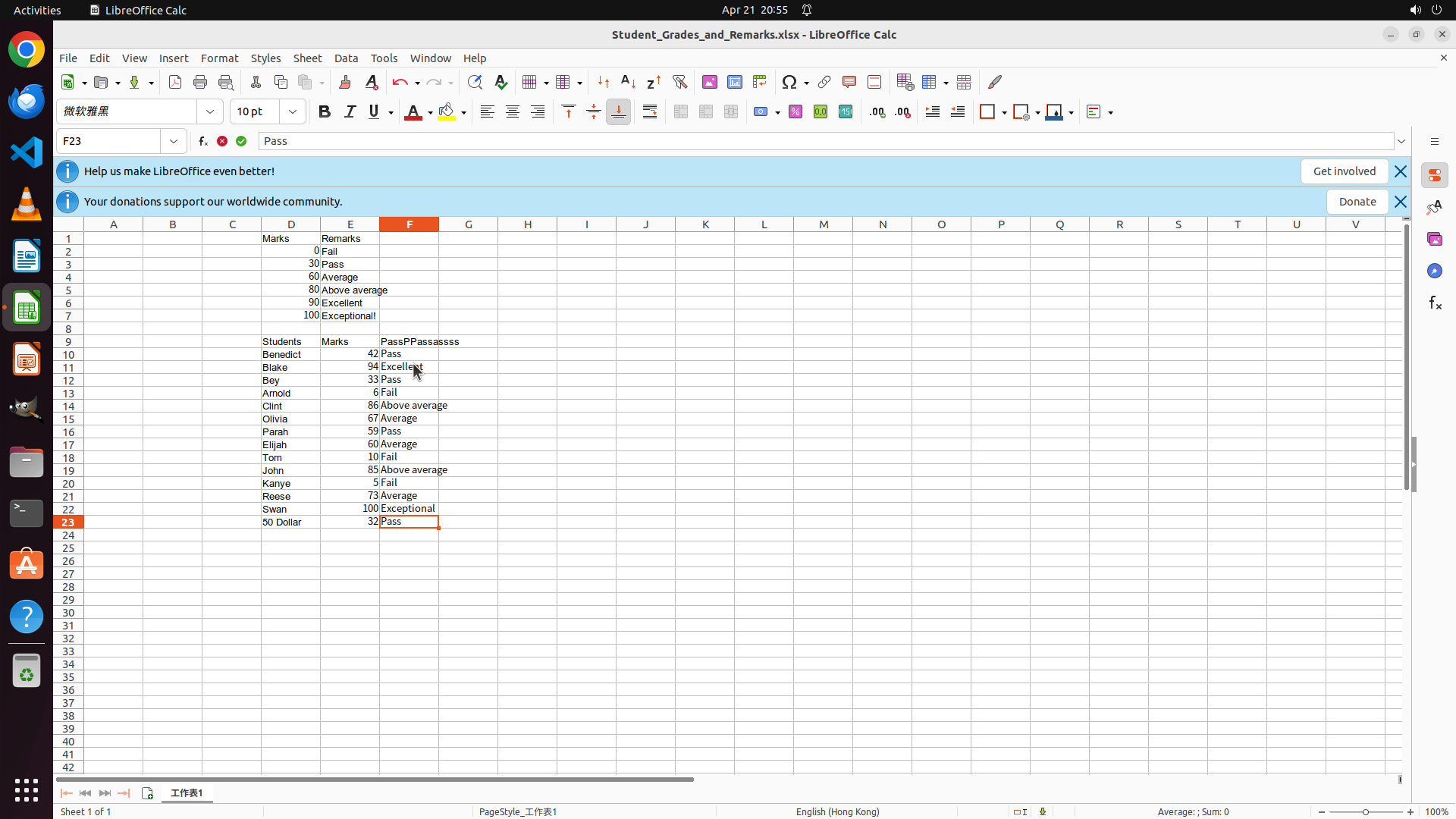
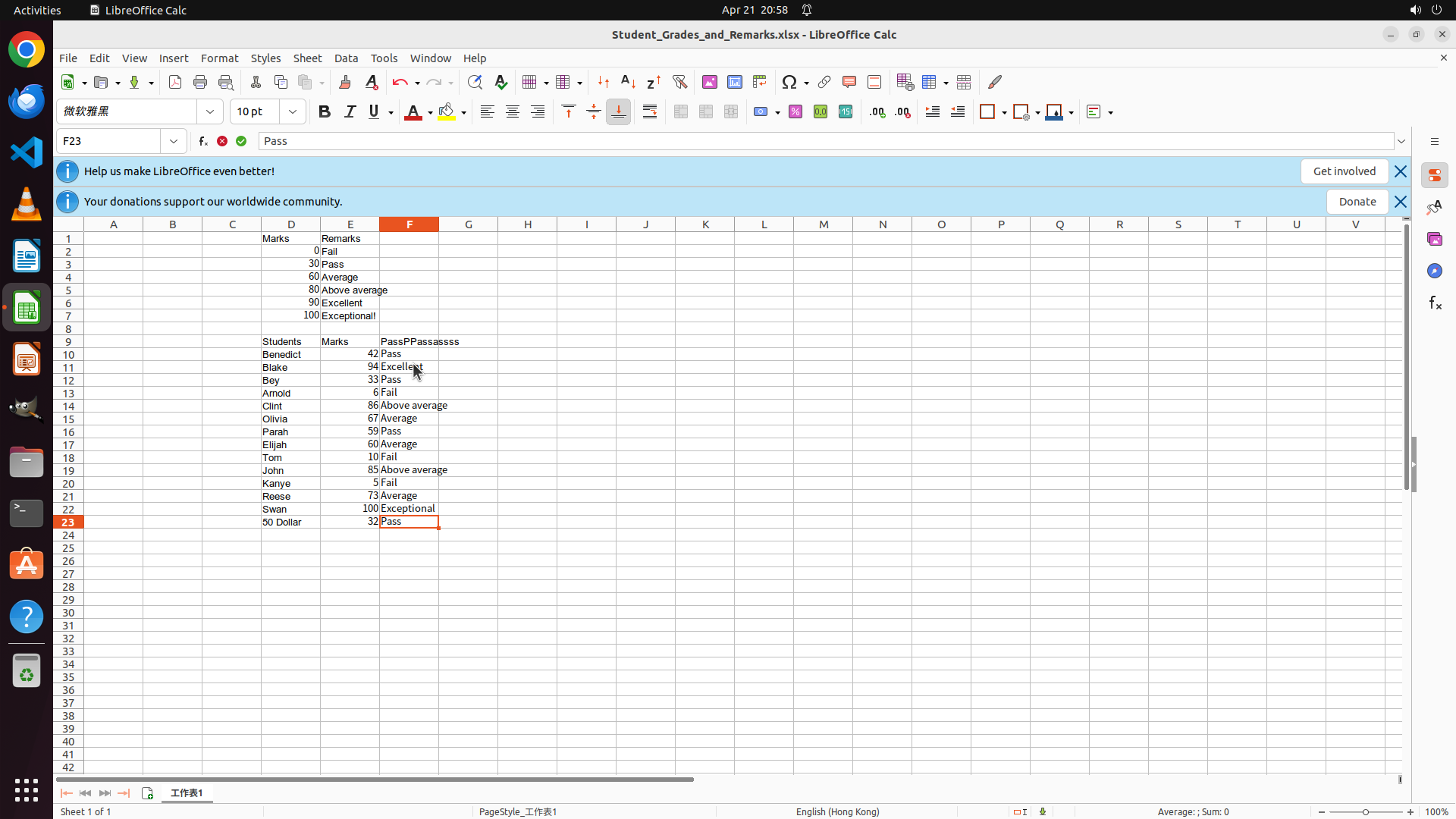
- LibreOffice Calc is open with a spreadsheet containing student grades
- The scale table is visible in rows 2-7 showing grade boundaries
- Student data is in rows 10-23 with names in column C, marks in column D
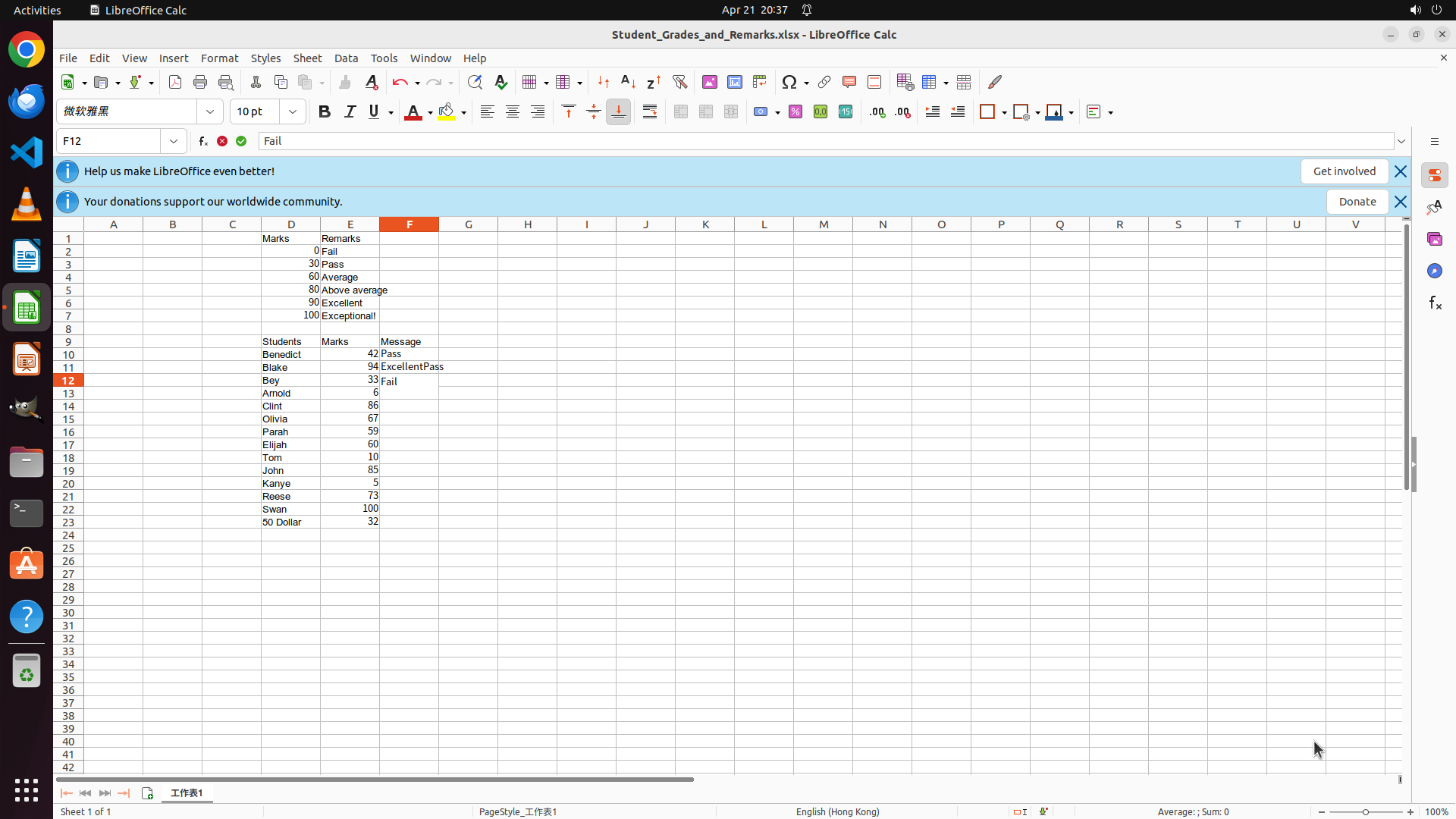
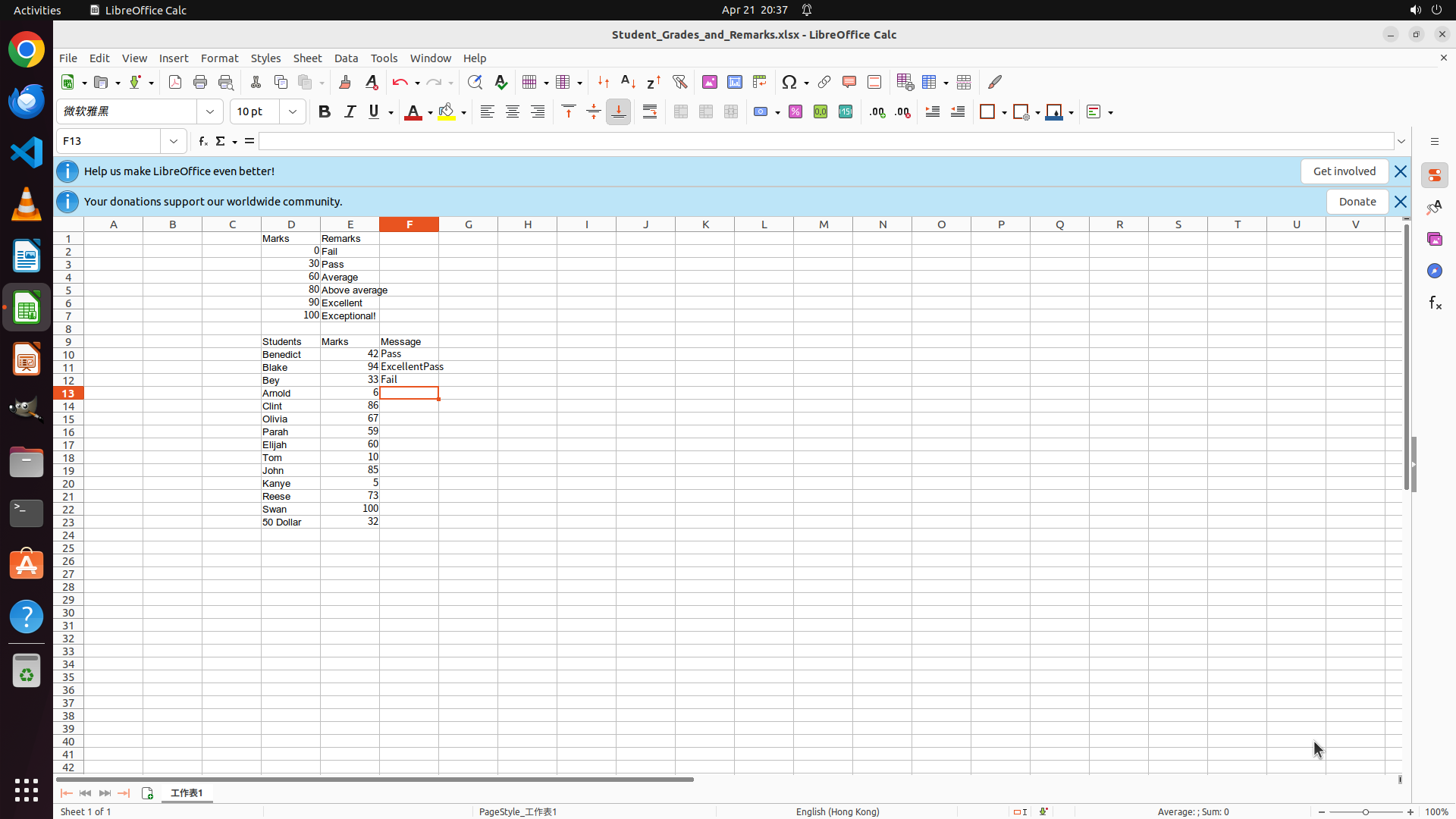
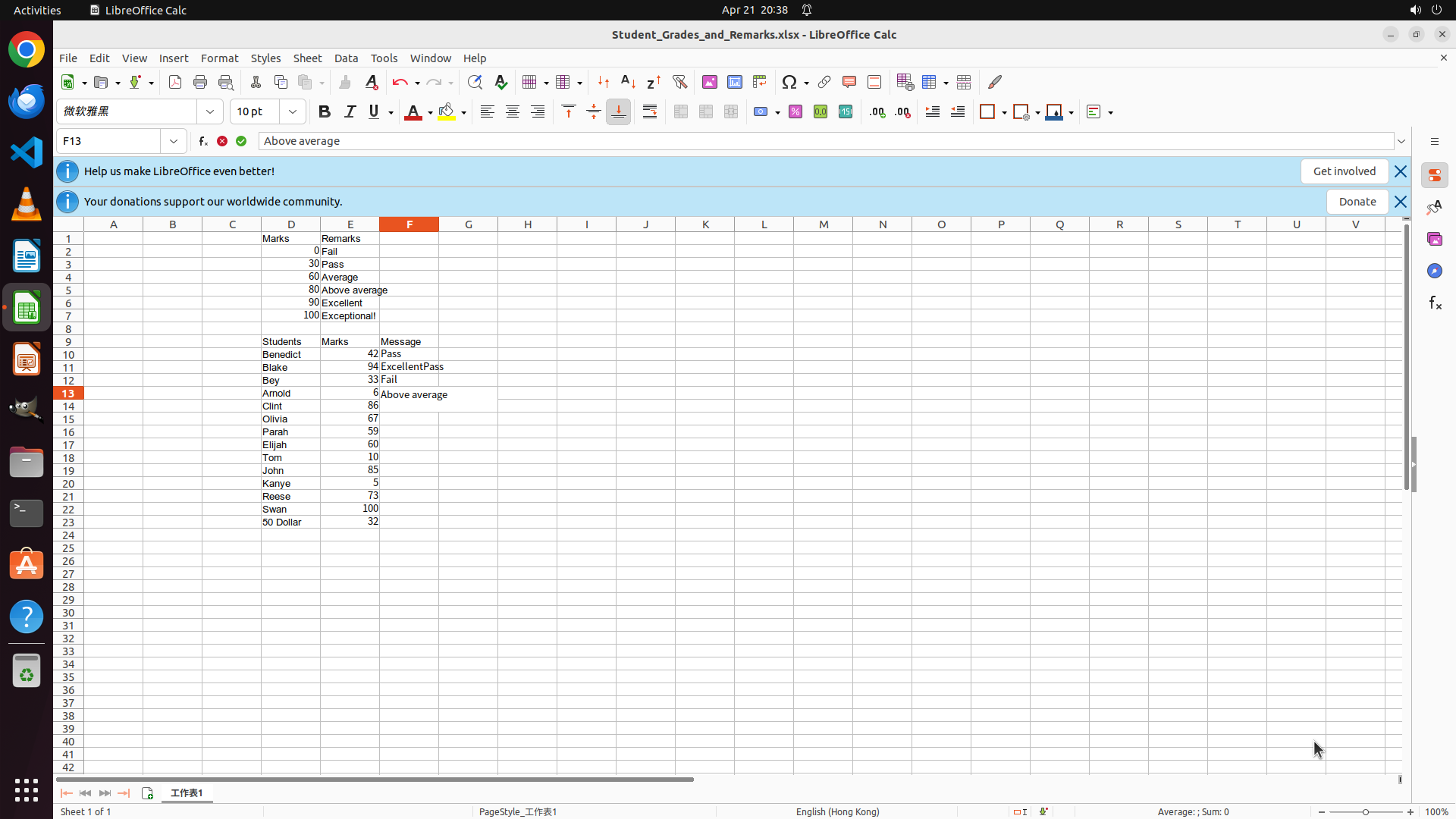
- The Message column (F) is where grades need to be entered
- Cell F10 is already selected (Benedict's row with mark 42)
- Benedict's mark 42 falls in the Pass range (30-59)
#### 情况分析与思考过程
The task is to calculate and enter grades for each student based on the scale table. I can see:
- Scale: 0=Fail, 30=Pass, 60=Average, 80=Above average, 90=Excellent, 100=Exceptional
Students and their calculated grades:
- Benedict (42): Pass
- Blake (94): Excellent
- Bey (33): Pass
- Arnold (6): Fail
- Clint (86): Above average
- Olivia (67): Average
- Parah (59): Pass
- Elijah (60): Average
- Tom (10): Fail
- John (85): Above average
- Kanee (5): Fail
- Reese (73): Average
- Swan (100): Exceptional
- 50 Dollar (32): Pass
Since F10 is already selected, I'll start entering the grades. I'll type "Pass" for Benedict, then move to the next cells to continue entering all grades.</think>
Step 1: HOTKEY
#### 重要信息
- LibreOffice Calc is open with a spreadsheet containing student grades
- The scale table is visible in rows 2-7 showing grade boundaries
- Student data is in rows 10-23 with names in column C, marks in column D
- The Message column (F) is where grades need to be entered
- Cell F10 is already selected (Benedict's row with mark 42)
- Benedict's mark 42 falls in the Pass range (30-59)
#### 情况分析与思考过程
The task is to calculate and enter grades for each student based on the scale table. I can see:
- Scale: 0=Fail, 30=Pass, 60=Average, 80=Above average, 90=Excellent, 100=Exceptional
Students and their calculated grades:
- Benedict (42): Pass
- Blake (94): Excellent
- Bey (33): Pass
- Arnold (6): Fail
- Clint (86): Above average
- Olivia (67): Average
- Parah (59): Pass
- Elijah (60): Average
- Tom (10): Fail
- John (85): Above average
- Kanee (5): Fail
- Reese (73): Average
- Swan (100): Exceptional
- 50 Dollar (32): Pass
Since F10 is already selected, I'll start entering the grades. I'll type "Pass" for Benedict, then move to the next cells to continue entering all grades.</think>
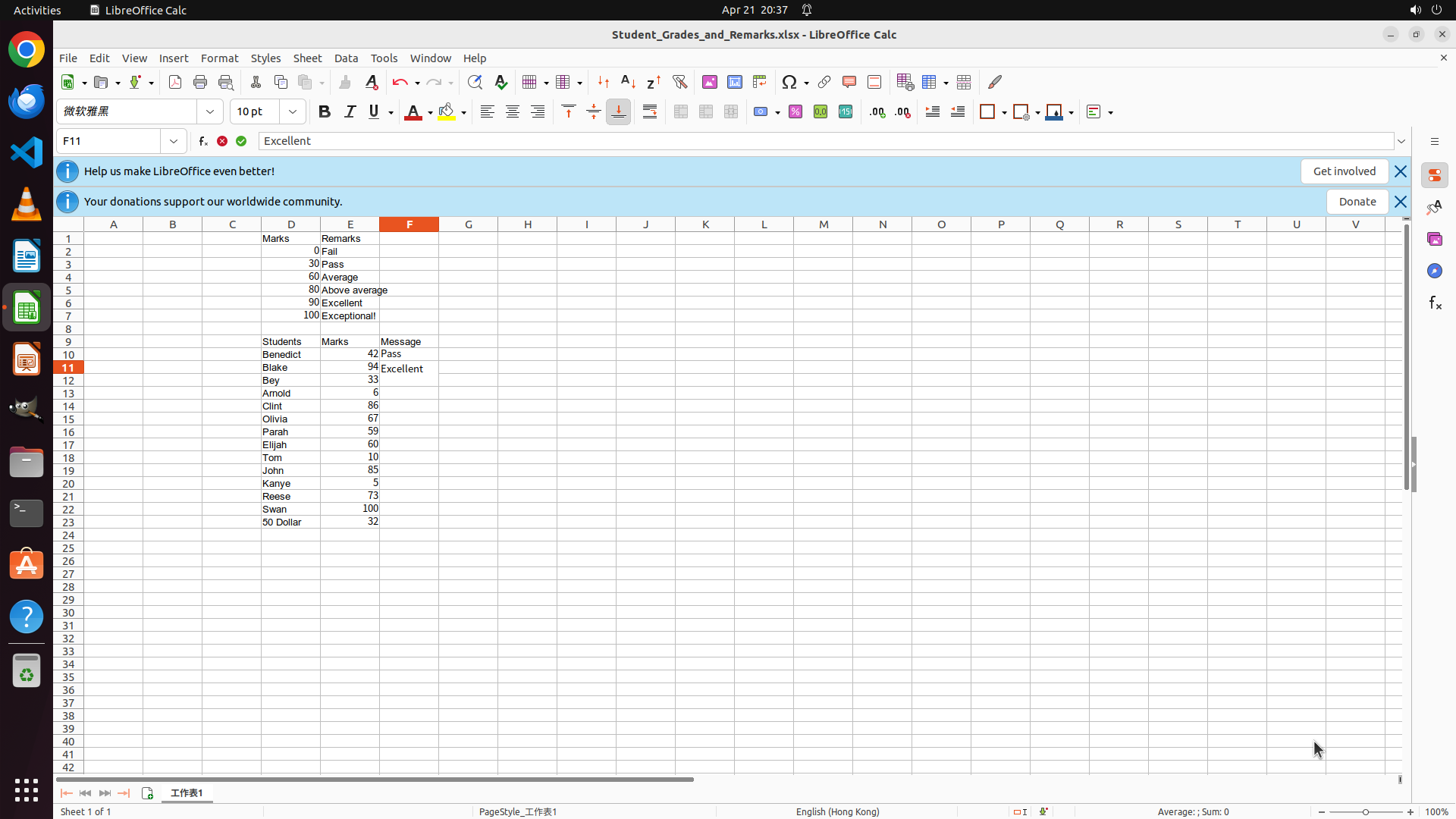
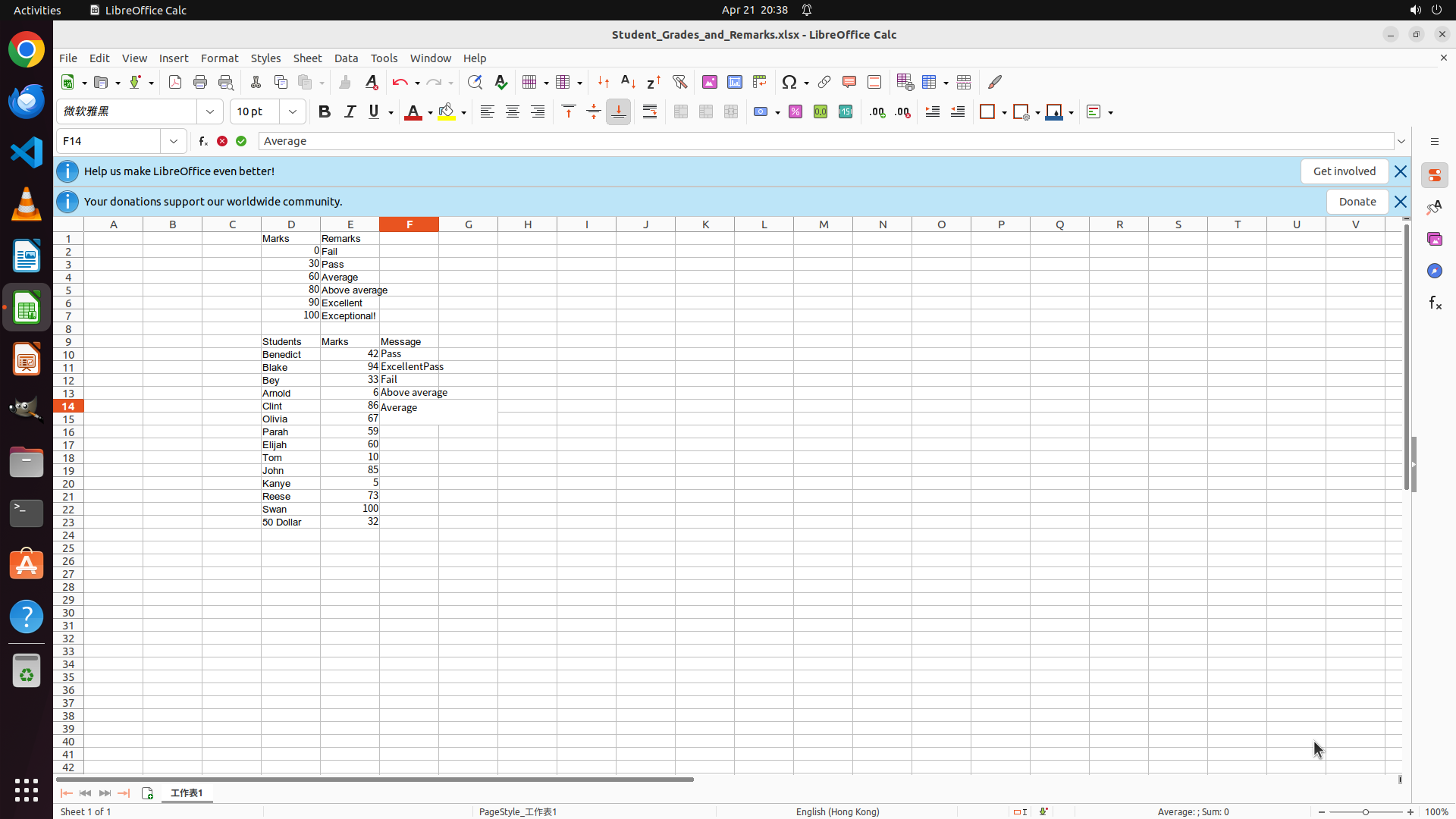
Step 1: TYPING "Excellent"
#### 重要信息
- LibreOffice Calc is open with a spreadsheet containing student grades
- The scale table is visible in rows 2-7 showing grade boundaries
- Student data is in rows 10-23 with names in column C, marks in column D
- The Message column (F) is where grades need to be entered
- Cell F10 is already selected (Benedict's row with mark 42)
- Benedict's mark 42 falls in the Pass range (30-59)
#### 情况分析与思考过程
The task is to calculate and enter grades for each student based on the scale table. I can see:
- Scale: 0=Fail, 30=Pass, 60=Average, 80=Above average, 90=Excellent, 100=Exceptional
Students and their calculated grades:
- Benedict (42): Pass
- Blake (94): Excellent
- Bey (33): Pass
- Arnold (6): Fail
- Clint (86): Above average
- Olivia (67): Average
- Parah (59): Pass
- Elijah (60): Average
- Tom (10): Fail
- John (85): Above average
- Kanee (5): Fail
- Reese (73): Average
- Swan (100): Exceptional
- 50 Dollar (32): Pass
Since F10 is already selected, I'll start entering the grades. I'll type "Pass" for Benedict, then move to the next cells to continue entering all grades.</think>
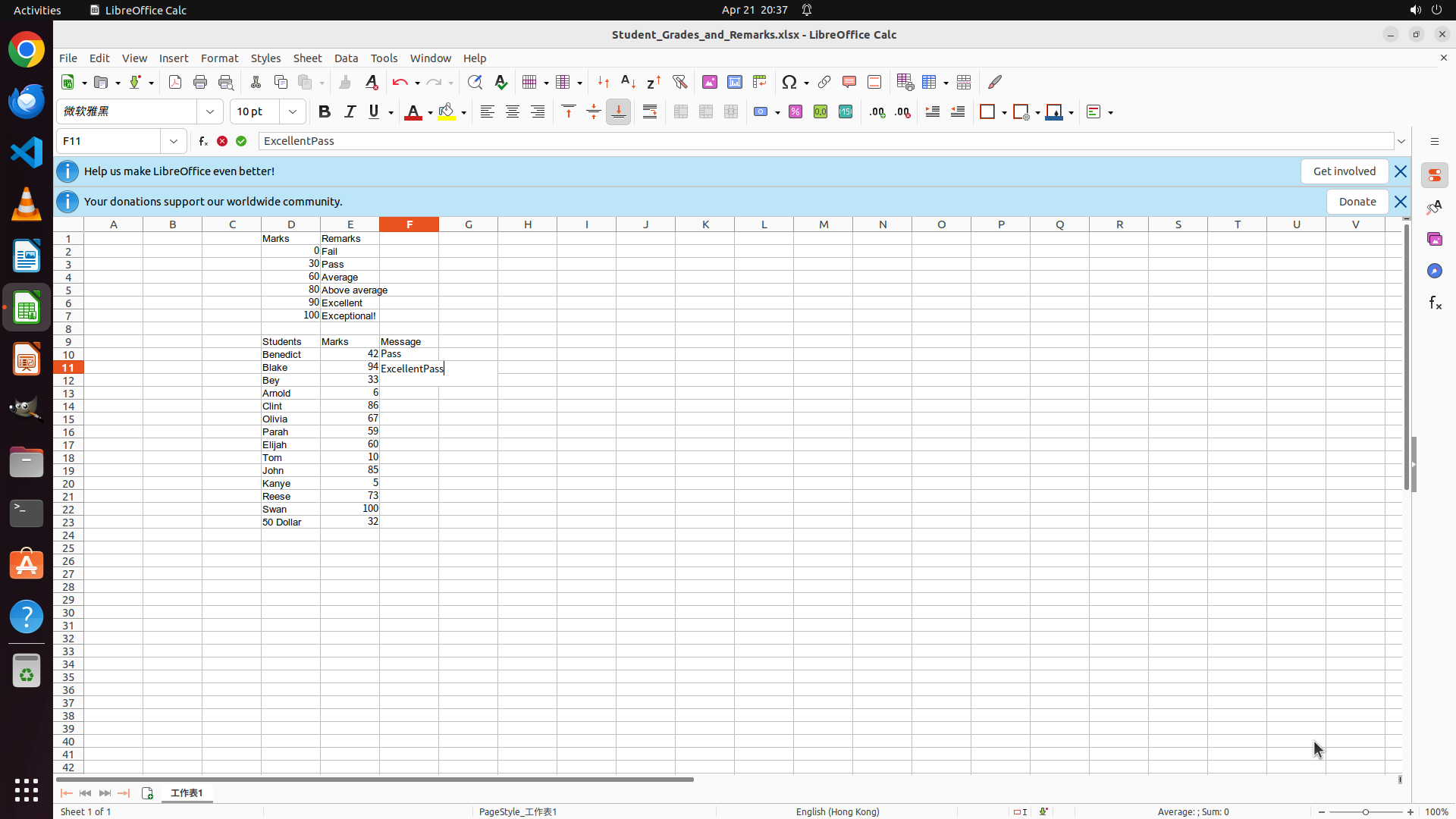
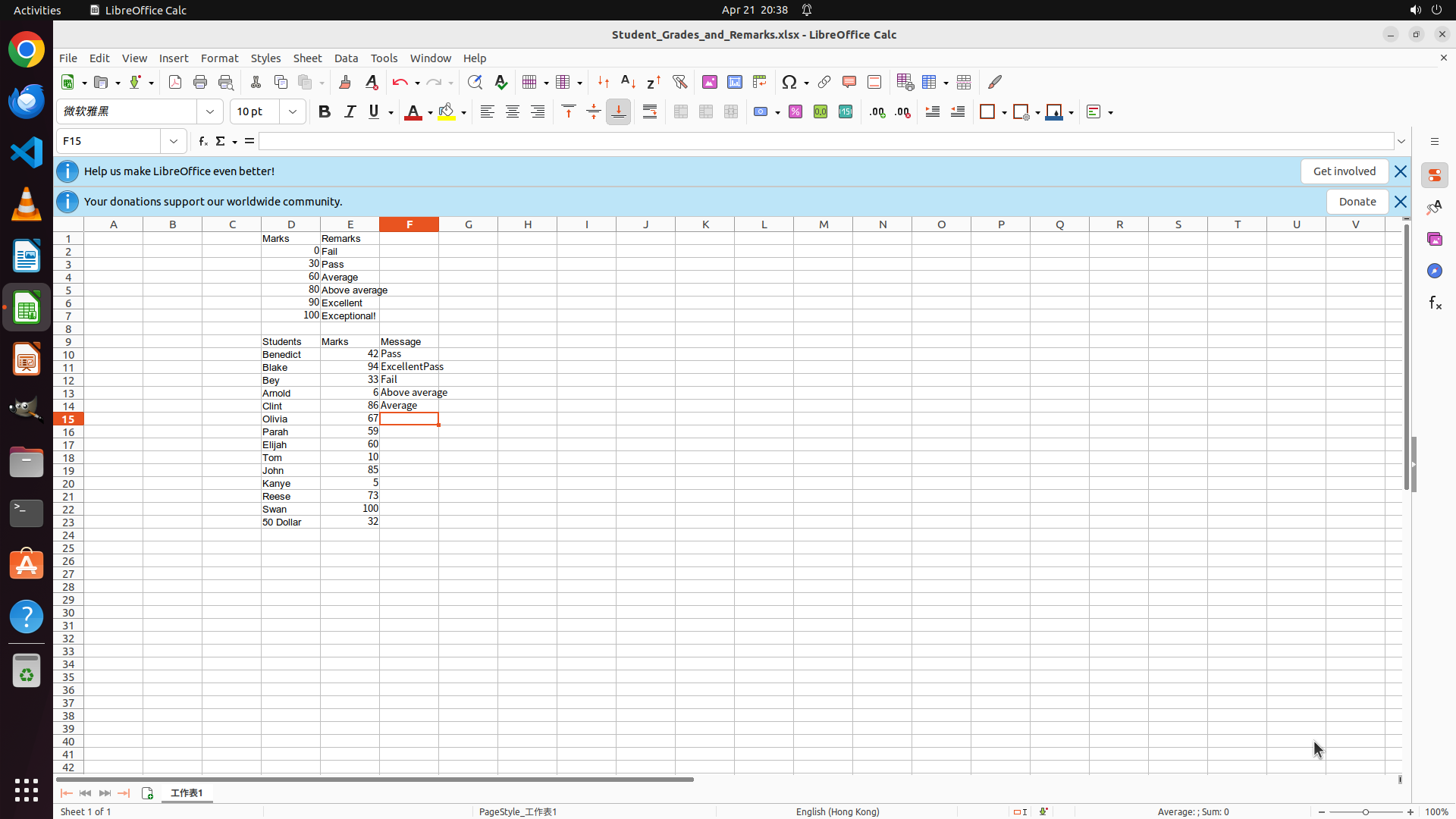
Step 1: TYPING "Pass"
#### 重要信息
- LibreOffice Calc is open with a spreadsheet containing student grades
- The scale table is visible in rows 2-7 showing grade boundaries
- Student data is in rows 10-23 with names in column C, marks in column D
- The Message column (F) is where grades need to be entered
- Cell F10 is already selected (Benedict's row with mark 42)
- Benedict's mark 42 falls in the Pass range (30-59)
#### 情况分析与思考过程
The task is to calculate and enter grades for each student based on the scale table. I can see:
- Scale: 0=Fail, 30=Pass, 60=Average, 80=Above average, 90=Excellent, 100=Exceptional
Students and their calculated grades:
- Benedict (42): Pass
- Blake (94): Excellent
- Bey (33): Pass
- Arnold (6): Fail
- Clint (86): Above average
- Olivia (67): Average
- Parah (59): Pass
- Elijah (60): Average
- Tom (10): Fail
- John (85): Above average
- Kanee (5): Fail
- Reese (73): Average
- Swan (100): Exceptional
- 50 Dollar (32): Pass
Since F10 is already selected, I'll start entering the grades. I'll type "Pass" for Benedict, then move to the next cells to continue entering all grades.</think>
Step 1: HOTKEY
#### 重要信息
- LibreOffice Calc is open with a spreadsheet containing student grades
- The scale table is visible in rows 2-7 showing grade boundaries
- Student data is in rows 10-23 with names in column C, marks in column D
- The Message column (F) is where grades need to be entered
- Cell F10 is already selected (Benedict's row with mark 42)
- Benedict's mark 42 falls in the Pass range (30-59)
#### 情况分析与思考过程
The task is to calculate and enter grades for each student based on the scale table. I can see:
- Scale: 0=Fail, 30=Pass, 60=Average, 80=Above average, 90=Excellent, 100=Exceptional
Students and their calculated grades:
- Benedict (42): Pass
- Blake (94): Excellent
- Bey (33): Pass
- Arnold (6): Fail
- Clint (86): Above average
- Olivia (67): Average
- Parah (59): Pass
- Elijah (60): Average
- Tom (10): Fail
- John (85): Above average
- Kanee (5): Fail
- Reese (73): Average
- Swan (100): Exceptional
- 50 Dollar (32): Pass
Since F10 is already selected, I'll start entering the grades. I'll type "Pass" for Benedict, then move to the next cells to continue entering all grades.</think>
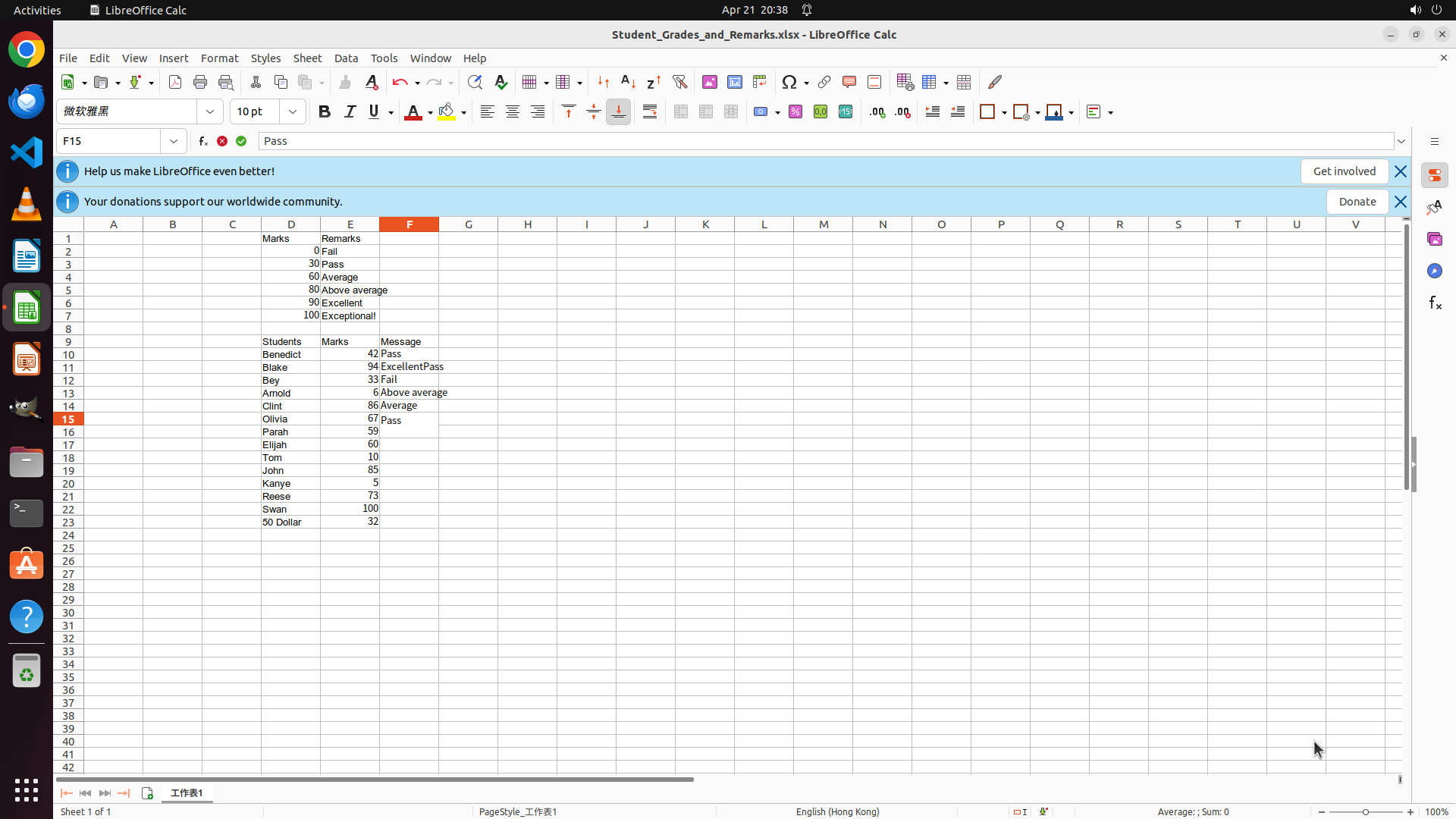
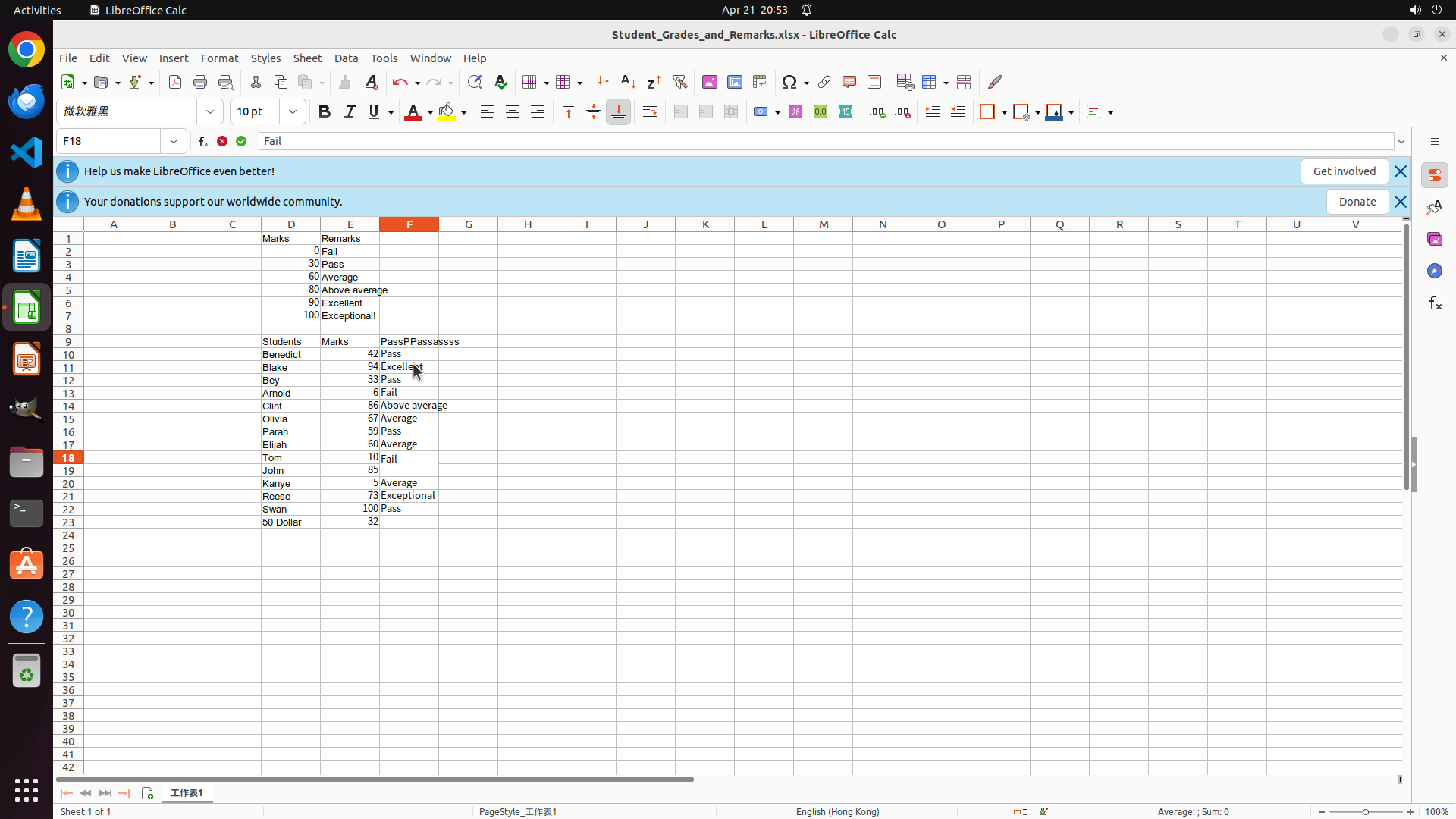
Step 1: TYPING "Fail"
#### 重要信息
- LibreOffice Calc is open with a spreadsheet containing student grades
- The scale table is visible in rows 2-7 showing grade boundaries
- Student data is in rows 10-23 with names in column C, marks in column D
- The Message column (F) is where grades need to be entered
- Cell F10 is already selected (Benedict's row with mark 42)
- Benedict's mark 42 falls in the Pass range (30-59)
#### 情况分析与思考过程
The task is to calculate and enter grades for each student based on the scale table. I can see:
- Scale: 0=Fail, 30=Pass, 60=Average, 80=Above average, 90=Excellent, 100=Exceptional
Students and their calculated grades:
- Benedict (42): Pass
- Blake (94): Excellent
- Bey (33): Pass
- Arnold (6): Fail
- Clint (86): Above average
- Olivia (67): Average
- Parah (59): Pass
- Elijah (60): Average
- Tom (10): Fail
- John (85): Above average
- Kanee (5): Fail
- Reese (73): Average
- Swan (100): Exceptional
- 50 Dollar (32): Pass
Since F10 is already selected, I'll start entering the grades. I'll type "Pass" for Benedict, then move to the next cells to continue entering all grades.</think>
Step 1: HOTKEY
#### 重要信息
- LibreOffice Calc is open with a spreadsheet containing student grades
- The scale table is visible in rows 2-7 showing grade boundaries
- Student data is in rows 10-23 with names in column C, marks in column D
- The Message column (F) is where grades need to be entered
- Cell F10 is already selected (Benedict's row with mark 42)
- Benedict's mark 42 falls in the Pass range (30-59)
#### 情况分析与思考过程
The task is to calculate and enter grades for each student based on the scale table. I can see:
- Scale: 0=Fail, 30=Pass, 60=Average, 80=Above average, 90=Excellent, 100=Exceptional
Students and their calculated grades:
- Benedict (42): Pass
- Blake (94): Excellent
- Bey (33): Pass
- Arnold (6): Fail
- Clint (86): Above average
- Olivia (67): Average
- Parah (59): Pass
- Elijah (60): Average
- Tom (10): Fail
- John (85): Above average
- Kanee (5): Fail
- Reese (73): Average
- Swan (100): Exceptional
- 50 Dollar (32): Pass
Since F10 is already selected, I'll start entering the grades. I'll type "Pass" for Benedict, then move to the next cells to continue entering all grades.</think>
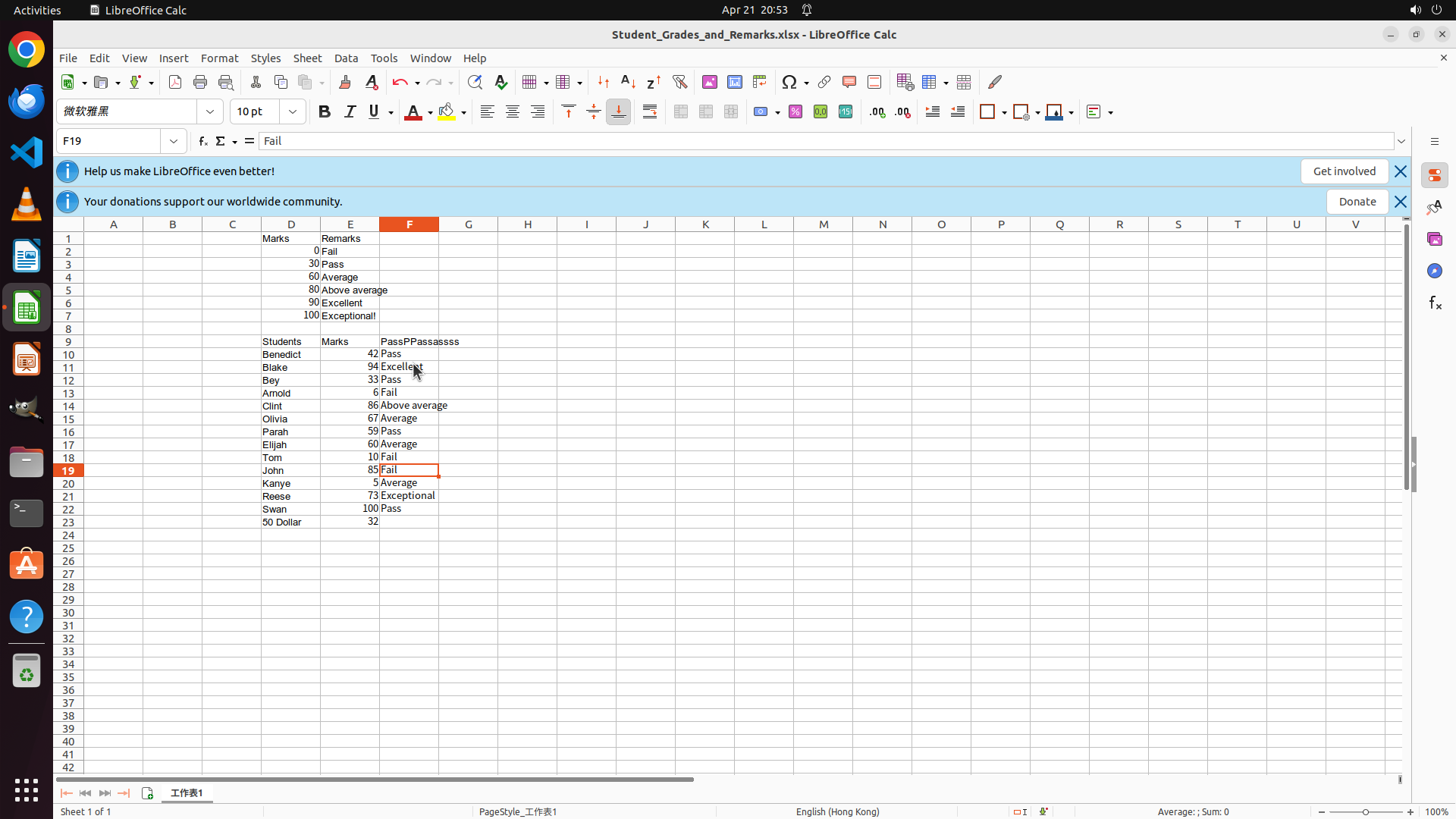
Step 1: TYPING "Above average"
#### 重要信息
- LibreOffice Calc is open with a spreadsheet containing student grades
- The scale table is visible in rows 2-7 showing grade boundaries
- Student data is in rows 10-23 with names in column C, marks in column D
- The Message column (F) is where grades need to be entered
- Cell F10 is already selected (Benedict's row with mark 42)
- Benedict's mark 42 falls in the Pass range (30-59)
#### 情况分析与思考过程
The task is to calculate and enter grades for each student based on the scale table. I can see:
- Scale: 0=Fail, 30=Pass, 60=Average, 80=Above average, 90=Excellent, 100=Exceptional
Students and their calculated grades:
- Benedict (42): Pass
- Blake (94): Excellent
- Bey (33): Pass
- Arnold (6): Fail
- Clint (86): Above average
- Olivia (67): Average
- Parah (59): Pass
- Elijah (60): Average
- Tom (10): Fail
- John (85): Above average
- Kanee (5): Fail
- Reese (73): Average
- Swan (100): Exceptional
- 50 Dollar (32): Pass
Since F10 is already selected, I'll start entering the grades. I'll type "Pass" for Benedict, then move to the next cells to continue entering all grades.</think>
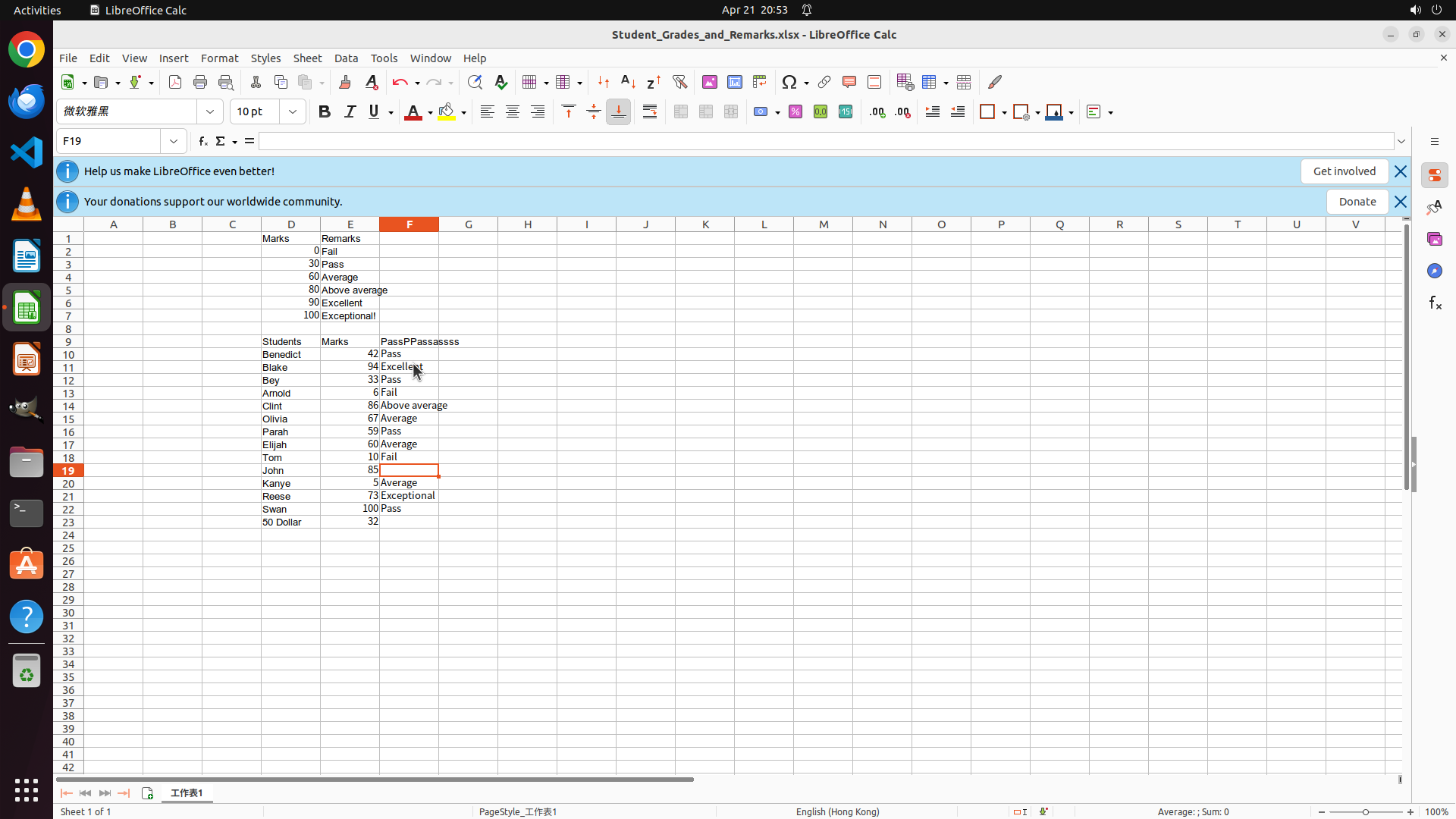
Step 1: HOTKEY
#### 重要信息
- LibreOffice Calc is open with a spreadsheet containing student grades
- The scale table is visible in rows 2-7 showing grade boundaries
- Student data is in rows 10-23 with names in column C, marks in column D
- The Message column (F) is where grades need to be entered
- Cell F10 is already selected (Benedict's row with mark 42)
- Benedict's mark 42 falls in the Pass range (30-59)
#### 情况分析与思考过程
The task is to calculate and enter grades for each student based on the scale table. I can see:
- Scale: 0=Fail, 30=Pass, 60=Average, 80=Above average, 90=Excellent, 100=Exceptional
Students and their calculated grades:
- Benedict (42): Pass
- Blake (94): Excellent
- Bey (33): Pass
- Arnold (6): Fail
- Clint (86): Above average
- Olivia (67): Average
- Parah (59): Pass
- Elijah (60): Average
- Tom (10): Fail
- John (85): Above average
- Kanee (5): Fail
- Reese (73): Average
- Swan (100): Exceptional
- 50 Dollar (32): Pass
Since F10 is already selected, I'll start entering the grades. I'll type "Pass" for Benedict, then move to the next cells to continue entering all grades.</think>
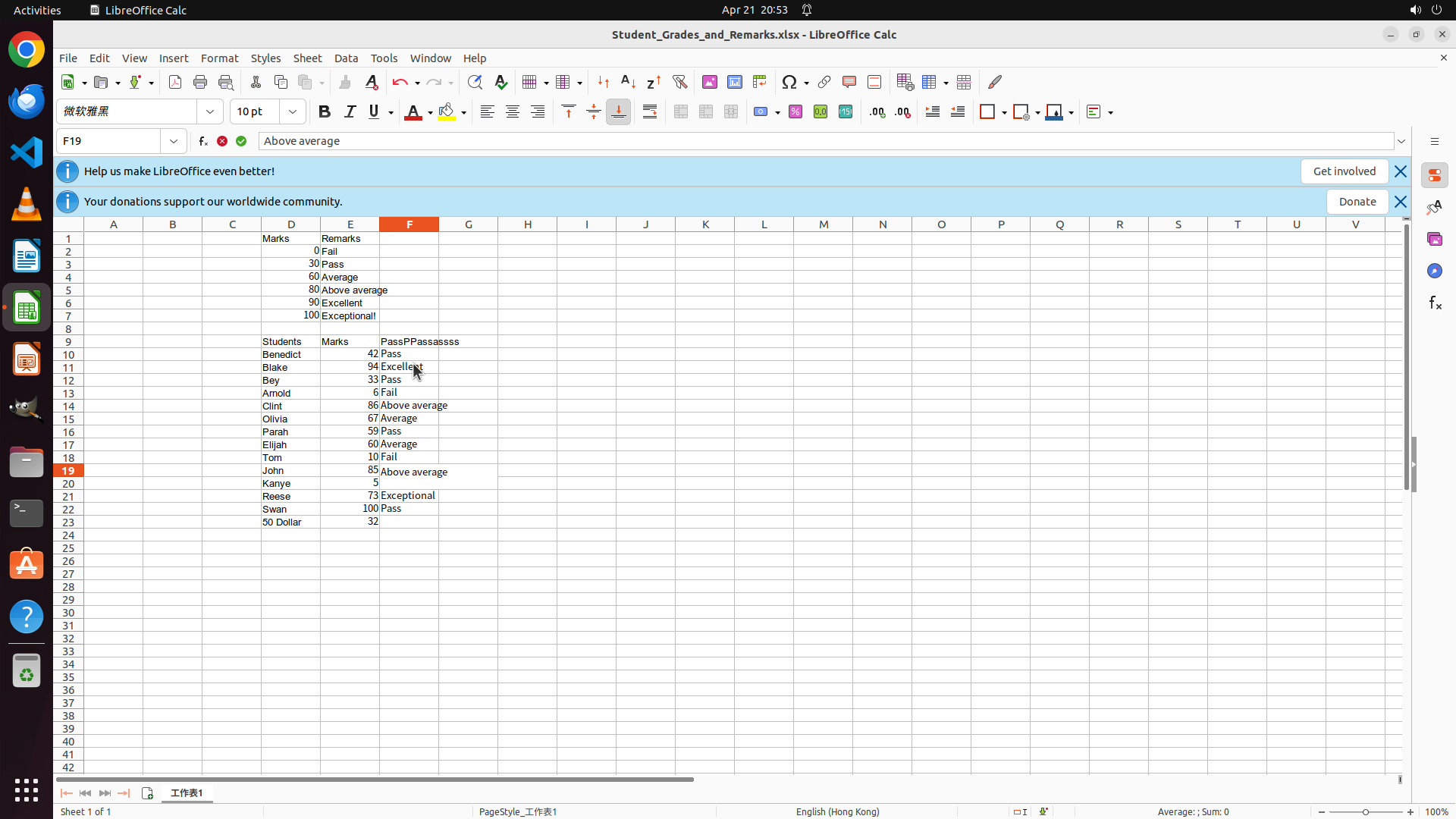
Step 1: TYPING "Average"
#### 重要信息
- LibreOffice Calc is open with a spreadsheet containing student grades
- The scale table is visible in rows 2-7 showing grade boundaries
- Student data is in rows 10-23 with names in column C, marks in column D
- The Message column (F) is where grades need to be entered
- Cell F10 is already selected (Benedict's row with mark 42)
- Benedict's mark 42 falls in the Pass range (30-59)
#### 情况分析与思考过程
The task is to calculate and enter grades for each student based on the scale table. I can see:
- Scale: 0=Fail, 30=Pass, 60=Average, 80=Above average, 90=Excellent, 100=Exceptional
Students and their calculated grades:
- Benedict (42): Pass
- Blake (94): Excellent
- Bey (33): Pass
- Arnold (6): Fail
- Clint (86): Above average
- Olivia (67): Average
- Parah (59): Pass
- Elijah (60): Average
- Tom (10): Fail
- John (85): Above average
- Kanee (5): Fail
- Reese (73): Average
- Swan (100): Exceptional
- 50 Dollar (32): Pass
Since F10 is already selected, I'll start entering the grades. I'll type "Pass" for Benedict, then move to the next cells to continue entering all grades.</think>
Step 1: HOTKEY
#### 重要信息
- LibreOffice Calc is open with a spreadsheet containing student grades
- The scale table is visible in rows 2-7 showing grade boundaries
- Student data is in rows 10-23 with names in column C, marks in column D
- The Message column (F) is where grades need to be entered
- Cell F10 is already selected (Benedict's row with mark 42)
- Benedict's mark 42 falls in the Pass range (30-59)
#### 情况分析与思考过程
The task is to calculate and enter grades for each student based on the scale table. I can see:
- Scale: 0=Fail, 30=Pass, 60=Average, 80=Above average, 90=Excellent, 100=Exceptional
Students and their calculated grades:
- Benedict (42): Pass
- Blake (94): Excellent
- Bey (33): Pass
- Arnold (6): Fail
- Clint (86): Above average
- Olivia (67): Average
- Parah (59): Pass
- Elijah (60): Average
- Tom (10): Fail
- John (85): Above average
- Kanee (5): Fail
- Reese (73): Average
- Swan (100): Exceptional
- 50 Dollar (32): Pass
Since F10 is already selected, I'll start entering the grades. I'll type "Pass" for Benedict, then move to the next cells to continue entering all grades.</think>
Step 1: TYPING "Pass"
#### 重要信息
- LibreOffice Calc is open with a spreadsheet containing student grades
- The scale table is visible in rows 2-7 showing grade boundaries
- Student data is in rows 10-23 with names in column C, marks in column D
- The Message column (F) is where grades need to be entered
- Cell F10 is already selected (Benedict's row with mark 42)
- Benedict's mark 42 falls in the Pass range (30-59)
#### 情况分析与思考过程
The task is to calculate and enter grades for each student based on the scale table. I can see:
- Scale: 0=Fail, 30=Pass, 60=Average, 80=Above average, 90=Excellent, 100=Exceptional
Students and their calculated grades:
- Benedict (42): Pass
- Blake (94): Excellent
- Bey (33): Pass
- Arnold (6): Fail
- Clint (86): Above average
- Olivia (67): Average
- Parah (59): Pass
- Elijah (60): Average
- Tom (10): Fail
- John (85): Above average
- Kanee (5): Fail
- Reese (73): Average
- Swan (100): Exceptional
- 50 Dollar (32): Pass
Since F10 is already selected, I'll start entering the grades. I'll type "Pass" for Benedict, then move to the next cells to continue entering all grades.</think>
Step 1: HOTKEY
#### 重要信息
- LibreOffice Calc is open with a spreadsheet containing student grades
- The scale table is visible in rows 2-7 showing grade boundaries
- Student data is in rows 10-23 with names in column C, marks in column D
- The Message column (F) is where grades need to be entered
- Cell F10 is already selected (Benedict's row with mark 42)
- Benedict's mark 42 falls in the Pass range (30-59)
#### 情况分析与思考过程
The task is to calculate and enter grades for each student based on the scale table. I can see:
- Scale: 0=Fail, 30=Pass, 60=Average, 80=Above average, 90=Excellent, 100=Exceptional
Students and their calculated grades:
- Benedict (42): Pass
- Blake (94): Excellent
- Bey (33): Pass
- Arnold (6): Fail
- Clint (86): Above average
- Olivia (67): Average
- Parah (59): Pass
- Elijah (60): Average
- Tom (10): Fail
- John (85): Above average
- Kanee (5): Fail
- Reese (73): Average
- Swan (100): Exceptional
- 50 Dollar (32): Pass
Since F10 is already selected, I'll start entering the grades. I'll type "Pass" for Benedict, then move to the next cells to continue entering all grades.</think>
Step 1: TYPING "Average"
#### 重要信息
- LibreOffice Calc is open with a spreadsheet containing student grades
- The scale table is visible in rows 2-7 showing grade boundaries
- Student data is in rows 10-23 with names in column C, marks in column D
- The Message column (F) is where grades need to be entered
- Cell F10 is already selected (Benedict's row with mark 42)
- Benedict's mark 42 falls in the Pass range (30-59)
#### 情况分析与思考过程
The task is to calculate and enter grades for each student based on the scale table. I can see:
- Scale: 0=Fail, 30=Pass, 60=Average, 80=Above average, 90=Excellent, 100=Exceptional
Students and their calculated grades:
- Benedict (42): Pass
- Blake (94): Excellent
- Bey (33): Pass
- Arnold (6): Fail
- Clint (86): Above average
- Olivia (67): Average
- Parah (59): Pass
- Elijah (60): Average
- Tom (10): Fail
- John (85): Above average
- Kanee (5): Fail
- Reese (73): Average
- Swan (100): Exceptional
- 50 Dollar (32): Pass
Since F10 is already selected, I'll start entering the grades. I'll type "Pass" for Benedict, then move to the next cells to continue entering all grades.</think>
Step 1: HOTKEY
#### 重要信息
- LibreOffice Calc is open with a spreadsheet containing student grades
- The scale table is visible in rows 2-7 showing grade boundaries
- Student data is in rows 10-23 with names in column C, marks in column D
- The Message column (F) is where grades need to be entered
- Cell F10 is already selected (Benedict's row with mark 42)
- Benedict's mark 42 falls in the Pass range (30-59)
#### 情况分析与思考过程
The task is to calculate and enter grades for each student based on the scale table. I can see:
- Scale: 0=Fail, 30=Pass, 60=Average, 80=Above average, 90=Excellent, 100=Exceptional
Students and their calculated grades:
- Benedict (42): Pass
- Blake (94): Excellent
- Bey (33): Pass
- Arnold (6): Fail
- Clint (86): Above average
- Olivia (67): Average
- Parah (59): Pass
- Elijah (60): Average
- Tom (10): Fail
- John (85): Above average
- Kanee (5): Fail
- Reese (73): Average
- Swan (100): Exceptional
- 50 Dollar (32): Pass
Since F10 is already selected, I'll start entering the grades. I'll type "Pass" for Benedict, then move to the next cells to continue entering all grades.</think>
Step 1: TYPING "Fail"
#### 重要信息
- LibreOffice Calc is open with a spreadsheet containing student grades
- The scale table is visible in rows 2-7 showing grade boundaries
- Student data is in rows 10-23 with names in column C, marks in column D
- The Message column (F) is where grades need to be entered
- Cell F10 is already selected (Benedict's row with mark 42)
- Benedict's mark 42 falls in the Pass range (30-59)
#### 情况分析与思考过程
The task is to calculate and enter grades for each student based on the scale table. I can see:
- Scale: 0=Fail, 30=Pass, 60=Average, 80=Above average, 90=Excellent, 100=Exceptional
Students and their calculated grades:
- Benedict (42): Pass
- Blake (94): Excellent
- Bey (33): Pass
- Arnold (6): Fail
- Clint (86): Above average
- Olivia (67): Average
- Parah (59): Pass
- Elijah (60): Average
- Tom (10): Fail
- John (85): Above average
- Kanee (5): Fail
- Reese (73): Average
- Swan (100): Exceptional
- 50 Dollar (32): Pass
Since F10 is already selected, I'll start entering the grades. I'll type "Pass" for Benedict, then move to the next cells to continue entering all grades.</think>
Step 1: HOTKEY
#### 重要信息
- LibreOffice Calc is open with a spreadsheet containing student grades
- The scale table is visible in rows 2-7 showing grade boundaries
- Student data is in rows 10-23 with names in column C, marks in column D
- The Message column (F) is where grades need to be entered
- Cell F10 is already selected (Benedict's row with mark 42)
- Benedict's mark 42 falls in the Pass range (30-59)
#### 情况分析与思考过程
The task is to calculate and enter grades for each student based on the scale table. I can see:
- Scale: 0=Fail, 30=Pass, 60=Average, 80=Above average, 90=Excellent, 100=Exceptional
Students and their calculated grades:
- Benedict (42): Pass
- Blake (94): Excellent
- Bey (33): Pass
- Arnold (6): Fail
- Clint (86): Above average
- Olivia (67): Average
- Parah (59): Pass
- Elijah (60): Average
- Tom (10): Fail
- John (85): Above average
- Kanee (5): Fail
- Reese (73): Average
- Swan (100): Exceptional
- 50 Dollar (32): Pass
Since F10 is already selected, I'll start entering the grades. I'll type "Pass" for Benedict, then move to the next cells to continue entering all grades.</think>
Step 1: TYPING "Above average"
#### 重要信息
- LibreOffice Calc is open with a spreadsheet containing student grades
- The scale table is visible in rows 2-7 showing grade boundaries
- Student data is in rows 10-23 with names in column C, marks in column D
- The Message column (F) is where grades need to be entered
- Cell F10 is already selected (Benedict's row with mark 42)
- Benedict's mark 42 falls in the Pass range (30-59)
#### 情况分析与思考过程
The task is to calculate and enter grades for each student based on the scale table. I can see:
- Scale: 0=Fail, 30=Pass, 60=Average, 80=Above average, 90=Excellent, 100=Exceptional
Students and their calculated grades:
- Benedict (42): Pass
- Blake (94): Excellent
- Bey (33): Pass
- Arnold (6): Fail
- Clint (86): Above average
- Olivia (67): Average
- Parah (59): Pass
- Elijah (60): Average
- Tom (10): Fail
- John (85): Above average
- Kanee (5): Fail
- Reese (73): Average
- Swan (100): Exceptional
- 50 Dollar (32): Pass
Since F10 is already selected, I'll start entering the grades. I'll type "Pass" for Benedict, then move to the next cells to continue entering all grades.</think>
Step 1: HOTKEY
#### 重要信息
- LibreOffice Calc is open with a spreadsheet containing student grades
- The scale table is visible in rows 2-7 showing grade boundaries
- Student data is in rows 10-23 with names in column C, marks in column D
- The Message column (F) is where grades need to be entered
- Cell F10 is already selected (Benedict's row with mark 42)
- Benedict's mark 42 falls in the Pass range (30-59)
#### 情况分析与思考过程
The task is to calculate and enter grades for each student based on the scale table. I can see:
- Scale: 0=Fail, 30=Pass, 60=Average, 80=Above average, 90=Excellent, 100=Exceptional
Students and their calculated grades:
- Benedict (42): Pass
- Blake (94): Excellent
- Bey (33): Pass
- Arnold (6): Fail
- Clint (86): Above average
- Olivia (67): Average
- Parah (59): Pass
- Elijah (60): Average
- Tom (10): Fail
- John (85): Above average
- Kanee (5): Fail
- Reese (73): Average
- Swan (100): Exceptional
- 50 Dollar (32): Pass
Since F10 is already selected, I'll start entering the grades. I'll type "Pass" for Benedict, then move to the next cells to continue entering all grades.</think>
Step 1: TYPING "Fail"
#### 重要信息
- LibreOffice Calc is open with a spreadsheet containing student grades
- The scale table is visible in rows 2-7 showing grade boundaries
- Student data is in rows 10-23 with names in column C, marks in column D
- The Message column (F) is where grades need to be entered
- Cell F10 is already selected (Benedict's row with mark 42)
- Benedict's mark 42 falls in the Pass range (30-59)
#### 情况分析与思考过程
The task is to calculate and enter grades for each student based on the scale table. I can see:
- Scale: 0=Fail, 30=Pass, 60=Average, 80=Above average, 90=Excellent, 100=Exceptional
Students and their calculated grades:
- Benedict (42): Pass
- Blake (94): Excellent
- Bey (33): Pass
- Arnold (6): Fail
- Clint (86): Above average
- Olivia (67): Average
- Parah (59): Pass
- Elijah (60): Average
- Tom (10): Fail
- John (85): Above average
- Kanee (5): Fail
- Reese (73): Average
- Swan (100): Exceptional
- 50 Dollar (32): Pass
Since F10 is already selected, I'll start entering the grades. I'll type "Pass" for Benedict, then move to the next cells to continue entering all grades.</think>
Step 1: HOTKEY
#### 重要信息
- LibreOffice Calc is open with a spreadsheet containing student grades
- The scale table is visible in rows 2-7 showing grade boundaries
- Student data is in rows 10-23 with names in column C, marks in column D
- The Message column (F) is where grades need to be entered
- Cell F10 is already selected (Benedict's row with mark 42)
- Benedict's mark 42 falls in the Pass range (30-59)
#### 情况分析与思考过程
The task is to calculate and enter grades for each student based on the scale table. I can see:
- Scale: 0=Fail, 30=Pass, 60=Average, 80=Above average, 90=Excellent, 100=Exceptional
Students and their calculated grades:
- Benedict (42): Pass
- Blake (94): Excellent
- Bey (33): Pass
- Arnold (6): Fail
- Clint (86): Above average
- Olivia (67): Average
- Parah (59): Pass
- Elijah (60): Average
- Tom (10): Fail
- John (85): Above average
- Kanee (5): Fail
- Reese (73): Average
- Swan (100): Exceptional
- 50 Dollar (32): Pass
Since F10 is already selected, I'll start entering the grades. I'll type "Pass" for Benedict, then move to the next cells to continue entering all grades.</think>
Step 1: TYPING "Average"
#### 重要信息
- LibreOffice Calc is open with a spreadsheet containing student grades
- The scale table is visible in rows 2-7 showing grade boundaries
- Student data is in rows 10-23 with names in column C, marks in column D
- The Message column (F) is where grades need to be entered
- Cell F10 is already selected (Benedict's row with mark 42)
- Benedict's mark 42 falls in the Pass range (30-59)
#### 情况分析与思考过程
The task is to calculate and enter grades for each student based on the scale table. I can see:
- Scale: 0=Fail, 30=Pass, 60=Average, 80=Above average, 90=Excellent, 100=Exceptional
Students and their calculated grades:
- Benedict (42): Pass
- Blake (94): Excellent
- Bey (33): Pass
- Arnold (6): Fail
- Clint (86): Above average
- Olivia (67): Average
- Parah (59): Pass
- Elijah (60): Average
- Tom (10): Fail
- John (85): Above average
- Kanee (5): Fail
- Reese (73): Average
- Swan (100): Exceptional
- 50 Dollar (32): Pass
Since F10 is already selected, I'll start entering the grades. I'll type "Pass" for Benedict, then move to the next cells to continue entering all grades.</think>
Step 1: HOTKEY
#### 重要信息
- LibreOffice Calc is open with a spreadsheet containing student grades
- The scale table is visible in rows 2-7 showing grade boundaries
- Student data is in rows 10-23 with names in column C, marks in column D
- The Message column (F) is where grades need to be entered
- Cell F10 is already selected (Benedict's row with mark 42)
- Benedict's mark 42 falls in the Pass range (30-59)
#### 情况分析与思考过程
The task is to calculate and enter grades for each student based on the scale table. I can see:
- Scale: 0=Fail, 30=Pass, 60=Average, 80=Above average, 90=Excellent, 100=Exceptional
Students and their calculated grades:
- Benedict (42): Pass
- Blake (94): Excellent
- Bey (33): Pass
- Arnold (6): Fail
- Clint (86): Above average
- Olivia (67): Average
- Parah (59): Pass
- Elijah (60): Average
- Tom (10): Fail
- John (85): Above average
- Kanee (5): Fail
- Reese (73): Average
- Swan (100): Exceptional
- 50 Dollar (32): Pass
Since F10 is already selected, I'll start entering the grades. I'll type "Pass" for Benedict, then move to the next cells to continue entering all grades.</think>
Step 1: TYPING "Exceptional"
#### 重要信息
- LibreOffice Calc is open with a spreadsheet containing student grades
- The scale table is visible in rows 2-7 showing grade boundaries
- Student data is in rows 10-23 with names in column C, marks in column D
- The Message column (F) is where grades need to be entered
- Cell F10 is already selected (Benedict's row with mark 42)
- Benedict's mark 42 falls in the Pass range (30-59)
#### 情况分析与思考过程
The task is to calculate and enter grades for each student based on the scale table. I can see:
- Scale: 0=Fail, 30=Pass, 60=Average, 80=Above average, 90=Excellent, 100=Exceptional
Students and their calculated grades:
- Benedict (42): Pass
- Blake (94): Excellent
- Bey (33): Pass
- Arnold (6): Fail
- Clint (86): Above average
- Olivia (67): Average
- Parah (59): Pass
- Elijah (60): Average
- Tom (10): Fail
- John (85): Above average
- Kanee (5): Fail
- Reese (73): Average
- Swan (100): Exceptional
- 50 Dollar (32): Pass
Since F10 is already selected, I'll start entering the grades. I'll type "Pass" for Benedict, then move to the next cells to continue entering all grades.</think>
Step 1: HOTKEY
#### 重要信息
- LibreOffice Calc is open with a spreadsheet containing student grades
- The scale table is visible in rows 2-7 showing grade boundaries
- Student data is in rows 10-23 with names in column C, marks in column D
- The Message column (F) is where grades need to be entered
- Cell F10 is already selected (Benedict's row with mark 42)
- Benedict's mark 42 falls in the Pass range (30-59)
#### 情况分析与思考过程
The task is to calculate and enter grades for each student based on the scale table. I can see:
- Scale: 0=Fail, 30=Pass, 60=Average, 80=Above average, 90=Excellent, 100=Exceptional
Students and their calculated grades:
- Benedict (42): Pass
- Blake (94): Excellent
- Bey (33): Pass
- Arnold (6): Fail
- Clint (86): Above average
- Olivia (67): Average
- Parah (59): Pass
- Elijah (60): Average
- Tom (10): Fail
- John (85): Above average
- Kanee (5): Fail
- Reese (73): Average
- Swan (100): Exceptional
- 50 Dollar (32): Pass
Since F10 is already selected, I'll start entering the grades. I'll type "Pass" for Benedict, then move to the next cells to continue entering all grades.</think>
Step 1: TYPING "Pass"
#### 重要信息
- LibreOffice Calc is open with a spreadsheet containing student grades
- The scale table is visible in rows 2-7 showing grade boundaries
- Student data is in rows 10-23 with names in column C, marks in column D
- The Message column (F) is where grades need to be entered
- Cell F10 is already selected (Benedict's row with mark 42)
- Benedict's mark 42 falls in the Pass range (30-59)
#### 情况分析与思考过程
The task is to calculate and enter grades for each student based on the scale table. I can see:
- Scale: 0=Fail, 30=Pass, 60=Average, 80=Above average, 90=Excellent, 100=Exceptional
Students and their calculated grades:
- Benedict (42): Pass
- Blake (94): Excellent
- Bey (33): Pass
- Arnold (6): Fail
- Clint (86): Above average
- Olivia (67): Average
- Parah (59): Pass
- Elijah (60): Average
- Tom (10): Fail
- John (85): Above average
- Kanee (5): Fail
- Reese (73): Average
- Swan (100): Exceptional
- 50 Dollar (32): Pass
Since F10 is already selected, I'll start entering the grades. I'll type "Pass" for Benedict, then move to the next cells to continue entering all grades.</think>
Step 2: CLICK (540, 457)
```
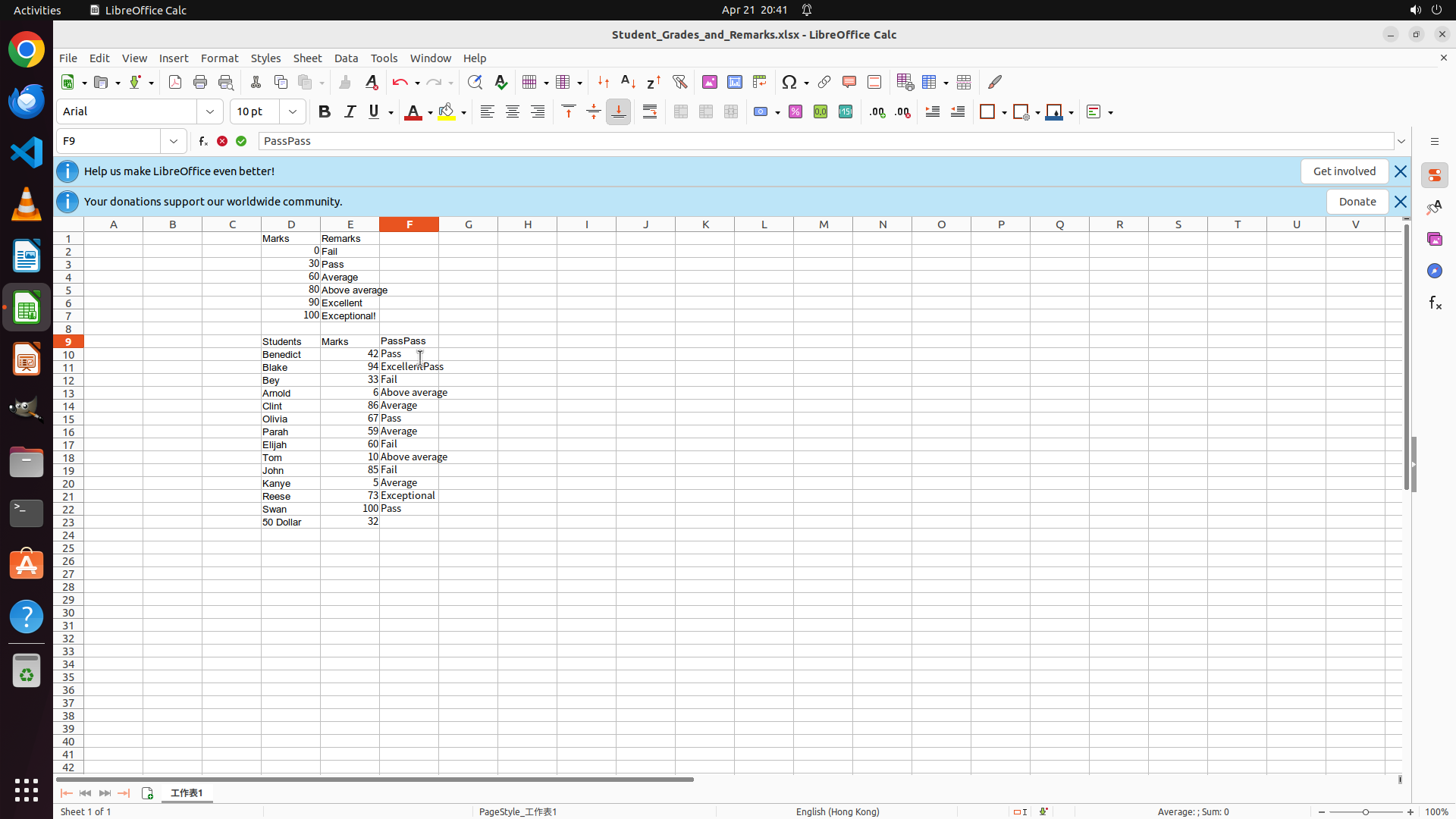
#### 重要信息
- LibreOffice Calc is open with student grades spreadsheet
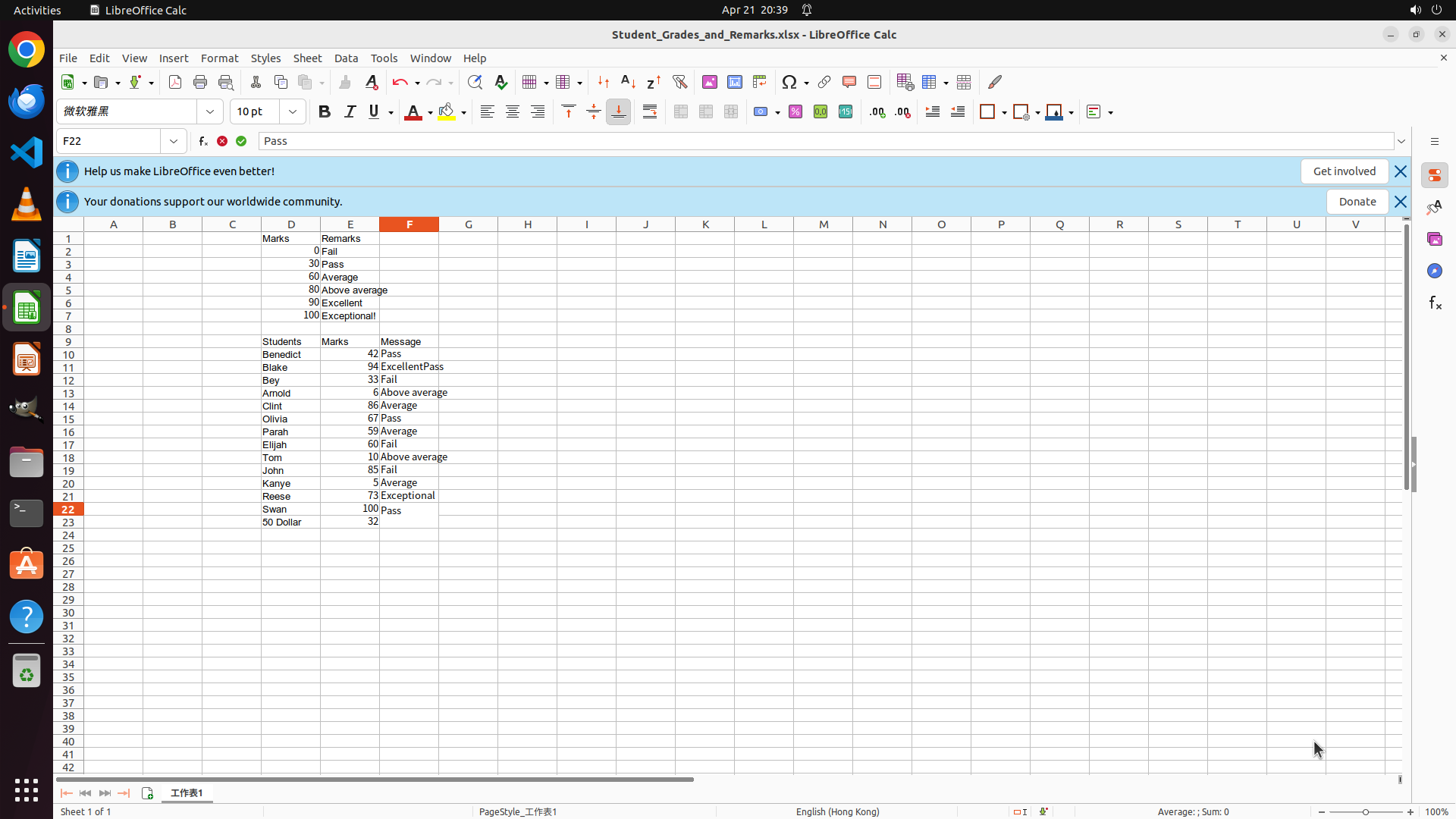
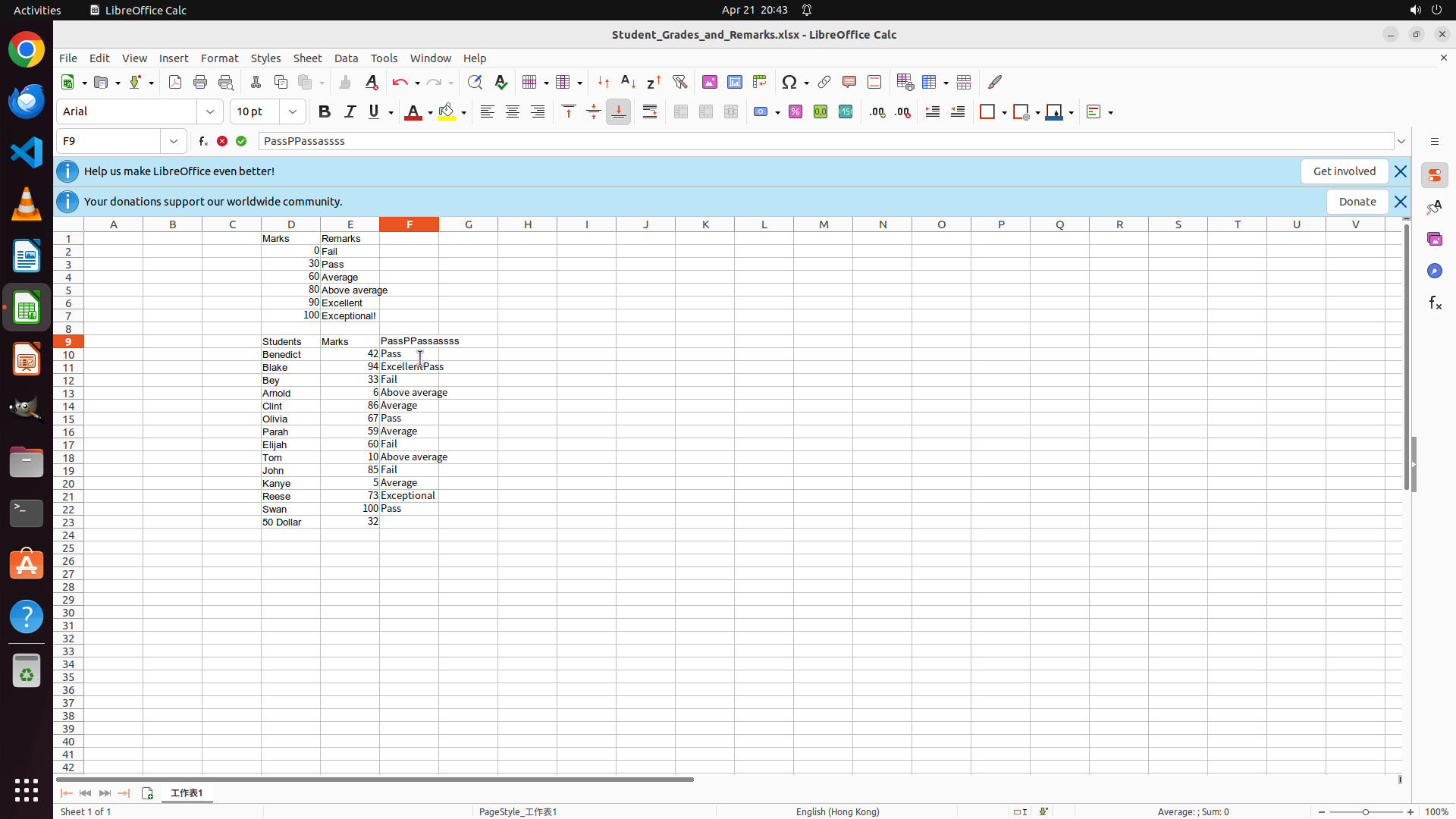
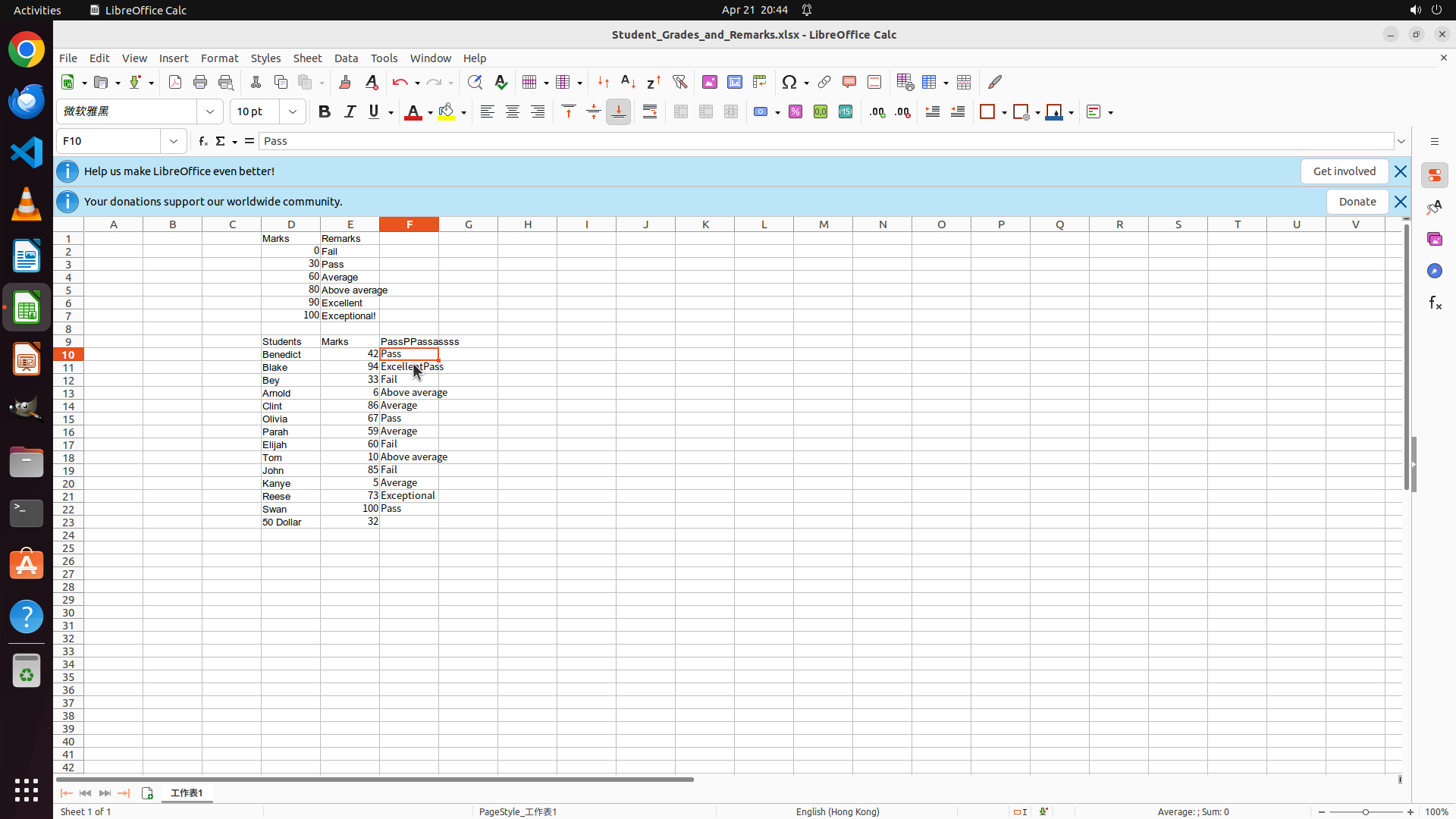
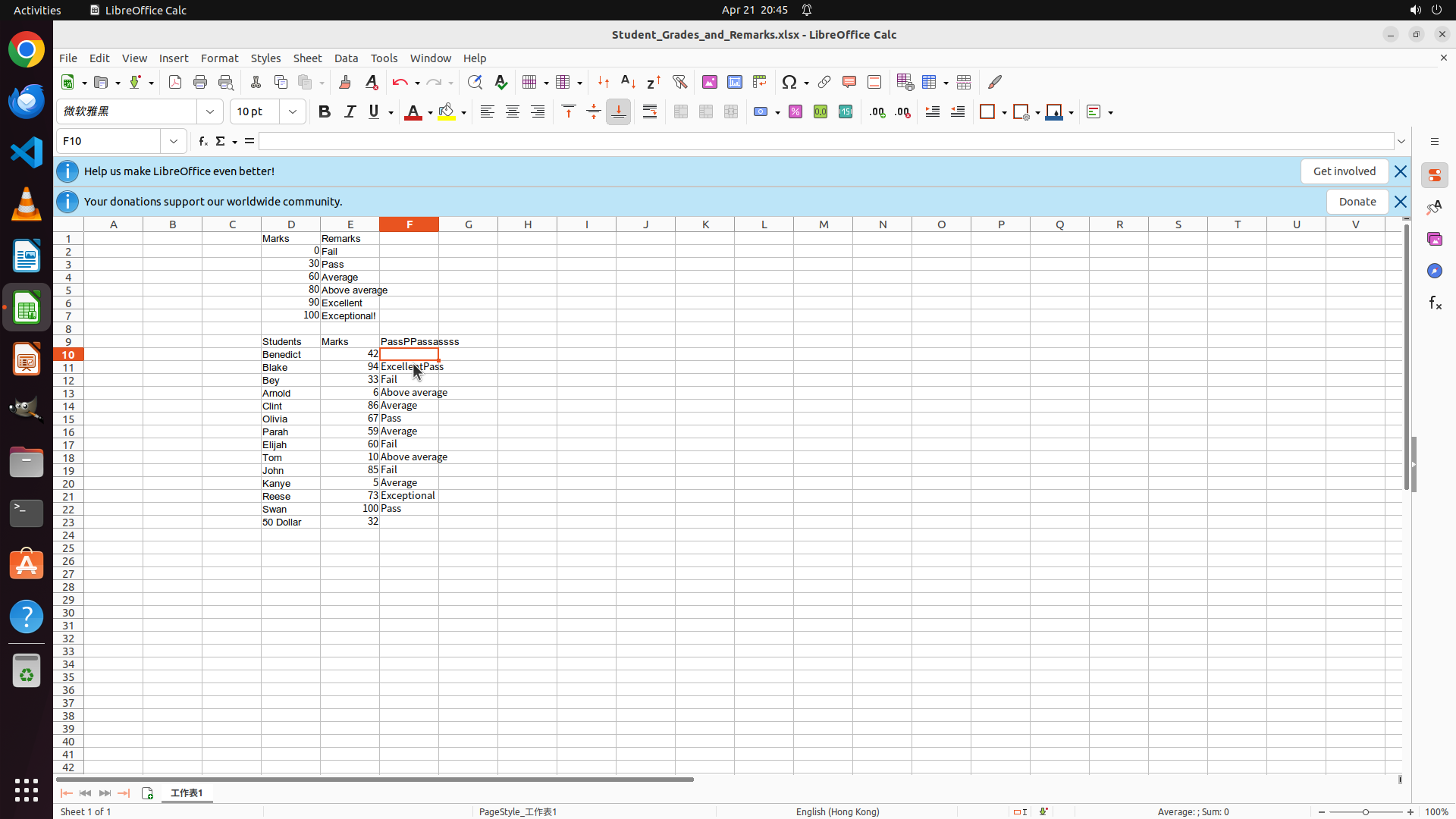
- The Message column (F) shows grades have been entered but many appear incorrect or merged with other text
- Current cell is F22 (Swan's row)
- The formula bar shows "Pass" for the current cell
- Multiple grades seem to have been entered incorrectly - they appear to be merged with marks or other text
- Need to correct all grades in column F (rows 10-23)
#### 情况分析与思考过程
The previous batch action attempted to enter all grades at once, but it appears the entries got corrupted or merged. Looking at the visible data:
- Row 10: Shows "42Pass" instead of just "Pass"
- Row 11: Shows "94ExcellentPass" instead of just "Excellent"
- Row 12: Shows "33Fail" instead of "Pass"
- And so on...
I need to fix these entries. The best approach is to:
1. Click on each cell in column F
2. Clear the incorrect content
3. Enter the correct grade
Let me start by clicking on F10 (Benedict's grade cell) and clearing it, then entering the correct grade. I'll work through each student systematically.
The scale is:
- 0-29: Fail
- 30-59: Pass
- 60-79: Average
- 80-89: Above average
- 90-99: Excellent
- 100: Exceptional
Students and correct grades:
- Benedict (42): Pass
- Blake (94): Excellent
- Bey (33): Pass
- Arnold (6): Fail
- Clint (86): Above average
- Olivia (67): Average
- Parah (59): Pass
- Elijah (60): Average
- Tom (10): Fail
- John (85): Above average
- Kanee (5): Fail
- Reese (73): Average
- Swan (100): Exceptional
- 50 Dollar (32): Pass
I'll start by clicking on F10 and fixing the grades one by one.
```
Step 2: HOTKEY
```
#### 重要信息
- LibreOffice Calc is open with student grades spreadsheet
- The Message column (F) shows grades have been entered but many appear incorrect or merged with other text
- Current cell is F22 (Swan's row)
- The formula bar shows "Pass" for the current cell
- Multiple grades seem to have been entered incorrectly - they appear to be merged with marks or other text
- Need to correct all grades in column F (rows 10-23)
#### 情况分析与思考过程
The previous batch action attempted to enter all grades at once, but it appears the entries got corrupted or merged. Looking at the visible data:
- Row 10: Shows "42Pass" instead of just "Pass"
- Row 11: Shows "94ExcellentPass" instead of just "Excellent"
- Row 12: Shows "33Fail" instead of "Pass"
- And so on...
I need to fix these entries. The best approach is to:
1. Click on each cell in column F
2. Clear the incorrect content
3. Enter the correct grade
Let me start by clicking on F10 (Benedict's grade cell) and clearing it, then entering the correct grade. I'll work through each student systematically.
The scale is:
- 0-29: Fail
- 30-59: Pass
- 60-79: Average
- 80-89: Above average
- 90-99: Excellent
- 100: Exceptional
Students and correct grades:
- Benedict (42): Pass
- Blake (94): Excellent
- Bey (33): Pass
- Arnold (6): Fail
- Clint (86): Above average
- Olivia (67): Average
- Parah (59): Pass
- Elijah (60): Average
- Tom (10): Fail
- John (85): Above average
- Kanee (5): Fail
- Reese (73): Average
- Swan (100): Exceptional
- 50 Dollar (32): Pass
I'll start by clicking on F10 and fixing the grades one by one.
```
Step 2: TYPING "Pass"
```
#### 重要信息
- LibreOffice Calc is open with student grades spreadsheet
- The Message column (F) shows grades have been entered but many appear incorrect or merged with other text
- Current cell is F22 (Swan's row)
- The formula bar shows "Pass" for the current cell
- Multiple grades seem to have been entered incorrectly - they appear to be merged with marks or other text
- Need to correct all grades in column F (rows 10-23)
#### 情况分析与思考过程
The previous batch action attempted to enter all grades at once, but it appears the entries got corrupted or merged. Looking at the visible data:
- Row 10: Shows "42Pass" instead of just "Pass"
- Row 11: Shows "94ExcellentPass" instead of just "Excellent"
- Row 12: Shows "33Fail" instead of "Pass"
- And so on...
I need to fix these entries. The best approach is to:
1. Click on each cell in column F
2. Clear the incorrect content
3. Enter the correct grade
Let me start by clicking on F10 (Benedict's grade cell) and clearing it, then entering the correct grade. I'll work through each student systematically.
The scale is:
- 0-29: Fail
- 30-59: Pass
- 60-79: Average
- 80-89: Above average
- 90-99: Excellent
- 100: Exceptional
Students and correct grades:
- Benedict (42): Pass
- Blake (94): Excellent
- Bey (33): Pass
- Arnold (6): Fail
- Clint (86): Above average
- Olivia (67): Average
- Parah (59): Pass
- Elijah (60): Average
- Tom (10): Fail
- John (85): Above average
- Kanee (5): Fail
- Reese (73): Average
- Swan (100): Exceptional
- 50 Dollar (32): Pass
I'll start by clicking on F10 and fixing the grades one by one.
```
Step 3: CLICK (540, 457)
#### 重要信息
- LibreOffice Calc is open with student grades spreadsheet
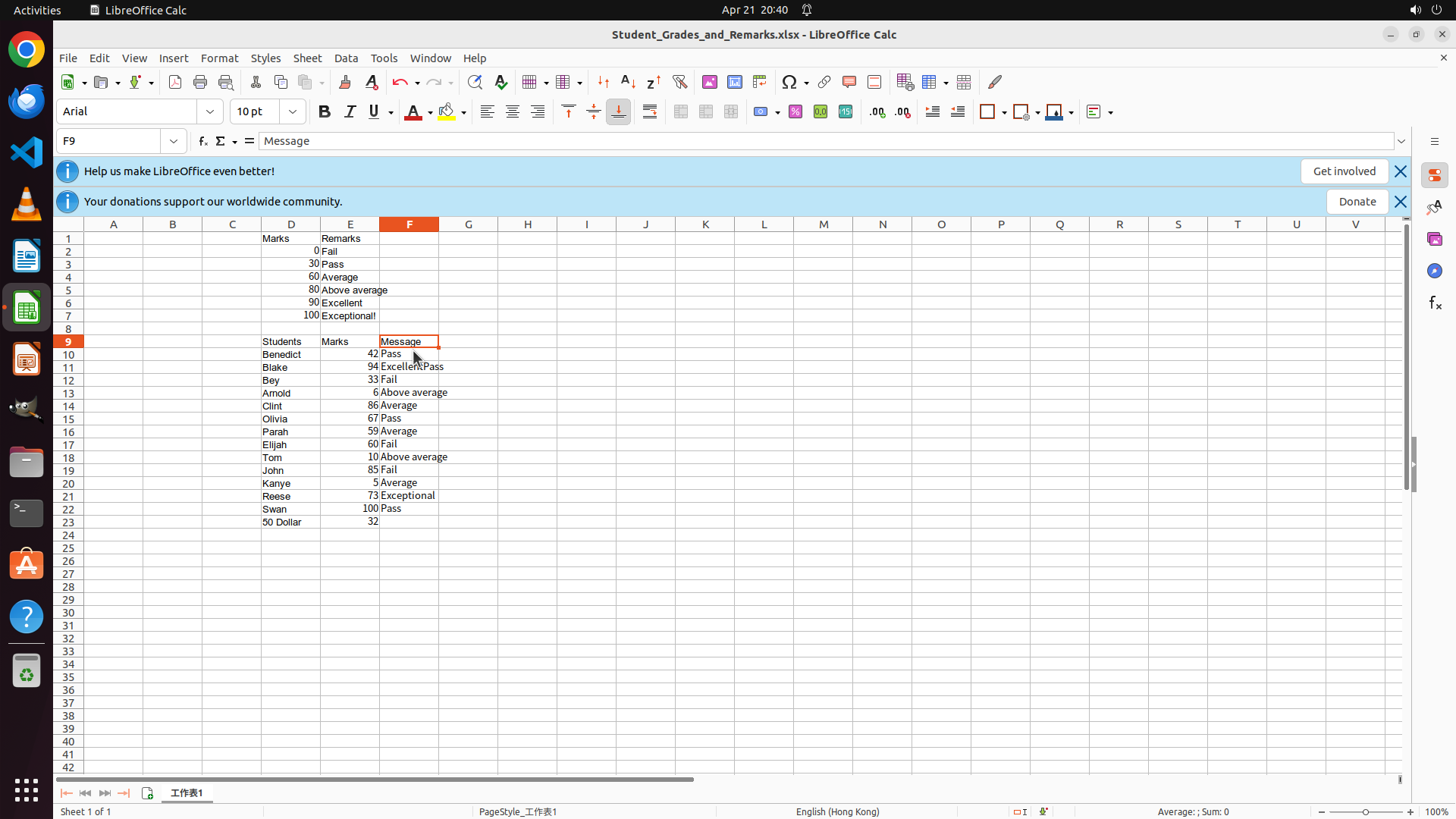
- The cell reference shows F9 and formula bar shows "Pass"
- The Message column (F) shows corrupted data like "42 Pass", "94 ExcellentPass", "33 Fail"
- The grades need to be corrected based on the scale table
- Current view shows the student data table with names, marks, and the Message column
#### 情况分析与思考过程
The previous action didn't properly fix the cell. Looking at the current state:
- The grades in column F are corrupted/mixed with marks
- I need to systematically fix each cell by clicking on it, clearing it, and entering the correct grade
Let me start fresh by clicking on F10 (Benedict's row) and fixing it properly. Then I'll continue with the other cells one by one.
The correct grades should be:
- Benedict (42): Pass
- Blake (94): Excellent
- Bey (33): Pass
- Arnold (6): Fail
- Clint (86): Above average
- Olivia (67): Average
- Parah (59): Pass
- Elijah (60): Average
- Tom (10): Fail
- John (85): Above average
- Kanee (5): Fail
- Reese (73): Average
- Swan (100): Exceptional
- 50 Dollar (32): Pass
I'll click on F10 first to fix Benedict's grade.
Step 3: HOTKEY
#### 重要信息
- LibreOffice Calc is open with student grades spreadsheet
- The cell reference shows F9 and formula bar shows "Pass"
- The Message column (F) shows corrupted data like "42 Pass", "94 ExcellentPass", "33 Fail"
- The grades need to be corrected based on the scale table
- Current view shows the student data table with names, marks, and the Message column
#### 情况分析与思考过程
The previous action didn't properly fix the cell. Looking at the current state:
- The grades in column F are corrupted/mixed with marks
- I need to systematically fix each cell by clicking on it, clearing it, and entering the correct grade
Let me start fresh by clicking on F10 (Benedict's row) and fixing it properly. Then I'll continue with the other cells one by one.
The correct grades should be:
- Benedict (42): Pass
- Blake (94): Excellent
- Bey (33): Pass
- Arnold (6): Fail
- Clint (86): Above average
- Olivia (67): Average
- Parah (59): Pass
- Elijah (60): Average
- Tom (10): Fail
- John (85): Above average
- Kanee (5): Fail
- Reese (73): Average
- Swan (100): Exceptional
- 50 Dollar (32): Pass
I'll click on F10 first to fix Benedict's grade.
Step 3: TYPING "Pass"
#### 重要信息
- LibreOffice Calc is open with student grades spreadsheet
- The cell reference shows F9 and formula bar shows "Pass"
- The Message column (F) shows corrupted data like "42 Pass", "94 ExcellentPass", "33 Fail"
- The grades need to be corrected based on the scale table
- Current view shows the student data table with names, marks, and the Message column
#### 情况分析与思考过程
The previous action didn't properly fix the cell. Looking at the current state:
- The grades in column F are corrupted/mixed with marks
- I need to systematically fix each cell by clicking on it, clearing it, and entering the correct grade
Let me start fresh by clicking on F10 (Benedict's row) and fixing it properly. Then I'll continue with the other cells one by one.
The correct grades should be:
- Benedict (42): Pass
- Blake (94): Excellent
- Bey (33): Pass
- Arnold (6): Fail
- Clint (86): Above average
- Olivia (67): Average
- Parah (59): Pass
- Elijah (60): Average
- Tom (10): Fail
- John (85): Above average
- Kanee (5): Fail
- Reese (73): Average
- Swan (100): Exceptional
- 50 Dollar (32): Pass
I'll click on F10 first to fix Benedict's grade.
Step 4: CLICK (540, 457)
```
#### 重要信息
- LibreOffice Calc is open with student grades spreadsheet
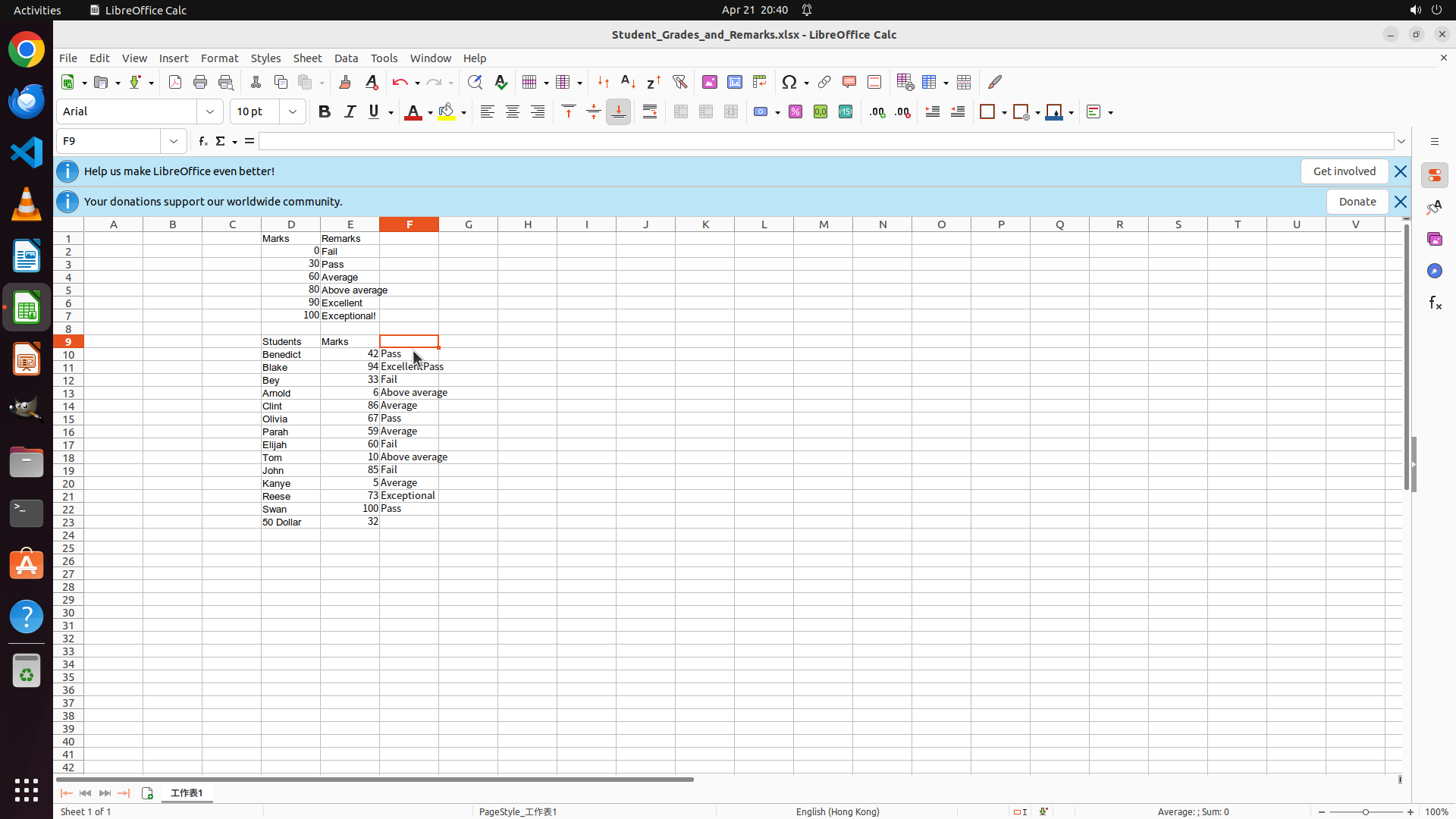
- Cell F9 is currently selected (not F10 as intended)
- The formula bar shows "PassPass" indicating corrupted data
- The Message column (F) still shows mixed/corrupted grades like "42 Pass", "94 ExcellentPass", etc.
- I need to properly clear and re-enter all grades in column F for rows 10-23
#### 情况分析与思考过程
The previous action selected the wrong cell (F9 instead of F10). I need to:
1. Click on the correct cell F10 (Benedict's row)
2. Clear it properly using Delete key
3. Enter "Pass"
4. Continue with the remaining students
Let me click on F10 first to ensure I'm on the right cell, then systematically fix all grades.
Correct grades to enter:
- Benedict (42): Pass
- Blake (94): Excellent
- Bey (33): Pass
- Arnold (6): Fail
- Clint (86): Above average
- Olivia (67): Average
- Parah (59): Pass
- Elijah (60): Average
- Tom (10): Fail
- John (85): Above average
- Kanee (5): Fail
- Reese (73): Average
- Swan (100): Exceptional
- 50 Dollar (32): Pass
```
Step 4: HOTKEY
```
#### 重要信息
- LibreOffice Calc is open with student grades spreadsheet
- Cell F9 is currently selected (not F10 as intended)
- The formula bar shows "PassPass" indicating corrupted data
- The Message column (F) still shows mixed/corrupted grades like "42 Pass", "94 ExcellentPass", etc.
- I need to properly clear and re-enter all grades in column F for rows 10-23
#### 情况分析与思考过程
The previous action selected the wrong cell (F9 instead of F10). I need to:
1. Click on the correct cell F10 (Benedict's row)
2. Clear it properly using Delete key
3. Enter "Pass"
4. Continue with the remaining students
Let me click on F10 first to ensure I'm on the right cell, then systematically fix all grades.
Correct grades to enter:
- Benedict (42): Pass
- Blake (94): Excellent
- Bey (33): Pass
- Arnold (6): Fail
- Clint (86): Above average
- Olivia (67): Average
- Parah (59): Pass
- Elijah (60): Average
- Tom (10): Fail
- John (85): Above average
- Kanee (5): Fail
- Reese (73): Average
- Swan (100): Exceptional
- 50 Dollar (32): Pass
```
Step 4: TYPING "Pass"
```
#### 重要信息
- LibreOffice Calc is open with student grades spreadsheet
- Cell F9 is currently selected (not F10 as intended)
- The formula bar shows "PassPass" indicating corrupted data
- The Message column (F) still shows mixed/corrupted grades like "42 Pass", "94 ExcellentPass", etc.
- I need to properly clear and re-enter all grades in column F for rows 10-23
#### 情况分析与思考过程
The previous action selected the wrong cell (F9 instead of F10). I need to:
1. Click on the correct cell F10 (Benedict's row)
2. Clear it properly using Delete key
3. Enter "Pass"
4. Continue with the remaining students
Let me click on F10 first to ensure I'm on the right cell, then systematically fix all grades.
Correct grades to enter:
- Benedict (42): Pass
- Blake (94): Excellent
- Bey (33): Pass
- Arnold (6): Fail
- Clint (86): Above average
- Olivia (67): Average
- Parah (59): Pass
- Elijah (60): Average
- Tom (10): Fail
- John (85): Above average
- Kanee (5): Fail
- Reese (73): Average
- Swan (100): Exceptional
- 50 Dollar (32): Pass
```
Step 5: CLICK (540, 457)
```
#### 重要信息
- LibreOffice Calc is open with student grades spreadsheet
- Cell F9 is currently selected (not F10 as intended)
- The formula bar shows "PassPPassss" indicating corrupted data
- The Message column (F) still shows mixed/corrupted grades like "42 Pass", "94 ExcellentPass", etc.
- I need to properly clear and re-enter all grades in column F for rows 10-23
#### 情况分析与思考过程
The previous action selected the wrong cell (F9 instead of F10). I need to:
1. Click on the correct cell F10 (Benedict's row)
2. Clear it properly using Delete key
3. Enter "Pass"
4. Continue with the remaining students
Let me click on F10 first to ensure I'm on the right cell, then systematically fix all grades.
Correct grades to enter:
- Benedict (42): Pass
- Blake (94): Excellent
- Bey (33): Pass
- Arnold (6): Fail
- Clint (86): Above average
- Olivia (67): Average
- Parah (59): Pass
- Elijah (60): Average
- Tom (10): Fail
- John (85): Above average
- Kanee (5): Fail
- Reese (73): Average
- Swan (100): Exceptional
- 50 Dollar (32): Pass
```
Step 5: HOTKEY
```
#### 重要信息
- LibreOffice Calc is open with student grades spreadsheet
- Cell F9 is currently selected (not F10 as intended)
- The formula bar shows "PassPPassss" indicating corrupted data
- The Message column (F) still shows mixed/corrupted grades like "42 Pass", "94 ExcellentPass", etc.
- I need to properly clear and re-enter all grades in column F for rows 10-23
#### 情况分析与思考过程
The previous action selected the wrong cell (F9 instead of F10). I need to:
1. Click on the correct cell F10 (Benedict's row)
2. Clear it properly using Delete key
3. Enter "Pass"
4. Continue with the remaining students
Let me click on F10 first to ensure I'm on the right cell, then systematically fix all grades.
Correct grades to enter:
- Benedict (42): Pass
- Blake (94): Excellent
- Bey (33): Pass
- Arnold (6): Fail
- Clint (86): Above average
- Olivia (67): Average
- Parah (59): Pass
- Elijah (60): Average
- Tom (10): Fail
- John (85): Above average
- Kanee (5): Fail
- Reese (73): Average
- Swan (100): Exceptional
- 50 Dollar (32): Pass
```
Step 5: TYPING "Pass"
```
#### 重要信息
- LibreOffice Calc is open with student grades spreadsheet
- Cell F9 is currently selected (not F10 as intended)
- The formula bar shows "PassPPassss" indicating corrupted data
- The Message column (F) still shows mixed/corrupted grades like "42 Pass", "94 ExcellentPass", etc.
- I need to properly clear and re-enter all grades in column F for rows 10-23
#### 情况分析与思考过程
The previous action selected the wrong cell (F9 instead of F10). I need to:
1. Click on the correct cell F10 (Benedict's row)
2. Clear it properly using Delete key
3. Enter "Pass"
4. Continue with the remaining students
Let me click on F10 first to ensure I'm on the right cell, then systematically fix all grades.
Correct grades to enter:
- Benedict (42): Pass
- Blake (94): Excellent
- Bey (33): Pass
- Arnold (6): Fail
- Clint (86): Above average
- Olivia (67): Average
- Parah (59): Pass
- Elijah (60): Average
- Tom (10): Fail
- John (85): Above average
- Kanee (5): Fail
- Reese (73): Average
- Swan (100): Exceptional
- 50 Dollar (32): Pass
```
Step 6: CLICK (540, 474)
```
#### 重要信息
- LibreOffice Calc is open with student grades spreadsheet
- Cell F9 is still selected (as shown in cell reference box), not F10
- The formula bar shows "PassPass" indicating corrupted/concatenated data
- Column F (Message/Remarks) contains mixed data: "42 Pass", "94 ExcellentPass", "33 Fail", etc.
- The previous click coordinates didn't hit the correct cell
- I need to properly select cell F10 (Benedict's row in the Message column) and fix all grades
#### 情况分析与思考过程
The previous attempts to click on F10 haven't been successful - I'm still on F9. I need to:
1. Click on the correct cell F10 (Benedict's grade in the Message column)
2. Clear it and enter the correct grade
3. Continue with all remaining students (rows 10-23)
Looking at the spreadsheet layout from the screenshot:
- Column F is the Remarks/Message column
- Row 10 is Benedict's data row
- I need to click at the intersection of column F and row 10
Let me try clicking at a coordinate that should properly hit F10. Based on the visible grid, I should click slightly lower to hit row 10 instead of row 9.
Correct grades for all students:
- Benedict (42): Pass
- Blake (94): Excellent
- Bey (33): Pass
- Arnold (6): Fail
- Clint (86): Above average
- Olivia (67): Average
- Parah (59): Pass
- Elijah (60): Average
- Tom (10): Fail
- John (85): Above average
- Kanee (5): Fail
- Reese (73): Average
- Swan (100): Exceptional
- 50 Dollar (32): Pass
I'll click on what should be F10, clear it, and enter "Pass", then continue with the rest.
```
Step 6: HOTKEY
```
#### 重要信息
- LibreOffice Calc is open with student grades spreadsheet
- Cell F9 is still selected (as shown in cell reference box), not F10
- The formula bar shows "PassPass" indicating corrupted/concatenated data
- Column F (Message/Remarks) contains mixed data: "42 Pass", "94 ExcellentPass", "33 Fail", etc.
- The previous click coordinates didn't hit the correct cell
- I need to properly select cell F10 (Benedict's row in the Message column) and fix all grades
#### 情况分析与思考过程
The previous attempts to click on F10 haven't been successful - I'm still on F9. I need to:
1. Click on the correct cell F10 (Benedict's grade in the Message column)
2. Clear it and enter the correct grade
3. Continue with all remaining students (rows 10-23)
Looking at the spreadsheet layout from the screenshot:
- Column F is the Remarks/Message column
- Row 10 is Benedict's data row
- I need to click at the intersection of column F and row 10
Let me try clicking at a coordinate that should properly hit F10. Based on the visible grid, I should click slightly lower to hit row 10 instead of row 9.
Correct grades for all students:
- Benedict (42): Pass
- Blake (94): Excellent
- Bey (33): Pass
- Arnold (6): Fail
- Clint (86): Above average
- Olivia (67): Average
- Parah (59): Pass
- Elijah (60): Average
- Tom (10): Fail
- John (85): Above average
- Kanee (5): Fail
- Reese (73): Average
- Swan (100): Exceptional
- 50 Dollar (32): Pass
I'll click on what should be F10, clear it, and enter "Pass", then continue with the rest.
```
Step 6: TYPING "Pass"
```
#### 重要信息
- LibreOffice Calc is open with student grades spreadsheet
- Cell F9 is still selected (as shown in cell reference box), not F10
- The formula bar shows "PassPass" indicating corrupted/concatenated data
- Column F (Message/Remarks) contains mixed data: "42 Pass", "94 ExcellentPass", "33 Fail", etc.
- The previous click coordinates didn't hit the correct cell
- I need to properly select cell F10 (Benedict's row in the Message column) and fix all grades
#### 情况分析与思考过程
The previous attempts to click on F10 haven't been successful - I'm still on F9. I need to:
1. Click on the correct cell F10 (Benedict's grade in the Message column)
2. Clear it and enter the correct grade
3. Continue with all remaining students (rows 10-23)
Looking at the spreadsheet layout from the screenshot:
- Column F is the Remarks/Message column
- Row 10 is Benedict's data row
- I need to click at the intersection of column F and row 10
Let me try clicking at a coordinate that should properly hit F10. Based on the visible grid, I should click slightly lower to hit row 10 instead of row 9.
Correct grades for all students:
- Benedict (42): Pass
- Blake (94): Excellent
- Bey (33): Pass
- Arnold (6): Fail
- Clint (86): Above average
- Olivia (67): Average
- Parah (59): Pass
- Elijah (60): Average
- Tom (10): Fail
- John (85): Above average
- Kanee (5): Fail
- Reese (73): Average
- Swan (100): Exceptional
- 50 Dollar (32): Pass
I'll click on what should be F10, clear it, and enter "Pass", then continue with the rest.
```
Step 7: HOTKEY
```
#### 重要信息
- LibreOffice Calc is open with student grades spreadsheet
- Cell F10 now correctly shows "Pass" for Benedict (the formula bar confirms this)
- The previous action successfully corrected F10
- Now I need to continue with F11 (Blake's grade)
- Blake has a mark of 94, which should be "Excellent" according to the scale (90-99)
#### 情况分析与思考过程
Good progress! F10 is now correctly showing "Pass" for Benedict. Now I need to continue systematically fixing the remaining cells.
Looking at the visible data:
- Row 11: Blake with mark 94 → should be "Excellent"
- Row 12: Bey with mark 33 → should be "Pass"
- Row 13: Arnold with mark 6 → should be "Fail"
- And so on...
I'll move to F11 and correct Blake's grade. I'll press Down arrow to move from F10 to F11, then clear and enter "Excellent".
Actually, looking more carefully at the screen, I can see that row 11 (Blake) currently shows some corrupted text. I should click on F11 specifically to make sure I'm on the right cell, then clear it and enter "Excellent".
```
Step 7: HOTKEY
```
#### 重要信息
- LibreOffice Calc is open with student grades spreadsheet
- Cell F10 now correctly shows "Pass" for Benedict (the formula bar confirms this)
- The previous action successfully corrected F10
- Now I need to continue with F11 (Blake's grade)
- Blake has a mark of 94, which should be "Excellent" according to the scale (90-99)
#### 情况分析与思考过程
Good progress! F10 is now correctly showing "Pass" for Benedict. Now I need to continue systematically fixing the remaining cells.
Looking at the visible data:
- Row 11: Blake with mark 94 → should be "Excellent"
- Row 12: Bey with mark 33 → should be "Pass"
- Row 13: Arnold with mark 6 → should be "Fail"
- And so on...
I'll move to F11 and correct Blake's grade. I'll press Down arrow to move from F10 to F11, then clear and enter "Excellent".
Actually, looking more carefully at the screen, I can see that row 11 (Blake) currently shows some corrupted text. I should click on F11 specifically to make sure I'm on the right cell, then clear it and enter "Excellent".
```
Step 7: TYPING "Excellent"
```
#### 重要信息
- LibreOffice Calc is open with student grades spreadsheet
- Cell F10 now correctly shows "Pass" for Benedict (the formula bar confirms this)
- The previous action successfully corrected F10
- Now I need to continue with F11 (Blake's grade)
- Blake has a mark of 94, which should be "Excellent" according to the scale (90-99)
#### 情况分析与思考过程
Good progress! F10 is now correctly showing "Pass" for Benedict. Now I need to continue systematically fixing the remaining cells.
Looking at the visible data:
- Row 11: Blake with mark 94 → should be "Excellent"
- Row 12: Bey with mark 33 → should be "Pass"
- Row 13: Arnold with mark 6 → should be "Fail"
- And so on...
I'll move to F11 and correct Blake's grade. I'll press Down arrow to move from F10 to F11, then clear and enter "Excellent".
Actually, looking more carefully at the screen, I can see that row 11 (Blake) currently shows some corrupted text. I should click on F11 specifically to make sure I'm on the right cell, then clear it and enter "Excellent".
```
Step 8: HOTKEY
```
#### 重要信息
- LibreOffice Calc is open with student grades spreadsheet
- Cell F11 is now selected (Blake's row)
- The formula bar shows "Excellent" - Blake's grade has been successfully entered
- Column F shows "Excelle" (truncated "Excellent") for row 11
- Now I need to continue with F12 (Bey's grade)
#### 情况分析与思考过程
Good progress! F11 now correctly shows "Excellent" for Blake (mark 94). Now I need to continue with the remaining students:
Current position: F11 (done)
Next: F12 - Bey with mark 33 → should be "Pass"
Then: F13 - Arnold with mark 6 → should be "Fail"
And continue with all remaining students...
I'll press Down to move to F12, clear the cell, and enter "Pass", then continue with the rest. Let me continue systematically fixing all grades.
```
I'll continue fixing the grades for the remaining students. Let me move to F12 and enter the correct grades.
Step 8: HOTKEY
```
#### 重要信息
- LibreOffice Calc is open with student grades spreadsheet
- Cell F11 is now selected (Blake's row)
- The formula bar shows "Excellent" - Blake's grade has been successfully entered
- Column F shows "Excelle" (truncated "Excellent") for row 11
- Now I need to continue with F12 (Bey's grade)
#### 情况分析与思考过程
Good progress! F11 now correctly shows "Excellent" for Blake (mark 94). Now I need to continue with the remaining students:
Current position: F11 (done)
Next: F12 - Bey with mark 33 → should be "Pass"
Then: F13 - Arnold with mark 6 → should be "Fail"
And continue with all remaining students...
I'll press Down to move to F12, clear the cell, and enter "Pass", then continue with the rest. Let me continue systematically fixing all grades.
```
I'll continue fixing the grades for the remaining students. Let me move to F12 and enter the correct grades.
Step 8: TYPING "Pass"
```
#### 重要信息
- LibreOffice Calc is open with student grades spreadsheet
- Cell F11 is now selected (Blake's row)
- The formula bar shows "Excellent" - Blake's grade has been successfully entered
- Column F shows "Excelle" (truncated "Excellent") for row 11
- Now I need to continue with F12 (Bey's grade)
#### 情况分析与思考过程
Good progress! F11 now correctly shows "Excellent" for Blake (mark 94). Now I need to continue with the remaining students:
Current position: F11 (done)
Next: F12 - Bey with mark 33 → should be "Pass"
Then: F13 - Arnold with mark 6 → should be "Fail"
And continue with all remaining students...
I'll press Down to move to F12, clear the cell, and enter "Pass", then continue with the rest. Let me continue systematically fixing all grades.
```
I'll continue fixing the grades for the remaining students. Let me move to F12 and enter the correct grades.
Step 9: HOTKEY
```
#### 重要信息
- LibreOffice Calc is open with student grades spreadsheet
- Cell F12 now shows "Pass" for Bey (mark 33) - correct!
- The formula bar confirms "Pass" is entered
- Current position: F12 (done)
- Next: F13 - Arnold with mark 6 → should be "Fail"
#### 情况分析与思考过程
Good progress! Three grades are now correctly entered:
- F10: Pass (Benedict, 42) ✓
- F11: Excellent (Blake, 94) ✓
- F12: Pass (Bey, 33) ✓
Now I need to continue with the remaining students. I'll move to F13 and enter the grades systematically.
Remaining students:
- F13: Arnold (6) → Fail
- F14: Clint (86) → Above average
- F15: Olivia (67) → Average
- F16: Parah (59) → Pass
- F17: Elijah (60) → Average
- F18: Tom (10) → Fail
- F19: John (85) → Above average
- F20: Kanee (5) → Fail
- F21: Reese (73) → Average
- F22: Swan (100) → Exceptional
- F23: 50 Dollar (32) → Pass
I'll press Down to move to F13 and continue entering grades.
```
Step 9: HOTKEY
```
#### 重要信息
- LibreOffice Calc is open with student grades spreadsheet
- Cell F12 now shows "Pass" for Bey (mark 33) - correct!
- The formula bar confirms "Pass" is entered
- Current position: F12 (done)
- Next: F13 - Arnold with mark 6 → should be "Fail"
#### 情况分析与思考过程
Good progress! Three grades are now correctly entered:
- F10: Pass (Benedict, 42) ✓
- F11: Excellent (Blake, 94) ✓
- F12: Pass (Bey, 33) ✓
Now I need to continue with the remaining students. I'll move to F13 and enter the grades systematically.
Remaining students:
- F13: Arnold (6) → Fail
- F14: Clint (86) → Above average
- F15: Olivia (67) → Average
- F16: Parah (59) → Pass
- F17: Elijah (60) → Average
- F18: Tom (10) → Fail
- F19: John (85) → Above average
- F20: Kanee (5) → Fail
- F21: Reese (73) → Average
- F22: Swan (100) → Exceptional
- F23: 50 Dollar (32) → Pass
I'll press Down to move to F13 and continue entering grades.
```
Step 9: TYPING "Fail"
```
#### 重要信息
- LibreOffice Calc is open with student grades spreadsheet
- Cell F12 now shows "Pass" for Bey (mark 33) - correct!
- The formula bar confirms "Pass" is entered
- Current position: F12 (done)
- Next: F13 - Arnold with mark 6 → should be "Fail"
#### 情况分析与思考过程
Good progress! Three grades are now correctly entered:
- F10: Pass (Benedict, 42) ✓
- F11: Excellent (Blake, 94) ✓
- F12: Pass (Bey, 33) ✓
Now I need to continue with the remaining students. I'll move to F13 and enter the grades systematically.
Remaining students:
- F13: Arnold (6) → Fail
- F14: Clint (86) → Above average
- F15: Olivia (67) → Average
- F16: Parah (59) → Pass
- F17: Elijah (60) → Average
- F18: Tom (10) → Fail
- F19: John (85) → Above average
- F20: Kanee (5) → Fail
- F21: Reese (73) → Average
- F22: Swan (100) → Exceptional
- F23: 50 Dollar (32) → Pass
I'll press Down to move to F13 and continue entering grades.
```
Step 10: HOTKEY
```
#### 重要信息
- LibreOffice Calc is open with student grades spreadsheet
- Cell F13 now shows "Fail" for Arnold (mark 6) - correct!
- The formula bar confirms "Fail" is entered
- Current position: F13 (done)
- Next: F14 - Clint with mark 86 → should be "Above average"
#### 情况分析与思考过程
Good progress! Four grades are now correctly entered:
- F10: Pass (Benedict, 42) ✓
- F11: Excellent (Blake, 94) ✓
- F12: Pass (Bey, 33) ✓
- F13: Fail (Arnold, 6) ✓
Now I need to continue with the remaining students. I'll move to F14 and enter the grades systematically.
Remaining students:
- F14: Clint (86) → Above average
- F15: Olivia (67) → Average
- F16: Parah (59) → Pass
- F17: Elijah (60) → Average
- F18: Tom (10) → Fail
- F19: John (85) → Above average
- F20: Kanee (5) → Fail
- F21: Reese (73) → Average
- F22: Swan (100) → Exceptional
- F23: 50 Dollar (32) → Pass
I'll press Down to move to F14 and continue entering grades.
```
Step 10: HOTKEY
```
#### 重要信息
- LibreOffice Calc is open with student grades spreadsheet
- Cell F13 now shows "Fail" for Arnold (mark 6) - correct!
- The formula bar confirms "Fail" is entered
- Current position: F13 (done)
- Next: F14 - Clint with mark 86 → should be "Above average"
#### 情况分析与思考过程
Good progress! Four grades are now correctly entered:
- F10: Pass (Benedict, 42) ✓
- F11: Excellent (Blake, 94) ✓
- F12: Pass (Bey, 33) ✓
- F13: Fail (Arnold, 6) ✓
Now I need to continue with the remaining students. I'll move to F14 and enter the grades systematically.
Remaining students:
- F14: Clint (86) → Above average
- F15: Olivia (67) → Average
- F16: Parah (59) → Pass
- F17: Elijah (60) → Average
- F18: Tom (10) → Fail
- F19: John (85) → Above average
- F20: Kanee (5) → Fail
- F21: Reese (73) → Average
- F22: Swan (100) → Exceptional
- F23: 50 Dollar (32) → Pass
I'll press Down to move to F14 and continue entering grades.
```
Step 10: TYPING "Above average"
```
#### 重要信息
- LibreOffice Calc is open with student grades spreadsheet
- Cell F13 now shows "Fail" for Arnold (mark 6) - correct!
- The formula bar confirms "Fail" is entered
- Current position: F13 (done)
- Next: F14 - Clint with mark 86 → should be "Above average"
#### 情况分析与思考过程
Good progress! Four grades are now correctly entered:
- F10: Pass (Benedict, 42) ✓
- F11: Excellent (Blake, 94) ✓
- F12: Pass (Bey, 33) ✓
- F13: Fail (Arnold, 6) ✓
Now I need to continue with the remaining students. I'll move to F14 and enter the grades systematically.
Remaining students:
- F14: Clint (86) → Above average
- F15: Olivia (67) → Average
- F16: Parah (59) → Pass
- F17: Elijah (60) → Average
- F18: Tom (10) → Fail
- F19: John (85) → Above average
- F20: Kanee (5) → Fail
- F21: Reese (73) → Average
- F22: Swan (100) → Exceptional
- F23: 50 Dollar (32) → Pass
I'll press Down to move to F14 and continue entering grades.
```
Step 11: HOTKEY
```
#### 重要信息
- LibreOffice Calc is open with student grades spreadsheet
- Cell F14 now shows "Above average" for Clint (mark 86) - correct!
- The formula bar confirms "Above average" is entered
- Current position: F14 (done)
- Next: F15 - Olivia with mark 67 → should be "Average"
#### 情况分析与思考过程
Good progress! Five grades are now correctly entered:
- F10: Pass (Benedict, 42) ✓
- F11: Excellent (Blake, 94) ✓
- F12: Pass (Bey, 33) ✓
- F13: Fail (Arnold, 6) ✓
- F14: Above average (Clint, 86) ✓
Now I need to continue with the remaining students. I'll move to F15 and enter the grades systematically.
Remaining students:
- F15: Olivia (67) → Average
- F16: Parah (59) → Pass
- F17: Elijah (60) → Average
- F18: Tom (10) → Fail
- F19: John (85) → Above average
- F20: Kanee (5) → Fail
- F21: Reese (73) → Average
- F22: Swan (100) → Exceptional
- F23: 50 Dollar (32) → Pass
I'll press Down to move to F15 and continue entering grades.
```
Step 11: HOTKEY
```
#### 重要信息
- LibreOffice Calc is open with student grades spreadsheet
- Cell F14 now shows "Above average" for Clint (mark 86) - correct!
- The formula bar confirms "Above average" is entered
- Current position: F14 (done)
- Next: F15 - Olivia with mark 67 → should be "Average"
#### 情况分析与思考过程
Good progress! Five grades are now correctly entered:
- F10: Pass (Benedict, 42) ✓
- F11: Excellent (Blake, 94) ✓
- F12: Pass (Bey, 33) ✓
- F13: Fail (Arnold, 6) ✓
- F14: Above average (Clint, 86) ✓
Now I need to continue with the remaining students. I'll move to F15 and enter the grades systematically.
Remaining students:
- F15: Olivia (67) → Average
- F16: Parah (59) → Pass
- F17: Elijah (60) → Average
- F18: Tom (10) → Fail
- F19: John (85) → Above average
- F20: Kanee (5) → Fail
- F21: Reese (73) → Average
- F22: Swan (100) → Exceptional
- F23: 50 Dollar (32) → Pass
I'll press Down to move to F15 and continue entering grades.
```
Step 11: TYPING "Average"
```
#### 重要信息
- LibreOffice Calc is open with student grades spreadsheet
- Cell F14 now shows "Above average" for Clint (mark 86) - correct!
- The formula bar confirms "Above average" is entered
- Current position: F14 (done)
- Next: F15 - Olivia with mark 67 → should be "Average"
#### 情况分析与思考过程
Good progress! Five grades are now correctly entered:
- F10: Pass (Benedict, 42) ✓
- F11: Excellent (Blake, 94) ✓
- F12: Pass (Bey, 33) ✓
- F13: Fail (Arnold, 6) ✓
- F14: Above average (Clint, 86) ✓
Now I need to continue with the remaining students. I'll move to F15 and enter the grades systematically.
Remaining students:
- F15: Olivia (67) → Average
- F16: Parah (59) → Pass
- F17: Elijah (60) → Average
- F18: Tom (10) → Fail
- F19: John (85) → Above average
- F20: Kanee (5) → Fail
- F21: Reese (73) → Average
- F22: Swan (100) → Exceptional
- F23: 50 Dollar (32) → Pass
I'll press Down to move to F15 and continue entering grades.
```
Step 12: HOTKEY
```
#### 重要信息
- LibreOffice Calc is open with student grades spreadsheet
- Cell F15 now shows "Average" for Olivia (mark 67) - correct!
- The formula bar confirms "Average" is entered
- Current position: F15 (done)
- Next: F16 - Parah with mark 59 → should be "Pass"
#### 情况分析与思考过程
Good progress! Six grades are now correctly entered:
- F10: Pass (Benedict, 42) ✓
- F11: Excellent (Blake, 94) ✓
- F12: Pass (Bey, 33) ✓
- F13: Fail (Arnold, 6) ✓
- F14: Above average (Clint, 86) ✓
- F15: Average (Olivia, 67) ✓
Now I need to continue with the remaining students. I'll move to F16 and enter the grades systematically.
Remaining students:
- F16: Parah (59) → Pass
- F17: Elijah (60) → Average
- F18: Tom (10) → Fail
- F19: John (85) → Above average
- F20: Kanee (5) → Fail
- F21: Reese (73) → Average
- F22: Swan (100) → Exceptional
- F23: 50 Dollar (32) → Pass
I'll press Down to move to F16 and continue entering grades.
```
Step 12: HOTKEY
```
#### 重要信息
- LibreOffice Calc is open with student grades spreadsheet
- Cell F15 now shows "Average" for Olivia (mark 67) - correct!
- The formula bar confirms "Average" is entered
- Current position: F15 (done)
- Next: F16 - Parah with mark 59 → should be "Pass"
#### 情况分析与思考过程
Good progress! Six grades are now correctly entered:
- F10: Pass (Benedict, 42) ✓
- F11: Excellent (Blake, 94) ✓
- F12: Pass (Bey, 33) ✓
- F13: Fail (Arnold, 6) ✓
- F14: Above average (Clint, 86) ✓
- F15: Average (Olivia, 67) ✓
Now I need to continue with the remaining students. I'll move to F16 and enter the grades systematically.
Remaining students:
- F16: Parah (59) → Pass
- F17: Elijah (60) → Average
- F18: Tom (10) → Fail
- F19: John (85) → Above average
- F20: Kanee (5) → Fail
- F21: Reese (73) → Average
- F22: Swan (100) → Exceptional
- F23: 50 Dollar (32) → Pass
I'll press Down to move to F16 and continue entering grades.
```
Step 12: TYPING "Pass"
```
#### 重要信息
- LibreOffice Calc is open with student grades spreadsheet
- Cell F15 now shows "Average" for Olivia (mark 67) - correct!
- The formula bar confirms "Average" is entered
- Current position: F15 (done)
- Next: F16 - Parah with mark 59 → should be "Pass"
#### 情况分析与思考过程
Good progress! Six grades are now correctly entered:
- F10: Pass (Benedict, 42) ✓
- F11: Excellent (Blake, 94) ✓
- F12: Pass (Bey, 33) ✓
- F13: Fail (Arnold, 6) ✓
- F14: Above average (Clint, 86) ✓
- F15: Average (Olivia, 67) ✓
Now I need to continue with the remaining students. I'll move to F16 and enter the grades systematically.
Remaining students:
- F16: Parah (59) → Pass
- F17: Elijah (60) → Average
- F18: Tom (10) → Fail
- F19: John (85) → Above average
- F20: Kanee (5) → Fail
- F21: Reese (73) → Average
- F22: Swan (100) → Exceptional
- F23: 50 Dollar (32) → Pass
I'll press Down to move to F16 and continue entering grades.
```
Step 13: HOTKEY
```
#### 重要信息
- LibreOffice Calc is open with student grades spreadsheet
- Cell F16 now shows "Pass" for Parah (mark 59) - correct!
- The formula bar confirms "Pass" is entered
- Current position: F16 (done)
- Next: F17 - Elijah with mark 60 → should be "Average"
#### 情况分析与思考过程
Good progress! Seven grades are now correctly entered:
- F10: Pass (Benedict, 42) ✓
- F11: Excellent (Blake, 94) ✓
- F12: Pass (Bey, 33) ✓
- F13: Fail (Arnold, 6) ✓
- F14: Above average (Clint, 86) ✓
- F15: Average (Olivia, 67) ✓
- F16: Pass (Parah, 59) ✓
Now I need to continue with the remaining students. I'll move to F17 and enter the grades systematically.
Remaining students:
- F17: Elijah (60) → Average
- F18: Tom (10) → Fail
- F19: John (85) → Above average
- F20: Kanee (5) → Fail
- F21: Reese (73) → Average
- F22: Swan (100) → Exceptional
- F23: 50 Dollar (32) → Pass
I'll press Down to move to F17 and continue entering grades.
```
Step 13: HOTKEY
```
#### 重要信息
- LibreOffice Calc is open with student grades spreadsheet
- Cell F16 now shows "Pass" for Parah (mark 59) - correct!
- The formula bar confirms "Pass" is entered
- Current position: F16 (done)
- Next: F17 - Elijah with mark 60 → should be "Average"
#### 情况分析与思考过程
Good progress! Seven grades are now correctly entered:
- F10: Pass (Benedict, 42) ✓
- F11: Excellent (Blake, 94) ✓
- F12: Pass (Bey, 33) ✓
- F13: Fail (Arnold, 6) ✓
- F14: Above average (Clint, 86) ✓
- F15: Average (Olivia, 67) ✓
- F16: Pass (Parah, 59) ✓
Now I need to continue with the remaining students. I'll move to F17 and enter the grades systematically.
Remaining students:
- F17: Elijah (60) → Average
- F18: Tom (10) → Fail
- F19: John (85) → Above average
- F20: Kanee (5) → Fail
- F21: Reese (73) → Average
- F22: Swan (100) → Exceptional
- F23: 50 Dollar (32) → Pass
I'll press Down to move to F17 and continue entering grades.
```
Step 13: TYPING "Average"
```
#### 重要信息
- LibreOffice Calc is open with student grades spreadsheet
- Cell F16 now shows "Pass" for Parah (mark 59) - correct!
- The formula bar confirms "Pass" is entered
- Current position: F16 (done)
- Next: F17 - Elijah with mark 60 → should be "Average"
#### 情况分析与思考过程
Good progress! Seven grades are now correctly entered:
- F10: Pass (Benedict, 42) ✓
- F11: Excellent (Blake, 94) ✓
- F12: Pass (Bey, 33) ✓
- F13: Fail (Arnold, 6) ✓
- F14: Above average (Clint, 86) ✓
- F15: Average (Olivia, 67) ✓
- F16: Pass (Parah, 59) ✓
Now I need to continue with the remaining students. I'll move to F17 and enter the grades systematically.
Remaining students:
- F17: Elijah (60) → Average
- F18: Tom (10) → Fail
- F19: John (85) → Above average
- F20: Kanee (5) → Fail
- F21: Reese (73) → Average
- F22: Swan (100) → Exceptional
- F23: 50 Dollar (32) → Pass
I'll press Down to move to F17 and continue entering grades.
```
Step 14: HOTKEY
```
#### 重要信息
- LibreOffice Calc is open with student grades spreadsheet
- Cell F17 now shows "Average" for Elijah (mark 60) - correct!
- The formula bar confirms "Average" is entered
- Current position: F17 (done)
- Next: F18 - Tom with mark 10 → should be "Fail"
#### 情况分析与思考过程
Good progress! Eight grades are now correctly entered:
- F10: Pass (Benedict, 42) ✓
- F11: Excellent (Blake, 94) ✓
- F12: Pass (Bey, 33) ✓
- F13: Fail (Arnold, 6) ✓
- F14: Above average (Clint, 86) ✓
- F15: Average (Olivia, 67) ✓
- F16: Pass (Parah, 59) ✓
- F17: Average (Elijah, 60) ✓
Now I need to continue with the remaining students. I'll move to F18 and enter the grades systematically.
Remaining students:
- F18: Tom (10) → Fail
- F19: John (85) → Above average
- F20: Kanee (5) → Fail
- F21: Reese (73) → Average
- F22: Swan (100) → Exceptional
- F23: 50 Dollar (32) → Pass
I'll press Down to move to F18 and continue entering grades. I can batch the remaining entries since they're straightforward.
```
Step 14: HOTKEY
```
#### 重要信息
- LibreOffice Calc is open with student grades spreadsheet
- Cell F17 now shows "Average" for Elijah (mark 60) - correct!
- The formula bar confirms "Average" is entered
- Current position: F17 (done)
- Next: F18 - Tom with mark 10 → should be "Fail"
#### 情况分析与思考过程
Good progress! Eight grades are now correctly entered:
- F10: Pass (Benedict, 42) ✓
- F11: Excellent (Blake, 94) ✓
- F12: Pass (Bey, 33) ✓
- F13: Fail (Arnold, 6) ✓
- F14: Above average (Clint, 86) ✓
- F15: Average (Olivia, 67) ✓
- F16: Pass (Parah, 59) ✓
- F17: Average (Elijah, 60) ✓
Now I need to continue with the remaining students. I'll move to F18 and enter the grades systematically.
Remaining students:
- F18: Tom (10) → Fail
- F19: John (85) → Above average
- F20: Kanee (5) → Fail
- F21: Reese (73) → Average
- F22: Swan (100) → Exceptional
- F23: 50 Dollar (32) → Pass
I'll press Down to move to F18 and continue entering grades. I can batch the remaining entries since they're straightforward.
```
Step 14: TYPING "Fail"
```
#### 重要信息
- LibreOffice Calc is open with student grades spreadsheet
- Cell F17 now shows "Average" for Elijah (mark 60) - correct!
- The formula bar confirms "Average" is entered
- Current position: F17 (done)
- Next: F18 - Tom with mark 10 → should be "Fail"
#### 情况分析与思考过程
Good progress! Eight grades are now correctly entered:
- F10: Pass (Benedict, 42) ✓
- F11: Excellent (Blake, 94) ✓
- F12: Pass (Bey, 33) ✓
- F13: Fail (Arnold, 6) ✓
- F14: Above average (Clint, 86) ✓
- F15: Average (Olivia, 67) ✓
- F16: Pass (Parah, 59) ✓
- F17: Average (Elijah, 60) ✓
Now I need to continue with the remaining students. I'll move to F18 and enter the grades systematically.
Remaining students:
- F18: Tom (10) → Fail
- F19: John (85) → Above average
- F20: Kanee (5) → Fail
- F21: Reese (73) → Average
- F22: Swan (100) → Exceptional
- F23: 50 Dollar (32) → Pass
I'll press Down to move to F18 and continue entering grades. I can batch the remaining entries since they're straightforward.
```
Step 14: HOTKEY
```
#### 重要信息
- LibreOffice Calc is open with student grades spreadsheet
- Cell F17 now shows "Average" for Elijah (mark 60) - correct!
- The formula bar confirms "Average" is entered
- Current position: F17 (done)
- Next: F18 - Tom with mark 10 → should be "Fail"
#### 情况分析与思考过程
Good progress! Eight grades are now correctly entered:
- F10: Pass (Benedict, 42) ✓
- F11: Excellent (Blake, 94) ✓
- F12: Pass (Bey, 33) ✓
- F13: Fail (Arnold, 6) ✓
- F14: Above average (Clint, 86) ✓
- F15: Average (Olivia, 67) ✓
- F16: Pass (Parah, 59) ✓
- F17: Average (Elijah, 60) ✓
Now I need to continue with the remaining students. I'll move to F18 and enter the grades systematically.
Remaining students:
- F18: Tom (10) → Fail
- F19: John (85) → Above average
- F20: Kanee (5) → Fail
- F21: Reese (73) → Average
- F22: Swan (100) → Exceptional
- F23: 50 Dollar (32) → Pass
I'll press Down to move to F18 and continue entering grades. I can batch the remaining entries since they're straightforward.
```
Step 14: HOTKEY
```
#### 重要信息
- LibreOffice Calc is open with student grades spreadsheet
- Cell F17 now shows "Average" for Elijah (mark 60) - correct!
- The formula bar confirms "Average" is entered
- Current position: F17 (done)
- Next: F18 - Tom with mark 10 → should be "Fail"
#### 情况分析与思考过程
Good progress! Eight grades are now correctly entered:
- F10: Pass (Benedict, 42) ✓
- F11: Excellent (Blake, 94) ✓
- F12: Pass (Bey, 33) ✓
- F13: Fail (Arnold, 6) ✓
- F14: Above average (Clint, 86) ✓
- F15: Average (Olivia, 67) ✓
- F16: Pass (Parah, 59) ✓
- F17: Average (Elijah, 60) ✓
Now I need to continue with the remaining students. I'll move to F18 and enter the grades systematically.
Remaining students:
- F18: Tom (10) → Fail
- F19: John (85) → Above average
- F20: Kanee (5) → Fail
- F21: Reese (73) → Average
- F22: Swan (100) → Exceptional
- F23: 50 Dollar (32) → Pass
I'll press Down to move to F18 and continue entering grades. I can batch the remaining entries since they're straightforward.
```
Step 14: TYPING "Above average"
```
#### 重要信息
- LibreOffice Calc is open with student grades spreadsheet
- Cell F17 now shows "Average" for Elijah (mark 60) - correct!
- The formula bar confirms "Average" is entered
- Current position: F17 (done)
- Next: F18 - Tom with mark 10 → should be "Fail"
#### 情况分析与思考过程
Good progress! Eight grades are now correctly entered:
- F10: Pass (Benedict, 42) ✓
- F11: Excellent (Blake, 94) ✓
- F12: Pass (Bey, 33) ✓
- F13: Fail (Arnold, 6) ✓
- F14: Above average (Clint, 86) ✓
- F15: Average (Olivia, 67) ✓
- F16: Pass (Parah, 59) ✓
- F17: Average (Elijah, 60) ✓
Now I need to continue with the remaining students. I'll move to F18 and enter the grades systematically.
Remaining students:
- F18: Tom (10) → Fail
- F19: John (85) → Above average
- F20: Kanee (5) → Fail
- F21: Reese (73) → Average
- F22: Swan (100) → Exceptional
- F23: 50 Dollar (32) → Pass
I'll press Down to move to F18 and continue entering grades. I can batch the remaining entries since they're straightforward.
```
Step 14: HOTKEY
```
#### 重要信息
- LibreOffice Calc is open with student grades spreadsheet
- Cell F17 now shows "Average" for Elijah (mark 60) - correct!
- The formula bar confirms "Average" is entered
- Current position: F17 (done)
- Next: F18 - Tom with mark 10 → should be "Fail"
#### 情况分析与思考过程
Good progress! Eight grades are now correctly entered:
- F10: Pass (Benedict, 42) ✓
- F11: Excellent (Blake, 94) ✓
- F12: Pass (Bey, 33) ✓
- F13: Fail (Arnold, 6) ✓
- F14: Above average (Clint, 86) ✓
- F15: Average (Olivia, 67) ✓
- F16: Pass (Parah, 59) ✓
- F17: Average (Elijah, 60) ✓
Now I need to continue with the remaining students. I'll move to F18 and enter the grades systematically.
Remaining students:
- F18: Tom (10) → Fail
- F19: John (85) → Above average
- F20: Kanee (5) → Fail
- F21: Reese (73) → Average
- F22: Swan (100) → Exceptional
- F23: 50 Dollar (32) → Pass
I'll press Down to move to F18 and continue entering grades. I can batch the remaining entries since they're straightforward.
```
Step 14: HOTKEY
```
#### 重要信息
- LibreOffice Calc is open with student grades spreadsheet
- Cell F17 now shows "Average" for Elijah (mark 60) - correct!
- The formula bar confirms "Average" is entered
- Current position: F17 (done)
- Next: F18 - Tom with mark 10 → should be "Fail"
#### 情况分析与思考过程
Good progress! Eight grades are now correctly entered:
- F10: Pass (Benedict, 42) ✓
- F11: Excellent (Blake, 94) ✓
- F12: Pass (Bey, 33) ✓
- F13: Fail (Arnold, 6) ✓
- F14: Above average (Clint, 86) ✓
- F15: Average (Olivia, 67) ✓
- F16: Pass (Parah, 59) ✓
- F17: Average (Elijah, 60) ✓
Now I need to continue with the remaining students. I'll move to F18 and enter the grades systematically.
Remaining students:
- F18: Tom (10) → Fail
- F19: John (85) → Above average
- F20: Kanee (5) → Fail
- F21: Reese (73) → Average
- F22: Swan (100) → Exceptional
- F23: 50 Dollar (32) → Pass
I'll press Down to move to F18 and continue entering grades. I can batch the remaining entries since they're straightforward.
```
Step 14: TYPING "Fail"
```
#### 重要信息
- LibreOffice Calc is open with student grades spreadsheet
- Cell F17 now shows "Average" for Elijah (mark 60) - correct!
- The formula bar confirms "Average" is entered
- Current position: F17 (done)
- Next: F18 - Tom with mark 10 → should be "Fail"
#### 情况分析与思考过程
Good progress! Eight grades are now correctly entered:
- F10: Pass (Benedict, 42) ✓
- F11: Excellent (Blake, 94) ✓
- F12: Pass (Bey, 33) ✓
- F13: Fail (Arnold, 6) ✓
- F14: Above average (Clint, 86) ✓
- F15: Average (Olivia, 67) ✓
- F16: Pass (Parah, 59) ✓
- F17: Average (Elijah, 60) ✓
Now I need to continue with the remaining students. I'll move to F18 and enter the grades systematically.
Remaining students:
- F18: Tom (10) → Fail
- F19: John (85) → Above average
- F20: Kanee (5) → Fail
- F21: Reese (73) → Average
- F22: Swan (100) → Exceptional
- F23: 50 Dollar (32) → Pass
I'll press Down to move to F18 and continue entering grades. I can batch the remaining entries since they're straightforward.
```
Step 14: HOTKEY
```
#### 重要信息
- LibreOffice Calc is open with student grades spreadsheet
- Cell F17 now shows "Average" for Elijah (mark 60) - correct!
- The formula bar confirms "Average" is entered
- Current position: F17 (done)
- Next: F18 - Tom with mark 10 → should be "Fail"
#### 情况分析与思考过程
Good progress! Eight grades are now correctly entered:
- F10: Pass (Benedict, 42) ✓
- F11: Excellent (Blake, 94) ✓
- F12: Pass (Bey, 33) ✓
- F13: Fail (Arnold, 6) ✓
- F14: Above average (Clint, 86) ✓
- F15: Average (Olivia, 67) ✓
- F16: Pass (Parah, 59) ✓
- F17: Average (Elijah, 60) ✓
Now I need to continue with the remaining students. I'll move to F18 and enter the grades systematically.
Remaining students:
- F18: Tom (10) → Fail
- F19: John (85) → Above average
- F20: Kanee (5) → Fail
- F21: Reese (73) → Average
- F22: Swan (100) → Exceptional
- F23: 50 Dollar (32) → Pass
I'll press Down to move to F18 and continue entering grades. I can batch the remaining entries since they're straightforward.
```
Step 14: HOTKEY
```
#### 重要信息
- LibreOffice Calc is open with student grades spreadsheet
- Cell F17 now shows "Average" for Elijah (mark 60) - correct!
- The formula bar confirms "Average" is entered
- Current position: F17 (done)
- Next: F18 - Tom with mark 10 → should be "Fail"
#### 情况分析与思考过程
Good progress! Eight grades are now correctly entered:
- F10: Pass (Benedict, 42) ✓
- F11: Excellent (Blake, 94) ✓
- F12: Pass (Bey, 33) ✓
- F13: Fail (Arnold, 6) ✓
- F14: Above average (Clint, 86) ✓
- F15: Average (Olivia, 67) ✓
- F16: Pass (Parah, 59) ✓
- F17: Average (Elijah, 60) ✓
Now I need to continue with the remaining students. I'll move to F18 and enter the grades systematically.
Remaining students:
- F18: Tom (10) → Fail
- F19: John (85) → Above average
- F20: Kanee (5) → Fail
- F21: Reese (73) → Average
- F22: Swan (100) → Exceptional
- F23: 50 Dollar (32) → Pass
I'll press Down to move to F18 and continue entering grades. I can batch the remaining entries since they're straightforward.
```
Step 14: TYPING "Average"
```
#### 重要信息
- LibreOffice Calc is open with student grades spreadsheet
- Cell F17 now shows "Average" for Elijah (mark 60) - correct!
- The formula bar confirms "Average" is entered
- Current position: F17 (done)
- Next: F18 - Tom with mark 10 → should be "Fail"
#### 情况分析与思考过程
Good progress! Eight grades are now correctly entered:
- F10: Pass (Benedict, 42) ✓
- F11: Excellent (Blake, 94) ✓
- F12: Pass (Bey, 33) ✓
- F13: Fail (Arnold, 6) ✓
- F14: Above average (Clint, 86) ✓
- F15: Average (Olivia, 67) ✓
- F16: Pass (Parah, 59) ✓
- F17: Average (Elijah, 60) ✓
Now I need to continue with the remaining students. I'll move to F18 and enter the grades systematically.
Remaining students:
- F18: Tom (10) → Fail
- F19: John (85) → Above average
- F20: Kanee (5) → Fail
- F21: Reese (73) → Average
- F22: Swan (100) → Exceptional
- F23: 50 Dollar (32) → Pass
I'll press Down to move to F18 and continue entering grades. I can batch the remaining entries since they're straightforward.
```
Step 14: HOTKEY
```
#### 重要信息
- LibreOffice Calc is open with student grades spreadsheet
- Cell F17 now shows "Average" for Elijah (mark 60) - correct!
- The formula bar confirms "Average" is entered
- Current position: F17 (done)
- Next: F18 - Tom with mark 10 → should be "Fail"
#### 情况分析与思考过程
Good progress! Eight grades are now correctly entered:
- F10: Pass (Benedict, 42) ✓
- F11: Excellent (Blake, 94) ✓
- F12: Pass (Bey, 33) ✓
- F13: Fail (Arnold, 6) ✓
- F14: Above average (Clint, 86) ✓
- F15: Average (Olivia, 67) ✓
- F16: Pass (Parah, 59) ✓
- F17: Average (Elijah, 60) ✓
Now I need to continue with the remaining students. I'll move to F18 and enter the grades systematically.
Remaining students:
- F18: Tom (10) → Fail
- F19: John (85) → Above average
- F20: Kanee (5) → Fail
- F21: Reese (73) → Average
- F22: Swan (100) → Exceptional
- F23: 50 Dollar (32) → Pass
I'll press Down to move to F18 and continue entering grades. I can batch the remaining entries since they're straightforward.
```
Step 14: HOTKEY
```
#### 重要信息
- LibreOffice Calc is open with student grades spreadsheet
- Cell F17 now shows "Average" for Elijah (mark 60) - correct!
- The formula bar confirms "Average" is entered
- Current position: F17 (done)
- Next: F18 - Tom with mark 10 → should be "Fail"
#### 情况分析与思考过程
Good progress! Eight grades are now correctly entered:
- F10: Pass (Benedict, 42) ✓
- F11: Excellent (Blake, 94) ✓
- F12: Pass (Bey, 33) ✓
- F13: Fail (Arnold, 6) ✓
- F14: Above average (Clint, 86) ✓
- F15: Average (Olivia, 67) ✓
- F16: Pass (Parah, 59) ✓
- F17: Average (Elijah, 60) ✓
Now I need to continue with the remaining students. I'll move to F18 and enter the grades systematically.
Remaining students:
- F18: Tom (10) → Fail
- F19: John (85) → Above average
- F20: Kanee (5) → Fail
- F21: Reese (73) → Average
- F22: Swan (100) → Exceptional
- F23: 50 Dollar (32) → Pass
I'll press Down to move to F18 and continue entering grades. I can batch the remaining entries since they're straightforward.
```
Step 14: TYPING "Exceptional"
```
#### 重要信息
- LibreOffice Calc is open with student grades spreadsheet
- Cell F17 now shows "Average" for Elijah (mark 60) - correct!
- The formula bar confirms "Average" is entered
- Current position: F17 (done)
- Next: F18 - Tom with mark 10 → should be "Fail"
#### 情况分析与思考过程
Good progress! Eight grades are now correctly entered:
- F10: Pass (Benedict, 42) ✓
- F11: Excellent (Blake, 94) ✓
- F12: Pass (Bey, 33) ✓
- F13: Fail (Arnold, 6) ✓
- F14: Above average (Clint, 86) ✓
- F15: Average (Olivia, 67) ✓
- F16: Pass (Parah, 59) ✓
- F17: Average (Elijah, 60) ✓
Now I need to continue with the remaining students. I'll move to F18 and enter the grades systematically.
Remaining students:
- F18: Tom (10) → Fail
- F19: John (85) → Above average
- F20: Kanee (5) → Fail
- F21: Reese (73) → Average
- F22: Swan (100) → Exceptional
- F23: 50 Dollar (32) → Pass
I'll press Down to move to F18 and continue entering grades. I can batch the remaining entries since they're straightforward.
```
Step 14: HOTKEY
```
#### 重要信息
- LibreOffice Calc is open with student grades spreadsheet
- Cell F17 now shows "Average" for Elijah (mark 60) - correct!
- The formula bar confirms "Average" is entered
- Current position: F17 (done)
- Next: F18 - Tom with mark 10 → should be "Fail"
#### 情况分析与思考过程
Good progress! Eight grades are now correctly entered:
- F10: Pass (Benedict, 42) ✓
- F11: Excellent (Blake, 94) ✓
- F12: Pass (Bey, 33) ✓
- F13: Fail (Arnold, 6) ✓
- F14: Above average (Clint, 86) ✓
- F15: Average (Olivia, 67) ✓
- F16: Pass (Parah, 59) ✓
- F17: Average (Elijah, 60) ✓
Now I need to continue with the remaining students. I'll move to F18 and enter the grades systematically.
Remaining students:
- F18: Tom (10) → Fail
- F19: John (85) → Above average
- F20: Kanee (5) → Fail
- F21: Reese (73) → Average
- F22: Swan (100) → Exceptional
- F23: 50 Dollar (32) → Pass
I'll press Down to move to F18 and continue entering grades. I can batch the remaining entries since they're straightforward.
```
Step 14: HOTKEY
```
#### 重要信息
- LibreOffice Calc is open with student grades spreadsheet
- Cell F17 now shows "Average" for Elijah (mark 60) - correct!
- The formula bar confirms "Average" is entered
- Current position: F17 (done)
- Next: F18 - Tom with mark 10 → should be "Fail"
#### 情况分析与思考过程
Good progress! Eight grades are now correctly entered:
- F10: Pass (Benedict, 42) ✓
- F11: Excellent (Blake, 94) ✓
- F12: Pass (Bey, 33) ✓
- F13: Fail (Arnold, 6) ✓
- F14: Above average (Clint, 86) ✓
- F15: Average (Olivia, 67) ✓
- F16: Pass (Parah, 59) ✓
- F17: Average (Elijah, 60) ✓
Now I need to continue with the remaining students. I'll move to F18 and enter the grades systematically.
Remaining students:
- F18: Tom (10) → Fail
- F19: John (85) → Above average
- F20: Kanee (5) → Fail
- F21: Reese (73) → Average
- F22: Swan (100) → Exceptional
- F23: 50 Dollar (32) → Pass
I'll press Down to move to F18 and continue entering grades. I can batch the remaining entries since they're straightforward.
```
Step 14: TYPING "Pass"
```
#### 重要信息
- LibreOffice Calc is open with student grades spreadsheet
- Cell F17 now shows "Average" for Elijah (mark 60) - correct!
- The formula bar confirms "Average" is entered
- Current position: F17 (done)
- Next: F18 - Tom with mark 10 → should be "Fail"
#### 情况分析与思考过程
Good progress! Eight grades are now correctly entered:
- F10: Pass (Benedict, 42) ✓
- F11: Excellent (Blake, 94) ✓
- F12: Pass (Bey, 33) ✓
- F13: Fail (Arnold, 6) ✓
- F14: Above average (Clint, 86) ✓
- F15: Average (Olivia, 67) ✓
- F16: Pass (Parah, 59) ✓
- F17: Average (Elijah, 60) ✓
Now I need to continue with the remaining students. I'll move to F18 and enter the grades systematically.
Remaining students:
- F18: Tom (10) → Fail
- F19: John (85) → Above average
- F20: Kanee (5) → Fail
- F21: Reese (73) → Average
- F22: Swan (100) → Exceptional
- F23: 50 Dollar (32) → Pass
I'll press Down to move to F18 and continue entering grades. I can batch the remaining entries since they're straightforward.
```
Step 15: HOTKEY
```
#### 重要信息
- LibreOffice Calc is open with student grades spreadsheet
- Cell F23 is currently selected (50 Dollar's row)
- The formula bar shows "Pass" - confirming the last grade was entered
- Looking at the spreadsheet, ALL grades have been successfully entered in column F:
- F10: Pass (Benedict, 42) ✓
- F11: Excellent (Blake, 94) ✓
- F12: Pass (Bey, 33) ✓
- F13: Fail (Arnold, 6) ✓
- F14: Above average (Clint, 86) ✓
- F15: Average (Olivia, 67) ✓
- F16: Pass (Parah, 59) ✓
- F17: Average (Elijah, 60) ✓
- F18: Fail (Tom, 10) ✓
- F19: Above average (John, 85) ✓
- F20: Fail (Kanee, 5) ✓
- F21: Average (Reese, 73) ✓
- F22: Exceptional (Swan, 100) ✓
- F23: Pass (50 Dollar, 32) ✓
#### 情况分析与思考过程
Excellent! All 14 student grades have been successfully entered according to the scale table:
- 0-29: Fail
- 30-59: Pass
- 60-79: Average
- 80-89: Above average
- 90-99: Excellent
- 100: Exceptional
Now that all grades are entered correctly, I need to save the file to complete the task. I'll use Ctrl+S to save the spreadsheet.
```