```
#### 重要信息
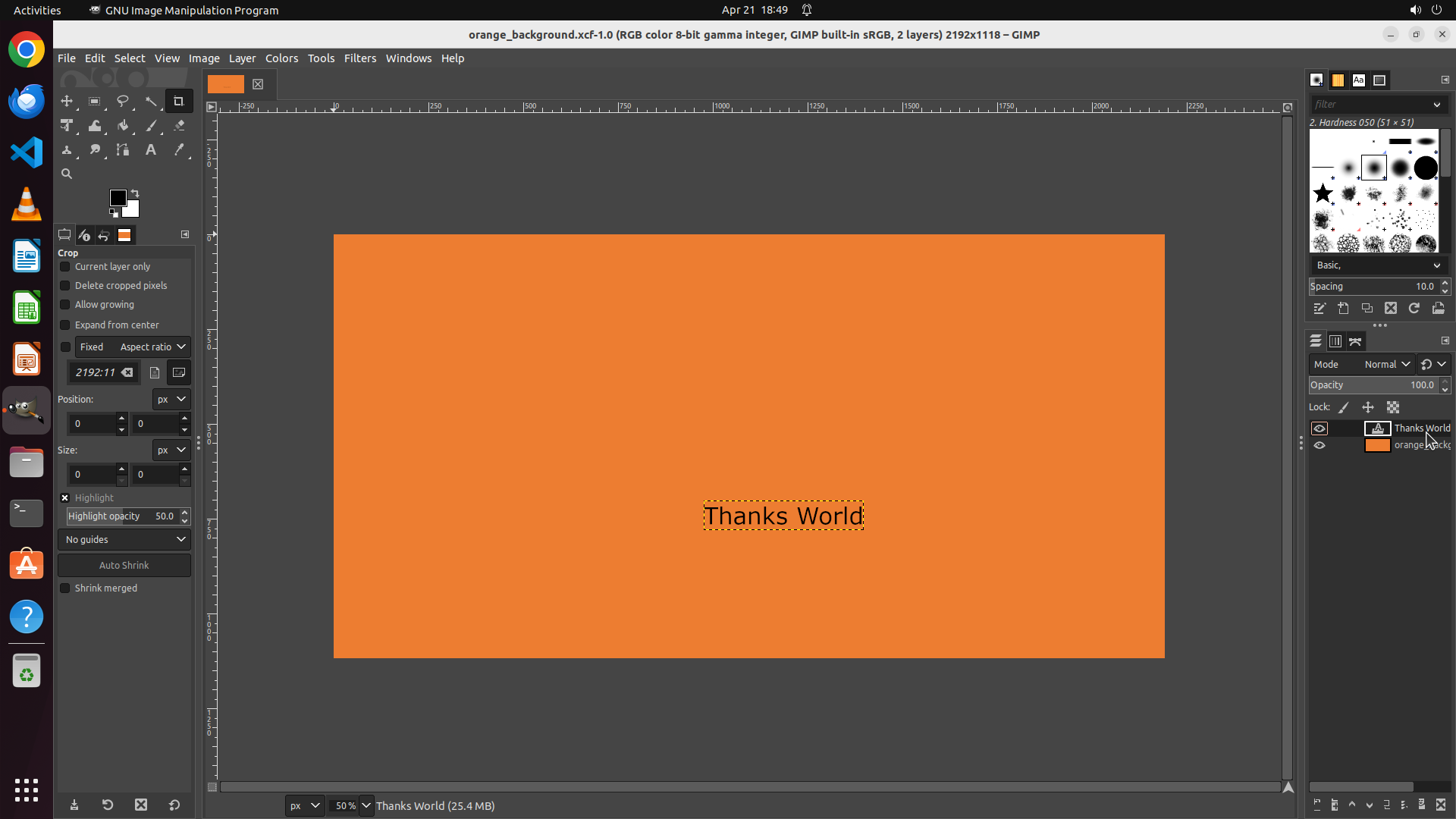
- GIMP is open with an orange background canvas
- The text "Thanks World!" is visible in the center of the canvas with selection handles around it
- In the Layers panel on the right, there are two layers: "Thanks World" (text layer) and "orange_background"
- The "Thanks World" layer appears to be selected/highlighted in the layers panel
- The current tool appears to be something other than the Move tool (possibly Crop tool based on the left panel showing "Crop" options)
#### 情况分析与思考过程
The user wants to move the text box to the left but keeps accidentally selecting the image layer beneath it. To solve this:
1. First, I need to ensure the text layer is properly selected in the Layers panel
2. Then select the Move tool from the toolbox
3. Configure the Move tool to "Move the active layer" mode (not "Pick a layer or guide")
4. Then drag the text to the left
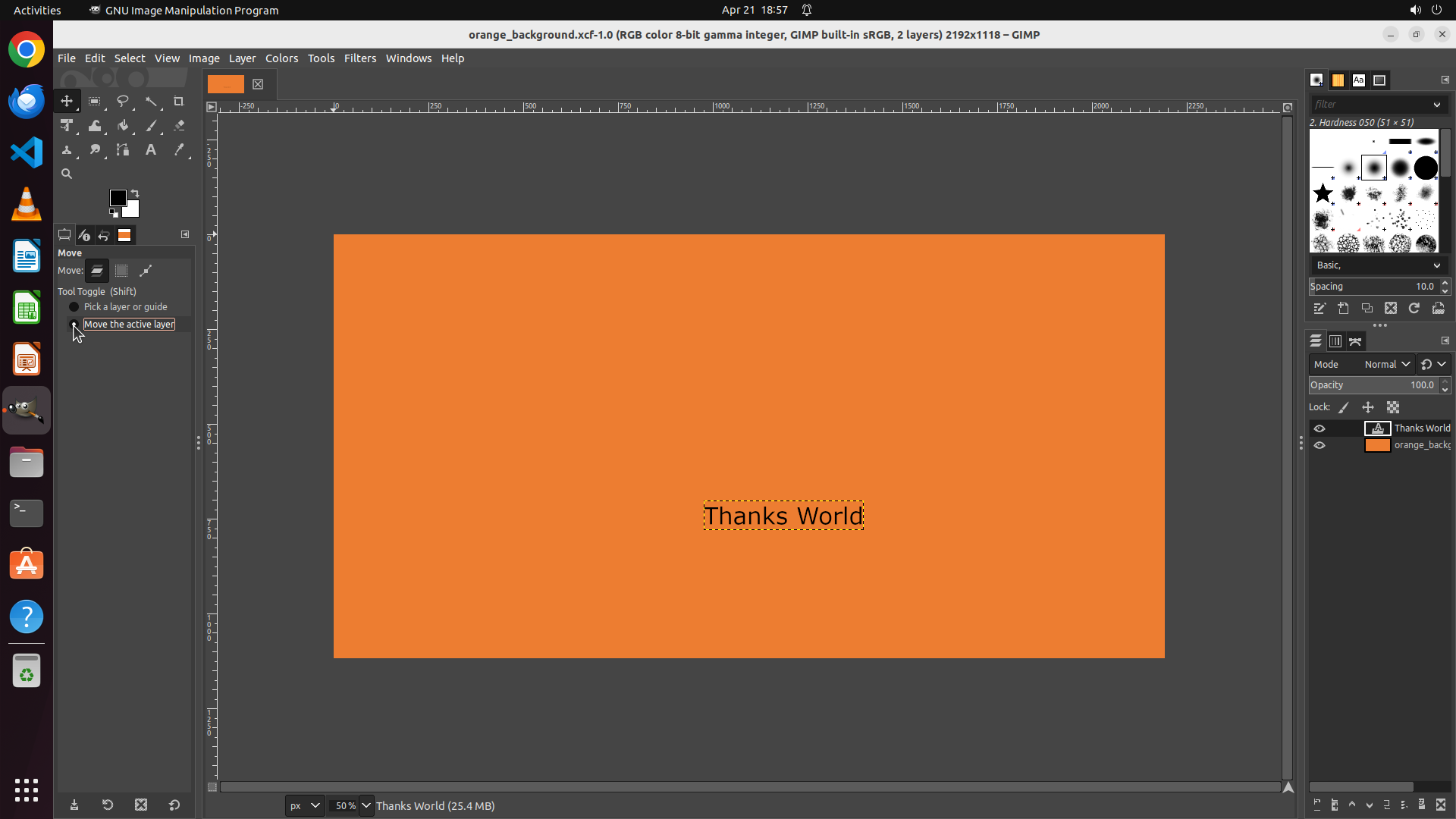
Looking at the current screenshot, the text layer appears to be selected, but I need to make sure the Move tool is active and properly configured. Let me start by clicking on the "Thanks World" layer in the layers panel to ensure it's definitely selected, then select the Move tool.
I'll help you move the text box to the left without accidentally selecting the background layer. Let me follow the strategy to ensure the text layer is properly selected and configure the Move tool correctly.
</think>
Step 2: CLICK (84, 130)
```
#### 重要信息
- GIMP is open with an orange background canvas
- The text "Thanks World!" is visible in the center of the canvas with selection handles around it
- In the Layers panel on the right, the "Thanks World" text layer is now selected/highlighted (shown with white background)
- The "orange_background" layer is below it
- The current tool is still the Crop tool (as shown in the left Tool Options panel showing "Crop" settings)
- I need to select the Move tool next to move the text layer
#### 情况分析与思考过程
Good progress! The text layer is now properly selected in the Layers panel. Now I need to:
1. Select the Move tool from the toolbox (currently Crop tool is active)
2. Configure the Move tool to "Move the active layer" mode
3. Then drag the text to the left
The Move tool should be in the toolbox on the left. Looking at the toolbox, I can see the Move tool icon (typically looks like crossed arrows) near the top of the toolbox. Let me click on it to activate it.
After selecting the Move tool, the Tool Options panel should update to show Move tool options where I can select "Move the active layer" mode instead of "Pick a layer or guide".
```
Step 3: CLICK (94, 424)
```
#### 重要信息
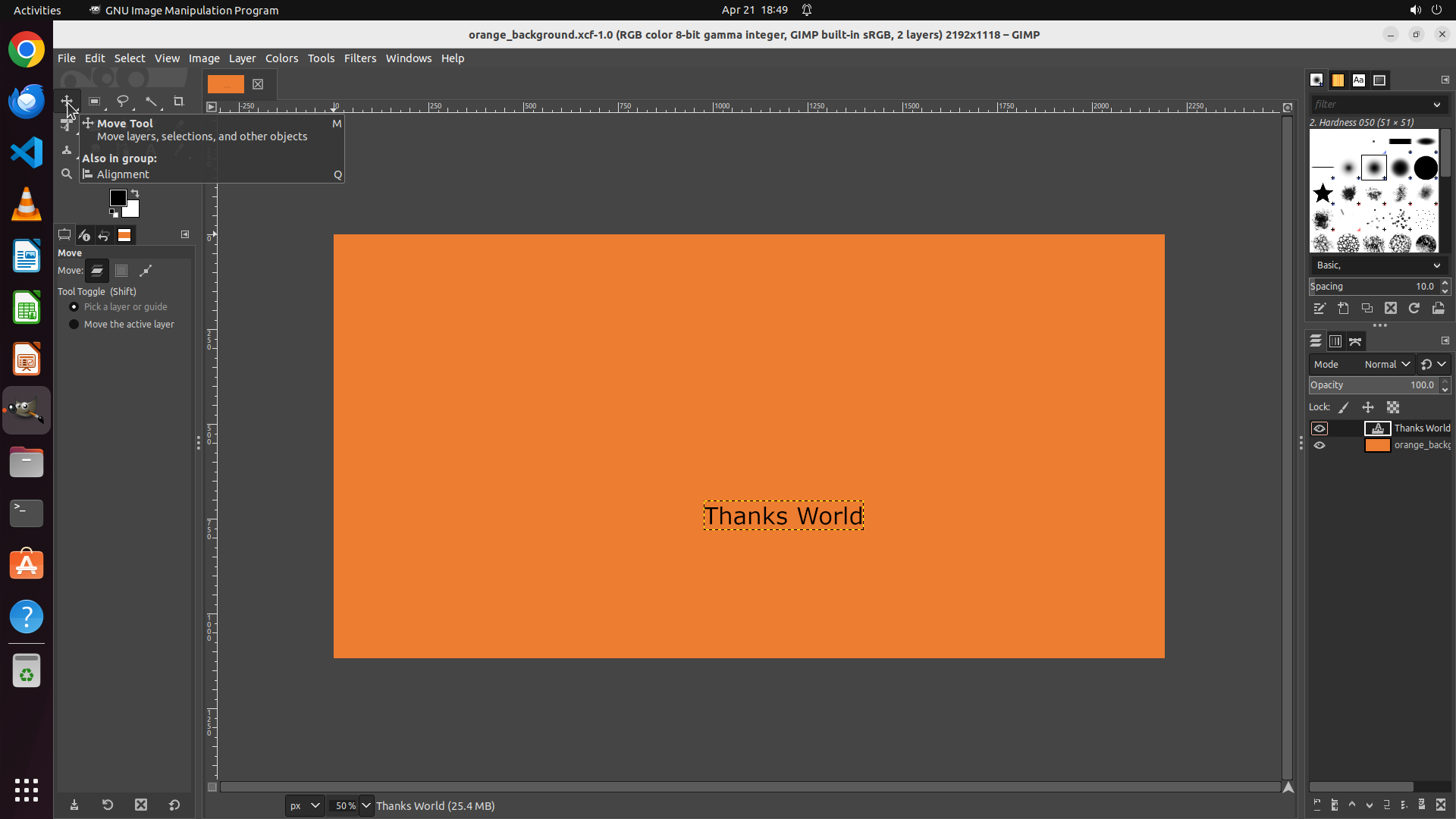
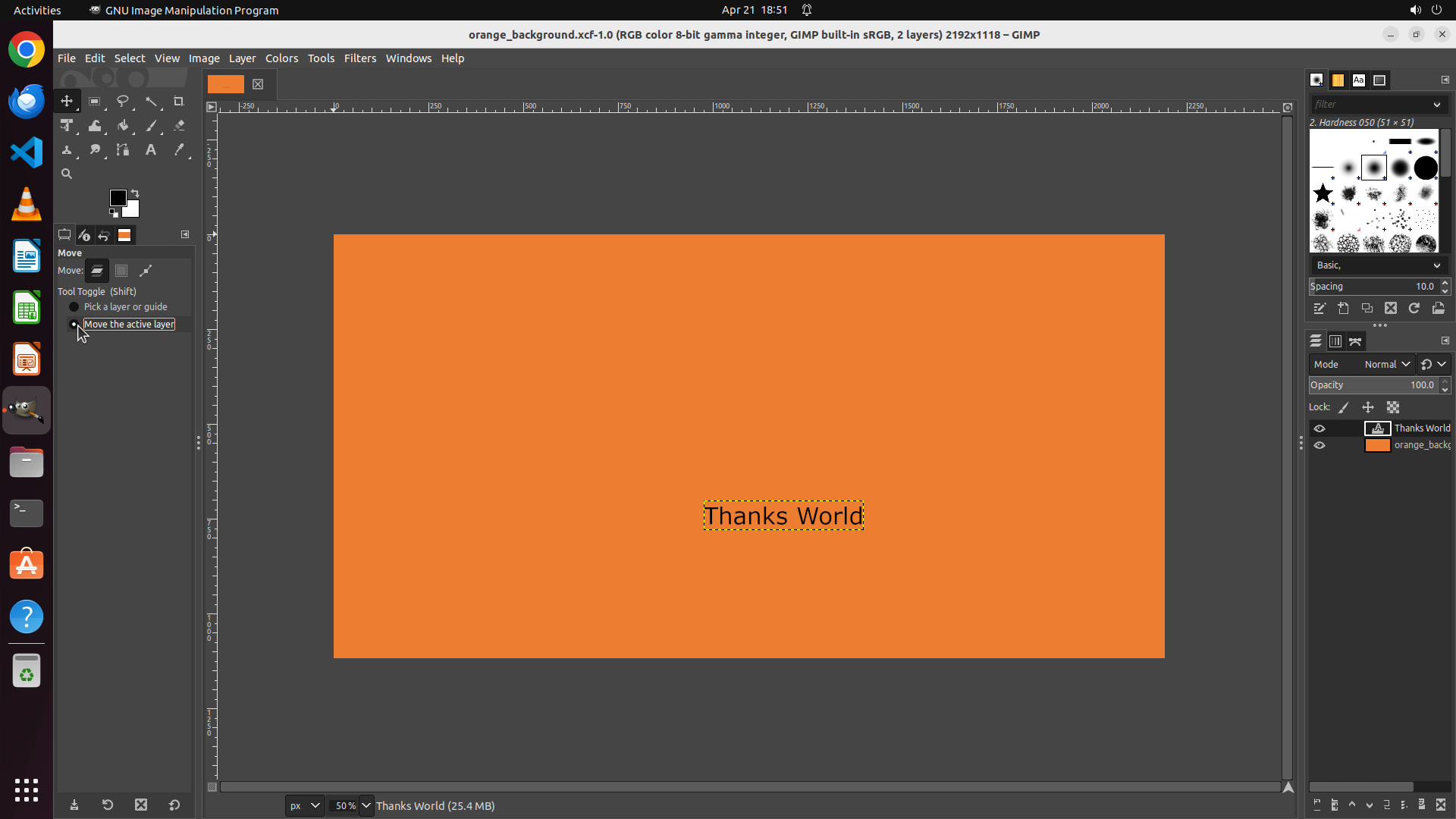
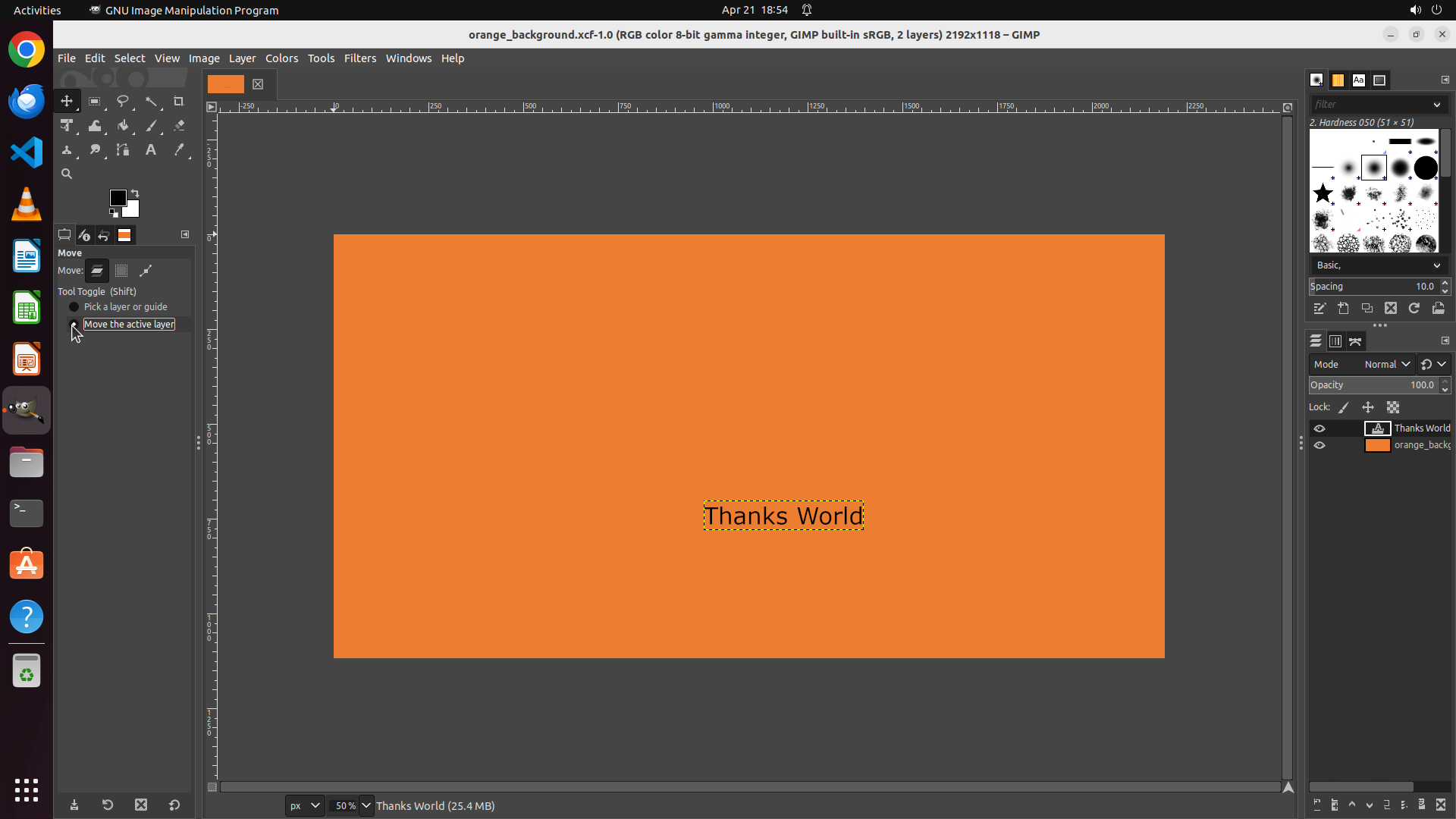
- The Move Tool is now active (as shown in the tooltip "Move Tool" and the Tool Options panel)
- The Tool Options panel shows two mode options:
- "Pick a layer or guide" (currently selected)
- "Move the active layer" (not selected, this is what we need)
- The "Thanks World" text layer is still selected in the Layers panel
- The text "Thanks World!" is visible in the center of the canvas with selection handles
#### 情况分析与思考过程
Good progress! The Move tool is now active. However, I can see that the current mode is "Pick a layer or guide" which would allow clicking on any layer (including accidentally selecting the background). To avoid this issue, I need to:
1. Click on the "Move the active layer" radio button in the Tool Options panel
2. This will ensure that only the currently selected text layer will be moved, regardless of where I click on the canvas
After switching to "Move the active layer" mode, I can then drag the text to the left without worrying about accidentally selecting the background layer.
The "Move the active layer" radio button is visible in the Tool Options panel on the left side, below "Pick a layer or guide".
```
Step 4: CLICK (94, 424)
```
#### 重要信息
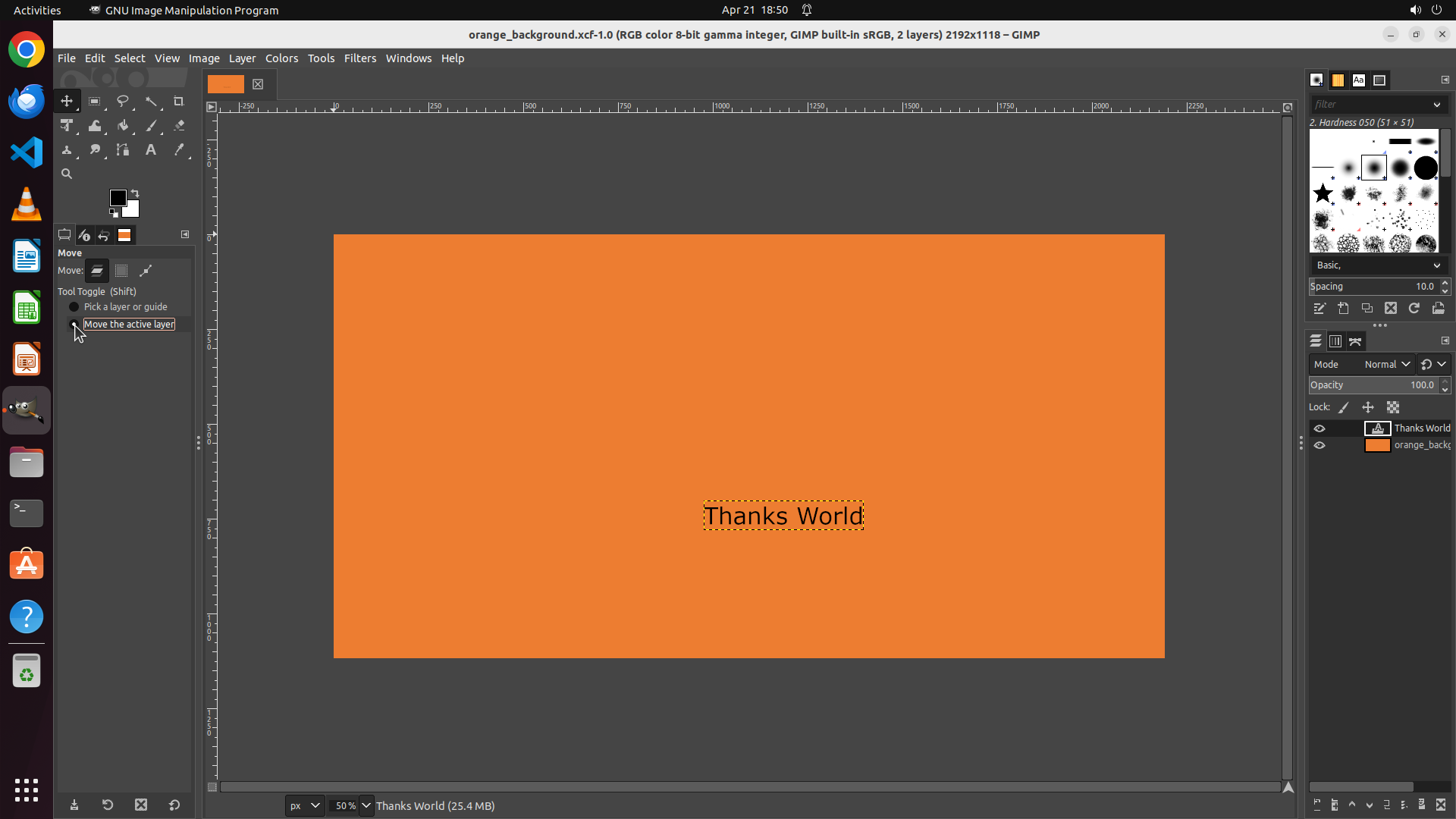
- The Move Tool is now active (as shown in the Tool Options panel)
- The Tool Options panel shows two mode options:
- "Pick a layer or guide" (currently selected, indicated by the filled radio button)
- "Move the active layer" (not selected, this is what we need to avoid selecting the background)
- The "Thanks World" text layer is still selected in the Layers panel (highlighted)
- The text "Thanks World!" is visible in the center of the canvas with selection handles around it
#### 情况分析与思考过程
The previous action successfully activated the Move tool. Now I can see the Tool Options panel showing the two move modes. Currently "Pick a layer or guide" is selected, which would allow clicking on any layer (including accidentally selecting the background).
To solve the user's problem of accidentally selecting the image layer beneath the text, I need to:
1. Click on the "Move the active layer" radio button in the Tool Options panel
2. This will ensure that only the currently selected text layer will be moved
3. Then I can drag the text to the left without worrying about the background layer
The "Move the active layer" radio button is visible in the Tool Options panel, below "Pick a layer or guide". I need to click on it to switch modes.
```
Step 5: CLICK (98, 424)
```
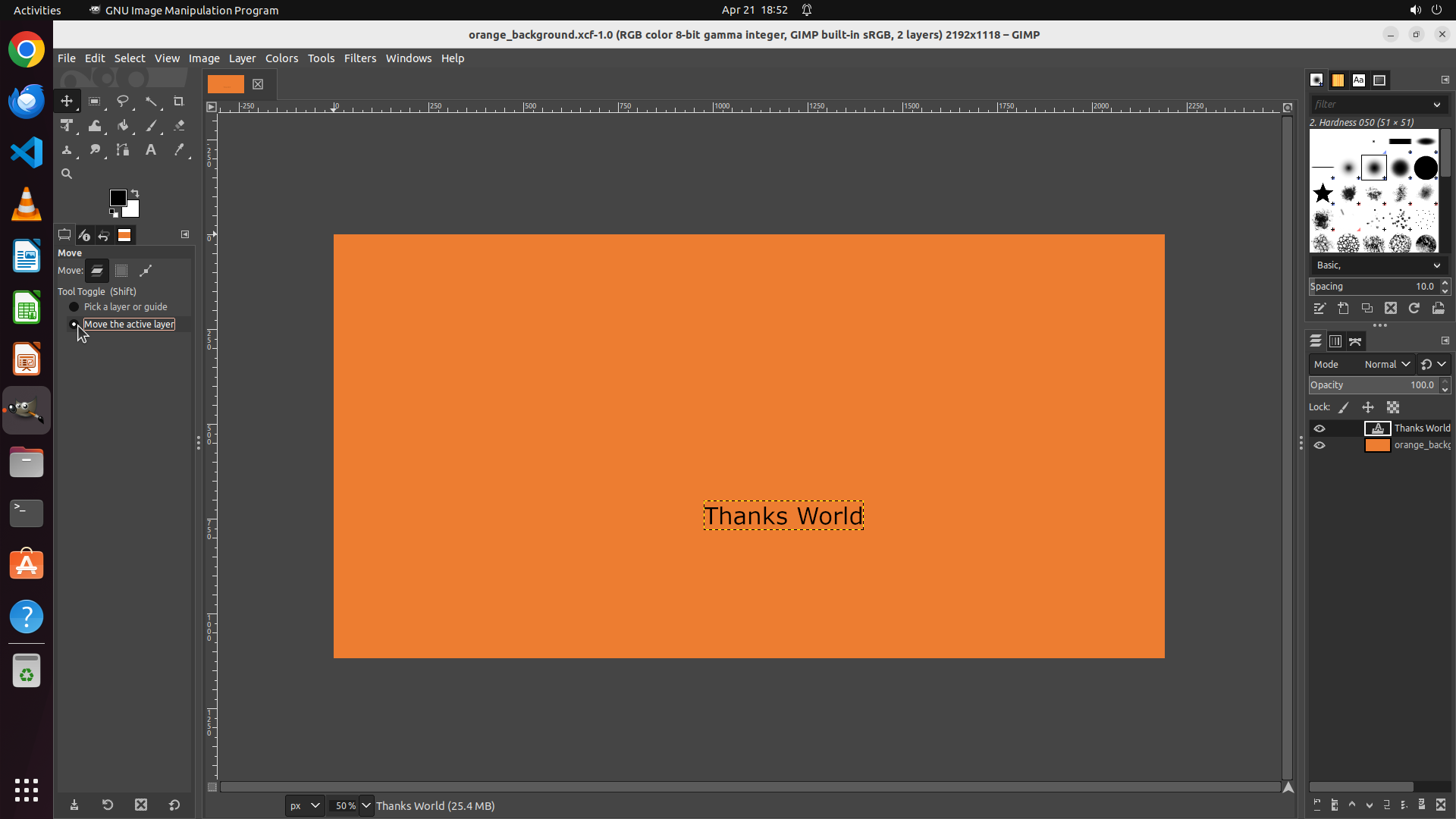
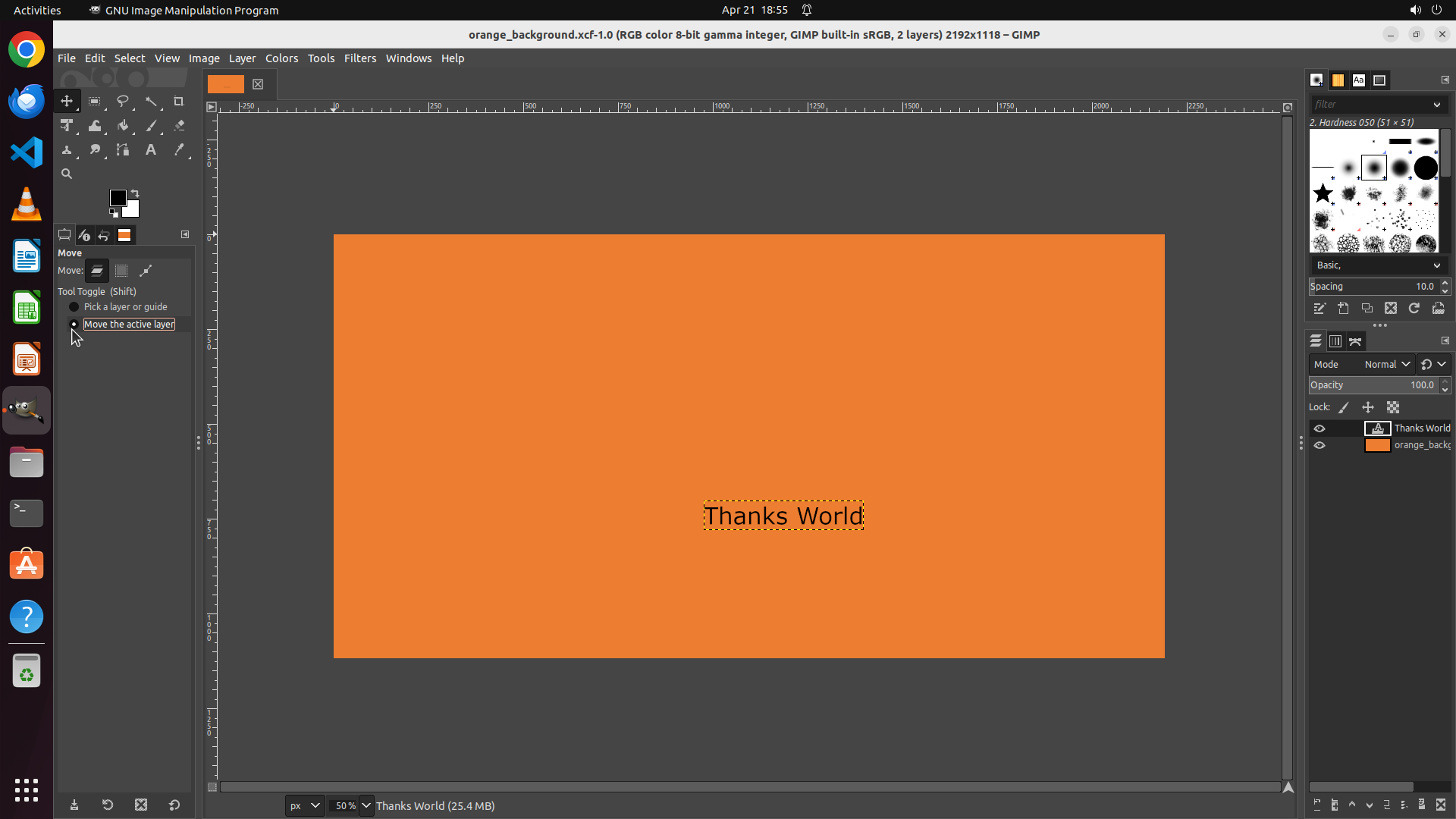
#### 重要信息
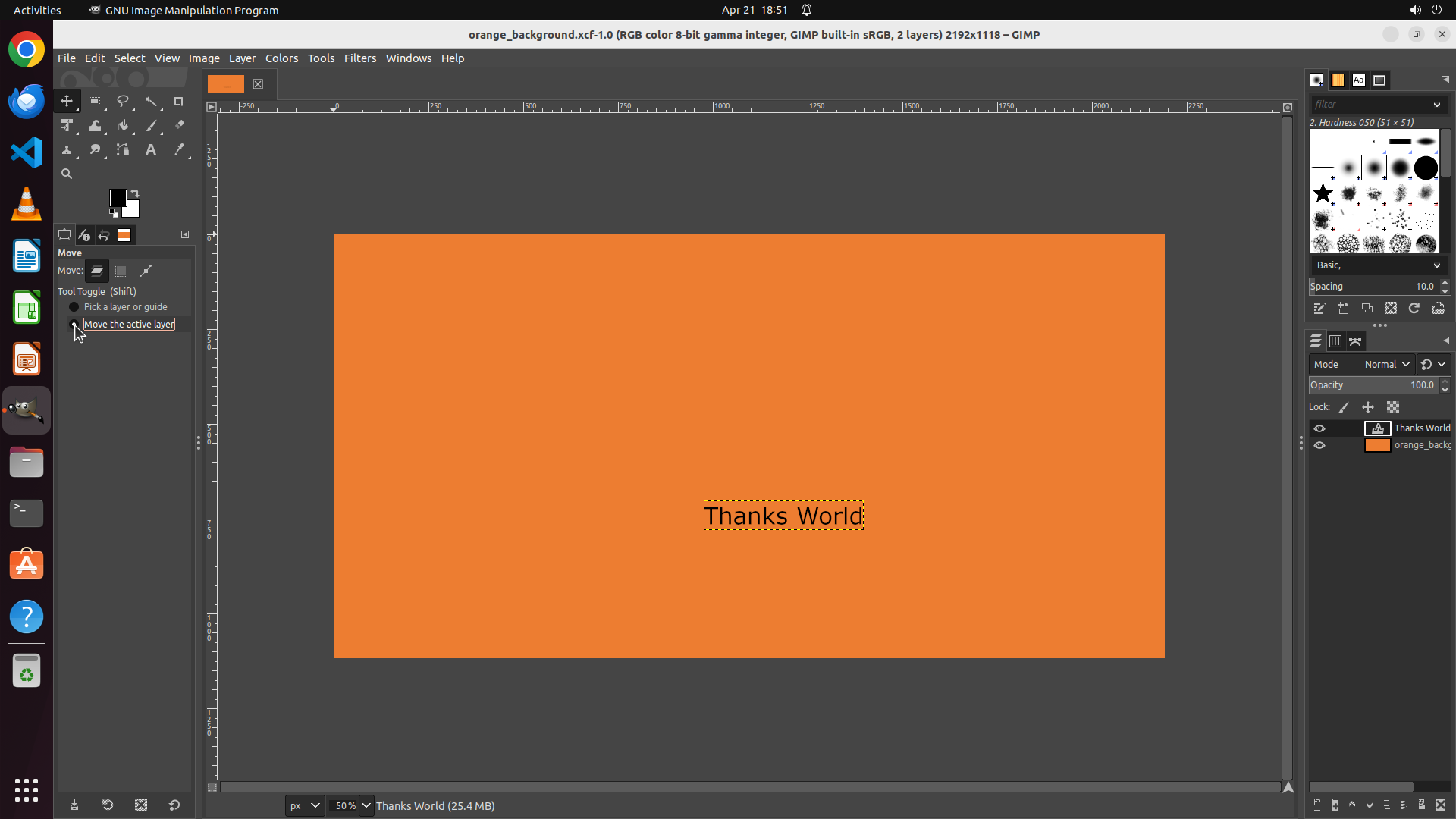
- The Move Tool is active in the toolbox
- In the Tool Options panel, "Pick a layer or guide" is still selected (filled radio button)
- "Move the active layer" option is still not selected (empty radio button)
- The previous click at coordinate (0.049, 0.393) did not successfully select the "Move the active layer" option
- The "Thanks World" text layer is still selected in the Layers panel
- The text "Thanks World!" is visible in the center of the canvas with selection handles
#### 情况分析与思考过程
The previous action failed to select the "Move the active layer" radio button. The coordinates may have been slightly off. I need to click more precisely on the radio button itself.
Looking at the Tool Options panel, I can see the radio button for "Move the active layer" is located to the left of the text. I need to click directly on that radio button circle to select it.
Once "Move the active layer" is selected, the tool will only move the currently selected text layer, preventing accidental selection of the background layer when I drag the text to the left.
Let me click more precisely on the radio button for "Move the active layer".
```
Step 6: CLICK (98, 424)
```
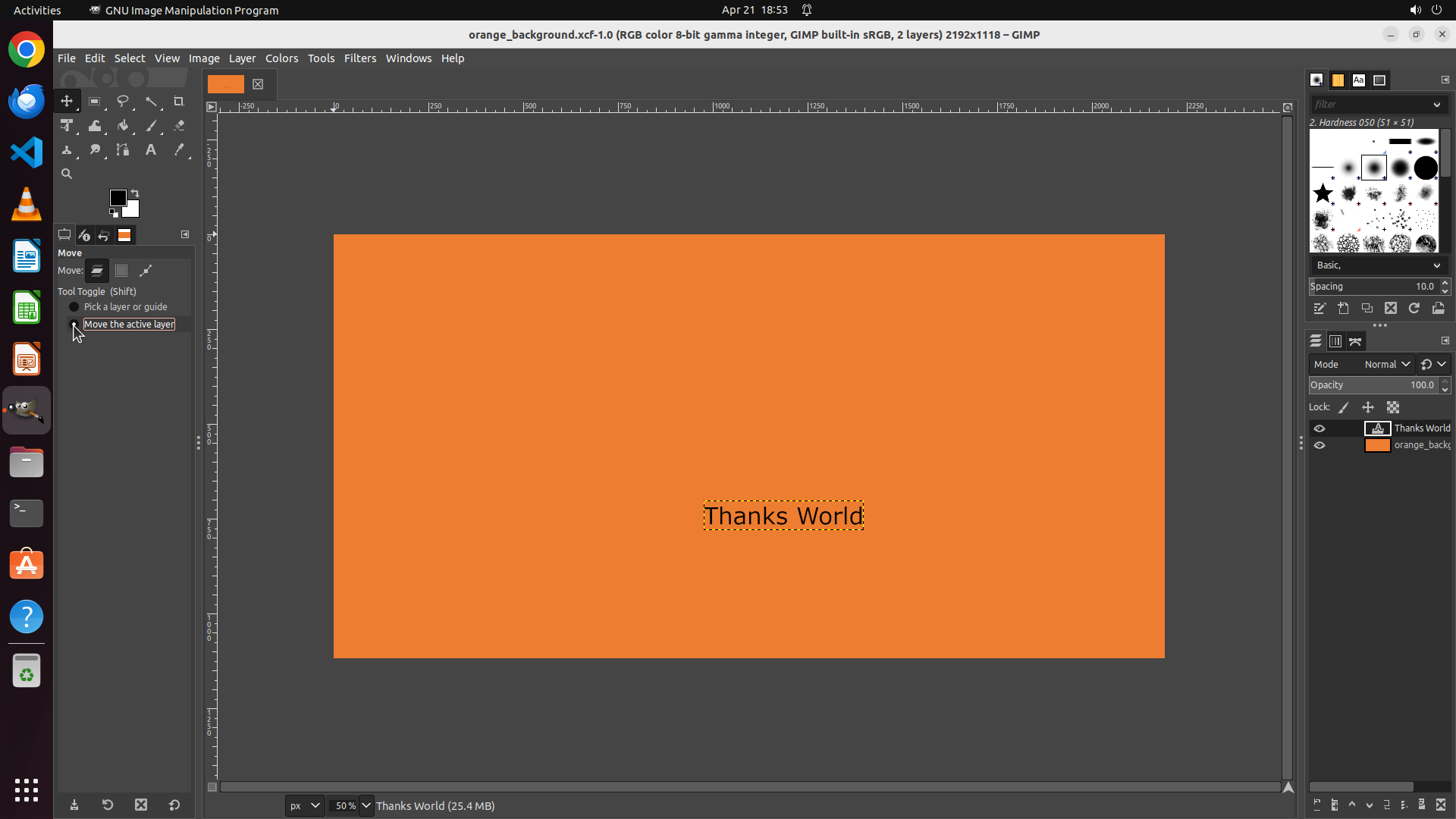
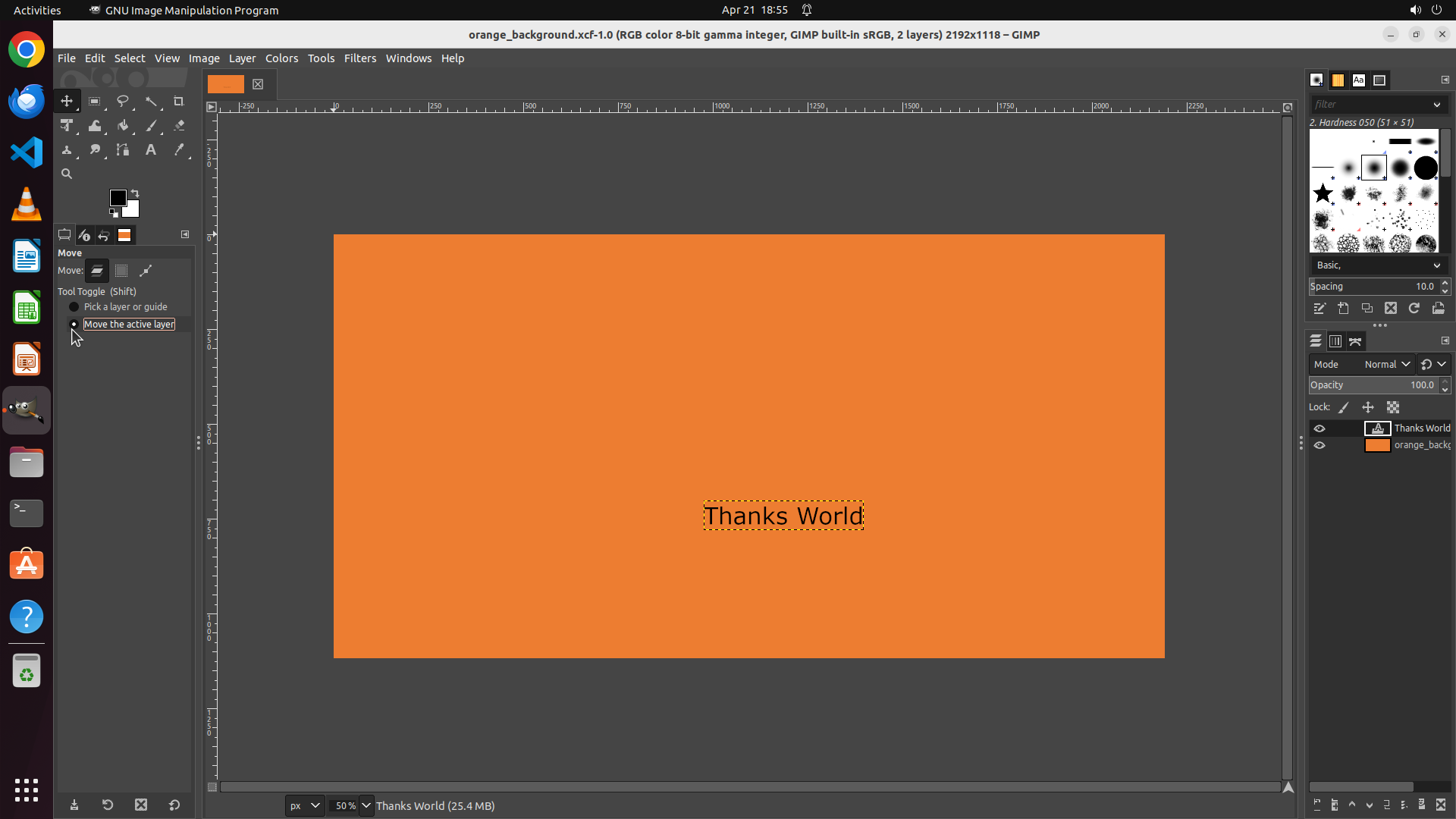
#### 重要信息
- The Move Tool is active in the toolbox
- In the Tool Options panel, "Pick a layer or guide" is still selected (filled radio button)
- "Move the active layer" option is still not selected (empty radio button)
- The previous click did not successfully select the "Move the active layer" option
- The "Thanks World" text layer is still selected in the Layers panel
- The text "Thanks World!" is visible in the center of the canvas with selection handles
#### 情况分析与思考过程
The previous attempts to click on the "Move the active layer" radio button have not been successful. Looking at the Tool Options panel, I can see the radio button for "Move the active layer" is still not selected. I need to click more precisely on the actual radio button circle.
Looking at the Tool Options panel on the left, I can see:
- The first radio button (filled) is for "Pick a layer or guide"
- The second radio button (empty) is for "Move the active layer"
The radio button appears to be a small circle icon. I need to click directly on that circle to select it. Once "Move the active layer" is selected, I can then drag the text to the left without accidentally selecting the background layer.
Let me click more precisely on the radio button circle itself, which should be to the left of the text "Move the active layer".
```
Step 7: CLICK (92, 424)
```
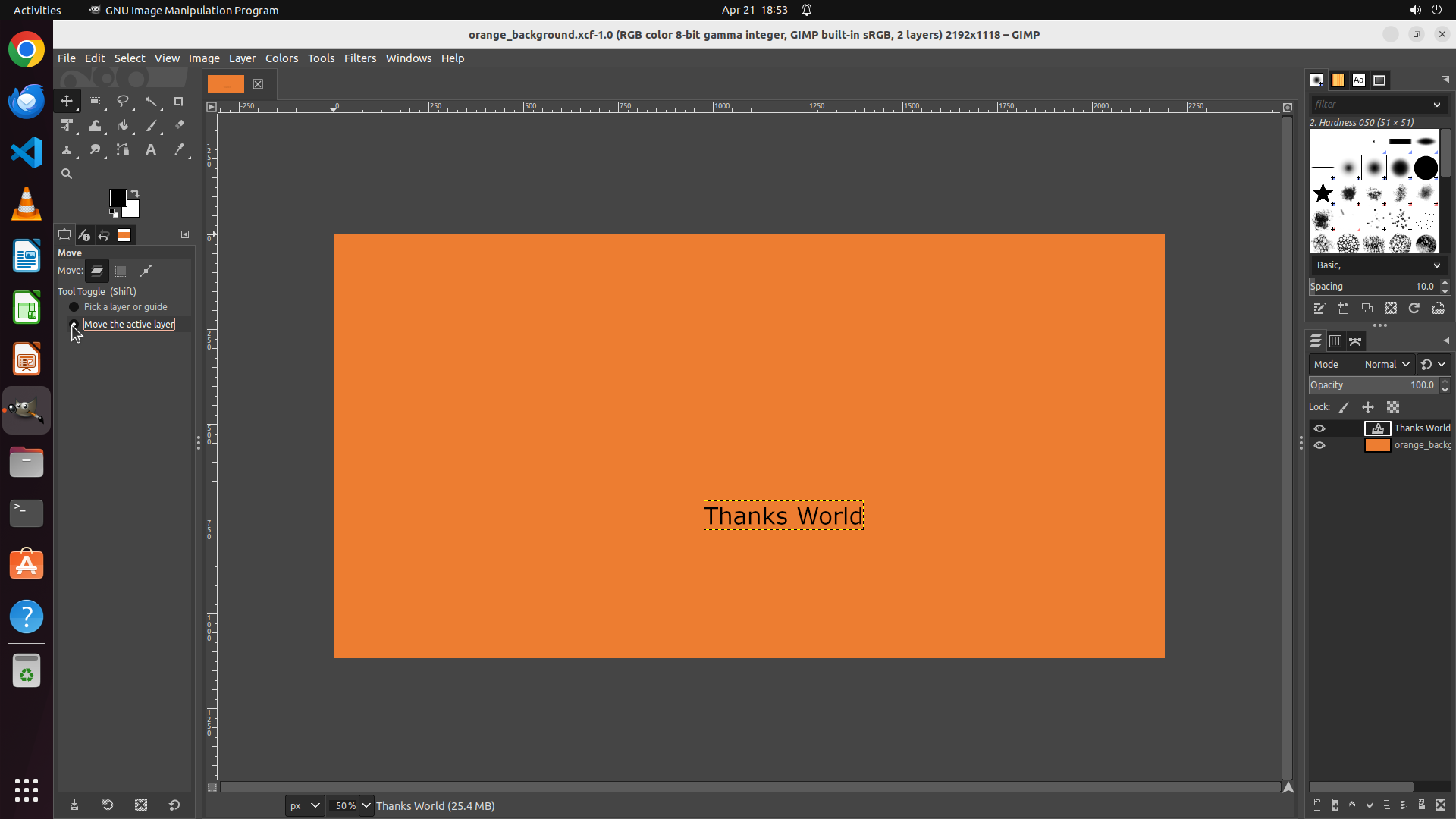
#### 重要信息
- The Move Tool is still active in the toolbox
- In the Tool Options panel, "Pick a layer or guide" is STILL selected (filled radio button)
- "Move the active layer" option is STILL not selected (empty radio button)
- The previous click at (0.051, 0.393) did not successfully change the selection
- The "Thanks World" text layer is still selected in the Layers panel
- The text "Thanks World!" is visible in the center of the canvas with selection handles
#### 情况分析与思考过程
The previous attempts to click on the "Move the active layer" radio button have not been successful. Looking at the Tool Options panel carefully, I can see the radio button circle is positioned to the left of the text "Move the active layer".
The radio button appears to be a small circle icon. I need to click more precisely on the actual radio button circle itself. Looking at the Tool Options panel, the radio button for "Move the active layer" should be at a slightly different coordinate - perhaps more to the left where the actual circle icon is.
Let me try clicking directly on the radio button circle, which should be around x=0.048 or slightly left of where I've been clicking. The y-coordinate might also need adjustment to hit the center of the radio button.
```
The previous click still didn't select the "Move the active layer" option. Let me try clicking more precisely on the radio button circle itself, which should be slightly to the left.
Step 8: CLICK (90, 424)
```
#### 重要信息
- The Move Tool is still active in the toolbox
- In the Tool Options panel, "Pick a layer or guide" is STILL selected (filled radio button)
- "Move the active layer" option is STILL not selected (empty radio button)
- Multiple attempts at coordinates around x=0.049-0.051, y=0.393 have not successfully selected the radio button
- The "Thanks World" text layer is still selected in the Layers panel
- The text "Thanks World!" is visible in the center of the canvas with selection handles
#### 情况分析与思考过程
I've attempted to click the "Move the active layer" radio button multiple times with slight coordinate variations, but none have worked. Looking at the Tool Options panel more carefully, I can see the radio buttons are small circles positioned to the left of the text labels.
The issue might be that:
1. The radio button is positioned further to the left than I've been clicking
2. The y-coordinate might need adjustment
3. The clickable area might be very small
Let me try clicking even more to the left, perhaps at x=0.047 or x=0.046, while keeping the y-coordinate around 0.393. The radio button circle appears to be quite close to the left edge of the Tool Options panel.
Once I successfully select "Move the active layer", I'll be able to drag the text to the left without accidentally selecting the background layer.
```
Step 9: CLICK (90, 424)
```
#### 重要信息
- The Move Tool is still active in the toolbox
- In the Tool Options panel, "Pick a layer or guide" is STILL selected (filled radio button)
- "Move the active layer" option is STILL not selected (empty radio button)
- Multiple attempts at coordinates around x=0.048-0.051, y=0.393 have not successfully selected the radio button
- The "Thanks World" text layer is still selected in the Layers panel
- The text "Thanks World!" is visible in the center of the canvas with selection handles
#### 情况分析与思考过程
I've attempted to click the "Move the active layer" radio button multiple times with slight coordinate variations, but none have worked. Looking at the Tool Options panel more carefully, I can see the radio buttons are small circles positioned to the left of the text labels.
The issue might be that:
1. The radio button is positioned further to the left than I've been clicking
2. The y-coordinate might need adjustment
3. The clickable area might be very small
Let me try clicking even more to the left, perhaps at x=0.047 or x=0.046, while keeping the y-coordinate around 0.393. The radio button circle appears to be quite close to the left edge of the Tool Options panel.
Once I successfully select "Move the active layer", I'll be able to drag the text to the left without accidentally selecting the background layer.
```
Step 10: CLICK (90, 429)
```
#### 重要信息
- The Move Tool is still active in the toolbox
- In the Tool Options panel, "Pick a layer or guide" is STILL selected (filled radio button)
- "Move the active layer" option is STILL not selected (empty radio button)
- Multiple attempts at coordinates around x=0.047-0.051, y=0.393 have not successfully selected the radio button
- The "Thanks World" text layer is still selected in the Layers panel
- The text "Thanks World!" is visible in the center of the canvas with selection handles
#### 情况分析与思考过程
I've tried clicking the "Move the active layer" radio button many times at slightly different x-coordinates (0.047-0.051) but all at y=0.393. None of these attempts have successfully selected the radio button.
Looking at the Tool Options panel more carefully, I notice that perhaps the y-coordinate I've been using (0.393) might be slightly off. The radio button for "Move the active layer" might be at a slightly different y-position than the "Pick a layer or guide" option above it.
Let me try adjusting the y-coordinate slightly. I'll try y=0.395 or y=0.397 to see if the radio button is positioned slightly lower. I'll keep the x-coordinate at 0.047 since that should be far enough to the left to hit the radio button circle.
Alternatively, the radio button might be even further to the left, so I could also try x=0.045 with the adjusted y-coordinate.
```
Step 11: CLICK (90, 429)
```
#### 重要信息
- The Move Tool is still active in the toolbox
- In the Tool Options panel, "Pick a layer or guide" is STILL selected (filled radio button)
- "Move the active layer" option is STILL not selected (empty radio button)
- Multiple attempts at coordinates around x=0.047-0.051, y=0.393 have not successfully selected the radio button
- The "Thanks World" text layer is still selected in the Layers panel
- The text "Thanks World!" is visible in the center of the canvas with selection handles
#### 情况分析与思考过程
I've tried clicking the "Move the active layer" radio button many times at slightly different x-coordinates (0.047-0.051) but all at y=0.393. None of these attempts have successfully selected the radio button.
Looking at the Tool Options panel more carefully, I notice that perhaps the y-coordinate I've been using (0.393) might be slightly off. The radio button for "Move the active layer" might be at a slightly different y-position than the "Pick a layer or guide" option above it.
Let me try adjusting the y-coordinate slightly. I'll try y=0.395 or y=0.397 to see if the radio button is positioned slightly lower. I'll keep the x-coordinate at 0.047 since that should be far enough to the left to hit the radio button circle.
Alternatively, the radio button might be even further to the left, so I could also try x=0.045 with the adjusted y-coordinate.
```
Step 12: CLICK (163, 424)
```
#### 重要信息
- The Move Tool is still active in the toolbox
- In the Tool Options panel, "Pick a layer or guide" is STILL selected (filled radio button)
- "Move the active layer" option is STILL not selected (empty radio button)
- Multiple attempts at various coordinates have not successfully selected the radio button
- The "Thanks World" text layer is still selected in the Layers panel
- The text "Thanks World!" is visible in the center of the canvas with selection handles
#### 情况分析与思考过程
I've tried many times to click on the radio button for "Move the active layer" without success. The coordinates I've been using (around x=0.047-0.051, y=0.393-0.397) haven't been hitting the target.
Looking at the Tool Options panel more carefully, I notice that I've been focusing on clicking the radio button circle itself. However, in many GUI applications, clicking on the text label next to a radio button also selects it.
Let me try clicking directly on the text "Move the active layer" instead of the radio button circle. This might be more forgiving in terms of coordinate precision. The text appears to be positioned to the right of the radio button, around x=0.055-0.120, y=0.393.
Alternatively, I could try using the keyboard shortcut. In GIMP, pressing Shift+M activates the Move tool, and there might be a way to toggle between the modes using keyboard shortcuts.
Let me try clicking on the text label "Move the active layer" to see if that selects the radio button.
```
Step 13: CLICK (92, 424)
```
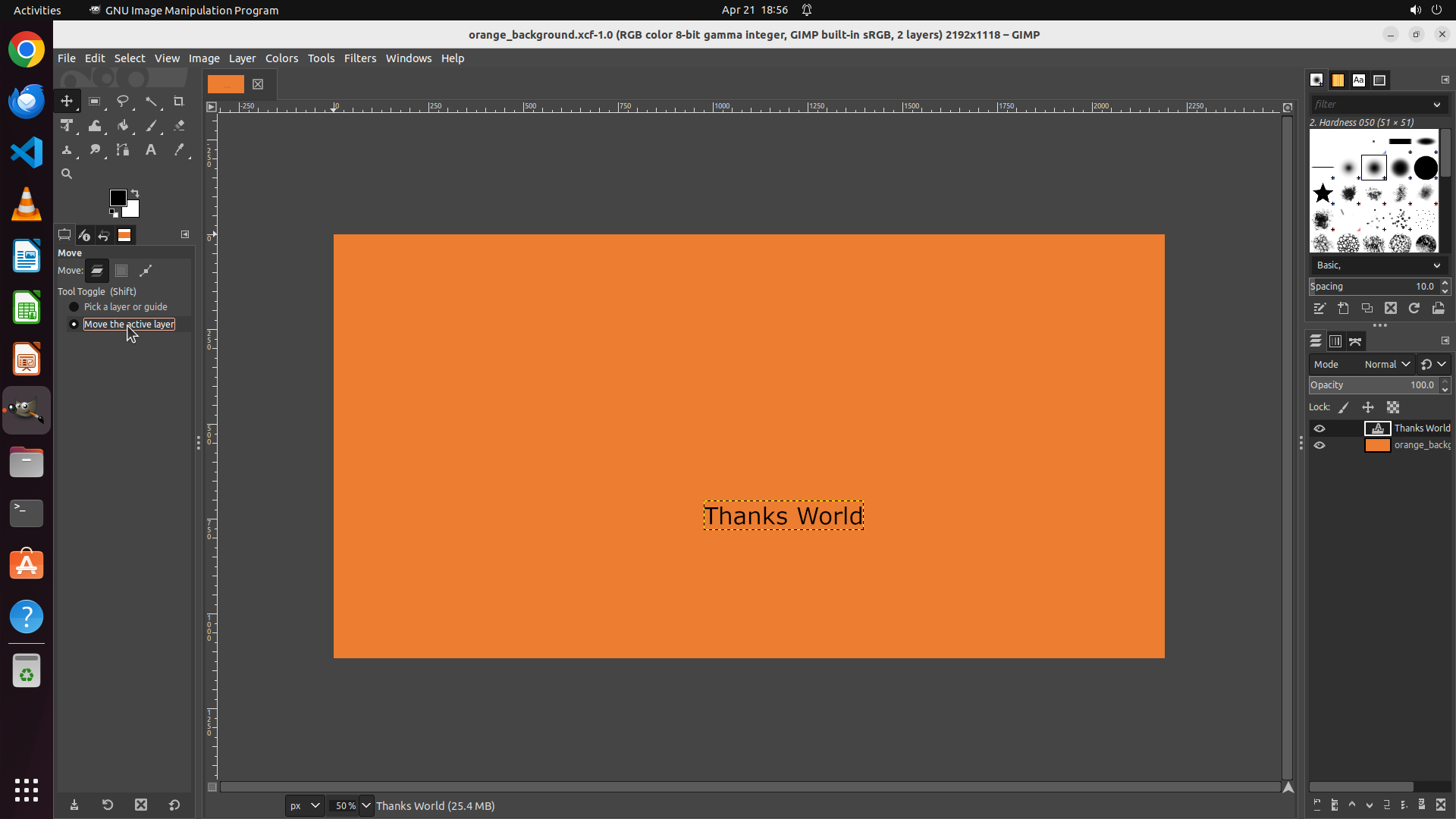
#### 重要信息
- The Move Tool is active in the toolbox
- In the Tool Options panel, "Pick a layer or guide" is STILL selected (filled radio button)
- "Move the active layer" option is STILL not selected (empty radio button)
- Multiple attempts at various coordinates have not successfully selected the radio button
- The "Thanks World" text layer is still selected in the Layers panel
- The text "Thanks World!" is visible in the center of the canvas with selection handles
#### 情况分析与思考过程
After many attempts to click the "Move the active layer" radio button, it's still not being selected. The previous click at [0.085, 0.393] appears to have clicked on the text label (as evidenced by the underlined "Move the active layer" text in the screenshot), but not the radio button itself.
Given the difficulty in selecting this radio button, let me reconsider the approach. The user wants to move the text to the left without accidentally selecting the background layer.
Since the "Thanks World" text layer is already selected in the Layers panel, and the text on canvas has selection handles (indicating it's active), I can actually proceed to move the text now. Even with "Pick a layer or guide" mode, if I click directly on the text itself (not the background), I should be able to drag it.
However, to avoid any issues with accidentally selecting the background, let me try one more time to click on the radio button, but this time I'll try clicking more to the left where the actual radio button circle should be. Looking at the screenshot, the radio button appears to be at approximately x=0.048 or even x=0.046.
Actually, looking at the relative position of the two radio buttons, the second one ("Move the active layer") should be directly below the first one. The first radio button (filled) appears to be at around x=0.048. Let me try clicking at x=0.048, y=0.393 or y=0.395.
If this doesn't work, I'll proceed to just drag the text directly since it's already selected.
```
Step 14: MOVE_TO (1031, 673)
```
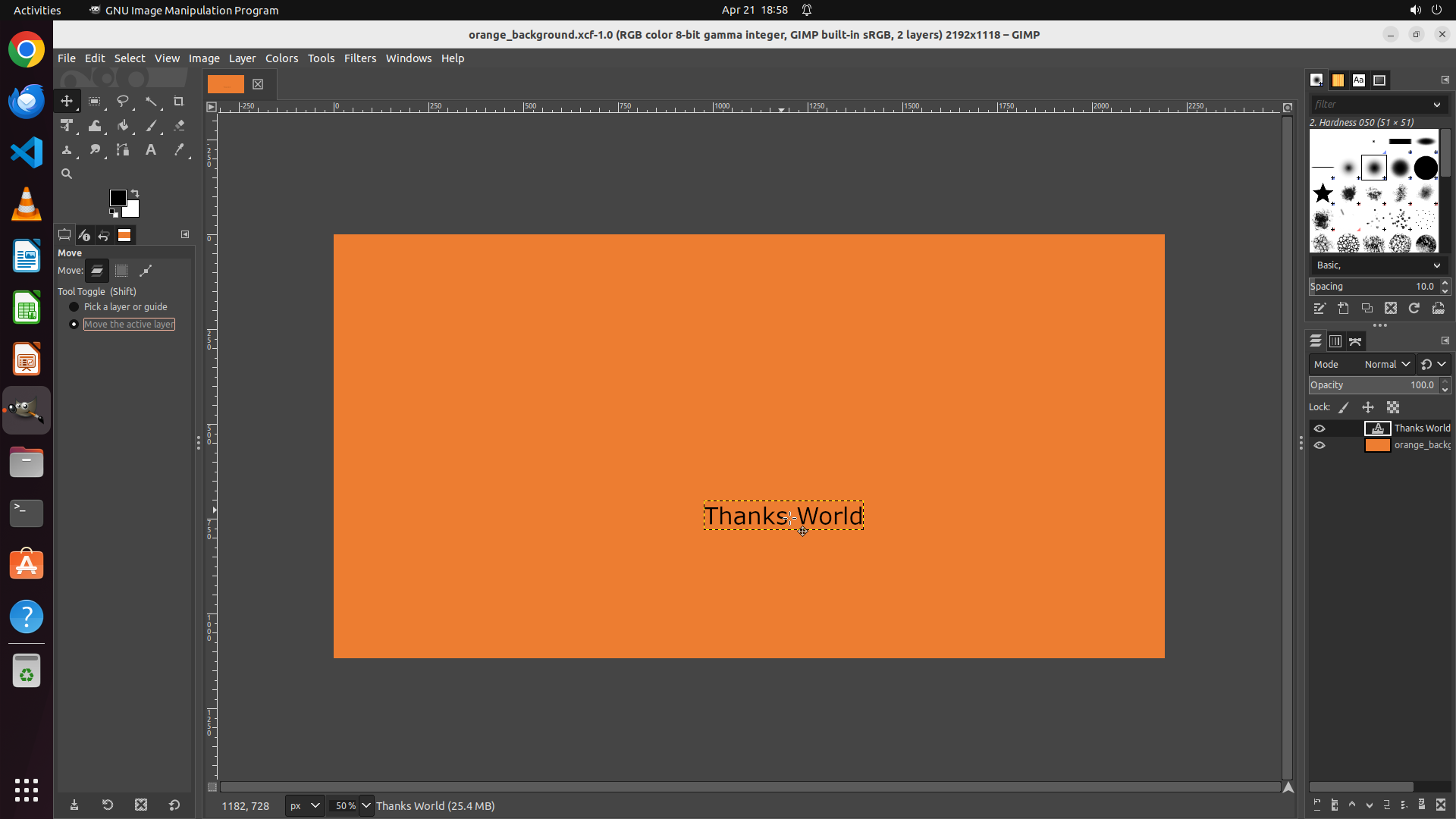
#### 重要信息
- The Move Tool is active in the toolbox
- In the Tool Options panel, "Pick a layer or guide" is STILL selected (filled radio button)
- "Move the active layer" option is STILL not selected (empty radio button)
- The "Move the active layer" text is now underlined from the previous click, but the radio button itself is not selected
- Multiple attempts at various coordinates have not successfully selected the radio button
- The "Thanks World" text layer is still selected in the Layers panel
- The text "Thanks World!" is visible in the center of the canvas with selection handles
#### 情况分析与思考过程
The previous click at [0.048, 0.393] underlined the text "Move the active layer" but still didn't select the radio button. I've now tried many different approaches to click this radio button without success.
Given the difficulty in selecting this radio button, let me try a different approach. Since:
1. The "Thanks World" text layer is already selected in the Layers panel
2. The text on canvas has selection handles (indicating it's active)
3. The Move tool is active
I can actually proceed to move the text now. Even with "Pick a layer or guide" mode, if I click directly ON the text itself (not the background) and drag, it should move the text layer since the text is what's under my cursor at that position.
Let me try one final attempt at clicking the radio button by trying a coordinate slightly more to the left (x=0.046), and if that doesn't work, I'll proceed to drag the text directly.
Actually, looking at the situation more carefully - since the text layer is already selected and has handles, I should just proceed to drag the text to the left. I'll click on the text itself and drag it leftward.
```
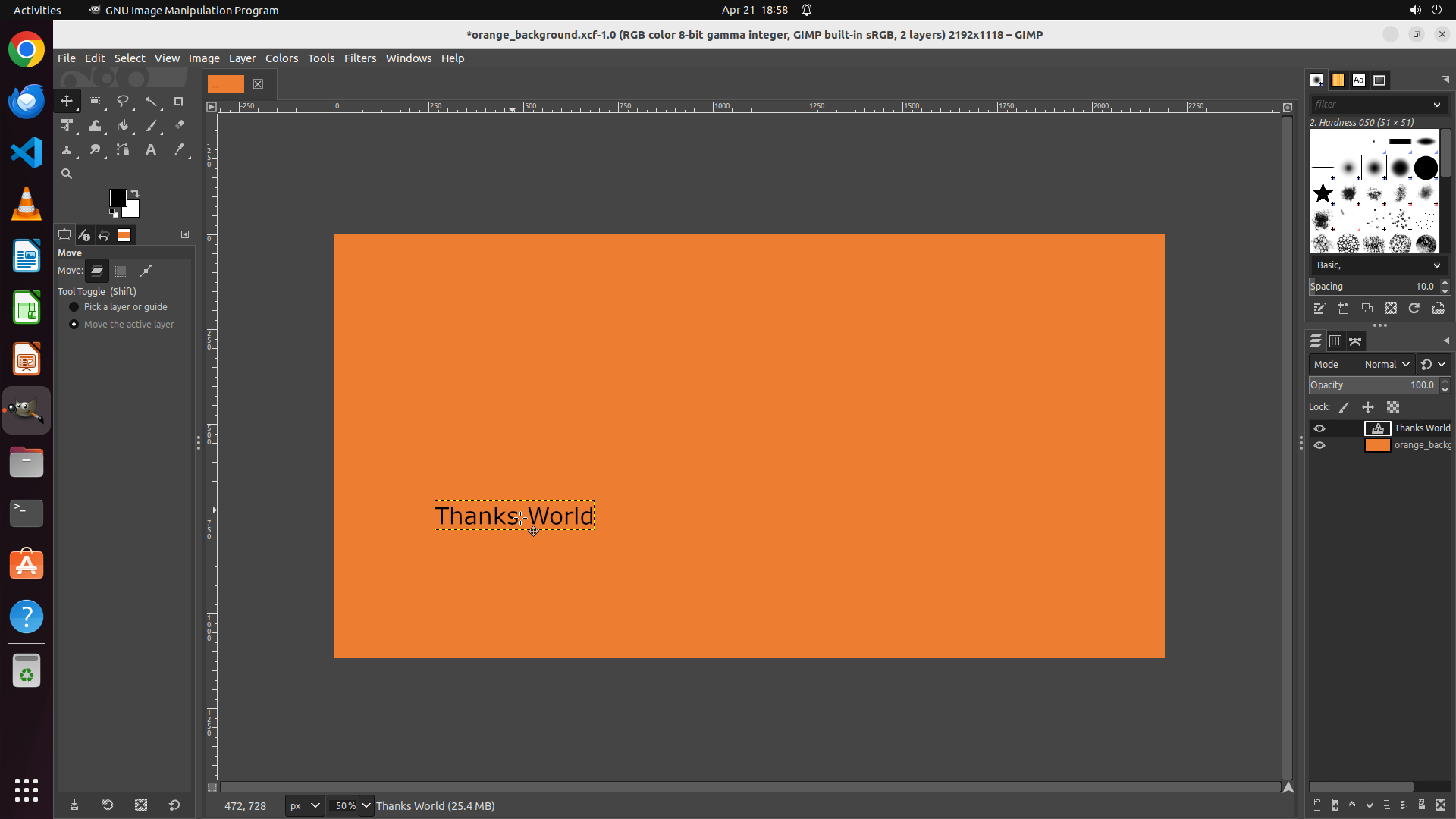
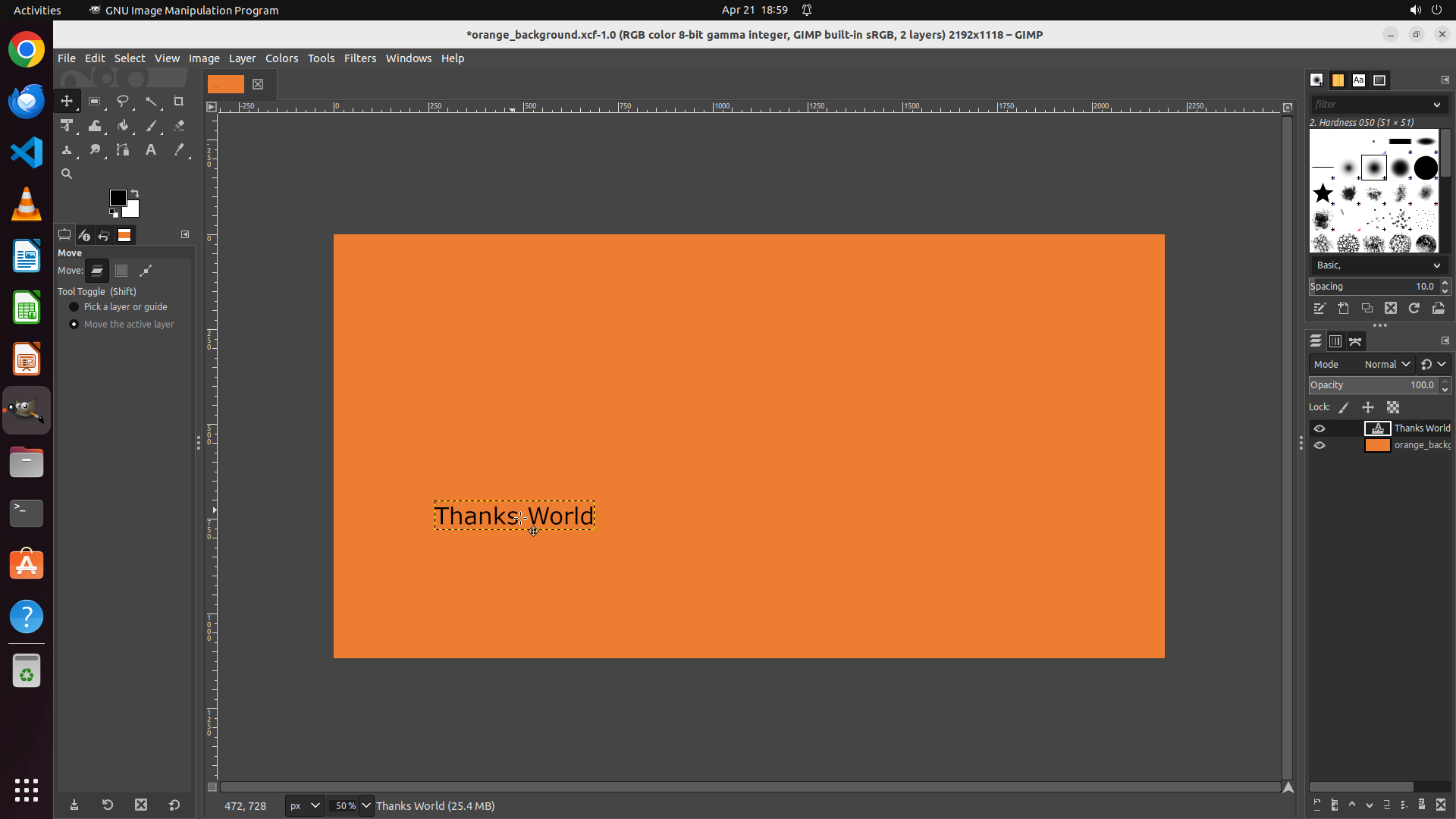
Step 14: DRAG_TO (676, 673)
```
#### 重要信息
- The Move Tool is active in the toolbox
- In the Tool Options panel, "Pick a layer or guide" is STILL selected (filled radio button)
- "Move the active layer" option is STILL not selected (empty radio button)
- The "Move the active layer" text is now underlined from the previous click, but the radio button itself is not selected
- Multiple attempts at various coordinates have not successfully selected the radio button
- The "Thanks World" text layer is still selected in the Layers panel
- The text "Thanks World!" is visible in the center of the canvas with selection handles
#### 情况分析与思考过程
The previous click at [0.048, 0.393] underlined the text "Move the active layer" but still didn't select the radio button. I've now tried many different approaches to click this radio button without success.
Given the difficulty in selecting this radio button, let me try a different approach. Since:
1. The "Thanks World" text layer is already selected in the Layers panel
2. The text on canvas has selection handles (indicating it's active)
3. The Move tool is active
I can actually proceed to move the text now. Even with "Pick a layer or guide" mode, if I click directly ON the text itself (not the background) and drag, it should move the text layer since the text is what's under my cursor at that position.
Let me try one final attempt at clicking the radio button by trying a coordinate slightly more to the left (x=0.046), and if that doesn't work, I'll proceed to drag the text directly.
Actually, looking at the situation more carefully - since the text layer is already selected and has handles, I should just proceed to drag the text to the left. I'll click on the text itself and drag it leftward.
```