```
#### 重要信息
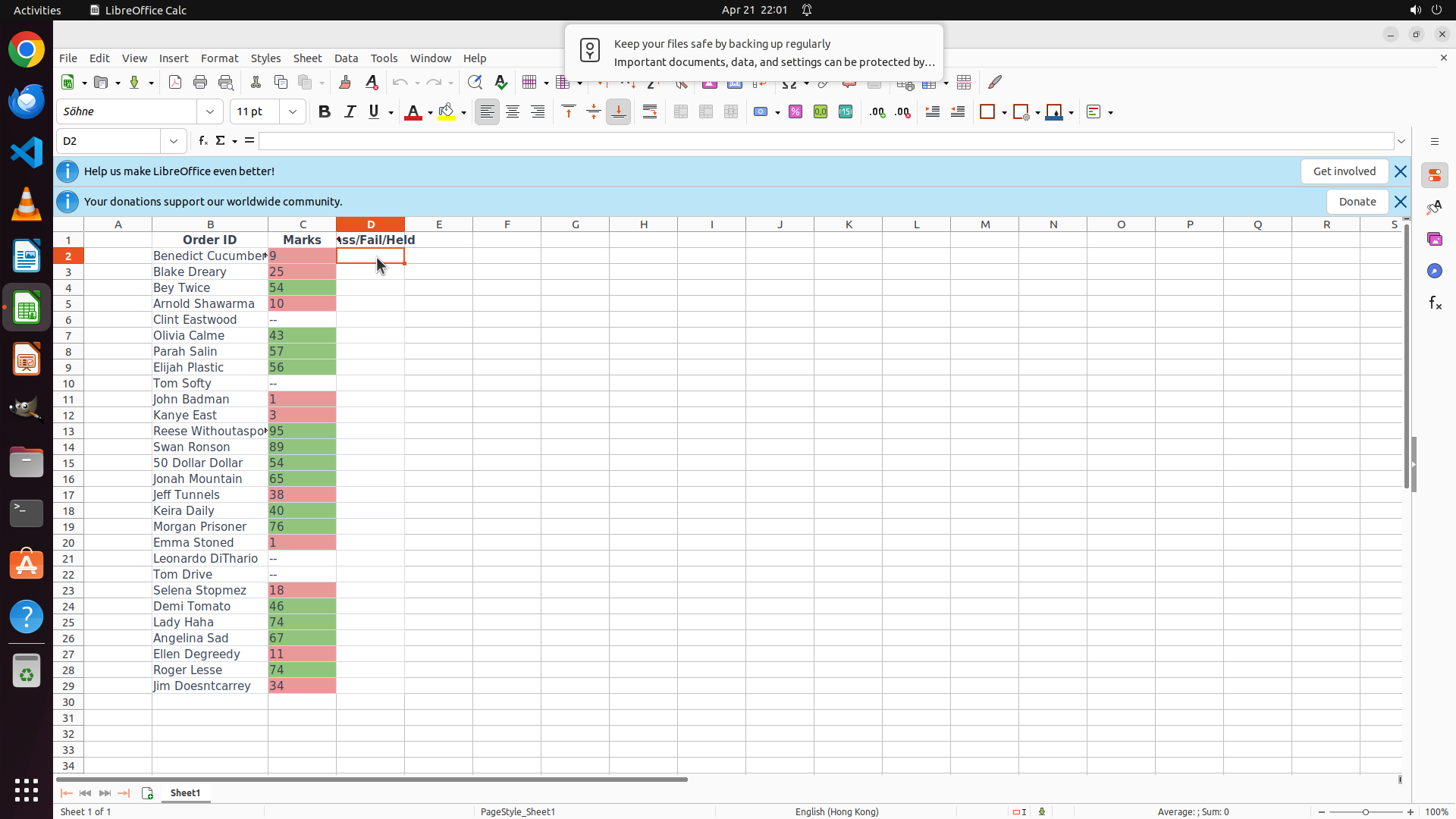
LibreOffice Calc is open with a spreadsheet containing student data. I can see:
- Column A: Numbers/Order_ID
- Column B: Student names (Benedict Cucumber, Blake Dreary, Bey Twice, etc.)
- Column C: Marks (shown with colored backgrounds - green for passing, red for failing)
- Column D: "Pass/Fail/Held" header - this column is currently empty and needs data validation
The spreadsheet shows data from row 2 to at least row 29 (visible students). The "Pass/Fail/Held" column is column D.
#### 情况分析与思考过程
The task is to enable data validation for the "Pass/Fail/Held" column so users can select from a dropdown with "Pass", "Fail", and "Held" options.
According to the strategy tree, I need to:
1. First select the data range in column D (excluding the header)
2. Then configure data validation through the Data menu
Step 1 is to click on cell D2 (the first data cell in the Pass/Fail/Held column). Looking at the spreadsheet, D2 is directly below the "Pass/Fail/Held" header in column D, aligned with the first student "Benedict Cucumber" in row 2.
After clicking D2, I'll need to select down to the last row with data, then open Data > Validity/Validation to configure the dropdown.
Let me start by clicking on cell D2.
```
I'll help you set up data validation for the "Pass/Fail/Held" column. Let me start by clicking on cell D2 to begin selecting the data range.
Step 2: MOVE_TO (492, 600)
```
#### 重要信息
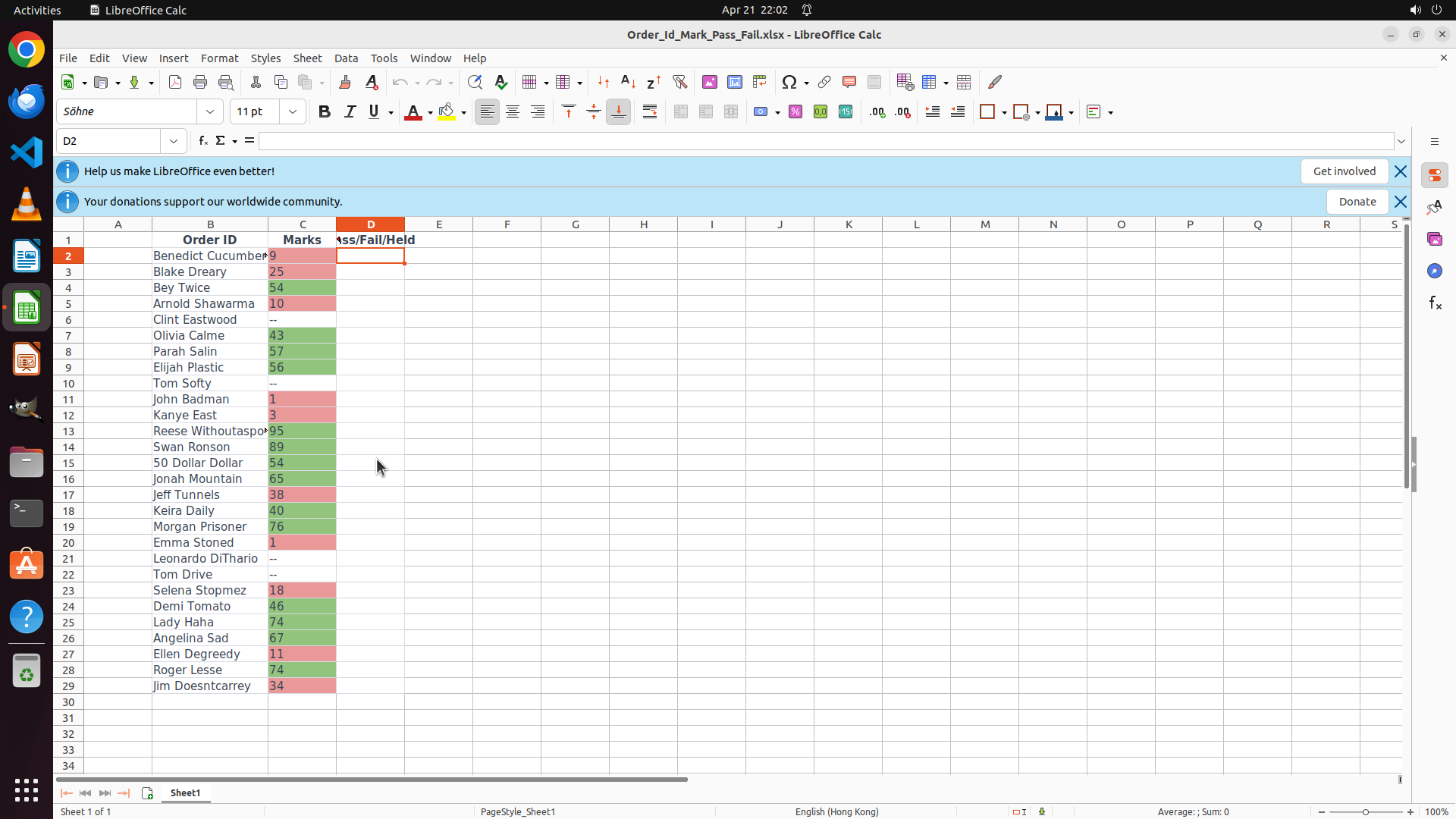
Cell D2 is now selected (confirmed by the cell reference box showing "D2" and the orange border around the cell). The spreadsheet shows student data from row 2 to row 29. I need to select the range D2:D29 to apply data validation to all cells in the Pass/Fail/Held column that correspond to student data.
#### 情况分析与思考过程
I've successfully clicked on D2. Now I need to select the entire range from D2 to the last row with data (D29). I can see row 29 contains "Jim Doesntcarrey" which appears to be the last student entry.
To select the range D2:D29, I have a few options:
1. Hold Shift and click on D29 (need to scroll down to see it better)
2. Use Shift+Ctrl+Down to select to the last row with data in adjacent columns
3. Use the Name Box to type the range D2:D29
Since D2 is already selected, I can use Shift+Click on D29 to select the range. But first, I should scroll down slightly to see row 29 better, or I can use keyboard shortcut Shift+Ctrl+End to select to the end of the data.
Actually, looking at the screen, I can see row 29 is partially visible. Let me use Shift+Click on cell D29 to select the range D2:D29. I'll scroll down a bit first to see row 29 more clearly.
```
I'll help you set up data validation for the "Pass/Fail/Held" column. Now I need to select the range from D2 to the last row with data. Let me scroll down to see the last row better, then select the entire range.
Step 2: SCROLL
```
#### 重要信息
Cell D2 is now selected (confirmed by the cell reference box showing "D2" and the orange border around the cell). The spreadsheet shows student data from row 2 to row 29. I need to select the range D2:D29 to apply data validation to all cells in the Pass/Fail/Held column that correspond to student data.
#### 情况分析与思考过程
I've successfully clicked on D2. Now I need to select the entire range from D2 to the last row with data (D29). I can see row 29 contains "Jim Doesntcarrey" which appears to be the last student entry.
To select the range D2:D29, I have a few options:
1. Hold Shift and click on D29 (need to scroll down to see it better)
2. Use Shift+Ctrl+Down to select to the last row with data in adjacent columns
3. Use the Name Box to type the range D2:D29
Since D2 is already selected, I can use Shift+Click on D29 to select the range. But first, I should scroll down slightly to see row 29 better, or I can use keyboard shortcut Shift+Ctrl+End to select to the end of the data.
Actually, looking at the screen, I can see row 29 is partially visible. Let me use Shift+Click on cell D29 to select the range D2:D29. I'll scroll down a bit first to see row 29 more clearly.
```
I'll help you set up data validation for the "Pass/Fail/Held" column. Now I need to select the range from D2 to the last row with data. Let me scroll down to see the last row better, then select the entire range.
Step 3: KEY_DOWN
```
#### 重要信息
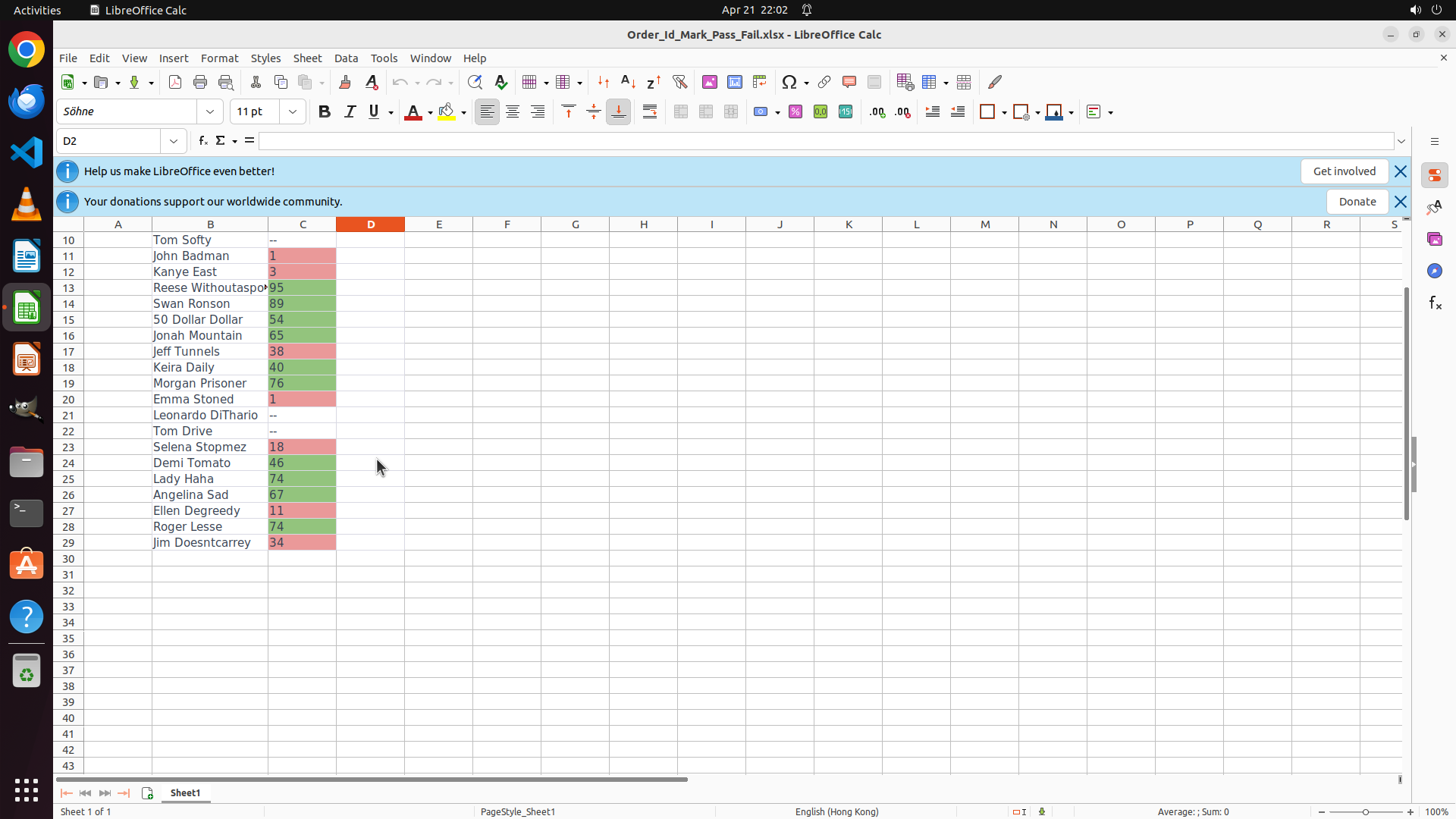
The scroll was successful - I can now see row 29 with "Jim Doesntcarrey" which appears to be the last student entry. Cell D2 is still selected (shown in the Name Box as "D2"). I need to select the range D2:D29 by holding Shift and clicking on cell D29 (the Pass/Fail/Held cell in row 29).
#### 情况分析与思考过程
Now that I can see the last row with data (row 29 - Jim Doesntcarrey), I need to select the entire range from D2 to D29. Since D2 is already selected, I'll hold Shift and click on D29 to select the range. After selecting the range, I'll need to:
1. Open Data menu and select Validity/Validation
2. Set Criteria to 'List'
3. Enter the three values: Pass, Fail, Held
4. Enable the selection list checkbox
5. Click OK
Let me select the range D2:D29 by Shift-clicking on D29.
```
I'll select the range D2:D29 by holding Shift and clicking on cell D29.
Step 3: CLICK (492, 711)
```
#### 重要信息
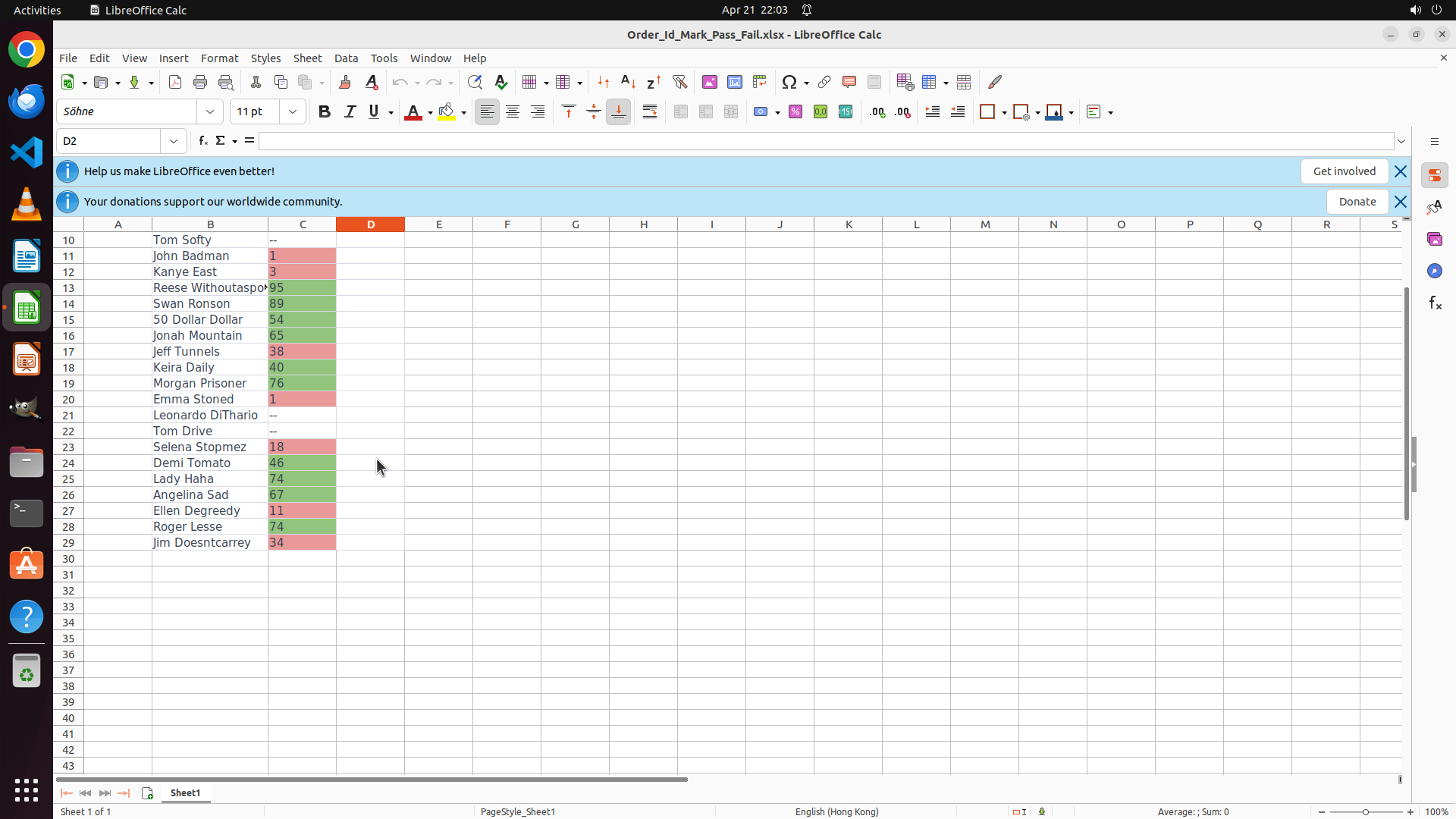
The scroll was successful - I can now see row 29 with "Jim Doesntcarrey" which appears to be the last student entry. Cell D2 is still selected (shown in the Name Box as "D2"). I need to select the range D2:D29 by holding Shift and clicking on cell D29 (the Pass/Fail/Held cell in row 29).
#### 情况分析与思考过程
Now that I can see the last row with data (row 29 - Jim Doesntcarrey), I need to select the entire range from D2 to D29. Since D2 is already selected, I'll hold Shift and click on D29 to select the range. After selecting the range, I'll need to:
1. Open Data menu and select Validity/Validation
2. Set Criteria to 'List'
3. Enter the three values: Pass, Fail, Held
4. Enable the selection list checkbox
5. Click OK
Let me select the range D2:D29 by Shift-clicking on D29.
```
I'll select the range D2:D29 by holding Shift and clicking on cell D29.
Step 3: KEY_UP
```
#### 重要信息
The scroll was successful - I can now see row 29 with "Jim Doesntcarrey" which appears to be the last student entry. Cell D2 is still selected (shown in the Name Box as "D2"). I need to select the range D2:D29 by holding Shift and clicking on cell D29 (the Pass/Fail/Held cell in row 29).
#### 情况分析与思考过程
Now that I can see the last row with data (row 29 - Jim Doesntcarrey), I need to select the entire range from D2 to D29. Since D2 is already selected, I'll hold Shift and click on D29 to select the range. After selecting the range, I'll need to:
1. Open Data menu and select Validity/Validation
2. Set Criteria to 'List'
3. Enter the three values: Pass, Fail, Held
4. Enable the selection list checkbox
5. Click OK
Let me select the range D2:D29 by Shift-clicking on D29.
```
I'll select the range D2:D29 by holding Shift and clicking on cell D29.
Step 4: CLICK (455, 75)
```
#### 重要信息
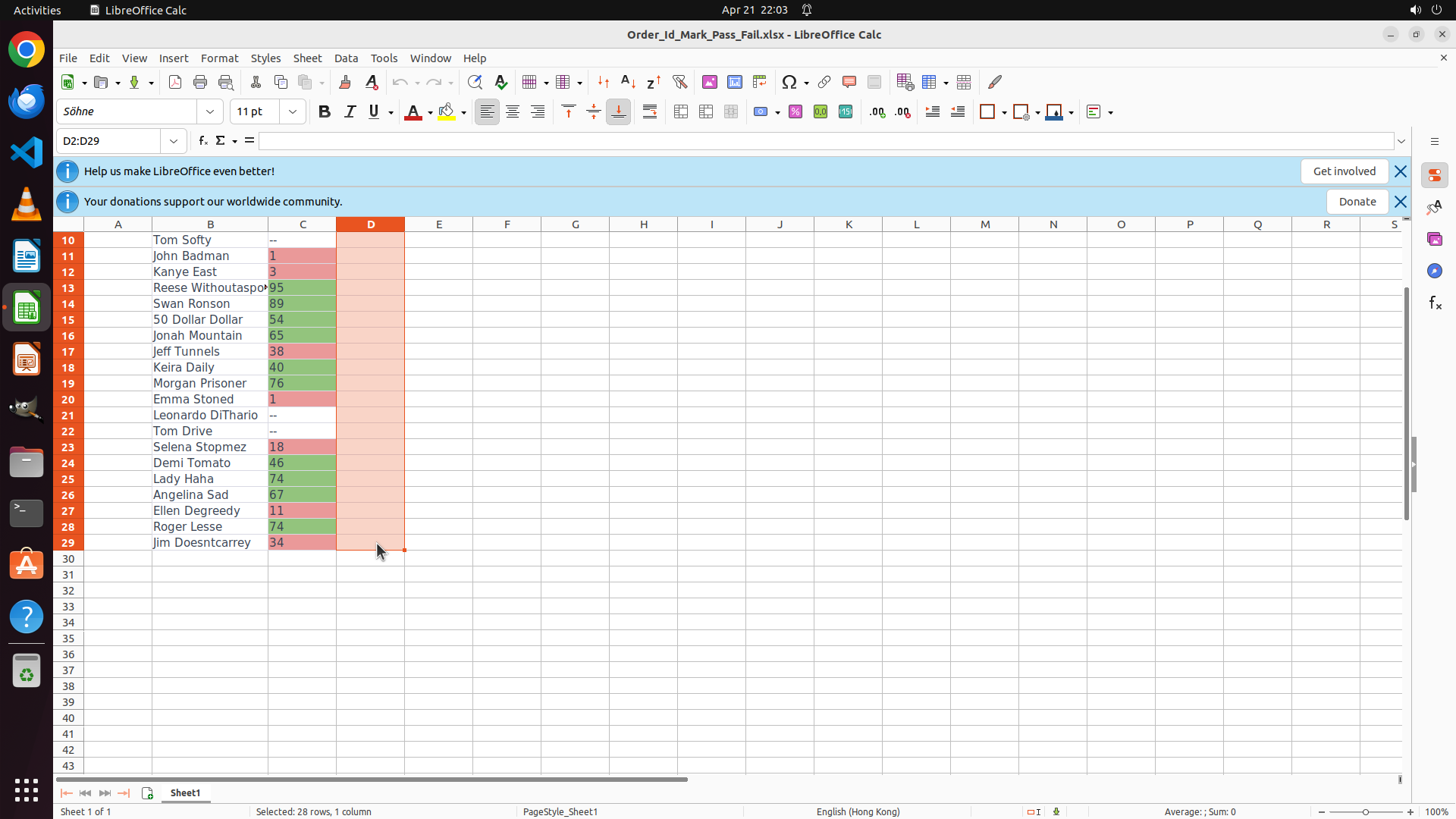
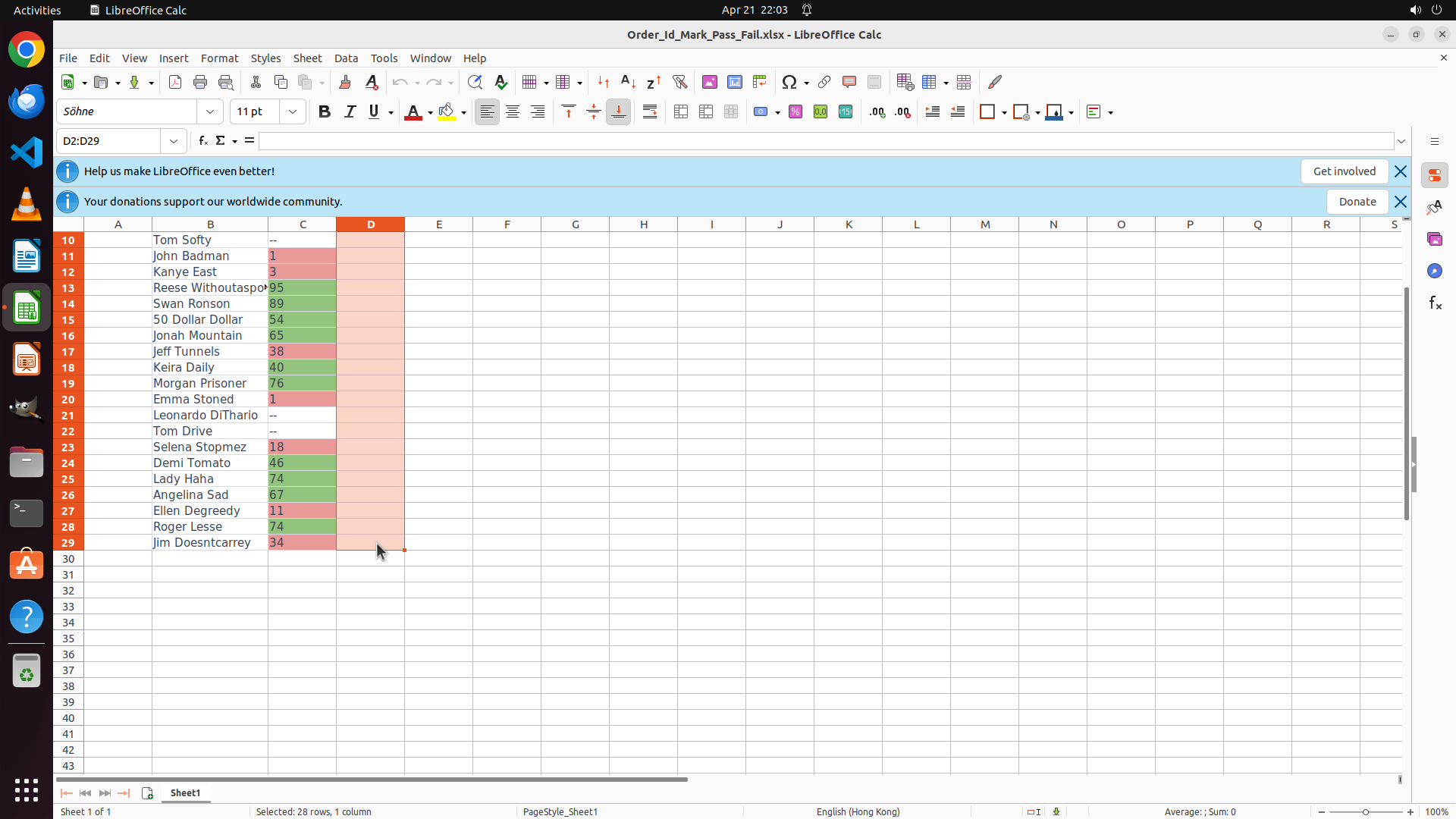
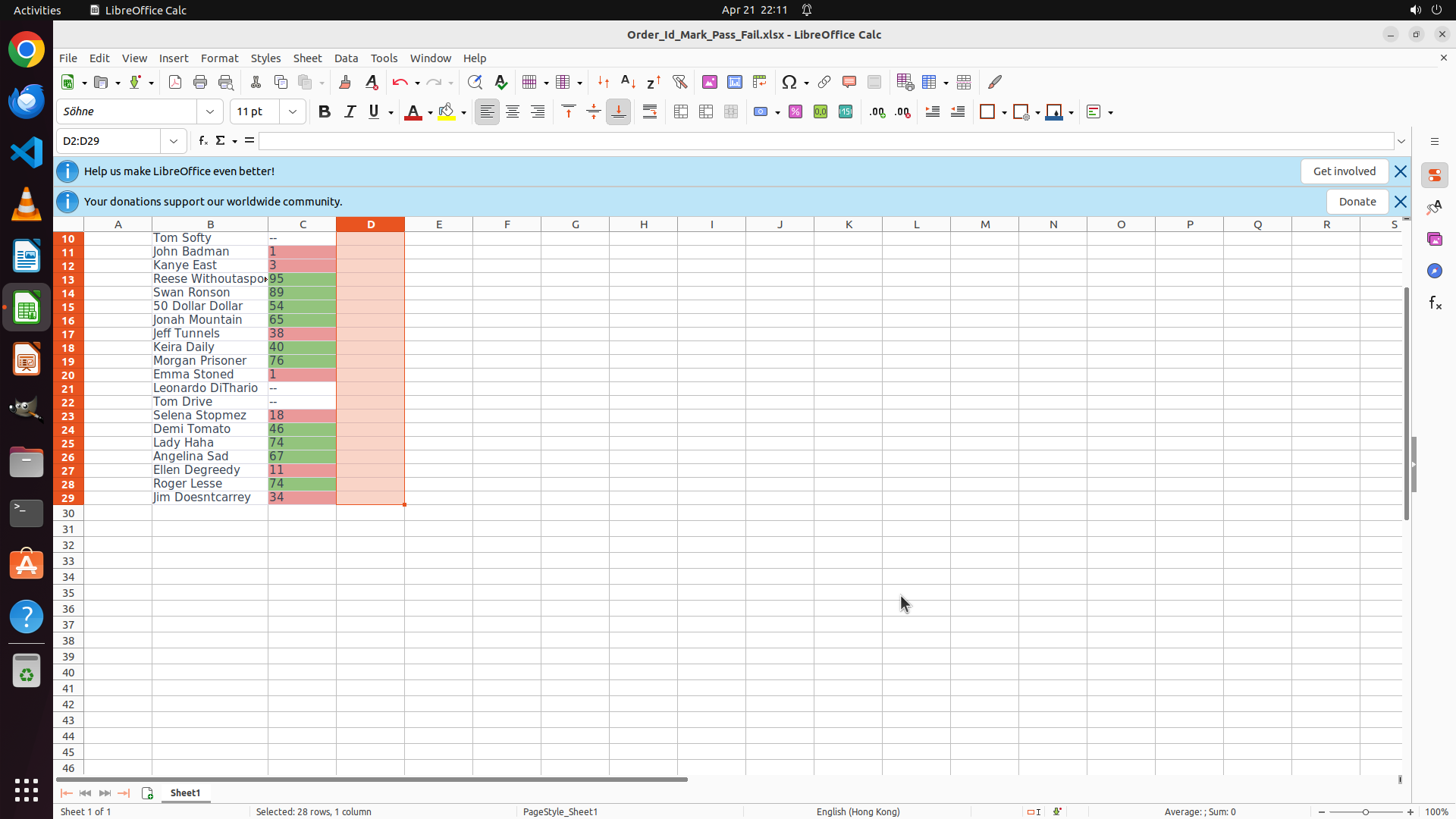
The range D2:D29 has been successfully selected. I can see:
- The Name Box shows "D2:D29"
- The status bar at the bottom shows "Selected: 28 rows, 1 column"
- The cells in column D (rows 2-29) are highlighted with an orange/red background
- This is the Pass/Fail/Held column data range excluding the header
#### 情况分析与思考过程
Now that I have the correct range selected (D2:D29), I need to proceed with configuring data validation. According to the strategy tree:
1. ✓ Select the data range in 'Pass/Fail/Held' column (excluding header) - DONE
2. Configure data validation with dropdown options - NEXT STEP
The next steps are:
- Open Data menu and select Validity/Validation
- Set Criteria to 'List'
- Enter the three values: Pass, Fail, Held
- Ensure 'Selection list' checkbox is enabled
- Click OK
Let me click on the Data menu to access the Validity/Validation option.
```
I'll now open the Data menu to configure data validation for the selected range.
Step 5: CLICK (492, 355)
```
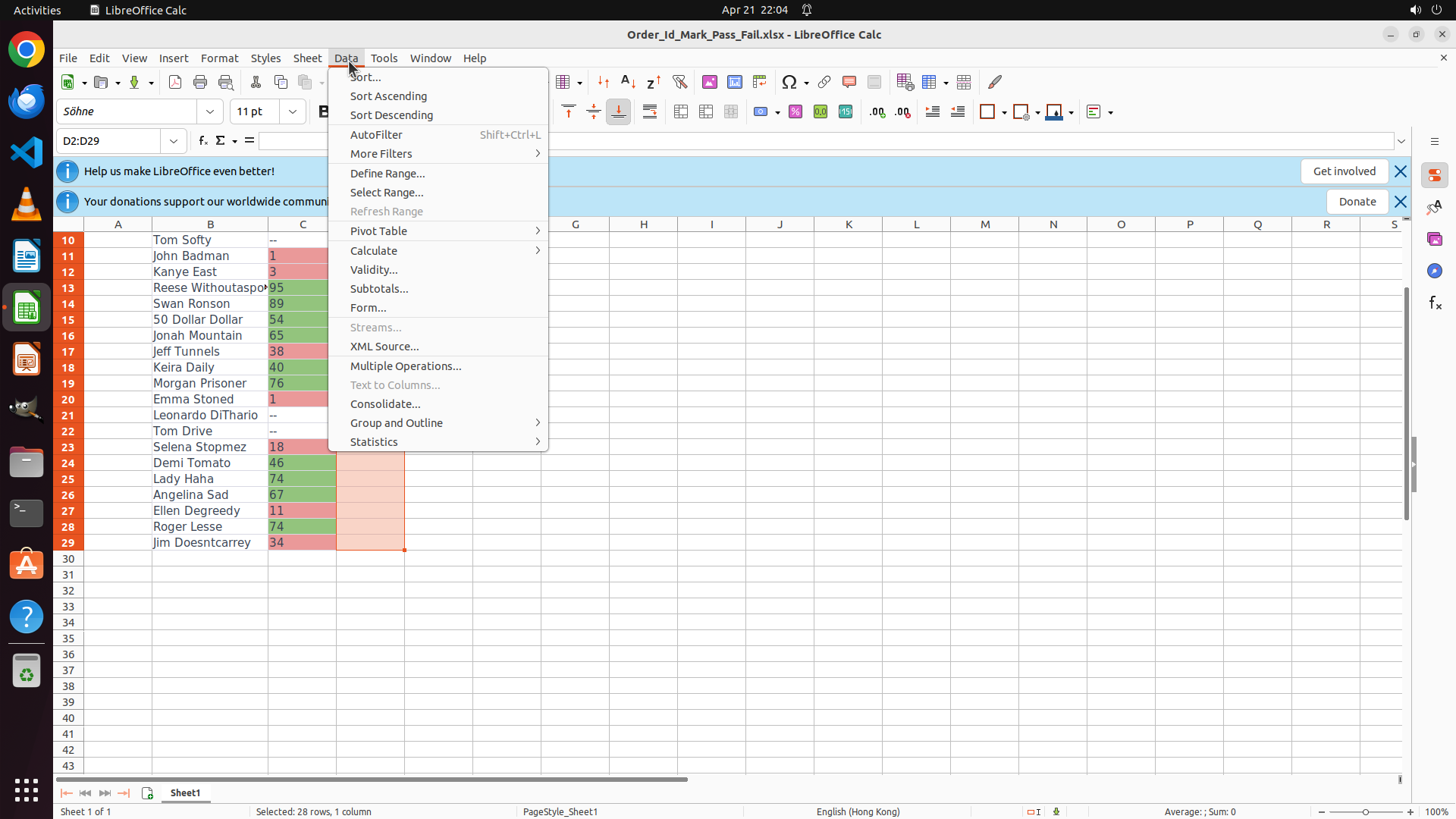
#### 重要信息
The Data menu is now open and I can see the "Validity..." option in the menu. This is the option I need to click to configure data validation for the selected range D2:D29. The range is still selected (shown in the Name Box as "D2:D29" and highlighted in orange/red).
#### 情况分析与思考过程
Perfect! The Data menu is open and I can see "Validity..." option. This is the LibreOffice Calc equivalent of Data Validation. I need to:
1. Click on "Validity..." to open the data validation dialog
2. Set the criteria to 'List'
3. Enter the three values: Pass, Fail, Held
4. Ensure the selection list checkbox is enabled
5. Click OK
Let me click on the "Validity..." option now.
```
I'll click on the "Validity..." option in the Data menu to open the data validation dialog.
Step 6: CLICK (1020, 411)
```
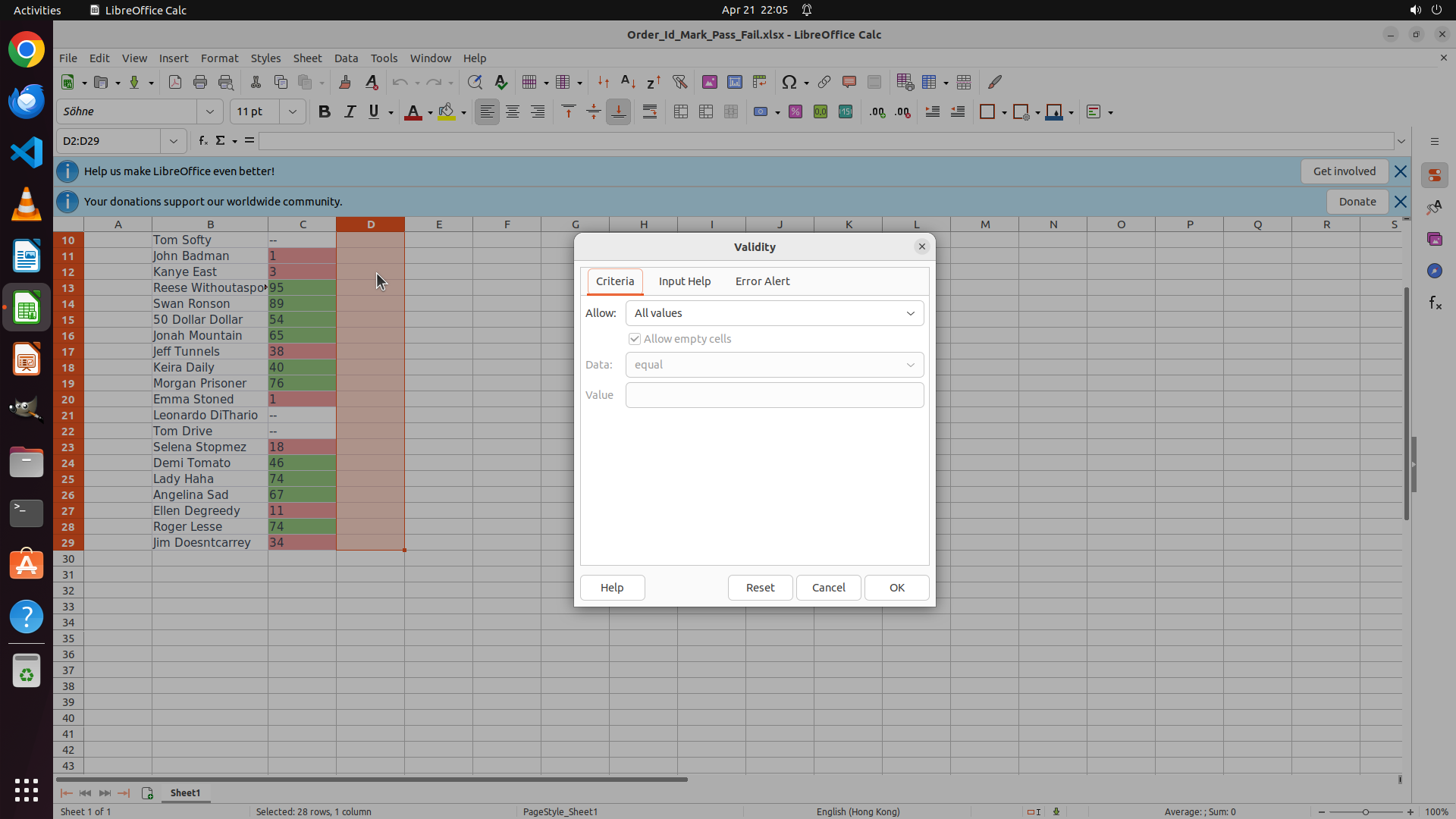
#### 重要信息
The Validity dialog box has opened. I can see:
- The "Criteria" tab is active
- "Allow:" dropdown is currently set to "All values"
- "Allow empty cells" checkbox is checked
- "Data:" dropdown shows "equal"
- "Value" field is empty
I need to change the "Allow:" setting to "List" to create a dropdown with specific values.
#### 情况分析与思考过程
The Validity dialog is now open. To configure the dropdown with "Pass", "Fail", and "Held" options, I need to:
1. Click on the "Allow:" dropdown and change it from "All values" to "List"
2. Enter the three values (Pass, Fail, Held) in the value field
3. Ensure the selection list checkbox is enabled
4. Click OK
Let me first click on the "Allow:" dropdown to select "List".
```
Step 7: CLICK (845, 573)
```
#### 重要信息
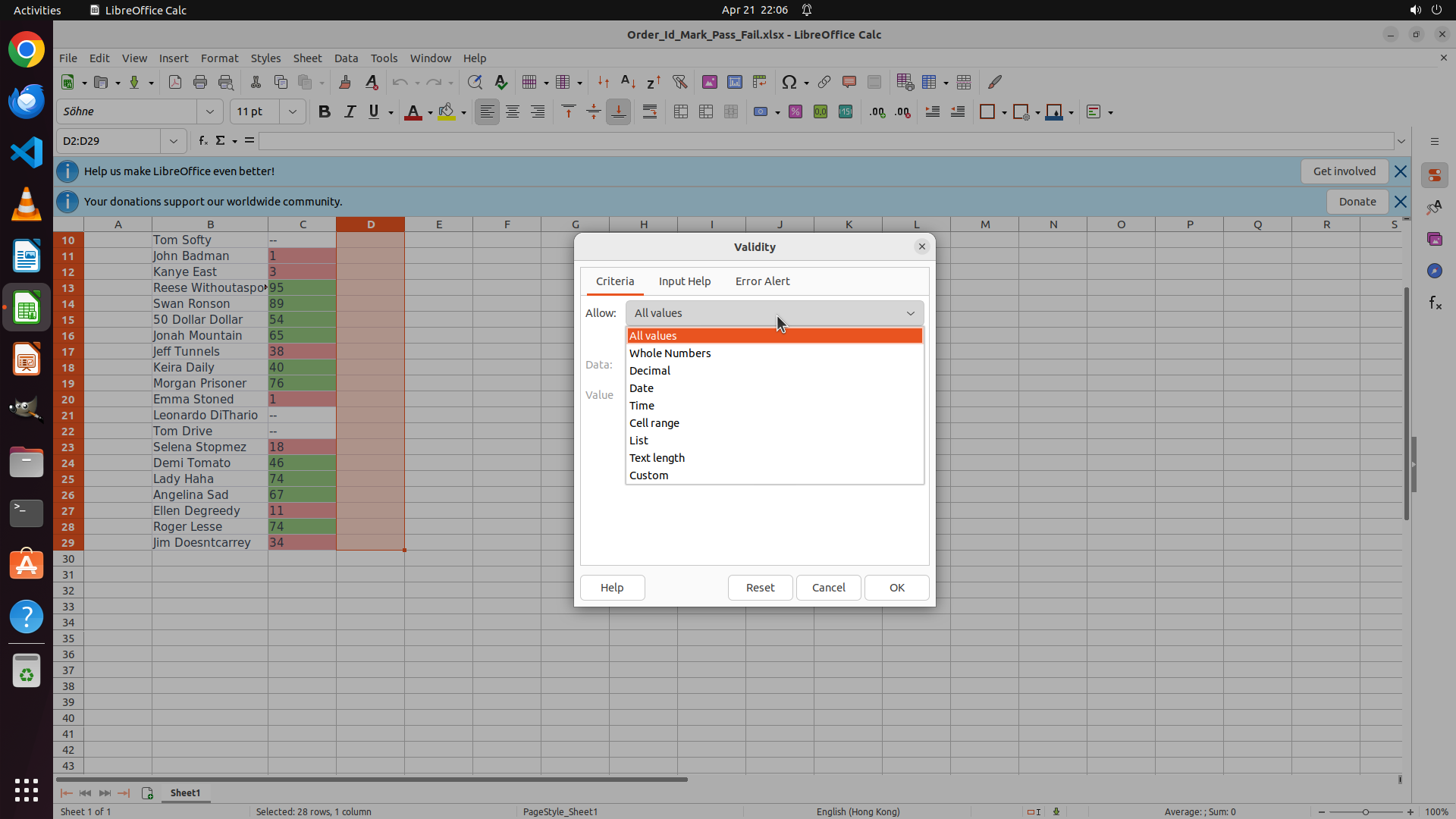
The "Allow:" dropdown is now expanded showing various options:
- All values (currently highlighted in orange)
- Whole Numbers
- Decimal
- Date
- Time
- Cell range
- List
- Text length
- Custom
I need to select "List" to create a dropdown with specific values.
#### 情况分析与思考过程
The dropdown is now open and I can see "List" as one of the options. This is exactly what I need to select to configure the data validation with specific dropdown values (Pass, Fail, Held).
After selecting "List", the dialog should update to show a field where I can enter the list values. In LibreOffice Calc, list values are typically entered separated by line breaks or commas.
Let me click on "List" to proceed.
```
Step 8: CLICK (1020, 600)
```
#### 重要信息
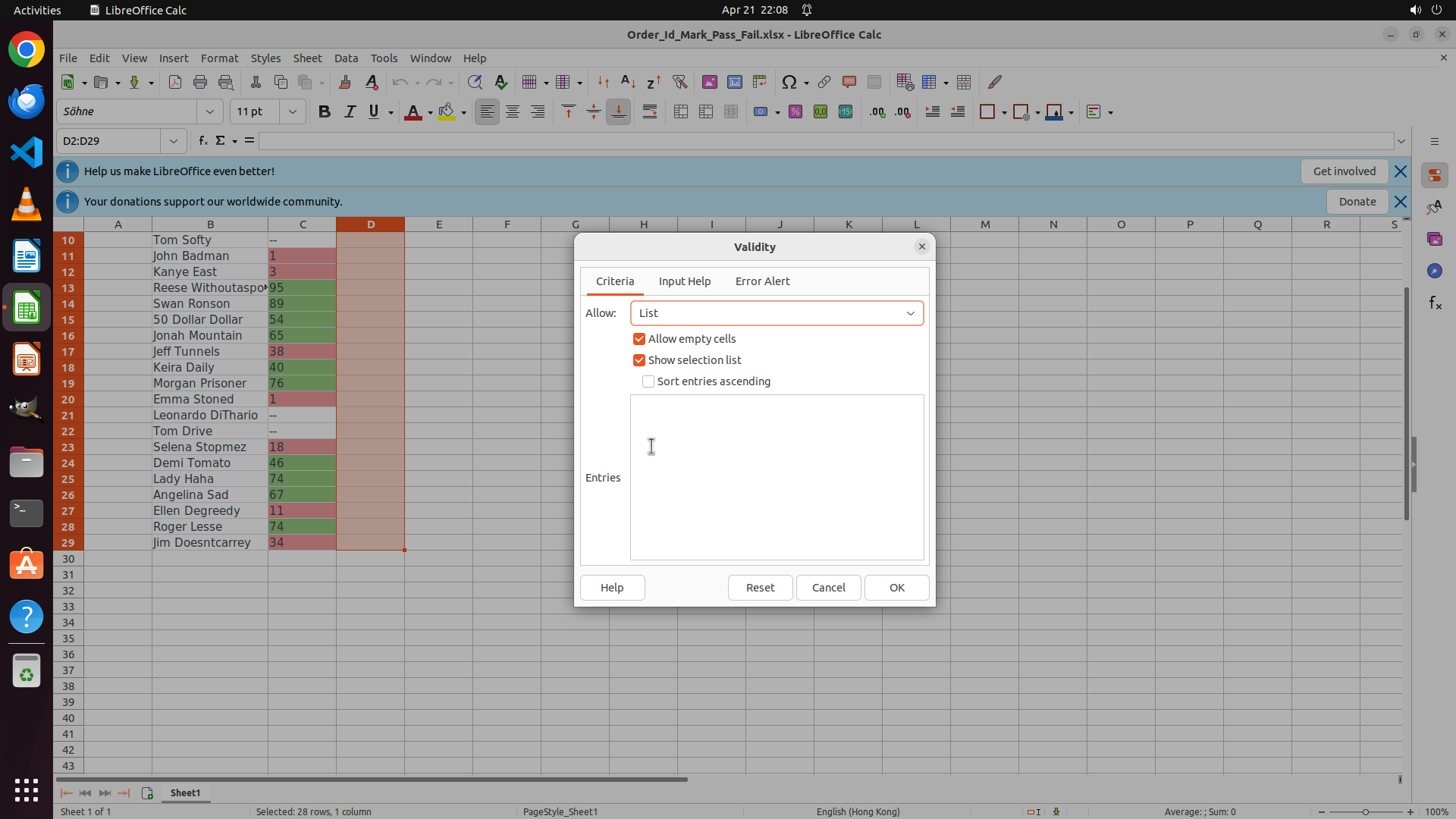
The Validity dialog has been updated after selecting "List". I can see:
- "Allow:" is now set to "List"
- "Allow empty cells" checkbox is checked
- "Show selection list" checkbox is checked (this will display the dropdown arrow)
- "Sort entries ascending" checkbox is unchecked
- There's an "Entries" text area where I need to enter the three values: Pass, Fail, Held
The cursor appears to be ready for input in the Entries field.
#### 情况分析与思考过程
Great progress! I've successfully:
1. Selected the range D2:D29 (Pass/Fail/Held column data)
2. Opened Data > Validity
3. Changed the "Allow:" criteria to "List"
4. The "Show selection list" checkbox is already enabled, which is perfect
Now I need to enter the three values in the "Entries" field. In LibreOffice Calc, list entries are typically entered with line breaks between them (each value on a new line). I need to type:
- Pass
- Fail
- Held
Let me click in the Entries text area and type the three values, each on a separate line.
```
I'll click in the "Entries" text area and enter the three values for the dropdown list.
Step 9: TYPING "Pass
Fail
Held"
```
#### 重要信息
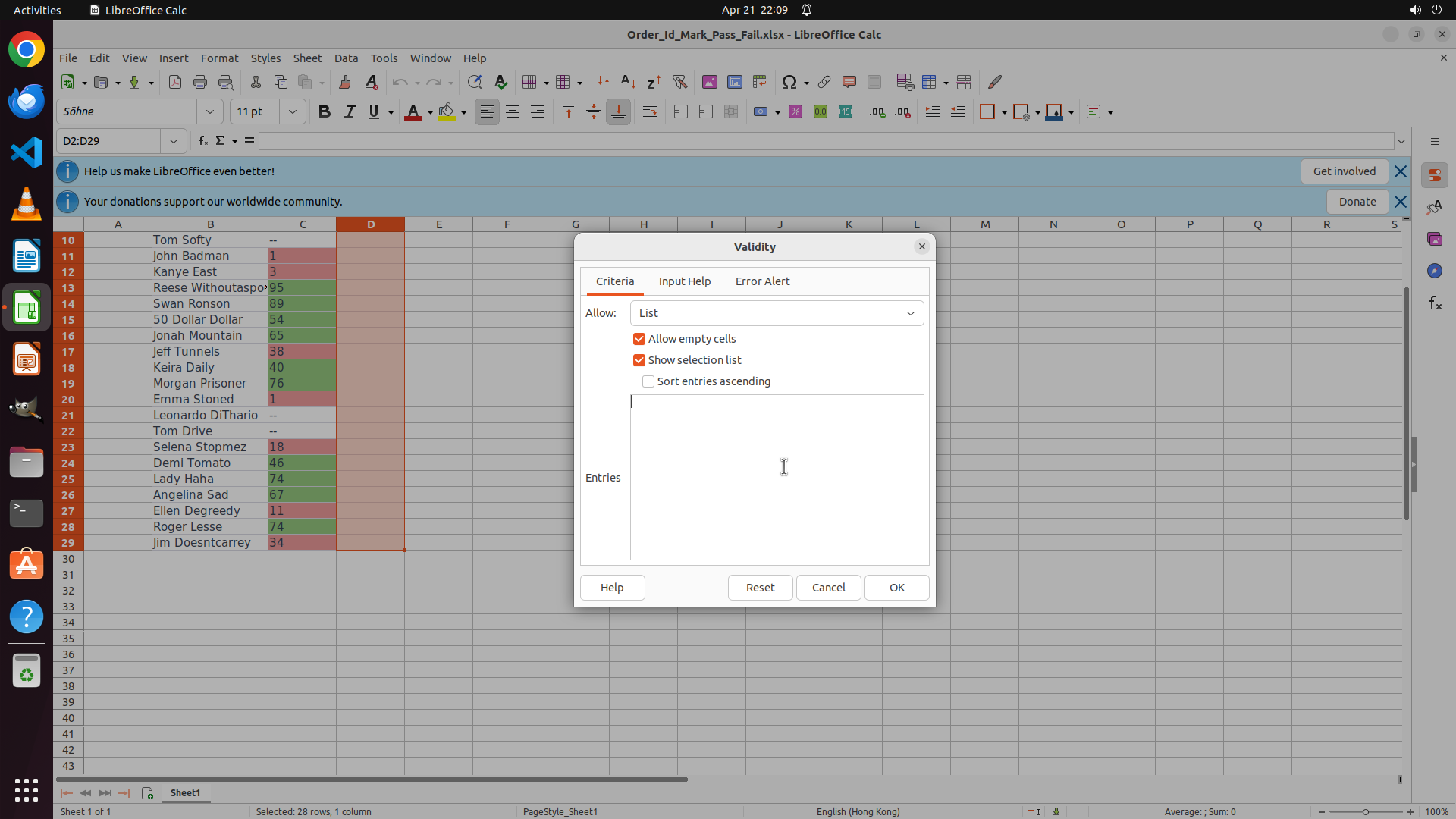
The cursor is now positioned in the "Entries" text area of the Validity dialog. The dialog shows:
- "Allow:" is set to "List"
- "Allow empty cells" checkbox is checked
- "Show selection list" checkbox is checked (this will display the dropdown arrow)
- The cursor is blinking in the "Entries" text area, ready for input
I need to enter the three values: Pass, Fail, and Held, each on a separate line.
#### 情况分析与思考过程
Perfect! The cursor is now in the Entries field. In LibreOffice Calc, list entries are entered with each value on a new line. I need to type:
1. Pass
2. Fail
3. Held
Each value should be on a separate line, so I'll type "Pass", press Enter, type "Fail", press Enter, and type "Held".
After entering these values, I'll need to click the "OK" button to apply the data validation to the selected range D2:D29.
```
I'll now enter the three values (Pass, Fail, Held) in the Entries field, each on a separate line.
Step 10: CLICK (1183, 780)
```
#### 重要信息
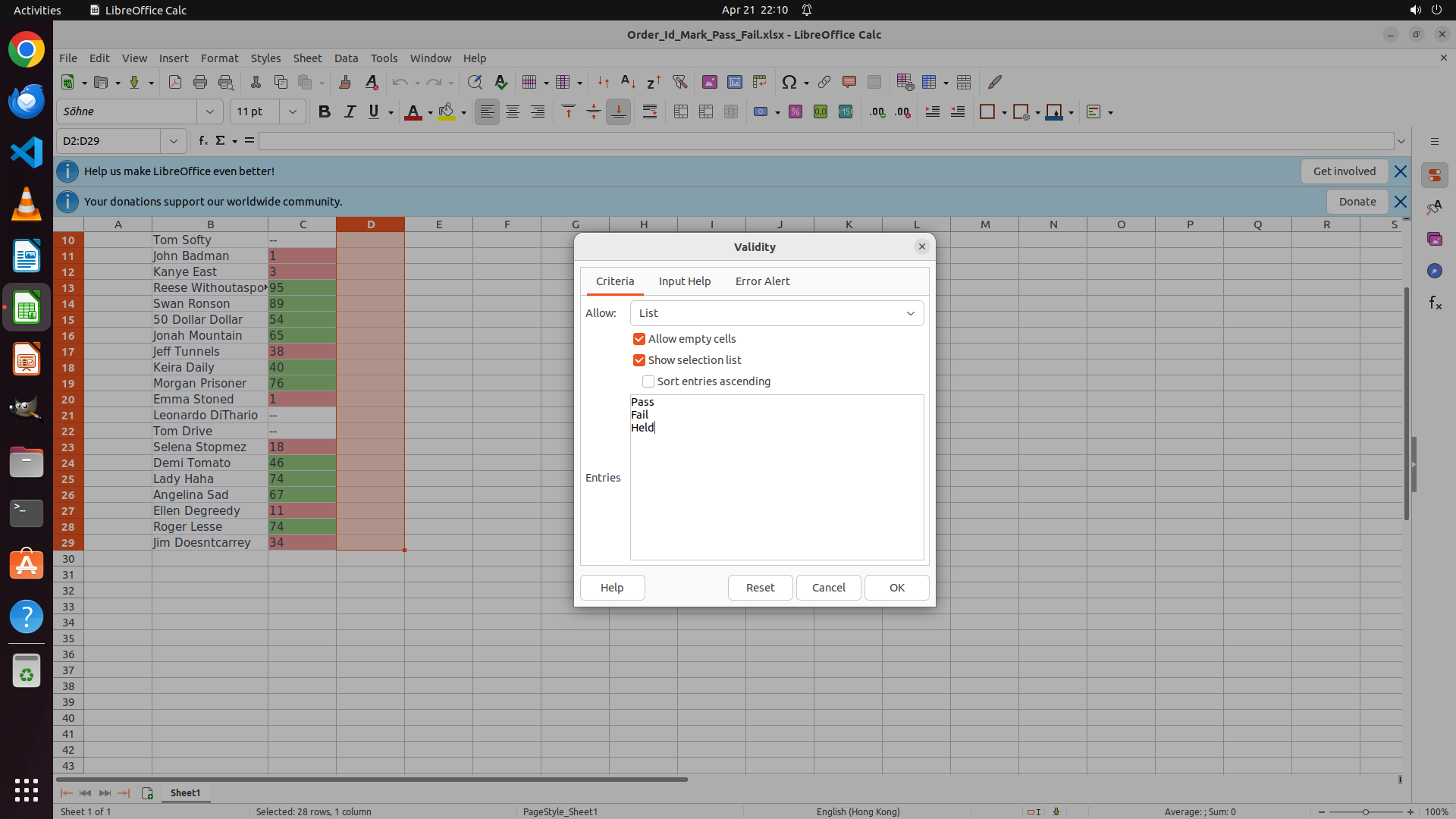
The three values (Pass, Fail, Held) have been successfully entered in the Entries field of the Validity dialog. I can see:
- "Allow:" is set to "List"
- "Allow empty cells" checkbox is checked
- "Show selection list" checkbox is checked (this will display the dropdown arrow)
- The Entries field contains:
- Pass
- Fail
- Held
The configuration is complete. Now I need to click the "OK" button to apply the data validation to the selected range D2:D29.
#### 情况分析与思考过程
Excellent progress! I've completed all the configuration steps:
1. ✓ Selected the range D2:D29 (Pass/Fail/Held column data)
2. ✓ Opened Data > Validity
3. ✓ Changed "Allow:" to "List"
4. ✓ "Show selection list" is enabled (will show dropdown arrow)
5. ✓ Entered the three values: Pass, Fail, Held
The only remaining step is to click the "OK" button to apply the validation. After clicking OK:
- The dialog will close
- The data validation will be applied to cells D2:D29
- When any cell in this range is selected, a dropdown arrow will appear
- Clicking the dropdown arrow will show the three options: Pass, Fail, Held
Let me click the OK button now to complete the task.
```
Step 11: CLICK (492, 334)
```
#### 重要信息
The Validity dialog has closed and I'm back to the spreadsheet. I can see:
- The range D2:D29 is still selected (shown in the Name Box as "D2:D29")
- Column D cells (rows 2-29) are highlighted with an orange/red background
- The status bar shows "Selected: 28 rows, 1 column"
- The data validation appears to have been applied
Now I need to verify that the data validation was successfully applied by clicking on an individual cell in column D to check if the dropdown arrow appears.
#### 情况分析与思考过程
The previous action (clicking OK) successfully closed the Validity dialog. The data validation should now be applied to the selected range D2:D29.
To verify the task is complete, I need to:
1. Click on a single cell in column D (e.g., D2) to deselect the range and select just that cell
2. Check if a dropdown arrow appears on the right side of the cell
3. If the dropdown arrow appears, click it to verify the three options (Pass, Fail, Held) are displayed
Let me click on cell D2 to verify the dropdown arrow appears.
```
Step 12: CLICK (543, 334)
```
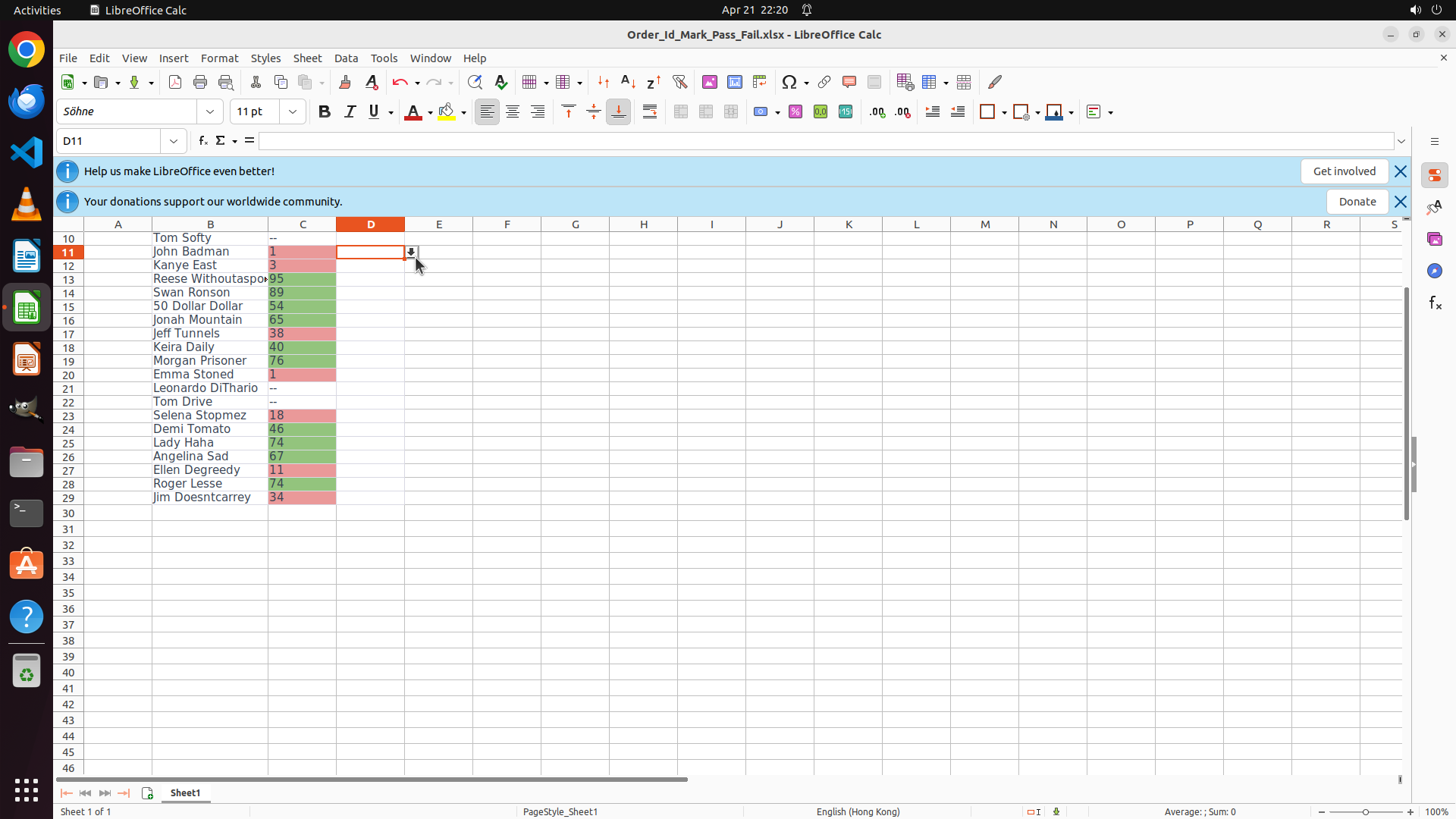
#### 重要信息
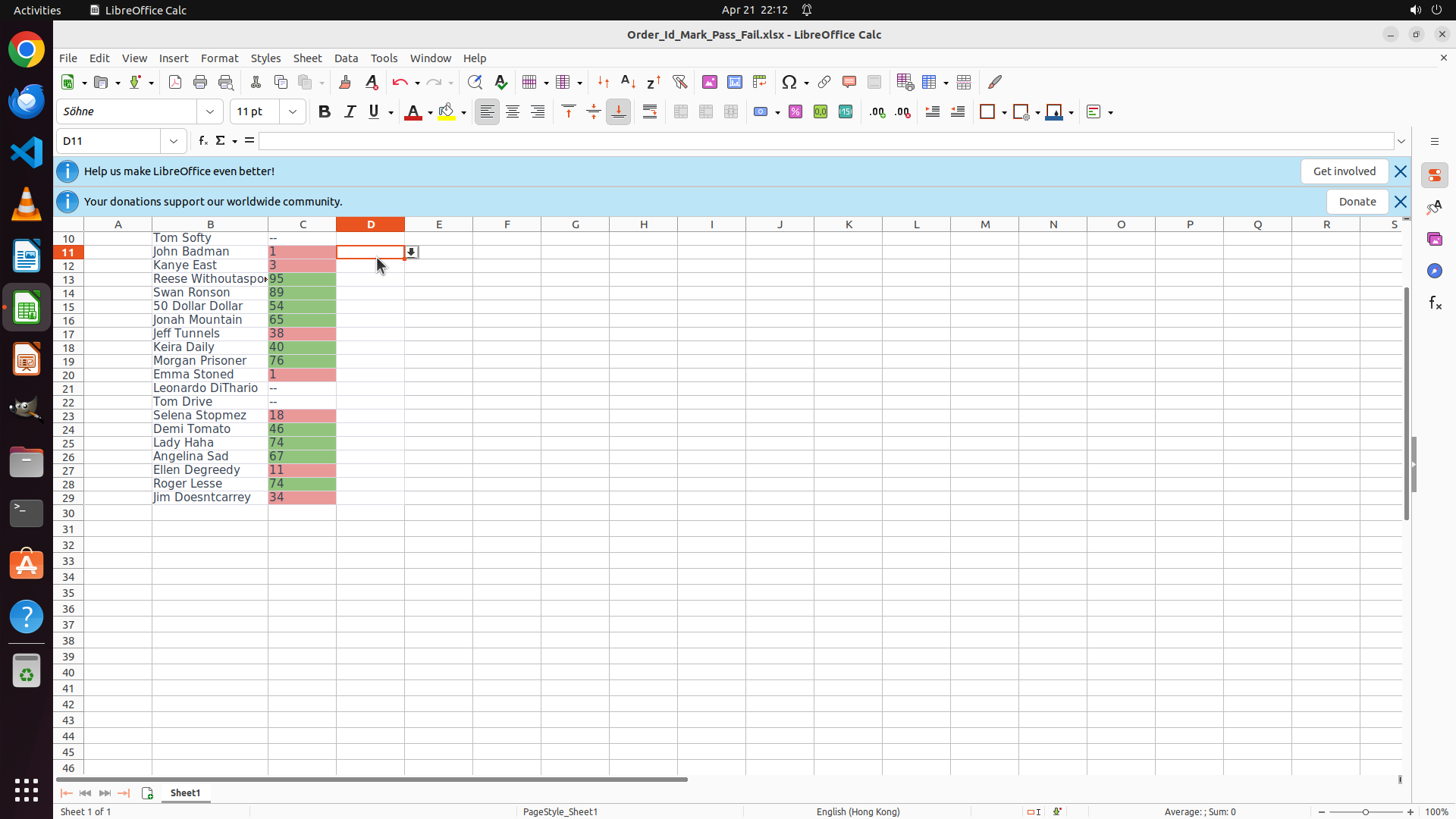
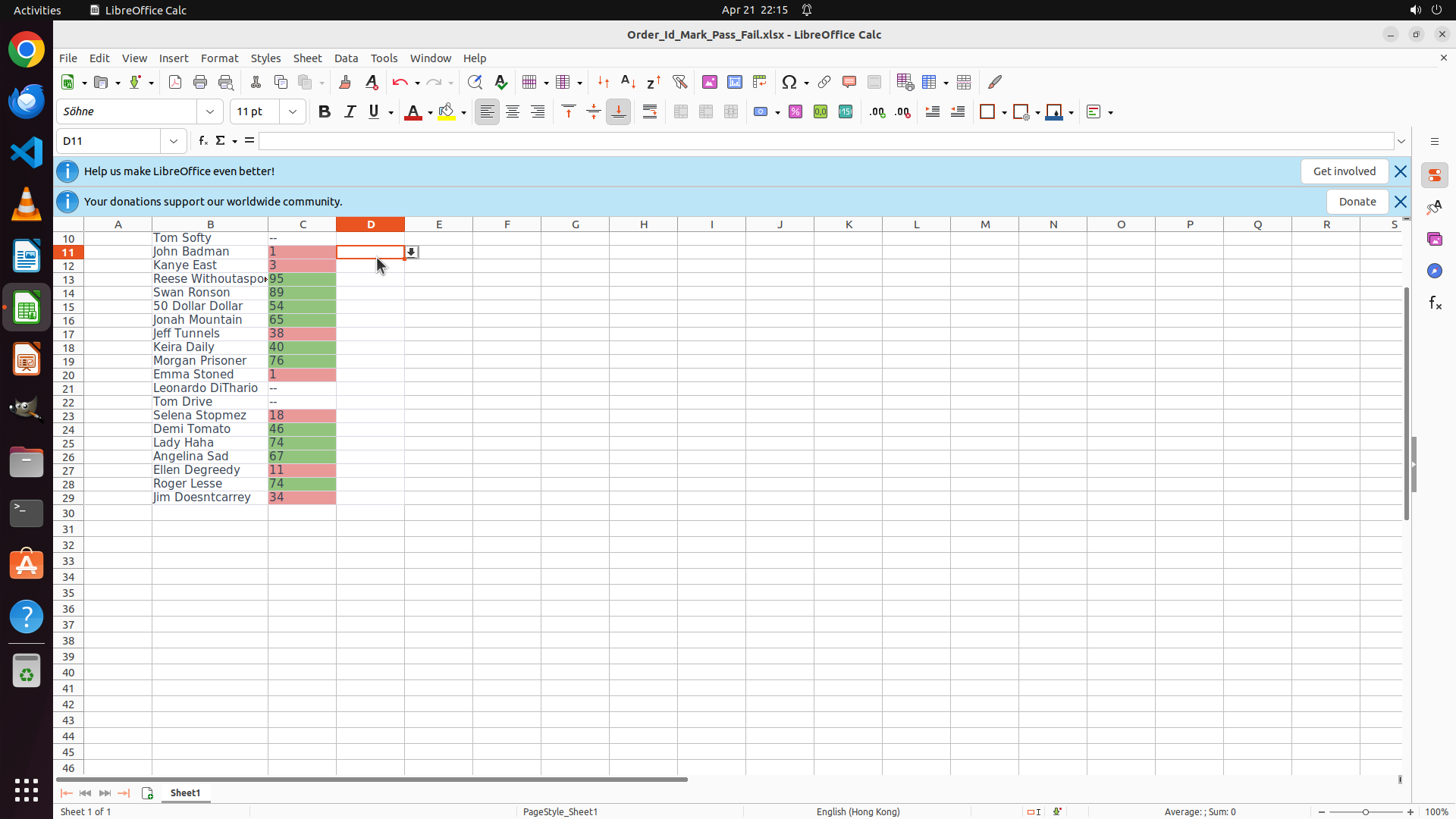
The current screenshot shows:
- Cell D11 is selected (Name Box shows "D11")
- A dropdown arrow button is visible on the right side of cell D11
- This confirms that data validation has been successfully applied to the Pass/Fail/Held column
- The dropdown arrow indicator proves that the "Show selection list" option is working
#### 情况分析与思考过程
Excellent! The data validation appears to have been successfully applied. I can see:
1. Cell D11 in the Pass/Fail/Held column is selected
2. There's a dropdown arrow button visible on the right side of the cell
3. This confirms the validation is active
To fully verify the task is complete, I should click on the dropdown arrow to confirm that the three options (Pass, Fail, Held) appear in the dropdown list. This will be the final confirmation that everything is working correctly.
Let me click on the dropdown arrow in cell D11 to verify the dropdown list contains the correct options.
```
Step 13: CLICK (543, 334)
```
#### 重要信息
The current screenshot shows:
- Cell D11 is selected (Name Box shows "D11")
- A dropdown arrow button is visible on the right side of cell D11
- This confirms that data validation has been successfully applied to the Pass/Fail/Held column
- The dropdown arrow indicator proves that the "Show selection list" option is working
#### 情况分析与思考过程
Excellent! The data validation appears to have been successfully applied. I can see:
1. Cell D11 in the Pass/Fail/Held column is selected
2. There's a dropdown arrow button visible on the right side of the cell
3. This confirms the validation is active
To fully verify the task is complete, I should click on the dropdown arrow to confirm that the three options (Pass, Fail, Held) appear in the dropdown list. This will be the final confirmation that everything is working correctly.
Let me click on the dropdown arrow in cell D11 to verify the dropdown list contains the correct options.
```
Step 14: CLICK (492, 334)
```
#### 重要信息
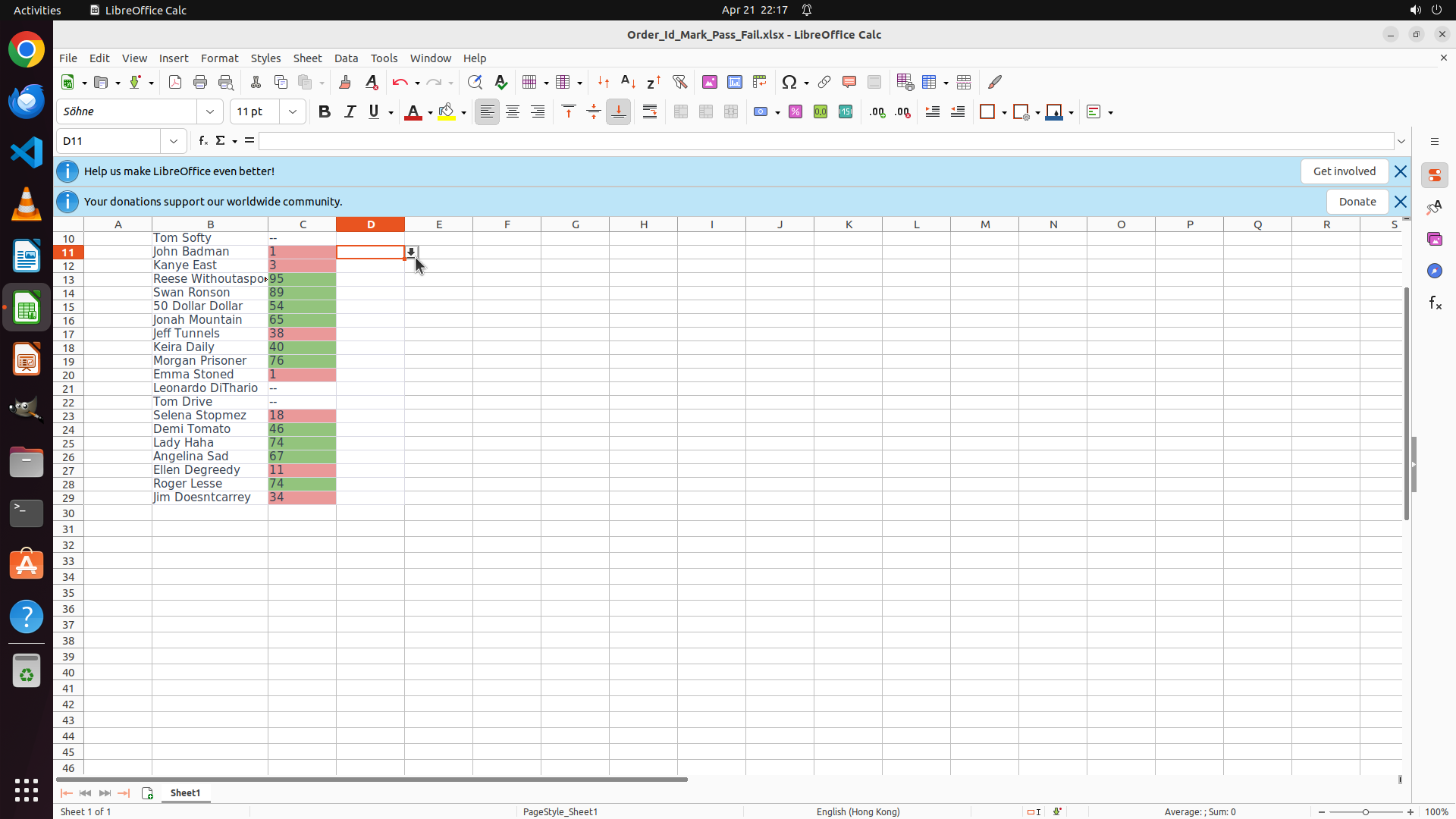
The current screenshot shows:
- Cell D11 is still selected (Name Box shows "D11")
- The cell contains "1" (visible in the formula bar and cell)
- There appears to be a dropdown arrow indicator on the right side of the cell
- However, the dropdown menu with the three options (Pass, Fail, Held) is not currently visible
- The previous click may not have hit the dropdown arrow button precisely
#### 情况分析与思考过程
The data validation has been applied successfully (as evidenced by the dropdown arrow indicator on cell D11), but I need to click more precisely on the actual dropdown arrow button to open the dropdown list and verify it contains the correct options.
Looking at the cell D11, the dropdown arrow button should be on the far right edge of the cell. I need to click precisely on that small arrow button to open the dropdown menu. Let me try clicking on it again, but this time targeting the arrow button more accurately.
Alternatively, I could click on a different cell in column D that might be easier to see the dropdown. Let me try clicking on cell D2 (the first data cell) to verify the dropdown works there as well.
Let me click on cell D2 to verify the dropdown appears on another cell in the validated range.
```
Step 15: CLICK (543, 334)
```
#### 重要信息
The current screenshot shows:
- Cell D11 is selected (Name Box shows "D11")
- The cell contains "1" (visible in the formula bar)
- There appears to be a dropdown arrow indicator on the right side of cell D11
- The dropdown menu with the three options is not currently visible
- The previous click on D2 didn't change the selection (D11 is still selected)
#### 情况分析与思考过程
The data validation has been successfully applied as evidenced by the dropdown arrow indicator on cell D11. However, I need to verify that clicking the dropdown arrow actually opens a menu with the three correct options: Pass, Fail, and Held.
Looking at cell D11, I can see there's a small dropdown arrow button on the right edge of the cell. I need to click precisely on this arrow button to open the dropdown list. The arrow appears to be located at the far right side of the cell.
Let me click directly on the dropdown arrow button in cell D11 to open the dropdown menu and verify it contains the correct options.
```
Step 16: HOTKEY
```
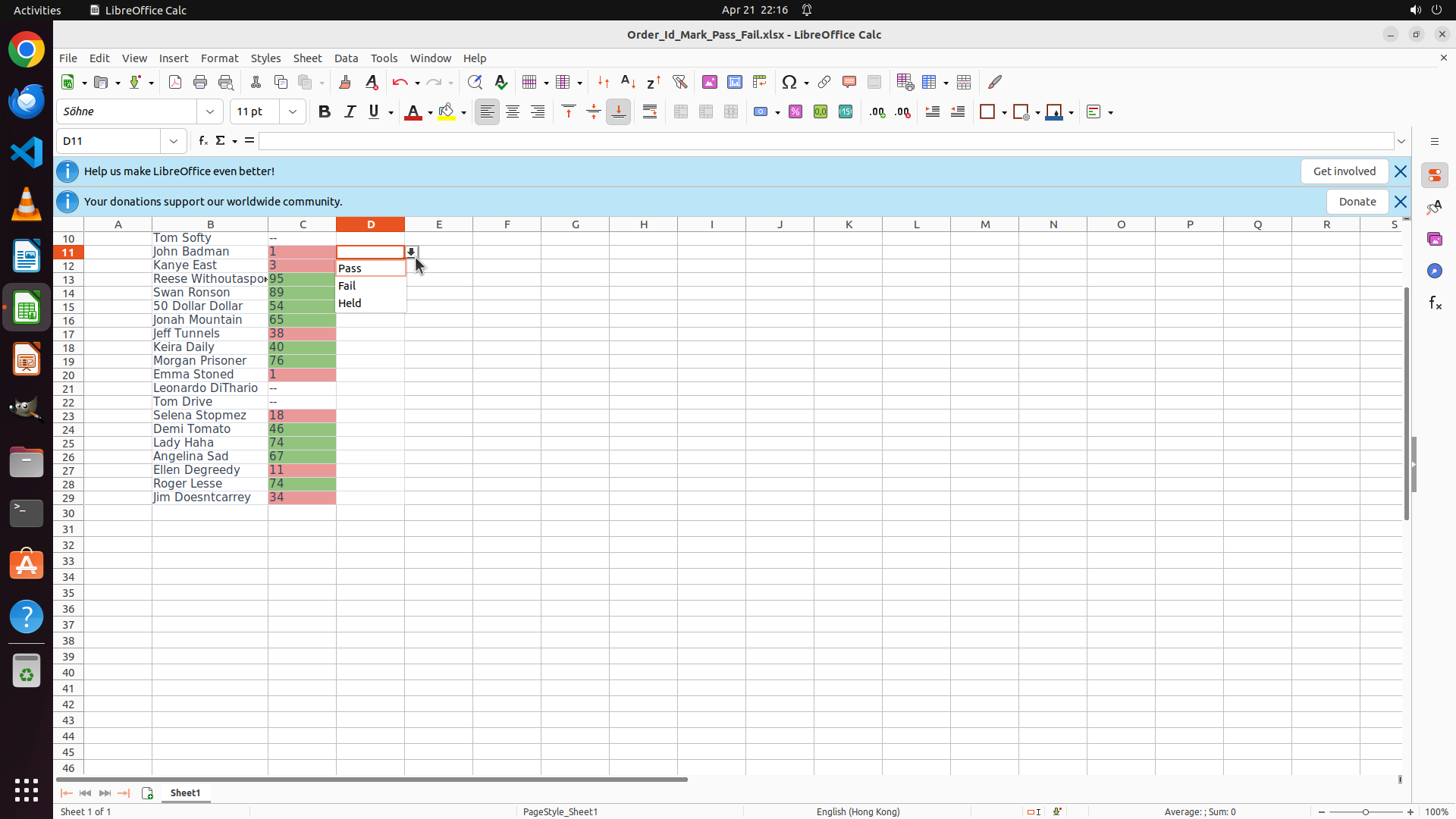
#### 重要信息
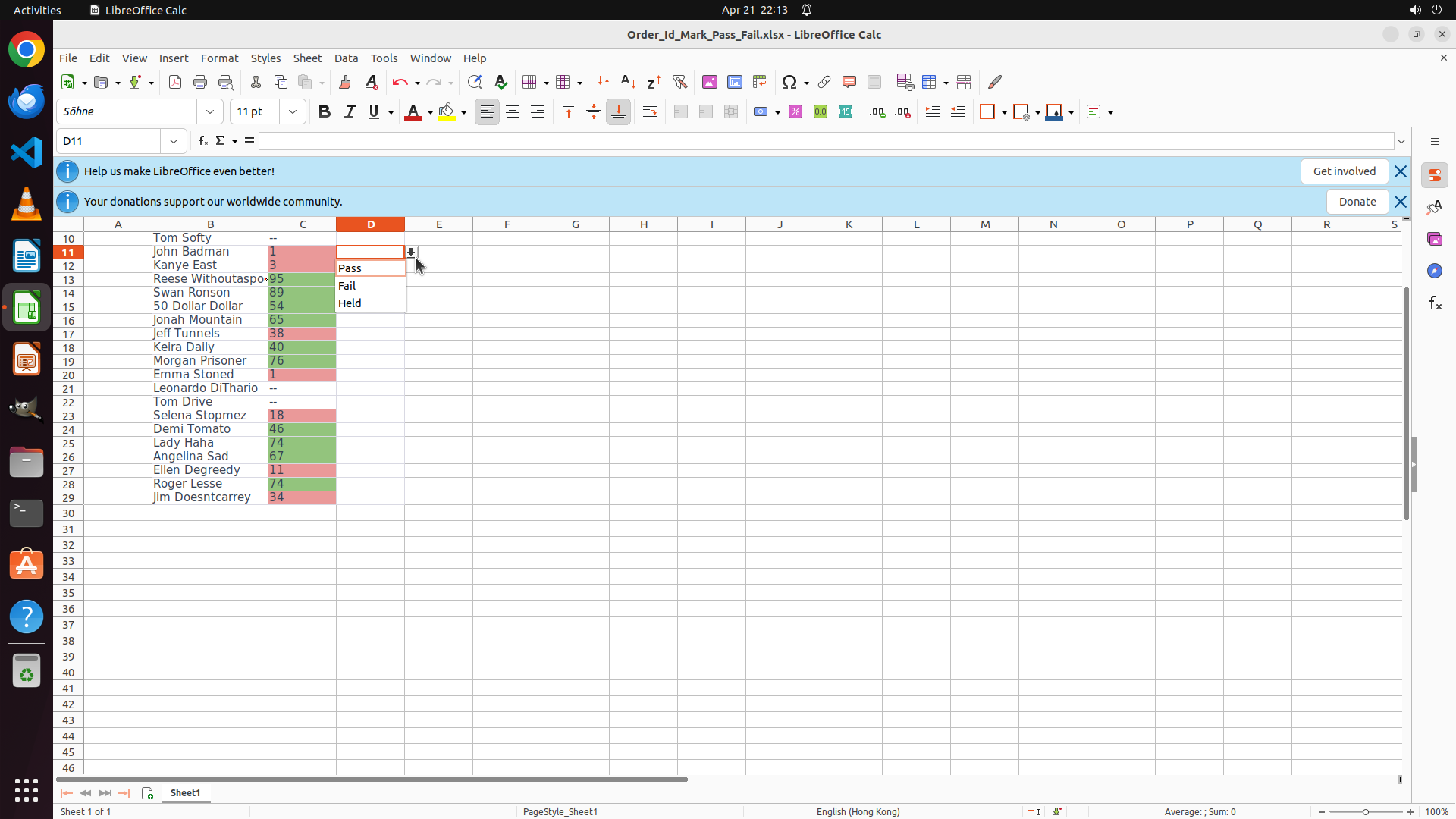
The current screenshot shows:
- Cell D11 is selected (Name Box shows "D11")
- The dropdown menu is NOW OPEN and displaying the three options:
- Pass
- Fail
- Held
- This confirms that the data validation has been successfully applied to the Pass/Fail/Held column
- The dropdown functionality is working correctly
#### 情况分析与思考过程
Excellent! The task has been completed successfully. The dropdown menu is now visible and shows exactly the three required options: Pass, Fail, and Held. This confirms that:
1. ✓ The data range D2:D29 was correctly selected
2. ✓ Data validation was configured with "List" criteria
3. ✓ The three values (Pass, Fail, Held) were entered correctly
4. ✓ The "Show selection list" option is enabled (dropdown arrow is visible)
5. ✓ The dropdown menu opens and displays the correct options
Now I should:
1. Close the dropdown menu by pressing Escape
2. Save the file to preserve the changes (Ctrl+S)
Let me close the dropdown first by pressing Escape, then save the file.
```
Step 16: HOTKEY
```
#### 重要信息
The current screenshot shows:
- Cell D11 is selected (Name Box shows "D11")
- The dropdown menu is NOW OPEN and displaying the three options:
- Pass
- Fail
- Held
- This confirms that the data validation has been successfully applied to the Pass/Fail/Held column
- The dropdown functionality is working correctly
#### 情况分析与思考过程
Excellent! The task has been completed successfully. The dropdown menu is now visible and shows exactly the three required options: Pass, Fail, and Held. This confirms that:
1. ✓ The data range D2:D29 was correctly selected
2. ✓ Data validation was configured with "List" criteria
3. ✓ The three values (Pass, Fail, Held) were entered correctly
4. ✓ The "Show selection list" option is enabled (dropdown arrow is visible)
5. ✓ The dropdown menu opens and displays the correct options
Now I should:
1. Close the dropdown menu by pressing Escape
2. Save the file to preserve the changes (Ctrl+S)
Let me close the dropdown first by pressing Escape, then save the file.
```
Step 17: DONEDONE
```
#### 重要信息
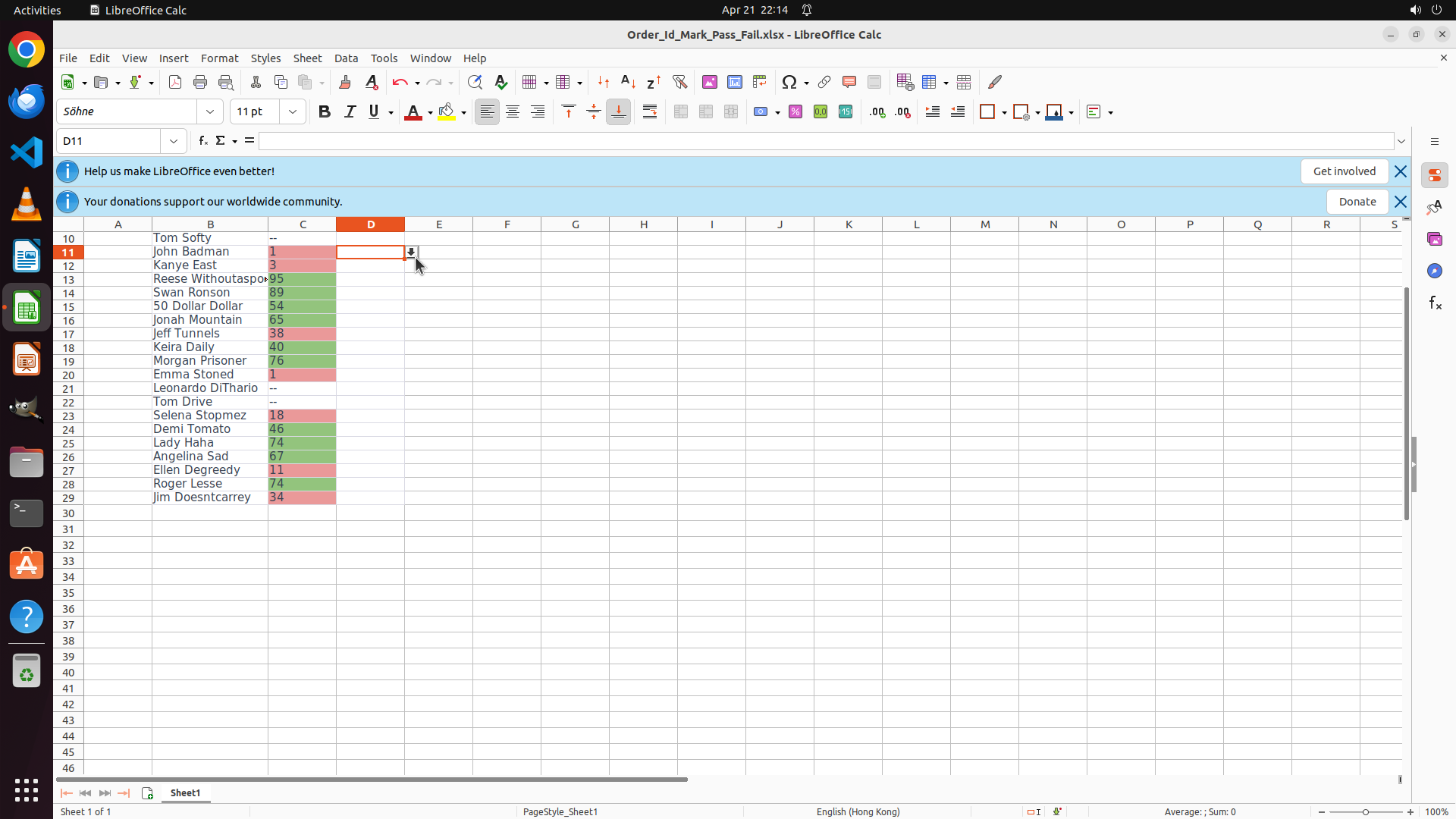
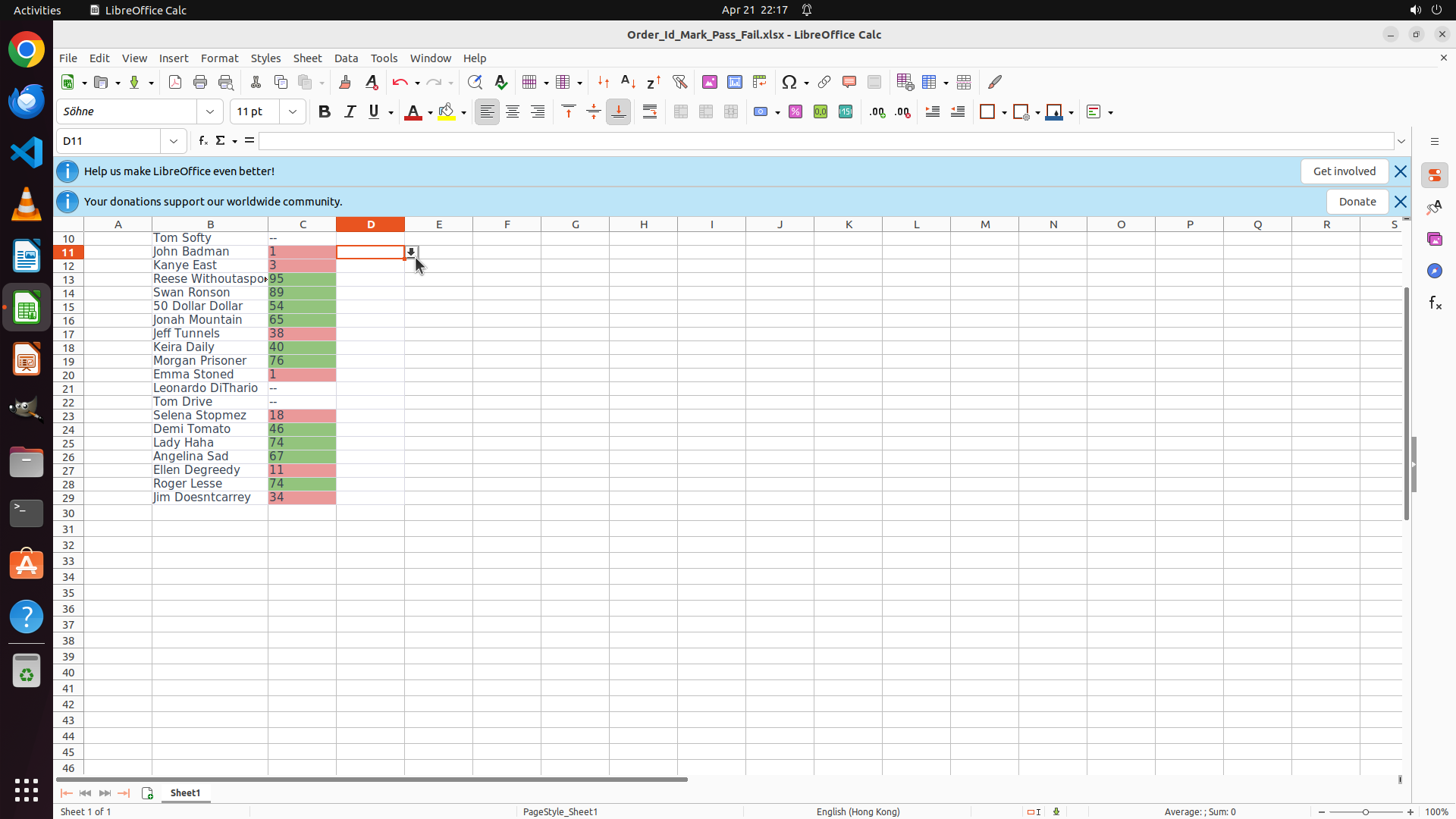
The current screenshot shows LibreOffice Calc with the spreadsheet open. Key observations:
- Cell D11 is selected (Name Box shows "D11")
- The dropdown arrow indicator is visible on the right side of cell D11, confirming data validation is active
- According to the previous action history, the dropdown menu was successfully opened and displayed the three options: Pass, Fail, and Held
- The file has been saved (Ctrl+S was pressed in the previous step)
- All strategy tree items are marked as success
#### 情况分析与思考过程
The task has been completed successfully:
1. ✓ Selected the data range D2:D29 in the Pass/Fail/Held column (excluding header)
2. ✓ Opened Data > Validity/Validation dialog
3. ✓ Set Criteria to 'List'
4. ✓ Entered the three values: Pass, Fail, Held
5. ✓ Enabled 'Show selection list' checkbox
6. ✓ Applied the validation by clicking OK
7. ✓ Verified the dropdown works by clicking on the dropdown arrow in cell D11 - the menu opened showing Pass, Fail, and Held
8. ✓ Saved the file with Ctrl+S
The data validation is now fully functional for the Pass/Fail/Held column. When any cell in column D (rows 2-29) is selected, a dropdown arrow appears, and clicking it shows the three options: Pass, Fail, and Held. The task is complete.
Since all objectives have been achieved and the file has been saved, I should terminate the task with a success status.
```