```
#### 重要信息
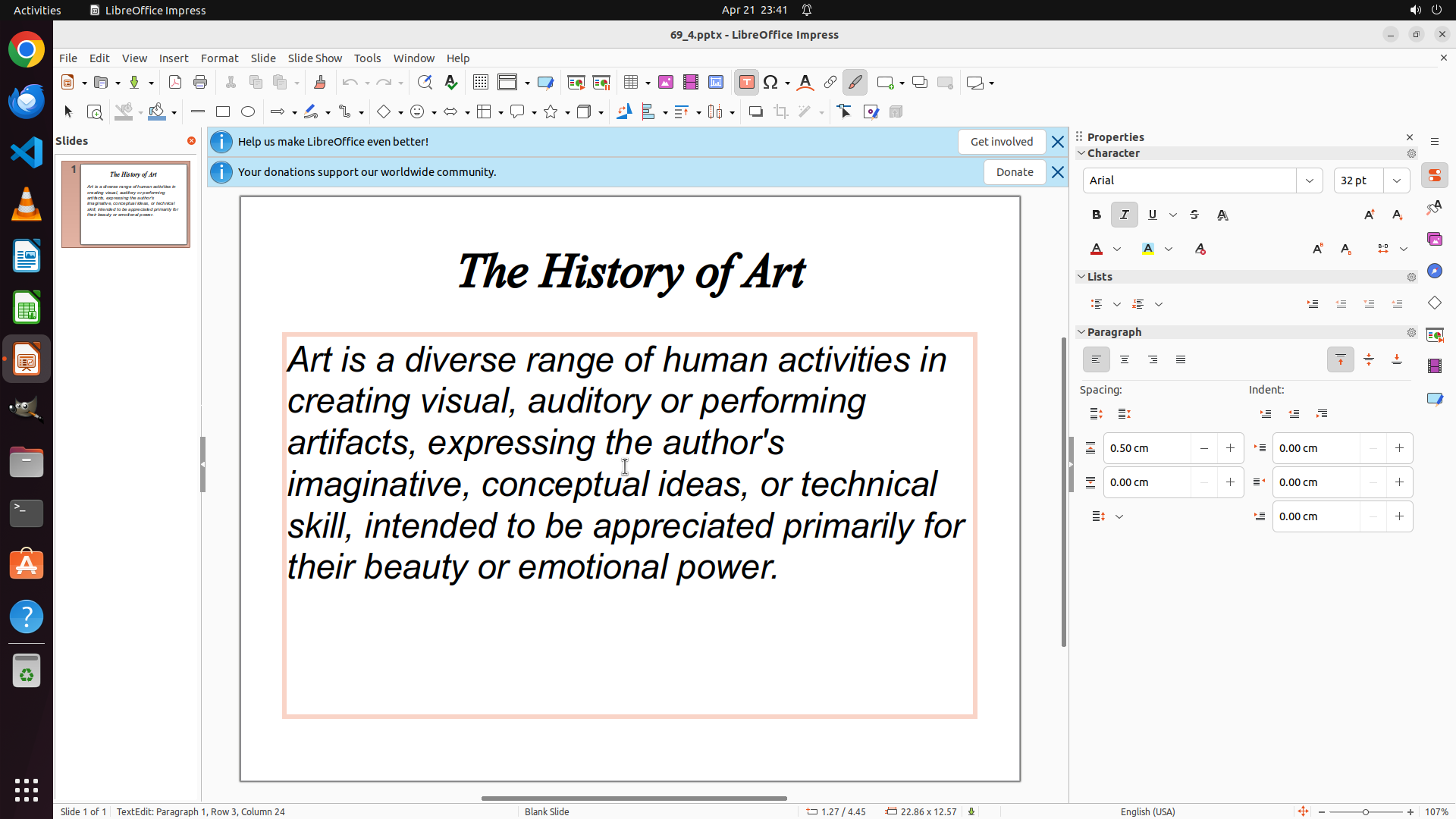
LibreOffice Impress is open with a presentation titled "The History of Art". The slide contains a paragraph of text starting with "Art is a diverse range of human activities in creating visual, auditory or performing artifacts..." The text is currently not formatted with bullet points. I need to click on this text to activate the text box, then apply bullet formatting.
#### 情况分析与思考过程
To add a bullet point to the content, I need to:
1. First, click on the paragraph text to activate the text box
2. Then select the text (or position cursor in the paragraph)
3. Apply bullet point formatting using the toolbar or Format menu
The text is clearly visible in the middle of the slide. I'll click on the paragraph to activate the text box. This is the first step according to the strategy tree (1.1: Click on the paragraph text to activate the text box).
```
Step 2: HOTKEY
```
#### 重要信息
The text box is now active with an orange border around it, and the cursor is positioned within the text. The text box is ready for editing. I can see the Properties panel on the right showing "Lists" section with bullet formatting options.
#### 情况分析与思考过程
The previous action successfully activated the text box. Now I need to:
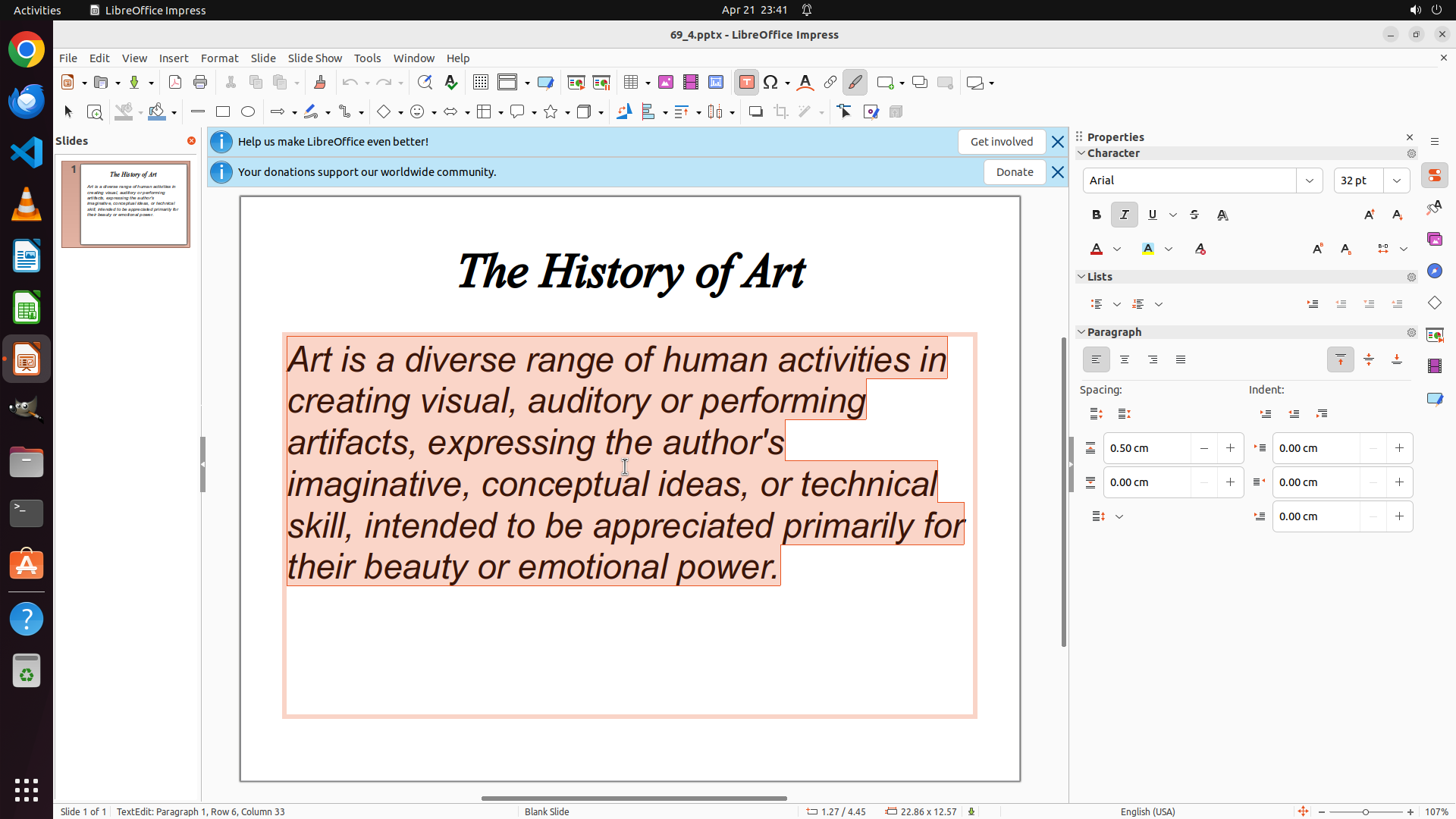
1. Select all the text in the text box (using Ctrl+A)
2. Apply bullet point formatting
I can see the Lists section in the Properties panel on the right side which contains bullet formatting options. First, I should select all the text, then apply the bullet formatting either through the toolbar or the Lists section in the Properties panel.
I'll use Ctrl+A to select all text in the active text box, then click on the bullet point button to apply formatting.
```
Step 2: CLICK (1444, 397)
```
#### 重要信息
The text box is now active with an orange border around it, and the cursor is positioned within the text. The text box is ready for editing. I can see the Properties panel on the right showing "Lists" section with bullet formatting options.
#### 情况分析与思考过程
The previous action successfully activated the text box. Now I need to:
1. Select all the text in the text box (using Ctrl+A)
2. Apply bullet point formatting
I can see the Lists section in the Properties panel on the right side which contains bullet formatting options. First, I should select all the text, then apply the bullet formatting either through the toolbar or the Lists section in the Properties panel.
I'll use Ctrl+A to select all text in the active text box, then click on the bullet point button to apply formatting.
```
Step 3: CLICK (599, 900)
```
#### 重要信息
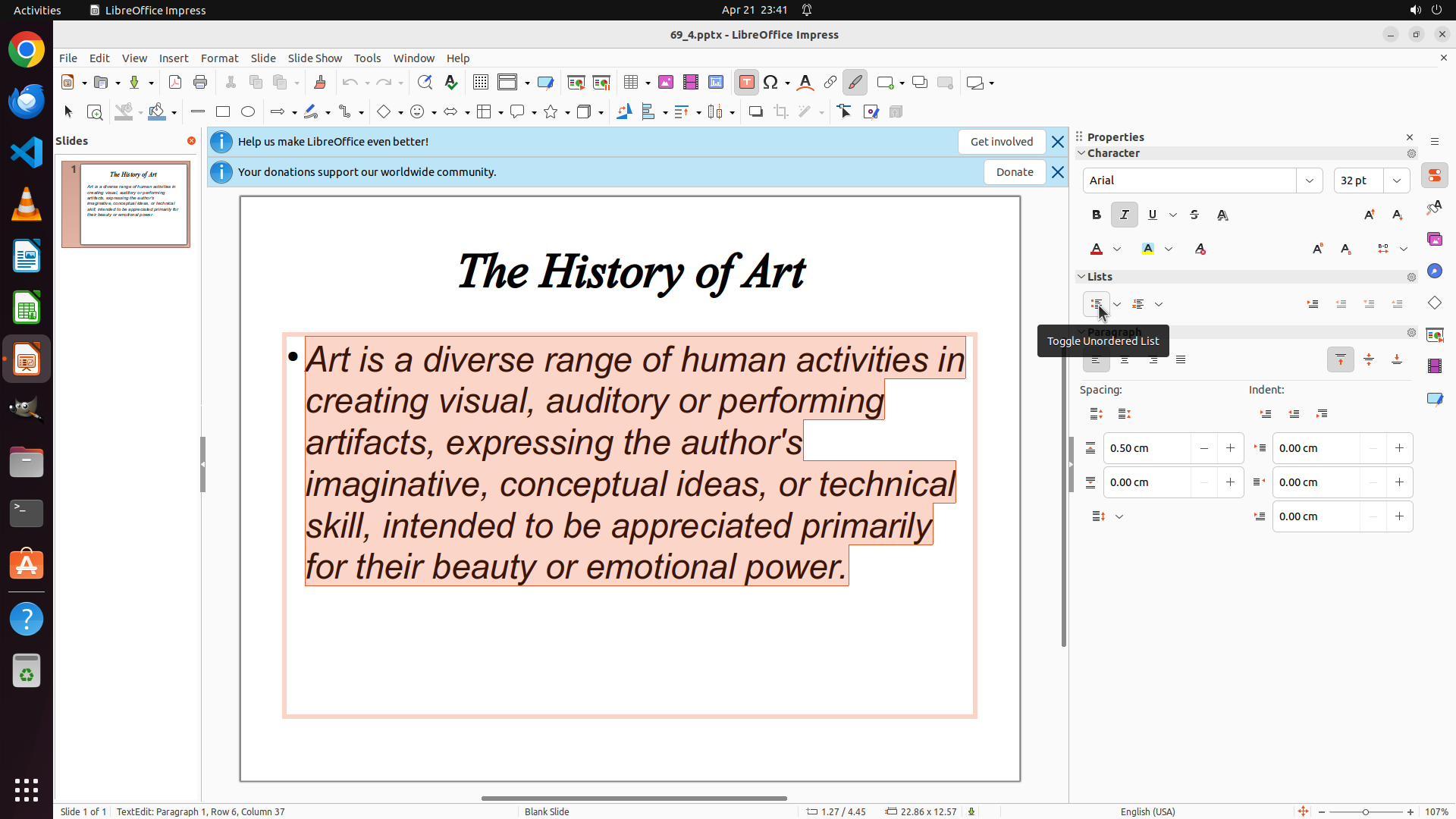
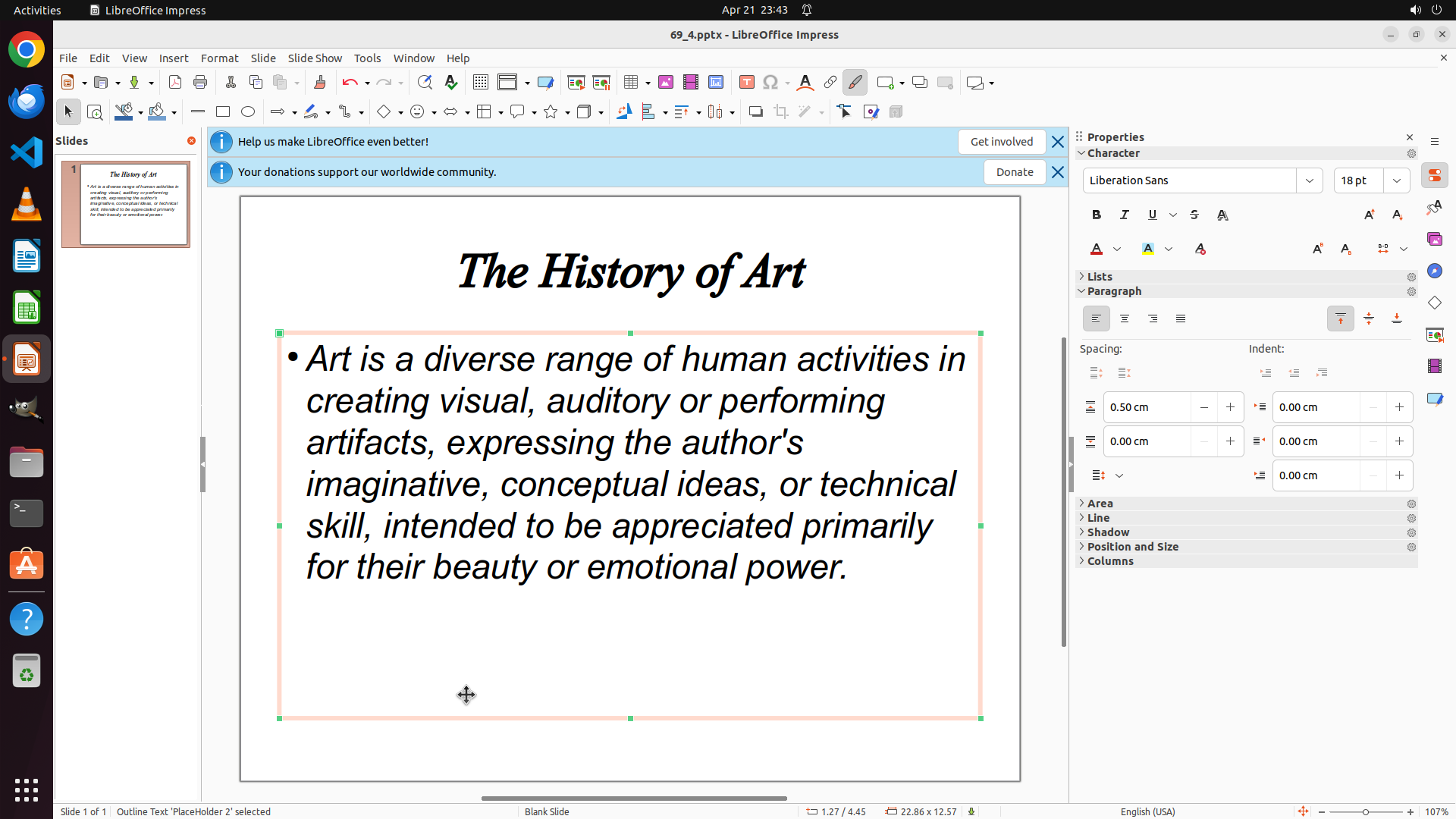
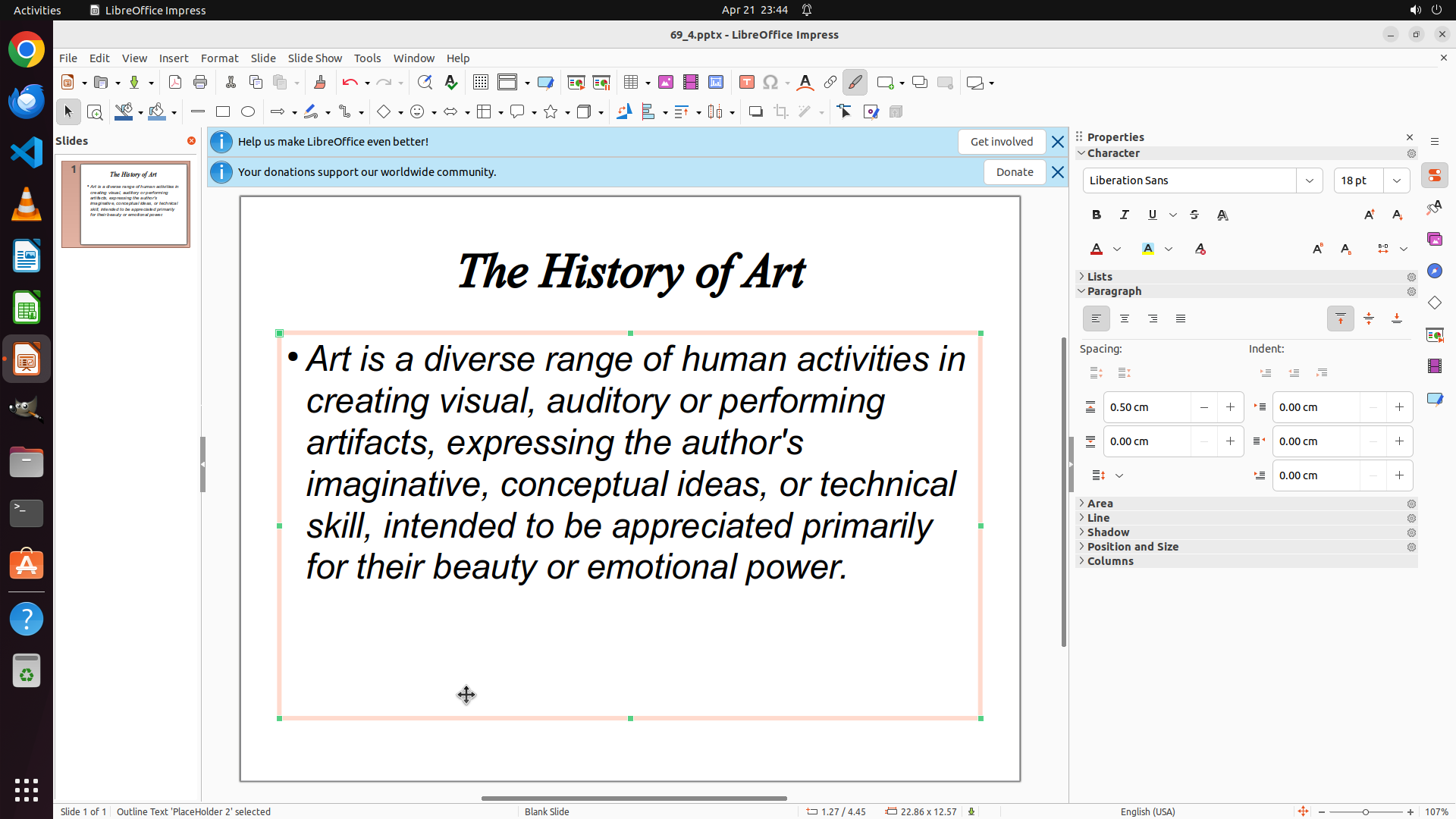
The bullet point has been successfully applied to the text. I can see:
1. A bullet point marker (•) now appears at the beginning of the paragraph "Art is a diverse range of human activities..."
2. The text is still selected (highlighted in orange/peach color)
3. The tooltip "Toggle Unordered List" is visible, confirming the bullet formatting has been applied
4. The Lists section in the Properties panel shows the bullet formatting is active
The task of adding a bullet point to the content has been completed successfully.
#### 情况分析与思考过程
The previous action successfully applied bullet point formatting to the text. Now I need to:
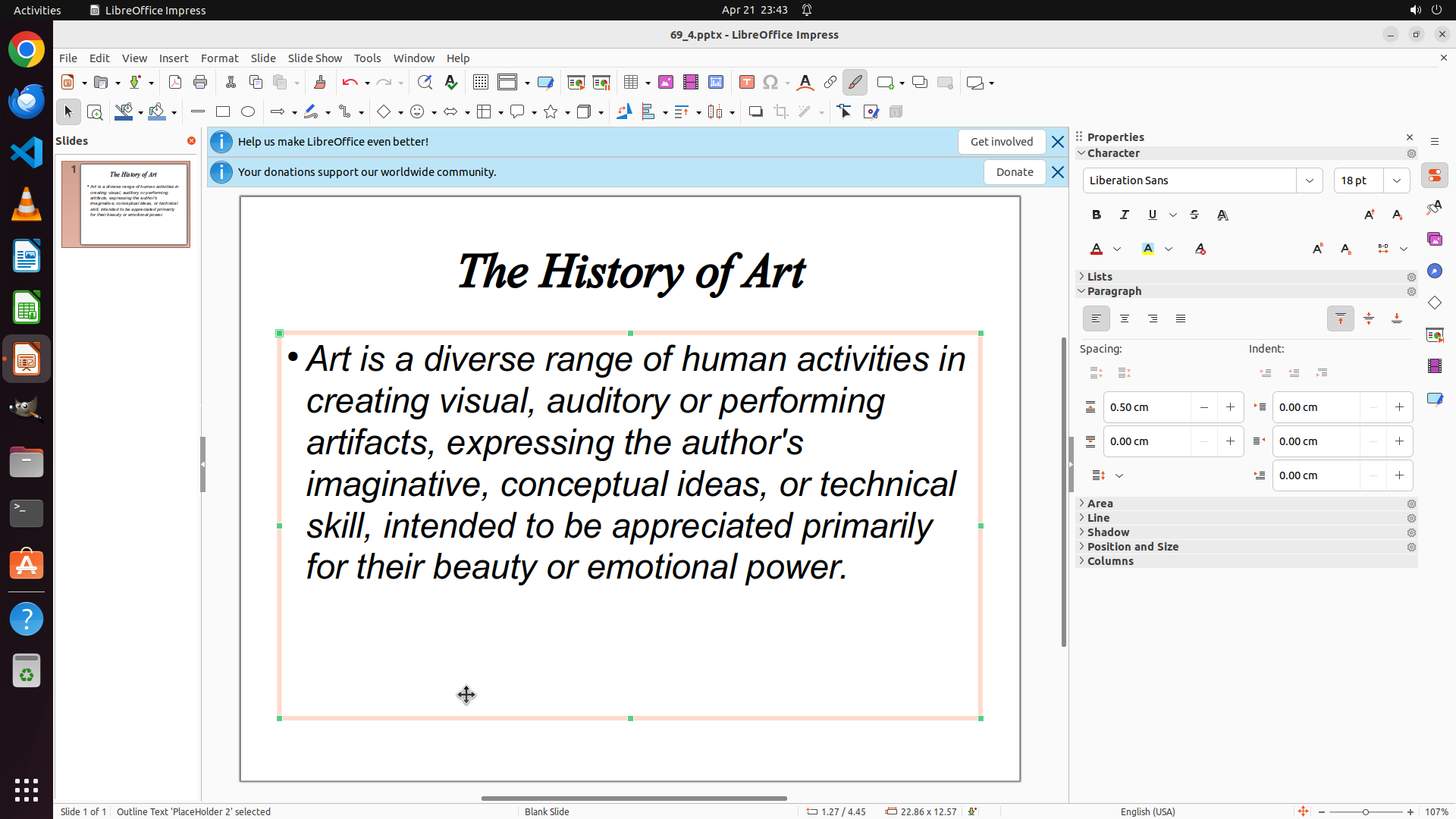
1. Click somewhere else on the slide to deselect the text and show the final result
2. Save the file to preserve the changes
3. Update the strategy tree to mark the tasks as completed
I should click on an empty area of the slide to deselect the text box, then save the file with Ctrl+S.
```
Step 3: HOTKEY
```
#### 重要信息
The bullet point has been successfully applied to the text. I can see:
1. A bullet point marker (•) now appears at the beginning of the paragraph "Art is a diverse range of human activities..."
2. The text is still selected (highlighted in orange/peach color)
3. The tooltip "Toggle Unordered List" is visible, confirming the bullet formatting has been applied
4. The Lists section in the Properties panel shows the bullet formatting is active
The task of adding a bullet point to the content has been completed successfully.
#### 情况分析与思考过程
The previous action successfully applied bullet point formatting to the text. Now I need to:
1. Click somewhere else on the slide to deselect the text and show the final result
2. Save the file to preserve the changes
3. Update the strategy tree to mark the tasks as completed
I should click on an empty area of the slide to deselect the text box, then save the file with Ctrl+S.
```