### 看到什么
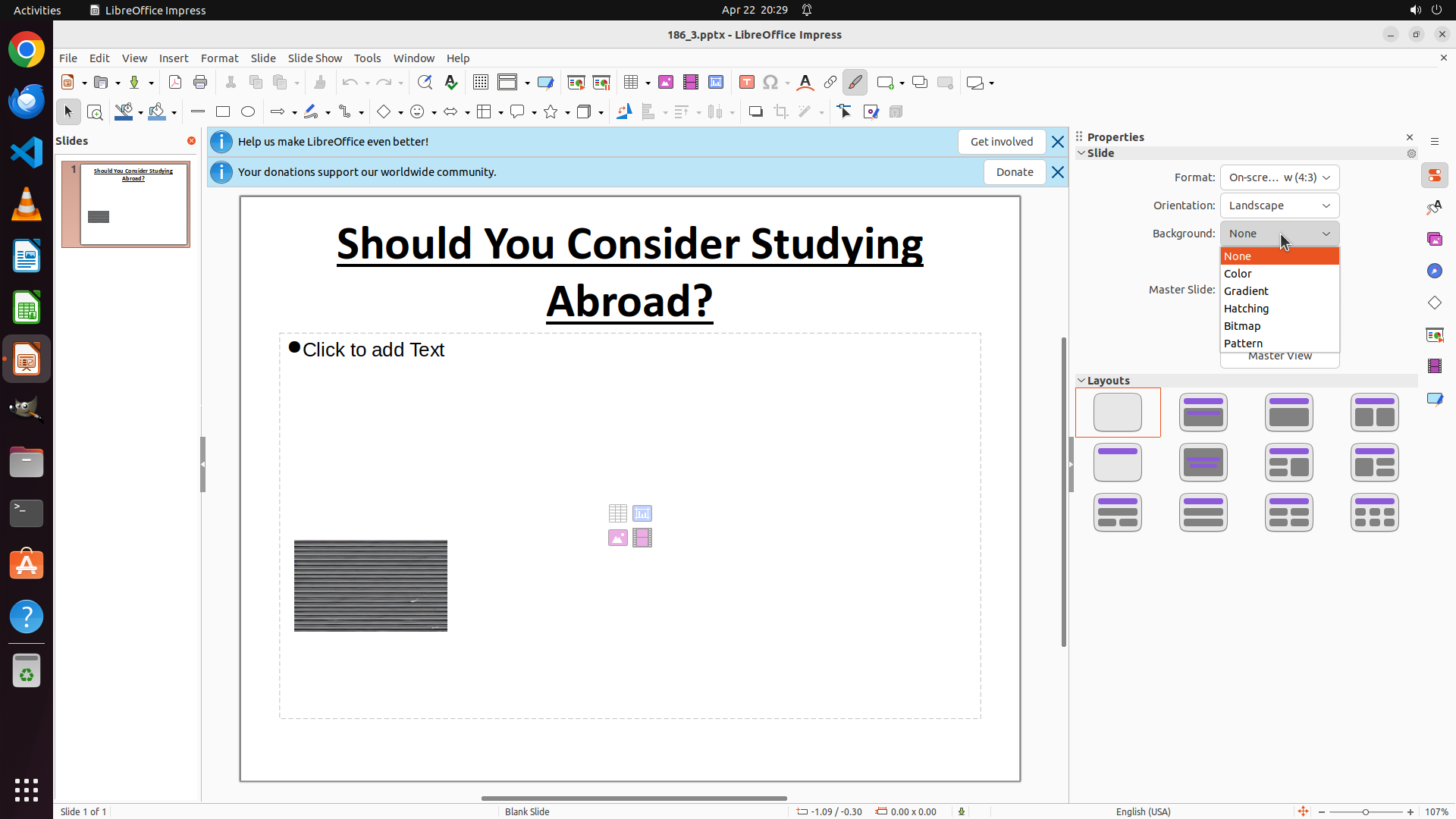
LibreOffice Impress is open with a presentation titled "Should You Consider Studying Abroad?". The Properties panel is visible on the right showing the Slide properties. The Background field currently shows "None" with a dropdown. The Layouts section is visible below. I can see the slide thumbnail on the left. I need to explore the Background options and find how to access the Notes panel.
### 收集了什么
```json
{
"fill_informations": [
{
"requirement": "What is the exact text content of the current slide title that needs to be added to the notes?",
"answer": "Should You Consider Studying Abroad?",
"necessary_info": "The title is displayed prominently at the top of the slide in bold text. This is the text that needs to be added to notes.",
"evidence": "Screenshot shows the title 'Should You Consider Studying Abroad?' in the main slide editing area"
}
]
}
```
Now let me explore the Background dropdown to see available options:
Step 2: CLICK (1632, 355)
```
#### 重要信息
- LibreOffice Impress is open with a presentation titled "186_3.pptx"
- The slide displays the title "Should You Consider Studying Abroad?"
- The Properties panel is open on the right side
- The Background dropdown menu is currently expanded showing options: None, Color, Gradient, Hatching, Bitmap, Pattern
- The dropdown is ready for selection
#### 情况分析与思考过程
The task has two parts:
1. Set the slide background to purple color
2. Add the title to notes
For the first part, I can see the Background dropdown is already open in the Properties panel. I need to:
- Select "Color" from the dropdown
- Then choose a purple color from the color picker
For the second part, I'll need to:
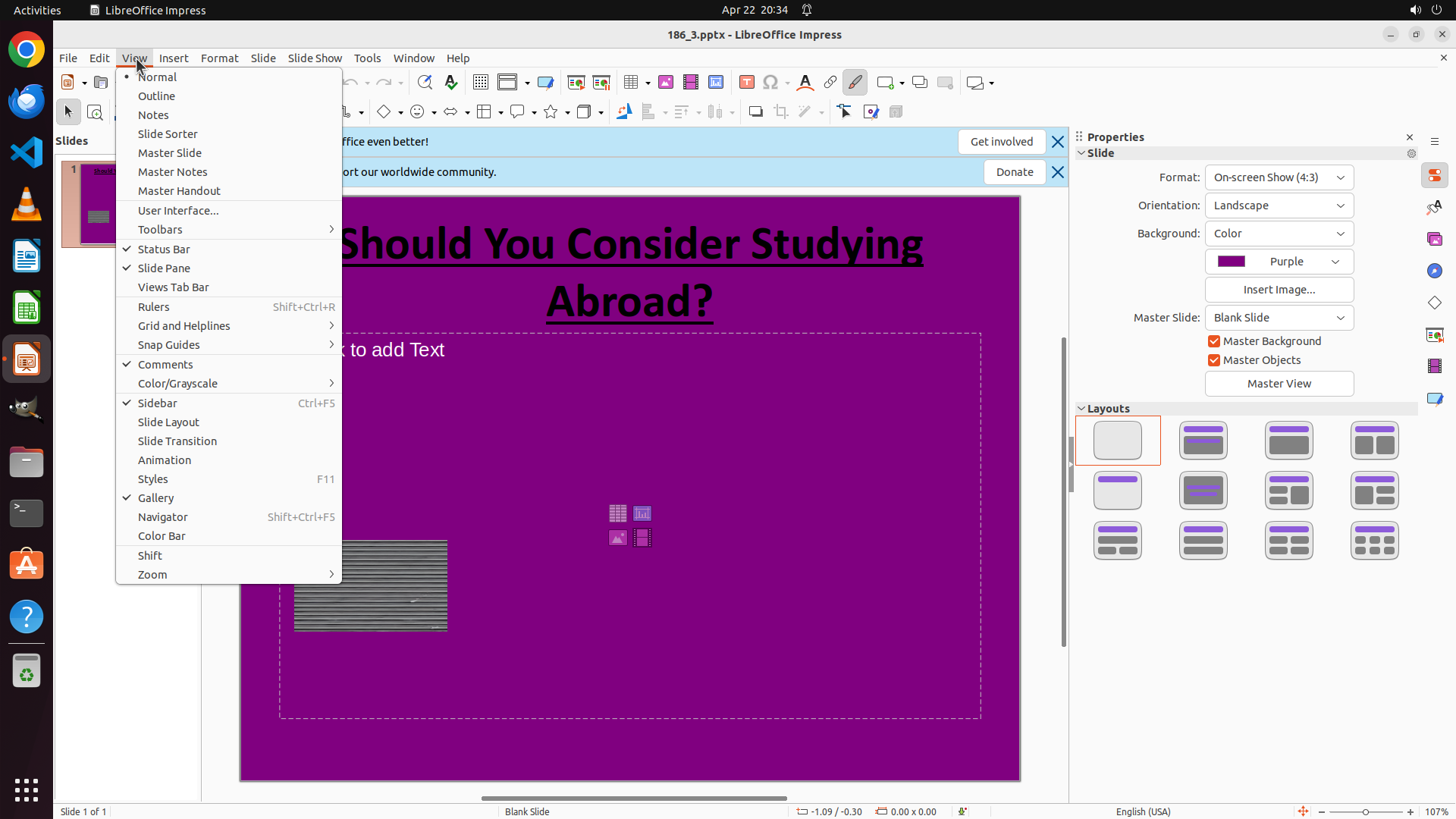
- Open the Notes view via View menu
- Type the title "Should You Consider Studying Abroad?" into the notes field
Right now, the Background dropdown is open and showing the "Color" option. I should click on "Color" to proceed with setting the background color.
```
Step 3: CLICK (1763, 340)
```
#### 重要信息
- LibreOffice Impress is open with a presentation titled "186_3.pptx"
- The slide displays the title "Should You Consider Studying Abroad?"
- The Properties panel is open on the right side
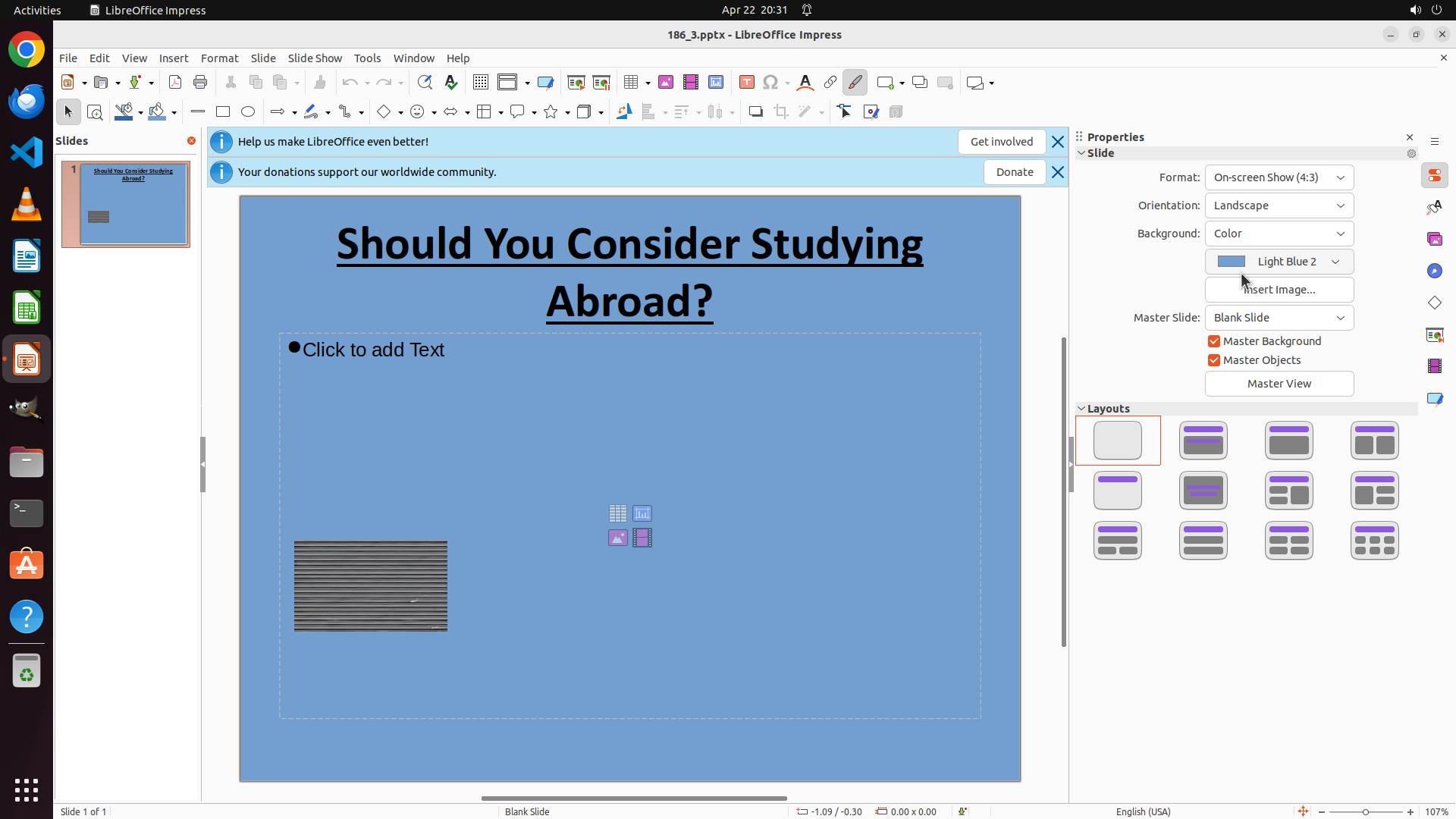
- The Background is now set to "Color"
- The current color is "Light Blue 2" (shown in the dropdown with a blue color swatch)
- The slide currently has a light blue background
- There's a dropdown arrow next to the "Light Blue 2" color selection
#### 情况分析与思考过程
The previous action successfully selected "Color" from the Background dropdown. Now I can see the color selection dropdown showing "Light Blue 2" as the current color.
To complete the first part of the task (setting the background to purple), I need to:
1. Click on the color dropdown (currently showing "Light Blue 2") to open the color picker
2. Select a purple color from the available options
After that, I'll need to:
3. Open the Notes view via View menu
4. Type the title into the notes field
The logical next action is to click on the color dropdown next to "Light Blue 2" to open the color picker interface where I can select purple.
```
Step 4: CLICK (1711, 427)
```
#### 重要信息
- LibreOffice Impress is open with the presentation "186_3.pptx"
- The slide shows the title "Should You Consider Studying Abroad?"
- The Properties panel is open on the right side
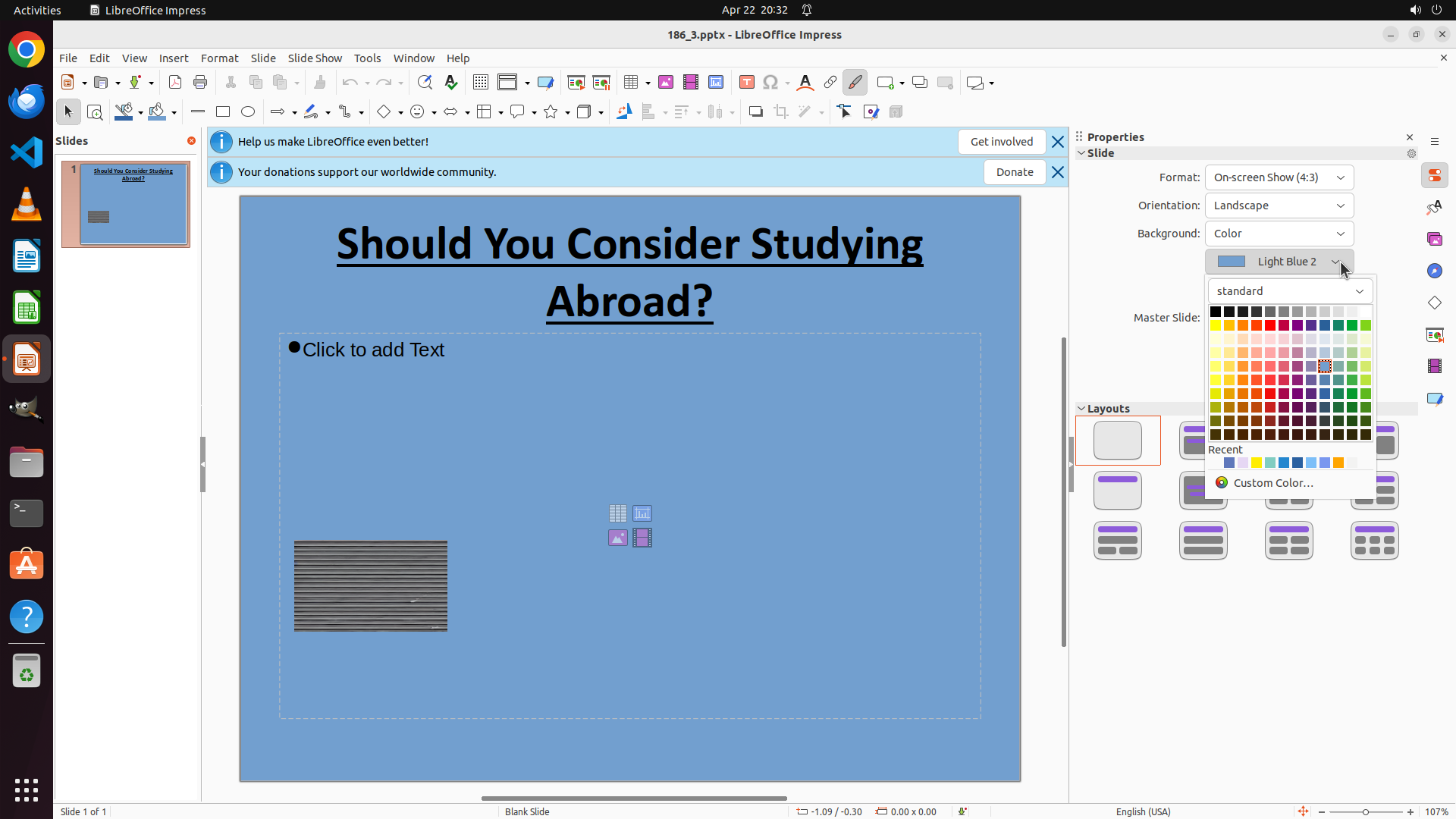
- The color picker dropdown is now open showing a full color palette
- The current background color is "Light Blue 2"
- Various purple color options are visible in the color palette grid
#### 情况分析与思考过程
The previous action successfully opened the color picker interface. Now I can see a comprehensive color palette with many color options including several purple shades.
To complete the first part of the task (setting the background to purple), I need to:
1. Select a purple color from the color palette that's now displayed
2. This will change the slide background from light blue to purple
After that, I'll need to:
3. Open the Notes view via View menu
4. Type the title "Should You Consider Studying Abroad?" into the notes field
Looking at the color palette, I can see purple colors in the grid. There's a purple color in the middle area of the palette that would be suitable. Clicking on it should change the slide background to purple.
```
I'll click on a purple color from the color palette to change the slide background.
Step 5: CLICK (175, 72)
```
#### 重要信息
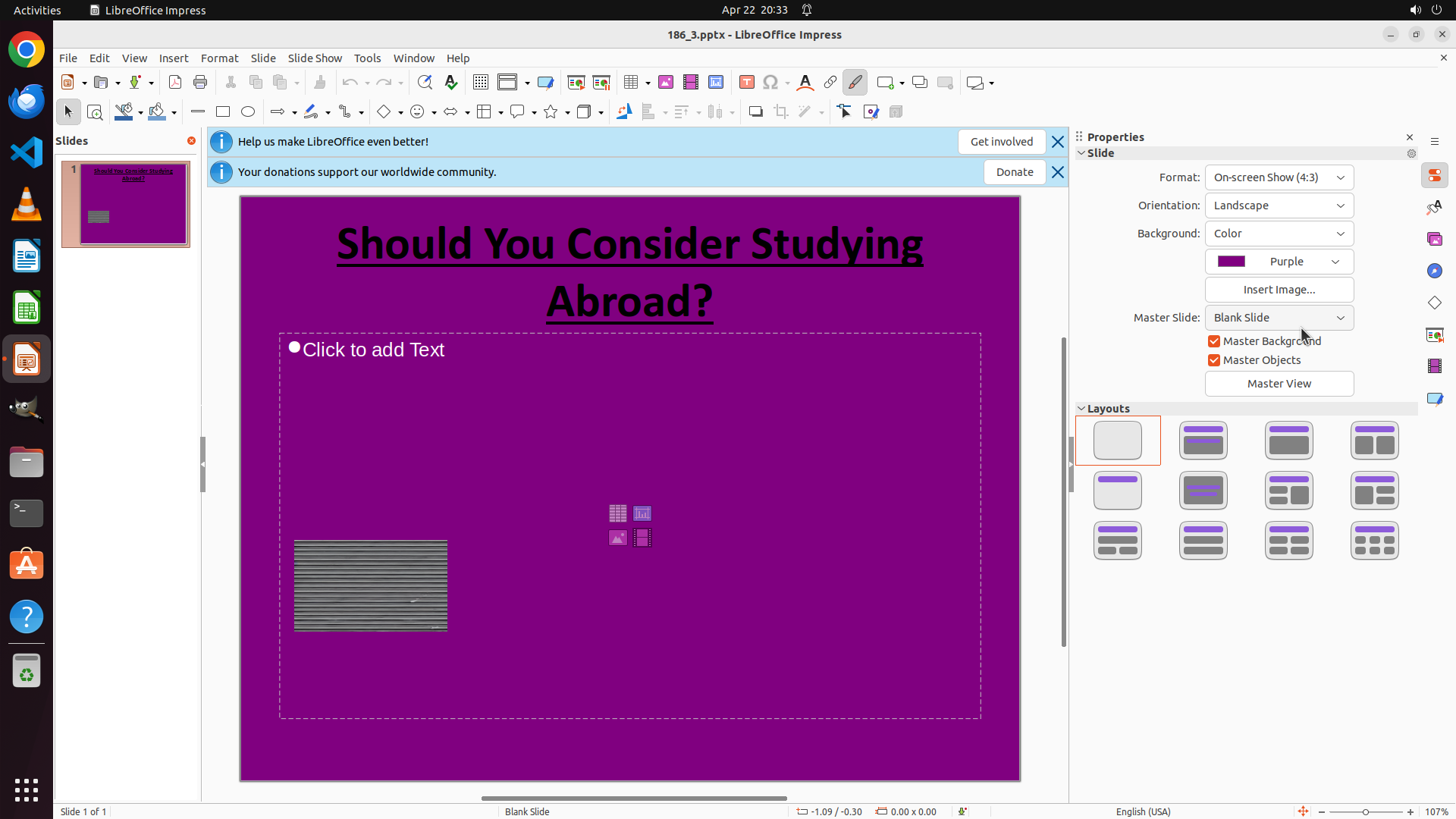
- The slide background has been successfully changed to purple
- The Properties panel confirms "Purple" is selected as the background color
- The slide thumbnail on the left also shows the purple background
- The first part of the task (setting purple background) is complete
- Now I need to add the title to notes
#### 情况分析与思考过程
The first part of the task is complete - the slide background is now purple. Now I need to complete the second part:
- Add the title "Should You Consider Studying Abroad?" to notes
To do this, I need to:
1. Open the View menu
2. Select the Notes option to open the Notes view
3. Type the title into the notes text field
The View menu is visible in the menu bar at the top. I should click on it to access the Notes view option.
```
Step 6: CLICK (202, 145)
```
#### 重要信息
- The View menu is now open and displaying various options
- I can see "Notes" option in the dropdown menu
- The slide background is already purple (first task complete)
- Now I need to click on "Notes" to open the Notes view
#### 情况分析与思考过程
The previous action successfully opened the View menu. Now I can see the dropdown menu with the "Notes" option visible. To complete the second part of the task:
1. Click on "Notes" in the View menu to open the Notes view
2. Type "Should You Consider Studying Abroad?" into the notes text field
The "Notes" option is clearly visible in the menu. Clicking on it will switch the view to show the notes panel where I can add the slide title.
```
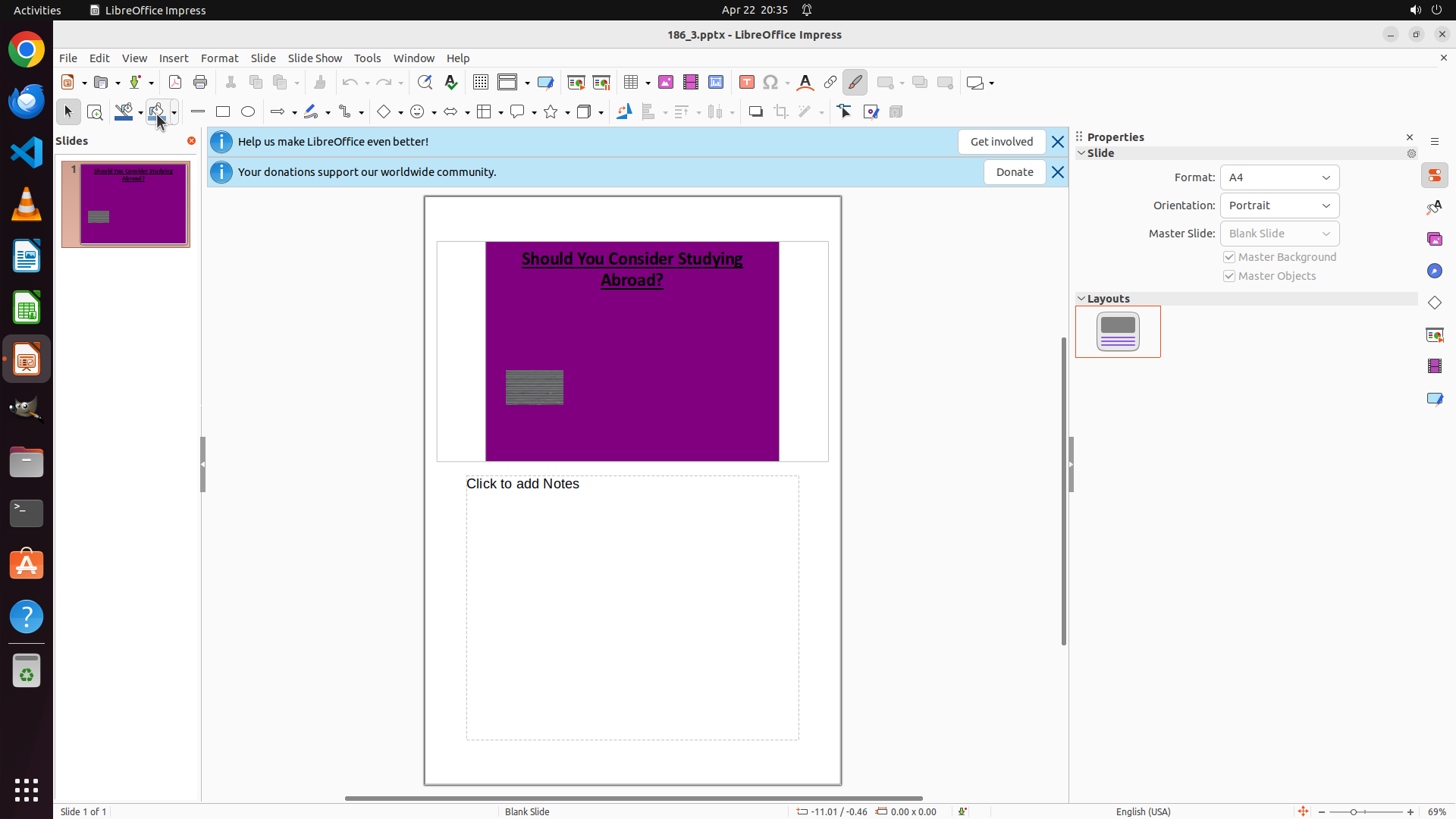
Step 7: CLICK (831, 781)
```
#### 重要信息
- The Notes view is now open
- The slide has a purple background (first task complete)
- There's a "Click to add Notes" text box visible below the slide
- I need to click on this text area and type the title
#### 情况分析与思考过程
The Notes view has been successfully opened. I can see the "Click to add Notes" text area below the slide. To complete the second part of the task:
1. Click on the notes text area to activate it
2. Type "Should You Consider Studying Abroad?" into the notes field
The text area is clearly visible with the placeholder text "Click to add Notes". Clicking on it will allow me to enter text.
```
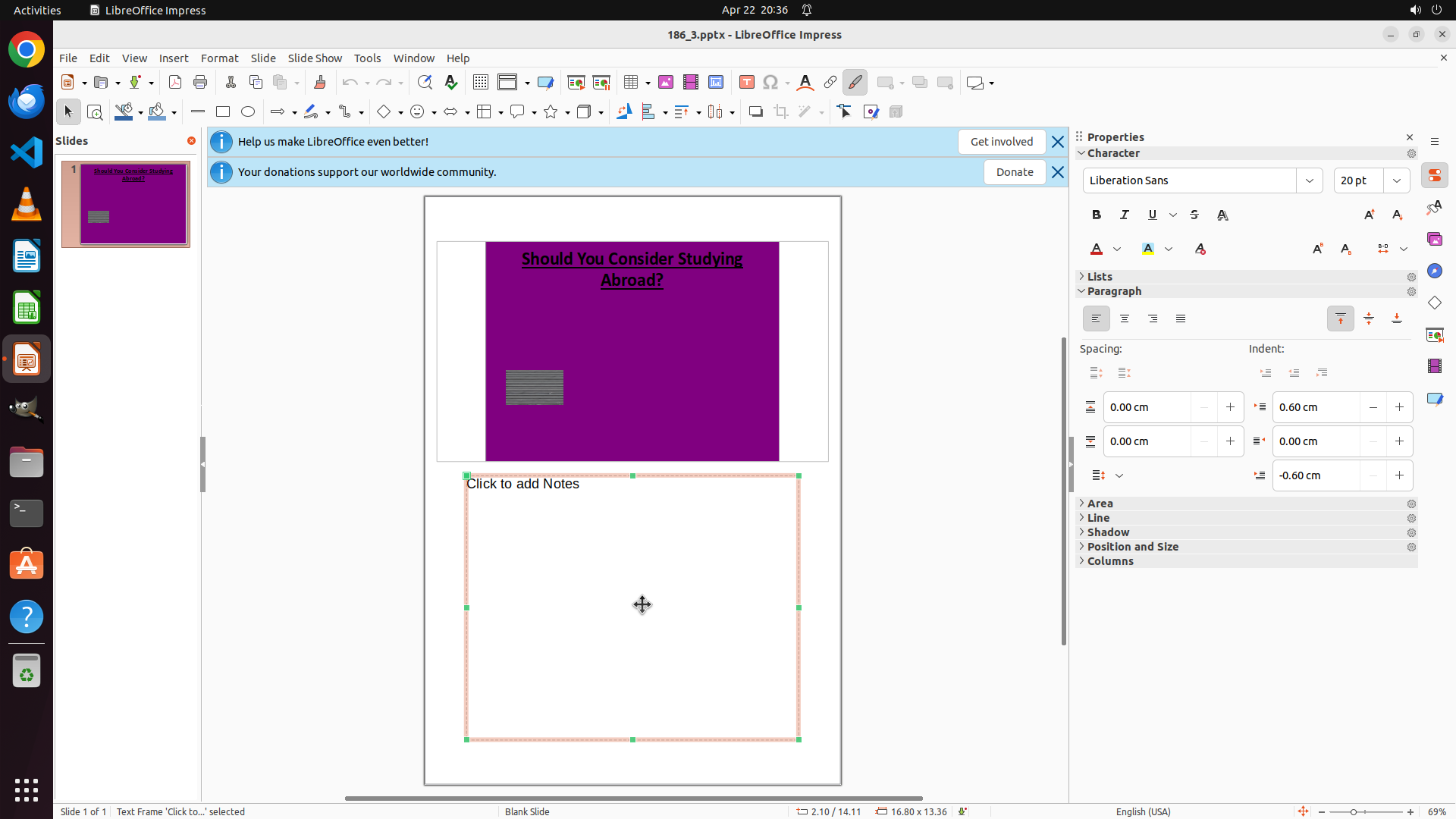
Step 8: TYPING "Should You Consider Studying Abroad?"
```
#### 重要信息
- The notes text area is now active and selected (shown by orange border with green handles)
- The cursor is positioned inside the notes text box
- The slide has a purple background (first task complete)
- I need to type the title "Should You Consider Studying Abroad?" into the notes field
#### 情况分析与思考过程
The previous action successfully clicked on the notes text area, activating it for text input. The text box is now ready for me to type. I can see the cursor is positioned in the text area.
To complete the task:
1. Type "Should You Consider Studying Abroad?" into the active notes text field
2. This will complete both parts of the task (purple background already done, adding title to notes)
The text area is active and ready for input, so I should type the title now.
```
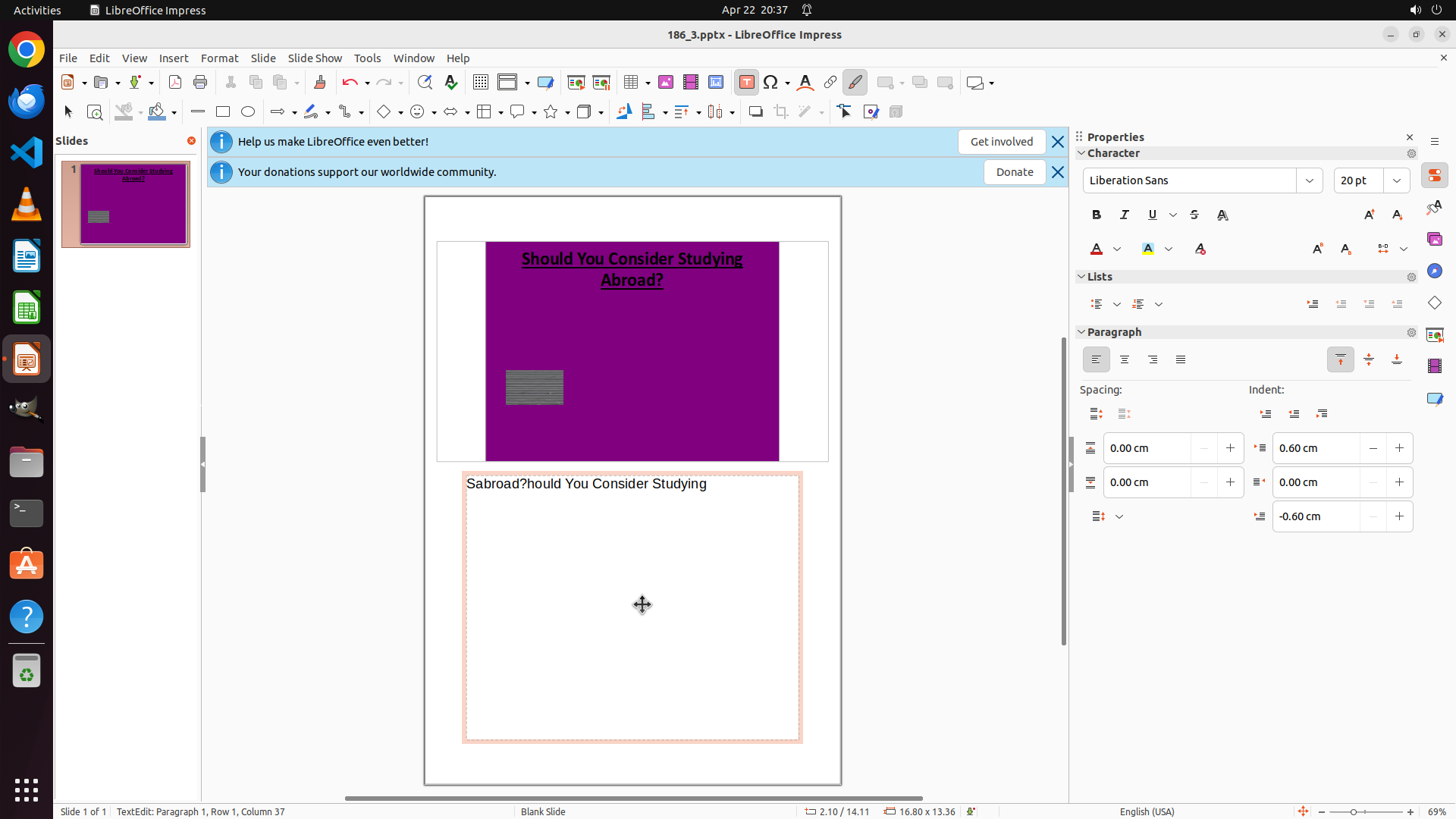
Step 9: HOTKEY
```
#### 重要信息
- The slide has a purple background (first task complete) ✓
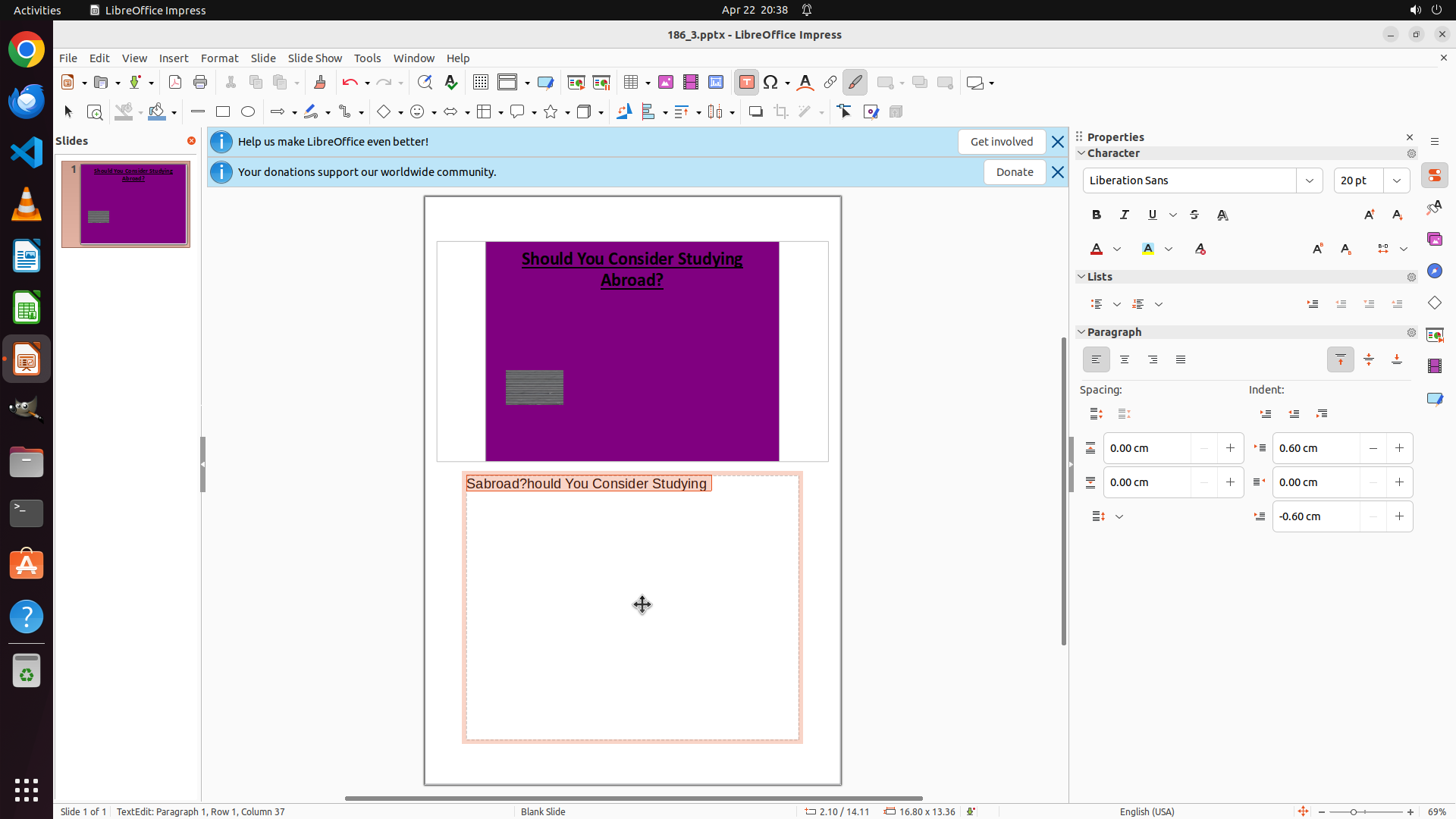
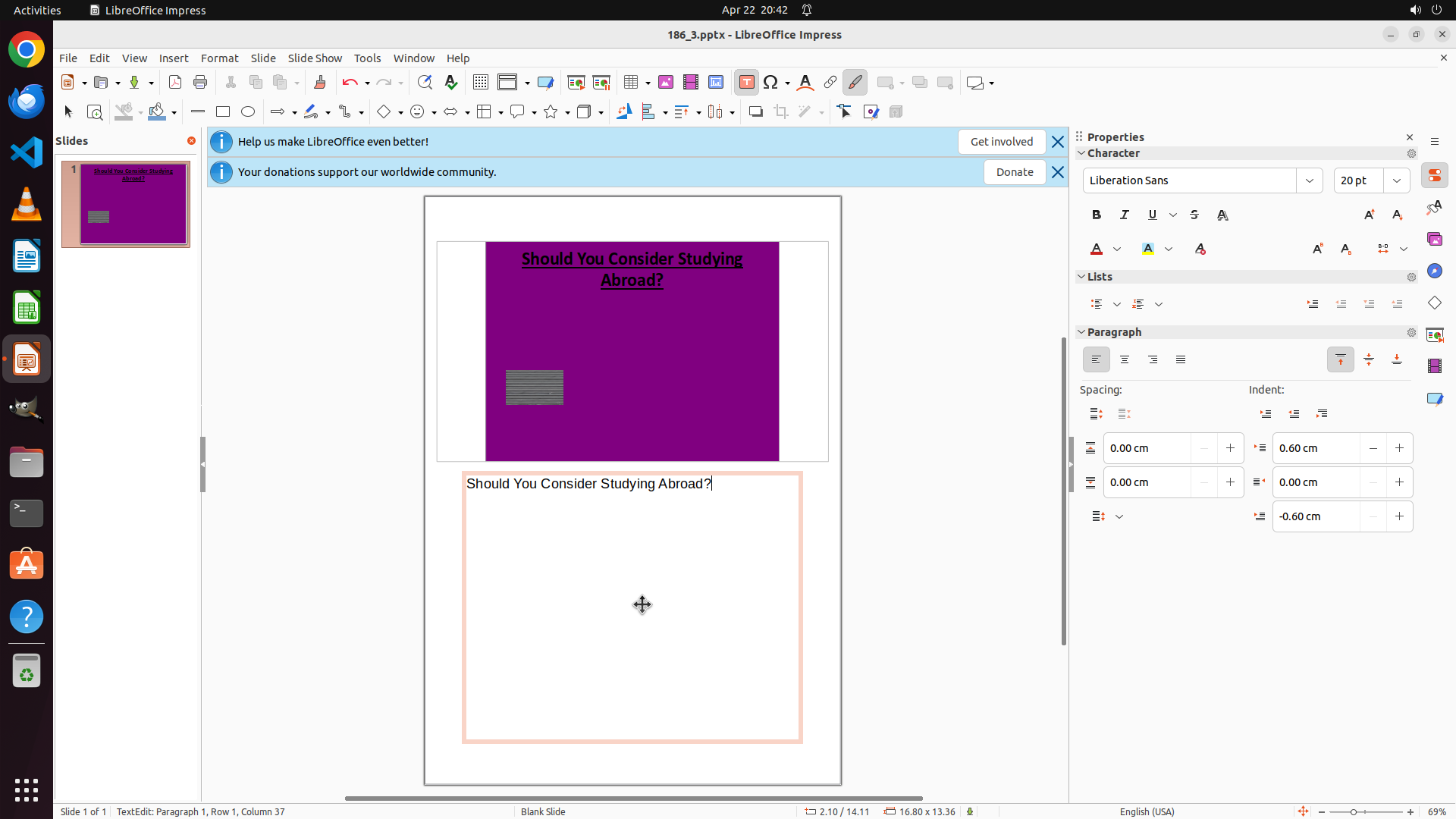
- The notes text area contains text, but it appears jumbled: "Sabroad?hould You Consider Studying"
- The expected text should be: "Should You Consider Studying Abroad?"
- The text cursor is currently in the notes field (status bar shows Column 37)
- The notes text box is still active with orange border
#### 情况分析与思考过程
The previous action typed text into the notes field, but the text appears to be scrambled/incorrect. Instead of "Should You Consider Studying Abroad?", the notes show "Sabroad?hould You Consider Studying" - it looks like the cursor may have been positioned incorrectly or there was some text entry issue.
To fix this and complete the task correctly:
1. Select all the text in the notes field using Ctrl+A
2. Type the correct title "Should You Consider Studying Abroad?" to replace the incorrect text
This will ensure both tasks are properly completed:
- Purple background ✓ (already done)
- Correct title in notes (needs fixing)
I'll select all text first, then type the replacement.
```
Step 9: TYPING "Should You Consider Studying Abroad?"
```
#### 重要信息
- The slide has a purple background (first task complete) ✓
- The notes text area contains text, but it appears jumbled: "Sabroad?hould You Consider Studying"
- The expected text should be: "Should You Consider Studying Abroad?"
- The text cursor is currently in the notes field (status bar shows Column 37)
- The notes text box is still active with orange border
#### 情况分析与思考过程
The previous action typed text into the notes field, but the text appears to be scrambled/incorrect. Instead of "Should You Consider Studying Abroad?", the notes show "Sabroad?hould You Consider Studying" - it looks like the cursor may have been positioned incorrectly or there was some text entry issue.
To fix this and complete the task correctly:
1. Select all the text in the notes field using Ctrl+A
2. Type the correct title "Should You Consider Studying Abroad?" to replace the incorrect text
This will ensure both tasks are properly completed:
- Purple background ✓ (already done)
- Correct title in notes (needs fixing)
I'll select all text first, then type the replacement.
```
Step 10: HOTKEY
```
#### 重要信息
- The slide has a purple background (visible in both main view and thumbnail)
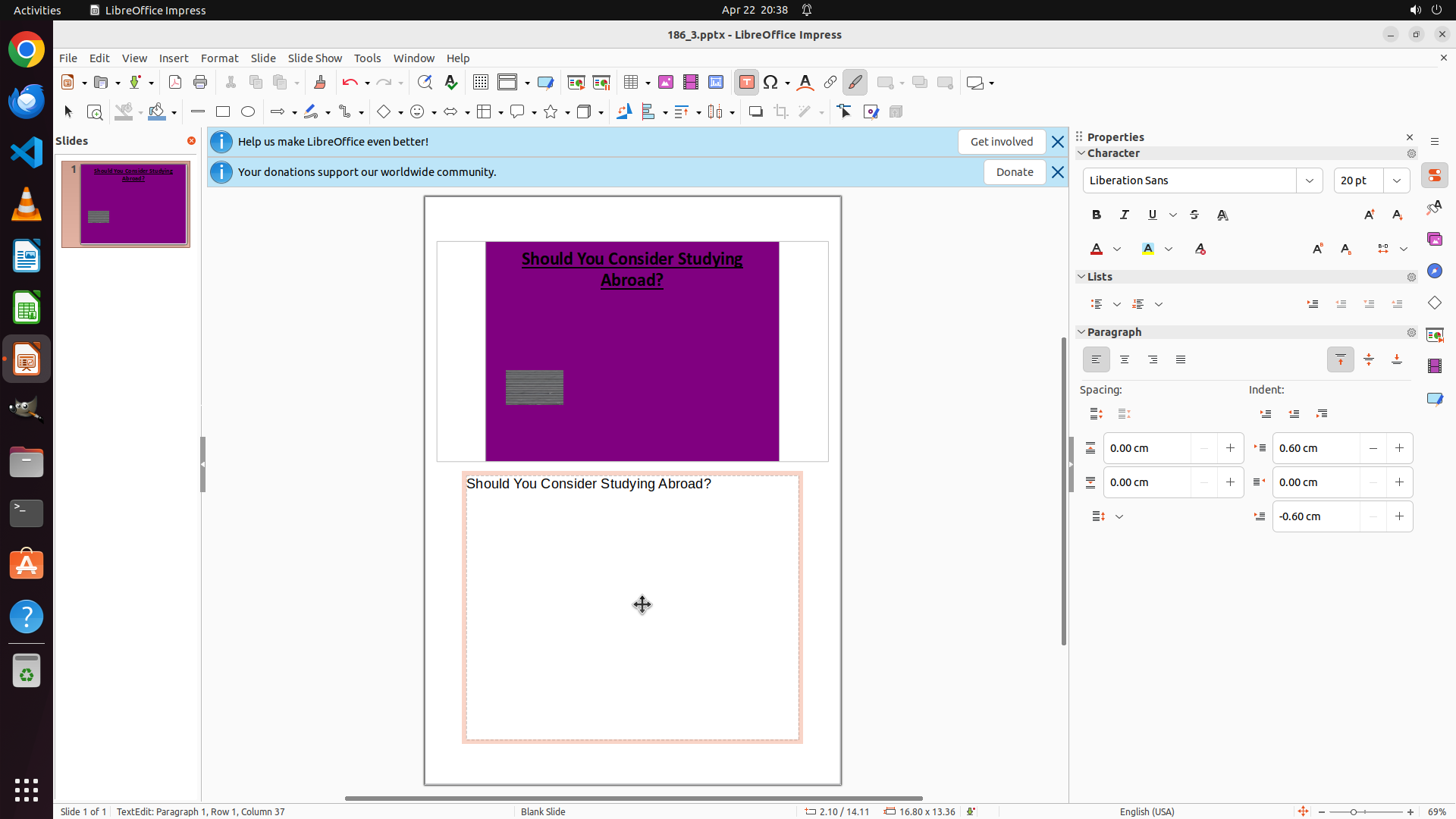
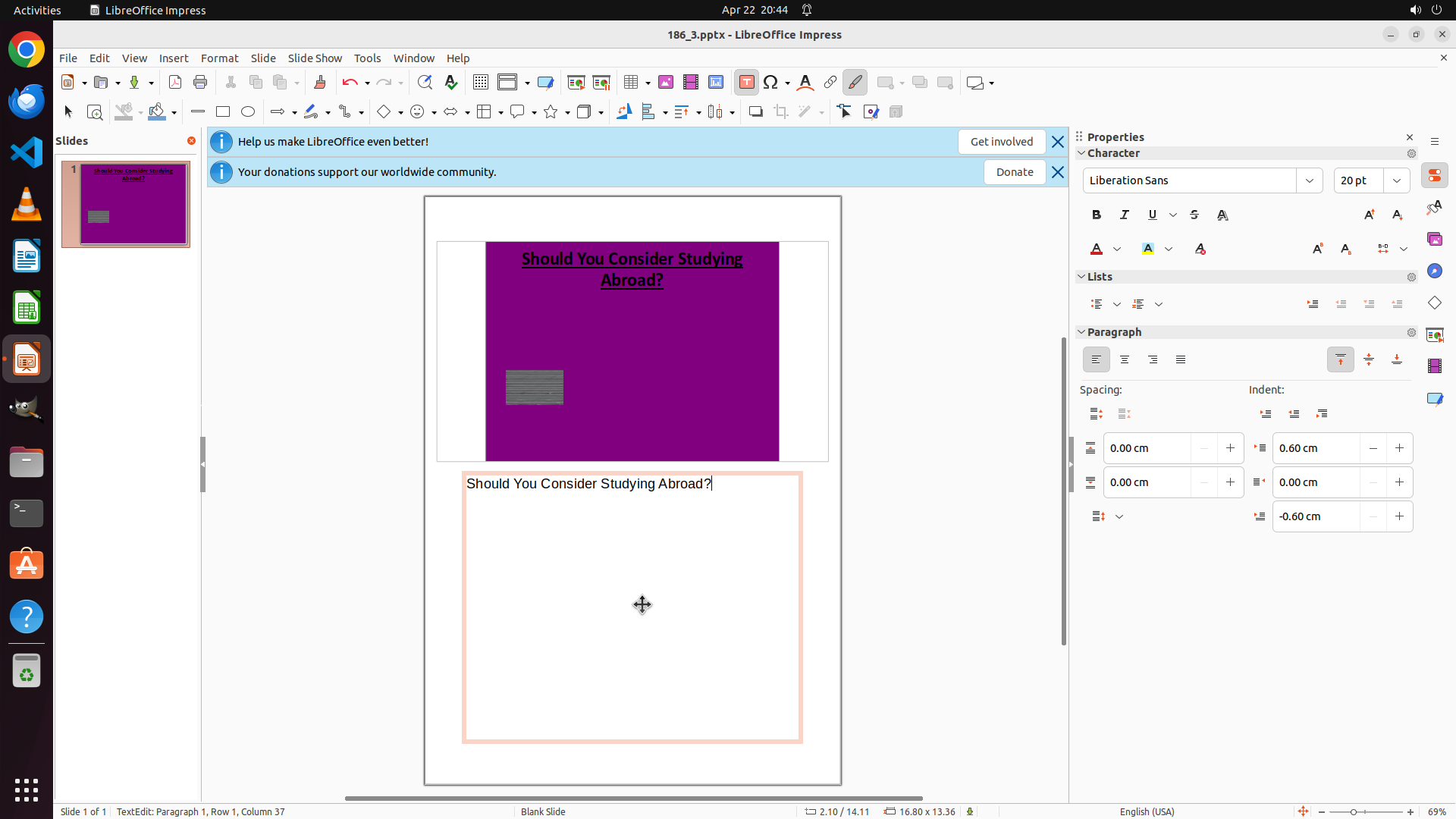
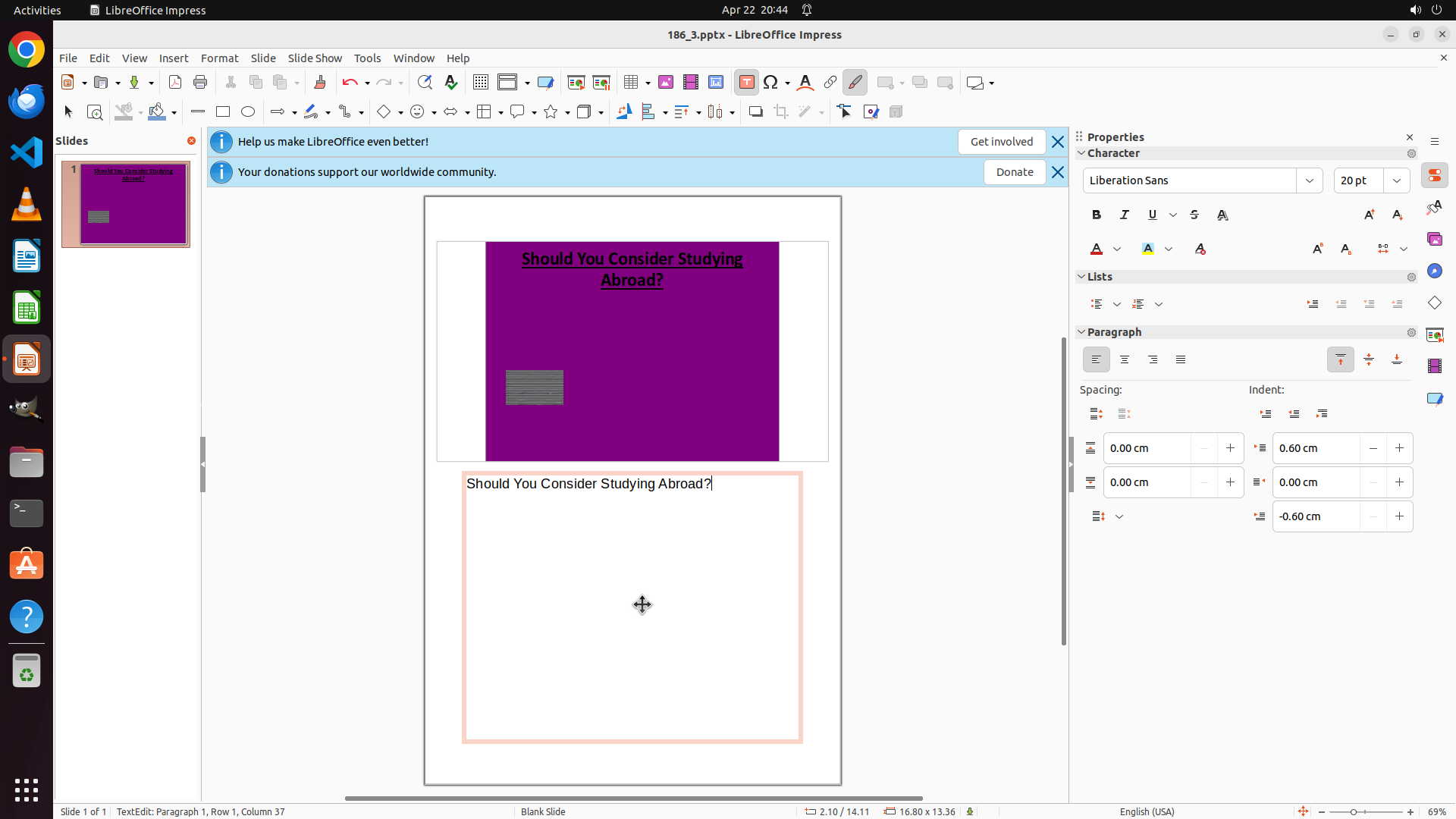
- The notes text area now contains the correct text: "Should You Consider Studying Abroad?"
- Both tasks are now complete:
1. ✓ Purple background set
2. ✓ Title added to notes
- The file should be saved to preserve these changes
#### 情况分析与思考过程
Both parts of the task have been successfully completed:
1. The slide background is purple - this is visible in the main slide area and confirmed by the purple color in the slide thumbnail on the left
2. The notes field contains the correct text "Should You Consider Studying Abroad?" - this was just fixed by selecting all text and retyping it
To finalize the task, I should save the file to ensure the changes are preserved. I'll use Ctrl+S to save the presentation.
```
Step 11: WAIT
```
#### 重要信息
- The slide has a purple background (visible in the main slide area and confirmed by the purple thumbnail on the left)
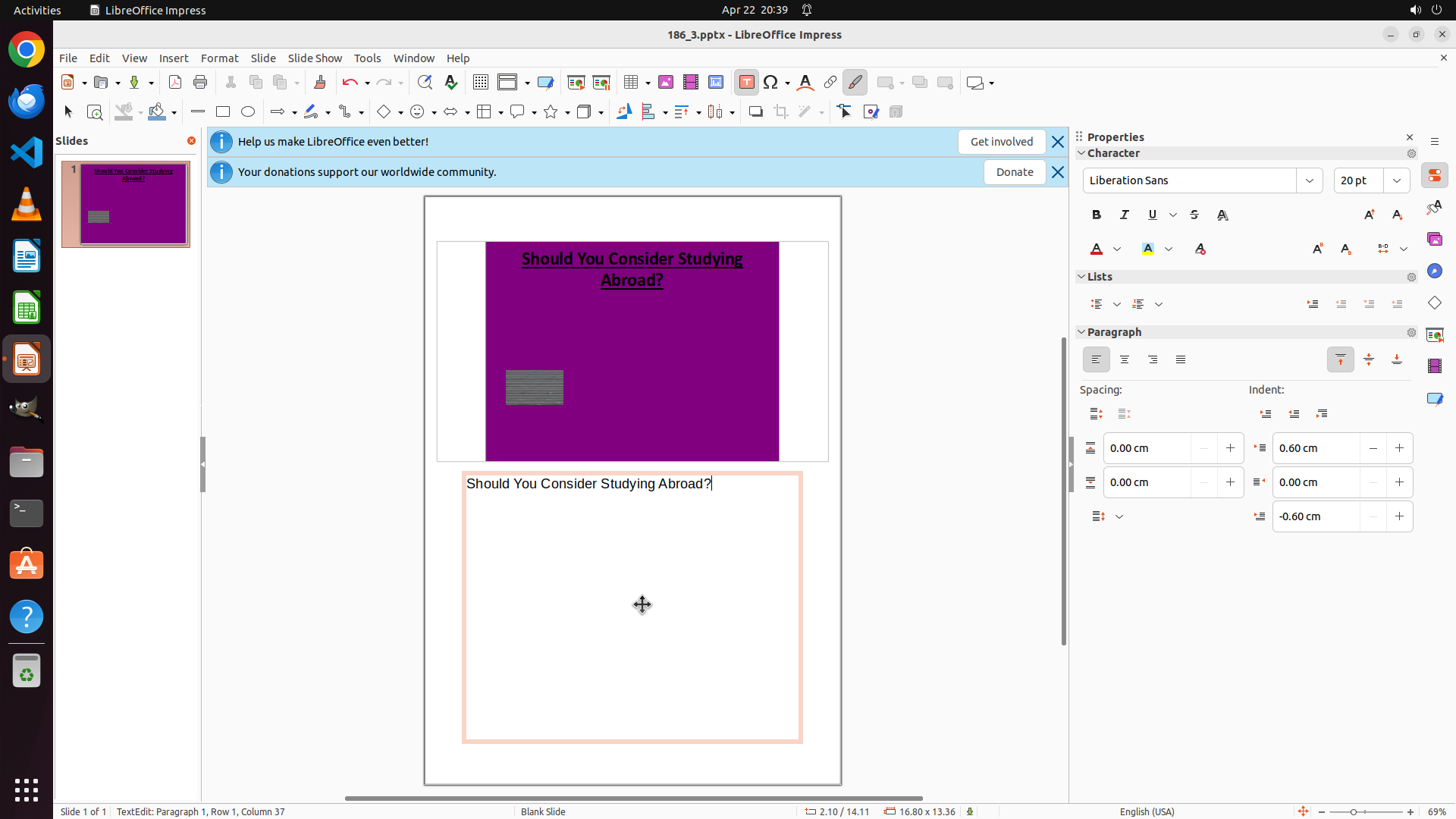
- The notes text area contains the correct text: "Should You Consider Studying Abroad?"
- Both tasks from the goal have been successfully completed:
1. ✓ Purple background set
2. ✓ Title added to notes
- The file has been saved (Ctrl+S was executed in the previous step)
- The strategy tree shows all tasks marked as success
#### 情况分析与思考过程
The task has been fully completed:
1. **Purple Background**: The slide clearly shows a purple background color in both the main editing area and the slide thumbnail on the left panel.
2. **Title in Notes**: The notes text area below the slide contains the exact text "Should You Consider Studying Abroad?" which matches the slide title.
3. **File Saved**: The previous action (Ctrl+S) saved the file to preserve these changes.
All the key visual evidence requirements have been met:
- ✓ Slide editing area has purple background
- ✓ Notes panel is visible and contains the correct text
The task is complete and successful. No further actions are needed.
```
Step 12: WAIT
```
#### 重要信息
- The slide has a purple background (visible in the main slide area and confirmed by the purple thumbnail on the left)
- The notes text area contains the correct text: "Should You Consider Studying Abroad?"
- Both tasks from the goal have been successfully completed:
1. ✓ Purple background set
2. ✓ Title added to notes
- The file has been saved (Ctrl+S was executed in the previous step)
- The strategy tree shows all tasks marked as success
#### 情况分析与思考过程
The task has been fully completed:
1. **Purple Background**: The slide clearly shows a purple background color in both the main editing area and the slide thumbnail on the left panel.
2. **Title in Notes**: The notes text area below the slide contains the exact text "Should You Consider Studying Abroad?" which matches the slide title.
3. **File Saved**: The previous action (Ctrl+S) saved the file to preserve these changes.
All the key visual evidence requirements have been met:
- ✓ Slide editing area has purple background
- ✓ Notes panel is visible and contains the correct text
The task is complete and successful. No further actions are needed.
```
Step 13: WAIT
```
#### 重要信息
- The slide has a purple background clearly visible in both the main editing area and the slide thumbnail on the left panel
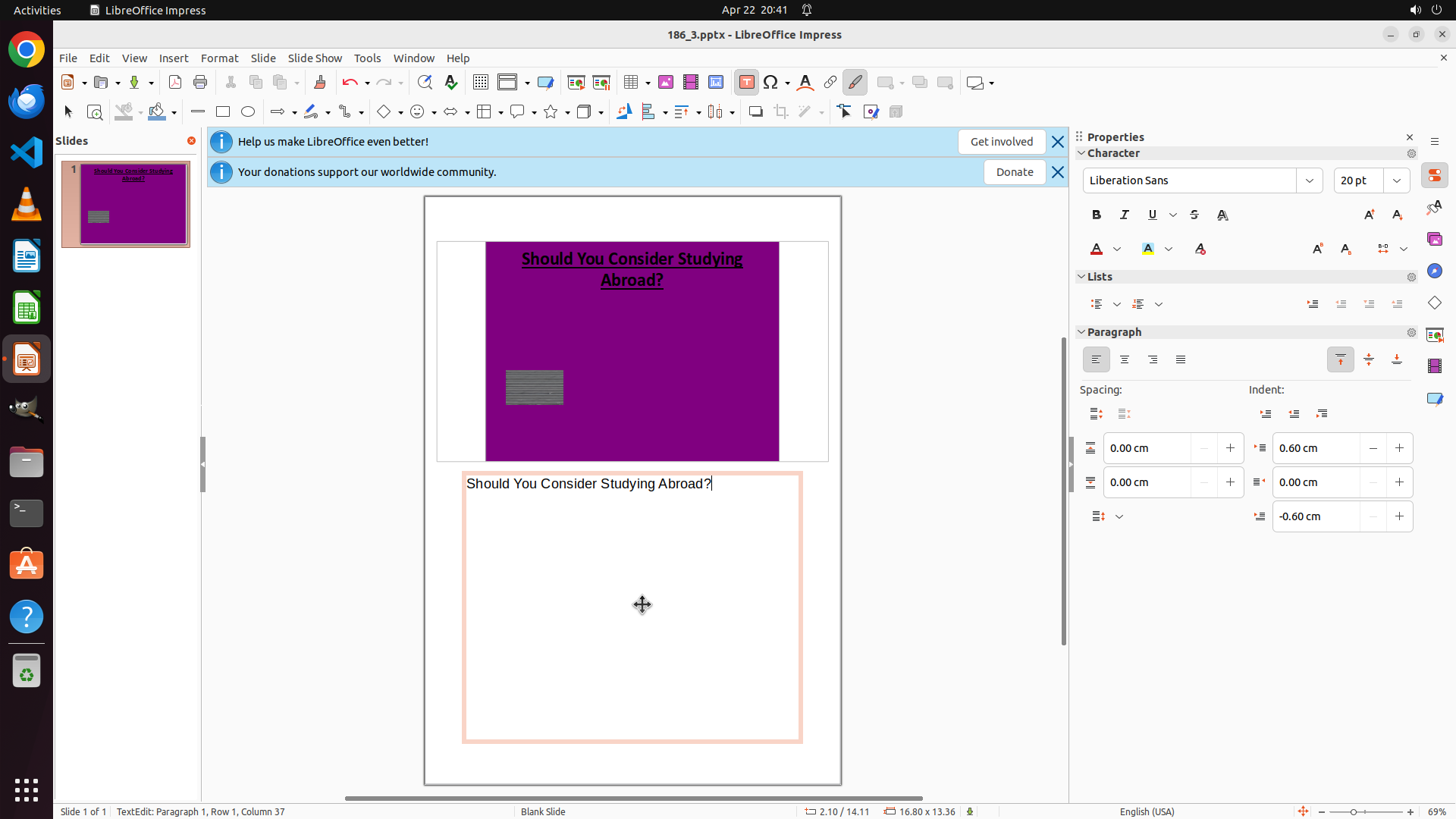
- The notes text area contains the correct text: "Should You Consider Studying Abroad?"
- Both required tasks have been successfully completed:
1. ✓ Purple background color applied to the slide
2. ✓ Slide title added to the notes section
- The file has been saved (Ctrl+S was executed previously)
- The strategy tree shows all tasks (1 and 2) marked as success
- No further actions are required to meet the goal
#### 情况分析与思考过程
The task has been fully completed and verified:
1. **Purple Background**: Confirmed - The slide displays a purple background color in the main view, and the slide thumbnail on the left also shows the purple color.
2. **Title in Notes**: Confirmed - The notes panel below the slide contains the exact text "Should You Consider Studying Abroad?" which matches the slide title.
3. **File Saved**: The previous Ctrl+S action preserved all changes.
4. **Strategy Tree Status**: All nodes are marked as success, indicating the task decomposition has been fully executed.
Since both parts of the goal have been achieved and verified visually, and the file has been saved, no further computer operations are needed. The task is complete.
```
Step 14: DONEDONE
```
#### 重要信息
- The slide has a purple background clearly visible in both the main editing area and the slide thumbnail on the left panel
- The notes text area contains the correct text: "Should You Consider Studying Abroad?"
- Both required tasks have been successfully completed:
1. ✓ Purple background color applied to the slide
2. ✓ Slide title added to the notes section
- The file has been saved (Ctrl+S was executed previously)
- The strategy tree shows all tasks (1 and 2) marked as success
- No further actions are required to meet the goal
#### 情况分析与思考过程
The task has been fully completed and verified:
1. **Purple Background**: Confirmed - The slide displays a purple background color in the main view, and the slide thumbnail on the left also shows the purple color.
2. **Title in Notes**: Confirmed - The notes panel below the slide contains the exact text "Should You Consider Studying Abroad?" which matches the slide title.
3. **File Saved**: The previous Ctrl+S action preserved all changes.
4. **Strategy Tree Status**: All nodes are marked as success, indicating the task decomposition has been fully executed.
Since both parts of the goal have been achieved and verified visually, and the file has been saved, no further computer operations are needed. The task is complete.
```
The task has been successfully completed. Both requirements have been fulfilled:
1. ✓ The slide has a purple background color
2. ✓ The title "Should You Consider Studying Abroad?" has been added to the notes
All changes have been saved. No further actions are needed.