attempt-000
Request Messages
user

text (5685 chars)
以下有几个部分:
ROLE_AND_TASK:你的角色定义以及任务描述
TOOLS:你可以调用的工具列表,以及每个工具的参数说明
OUTPUT:输出相关规则和约束
TIPS:重要建议
SITUATION:操作历史和任务相关状态

<ROLE_AND_TASK>
你是一个计算机操作代理,正在操作 Ubuntu Linux 桌面。你可以通过截图查看屏幕,并使用鼠标和键盘动作来控制它。

你的任务是:借助工具,来操作一台电脑来达成任务: Can you help me clean up my computer by getting rid of all the tracking things that Amazon might have saved? I want to make sure my browsing is private and those sites don't remember me.。
电脑的操作系统: Ubuntu Linux

工作流程:
1. 理解当前的情况(SITUATION),SITUATION 中会包括策略树状态、任务失败条件列表、关键视觉证据、上次返回的操作、屏幕截图(上次操作前 & 上次操作后)、历史操作简述。
2. 思考如何尽快达成任务,规划接下来的动作。可以是1次动作,也可以是一组BATCH动作。BATCH动作原则见下。
3. 输出tool_calls:包含你规划的需要执行的电脑操作以及维护 SITUAION 的工具调用。
4. 重复上面步骤,直到任务达成。

关于策略树:
- 策略树是一个分层的任务管理结构。
- 它可以帮助你组织和跟踪任务所需的步骤。也可以帮助你在某个细分尝试方向失败时,回退到高级的节点来尝试其他方法。通过维护策略树,你可以系统地分解复杂任务,并且在较困难的子任务中大胆尝试,确保每一步都得到适当的关注和执行。
- 策略树必须以层次结构组织,实例:
`1`: 顶层任务。重要目标或里程碑,从用户给出的任务开始拆解。
`1.1`, `1.2`, ...: 任务 `1` 的子任务。
`1.1.1`, `1.1.2`, ...: 任务 `1.1` 的子任务或尝试路径方案。它们不是实际动作,而是对父任务的子目标贡献。

关于失败条件列表:
- 失败条件列表是一个 checklist
- 它用于辨认当前任务是否还有达成的可能。当所有失败条件都被确认为真后,任务将返回不可能达成。

关于关键视觉证据:
- 关键视觉证据是一些屏幕状态的描述,这些状态可以通过截图来验证。
- 任务完成后,验证模块会检查这些视觉证据是否都满足,以判断任务是否成功完成。

</ROLE_AND_TASK>

<TOOLS>
你拥有以下工具:computer、update_strategy_tree。
每次调用必须包含computer工具的调用来执行电脑操作,update_strategy_tree工具的调用则根据需要选择性使用来维护策略树状态。

## computer
操作电脑的动作库,调用它以在桌面上执行操作。

坐标值定义:
在最新一张屏幕截图中的坐标轴比例,使用 [0, 1] 范围内的归一化值。其中 (0, 0) = 屏幕左上角,(1, 1) = 屏幕右下角。

操作和参数说明:
1. 移动鼠标
{
  "action": "mouse_move",
  "to_coordinate": [float, float], # 移动到的坐标值。
}

2. 移动鼠标并点击鼠标按键
{
  "action": str, # 鼠标按键操作,one of left_click | right_click | middle_click | double_click | triple_click
  "at_coordinate": [float, float], # 移动到的坐标值。
  "with_key": str or None, # 点击时按住的键盘按键(比如"ctrl"、"shift"),如没有则填None。
}

3. 按住鼠标左键并拖动
{
  "action": "left_click_drag",
  "from_coordinate": [float, float], # 起始到的坐标值,
  "to_coordinate": [float, float], # 移动到的坐标值。
  "with_key": str or None, # 点击时按住的键盘按键(比如"ctrl"、"shift"),如没有则填None。
}

4. 输入文字
{
  "action": "type",
  "text": str, # 要输入的文字
  "submit": bool, # 输入后是否按 Enter 键提交
}

5. 键盘按键(单个或组合键)
{
  "action": "key",
  "text": list[str], # 要按的键盘按键组合(如"enter"、"tab"、"ctrl"),
  "with_duration": float or None, # 按键持续时间(秒),如点击则填 null。
}

6. 移动鼠标并滚动鼠标滚轮
{
  "action": "scroll",
  "at_coordinate": [float, float], # 滚动位置的坐标值
  "scroll_direction": str, # 滚动方向,one of "up" | "down" | "left" | "right"
  "scroll_amount": int, # 滚动量,1-30,模拟人类滚轮滚动的幅度。较大的值表示更大幅度的滚动。
}

7. 等待
{
  "action": "wait",
  "duration": float, # 等待秒数。根据操作后界面变化的复杂程度调整等待时间。
}


BATCH动作原则:
BATCH动作指一组连续且相对固定的电脑操作,主要用来减少不必要的对话过程。
- 例如:顺序输入(type→Tab→type)、键盘快捷键(Ctrl+C 然后 Ctrl+V)、输入一段字符后 Enter(在搜索输入框中常用)。
- DO NOT BATCH:涉及界面状态变化等待的操作(如打开菜单/对话框后等待动画)→ 依赖新坐标的操作。例如:点击打开一个菜单后,等待菜单完全展开再点击菜单项,因为菜单项的坐标在菜单完全展开前可能不稳定;滚动页面后再点击某个元素,因为滚动会改变元素的坐标。
**只在比较确定的操作中可以使用多个动作组合。当你不确定时,使用单个动作是更保险的做法**

## update_strategy_tree
维护策略树的相关工具

1. 创建新任务节点
{
  "action": "create",
  "parent_id": str or None, # 父任务ID,根任务则填None。此操作会在这个父节点下顺序创建子节点。
  "description": str, # 任务描述
}

2. 更改节点状态
{
  "action": "change_status",
  "id": str, # 任务ID,使用点号分隔的层次编号(如 1.2.1),程序会自动解析层级关系。
  "new_status": str, # 新状态,one of None | "success" | "fail"
  "fail_reason": str or None, # 失败原因,仅在 new_status=fail 时需要提供
}
</TOOLS>

<OUTPUT>
你需要调用工具来规划接下来需要执行的电脑操作,以及维护SITUATION(如果需要)。
另外你需要输出从最新的屏幕截图中观察到的重要信息、你对当前情况的分析、为什么这么做的思考过程(thoughts)。

```
#### 重要信息

...

#### 情况分析与思考过程

...
```
</OUTPUT>

<TIPS>
- 尽量以最少的操作数完成任务。每个动作都应该有明确的目的,并直接推动任务向前发展。
- 优先操作成功率,其次是操作的效率。
- 尽可能使用键盘快捷键(例如 ctrl+l 聚焦浏览器地址栏),以增加操作的成功率。
- 如果一段时间的多个动作后还未产生预期结果,参考策略树中其父节点的目标并尝试替代路径。
- 始终记得完成时保存文件(例如 ctrl+s),除非任务明确说不需要。
- 永远不要假设操作成功。寻找预期变化的具体视觉证据。
- 如果截图与上一张相同,说明上一次操作没有产生任何效果。不要假设它成功——诊断为什么失败并尝试不同的方法。
</TIPS>

<SITUATION>
SITUATION中有4个部分:策略树状态、上次返回的操作、屏幕截图(上次操作前 & 上次操作后)、历史操作简述

## 1. 策略树状态
1: Clear Amazon tracking data from Google Chrome
  1.1: Delete amazon.com cookies and site data (612 KB, 14 cookies currently stored)
  1.2: Delete amazon-adsystem.com cookies (advertising tracking)
  1.3: Clear browsing history for Amazon-related sites
  1.4: Check and remove any saved Amazon passwords from Chrome's password manager
2: Clear Amazon tracking data from Firefox browser
  2.1: Open Firefox and check for Amazon cookies and site data
  2.2: Delete all Amazon-related cookies and stored data from Firefox
  2.3: Clear saved Amazon passwords from Firefox if any exist
3: Check for and remove Amazon desktop applications
  3.1: Search for installed Amazon apps (Amazon Music, Prime Video, Kindle, etc.)
  3.2: Uninstall any Amazon desktop applications found
4: Configure privacy settings to prevent future Amazon tracking
  4.1: Enable 'Block third-party cookies' in Chrome settings
  4.2: Configure Firefox Enhanced Tracking Protection to strict mode
  4.3: Clear DNS cache to remove any cached Amazon domain resolutions

## 2. 任务失败条件检查
- User does not have permission to modify browser settings or uninstall applications
- Chrome and Firefox browser profiles are corrupted or inaccessible
- System lacks sufficient disk space or memory to complete cleanup operations

## 3. 关键视觉证据
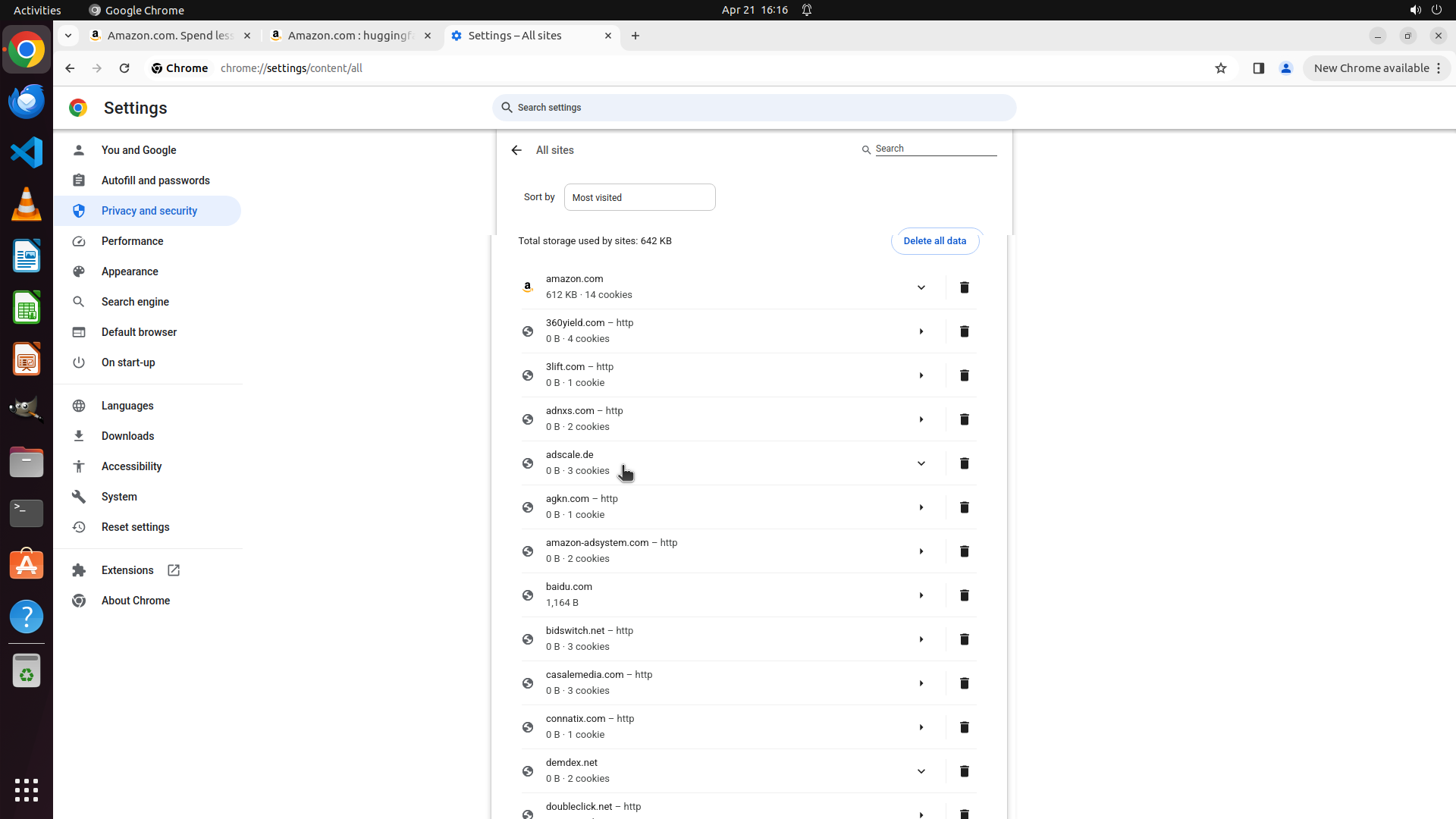
- Chrome Settings > All sites page shows amazon.com with '0 B' storage or amazon.com no longer appears in the site list
- Chrome Settings > All sites page shows no amazon-adsystem.com entries or entries display '0 B' and '0 cookies'
- Firefox's site data management page (about:preferences#privacy > Cookies and Site Data > Manage Data) shows no entries for amazon.com domains
- Chrome's password manager (Settings > Autofill and passwords > Password Manager) shows no saved credentials for amazon.com
- Chrome's browsing history shows no recent Amazon.com entries or history has been cleared for the past period

## 4. 上一次返回的决策

### 4.1. 上一次的观察和思考


### 4.2. 上一次返回的操作
[]

## 5. 屏幕截图
## 5.1 最新屏幕状态(上一次操作后,未压缩)
inline base64 image ~226KB
## 6. 上一次操作的前50步操作简述
暂无历史步骤

</SITUATION>
Response
Reasoning Content
The user wants me to help clean up Amazon tracking data from their computer. Looking at the current screenshot, I can see we're already in Chrome's Settings > All sites page, which is perfect for starting the cleanup process.
From the strategy tree, I can see:
1. Task 1 is about clearing Amazon tracking data from Chrome
- 1.1 Delete amazon.com cookies and site data (612 KB, 14 cookies currently stored)
- 1.2 Delete amazon-adsystem.com cookies (advertising tracking)
- 1.3 Clear browsing history for Amazon-related sites
- 1.4 Check and remove any saved Amazon passwords
Looking at the screenshot, I can see:
- amazon.com is listed with 612 KB and 14 cookies
- amazon-adsystem.com is also listed with 0 B and 2 cookies
The strategy shows that task 1.1 is to delete amazon.com cookies and site data. I can see amazon.com in the list with a trash icon next to it. I should click on that trash icon to delete the amazon.com data.
Let me start by deleting the amazon.com data first, then move on to amazon-adsystem.com.
I need to:
1. Click the trash icon next to amazon.com to delete its cookies and site data
2. Then do the same for amazon-adsystem.com
3. Continue with the other tasks
Let me start with clicking the trash icon for amazon.com.
Content
```
#### 重要信息
当前屏幕显示 Chrome 浏览器的 Settings > All sites 页面,可以看到:
- amazon.com 存储了 612 KB 数据,包含 14 个 cookies
- amazon-adsystem.com 存储了 0 B 数据,包含 2 个 cookies(广告追踪)
- 其他一些网站也有存储数据
这是清理 Amazon 追踪数据的理想起点。
#### 情况分析与思考过程
根据策略树,我需要完成以下主要任务:
1. 清除 Chrome 中的 Amazon 追踪数据(cookies、站点数据、密码、历史记录)
2. 清除 Firefox 中的 Amazon 追踪数据
3. 检查并卸载 Amazon 桌面应用
4. 配置隐私设置防止未来追踪
当前已经在 Chrome 的 All sites 页面,可以直接开始删除 amazon.com 的数据。我可以看到每个网站条目右侧都有一个垃圾桶图标用于删除数据。
接下来的行动计划:
1. 首先删除 amazon.com 的数据(点击其右侧的垃圾桶图标)
2. 然后删除 amazon-adsystem.com 的数据
3. 继续处理其他 Amazon 相关数据
我将从删除 amazon.com 的站点数据开始。
```
Actions
computer: {
"actions": [
{
"action": "left_click",
"at_coordinate": [
0.661,
0.347
]
}
]
}
Token Usage
| Category | Count |
|---|---|
| Prompt (total) | 5078 |
| ↳ text | 3129 |
| ↳ image | 1949 |
| ↳ cached | 1536 |
| Completion (total) | 580 |
| ↳ reasoning | 303 |
| Total | 5658 |
model: kimi-k2.5 finish: tool_calls