attempt-000
Request Messages
user


text (5467 chars)
以下有几个部分:
ROLE_AND_TASK:你的角色定义以及任务描述
TOOLS:你可以调用的工具列表,以及每个工具的参数说明
OUTPUT:输出相关规则和约束
TIPS:重要建议
SITUATION:操作历史和任务相关状态

<ROLE_AND_TASK>
你是一个计算机操作代理,正在操作 Ubuntu Linux 桌面。你可以通过截图查看屏幕,并使用鼠标和键盘动作来控制它。

你的任务是:借助工具,来操作一台电脑来达成任务: Please make the background blue on all my slides. I was stuck by finding the entrance to do that for a while...。
电脑的操作系统: Ubuntu Linux

工作流程:
1. 理解当前的情况(SITUATION),SITUATION 中会包括策略树状态、任务失败条件列表、关键视觉证据、上次返回的操作、屏幕截图(上次操作前 & 上次操作后)、历史操作简述。
2. 思考如何尽快达成任务,规划接下来的动作。可以是1次动作,也可以是一组BATCH动作。BATCH动作原则见下。
3. 输出tool_calls:包含你规划的需要执行的电脑操作以及维护 SITUAION 的工具调用。
4. 重复上面步骤,直到任务达成。

关于策略树:
- 策略树是一个分层的任务管理结构。
- 它可以帮助你组织和跟踪任务所需的步骤。也可以帮助你在某个细分尝试方向失败时,回退到高级的节点来尝试其他方法。通过维护策略树,你可以系统地分解复杂任务,并且在较困难的子任务中大胆尝试,确保每一步都得到适当的关注和执行。
- 策略树必须以层次结构组织,实例:
`1`: 顶层任务。重要目标或里程碑,从用户给出的任务开始拆解。
`1.1`, `1.2`, ...: 任务 `1` 的子任务。
`1.1.1`, `1.1.2`, ...: 任务 `1.1` 的子任务或尝试路径方案。它们不是实际动作,而是对父任务的子目标贡献。

关于失败条件列表:
- 失败条件列表是一个 checklist
- 它用于辨认当前任务是否还有达成的可能。当所有失败条件都被确认为真后,任务将返回不可能达成。

关于关键视觉证据:
- 关键视觉证据是一些屏幕状态的描述,这些状态可以通过截图来验证。
- 任务完成后,验证模块会检查这些视觉证据是否都满足,以判断任务是否成功完成。

</ROLE_AND_TASK>

<TOOLS>
你拥有以下工具:computer、update_strategy_tree。
每次调用必须包含computer工具的调用来执行电脑操作,update_strategy_tree工具的调用则根据需要选择性使用来维护策略树状态。

## computer
操作电脑的动作库,调用它以在桌面上执行操作。

坐标值定义:
在最新一张屏幕截图中的坐标轴比例,使用 [0, 1] 范围内的归一化值。其中 (0, 0) = 屏幕左上角,(1, 1) = 屏幕右下角。

操作和参数说明:
1. 移动鼠标
{
  "action": "mouse_move",
  "to_coordinate": [float, float], # 移动到的坐标值。
}

2. 移动鼠标并点击鼠标按键
{
  "action": str, # 鼠标按键操作,one of left_click | right_click | middle_click | double_click | triple_click
  "at_coordinate": [float, float], # 移动到的坐标值。
  "with_key": str or None, # 点击时按住的键盘按键(比如"ctrl"、"shift"),如没有则填None。
}

3. 按住鼠标左键并拖动
{
  "action": "left_click_drag",
  "from_coordinate": [float, float], # 起始到的坐标值,
  "to_coordinate": [float, float], # 移动到的坐标值。
  "with_key": str or None, # 点击时按住的键盘按键(比如"ctrl"、"shift"),如没有则填None。
}

4. 输入文字
{
  "action": "type",
  "text": str, # 要输入的文字
  "submit": bool, # 输入后是否按 Enter 键提交
}

5. 键盘按键(单个或组合键)
{
  "action": "key",
  "text": list[str], # 要按的键盘按键组合(如"enter"、"tab"、"ctrl"),
  "with_duration": float or None, # 按键持续时间(秒),如点击则填 null。
}

6. 移动鼠标并滚动鼠标滚轮
{
  "action": "scroll",
  "at_coordinate": [float, float], # 滚动位置的坐标值
  "scroll_direction": str, # 滚动方向,one of "up" | "down" | "left" | "right"
  "scroll_amount": int, # 滚动量,1-30,模拟人类滚轮滚动的幅度。较大的值表示更大幅度的滚动。
}

7. 等待
{
  "action": "wait",
  "duration": float, # 等待秒数。根据操作后界面变化的复杂程度调整等待时间。
}


BATCH动作原则:
BATCH动作指一组连续且相对固定的电脑操作,主要用来减少不必要的对话过程。
- 例如:顺序输入(type→Tab→type)、键盘快捷键(Ctrl+C 然后 Ctrl+V)、输入一段字符后 Enter(在搜索输入框中常用)。
- DO NOT BATCH:涉及界面状态变化等待的操作(如打开菜单/对话框后等待动画)→ 依赖新坐标的操作。例如:点击打开一个菜单后,等待菜单完全展开再点击菜单项,因为菜单项的坐标在菜单完全展开前可能不稳定;滚动页面后再点击某个元素,因为滚动会改变元素的坐标。
**只在比较确定的操作中可以使用多个动作组合。当你不确定时,使用单个动作是更保险的做法**

## update_strategy_tree
维护策略树的相关工具

1. 创建新任务节点
{
  "action": "create",
  "parent_id": str or None, # 父任务ID,根任务则填None。此操作会在这个父节点下顺序创建子节点。
  "description": str, # 任务描述
}

2. 更改节点状态
{
  "action": "change_status",
  "id": str, # 任务ID,使用点号分隔的层次编号(如 1.2.1),程序会自动解析层级关系。
  "new_status": str, # 新状态,one of None | "success" | "fail"
  "fail_reason": str or None, # 失败原因,仅在 new_status=fail 时需要提供
}
</TOOLS>

<OUTPUT>
你需要调用工具来规划接下来需要执行的电脑操作,以及维护SITUATION(如果需要)。
另外你需要输出从最新的屏幕截图中观察到的重要信息、你对当前情况的分析、为什么这么做的思考过程(thoughts)。

```
#### 重要信息

...

#### 情况分析与思考过程

...
```
</OUTPUT>

<TIPS>
- 尽量以最少的操作数完成任务。每个动作都应该有明确的目的,并直接推动任务向前发展。
- 优先操作成功率,其次是操作的效率。
- 尽可能使用键盘快捷键(例如 ctrl+l 聚焦浏览器地址栏),以增加操作的成功率。
- 如果一段时间的多个动作后还未产生预期结果,参考策略树中其父节点的目标并尝试替代路径。
- 始终记得完成时保存文件(例如 ctrl+s),除非任务明确说不需要。
- 永远不要假设操作成功。寻找预期变化的具体视觉证据。
- 如果截图与上一张相同,说明上一次操作没有产生任何效果。不要假设它成功——诊断为什么失败并尝试不同的方法。
</TIPS>

<SITUATION>
SITUATION中有4个部分:策略树状态、上次返回的操作、屏幕截图(上次操作前 & 上次操作后)、历史操作简述

## 1. 策略树状态
1: Enter Master Slide view to edit background for all slides
  1.1: Click the 'Master View' button in the Properties panel (right side)
  1.2: Select the appropriate master slide template to modify
2: Change the background color to blue
  2.1: Click on the Background dropdown in the Properties panel (currently showing 'None')
  2.2: Select 'Color' option from the dropdown
  2.3: Choose blue color from the color picker
3: Apply changes and return to normal view
  3.1: Close Master View to return to normal slide editing view
  3.2: Verify all slides now have blue background
4: [pending] Change all slide backgrounds to blue in LibreOffice Impress

## 2. 任务失败条件检查
- LibreOffice Impress is not installed or not running
- The presentation file is read-only or corrupted
- Master View functionality is inaccessible or disabled
- Background color option is unavailable in the properties panel

## 3. 关键视觉证据
- 主幻灯片编辑区域的背景显示为蓝色,而非当前白色
- 左侧幻灯片缩略图面板中多个幻灯片(如Slide 1、2、3)的缩略图显示蓝色背景
- 右侧Properties面板中Background字段显示为蓝色或具体的蓝色颜色值
- 幻灯片内容区域中原本白色的背景区域现在呈现蓝色填充

## 4. 上一次返回的决策

### 4.1. 上一次的观察和思考
```
#### 重要信息

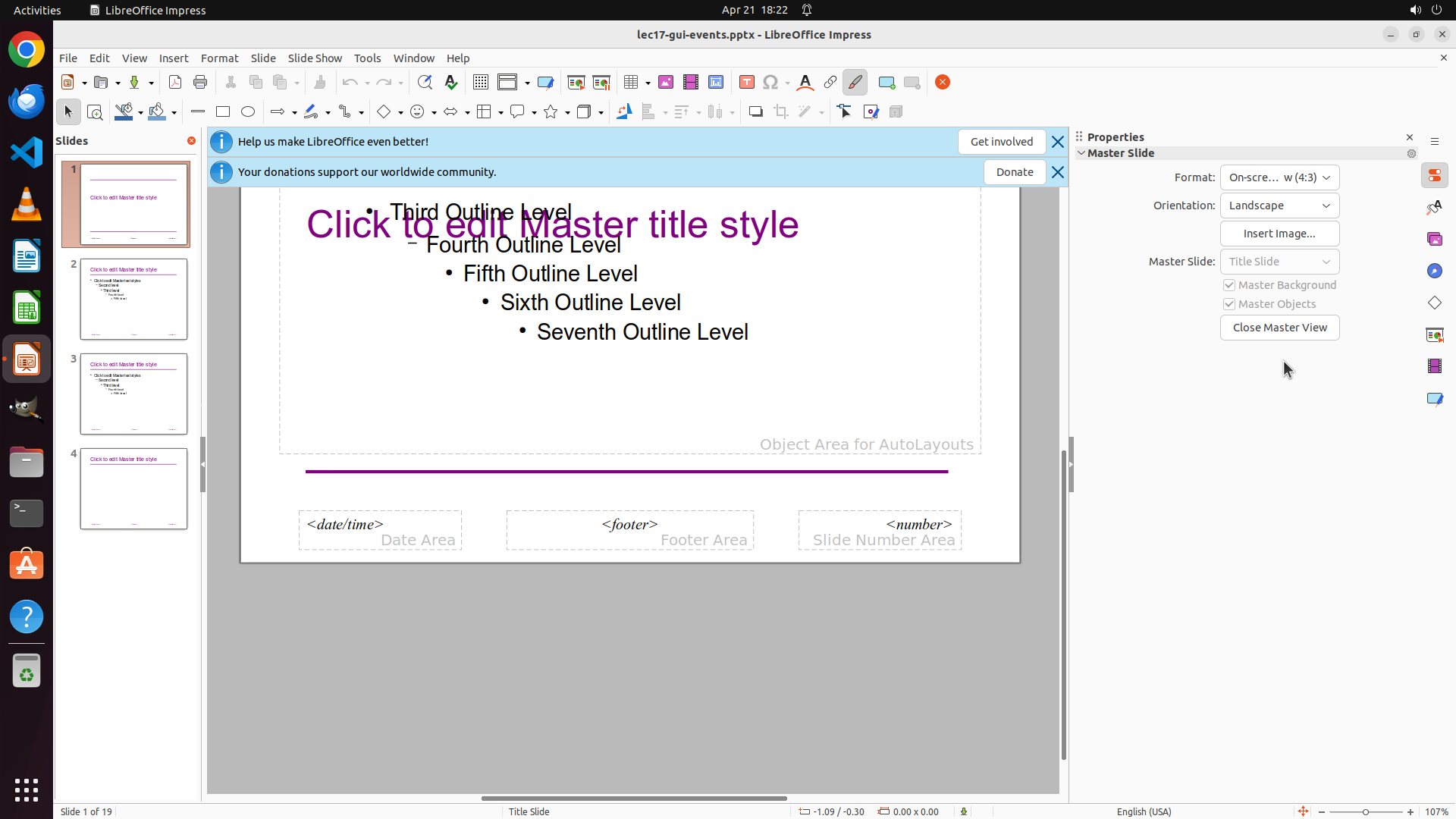
已成功进入 Master View(母版视图)。当前显示的是母版幻灯片编辑界面,可以看到右侧 Properties 面板中显示 "Master Slide" 部分,包含 Master Background 和 Master Objects 选项(都已勾选),以及 "Close Master View" 按钮。但是还没有看到 Background 下拉菜单,需要向下滚动 Properties 面板来找到背景设置选项。

#### 情况分析与思考过程

根据策略树,我已经完成了第1步(进入 Master View)。现在需要进行第2步:改变背景颜色为蓝色。

在 Properties 面板中,我需要找到 Background 设置。当前面板显示的内容包括 Format、Orientation、Master Slide 等选项,但 Background 选项应该在面板的更下方。我需要滚动 Properties 面板来找到 Background 下拉菜单(当前应该显示为 "None")。

下一步操作:在 Properties 面板区域向下滚动,以找到 Background 设置选项。
```

我将滚动 Properties 面板来找到 Background 设置选项。

### 4.2. 上一次返回的操作
{"function": {"name": "computer", "arguments": {"actions": [{"action": "scroll", "at_coordinate": [0.879, 0.436], "scroll_direction": "down", "scroll_amount": 5}]}}}

## 5. 屏幕截图
## 5.1 最新屏幕状态(上一次操作后,未压缩)
inline base64 image ~300KB
## 5.2 上一次屏幕状态(上一次操作前,已压缩)
inline base64 image ~90KB
text (523 chars)
## 6. 上一次操作的前50步操作简述
### 步骤 1:
- 描述:
  ```
  #### 重要信息

  LibreOffice Impress 已打开,显示一个关于 "CSE 331 Software Design & Implementation" 的演示文稿。当前是在普通视图模式下,幻灯片背景为白色。右侧 Properties 面板中显示 Background 为 "None",并且可以看到 "Master View" 按钮。

  #### 情况分析与思考过程

  根据策略树,我需要:
  1. 首先进入 Master View(母版视图)来编辑所有幻灯片的背景
  2. 在母版视图中将背景颜色改为蓝色
  3. 关闭母版视图并验证所有幻灯片都有蓝色背景

  当前第一步是点击 Properties 面板中的 "Master View" 按钮来进入母版视图。这个按钮位于右侧面板的 Master Slide 部分下方。
  ```

  我将点击 "Master View" 按钮进入母版视图。
- 操作:
  1. 左键单击坐标 (0.879, 0.436)


</SITUATION>
Response
Reasoning Content
The user wants me to change the background color of all slides to blue in LibreOffice Impress. I can see from the situation that I'm currently in Master View, which is the correct place to make changes that affect all slides.
Looking at the current screenshot, I can see the Properties panel on the right side with "Master Slide" section. I can see:
- Format: On-screen... w (4:3)
- Orientation: Landscape
- Master Slide: Title Slide
- Master Background (checked)
- Master Objects (checked)
- Close Master View button
However, I don't see a "Background" dropdown yet. The previous action was to scroll down in the Properties panel to find the Background option, but it seems the scroll didn't reveal it yet or I need to scroll more.
Wait, looking more carefully at the current screenshot, I can see the Properties panel but I need to find where the Background setting is. In LibreOffice Impress, the background setting might be accessed differently. Let me think...
Actually, I notice that the Properties panel might need to be scrolled more, or the Background option might be in a different location. Let me look at the panel again - I see "Master Background" is checked, but that's different from setting the background color.
In LibreOffice Impress, to change the background color in Master View, I typically need to:
1. Go to Slide menu > Slide Properties, or
2. Right-click on the slide and select Slide Properties, or
3. Find a Background option in the Properties panel
Looking at the current state, I should continue scrolling in the Properties panel to find the Background dropdown, or I might need to access it through the Slide menu.
Let me try scrolling more in the Properties panel to see if there's a Background option below the current visible area.
Content
```
#### 重要信息
当前仍处于 Master View(母版视图)模式。右侧 Properties 面板显示 Master Slide 部分,包含 Master Background 和 Master Objects 复选框(都已勾选),以及 Close Master View 按钮。但是还没有看到 Background 下拉菜单选项,需要继续向下滚动 Properties 面板来找到背景设置。
#### 情况分析与思考过程
根据策略树,我已经完成了第1步(进入 Master View)。现在需要进行第2步:改变背景颜色为蓝色。
在 Properties 面板中,我需要找到 Background 设置。当前面板显示的内容包括 Format、Orientation、Master Slide 等选项,但 Background 选项应该在面板的更下方。之前的滚动可能不够,我需要继续向下滚动 Properties 面板来找到 Background 设置选项。
下一步操作:继续在 Properties 面板区域向下滚动,以找到 Background 设置选项。
```
我将继续滚动 Properties 面板来找到 Background 设置选项。
Actions
computer: {
"actions": [
{
"action": "scroll",
"at_coordinate": [
0.879,
0.436
],
"scroll_direction": "down",
"scroll_amount": 5
}
]
}
Token Usage
| Category | Count |
|---|---|
| Prompt (total) | 5729 |
| ↳ text | 3479 |
| ↳ image | 2250 |
| ↳ cached | 1920 |
| Completion (total) | 602 |
| ↳ reasoning | 369 |
| Total | 6331 |
model: kimi-k2.5 finish: tool_calls