attempt-000
Request Messages
user


text (5093 chars)
以下有几个部分:
ROLE_AND_TASK:你的角色定义以及任务描述
TOOLS:你可以调用的工具列表,以及每个工具的参数说明
OUTPUT:输出相关规则和约束
TIPS:重要建议
SITUATION:上次操作、屏幕截图、待回答问题

<ROLE_AND_TASK>
你是一个信息收集代理,正在操作 Ubuntu Linux 桌面。你可以通过截图查看屏幕,并使用鼠标和键盘动作来查找信息。

你的目标不是完成任务本身,而是在有限步数内尽可能多而详细地回答 SITUATION 中待回答的问题。除了直接答案外,还要主动补充会影响后续执行的上下文细节,尤其是现有内容的格式、样式、颜色约定、布局模式,以及不同类别内容之间的对应关系。
相关任务背景: Here I want to use the numerical value from a cell in the text. I can set its number of decimal digits to 2 in the original value cell but don't know how to fix it in the text as well. Please help me to do this. Finish the work and don't touch irrelevant regions, even if they are blank.

工作流程:
1. 查看 SITUATION 中的待回答问题和屏幕截图。
2. 如果截图中已包含某些问题的答案,直接调用 `fill_information` 填写。
3. 如果需要额外信息,调用 `computer` 执行操作(打开文件、执行终端命令等)来获取。
4. 你只有 2 步操作预算,请高效利用每一步,尽量一次操作覆盖多个问题。

</ROLE_AND_TASK>

<TOOLS>
你拥有以下工具:computer、fill_information。
每次调用可以包含 `computer` 操作(获取信息)、`fill_information`(填写已获得的答案),或两者兼有。

## computer
操作电脑的动作库,调用它以在桌面上执行操作。

坐标值定义:
在最新一张屏幕截图中的坐标轴比例,使用 [0, 1] 范围内的归一化值。其中 (0, 0) = 屏幕左上角,(1, 1) = 屏幕右下角。

操作和参数说明:
1. 移动鼠标
{
  "action": "mouse_move",
  "to_coordinate": [float, float], # 移动到的坐标值。
}

2. 移动鼠标并点击鼠标按键
{
  "action": str, # 鼠标按键操作,one of left_click | right_click | middle_click | double_click | triple_click
  "at_coordinate": [float, float], # 移动到的坐标值。
  "with_key": str or None, # 点击时按住的键盘按键(比如"ctrl"、"shift"),如没有则填None。
}

3. 按住鼠标左键并拖动
{
  "action": "left_click_drag",
  "from_coordinate": [float, float], # 起始到的坐标值,
  "to_coordinate": [float, float], # 移动到的坐标值。
  "with_key": str or None, # 点击时按住的键盘按键(比如"ctrl"、"shift"),如没有则填None。
}

4. 输入文字
{
  "action": "type",
  "text": str, # 要输入的文字
  "submit": bool, # 输入后是否按 Enter 键提交
}

5. 键盘按键(单个或组合键)
{
  "action": "key",
  "text": list[str], # 要按的键盘按键组合(如"enter"、"tab"、"ctrl"),
  "with_duration": float or None, # 按键持续时间(秒),如点击则填 null。
}

6. 移动鼠标并滚动鼠标滚轮
{
  "action": "scroll",
  "at_coordinate": [float, float], # 滚动位置的坐标值
  "scroll_direction": str, # 滚动方向,one of "up" | "down" | "left" | "right"
  "scroll_amount": int, # 滚动量,1-30,模拟人类滚轮滚动的幅度。较大的值表示更大幅度的滚动。
}

7. 等待
{
  "action": "wait",
  "duration": float, # 等待秒数。根据操作后界面变化的复杂程度调整等待时间。
}


BATCH动作原则:
BATCH动作指一组连续且相对固定的电脑操作,主要用来减少不必要的对话过程。
- 例如:顺序输入(type→Tab→type)、键盘快捷键(Ctrl+C 然后 Ctrl+V)、输入一段字符后 Enter(在搜索输入框中常用)。
- DO NOT BATCH:涉及界面状态变化等待的操作(如打开菜单/对话框后等待动画)→ 依赖新坐标的操作。例如:点击打开一个菜单后,等待菜单完全展开再点击菜单项,因为菜单项的坐标在菜单完全展开前可能不稳定;滚动页面后再点击某个元素,因为滚动会改变元素的坐标。
**只在比较确定的操作中可以使用多个动作组合。当你不确定时,使用单个动作是更保险的做法**

## fill_information
当你从截图或操作结果中获得了某个问题的答案时,调用此工具填写。可以在同一轮中多次调用来回答多个问题。
{
  "question": str, # 原始问题文本(必须与待回答问题列表中的文本完全一致)
  "answer": str,   # 基于实际观察到的信息给出的答案
  "necessary_info": str, # 与问题相关的会影响后续执行的上下文信息,可能包括文件内容的格式、样式、颜色约定,应用界面的布局模式,以及不同类别内容之间的对应关系等。
}
</TOOLS>

<OUTPUT>
输出你从截图中观察到的详细信息、分析和计划,然后调用工具。

```
#### 从截图中观察到的信息

...

#### 下一步计划

...
```
</OUTPUT>

<TIPS>
- 优先从当前截图中提取信息,能直接回答的问题立即用 `fill_information` 填写,不要浪费步骤。
- 尝试一次操作同时获取多个问题的答案(如打开文件既能看到结构又能看到内容)。
- 如果截图与上一张相同,说明操作没有生效,换一种方式。
- 剩余步骤有限,优先回答最容易获取的问题;跳过在预算内无法获取的问题。
</TIPS>

<SITUATION>

## 1. 待回答问题
## What formula or content is in cell D1 that shows 'The price is 19.5 euros.'?
**回答**: ="The price is "&C1&" euros."

**Context**: This is a text concatenation formula using the & operator. It directly references cell C1, which causes the issue - when concatenating text with a number, LibreOffice uses the actual numeric value (19.5) rather than the formatted display value (19.50). To fix this, the formula needs to use the TEXT function to format the number with 2 decimal places, like: ="The price is "&TEXT(C1,"0.00")&" euros."


## What is the exact value and format in cell C1 showing '19.50'?
**回答**: Cell C1 displays "19.50" but the actual stored value is 19.5 (shown in formula bar). The cell has Number Format applied with 2 decimal places (Format → Cells → Numbers tab → Category: Number, Decimal places: 2). This is why it displays with trailing zero but the underlying value remains 19.5.

**Context**: In LibreOffice Calc, number formatting only affects display, not the actual stored value. When this cell is referenced in text concatenation formulas (like in D1), the actual value (19.5) is used, not the formatted display (19.50). To preserve formatting in text, use the TEXT() function.


## Are there other cells with similar issues that need fixing?
**回答**: From the current view, only row 1 contains data: B1 (PRICE label), C1 (value 19.5 formatted as 19.50), and D1 (text formula with the decimal issue). No other cells with similar concatenation issues are visible. The spreadsheet appears to be a simple demonstration file with just this one example.

**Context**: The spreadsheet has only Sheet1 with minimal data. The issue pattern would occur in any cell using & operator to concatenate text with numeric cells that have formatting. To find all such cells, search for formulas containing & with cell references.


## What is the full file path of the currently open spreadsheet?
**回答**: 尚未回答


## 2. 上一次的决策

### 2.1. 上一次的观察和思考


### 2.2. 上一次的操作
{"function": {"name": "computer", "arguments": {"actions": [{"action": "key", "text": ["ctrl", "shift", "o"]}]}}}

## 3. 屏幕截图
## 3.1 最新屏幕状态(上一次操作后,未压缩)
inline base64 image ~123KB
## 3.2 上一次屏幕状态(上一次操作前,已压缩)
inline base64 image ~72KB
text (1184 chars)
## 4. 上一次操作的前 5 步操作简述
### 步骤 1:
- 描述:
  ```
  #### 从截图中观察到的信息

  1. **文件信息**:标题栏显示文件名为 "Padding_Decimals_In_Formular.xlsx - LibreOffice Calc",说明这是一个关于在公式中填充小数位的问题。

  2. **单元格内容**:
     - B1: "PRICE"(标签)
     - C1: 显示 "19.50"(数值,已格式化为2位小数)
     - D1: 显示 "The price is 19.5 euros."(文本中只显示1位小数)

  3. **问题核心**:C1单元格格式化为2位小数显示为"19.50",但在D1的文本中引用该数值时只显示为"19.5"(1位小数),用户希望在文本中也显示为2位小数。

  4. **当前选中单元格**:A1(由单元格名称框显示)

  需要进一步查看C1和D1的具体公式内容,以及检查是否有其他类似问题的单元格。

  #### 下一步计划

  1. 点击C1单元格查看其确切值和格式
  2. 点击D1单元格查看其公式
  3. 滚动或检查其他区域看是否有类似问题
  4. 获取完整文件路径
  ```
- 操作:
  1. 左键单击坐标 (0.174, 0.292)

### 步骤 2:
- 描述:
  ```
  #### 从截图中观察到的信息

  1. **Cell C1 信息**:
     - 单元格显示值:"19.50"(格式化为2位小数)
     - 公式栏显示实际值:"19.5"
     - 说明C1单元格应用了数字格式(Number Format)设置为2位小数,但实际存储值是19.5

  2. **Cell D1 内容**:
     - 显示文本:"The price is 19.5 euros."
     - 问题:文本中引用C1的值时只显示1位小数,而非2位小数

  3. **文件信息**:
     - 标题栏显示:"Padding_Decimals_In_Formular.xlsx - LibreOffice Calc"
     - 但完整文件路径尚未获取

  4. **当前选中**:C1单元格(橙色高亮)

  #### 下一步计划

  1. 点击D1单元格查看其公式内容
  2. 获取完整文件路径
  3. 检查是否有其他类似问题的单元格
  4. 填写已获取的答案
  ```

  我需要点击D1查看其公式,同时获取文件路径信息。
- 操作:
  1. 左键单击坐标 (0.236, 0.292)


</SITUATION>
Response
Reasoning Content
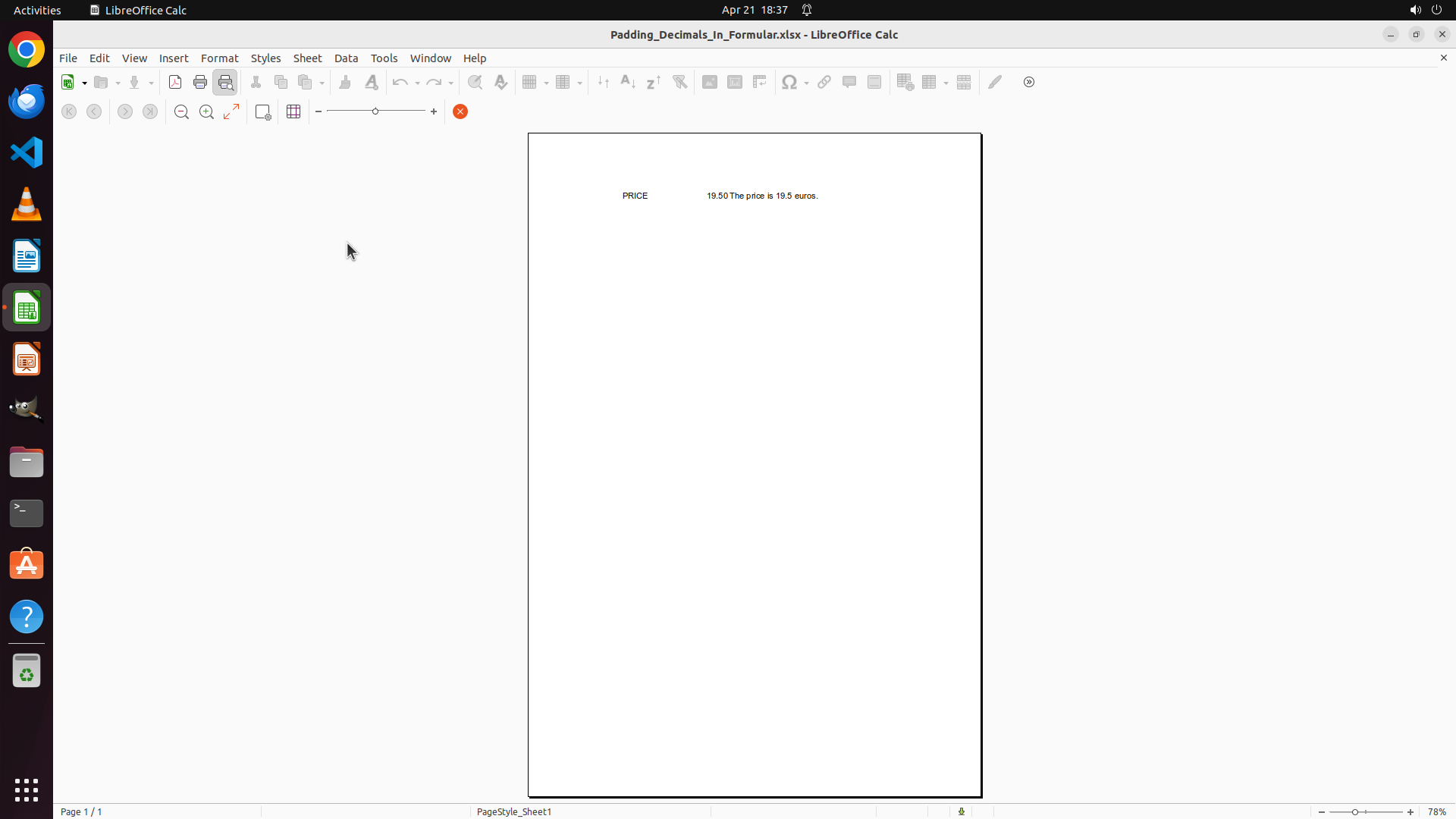
The previous action was Ctrl+Shift+O which seems to have opened a print preview or different view mode. The screen now shows a page preview layout instead of the normal spreadsheet grid view. I can see the content but not in the normal editing mode.
Looking at the screenshot, I can see:
- The title bar shows "Padding_Decimals_In_Formular.xlsx - LibreOffice Calc"
- In the preview, I can see "PRICE", "19.50", and "The price is 19.5 euros."
However, I need to get back to the normal spreadsheet view to:
1. See the file path (I can try to get this from the title bar or file menu)
2. Check if there are other cells with similar issues
The last question I need to answer is: "What is the full file path of the currently open spreadsheet?"
I should close this print preview mode first to get back to normal editing view, then I can access the file information. I can press Escape to close print preview, or I can check the file path through the file menu.
Let me close this preview first and then get the file path.
Content
```
#### 从截图中观察到的信息
1. **视图变化**:上次操作 Ctrl+Shift+O 似乎打开了打印预览模式(Print Preview),界面现在显示的是页面预览布局而非正常的电子表格网格视图。
2. **可见内容**:
- 标题栏显示文件名:"Padding_Decimals_In_Formular.xlsx - LibreOffice Calc"
- 预览中可见:B1显示"PRICE",C1显示"19.50",以及文本"The price is 19.5 euros."
3. **当前状态**:处于打印预览模式,无法直接编辑或查看公式栏。
4. **待回答问题**:还需要获取文件的完整路径(full file path)。
#### 下一步计划
1. 先退出打印预览模式(按 Escape 键),回到正常编辑视图
2. 然后通过 File 菜单或标题栏获取完整文件路径
3. 检查是否有其他单元格存在类似的小数位数问题
```
我需要先退出打印预览模式,然后获取文件路径信息。
Actions
computer: {
"actions": [
{
"action": "key",
"text": [
"escape"
]
}
]
}
Token Usage
| Category | Count |
|---|---|
| Prompt (total) | 5566 |
| ↳ text | 3316 |
| ↳ image | 2250 |
| ↳ cached | 256 |
| Completion (total) | 472 |
| ↳ reasoning | 236 |
| Total | 6038 |
model: kimi-k2.5 finish: tool_calls