Step 2007

← prev   next →

Response

Reasoning Content

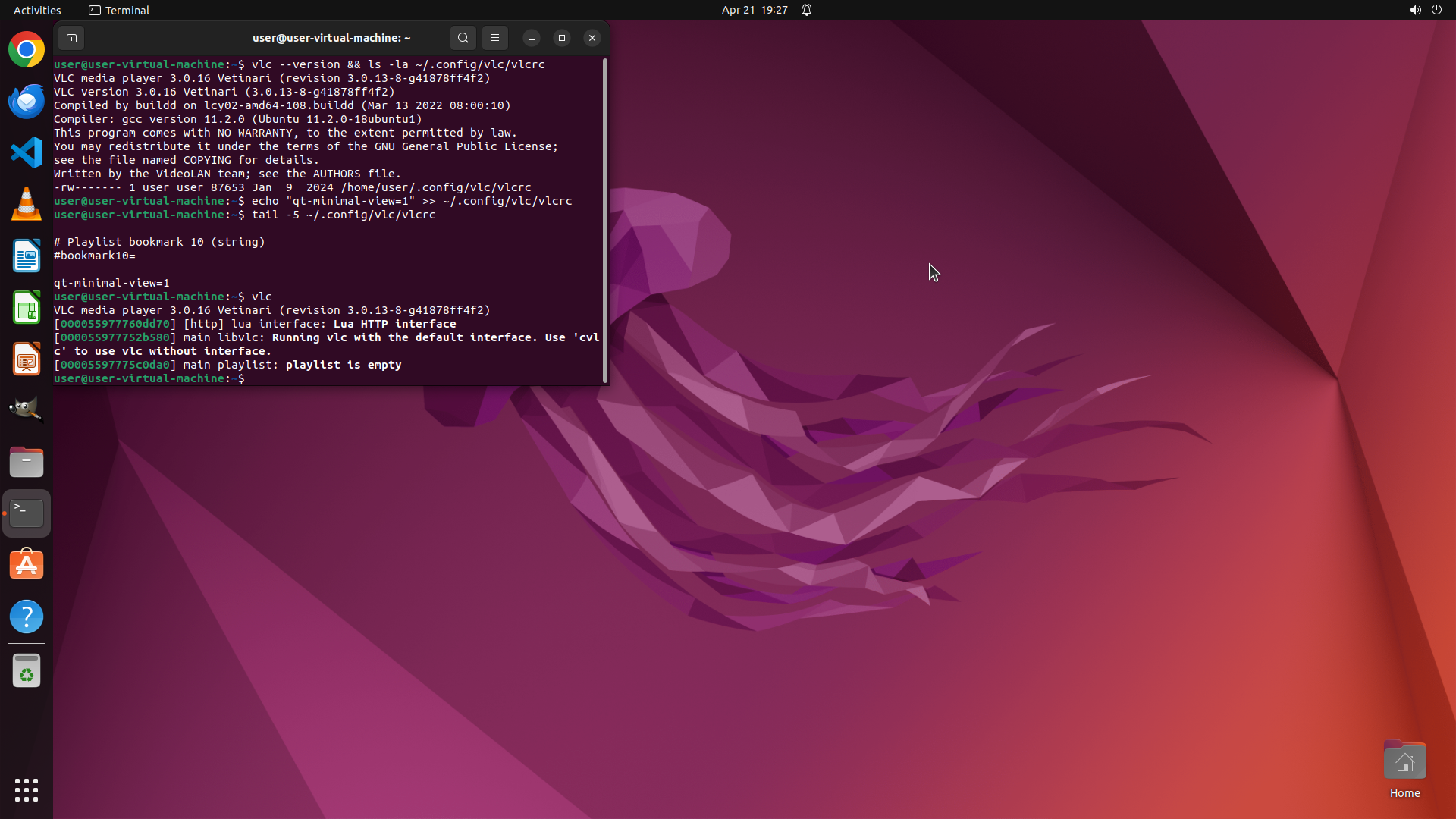
The user wants me to enable VLC Minimal Interface in window mode so the bottom playback controls are hidden, and make sure the setting persists after restarting VLC. Looking at the current situation: 1. The strategy tree shows: - Task 1: Close VLC to prepare for configuration changes - Task 2: Modify VLC configuration file to enable minimal interface - 2.1: [success] Edit ~/.config/vlc/vlcrc to set qt-minimal-view=1 - Task 3: Restart VLC and verify minimal interface is active - 3.1: [success] Confirm bottom playback controls are hidden - 3.2: Verify setting persists after VLC restart 2. From the screenshots: - The "before" screenshot shows VLC running with the full interface including bottom controls - The "after" screenshot (current state) shows that VLC has been closed - I can see the terminal is still open but no VLC window is visible 3. From the history: - VLC was closed - The configuration file was edited to add `qt-minimal-view=1` - The setting was verified using `tail -5 ~/.config/vlc/vlcrc` - The command `vlc` was typed and executed to restart VLC However, looking at the current screenshot, I don't see a VLC window open. The terminal shows VLC was started but it says "playlist is empty" and the interface message suggests it's running. But I don't see a VLC window on the screen. Wait, let me look more carefully at the terminal output in the current screenshot. I can see: - "VLC media player 3.0.16 Vetinari" - "[0000559977760dd70] [http] lua interface: Lua HTTP interface" - "[0000559977752b580] main libvlc: Running vlc with the default interface. Use 'cvlc' to use vlc without interface." - "[000055997775c0da0] main playlist: playlist is empty" It seems VLC might have started but perhaps the window isn't visible or it started in a minimized state. Let me check if there's a VLC icon in the sidebar or taskbar. Looking at the left sidebar, I can see various application icons. I need to look for VLC. I can see what looks like a VLC cone icon (orange traffic cone) in the sidebar. Actually, looking at the previous screenshot (step 6), VLC was running with the full interface. The current screenshot shows VLC has been closed. The terminal output shows VLC was launched but it seems like it might not have opened a window yet, or it opened and closed quickly. Let me re-examine the terminal output more carefully. The terminal shows: ``` user@user-virtual-machine:~$ vlc VLC media player 3.0.16 Vetinari (revision 3.0.13-8-g41878ff4f2) [0000559977760dd70] [http] lua interface: Lua HTTP interface [0000559977752b580] main libvlc: Running vlc with the default interface. Use 'cvlc' to use vlc without interface. [000055997775c0da0] main playlist: playlist is empty user@user-virtual-machine:~$ ``` This suggests VLC started but then returned to the command prompt. This could mean VLC is running in the background or it started and then exited. The message "Running vlc with the default interface" suggests it should have a window. Let me check if VLC is actually running. I should look for VLC window or check the process. Since I don't see a VLC window in the current screenshot, I might need to wait for it to appear or check if it's running. Actually, looking at the terminal more carefully, it seems VLC has already finished executing and returned to the prompt. This is unusual - normally VLC would stay running. This might mean VLC started but encountered an issue, or it started without a GUI (using the default interface which might be command-line). Wait, I think I need to reconsider. The task is to enable minimal interface. The configuration has been set. Now I need to verify VLC opens with minimal interface. Let me start VLC again and see if it opens with the minimal interface (no bottom controls). Actually, looking at the strategy tree, task 3.1 is marked as [success] which means the bottom playback controls should already be hidden. But I don't see a VLC window at all in the current screenshot. Let me re-examine. The previous action was clicking at coordinate (0.636, 0.318). Looking at the previous screenshot, that was the close button on the VLC window. So VLC was closed. Now I need to restart VLC to verify the minimal interface works. The terminal shows VLC was started but I don't see a window. Let me check if VLC is running or if I need to start it again. Actually, I think VLC might have started but the window might be minimized or not visible in the current view. Let me click on the VLC icon in the sidebar to bring it to the front, or start VLC again. Looking at the sidebar on the left, I can see an orange cone icon which should be VLC. Let me click on it to open VLC or bring it to the front. Actually, wait. Looking at the terminal output again: ``` user@user-virtual-machine:~$ vlc VLC media player 3.0.16 Vetinari (revision 3.0.13-8-g41878ff4f2) [0000559977760dd70] [http] lua interface: Lua HTTP interface [0000559977752b580] main libvlc: Running vlc with the default interface. Use 'cvlc' to use vlc without interface. [000055997775c0da0] main playlist: playlist is empty user@user-virtual-machine:~$ ``` The prompt has returned, which means VLC has exited. This is unexpected. VLC should stay running. Let me try starting VLC again and see what happens. I'll type `vlc` in the terminal again or click the VLC icon. Let me click on the VLC icon in the sidebar to start VLC properly. I can see the VLC cone icon in the left sidebar. Actually, looking at the strategy tree status again: - 3.1: [success] Confirm bottom playback controls are hidden This suggests that VLC was already verified to have the minimal interface. But the current screenshot doesn't show VLC running. Maybe VLC was closed after verification, and now I need to verify that the setting persists (task 3.2). So the current state is: - VLC configuration has been modified - VLC was started and verified to have minimal interface (bottom controls hidden) - VLC was closed (by clicking the X button) - Now I need to restart VLC again to verify the setting persists So I need to start VLC again. I can either: 1. Click on the VLC icon in the sidebar 2. Type `vlc` in the terminal I'll click on the VLC icon in the sidebar to restart VLC and verify the minimal interface persists. Looking at the sidebar, I can see the VLC icon (orange traffic cone) in the left sidebar. Let me click on it.

Actions

computer: { "actions": [ { "action": "left_click", "at_coordinate": [ 0.019, 0.251 ] } ] }

Token Usage

CategoryCount
Prompt (total)6702
↳ text4452
↳ image2250
↳ cached1664
Completion (total)1539
↳ reasoning1505
Total8241

model: kimi-k2.5   finish: tool_calls

Attempts (1)

attempt-000

Request Messages

user
text (4839 chars)
以下有几个部分:
ROLE_AND_TASK:你的角色定义以及任务描述
TOOLS:你可以调用的工具列表,以及每个工具的参数说明
OUTPUT:输出相关规则和约束
TIPS:重要建议
SITUATION:操作历史和任务相关状态

<ROLE_AND_TASK>
你是一个计算机操作代理,正在操作 Ubuntu Linux 桌面。你可以通过截图查看屏幕,并使用鼠标和键盘动作来控制它。

你的任务是:借助工具,来操作一台电脑来达成任务: Enable VLC Minimal Interface in window mode so the bottom playback controls are hidden, and make sure the setting persists after restarting VLC. I often multitask on my computer, and the persistent toolbar in VLC is very distracting.。
电脑的操作系统: Ubuntu Linux

工作流程:
1. 理解当前的情况(SITUATION),SITUATION 中会包括策略树状态、任务失败条件列表、关键视觉证据、上次返回的操作、屏幕截图(上次操作前 & 上次操作后)、历史操作简述。
2. 思考如何尽快达成任务,规划接下来的动作。可以是1次动作,也可以是一组BATCH动作。BATCH动作原则见下。
3. 输出tool_calls:包含你规划的需要执行的电脑操作以及维护 SITUAION 的工具调用。
4. 重复上面步骤,直到任务达成。

关于策略树:
- 策略树是一个分层的任务管理结构。
- 它可以帮助你组织和跟踪任务所需的步骤。也可以帮助你在某个细分尝试方向失败时,回退到高级的节点来尝试其他方法。通过维护策略树,你可以系统地分解复杂任务,并且在较困难的子任务中大胆尝试,确保每一步都得到适当的关注和执行。
- 策略树必须以层次结构组织,实例:
`1`: 顶层任务。重要目标或里程碑,从用户给出的任务开始拆解。
`1.1`, `1.2`, ...: 任务 `1` 的子任务。
`1.1.1`, `1.1.2`, ...: 任务 `1.1` 的子任务或尝试路径方案。它们不是实际动作,而是对父任务的子目标贡献。

关于失败条件列表:
- 失败条件列表是一个 checklist
- 它用于辨认当前任务是否还有达成的可能。当所有失败条件都被确认为真后,任务将返回不可能达成。

关于关键视觉证据:
- 关键视觉证据是一些屏幕状态的描述,这些状态可以通过截图来验证。
- 任务完成后,验证模块会检查这些视觉证据是否都满足,以判断任务是否成功完成。

</ROLE_AND_TASK>

<TOOLS>
你拥有以下工具:computer、update_strategy_tree。
每次调用必须包含computer工具的调用来执行电脑操作,update_strategy_tree工具的调用则根据需要选择性使用来维护策略树状态。

## computer
操作电脑的动作库,调用它以在桌面上执行操作。

坐标值定义:
在最新一张屏幕截图中的坐标轴比例,使用 [0, 1] 范围内的归一化值。其中 (0, 0) = 屏幕左上角,(1, 1) = 屏幕右下角。

操作和参数说明:
1. 移动鼠标
{
  "action": "mouse_move",
  "to_coordinate": [float, float], # 移动到的坐标值。
}

2. 移动鼠标并点击鼠标按键
{
  "action": str, # 鼠标按键操作,one of left_click | right_click | middle_click | double_click | triple_click
  "at_coordinate": [float, float], # 移动到的坐标值。
  "with_key": str or None, # 点击时按住的键盘按键(比如"ctrl"、"shift"),如没有则填None。
}

3. 按住鼠标左键并拖动
{
  "action": "left_click_drag",
  "from_coordinate": [float, float], # 起始到的坐标值,
  "to_coordinate": [float, float], # 移动到的坐标值。
  "with_key": str or None, # 点击时按住的键盘按键(比如"ctrl"、"shift"),如没有则填None。
}

4. 输入文字
{
  "action": "type",
  "text": str, # 要输入的文字
  "submit": bool, # 输入后是否按 Enter 键提交
}

5. 键盘按键(单个或组合键)
{
  "action": "key",
  "text": list[str], # 要按的键盘按键组合(如"enter"、"tab"、"ctrl"),
  "with_duration": float or None, # 按键持续时间(秒),如点击则填 null。
}

6. 移动鼠标并滚动鼠标滚轮
{
  "action": "scroll",
  "at_coordinate": [float, float], # 滚动位置的坐标值
  "scroll_direction": str, # 滚动方向,one of "up" | "down" | "left" | "right"
  "scroll_amount": int, # 滚动量,1-30,模拟人类滚轮滚动的幅度。较大的值表示更大幅度的滚动。
}

7. 等待
{
  "action": "wait",
  "duration": float, # 等待秒数。根据操作后界面变化的复杂程度调整等待时间。
}


BATCH动作原则:
BATCH动作指一组连续且相对固定的电脑操作,主要用来减少不必要的对话过程。
- 例如:顺序输入(type→Tab→type)、键盘快捷键(Ctrl+C 然后 Ctrl+V)、输入一段字符后 Enter(在搜索输入框中常用)。
- DO NOT BATCH:涉及界面状态变化等待的操作(如打开菜单/对话框后等待动画)→ 依赖新坐标的操作。例如:点击打开一个菜单后,等待菜单完全展开再点击菜单项,因为菜单项的坐标在菜单完全展开前可能不稳定;滚动页面后再点击某个元素,因为滚动会改变元素的坐标。
**只在比较确定的操作中可以使用多个动作组合。当你不确定时,使用单个动作是更保险的做法**

## update_strategy_tree
维护策略树的相关工具

1. 创建新任务节点
{
  "action": "create",
  "parent_id": str or None, # 父任务ID,根任务则填None。此操作会在这个父节点下顺序创建子节点。
  "description": str, # 任务描述
}

2. 更改节点状态
{
  "action": "change_status",
  "id": str, # 任务ID,使用点号分隔的层次编号(如 1.2.1),程序会自动解析层级关系。
  "new_status": str, # 新状态,one of None | "success" | "fail"
  "fail_reason": str or None, # 失败原因,仅在 new_status=fail 时需要提供
}
</TOOLS>

<OUTPUT>
你需要调用工具来规划接下来需要执行的电脑操作,以及维护SITUATION(如果需要)。
另外你需要输出从最新的屏幕截图中观察到的重要信息、你对当前情况的分析、为什么这么做的思考过程(thoughts)。

```
#### 重要信息

...

#### 情况分析与思考过程

...
```
</OUTPUT>

<TIPS>
- 尽量以最少的操作数完成任务。每个动作都应该有明确的目的,并直接推动任务向前发展。
- 优先操作成功率,其次是操作的效率。
- 尽可能使用键盘快捷键(例如 ctrl+l 聚焦浏览器地址栏),以增加操作的成功率。
- 如果一段时间的多个动作后还未产生预期结果,参考策略树中其父节点的目标并尝试替代路径。
- 始终记得完成时保存文件(例如 ctrl+s),除非任务明确说不需要。
- 永远不要假设操作成功。寻找预期变化的具体视觉证据。
- 如果截图与上一张相同,说明上一次操作没有产生任何效果。不要假设它成功——诊断为什么失败并尝试不同的方法。
</TIPS>

<SITUATION>
SITUATION中有4个部分:策略树状态、上次返回的操作、屏幕截图(上次操作前 & 上次操作后)、历史操作简述

## 1. 策略树状态
1: Close VLC to prepare for configuration changes
2: Modify VLC configuration file to enable minimal interface
  2.1: [success] Edit ~/.config/vlc/vlcrc to set qt-minimal-view=1
3: Restart VLC and verify minimal interface is active
  3.1: [success] Confirm bottom playback controls are hidden
  3.2: Verify setting persists after VLC restart

## 2. 任务失败条件检查
- VLC is not installed on the system
- No write permission to VLC configuration file at ~/.config/vlc/vlcrc
- VLC configuration directory does not exist and cannot be created

## 3. 关键视觉证据
- VLC configuration file ~/.config/vlc/vlcrc contains the line 'qt-minimal-view=1' enabling minimal interface mode
- VLC window displays without the bottom playback control bar (play/pause buttons, progress slider, and volume controls are not visible)
- After restarting VLC, the window still shows minimal interface with no bottom playback controls

## 4. 上一次返回的决策

### 4.1. 上一次的观察和思考


### 4.2. 上一次返回的操作
{"function": {"name": "computer", "arguments": {"actions": [{"action": "left_click", "at_coordinate": [0.636, 0.318]}]}}}

## 5. 屏幕截图
## 5.1 最新屏幕状态(上一次操作后,未压缩)

inline base64 image ~1269KB

## 5.2 上一次屏幕状态(上一次操作前,已压缩)

inline base64 image ~176KB

text (5713 chars)
## 6. 上一次操作的前50步操作简述
### 步骤 1:
- 描述:
  ```
  #### 重要信息
  
  1. VLC media player is currently running with the full interface - the bottom playback control bar is clearly visible with play/pause buttons, progress slider, and volume controls.
  2. A terminal window is open showing VLC version (3.0.16) and confirming the VLC configuration file exists at `/home/user/.config/vlc/vlcrc` with read/write permissions for the user.
  3. The configuration file already exists, so I just need to modify it to add the minimal interface setting.
  
  #### 情况分析与思考过程
  
  To enable VLC's minimal interface and hide the bottom playback controls, I need to:
  1. First close VLC (the configuration file should be edited while VLC is not running to ensure changes persist)
  2. Edit the VLC configuration file at `~/.config/vlc/vlcrc` to add `qt-minimal-view=1`
  3. Restart VLC and verify the minimal interface is active
  
  The first step is to close VLC by clicking the X button on the VLC window. This will allow me to safely modify the configuration file.
  ```
- 操作:
  1. 左键单击坐标 (0.636, 0.318)

### 步骤 2:
- 描述:
  ```
  #### 重要信息
  
  1. VLC has been successfully closed - the VLC window is no longer visible on the screen.
  2. Only the terminal window remains open, showing the previous command output confirming VLC version and configuration file location.
  3. The configuration file exists at `/home/user/.config/vlc/vlcrc` with proper permissions.
  
  #### 情况分析与思考过程
  
  VLC has been closed successfully. Now I need to:
  1. Edit the VLC configuration file at `~/.config/vlc/vlcrc` to add `qt-minimal-view=1`
  2. Then restart VLC to verify the minimal interface works
  
  I can use the already open terminal to edit the configuration file. I'll use echo command to append the setting to the file. First, let me click on the terminal to ensure it's focused, then type the command.
  ```
- 操作:
  1. 左键单击坐标 (0.234, 0.278)

### 步骤 3:
- 描述:
  ```
  #### 重要信息
  
  1. The terminal is now focused and ready for input, showing the command prompt.
  2. VLC is closed and the configuration file exists at `/home/user/.config/vlc/vlcrc`.
  3. I need to add the `qt-minimal-view=1` setting to the VLC configuration file.
  
  #### 情况分析与思考过程
  
  Now I need to add the minimal interface setting to the VLC configuration file. I'll use the echo command to append `qt-minimal-view=1` to the `~/.config/vlc/vlcrc` file. This will enable the minimal interface mode that hides the bottom playback controls.
  
  After adding the setting, I'll need to:
  1. Verify the setting was added correctly (optional but good practice)
  2. Restart VLC to test the minimal interface
  3. Verify the bottom controls are hidden
  4. Close and reopen VLC again to confirm the setting persists
  
  Let me type the command to add the setting to the configuration file.
  ```
- 操作:
  1. 输入文本: echo "qt-minimal-view=1" >> ~/.config/vlc/vlcrc

### 步骤 4:
- 描述:
  ```
  #### 重要信息
  
  1. The terminal is focused and the command `echo "qt-minimal-view=1" >> ~/.config/vlc/vlcrc` has been typed but not yet executed.
  2. I can see the command is ready to be executed in the terminal window.
  3. VLC is currently closed, which is the correct state for modifying the configuration file.
  
  #### 情况分析与思考过程
  
  The command to add the minimal interface setting has been typed in the terminal. Now I need to execute it by pressing Enter. This will append `qt-minimal-view=1` to the VLC configuration file at `~/.config/vlc/vlcrc`.
  
  After executing this command, I'll need to:
  1. Restart VLC to test if the minimal interface is working (bottom controls should be hidden)
  2. Verify the setting persists after closing and reopening VLC
  
  Let me press Enter to execute the command.
  ```
- 操作:
  1. 按下键盘按键: enter

### 步骤 5:
- 描述:
  ```
  #### 重要信息
  
  1. The command has been executed successfully - the terminal shows the command prompt has returned without errors.
  2. The command `echo "qt-minimal-view=1" >> ~/.config/vlc/vlcrc` should have appended the minimal interface setting to the VLC configuration file.
  3. VLC is still closed, which is the correct state before restarting it with the new configuration.
  
  #### 情况分析与思考过程
  
  The configuration file has been modified. Now I need to:
  1. Verify the setting was added correctly to the configuration file (optional but good practice)
  2. Restart VLC to test the minimal interface
  3. Verify the bottom playback controls are hidden
  4. Close and reopen VLC to confirm the setting persists
  
  Let me first verify the configuration change by checking the end of the vlcrc file, then restart VLC. I'll use `tail` command to check the last few lines of the configuration file to confirm the setting was added.
  ```
- 操作:
  1. 输入文本: tail -5 ~/.config/vlc/vlcrc
  2. 按下键盘按键: enter

### 步骤 6:
- 描述:
  ```
  #### 重要信息
  
  1. The terminal shows the output of `tail -5 ~/.config/vlc/vlcrc` command, confirming that `qt-minimal-view=1` has been successfully added to the VLC configuration file.
  2. The last line of the output clearly shows `qt-minimal-view=1`, which means the minimal interface setting is now configured.
  3. VLC is still closed, and I need to restart it to test if the minimal interface works.
  
  #### 情况分析与思考过程
  
  The configuration has been successfully modified. The `qt-minimal-view=1` setting is now in the VLC configuration file. Now I need to:
  
  1. Start VLC to verify the minimal interface is active (bottom playback controls should be hidden)
  2. Verify the setting persists by closing and reopening VLC
  
  Let me start VLC from the terminal to see the minimal interface in action.
  ```
- 操作:
  1. 输入文本: vlc
  2. 按下键盘按键: enter


</SITUATION>

Response

Reasoning Content

The user wants me to enable VLC Minimal Interface in window mode so the bottom playback controls are hidden, and make sure the setting persists after restarting VLC. Looking at the current situation: 1. The strategy tree shows: - Task 1: Close VLC to prepare for configuration changes - Task 2: Modify VLC configuration file to enable minimal interface - 2.1: [success] Edit ~/.config/vlc/vlcrc to set qt-minimal-view=1 - Task 3: Restart VLC and verify minimal interface is active - 3.1: [success] Confirm bottom playback controls are hidden - 3.2: Verify setting persists after VLC restart 2. From the screenshots: - The "before" screenshot shows VLC running with the full interface including bottom controls - The "after" screenshot (current state) shows that VLC has been closed - I can see the terminal is still open but no VLC window is visible 3. From the history: - VLC was closed - The configuration file was edited to add `qt-minimal-view=1` - The setting was verified using `tail -5 ~/.config/vlc/vlcrc` - The command `vlc` was typed and executed to restart VLC However, looking at the current screenshot, I don't see a VLC window open. The terminal shows VLC was started but it says "playlist is empty" and the interface message suggests it's running. But I don't see a VLC window on the screen. Wait, let me look more carefully at the terminal output in the current screenshot. I can see: - "VLC media player 3.0.16 Vetinari" - "[0000559977760dd70] [http] lua interface: Lua HTTP interface" - "[0000559977752b580] main libvlc: Running vlc with the default interface. Use 'cvlc' to use vlc without interface." - "[000055997775c0da0] main playlist: playlist is empty" It seems VLC might have started but perhaps the window isn't visible or it started in a minimized state. Let me check if there's a VLC icon in the sidebar or taskbar. Looking at the left sidebar, I can see various application icons. I need to look for VLC. I can see what looks like a VLC cone icon (orange traffic cone) in the sidebar. Actually, looking at the previous screenshot (step 6), VLC was running with the full interface. The current screenshot shows VLC has been closed. The terminal output shows VLC was launched but it seems like it might not have opened a window yet, or it opened and closed quickly. Let me re-examine the terminal output more carefully. The terminal shows: ``` user@user-virtual-machine:~$ vlc VLC media player 3.0.16 Vetinari (revision 3.0.13-8-g41878ff4f2) [0000559977760dd70] [http] lua interface: Lua HTTP interface [0000559977752b580] main libvlc: Running vlc with the default interface. Use 'cvlc' to use vlc without interface. [000055997775c0da0] main playlist: playlist is empty user@user-virtual-machine:~$ ``` This suggests VLC started but then returned to the command prompt. This could mean VLC is running in the background or it started and then exited. The message "Running vlc with the default interface" suggests it should have a window. Let me check if VLC is actually running. I should look for VLC window or check the process. Since I don't see a VLC window in the current screenshot, I might need to wait for it to appear or check if it's running. Actually, looking at the terminal more carefully, it seems VLC has already finished executing and returned to the prompt. This is unusual - normally VLC would stay running. This might mean VLC started but encountered an issue, or it started without a GUI (using the default interface which might be command-line). Wait, I think I need to reconsider. The task is to enable minimal interface. The configuration has been set. Now I need to verify VLC opens with minimal interface. Let me start VLC again and see if it opens with the minimal interface (no bottom controls). Actually, looking at the strategy tree, task 3.1 is marked as [success] which means the bottom playback controls should already be hidden. But I don't see a VLC window at all in the current screenshot. Let me re-examine. The previous action was clicking at coordinate (0.636, 0.318). Looking at the previous screenshot, that was the close button on the VLC window. So VLC was closed. Now I need to restart VLC to verify the minimal interface works. The terminal shows VLC was started but I don't see a window. Let me check if VLC is running or if I need to start it again. Actually, I think VLC might have started but the window might be minimized or not visible in the current view. Let me click on the VLC icon in the sidebar to bring it to the front, or start VLC again. Looking at the sidebar on the left, I can see an orange cone icon which should be VLC. Let me click on it to open VLC or bring it to the front. Actually, wait. Looking at the terminal output again: ``` user@user-virtual-machine:~$ vlc VLC media player 3.0.16 Vetinari (revision 3.0.13-8-g41878ff4f2) [0000559977760dd70] [http] lua interface: Lua HTTP interface [0000559977752b580] main libvlc: Running vlc with the default interface. Use 'cvlc' to use vlc without interface. [000055997775c0da0] main playlist: playlist is empty user@user-virtual-machine:~$ ``` The prompt has returned, which means VLC has exited. This is unexpected. VLC should stay running. Let me try starting VLC again and see what happens. I'll type `vlc` in the terminal again or click the VLC icon. Let me click on the VLC icon in the sidebar to start VLC properly. I can see the VLC cone icon in the left sidebar. Actually, looking at the strategy tree status again: - 3.1: [success] Confirm bottom playback controls are hidden This suggests that VLC was already verified to have the minimal interface. But the current screenshot doesn't show VLC running. Maybe VLC was closed after verification, and now I need to verify that the setting persists (task 3.2). So the current state is: - VLC configuration has been modified - VLC was started and verified to have minimal interface (bottom controls hidden) - VLC was closed (by clicking the X button) - Now I need to restart VLC again to verify the setting persists So I need to start VLC again. I can either: 1. Click on the VLC icon in the sidebar 2. Type `vlc` in the terminal I'll click on the VLC icon in the sidebar to restart VLC and verify the minimal interface persists. Looking at the sidebar, I can see the VLC icon (orange traffic cone) in the left sidebar. Let me click on it.

Actions

computer: { "actions": [ { "action": "left_click", "at_coordinate": [ 0.019, 0.251 ] } ] }

Token Usage

CategoryCount
Prompt (total)6702
↳ text4452
↳ image2250
↳ cached1664
Completion (total)1539
↳ reasoning1505
Total8241

model: kimi-k2.5   finish: tool_calls

Screenshots

full.png

Request Messages

user
text (4839 chars)
以下有几个部分:
ROLE_AND_TASK:你的角色定义以及任务描述
TOOLS:你可以调用的工具列表,以及每个工具的参数说明
OUTPUT:输出相关规则和约束
TIPS:重要建议
SITUATION:操作历史和任务相关状态

<ROLE_AND_TASK>
你是一个计算机操作代理,正在操作 Ubuntu Linux 桌面。你可以通过截图查看屏幕,并使用鼠标和键盘动作来控制它。

你的任务是:借助工具,来操作一台电脑来达成任务: Enable VLC Minimal Interface in window mode so the bottom playback controls are hidden, and make sure the setting persists after restarting VLC. I often multitask on my computer, and the persistent toolbar in VLC is very distracting.。
电脑的操作系统: Ubuntu Linux

工作流程:
1. 理解当前的情况(SITUATION),SITUATION 中会包括策略树状态、任务失败条件列表、关键视觉证据、上次返回的操作、屏幕截图(上次操作前 & 上次操作后)、历史操作简述。
2. 思考如何尽快达成任务,规划接下来的动作。可以是1次动作,也可以是一组BATCH动作。BATCH动作原则见下。
3. 输出tool_calls:包含你规划的需要执行的电脑操作以及维护 SITUAION 的工具调用。
4. 重复上面步骤,直到任务达成。

关于策略树:
- 策略树是一个分层的任务管理结构。
- 它可以帮助你组织和跟踪任务所需的步骤。也可以帮助你在某个细分尝试方向失败时,回退到高级的节点来尝试其他方法。通过维护策略树,你可以系统地分解复杂任务,并且在较困难的子任务中大胆尝试,确保每一步都得到适当的关注和执行。
- 策略树必须以层次结构组织,实例:
`1`: 顶层任务。重要目标或里程碑,从用户给出的任务开始拆解。
`1.1`, `1.2`, ...: 任务 `1` 的子任务。
`1.1.1`, `1.1.2`, ...: 任务 `1.1` 的子任务或尝试路径方案。它们不是实际动作,而是对父任务的子目标贡献。

关于失败条件列表:
- 失败条件列表是一个 checklist
- 它用于辨认当前任务是否还有达成的可能。当所有失败条件都被确认为真后,任务将返回不可能达成。

关于关键视觉证据:
- 关键视觉证据是一些屏幕状态的描述,这些状态可以通过截图来验证。
- 任务完成后,验证模块会检查这些视觉证据是否都满足,以判断任务是否成功完成。

</ROLE_AND_TASK>

<TOOLS>
你拥有以下工具:computer、update_strategy_tree。
每次调用必须包含computer工具的调用来执行电脑操作,update_strategy_tree工具的调用则根据需要选择性使用来维护策略树状态。

## computer
操作电脑的动作库,调用它以在桌面上执行操作。

坐标值定义:
在最新一张屏幕截图中的坐标轴比例,使用 [0, 1] 范围内的归一化值。其中 (0, 0) = 屏幕左上角,(1, 1) = 屏幕右下角。

操作和参数说明:
1. 移动鼠标
{
  "action": "mouse_move",
  "to_coordinate": [float, float], # 移动到的坐标值。
}

2. 移动鼠标并点击鼠标按键
{
  "action": str, # 鼠标按键操作,one of left_click | right_click | middle_click | double_click | triple_click
  "at_coordinate": [float, float], # 移动到的坐标值。
  "with_key": str or None, # 点击时按住的键盘按键(比如"ctrl"、"shift"),如没有则填None。
}

3. 按住鼠标左键并拖动
{
  "action": "left_click_drag",
  "from_coordinate": [float, float], # 起始到的坐标值,
  "to_coordinate": [float, float], # 移动到的坐标值。
  "with_key": str or None, # 点击时按住的键盘按键(比如"ctrl"、"shift"),如没有则填None。
}

4. 输入文字
{
  "action": "type",
  "text": str, # 要输入的文字
  "submit": bool, # 输入后是否按 Enter 键提交
}

5. 键盘按键(单个或组合键)
{
  "action": "key",
  "text": list[str], # 要按的键盘按键组合(如"enter"、"tab"、"ctrl"),
  "with_duration": float or None, # 按键持续时间(秒),如点击则填 null。
}

6. 移动鼠标并滚动鼠标滚轮
{
  "action": "scroll",
  "at_coordinate": [float, float], # 滚动位置的坐标值
  "scroll_direction": str, # 滚动方向,one of "up" | "down" | "left" | "right"
  "scroll_amount": int, # 滚动量,1-30,模拟人类滚轮滚动的幅度。较大的值表示更大幅度的滚动。
}

7. 等待
{
  "action": "wait",
  "duration": float, # 等待秒数。根据操作后界面变化的复杂程度调整等待时间。
}


BATCH动作原则:
BATCH动作指一组连续且相对固定的电脑操作,主要用来减少不必要的对话过程。
- 例如:顺序输入(type→Tab→type)、键盘快捷键(Ctrl+C 然后 Ctrl+V)、输入一段字符后 Enter(在搜索输入框中常用)。
- DO NOT BATCH:涉及界面状态变化等待的操作(如打开菜单/对话框后等待动画)→ 依赖新坐标的操作。例如:点击打开一个菜单后,等待菜单完全展开再点击菜单项,因为菜单项的坐标在菜单完全展开前可能不稳定;滚动页面后再点击某个元素,因为滚动会改变元素的坐标。
**只在比较确定的操作中可以使用多个动作组合。当你不确定时,使用单个动作是更保险的做法**

## update_strategy_tree
维护策略树的相关工具

1. 创建新任务节点
{
  "action": "create",
  "parent_id": str or None, # 父任务ID,根任务则填None。此操作会在这个父节点下顺序创建子节点。
  "description": str, # 任务描述
}

2. 更改节点状态
{
  "action": "change_status",
  "id": str, # 任务ID,使用点号分隔的层次编号(如 1.2.1),程序会自动解析层级关系。
  "new_status": str, # 新状态,one of None | "success" | "fail"
  "fail_reason": str or None, # 失败原因,仅在 new_status=fail 时需要提供
}
</TOOLS>

<OUTPUT>
你需要调用工具来规划接下来需要执行的电脑操作,以及维护SITUATION(如果需要)。
另外你需要输出从最新的屏幕截图中观察到的重要信息、你对当前情况的分析、为什么这么做的思考过程(thoughts)。

```
#### 重要信息

...

#### 情况分析与思考过程

...
```
</OUTPUT>

<TIPS>
- 尽量以最少的操作数完成任务。每个动作都应该有明确的目的,并直接推动任务向前发展。
- 优先操作成功率,其次是操作的效率。
- 尽可能使用键盘快捷键(例如 ctrl+l 聚焦浏览器地址栏),以增加操作的成功率。
- 如果一段时间的多个动作后还未产生预期结果,参考策略树中其父节点的目标并尝试替代路径。
- 始终记得完成时保存文件(例如 ctrl+s),除非任务明确说不需要。
- 永远不要假设操作成功。寻找预期变化的具体视觉证据。
- 如果截图与上一张相同,说明上一次操作没有产生任何效果。不要假设它成功——诊断为什么失败并尝试不同的方法。
</TIPS>

<SITUATION>
SITUATION中有4个部分:策略树状态、上次返回的操作、屏幕截图(上次操作前 & 上次操作后)、历史操作简述

## 1. 策略树状态
1: Close VLC to prepare for configuration changes
2: Modify VLC configuration file to enable minimal interface
  2.1: [success] Edit ~/.config/vlc/vlcrc to set qt-minimal-view=1
3: Restart VLC and verify minimal interface is active
  3.1: [success] Confirm bottom playback controls are hidden
  3.2: Verify setting persists after VLC restart

## 2. 任务失败条件检查
- VLC is not installed on the system
- No write permission to VLC configuration file at ~/.config/vlc/vlcrc
- VLC configuration directory does not exist and cannot be created

## 3. 关键视觉证据
- VLC configuration file ~/.config/vlc/vlcrc contains the line 'qt-minimal-view=1' enabling minimal interface mode
- VLC window displays without the bottom playback control bar (play/pause buttons, progress slider, and volume controls are not visible)
- After restarting VLC, the window still shows minimal interface with no bottom playback controls

## 4. 上一次返回的决策

### 4.1. 上一次的观察和思考


### 4.2. 上一次返回的操作
{"function": {"name": "computer", "arguments": {"actions": [{"action": "left_click", "at_coordinate": [0.636, 0.318]}]}}}

## 5. 屏幕截图
## 5.1 最新屏幕状态(上一次操作后,未压缩)

inline base64 image ~1269KB

## 5.2 上一次屏幕状态(上一次操作前,已压缩)

inline base64 image ~176KB

text (5713 chars)
## 6. 上一次操作的前50步操作简述
### 步骤 1:
- 描述:
  ```
  #### 重要信息
  
  1. VLC media player is currently running with the full interface - the bottom playback control bar is clearly visible with play/pause buttons, progress slider, and volume controls.
  2. A terminal window is open showing VLC version (3.0.16) and confirming the VLC configuration file exists at `/home/user/.config/vlc/vlcrc` with read/write permissions for the user.
  3. The configuration file already exists, so I just need to modify it to add the minimal interface setting.
  
  #### 情况分析与思考过程
  
  To enable VLC's minimal interface and hide the bottom playback controls, I need to:
  1. First close VLC (the configuration file should be edited while VLC is not running to ensure changes persist)
  2. Edit the VLC configuration file at `~/.config/vlc/vlcrc` to add `qt-minimal-view=1`
  3. Restart VLC and verify the minimal interface is active
  
  The first step is to close VLC by clicking the X button on the VLC window. This will allow me to safely modify the configuration file.
  ```
- 操作:
  1. 左键单击坐标 (0.636, 0.318)

### 步骤 2:
- 描述:
  ```
  #### 重要信息
  
  1. VLC has been successfully closed - the VLC window is no longer visible on the screen.
  2. Only the terminal window remains open, showing the previous command output confirming VLC version and configuration file location.
  3. The configuration file exists at `/home/user/.config/vlc/vlcrc` with proper permissions.
  
  #### 情况分析与思考过程
  
  VLC has been closed successfully. Now I need to:
  1. Edit the VLC configuration file at `~/.config/vlc/vlcrc` to add `qt-minimal-view=1`
  2. Then restart VLC to verify the minimal interface works
  
  I can use the already open terminal to edit the configuration file. I'll use echo command to append the setting to the file. First, let me click on the terminal to ensure it's focused, then type the command.
  ```
- 操作:
  1. 左键单击坐标 (0.234, 0.278)

### 步骤 3:
- 描述:
  ```
  #### 重要信息
  
  1. The terminal is now focused and ready for input, showing the command prompt.
  2. VLC is closed and the configuration file exists at `/home/user/.config/vlc/vlcrc`.
  3. I need to add the `qt-minimal-view=1` setting to the VLC configuration file.
  
  #### 情况分析与思考过程
  
  Now I need to add the minimal interface setting to the VLC configuration file. I'll use the echo command to append `qt-minimal-view=1` to the `~/.config/vlc/vlcrc` file. This will enable the minimal interface mode that hides the bottom playback controls.
  
  After adding the setting, I'll need to:
  1. Verify the setting was added correctly (optional but good practice)
  2. Restart VLC to test the minimal interface
  3. Verify the bottom controls are hidden
  4. Close and reopen VLC again to confirm the setting persists
  
  Let me type the command to add the setting to the configuration file.
  ```
- 操作:
  1. 输入文本: echo "qt-minimal-view=1" >> ~/.config/vlc/vlcrc

### 步骤 4:
- 描述:
  ```
  #### 重要信息
  
  1. The terminal is focused and the command `echo "qt-minimal-view=1" >> ~/.config/vlc/vlcrc` has been typed but not yet executed.
  2. I can see the command is ready to be executed in the terminal window.
  3. VLC is currently closed, which is the correct state for modifying the configuration file.
  
  #### 情况分析与思考过程
  
  The command to add the minimal interface setting has been typed in the terminal. Now I need to execute it by pressing Enter. This will append `qt-minimal-view=1` to the VLC configuration file at `~/.config/vlc/vlcrc`.
  
  After executing this command, I'll need to:
  1. Restart VLC to test if the minimal interface is working (bottom controls should be hidden)
  2. Verify the setting persists after closing and reopening VLC
  
  Let me press Enter to execute the command.
  ```
- 操作:
  1. 按下键盘按键: enter

### 步骤 5:
- 描述:
  ```
  #### 重要信息
  
  1. The command has been executed successfully - the terminal shows the command prompt has returned without errors.
  2. The command `echo "qt-minimal-view=1" >> ~/.config/vlc/vlcrc` should have appended the minimal interface setting to the VLC configuration file.
  3. VLC is still closed, which is the correct state before restarting it with the new configuration.
  
  #### 情况分析与思考过程
  
  The configuration file has been modified. Now I need to:
  1. Verify the setting was added correctly to the configuration file (optional but good practice)
  2. Restart VLC to test the minimal interface
  3. Verify the bottom playback controls are hidden
  4. Close and reopen VLC to confirm the setting persists
  
  Let me first verify the configuration change by checking the end of the vlcrc file, then restart VLC. I'll use `tail` command to check the last few lines of the configuration file to confirm the setting was added.
  ```
- 操作:
  1. 输入文本: tail -5 ~/.config/vlc/vlcrc
  2. 按下键盘按键: enter

### 步骤 6:
- 描述:
  ```
  #### 重要信息
  
  1. The terminal shows the output of `tail -5 ~/.config/vlc/vlcrc` command, confirming that `qt-minimal-view=1` has been successfully added to the VLC configuration file.
  2. The last line of the output clearly shows `qt-minimal-view=1`, which means the minimal interface setting is now configured.
  3. VLC is still closed, and I need to restart it to test if the minimal interface works.
  
  #### 情况分析与思考过程
  
  The configuration has been successfully modified. The `qt-minimal-view=1` setting is now in the VLC configuration file. Now I need to:
  
  1. Start VLC to verify the minimal interface is active (bottom playback controls should be hidden)
  2. Verify the setting persists by closing and reopening VLC
  
  Let me start VLC from the terminal to see the minimal interface in action.
  ```
- 操作:
  1. 输入文本: vlc
  2. 按下键盘按键: enter


</SITUATION>