Step 1000

  next →

Response

Reasoning Content

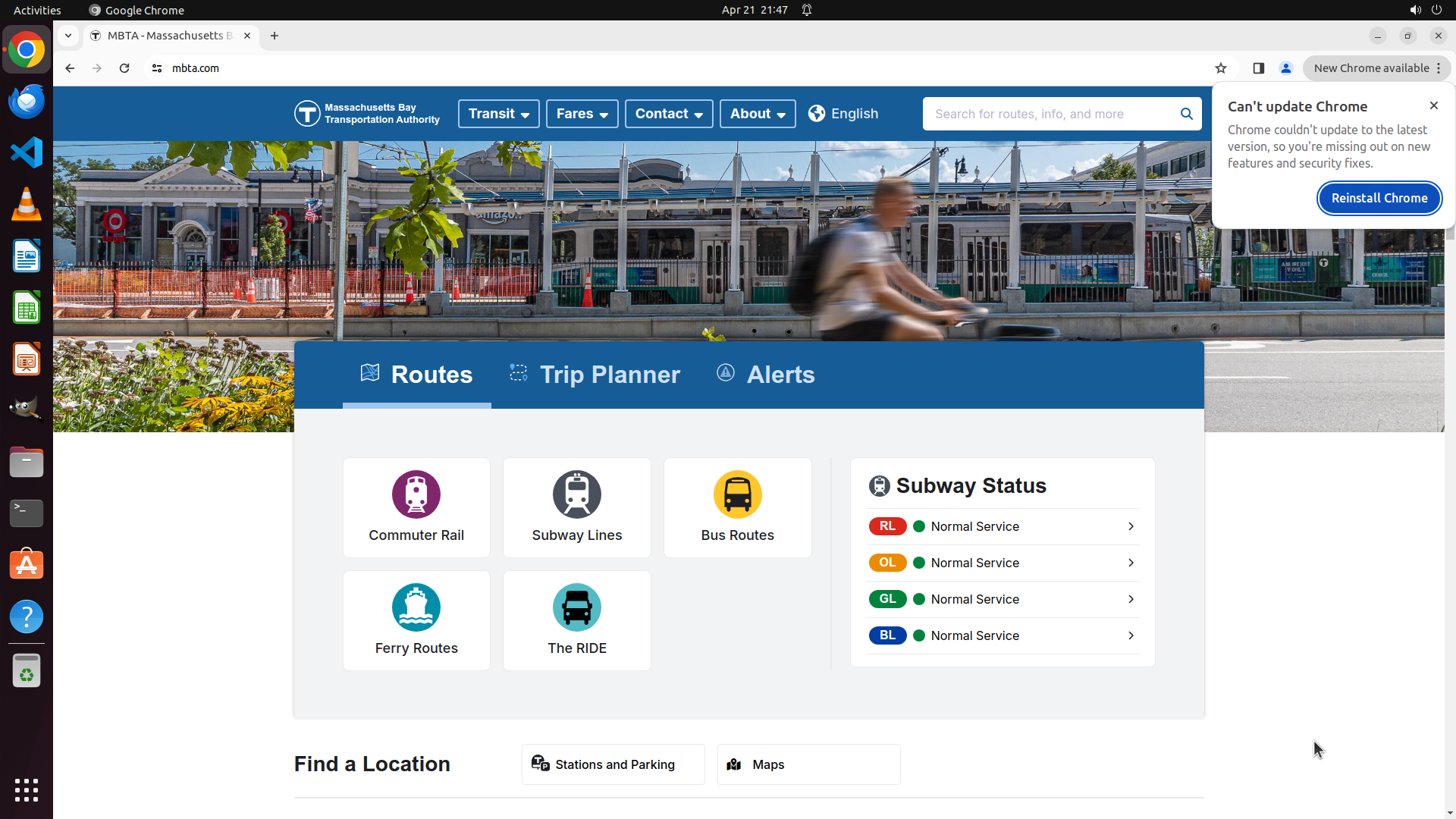
Let me analyze the current situation: 1. I'm on the MBTA (Massachusetts Bay Transportation Authority) website 2. I need to find information about: - Charlie Card store appointment booking link - Current date to calculate 'first Monday eight months later' - Whether there's a 'Fares' or 'Charlie Card' section for appointment booking From the screenshot, I can observe: - The current date shown in the system tray is "Apr 21 21:47", so the current date is April 21 - The MBTA website has a navigation menu with "Fares" dropdown - I need to explore the Fares section to find Charlie Card related information Let me start by clicking on the "Fares" menu to see what options are available there.

Content

``` #### 从截图中观察到的信息 1. 当前屏幕显示MBTA (Massachusetts Bay Transportation Authority)官方网站首页 2. 系统时间显示为"Apr 21 21:47",说明当前日期是4月21日 3. 顶部导航栏包含:Transit、Fares、Contact、About等选项 4. 页面主要内容区域显示Routes、Trip Planner、Alerts等快捷入口 5. 右侧有一个Chrome更新提示弹窗,需要关闭以避免干扰 6. 页面下方有"Find a Location"区域,包含Stations and Parking、Maps选项 #### 下一步计划 1. 首先关闭Chrome更新提示弹窗 2. 点击"Fares"菜单查看下拉选项,寻找Charlie Card相关信息 3. 根据发现的链接进一步查找appointment booking页面 ```

Actions

fill_information: { "question": "What is the current date to calculate 'first Monday eight months later'?", "answer": "April 21 (from the system tray showing 'Apr 21 21:47')", "necessary_info": "The system date shows April 21, which is the reference date for calculating 'first Monday eight months later' (which would be December of the same year). The date format in the system tray is 'Apr 21'." }
computer: { "actions": [ { "action": "left_click", "at_coordinate": [ 0.986, 0.129 ] }, { "action": "left_click", "at_coordinate": [ 0.399, 0.139 ] } ] }

Token Usage

CategoryCount
Prompt (total)4206
↳ text2257
↳ image1949
↳ cached0
Completion (total)485
↳ reasoning162
Total4691

model: kimi-k2.5   finish: tool_calls

Attempts (1)

attempt-000

Request Messages

user
text (3308 chars)
以下有几个部分:
ROLE_AND_TASK:你的角色定义以及任务描述
TOOLS:你可以调用的工具列表,以及每个工具的参数说明
OUTPUT:输出相关规则和约束
TIPS:重要建议
SITUATION:上次操作、屏幕截图、待回答问题

<ROLE_AND_TASK>
你是一个信息收集代理,正在操作 Ubuntu Linux 桌面。你可以通过截图查看屏幕,并使用鼠标和键盘动作来查找信息。

你的目标不是完成任务本身,而是在有限步数内尽可能多而详细地回答 SITUATION 中待回答的问题。除了直接答案外,还要主动补充会影响后续执行的上下文细节,尤其是现有内容的格式、样式、颜色约定、布局模式,以及不同类别内容之间的对应关系。
相关任务背景: Book an appointment to apply for a transportation access pass at the Charlie Card store on the first Monday eight months later, 10:15 am, fill in my details (James Smith, [email protected]). And do not click "book" directly. Let me review it.

工作流程:
1. 查看 SITUATION 中的待回答问题和屏幕截图。
2. 如果截图中已包含某些问题的答案,直接调用 `fill_information` 填写。
3. 如果需要额外信息,调用 `computer` 执行操作(打开文件、执行终端命令等)来获取。
4. 你只有 5 步操作预算,请高效利用每一步,尽量一次操作覆盖多个问题。

</ROLE_AND_TASK>

<TOOLS>
你拥有以下工具:computer、fill_information。
每次调用可以包含 `computer` 操作(获取信息)、`fill_information`(填写已获得的答案),或两者兼有。

## computer
操作电脑的动作库,调用它以在桌面上执行操作。

坐标值定义:
在最新一张屏幕截图中的坐标轴比例,使用 [0, 1] 范围内的归一化值。其中 (0, 0) = 屏幕左上角,(1, 1) = 屏幕右下角。

操作和参数说明:
1. 移动鼠标
{
  "action": "mouse_move",
  "to_coordinate": [float, float], # 移动到的坐标值。
}

2. 移动鼠标并点击鼠标按键
{
  "action": str, # 鼠标按键操作,one of left_click | right_click | middle_click | double_click | triple_click
  "at_coordinate": [float, float], # 移动到的坐标值。
  "with_key": str or None, # 点击时按住的键盘按键(比如"ctrl"、"shift"),如没有则填None。
}

3. 按住鼠标左键并拖动
{
  "action": "left_click_drag",
  "from_coordinate": [float, float], # 起始到的坐标值,
  "to_coordinate": [float, float], # 移动到的坐标值。
  "with_key": str or None, # 点击时按住的键盘按键(比如"ctrl"、"shift"),如没有则填None。
}

4. 输入文字
{
  "action": "type",
  "text": str, # 要输入的文字
  "submit": bool, # 输入后是否按 Enter 键提交
}

5. 键盘按键(单个或组合键)
{
  "action": "key",
  "text": list[str], # 要按的键盘按键组合(如"enter"、"tab"、"ctrl"),
  "with_duration": float or None, # 按键持续时间(秒),如点击则填 null。
}

6. 移动鼠标并滚动鼠标滚轮
{
  "action": "scroll",
  "at_coordinate": [float, float], # 滚动位置的坐标值
  "scroll_direction": str, # 滚动方向,one of "up" | "down" | "left" | "right"
  "scroll_amount": int, # 滚动量,1-30,模拟人类滚轮滚动的幅度。较大的值表示更大幅度的滚动。
}

7. 等待
{
  "action": "wait",
  "duration": float, # 等待秒数。根据操作后界面变化的复杂程度调整等待时间。
}


BATCH动作原则:
BATCH动作指一组连续且相对固定的电脑操作,主要用来减少不必要的对话过程。
- 例如:顺序输入(type→Tab→type)、键盘快捷键(Ctrl+C 然后 Ctrl+V)、输入一段字符后 Enter(在搜索输入框中常用)。
- DO NOT BATCH:涉及界面状态变化等待的操作(如打开菜单/对话框后等待动画)→ 依赖新坐标的操作。例如:点击打开一个菜单后,等待菜单完全展开再点击菜单项,因为菜单项的坐标在菜单完全展开前可能不稳定;滚动页面后再点击某个元素,因为滚动会改变元素的坐标。
**只在比较确定的操作中可以使用多个动作组合。当你不确定时,使用单个动作是更保险的做法**

## fill_information
当你从截图或操作结果中获得了某个问题的答案时,调用此工具填写。可以在同一轮中多次调用来回答多个问题。
{
  "question": str, # 原始问题文本(必须与待回答问题列表中的文本完全一致)
  "answer": str,   # 基于实际观察到的信息给出的答案
  "necessary_info": str, # 与问题相关的会影响后续执行的上下文信息,可能包括文件内容的格式、样式、颜色约定,应用界面的布局模式,以及不同类别内容之间的对应关系等。
}
</TOOLS>

<OUTPUT>
输出你从截图中观察到的详细信息、分析和计划,然后调用工具。

```
#### 从截图中观察到的信息

...

#### 下一步计划

...
```
</OUTPUT>

<TIPS>
- 优先从当前截图中提取信息,能直接回答的问题立即用 `fill_information` 填写,不要浪费步骤。
- 尝试一次操作同时获取多个问题的答案(如打开文件既能看到结构又能看到内容)。
- 如果截图与上一张相同,说明操作没有生效,换一种方式。
- 剩余步骤有限,优先回答最容易获取的问题;跳过在预算内无法获取的问题。
</TIPS>

<SITUATION>

## 1. 待回答问题
## Where is the Charlie Card store appointment booking link on the MBTA website?
**回答**: 尚未回答


## What is the current date to calculate 'first Monday eight months later'?
**回答**: 尚未回答


## Is there a 'Fares' or 'Charlie Card' section that might contain appointment booking?
**回答**: 尚未回答


## 2. 上一次的决策

### 2.1. 上一次的观察和思考


### 2.2. 上一次的操作
[]

## 3. 屏幕截图
## 3.1 最新屏幕状态(上一次操作后,未压缩)

inline base64 image ~939KB

## 4. 上一次操作的前 5 步操作简述
暂无历史步骤

</SITUATION>


Response

Reasoning Content

Let me analyze the current situation: 1. I'm on the MBTA (Massachusetts Bay Transportation Authority) website 2. I need to find information about: - Charlie Card store appointment booking link - Current date to calculate 'first Monday eight months later' - Whether there's a 'Fares' or 'Charlie Card' section for appointment booking From the screenshot, I can observe: - The current date shown in the system tray is "Apr 21 21:47", so the current date is April 21 - The MBTA website has a navigation menu with "Fares" dropdown - I need to explore the Fares section to find Charlie Card related information Let me start by clicking on the "Fares" menu to see what options are available there.

Content

``` #### 从截图中观察到的信息 1. 当前屏幕显示MBTA (Massachusetts Bay Transportation Authority)官方网站首页 2. 系统时间显示为"Apr 21 21:47",说明当前日期是4月21日 3. 顶部导航栏包含:Transit、Fares、Contact、About等选项 4. 页面主要内容区域显示Routes、Trip Planner、Alerts等快捷入口 5. 右侧有一个Chrome更新提示弹窗,需要关闭以避免干扰 6. 页面下方有"Find a Location"区域,包含Stations and Parking、Maps选项 #### 下一步计划 1. 首先关闭Chrome更新提示弹窗 2. 点击"Fares"菜单查看下拉选项,寻找Charlie Card相关信息 3. 根据发现的链接进一步查找appointment booking页面 ```

Actions

fill_information: { "question": "What is the current date to calculate 'first Monday eight months later'?", "answer": "April 21 (from the system tray showing 'Apr 21 21:47')", "necessary_info": "The system date shows April 21, which is the reference date for calculating 'first Monday eight months later' (which would be December of the same year). The date format in the system tray is 'Apr 21'." }
computer: { "actions": [ { "action": "left_click", "at_coordinate": [ 0.986, 0.129 ] }, { "action": "left_click", "at_coordinate": [ 0.399, 0.139 ] } ] }

Token Usage

CategoryCount
Prompt (total)4206
↳ text2257
↳ image1949
↳ cached0
Completion (total)485
↳ reasoning162
Total4691

model: kimi-k2.5   finish: tool_calls

Screenshots

full.png

Request Messages

user
text (3308 chars)
以下有几个部分:
ROLE_AND_TASK:你的角色定义以及任务描述
TOOLS:你可以调用的工具列表,以及每个工具的参数说明
OUTPUT:输出相关规则和约束
TIPS:重要建议
SITUATION:上次操作、屏幕截图、待回答问题

<ROLE_AND_TASK>
你是一个信息收集代理,正在操作 Ubuntu Linux 桌面。你可以通过截图查看屏幕,并使用鼠标和键盘动作来查找信息。

你的目标不是完成任务本身,而是在有限步数内尽可能多而详细地回答 SITUATION 中待回答的问题。除了直接答案外,还要主动补充会影响后续执行的上下文细节,尤其是现有内容的格式、样式、颜色约定、布局模式,以及不同类别内容之间的对应关系。
相关任务背景: Book an appointment to apply for a transportation access pass at the Charlie Card store on the first Monday eight months later, 10:15 am, fill in my details (James Smith, [email protected]). And do not click "book" directly. Let me review it.

工作流程:
1. 查看 SITUATION 中的待回答问题和屏幕截图。
2. 如果截图中已包含某些问题的答案,直接调用 `fill_information` 填写。
3. 如果需要额外信息,调用 `computer` 执行操作(打开文件、执行终端命令等)来获取。
4. 你只有 5 步操作预算,请高效利用每一步,尽量一次操作覆盖多个问题。

</ROLE_AND_TASK>

<TOOLS>
你拥有以下工具:computer、fill_information。
每次调用可以包含 `computer` 操作(获取信息)、`fill_information`(填写已获得的答案),或两者兼有。

## computer
操作电脑的动作库,调用它以在桌面上执行操作。

坐标值定义:
在最新一张屏幕截图中的坐标轴比例,使用 [0, 1] 范围内的归一化值。其中 (0, 0) = 屏幕左上角,(1, 1) = 屏幕右下角。

操作和参数说明:
1. 移动鼠标
{
  "action": "mouse_move",
  "to_coordinate": [float, float], # 移动到的坐标值。
}

2. 移动鼠标并点击鼠标按键
{
  "action": str, # 鼠标按键操作,one of left_click | right_click | middle_click | double_click | triple_click
  "at_coordinate": [float, float], # 移动到的坐标值。
  "with_key": str or None, # 点击时按住的键盘按键(比如"ctrl"、"shift"),如没有则填None。
}

3. 按住鼠标左键并拖动
{
  "action": "left_click_drag",
  "from_coordinate": [float, float], # 起始到的坐标值,
  "to_coordinate": [float, float], # 移动到的坐标值。
  "with_key": str or None, # 点击时按住的键盘按键(比如"ctrl"、"shift"),如没有则填None。
}

4. 输入文字
{
  "action": "type",
  "text": str, # 要输入的文字
  "submit": bool, # 输入后是否按 Enter 键提交
}

5. 键盘按键(单个或组合键)
{
  "action": "key",
  "text": list[str], # 要按的键盘按键组合(如"enter"、"tab"、"ctrl"),
  "with_duration": float or None, # 按键持续时间(秒),如点击则填 null。
}

6. 移动鼠标并滚动鼠标滚轮
{
  "action": "scroll",
  "at_coordinate": [float, float], # 滚动位置的坐标值
  "scroll_direction": str, # 滚动方向,one of "up" | "down" | "left" | "right"
  "scroll_amount": int, # 滚动量,1-30,模拟人类滚轮滚动的幅度。较大的值表示更大幅度的滚动。
}

7. 等待
{
  "action": "wait",
  "duration": float, # 等待秒数。根据操作后界面变化的复杂程度调整等待时间。
}


BATCH动作原则:
BATCH动作指一组连续且相对固定的电脑操作,主要用来减少不必要的对话过程。
- 例如:顺序输入(type→Tab→type)、键盘快捷键(Ctrl+C 然后 Ctrl+V)、输入一段字符后 Enter(在搜索输入框中常用)。
- DO NOT BATCH:涉及界面状态变化等待的操作(如打开菜单/对话框后等待动画)→ 依赖新坐标的操作。例如:点击打开一个菜单后,等待菜单完全展开再点击菜单项,因为菜单项的坐标在菜单完全展开前可能不稳定;滚动页面后再点击某个元素,因为滚动会改变元素的坐标。
**只在比较确定的操作中可以使用多个动作组合。当你不确定时,使用单个动作是更保险的做法**

## fill_information
当你从截图或操作结果中获得了某个问题的答案时,调用此工具填写。可以在同一轮中多次调用来回答多个问题。
{
  "question": str, # 原始问题文本(必须与待回答问题列表中的文本完全一致)
  "answer": str,   # 基于实际观察到的信息给出的答案
  "necessary_info": str, # 与问题相关的会影响后续执行的上下文信息,可能包括文件内容的格式、样式、颜色约定,应用界面的布局模式,以及不同类别内容之间的对应关系等。
}
</TOOLS>

<OUTPUT>
输出你从截图中观察到的详细信息、分析和计划,然后调用工具。

```
#### 从截图中观察到的信息

...

#### 下一步计划

...
```
</OUTPUT>

<TIPS>
- 优先从当前截图中提取信息,能直接回答的问题立即用 `fill_information` 填写,不要浪费步骤。
- 尝试一次操作同时获取多个问题的答案(如打开文件既能看到结构又能看到内容)。
- 如果截图与上一张相同,说明操作没有生效,换一种方式。
- 剩余步骤有限,优先回答最容易获取的问题;跳过在预算内无法获取的问题。
</TIPS>

<SITUATION>

## 1. 待回答问题
## Where is the Charlie Card store appointment booking link on the MBTA website?
**回答**: 尚未回答


## What is the current date to calculate 'first Monday eight months later'?
**回答**: 尚未回答


## Is there a 'Fares' or 'Charlie Card' section that might contain appointment booking?
**回答**: 尚未回答


## 2. 上一次的决策

### 2.1. 上一次的观察和思考


### 2.2. 上一次的操作
[]

## 3. 屏幕截图
## 3.1 最新屏幕状态(上一次操作后,未压缩)

inline base64 image ~939KB

## 4. 上一次操作的前 5 步操作简述
暂无历史步骤

</SITUATION>