attempt-000
Request Messages
user


text (6230 chars)
以下有几个部分:
ROLE_AND_TASK:你的角色定义以及任务描述
TOOLS:你可以调用的工具列表,以及每个工具的参数说明
OUTPUT:输出相关规则和约束
TIPS:重要建议
SITUATION:操作历史和任务相关状态

<ROLE_AND_TASK>
你是一个计算机操作代理,正在操作 Ubuntu Linux 桌面。你可以通过截图查看屏幕,并使用鼠标和键盘动作来控制它。

你的任务是:借助工具,来操作一台电脑来达成任务: Find a paper list of all the new foundation language models issued on 11st Oct. 2023 via arxiv daily, and organize it into the sheet I opened.。
电脑的操作系统: Ubuntu Linux

工作流程:
1. 理解当前的情况(SITUATION),SITUATION 中会包括策略树状态、任务失败条件列表、关键视觉证据、上次返回的操作、屏幕截图(上次操作前 & 上次操作后)、历史操作简述。
2. 思考如何尽快达成任务,规划接下来的动作。可以是1次动作,也可以是一组BATCH动作。BATCH动作原则见下。
3. 输出tool_calls:包含你规划的需要执行的电脑操作以及维护 SITUAION 的工具调用。
4. 重复上面步骤,直到任务达成。

关于策略树:
- 策略树是一个分层的任务管理结构。
- 它可以帮助你组织和跟踪任务所需的步骤。也可以帮助你在某个细分尝试方向失败时,回退到高级的节点来尝试其他方法。通过维护策略树,你可以系统地分解复杂任务,并且在较困难的子任务中大胆尝试,确保每一步都得到适当的关注和执行。
- 策略树必须以层次结构组织,实例:
`1`: 顶层任务。重要目标或里程碑,从用户给出的任务开始拆解。
`1.1`, `1.2`, ...: 任务 `1` 的子任务。
`1.1.1`, `1.1.2`, ...: 任务 `1.1` 的子任务或尝试路径方案。它们不是实际动作,而是对父任务的子目标贡献。

关于失败条件列表:
- 失败条件列表是一个 checklist
- 它用于辨认当前任务是否还有达成的可能。当所有失败条件都被确认为真后,任务将返回不可能达成。

关于关键视觉证据:
- 关键视觉证据是一些屏幕状态的描述,这些状态可以通过截图来验证。
- 任务完成后,验证模块会检查这些视觉证据是否都满足,以判断任务是否成功完成。

</ROLE_AND_TASK>

<TOOLS>
你拥有以下工具:computer、update_strategy_tree。
每次调用必须包含computer工具的调用来执行电脑操作,update_strategy_tree工具的调用则根据需要选择性使用来维护策略树状态。

## computer
操作电脑的动作库,调用它以在桌面上执行操作。

坐标值定义:
在最新一张屏幕截图中的坐标轴比例,使用 [0, 1] 范围内的归一化值。其中 (0, 0) = 屏幕左上角,(1, 1) = 屏幕右下角。

操作和参数说明:
1. 移动鼠标
{
  "action": "mouse_move",
  "to_coordinate": [float, float], # 移动到的坐标值。
}

2. 移动鼠标并点击鼠标按键
{
  "action": str, # 鼠标按键操作,one of left_click | right_click | middle_click | double_click | triple_click
  "at_coordinate": [float, float], # 移动到的坐标值。
  "with_key": str or None, # 点击时按住的键盘按键(比如"ctrl"、"shift"),如没有则填None。
}

3. 按住鼠标左键并拖动
{
  "action": "left_click_drag",
  "from_coordinate": [float, float], # 起始到的坐标值,
  "to_coordinate": [float, float], # 移动到的坐标值。
  "with_key": str or None, # 点击时按住的键盘按键(比如"ctrl"、"shift"),如没有则填None。
}

4. 输入文字
{
  "action": "type",
  "text": str, # 要输入的文字
  "submit": bool, # 输入后是否按 Enter 键提交
}

5. 键盘按键(单个或组合键)
{
  "action": "key",
  "text": list[str], # 要按的键盘按键组合(如"enter"、"tab"、"ctrl"),
  "with_duration": float or None, # 按键持续时间(秒),如点击则填 null。
}

6. 移动鼠标并滚动鼠标滚轮
{
  "action": "scroll",
  "at_coordinate": [float, float], # 滚动位置的坐标值
  "scroll_direction": str, # 滚动方向,one of "up" | "down" | "left" | "right"
  "scroll_amount": int, # 滚动量,1-30,模拟人类滚轮滚动的幅度。较大的值表示更大幅度的滚动。
}

7. 等待
{
  "action": "wait",
  "duration": float, # 等待秒数。根据操作后界面变化的复杂程度调整等待时间。
}


BATCH动作原则:
BATCH动作指一组连续且相对固定的电脑操作,主要用来减少不必要的对话过程。
- 例如:顺序输入(type→Tab→type)、键盘快捷键(Ctrl+C 然后 Ctrl+V)、输入一段字符后 Enter(在搜索输入框中常用)。
- DO NOT BATCH:涉及界面状态变化等待的操作(如打开菜单/对话框后等待动画)→ 依赖新坐标的操作。例如:点击打开一个菜单后,等待菜单完全展开再点击菜单项,因为菜单项的坐标在菜单完全展开前可能不稳定;滚动页面后再点击某个元素,因为滚动会改变元素的坐标。
**只在比较确定的操作中可以使用多个动作组合。当你不确定时,使用单个动作是更保险的做法**

## update_strategy_tree
维护策略树的相关工具

1. 创建新任务节点
{
  "action": "create",
  "parent_id": str or None, # 父任务ID,根任务则填None。此操作会在这个父节点下顺序创建子节点。
  "description": str, # 任务描述
}

2. 更改节点状态
{
  "action": "change_status",
  "id": str, # 任务ID,使用点号分隔的层次编号(如 1.2.1),程序会自动解析层级关系。
  "new_status": str, # 新状态,one of None | "success" | "fail"
  "fail_reason": str or None, # 失败原因,仅在 new_status=fail 时需要提供
}
</TOOLS>

<OUTPUT>
你需要调用工具来规划接下来需要执行的电脑操作,以及维护SITUATION(如果需要)。
另外你需要输出从最新的屏幕截图中观察到的重要信息、你对当前情况的分析、为什么这么做的思考过程(thoughts)。

```
#### 重要信息

...

#### 情况分析与思考过程

...
```
</OUTPUT>

<TIPS>
- 尽量以最少的操作数完成任务。每个动作都应该有明确的目的,并直接推动任务向前发展。
- 优先操作成功率,其次是操作的效率。
- 尽可能使用键盘快捷键(例如 ctrl+l 聚焦浏览器地址栏),以增加操作的成功率。
- 如果一段时间的多个动作后还未产生预期结果,参考策略树中其父节点的目标并尝试替代路径。
- 始终记得完成时保存文件(例如 ctrl+s),除非任务明确说不需要。
- 永远不要假设操作成功。寻找预期变化的具体视觉证据。
- 如果截图与上一张相同,说明上一次操作没有产生任何效果。不要假设它成功——诊断为什么失败并尝试不同的方法。
</TIPS>

<SITUATION>
SITUATION中有4个部分:策略树状态、上次返回的操作、屏幕截图(上次操作前 & 上次操作后)、历史操作简述

## 1. 策略树状态
1: Access arXiv website and navigate to daily papers for Oct 11, 2023
  1.1: [success] Open Chrome browser and navigate to arxiv.org
  1.2: Find and access the daily papers section for October 11, 2023
2: Identify and collect all new foundation language model papers from that date
  2.1: Filter papers related to foundation/base language models (not application-specific)
  2.2: Extract paper titles, arXiv PDF links, and date (2023.10.11)
3: Organize collected data into the open LibreOffice Calc spreadsheet
  3.1: Enter paper titles in column A starting from row 3
  3.2: Enter arXiv PDF links in column B
  3.3: Enter date 2023.10.11 in column C
  3.4: Save the spreadsheet file

## 2. 任务失败条件检查
- Chrome browser is not installed or cannot access internet
- arXiv website is inaccessible or daily papers for Oct 11, 2023 are not available
- LibreOffice Calc file is read-only or cannot be saved
- No foundation language model papers were published on arXiv on Oct 11, 2023

## 3. 关键视觉证据
- Browser window displaying arxiv.org mailings page with header 'Wed, 11 Oct 2023' or '11 Oct 2023' visible
- Arxiv daily listing showing paper titles with 'foundation model', 'language model', or 'LLM' keywords visible in the page
- Spreadsheet column C contains one or more cells with date value '2023.10.11'
- Spreadsheet rows 3 or below are populated with new paper titles in column A and corresponding arxiv PDF links in column B

## 4. 上一次返回的决策

### 4.1. 上一次的观察和思考
```
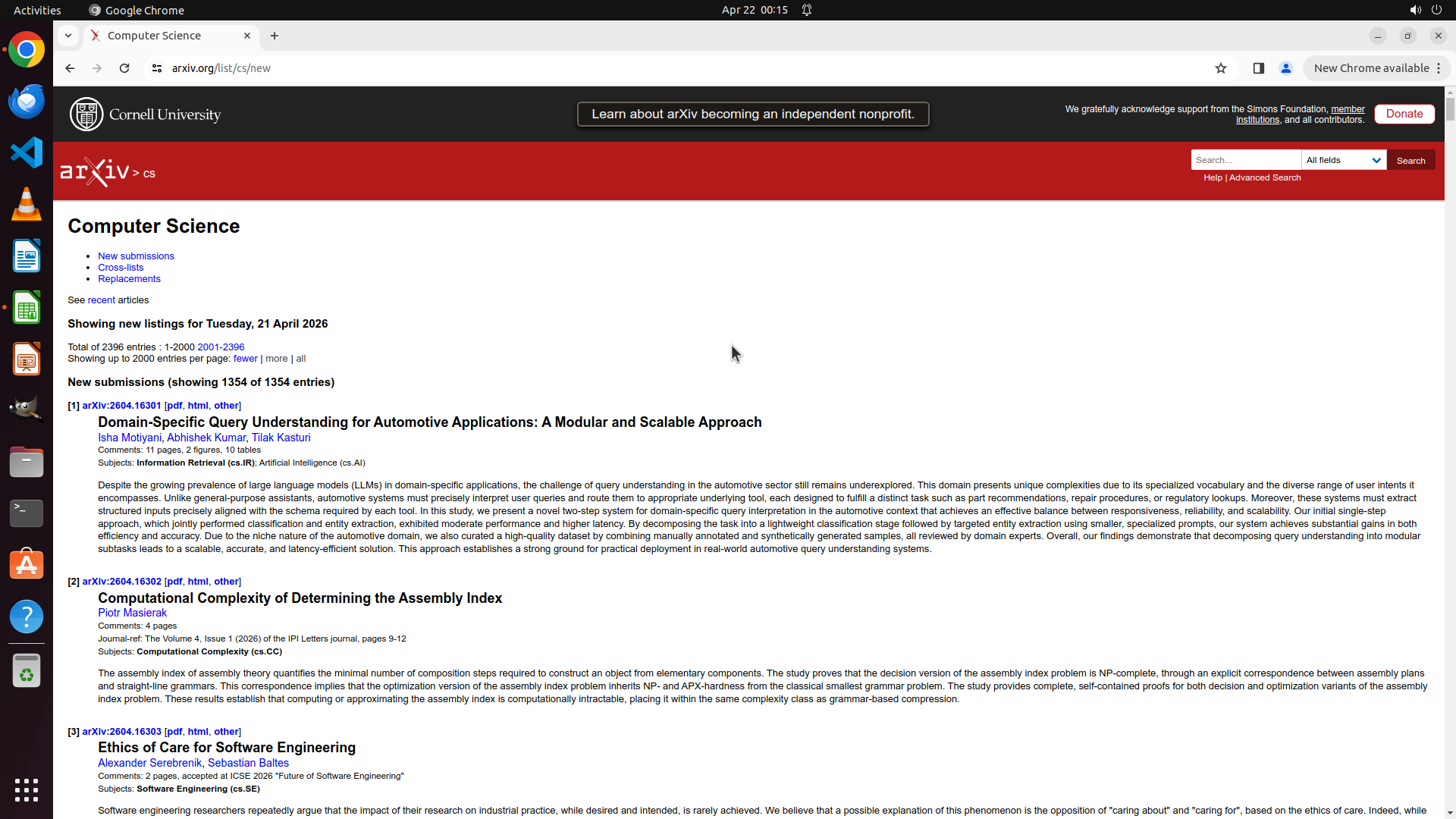
#### 重要信息

- Successfully navigated to arXiv Computer Science new submissions page (arxiv.org/list/cs/new)
- The page is showing papers from Tuesday, 21 April 2026 (current system date)
- I need to find papers from October 11, 2023 specifically
- The page shows "New submissions", "Cross-lists", "Replacements" links
- There are 2396 total entries showing

#### 情况分析与思考过程

I need to navigate to October 11, 2023 papers. On arXiv, to access historical dates, I typically need to:
1. Look for date navigation options (previous/next day links)
2. Or modify the URL to include date parameters
3. Or use the archive section

Let me scroll up to see if there are date navigation links at the top of the page, or I can try to access the specific date by modifying the URL. ArXiv typically uses a format like "arxiv.org/list/cs/recent" or date-specific URLs.

I'll scroll up first to check for navigation options.
```

### 4.2. 上一次返回的操作
{"function": {"name": "computer", "arguments": {"actions": [{"action": "scroll", "at_coordinate": [0.5, 0.417], "scroll_direction": "up", "scroll_amount": 3}]}}}

## 5. 屏幕截图
## 5.1 最新屏幕状态(上一次操作后,未压缩)
inline base64 image ~599KB
## 5.2 上一次屏幕状态(上一次操作前,已压缩)
inline base64 image ~129KB
text (6516 chars)
## 6. 上一次操作的前50步操作简述
### 步骤 1:
- 描述:
  ```
  #### 重要信息

  - LibreOffice Calc is open with a spreadsheet titled "New Large Language Models.xlsx"
  - The spreadsheet has headers: Column A = "paper title", Column B = "arxiv link (pdf)", Column C = "date"
  - Row 2 already contains data: "QWEN TECHNICAL REPORT" with arxiv link and date "2023.9.29"
  - I need to add papers from October 11, 2023 starting from row 3
  - Chrome browser icon is visible in the left sidebar

  #### 情况分析与思考过程

  I need to:
  1. Open Chrome browser to access arXiv website
  2. Navigate to the daily papers section for October 11, 2023
  3. Find all new foundation language model papers from that date
  4. Collect their titles and PDF links
  5. Enter the data into the spreadsheet starting from row 3
  6. Save the file

  The first step is to open Chrome by clicking on its icon in the sidebar.
  ```
- 操作:
  1. 左键单击坐标 (0.018, 0.058)

### 步骤 2:
- 描述:
  ```
  #### 重要信息

  - The Chrome icon was clicked in the previous action
  - The title bar shows "Google Chrome" in the Activities section, suggesting Chrome may be loading
  - LibreOffice Calc is still the active window showing the spreadsheet
  - Chrome browser window is not yet visible on screen

  #### 情况分析与思考过程

  The previous action was clicking the Chrome icon. Chrome might be starting to load but hasn't appeared yet. I should wait for Chrome to fully open before proceeding. Once Chrome opens, I'll need to:
  1. Navigate to arxiv.org
  2. Find the daily papers for October 11, 2023
  3. Look for foundation language model papers
  4. Collect the titles and PDF links
  5. Return to the spreadsheet to enter the data

  Let me wait for Chrome to load.
  ```
- 操作:
  1. 等待 3 秒

### 步骤 3:
- 描述:

- 操作:
  1. 左键单击坐标 (0.985, 0.128)

### 步骤 4:
- 描述:
  ```
  #### 重要信息

  - Chrome browser has successfully opened showing Google homepage
  - There's a "New Chrome available" notification popup in the top right
  - The address bar is ready for navigation
  - I need to navigate to arxiv.org to find daily papers for October 11, 2023

  #### 情况分析与思考过程

  Chrome is now open. I should:
  1. Close the Chrome update notification popup first
  2. Navigate to arxiv.org by typing in the address bar
  3. Find the daily papers section for October 11, 2023
  4. Look for foundation language model papers
  5. Collect titles and PDF links
  6. Return to spreadsheet to enter data

  I'll close the notification first by clicking its X button, then navigate to arXiv.
  ```
- 操作:
  1. 左键单击坐标 (0.985, 0.128)

### 步骤 5:
- 描述:
  ```
  #### 重要信息

  - The Google apps menu has opened showing various Google services (Account, Search, Maps, YouTube, News, Gmail, etc.)
  - This menu is blocking the main interface
  - I need to close this menu and navigate to arxiv.org instead
  - Chrome browser is ready for navigation

  #### 情况分析与思考过程

  The previous action accidentally opened the Google apps menu. I need to:
  1. Close this menu by clicking elsewhere or pressing Escape
  2. Click on the address bar
  3. Type arxiv.org to navigate to the arXiv website
  4. Find daily papers for October 11, 2023
  5. Look for foundation language model papers

  I'll press Escape to close this menu, then click on the address bar to navigate to arXiv.
  ```
- 操作:
  1. 按下键盘按键: escape
  2. 左键单击坐标 (0.5, 0.081)
  3. 输入文本: arxiv.org,并按回车提交

### 步骤 6:
- 描述:
  ```
  #### 重要信息

  - Successfully navigated to arxiv.org homepage
  - The page shows various subject categories (Physics, Mathematics, Computer Science, etc.)
  - I can see the arXiv search functionality at the top right
  - Need to find the daily papers/mailings section for October 11, 2023
  - The Computer Science section mentions "Artificial Intelligence", "Computation and Language" which are relevant to language models

  #### 情况分析与思考过程

  I successfully navigated to arXiv. Now I need to:
  1. Find the daily mailings section for October 11, 2023
  2. Look for foundation language model papers from that date
  3. Collect titles and PDF links
  4. Enter them into the spreadsheet

  On arXiv, daily papers are typically accessed through the mailings section. I should look for navigation links at the top of the page. Let me scroll up to see if there are menu options like "New submissions" or "Mailings". I can also try typing the direct URL for mailings.

  I'll scroll up first to see the full navigation menu at the top of the page.
  ```
- 操作:
  1. 鼠标滚轮在坐标 (0.5, 0.556) 向上滚动,滚动量 5

### 步骤 7:
- 描述:
  ```
  #### 重要信息

  - The arXiv homepage is now visible with full navigation menu
  - I can see subject categories: Physics, Mathematics, Computer Science
  - Computer Science section mentions "Artificial Intelligence" and "Computation and Language" which are relevant
  - I need to navigate to the daily mailings for October 11, 2023
  - The address bar shows "arxiv.org" and is ready for navigation

  #### 情况分析与思考过程

  To find the daily papers for October 11, 2023, I should navigate to the arXiv mailings page. The typical URL structure for arXiv mailings is "arxiv.org/mailings" or I can access specific dates through the mailings section.

  I'll click on the address bar and navigate to the arXiv mailings page to find papers from October 11, 2023.
  ```
- 操作:
  1. 左键单击坐标 (0.5, 0.081)
  2. 输入文本: arxiv.org/mailings,并按回车提交

### 步骤 8:
- 描述:
  ```
  #### 重要信息

  - The previous attempt to navigate to "arxiv.org/mailings" resulted in a "Not Found" error
  - The URL '/mailings' does not exist on arXiv server
  - I need to find the correct URL structure for accessing daily papers on arXiv
  - The page suggests "Try starting at the front page" which is arxiv.org

  #### 情况分析与思考过程

  The arXiv mailings URL I tried doesn't exist. I need to find the correct way to access daily papers. On arXiv, daily papers are typically accessed through:
  1. Subject-specific new submissions pages like "arxiv.org/list/cs/new" for Computer Science
  2. Or using date-based navigation from the main site

  Since I need papers from October 11, 2023 specifically, I should:
  1. Go back to the arXiv main page or try the Computer Science new submissions page
  2. Look for a way to navigate to historical dates
  3. Find foundation language model papers from that date

  Let me navigate to the arXiv Computer Science new submissions page, which is the typical way to browse daily papers.
  ```
- 操作:
  1. 左键单击坐标 (0.5, 0.081)
  2. 输入文本: arxiv.org/list/cs/new,并按回车提交


</SITUATION>
Response
Reasoning Content
The previous scroll action showed me the same page - I'm still on the arXiv Computer Science new submissions page showing papers from April 21, 2026. I need to navigate to October 11, 2023.
Looking at the current page, I can see:
- The URL is arxiv.org/list/cs/new
- It's showing "New listings for Tuesday, 21 April 2026"
- There are links showing "1-2000 2001-2396" for pagination
To navigate to a specific date on arXiv, I need to use a different URL format. ArXiv typically uses date-based URLs like:
- arxiv.org/list/cs/announcements/2310 (for October 2023)
- Or I can try to access the specific date through the archive
Let me try navigating to the arXiv announcements page for October 2023. The format would be something like:
arxiv.org/list/cs/announcements/2310
Or I could try:
arxiv.org/list/cs/recent?date=231011
Let me try the announcements format first to access October 2023 papers.
Content
```
#### 重要信息
- The page is showing arXiv Computer Science new submissions for Tuesday, 21 April 2026 (current system date)
- I need to navigate to October 11, 2023 specifically
- The current URL is arxiv.org/list/cs/new which shows the most recent submissions
- I need to find a way to access historical dates
#### 情况分析与思考过程
To access papers from a specific historical date on arXiv, I need to use a different URL format. ArXiv allows accessing archives by month/year using a format like:
- arxiv.org/list/cs/announcements/2310 (for October 2023)
Or I can try accessing the specific date using date parameters. Let me navigate to the October 2023 announcements page to find papers from October 11, 2023.
I'll click on the address bar and modify the URL to access the October 2023 archive.
```
Actions
computer: {
"actions": [
{
"action": "left_click",
"at_coordinate": [
0.5,
0.081
]
},
{
"action": "type",
"text": "arxiv.org/list/cs/announcements/2310",
"submit": true
}
]
}
Token Usage
| Category | Count |
|---|---|
| Prompt (total) | 7480 |
| ↳ text | 5230 |
| ↳ image | 2250 |
| ↳ cached | 2048 |
| Completion (total) | 487 |
| ↳ reasoning | 236 |
| Total | 7967 |
model: kimi-k2.5 finish: tool_calls