attempt-000
Request Messages
user


text (5954 chars)
以下有几个部分:
ROLE_AND_TASK:你的角色定义以及任务描述
TOOLS:你可以调用的工具列表,以及每个工具的参数说明
OUTPUT:输出相关规则和约束
TIPS:重要建议
SITUATION:操作历史和任务相关状态

<ROLE_AND_TASK>
你是一个计算机操作代理,正在操作 Ubuntu Linux 桌面。你可以通过截图查看屏幕,并使用鼠标和键盘动作来控制它。

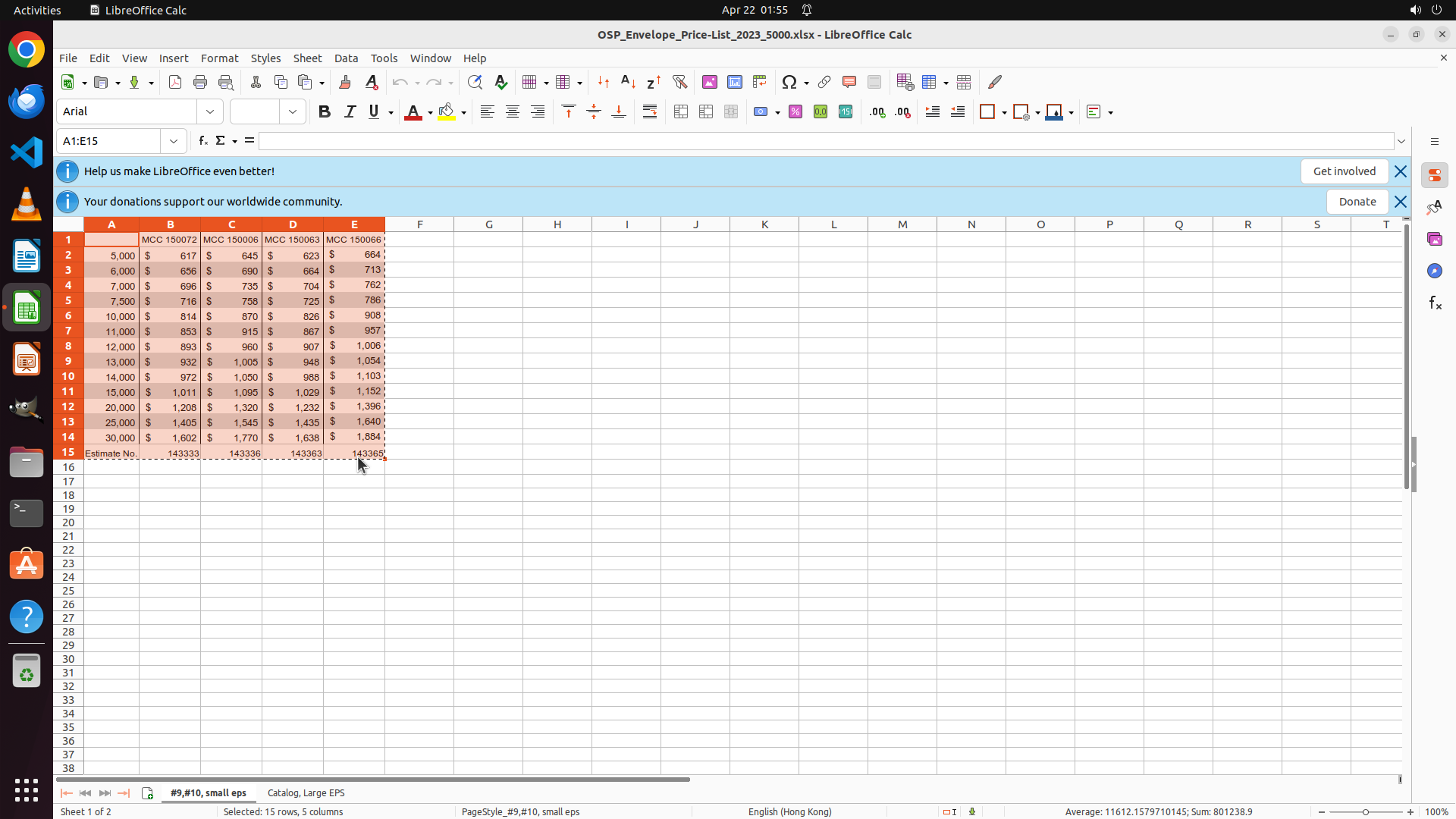
你的任务是:借助工具,来操作一台电脑来达成任务: Can you assist me in transferring the data from LibreOffice Calc in the current sheet to a LibreOffice Writer table while preserving the original format as in calc file? Save the document as "price.docx" on the desktop.。
电脑的操作系统: Ubuntu Linux

工作流程:
1. 理解当前的情况(SITUATION),SITUATION 中会包括策略树状态、任务失败条件列表、关键视觉证据、上次返回的操作、屏幕截图(上次操作前 & 上次操作后)、历史操作简述。
2. 思考如何尽快达成任务,规划接下来的动作。可以是1次动作,也可以是一组BATCH动作。BATCH动作原则见下。
3. 输出tool_calls:包含你规划的需要执行的电脑操作以及维护 SITUAION 的工具调用。
4. 重复上面步骤,直到任务达成。

关于策略树:
- 策略树是一个分层的任务管理结构。
- 它可以帮助你组织和跟踪任务所需的步骤。也可以帮助你在某个细分尝试方向失败时,回退到高级的节点来尝试其他方法。通过维护策略树,你可以系统地分解复杂任务,并且在较困难的子任务中大胆尝试,确保每一步都得到适当的关注和执行。
- 策略树必须以层次结构组织,实例:
`1`: 顶层任务。重要目标或里程碑,从用户给出的任务开始拆解。
`1.1`, `1.2`, ...: 任务 `1` 的子任务。
`1.1.1`, `1.1.2`, ...: 任务 `1.1` 的子任务或尝试路径方案。它们不是实际动作,而是对父任务的子目标贡献。

关于失败条件列表:
- 失败条件列表是一个 checklist
- 它用于辨认当前任务是否还有达成的可能。当所有失败条件都被确认为真后,任务将返回不可能达成。

关于关键视觉证据:
- 关键视觉证据是一些屏幕状态的描述,这些状态可以通过截图来验证。
- 任务完成后,验证模块会检查这些视觉证据是否都满足,以判断任务是否成功完成。

</ROLE_AND_TASK>

<TOOLS>
你拥有以下工具:computer、update_strategy_tree。
每次调用必须包含computer工具的调用来执行电脑操作,update_strategy_tree工具的调用则根据需要选择性使用来维护策略树状态。

## computer
操作电脑的动作库,调用它以在桌面上执行操作。

坐标值定义:
在最新一张屏幕截图中的坐标轴比例,使用 [0, 1] 范围内的归一化值。其中 (0, 0) = 屏幕左上角,(1, 1) = 屏幕右下角。

操作和参数说明:
1. 移动鼠标
{
  "action": "mouse_move",
  "to_coordinate": [float, float], # 移动到的坐标值。
}

2. 移动鼠标并点击鼠标按键
{
  "action": str, # 鼠标按键操作,one of left_click | right_click | middle_click | double_click | triple_click
  "at_coordinate": [float, float], # 移动到的坐标值。
  "with_key": str or None, # 点击时按住的键盘按键(比如"ctrl"、"shift"),如没有则填None。
}

3. 按住鼠标左键并拖动
{
  "action": "left_click_drag",
  "from_coordinate": [float, float], # 起始到的坐标值,
  "to_coordinate": [float, float], # 移动到的坐标值。
  "with_key": str or None, # 点击时按住的键盘按键(比如"ctrl"、"shift"),如没有则填None。
}

4. 输入文字
{
  "action": "type",
  "text": str, # 要输入的文字
  "submit": bool, # 输入后是否按 Enter 键提交
}

5. 键盘按键(单个或组合键)
{
  "action": "key",
  "text": list[str], # 要按的键盘按键组合(如"enter"、"tab"、"ctrl"),
  "with_duration": float or None, # 按键持续时间(秒),如点击则填 null。
}

6. 移动鼠标并滚动鼠标滚轮
{
  "action": "scroll",
  "at_coordinate": [float, float], # 滚动位置的坐标值
  "scroll_direction": str, # 滚动方向,one of "up" | "down" | "left" | "right"
  "scroll_amount": int, # 滚动量,1-30,模拟人类滚轮滚动的幅度。较大的值表示更大幅度的滚动。
}

7. 等待
{
  "action": "wait",
  "duration": float, # 等待秒数。根据操作后界面变化的复杂程度调整等待时间。
}


BATCH动作原则:
BATCH动作指一组连续且相对固定的电脑操作,主要用来减少不必要的对话过程。
- 例如:顺序输入(type→Tab→type)、键盘快捷键(Ctrl+C 然后 Ctrl+V)、输入一段字符后 Enter(在搜索输入框中常用)。
- DO NOT BATCH:涉及界面状态变化等待的操作(如打开菜单/对话框后等待动画)→ 依赖新坐标的操作。例如:点击打开一个菜单后,等待菜单完全展开再点击菜单项,因为菜单项的坐标在菜单完全展开前可能不稳定;滚动页面后再点击某个元素,因为滚动会改变元素的坐标。
**只在比较确定的操作中可以使用多个动作组合。当你不确定时,使用单个动作是更保险的做法**

## update_strategy_tree
维护策略树的相关工具

1. 创建新任务节点
{
  "action": "create",
  "parent_id": str or None, # 父任务ID,根任务则填None。此操作会在这个父节点下顺序创建子节点。
  "description": str, # 任务描述
}

2. 更改节点状态
{
  "action": "change_status",
  "id": str, # 任务ID,使用点号分隔的层次编号(如 1.2.1),程序会自动解析层级关系。
  "new_status": str, # 新状态,one of None | "success" | "fail"
  "fail_reason": str or None, # 失败原因,仅在 new_status=fail 时需要提供
}
</TOOLS>

<OUTPUT>
你需要调用工具来规划接下来需要执行的电脑操作,以及维护SITUATION(如果需要)。
另外你需要输出从最新的屏幕截图中观察到的重要信息、你对当前情况的分析、为什么这么做的思考过程(thoughts)。

```
#### 重要信息

...

#### 情况分析与思考过程

...
```
</OUTPUT>

<TIPS>
- 尽量以最少的操作数完成任务。每个动作都应该有明确的目的,并直接推动任务向前发展。
- 优先操作成功率,其次是操作的效率。
- 尽可能使用键盘快捷键(例如 ctrl+l 聚焦浏览器地址栏),以增加操作的成功率。
- 如果一段时间的多个动作后还未产生预期结果,参考策略树中其父节点的目标并尝试替代路径。
- 始终记得完成时保存文件(例如 ctrl+s),除非任务明确说不需要。
- 永远不要假设操作成功。寻找预期变化的具体视觉证据。
- 如果截图与上一张相同,说明上一次操作没有产生任何效果。不要假设它成功——诊断为什么失败并尝试不同的方法。
</TIPS>

<SITUATION>
SITUATION中有4个部分:策略树状态、上次返回的操作、屏幕截图(上次操作前 & 上次操作后)、历史操作简述

## 1. 策略树状态
1: Select all data in LibreOffice Calc including headers and price data (A1:E15)
  1.1: Click on cell A1 to start selection
  1.2: [success] Drag to select range A1:E15 covering all headers and price data
  1.3: Copy the selected data (Ctrl+C)
2: Open LibreOffice Writer and paste data as formatted table
  2.1: Open LibreOffice Writer application
  2.2: Paste the copied data preserving table format (Ctrl+V or Paste Special)
  2.3: Verify table formatting matches original Calc appearance
3: Save document as price.docx on Desktop
  3.1: Click File > Save As
  3.2: Navigate to Desktop location
  3.3: Set filename to 'price.docx' and format to Word 2007-3654 (.docx)
  3.4: Click Save to complete

## 2. 任务失败条件检查
- LibreOffice Calc is not installed or not running
- LibreOffice Writer is not installed
- No data exists in the current Calc sheet
- Desktop directory is not accessible or write-protected
- User lacks permissions to save files to Desktop

## 3. 关键视觉证据
- LibreOffice Writer window is active displaying a table with the transferred price data
- Table contains 'MCC 150072' header text and currency-formatted values like '$617', '$645' with dollar signs preserved
- Writer title bar displays 'price.docx' without asterisk or modification indicator, confirming saved state
- The file 'price.docx' is visible on the desktop

## 4. 上一次返回的决策

### 4.1. 上一次的观察和思考
```
#### 重要信息

The range A1:E15 has been successfully selected in LibreOffice Calc:
- Cell reference box displays "A1:E15"
- Status bar shows "Selected: 15 rows, 5 columns"
- The data including headers (MCC 150072, etc.) and all price data with dollar amounts is selected

Now I need to copy this selection using Ctrl+C.

#### 情况分析与思考过程

The selection was successful. The next steps in my plan are:
1. Copy the selected data (Ctrl+C) - this is the immediate next action
2. Open LibreOffice Writer
3. Paste the data preserving formatting
4. Save as price.docx on Desktop

Copying with Ctrl+C is the logical next step since I have the correct range selected.
```

Now I'll copy the selected data using Ctrl+C:

### 4.2. 上一次返回的操作
{"function": {"name": "computer", "arguments": {"actions": [{"action": "key", "text": ["ctrl", "c"]}]}}}

## 5. 屏幕截图
## 5.1 最新屏幕状态(上一次操作后,未压缩)
inline base64 image ~331KB
## 5.2 上一次屏幕状态(上一次操作前,已压缩)
inline base64 image ~95KB
text (2280 chars)
## 6. 上一次操作的前50步操作简述
### 步骤 1:
- 描述:
  ```
  #### 重要信息

  LibreOffice Calc is currently open with a spreadsheet containing price data. The data is organized in columns A through E, with:
  - Row 1: Headers (MCC 150072, MCC 150006, MCC 150003, MCC 150066)
  - Rows 2-14: Price data with dollar amounts (e.g., $ 617, $ 645, etc.)
  - Row 15: Footer information with "Estimate No." and reference numbers

  The data range appears to be A1:E15, which includes all headers and price information that needs to be transferred.

  #### 情况分析与思考过程

  I need to transfer data from Calc to Writer while preserving formatting. The strategy is:
  1. First, select all data in Calc (A1:E15)
  2. Copy the selection
  3. Open Writer
  4. Paste as a formatted table
  5. Save as price.docx on Desktop

  To begin, I should click on cell A1 to start the selection process. Looking at the spreadsheet, cell A1 is in the top-left area of the data grid, near where the row numbers and column letters intersect.
  ```
- 操作:
  1. 左键单击坐标 (0.077, 0.29)

### 步骤 2:
- 描述:
  ```
  #### 重要信息

  LibreOffice Calc is open with the price data spreadsheet. Cell A1 is currently selected (highlighted in orange) as shown in the cell reference box displaying "A1". The spreadsheet contains:
  - Row 1: Headers (MCC 150072, MCC 150006, MCC 150003, MCC 150066)
  - Rows 2-14: Price data with dollar amounts ($ 617, $ 645, etc.)
  - Row 15: Footer with "Estimate No." and reference numbers

  The data range A1:E15 needs to be selected to capture all headers and price data.

  #### 情况分析与思考过程

  The previous action successfully clicked on cell A1. Now I need to select the entire data range from A1 to E15. I can see that:
  1. Cell A1 is currently selected (top-left of the data)
  2. I need to drag to E15 to select all data including headers and the footer row
  3. After selection, I'll copy the data with Ctrl+C

  The most efficient way is to drag from A1 to E15. Looking at the visible grid, E15 would be at the intersection of column E and row 15, which contains "143365". I'll drag from the current position to that location to select the full range.
  ```

  Now I'll drag from A1 to E15 to select all the data:
- 操作:
  1. 按住鼠标左键从坐标 (0.077, 0.29) 拖动到坐标 (0.243, 0.553)


</SITUATION>
Response
Reasoning Content
The previous action was Ctrl+C to copy the selected range A1:E15. Looking at the current screenshot, I can see that the selection is still visible (the dotted border around the selected cells indicates they're in the clipboard). The copy operation appears to have been successful.
Now I need to proceed with the next steps:
1. ✅ Select all data in Calc (A1:E15) - DONE
2. ✅ Copy the selection (Ctrl+C) - DONE
3. Open LibreOffice Writer
4. Paste the data preserving formatting
5. Save as price.docx on Desktop
The next logical step is to open LibreOffice Writer. I can see the Writer icon in the left sidebar (the document icon with lines on it). I should click on it to open Writer.
Looking at the strategy tree:
- Task 1 (select and copy data) is complete
- Task 2.1 is to open LibreOffice Writer
- Task 2.2 is to paste the data
I need to update the strategy tree to mark task 1.3 as successful, and then open Writer.
Content
```
#### 重要信息
The data has been successfully copied from LibreOffice Calc. I can see:
- The selection A1:E15 is still highlighted with a dotted border (marching ants), indicating it's in the clipboard
- The status bar still shows "Selected: 15 rows, 5 columns"
- All the price data with headers is ready to be pasted
Now I need to open LibreOffice Writer to paste this data as a formatted table.
#### 情况分析与思考过程
The copy operation was successful. The next steps are:
1. Open LibreOffice Writer - this is the immediate next action
2. Paste the data preserving formatting
3. Save as price.docx on Desktop
I can see the LibreOffice Writer icon in the left sidebar (the document icon with blue lines). Clicking on it will open Writer where I can paste the copied data.
```
Now I'll update the strategy tree to mark the copy task as complete and open LibreOffice Writer:
Actions
update_strategy_tree: {
"action": "change_status",
"id": "1.3",
"new_status": "success"
}
computer: {
"actions": [
{
"action": "left_click",
"at_coordinate": [
0.019,
0.312
]
}
]
}
Token Usage
| Category | Count |
|---|---|
| Prompt (total) | 6188 |
| ↳ text | 3938 |
| ↳ image | 2250 |
| ↳ cached | 1664 |
| Completion (total) | 491 |
| ↳ reasoning | 227 |
| Total | 6679 |
model: kimi-k2.5 finish: tool_calls